In current business operations, instant access to customer locations is essential, especially for sales teams, delivery crews, service engineers, and field executives. Customer (partner) records in Odoo 19 already contain comprehensive address data, including street, city, state, ZIP code, and nation. Nevertheless, Odoo does not by default offer a direct method for opening these addresses in a map program. Because of this, users frequently manually copy and paste the address into a browser or map application. Even while this might seem insignificant, doing it often throughout the day makes it ineffective. A simple one-click solution can substantially enhance productivity and user experience.
In this blog, we'll discuss how to integrate Google Maps with Odoo 19 so that users may utilize a Smart Button on the customer form to access a client's address directly in Google Maps. This solution functions even if the address is only partially filled in, is lightweight, and doesn't require an external API key.
This is a basic example of how to add a Google Maps Smart Button to an Odoo 19 customer form. The customer's address opens in a new browser tab in Google Maps as soon as the user hits the button.
Step 1: Python Code to Open Google Maps
Add the following code to your newly created or updated custom module.
File: models/res_partner.py
# -*- coding: utf-8 -*-
from odoo import models
from urllib.parse import quote_plus

class ResPartner(models.Model):
    _inherit = 'res.partner'
    def action_open_google_map(self):
        """
        Opens Google Maps using the partner's address.
        Triggered from Smart Button.
        """
        self.ensure_one()
        address_parts = filter(None, [
            self.street,
            self.city,
            self.state_id.name if self.state_id else None,
            self.zip,
            self.country_id.name if self.country_id else None,
        ])
        address = quote_plus(', '.join(address_parts))
        url = f"https://www.google.com/maps/search/?api=1&query={address}"
        return {
            'type': 'ir.actions.act_url',
            'url': url,
            'target': 'new',
        }
How This Works
- ensure_one() ensures the action runs on a single customer record
- Filter(None,...) automatically ignores empty address entries. quote_plus() securely encrypts the address for usage in a URL.
- The map appears in a new browser tab when you click on ir.actions.act_url, the dynamically produced Google Maps search URL.
This method prevents mistakes brought on by special characters or spaces and guarantees precise location searches.
Step 2: Add the Smart Button to the Customer Form
The partner form view is then updated with a Smart Button. The XML code is as follows:
File: views/res_partner_view.xml
<?xml version="1.0" encoding="UTF-8" ?>
<odoo>
    <record id="view_partner_form" model="ir.ui.view">
        <field name="name">res.partner.form.inherit.google.map</field>
        <field name="model">res.partner</field>
        <field name="inherit_id" ref="base.view_partner_form"/>
        <field name="arch" type="xml">
            <!-- Google Maps Smart Button -->
            <xpath expr="//div[@name='button_box']" position="inside">
                <button name="action_open_google_map"
                        type="object"
                        class="oe_stat_button"
                        icon="fa-map-marker"
                        string="Map"/>
            </xpath>
        </field>
    </record>
</odoo>
This XML view adds a Smart Button to the button_box section and inherits the basic customer form view. The type="object" element connects the button to the Python method, ensuring that the Google Maps operation is conducted whenever the button is touched. Using the oe_stat_button class and a Font Awesome map icon, the button keeps the look of Odoo's native Smart Button.
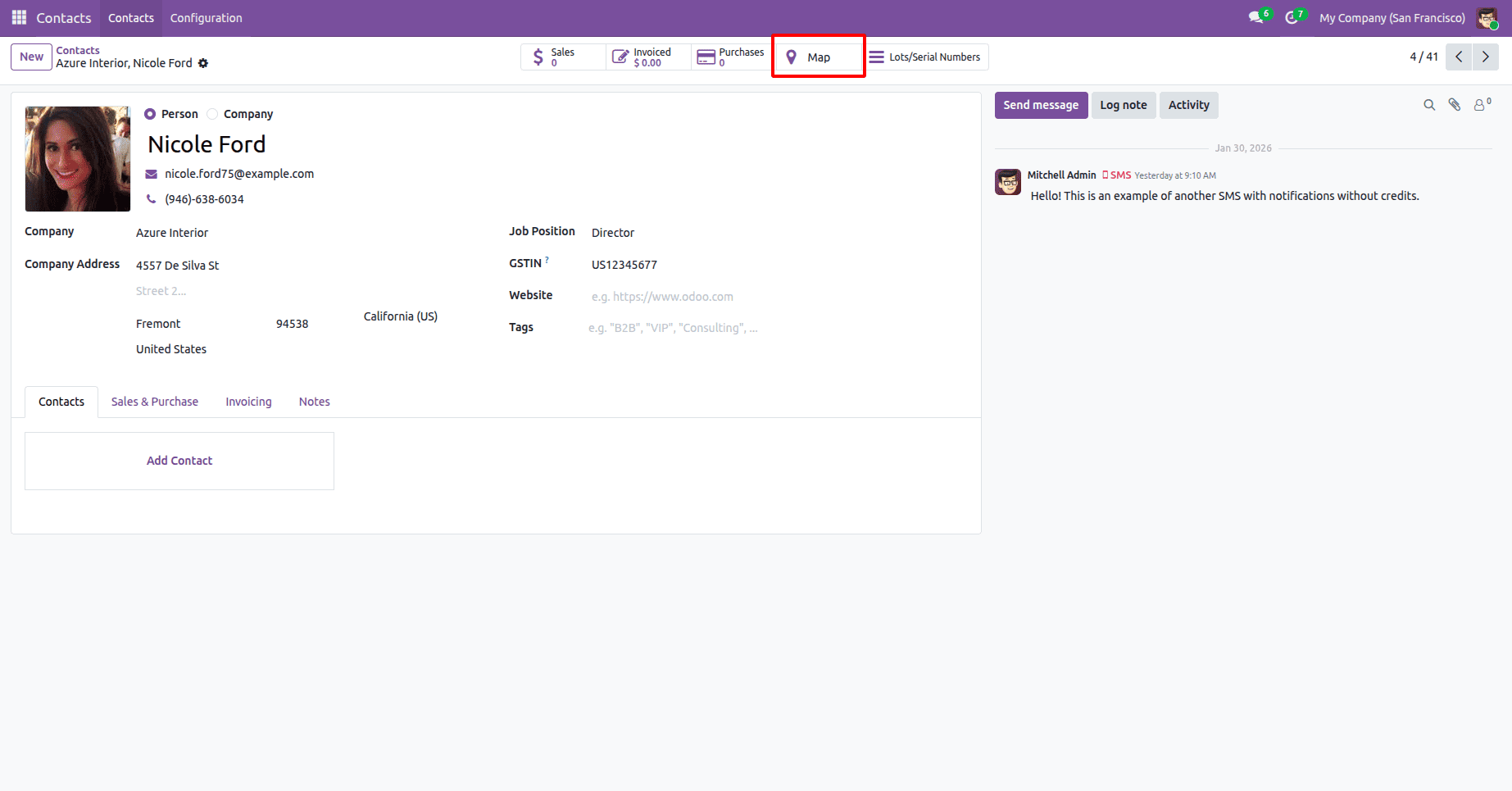
This picture displays the Odoo 19 customer contact form with the Map Smart Button accessible in the header for easy access.
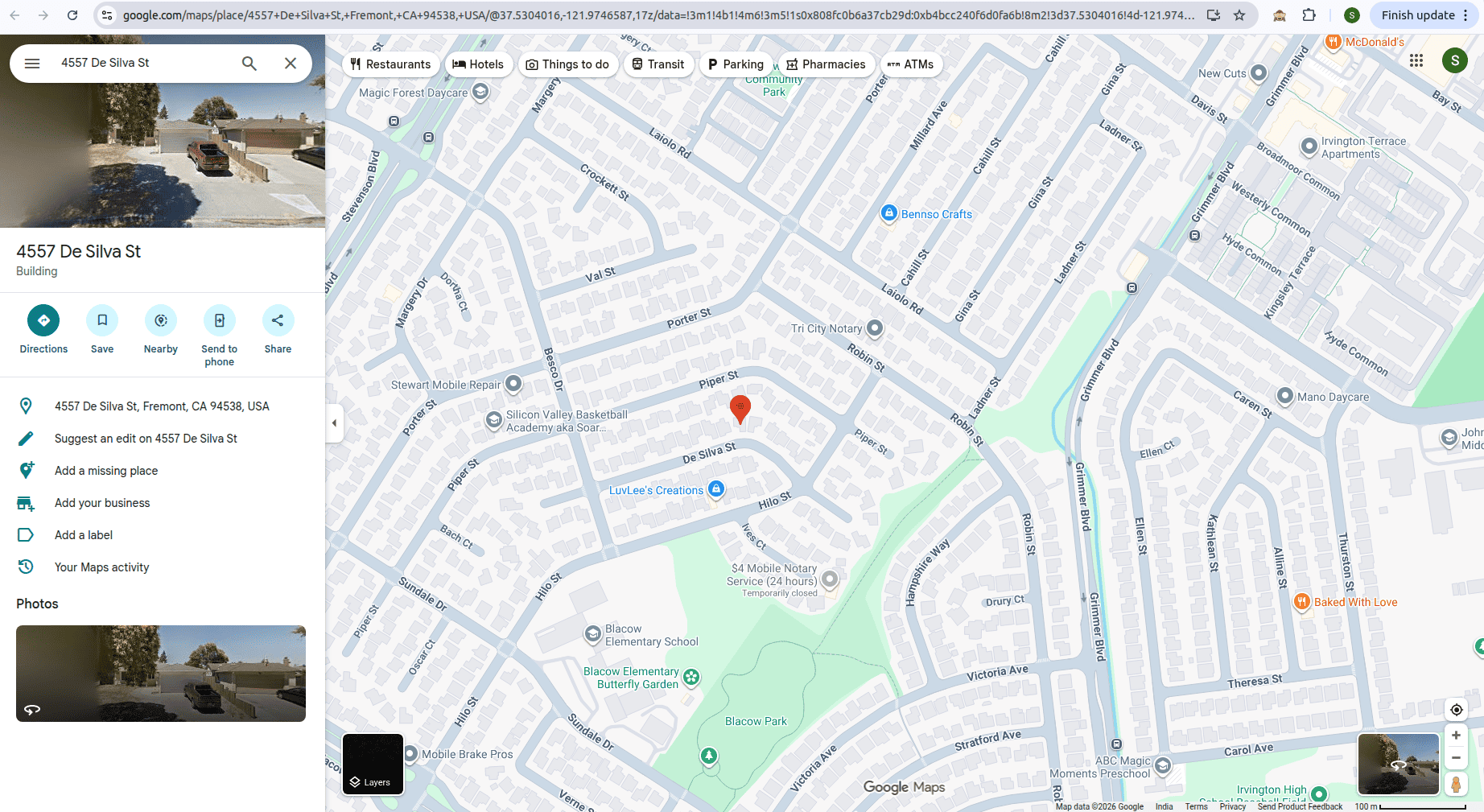
The system reroutes to Google Maps and shows the customer's address position in a new browser tab after they click the Map Smart Button.
Opening a customer's address directly from Odoo 19 through Google Maps is a little but significant enhancement. By adding a simple Smart Button to the customer form, users may instantly navigate to a client's location without copying or manually looking up addresses. This approach improves output, makes field operations easier, and perfectly complements Odoo's built-in user interface. Because the method is lightweight, easy to maintain, and doesn't require external API keys, it is suitable for real Odoo implementations. With minimal Python and XML customization, businesses may speed up daily navigation tasks and enhance Odoo 19's overall usability.
To read more about How to Create Map Views in Odoo 18, refer to our blog How to Create Map Views in Odoo 18.