Odoo 19 provides several ways to restore a database, allowing administrators to choose the most suitable approach based on their deployment environment and backup format. While the built-in Database Manager is the easiest option for most users, database administrators may prefer using tools like PostgreSQL command-line utilities for greater flexibility and control.
To restore the DB, we require its backed-up ZIP file or the .dump file. If the backup was created with Include Filestore enabled, the ZIP file also contains the filestore, allowing all attachments, images, and documents to be restored automatically.
1. Restore Using the Odoo Database Manager (UI)
Step 1: Open the Database Manager
Make sure the server is running. Then, navigate to your Odoo instance and open the Database Manager page.

Replace the domain with your actual domain. In a local development environment, go to,

Replace 8069 with your Odoo port if it is different.
Step 2: Click Restore Database
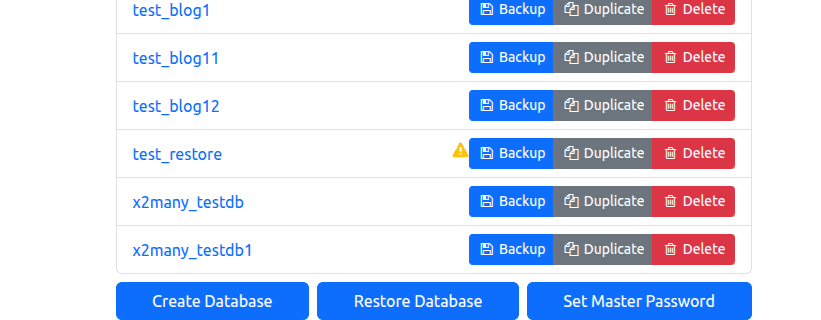
On the Database Manager page, click the Restore Database button to open the restore wizard. The Backup button on each DB allows you to take a backup zip file from the UI.
Step 3: Fill in the details
Enter the Master Password configured in your odoo.conf file. This password is required to perform database administration operations. Set the details and select the database backup file to restore. Depending on how the backup was created, the ZIP file may contain a PostgreSQL database dump, Filestore, Manifest, and metadata. The backup button allows you to back up any DB into a ZIP file.
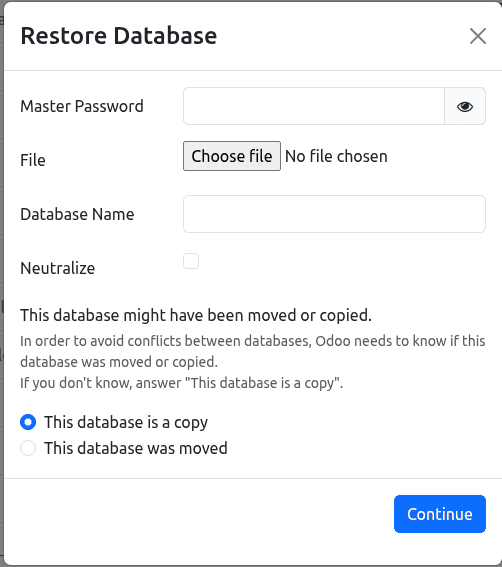
- Master Password - DB management password in odoo.conf.
- Database Name - Name for restored DB.
- Neutralize - If enabled, it disables production features like scheduled jobs and emails for safe testing.
- This database is a copy - Use when creating a duplicate database for development or testing. Odoo generates a new internal database identifier (UUID) to distinguish the restored database from the original.
- This database was moved - Use when restoring the original database after moving or recovering it.
Click ‘Continue’ to complete the restore process.
2. Restore Using Terminal Commands
1. Using .zip file
- Go to the folder containing the dump.sql file. If it's a zip file, unzip the file, go to the extracted folder, and open terminal.
You can either unzip the file or just run the following command to unzip the file
$ unzip commission_2026-07-28_13-50-54.zip -d restore
The extracted data will be passed to the folder named restore.
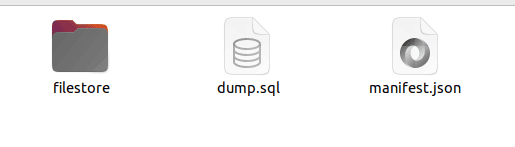
- Open the terminal and switch to postgres sql super user
$ sudo su postgres
- Create a new database using an existing superuser. Here, Odoo 19 is the superuser, and dbtest_19 is the new database name.
$ createdb -U postgres -O odoo19 dbtest_19
- Run the following command to restore the database
$ psql -U postgres -d dbtest_19 -f dump.sql
- If the restore is proceeding successfully, the terminal will display several lines similar to the following:

2. Using .dump file
- .dump file is generated when the database is backed up without a filestore.
- The only change is that the final command would be as follows :
$ pg_restore -d odoo_testing file.dump
Here, file.dump is the .dump file that was backed up.
This indicates the process is now complete. Verify via PgAdmin or the Odoo Database Manager interface.
This method only restores the database, and the filestore data won't be restored. You have to perform further steps to restore filestore data.
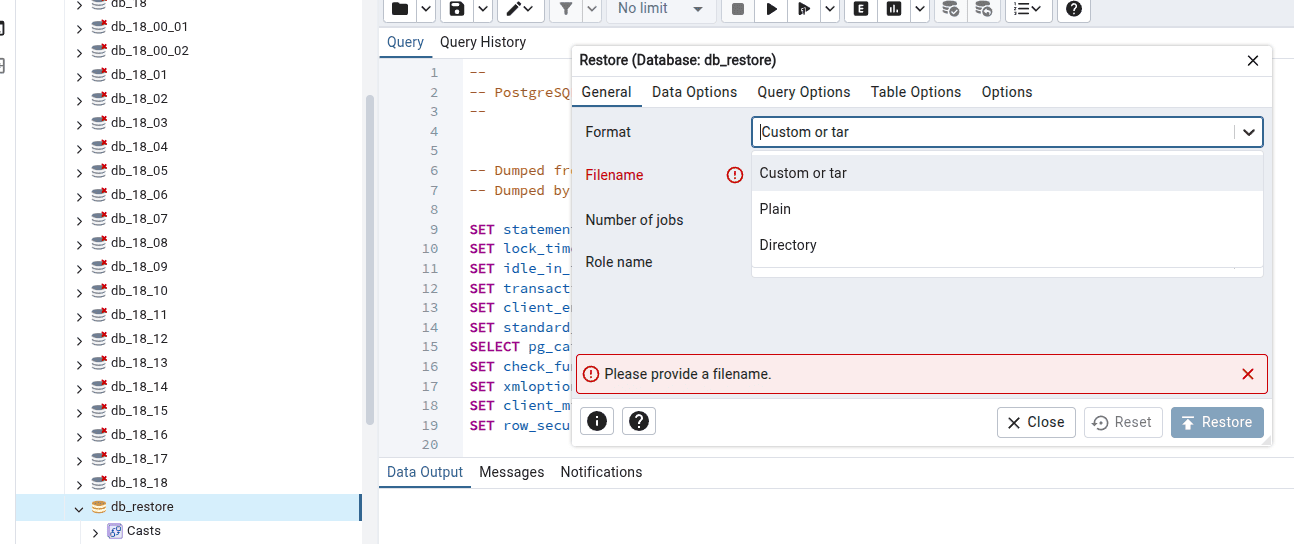
There are other methods, like using the pgAdmin Query tool, where you can directly paste the contents of the backed-up SQL file data and execute the file to restore the db. pgAdmin also provides direct back up on right clicking a new database after creation, but it is only supported for limited data formats, as shown in the image below.
Restoring a database in Odoo 19 is really easy when you pick the way to do it with your backup. You can use the Odoo Database Manager, pgAdmin or the PostgreSQL command-line tools. Just remember to restore the filestore if you backed it up separately. After you restore the database, you should check that it opens correctly and you can see all your records, attachments, and images. Doing a check makes sure that everything is working right and that the Odoo 19 database is ready to use.
To read more about Overview of Database Management in Odoo 19, refer to our blog Overview of Database Management in Odoo 19.