Before products are delivered to customers, quality checks are essential to ensure they meet the required standards. Quality checks help identify issues early in manufacturing and warehouse operations, reducing the need for product corrections or returns. Quality verification may be integrated at various stages of stock movement with Odoo 19, enabling teams to identify issue areas and promptly address them.
By enabling businesses to create automatic control points that activate during transfers, receipts, production stages, and deliveries, Odoo's Quality module simplifies this process.
We'll examine quality analysis for transfers in Odoo 19 and how to set it up using the Quality module in this blog.
Open the Quality module and navigate to the Quality Control menu. From the menu, select the Quality Control option.
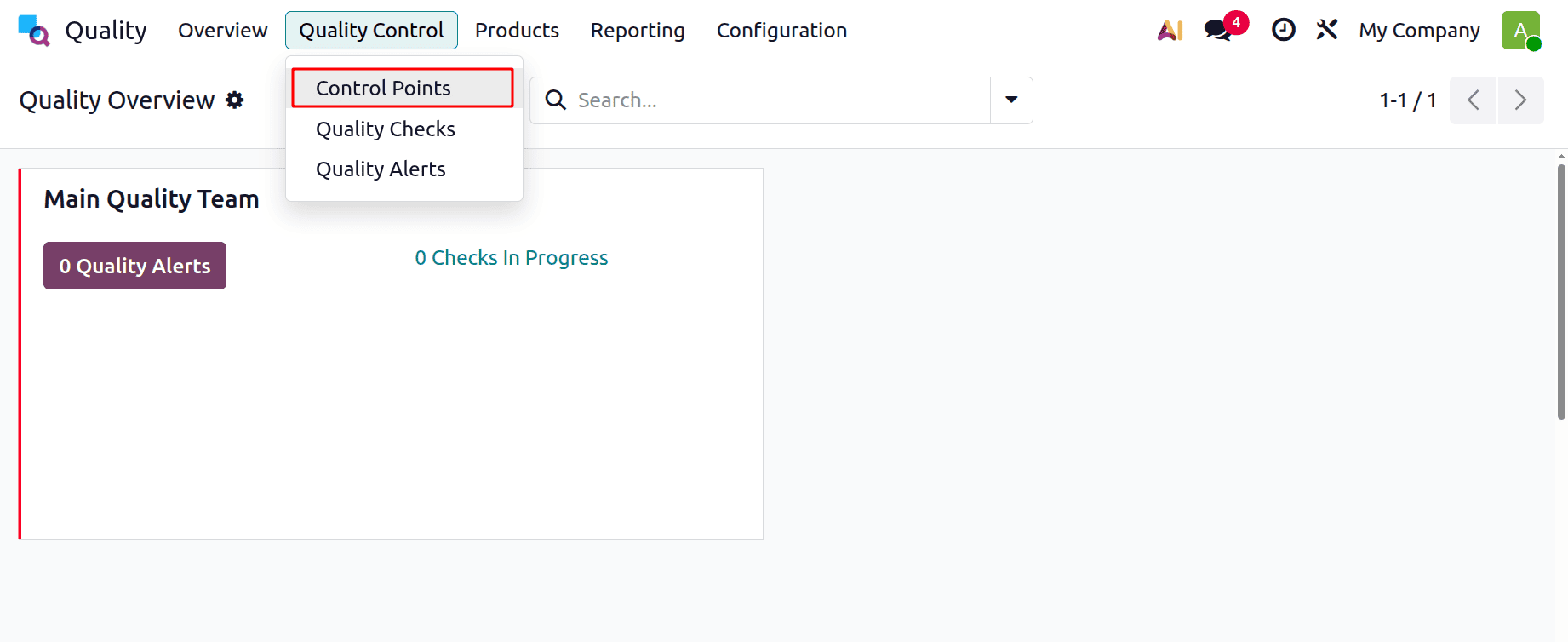
You can then establish control points for the quality check. You can specify how a product should be inspected during warehouse operations using the Quality Control Point form in Odoo 19. You can choose the product or category that the bill pertains to, give it a straightforward title, and specify which operation such as receiving items, moving them within, or delivering them the bill should appear during. Additionally, you can assign someone to be in charge of it and link it to a certain business. Odoo allows you to choose the type of check whether it's a fast pass/fail, following instructions, or taking a picture as well as how frequently it should occur.
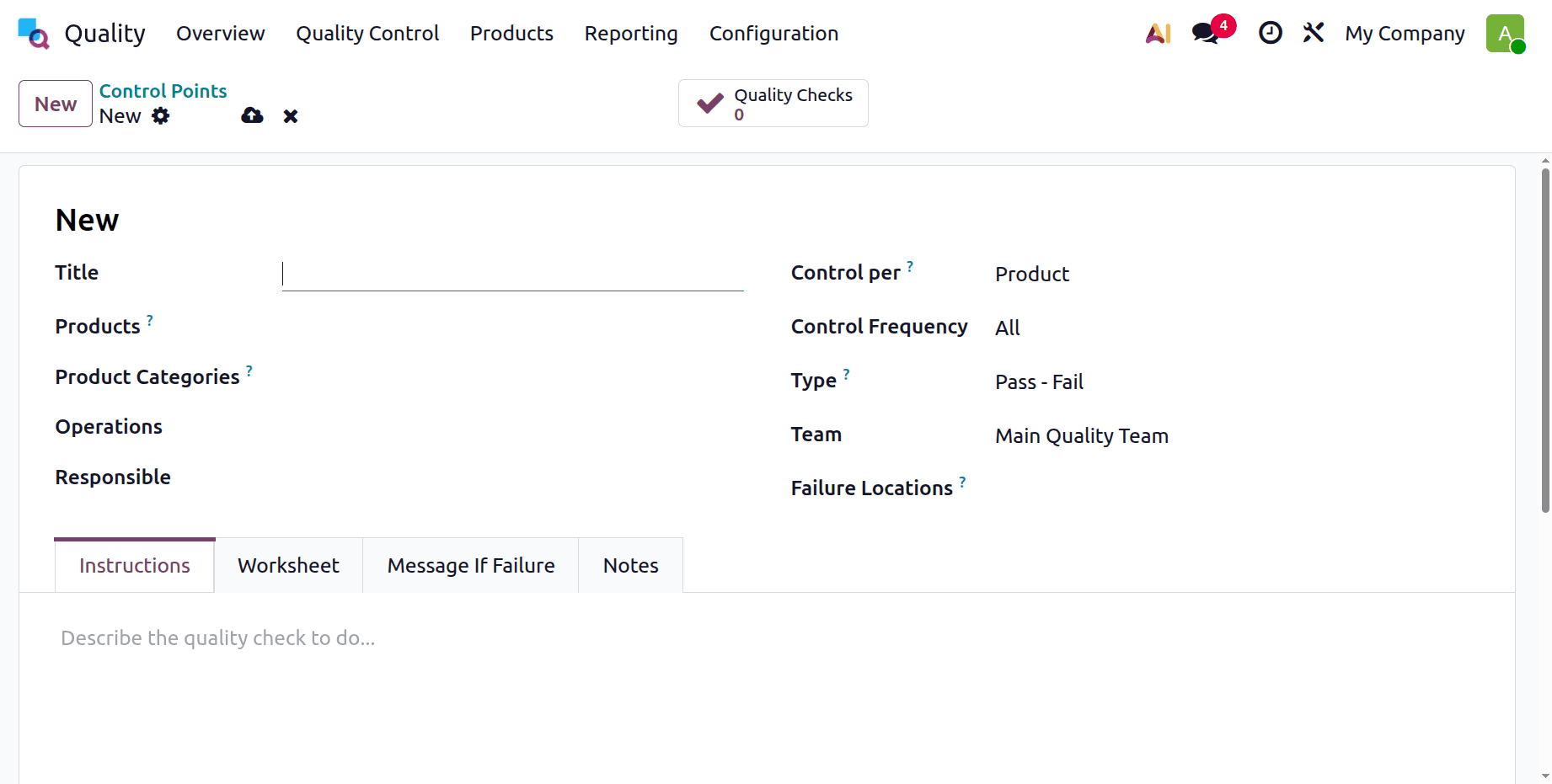
It is also possible to designate a quality team to examine the outcomes. At the bottom, you can include clear instructions, define the actions to take if the quality check fails, and add any additional notes the team may need. In the Message if Failure tab, you can specify the message that should be displayed if the quality check is unsuccessful.
We can now establish a product's quality control point. Here, I've selected "Table" as the product and "Delivery" and "Receipts" as the processes. Enter "pass-fail," and in the event of a failure, I've included a message.
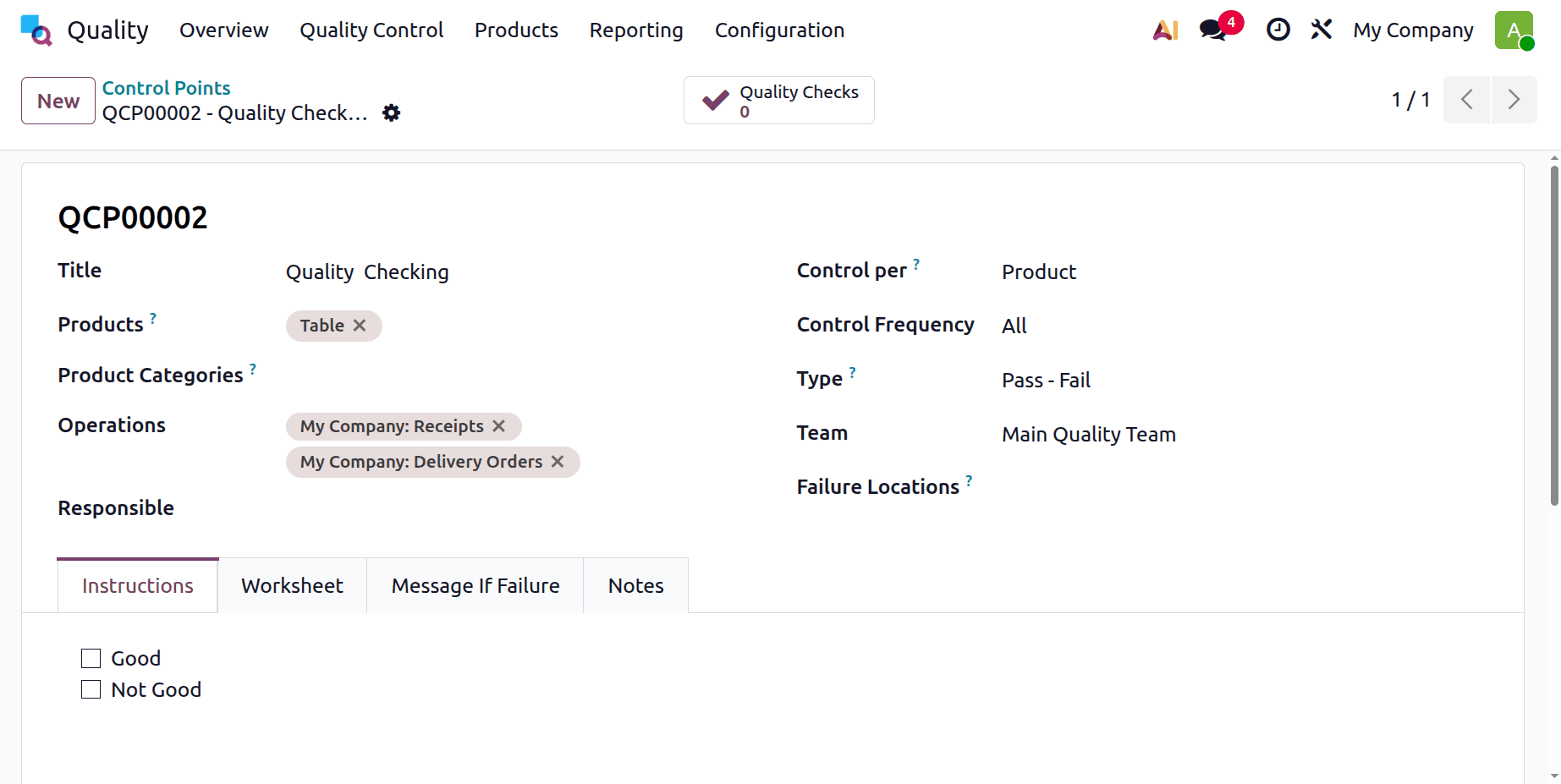
Now, save the configuration so you can see the quality check in action. For the Table product for which we have prepared a quality inspection, we can draft a sales order. To do this, launch the sales module, draft a quote for the product, and verify it.
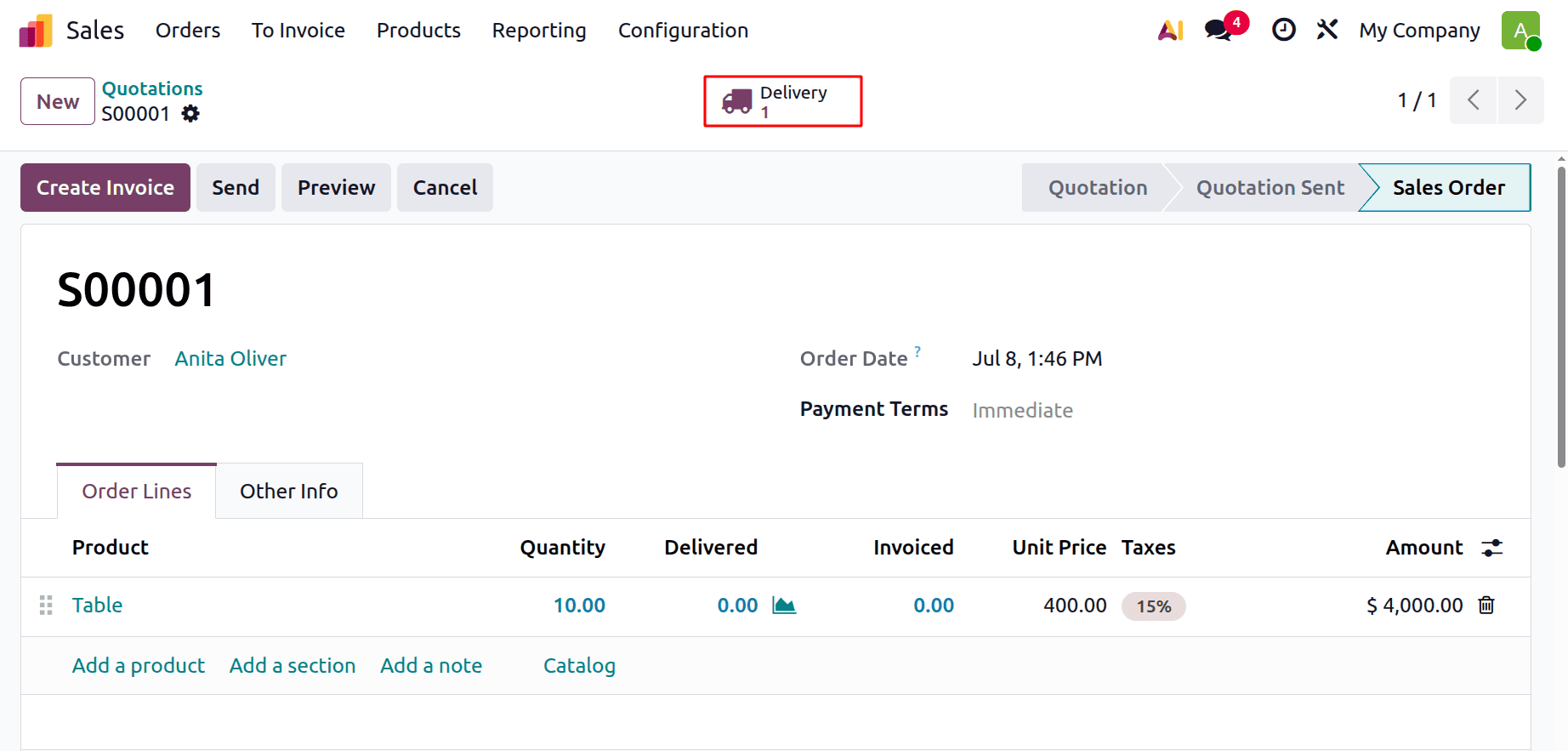
The Delivery smart button is now visible in the image above after the user created and approved a sale order for the product "Table." When we click on it, the delivery made for that specific order is displayed.
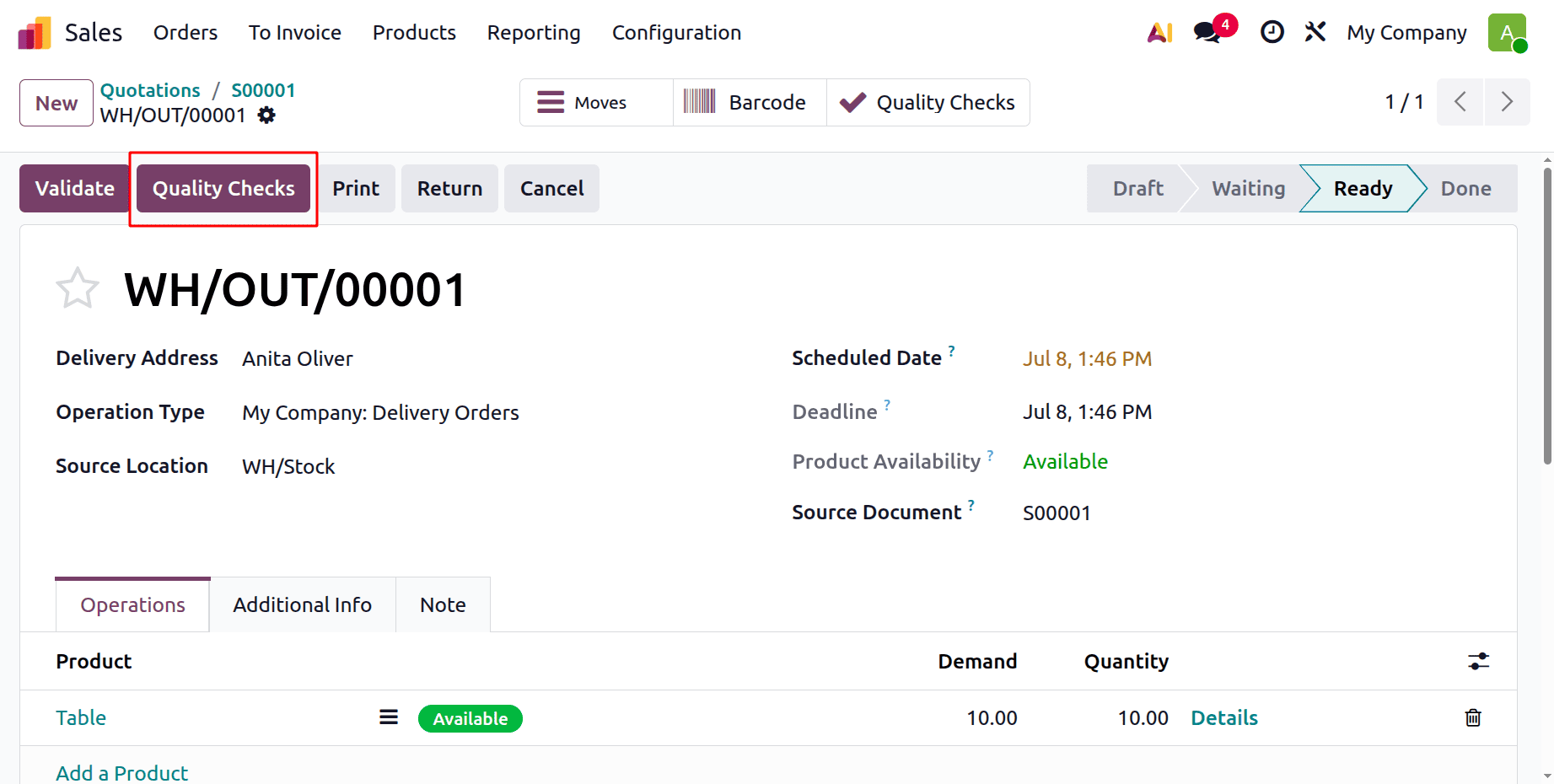
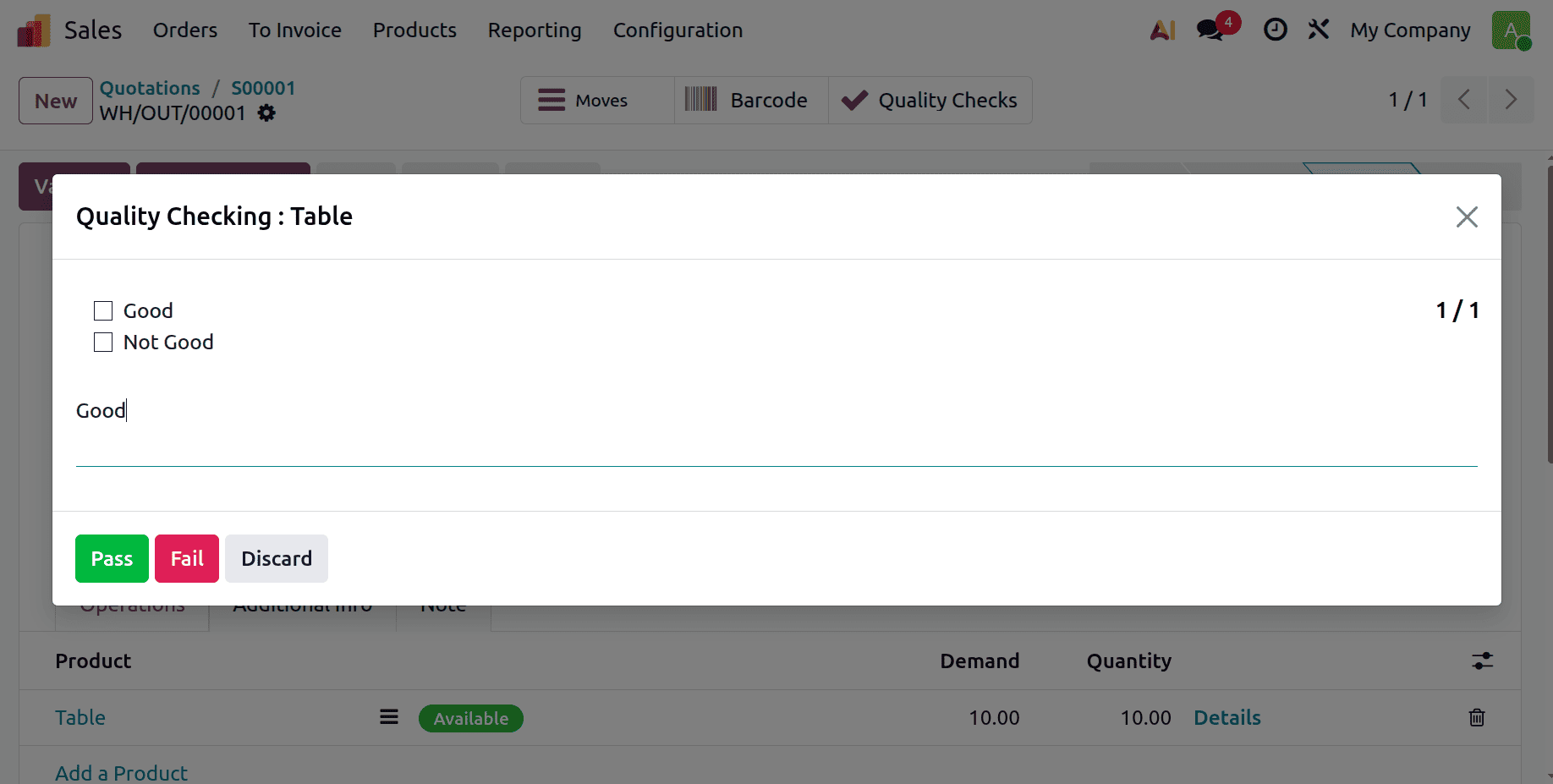
During the delivery process, we can employ a quality check. When we click on it, a pop-up window will appear where we can enter the quality check message and select "Pass" if it passed and "Fail" if it failed.
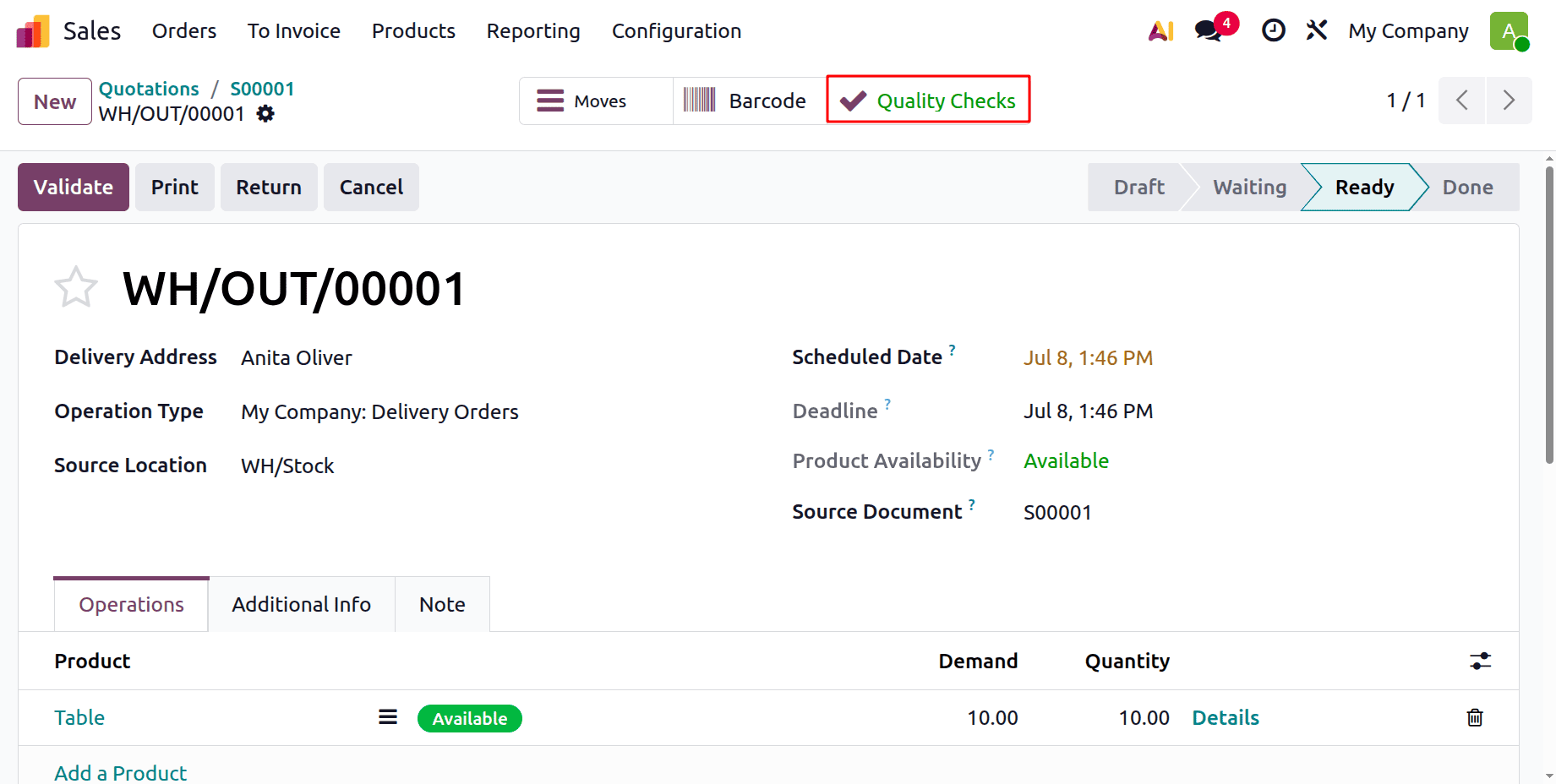
After the quality check is completed, users can view its status by clicking the smart button displayed at the top of the Delivery Orders form, as the picture below illustrates.
There is another delivery in which the quality check has failed. This time the smart tab shows in red color, because the quality check was unsuccessful.
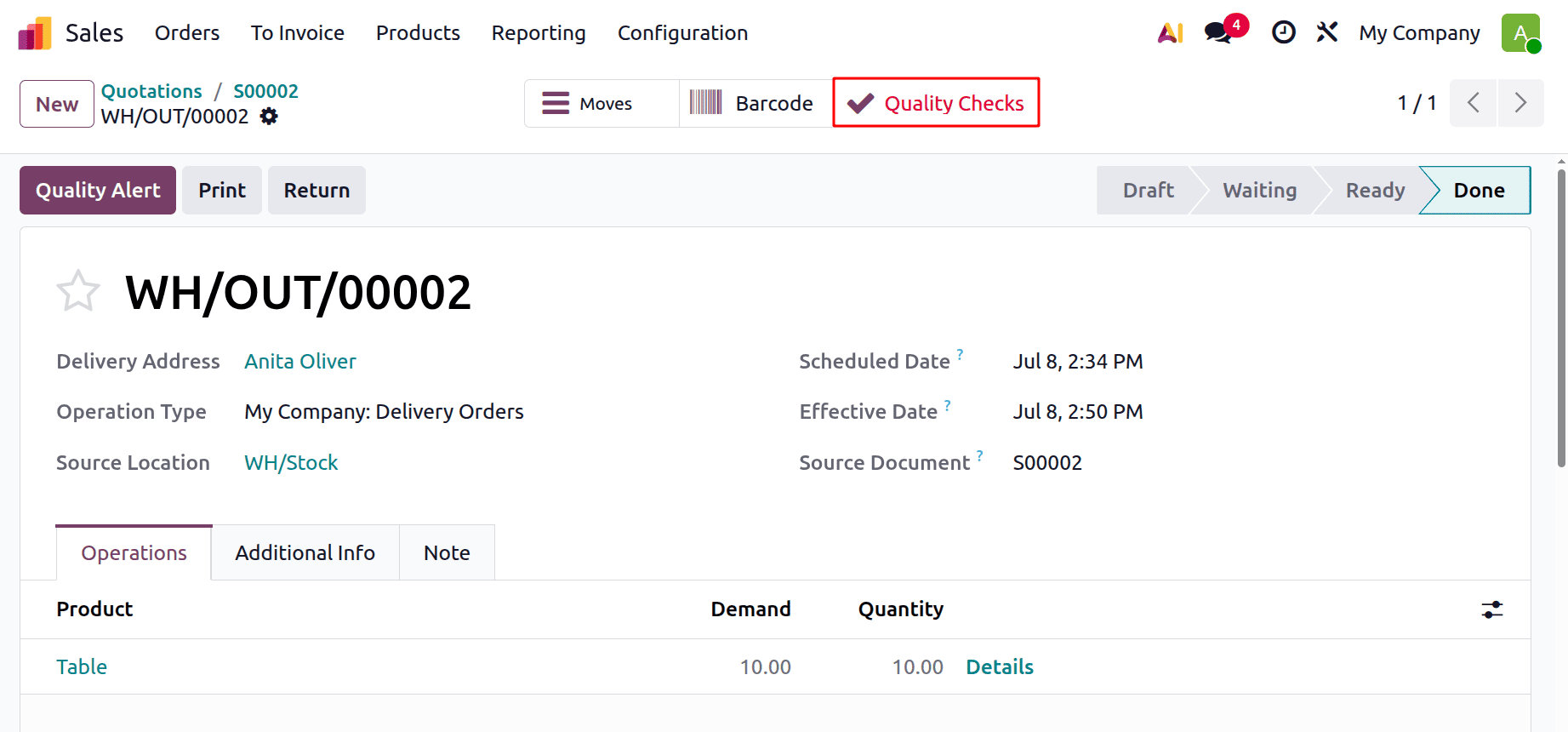
The user configured control points for both the delivery order and the receipt. Receipts are the sort of operation used during sales returns.
The quality check for the return process is now also visible. Click the return button, as seen in the picture below, to accomplish it.
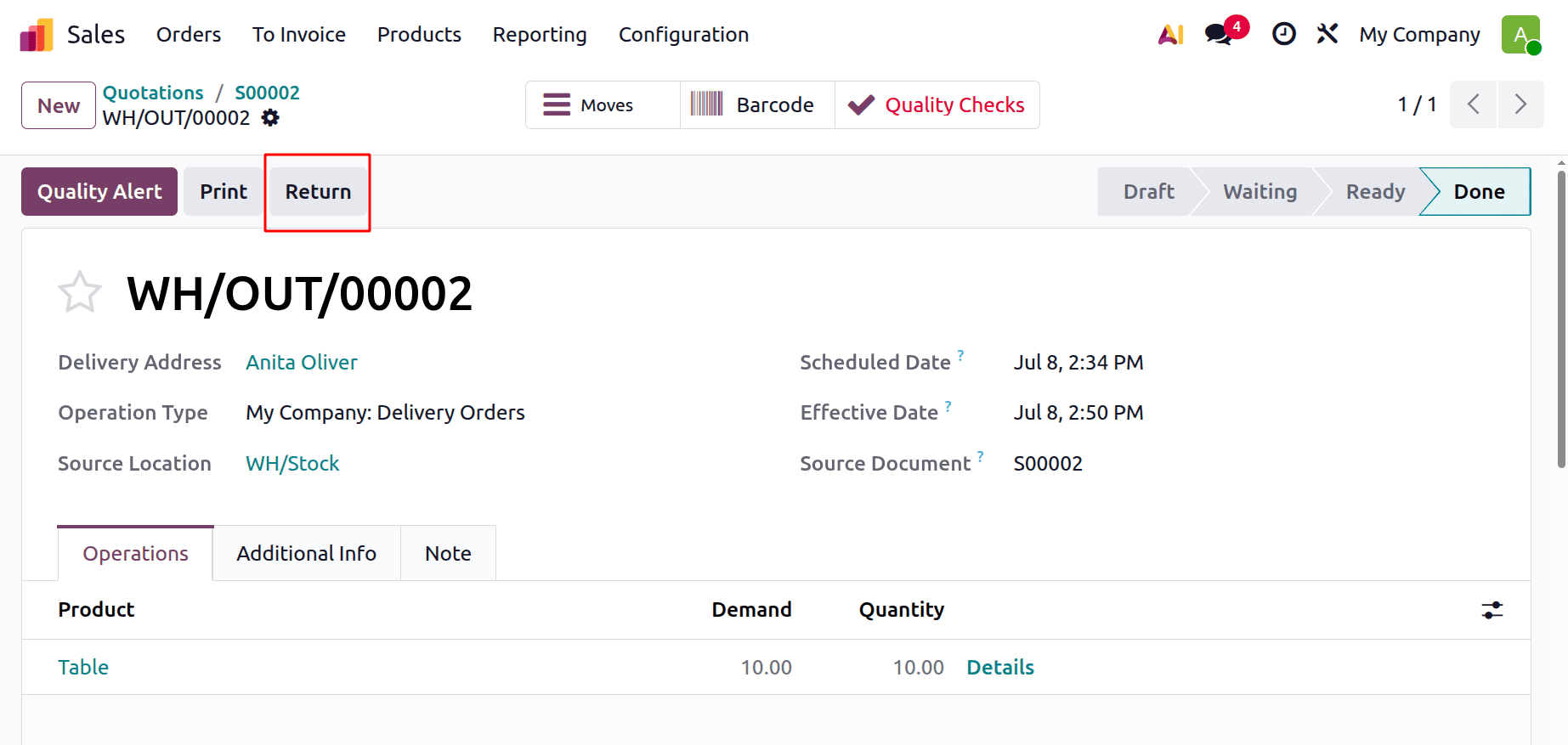
The quantity to be returned will be requested after clicking the Return button.
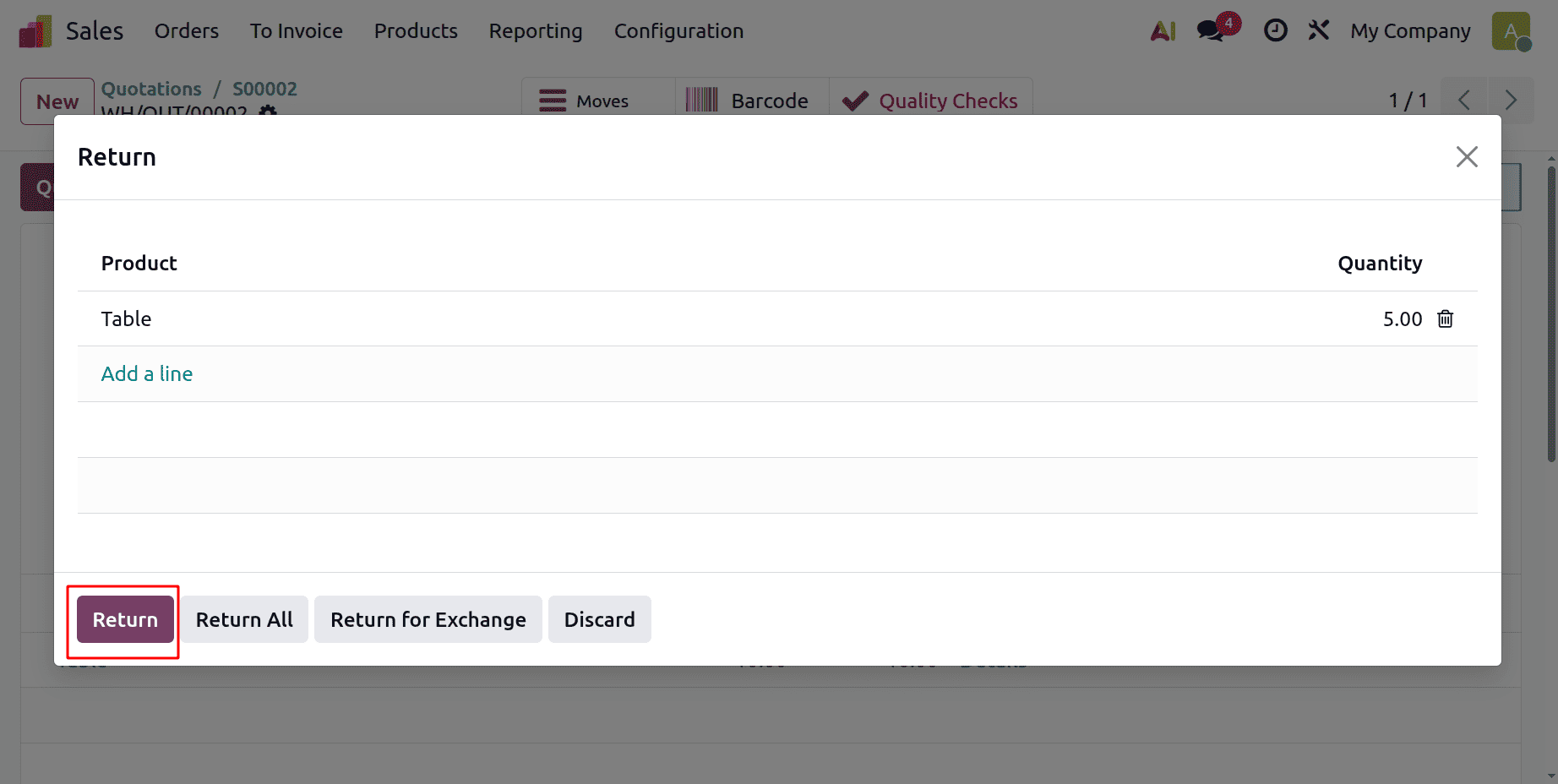
When you specify it and return it, the quality check button will likewise show up for return operations.
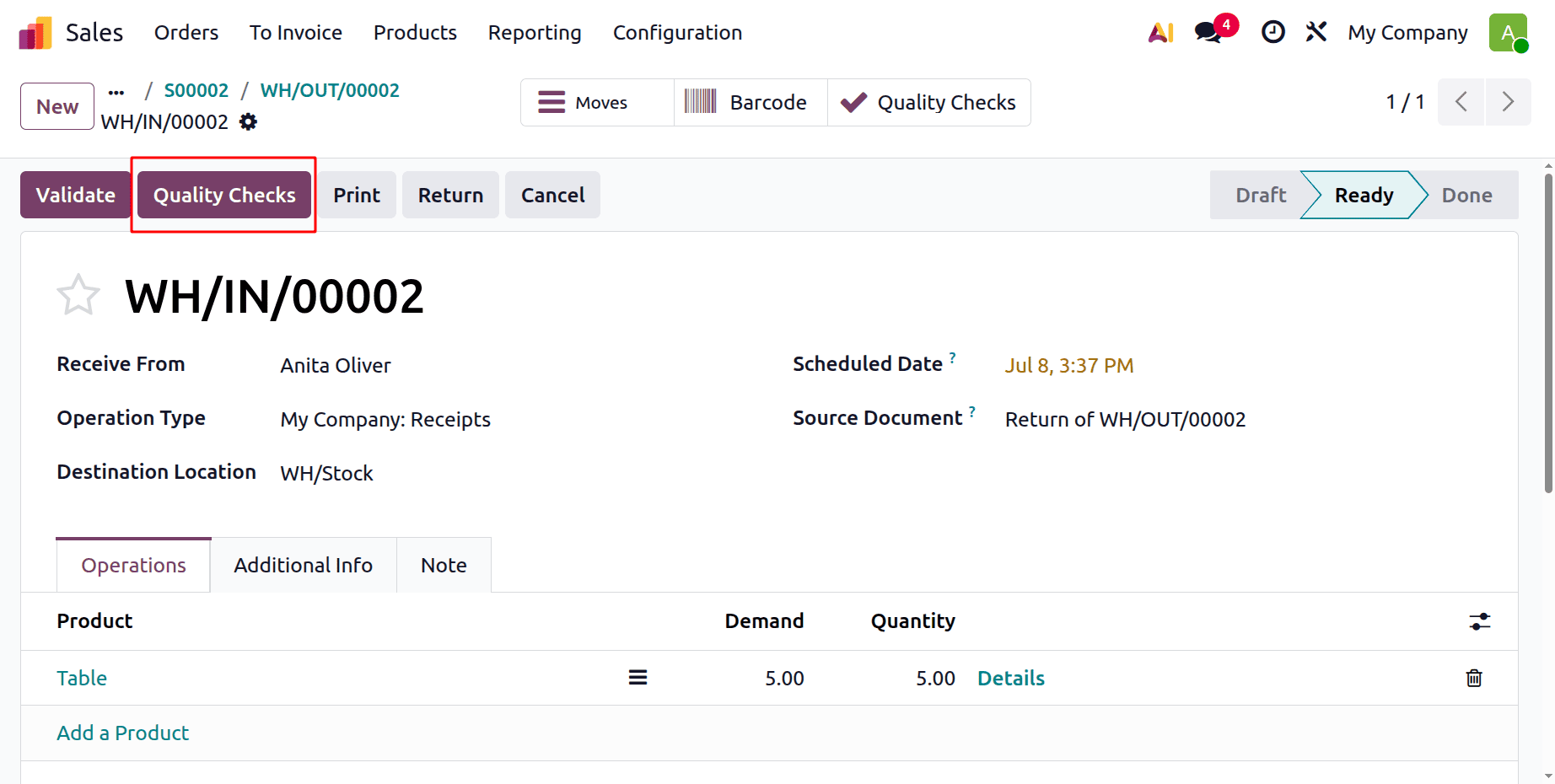
By setting up the control point for both activity types of the Simple Pen product, users can apply the same quality control process to return operations as they do for delivery operations. The figure below shows that the quality check status for the receiving operations has also been passed.
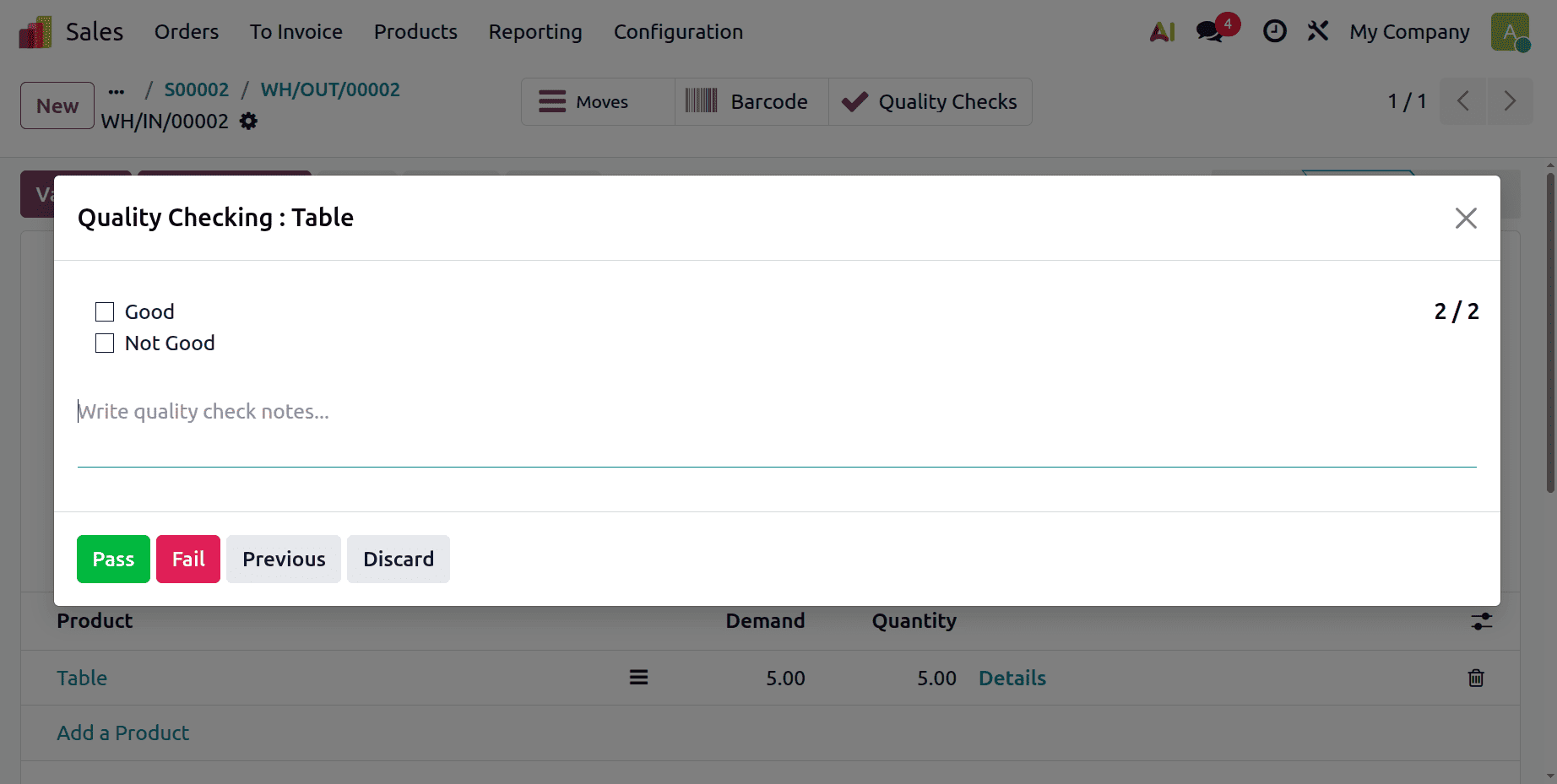
This is how we may configure a quality check and control point for transfer activities in Odoo 19.
Applying quality control directly to routine warehouse operations makes it much simpler to handle, and Odoo 19 offers just that. Teams can identify issues precisely when and where they arise by connecting inspections to transfers such as deliveries, returns, and receipts. Although setting up a control point just takes a few minutes, it can prevent objects from slipping through without the necessary verification and save hours of rework. Odoo's Quality module provides you with the structure and clarity required to uphold uniform standards across your operations, whether you're checking a straightforward product or keeping an eye on a complicated workflow.
To read more about How can we set Quality Control Point On Operation Types in Odoo 18, refer to our blog How can we set Quality Control Point On Operation Types in Odoo 18.