Odoo's IoT Box allows the feature of hardware integration to be directly embedded into your Point of Sale workflow. Physical devices like cash drawers, barcode scanners, receipt printers, customer displays, and even payment terminals can be used seamlessly within Odoo's POS without the need to worry about complex machine configurations. This blog explains how you can integrate IoT Box into your point of sale system and what you can do with it.
Prerequisites
Make sure the following requirements are completed before beginning the setup process:
- An IoT Box, which is already set up and connected to your Odoo instance.
- Ensure that the IoT and Point of Sale modules are installed in your Odoo database.
- A stable network connection is established between the IoT Box and the device running Odoo POS.
How to Connect the IoT Box with Odoo POS
Step 1: Open POS Settings
Go to Point of Sale > Configuration > Settings. Select the POS session you want to configure, then scroll down to the Connected Devices section.
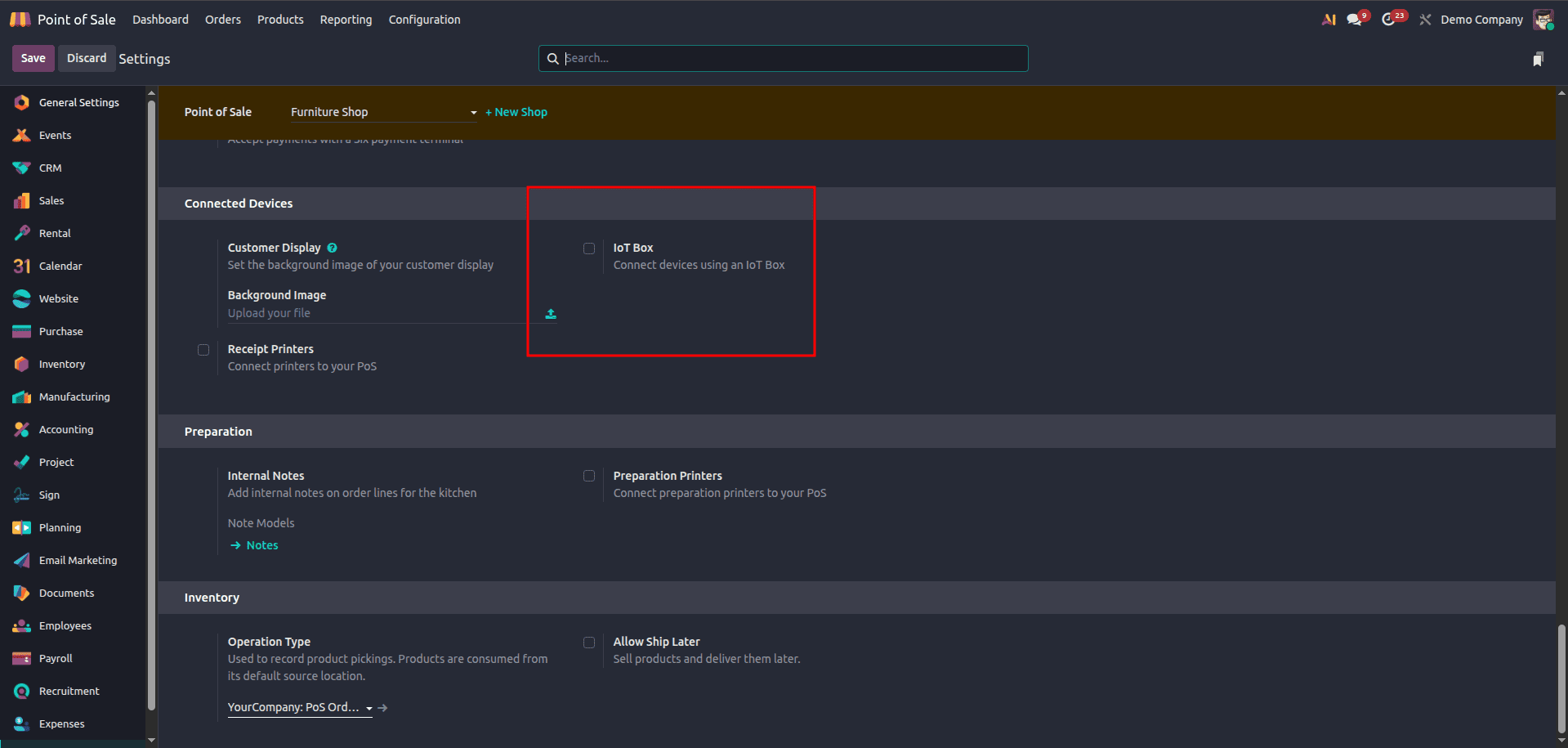
Step 2: Enable IoT Box
Toggle on the IoT Box option. Choose the hardware devices you want to connect, including a receipt printer, barcode scanner, cash drawer, customer display, and payment terminal.
Step 3: Assign Devices
After selecting the IoT Box, additional fields appear for each supported device type. You can assign the following from the dropdowns based on what is physically connected to your IoT Box:
- Receipt Printer - for automatic receipt printing at checkout
- Barcode Scanner - for scanning products directly into orders
- Cash Drawer - to trigger automatic opening on cash payments
- Customer Display - to show order details on a customer-facing screen
- Payment Terminal - for integrated card payment processing
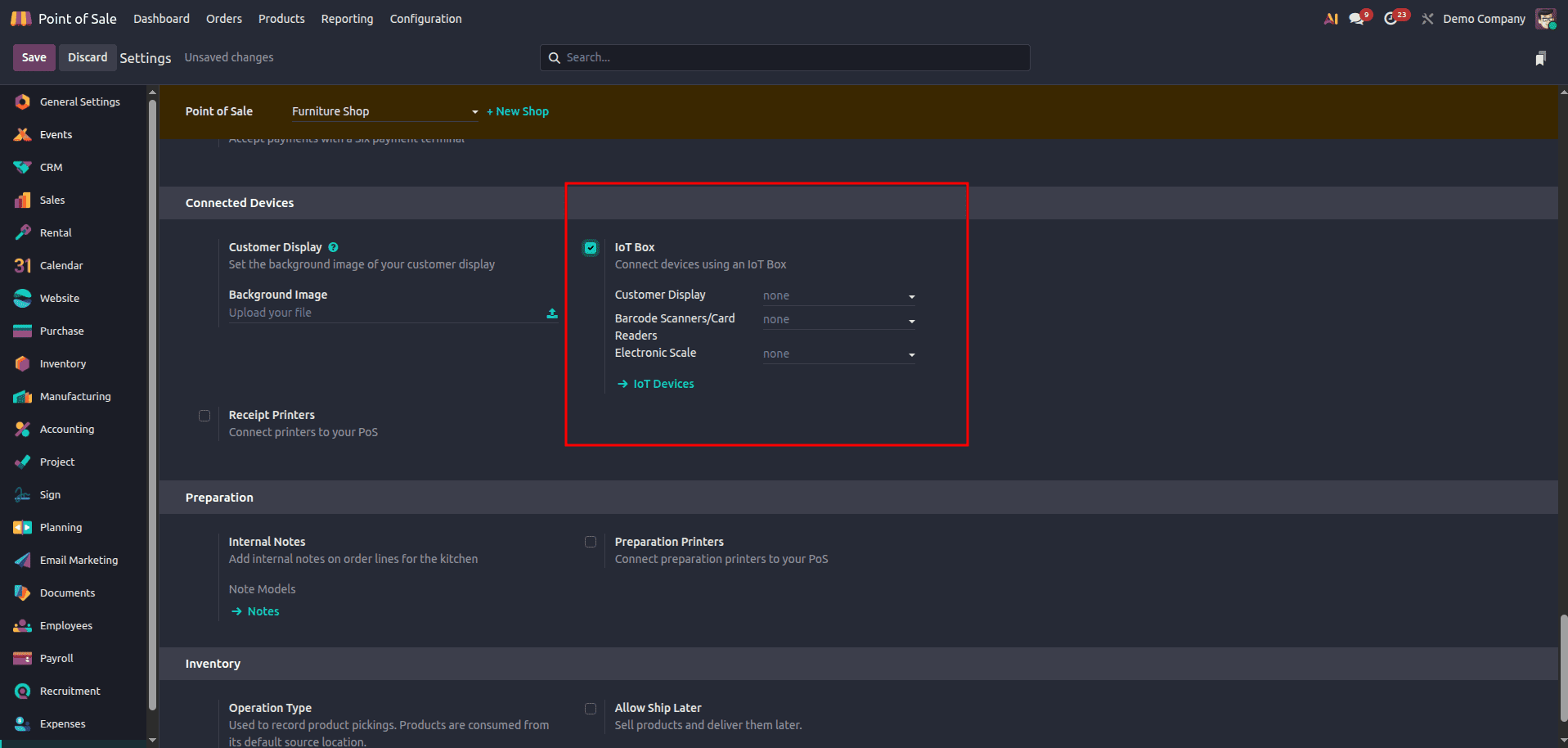
Step 4: Save and Open POS
Click Save, then open a POS session. Odoo will automatically communicate with the IoT Box to activate all the connected devices.
Connect From POS Dashboard
We can also configure an IoT Box for a POS store by opening the store in the list view of the POS dashboard.
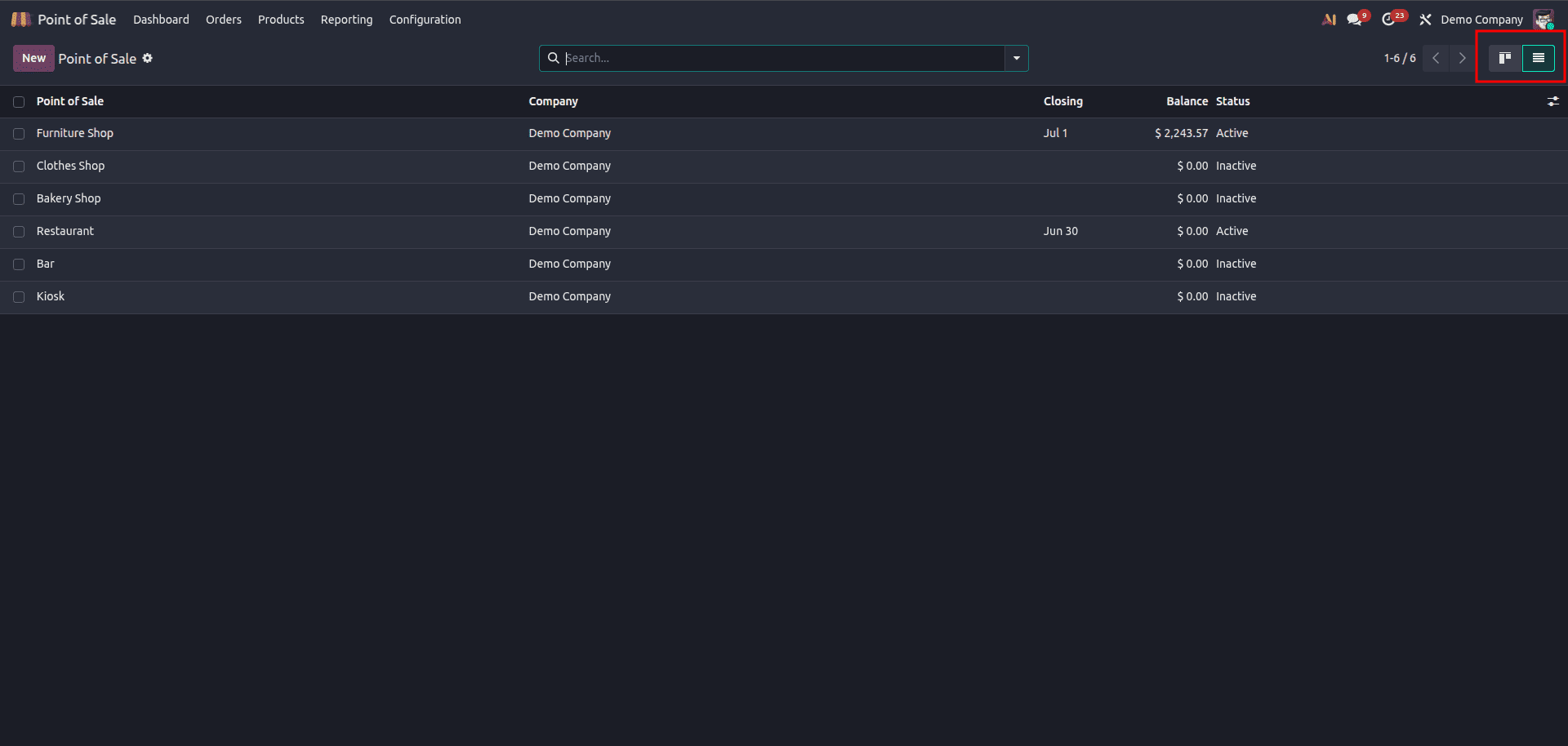
We open a store from the list and then enable the IoT Box checkbox inside it. Then it reveals fields for adding devices that we can configure with this store.
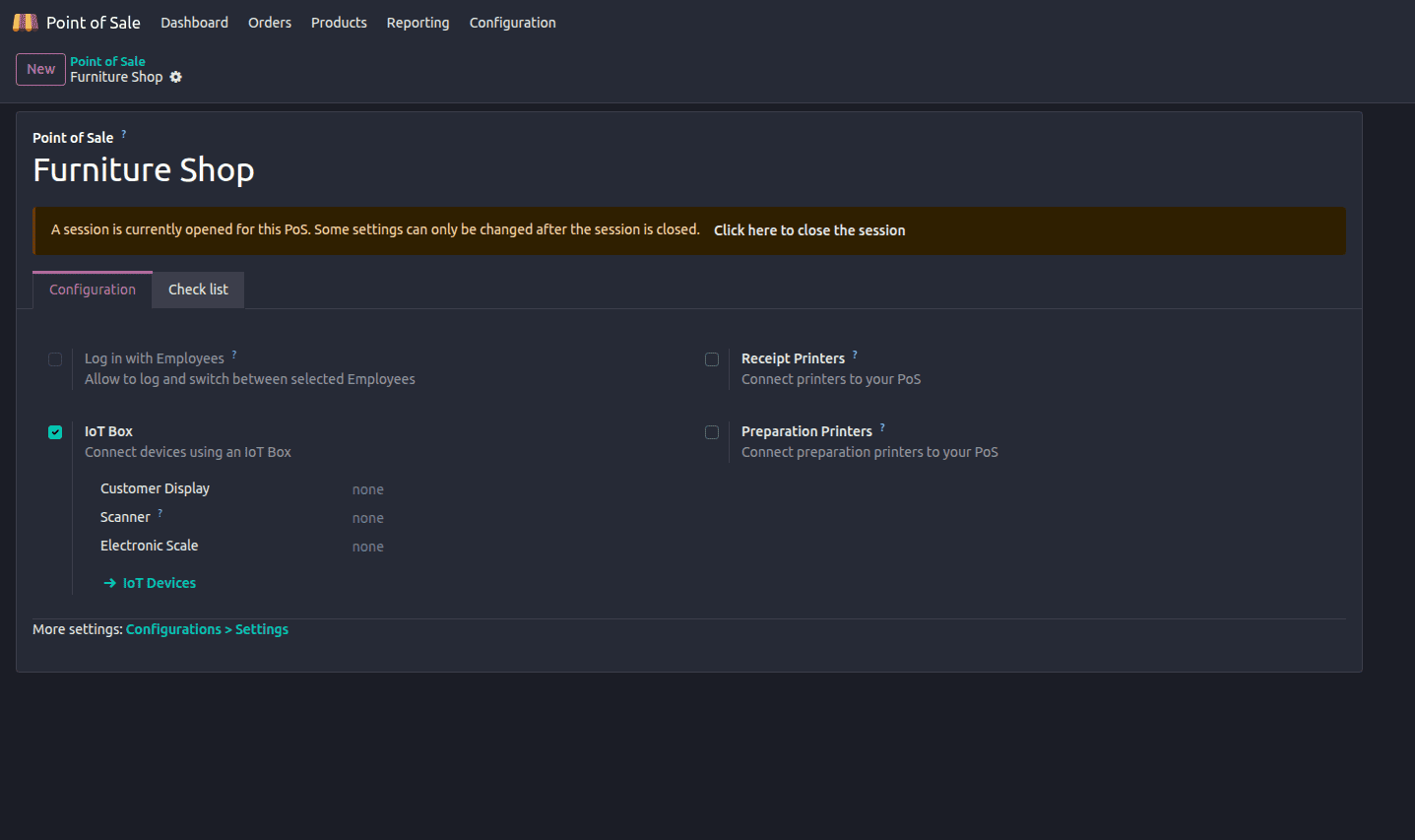
What You Can Do with the IoT Box in POS
Once connected, the IoT Box unlocks a range of hardware capabilities directly within your Odoo POS session:
- Print Receipts Automatically - A printer for printing receipts connected to the IoT Box will automatically print a receipt at the end of each transaction without a user having to do anything. For restaurant setups, it can be used to print kitchen order tickets.
- Scan Barcodes for Faster Checkout - With a barcode scanner connected through the IoT Box, cashiers can scan product barcodes, and they are immediately added to the current order, eliminating manual product searches and speeding up checkout.
- Open Cash Drawer on Payment - A cash drawer connected via the IoT Box opens automatically whenever a cash payment is completed.
- Display Order Details on a Customer Screen - A customer-facing display shows the ongoing order and total in real time, giving customers full visibility into what is being added to their bill.
- Process Payments via Payment Terminals - Payment terminals from providers like Ingenico, Worldline, and Adyen can be connected through the IoT Box. When a cashier initiates a card payment in POS, the transaction is sent directly to the terminal, and the result is captured in Odoo automatically with no manual entry required.
- Weigh Products Using a Scale - For businesses selling items by weight, a compatible scale connected via the IoT Box pushes the weight reading directly into the POS order line, ensuring accurate pricing every time.
Connecting the IoT Box with Odoo POS is a simple yet powerful way to bring your physical hardware and digital operations together under one roof. From automatic receipt printing to integrated payment terminals, every device works in sync with your Odoo database in real time, making the checkout experience faster, smoother, and more reliable. Whether you run a retail shop or a restaurant, the IoT Box is a smart addition that takes your Odoo POS setup to the next level.
To read more about How to Install and Configure the Odoo IoT Box, refer to our blog How to Install and Configure the Odoo IoT Box.