Effective inventory management is essential for maintaining a strong and efficient supply chain, as stock shortages can result in delayed deliveries and unhappy customers, while overstocking increases storage costs and ties up valuable capital. To maintain the right balance, businesses need accurate demand forecasting and well-planned replenishment strategies, and this is where Odoo 19 plays a crucial role.
In Odoo 19, the Replenishment Report within the Inventory module offers a centralized overview of products that need to be reordered based on forecasted demand, minimum stock rules, and supplier lead times. Replenishment is one of the most essential processes in inventory management, ensuring that a company maintains an optimal stock level to meet continuous demand. It involves restocking items in accordance with sales trends and supply requirements to prevent both stockouts and overstocking.
The Odoo 19 ERP System provides robust tools to assist businesses in automating and managing replenishment activities effectively. Replenishment within Odoo can be handled in two primary ways either through the Product Management window or by using the Replenishment module within the Inventory application.
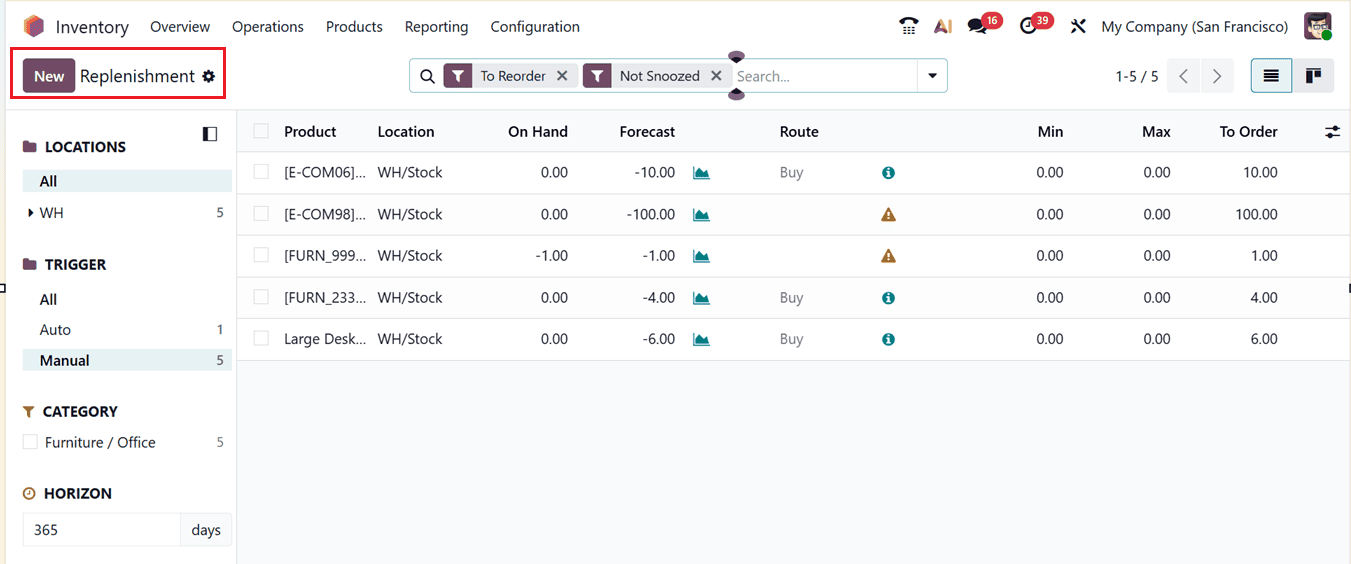
Within the Operations menu of Odoo 19 Inventory Module, you can open the Replenishment section to manage stock refilling activities. This screen will display the complete list of replenishment rules and requests that have already been configured in the system, as shown in the screenshot below.
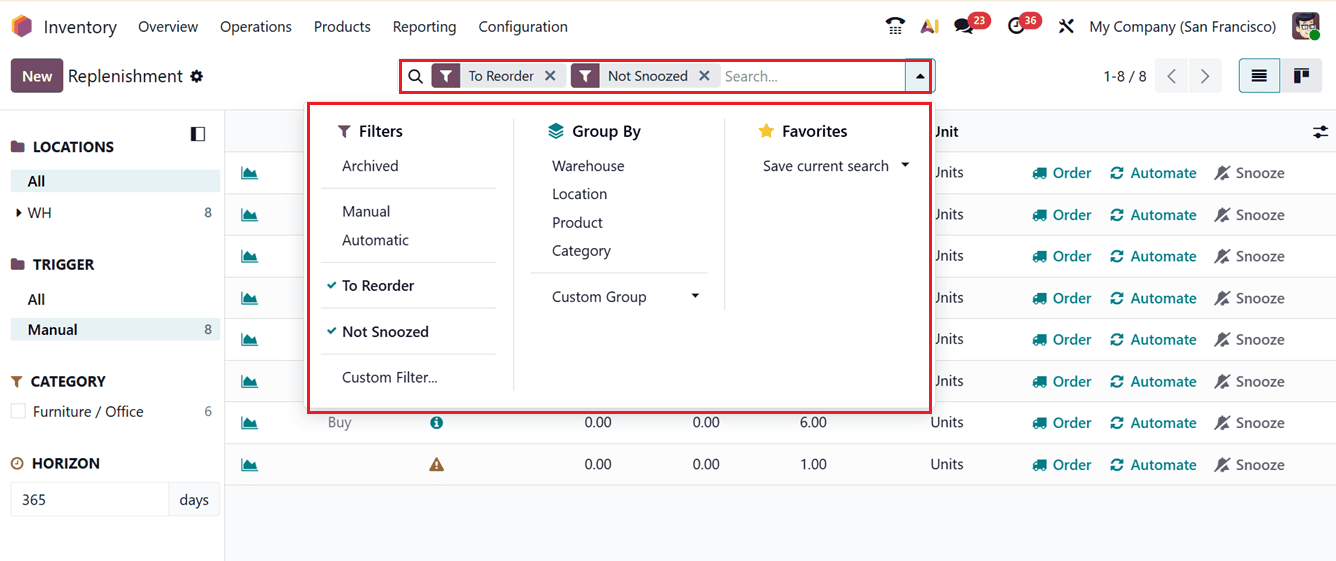
At the top, a powerful search bar helps users quickly find specific records. Filters and Group By options make it easier to organize data based on criteria such as Archived, Manual, Automatic, To Order, Not Snoozed, Location, Product, or Category. There are also Custom Filter and Custom Group options that allow users to sort information according to warehouse locations or other preferred conditions.
On the left panel, the TRIGGER option helps identify whether a replenishment request was created automatically by the system or manually by a user. In addition to the standard List view, the same data can be displayed in Kanban view using the view switch icon in the top-right corner. The list view provides important details for each record, including Product, Location, On Hand quantity, Forecasted quantity, Route, Minimum level, Maximum level, Quantity to Order, and Unit of Measure.
When you click the Order button, Odoo generates a Request for Quotation (RFQ) for a one-time purchase of the product. If the Automate option is selected, the system will automatically create replenishment orders whenever the stock level drops below the defined minimum quantity.
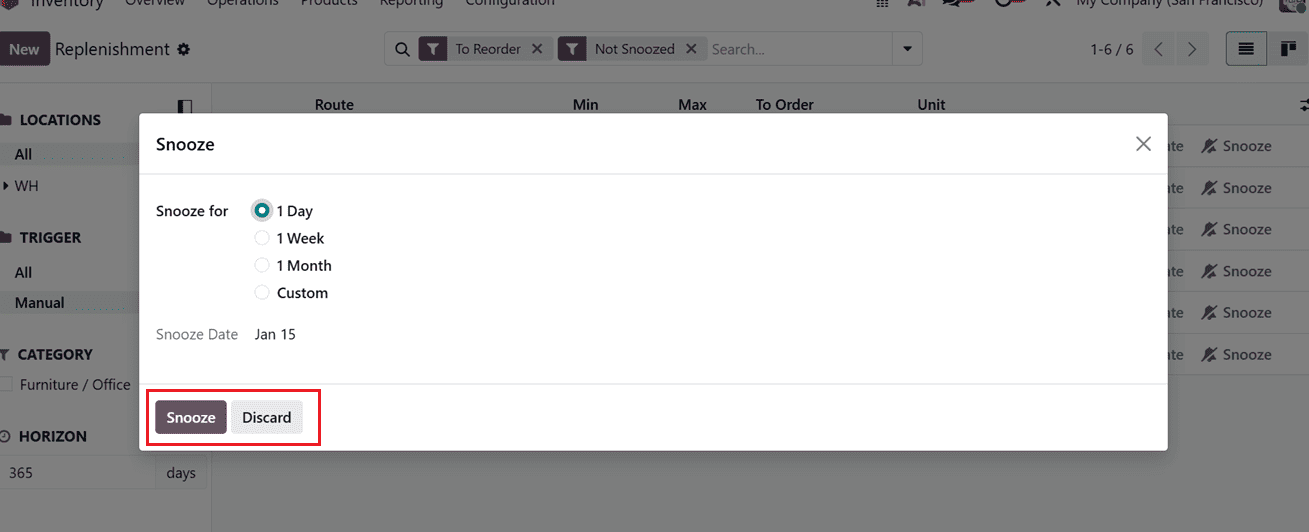
For temporary delays, the Snooze feature allows users to pause replenishment for a selected period, such as one day, one week, one month, or a custom duration. Using this feature, you can also set a specific resume date so that the replenishment continues automatically after the chosen time, as shown in the screenshot below.
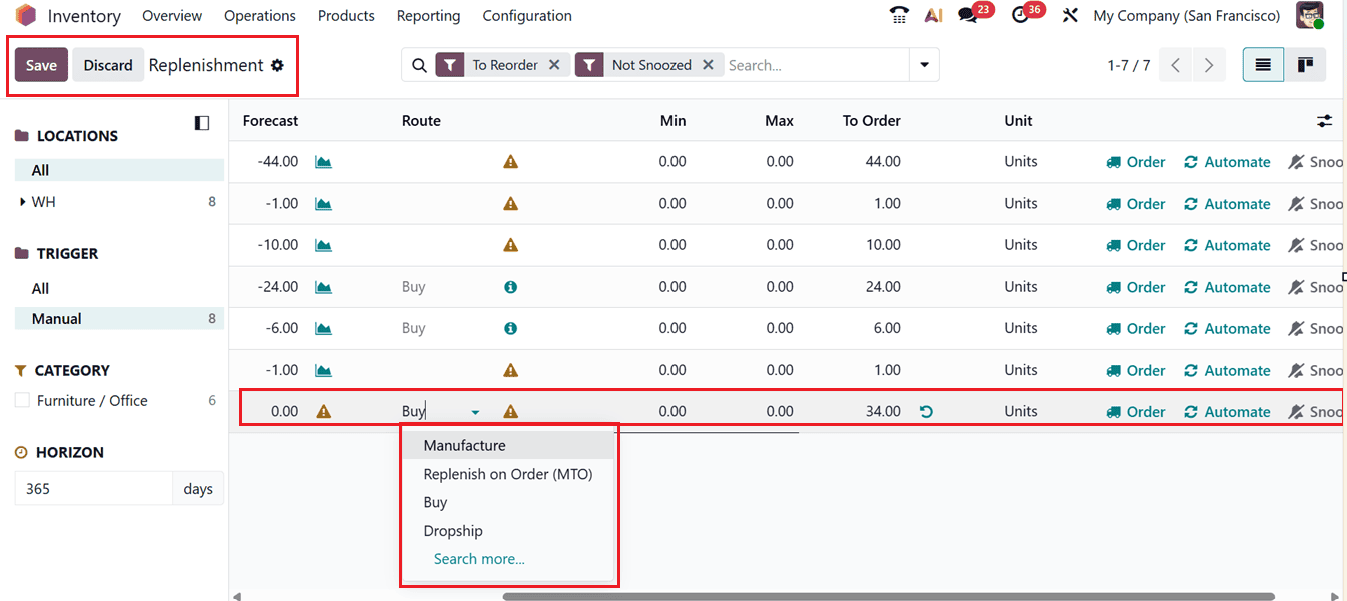
To add a new replenishment rule manually, you can click on the New button in the Replenishment window. This will display a new entry editing line where the product details can be entered.
Once a product is selected in the ‘Product’ column, Odoo automatically updates related information such as location, current stock, and forecasted quantity. From the Route dropdown, users can choose how the product should be supplied, options may include Buy, Manufacture, Replenish on Order, Dropship, or Transfer from another warehouse, as shown in the screenshot below.
Then, you need to define the product’s Minimum and Maximum inventory limits, as these thresholds control when the system should initiate replenishment. Once you input the required To Order quantity, Odoo provides two choices: placing a one-time order (Order Once) or enabling automatic replenishments (Automatic Orders) to generate orders whenever stock drops below the set minimum level.
Effectively using the Replenishment Report in Odoo 19 helps businesses shift from reactive stock management to a proactive, data-driven approach. By monitoring forecasts, setting accurate reordering rules, and acting on system recommendations, companies can reduce excess inventory, avoid shortages, and streamline procurement. With its advanced features, Odoo 19 turns replenishment into a strategic tool that supports better cash flow, balanced stock levels, and overall operational efficiency aligned with business growth.
To read more about Overview of Replenishment Reports in Odoo 18 Inventory, refer to our blog Overview of Replenishment Reports in Odoo 18 Inventory.