Reaching customers quickly and efficiently is more important than ever. Businesses can design, oversee, and monitor SMS campaigns from a single platform using Odoo 19's SMS Marketing module. SMS marketing helps businesses engage customers, promote goods and services, send reminders, and improve customer relationships because of its high open rates and rapid delivery.
What is SMS Marketing in Odoo 19?
The SMS Marketing module in Odoo 19 is a marketing tool that lets businesses send bulk text messages to customers, leads, or certain contact groups. It works well with other Odoo applications like CRM, Sales, Contacts, Events, and Marketing Automation. This integration allows for targeted communication based on customer data.
Businesses can use SMS campaigns for:
- Promotional offers and discounts
- Product launches
- Event invitations
- Appointment reminders
- Order updates
- Customer engagement campaigns
- Feedback and survey requests
Key Features of Odoo 19 SMS Marketing
1. Create SMS Campaigns Easily
Users can design and launch SMS campaigns from a simple interface. The module allows marketers to compose messages, define recipients, and schedule deliveries without requiring technical expertise.
2. Audience Segmentation
Odoo enables businesses to target specific customer groups using filters and mailing lists. Recipients can be selected based on various criteria such as customer type, location, sales history, or CRM stage.
3. Integration with Odoo Applications
The SMS Marketing module works closely with multiple Odoo apps, providing access to real-time customer information.
4. Campaign Scheduling
Organizations can schedule SMS campaigns to be sent at optimal times. This feature ensures messages reach customers when they are most likely to engage.
5. SMS Templates
Frequently used messages can be saved as templates, reducing manual work and maintaining consistency across campaigns.
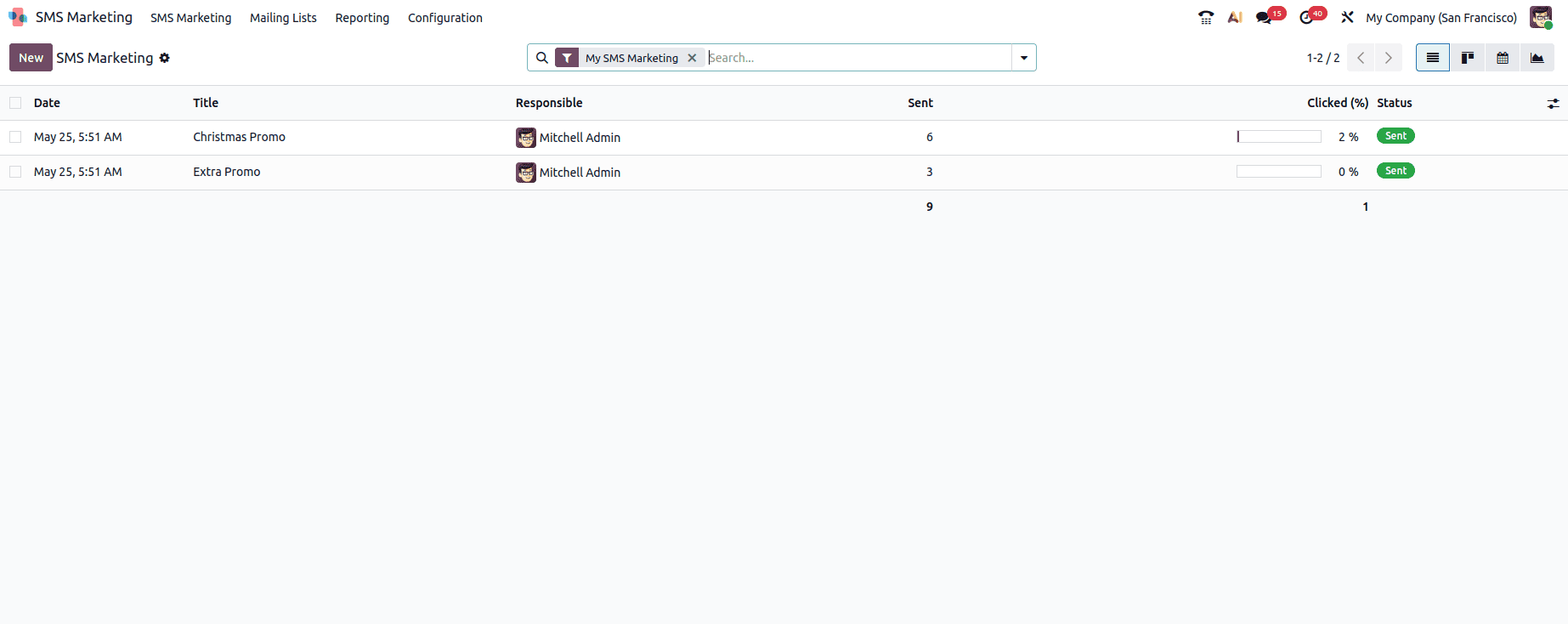
All of your SMS campaigns will be shown in a list format when you first access the SMS Marketing section. The figure below illustrates this list format, which offers a thorough summary of all the important information for each campaign:
- Title: The SMS campaign's name.
- Accountable: The worker overseeing the campaign.
- Sent: The total amount of SMS messages that have been sent.
- Clicked: The number of recipients who opened links in the SMS by clicking on them.
- Status: The present state of the campaign, such as Draft or Sent
- Bounced: The number of SMS messages sent but not received.
Analysing Different Views
The SMS Marketing module offers different views.
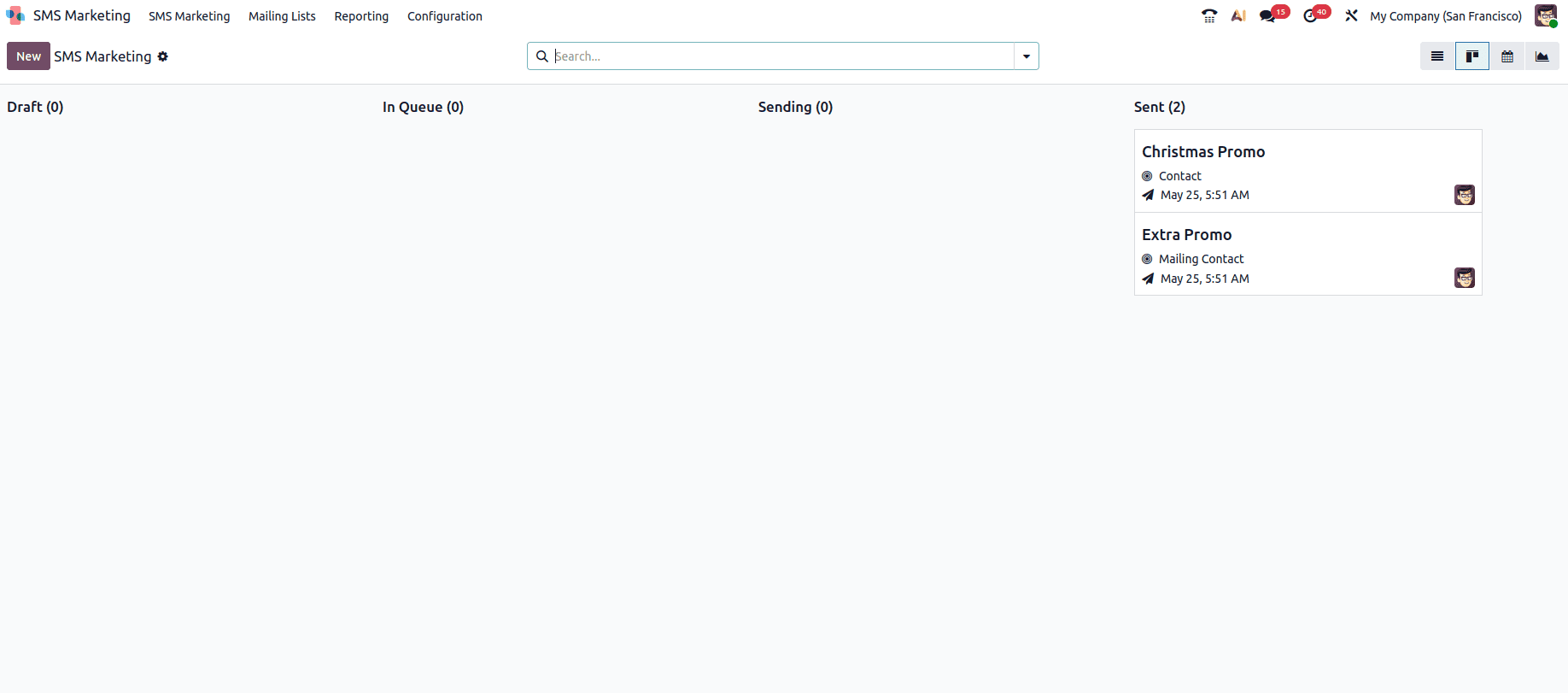
Kanban View : The Kanban View breaks down campaigns into distinct phases like Draft, In Queue, Sending, and Sent. Additionally, you can perform actions like folding, archiving, or unarchiving stages using the settings icon located in the top right corner of every stage.
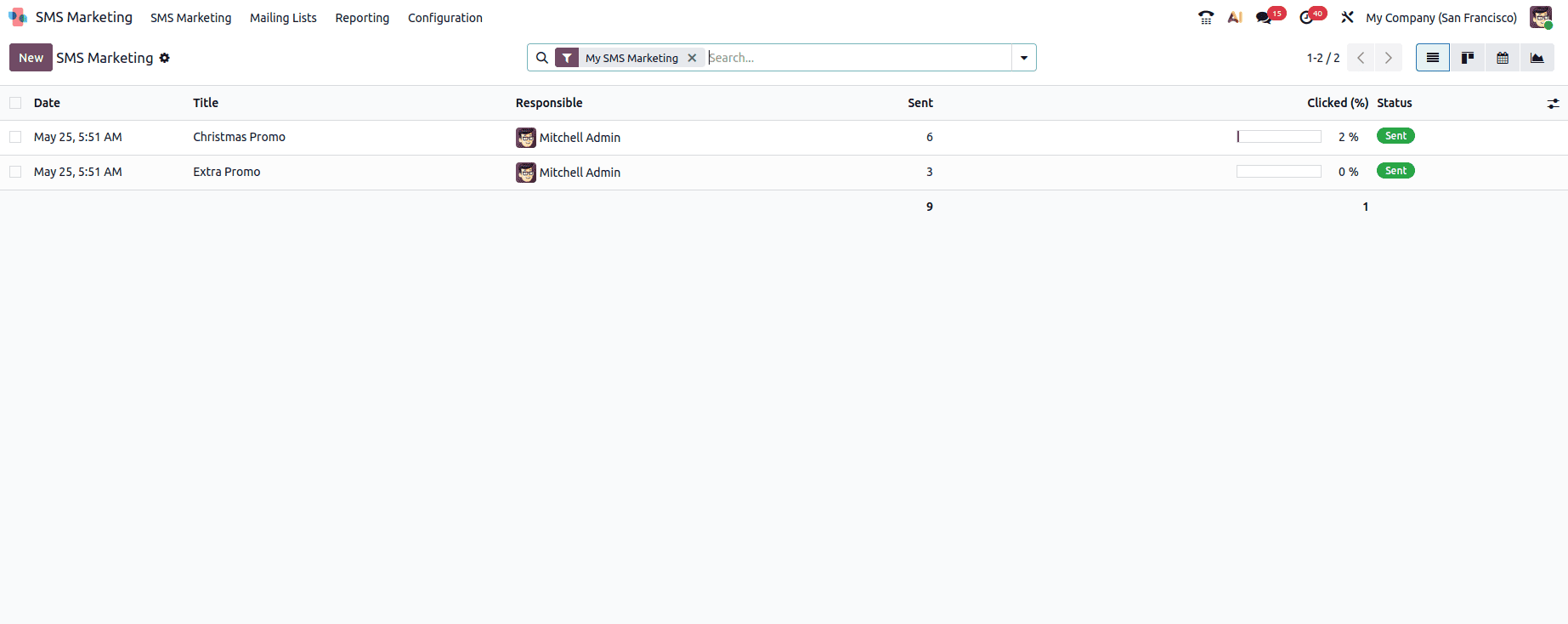
List View : The list view shows campaigns in an expansive list format that is perfect for quickly going through multiple records and performing bulk actions.
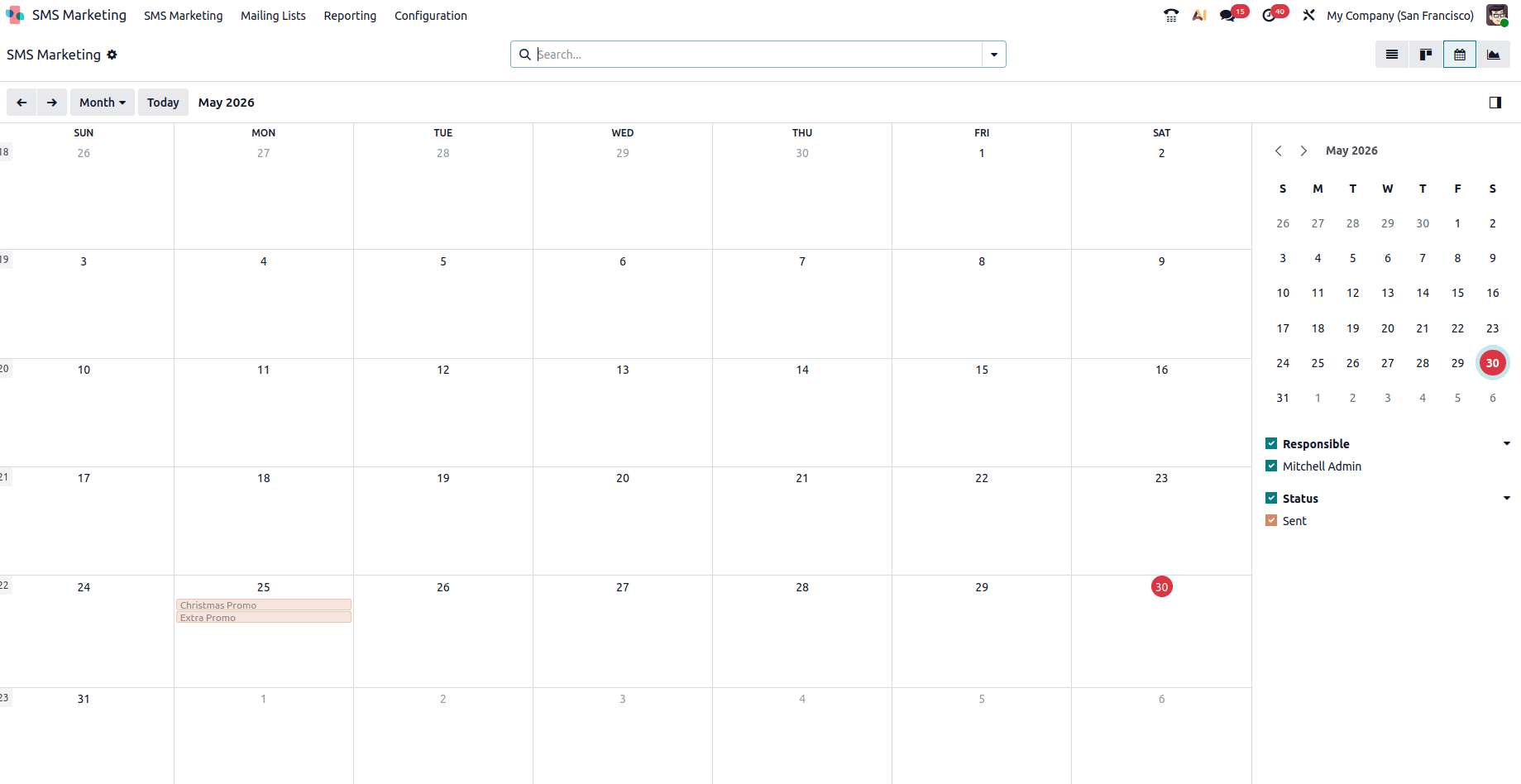
Calendar View : Offers a timeline view so you can see the dates and times of campaigns that are scheduled or sent.
Graph View : Provides graphical data on the effectiveness of your SMS campaign, including the quantity of messages sent, clickthrough rates, and bounces over time.
How to Create New SMS Marketing
To start, click Create on the main SMS Marketing dashboard, and Odoo reveals a blank SMS template form, which can be configured in a number of different ways.
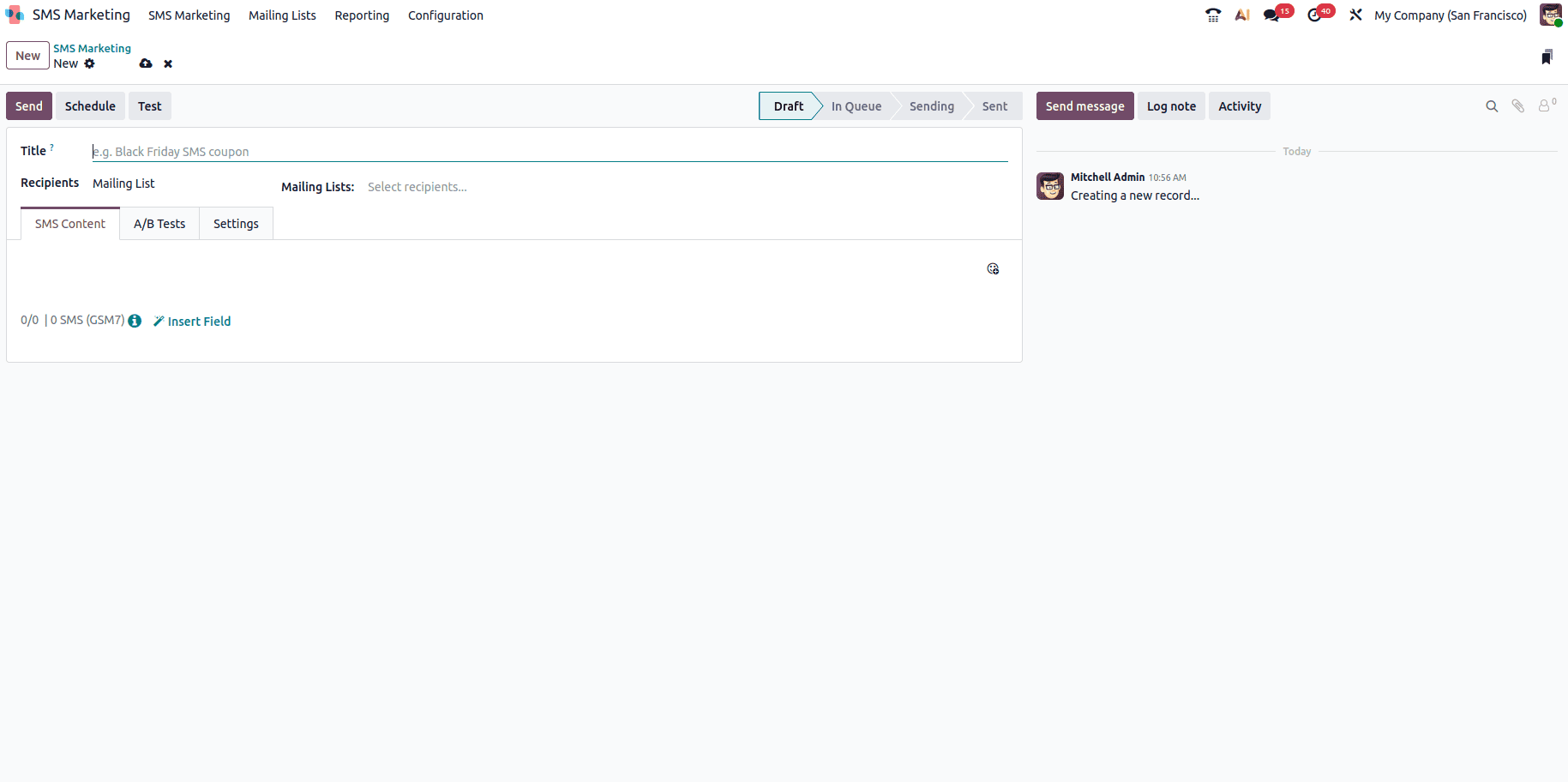
First, give the mailing a Subject, which describes what the mailing is about.
Next, in the Recipients field, choose to whom this SMS will be sent. By default, Odoo has a Mailing List selected. If this is the desired Recipients field option, specify which mailing list Odoo should send this SMS to in the Select Mailing List field.
Mailing Lists
The header menu of the SMS Marketing application provides an option labeled Mailing Lists. The sub-menu that will appear when clicked includes Mailing Lists and Mailing List Contacts.
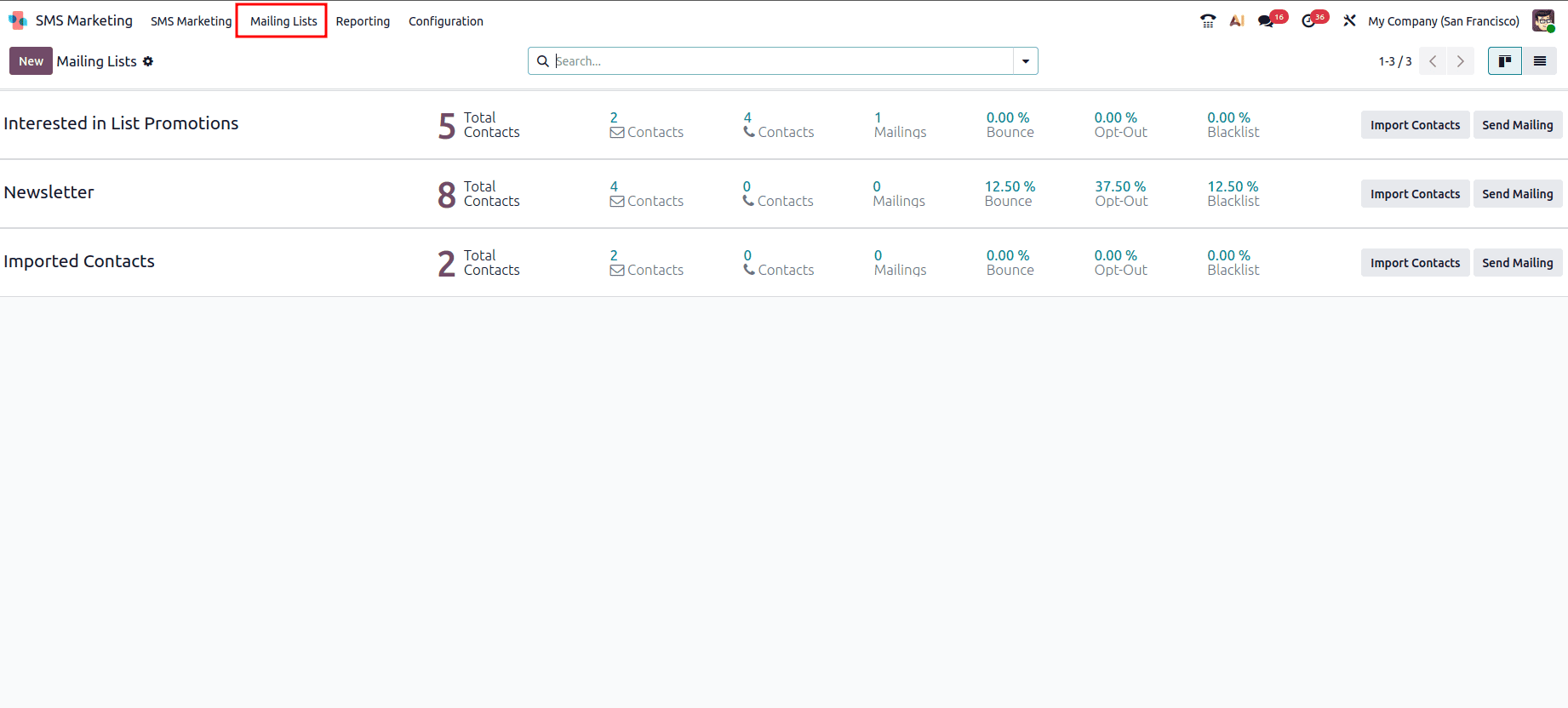
To edit any existing list, select the desired list from the Mailing Lists page, and proceed to modify it in a number of ways.
To create a new mailing list, click Create in the upper left corner of the Mailing Lists page. Doing so will reveal a blank mailing list template form.
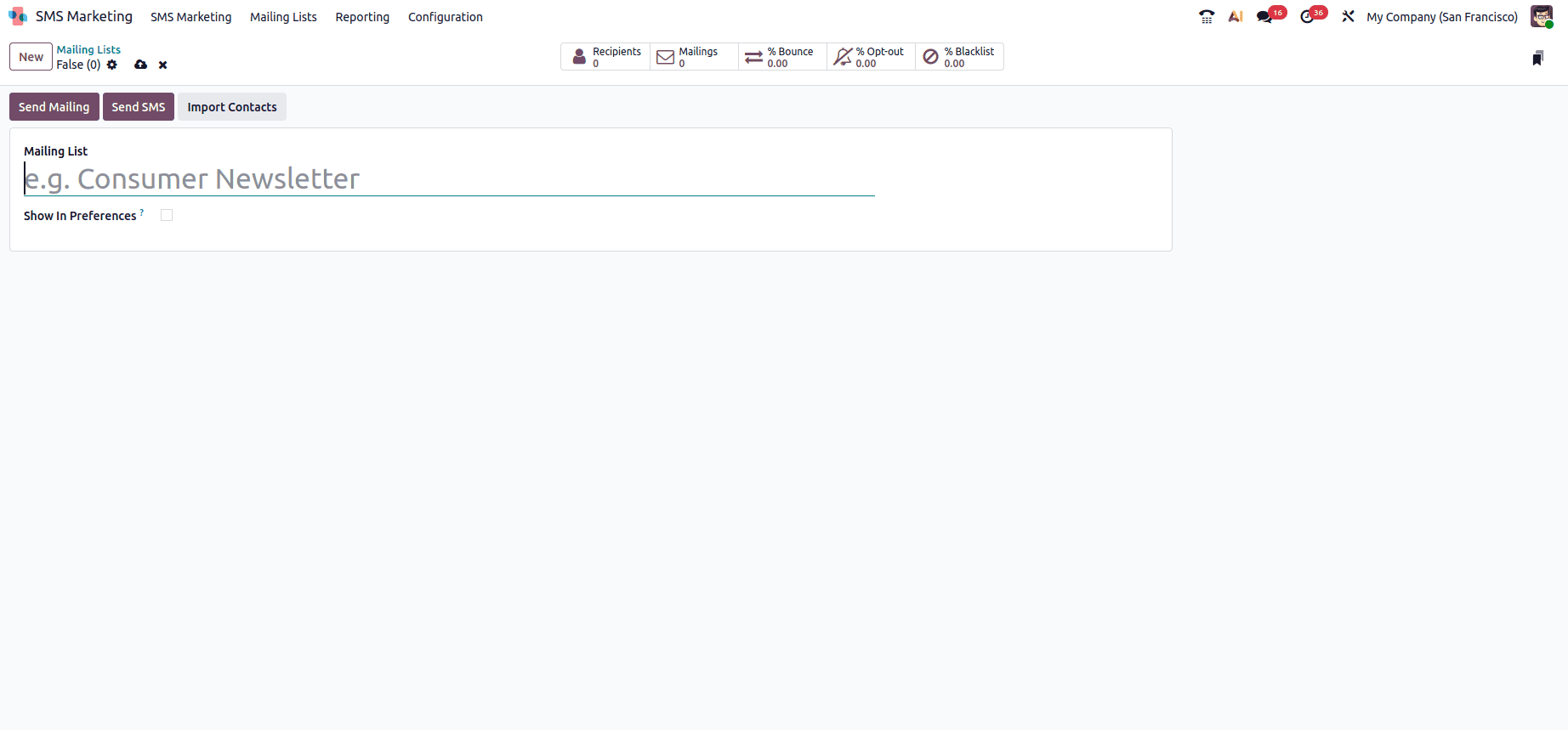
To make the mailing list available to recipients on the Subscription Management page, first select a name for it and turn on the Is Public option. Users can change their subscription preferences at any moment by doing so.
Click Create to complete the form after completing those fields. The newly formed email list will then be available on the main email Lists dashboard.
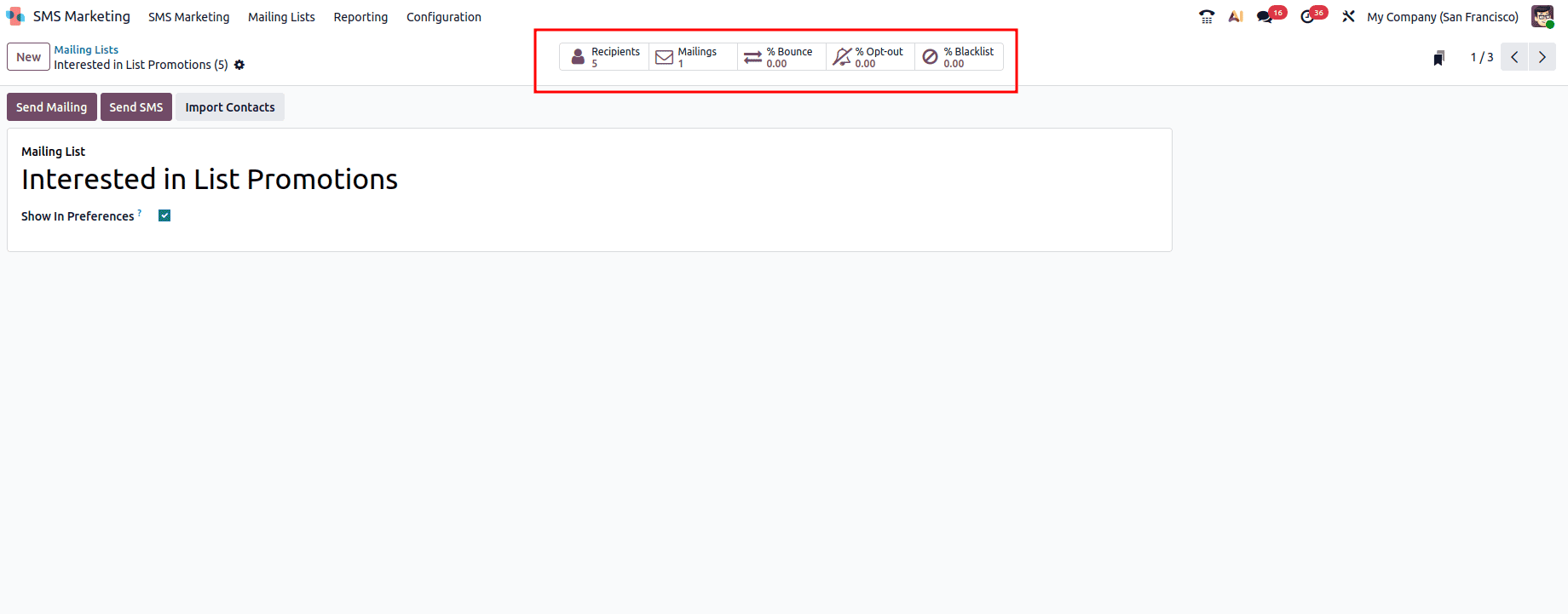
Choose the mailing list from the main Mailing Lists page to access the mailing list detail form and make additional edits or customizations.
There are several analytical smart buttons at the top of the mailing list detail form that show statistics for various mailing list-related metrics (e.g. Recipients, Mailings, etc.).
Click the selected smart button to open a different page with detailed information related to the mailing list, allowing you to examine or modify any of those components.
Mailing List Contacts
Navigate to Mailing Lists > Mailing List Contacts to view a dashboard containing all of the contacts connected to one or more of the configured mailing lists in the database.
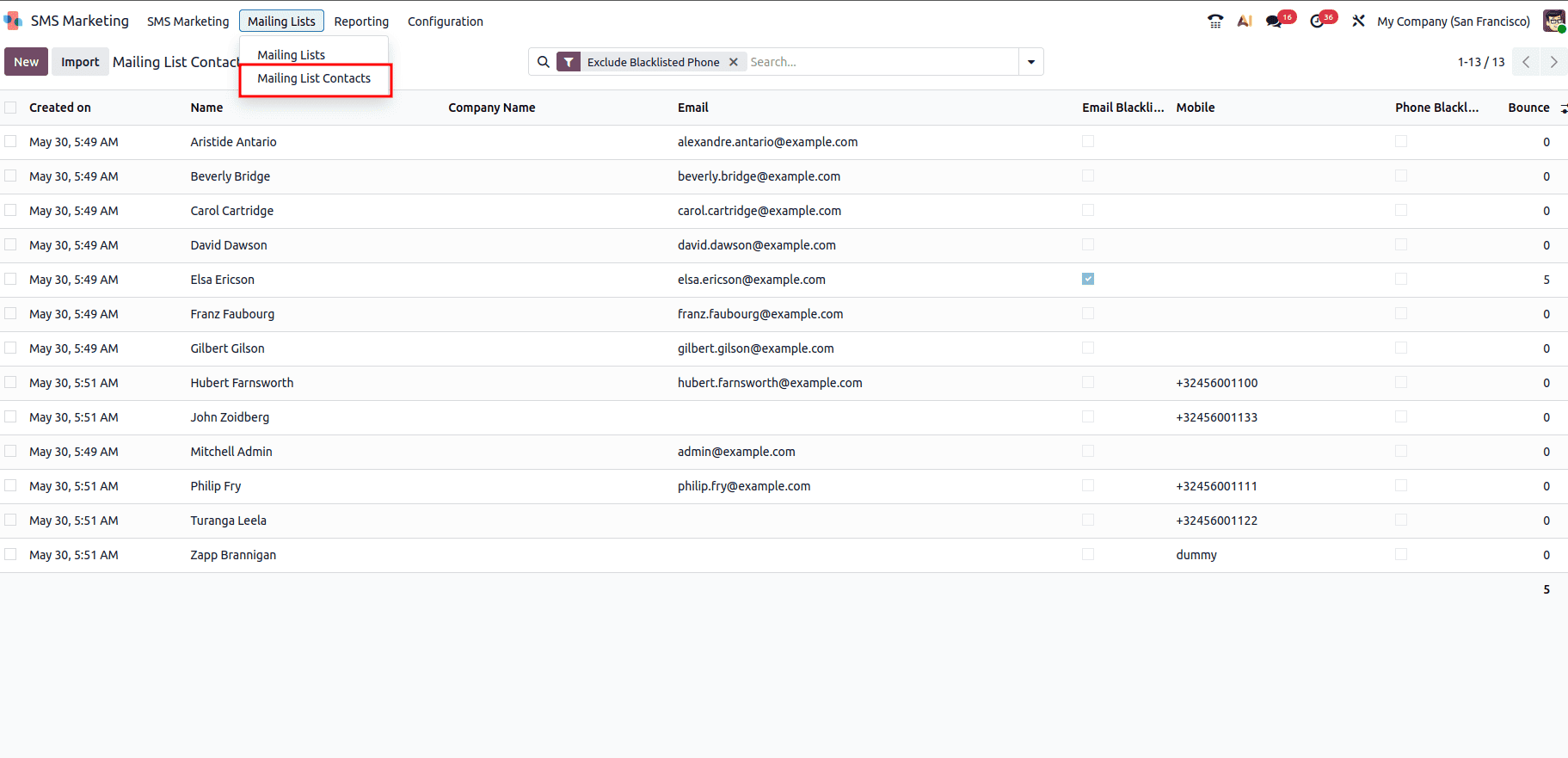
In order to create a new one, click on the New button, where you will get a form as in the image below.
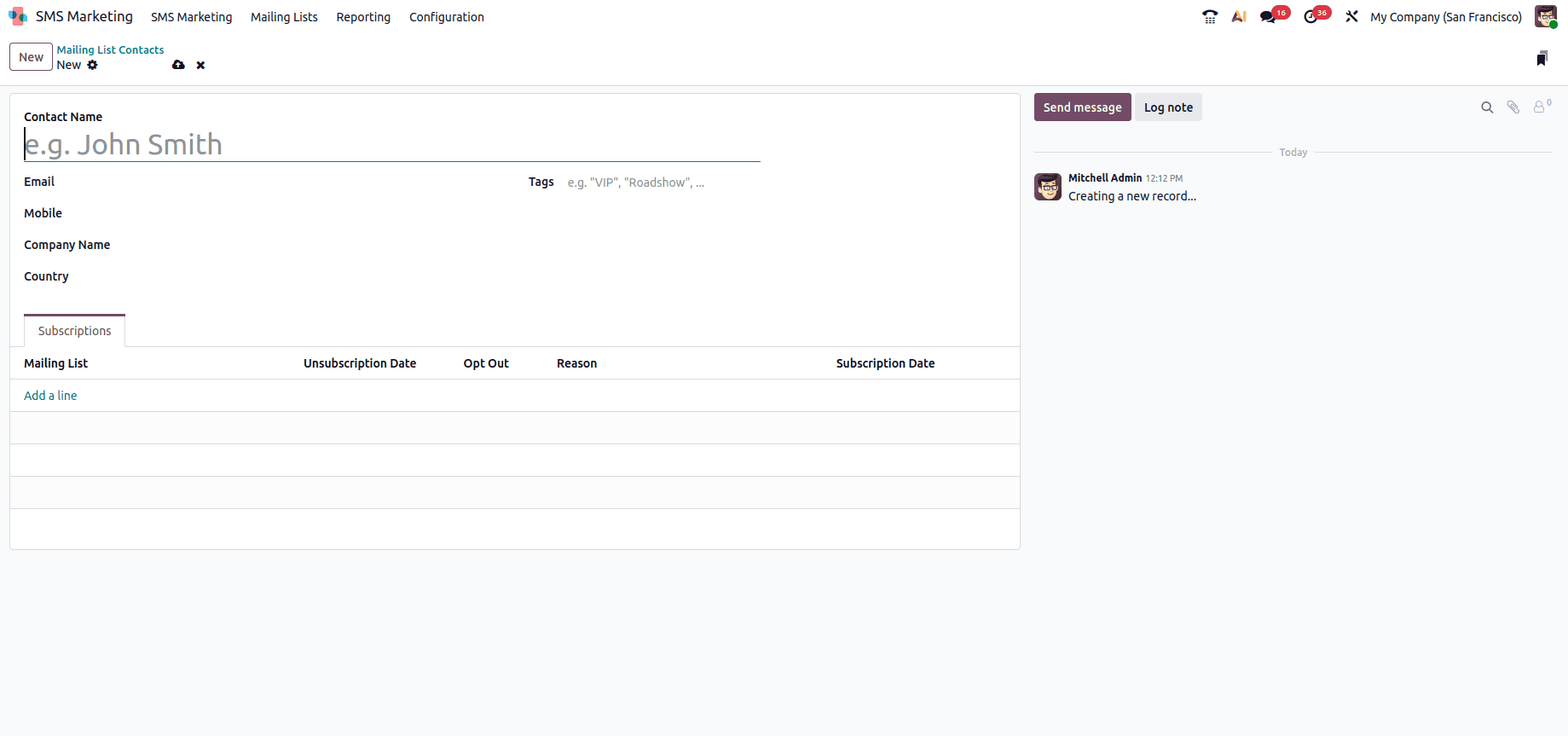
Here you can provide the Contact Name, Email, Mobile, Company Name and Country. Also, you can provide the mailing list in which this contact should be added.
Reporting
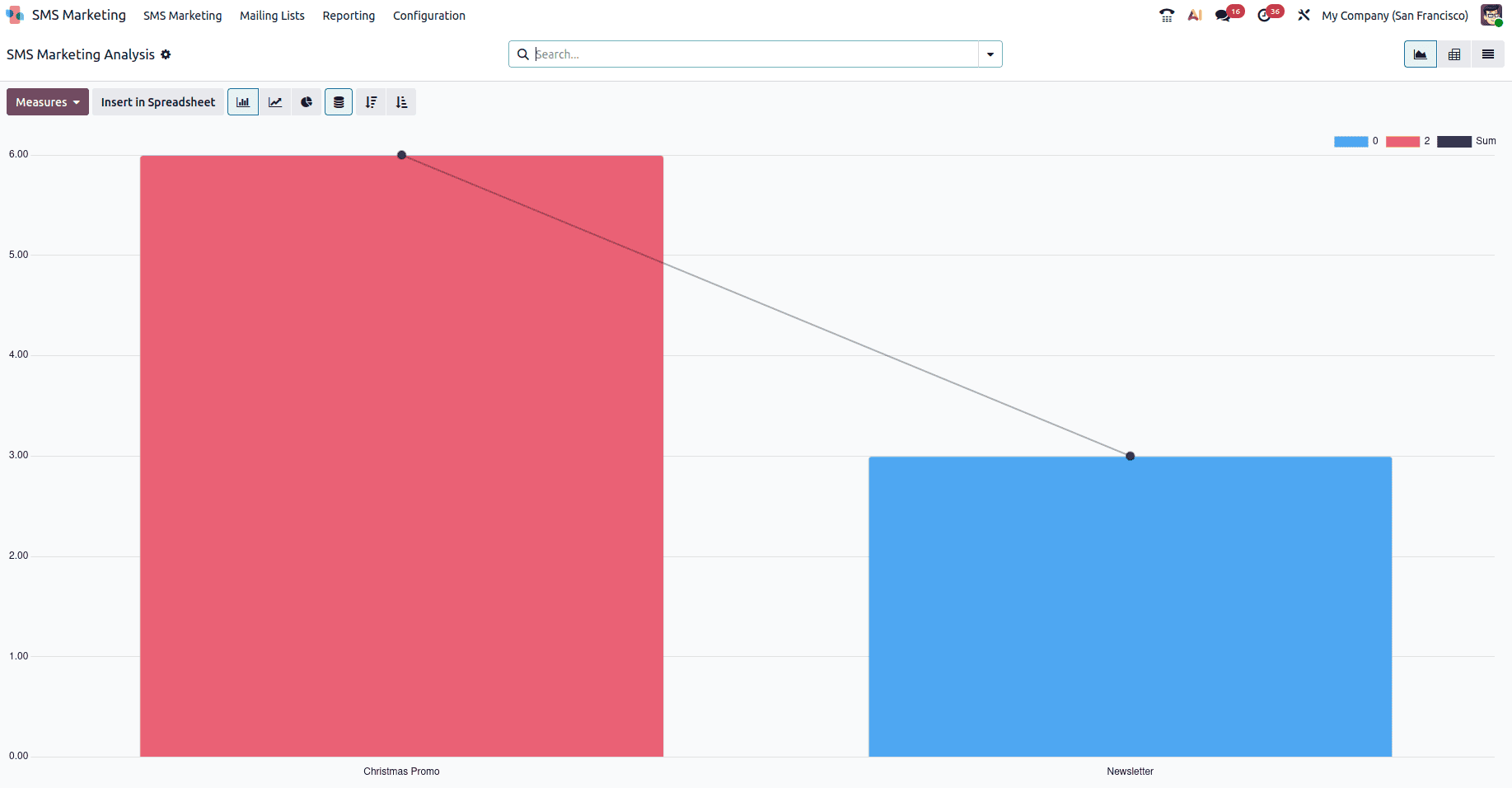
The Reporting section of the Odoo 19 SMS Marketing module is crucial if you want to fully comprehend your SMS marketing initiatives. It provides you with comprehensive data and analysis so you can assess how successful your efforts were.
Reaching the Reports Section: Go to the SMS Marketing module's Reports option to view the most recent reports on various aspects of your SMS campaigns.
Below are some examples of the Reporting area's capabilities, including a range of tools and viewpoints that are available for study.
Blacklist
Recipients can add their phone number to a list of individuals who no longer want to receive communications or mailings by using Odoo SMS Marketing's Blacklist tool.
This is sometimes referred to as the unsubscribe procedure: if clients click Unsubscribe on their Subscription Management page, they will be automatically placed on a blacklist. If needed, customers can also be manually added to the blacklist.
Go to the SMS Marketing app > Configuration > Blacklisted Phone Numbers to get a dashboard with all of the database's blacklisted phone numbers.
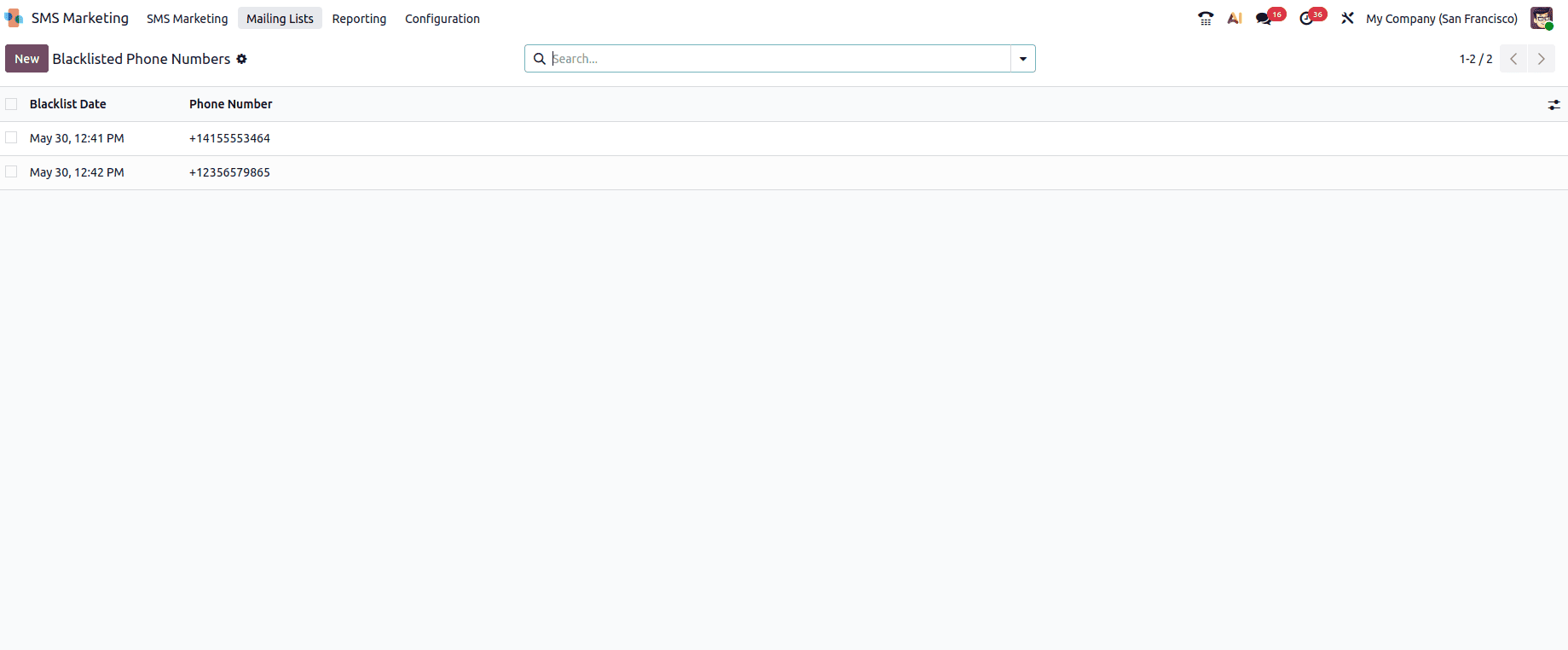
Click the New button in the dashboard's upper-left corner and fill out the form on the following page to manually add a phone number to a blacklist.
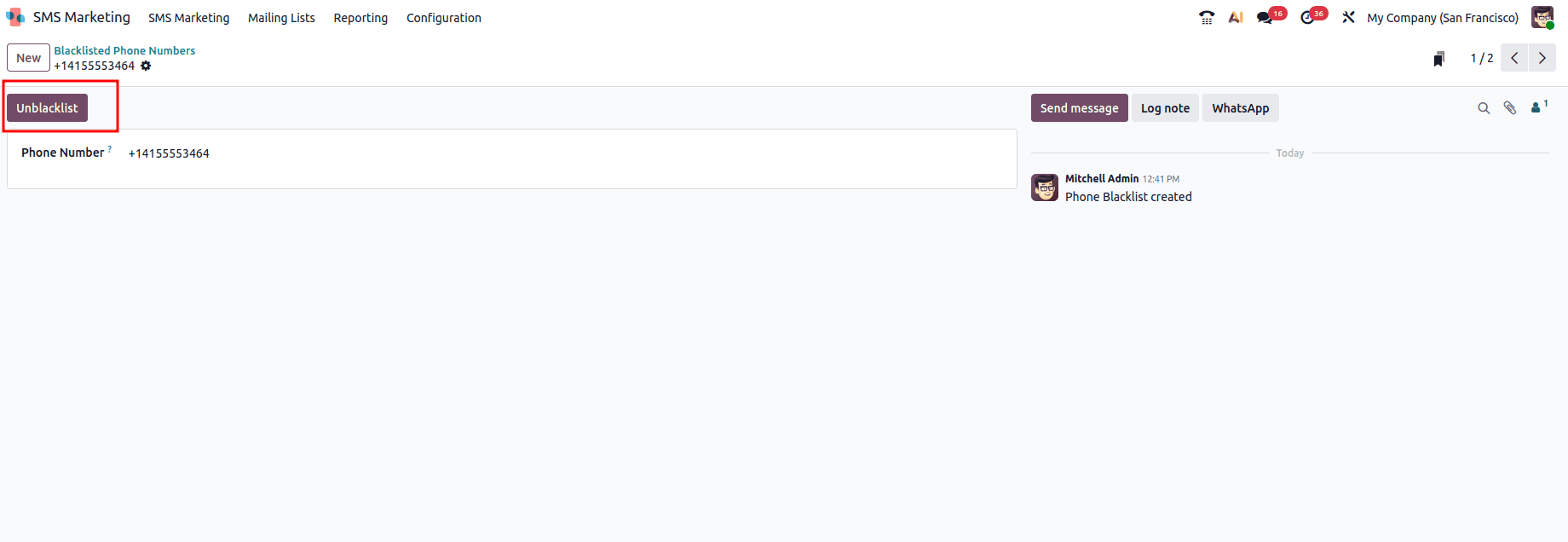
To add the filled form to the list of Blacklisted Phone Numbers, click Save. Click Unblacklist on the phone number's form after selecting the appropriate number on the dashboard to remove it from the blacklist.
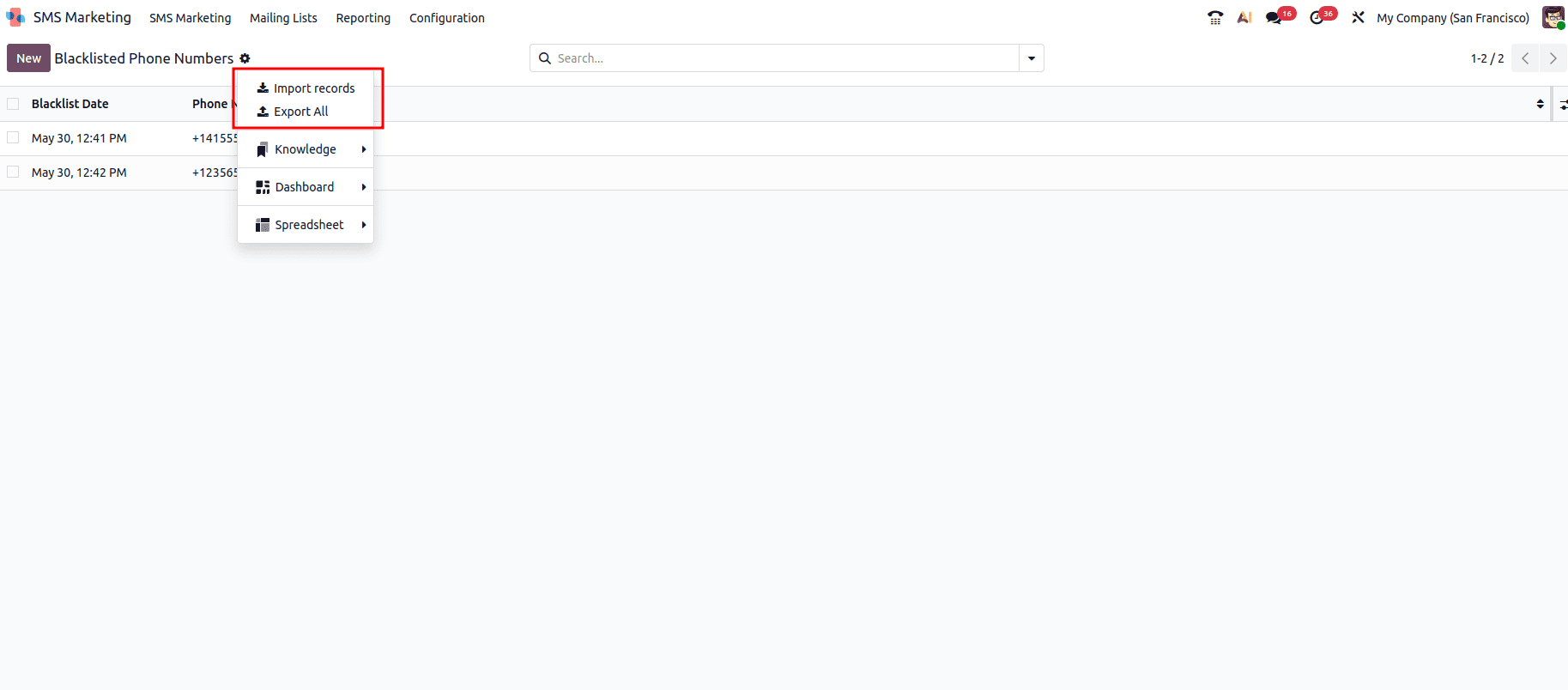
You can also import blacklist numbers using the Import Records option. Also if you want to export the existing blacklisted numbers, click on the Export All button.
Link Tracker
Link Tracker SMS marketing has one of the highest engagement rates of any marketing channel since it is direct and fast. A Link Tracker feature is included in the Odoo 19 SMS Marketing module to help track and evaluate the effectiveness of SMS campaigns.
To access the Link Tracker menu, you can navigate to the Configuration where you can find it.
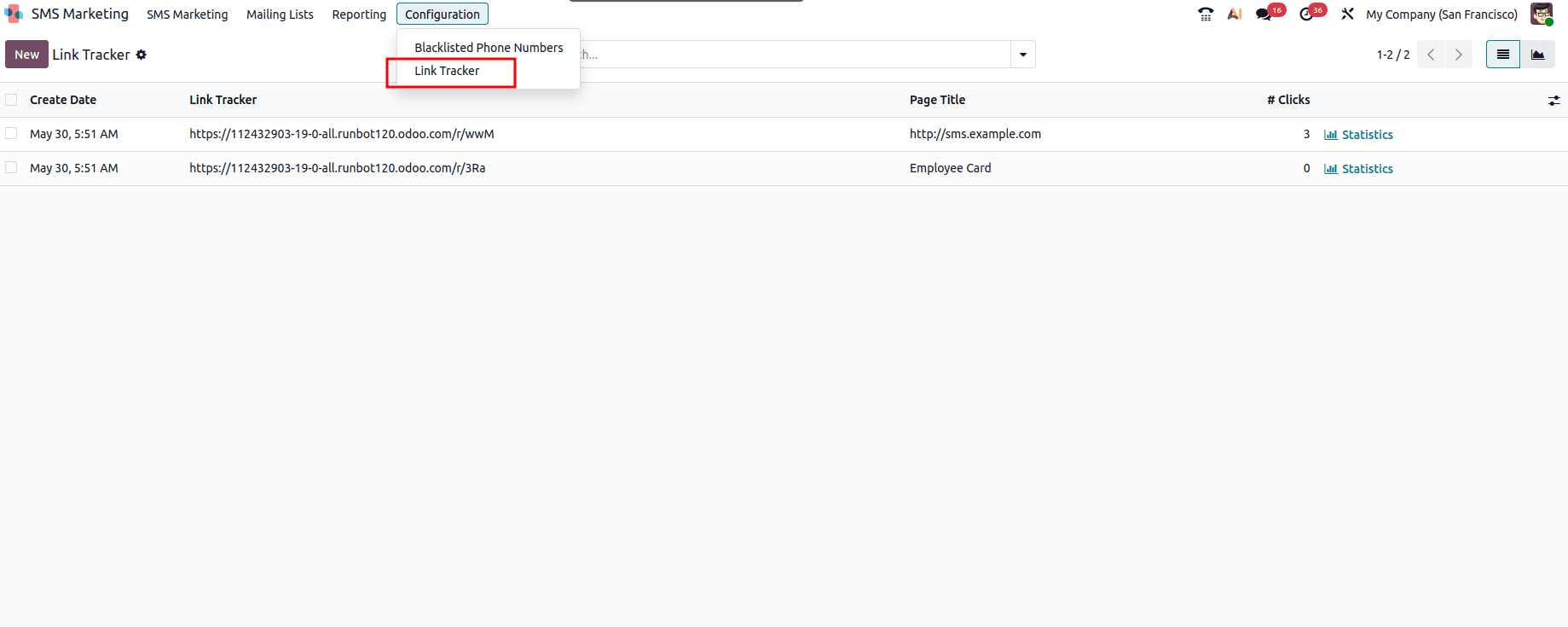
When you log into the Link Tracker, a window containing detailed information about your SMS campaign links will appear.
To assist you in refining your study, the module offers a variety of options, such as Filters, Group By, Favourites, and Search tools. These options allow you to organise and categorise your data in accordance with specific analytical requirements. Graph View, another function of the program, provides a visual depiction of your data. By selecting the Graph view menu option, you may generate reports in a range of chart styles, such as pie charts, bar charts, and line charts. These reports make it simple for you to understand how well your efforts are performing.
To read more about Overview of Sms Marketing Tools in Odoo 18, refer to our blog Overview of Sms Marketing Tools in Odoo 18.