Managing the timing gaps between shipping goods and issuing invoices is a critical component of accurate revenue recognition. In standard accrual accounting, revenue should ideally be recognized when performance obligations are met (goods delivered), not necessarily when the invoice is generated. To keep these two operations perfectly aligned, Odoo 19 provides two dedicated operational reports inside the Accounting application under the review menu: Invoices to Be Issued and Invoiced Not Delivered.
In business, keeping track of when you ship products and when you bill customers is very important. To keep your accounting accurate, these two events should happen close together: you deliver the items or services, and then you send the customer their invoice. However, when a business handles a lot of orders, it is easy to make mistakes. A sales order can easily be forgotten, leaving shipped items unpaid for weeks. On the other hand, a customer might pay in advance, but their order gets buried in the warehouse backlog without anyone realizing it needs to be shipped.
Odoo 19 solves these problems by tracking deliveries and invoicing separately, while still linking them together in the system. Odoo creates automatic dashboards so you do not have to double-check paperwork manually. This guide will show you how to use these tools to make sure you bill for every delivery, keep your records correct, and make your month-end work much easier.
These dashboards look at your Sales, Warehouse (Inventory), and Accounting data all at once. By constantly checking for differences between what was shipped and what was billed, the system helps your business in several ways:
- No More Forgotten Bills: The system flags every completed delivery that has not been invoiced yet, making sure you bill customers on time and do not lose money.
- Easy Month-End Accounting: Your finance team can see exactly what was delivered but not yet billed at the end of the month, allowing them to write accurate financial reports.
- Better Warehouse Packing: By showing which orders are fully paid but not yet shipped, warehouse managers can easily prioritize those shipments and get them out the door faster.
- Clear Records for Audits: Keeping a live record of unbilled shipments and undelivered invoices gives you clear proof for tax or business audits.
- Clearer Customer Updates: Your billing team can view outstanding orders customer-by-customer, making it easy to contact customers about missing bills or late shipments.
1. Invoices to Be Issued (Delivered, But Not Yet Invoiced)
The Invoices to Be Issued report can be found by opening the Accounting Module and looking under the Review menu. This screen shows you all the sales orders where your warehouse team has already shipped the products (or your team has finished the work), but the customer has not been billed yet.
This report is your main defense against forgetting to bill a customer. In busy warehouses, items leave the loading docks every day, but invoicing might be done by a different team later on. If you do not watch this closely, you will delay your payments or forget to send the bill entirely.
When you open this report under the review menu, Odoo automatically filters your data. It only shows orders where the physical delivery number is higher than the invoiced number. The dashboard groups these orders by customer name, giving your billing team a clean, organized list so they can create the missing invoices quickly.
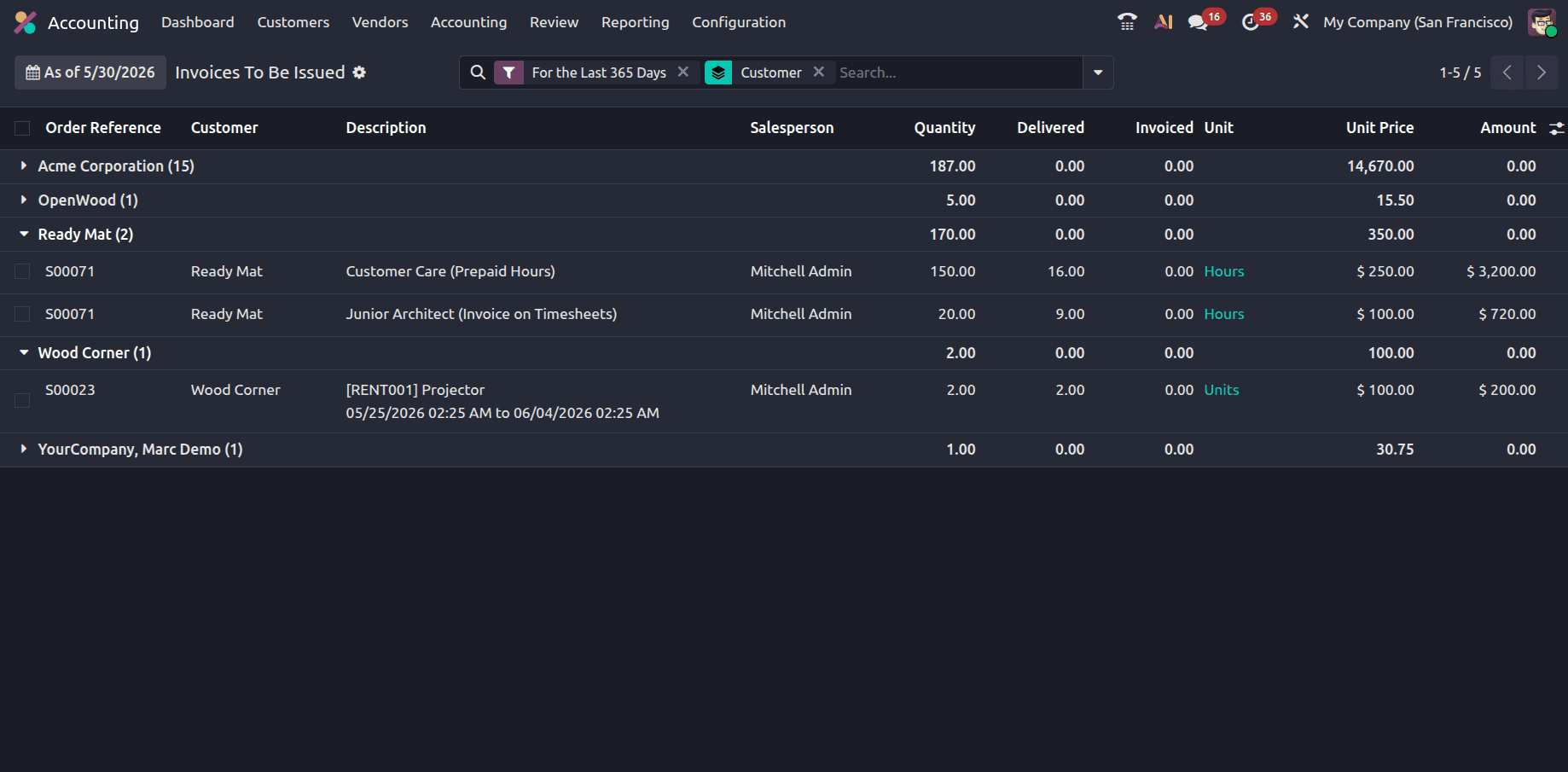
2. Invoiced Not Delivered (Billed, But Items Are Pending Shipment)
The Invoiced Not Delivered report is also found by going to the Accounting Module and clicking the Review menu. This screen handles the exact opposite situation: it tracks sales orders where you have already sent the bill to the customer, but the warehouse has not actually shipped the products yet.
This happens a lot if your business takes advance payments, upfront deposits, or sells gift cards and service plans. Financially, a bill sent before delivery is not fully earned money yet; it represents a commitment or a job you still owe to your customer.
For your warehouse and shipping teams, this workspace acts as an active "to-do" list. It flags items that the customer has already paid for, signaling that these orders need to be packed and shipped immediately to keep your customers happy and clear out warehouse space.
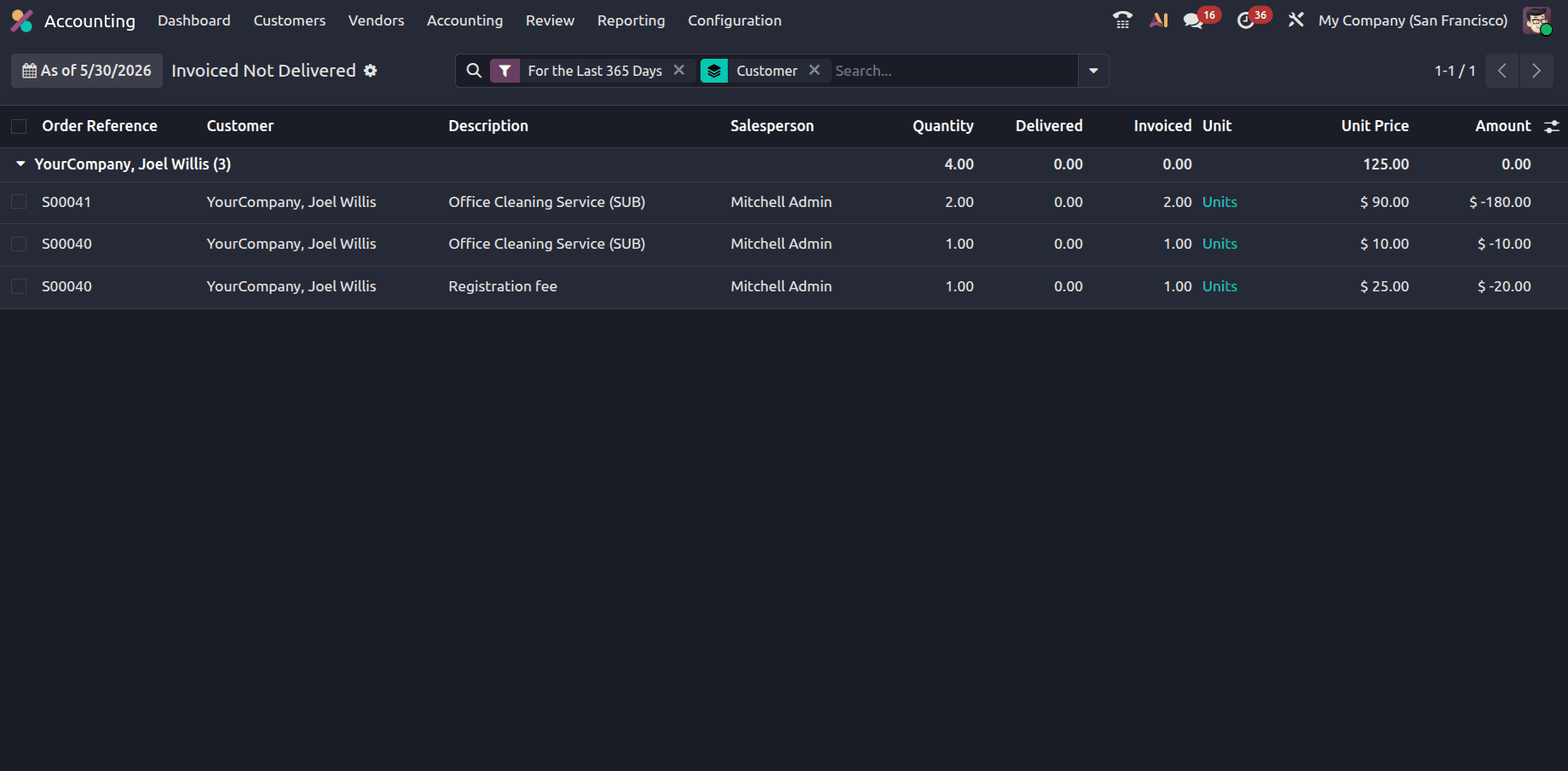
To make checking these orders simple, Odoo 19 uses the exact same column layout for both screens. It puts your Sales, Warehouse, and Accounting numbers side-by-side in a single row so you do not have to do any math yourself.
One of the most useful features of this layout is its flexibility: the report can be taken as of any date, allowing you to look back at historical data or see exactly where your orders stood at the end of a previous fiscal period.
The report shows these key details for every single order line:
- Order Reference: The unique sales order number from your sales team, like S00073 or S00041. You can click this to open the original order instantly.
- Customer: The name of the client, helping you review pending jobs customer-by-customer.
- Description / Product Description: The specific details of the items or services you are tracking.
- Salesperson: The internal employee who made the sale, so you know who to ask if there is a question.
- Quantity / Ordered Quantity: The total number of items the customer originally ordered and agreed to buy.
- Delivered Quantity: The exact number of items your warehouse team has actually shipped and confirmed.
- Invoiced Quantity: The exact number of items that you have already billed on an official customer invoice.
- Unit Price: The cost of a single item, before taxes or extra discounts.
- Amount: The total value of the remaining balance currently being checked on that line.
By looking at the Delivered and Invoiced columns side-by-side, you can see issues instantly. If "Delivered" shows items but "Invoiced" is zero, you forgot to bill the customer. If "Invoiced" shows items but "Delivered" is zero, the customer paid in advance, and you still need to ship the goods.
Tracking your sales requires you to catch timing differences between shipping and billing before they turn into mistakes. Odoo 19 removes the need for messy, manual spreadsheets and endless back-and-forth emails between departments. By placing the Invoices to Be Issued and Invoiced Not Delivered reports right under the Accounting Review menu, the system highlights errors automatically.
Using these dashboards as part of your weekly routine helps your business bill faster, collect customer payments sooner, and keep inventory records accurate. These automated tools ensure that your accounting stays correct, your warehouse stays accountable, and your business records match reality.
To read more about How to Manage Bill to Receive and Billed Not Received in Odoo 19, refer to our blog How to Manage Bill to Receive and Billed Not Received in Odoo 19.