Managing support tickets efficiently while accurately billing customers for the time spent resolving their issues is essential for service-oriented businesses. Support teams often handle multiple requests simultaneously, making it difficult to maintain precise records of billable hours. When time tracking and invoicing are handled manually, businesses may overlook billable work, introduce billing errors, or spend unnecessary time preparing invoices.
Odoo 19 simplifies this process by bringing together the Helpdesk, Timesheets, Sales, and Invoicing applications into a connected workflow. Support agents can record the time spent working on tickets, associate those hours with the appropriate customer or service project, and use the recorded timesheets as the basis for customer billing. This integration reduces manual work, improves the accuracy of billable time, and provides a more organized approach to managing support services and invoicing.
To get started, the required applications must be installed and configured from the Apps menu in Odoo 19. The Helpdesk module provides the foundation for managing customer support requests, allowing teams to create, organize, assign, and track tickets throughout their lifecycle. The Timesheets application enables support users to record the time spent on individual tickets.
For companies that bill customers according to the time spent providing support or other services, the Sales application can be used to configure the appropriate service products and billing rates. Once the required time is recorded, the Invoicing application can use the corresponding timesheet information to prepare customer invoices based on the services delivered. This creates a streamlined process from ticket handling and time tracking to accurate customer billing.
Enable Time Tracking on Helpdesk Teams
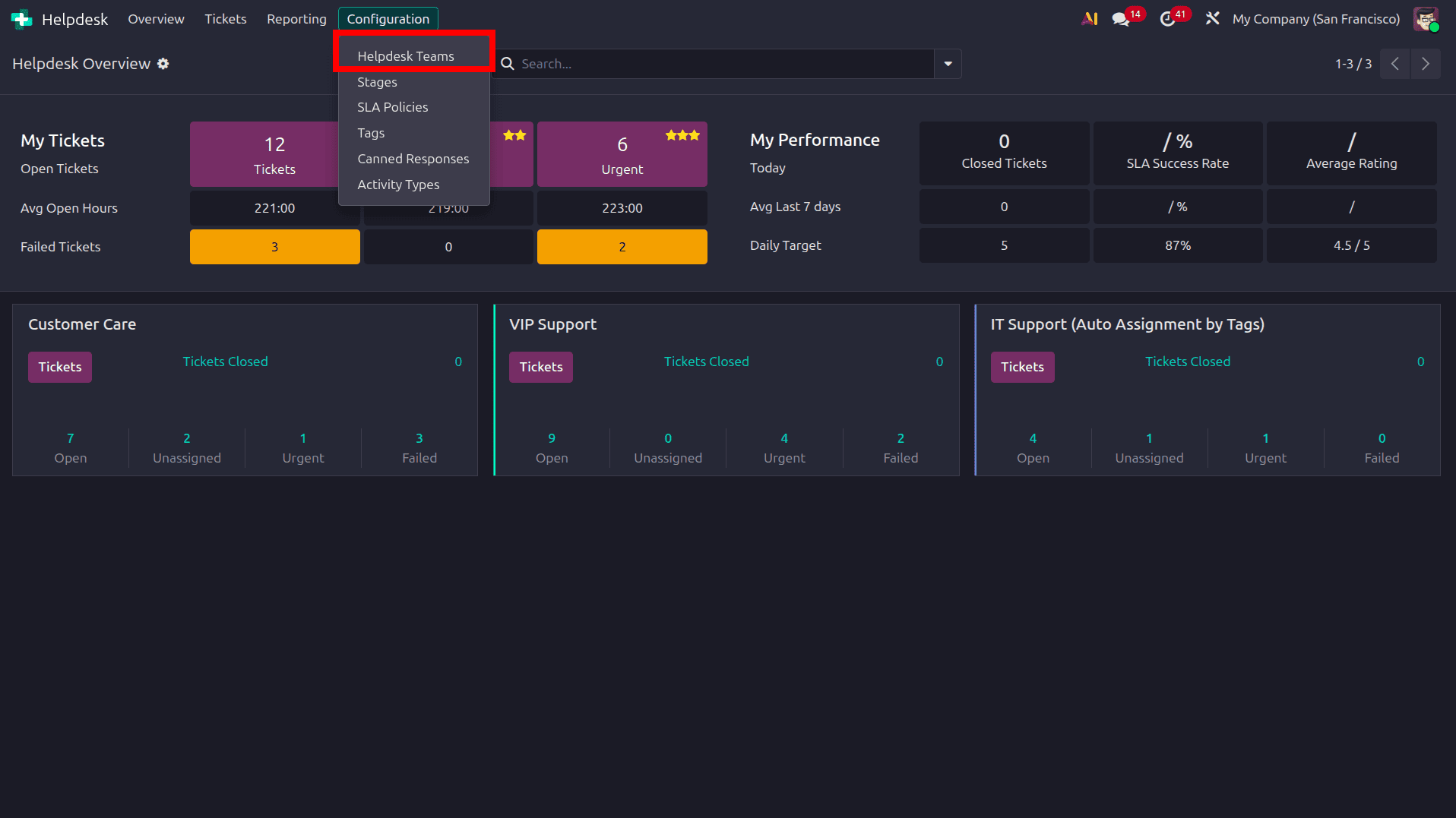
Inside the settings of a Helpdesk Team, we need to enable Time Tracking. For that, move to the Helpdesk module, then to the Configuration menu, open the Helpdesk Team submenu, and select one of the Helpdesk Teams.
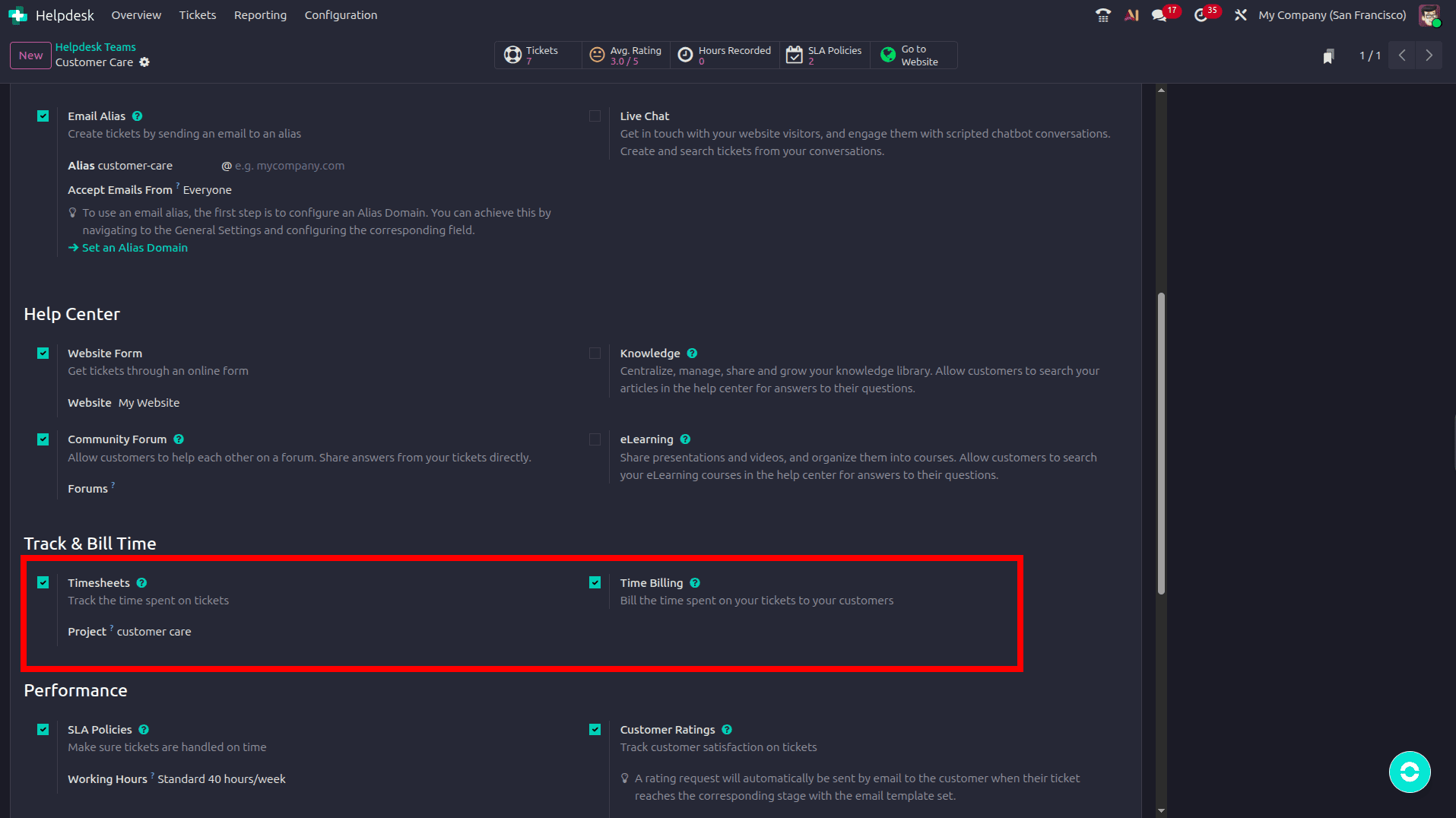
Under the Track & Bill Time section, enable Timesheets to allow support agents to record the time spent working on Helpdesk tickets. Once enabled, select the relevant Project where the ticket timesheet entries will be recorded.
If the time spent on tickets needs to be charged to customers, enable Time Billing as well. This allows the hours recorded on Helpdesk tickets to be used in the customer billing workflow.
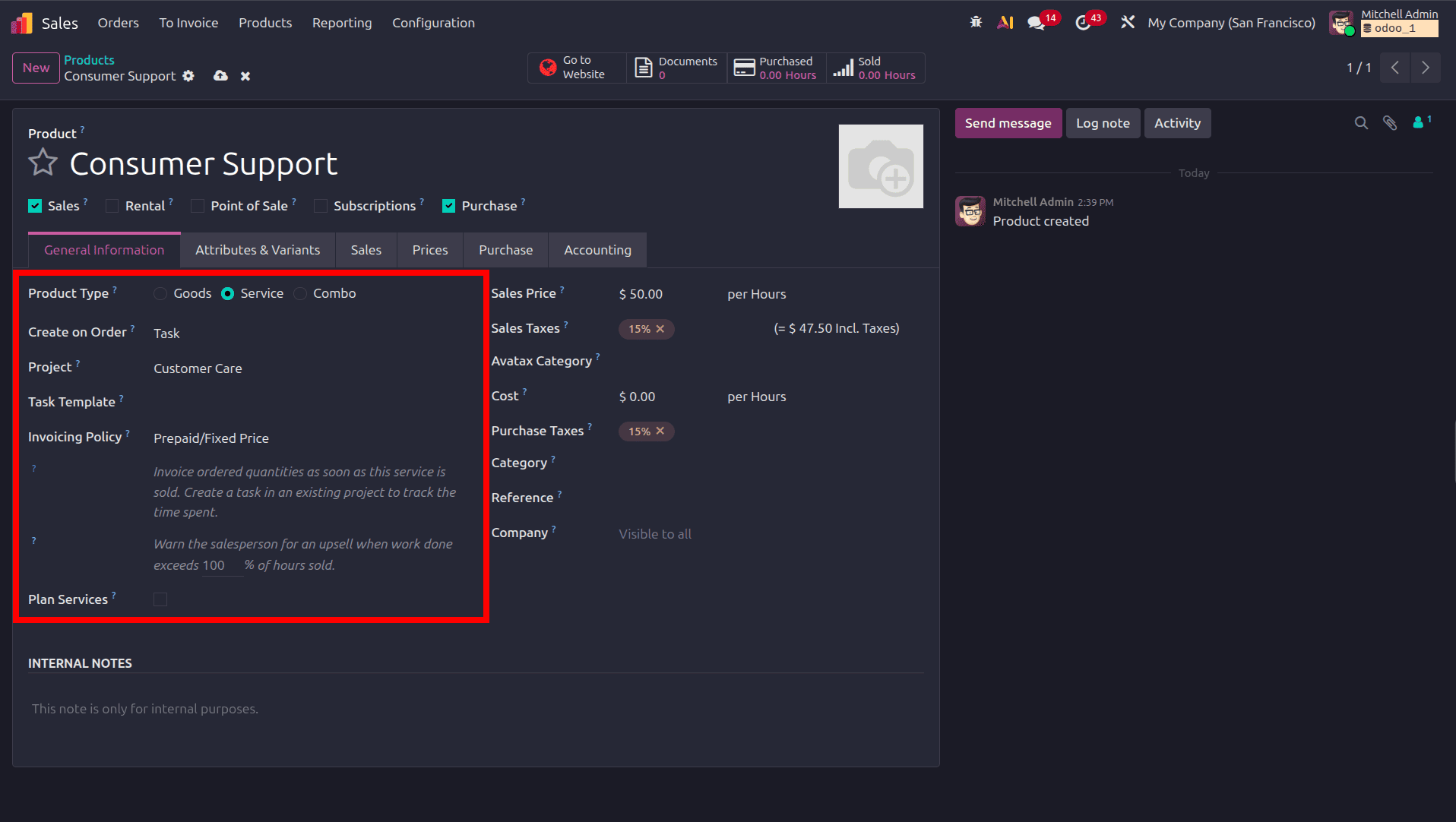
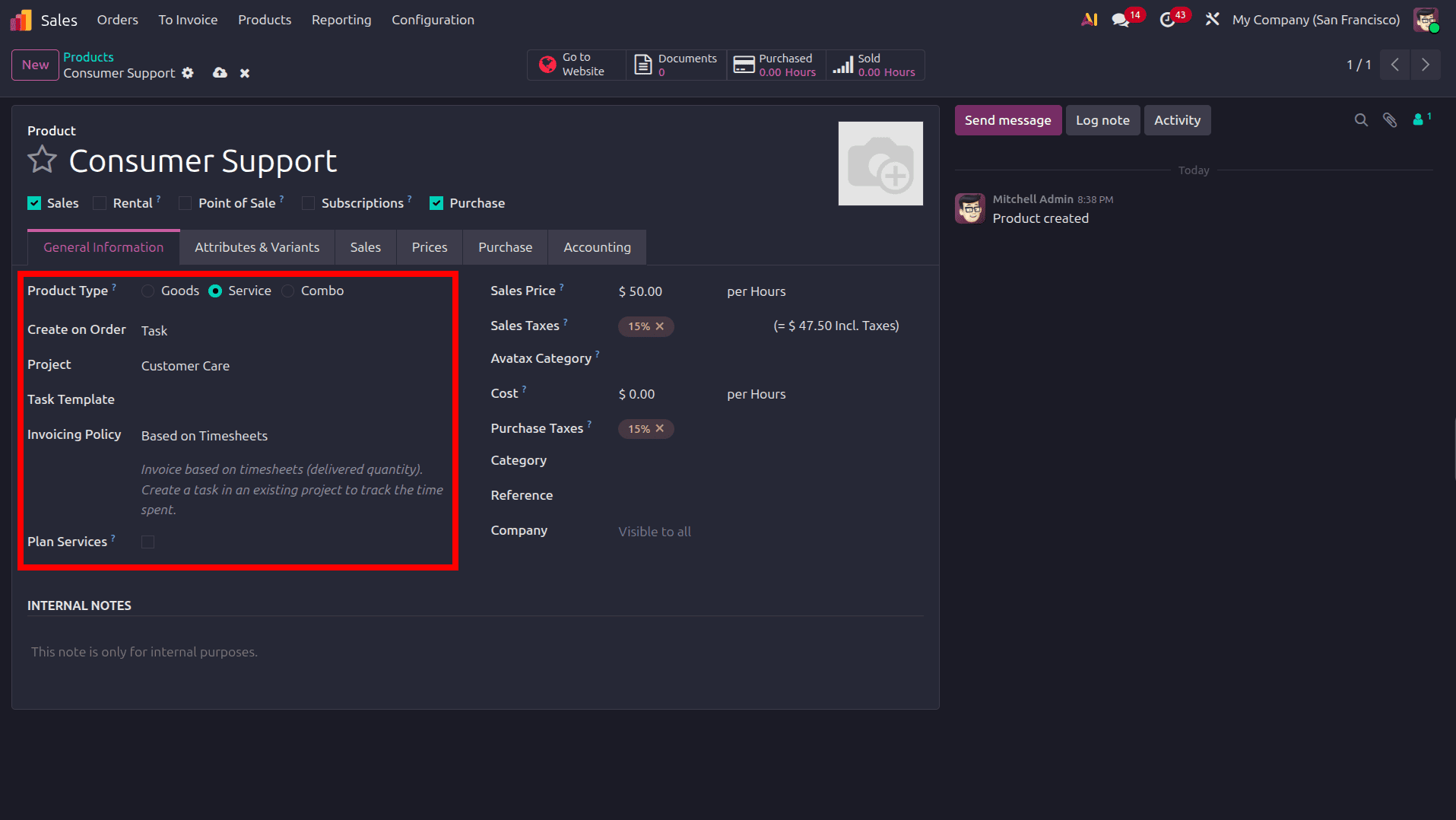
Create a Service product to represent the support service that will be billed based on the time spent on Helpdesk tickets. Configure the following fields:
- Product Type: Service
- Create on Order: Task – automatically creates a project task when the service is added to a sales order.
- Project: Select the project linked to the Helpdesk team, such as Customer Care.
- Invoicing Policy: Based on Timesheets – allows the customer to be invoiced according to the hours recorded on the related task.
- Sales Price: Define the hourly rate for the service.
- Sales Taxes: Apply the appropriate customer tax.
- Plan Services: Enable this option if the service needs to be included in a service plan.
This configuration connects the Helpdesk ticket > Timesheet > Project Task > Sales Order > Customer Invoice workflow, allowing the time spent by support agents to be tracked and billed to customers.
Ticket billing based on prepaid/Fixed quantity
When the service product uses the Prepaid/Fixed Price invoicing policy, customers are billed based on the ordered quantity, regardless of the actual time spent on the Helpdesk ticket.
Once the Consumer Support service product is added to the quotation, set the required quantity and unit price. After confirming the quotation, Odoo creates the corresponding Sales Order and links it to the related Project Task, where the support agent can record the time spent on the Helpdesk work.
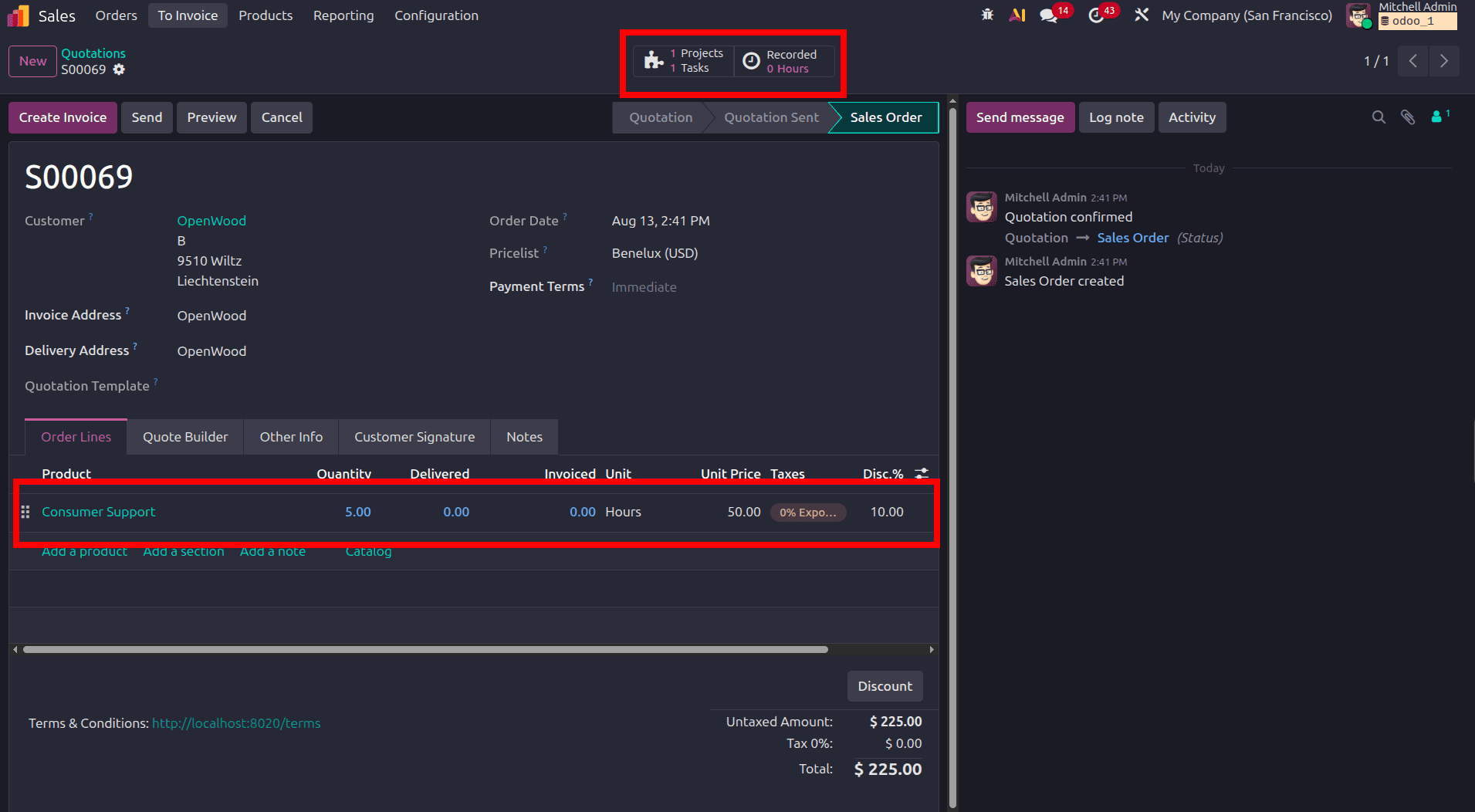
Clicking the Project and Task smart button opens the related Project Task created from the Sales Order. The task is linked to the Customer Care project and the corresponding Sales Order Item. From the Timesheets tab, support agents can record the time spent working on the task, which can then be used for customer billing based on the configured timesheet-based invoicing policy.
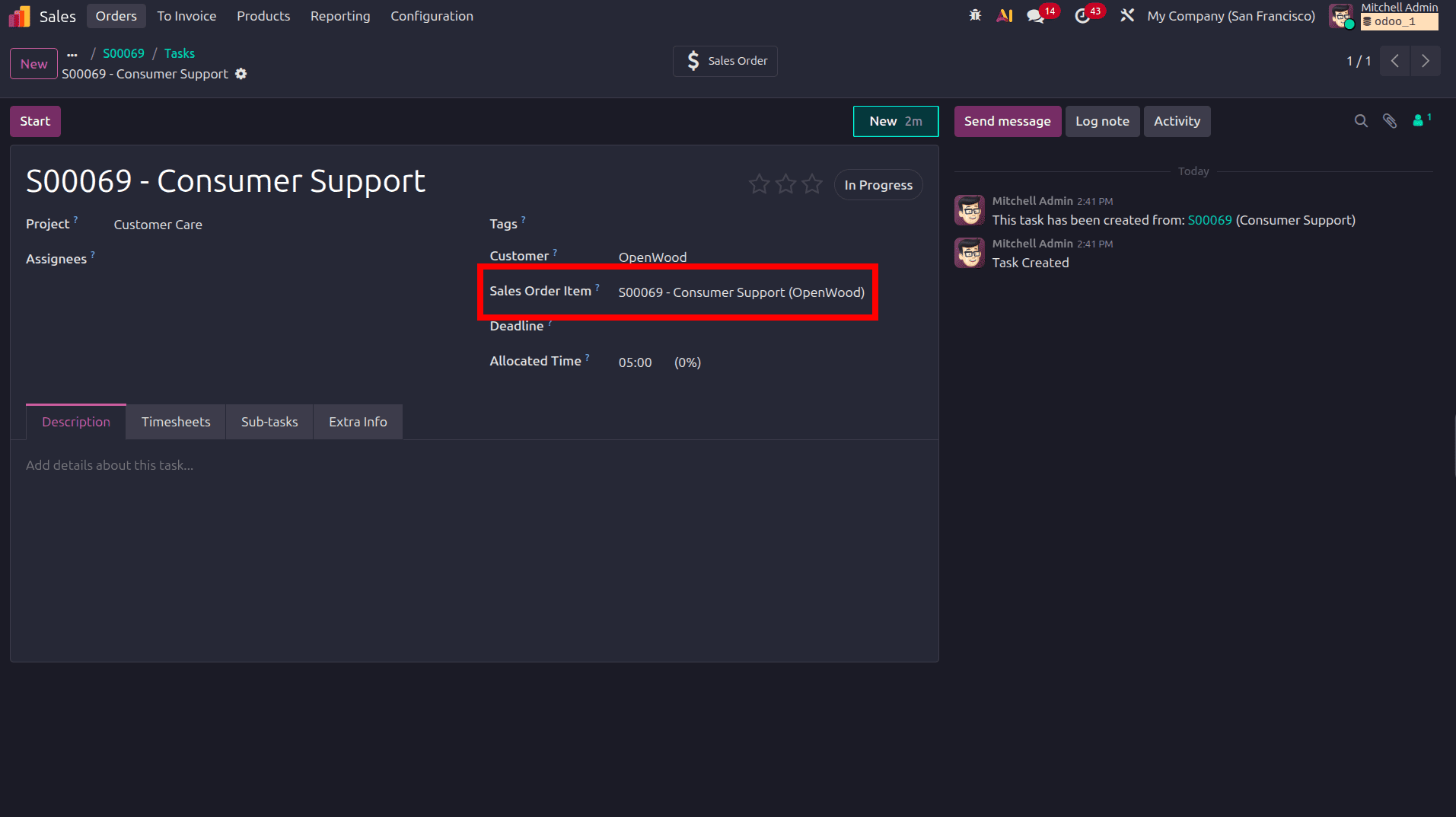
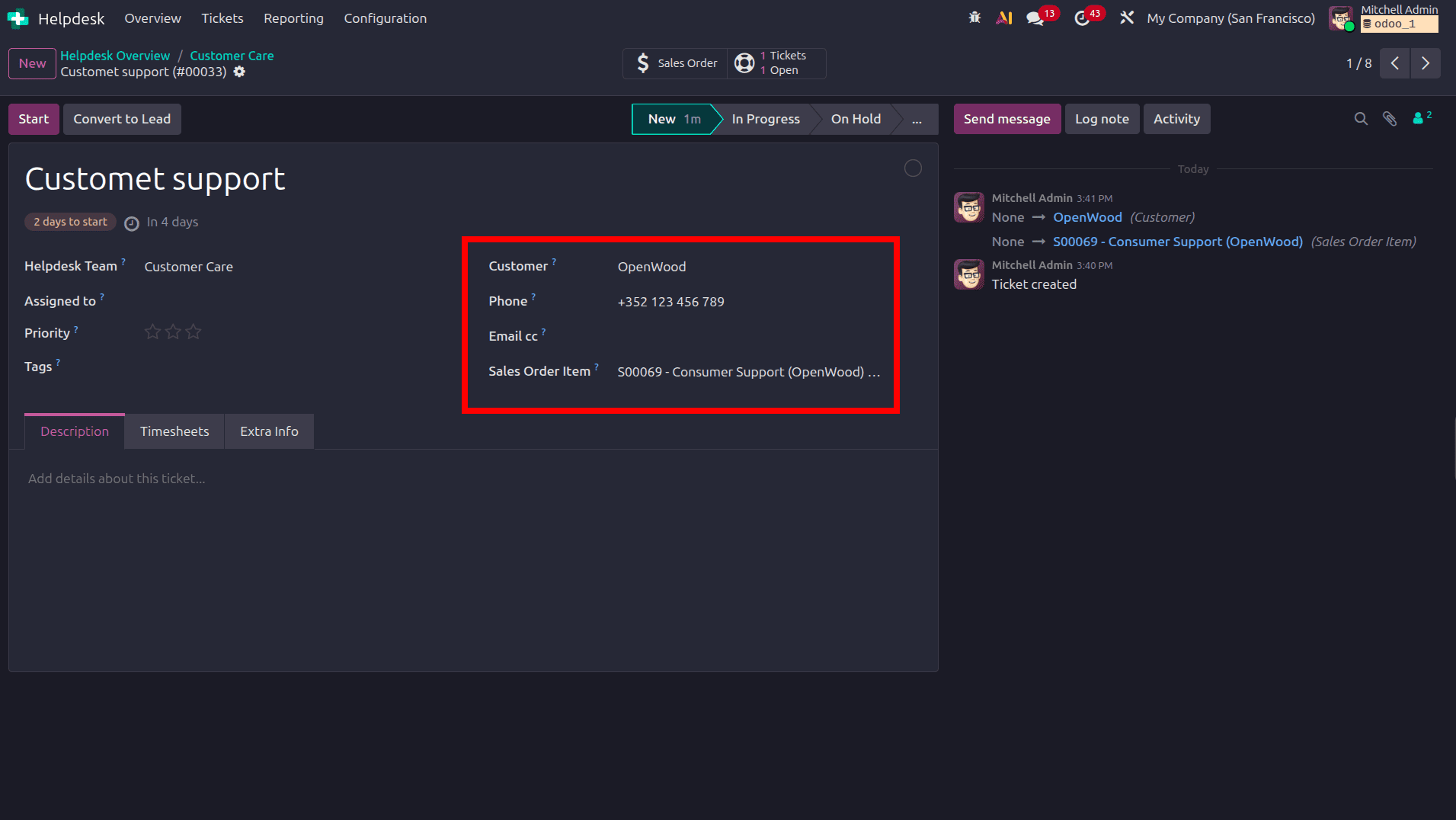
Next, create a Helpdesk Ticket from the Helpdesk module and select the relevant Customer. Once the customer is selected, Odoo automatically links the ticket to the corresponding Sales Order Item when a matching billable service is configured. This allows the time recorded on the ticket to be associated with the relevant Sales Order for subsequent customer billing.
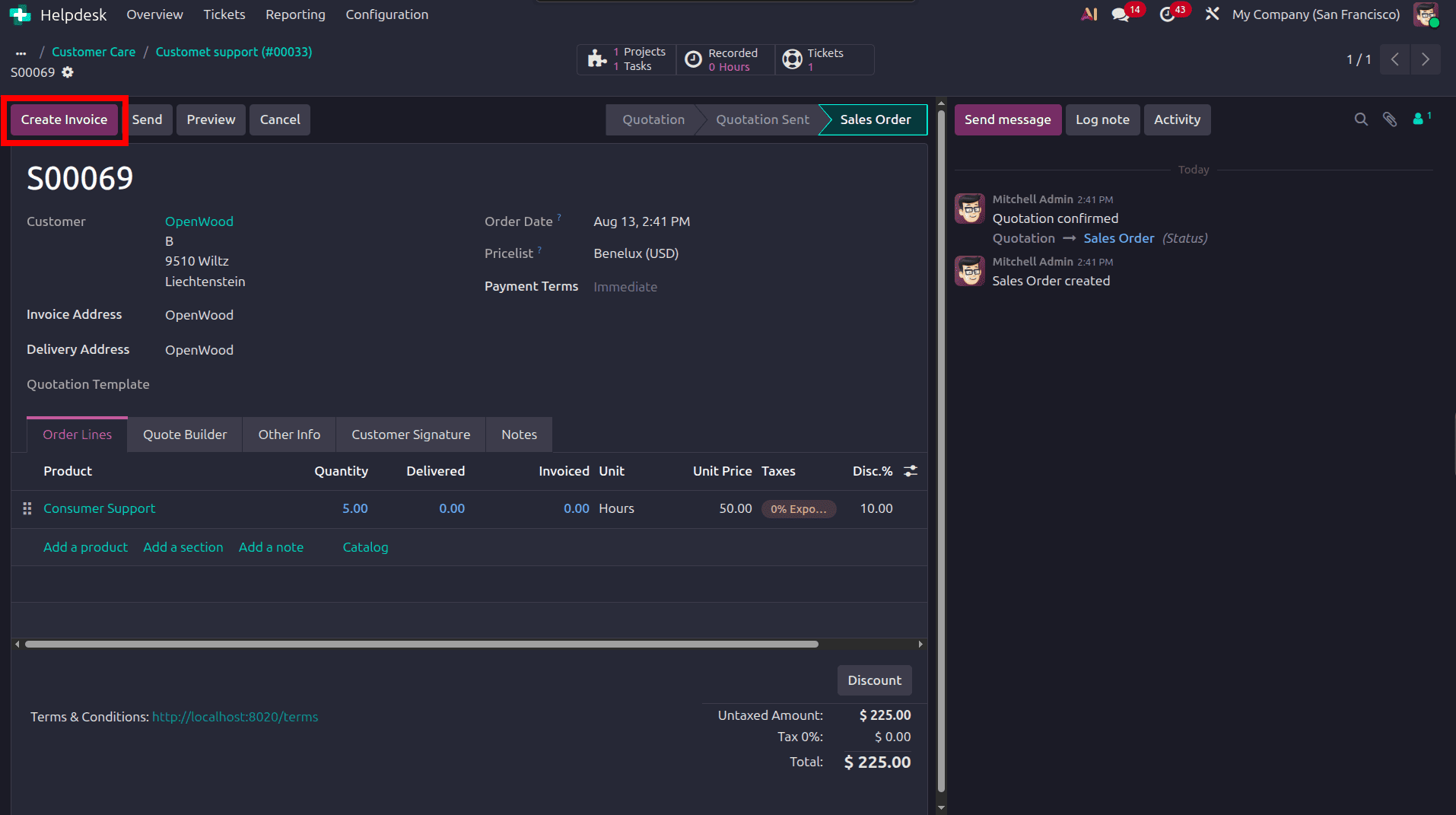
Then, we can create the invoice for this order by clicking the create invoice button in the Sales Order. Here, we are creating the invoice for this order without adding the timesheet, as the invoicing policy of the product is Prepaid/fixed.
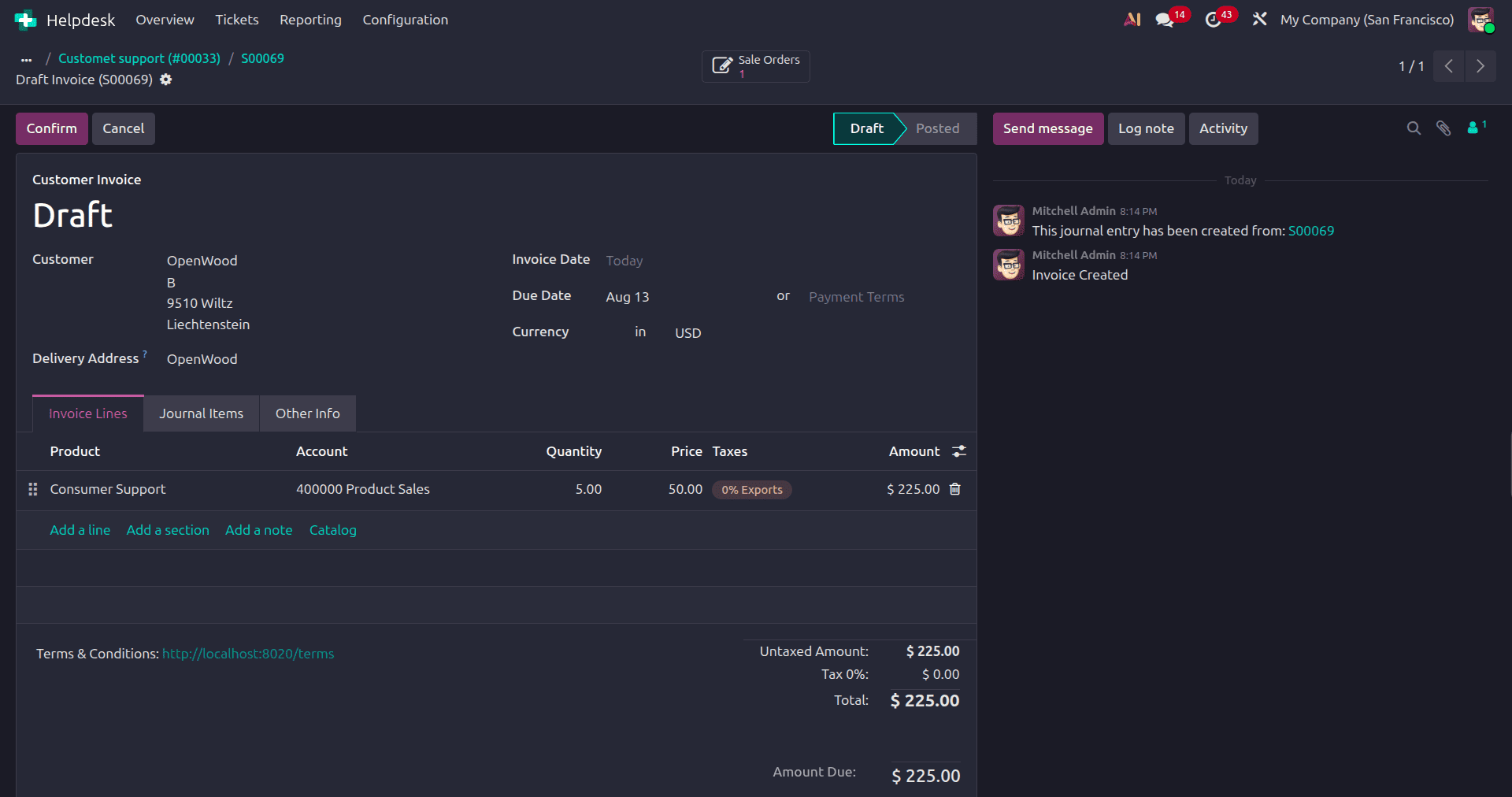
In the Customer Invoice, the Quantity is automatically populated based on the quantity ordered on the related Sales Order. The invoice line also carries over the configured service product, unit price, taxes, and corresponding income account. Review the invoice details and click Confirm to post the customer invoice.
Ticket billing based on Time Spent
To configure the service product for timesheet-based billing, select Service as the Product Type, set Create on Order to Task, and link it to the Customer Care project. Then, set the Invoicing Policy to Based on Timesheets, so the customer is invoiced according to the actual time recorded on the related task.
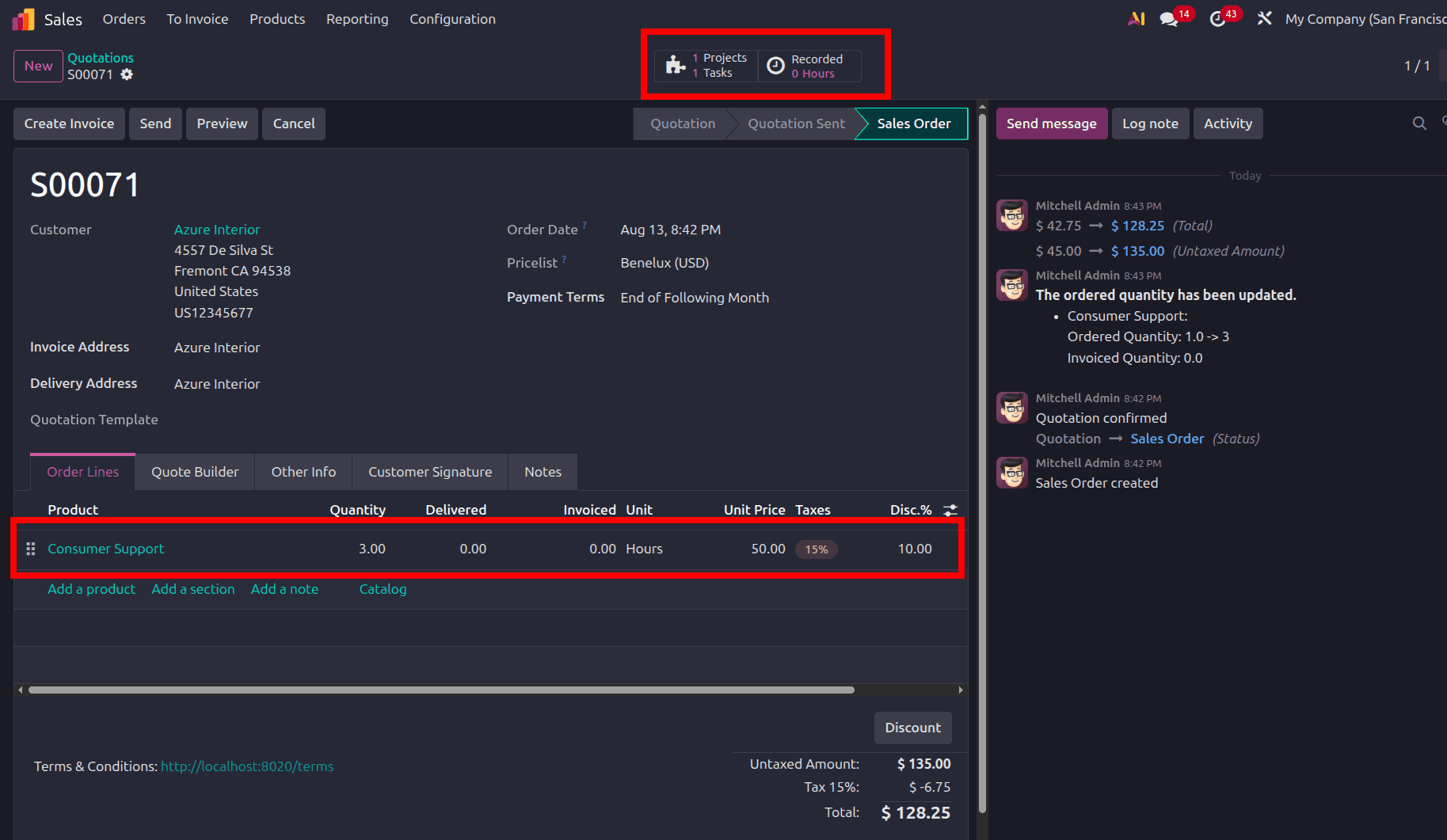
Create the quotation, and after confirming the quotation, the service product creates the related project and task automatically. The ordered quantity is reflected in the Sales Order line, while the Projects and Tasks smart buttons provide direct access to the related records for tracking the service work.
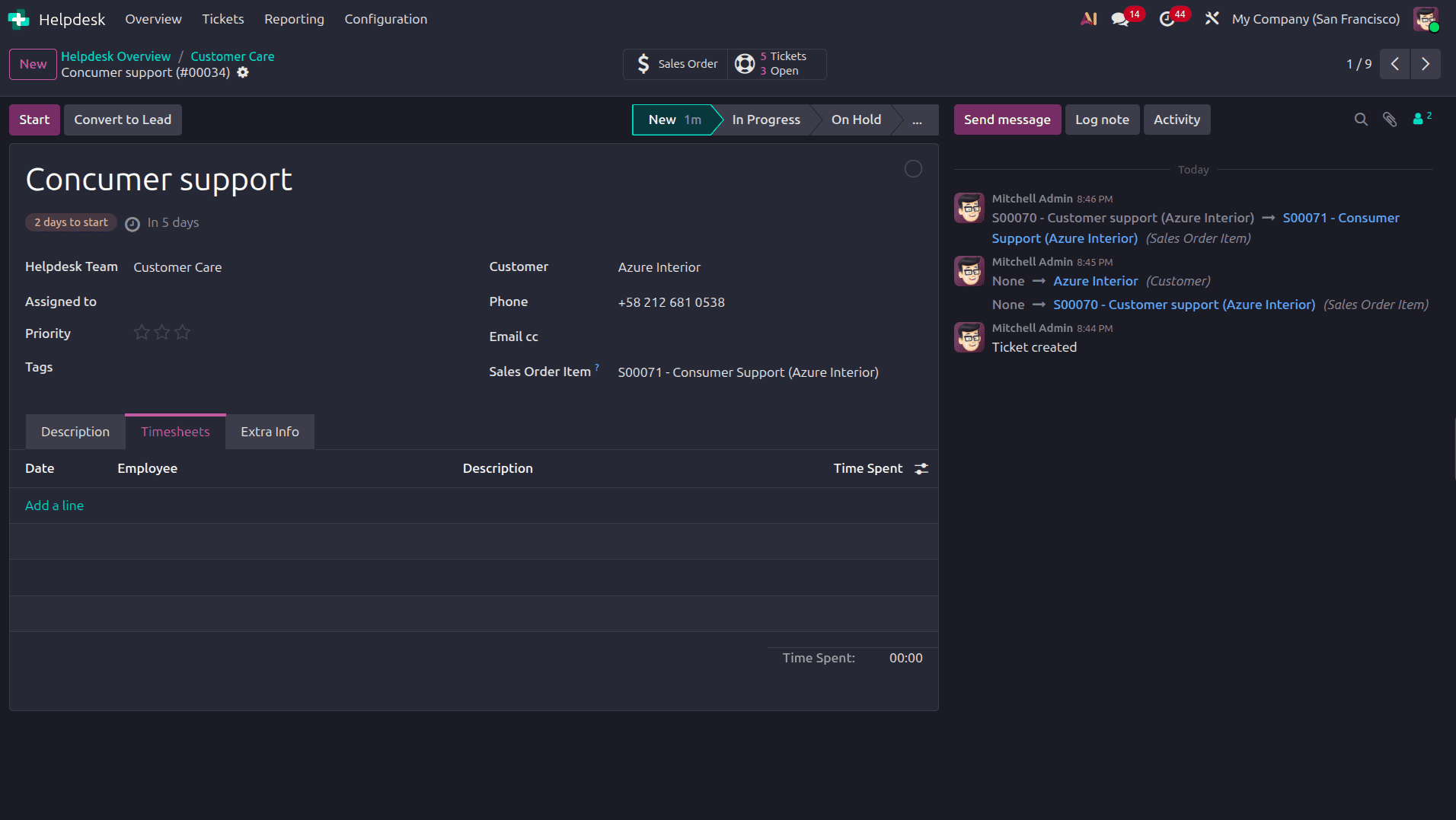
Next, create a Helpdesk Ticket for the related Sales Order. The ticket is linked to the Sales Order Item, while no timesheet entries are added at this stage
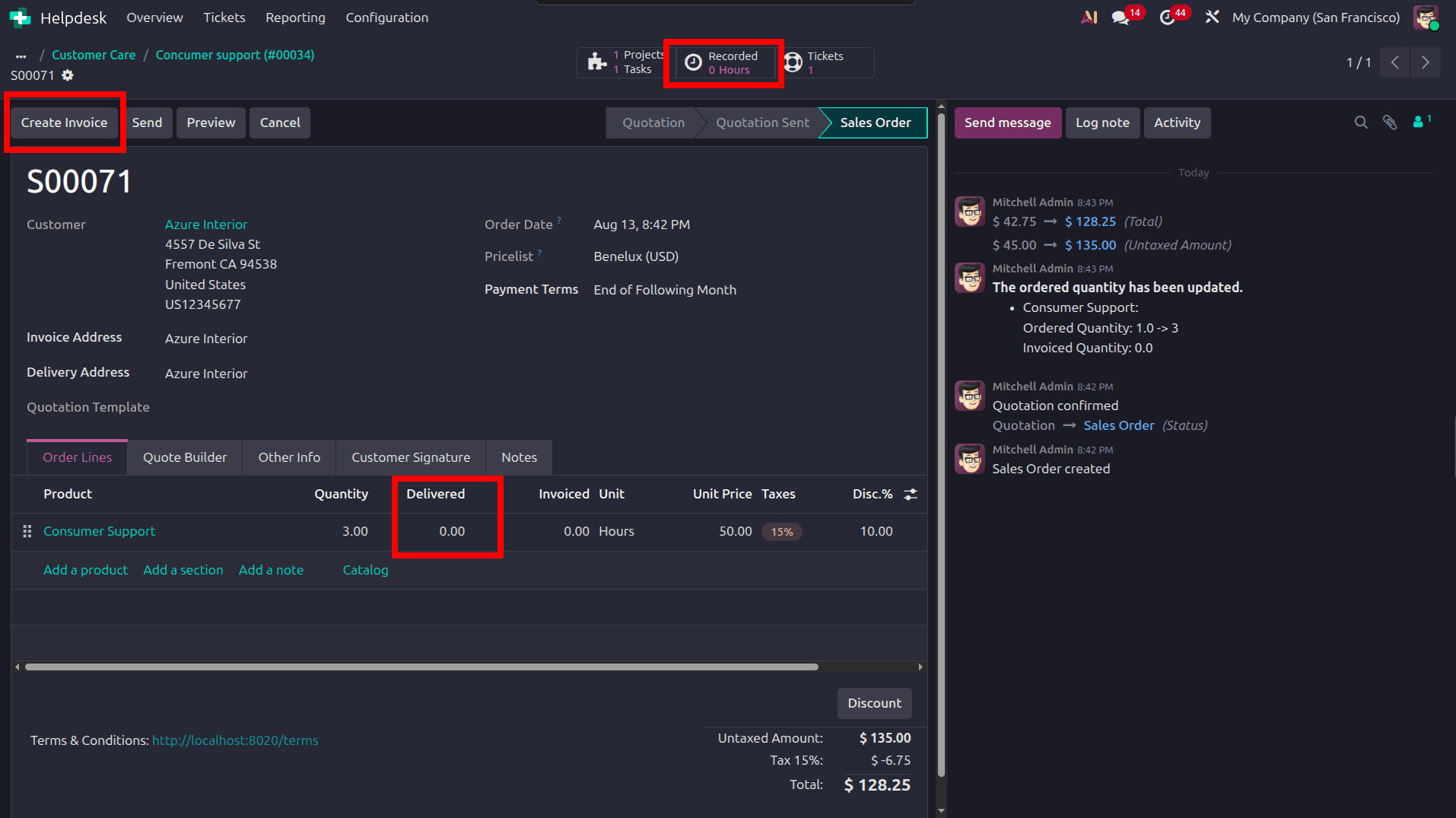
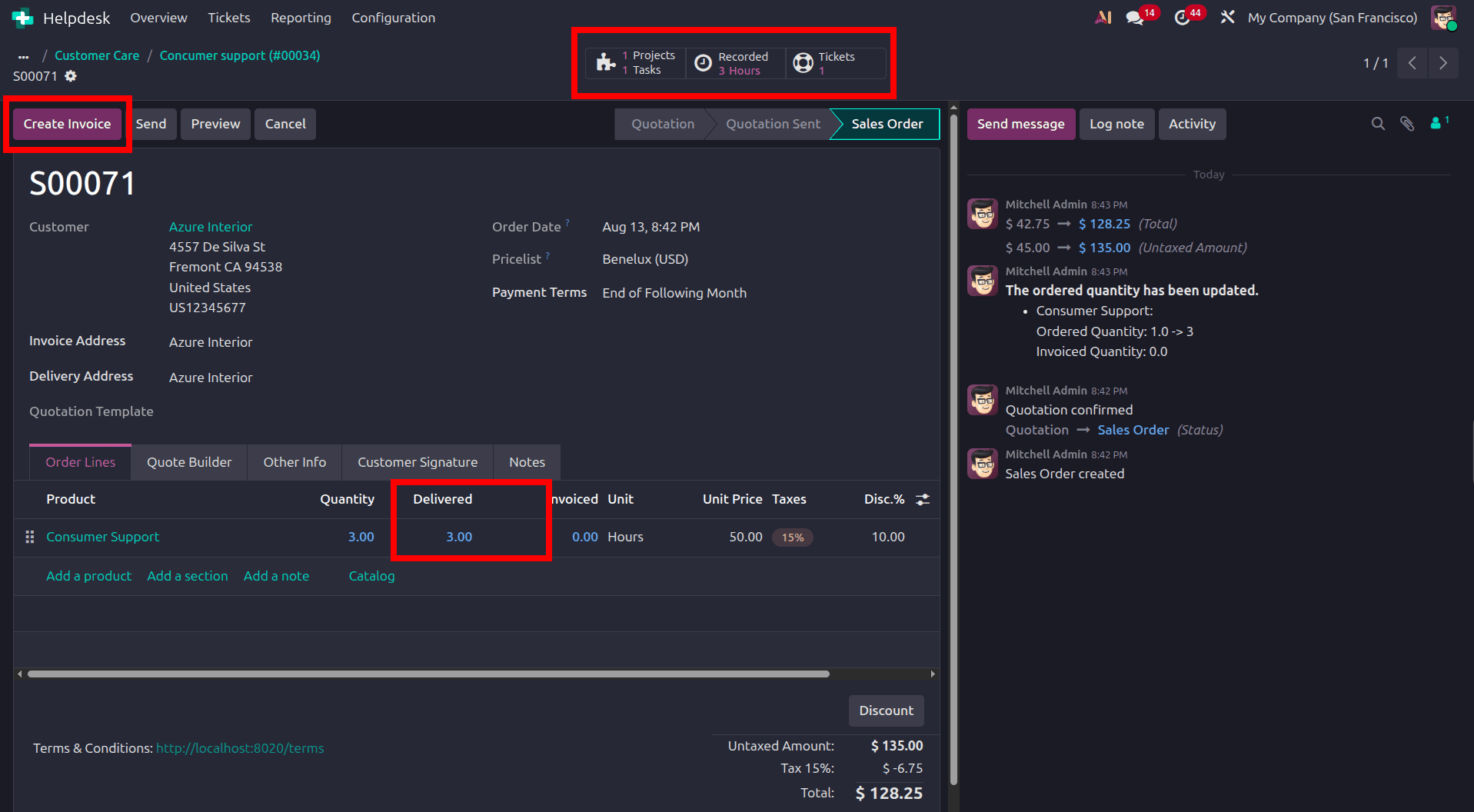
When moving to the sales order, there is no option to create an invoice for the order, as the invoicing policy of the product is based on the timesheet.
Once we come back to the helpdesk ticket, we can add the employee's time spent on the ticket.
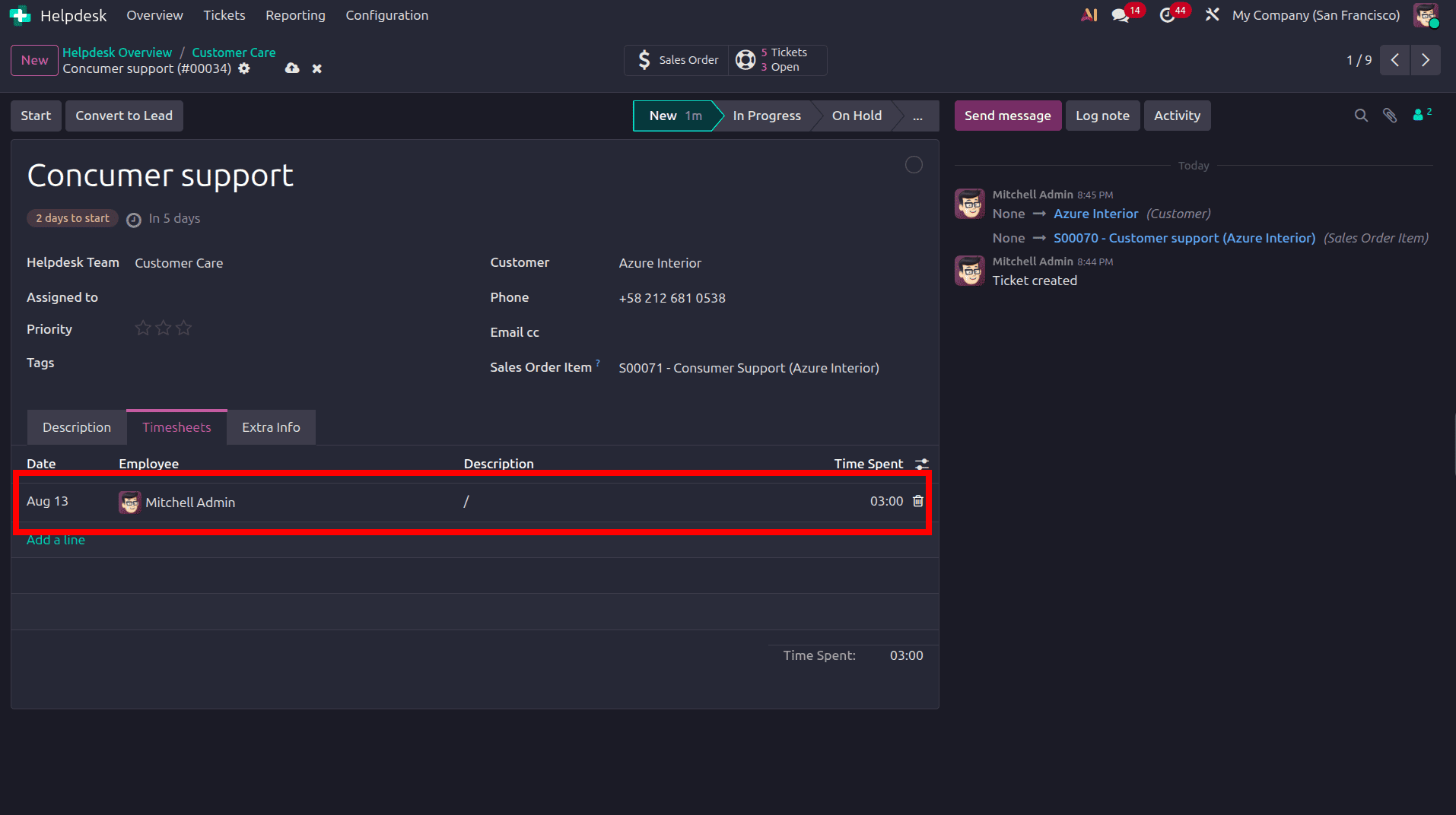
After saving the time spent, we can create the invoice. Here, the Create Invoice button on the invoice is active. The recorded time will be added to the invoice, and the delivered quantity will also be updated so we can create an invoice for that order simply.
Odoo 19 provides an integrated approach to tracking time and billing for Helpdesk tickets. By using Timesheets, billable time, and Sales Orders, support teams can accurately record work, automate invoicing, and maintain clear visibility into support costs. This streamlines ticket management while ensuring accurate billing and efficient customer service.
To read more about Track Time and Billing on Helpdesk Tickets in Odoo 18, refer to our blog Track Time and Billing on Helpdesk Tickets in Odoo 18.