Managing support tickets effectively while ensuring accurate billing for time spent is one of the most critical challenges for service-based businesses. In fast-paced environments where support teams juggle multiple tickets daily, it's easy for billable hours to go unrecorded, leading to revenue leakage and client dissatisfaction. On the other hand, manual tracking and invoicing are often error-prone and time-consuming.
Odoo 18 offers a robust and integrated solution to this problem by seamlessly connecting the Helpdesk, Timesheets, and Invoicing modules. This integration creates a fluid workflow where time spent on tickets is automatically tracked, linked to customer projects, and transformed into invoice-ready data—reducing human effort and maximizing billing accuracy.
To leverage this feature, you begin by setting up the necessary components. Within the Apps menu in Odoo, you’ll need to install a few core modules that work together to support this workflow. The Helpdesk module is the foundation, enabling ticket creation, categorization, and team assignment. To track the time spent resolving these tickets, the Timesheets module comes into play, allowing support agents to log their hours directly on the ticket interface. For businesses that charge clients based on service time, the Sales module allows you to define your billable products and hourly rates. Finally, the Invoicing module uses those timesheet entries to generate detailed and professional client invoices automatically.
Install the Required Modules in Odoo 18
To get started with time tracking and client billing from helpdesk tickets, the first step is to ensure that all the necessary modules are installed in your Odoo 18 environment. These modules work together to create a seamless workflow between support operations, time logging, and financial billing.
Begin by navigating to the Apps menu from your Odoo dashboard. In the search bar, enter the name of each required module and install them one by one. The Helpdesk module is the cornerstone of your support process—it allows you to manage customer tickets, categorize issues, and assign them to specific teams. Next, install the Timesheets module, which empowers your support agents to record the time they spend on each ticket. This data becomes the basis for billing.
To ensure that logged time can be monetized, you’ll also need the Sales module. This module lets you define billable service products—such as hourly consulting rates or fixed-price support packages—which are used when generating invoices. Speaking of invoices, the Invoicing module is essential for producing and sending professional invoices to your clients based on the time entries your team has logged.
If your support workflow includes longer projects or complex tasks that span multiple tickets, consider installing the optional Project module. It enables you to organize support activities into structured projects, helping you track progress more effectively over time.
Enable Time Tracking on Helpdesk Teams
Go to Helpdesk > Configuration > Helpdesk Teams
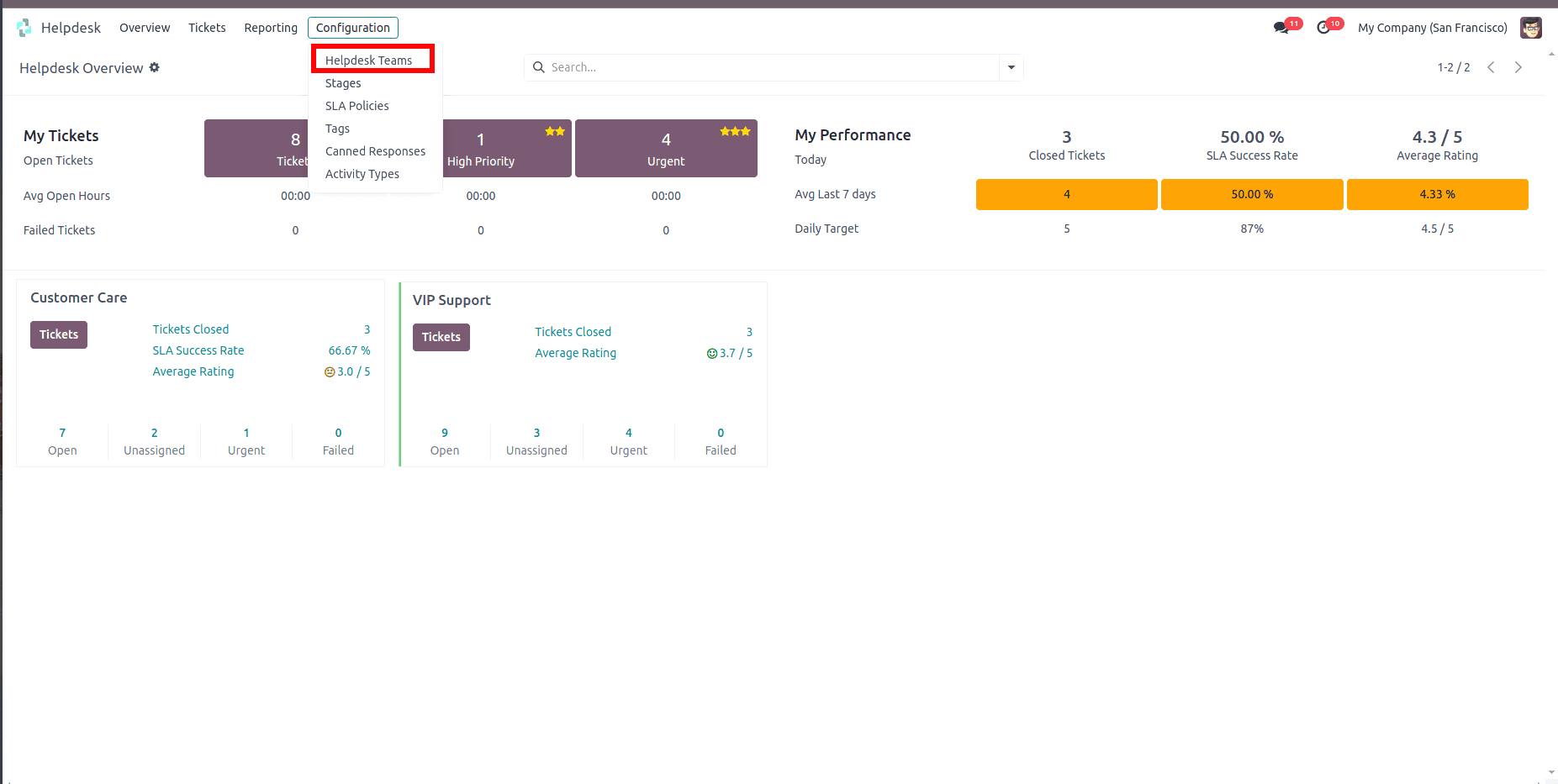
Once you’ve installed the required modules, the next step is to configure your helpdesk team to enable time tracking and billing functionality. To begin, navigate to the Helpdesk module and open the Configuration menu. From there, click on Helpdesk Teams. Select the helpdesk team you want to configure.
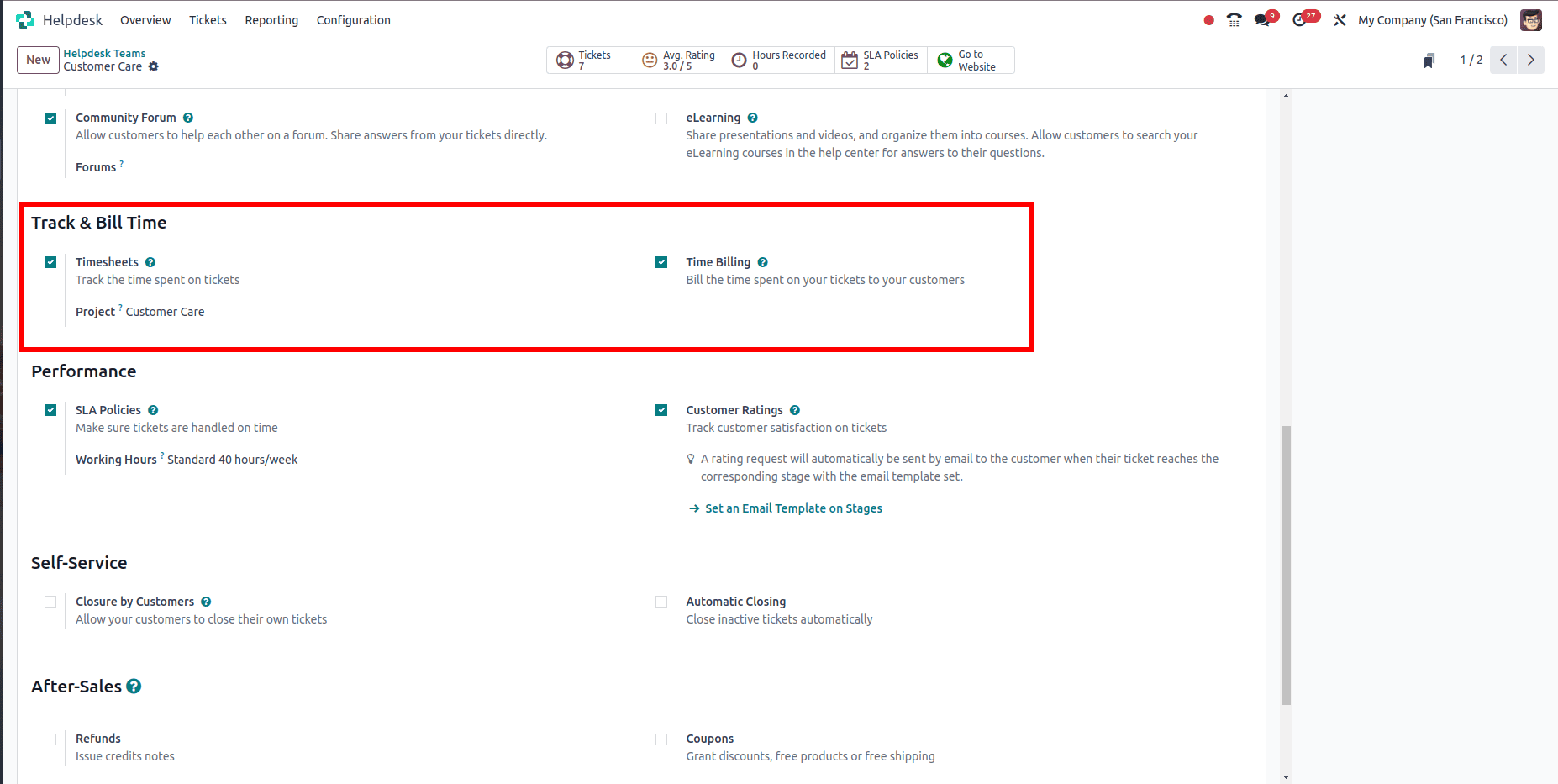
Within the team configuration form, you’ll find several important options that need to be enabled. First, check the “Timesheet on Ticket” option. This allows support agents to record time directly from the ticket interface, making time logging quick and effortless. Next, enable the “Time Billing” option. With this setting turned on. Lastly, you’ll need to link the helpdesk team to a specific project where all time entries will be logged. Under the “Project” field, select or create a project that represents your support activity—such as “Customer Support” or “Technical Helpdesk.”
Method 1:
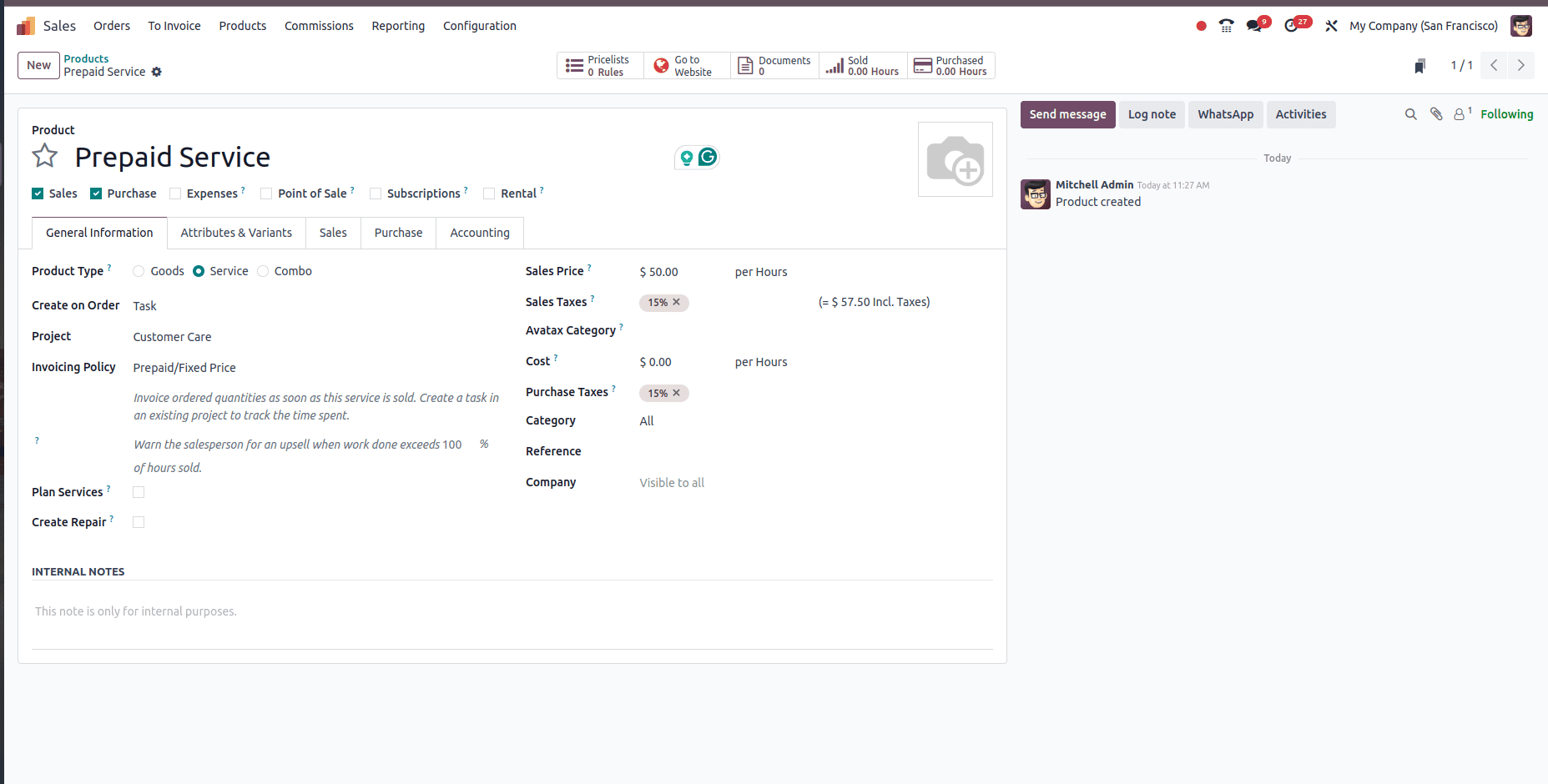
You need to create a billable service product. Start by navigating to the Sales module. From the main menu, go to Products and click on Create to define a new product. Give your product a clear and descriptive name such as “Prepaid Services”.Under the Product Type, select Services. For the Invoicing Policy, choose Prepaid. This setting ensures that the time worked is billed based on predefined service sales—such as prepaid hours purchased by the client. In the Create On Order field, select Task. Lastly, set the Unit of Measure to Hours, as this reflects the time-based nature of your service.
With your billable service product in place, the next step is to create a Sales Order. To begin, open the Sales module and click on Create to initiate a new sales order. Select the customer who is requesting support services. In the order lines section, add the service product you created earlier—such as “Prepaid Services”. You can now specify the number of hours the customer is purchasing. The sales order essentially defines how much time will be considered billable and at what rate. Once all details are filled out, click Confirm to validate the sales order.
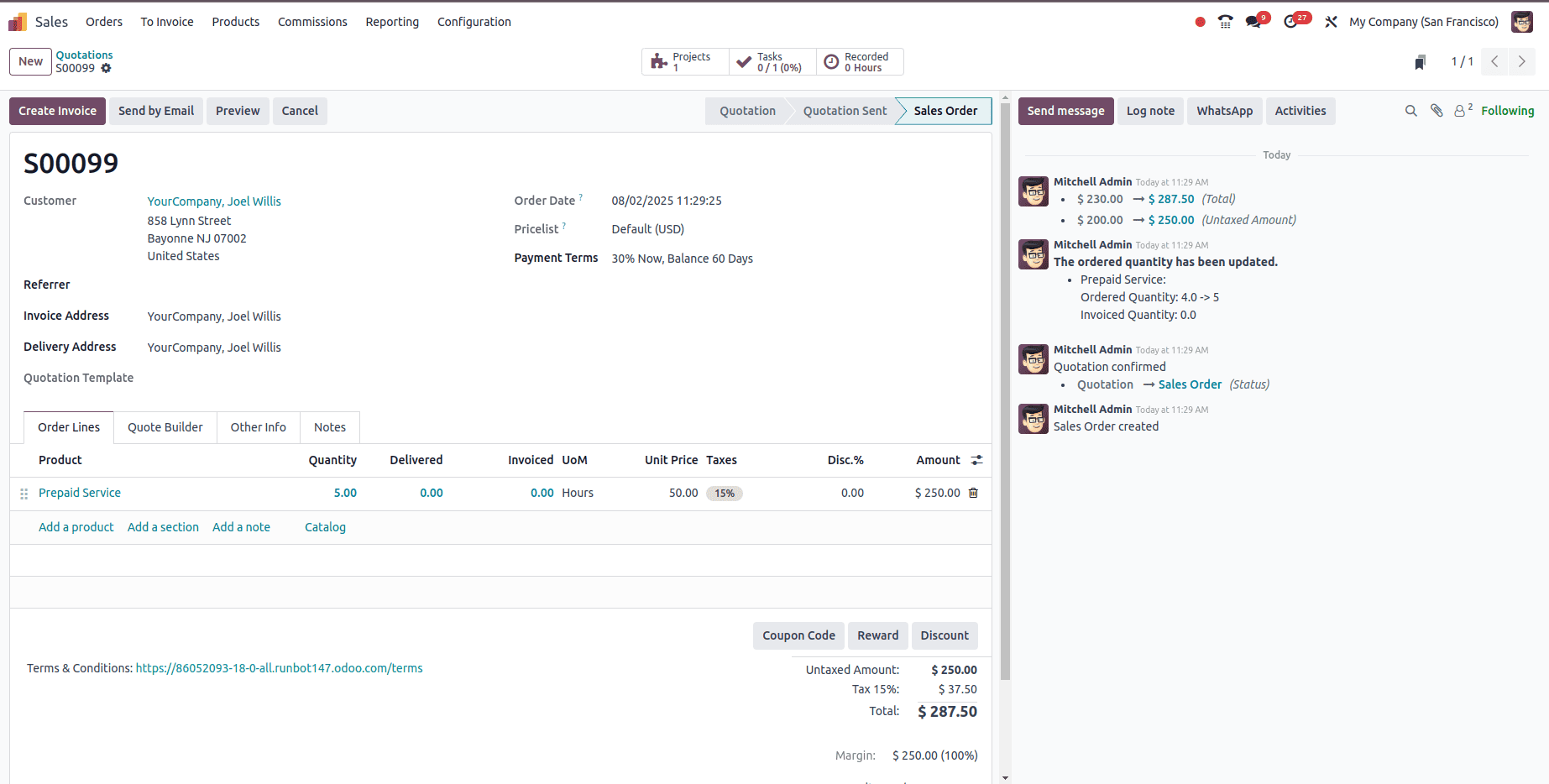
To begin, navigate to the Sales module and open the Sales Order related to the support service you want to bill. This order should already include your billable service product and be confirmed, as covered in earlier steps.
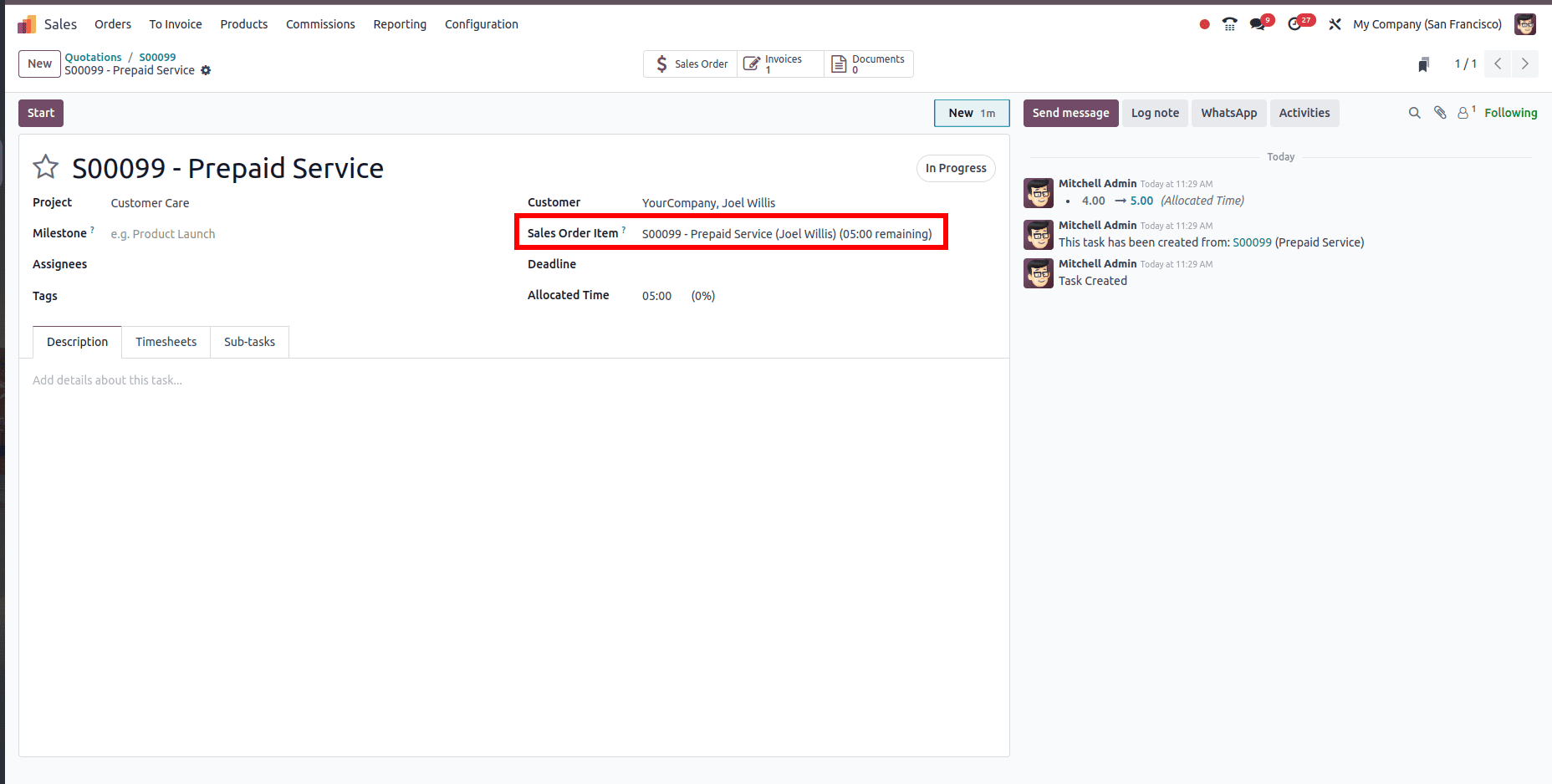
Additionally, if your helpdesk ticket was configured to generate project tasks, you’ll notice that a task has been created and linked to this sales order. This task acts as a container for the timesheet entries and helps keep the project and support workflow organized.
To log time against support work, open the Helpdesk module and either create a new ticket or open an existing one assigned to the configured helpdesk team. Once you select the customer, Odoo will automatically link the ticket to the corresponding sales order and project, provided one exists. Under the Timesheets tab, support agents can record the time spent by either manually entering hours or using the built-in timer. These time entries are automatically tied to the related task and customer, ensuring that all work is accurately tracked for billing.
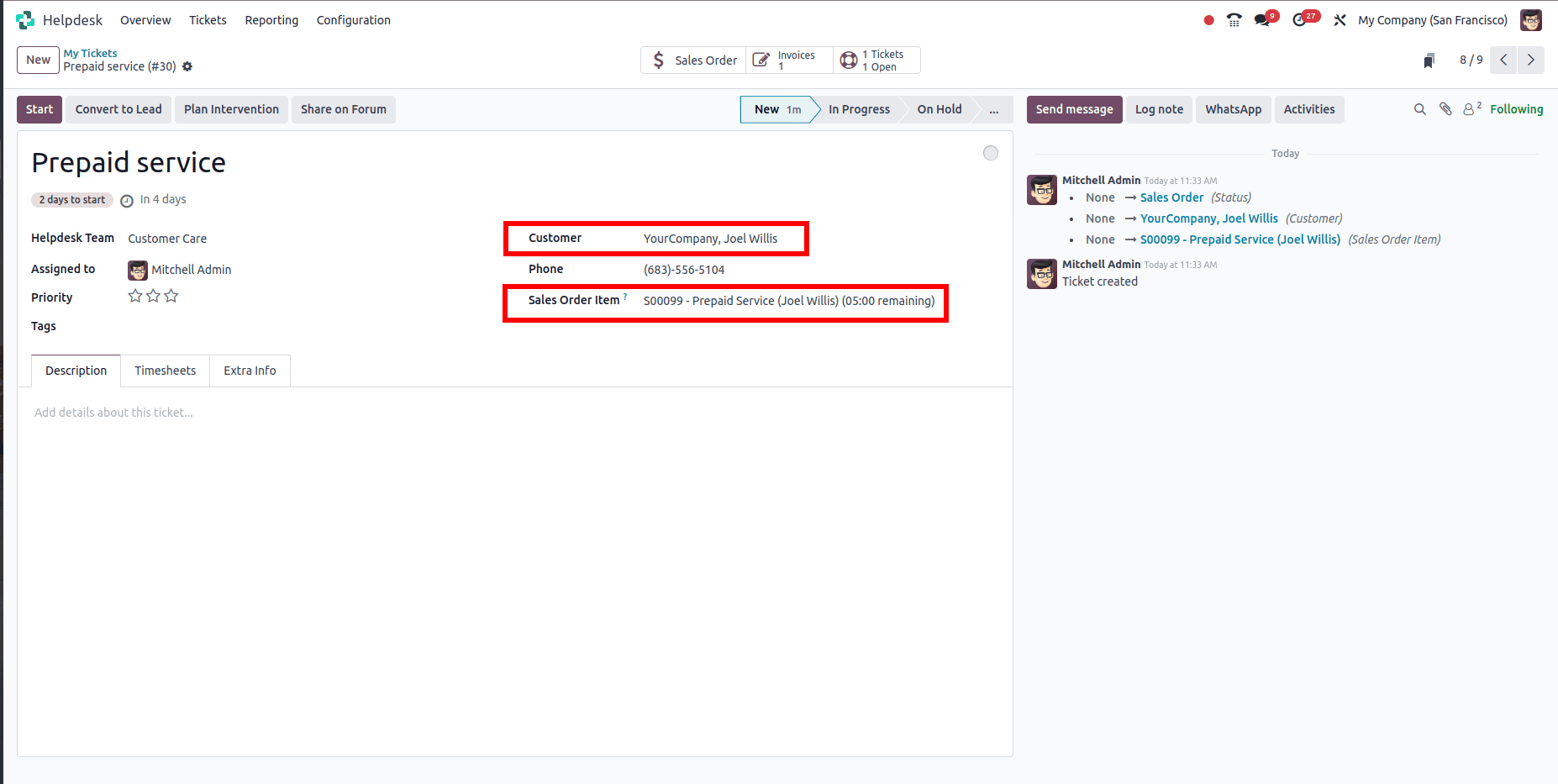
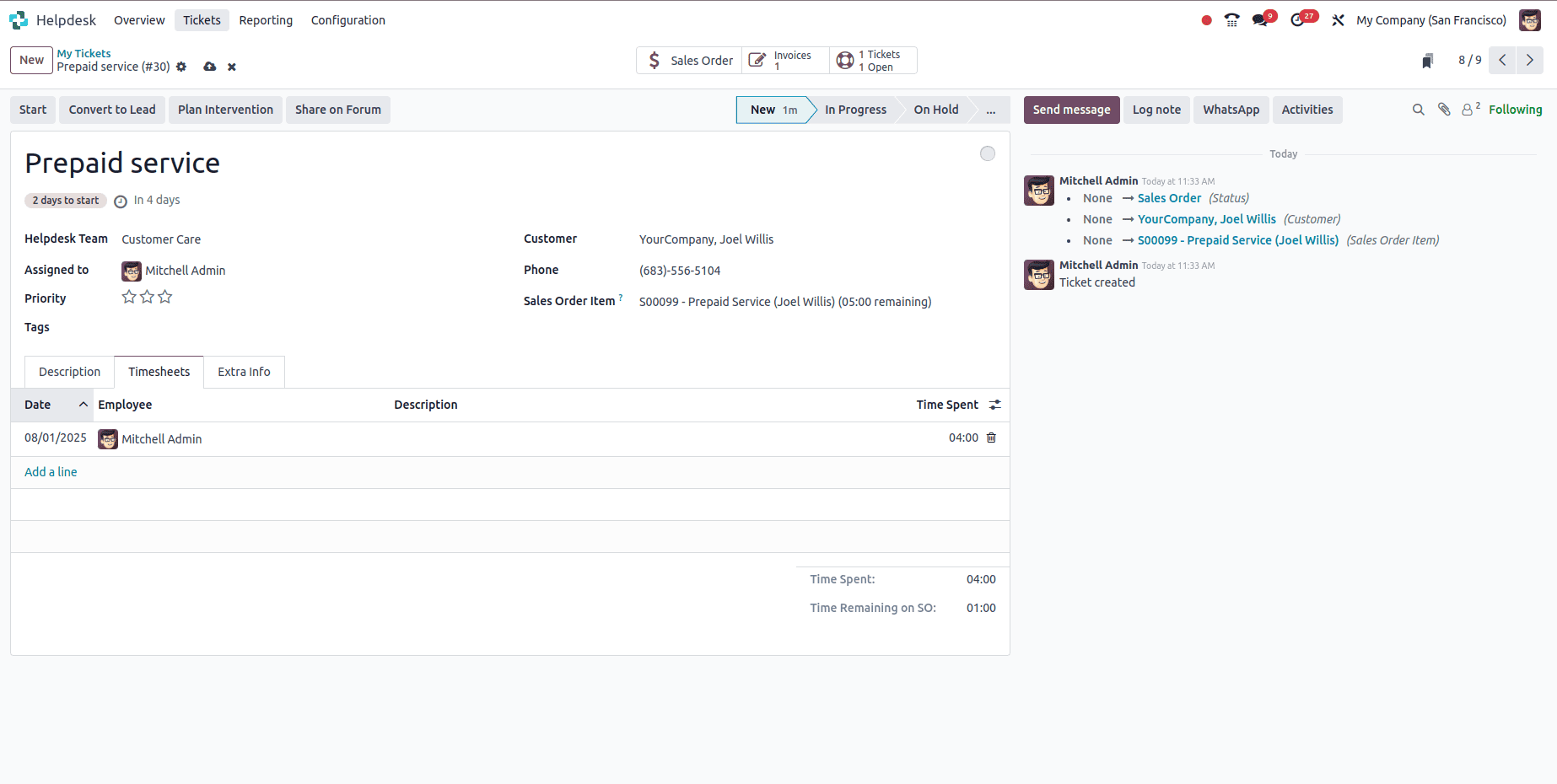
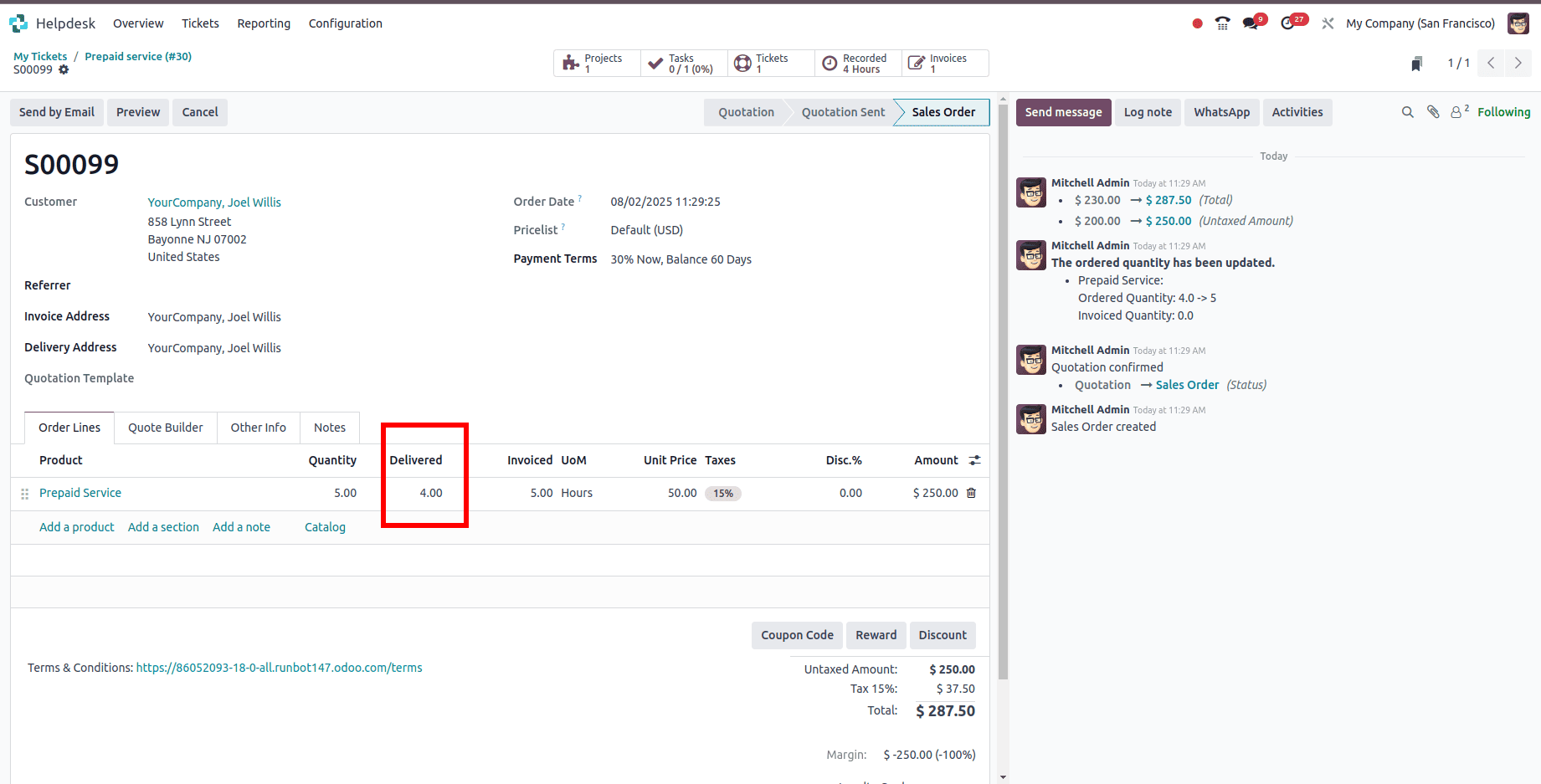
As time is logged on helpdesk tickets, Odoo automatically updates the Delivered Quantity on the related sales order based on the hours recorded. Each timesheet entry contributes to the delivered amount of the service product, reflecting the actual time worked. This ensures that when you generate the invoice, it is based on real-time data from support activity—accurate, up-to-date, and directly linked to the customer's order.
Method 2:
Start by navigating to the Sales module. From the main menu, go to Products and click on Create to define a new product. Give your product a clear and descriptive name such as “Support Services”. Under the Product Type, select Service, as this product represents time-based work. For the Invoicing Policy, choose Based on Timesheets. This setting ensures that the product will only be invoiced for the actual time recorded through timesheet entries. In the Create On Order field, select Task, which allows the product to be linked to tickets or project tasks, making time tracking and invoicing more organized. Finally, set the Unit of Measure to Hours, as this reflects the nature of the service being billed.
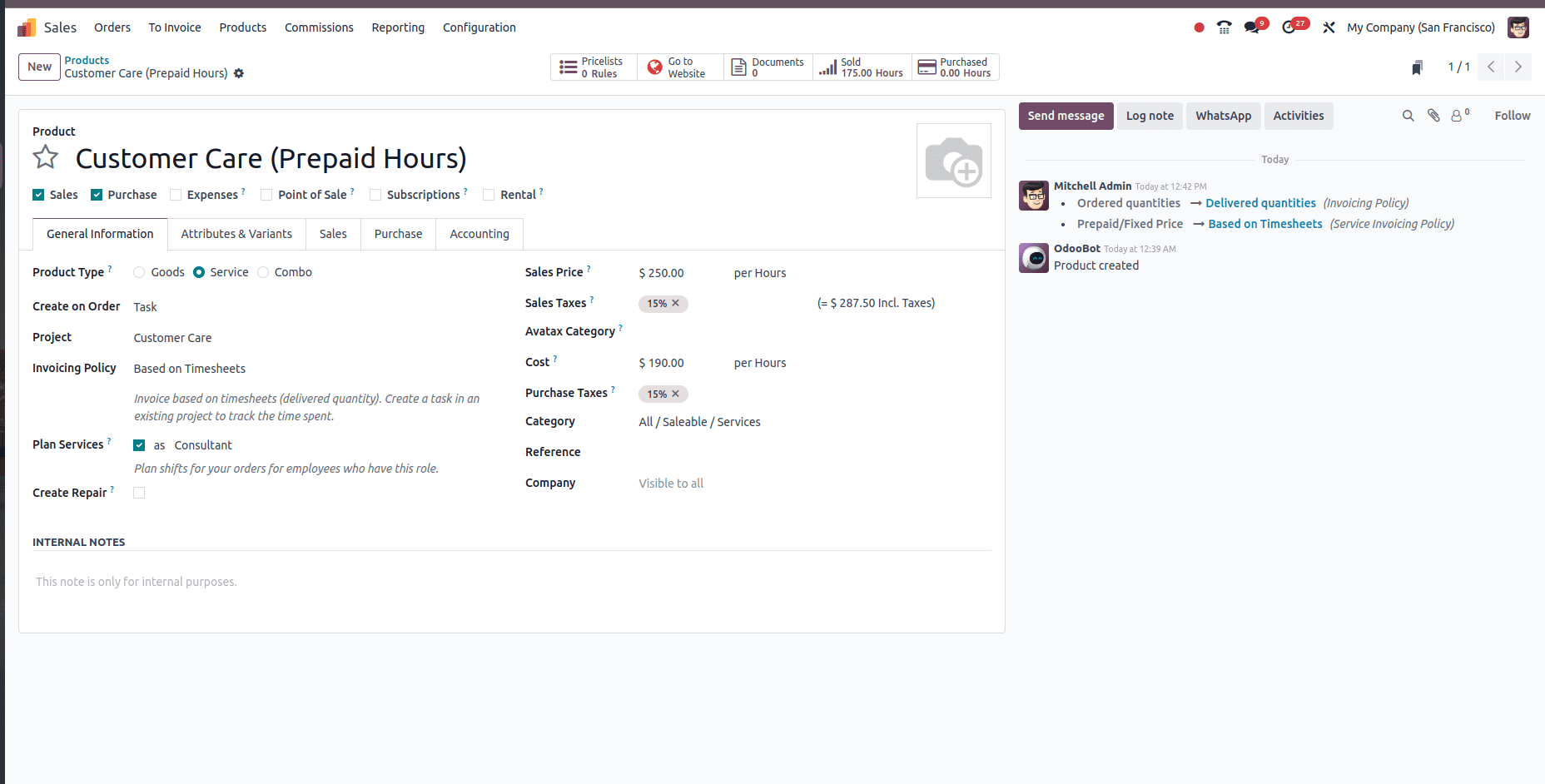
Next, you can create a Sales Order for the customer using the previously configured service product. At this stage, you won’t see the option to create an invoice immediately, because the product is configured to be invoiced based on delivered quantities—in this case, hours logged via timesheets. Once your team begins logging time through helpdesk tickets and those hours are registered as delivered on the sales order, the Create Invoice button will become available. This approach ensures that clients are only invoiced for actual work completed, maintaining full accuracy and accountability.
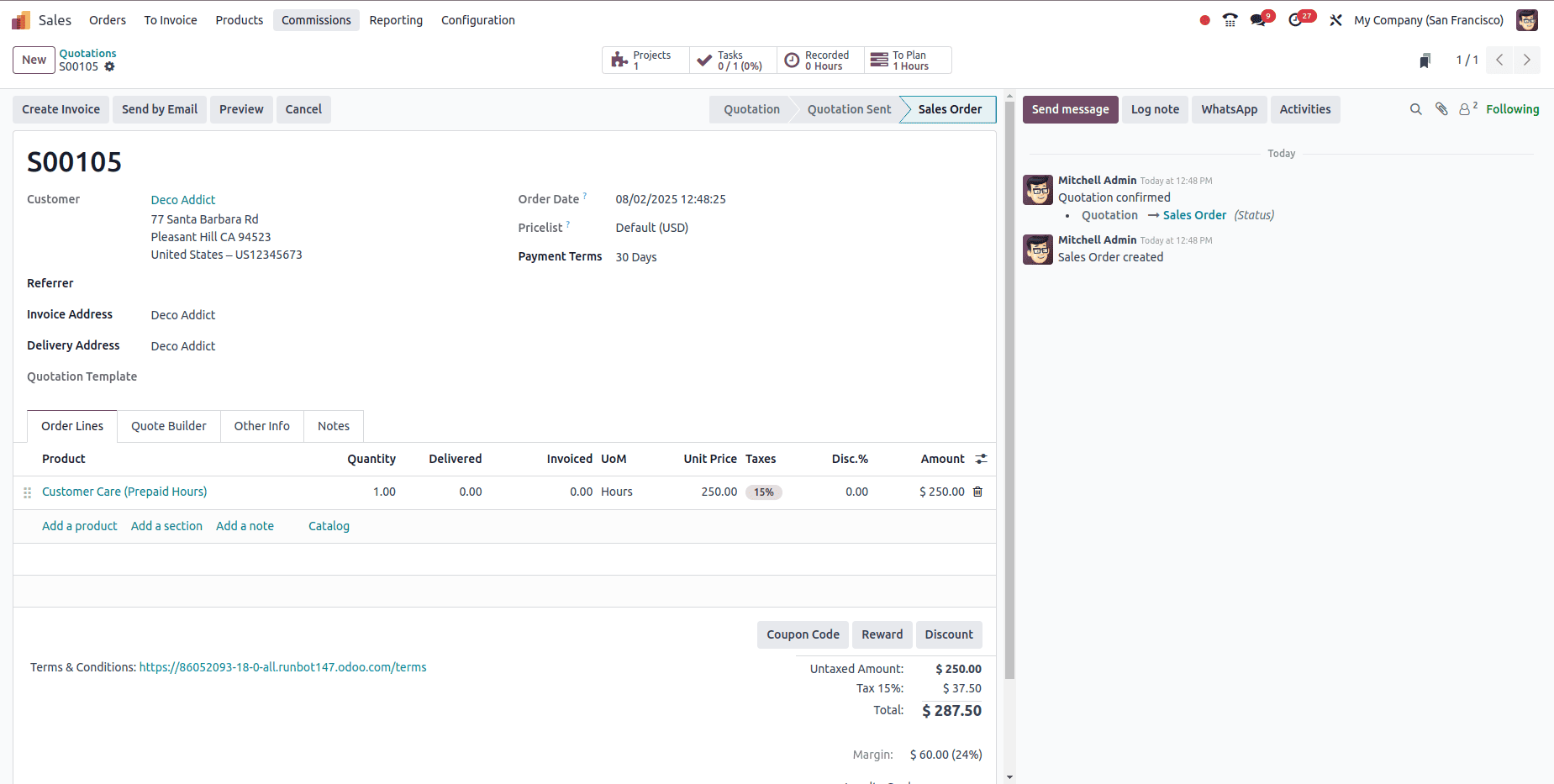
Next, you can create a helpdesk ticket for the customer and manually select the corresponding sales order if it’s not linked automatically. This ensures that all time logged on the ticket is properly associated with the correct contract or support agreement. Once the sales order is selected, navigate to the Timesheets tab within the ticket and begin adding time entries. Each hour logged here will contribute to the delivered quantity on the sales order, making it easy to track billable work and prepare for invoicing.
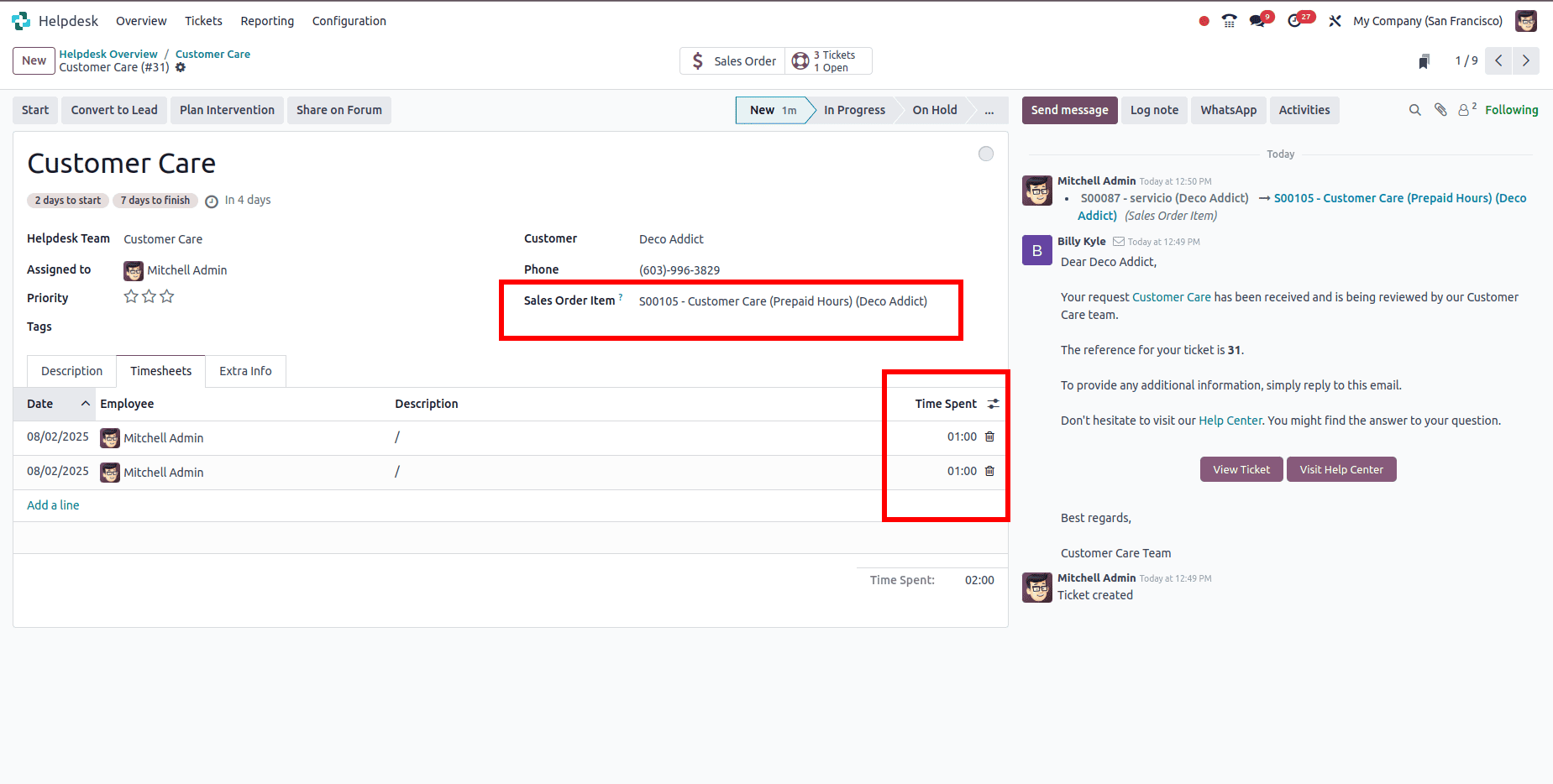
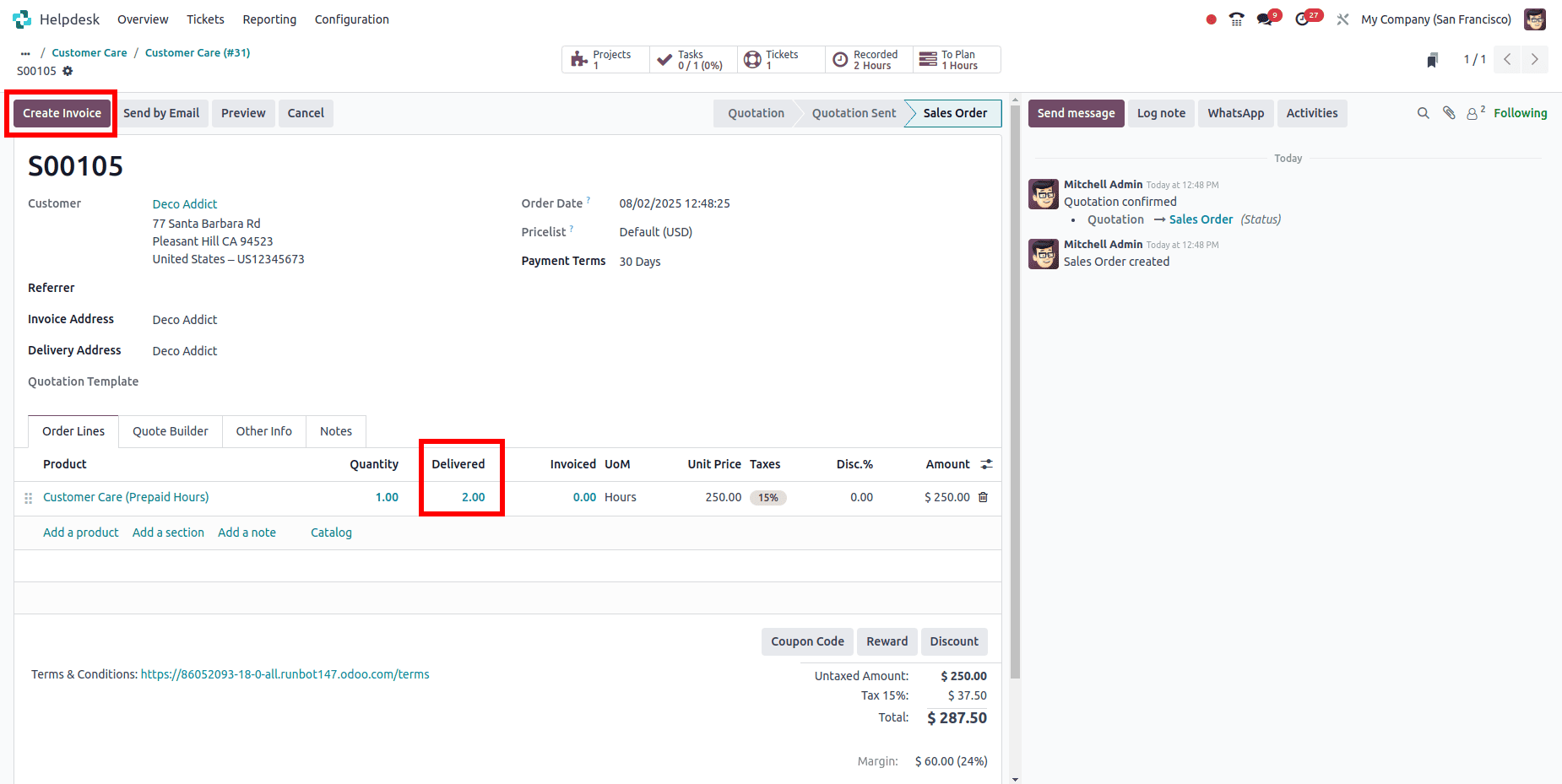
As your support team logs time on helpdesk tickets, those timesheet entries are automatically linked to the associated project and sales order. The total hours recorded are added to the Delivered Quantity on the sales order, reflecting the exact amount of work delivered to the client. Once this time is logged and marked as delivered, you can proceed to generate an invoice based on these delivered quantities. This ensures that billing is accurate, aligned with actual support work done, and requires no manual intervention—Odoo handles the flow from ticket to timesheet to invoice with full traceability.
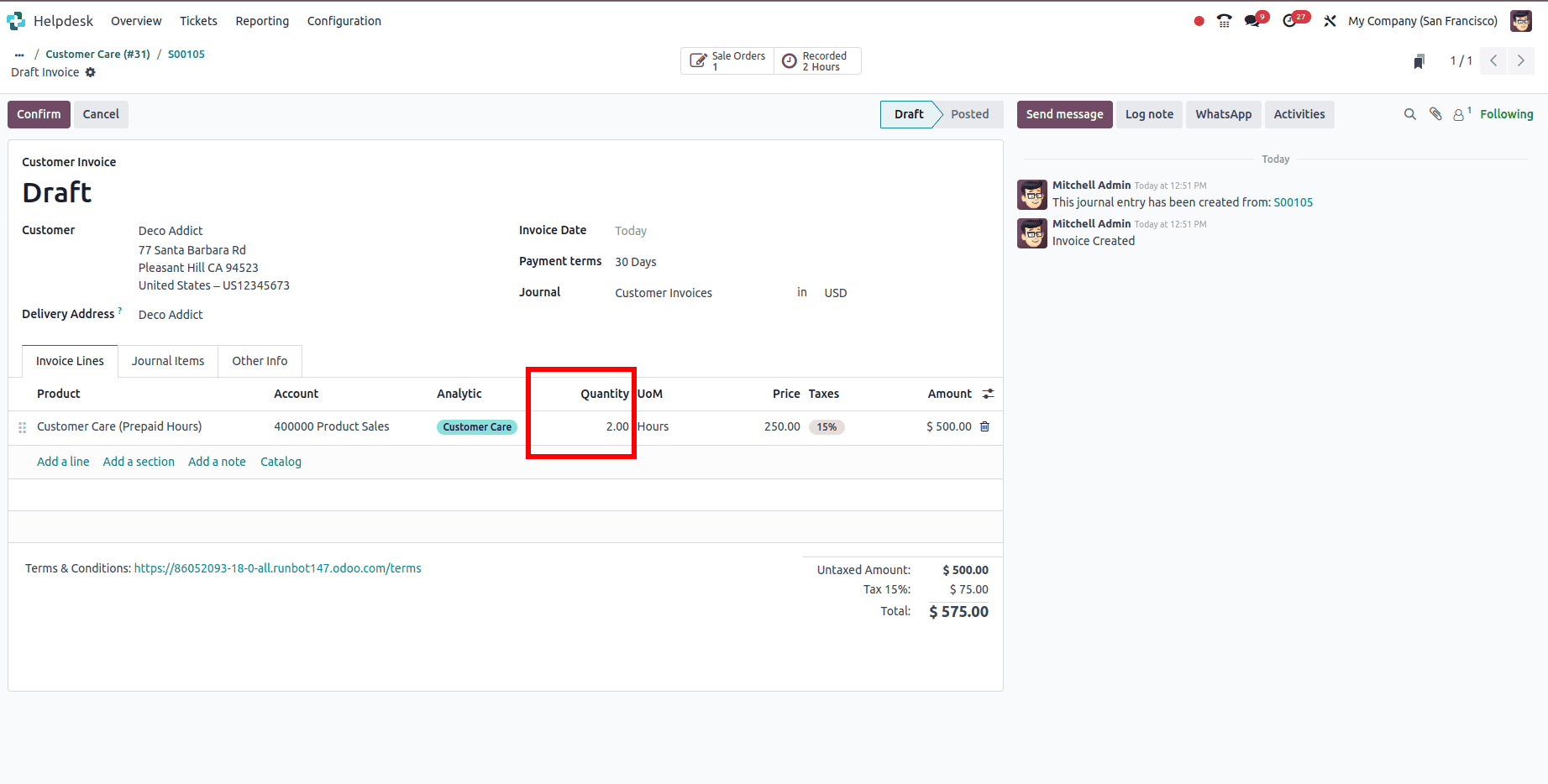
Odoo 18 offers a powerful and fully integrated solution for managing customer support and billing with precision. By connecting Helpdesk, Timesheets, Sales, and Invoicing modules, businesses can effortlessly track time spent on support activities and convert those efforts into accurate, transparent invoices. From configuring service products to logging time on tickets and generating invoices based on actual work delivered, Odoo automates the entire workflow—saving time, reducing errors, and improving client trust. Whether you're managing prepaid support contracts or billing hourly services, this streamlined process ensures that no billable hour goes unnoticed and every client interaction is accounted for. With Odoo, your support team can focus on solving problems while the system takes care of tracking and billing behind the scenes.
To read more about How to Collect Customer Ratings on Helpdesk Tickets in Odoo 18, refer to our blog How to Collect Customer Ratings on Helpdesk Tickets in Odoo 18.