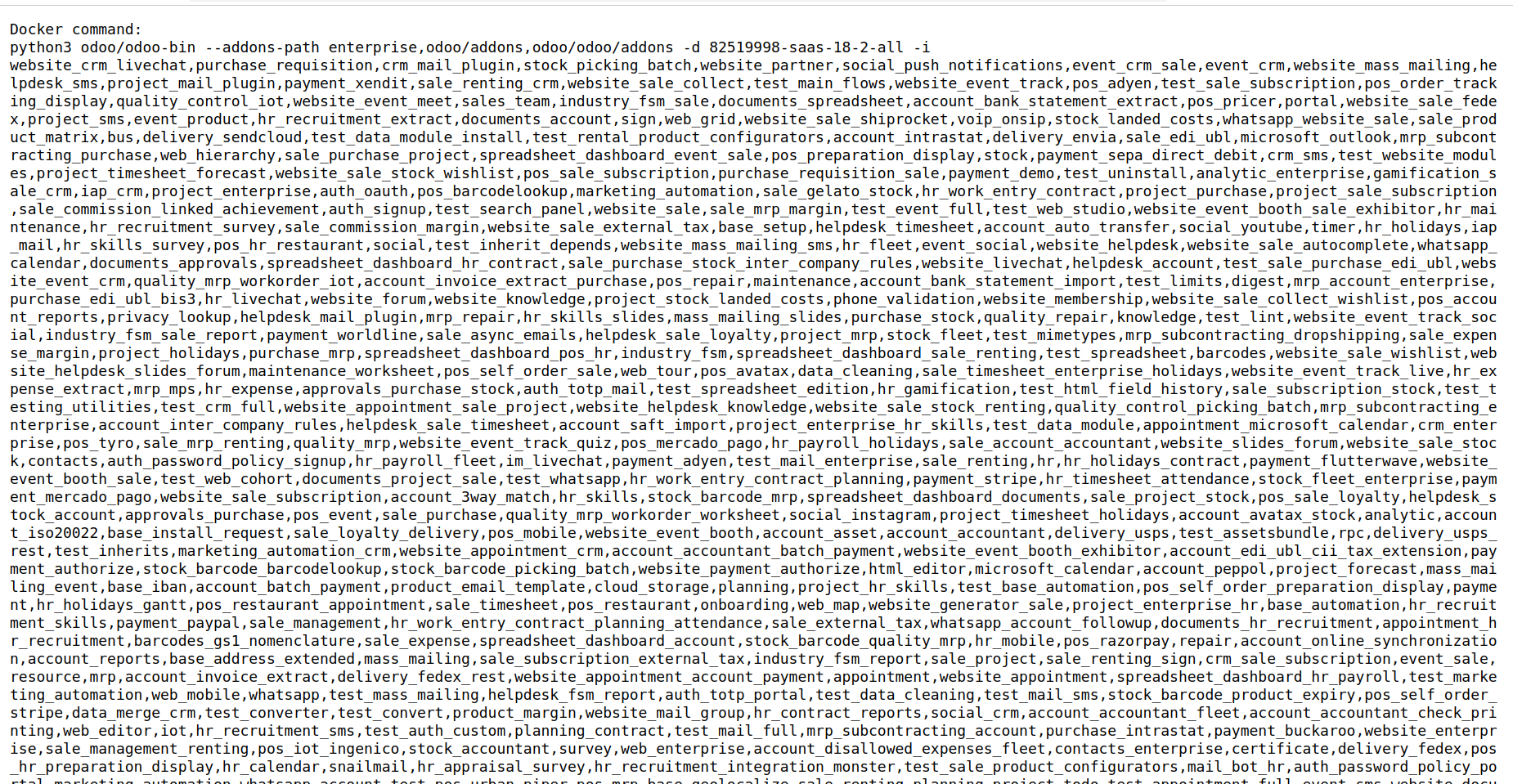
Odoo Runbot is an online testing platform that provides a live
environment for exploring various Odoo versions and editions,
including both Community and Enterprise. It enables users and
developers to test features, evaluate functionalities, and identify
potential bugs in real time. Developers can use Runbot to verify
whether an issue they’re experiencing locally also occurs on a clean
Odoo instance—if it does, it’s likely a core Odoo bug; if not, the
issue is probably related to a local configuration or custom module.
This shared testing infrastructure promotes transparency,
facilitates collaboration, and strengthens the overall stability and
reliability of the Odoo ecosystem.
How to access Odoo Runbot
To access Odoo Runbot, simply open a web browser and navigate to the
official
Runbot URL: Once on the Runbot homepage, you’ll find a list
of Odoo branches organized by version and edition (Community and
Enterprise). From there, you can select any instance to launch a
live environment where you can test features, explore modules, and
validate behavior across different Odoo versions.
Runbot
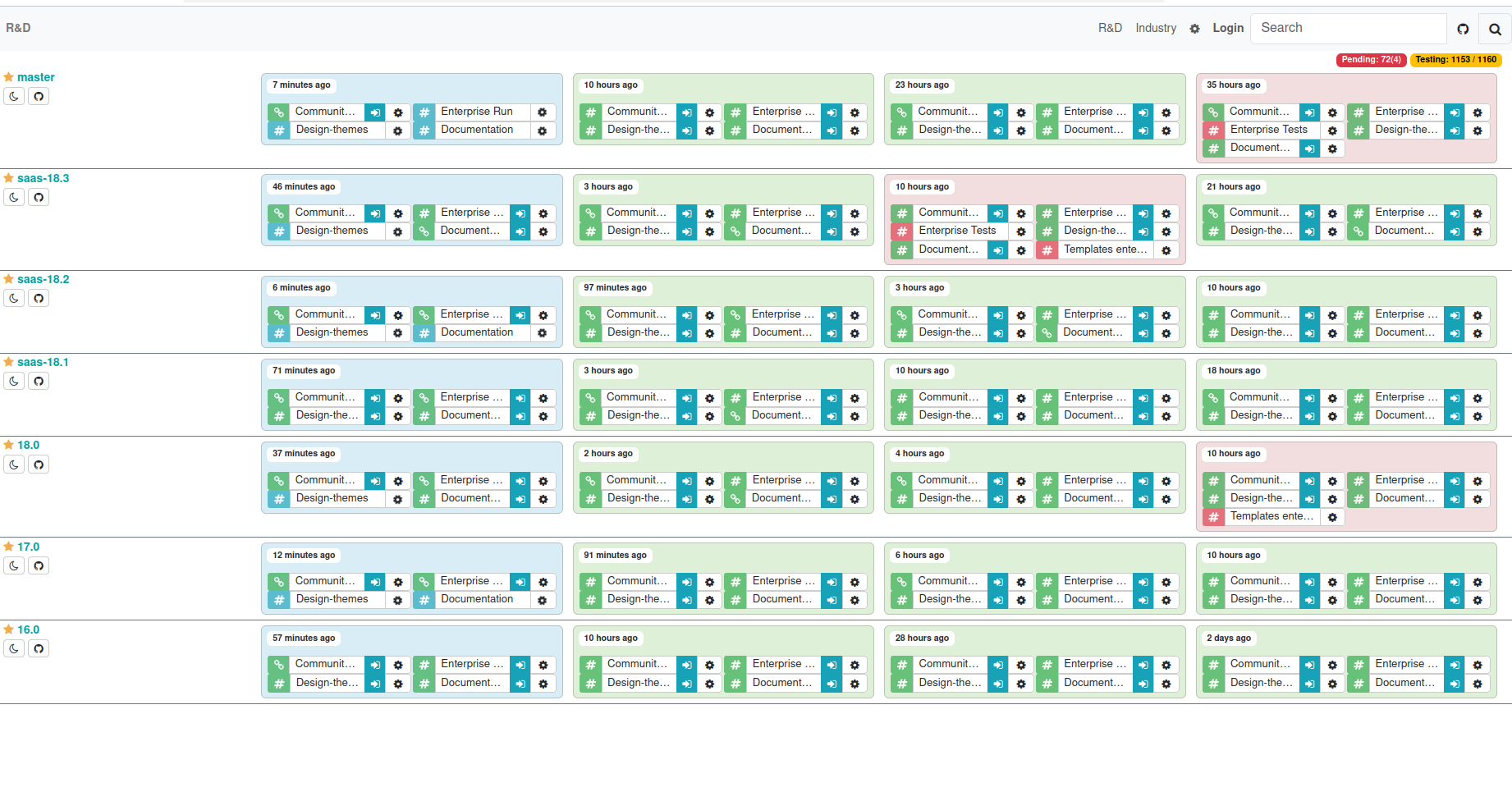
When you access the Odoo Runbot homepage, you’ll see a grid of
colored squares representing different builds. A green square
indicates an active and successfully deployed build, meaning that
the corresponding Odoo version or edition is ready for testing. In
contrast, a red square signifies a failed or inactive build that is
currently unavailable. To explore a specific version, users can
click the blue "Connect" button next to the desired build.
Additionally, Runbot allows users to choose between the Community
and Enterprise editions, offering flexibility to test the
environment that best suits their needs.
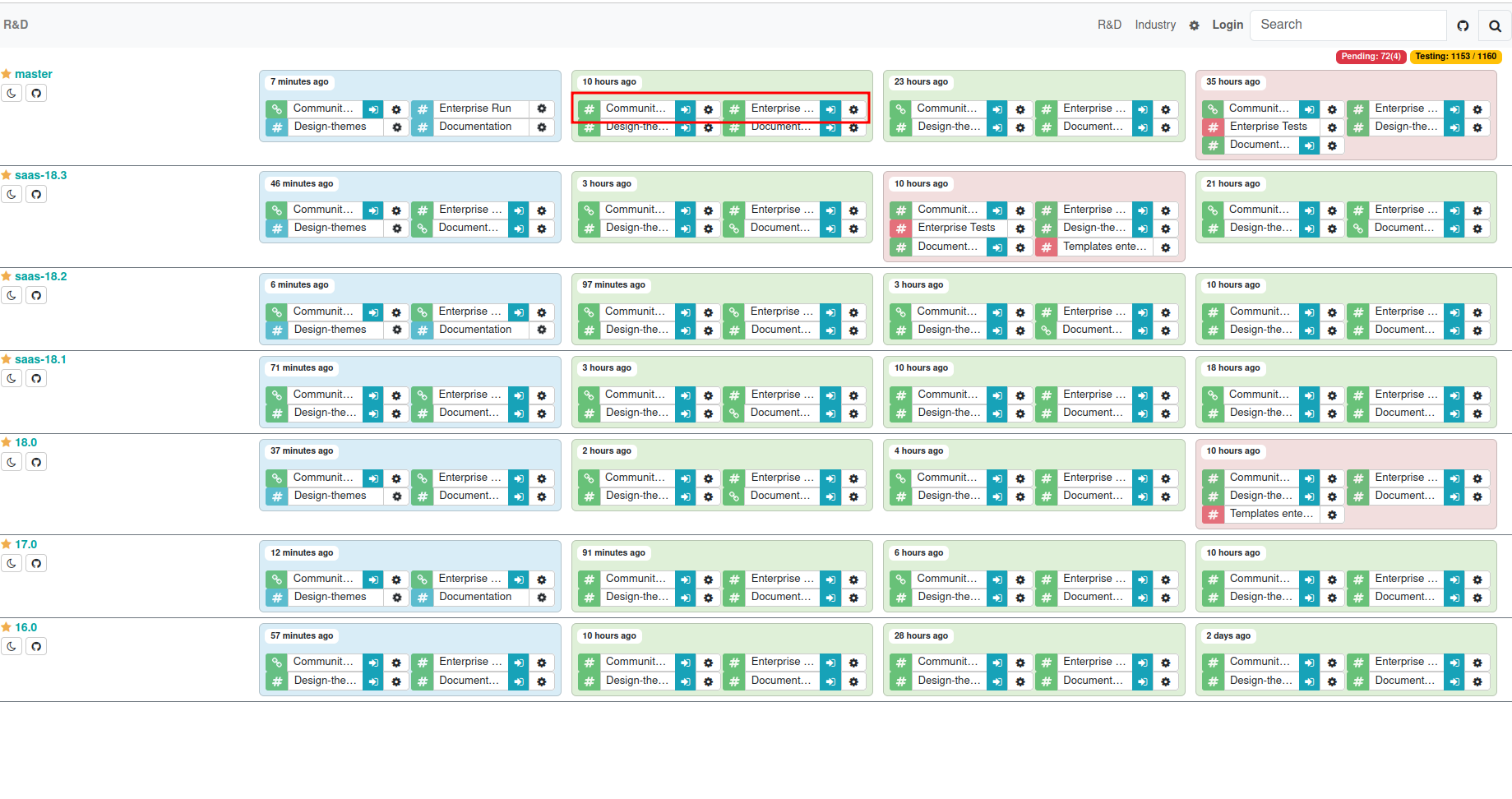
Runbot provides access to the latest Odoo builds, enabling users
around the world to test features in real time. Its multi-user
support allows simultaneous access, with shared system data across
sessions, making it ideal for collaborative testing and validation.
For builds that are inactive or have failed, you can view the
detailed log files by clicking the gear icon next to the
corresponding branch. This will display the build logs, helping
identify the cause of errors or deployment issues.
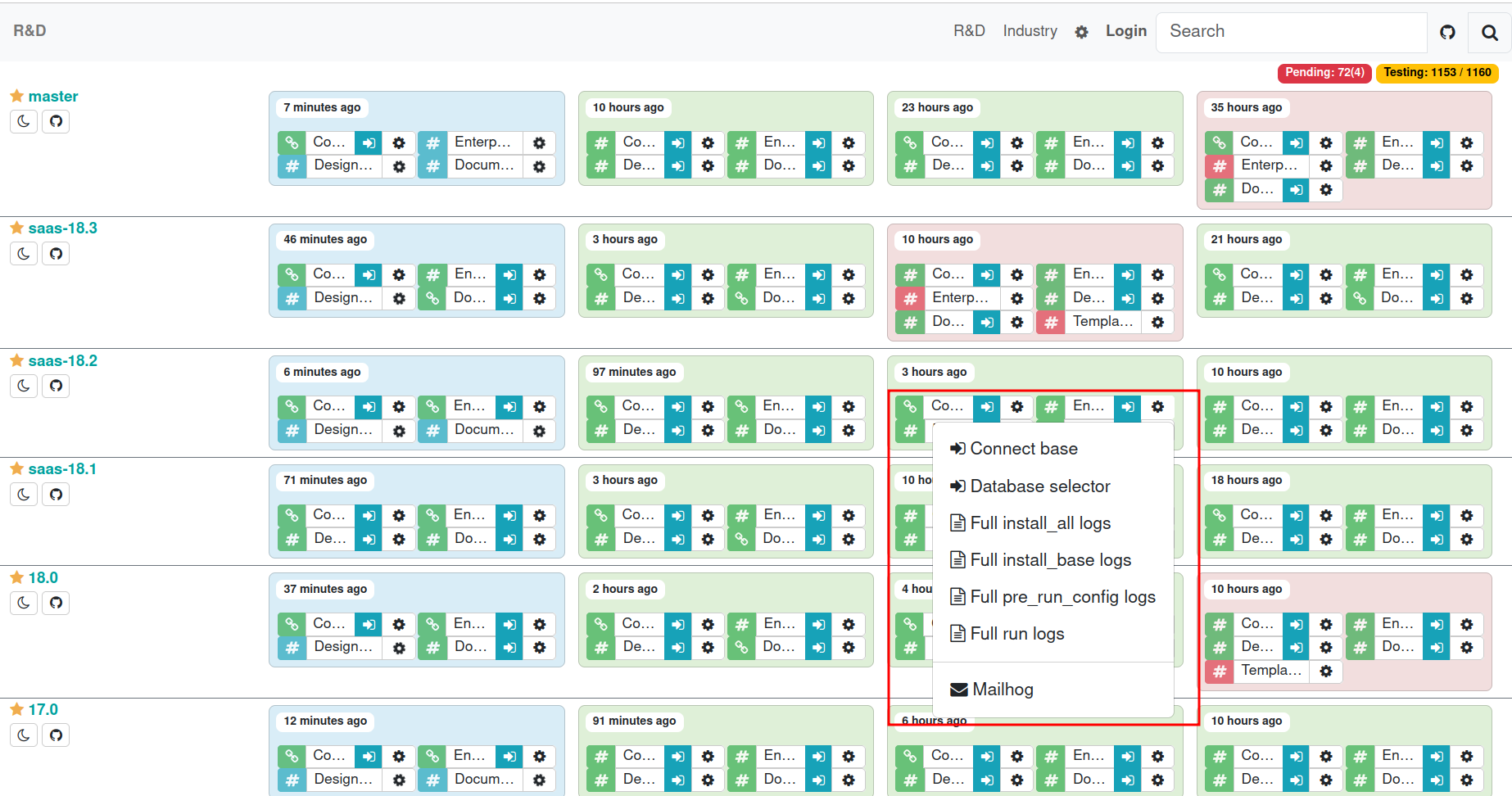
Here you can connect to base and select the database. Also, there are
several log files for viewing the errors.
Below is a full run logs file showing the error from non-active
branches.