Activities in Odoo serve as structured reminders that outline the
next steps to be taken, helping users stay organized and focused on
their tasks. Odoo supports the scheduling of activities across
different types of records. Let’s see with an example.
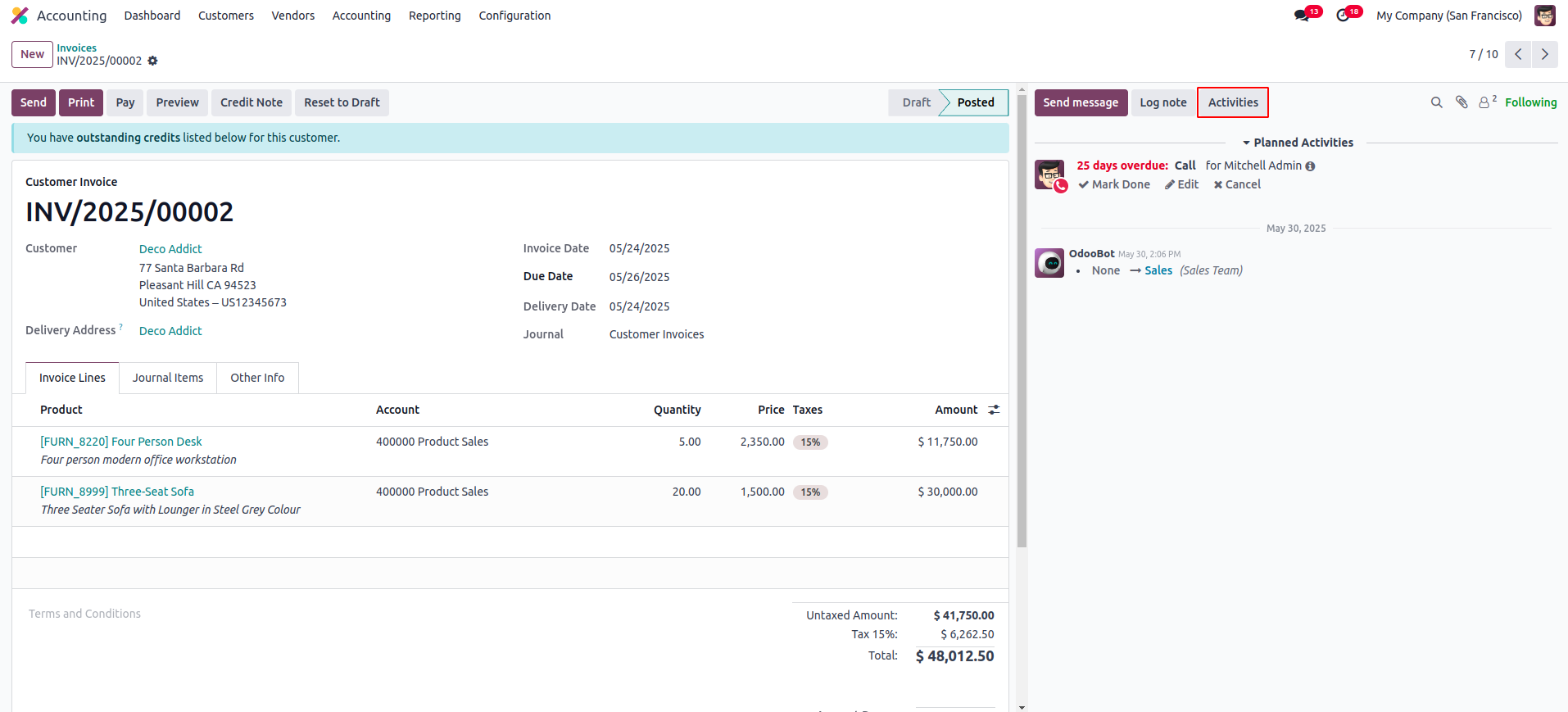
Clicking the Activities button allows you to create a new activity.
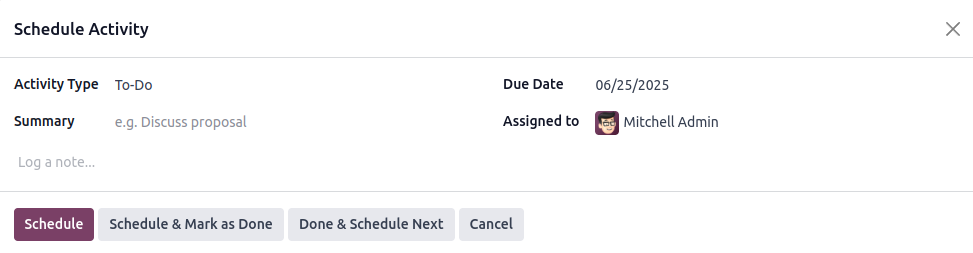
In this context, the following fields are displayed:
- Activity Type: Choose the appropriate activity type from the
available options.
- Summary: Specify the details of the selected activity.
- Due Date: Specify the date by which the activity should be
completed.
- Specify the user responsible for the activity.
Activities can be scheduled directly from the tree view, form view,
or calendar view of records. For opportunity cards, a clock icon is
displayed with different colors representing the activity status.
Clicking the "Schedule" button enables users to plan activities. A
gray icon denotes no activity is currently scheduled, green
indicates a planned activity, yellow shows activities due today, and
red signals that immediate action is required.
Users can also customize activity types by configuration settings of
the module or from the general settings in Odoo.
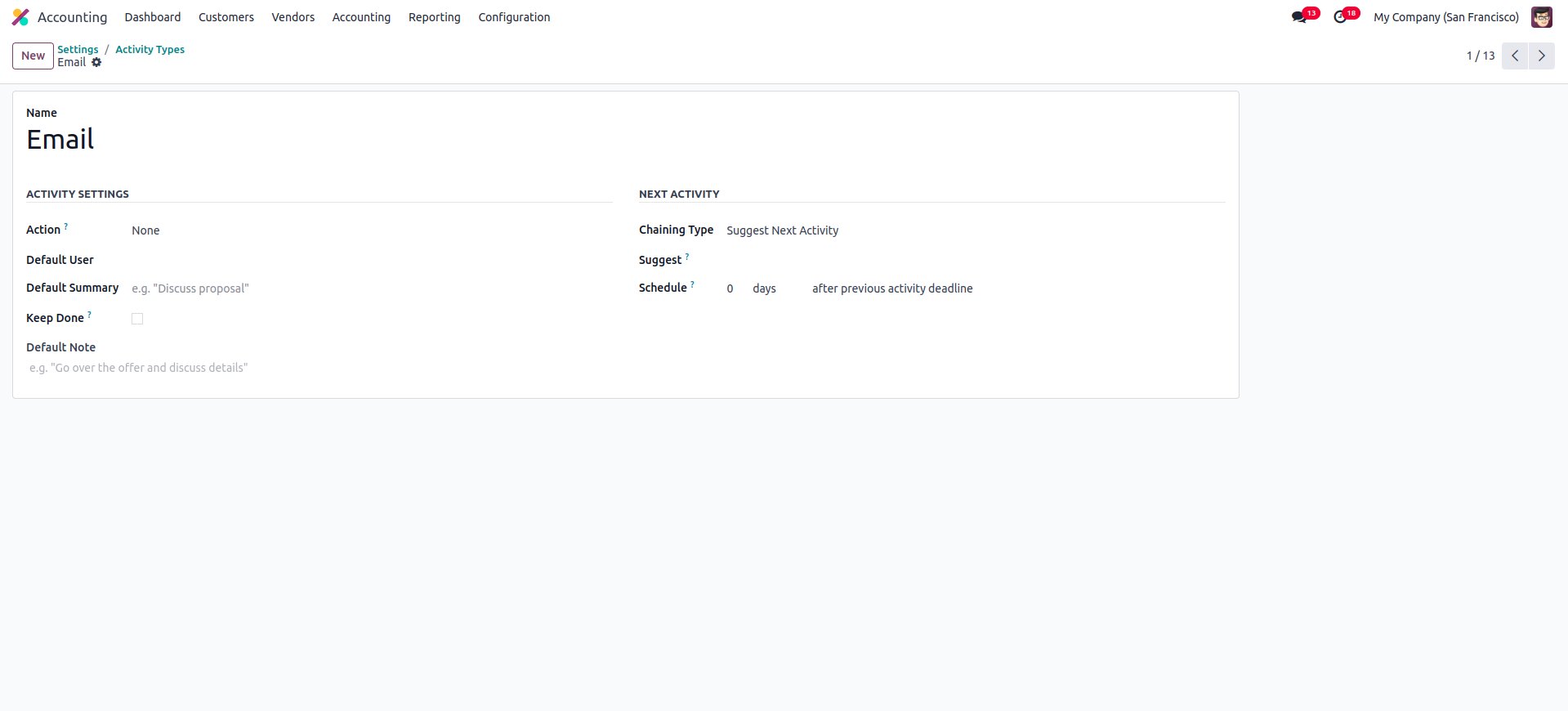
Here is a detailed overview of the components used in defining
activity types:
- Name: Defines the title or label for the activity type.
- Actions: Specifies actions that can be triggered, such as
opening the calendar view.
- Default User: Automatically assigns a user to the activity. If
left unassigned, a user can be manually selected when scheduling
the activity.
- Models: Specifies whether the activity type is restricted to a
particular model or can be used across multiple models.
- Default Summary: Provides a short predefined description for the
activity.
- Icon: Uses font-based icons such as 'fa-phone' and similar
options.
- Decoration Type: Modifies the background color of the related
activity, typically used to highlight the next scheduled
activity.
- Chaining Type: Provides the option to select either 'Trigger
Next Activity' or 'Suggest Next Activity' for the next scheduled
action.
- Suggest: Displays options based on the selected action and
consolidation type.
- Email Templates: Enables the use of email templates for
activities when preferred.
- Schedule: Determines the interval for the next action by setting
a duration in days, weeks, or months, based on either the
completion date of the first activity or the due date of the
previous activity.
- Log Note: Displays relevant notes related to the activity.
This process allows you to create different types of activities. To
view all scheduled events, simply click the icon at the top-right
corner of any page. The number beside the icon indicates the count
of pending activities.