Import language:
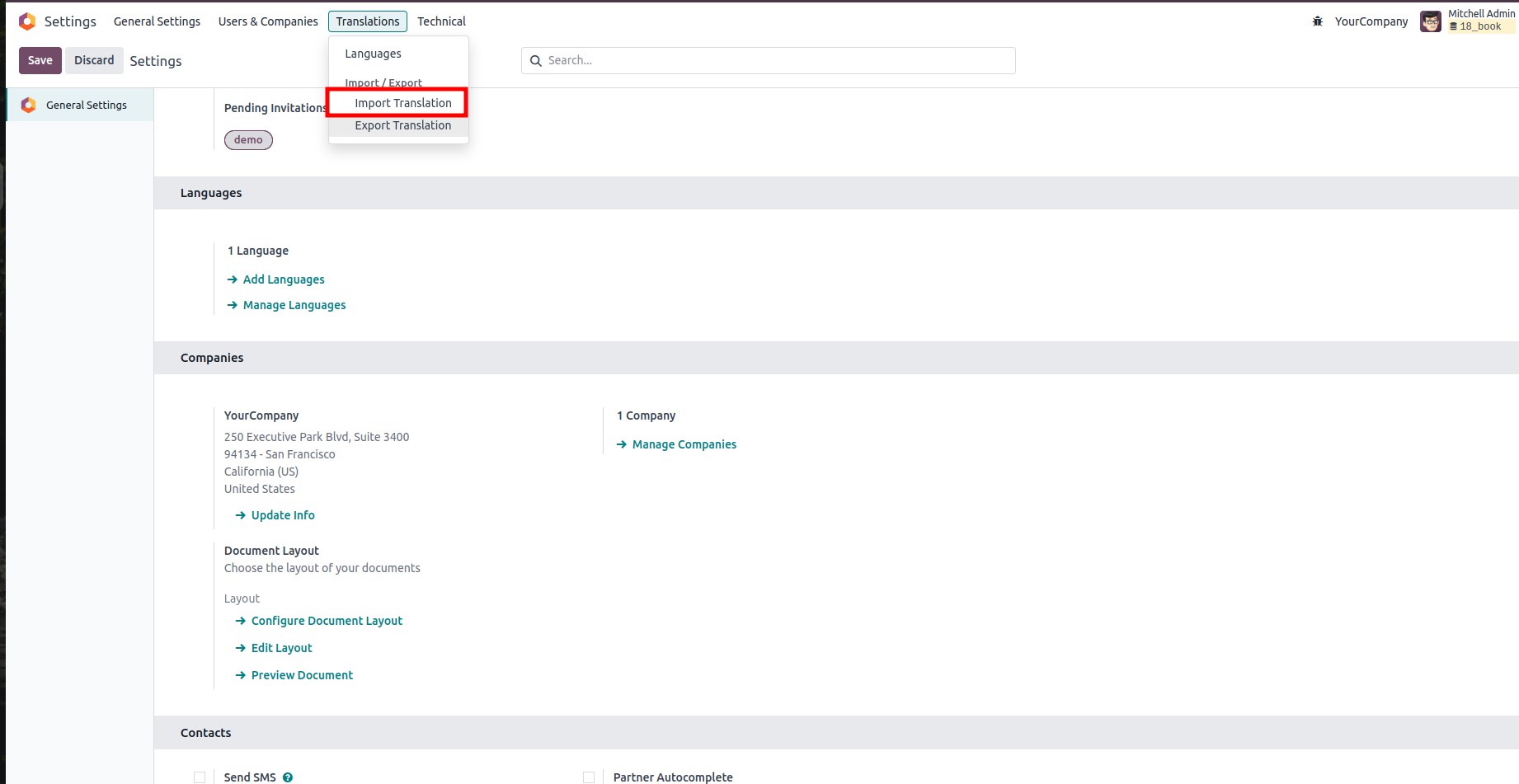
To add a new language in Odoo, you can use the "Import Translation" feature.
Navigate to Settings → Translations → Import Translation to upload and install the desired language file.
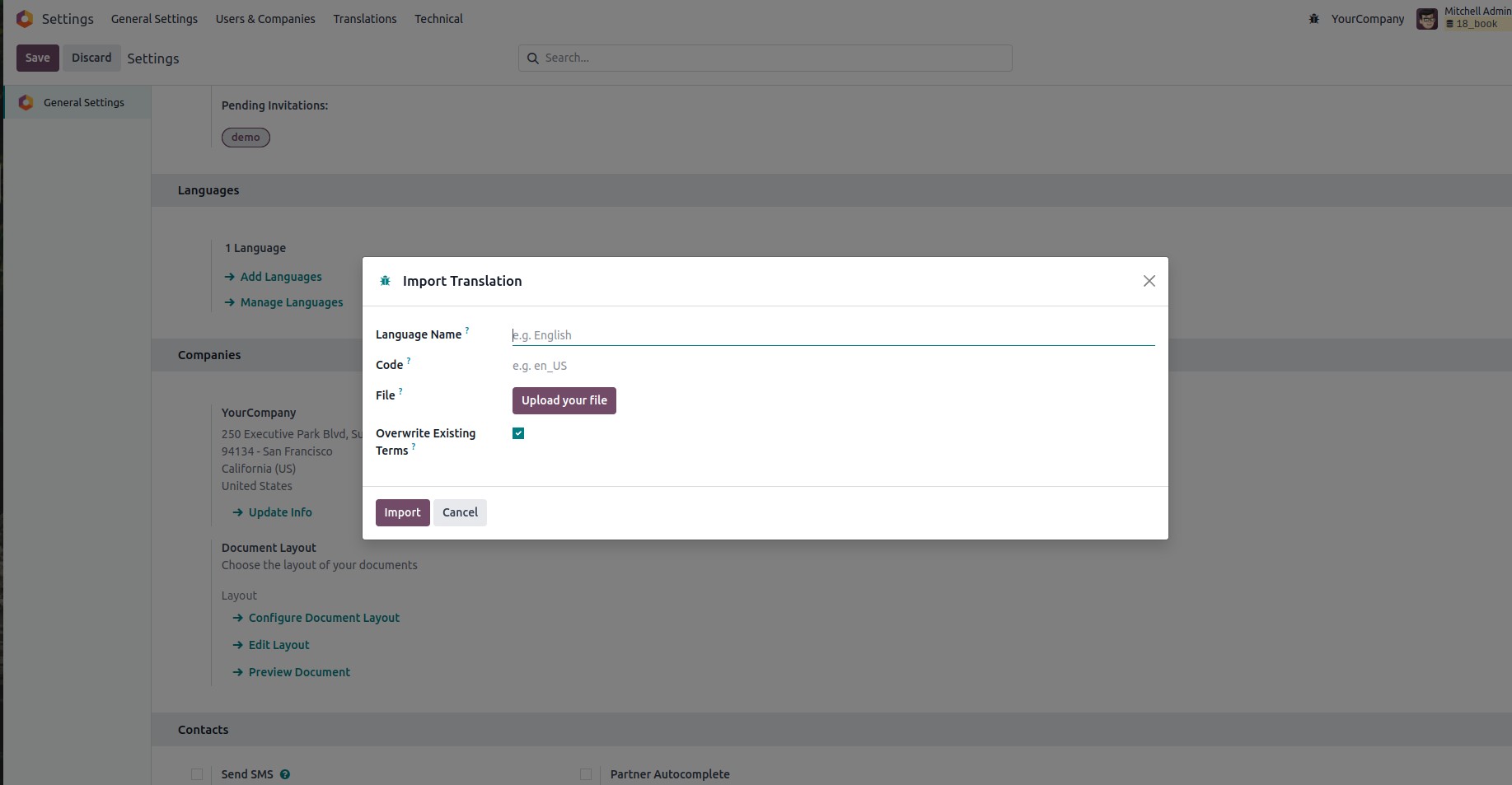
A wizard will appear where you can specify the name and language code of the language you wish to import. You’ll also need to upload the corresponding translation file (usually in .po or .csv format).
If you want to allow existing translations to be overwritten, check the "Overwrite Existing Terms" box. However, since you're importing a completely new language, there likely won't be any existing translations to overwrite.
Once all the details are filled in, click Import to add the new language to your Odoo instance.
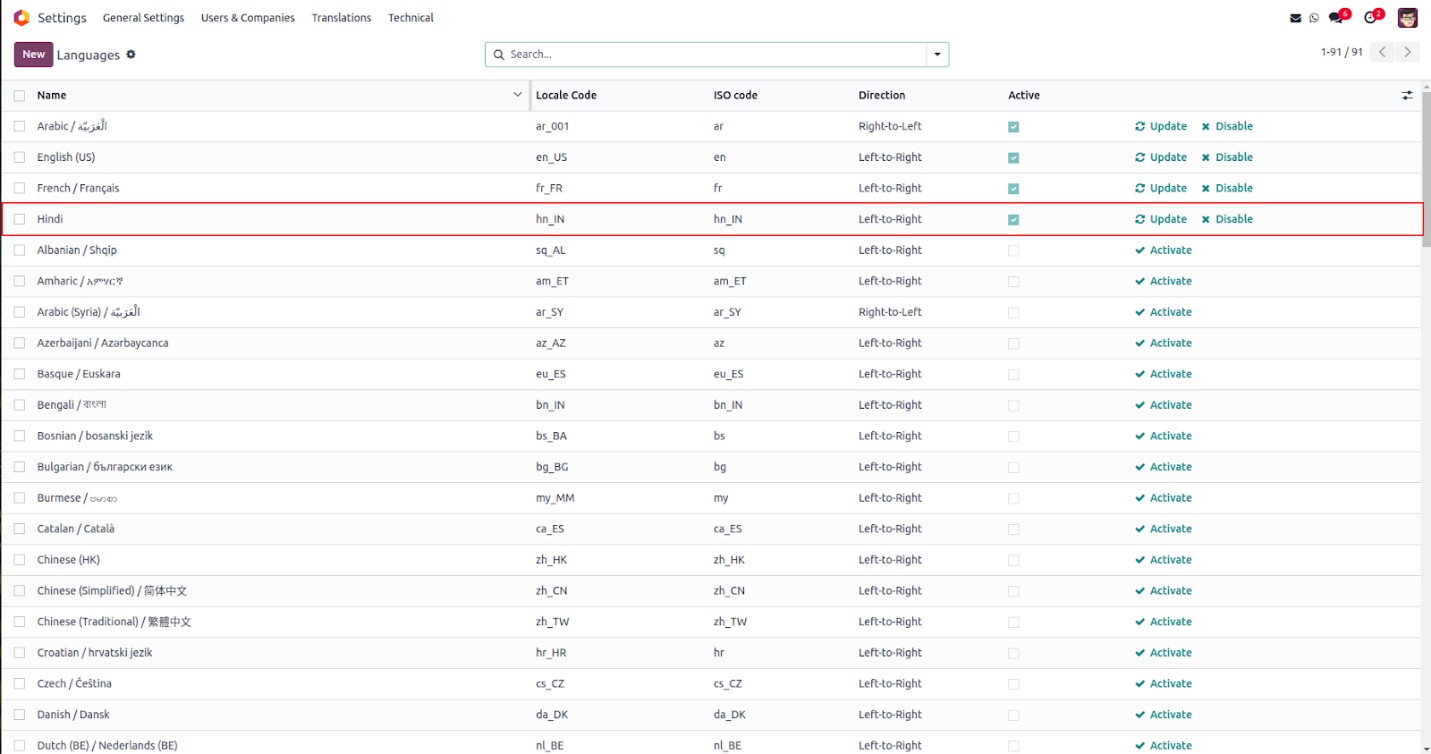
The newly imported language will appear alongside other languages under Translations → Languages, and it will be enabled by default.
To set user preferences, click on the user avatar located in the top-right corner of the screen, then select "My Profile" from the dropdown menu. This will open the user’s form view where preferences can be adjusted.
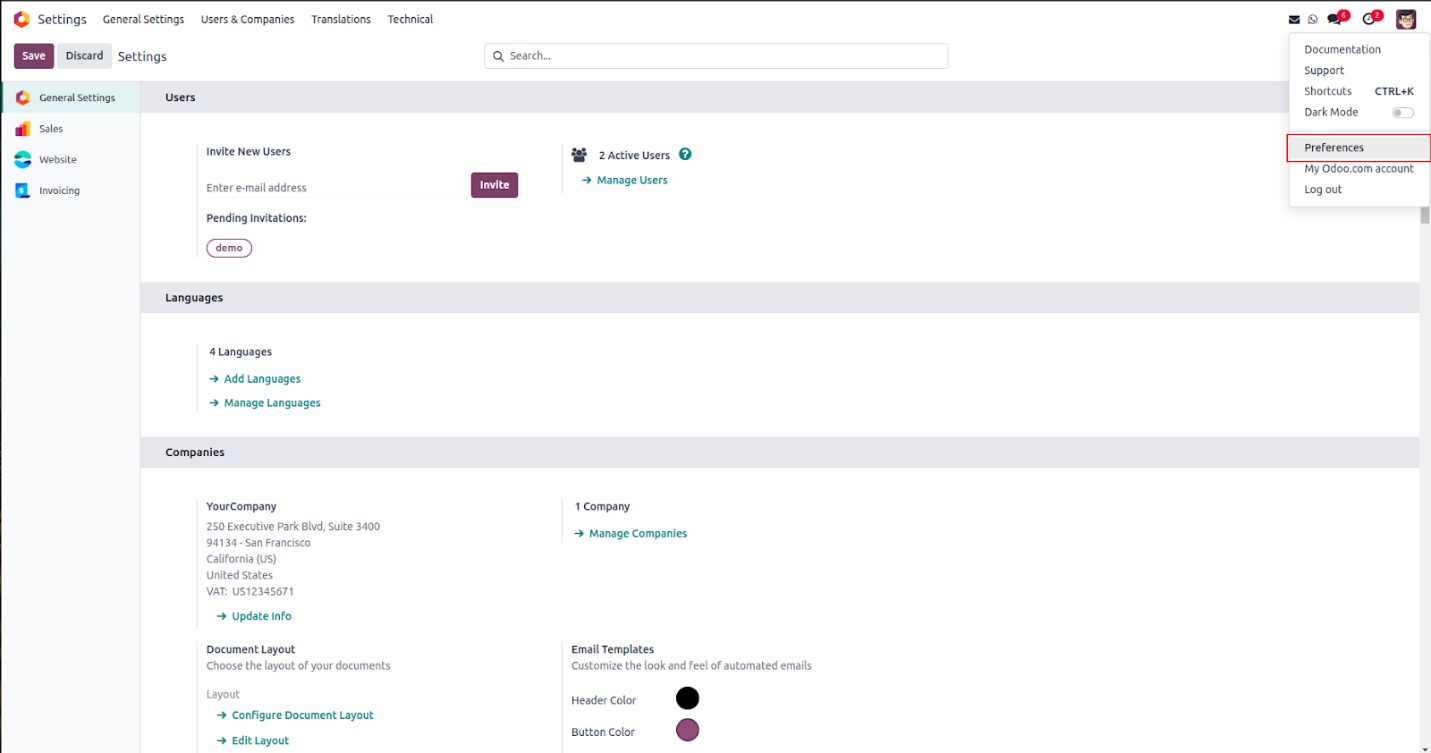
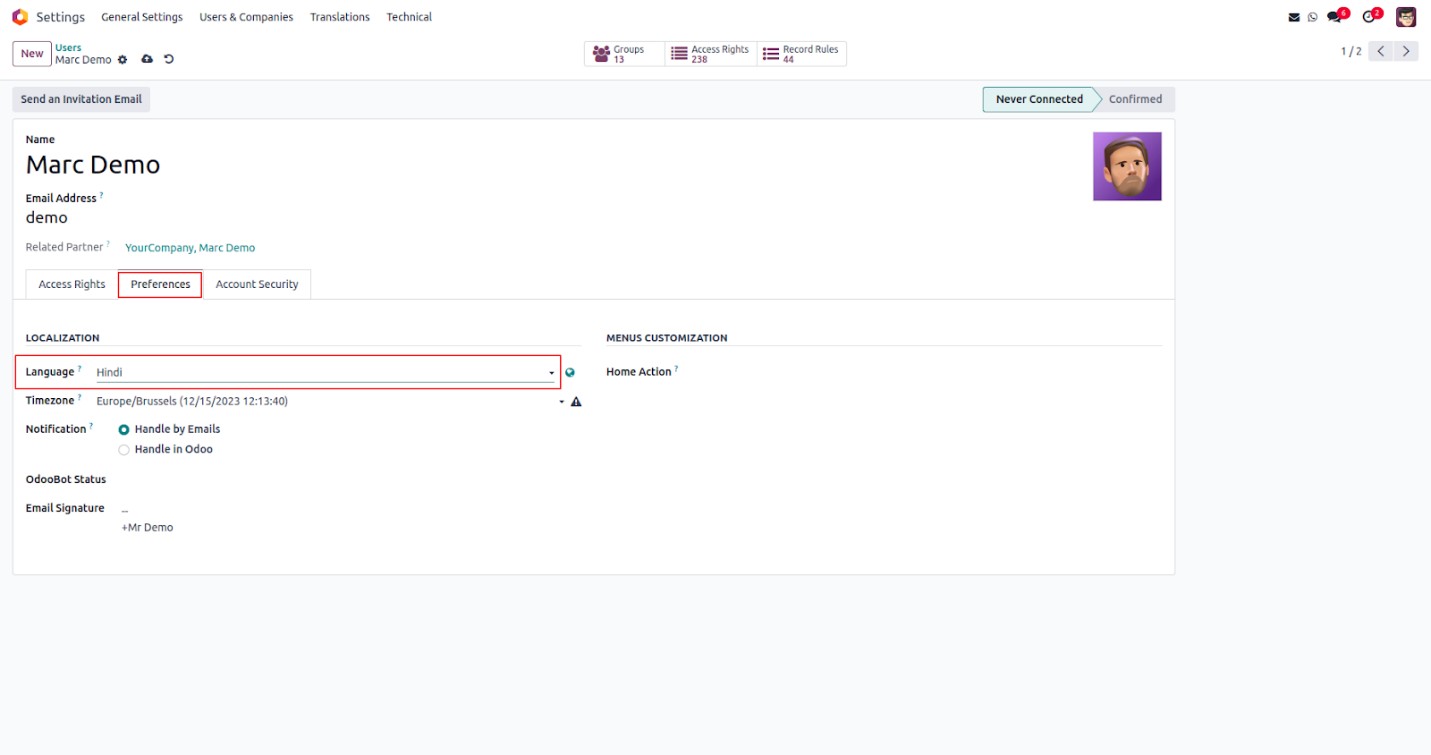
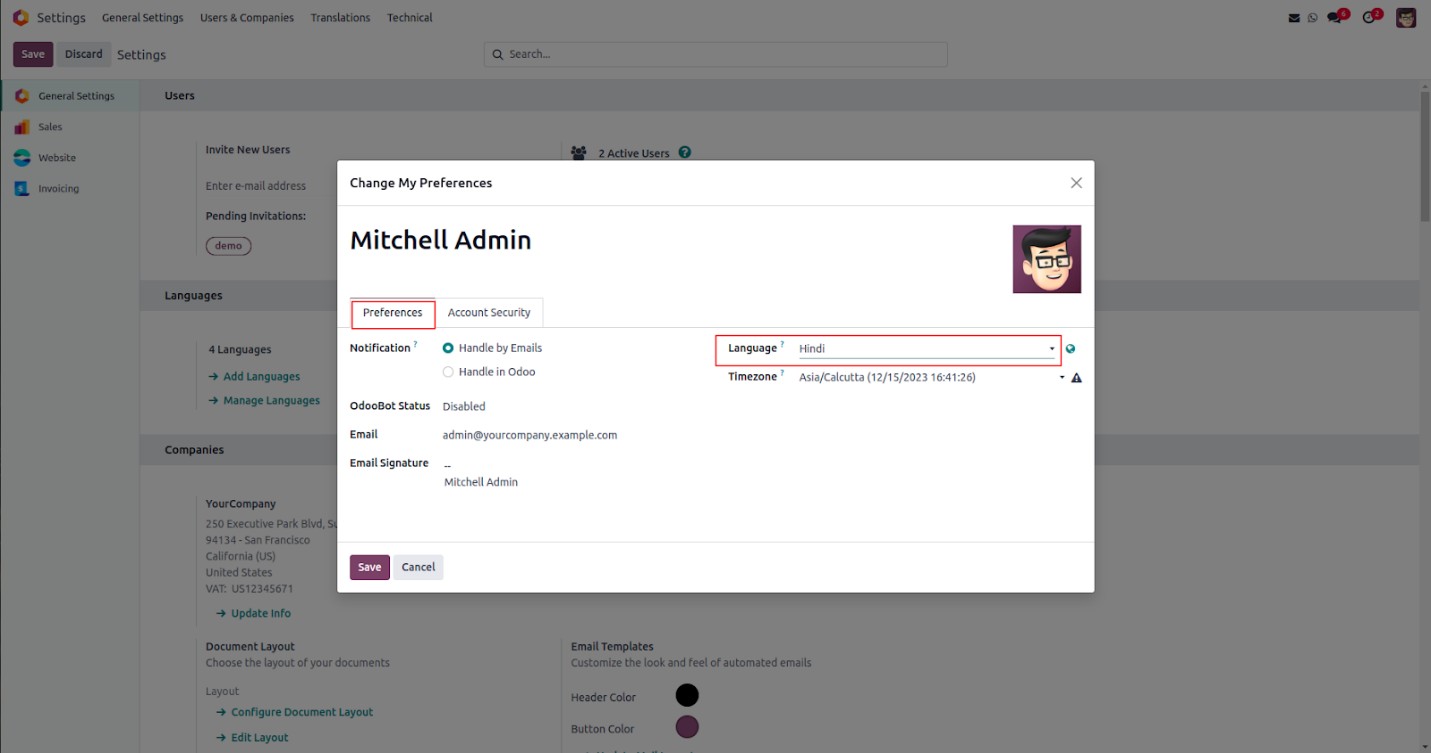
Within the Preferences section of the user form, users can select and configure their preferred language.
To configure preferences for other users, navigate to Settings → Users & Companies → Users, or click Manage Users from the Users section in the General Settings dashboard.
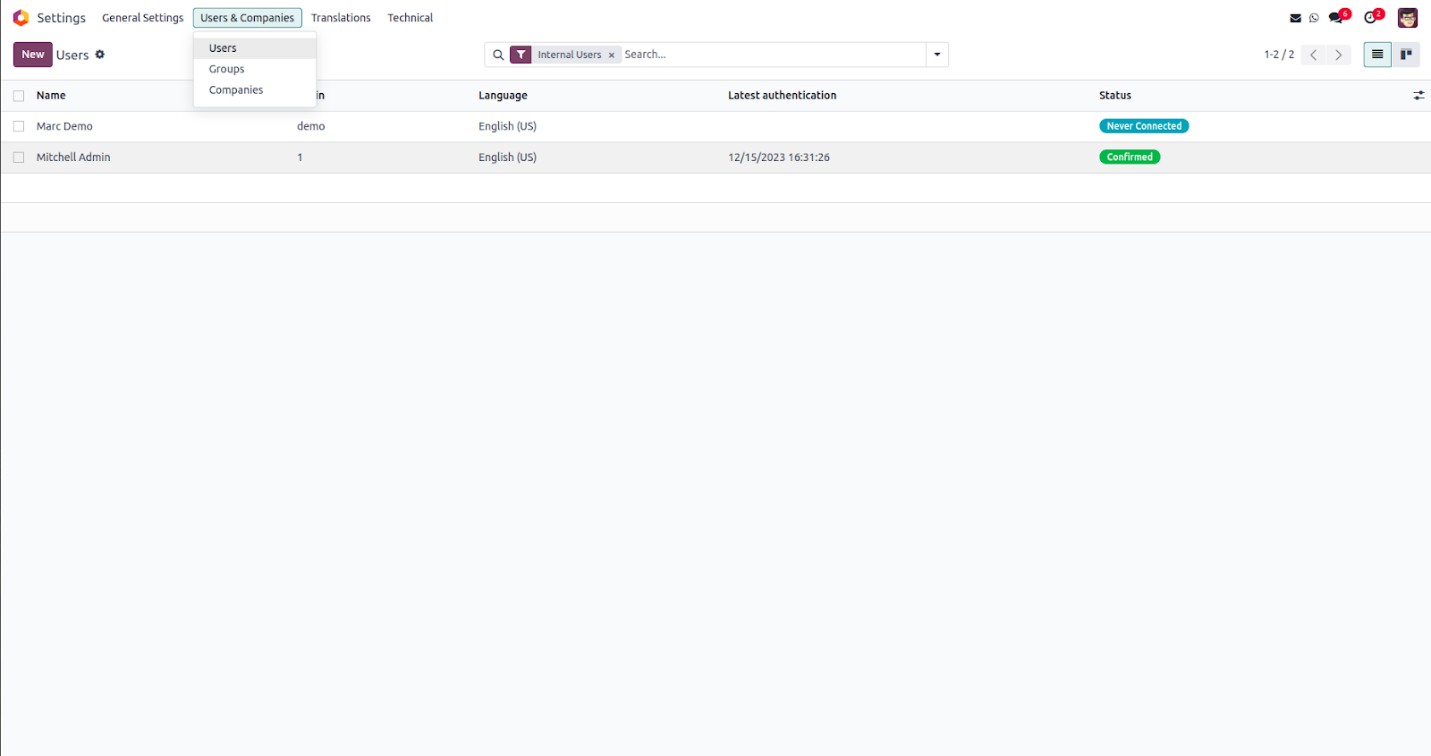
Select a user from the list, then go to the Preferences tab and choose the desired language.