In the previous step, the IoT Box was successfully connected to the
network. To fully integrate it with Odoo, a connection must be
established between the IoT Box and your Odoo instance.
Ensure that both the IoT Box and the system running the Odoo instance
are connected to the same network. When testing on a local machine,
avoid using http://localhost:8069; instead, use the machine's local
IP address to enable proper detection and integration. If the Odoo
instance hosts multiple databases, configure a db-filter to prevent
automatic connection issues.
1. Start by installing the Internet of Things module from the Apps
menu.
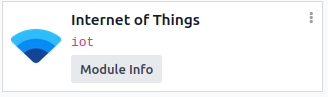
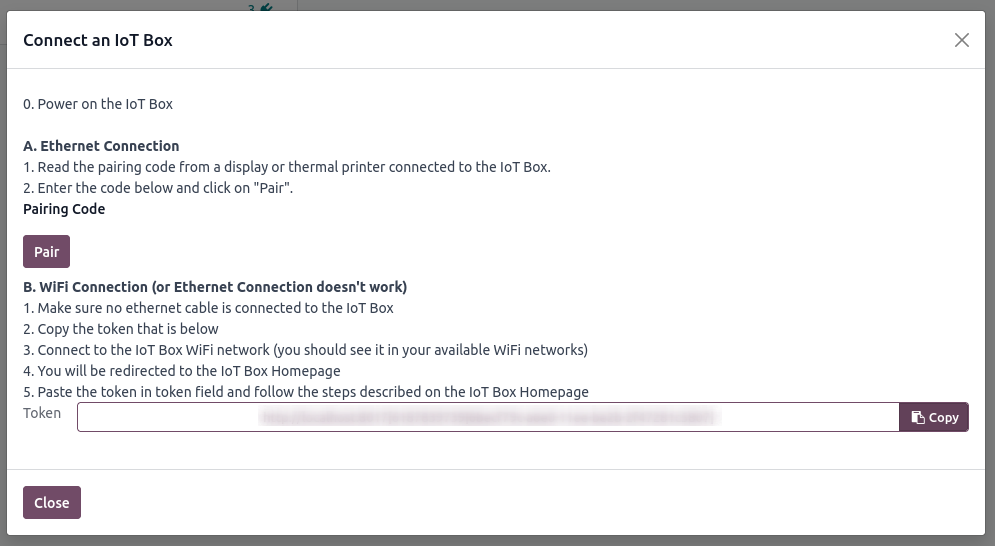
2. To manually connect the IoT Box, open the IoT App and click the
Connect button.
3. Retrieve the token shown in the popup that appears after clicking
the Connect button.
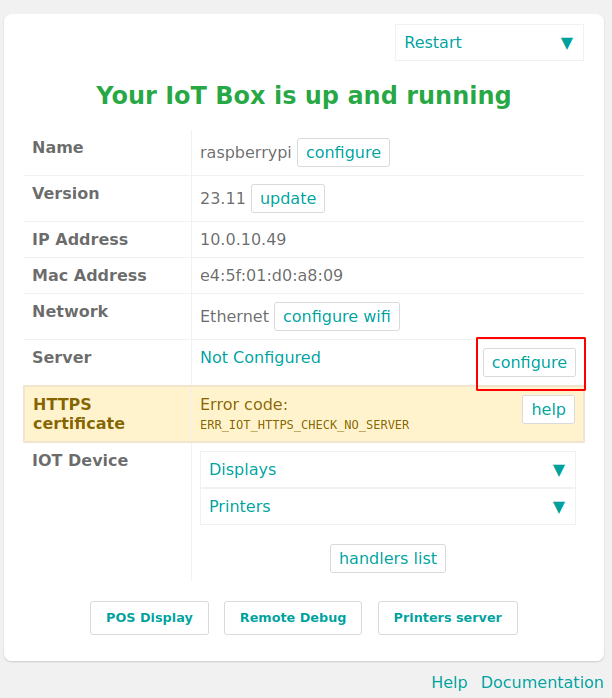
4. To configure the IoT Box, open its homepage by entering the IP
address followed by port 8069 in your browser. Then, click the
Configure button next to the name field.
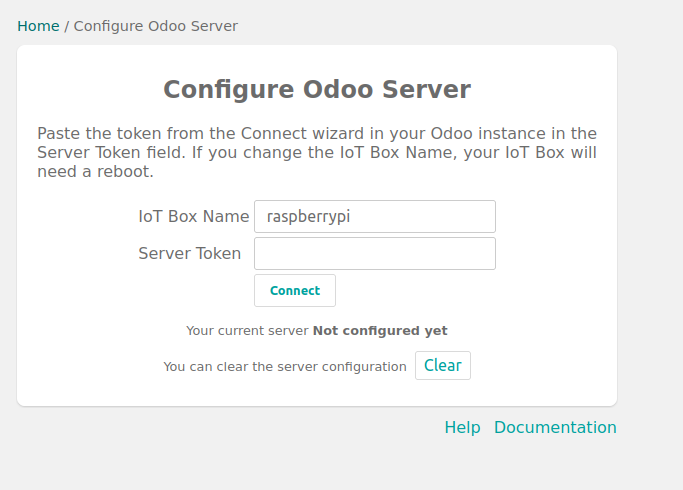
5. Provide a name for the IoT Box, paste the copied token into the
appropriate field, and click the Connect button. Wait for the
connection process to finish.
6. After successfully completing the steps, the IoT Box will appear
and be integrated within the IoT application.