In Odoo 18, when you want to connect hardware devices (like printers,
scanners, or scales) to the system using the IoT Box, you need to
make sure that the correct drivers are loaded.
Drivers help Odoo communicate with each connected device properly.
Without a matching driver, Odoo won’t recognize or be able to use
the device.
What Happens When Drivers Are Loaded?
When you plug in a new device to the IoT box:
- Odoo checks all devices that are connected.
- It looks through available drivers that match the connection
type (e.g., USB, Bluetooth, etc.).
- For each device, it tests if the driver can support it using a
method called supported().
- If the result is True, that driver is used for the device.
Steps to Load Drivers
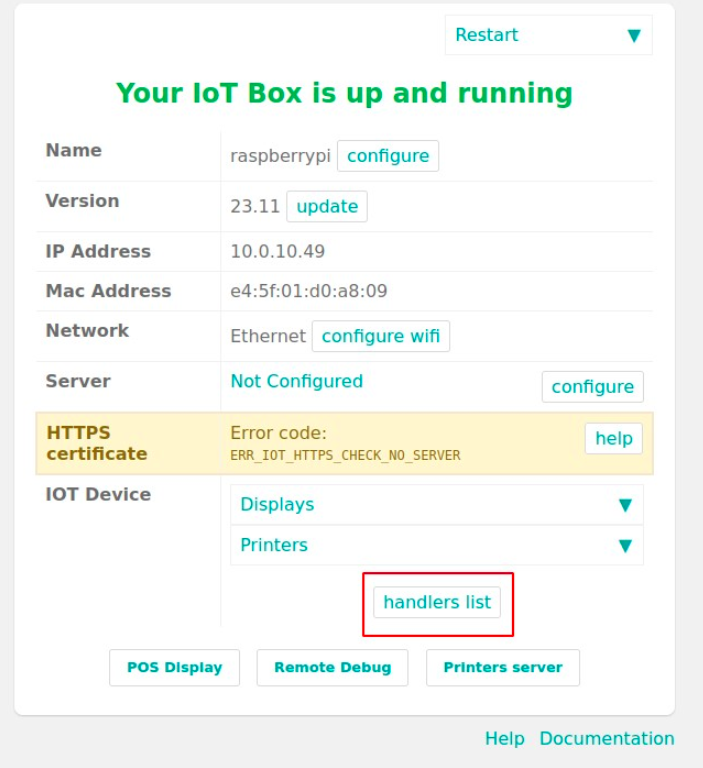
1. Open the IoT Box Homepage
Use the IP address of your IoT box in a web browser (e.g.,
http://192.168.1.10).
On the homepage, click on “Drivers List” or “Handlers List” to view
all drivers.
2. Load the Drivers
Scroll to the bottom of the drivers page.
Click the “Load Drivers” or “Load Handlers” button to start the
process.
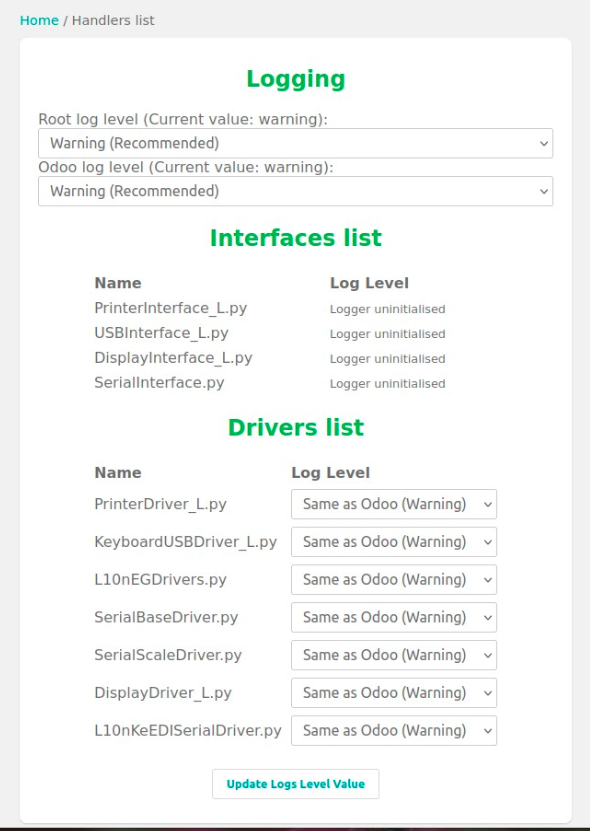
This will scan the connected devices and try to match them with
available drivers.
3. View Connected Devices
Go back to the IoT homepage.
Now you should see the list of connected and recognized devices.
Creating a Custom Driver
If you're working with a new type of device that Odoo doesn't support
yet, you can create your own driver by extending the built-in Driver
class.
from odoo.addons.hw_drivers.driver import Driver

class MyCustomDriver(Driver):
    connection_type = 'usb'  # or 'serial', 'bluetooth', etc.

    def __init__(self, identifier, device):
        super(MyCustomDriver, self).__init__(identifier, device)
        self.device_type = 'scanner'
        self.device_connection = 'USB'
        self.device_name = 'Custom Scanner'

    @classmethod
    def supported(cls, device):
        # Add logic here to check if the device is supported
        return True
Key Fields:
- ● connection_type: Type of device connection (e.g., usb, serial)
- ● device_type: A short name for the type of device (e.g.,
printer, scale)
- ● device_connection: Describes how it connects (e.g., USB)
- ● device_name: Display name for the device
- ● supported(): A method that checks if the driver is compatible
with the connected device
Once your driver is added, restarting the IoT Box and clicking Load
Drivers will make Odoo check and load your custom driver too.