In Odoo, you can design multiple types of views to display records,
including form, list, kanban, pivot, calendar, and more. The kanban
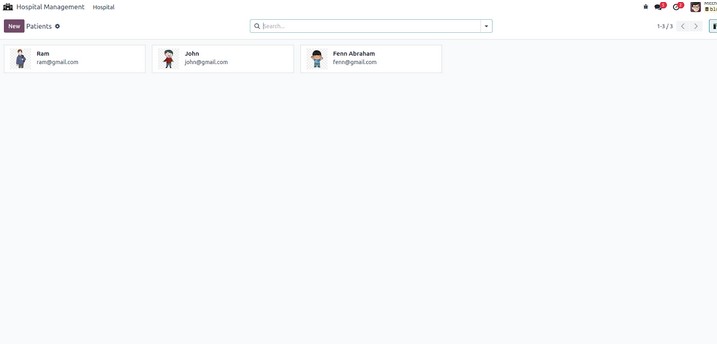
view provides a visual, board-style layout where each record appears
as a card or block. It supports the display of images and highlights
key record details. However, direct editing of fields within the
kanban view is not supported—users must open the form view to make
changes.
Let’s walk through the steps to create a custom kanban view, starting
with the creation of a new model.
                       class HospitalPatient(models.Model):
   _name = "hospital.patient"
   _description = 'Hospital Patient'

   name = fields.Char(string='Name', help='Name of Patient')
   age = fields.Integer(string='Age', help='Age of Patient')
   Image = fields.Binary(string='Image', help='Image of Patient’)
The next step is to add a menu item and link it to the corresponding
action associated with the model.
<record id="hospital_patient_action" model="ir.actions.act_window">
   <field name="name">Patients</field>
   <field name="res_model">hospital.patient</field>
   <field name="view_mode">kanban,list,form</field>
   <field name="help" type="html">
       <p class="o_view_nocontent_smiling_face">No patients found. Let's
           create one!
       </p>
       <p>To get things done, use activities and status on patients.</p>
   </field>
</record>

<menuitem id="hospital_patient_menu" name="Patient"
         parent="hospital_menu_hospital" action="hospital_patient_action"
         sequence="2"/>
Now, define the kanban view for the model, customizing the layout as
needed and making sure all relevant fields are included.
<record id="hospital_patient_view_kanban" model="ir.ui.view">
   <field name="name">hospital.patient.view.kanban</field>
   <field name="model">hospital.patient</field>
   <field name="arch" type="xml">
       <kanban class="o_kanban_mobile">
           <field name="name"/>
           <field name="email"/>
           <templates>
               <t t-name="kanban-box">
                   <div t-attf-class="oe_kanban_global_click">
                       <div class="o_kanban_image">
                           <img t-att-src="kanban_image('hospital.patient', 'image', record.id.value)"
                                class="o_image_64_max" height="52"/>
                       </div>
                       <div class="oe_kanban_details">
                           <strong class="o_kanban_record_title">
                               <field name="name"/>
                           </strong>
                           <div t-if="record.email.value">
                               <t t-esc="record.email.value"/>
                           </div>
                       </div>
                   </div>
               </t>
           </templates>
       </kanban>
   </field>
</record>
The output of the model configured above is shown below.