Pivot views are one of the most powerful features in Odoo when it
comes to analyzing and summarizing data. With the pivot view, users
can generate tabular reports that are both interactive and
insightful, helping them break down records into meaningful
statistics without needing external tools like Excel.
In Odoo 18, creating a pivot view follows the same core steps as in
previous versions, but with enhanced UI support and better
integration with the new reporting and dashboard tools. You can
define a pivot view for any custom model, allowing users to view the
data grouped by rows and columns with dynamic measures.
Step-by-Step: Setting Up a Pivot View
First, define your custom model. Here’s an example for a Visa
Application model:
from odoo import models, fields

class VisaApplication(models.Model):
    _name = "visa.application"
    _description = "Visa Application"

    name = fields.Char(string="Name", help="Name of the applicant")
    age = fields.Integer(string="Age", help="Age of the applicant")
    gender = fields.Selection([
        ('male', 'Male'),
        ('female', 'Female'),
        ('other', 'Other')
    ], string="Gender", help="Gender of the applicant")
    date_of_birth = fields.Date(string="Date of Birth", help="Applicant's date of birth")
Next, define the action and menu items so users can access the model
from the frontend:</p>
<record id="action_visa_application" model="ir.actions.act_window">
    <field name="name">Visa Applications</field>
    <field name="type">ir.actions.act_window</field>
    <field name="res_model">visa.application</field>
    <field name="view_mode">tree,form,pivot</field>
    <field name="help" type="html">
        <p class="o_view_nocontent_smiling_face">
            Click here to create a new visa application.
        </p>
    </field>
</record>
<menuitem id="menu_visa_root" name="Visa Management" sequence="10"/>
<menuitem id="menu_visa_application" name="Applications" parent="menu_visa_root"
          action="action_visa_application" sequence="20"/>
Now, create the pivot view XML definition:
<record id="view_visa_application_pivot" model="ir.ui.view">
    <field name="name">visa.application.pivot</field>
    <field name="model">visa.application</field>
    <field name="arch" type="xml">
        <pivot string="Visa Applications">
            <field name="gender" type="row"/>
            <field name="age" type="measure"/>
        </pivot>
    </field>
</record>
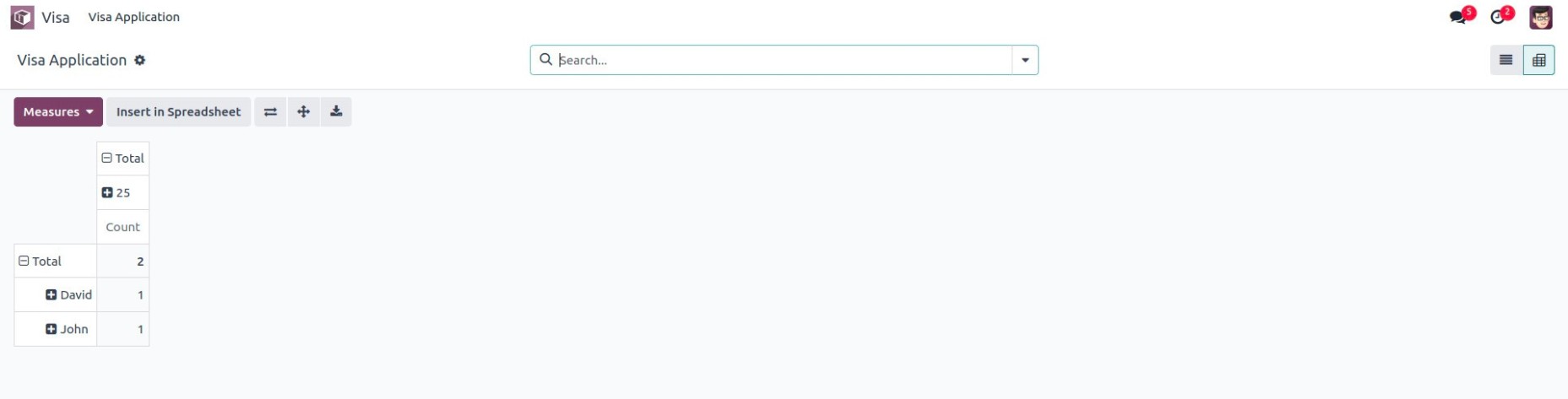
- Improved Measure Fields: In Odoo 18, numeric fields like
Integer, Float, and Monetary are automatically available as
measures in pivot views. You can also use compute fields marked
as store=True.
- Default Measures: You can use the default_order attribute
or customize the pivot behavior via view customization options
to set which measure or row appears first.
- Export Options: Pivot views now offer better CSV and
Excel export support directly from the interface, without custom
modules.
- Integration with Spreadsheets: Odoo 18 improves
integration with the built-in Spreadsheet app, so users can pull
pivot data into dynamic spreadsheets using the "Insert in
Spreadsheet" option.