Communication is key for any organization. Effective communication between employees eliminates delays, misunderstandings, and promotes collaboration. The Odoo Discuss app includes chats, channels, calls, and system notifications in one place. Therefore, there will be no need for users to keep on switching between applications.
The Discuss Odoo application enables users to manage their one-on-one and group discussions. The Odoo 20 Discuss module integrates well with other Odoo modules. Therefore, users can see notifications and emails about failed email and SMS notifications, as well as messages from records in the module itself.
In this blog post, you will find a guide (Hub) to Channels, Chats, Calls, and Chatter.
Odoo 20 Discuss Dashboard
In Discuss, the topmost bar consists of Discuss, Channels, Call history, and Configuration. On the left side of the screen, there are three categories: Chats, Channels, and Meetings. There is a number in the icon that shows the number of unread items in each category.
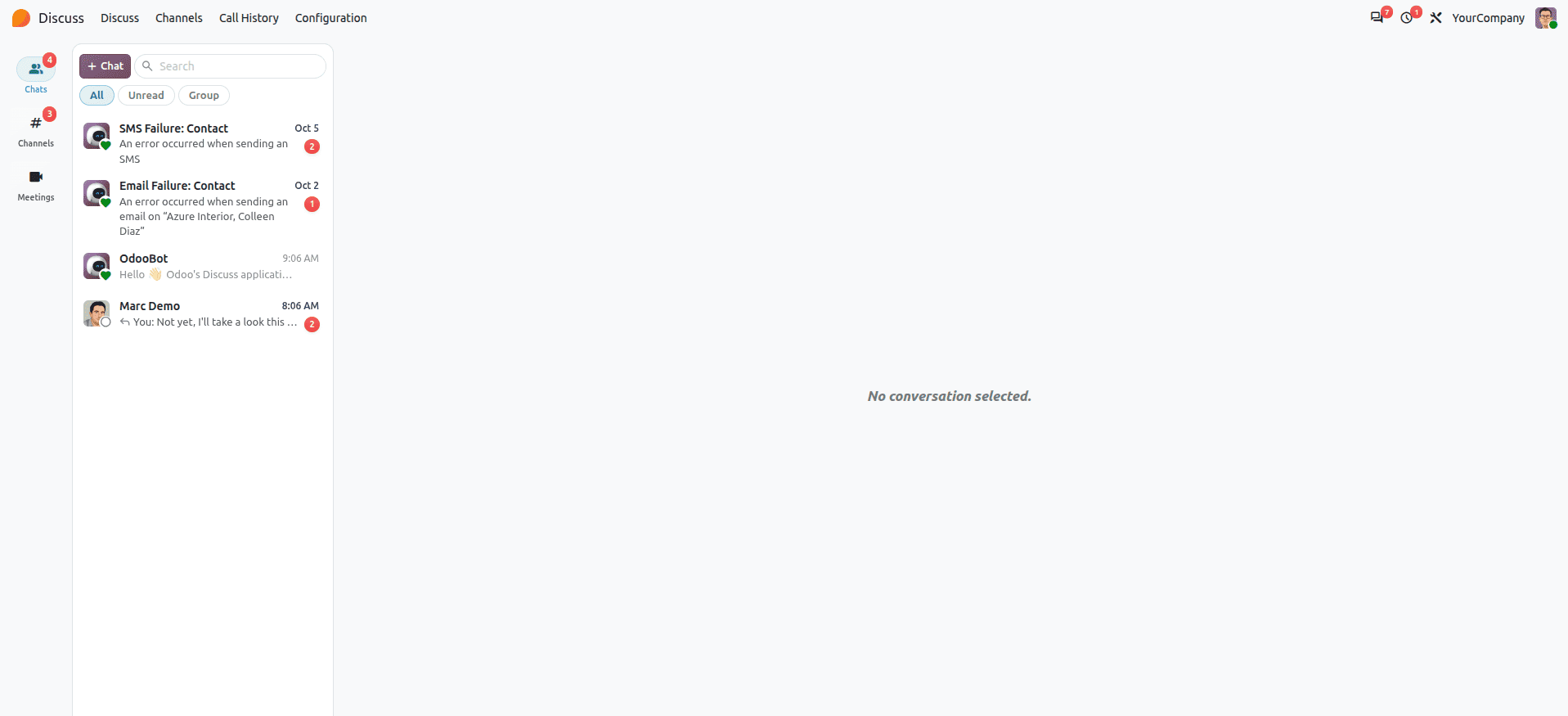
The Conversations section will show all your chats sorted by date and time in descending order. The name of the sender, a preview of the last message sent, the time, and the number of unread messages are also shown. For instance, in this case, the list contains system messages like SMS Failure: Contact and Email Failure: Contact, a message from OdooBot, and a one-to-one chat.
To quickly find any conversation, you may use the Search box that is located at the top of the list. You can use the filters below it to narrow the list down:
- All - displays all conversations
- Unread - displays all conversations with unread messages
- Unread - displays all conversations with unread messages
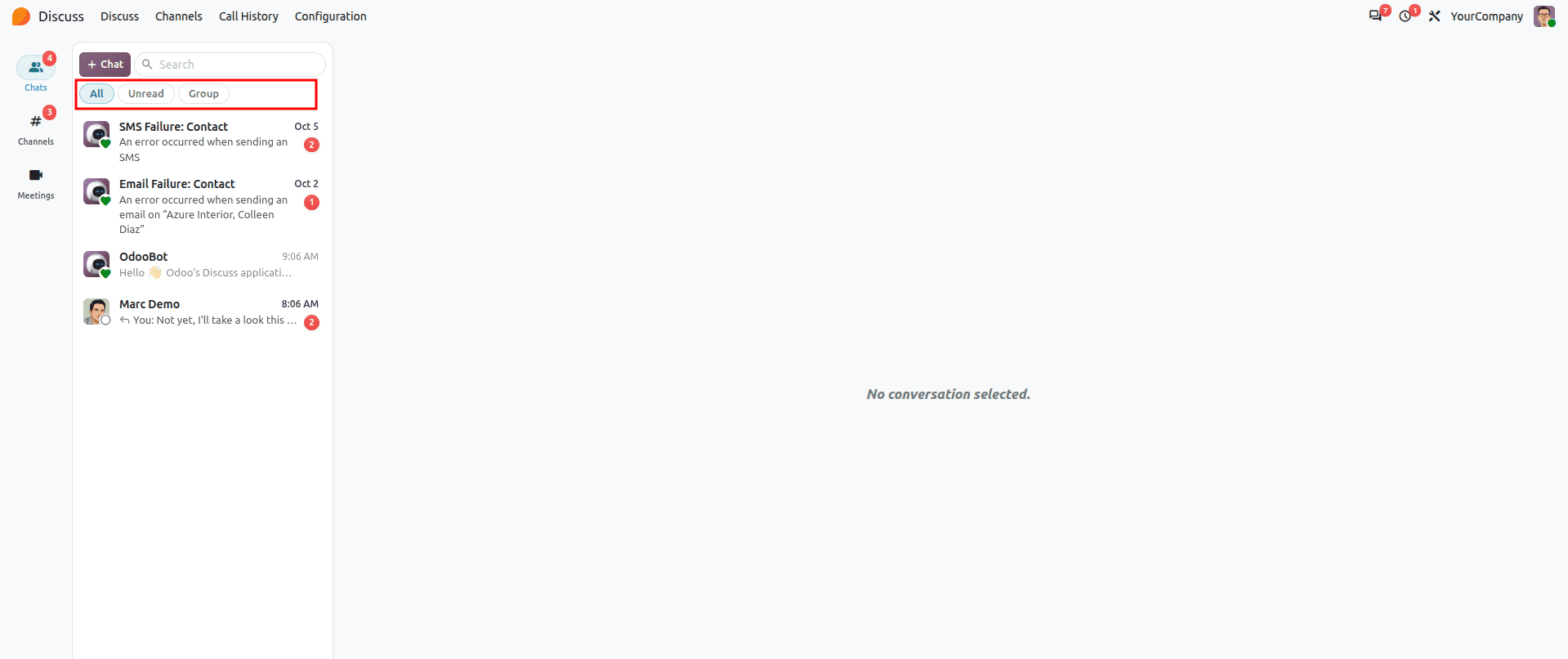
Until you pick a conversation, the right pane displays “No conversation selected.”
Starting a New Chat
To initiate a chat, simply tap the + Chat button at the top of the Chats screen. The search field will appear where you can search for a particular user by name. You can select one user to start a chat directly or multiple users to form a chat group.
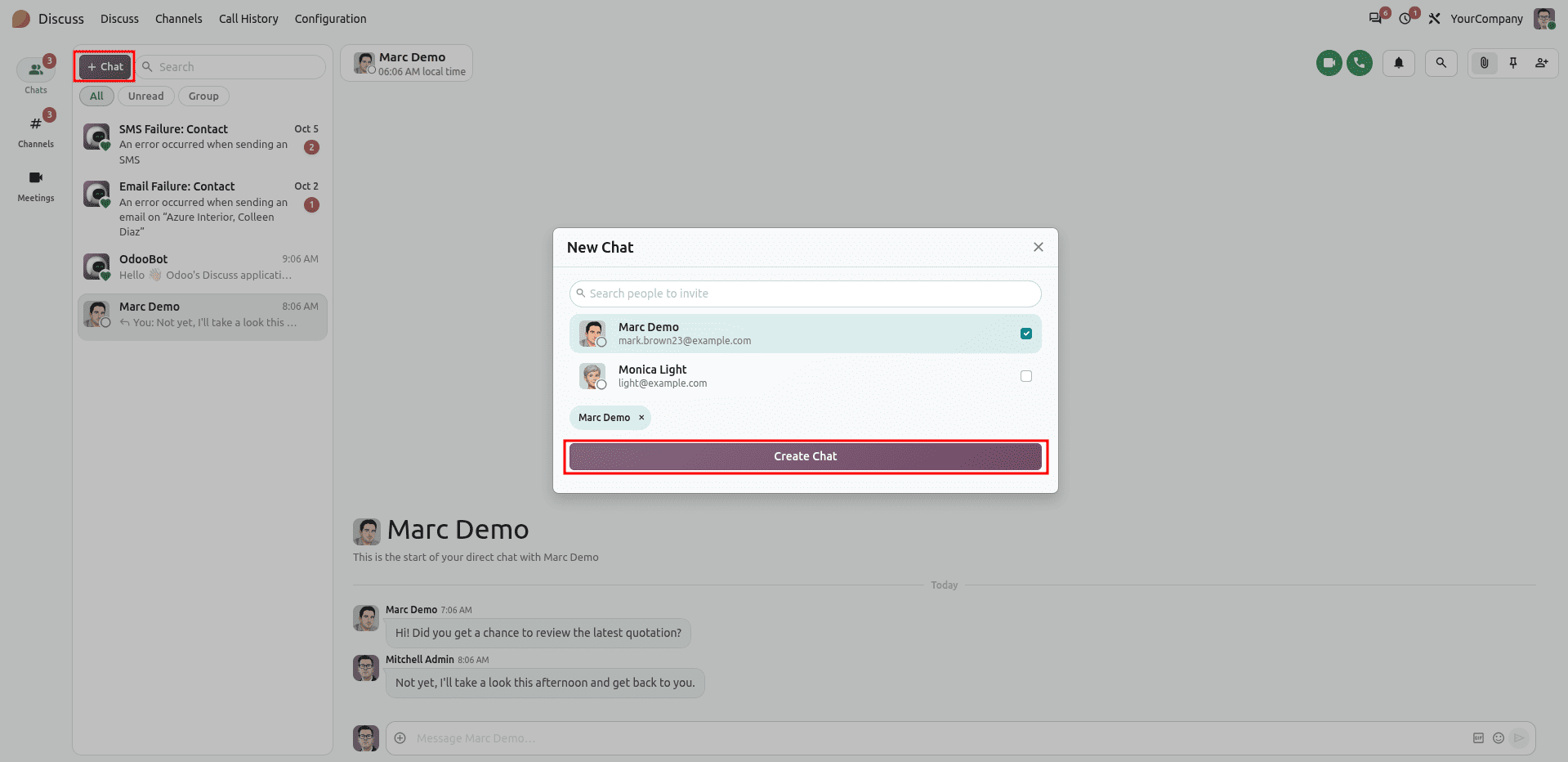
To initiate a chat, simply tap the + Chat button at the top of the Chats screen. The search field will appear where you can search for a particular user by name. You can select one user to start a chat directly or multiple users to form a chat group.
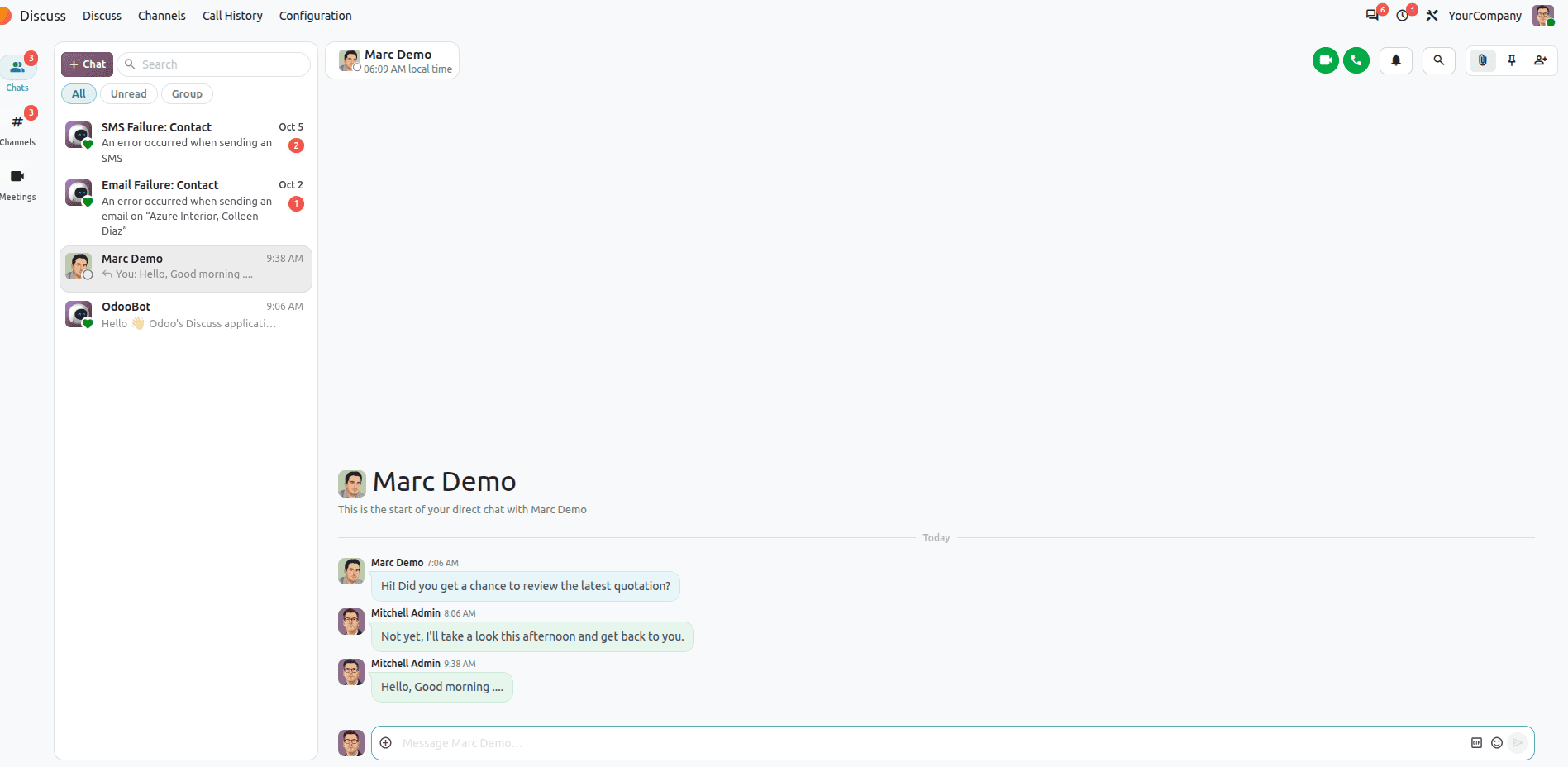
Message Options
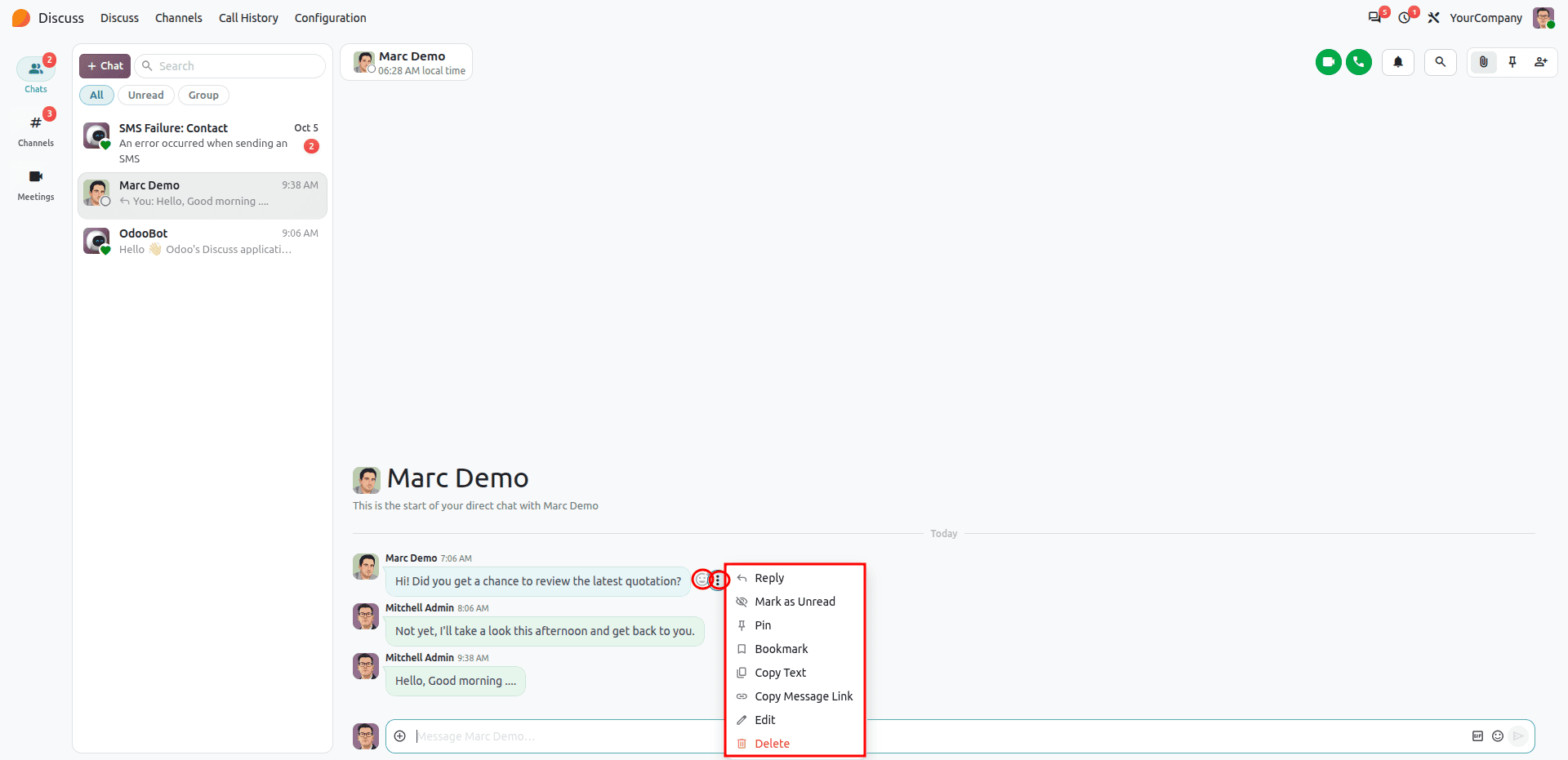
Just hover over the message to bring up the action list, including the option to add a reaction, reply, mark as unread, and edit or delete your own message.
System Notifications and Failure Alerts
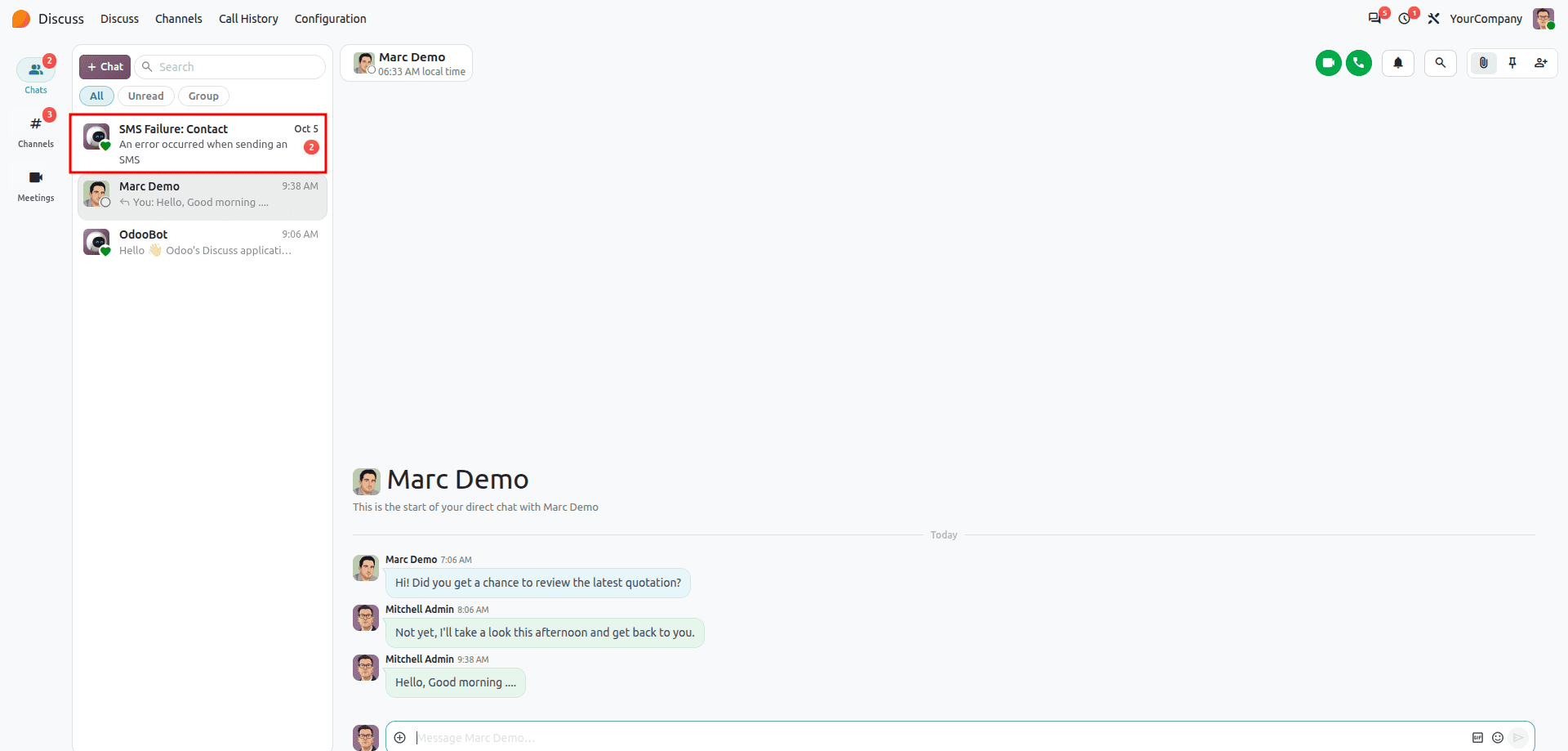
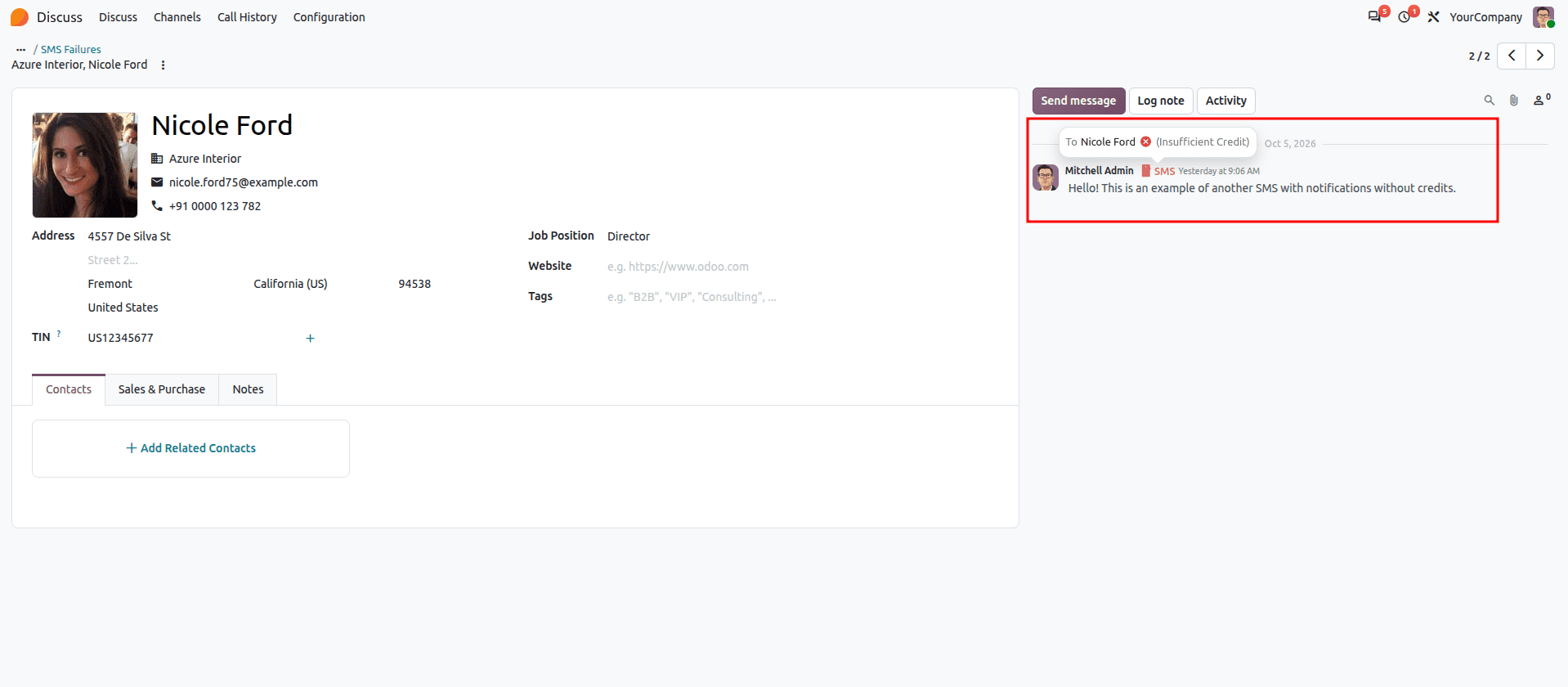
System notifications are sent by Odoo to the Chats list. Discuss also features delivery-related notifications that help users spot issues with messages delivered via SMS or email. This is an indication that the message sent from a record has not been sent, and it normally comes with the name of the contact who received the message.
OdooBot
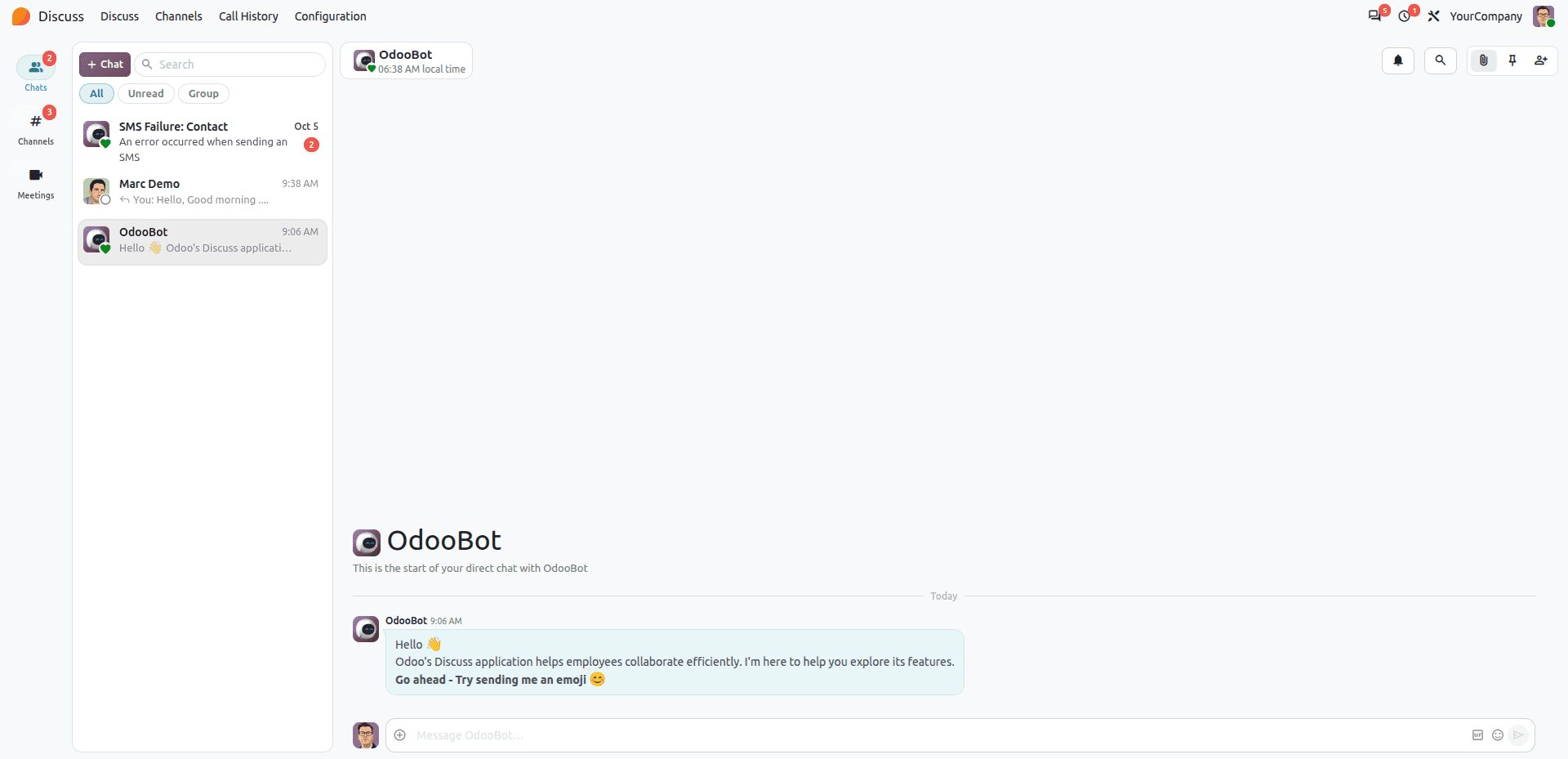
OdooBot is the default assistant for Odoo. It greets new users and gives information about the functionalities of the Discuss app.
Channels
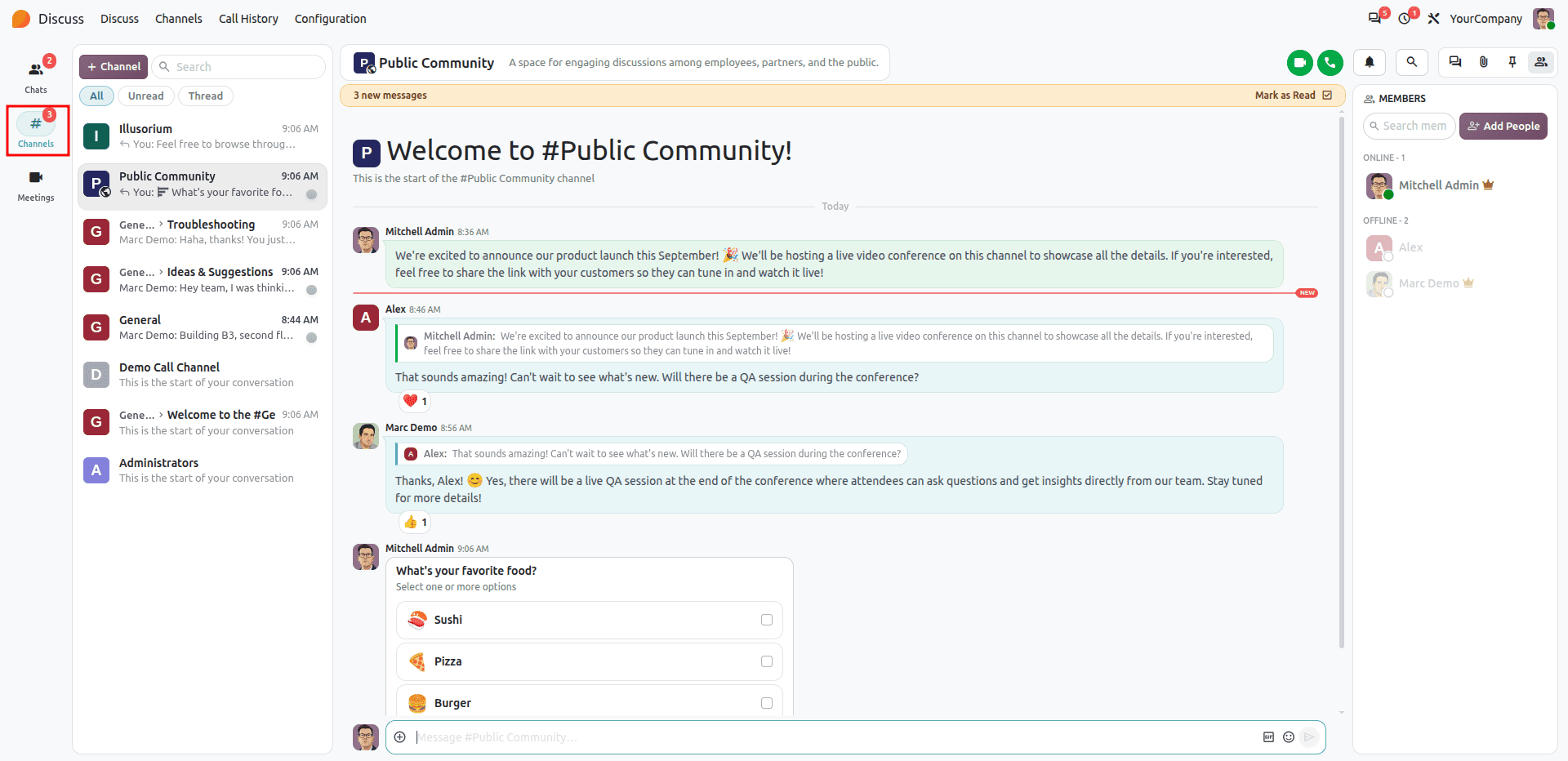
Go to Channels on the left-hand side bar to view all the channels that you are a member of. Channels refer to common platforms for group discussions.
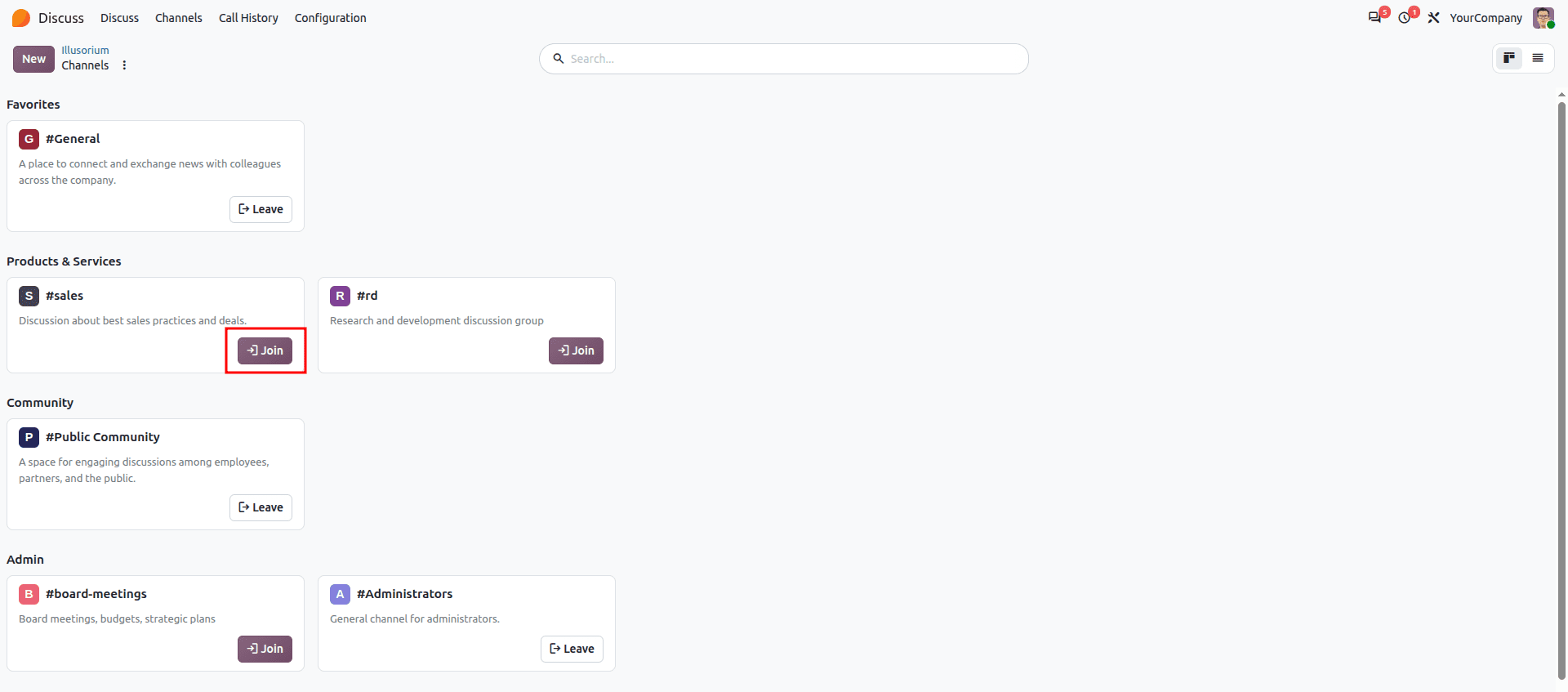
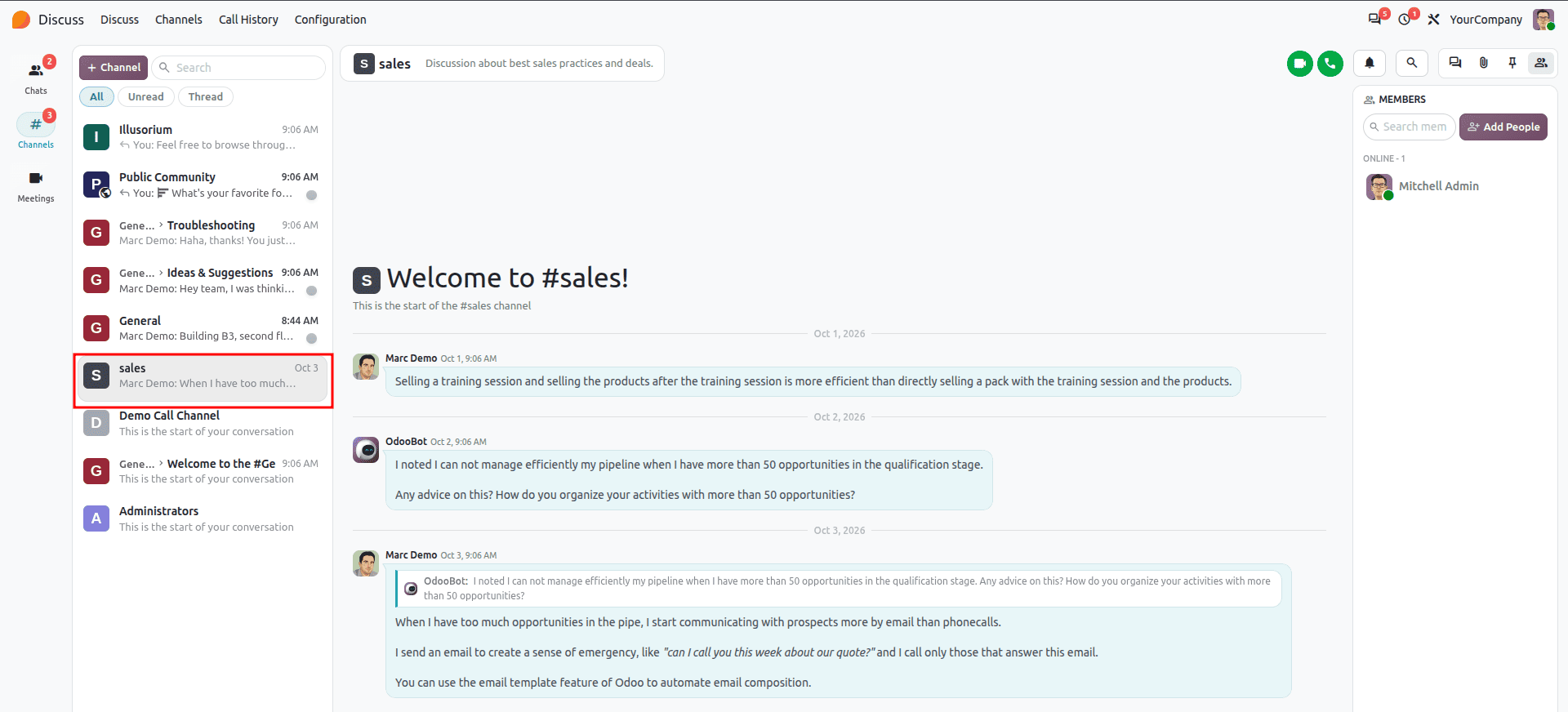
Another option for viewing all channels is through the Channels menu found at the top panel. All you have to do is click JOIN on a channel to be a member.
To Create a New Channel
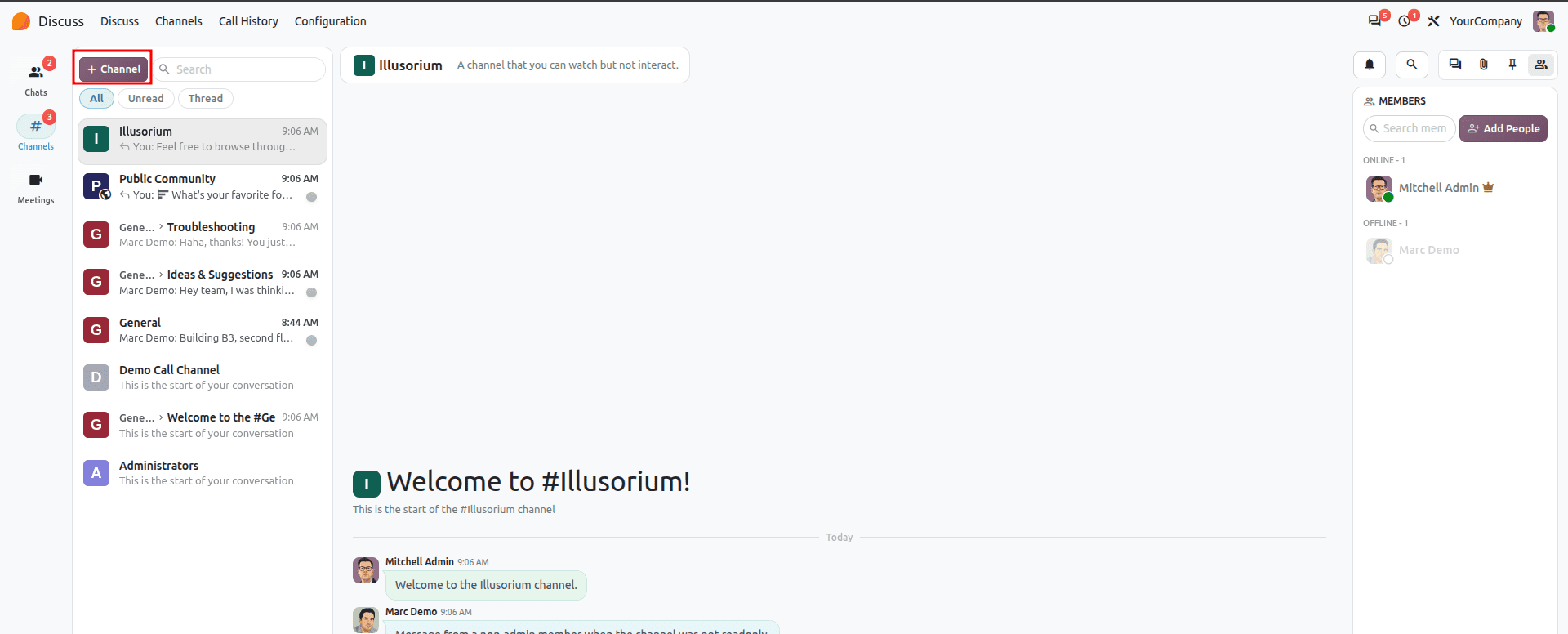
Click the “+Channel” button to bring up the channel creation dialog box where you should enter the channel name, description, select privacy options, and invite the necessary users.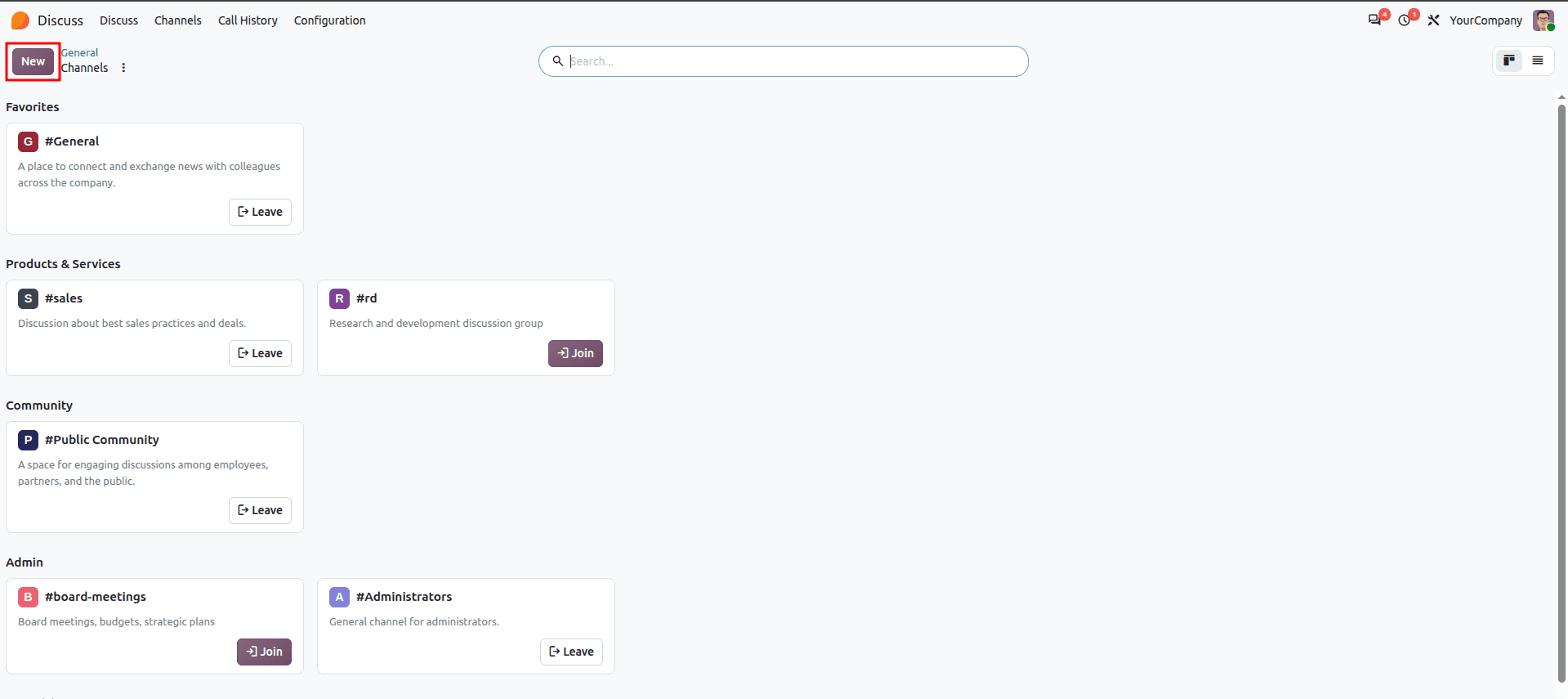
We can create a channel here by entering its name and adding members, then clicking the Join button to join the channel and the View button to view the channel on the screen.
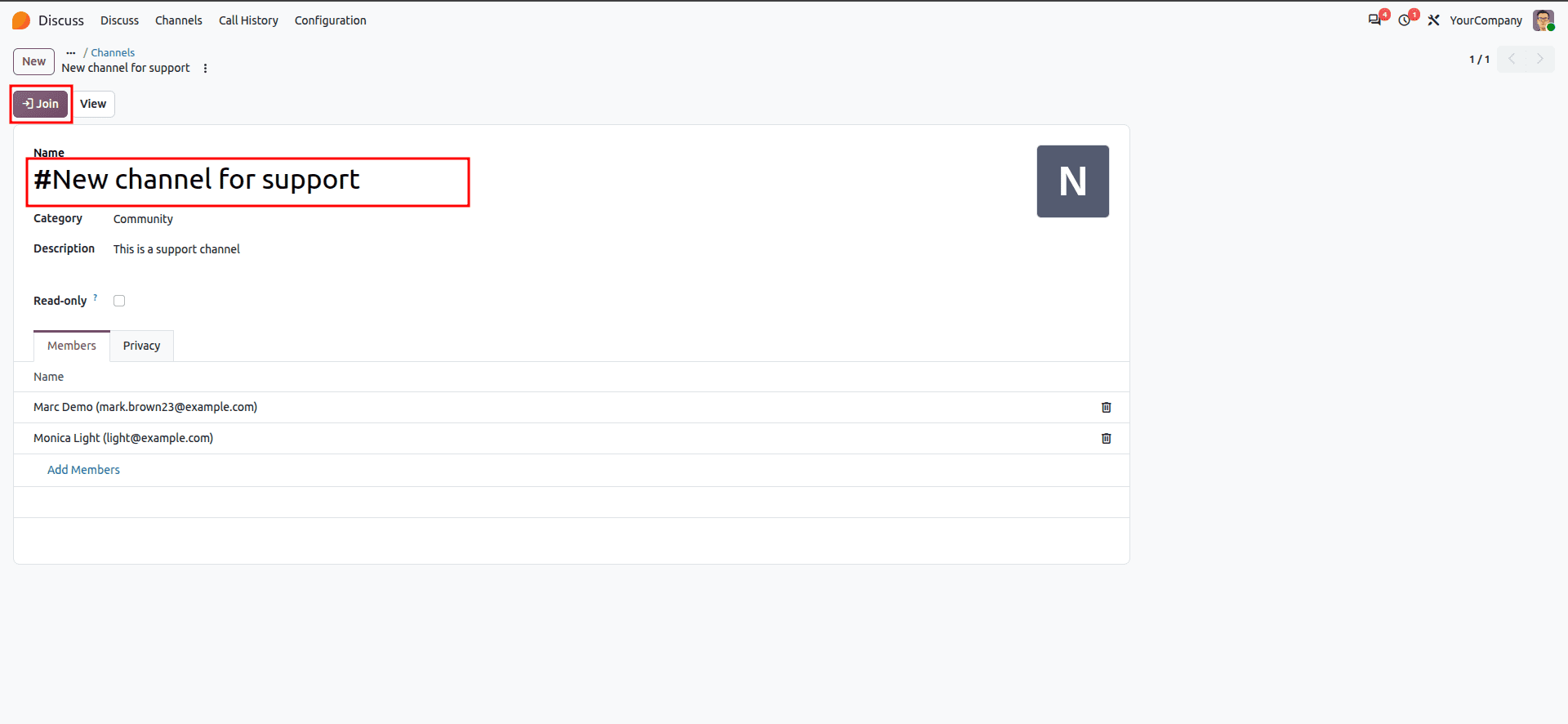
Under the Privacy tab, you have the option to set who can join the room, for instance, all, specific groups, or invited only, and press the Join button.
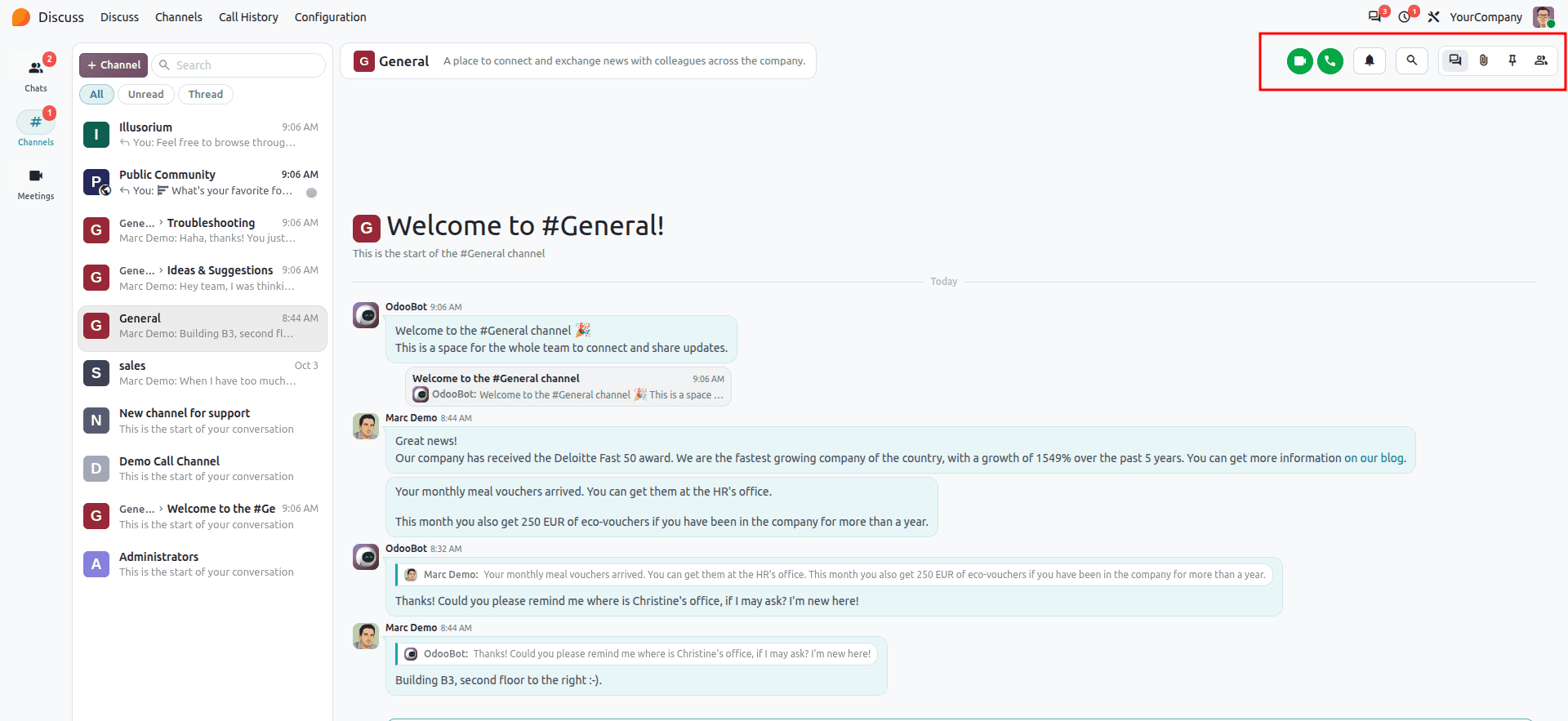
Under a channel, on the top bar, you will find an option to call, invite, and view members, among others.
1. Start a Video Call
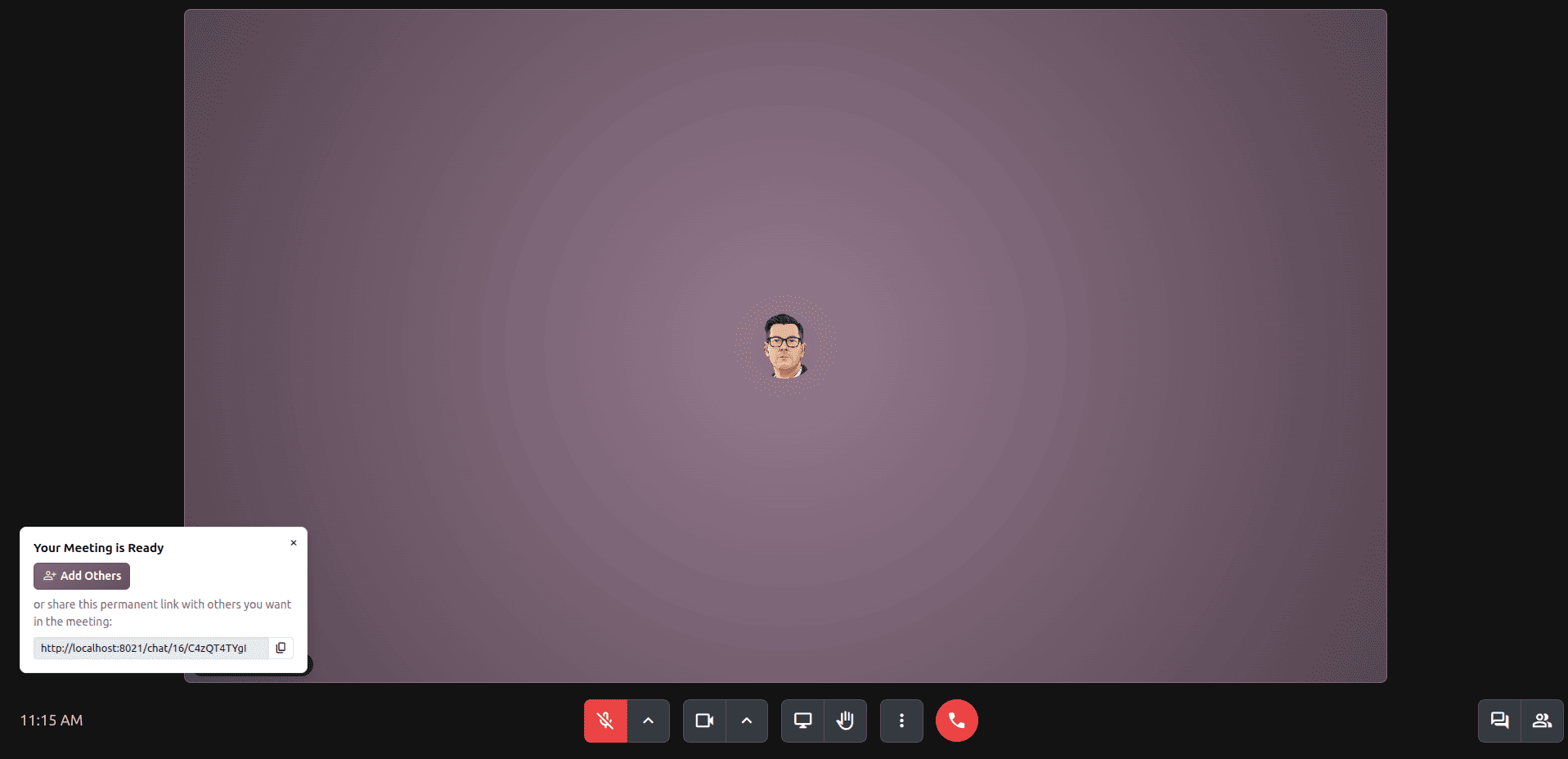
Click on the green camera symbol to start a video chat with all the participants of the channel. The video chat window opens up, and all the other participants can participate in the chat from their own Discuss windows.
2. Start a Call (green phone icon)
The green telephone button will dial the voice-only call in the channel. It is very helpful when you need a short conversation without using the camera. The participants get a notification about the same and can join the call. The call gets recorded in the Call History section in the menu.
3. Notification Settings (bell icon)
To select how you receive notifications from the messages that appear in the channel, click the bell icon. The choices that you will find here include the following:
All Messages - Notify me of all the new messages.
Only Mentions - Notify me when I'm mentioned.
None - Mute the channel
You can also temporarily mute the channel for a specific duration, like 1 hour, or forever.
4. Search Messages (magnifier icon)
Press the search icon to bring up the search panel on the particular channel that you are in. Input the keyword, and the results will appear. Clicking on one of those will lead you straight to the message in question.
5. Threads (speech bubbles icon)
Threads icon can be clicked to open up the list of threads (small conversations). A thread helps maintain the side conversation apart from the main channel conversation.
6. Attachments (paperclip icon)
When you click on the paperclip icon, it will reveal all files shared in the channel, including documents, pictures, and PDF files. There is no need to scroll down the entire conversation to find a particular file.
7. Pinned Messages (pin icon)
The pin icon will show you the pinned messages in the channel. In order to pin the messages, you need to hover over the message, click on the three-dots icon, and then click on Pin.
8. Member List (people icon)
The icon with people depicts the list of participants of the channel. One can see who the participants of the channel are and who is online. Users having the right permissions can invite new members directly from the member panel of the channel.
Meetings
Through the Meetings tab, the user can begin or join the meeting straight from the Discuss site. This button creates a meeting room and gives the link to the team members.
Call History
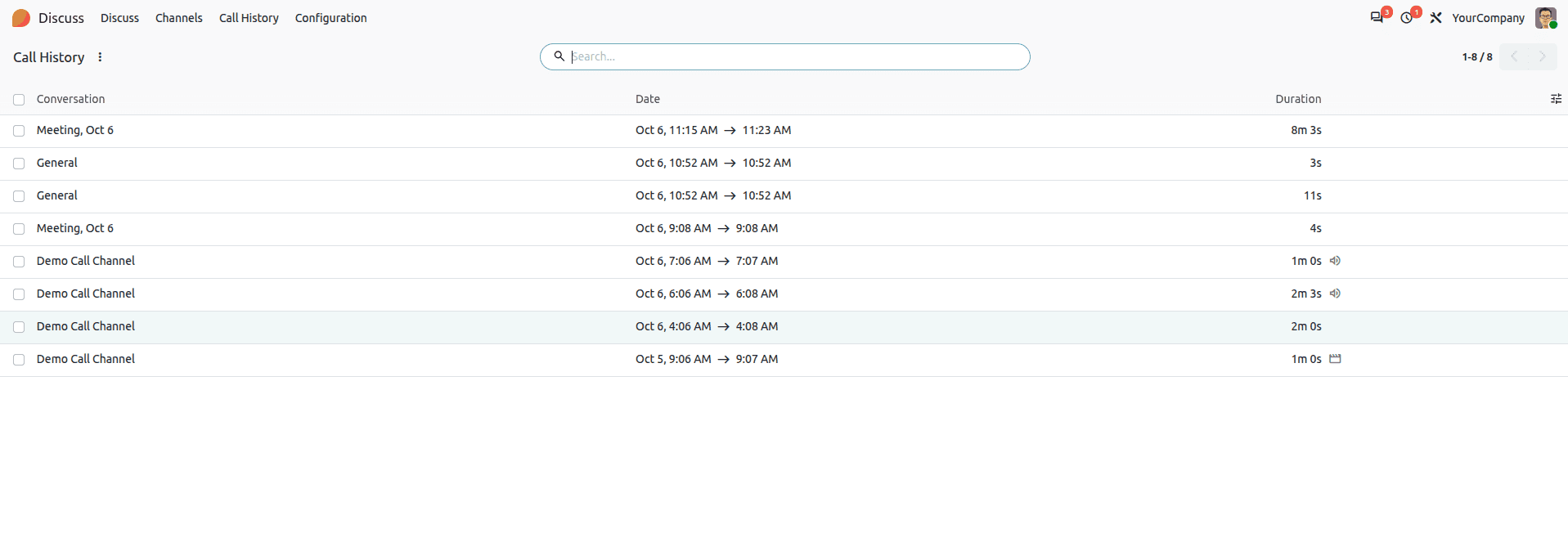
The Call History option in the top menu maintains the list of all outgoing and incoming calls, allowing you to track your previous calls.
Configuration
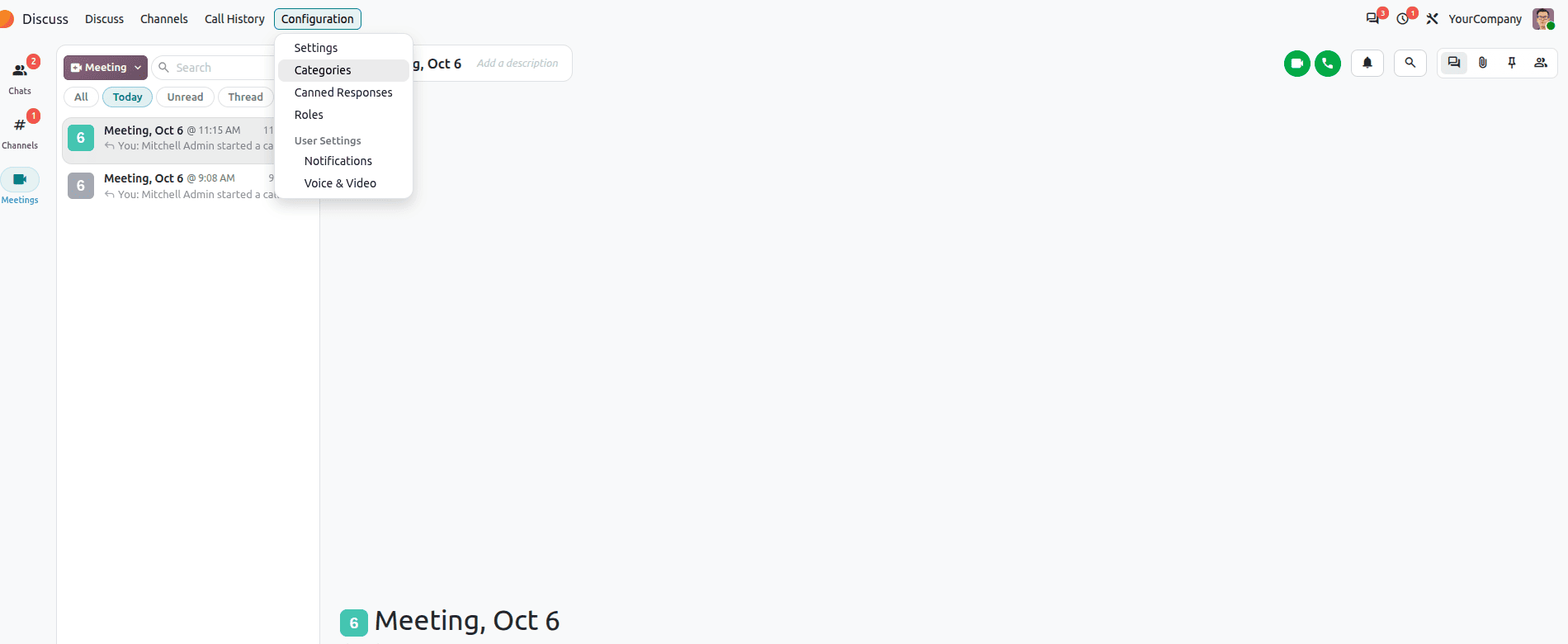
Discuss configuration settings, including those that can be found within the Configuration menu.
1. Settings
Open the Discuss settings page by clicking on Settings in the configuration, where an administrator handles the configuration of app-wide settings. The Odoo general settings page is opened for configuration.
2. Categories
Categories enable you to organize channels under the left-hand pane so that those that are similar are grouped. Just click on "NEW" and type the name of the category before saving it.
3. Canned Responses
Canned Responses are canned responses to your frequently used messages, such as greeting messages. A Canned Response is made up of two elements:
- Shortcut - the one-word command you enter to generate the response
- Substitution - the actual text you use to replace the shortcut
4. Roles
By using roles, one can easily form a group of users with an identifiable name, which can be referred to in a channel. When one mentions a role in a message, all users attached to it receive notifications and read the message accordingly.
5. Notifications
In Notifications, users select the options through which notifications from Discuss come to them, including the messages that will generate alerts and how those messages appear.
The Odoo 20 Discuss module makes internal communications easy and organized. With messaging, forums, web conferencing, and system notifications all integrated into one tool, teams will always be connected right from within Odoo. Efficient use of the Discuss module is key for collaboration and efficient communication.
To read more about How to Create Polls in Odoo 20 Discuss Channels and Chats, refer to our blog How to Create Polls in Odoo 20 Discuss Channels and Chats.