Within every growing business, it is essential to possess certain flexibility in operations and control from the management side. Essential operations, such as exceeding the credit limit and core business processes, need appropriate approval procedures.
Approval Rules for Buttons can be created in Odoo 20 Studio without writing extra Python code. The introduction of the approval workflow for the buttons within the form allows controlling the validation process, following the principle of separation of duties (two-person rule), and giving authorization for certain actions to particular persons.
The present document demonstrates how to create approval rules for the Confirm button for the Sales Order (sale.order) object. The present document illustrates the existing security groups, called approvers, the conditional approval threshold, and the Finance review.
1. Open Button Approvals in Odoo Studio
This is the procedure for how you may open the approval configuration:
- Access the Sales application and the quote or Sales Order in the Form View.
- Click on the wrench icon in the upper-right corner to open Studio.
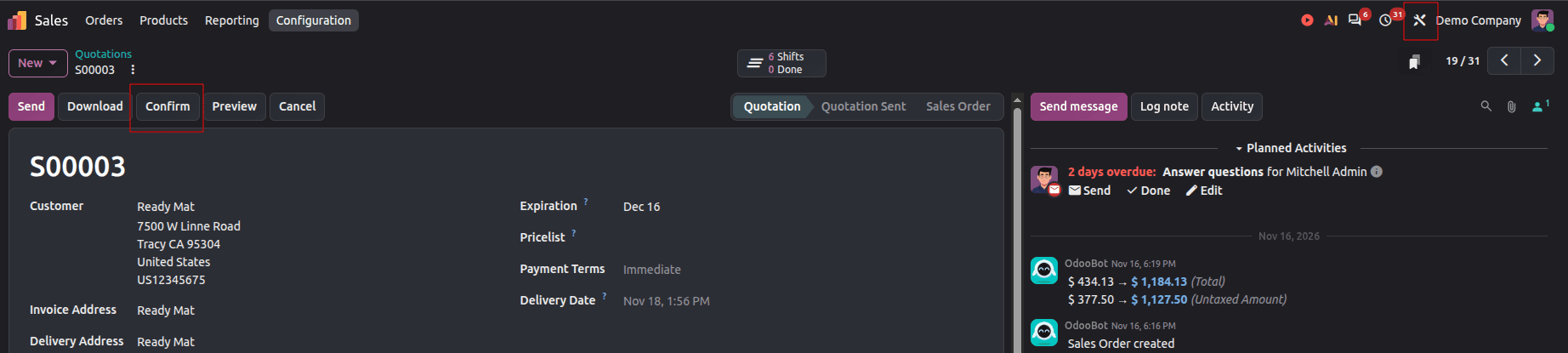
- Click on the "Confirm" button in the form.
- On the Properties window, navigate to the Approvals tab.
- Click on the "Add an approval step”.
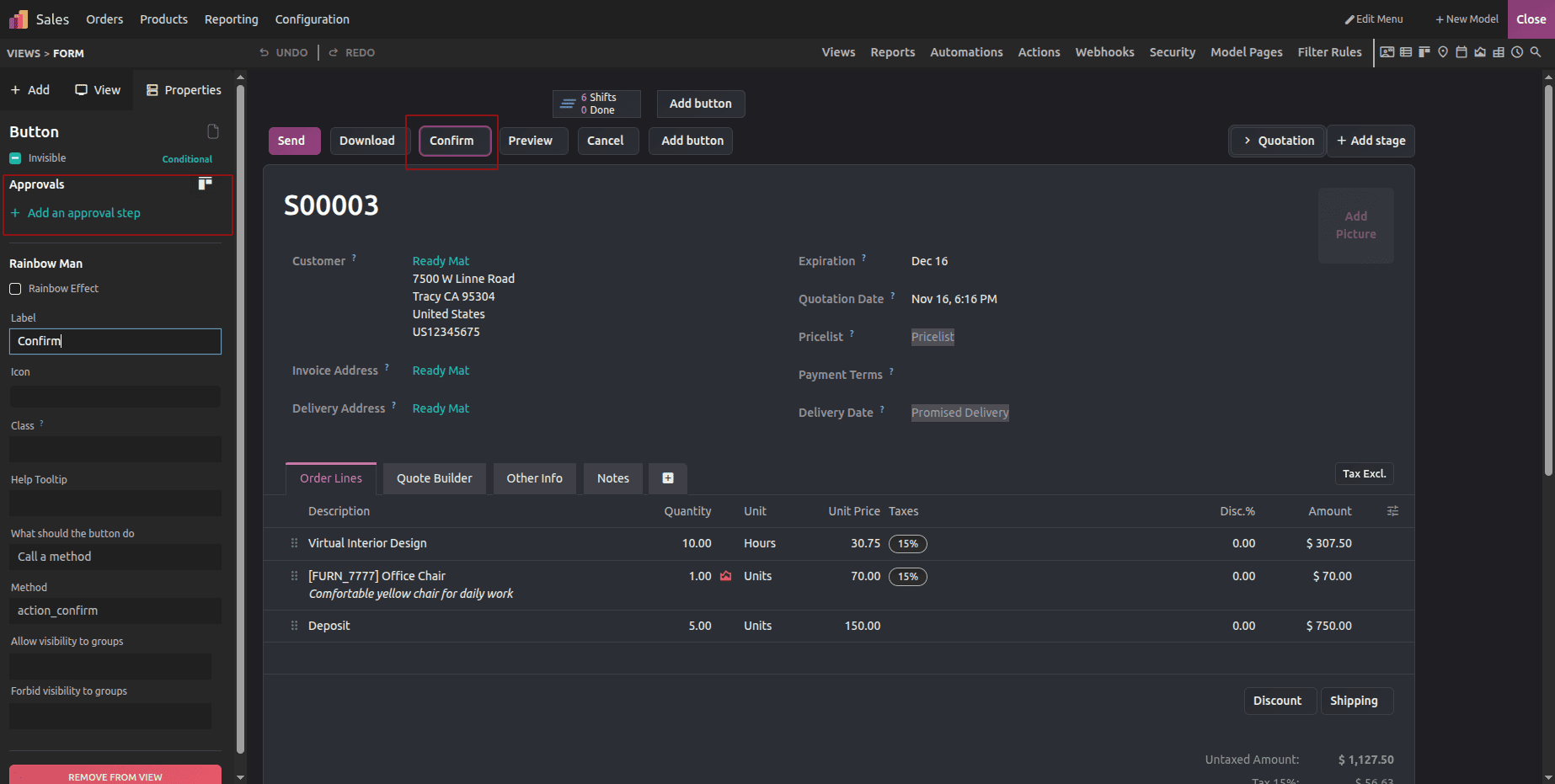
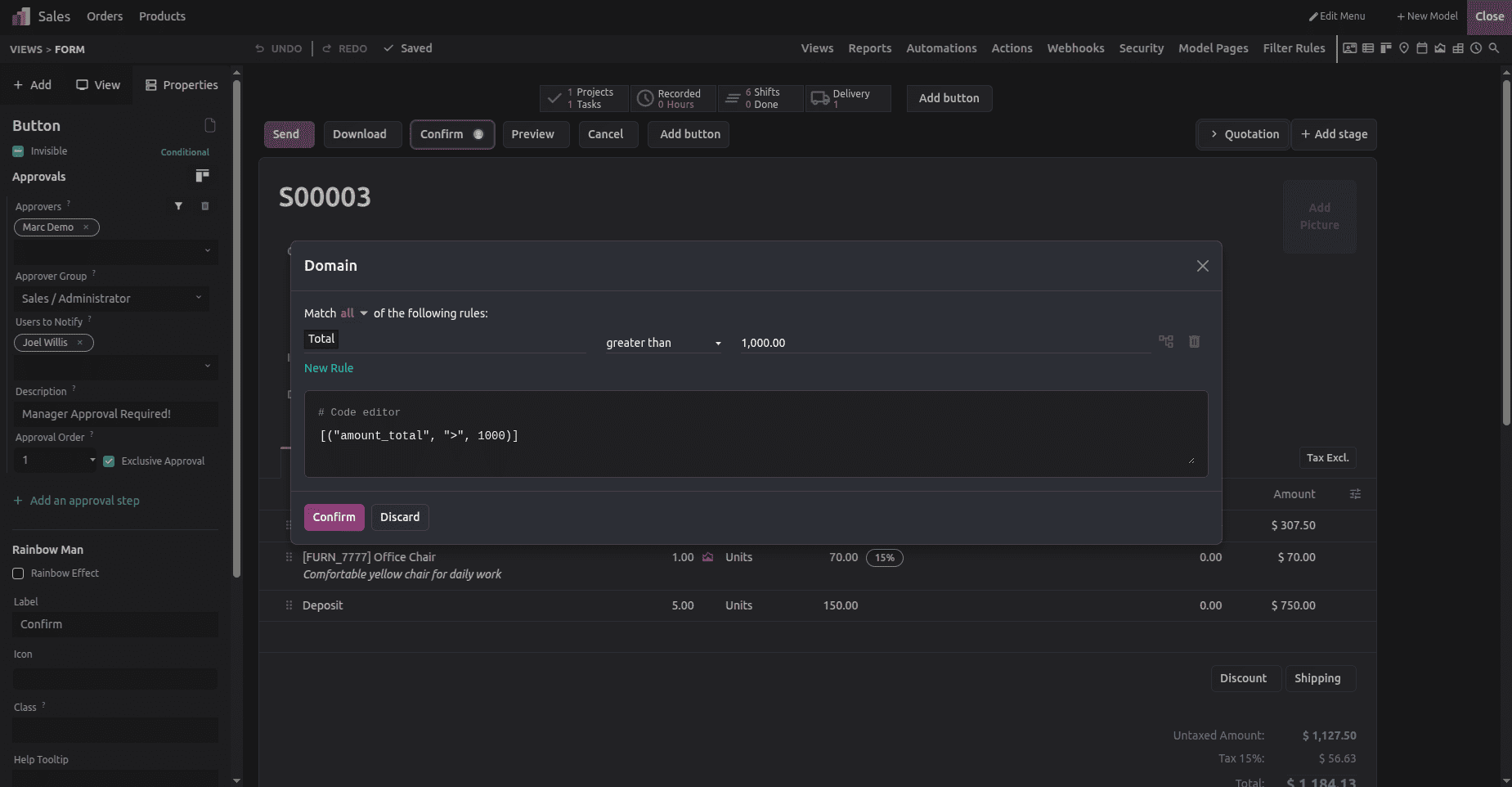
- Set up the approver and other recipients for notifications, description, and condition.
- If needed, add a second approval step for two approvals.
- Exit the Studio to make the change effective.
Note: It is critical to click on the button to access the approval options. The Approvals tab can be accessed from the properties of the button, not from the general settings.
2. Main Features of studio.approval.rule
Approvals are managed by using approval rules represented by studio.approval.rule objects, which define who should approve the approval, when the approval has to be done, and how the approval is performed.
| Studio Label | Technical Field | Purpose |
| Approval Group | approval_group_id | Users of a selected security group are eligible to approve/reject the action. Example: Sales/Administrator, if a proper security group exists and satisfies the company’s approval policy. |
| Approvers | approver_ids | Specifies the users that have permission to perform the approval. Approval To-Do can be delegated to specific users, if their approval is needed. |
| Users to Notify | users_to_notify | Provides an opportunity to notify extra users of the approval result. It does not turn the notified user into an approver. |
| Description | message | Provides a description of the approval step. Example: "Sales Manager Approval". |
| Step | notification_order | Specifies the approval step number in a range of 1 to 9. Proper order should be configured and tested. |
| Exclusive Approval | exclusive_user | Prevents the approval of multiple steps by the same user on the same record. It helps to distribute the responsibility. |
| Conditional Rule | conditional / domain | Specifies whether the rule applies according to the selected condition or not. |
Approval Group and Named User: An approval group is considered to be a role in which the users possess the ability to perform approval actions. In case the named user is selected in the Approvers tab, we actually indicate the particular individual who performs the approval action. There is one point worth mentioning: the selection of the group does not create a To-Do item for each group member.
3. Method Target and Action Target
The button in the form may be considered to be a method target of the object or an Odoo action. It is important to identify the correct button target when creating the approval rule.
| Property | Method Target (type="object") | Action Target (type="action") |
| Button Reference | A Python function defined in the model, for example, action_confirm()
| Odoo Action can normally be referred to by its action/ XML ID. |
| What It Does | It executes the function on the current record itself. | Executes the referred action, such as a server action/window action. |
| Example | Confirmation of the Sales Order. | Action to update or create a record. |
Approval must be granted before the execution of the protected button. There may be different ways of implementing the procedure depending on the Odoo version. It is advisable to check the button that needs approval and its action in the Odoo database.
4. Approval Process
It generally includes:
- The user clicks the secure button (Confirm).
- Odoo checks the approval rule and conditions of the button.
- The button action can be performed only after completing all the approvals.
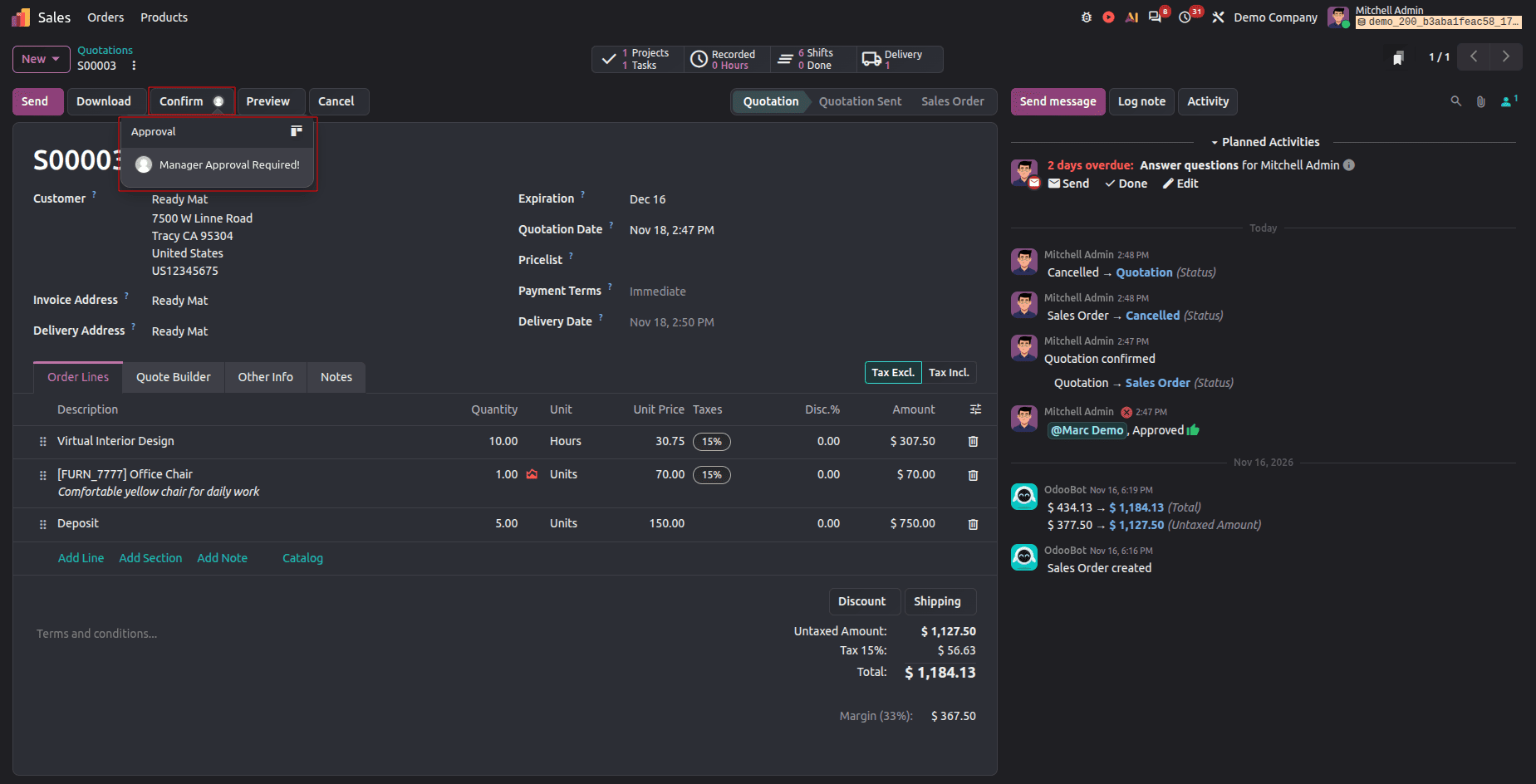
- If some approvals are pending, then Odoo does not permit executing the button action and shows an error message like “An approval is missing" or "Some approvals are missing".
- The assigned approver reviews the approval request via the approval controls provided next to the button or activity.
studio.approval.request links the approval rule to the relevant business object and mail.activity.
studio.approval.request links the approval rule to the relevant business object and mail.activity.
Let us assume that the company allows its sales representatives to confirm orders without any further approval. However, in case when orders exceed $10,000, then such orders must be approved by Sales Manager. In addition, when orders exceed $25,000, approval by Finance is required as well.
These numbers are given for the purpose of illustration only. You can pick up numbers that are relevant to your company's approval processes.
Step 1 - Choose the Confirm Button
Open the Sales Order form view, choose the Studio, select the Confirm button, and set up an approval process for it.
Step 2 - Set Up Sales Manager Approval Process
- Choose the Sales / Administrator group if you have one in your database.
- Then, select the proper Sales Manager from the list of Approvers.
- Add a description, for example: "Sales Manager Approval Process".
- Other users can be included in the Users to Notify list if needed.
Note: names of groups and their members may differ from one database to another depending on application(s) used, database edition, and language settings.
Step 3 - Creating the Condition
In the Conditional Rule section:
- Create a domain builder.
- Choose the Sales Order total field.
- Create a condition for greater than 10,000.
Pay attention to which total field to use; usually, it is amount_total. But choose the correct one that is available in your domain builder.
Expected result:
- An order with the amount of $8,000 does not satisfy the approval rule.
- An order with an amount of $15,000 will require approval from the Sales Manager.
- An order with the amount of $30,000 satisfies the condition and requires the first approval step
Step 4 - Finance approval for Orders Greater than $25,000
For the orders that need further approval:
- Add a second approval step under the same Confirm button.
- Choose any finance group if it exists.
- Choose the corresponding Finance Manager from the list of Approvers.
- Create a condition for greater than 25,000.
- Create Step Order 2.
- Select Exclusive Approval if a different person must conduct each step, so that the same user cannot approve both steps.
Approval of Sales Order Process Flow
| Sales Order Amount | Sales Manager Approval | Finance Approval | Expected Outcome |
| = $10,000 | Not required | Not required | Unapproved Sales Order Confirmation. |
| > $10,000 and = $25,000 | Required | Not required | Sales Order Approval by Sales Manager for Sales Order Confirmation. |
| > $25,000 | Required | Required | Sales Order Approvals needed before Sales Order Confirmation. |
Note: Testing of the multi-step approvals process and order of steps should be conducted in your Odoo database to confirm if the required process flow will take place.
6. Testing the Workflow
Prior to activating the approval rules for all users, they should be tested using an individual account of the salesperson and approver.
- Create a Sales Order for the amount of $8,000 and check whether the approval rule is applied to it or not.
- Create a Sales Order for $15,000 and try to confirm it as a salesperson. It is not possible to do so until approval from the Sales Manager is received.
- Login as the Sales Manager, gain the approval, and return to the Sales Order for its confirmation.
- Conduct testing of the Sales Order that exceeds the amount of $25,000 and ensure that Sales Manager and Finance approvals are successfully completed.
It should be ensured that:
- Approval users have proper permissions.
- The approval process should be assigned to the right users.
- The behavior of orders both above and below the thresholds is correct.
- Exclusive Approval prevents the completion of both tasks in the approval process by the same user
7. Auditing, Delegation and Maintenance
The approval rules available in Odoo Studio can also help in continuous monitoring and management.
- Approval Rules: You can make use of the Approvals Kanban view to know about the approval rules that you have set up and the order in which you have configured them.
- Delegation: The approver has the option to delegate his/her approval rights temporarily. It becomes essential to make sure that the delegation and chatter are verified.
- Audit History: It is necessary to keep the audit history. Make sure that the obsolete rules are archived rather than being deleted.
- Review: Repeat the process in case of any change in role, membership, approval limit, and processing of Sales Order.
The Odoo 20 Studio button approvals are quite useful for enterprises to have control over their business processes. Through the security groups, approvers, domains, orders, and exclusive approvals, an efficient sales order approval process can be established without writing any custom code.
To read more about Complete Guide to No-Code Customization in Odoo 20 Studio, refer to our blog Complete Guide to No-Code Customization in Odoo 20 Studio.