A clean CRM pipeline helps salespeople see which opportunities need attention, where deals are getting stuck, and what revenue may close. In Odoo 20, pipeline hygiene comes from clear stage definitions, accurate records, timely follow-ups, and regular review. The pipeline also includes tools for creating leads, filtering and grouping opportunities, updating records in bulk, and switching between views. Used consistently, these features make CRM more useful for daily sales work and forecasting.
Set up Stages with Clear Expectations
Stages should represent real steps in your sales process, from a new enquiry through qualification and proposal to a decision. Keep the stages distinct and agree on what information or customer action should be present before an opportunity moves forward. For example, qualification might require a confirmed need and a decision-maker, while a proposal stage might require that a quotation has been shared.
Configure stages from CRM > Configuration > Stages.
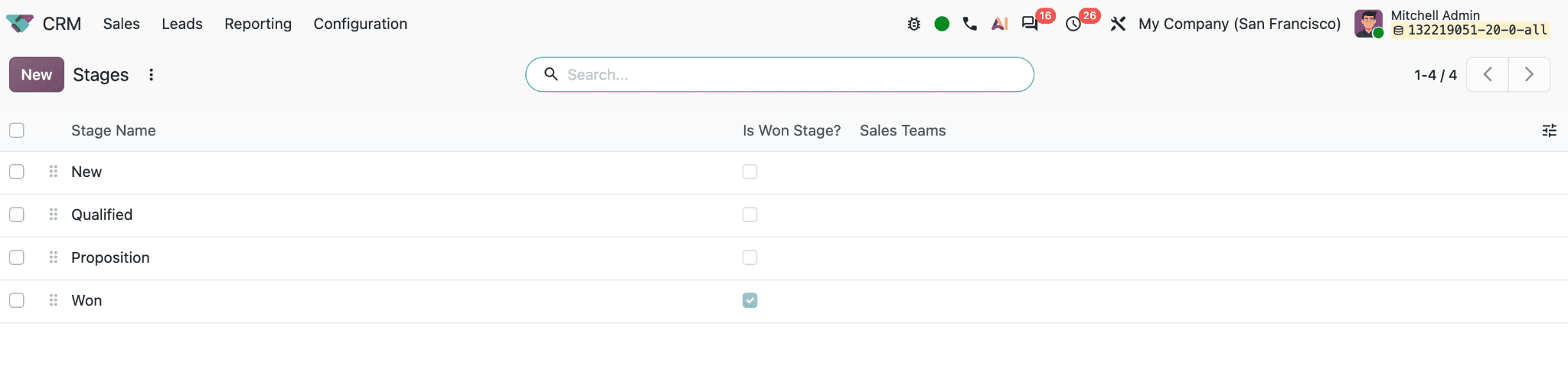
The stage list shows each Stage Name, whether it is a Won Stage, and which Sales Teams use it. Drag the handle beside a stage to change its order.
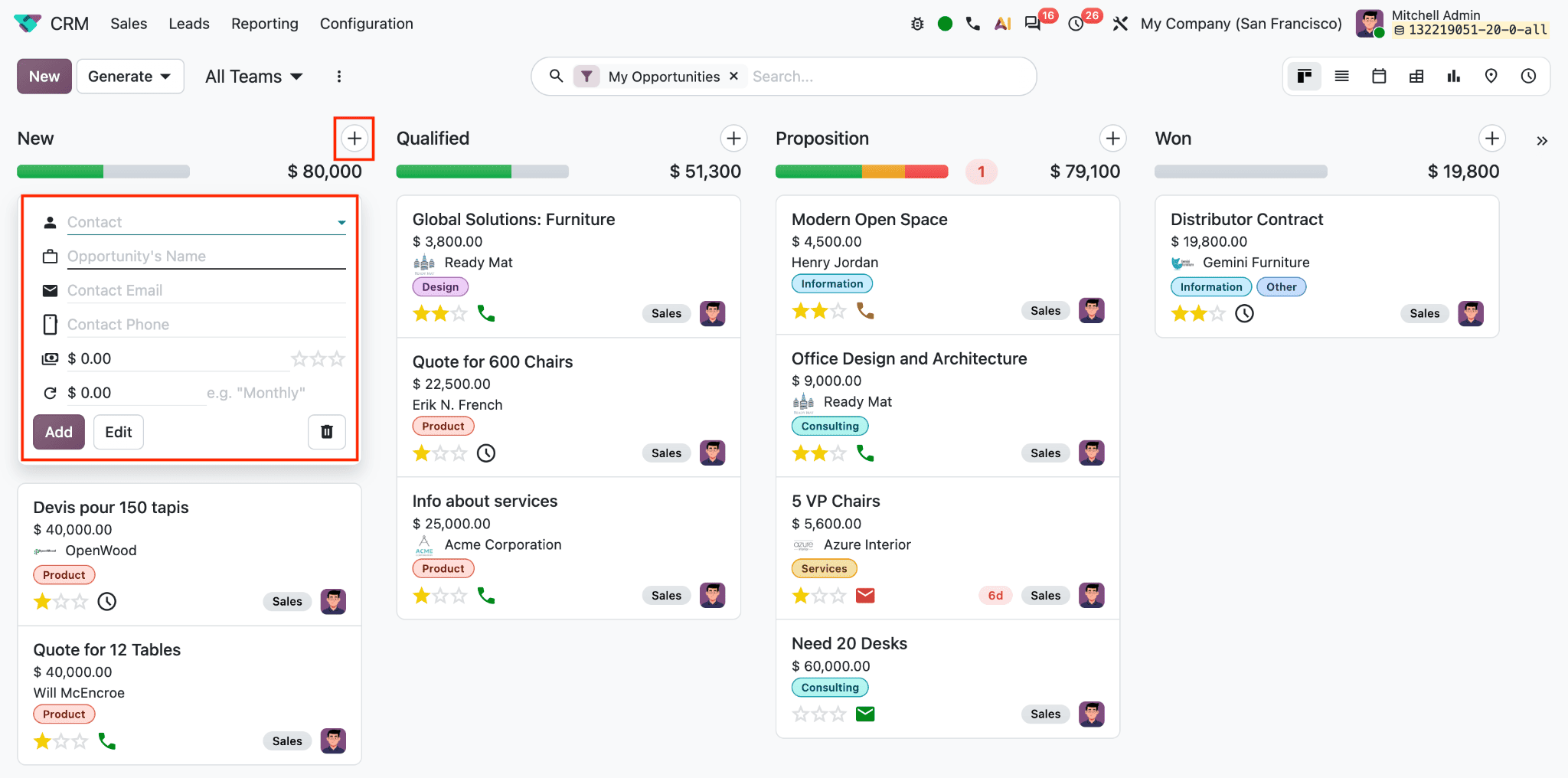
In the Kanban pipeline, the plus icon beside a stage lets users quickly create an opportunity in that stage by entering details like contact, opportunity’s name, contact name, contact phone, expected revenue, and recurrent revenue. The stage gear menu provides Fold, Edit, Automations, and Delete.
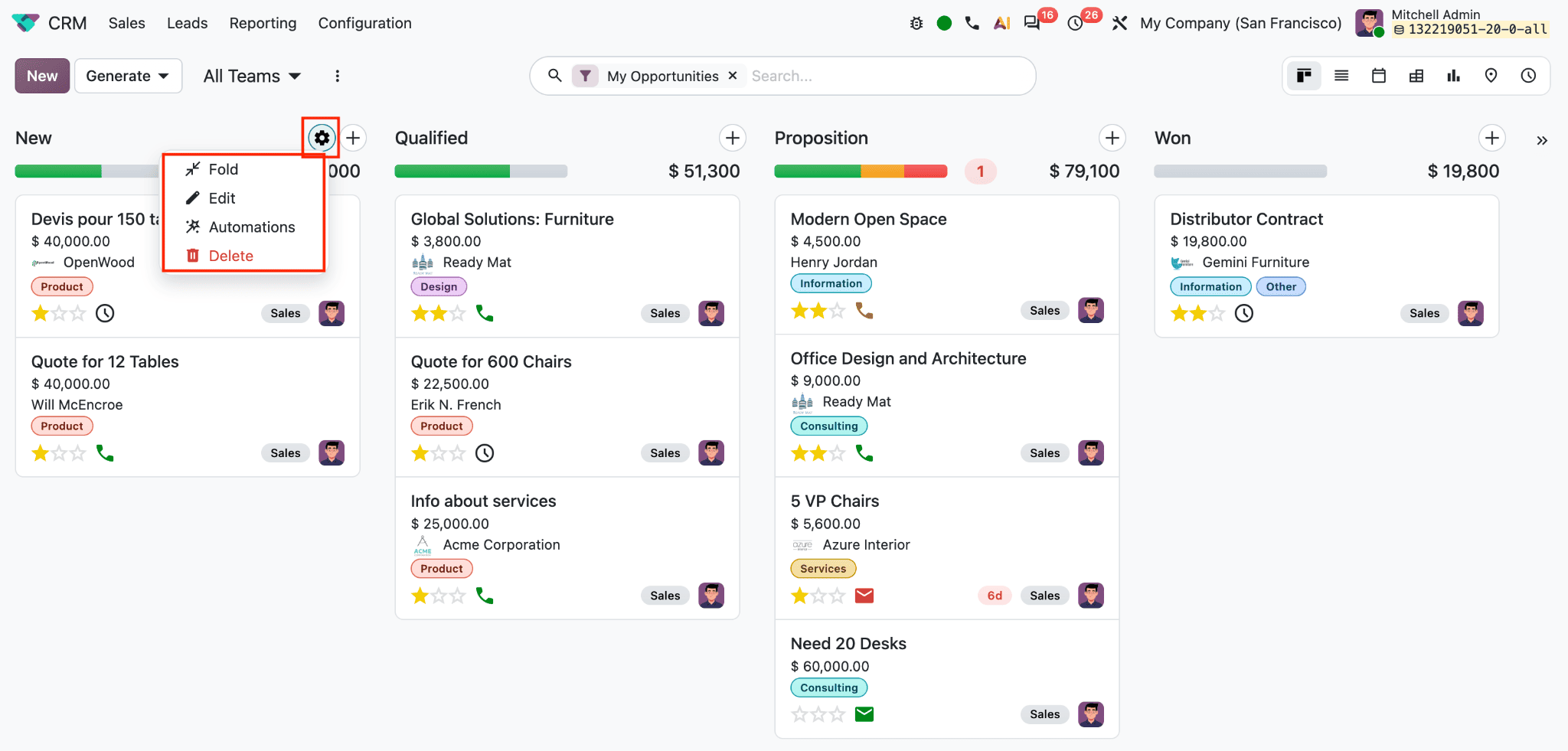
Fold temporarily hides cards in the column; Edit opens the stage settings; Automations manages rules associated with that stage; Delete removes the stage, so check its records and use before deleting it.
The stage form includes Stage Name, Sales Teams, Fold by Default, Is Won Stage?, Rotting in, and Requirements.
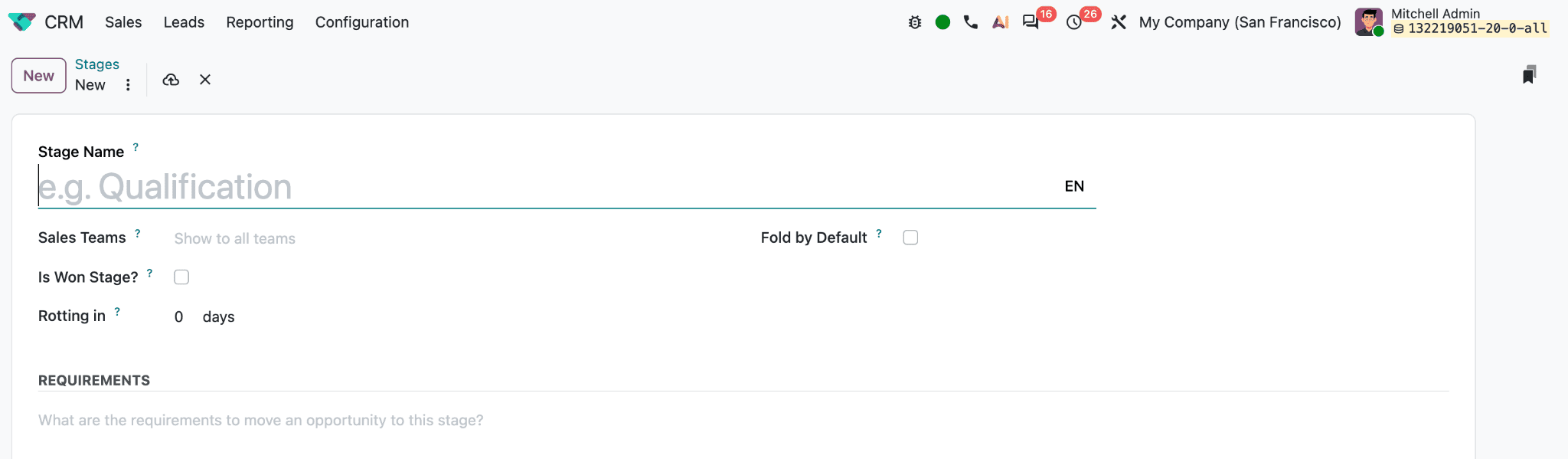
Assigning a stage to specific sales teams keeps it relevant to those pipelines; leaving the team field open makes it generally available. Fold by Default hides cards in that column when the pipeline loads. Use it only for closing stages, because records in a folded stage are treated as closed. Select Is Won Stage? for the stage that represents a successful sale. Rotting in sets how many days an opportunity can remain without activity before Odoo flags it for attention. A value of zero disables this warning. Use Requirements to describe what should be true before an opportunity enters the stage. This field documents the team’s criteria; it does not by itself enforce that users fill in specific data. For strict requirements, the process may need additional configuration or customization.
One can easily edit the stage configuration by selecting the Edit button after clicking on the gear icon available at the top of each stage.
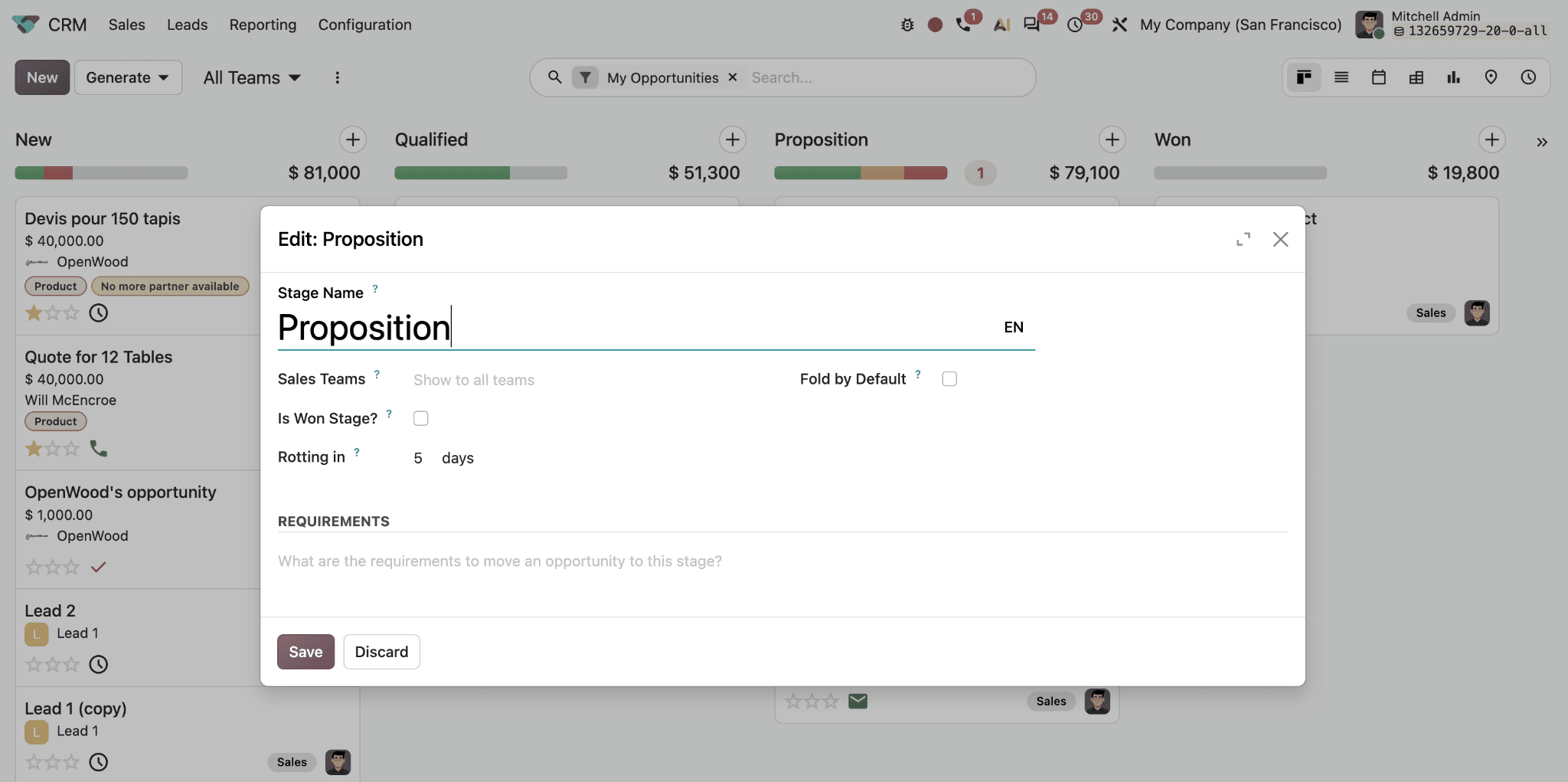
In the screenshot, the Proposition stage is set to five days. Odoo uses this threshold to flag opportunities that remain in the stage without activity for too long; setting it to zero turns the feature off. To review flagged opportunities, apply the Rotting filter in the pipeline search bar.
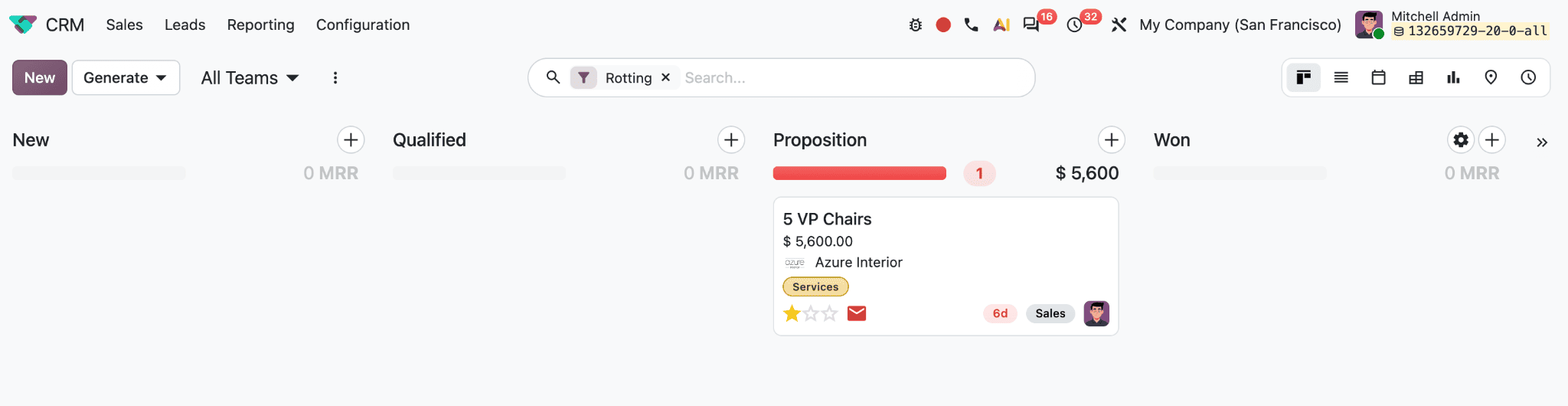
The second screenshot shows one opportunity in Proposition flagged as rotting. Its 6d badge indicates it has passed the five-day threshold by a day, while the red stage bar and the count of 1 show that the stage contains one rotting opportunity. This gives the team a visible prompt to review the deal and schedule an appropriate follow-up.
Use the Pipeline Controls to Focus Work
At the top of the pipeline, All Teams opens a selector for the full pipeline or a specific sales team, with Manage Teams linking to team configuration.
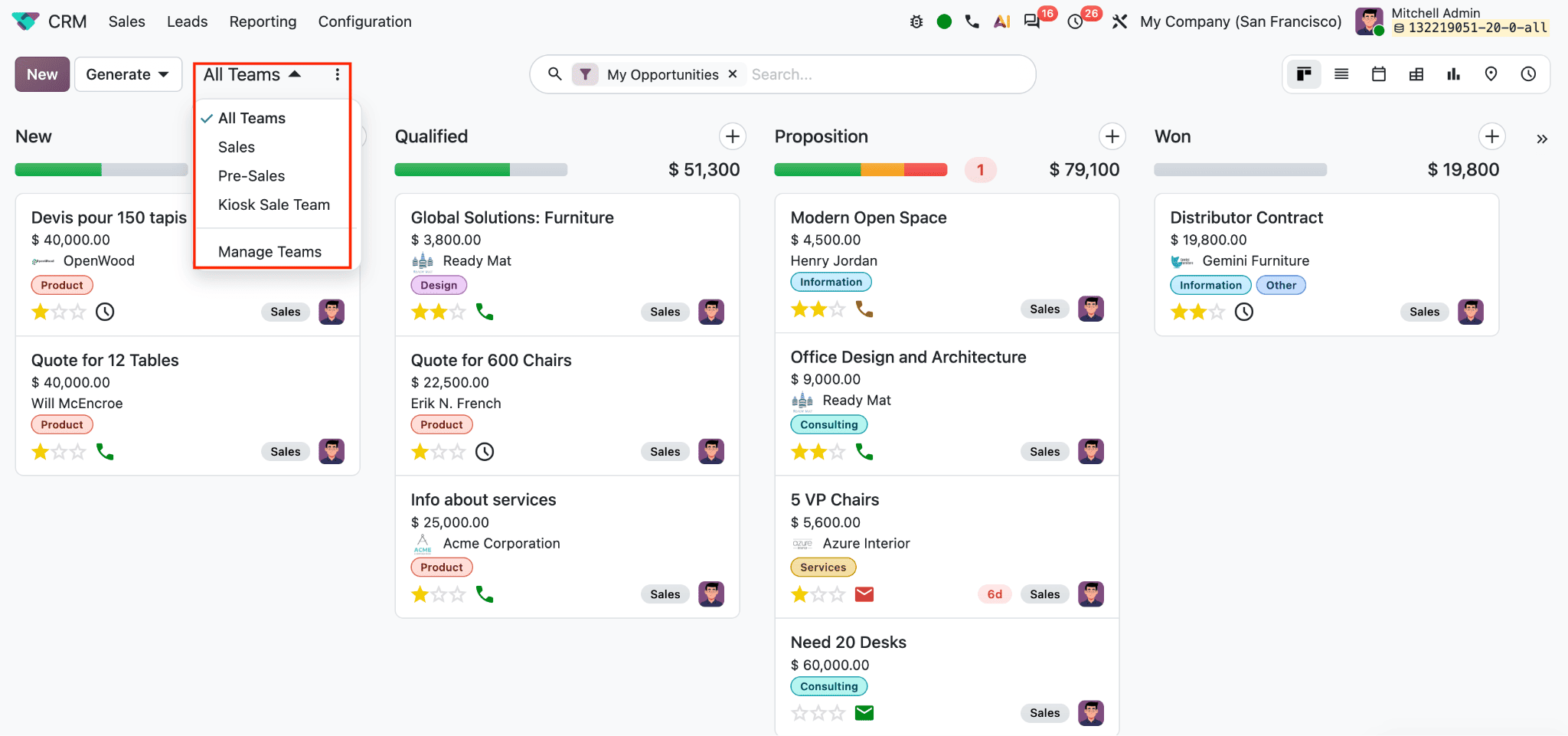
Use the selector to review the right group’s workload. The search bar can apply saved or built-in filters and custom criteria. The visible filters include My Opportunities, Unassigned, My Assigned Partners, and Open Opportunities, along with date filters such as Creation Date and Closed Date. Status filters include Won, Ongoing, Rotting, and Lost. These make it possible to isolate, for example, active opportunities that have no owner, deals that have gone stale, or records closed during a particular period. Custom Filter lets users combine conditions on fields relevant to the team. The Favorites area can save a search for repeat use.
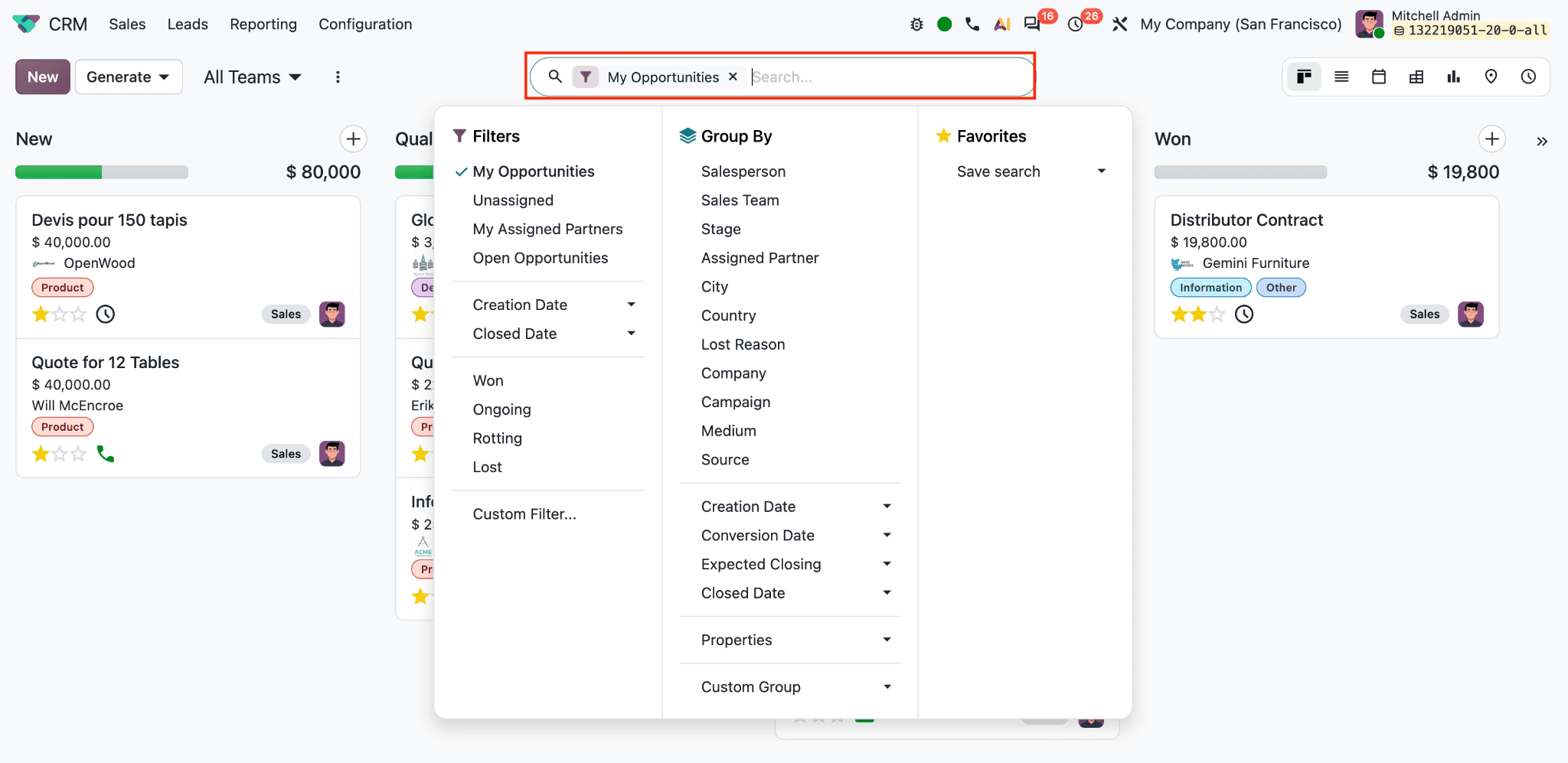
The Group By menu organizes records by Salesperson, Sales Team, Stage, Assigned Partner, City, Country, Lost Reason, Company, Campaign, Medium, or Source. Date groupings include Creation Date, Conversion Date, Expected Closing, and Closed Date. Properties and Custom Group provide additional grouping choices where configured. Grouping by salesperson or team helps reveal workload distribution; grouping by source or campaign helps compare lead origins; grouping by stage shows where active deals are concentrated.
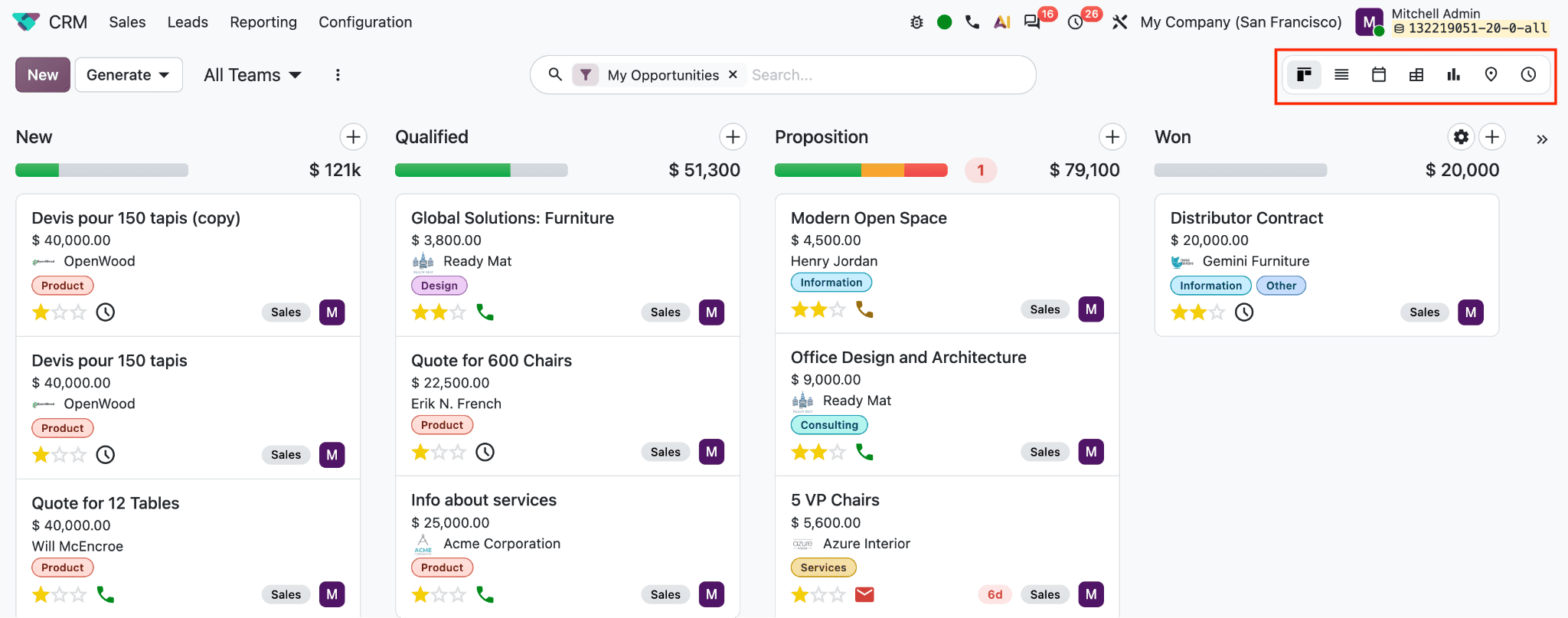
The icons at the upper right change the pipeline view. Kanban shows opportunities as cards under stage columns, making it easy to move deals through the process. List displays records in rows and supports multi-record selection. Calendar displays records by date, while Pivot and Graph support analysis and comparison. Map plots records with location data, and Activity provides an activity-focused view for planning and tracking follow-ups. Use the view that matches the task: Kanban for pipeline movement, list for bulk updates, calendar for dates, and pivot or graph for reporting.
Keep Opportunity Cards and Records Current
Each Kanban card summarizes an opportunity. The title identifies the deal, followed by expected revenue, contact information, and tags that can indicate product or business category. The star rating is a priority indicator.
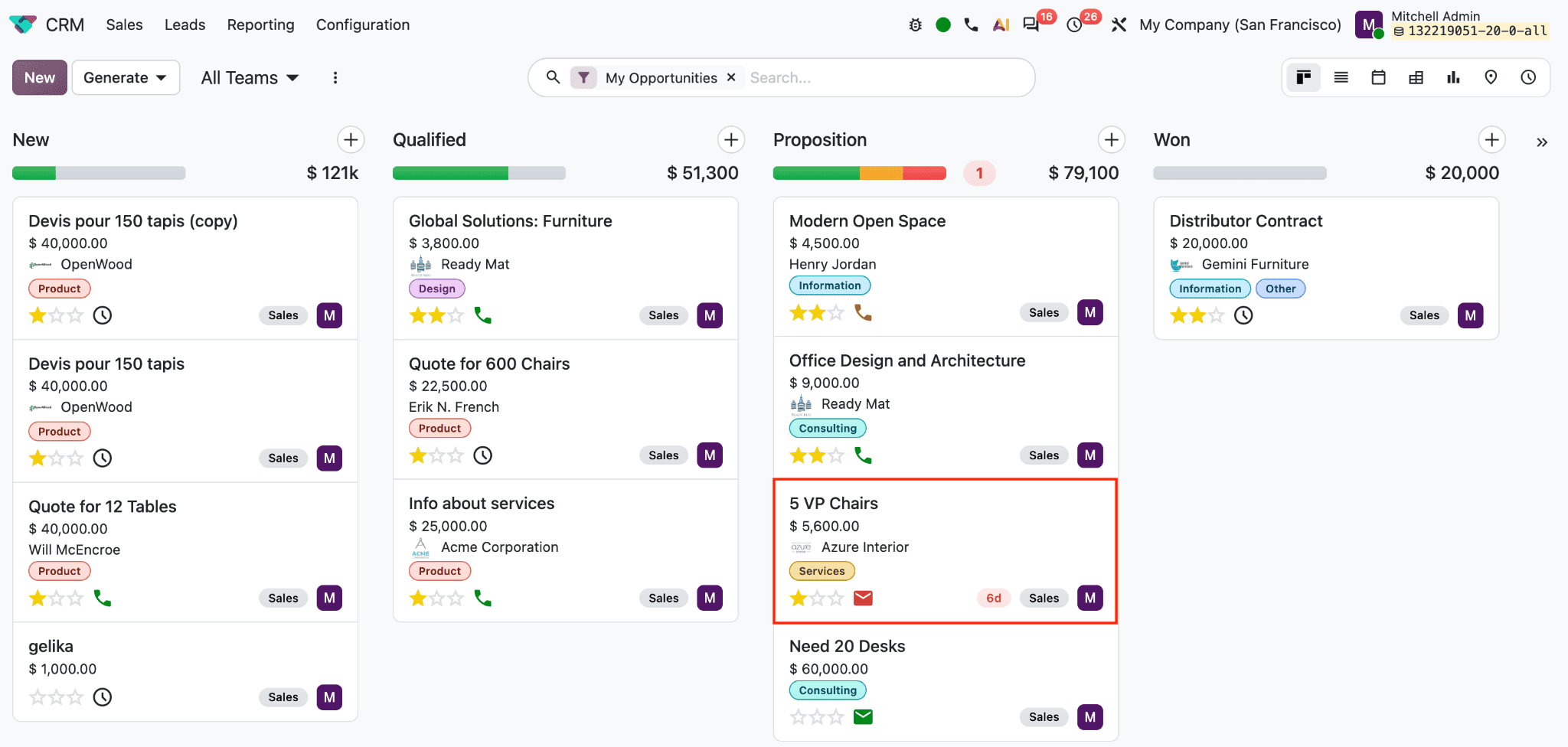
The phone, email, or clock icons show the type of planned activity or follow-up; a red overdue marker, such as “6d,” signals that an action needs attention. The card also displays its sales team and assigned salesperson. Review these details when updating the record so the pipeline reflects the actual customer conversation.
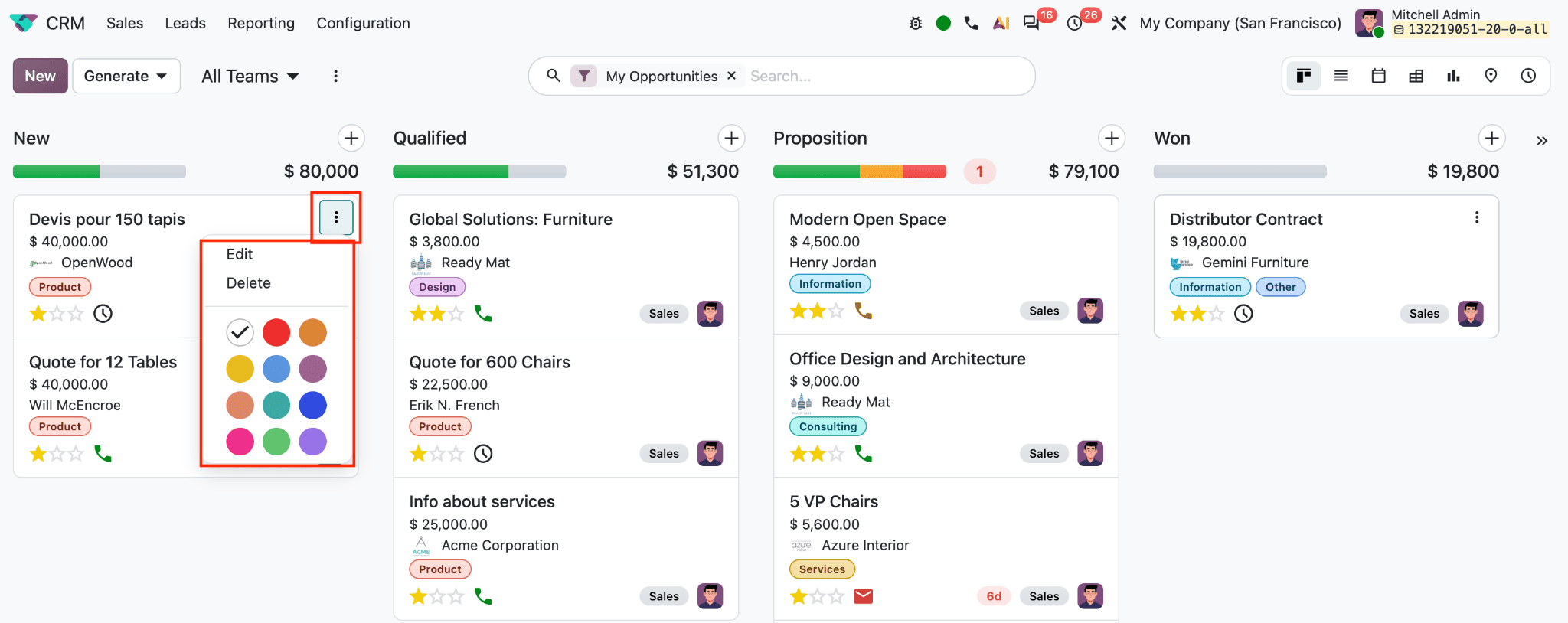
The card’s three-dot menu includes Edit and Delete, along with color choices. Editing opens the opportunity form; color can help users visually distinguish cards according to a team convention. Delete removes the record, so use it only when the record should be removed rather than retained for history. For inactive records, archiving is usually more appropriate.
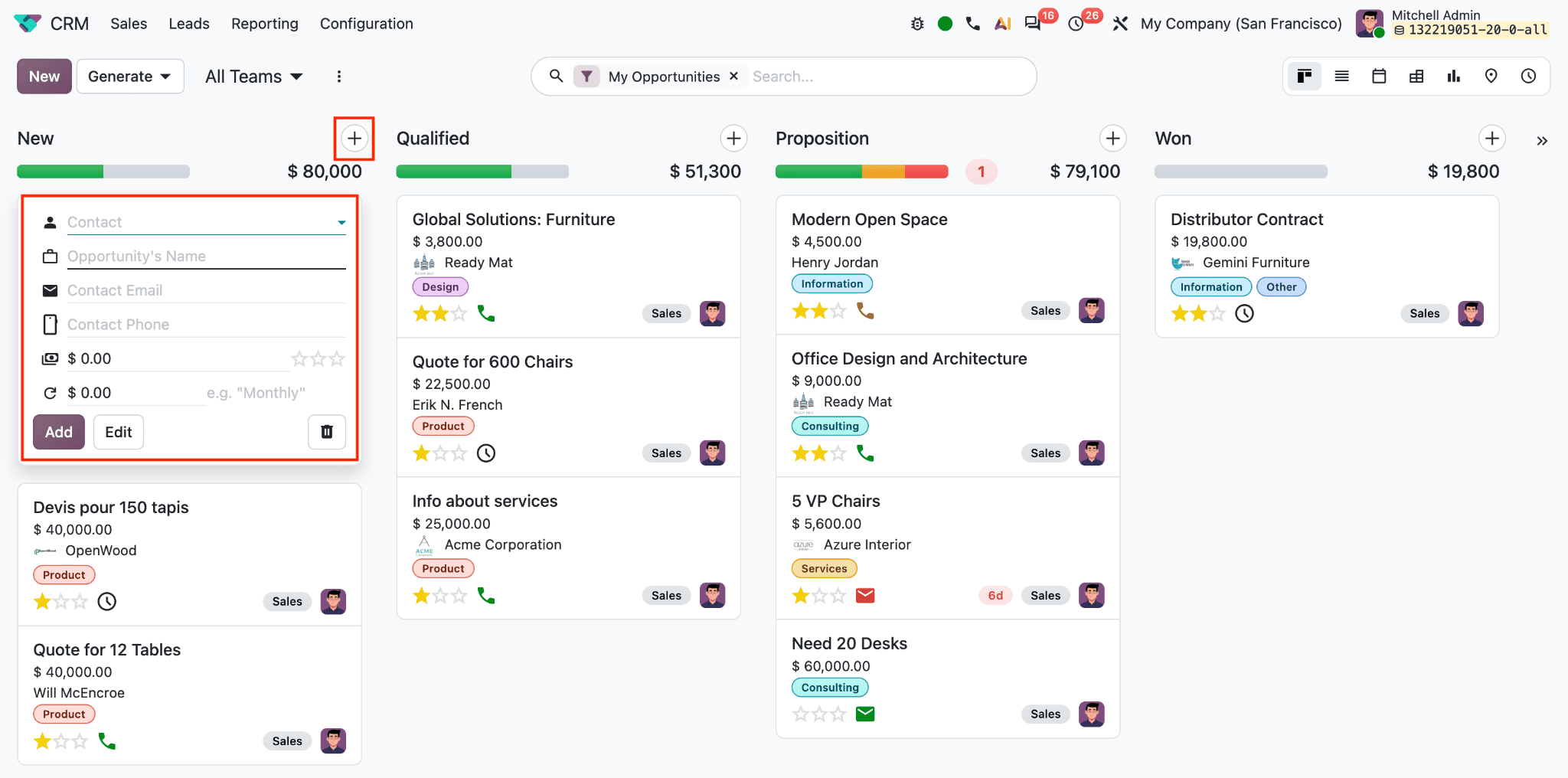
The New button creates an opportunity directly. The quick-create form shown in the screenshots includes Contact, Opportunity’s Name, Contact Email, Contact Phone, expected revenue, recurring revenue, and a star priority rating. Add saves the record, Edit opens the full form for more details, and the trash icon discards the quick entry. Enter enough information to identify the opportunity, its contact, and its potential value, then complete other details in the full form as needed.
The Edit button opens a form view as shown in the screenshot below.
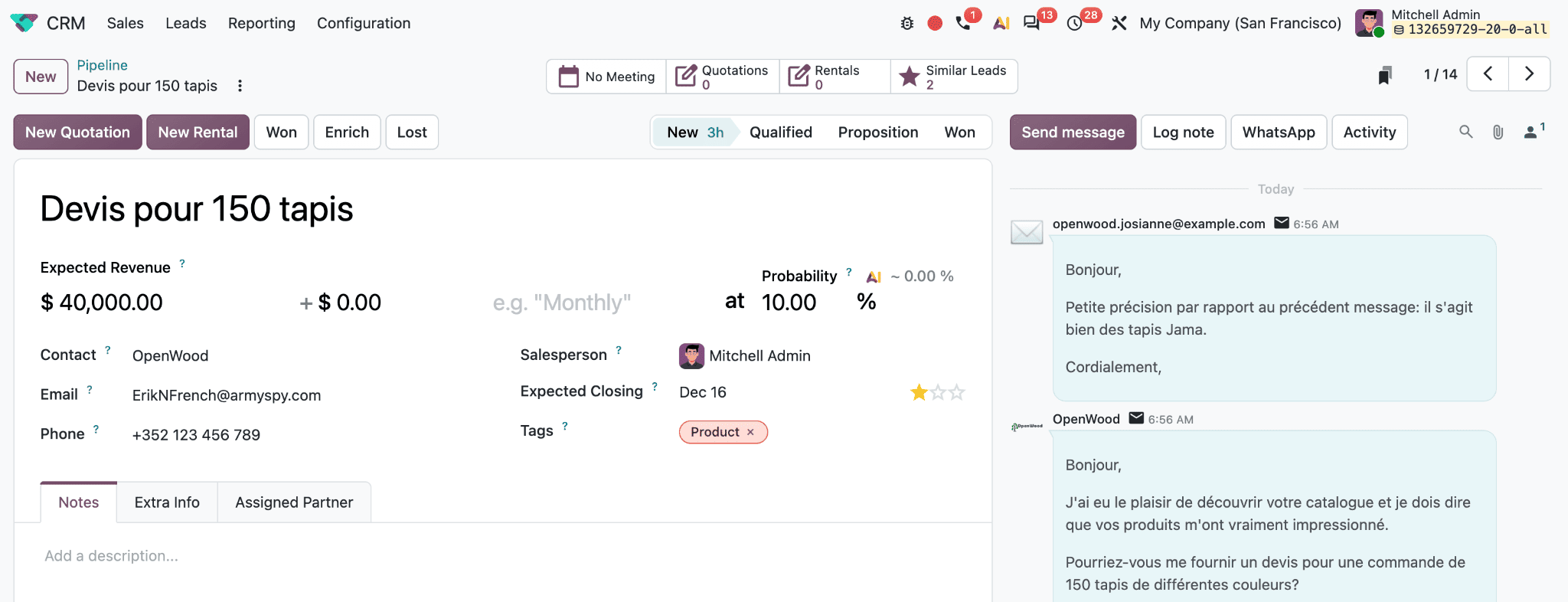
The opportunity form also includes key pipeline fields. Expected Revenue records the estimated value of the deal, and the adjacent recurring revenue field can capture an expected recurring amount and its interval. Probability represents the estimated chance of winning the opportunity. Contact, Email, and Phone hold the customer’s details; Salesperson identifies the owner; Expected Closing records the estimated close date; the star control indicates priority; and Tags help categorize the opportunity. The Notes tab provides space for a description, while the Chatter on the right keeps messages, internal notes, and activity history together.
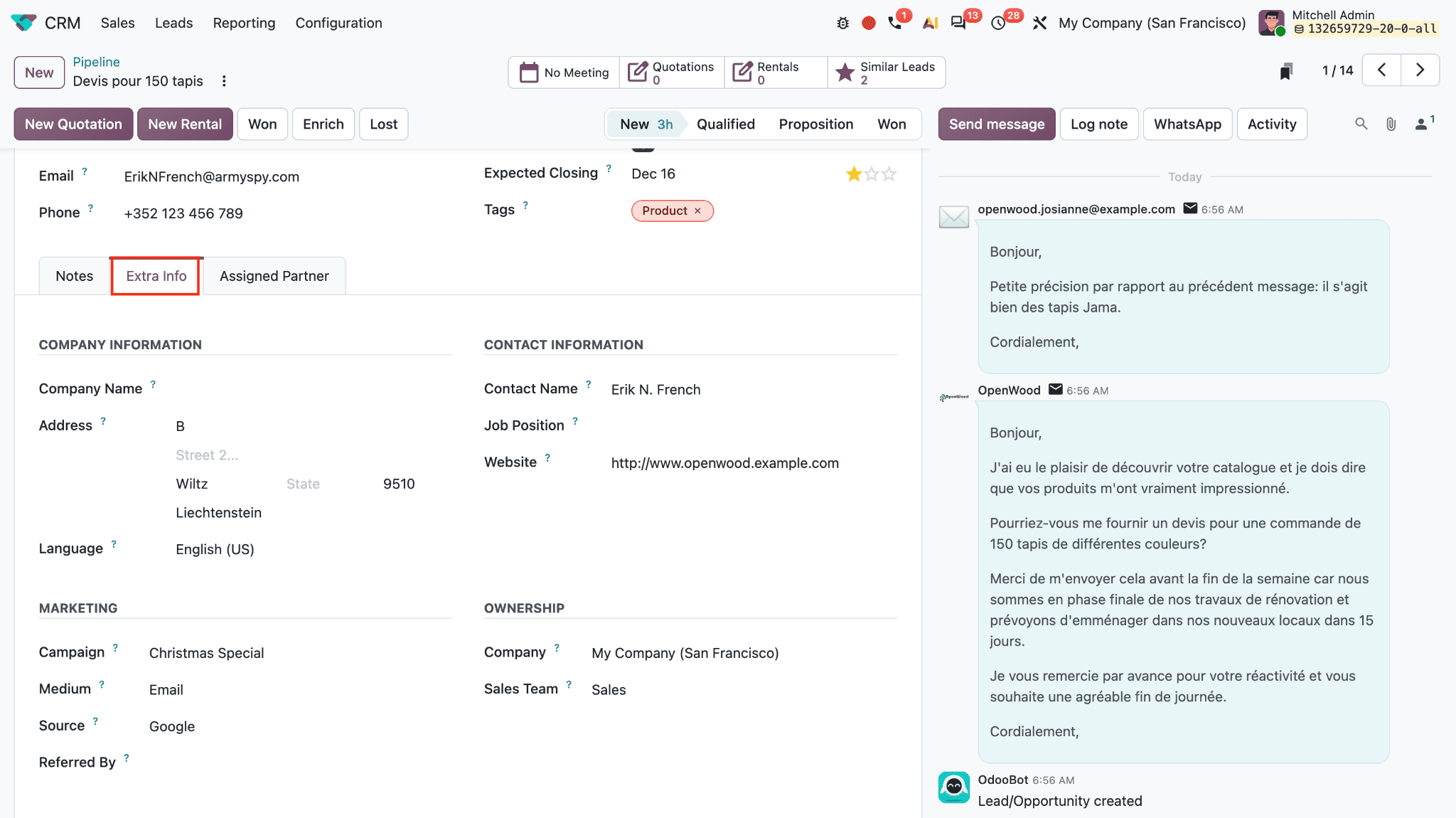
Select the Extra Info tab to review details that help identify the company, contact, lead source, and record ownership. Under Company Information, Company Name records the organization connected to the opportunity. Address contains the company’s location, including street, city, state, ZIP code, and country. Language stores the contact’s preferred language, which can help Odoo use the appropriate language in communications.
The Contact Information section contains details for the person associated with the deal. Contact Name identifies the individual, Job Position records their role at the company, and Website stores the company or contact’s web address. Keeping these details current helps salespeople know whom they are speaking with and how the contact relates to the organization.
The Marketing section records how the opportunity reached the business. Campaign identifies the marketing campaign associated with it, Medium records the channel, such as email, and Source identifies where the lead originated, such as Google. Referred By can identify a person or partner who referred the opportunity. Filling these fields consistently helps the team compare lead sources and understand which campaigns bring opportunities into the pipeline.
Under Ownership, Company indicates which Odoo company the record belongs to, while Sales Team identifies the team responsible for managing it. These fields are useful in multi-company databases and when opportunities move between teams.
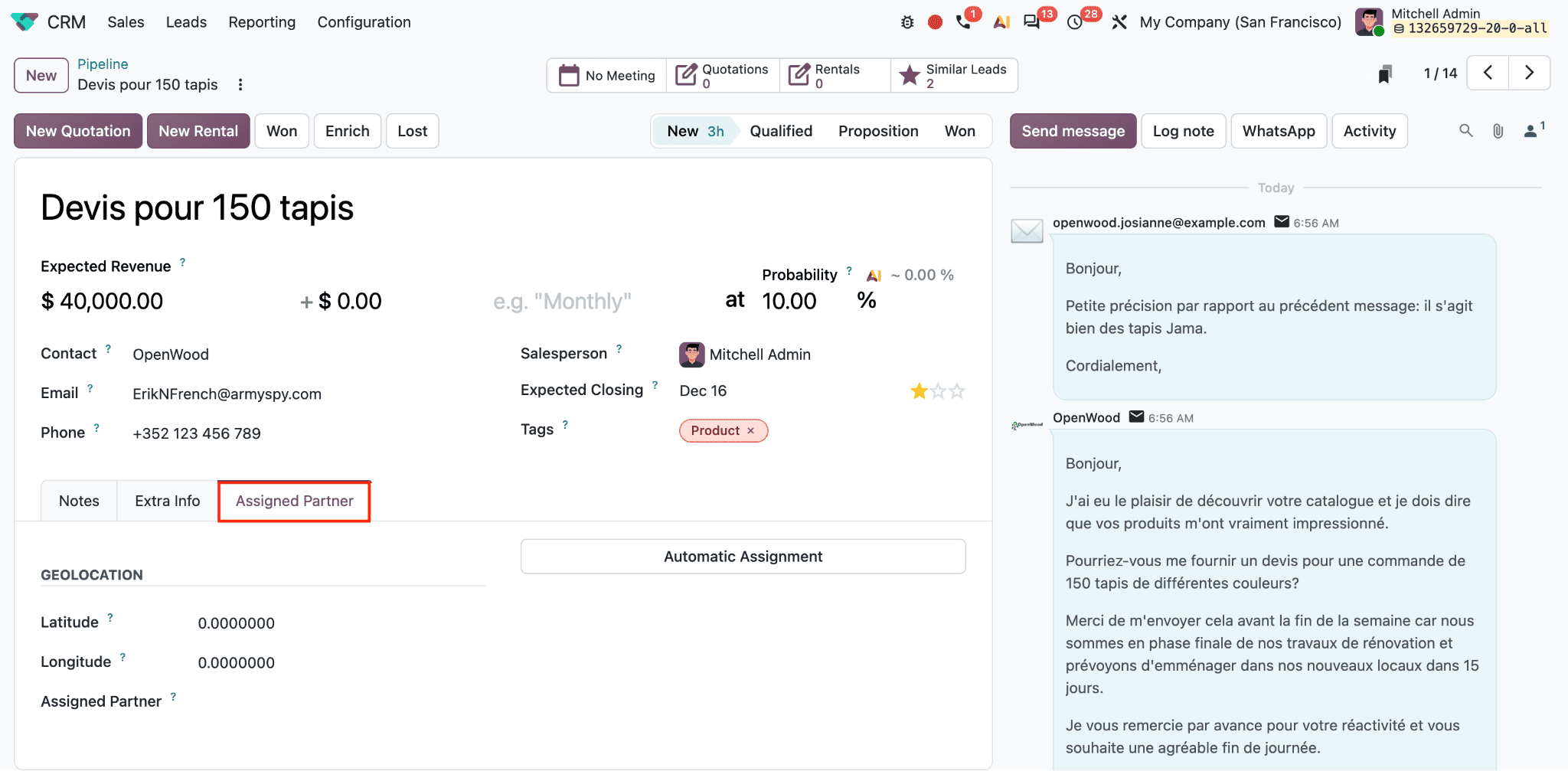
The Assigned Partner tab contains Geolocation and assignment information. Latitude and Longitude store the contact’s geographic coordinates, which can support location-based views and assignment. Assigned Partner links the record to a partner, such as a contact or organization. The Automatic Assignment button can run the configured partner assignment process. Use this tab when partner assignment and location data are part of your CRM workflow.
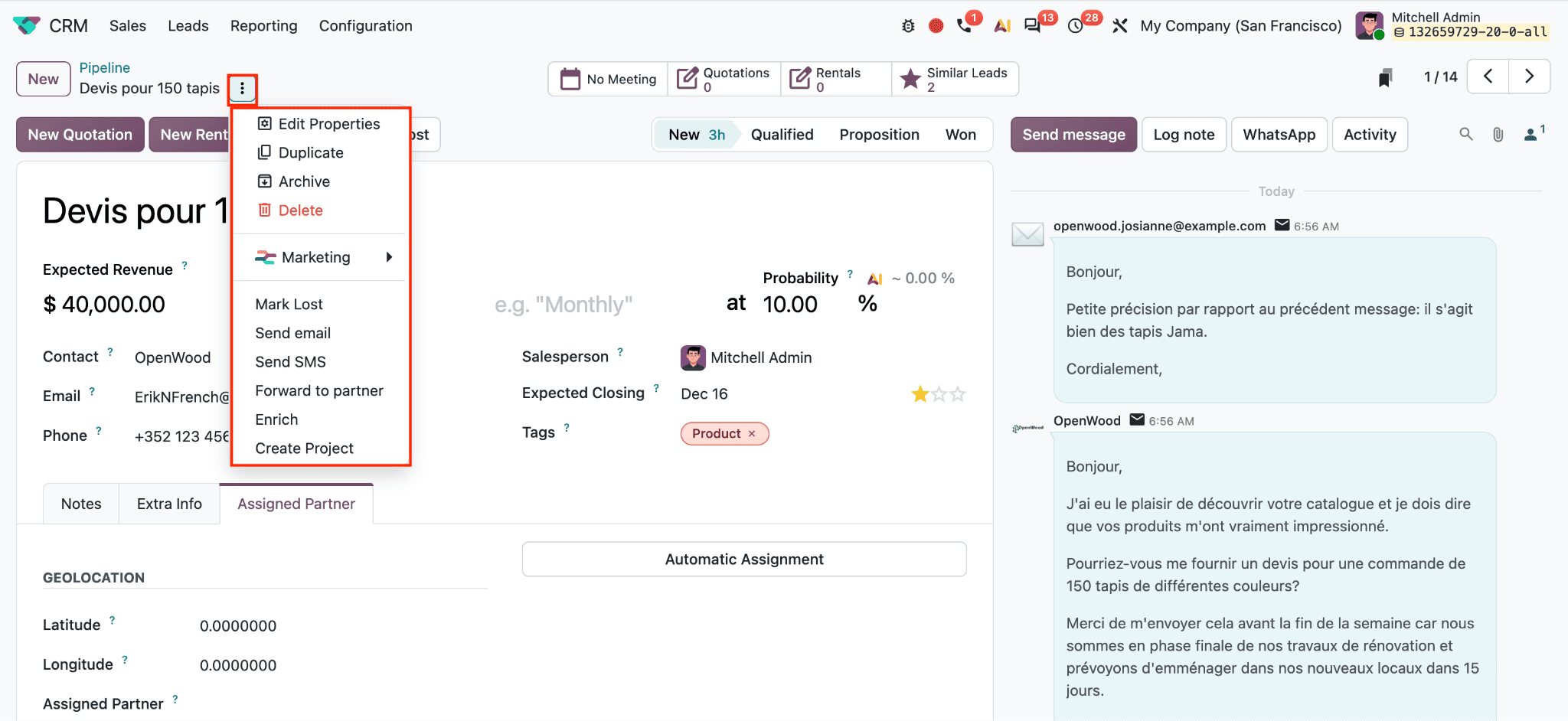
The three-dot record menu includes Edit Properties for managing custom properties, Duplicate to create a copy, Archive to remove an inactive opportunity from the active pipeline while retaining its record, and Delete to remove it. Other options shown include Mark Lost, Send email, Send SMS, Forward to partner, Enrich, and Create Project. These actions support common follow-up tasks, but use Archive or Delete according to whether the record should remain available for reference.
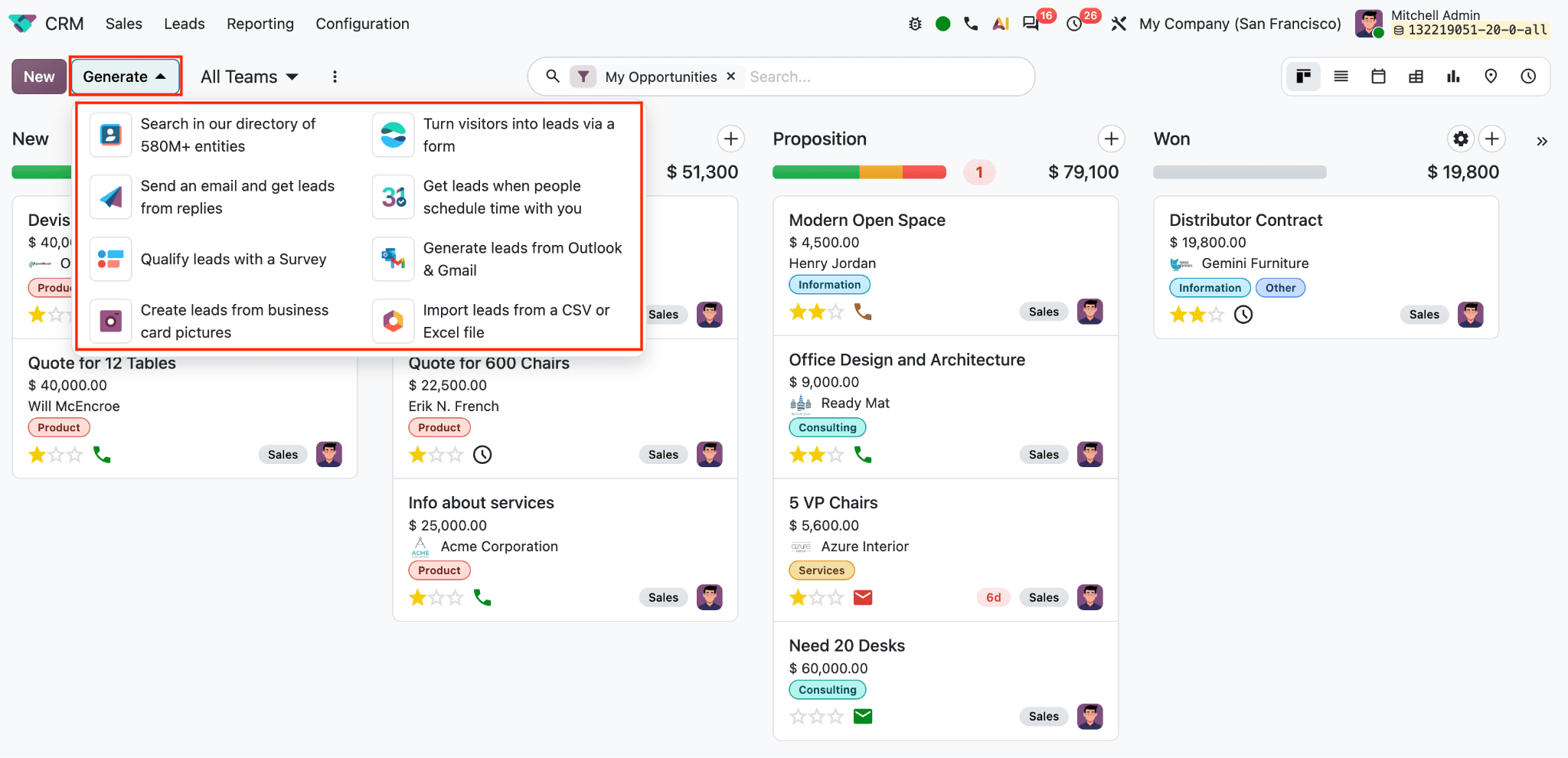
The Generate menu provides several lead sources: search a directory of business entities, create leads from a website form, send an email and capture replies, get leads through appointment scheduling, qualify leads with a survey, generate leads from Outlook and Gmail, create leads from business-card images, or import leads from a CSV or Excel file. These options depend on the relevant apps and integrations being available. Choose the source that fits how the business receives prospects, and review imported or generated leads before treating them as qualified opportunities.
When a deal will not proceed, mark it Lost instead of leaving it open in a pipeline stage. Odoo’s Mark Lost window offers configured lost reasons and a Closing Note field.
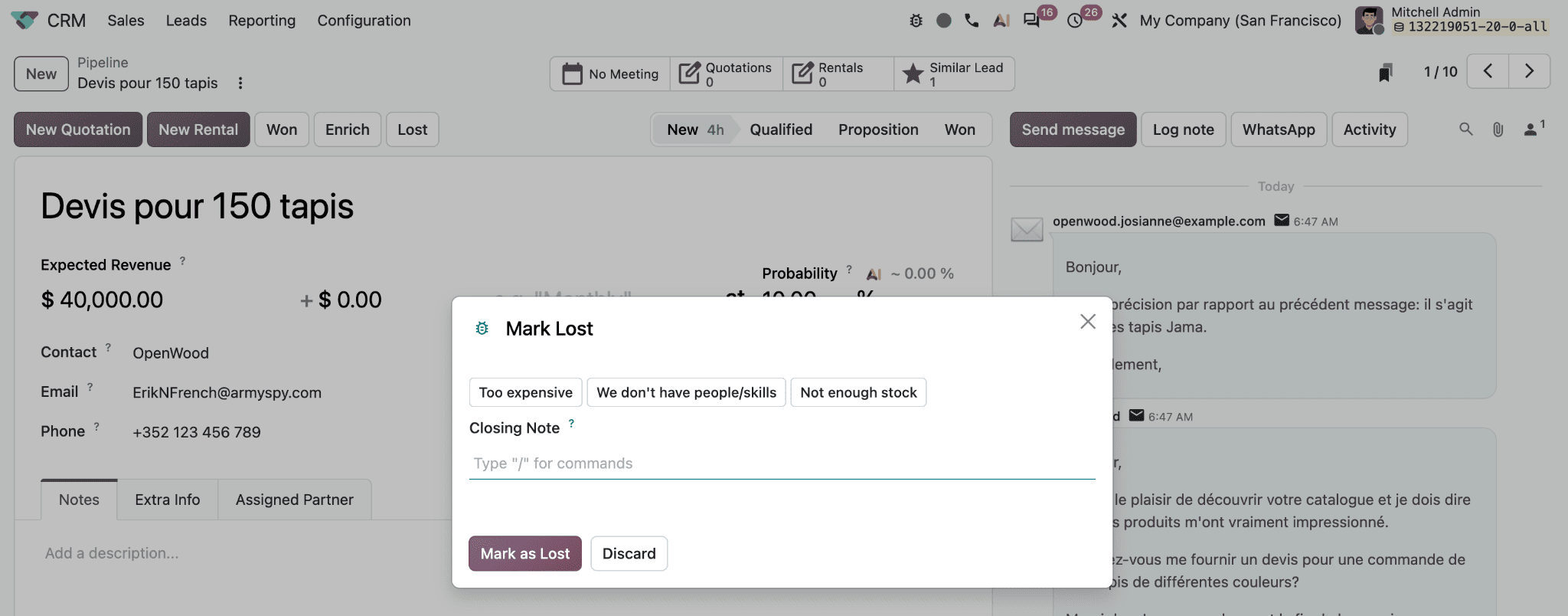
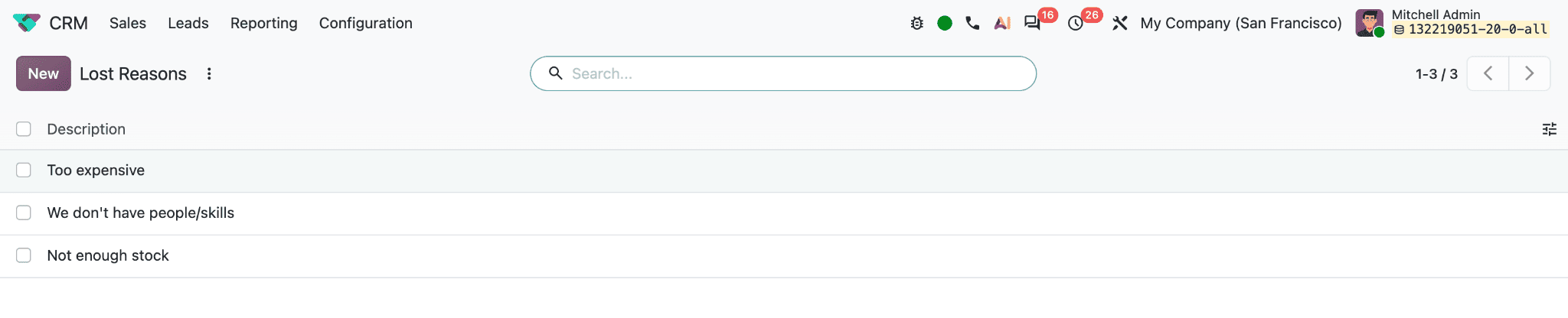
The screenshots show reasons such as Too expensive, We don’t have people/skills, and Not enough stock. Manage the reason list under CRM > Configuration > Lost Reasons.
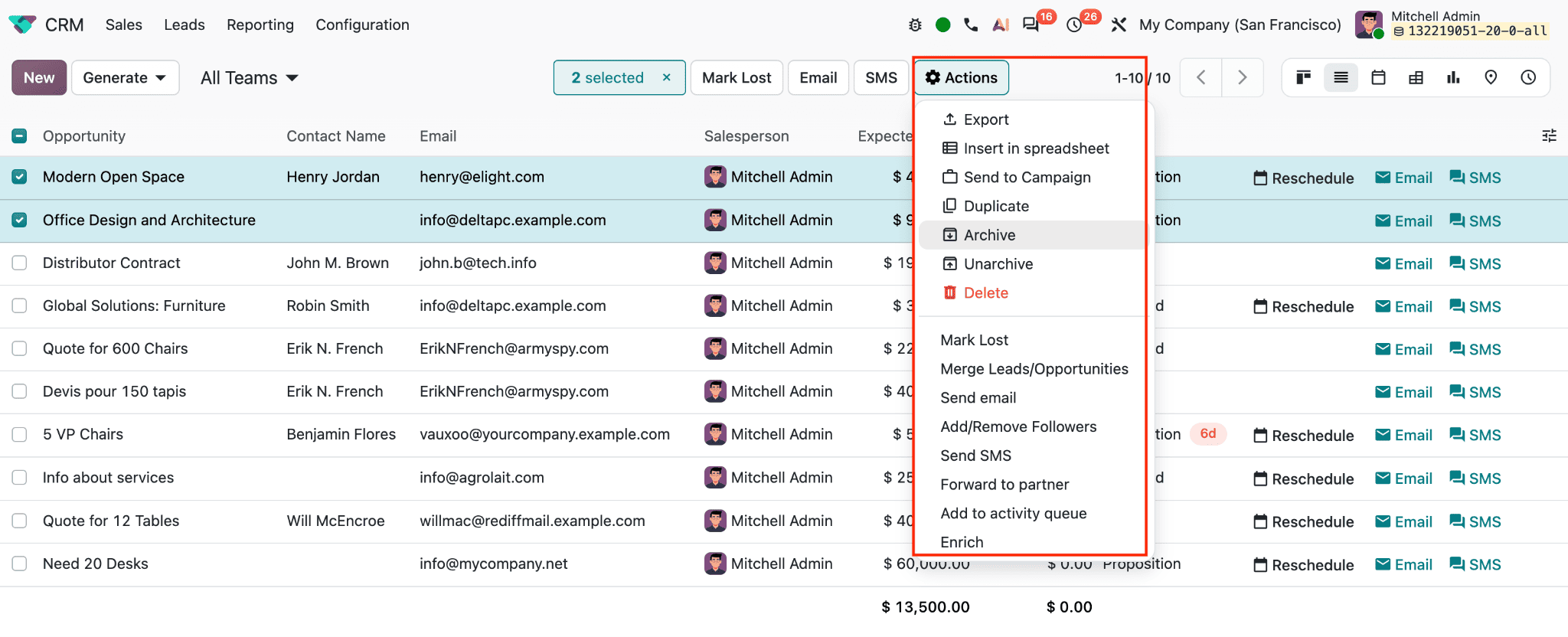
To merge leads, select the records and use Actions > Merge Leads/Opportunities.
The merge window lets the user review the records and choose reassignment details such as salesperson and sales team.
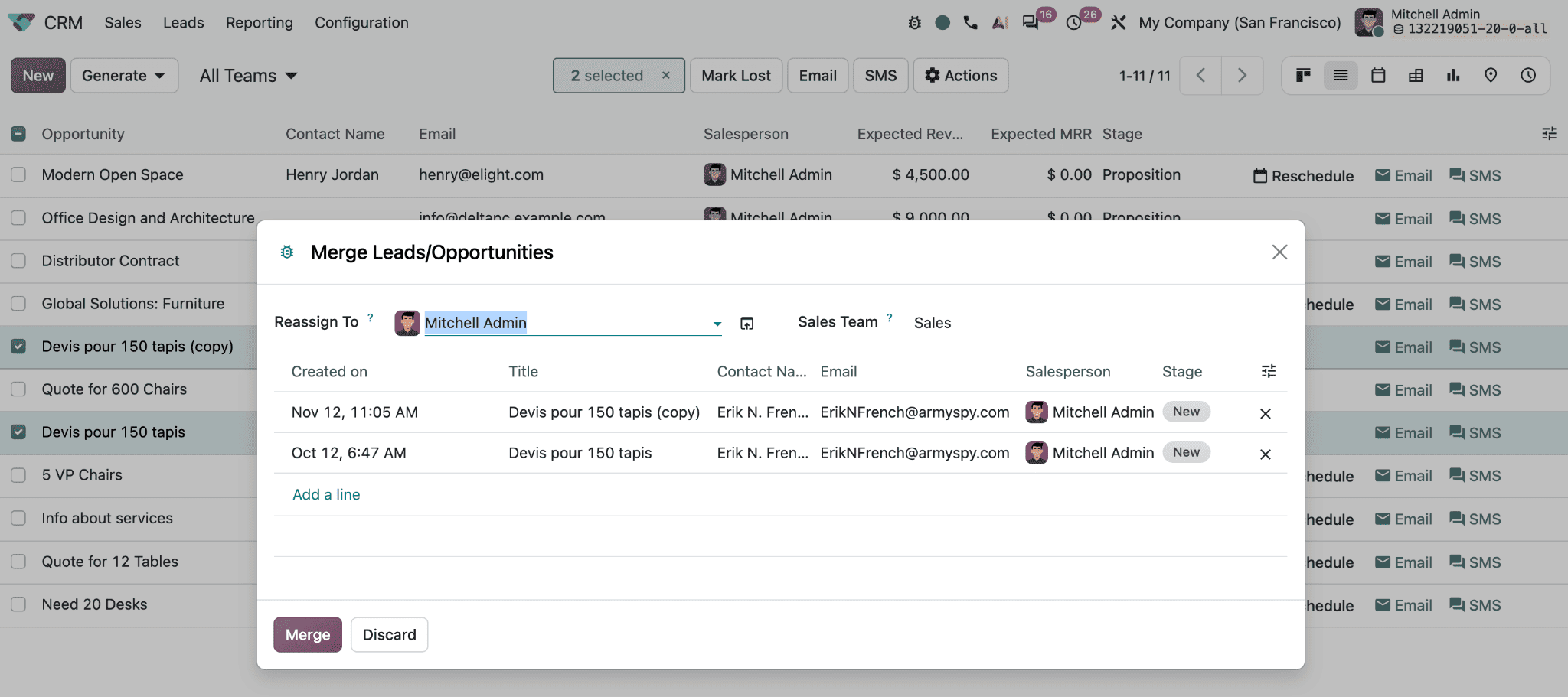
Confirm that records represent the same sales conversation before merging: two contacts at the same company can have different needs. Odoo gives priority to the earliest-created record when merging, so check the data and ownership first.
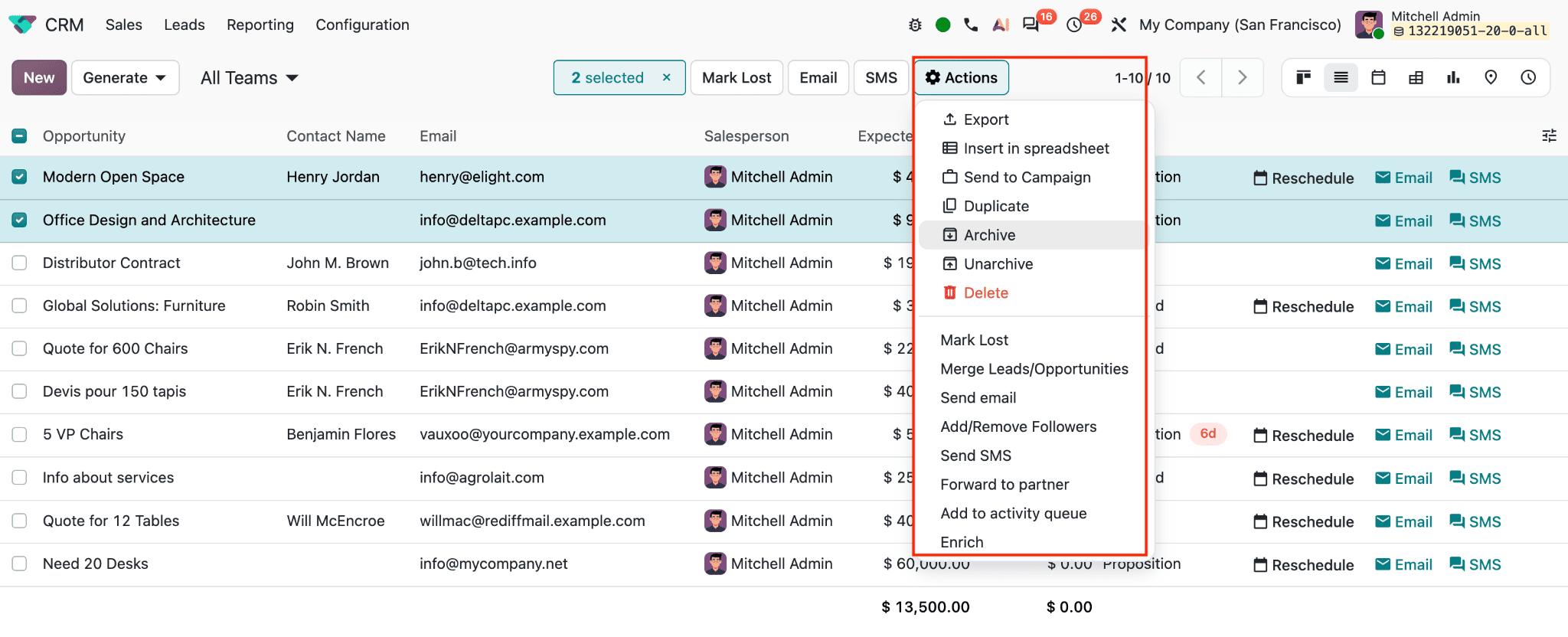
The list-view Actions menu supports work on selected records. Depending on installed apps and access rights, options shown in the screenshot include Export, Insert in spreadsheet, Send to Campaign, Duplicate, Archive, Unarchive, Delete, Mark Lost, Merge Leads/Opportunities, Send email, Add/Remove Followers, Send SMS, Forward to partner, Add to activity queue, and Enrich. Export and spreadsheet insertion support analysis; campaign, email, and SMS actions support outreach; followers and forwarding help with collaboration; the activity queue helps organize follow-up. Enrich can add information to records when the relevant enrichment service is available. Use bulk actions carefully: verify the selected records before changing statuses, archiving, deleting, or sending communications.
Schedule Follow-ups and Maintain Forecast Dates
An active opportunity should have a clear next step. Schedule a call, email, meeting, or other activity from the card’s clock icon or from the opportunity’s Activity button.
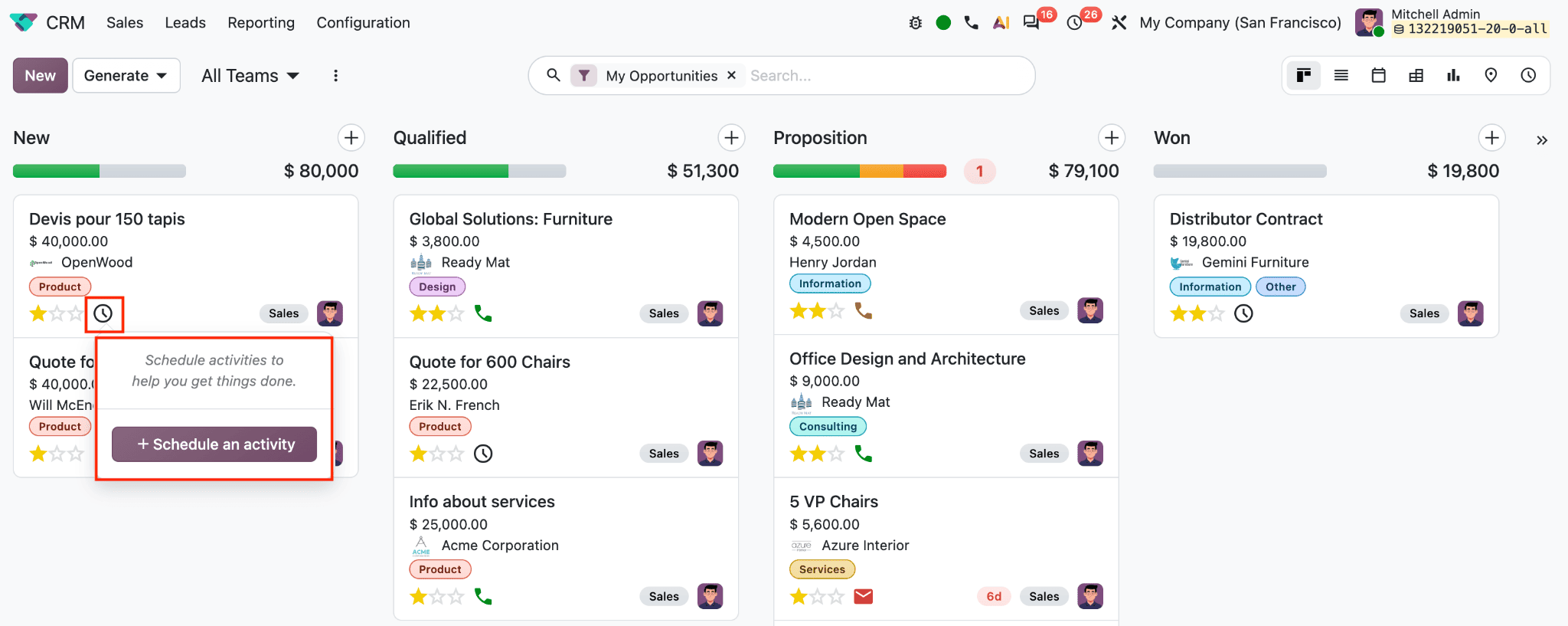
Activity plans can automate standard sequences for different sales stages or situations. Mark each completed activity as Done, note the outcome, and schedule the next action based on the customer’s response. This keeps overdue reminders meaningful rather than allowing old tasks to accumulate.
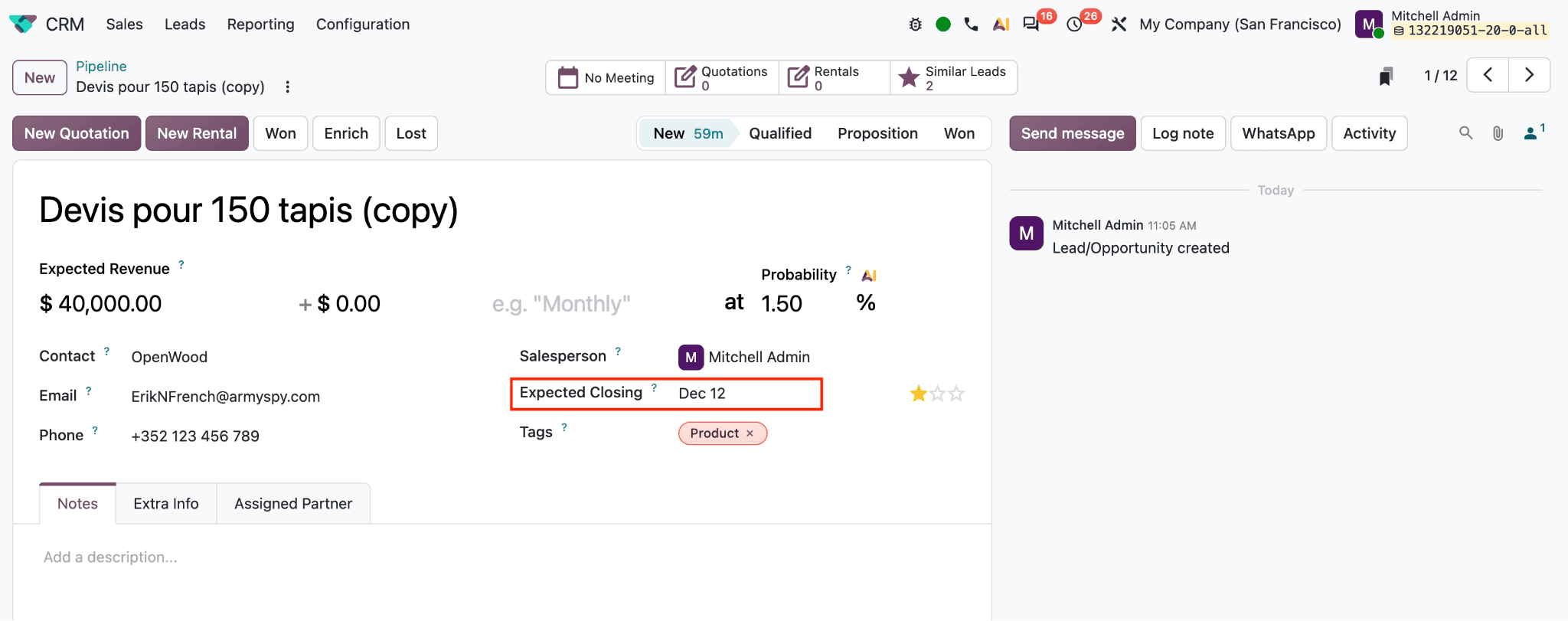
Keep Expected Closing dates realistic and update them when a customer’s timeline changes. A forecast date should reflect a credible estimate, not a default or placeholder. If an opportunity repeatedly slips, review its stage, next activity, and qualification rather than leaving the old date unchanged. This discipline improves forecasts and makes date-based pipeline groupings more useful. Use Archive for inactive records that should be retained but removed from the day-to-day pipeline. Use Delete only when a record should be removed entirely, such as an erroneous duplicate, and follow company policy. Archived opportunities can be restored later; deleted records are not a substitute for closing genuine lost deals.
Make a Weekly Pipeline Review Routine
Review both Leads and Pipeline each week. Check for unassigned records, cards with no next activity, overdue follow-ups, rotting opportunities, outdated closing dates, and deals that should be marked Won or Lost. Review lost reasons and merge confirmed duplicates. The screenshots show that list view is useful for selecting several records and performing bulk actions, while Kanban is useful for discussing stage movement and individual deal progress.
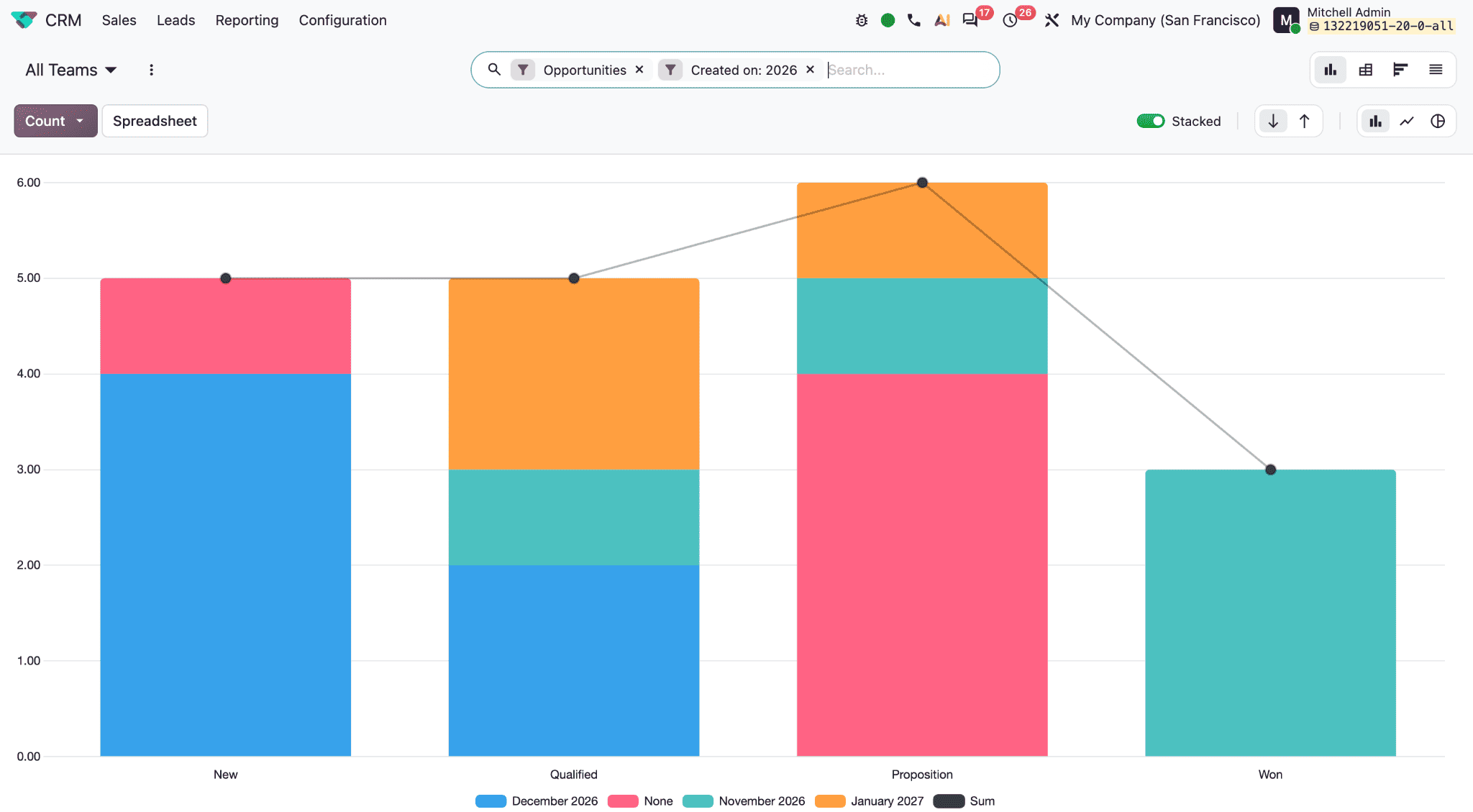
In Odoo 20, open CRM > Reporting > Pipeline to review pipeline data across sales teams. The All Teams selector filters the report by sales team. Use the search menu to change or combine filters. The screenshots show filters for My Pipeline, Opportunities, and Leads; record status (Active, Inactive, Won, or Lost); and creation date. Date choices include Today, This Week, This Month, This Quarter, This Year, individual months, and quarters. You can also create a Custom Filter to target specific records. Filters determine which opportunities the report analyzes.
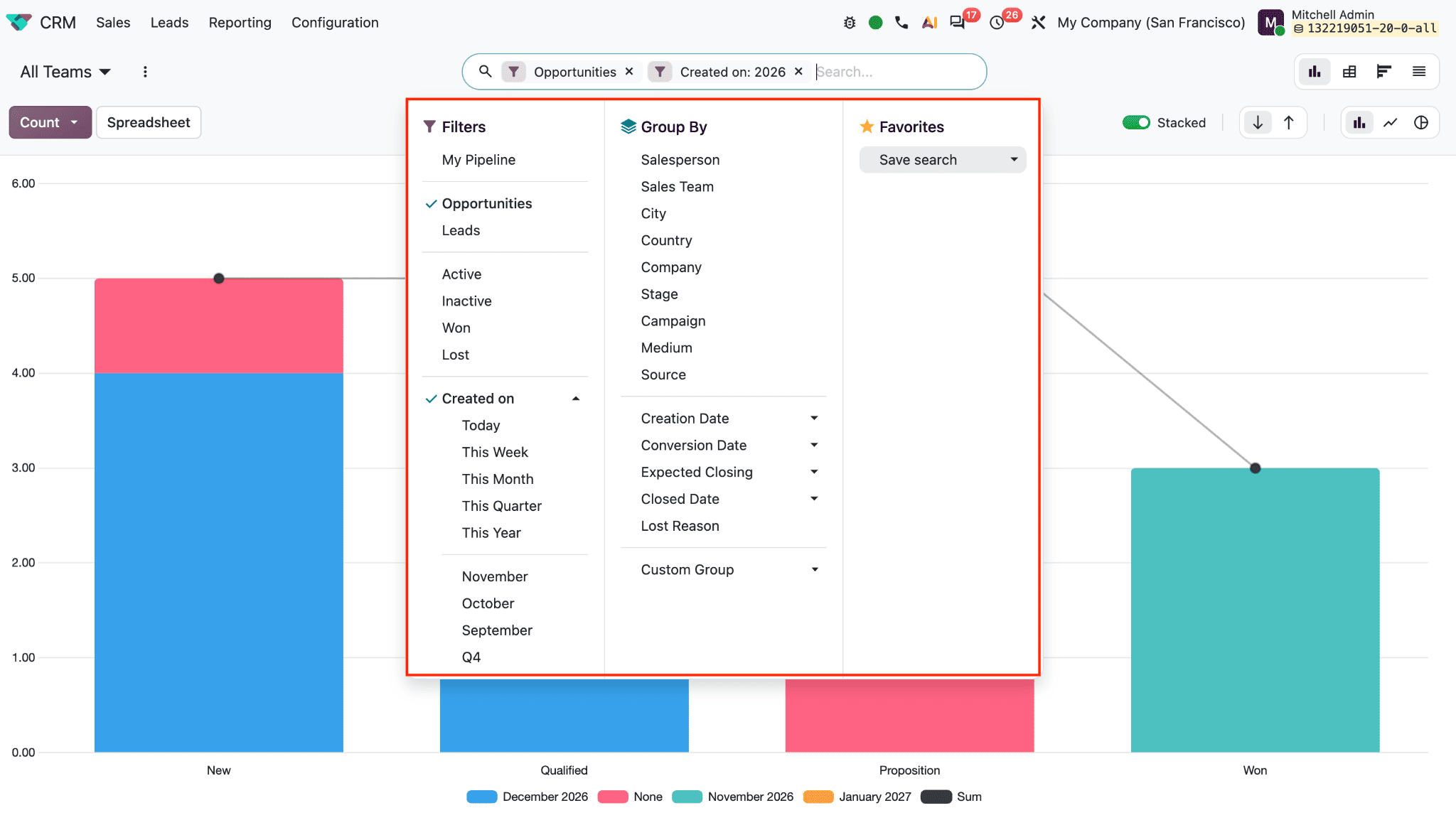
The Group By menu determines how Odoo organizes the results. You can group opportunities by Salesperson, Sales Team, City, Country, Company, Stage, Campaign, Medium, or Source. Date fields include Creation Date, Conversion Date, Expected Closing, and Closed Date; Lost Reason can be used to compare why opportunities were lost. Custom Group provides additional grouping choices. For example, group by Stage to compare the number of opportunities at each step, or by Salesperson to review how opportunities are distributed across the team. The Favorites > Save search option saves the current filters and grouping so you can reopen the same report later.
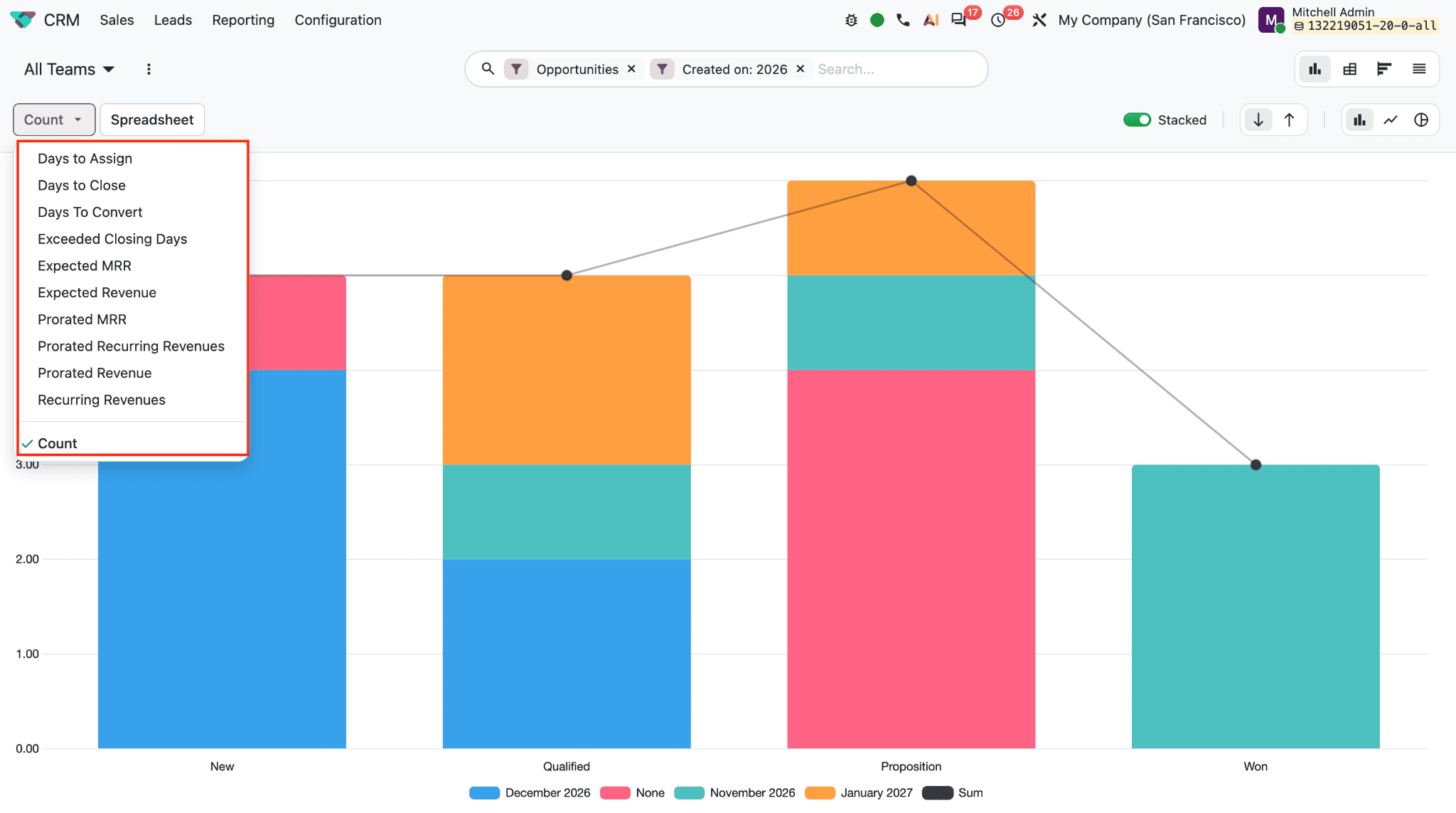
The Count button selects the measure shown in the chart. In the screenshot, Count is selected, so the bars represent the number of records. The menu also offers Days to Assign, Days to Close, Days to Convert, Exceeded Closing Days, Expected MRR, Expected Revenue, Prorated MRR, Prorated Recurring Revenues, Prorated Revenue, and Recurring Revenues. These measures let you look beyond record volume. For instance, Days to Assign can help identify delays in assigning opportunities, while Expected Revenue can show the potential value across stages. The exact measure to use depends on the question you want the report to answer.
The Stacked switch turns stacking on or off, which is useful when comparing how each month contributes to a stage total. The arrow buttons change the chart’s orientation. The chart-type controls switch between bar, line, and pie charts. Bar charts compare values across categories, line charts help show changes over time, and pie charts show proportions. The graph, pivot, and list icons at the upper right switch to other report views; the pivot view is useful for comparing grouped measures in a table, while the list view shows the underlying records.
Click Spreadsheet to open or insert the analysis into a spreadsheet for further review. Together, filters, groupings, measures, and chart views let managers investigate pipeline volume, value, timing, and distribution. Use these views to spot stalled stages, uneven workloads, and records that need owner updates. A weekly review also helps adoption: when managers use Odoo records in sales conversations and forecasting, salespeople can see why accurate updates matter. Keep stages and required practices clear, minimize unnecessary data entry, and make each field useful to the decisions the team needs to make.
To read more about How to Use Automation Rules to Manage CRM Stages in Odoo 19, refer to our blog How to Use Automation Rules to Manage CRM Stages in Odoo 19.