Inventory management in modern businesses is no longer limited to simply storing products; it involves controlling how items move through purchasing, manufacturing, storage, and delivery. In Odoo 19, this movement is managed through a flexible system of Routes and Rules that automate the flow of goods within warehouses and across the supply chain. Whether a business operates with a simple buy-and-sell process or a complex multi-warehouse logistics structure, Odoo allows organizations to define exactly how inventory should behave. Routes determine the path products follow, rules specify the operations that occur along those paths, and configurations ensure the system executes these processes automatically and efficiently. Understanding how these elements work together is essential for effective logistics management, and this guide explores how inventory moves in Odoo 19 by explaining the roles of routes, rules, and key configurations that enable automated warehouse operations.
The Routes feature in Odoo 19 serves as a framework for defining how goods move through different stages of your supply chain. Routes determine the flow of products from suppliers to warehouses, between internal locations, or directly to customers. You can access and configure routes through the Configuration menu by choosing the Routes from the Warehouse Management section of the Inventory module.
The interface presents a list view showing preconfigured routes with details such as Route Name, Company, and Warehouse. From this screen, you can create a new route or modify existing ones to suit your company’s logistics policies.
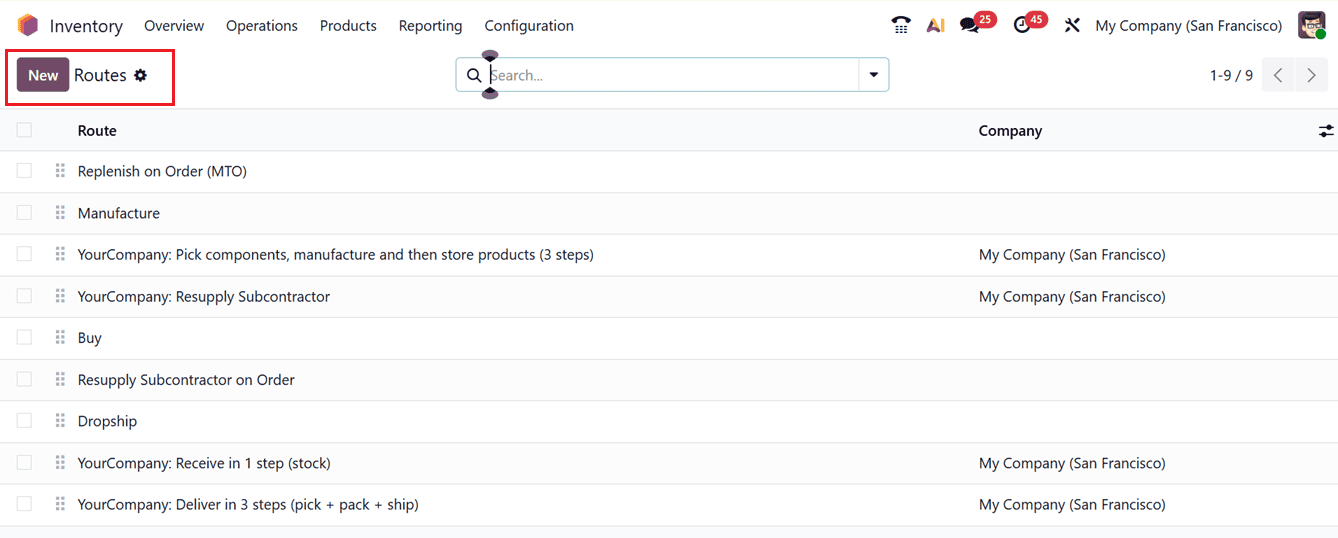
To create a new route, click on the New button and enter the Route Name and, if applicable, specify the Supplied Warehouses, and Company. If all companies of a multi company setup share this route, you can leave the Company field blank.
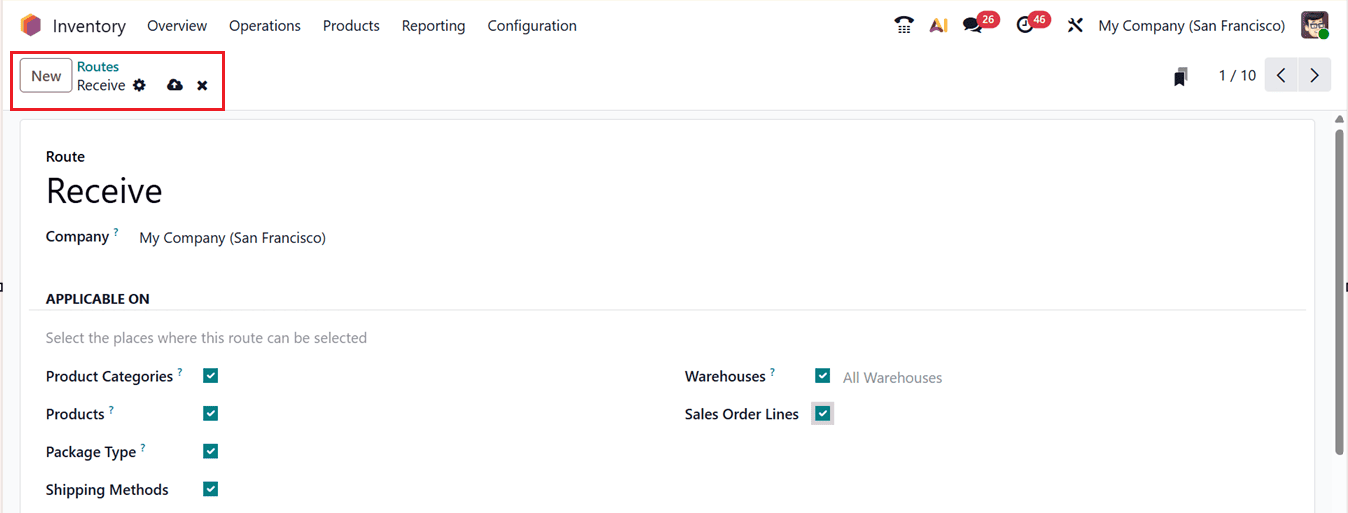

The APPLICABLE ON section allows you to define where the route can be applied. You can select one or multiple options, such as: Product Categories, Products, Package Type, Shipping Methods, Warehouses and Sales Order Lines. This flexibility allows routes to be customized based on how your organization manages inventory movements.
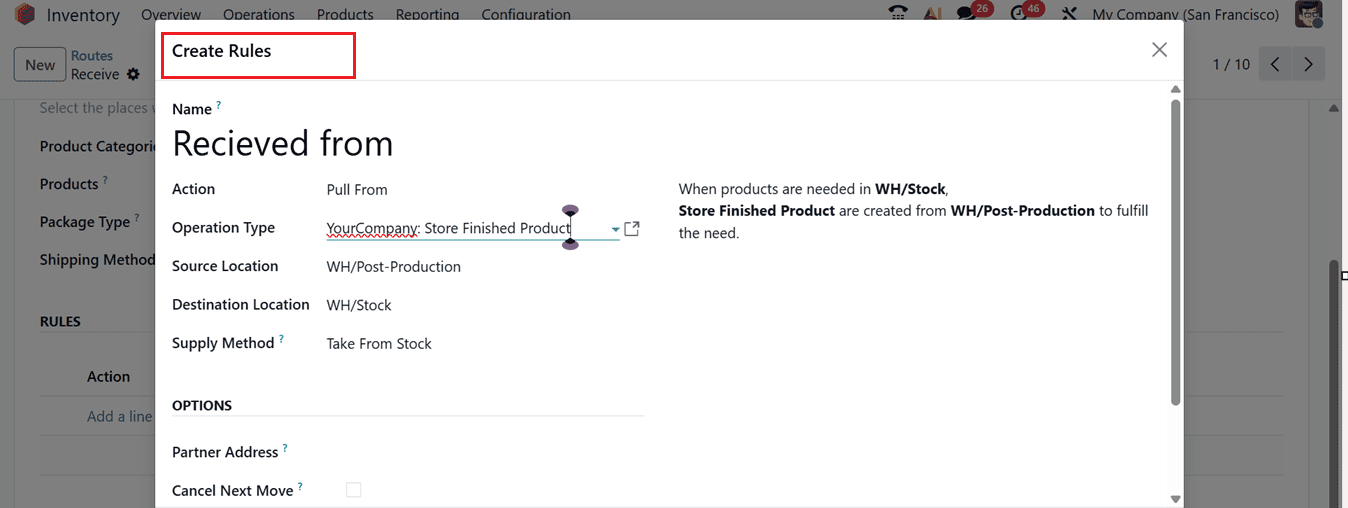
In the RULES tab, click on the Add a line button to create rules that define how the route operates. You can specify the conditions and actions for each rule, such as moving items between specific locations, triggering procurements, or handling manufacturing orders from the ‘Create Rules’ window, as shown in the screenshot below.

After defining the rules, click Save to apply your configurations. While configuring individual products, you can assign a specific route under the Inventory tab in the product form.
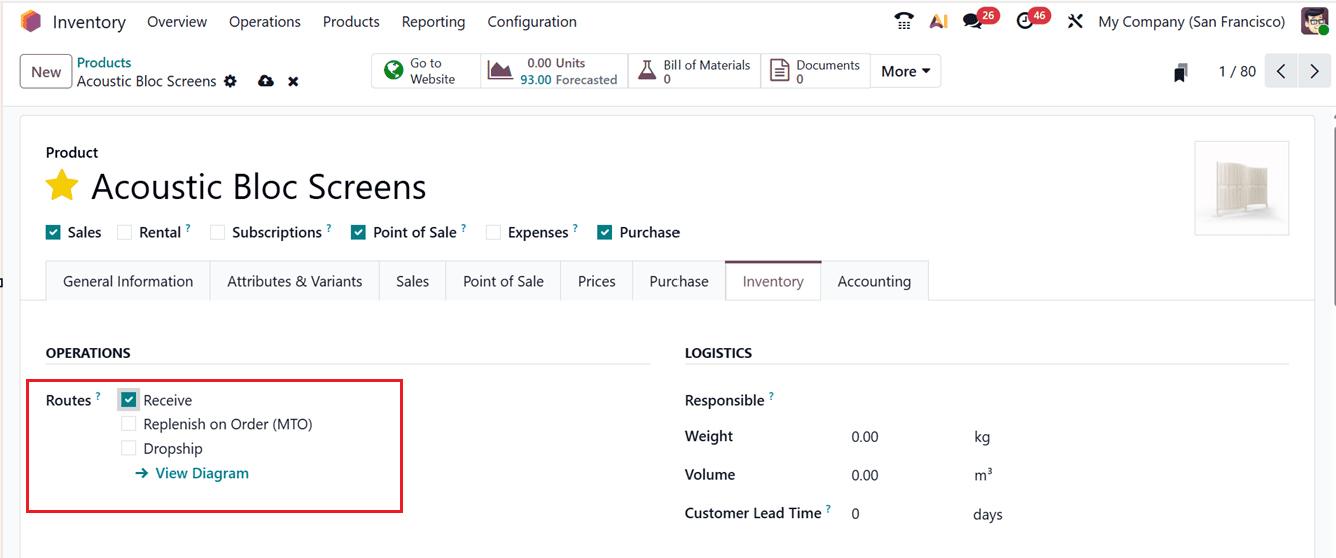
This ensures that the selected route governs how that particular product is managed throughout the supply chain.
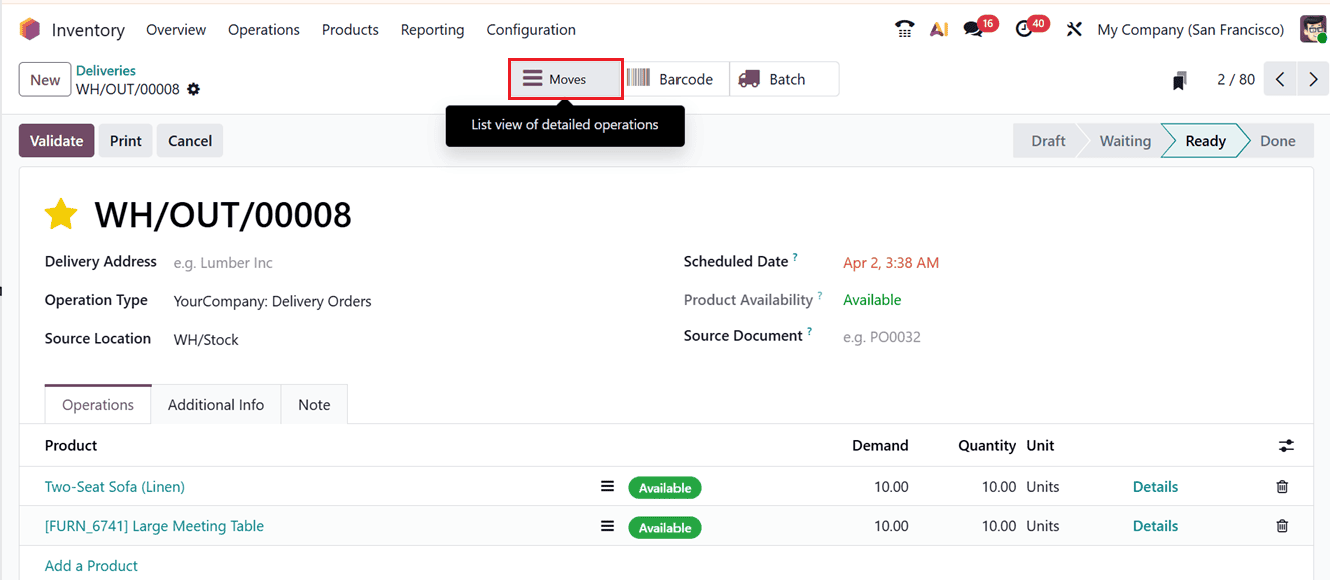
While creating a transfer or any inventory operation, you can see the selected product’s inventory route in the ‘Moves’ smart button directly from the operations configurations form.
Now, let’s discuss the configuration process of Warehouse management Rules in detail.
Rules
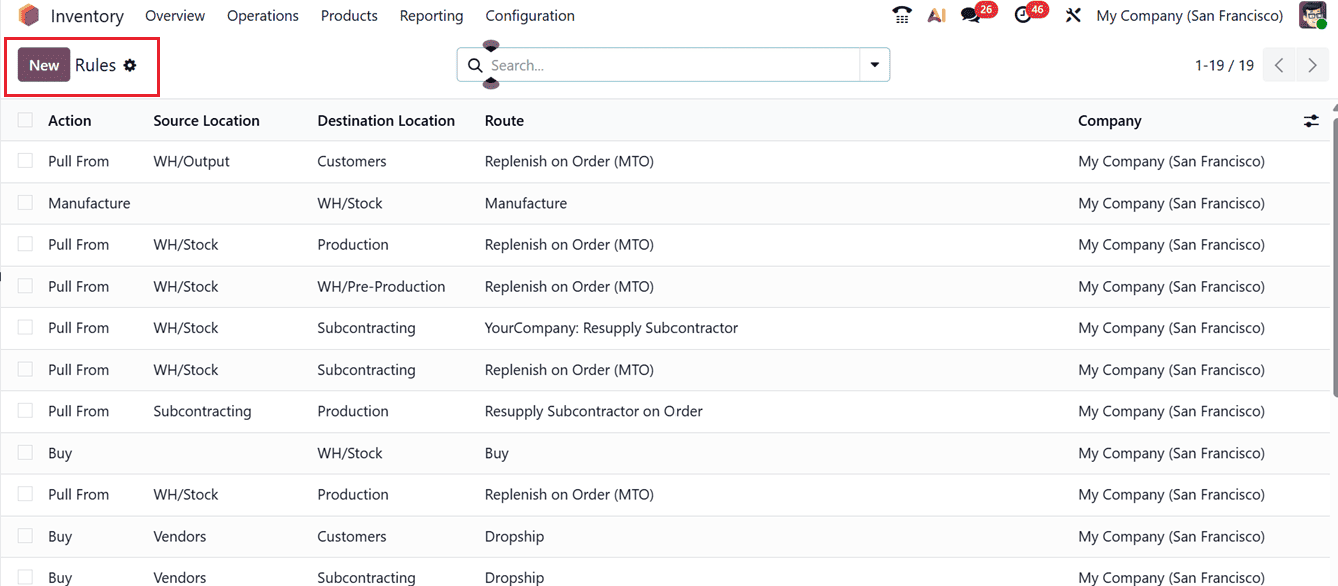
In Odoo 19, Rules govern the behavior of product movements within warehouses and across routes. These rules define how and when goods are pushed, pulled, purchased, or manufactured to meet stock demands. You can access this feature from the Configuration menu by choosing the Rules under the Warehouse Management section.
The list view provides key details for each rule, including Action, Source Location, Destination Location, Route, and Company, as shown in the screenshot below.
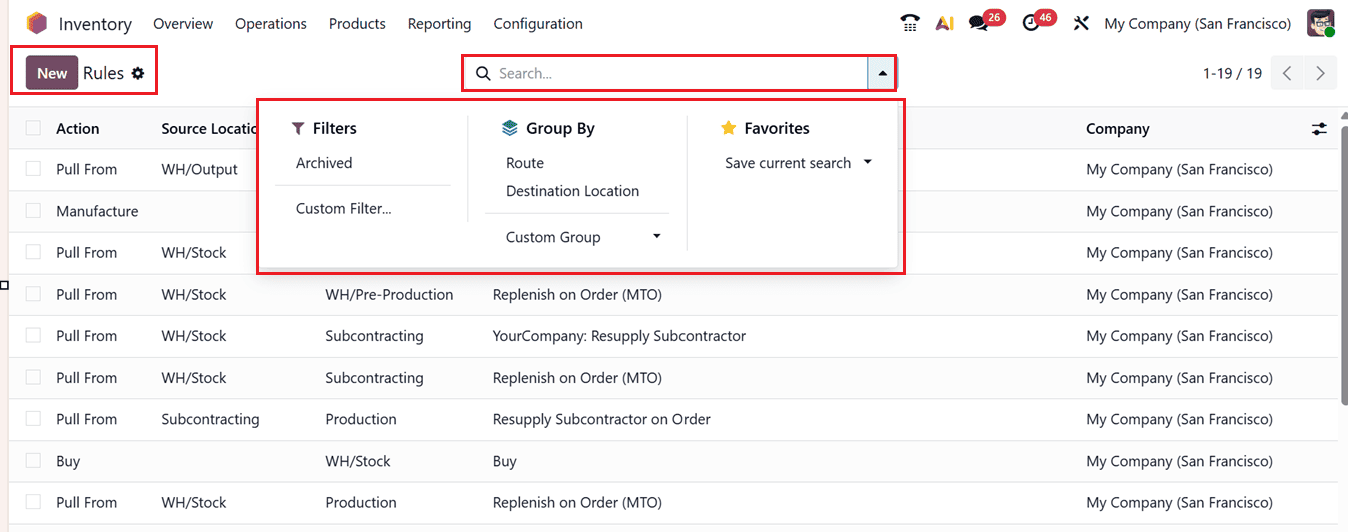
You can filter, group, or search for specific rules using the built-in Filter and Group By tools. This also helps you to create customized filters and groups using the Custom Filter and Custom Group options.
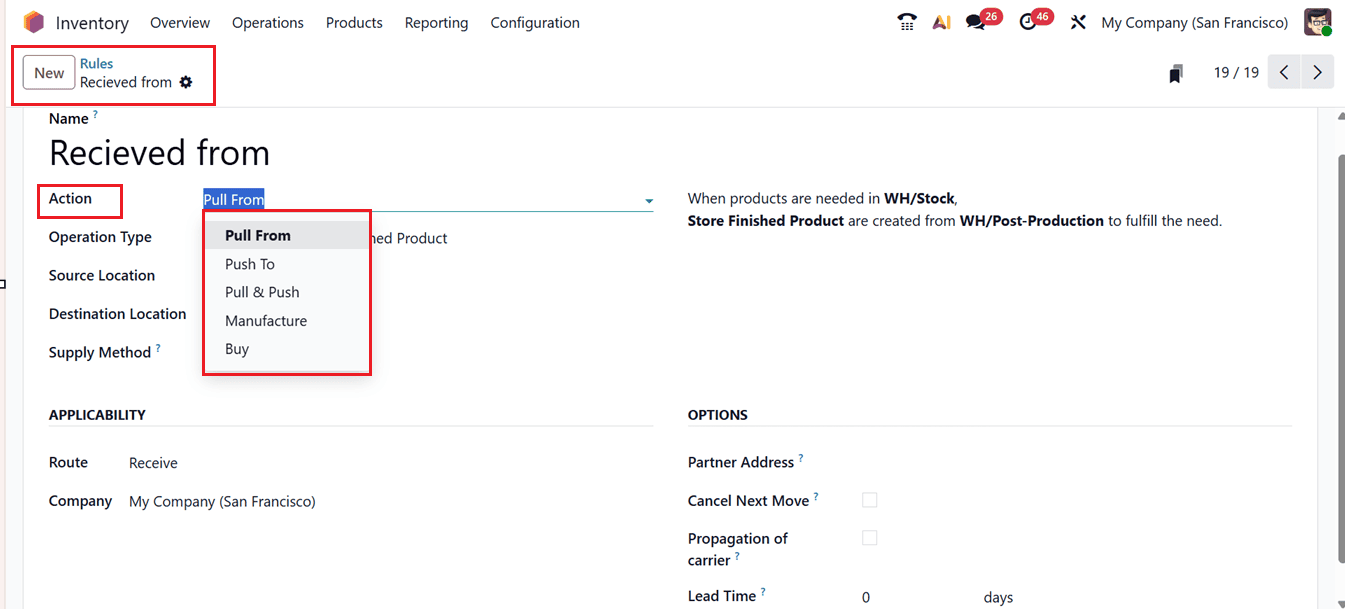
Also, you can create a new rule using the New button. In the new rule form, start by entering a Rule Name and selecting an Action from the drop-down menu. The available actions include:
- Pull From: Used when a product is needed at a destination location . Odoo automatically generates a picking from the source location to satisfy that demand.
- Push To: Moves items to the destination location once they arrive at the source point, often used for multi-step delivery processes.
- Pull & Push: Combines both actions, triggering movement both from and to locations as needed.
- Manufacture: Automatically creates a manufacturing order to meet a production requirement.
- Buy: Generates a purchase quotation when stock is required at the destination location.
Below the action field, you can specify the Operation Type, Source Location, and Destination Location to define the logistics path.
The APPLICABILITY tab enables you to determine where and how this rule applies. Here, you can define the Route and Company.
The Supply Method option determines how stock will be sourced to fulfill a demand either from existing inventory stock or through a triggered rule or take from stock and if unavailable trigger another rule, as shown in the screenshot below.
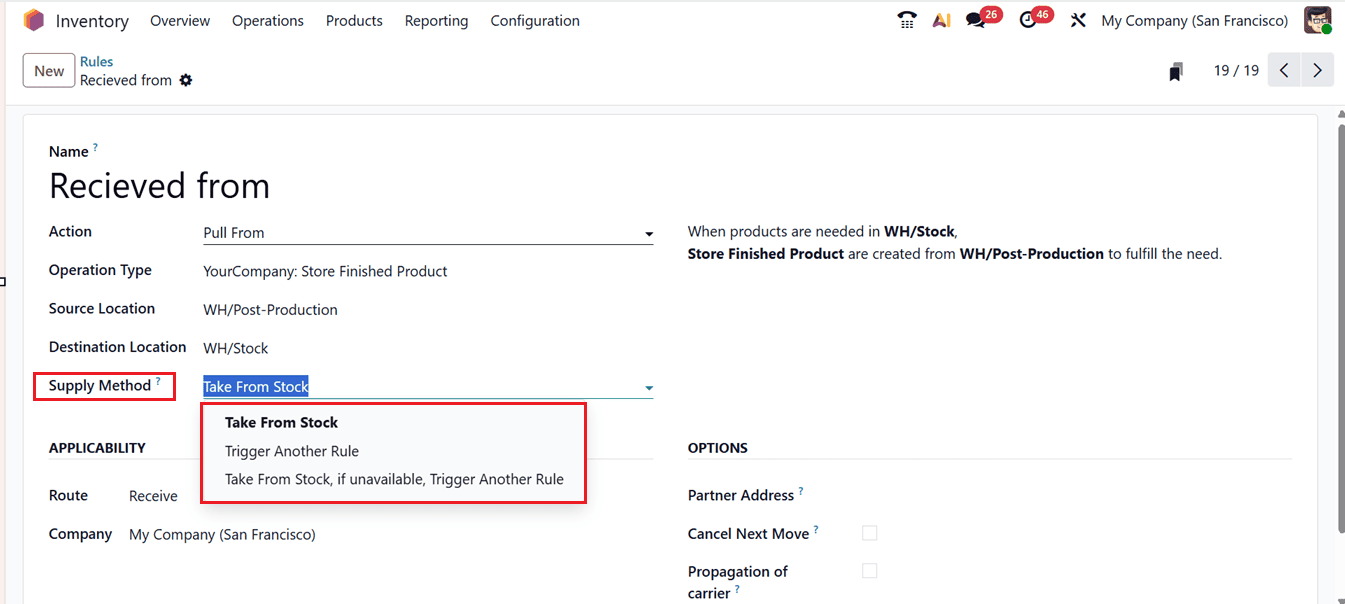
- Take From Stock: The products will be taken from the available stock of the source location.
- Trigger Another Rule: System will find to trigger a stock rule to bring the products in the source location by ignoring the available stock.
- Take From Stock, if unavailable, Trigger Another Rule: The products will be taken from the available stock of the source location. If the stock is unavailable, the system will try another rule to bring the products in the source location.
In the OPTIONS tab, you can mention any Partner Address to specify where the products to be delivered. Additionally, enabling Cancel Next Move ensures that if a move is canceled, all subsequent dependent moves are also canceled. Activating the ‘Propagation of carrier’ allows the assigned carrier to propagate through all related moves. Finally, set an ‘Lead Time’ to compute the expected date of the created transfer based on this lead time. Once all parameters are defined, click Save to store the rule.
In Odoo 19, inventory movement is managed through a combination of routes, rules, and warehouse configurations that control how products flow through the supply chain. By properly configuring routes and rules, companies can ensure that products are procured, stored, and delivered efficiently with minimal manual intervention, ultimately helping organizations improve warehouse efficiency, reduce operational errors, and maintain accurate inventory levels across the entire supply chain.
To read more about How to Manage Rules & Routes in Odoo 18 Inventory, refer to our blog How to Manage Rules & Routes in Odoo 18 Inventory.