Odoo 20’s Appraisals app helps managers and employees prepare for performance reviews, share feedback, discuss progress, and agree on next steps. An appraisal can include an employee self-assessment, manager feedback, input from colleagues, a review of skills and goals, and a final rating. Companies can schedule appraisals automatically through appraisal plans or create them manually when a review is needed outside the usual cycle.
This blog follows the process from setting up templates and schedules to completing appraisals and reviewing the results. It covers the states, fields, feedback options, goals, automation, and reports described in the Odoo 20 Appraisals workflow.
How Performance Reviews Work in Odoo 20
An appraisal begins when a review is scheduled and confirmed. As soon as the appraisal is confirmed, the appraiser as well as the employee will get notification and they can start proceeding with their sections.
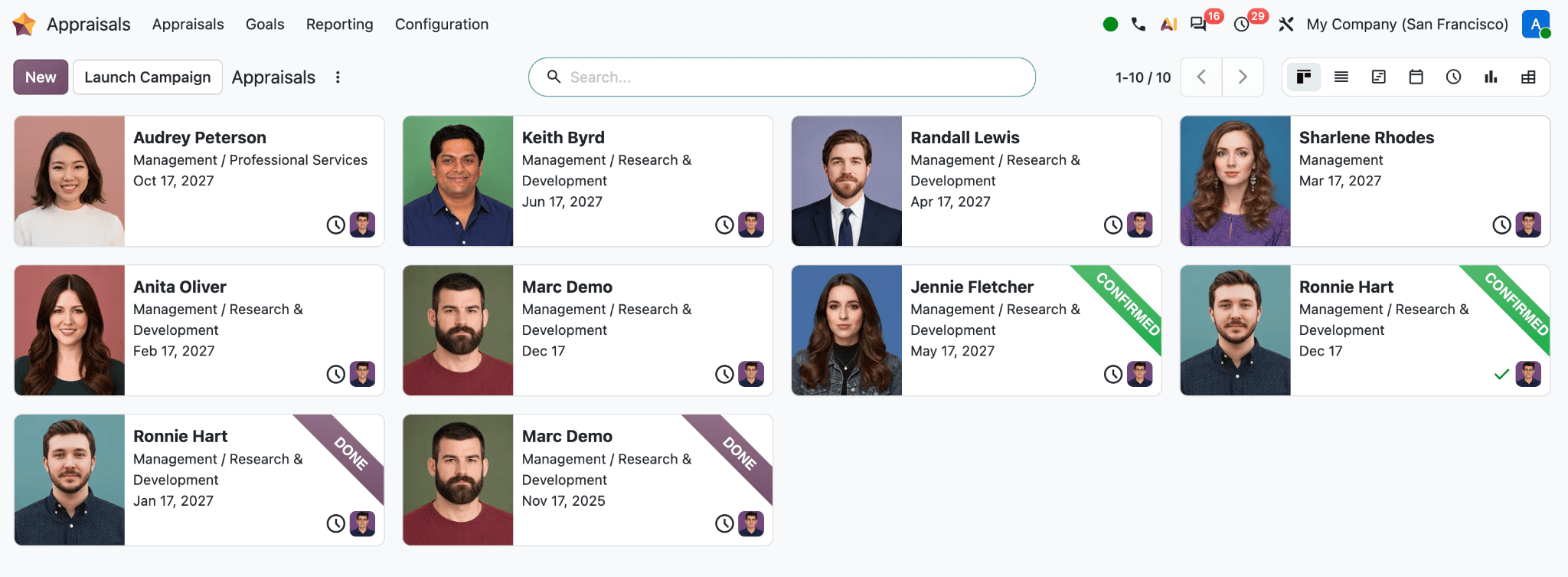
The employee provides a self-assessment and updates their skills, while the manager prepares feedback, reviews goals, and can request input from colleagues. After that, the manager can schedule a meeting with the employee to discuss the criteria and goals to meet the appraisal. Once it is completed, the manager can complete the final rating and convert the appraisal into the Done stage.
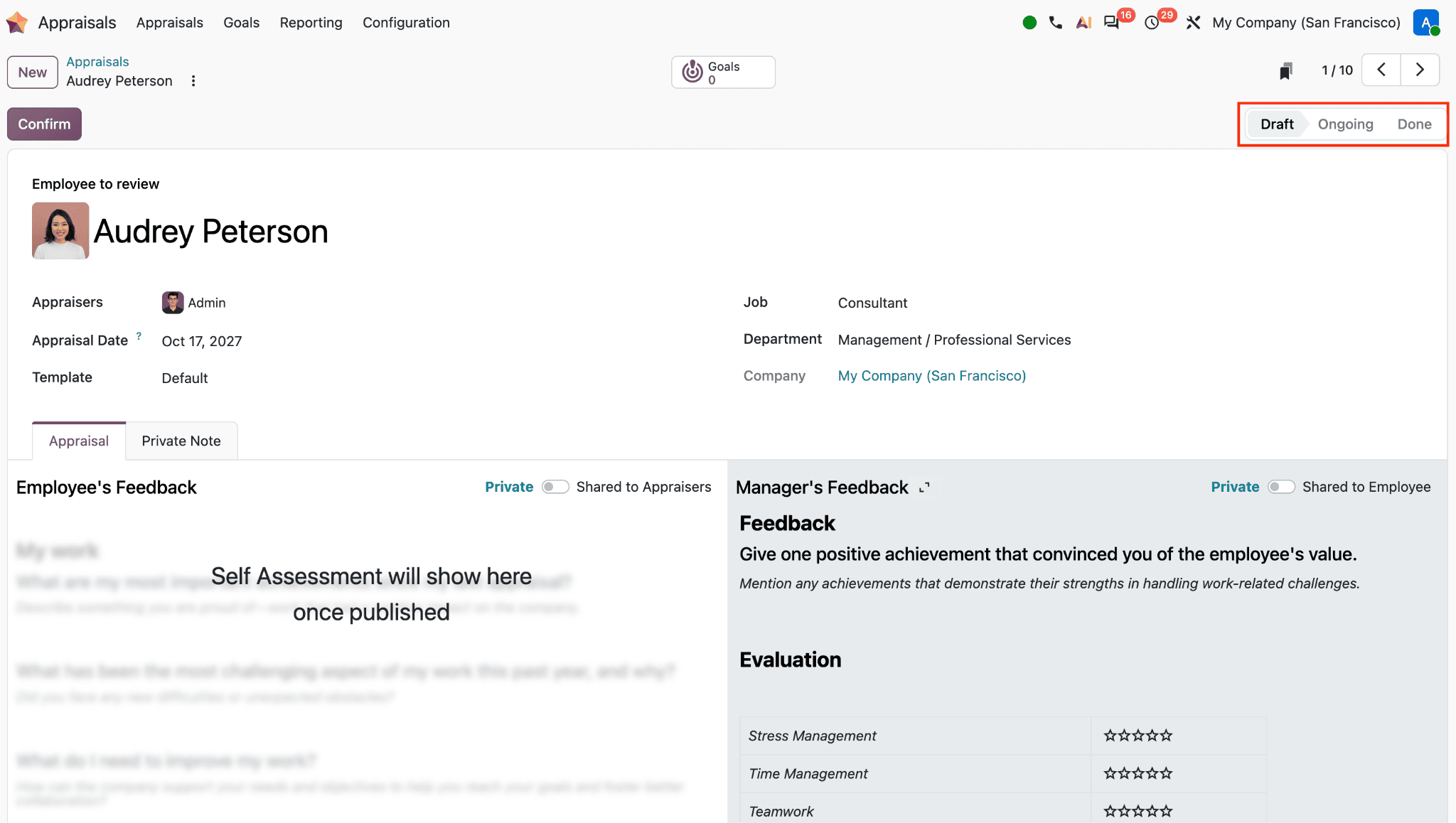
Appraisals move through the workflow from Draft, Ongoing to Done. In practice, an appraisal may still be in preparation before it is confirmed. The appraisal form can not be edited after marking it as done. But, the manager can reopen the appraisal for editing if it is necessary. This workflow gives both parties time to prepare their feedback before the meeting and lets the manager record the agreed outcome afterward.
Set up Appraisal Templates
The Appraisals module includes a preconfigured Default template that can be used for all employees. To view or change it, go to Appraisals app > Configuration > Appraisal Templates, then open Default and make the required edits.
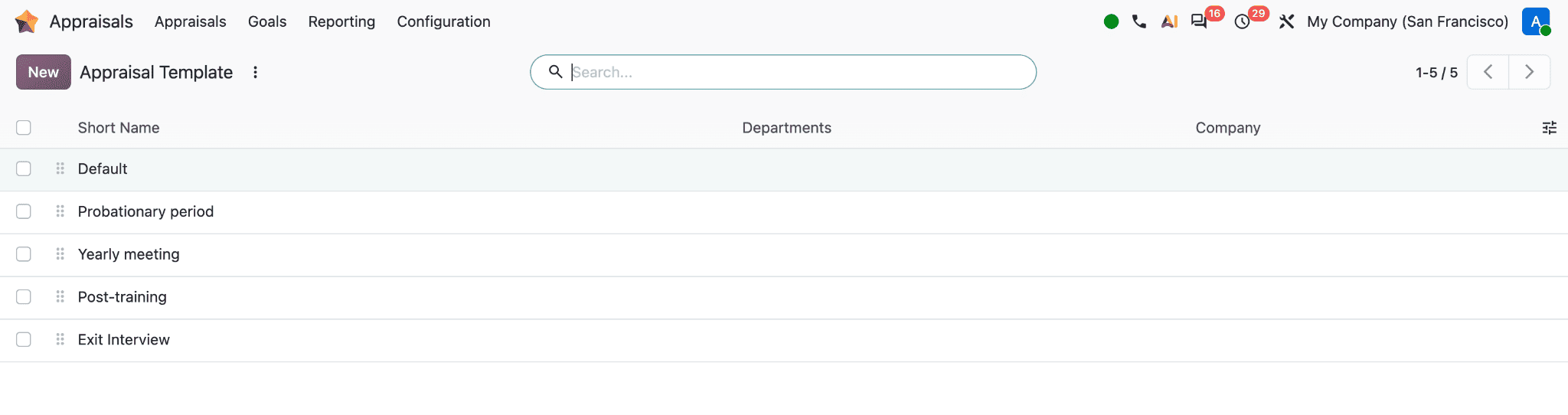
Sometimes, a single template won't be enough for every role or department in a company. In such cases, the user can create multiple templates to meet the requirements of the company. To create a template, open Appraisals > Configuration > Appraisal Templates and click New.
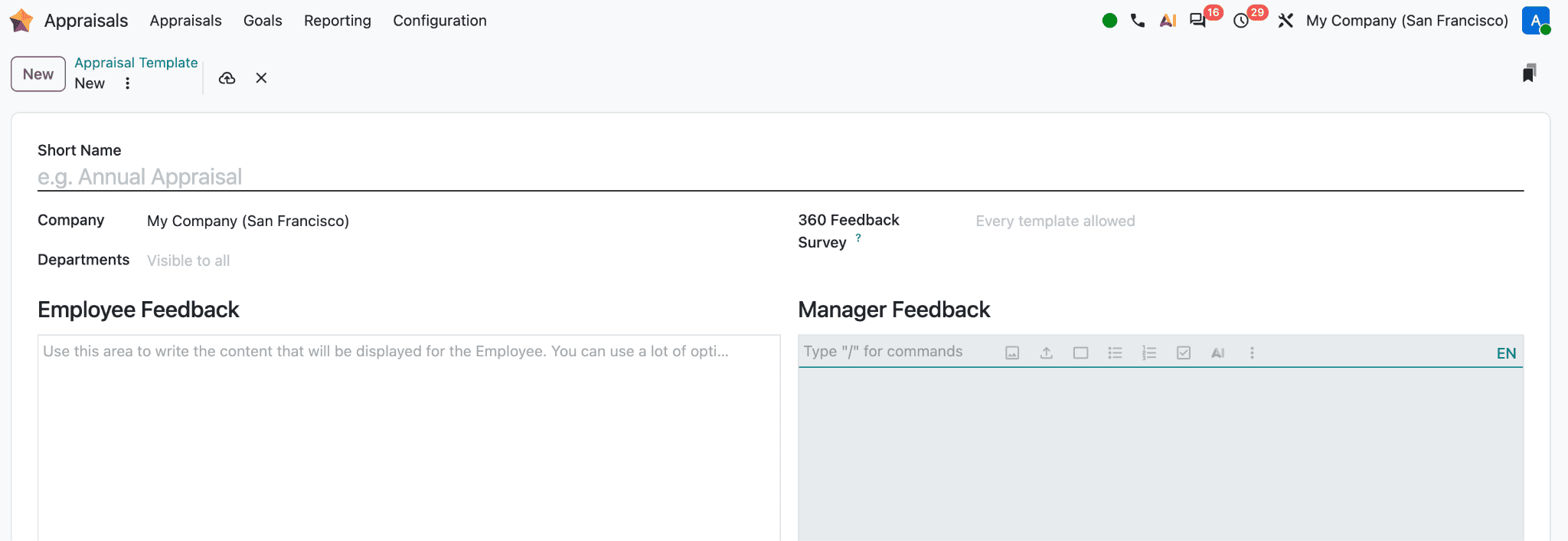
The Short Name field is where you enter a clear title for the appraisal template, such as “Annual Appraisal.” The Company field identifies the company the template belongs to. The Departments field controls which departments can use the template. “Visible to all” means it is available across departments. The 360 Feedback Survey field lets you associate a survey with the template. The Employee Feedback area is for writing the prompts or instructions that employees will see when completing their part of the appraisal. The Manager Feedback area is for the prompts or instructions managers will see when providing their feedback. Both areas are editable text fields, and the manager editor shows formatting and content tools along its toolbar.
You can also create a template by duplicating Default: open the template, click the Actions icon, and select Duplicate.
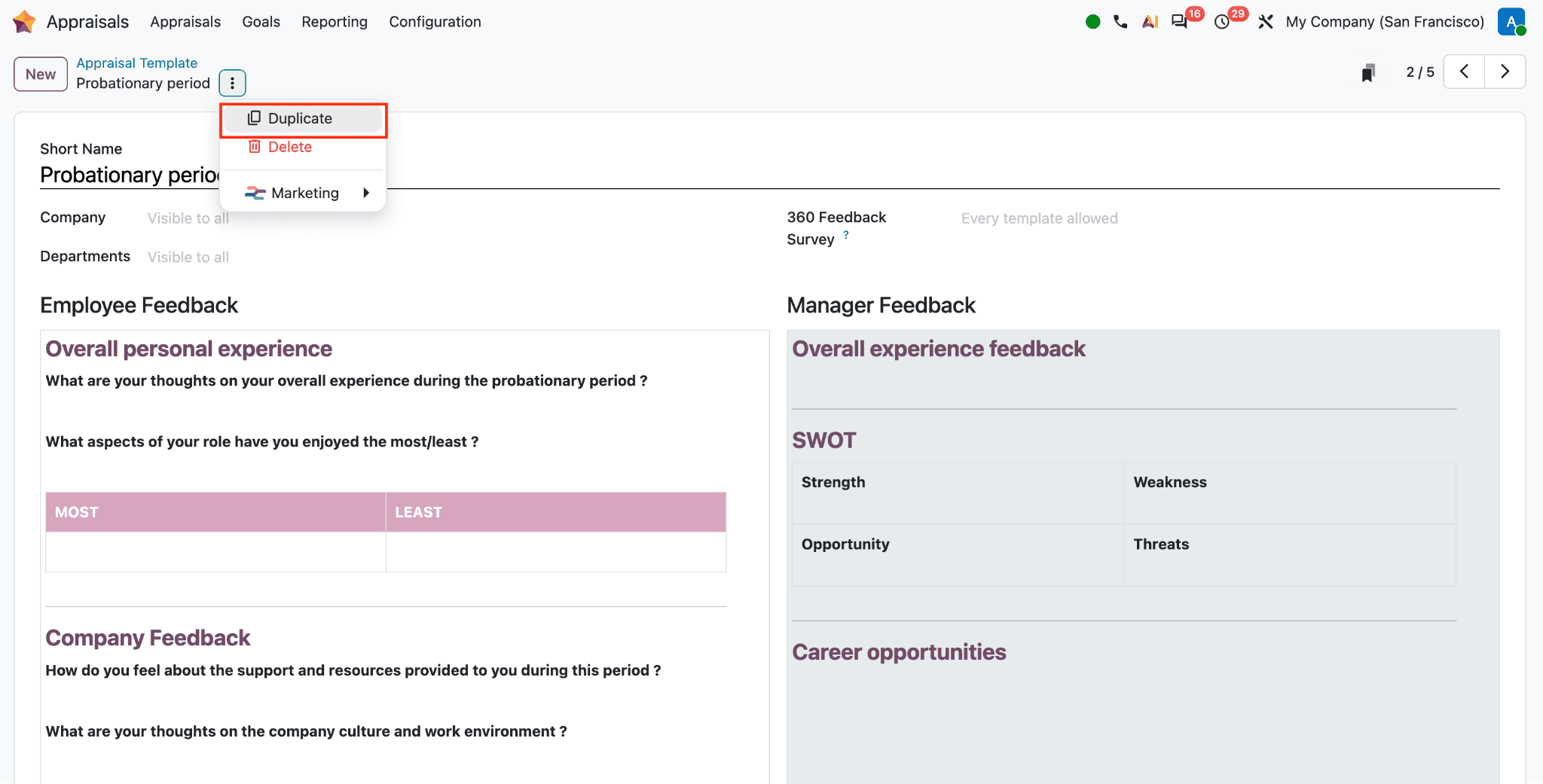
Rename the copy and edit it as needed. When an appraisal is created, Default is selected as the template unless another one is chosen. The manager can select a different template from the Template field before confirming the appraisal.
Schedule Appraisals
Companies can create appraisals manually or configure Odoo to schedule them automatically. Automatic scheduling is managed under Appraisals app > Configuration > Settings. The Appraisals Plan settings determine when appraisals are scheduled.
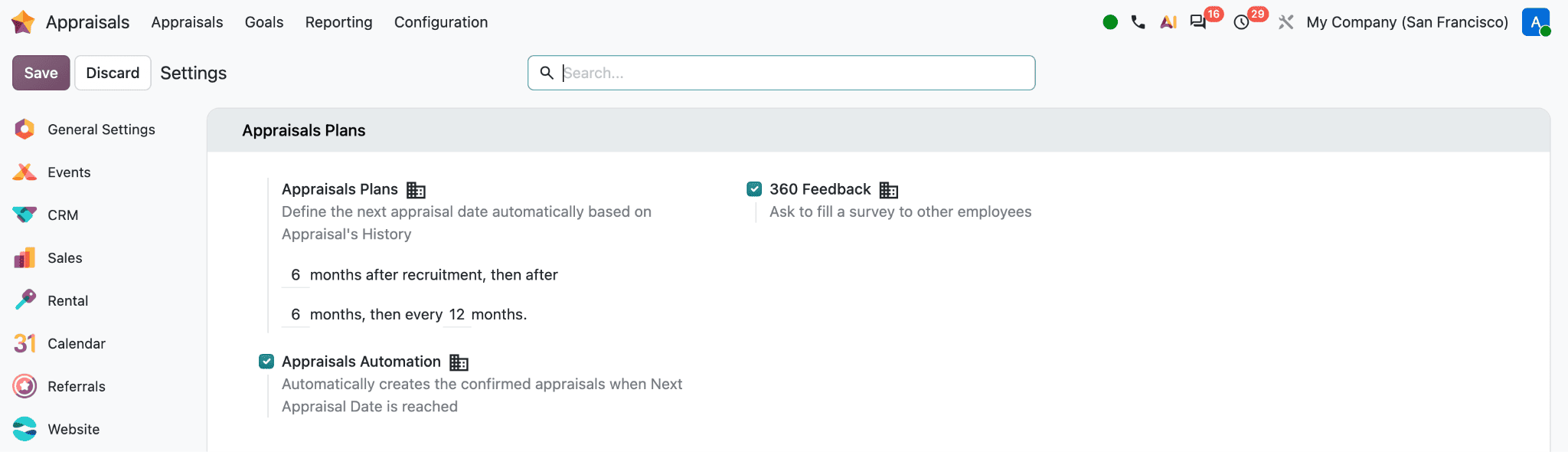
By default, the plan schedules one appraisal six months after an employee is hired and a second six months later. After those two appraisals in the first year, further appraisals are scheduled every twelve months. To change the cycle, edit the month intervals in the Appraisals Plans section. When this setting is changed, it will automatically update every employee record whose Next Appraisal Date field is empty. To have Odoo schedule and confirm appraisals automatically according to the plan, enable Appraisals Automation.
Managers can also create an appraisal at any time, for example when an employee is promoted or moves to a different role or department. To do so, open the Appraisals module and click New.
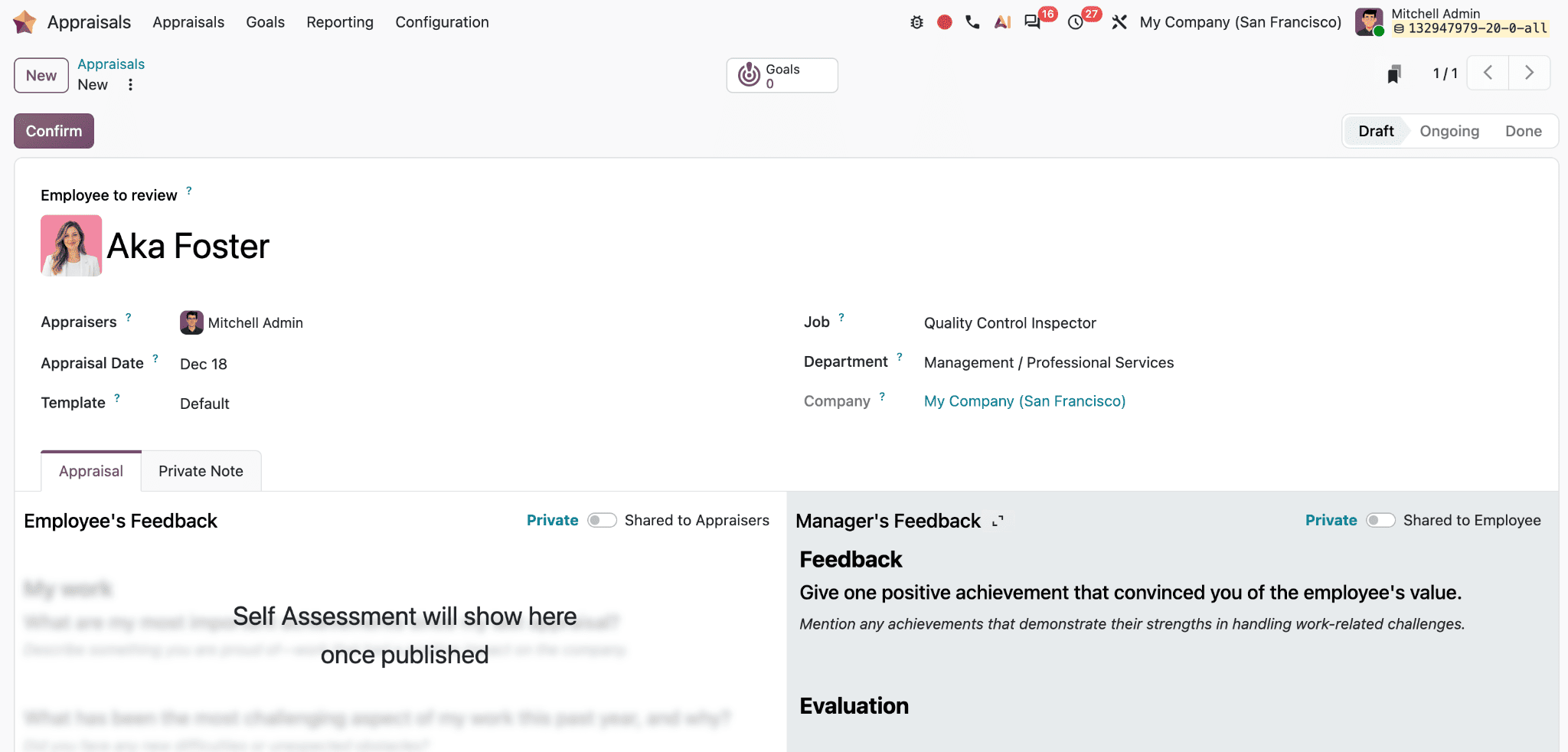
The name of the employee can be selected in the Employee field to review. Odoo fills in Appraisers with the employee’s manager and populates Job and Department from the employee record. Set the Appraisal Date, which defaults to one month from the current date, and select a Template if a different one is needed.
Once the appraisal is confirmed, Odoo notifies the employee and any other appraisers, and they can begin their sections.
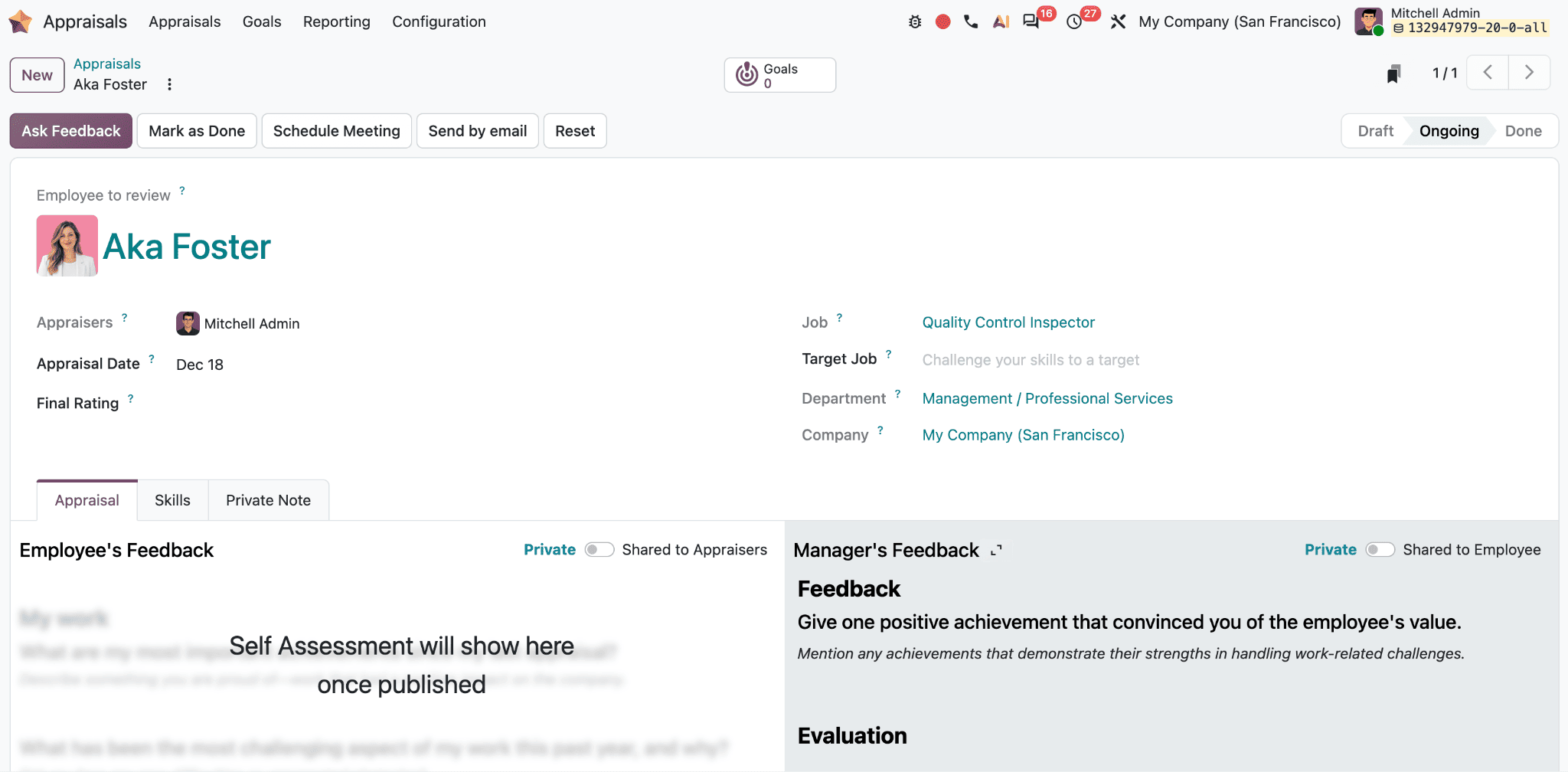
Odoo will display the Target Job and Final Rating when the user confirms the appraisal. The manager can use Target Job to select a position the employee may be working toward.
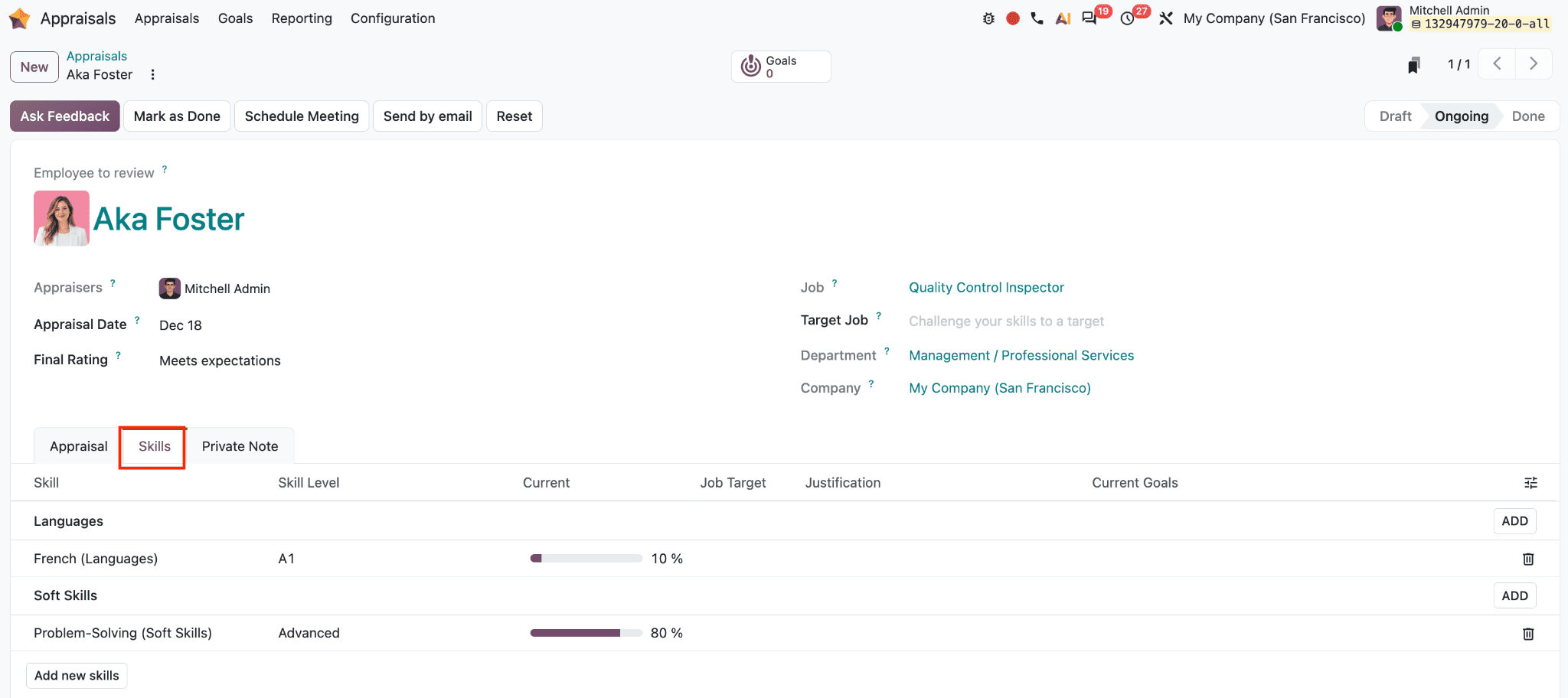
The skills of the employee mentioned will appear in the Skills tab. Final Rating is completed after the appraisal.
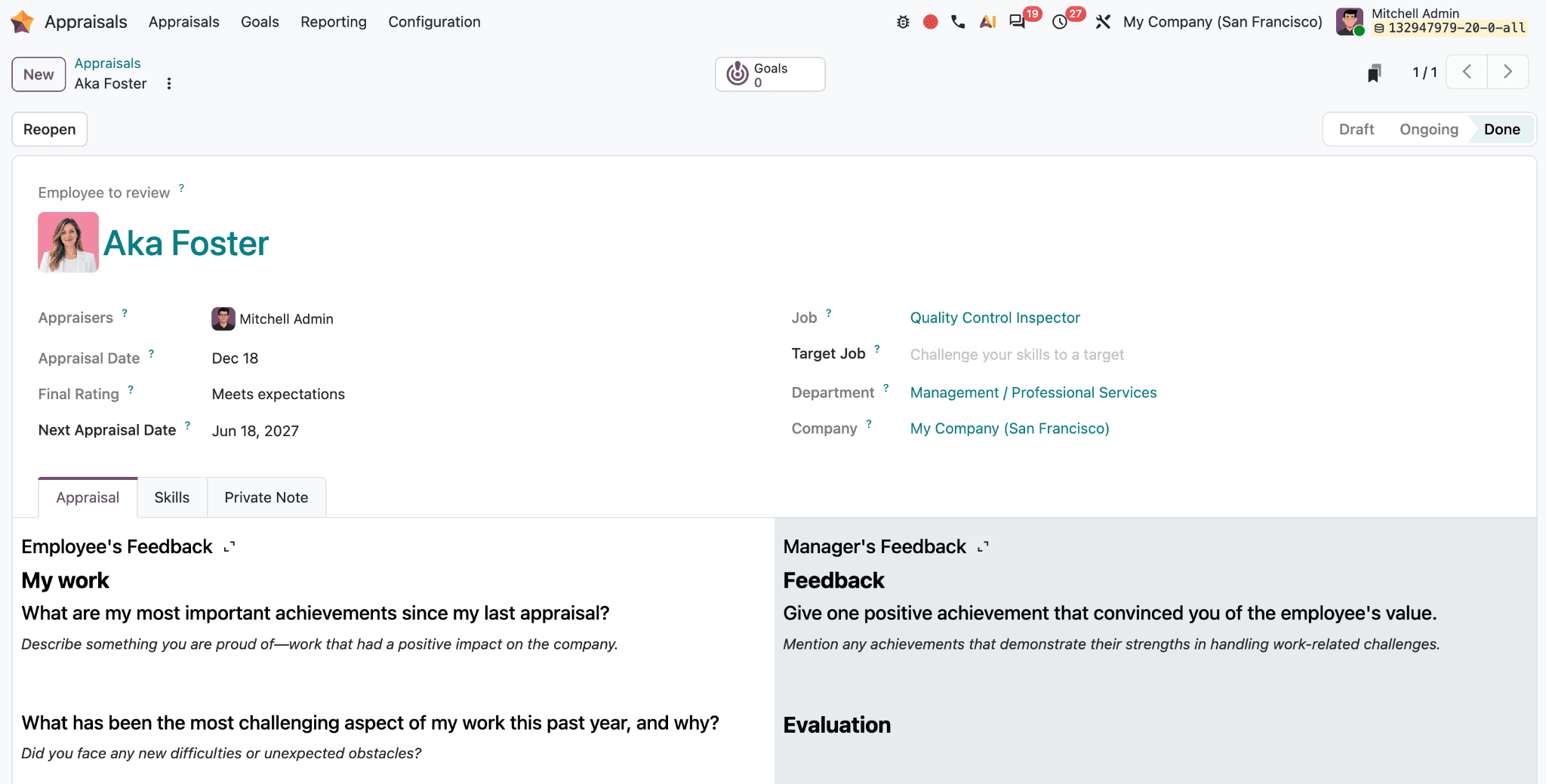
When an appraisal is marked as done, Next Appraisal Date appears.
Complete Employee and Manager Feedback
The employee will be notified and asked to complete the Employee’s Feedback section and update their skills once the appraisal is confirmed. The appraisal form can be opened from the link available in the email or opened directly in the Appraisal module. The default employee template includes My work, My future, and My feelings, with questions about the employee’s work, plans, role, and experience at the company.
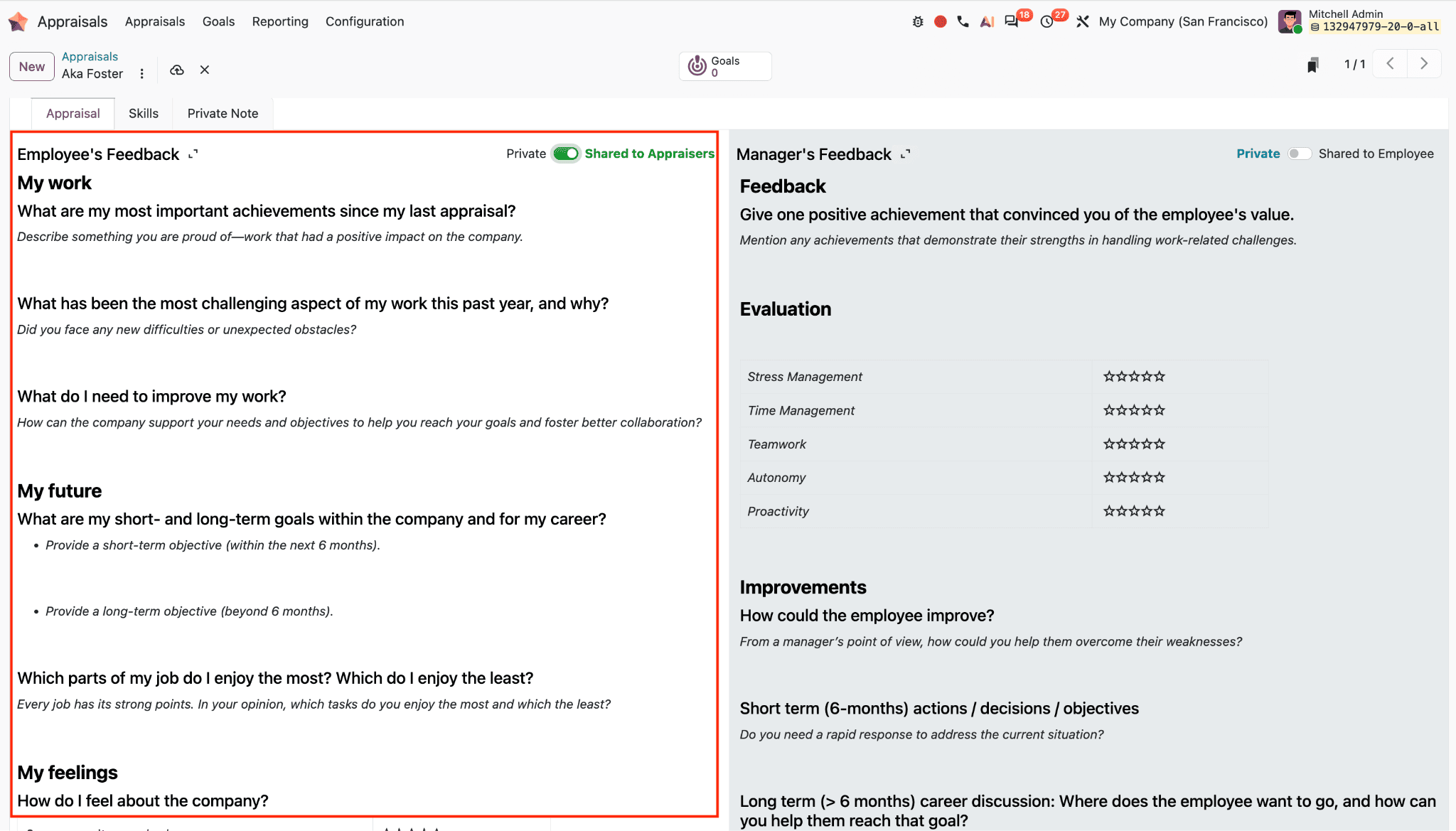
The employee’s responses remain private from the appraisers while they are being prepared. After completing the section, they change the gray Private toggle. It turns green and reads Shared to Appraisers, making the responses visible to the appraisers.
While the employee completes their section, the manager prepares Manager’s Feedback.
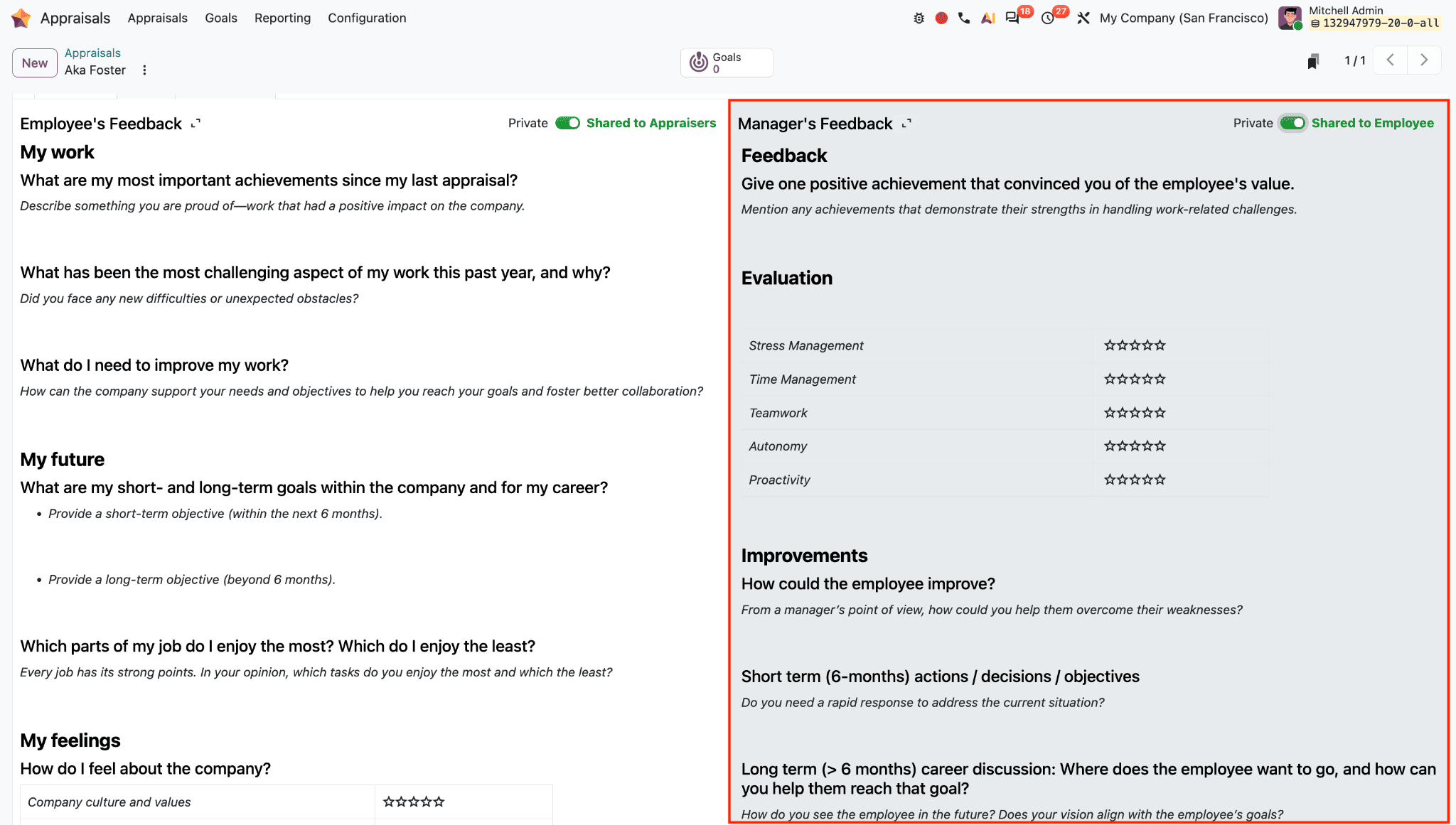
Managers often gather feedback from coworkers first, then complete the manager sections: Feedback, Evaluation, and Improvements. These sections cover the employee’s accomplishments, areas to improve, and actions that can help with short- and long-term goals. When ready to share the responses with the employee, the manager changes the Private toggle. It turns green and reads Shared to Employee.
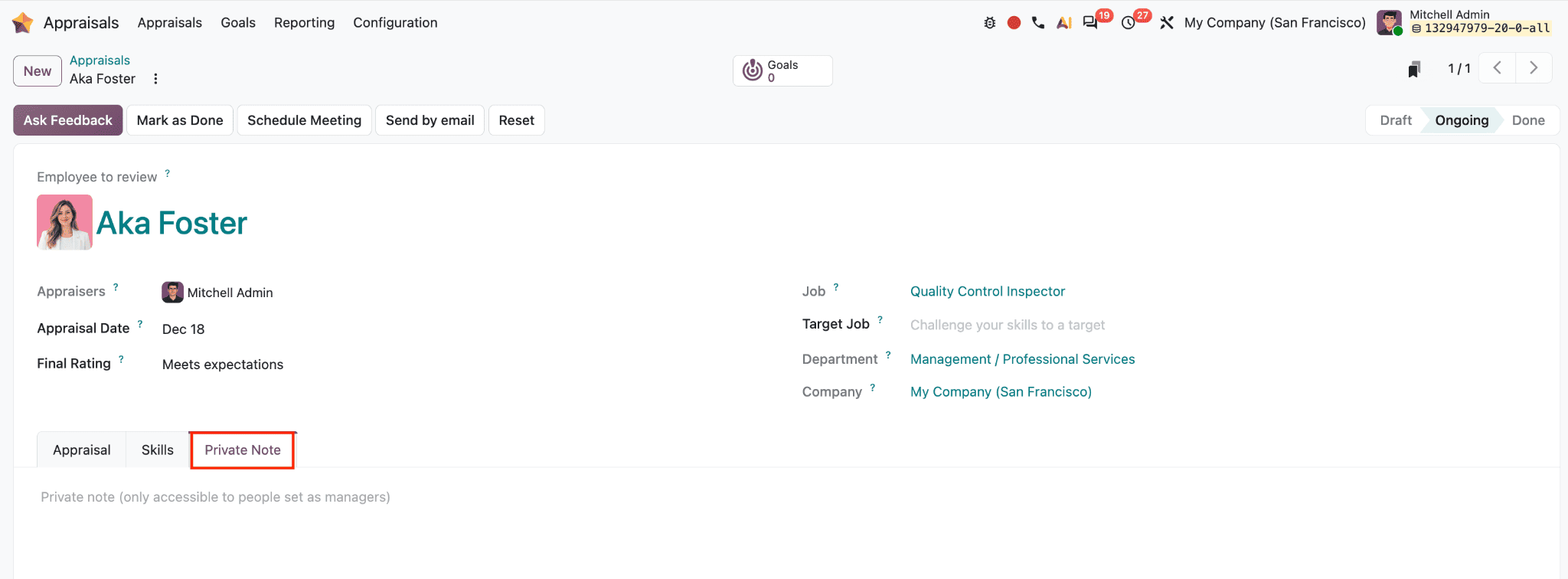
Managers can also record information in the Private Note tab at any point during the appraisal. These notes are visible only to other managers; the employee cannot access the tab. Private notes are optional and do not affect the final rating.
Request and Review 360 Feedback
Odoo’s 360 Feedback feature lets a manager request feedback about an employee from coworkers and other people in the company. This input can give the manager a broader view of the employee’s work and collaboration.
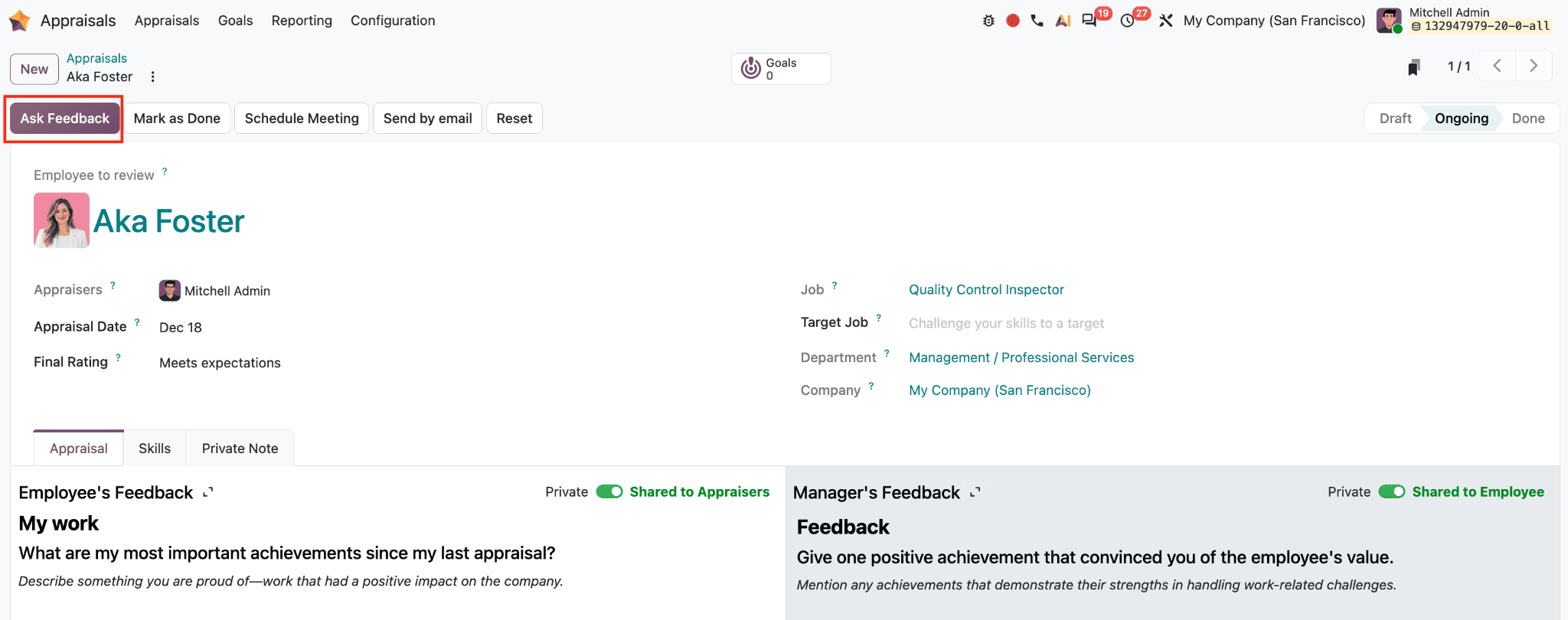
To request feedback, open the employee’s appraisal and click Ask Feedback. In the email window, select one or more colleagues in Recipients.
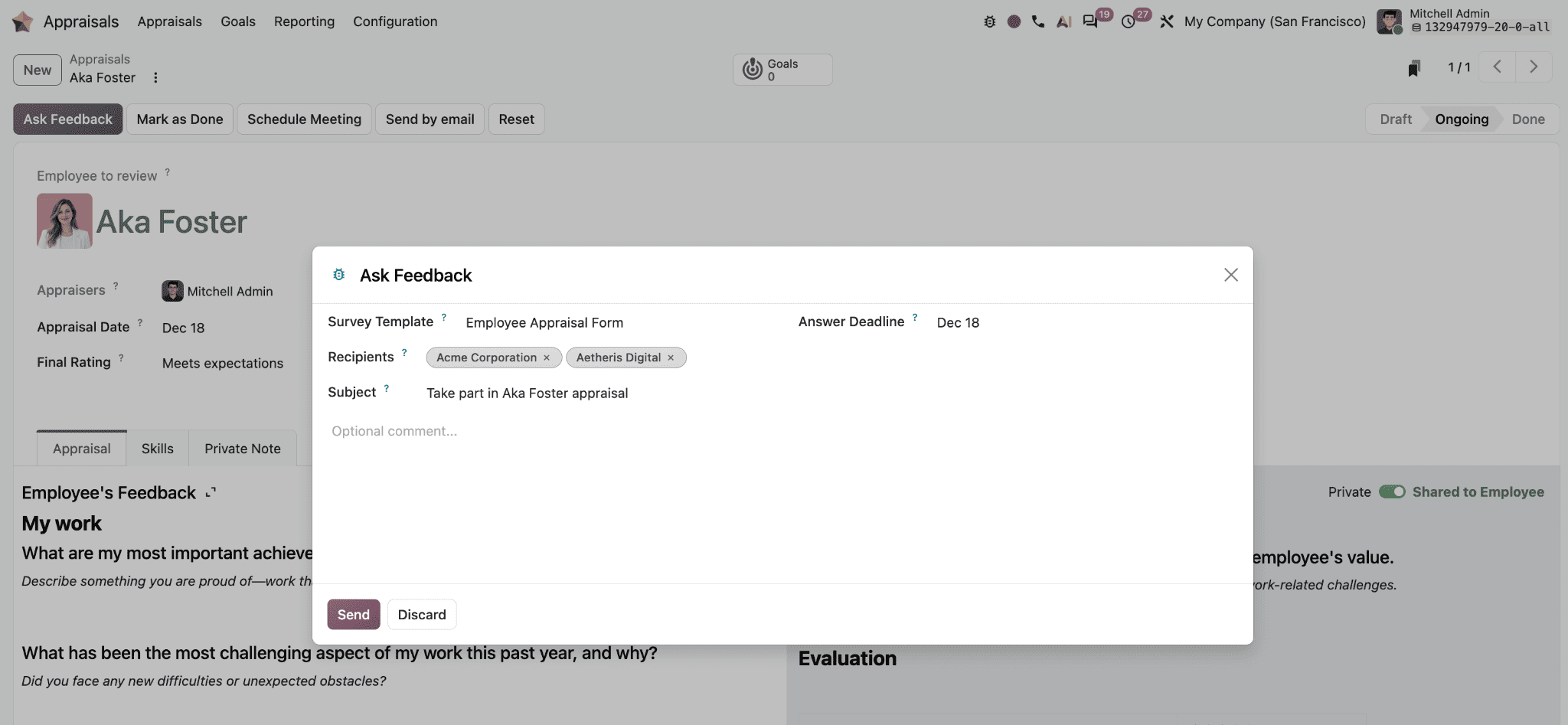
The Answer Deadline will be autopopulated in accordance with the appraisal’s due date and if needed, the user can change the deadline. The subject defaults to Take part in (Employee Name) appraisal; edit it if needed and add any comments in the message area. The email template’s full copy is not shown in the pop-up. Click Send to send the requests.
To review available surveys and their statistics, go to Appraisals > Configuration > 360 Feedback.

Each survey appears with its Survey Name, Responsible employee and designation month and year, number of Questions, and number of responses Completed. Click Test beside a survey to preview its questions in a new tab without submitting answers.
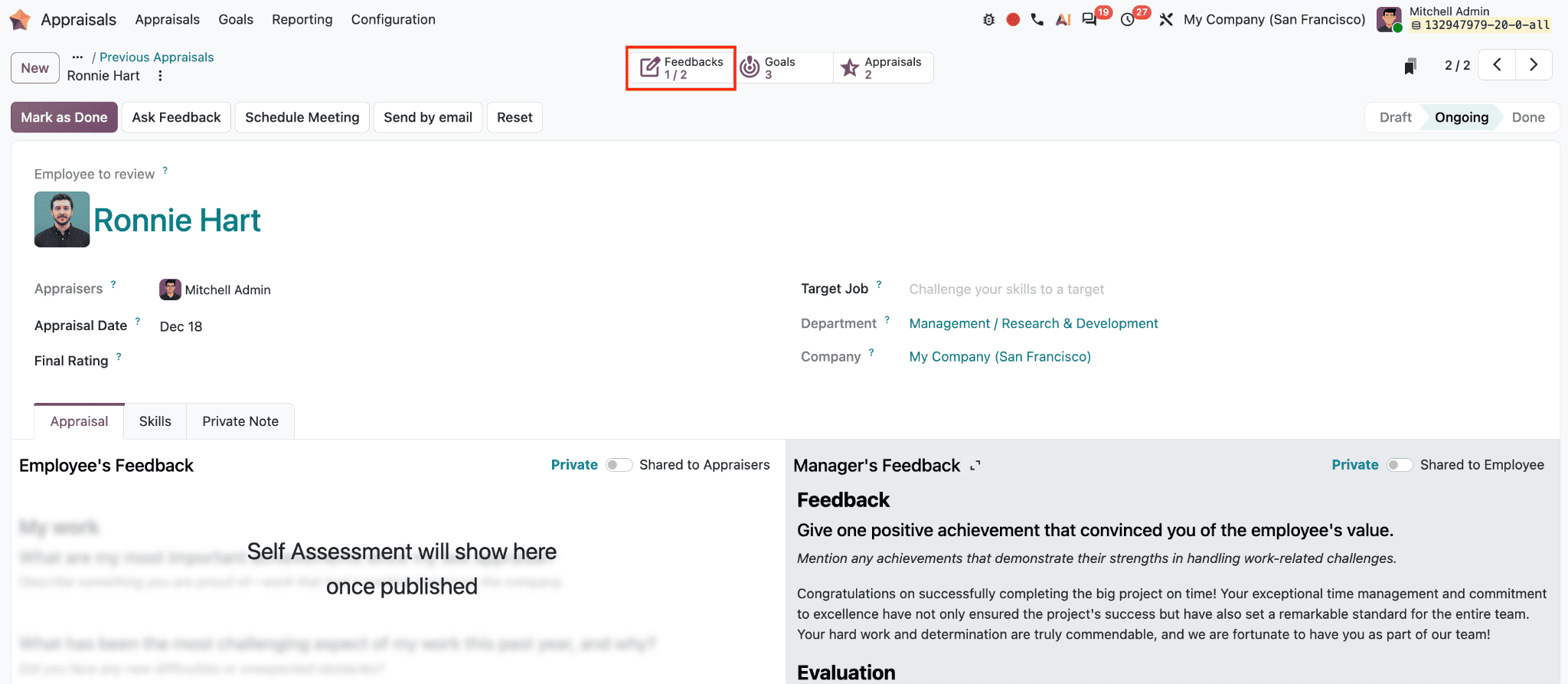
On an appraisal form, the Feedbacks button opens the Feedback Surveys dashboard.

Each requested respondent is listed with their Employee name, feedback Status, Deadline, and Survey. A green Completed tag indicates a submitted response, while a blue New tag indicates a request that is still outstanding. From a completed entry, click See Answers to view that person’s responses.
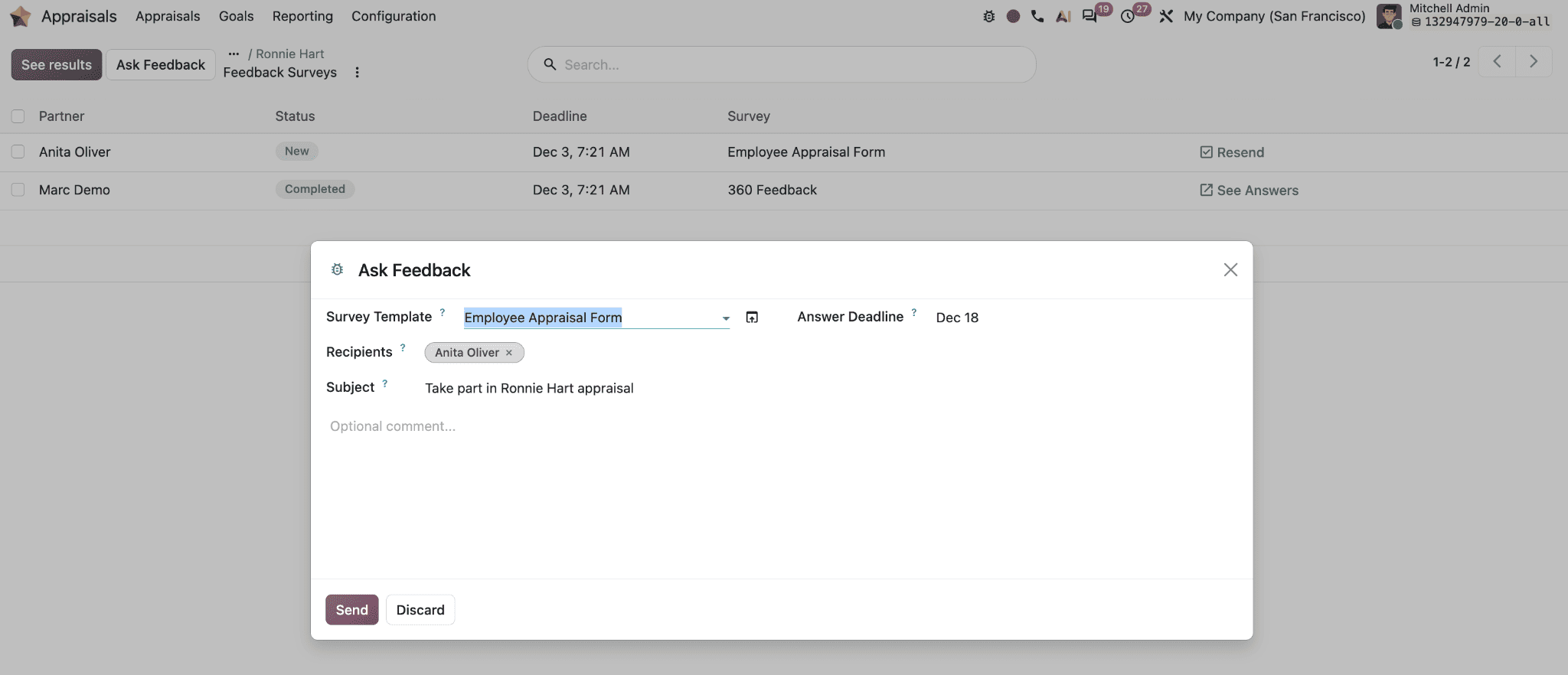
For a new entry, click Resend to reopen the request window, then click Send.

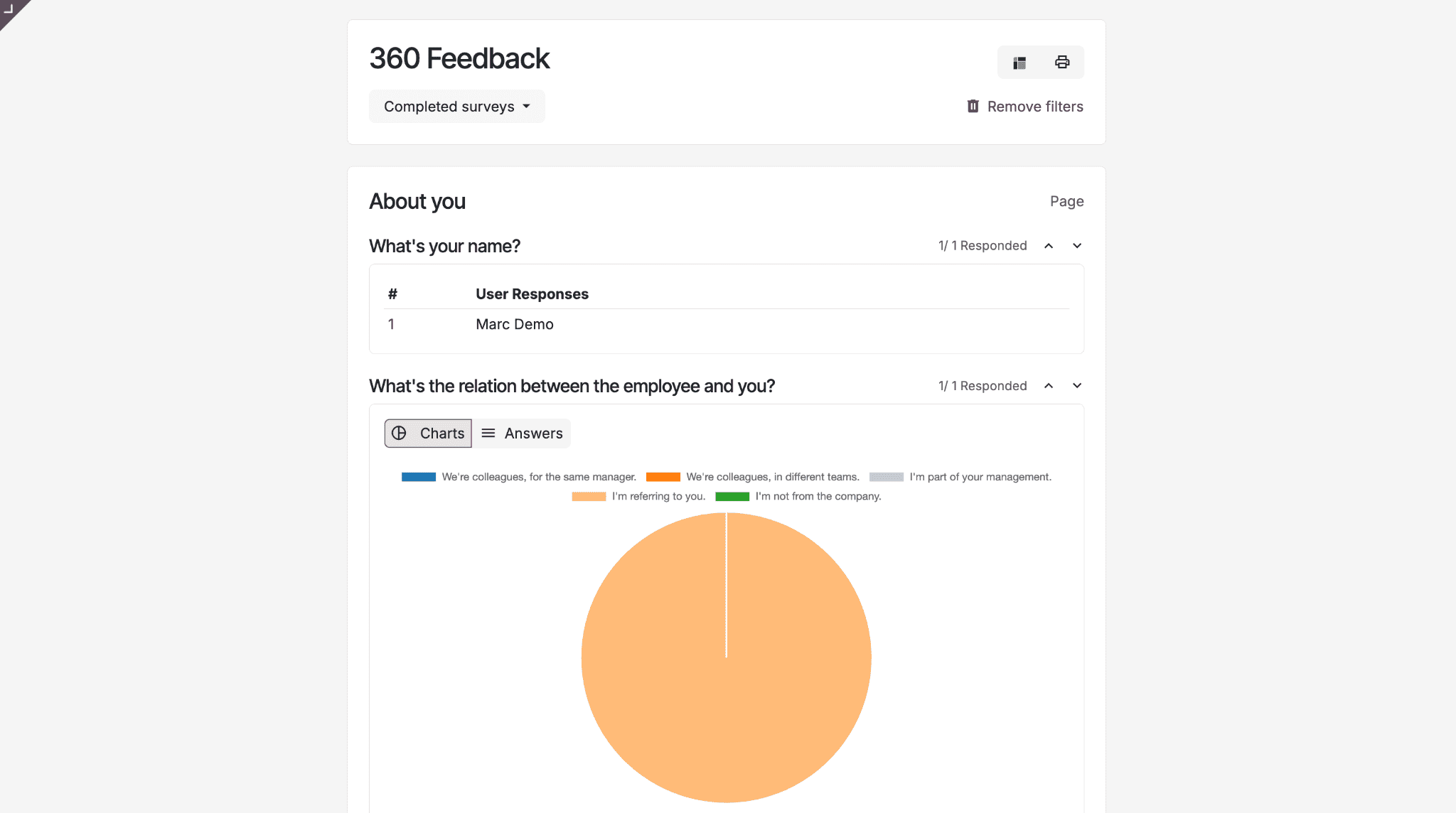
To view combined responses, click See results.
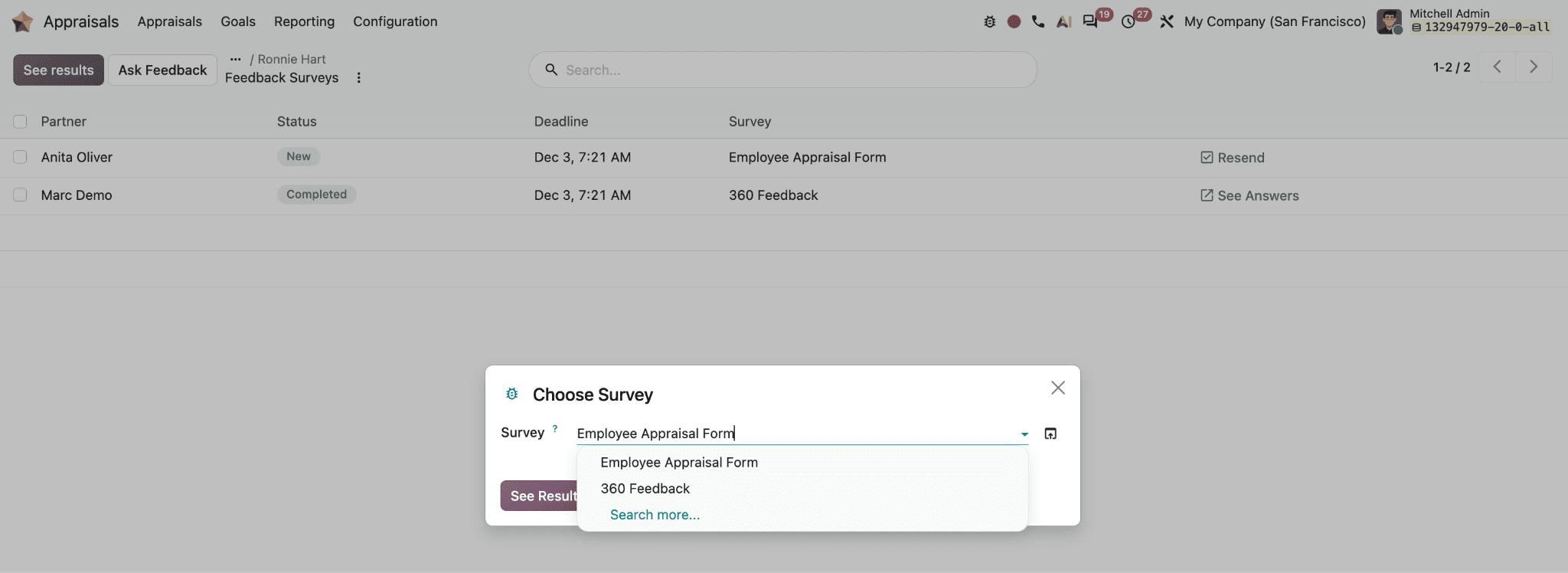
From the Choose Survey wizard, the user can select the required survey and click the See Results button. Odoo opens the combined results in a new tab.
Review Employee Skills and Schedule the Appraisal Meeting
After confirmation, the appraisal’s Skills tab is populated with the skills listed on the employee form. If the manager has selected a Target Job, its required skills and expected levels appear there as well.
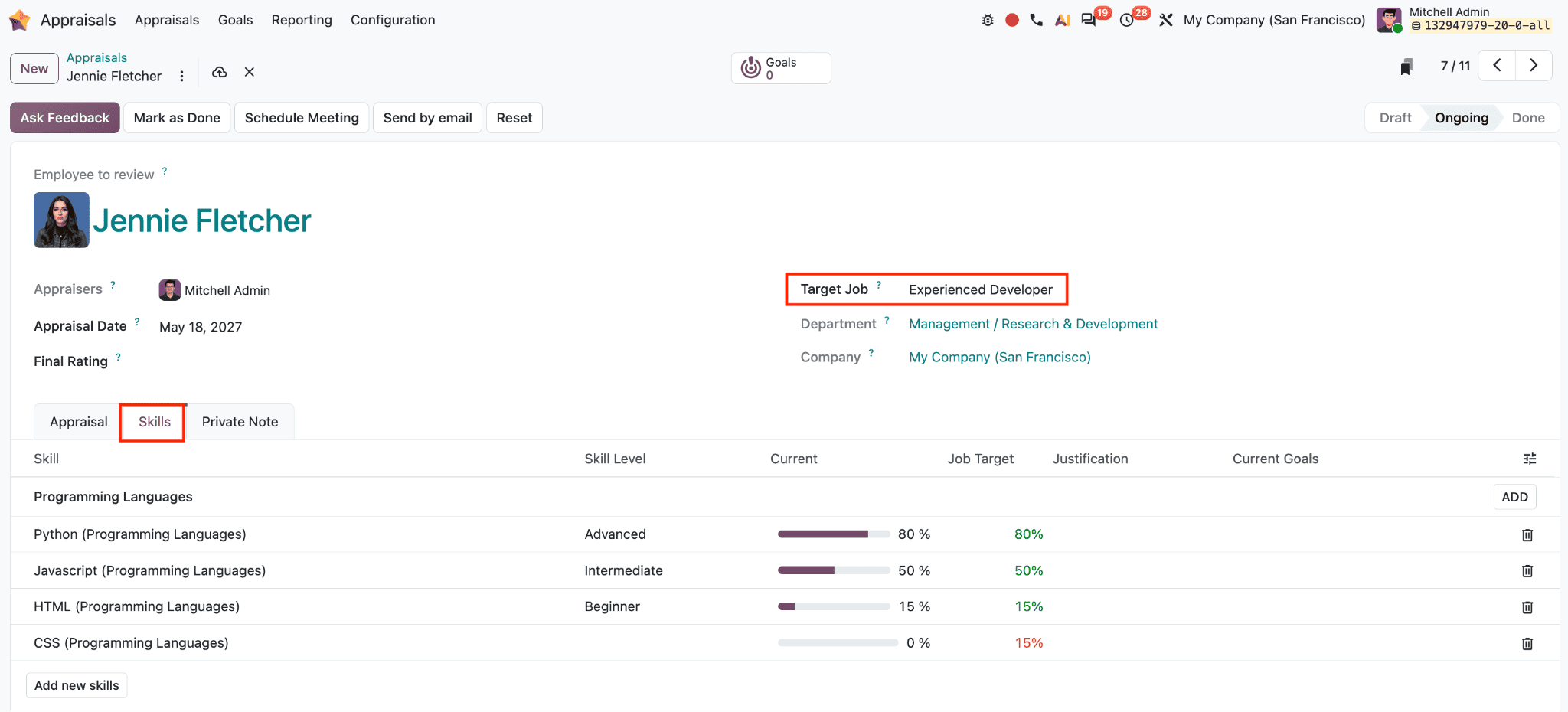
In the Job Target field in the Skills tab, Odoo will display the expected level in percentage. Each skill type shows its Skill Level, Current progress, and Justification. If a skill level has changed since the previous appraisal, update it by selecting the new level from the Skill Level dropdown. The Current field updates to match. Add an explanation in Justification, such as a language test or a Javascript certification. The Add new Skills option can be used to add new skills to the appraisal form. Once the appraisal is completed, updated skills will populate the Skills tab of the next confirmed appraisal.
Once the employee and the manager complete the feedback sections, they can schedule a meeting to discuss further updates.
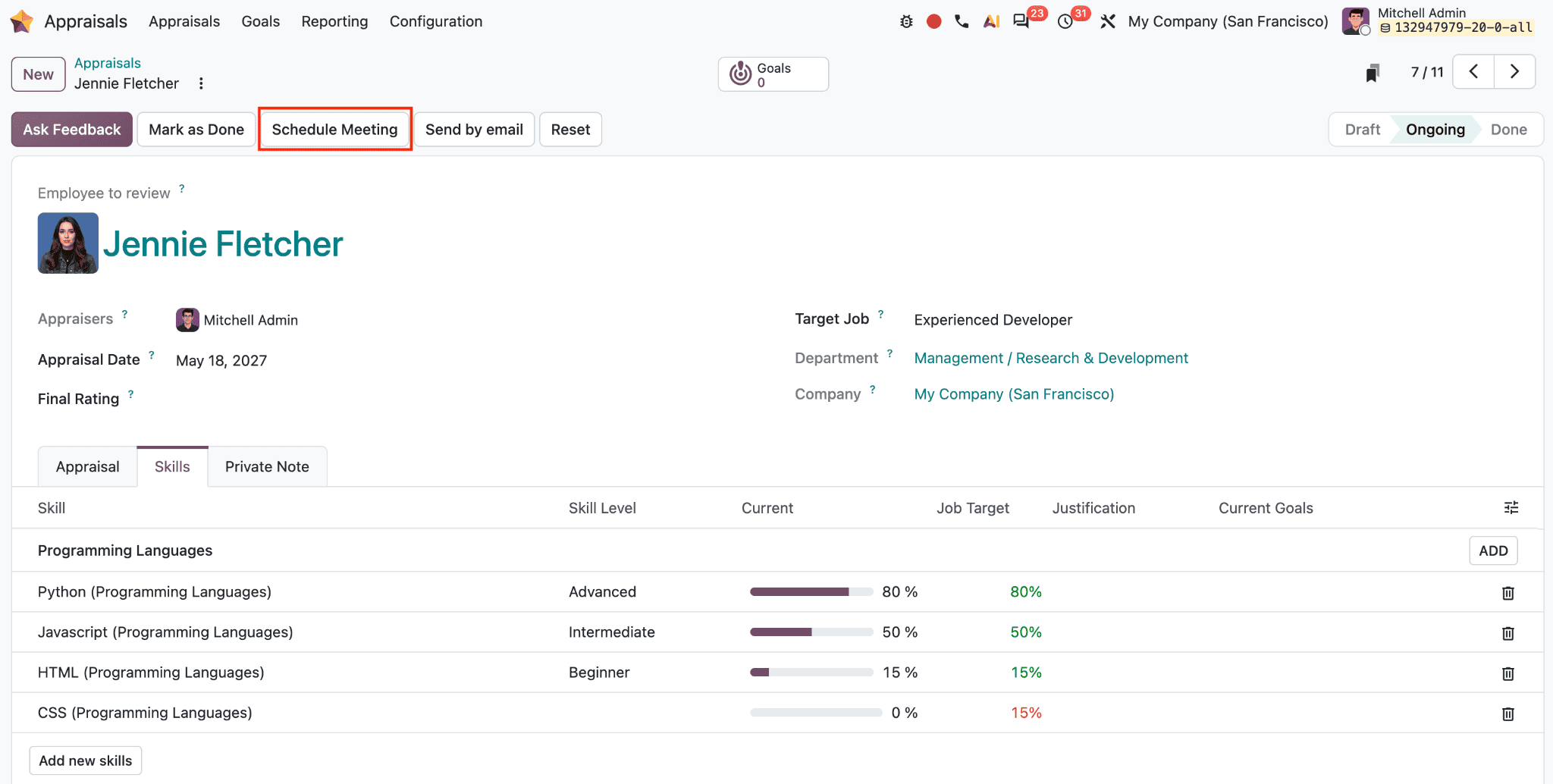
To schedule the meeting from the appraisal, open the appraisal card and click Schedule Meeting. Clicking on this will open the Meetings calendar, from where the user can select suitable date and time. The event is prefilled with the title Appraisal of (Employee Name), the selected date and time, and the employee and appraisers as Participants. Add other participants if needed.
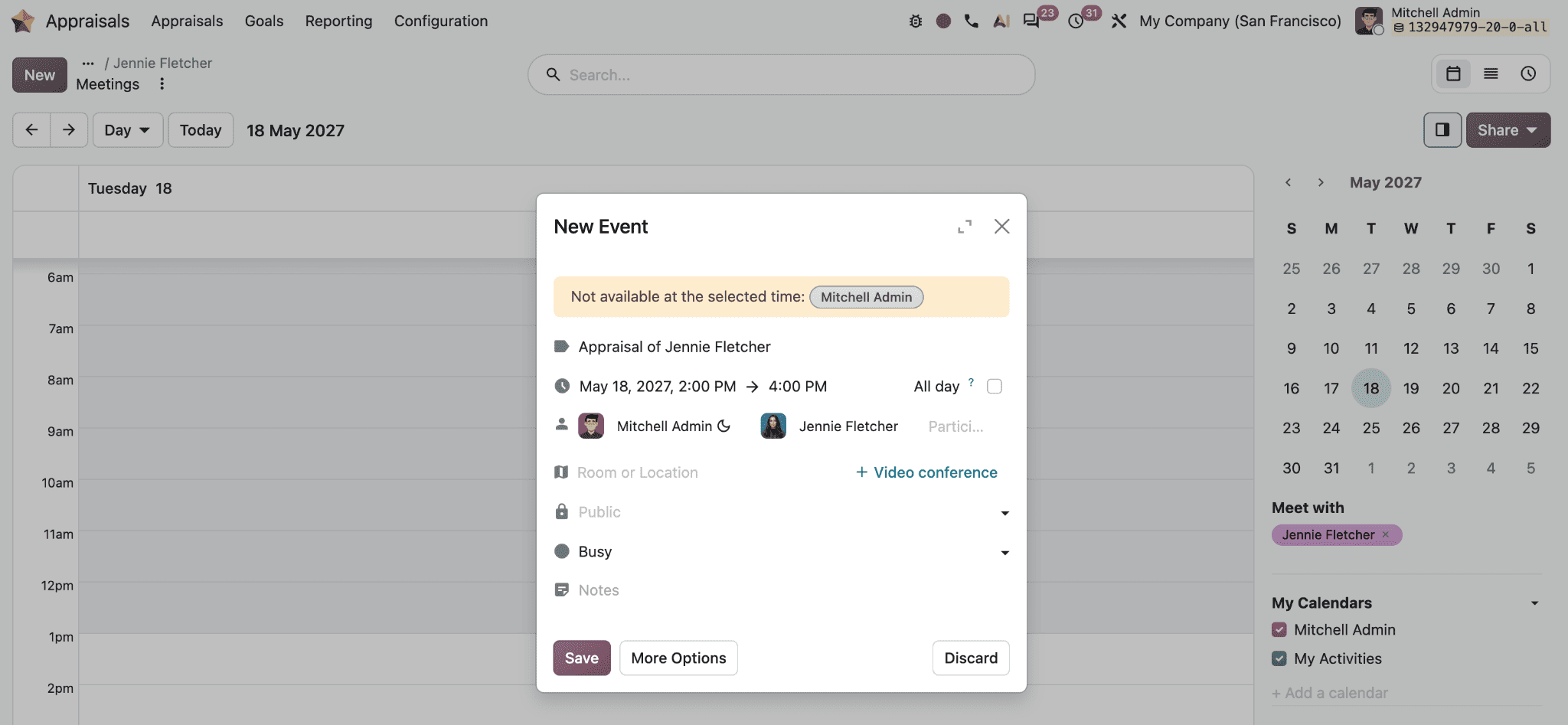
The meeting can include a Location, such as a conference room, or a video call. In order to add the video call URL, click on the + Video conference button. The visibility of the meeting can be set to Private, Public, or Only internal users as needed. Any additional notes can be mentioned in the Notes field. After completing the pop-up window, use the Save button to add the event to the meeting calendar. The participants will be notified by email once the user schedules the meeting.
Set and Track Employee Goals
Goals give managers and employees concrete targets to work on between reviews. Odoo provides a goals library for reusable goal templates and a dashboard for goals assigned to employees.
To view or create reusable goals, go to Appraisals > Configuration > Library.
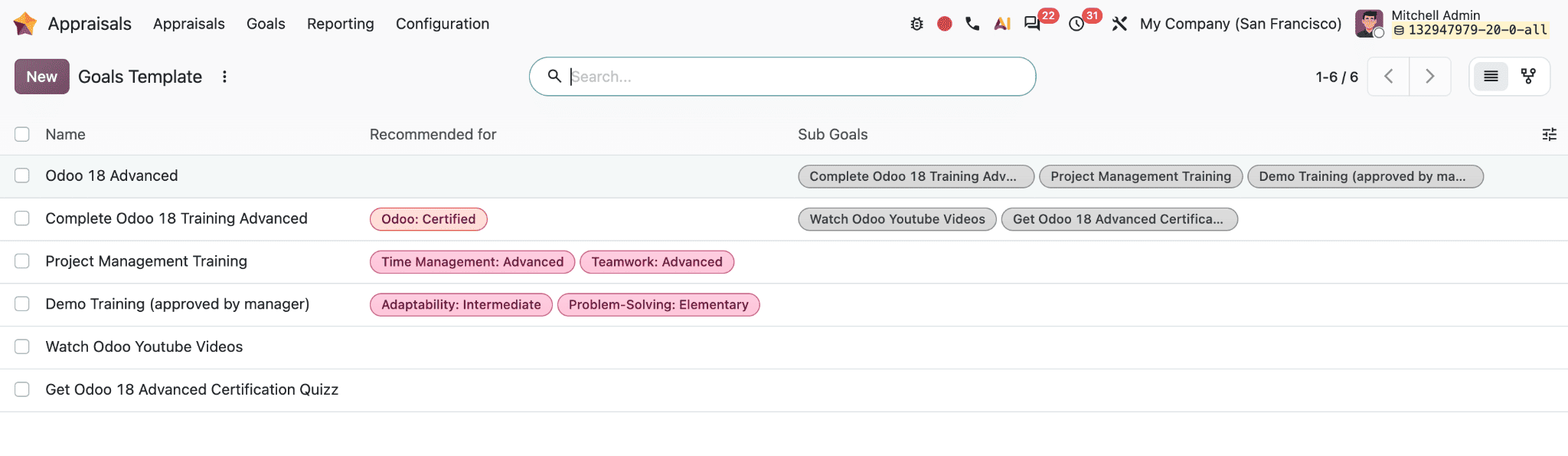
The Goals Template list shows each goal’s Name, the skills it is Recommended for, and any Sub Goals that need to be completed first. Click New to create a template.
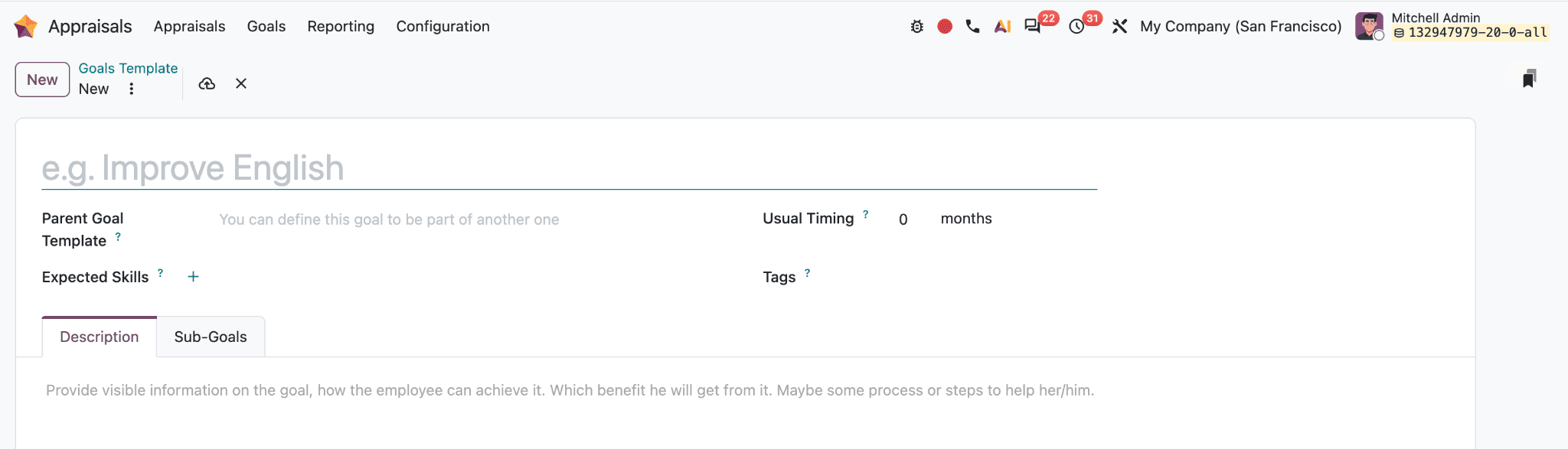
Enter a Name, and, if the goal is part of a larger one, select its Parent Goal Template. In Expected Skills, select the skill the goal supports. Set Usual Timing in months; when the goal is assigned, Odoo uses this to calculate its due date. Add any relevant Tags.
Use the Description tab to give the employee context and guidance. If the goal has prerequisites, add them in the Sub-goals tab.
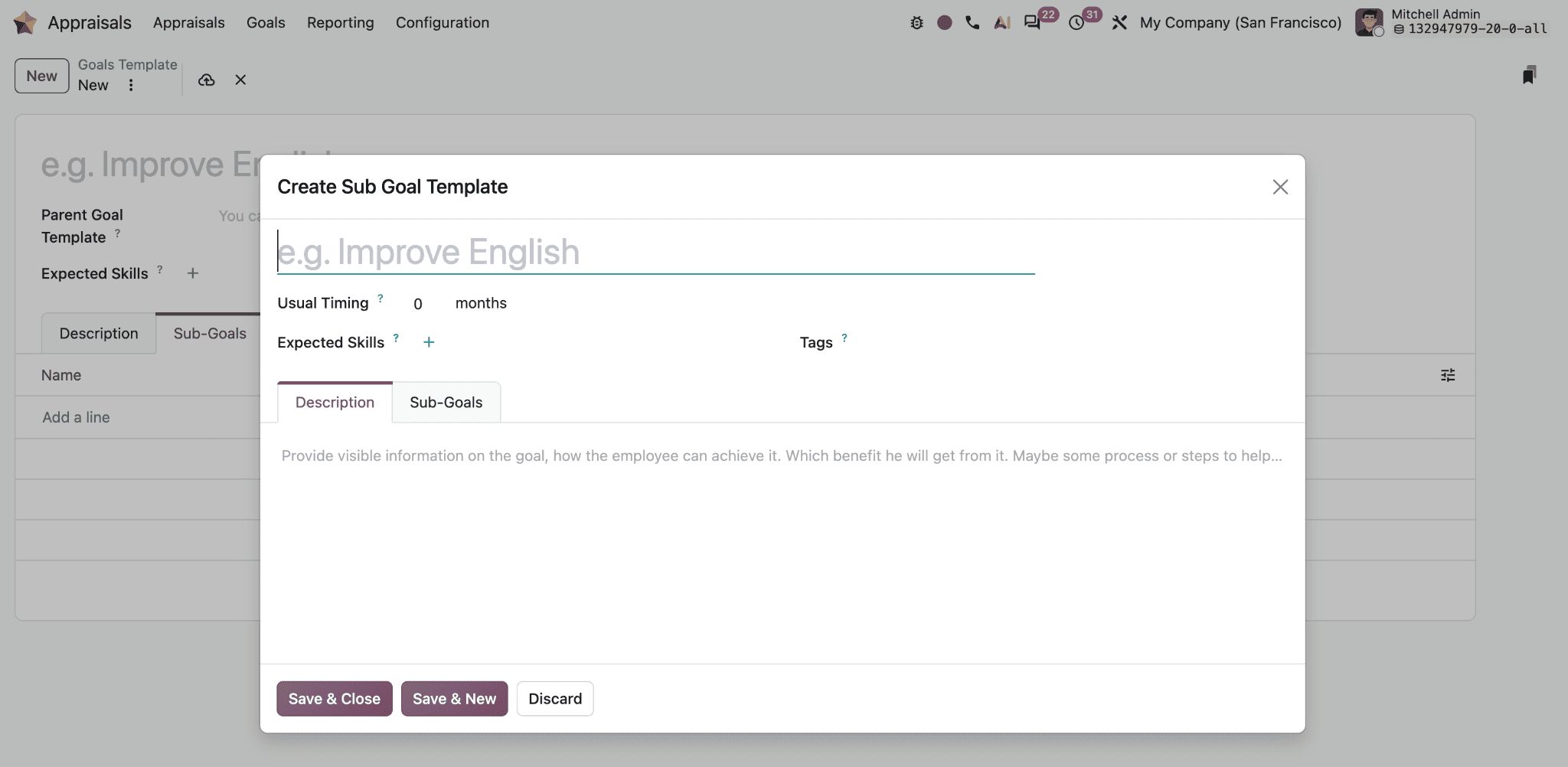
Click Add a line to open the Create Sub Goal Template window, which contains the same fields as the goal template except Parent Goal Template. Choose Save & Close when finished, or Save & New to add another sub-goal.
Tags can help organize goals and filter the goals report. To create them, go to Appraisals > Configuration > Tags and click New.
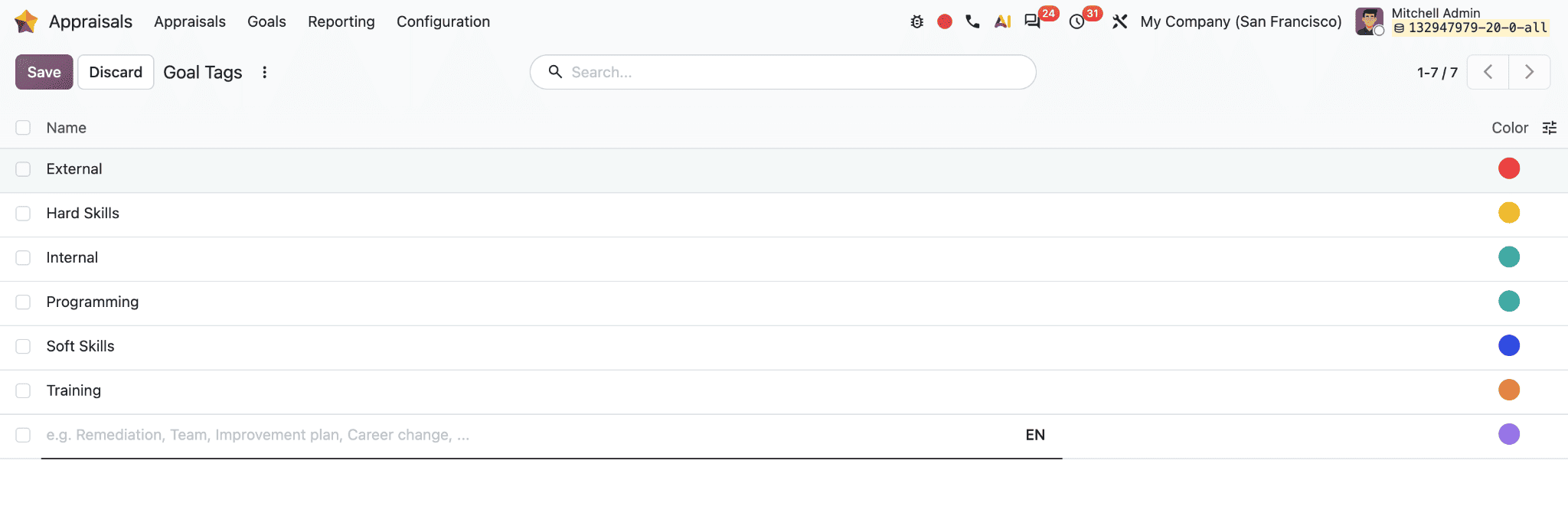
Clicking the new button will open an additional line below to the existing list where the user can mention the new tag name and select suitable color.
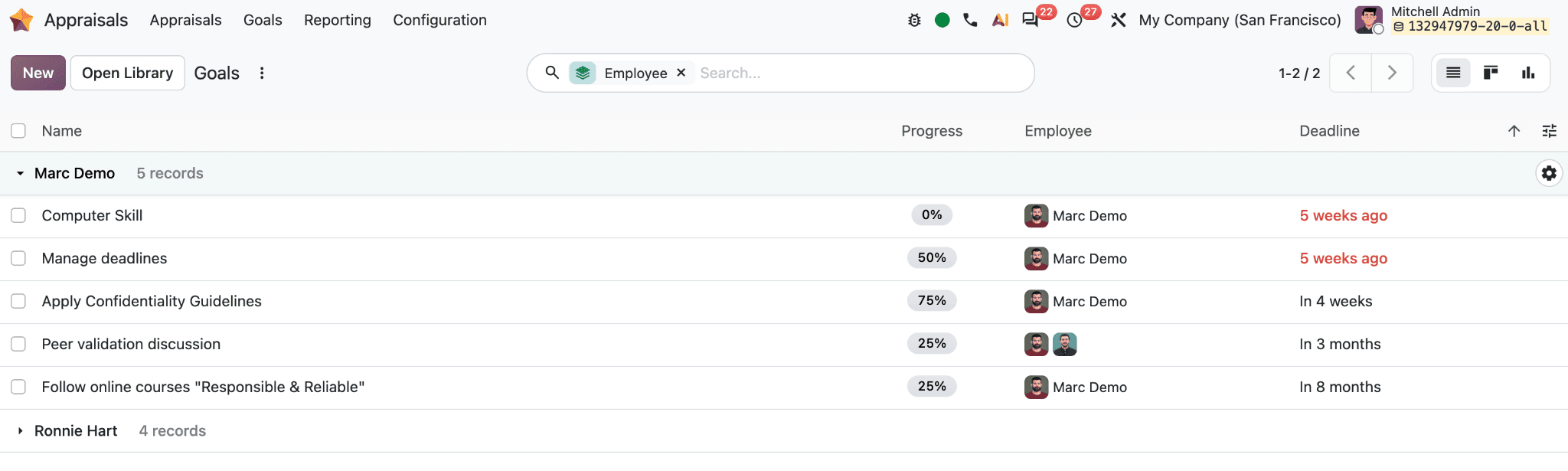
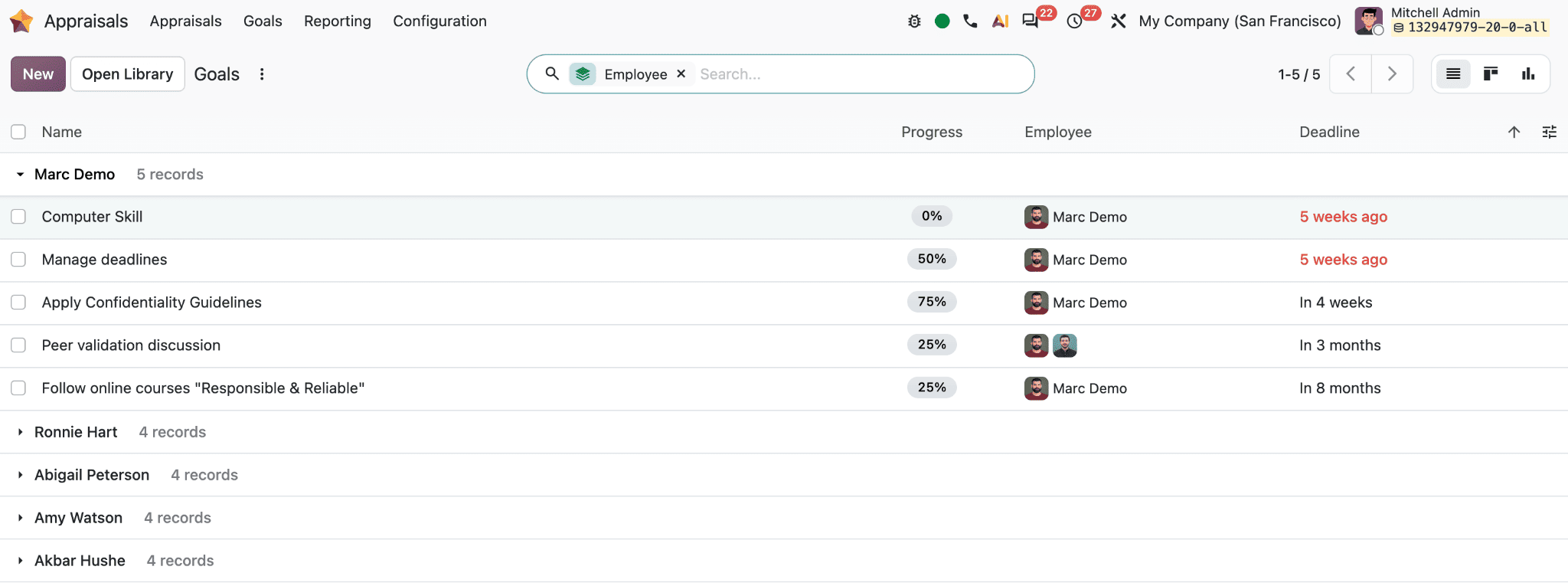
Selecting the Goals menu from the main menu bar will open a list of goals assigned to different employees in the company. Clicking on the employee name will expand the view and show the Name, Progress, Employee, and Deadline of each goal. Progress is shown in gray until a goal is complete; completed goals show 100% in green. A past deadline appears in red.
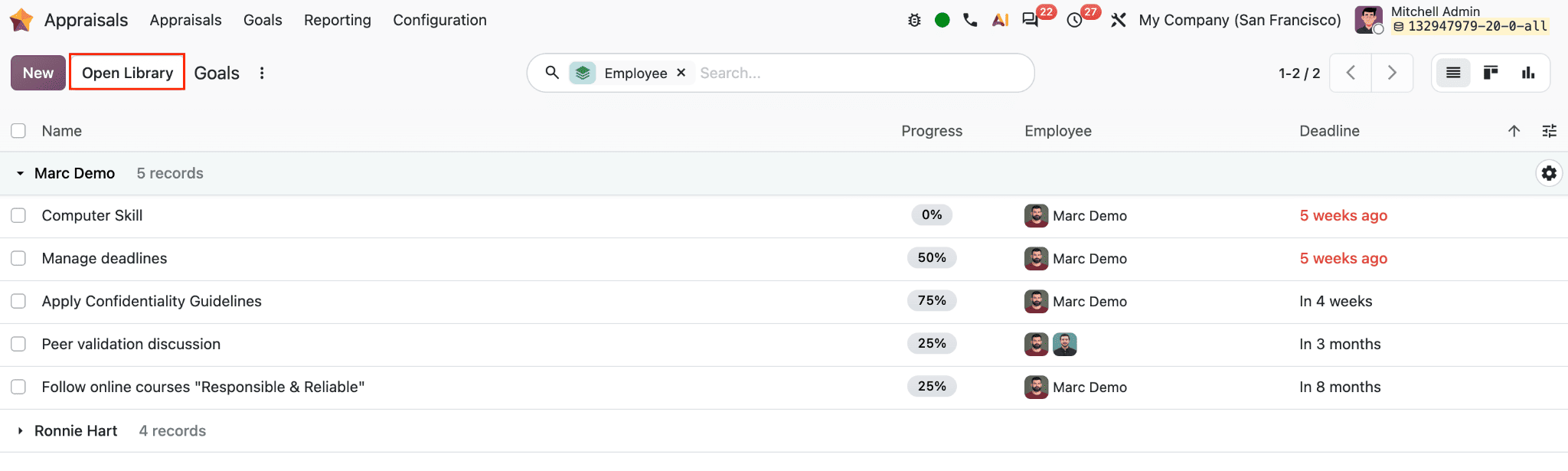
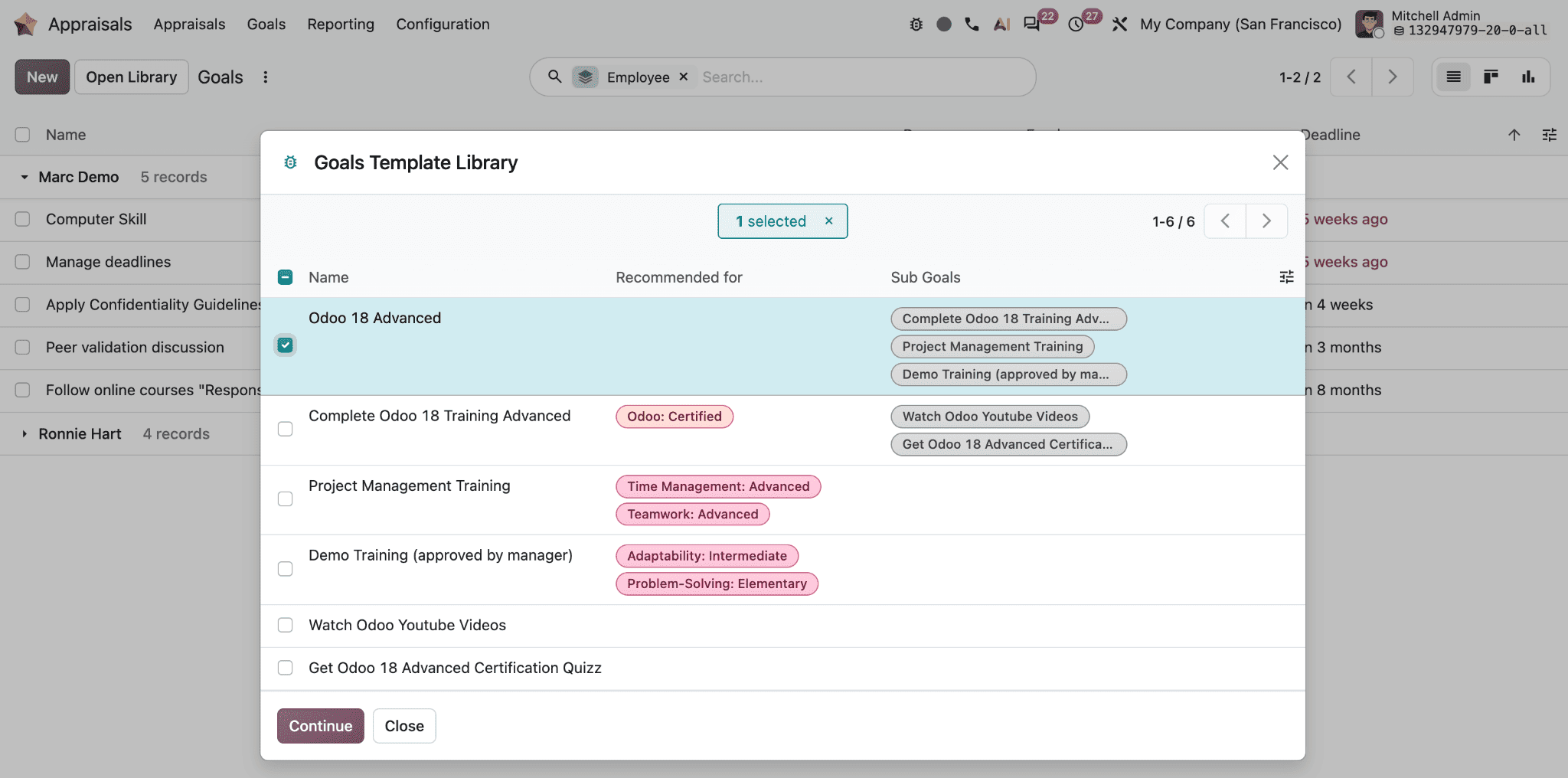
To assign goals from the library, click Open Library on the Goals dashboard, select the goals, and click Continue.
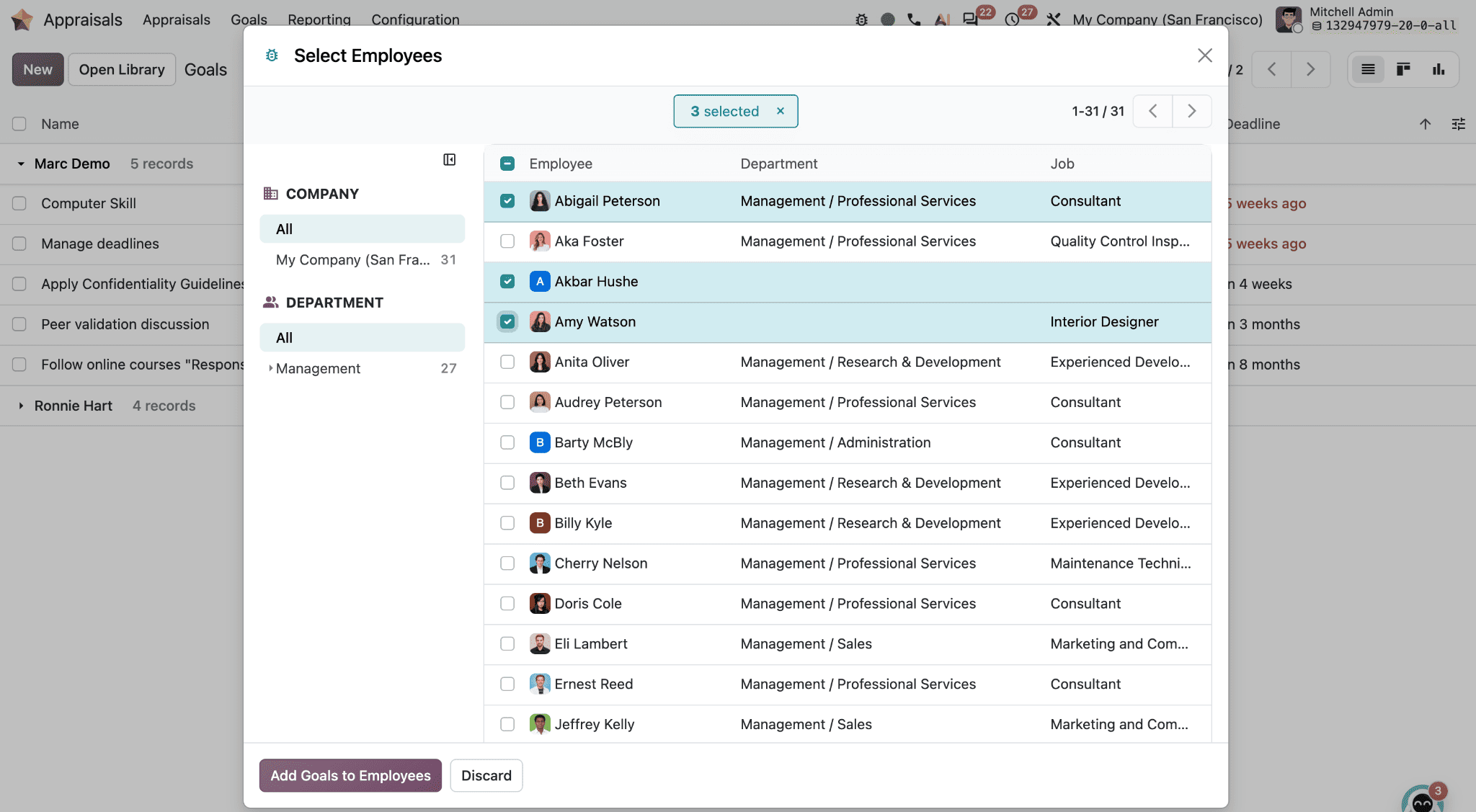
Select the employees who should receive them, then click Add Goals to Employees.
The goals will appear on the dashboard.
To create and assign a goal directly, click New on the dashboard.
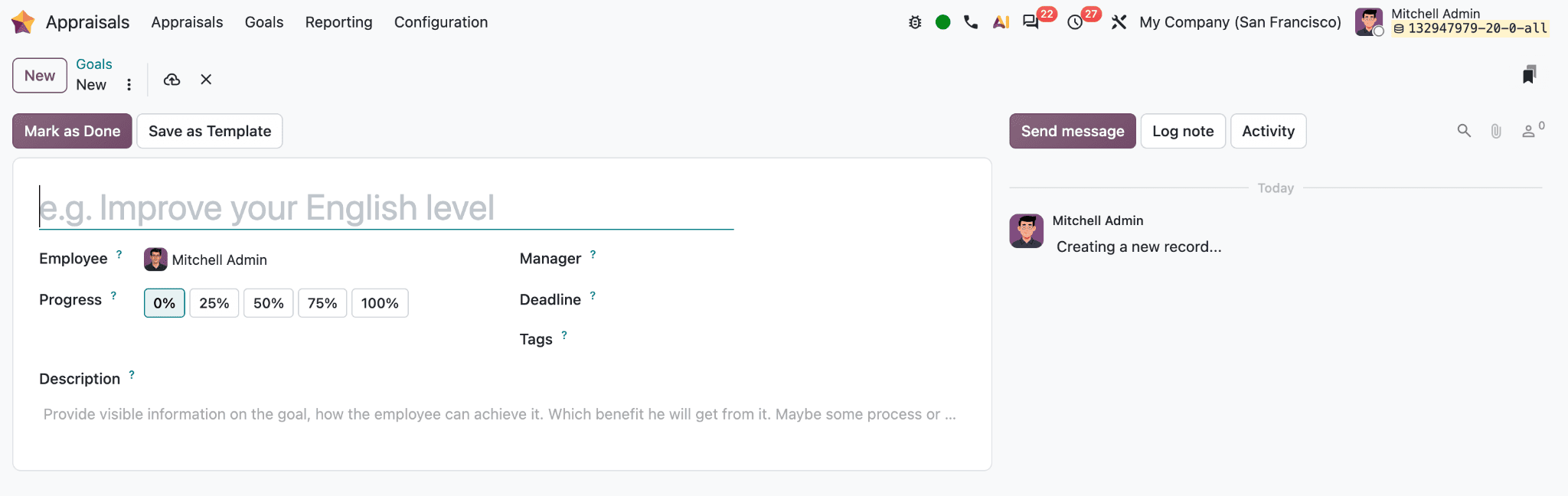
Enter the Goal, select the Employee, and set Progress to 0%, 25%, 50%, 75%, or 100%. The employee’s manager is filled in automatically, but can be changed in Manager. Add a Deadline, any relevant Tags, and a Description.
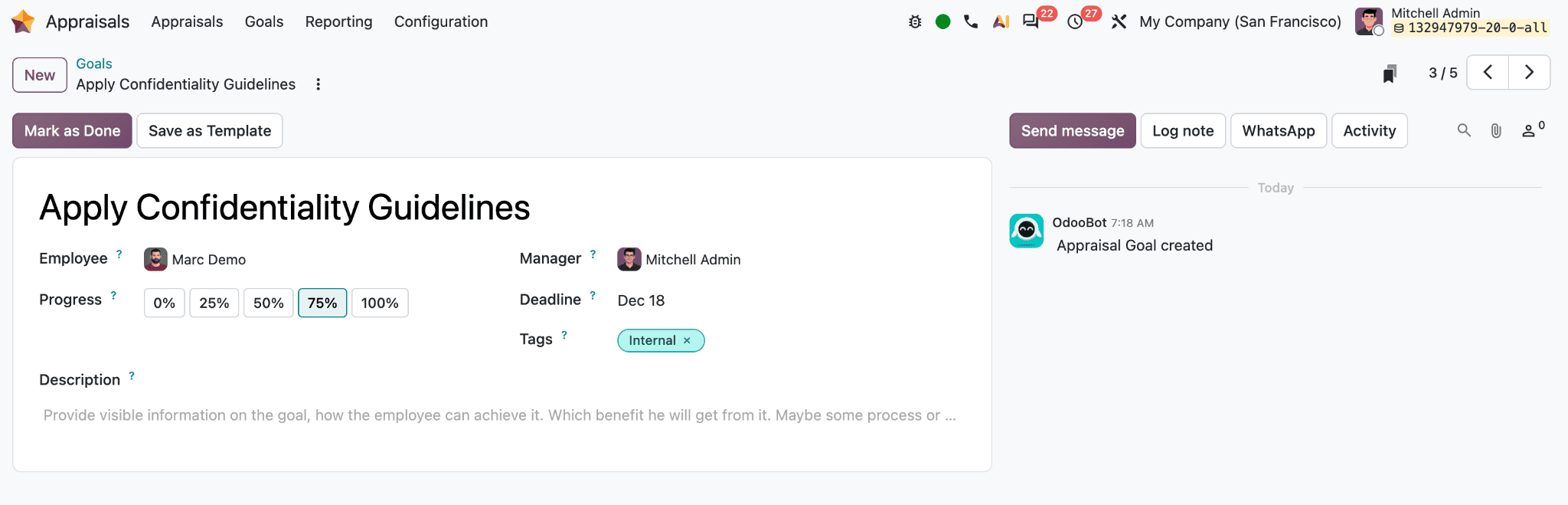
Managers typically update goal progress during an appraisal, but can also do so between reviews. Open the goal from Appraisals app > Goals, change Progress, and add dated notes and supporting information in the Description tab. When the employee completes a goal, open its record and click Mark as Done.
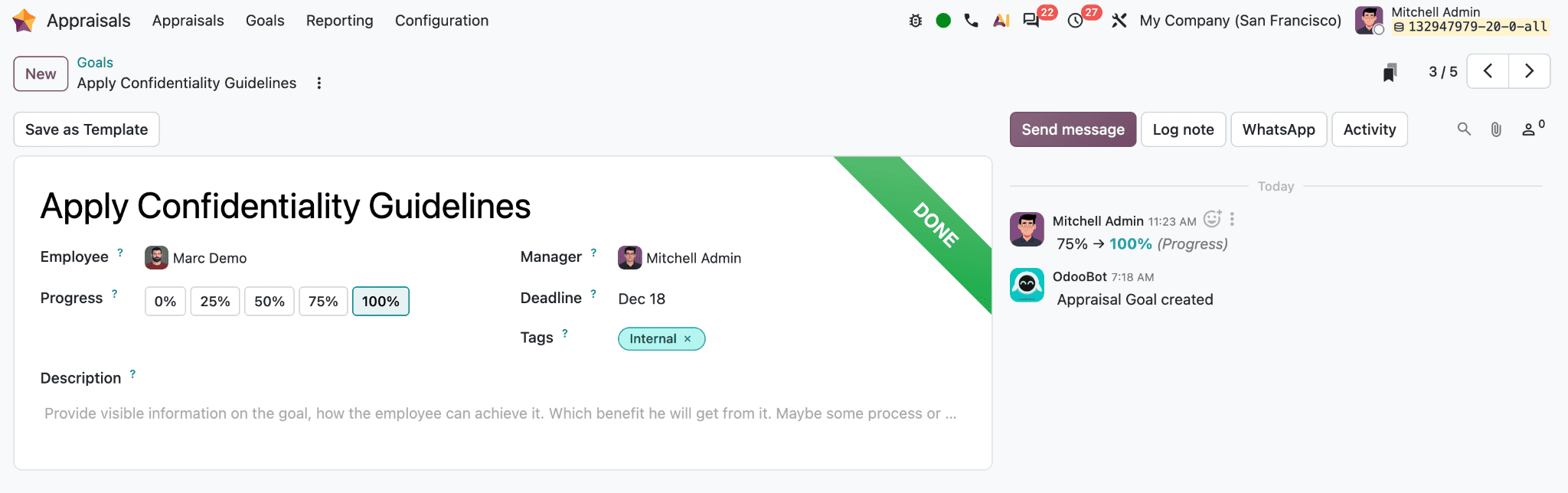
Odoo displays a green Done banner and sets progress to 100%.
Complete the Appraisal and Assign a Final Rating
After the meeting, the manager can enter any private notes and select the employee’s Final Rating.
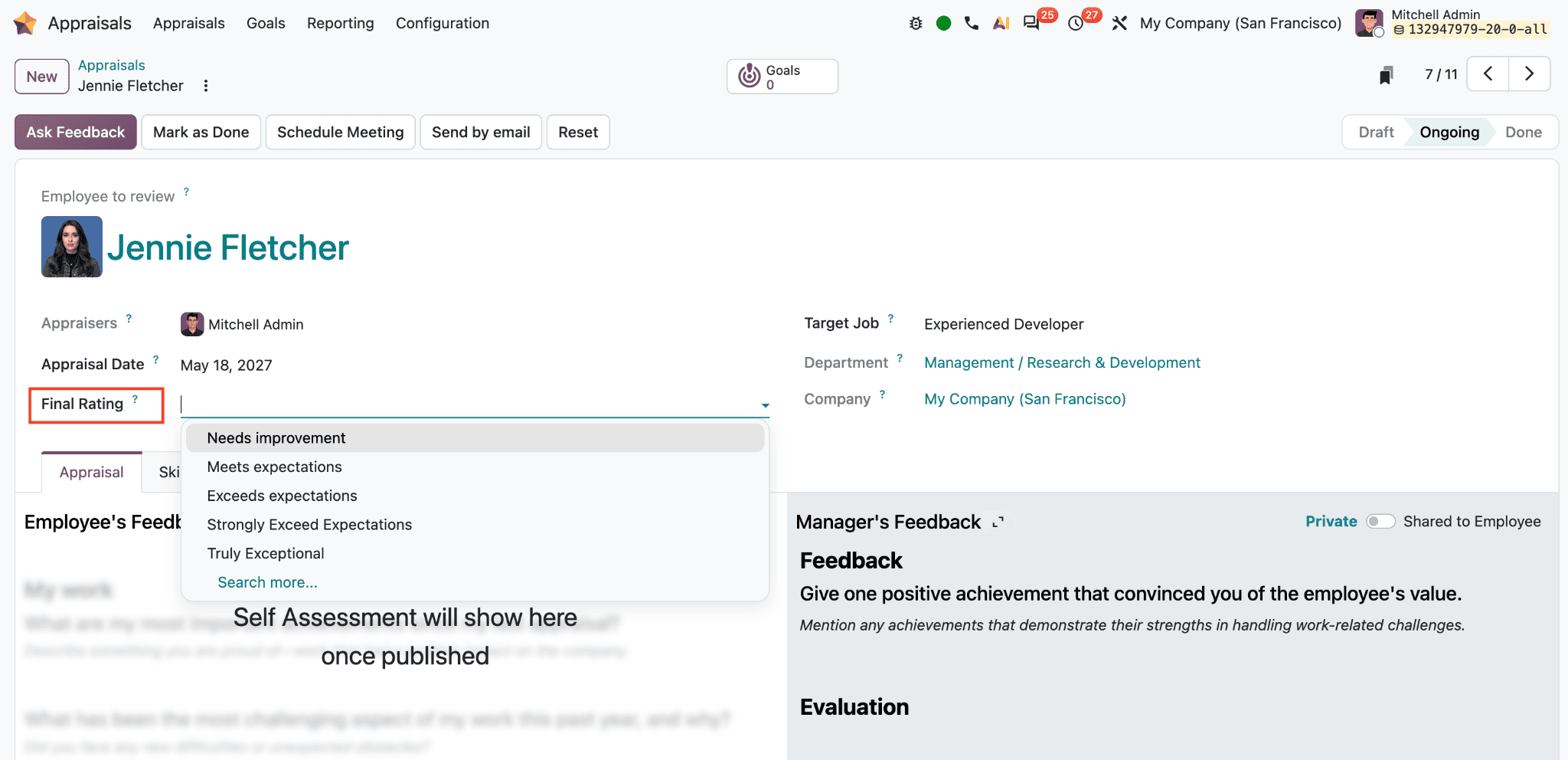
The default evaluation scale includes Needs improvement, Meets expectations, Exceeds expectations, and Strongly Exceeds Expectations. To change the available ratings, go to Appraisals > Configuration > Evaluation Scale.
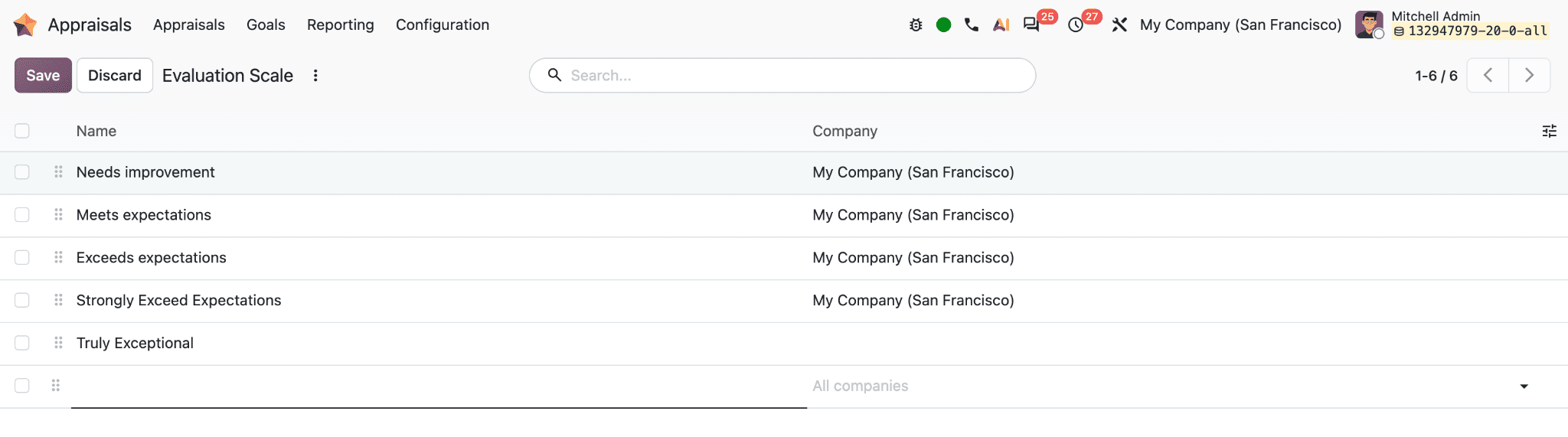
Click New, enter the rating on the blank line, then press Enter or click away. Repeat to add more ratings.
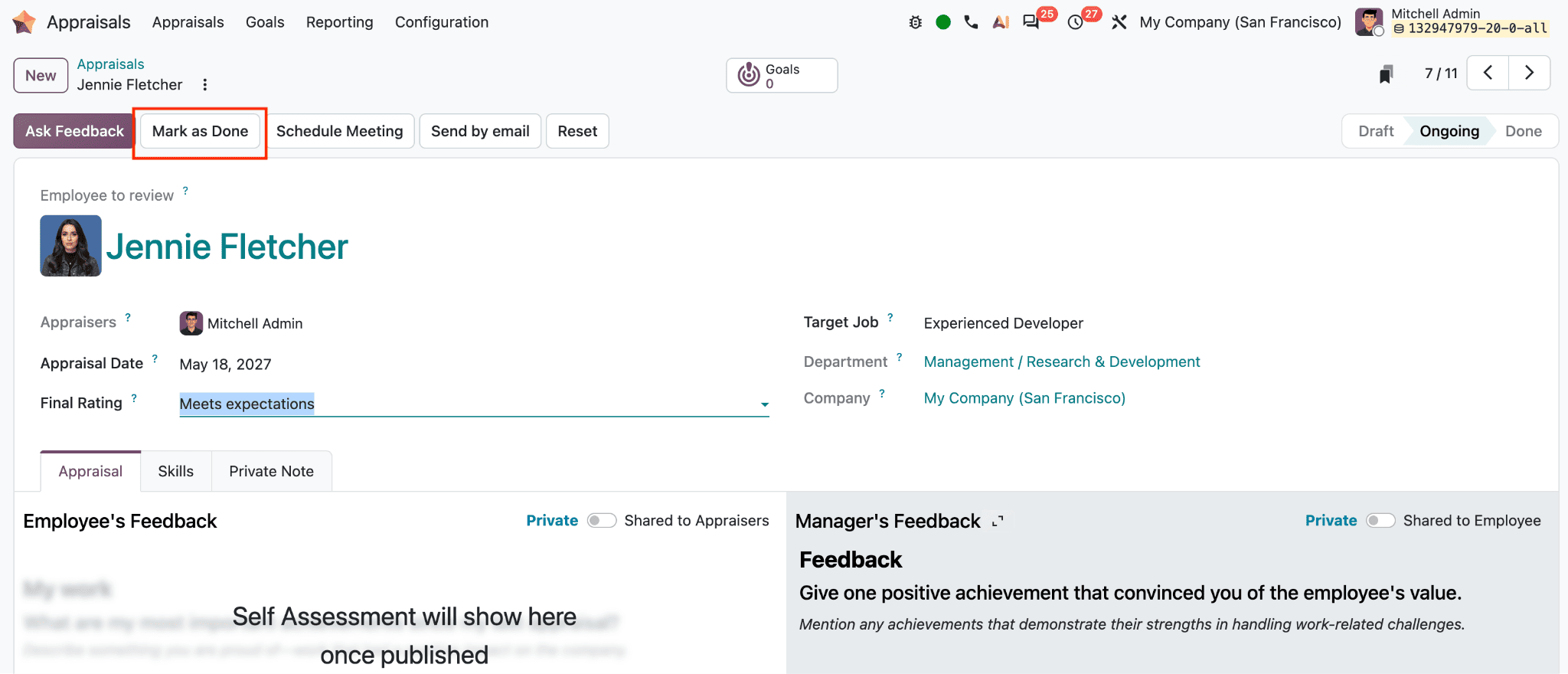
To finish the review, click Mark as Done on the appraisal form.
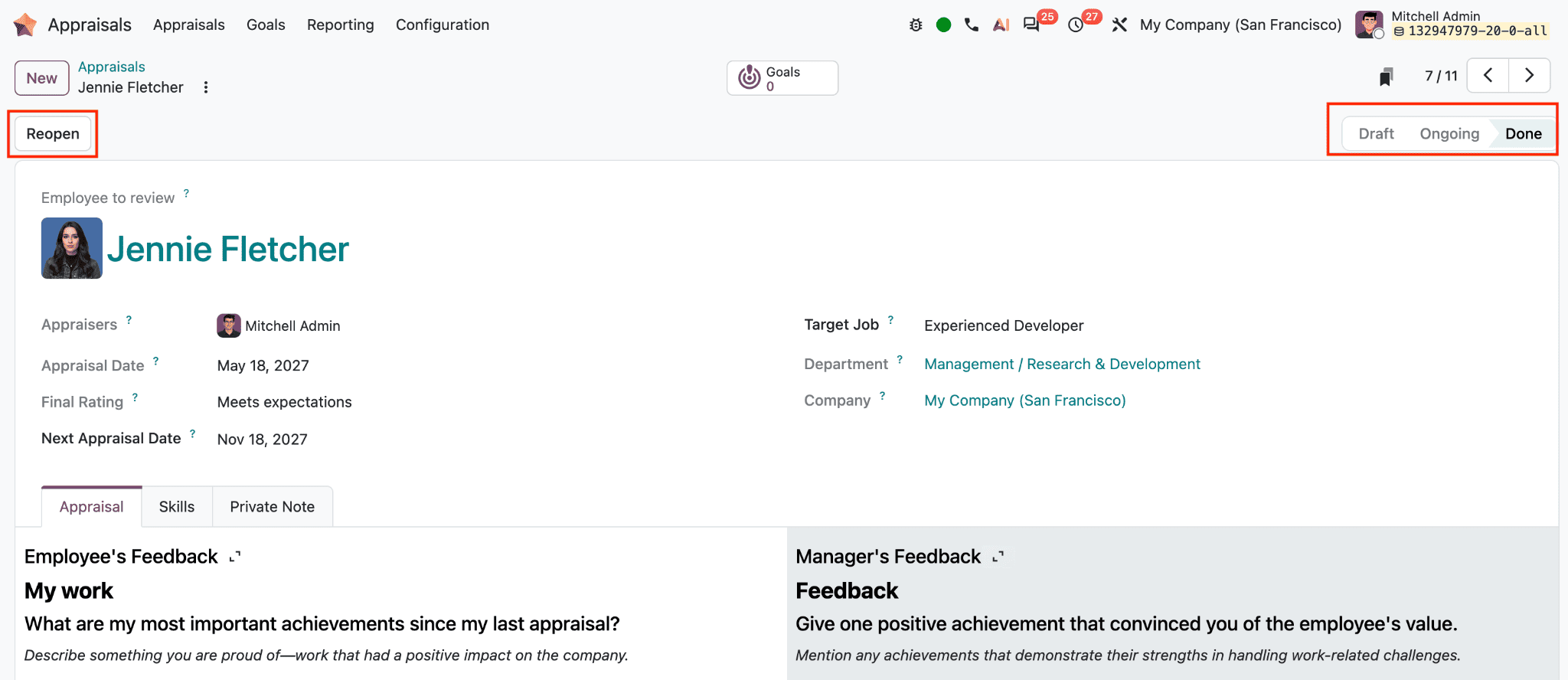
Its status changes from Ongoing to Done, and the button changes to Reopen. A completed appraisal is locked unless it is reopened.
Analyze Appraisal Results
The Appraisal Analysis report helps managers review appraisals across the company, including past, current, and future reviews and their final ratings. Open it at Appraisals > Reporting > Appraisal Analysis. By default, it displays appraisals from the past 365 days in a stacked bar chart grouped by Department and then Final Rating.
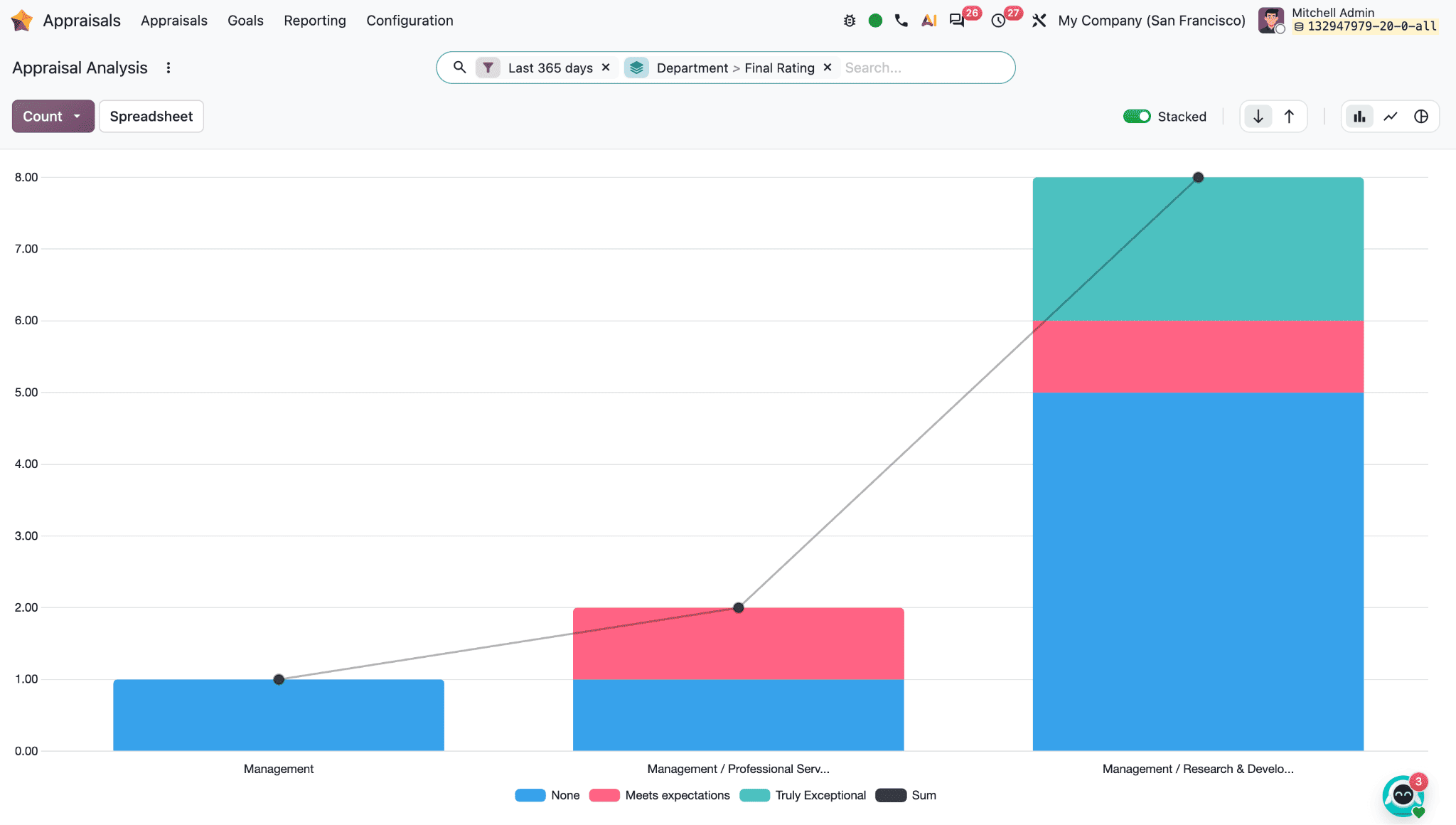
Ratings use the configured evaluation scale and are color-coded. The default colors are blue for Meets expectations, red for Needs improvement, green for Exceeds expectations, and orange for Strongly Exceeds Expectations.
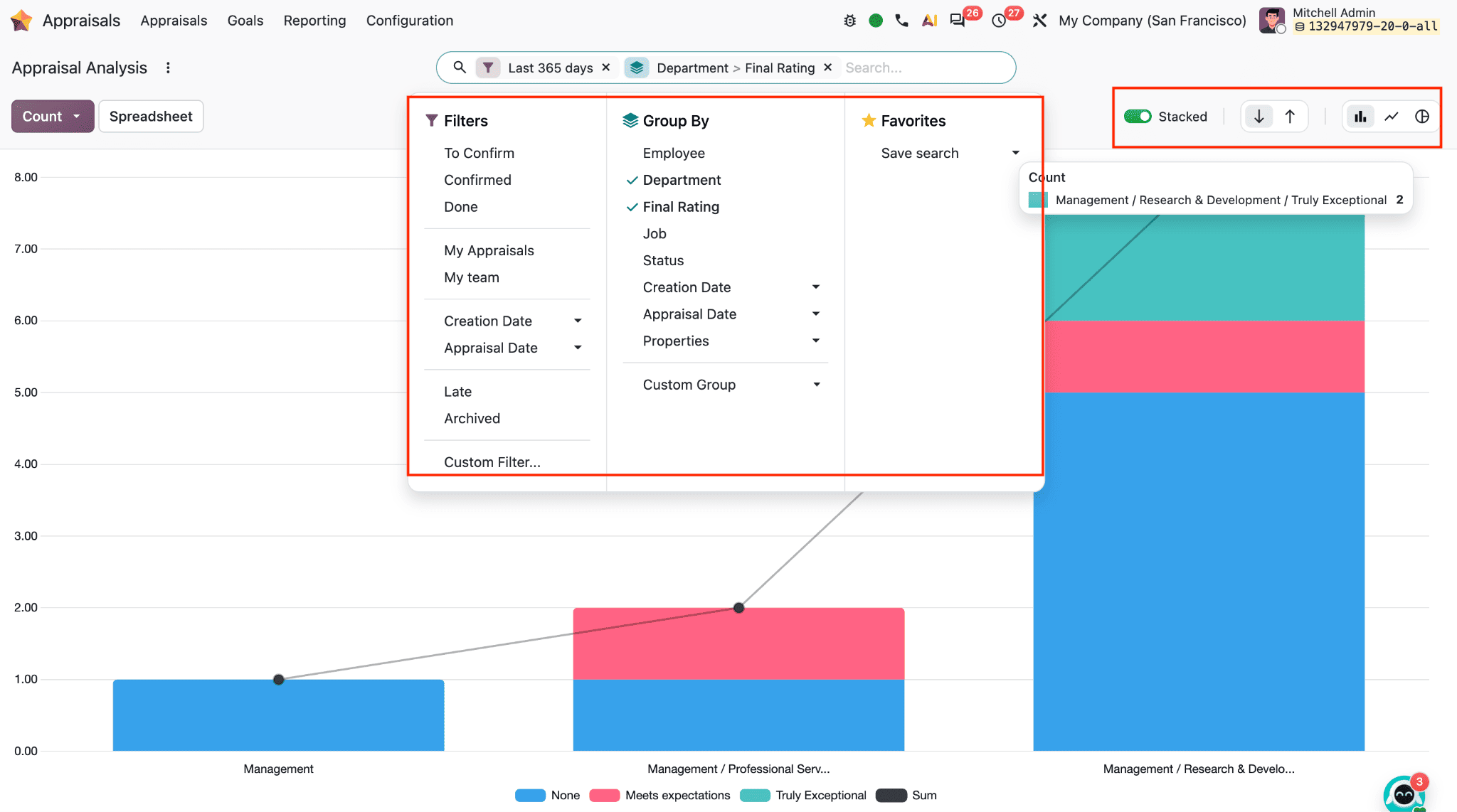
The Filters menu lets you narrow the records, for example to appraisals that are To Confirm, Confirmed, or Done, to My Appraisals or My team, or by creation and appraisal dates. You can also filter for late or archived appraisals, or create a custom filter. The Group By menu changes how records are organized in the chart, with options such as employee, department, final rating, job, status, and dates. Favorites lets you save a search setup for reuse.
The controls above the chart adjust its display. Stacked combines the rating counts into segments within each department’s bar. The arrow buttons change the chart’s sort direction, and the chart icons switch between bar, line, and pie views. The Spreadsheet button opens the data in spreadsheet form.
Odoo 20 Appraisals gives organizations a structured way to manage performance reviews, from setting up appraisal templates and collecting employee and manager feedback to tracking goals and reviewing results. Its analysis tools help teams examine appraisal outcomes by department, rating, status, and other criteria, making it easier to spot patterns and follow up where needed. By configuring the process to fit their review cycle and using the results as a starting point for constructive conversations, organizations can make appraisals more consistent and useful for employees and managers alike.
To read more about How to Collect 360-Degree Feedback in Odoo 20 Appraisals, refer to our blog How to Collect 360-Degree Feedback in Odoo 20 Appraisals.