The AI features in Odoo 19 allow users to get answers and generate text. These features have been improved in Odoo 20. Users can now create skilled AI agents, assign tasks to different AI agents, set up recurring automation, and integrate external AI applications (such as Claude and ChatGPT) through the MCP server.
In this blog post, we’ll be taking a look at the major improvements made to AI in Odoo 20, including Skills, Sub-agents, MCP Server integration, recurring agents, AI chat, voice-to-text, Debrief, and the AI assistant in Website Builder.
It is important to know that AI features in Odoo are only available in the Enterprise version, and using AI features in Odoo uses up IAP credits.
Skills Replace Topics (ai.skill)
Within Odoo 20, Topics have been replaced with Skills. Skills contain instructions (what the agent should do) and tools (to complete these tasks). By assigning the appropriate skills to an AI Agent, it can complete business tasks such as providing customer service, assisting with sales, and managing stock.
If no Skills are assigned to an AI Agent, then it will only be able to provide information. It will not be able to carry out any actions or modify records in the database.
There are two types of Skills within Odoo 20.
- Native Skills: These Skills can be assigned to agents given by Odoo or by installed applications. By assigning a pre-defined Skill to the AI agent, you can rapidly add functionality to the AI.
- Custom Skills: Custom Skills can be created by administrators. Examples of these could include support processes for customers, approval criteria for vendors, or classification processes for support requests.
To add skills, go to AI > Agents. Select an agent and go to Skills.
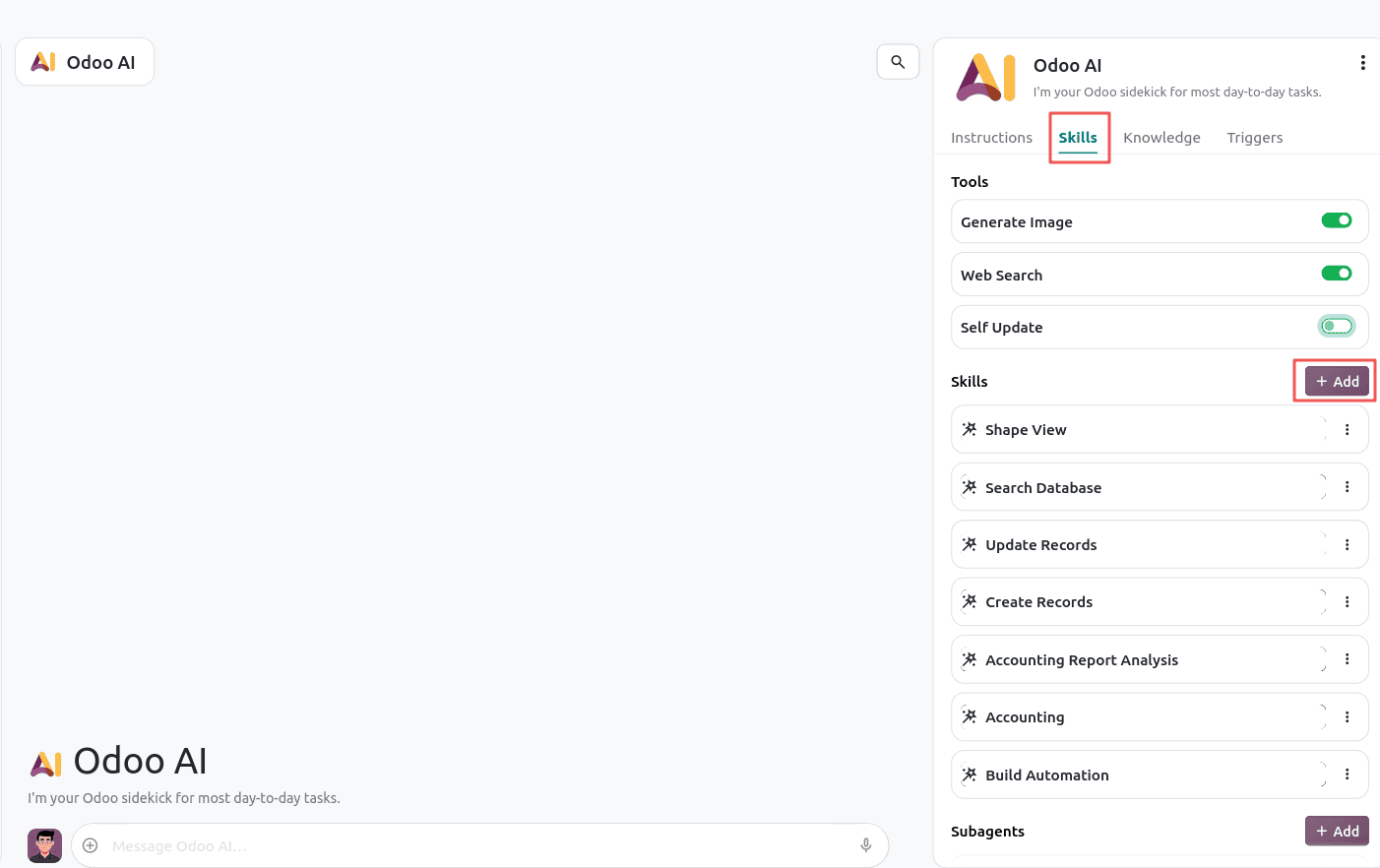
A useful feature in Odoo 20 is the ability to self-update. It means that an AI agent can detect what instructions or Skills it is missing and recommend changes. For example, if the user is giving the instruction ‘please reply to customers in French from here onwards’, the AI agent will realise that it needs to change its instruction. Therefore, a suggestion for configuration changes will be made.
It is important to be careful while creating automated agents. Changing the instructions or Skills may change how future tasks are completed by the agent. Therefore, you should be cautious of what recommendations are made to change the configuration and should check them carefully.
Sub-Agents: Passing Work to Other Agents
Sometimes it is useful to delegate tasks to other AI agents to complete a task. Within Odoo 20, you can delegate tasks to sub-agents. If part of a request needs to be processed by a specific sub-agent, delegate that part of the request to that sub-agent. Once processed, return the results from the sub-agent and use this within your main agent to create a response.
Configuring Sub-agents:
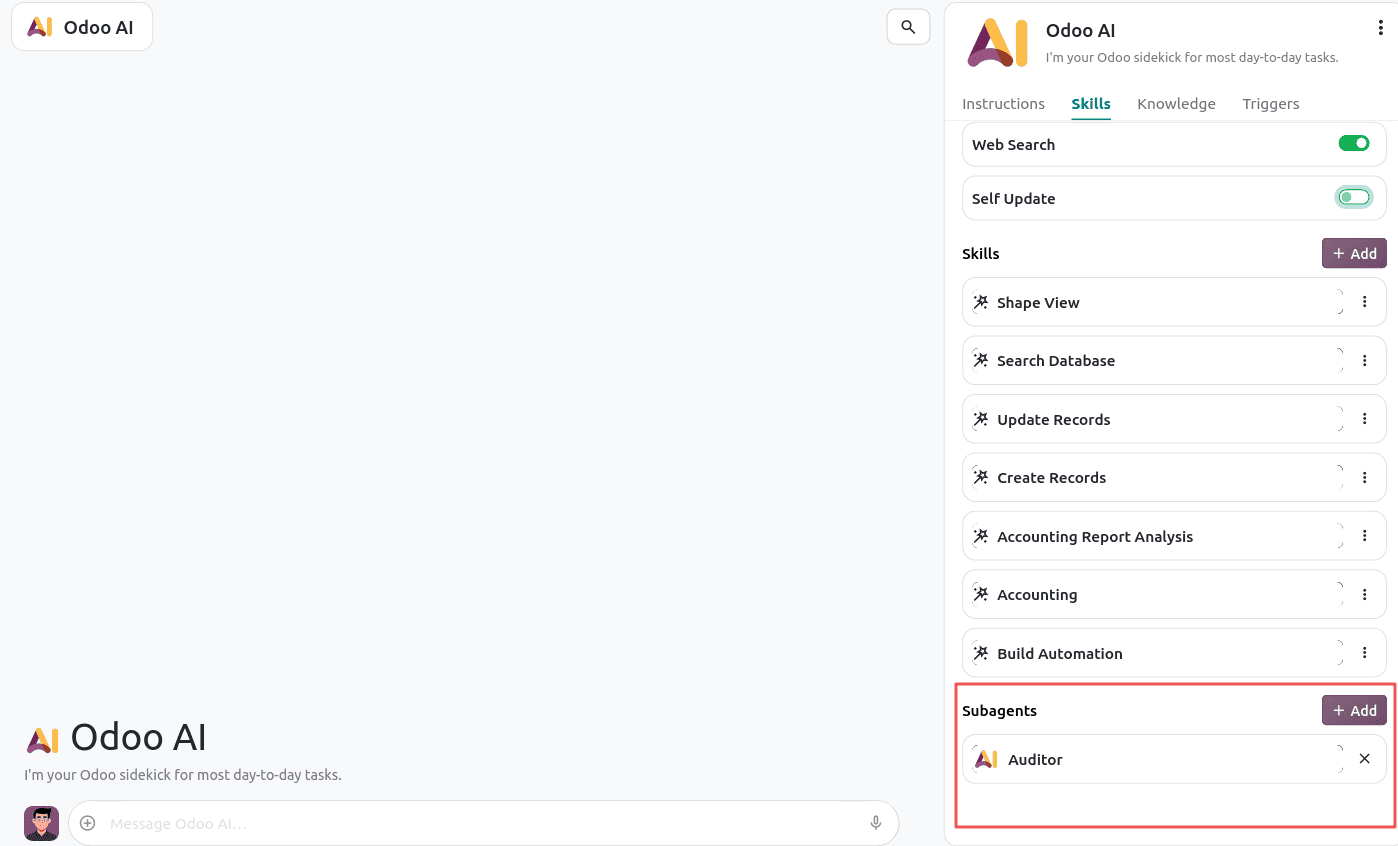
- Go into your main agent and click on the ‘skills’ tab.
- Scroll down and under the ‘subagents’ section, click Add.
- Select an existing agent or click Create New.
In Odoo, sub-agents are restricted to certain agents using the allowed_agent_ids field. In order to delegate a request to a sub-agent, the ai_tool_start_session tool is used.
It is important to provide a clear description within each sub-agent, so that the right sub-agent can be found by your main agent. Giving sub-agents a specific role to perform makes them easier to configure and test.
The MCP Server: Use Odoo with Claude, ChatGPT and Other Tools
It is possible to integrate external AI tools (such as Claude and ChatGPT) with Odoo using the ai_mcp module. Once installed, the MCP URL is [your_odoo_database_url]/mcp.
There are two ways to connect:
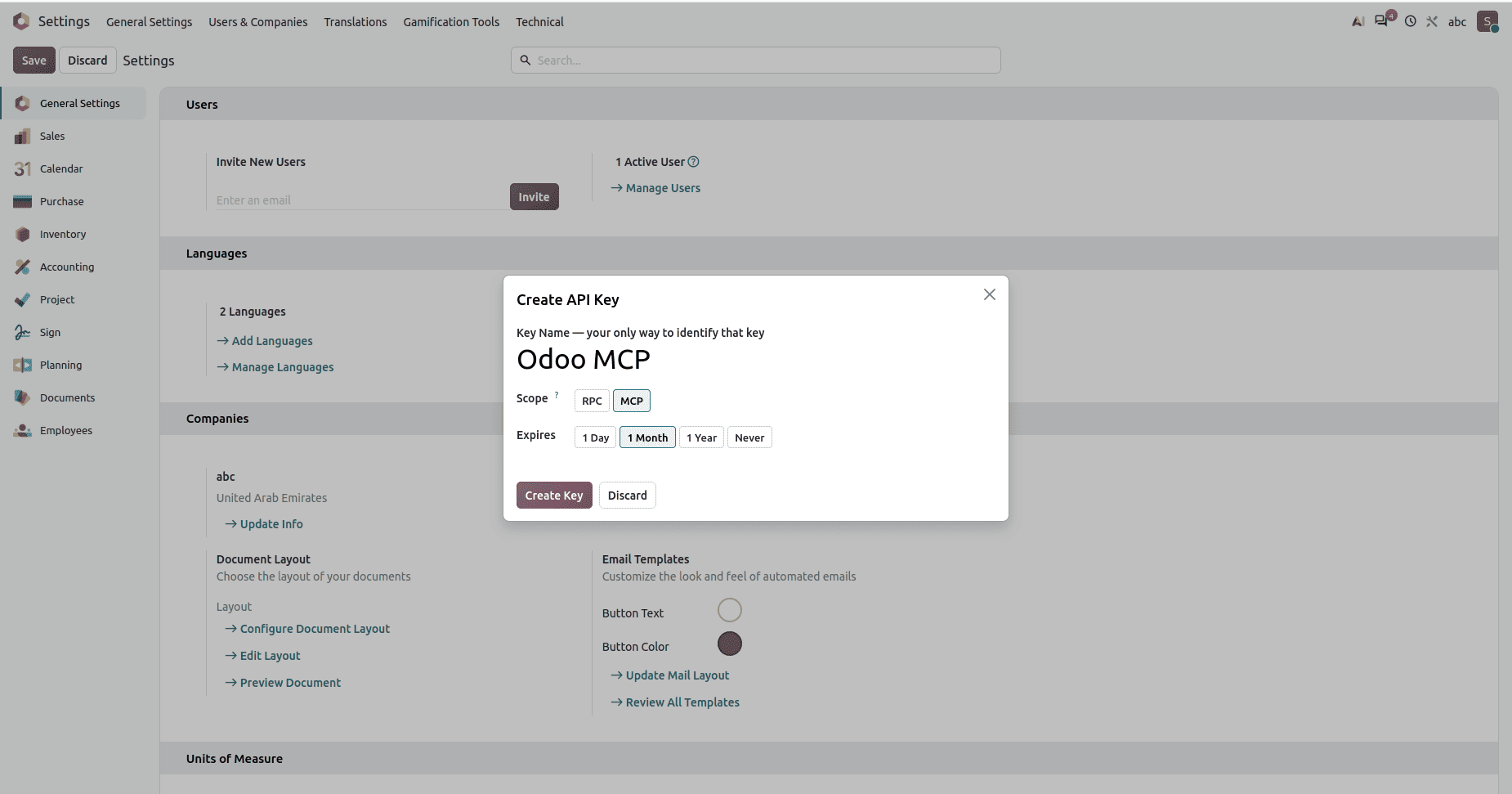
- Using an API Key: Go to My Preferences > Security and click Create API Key. Enter the details. As MCP is required, choose this from the Scope drop-down. Choose an expiry date. Click Generate. Copy the API key (you will only be able to see it once). Add both the API key and MCP endpoint into the AI client.
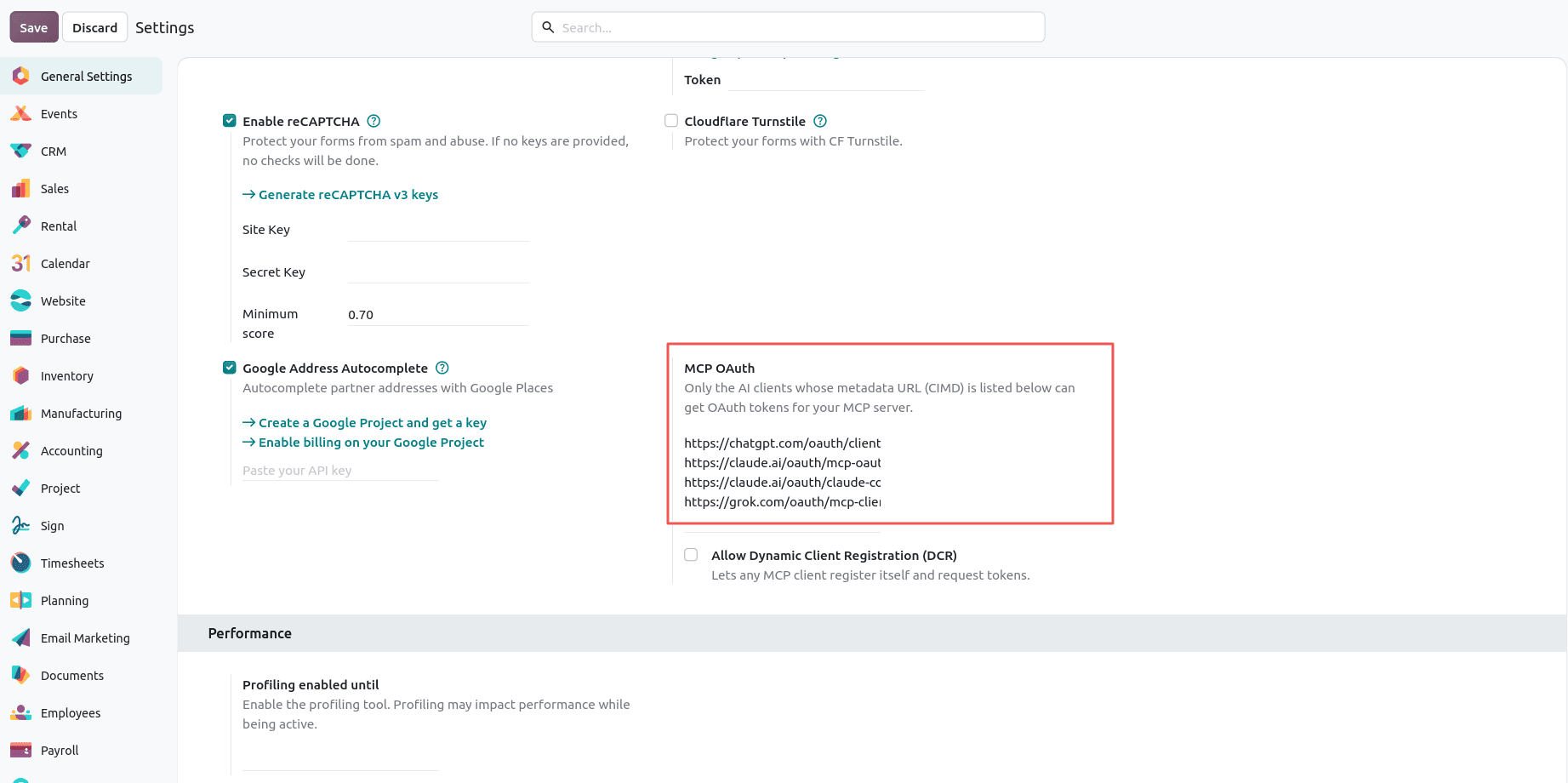
- OAuth: As an administrator, you can select which clients are allowed to be used from the Settings menu > Integrations > MCP OAuth. As a user, you can log in to allow this connection.
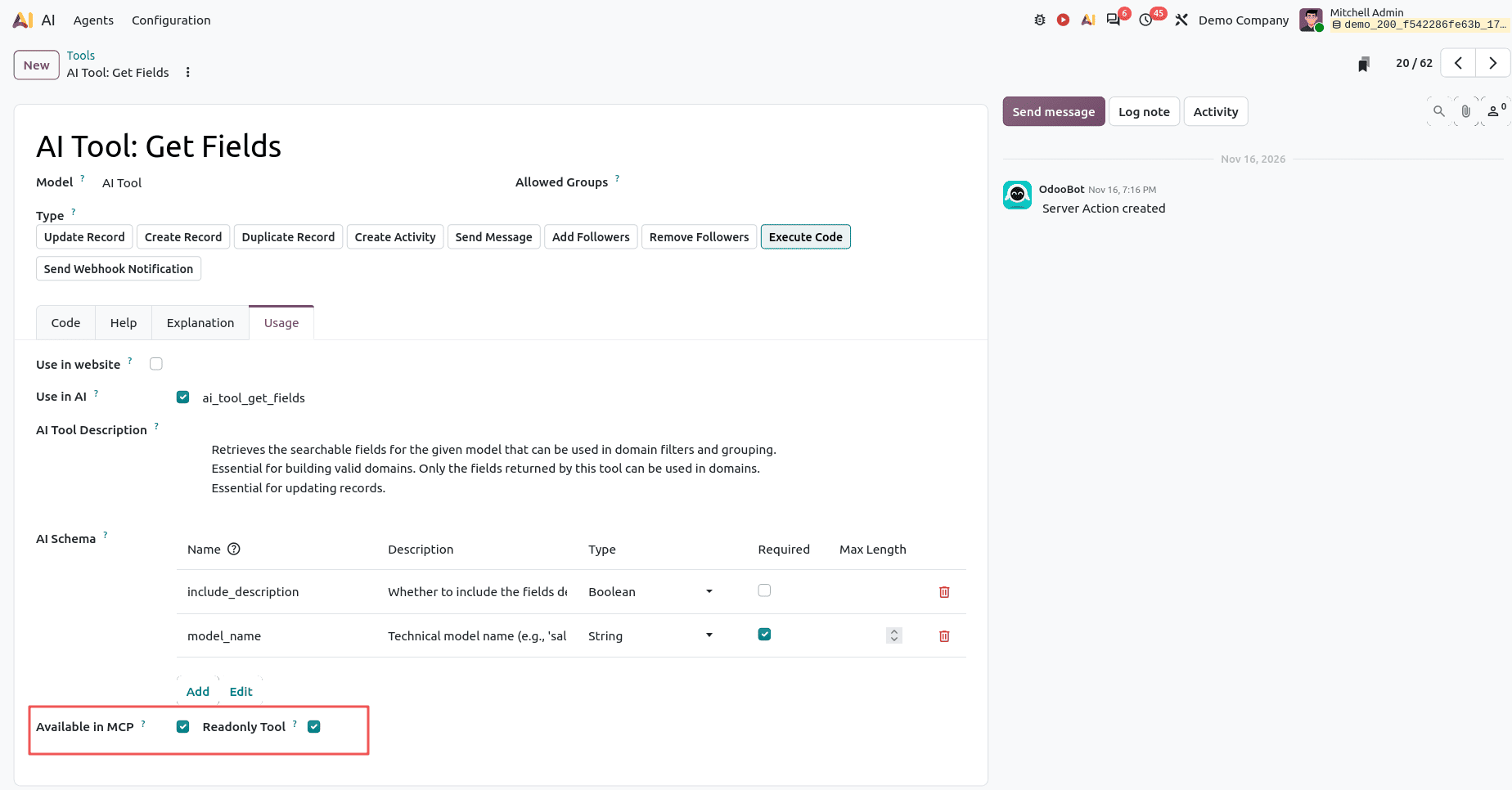
Any AI tools added will have access to limited information and be able to perform limited actions based on the users’ permissions and the restrictions within the company. Server Actions are used to add AI tools to Odoo. To configure these tools:
Available in MCP: This means the action can be accessed by external AI tools.
Readonly Tool: If enabled, this means that the action cannot make any changes.
Searching for a customer would be considered a read-only action, whereas creating a customer wouldn’t. It should be noted that enabling the Readonly Tool simply means that the AI client will know that the action is read-only. It does not mean that it cannot make changes.
For security, try to create only the necessary tools. Try to keep the time to live of API keys short. If you would like to stop access to these tools, delete the API key or archive the OAuth client.
Scheduled and Event-Driven Agents (ai.automation.trigger)
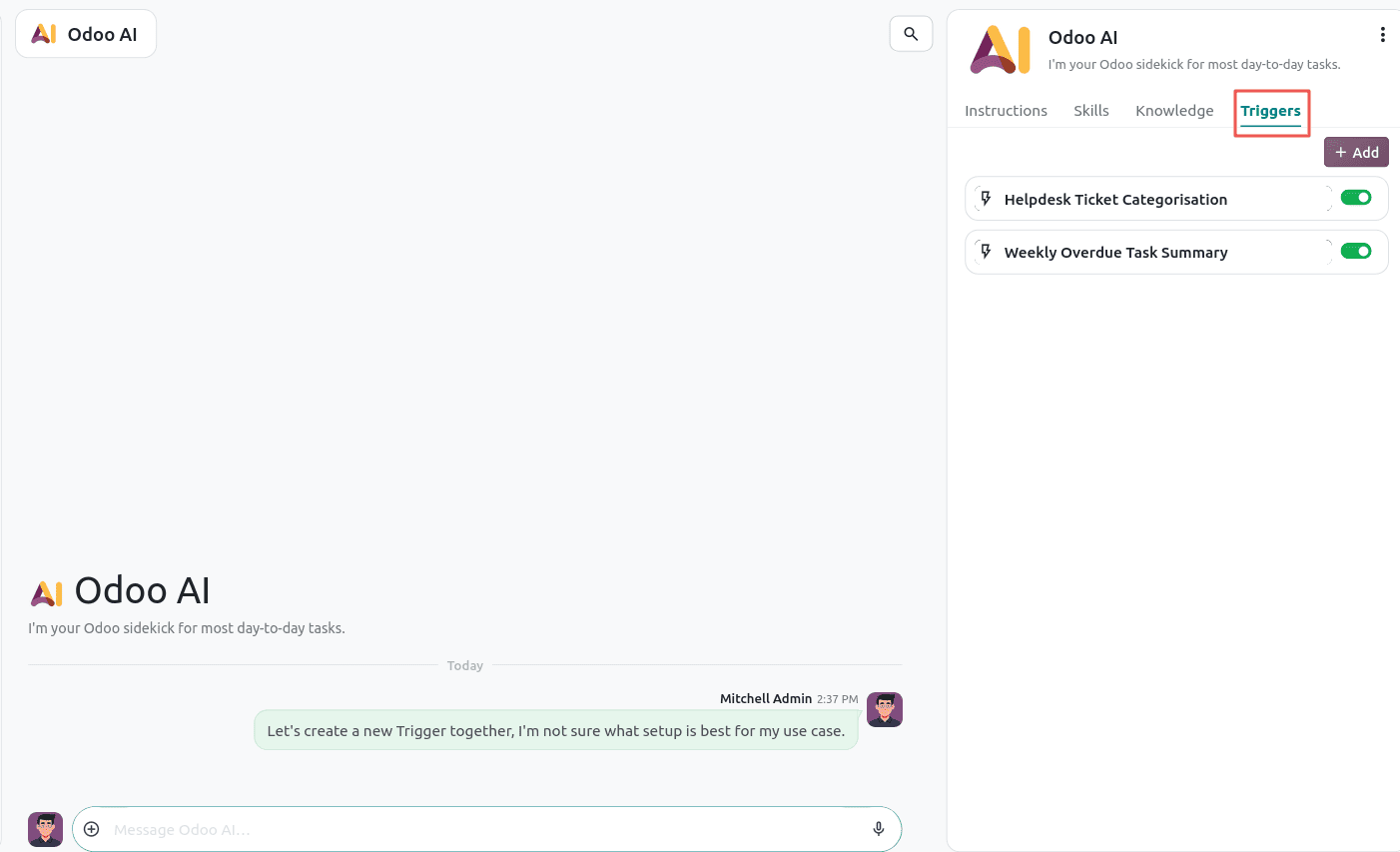
Automated agent executions can be created in Odoo 20. Go to Create an Agent and go to the Triggers tab. Click on Add. A pop-up will appear so that you can define when the agent is triggered.
Triggers are defined in the ai.automation.trigger model. They can be triggered based on:
- On an event: For example, automatically categorising tickets in Helpdesk and suggesting an answer.
- On a schedule: For example, compiling a summary of late tasks once per week on Fridays.
Options in the AI Chat
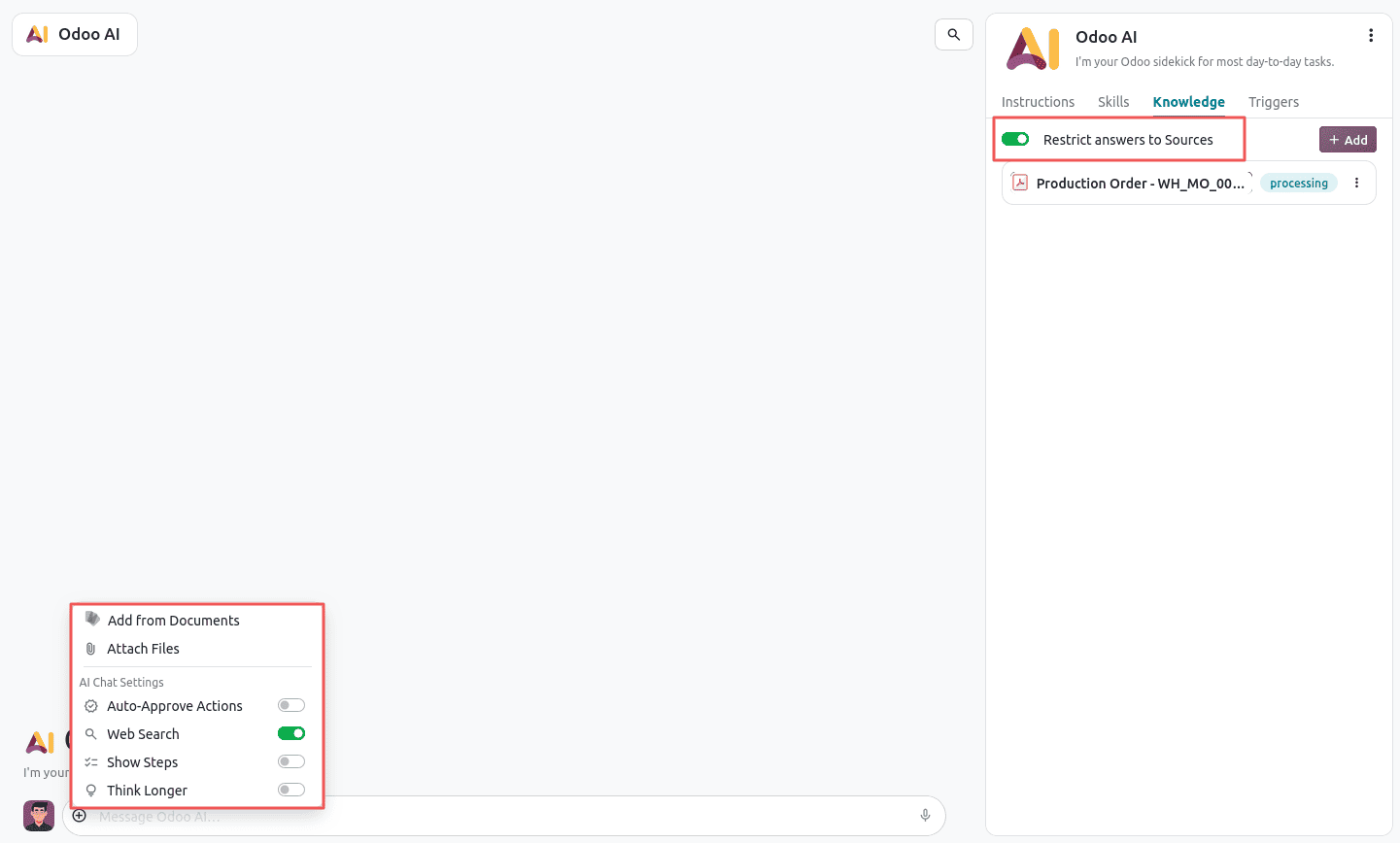
Within the AI Chat, you can click + to show some additional options. You can toggle these on/off at any time during the conversation.
- Web Search: Allows the agent to search information on the web.
- Think Longer: Gives the agent extra time to think through complicated queries.
- Restrict Answers to Sources: Limits the information the agent can use to only what is within the resources given.
- Show Agent Steps: Shows information on what the agent is doing.
- Automatically Approve Actions: Allows the agent to automatically Approve Actions. Be careful to use this, as it may cause changes to your data.
You can restrict answers to Sources in this way. This isn’t in the + menu. It is found in the Knowledge section of the agent settings (side panel). Toggle the switch ‘on’ to limit an agent’s response to information provided by sources (e.g., a PDF) added using ‘Add’. If it is toggled ‘off’, the agent will be able to draw on its existing knowledge. If you want to restrict the agent to only respond based on information in company documentation, be sure to have this switch turned ‘on’.
Call Transcripts and Call Debrief
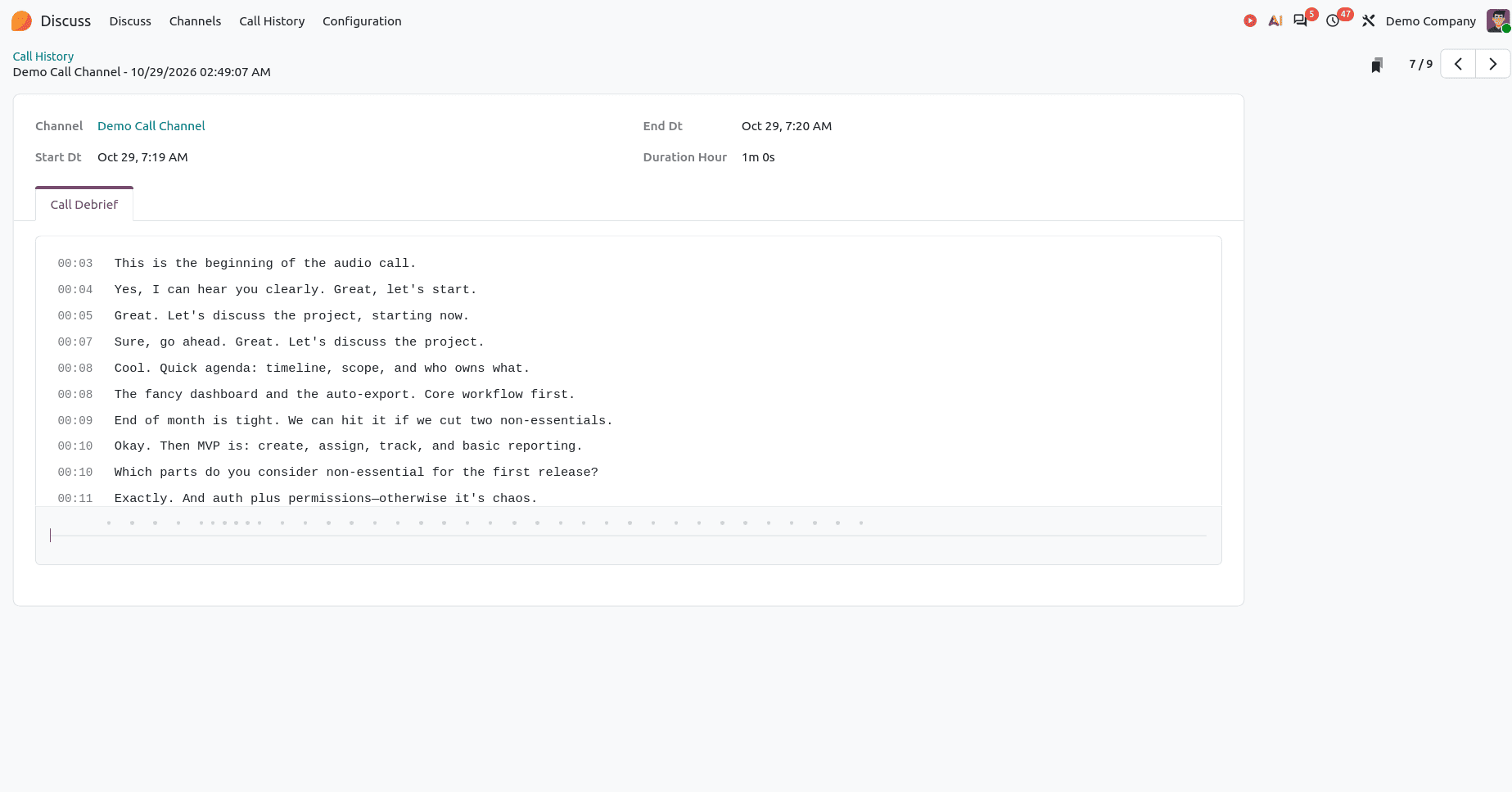
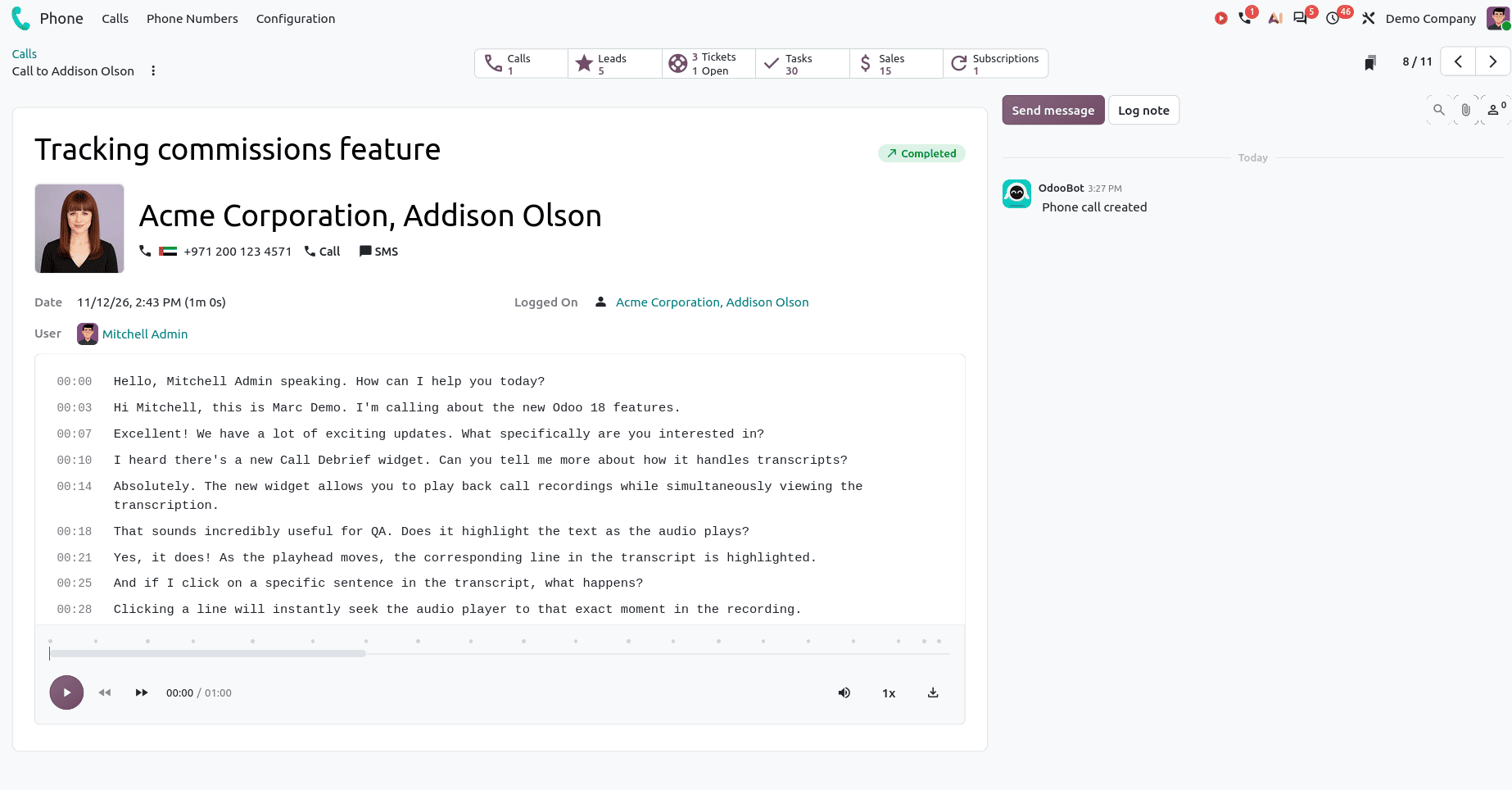
If you make a call within Discuss, it will be automatically recorded. Within Discuss > Call History, select the required call, and navigate to the Call Debrief tab. Here, you will be able to play back your recording. If the AI app has been installed, you will also be able to see a time-stamped transcript.
Within the Phone (VoIP) app, the AI module creates a transcription of the call recordings. The recording can then be auto-converted into a text summary. A summary of the call and an audio player for the selected recording will appear. In addition, a summary of the call will be shown using AI.
AI Assistant in the Website Builder
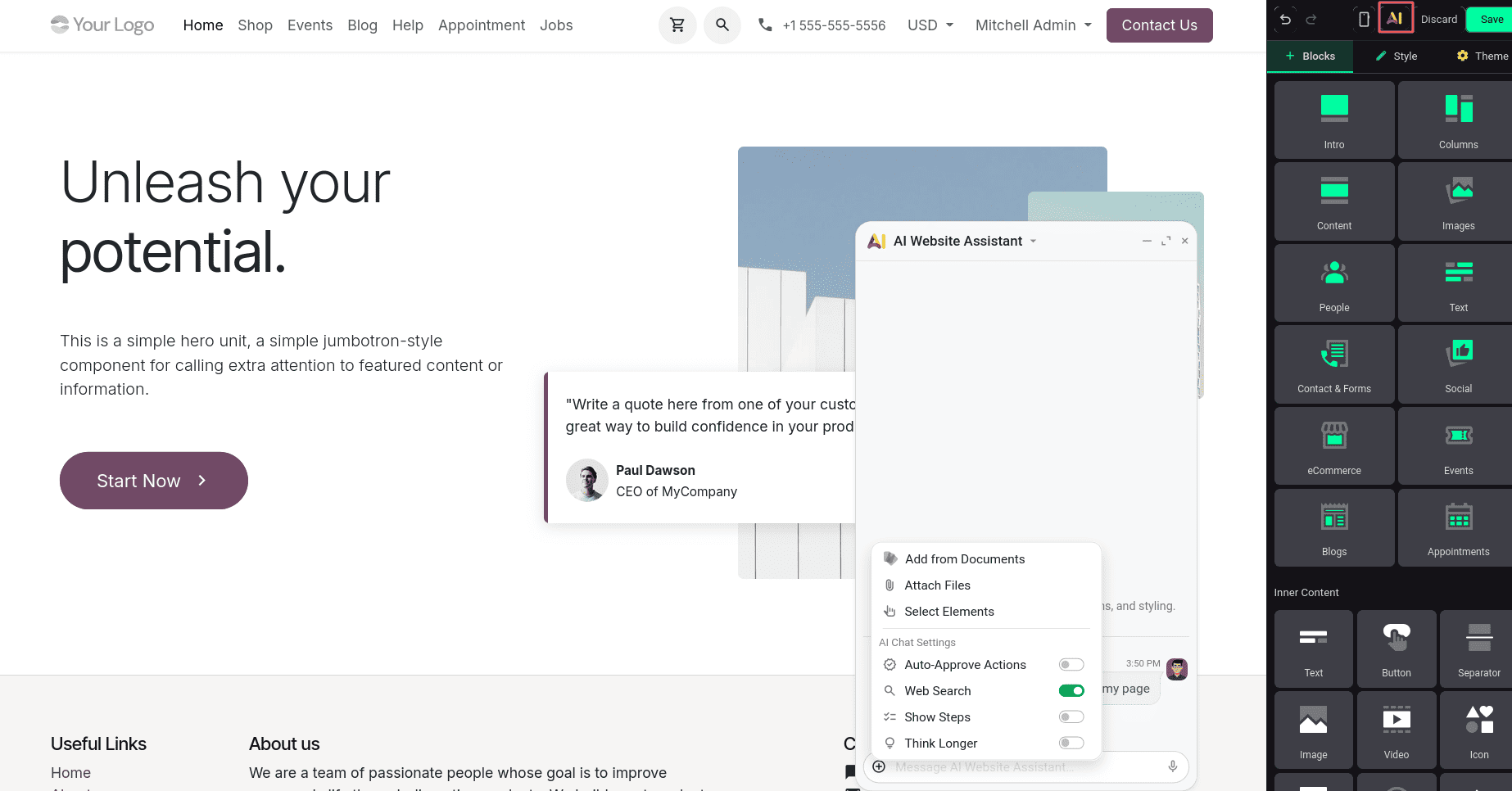
The Odoo 20 Website Builder includes an AI assistant in the ai_website module. You can find the panel in the editing mode of your pages. It helps to enhance content, SEO information and changes to some elements.
The assistant gives several options to help you (Web Search, Think Deeply, Show Steps, and Auto-Approve Actions). In addition, you can add documents to the assistant by uploading them or by adding content from Documents. From the page itself, you can also select elements to allow the assistant to have better context. If you disable Auto Approve Actions, you will be able to manually review each change.
Integrate AI into your daily business processes. Odoo 20 helps you do so with custom AI agents, shared skills, knowledge bases, automated events, and integration with MCP. By combining these features, users can easily integrate AI capabilities within their workflows and external AI services.
To read more about Odoo 20 Roadmap Explained: Key Updates and Future Expectations, refer to our blog, Odoo 20 Roadmap Explained: Key Updates and Future Expectations.