Taxes are an essential part of every business transaction. In Odoo, the tax configuration determines how tax is calculated, whether it is included with the product price or excluded from the product price, how the accounts are affected, how the tax report is formed, and how the tax information is displayed on invoices and other documents. Odoo 20 provides a flexible tax configuration that allows businesses to meet different taxation requirements by keeping accounting entries and reporting consistent.
In this blog, we will go through different tax configurations available in Odoo 20, such as tax configuration, tax computation methods, price included taxes, legal notes, and fiscal position mappings. At the end of the blog, you will be clear about how odoo processes tax and how each configuration affects accounting entries, tax reports, etc.
At the business level, the tax flow can be as follows:
- Taxes are assigned to the financial document line in Sales, Purchase, Accounting, or Point of Sale.
- Odoo calculates the tax based on the tax configuration.
- In accounting documents, Odoo generates corresponding tax journal items.
- The tax grids are assigned to the relevant lines.
- The tax return report uses these values to prepare tax reporting.
Taxes can be accessed from Accounting > Configuration > Taxes.
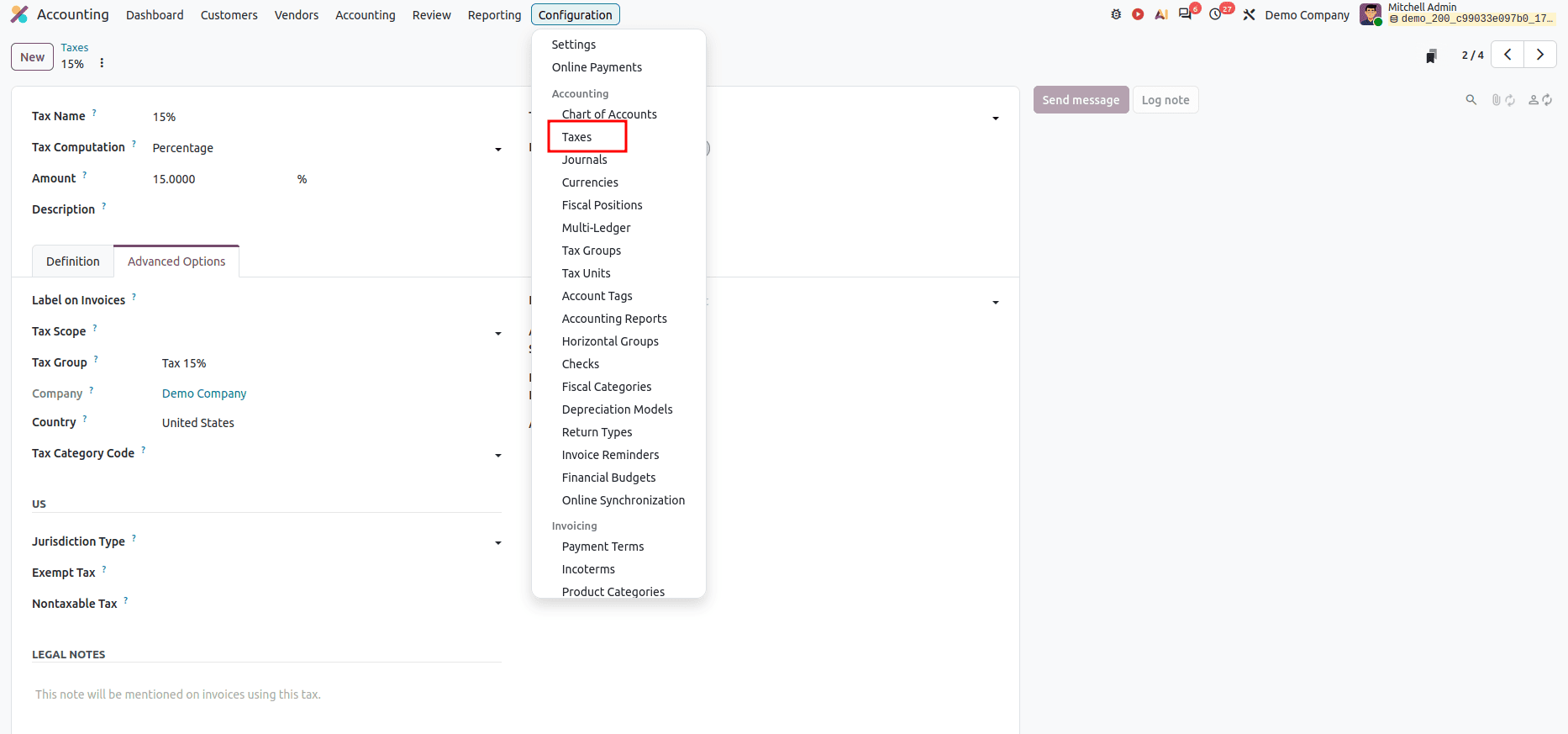
The tax configuration determines:
- Where the tax can be used
- How the tax is calculated
- Whether the tax is included in the price
- How multiple taxes interact
- How tax amounts are distributed to accounts
- Which tax grids are used
- How the tax is displayed to customers
- How the tax is mapped through fiscal positions
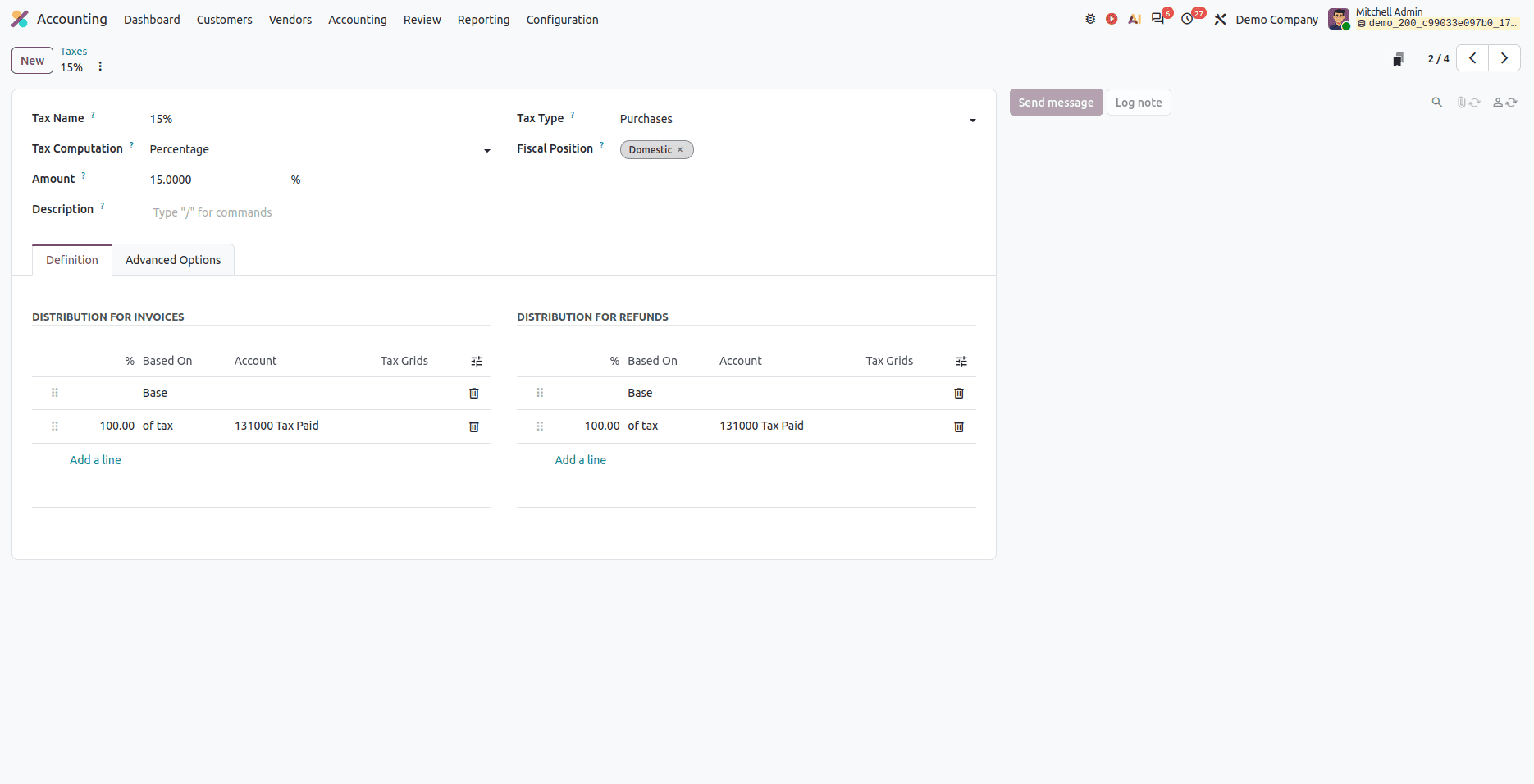
Each tax form has two tabs:
- Definition: name, type, computation, amount, fiscal position, and two distribution tables for invoices and refunds.
- Advanced Options: Label on invoices, scope, tax group, country, price, include setting, base affecting options, and legal notes.
Tax Name: The name users can see when selecting taxes on products, orders, invoices, and bills. Names should be unique per tax type, scope, and country within a company.
Tax Type: This field determines where the tax can be selected. This field has options such as Sales, Purchase, and None. Sales taxes are selected in customer invoices and product customer taxes. Purchase taxes are selected in Vendor bills and vendor taxes. None means this tax can’t be used on its own but can be used as a child inside a group of taxes.
Tax Scope: This field allows businesses to restrict a tax to the appropriate type of product, which means Tax scope determines whether the tax applies to goods or services. Available options are Goods and Services.
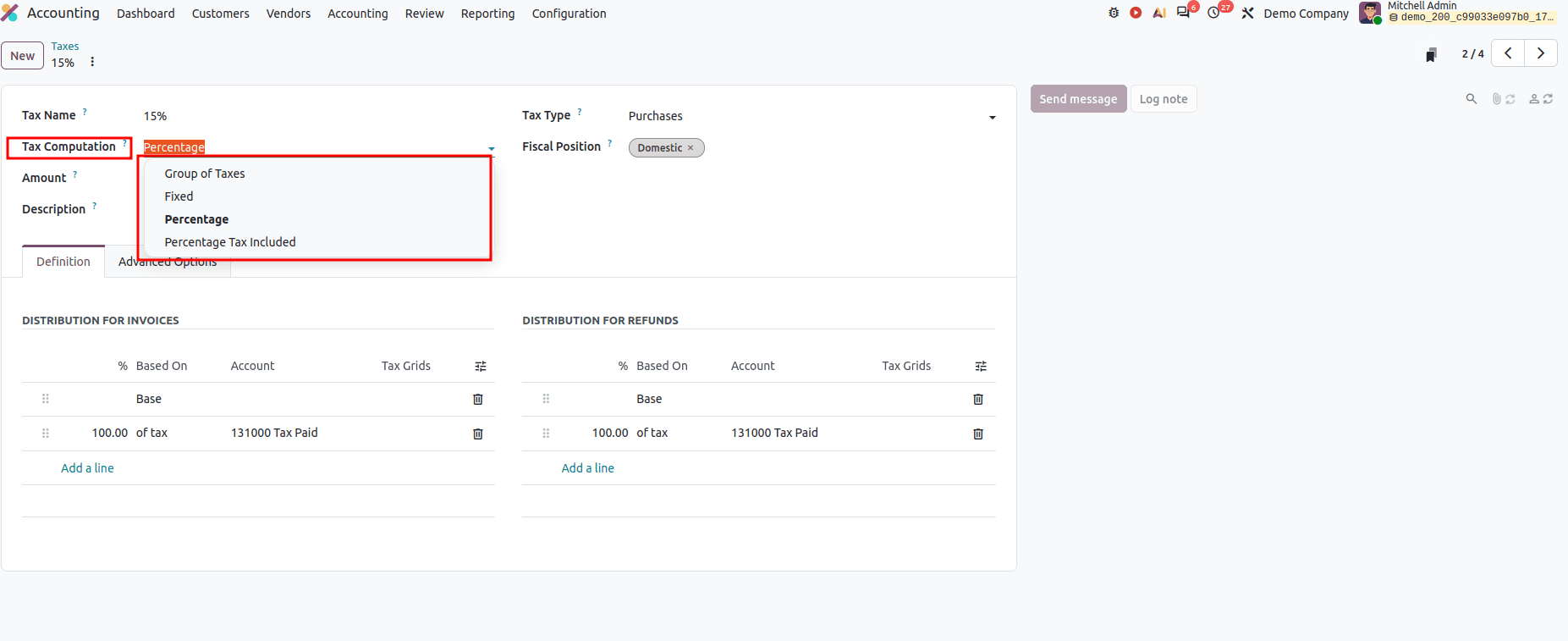
Tax Computation
The tax computation field helps Odoo calculate tax amounts. This field has 4 values or 4 computation methods:
- Group of Taxes
- Fixed
- Percentage
- Percentage Tax Included
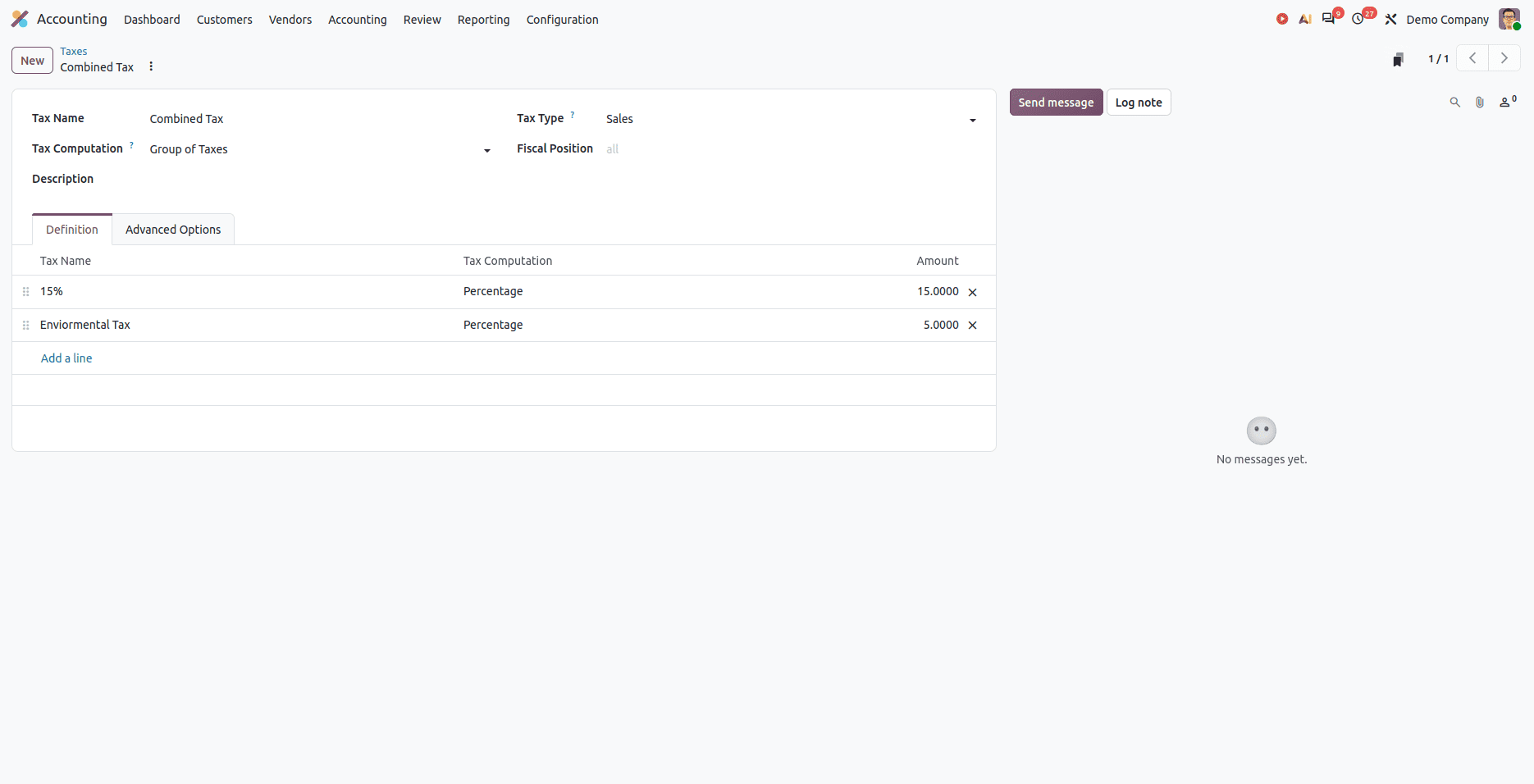
Group Of Taxes
A group of taxes combines multiple taxes into a single tax configuration. The individual taxes are configured as child taxes.
For example:
Combined Tax = 15% tax + Environmental Tax
The order of these taxes is important because the order can affect the calculation of tax.
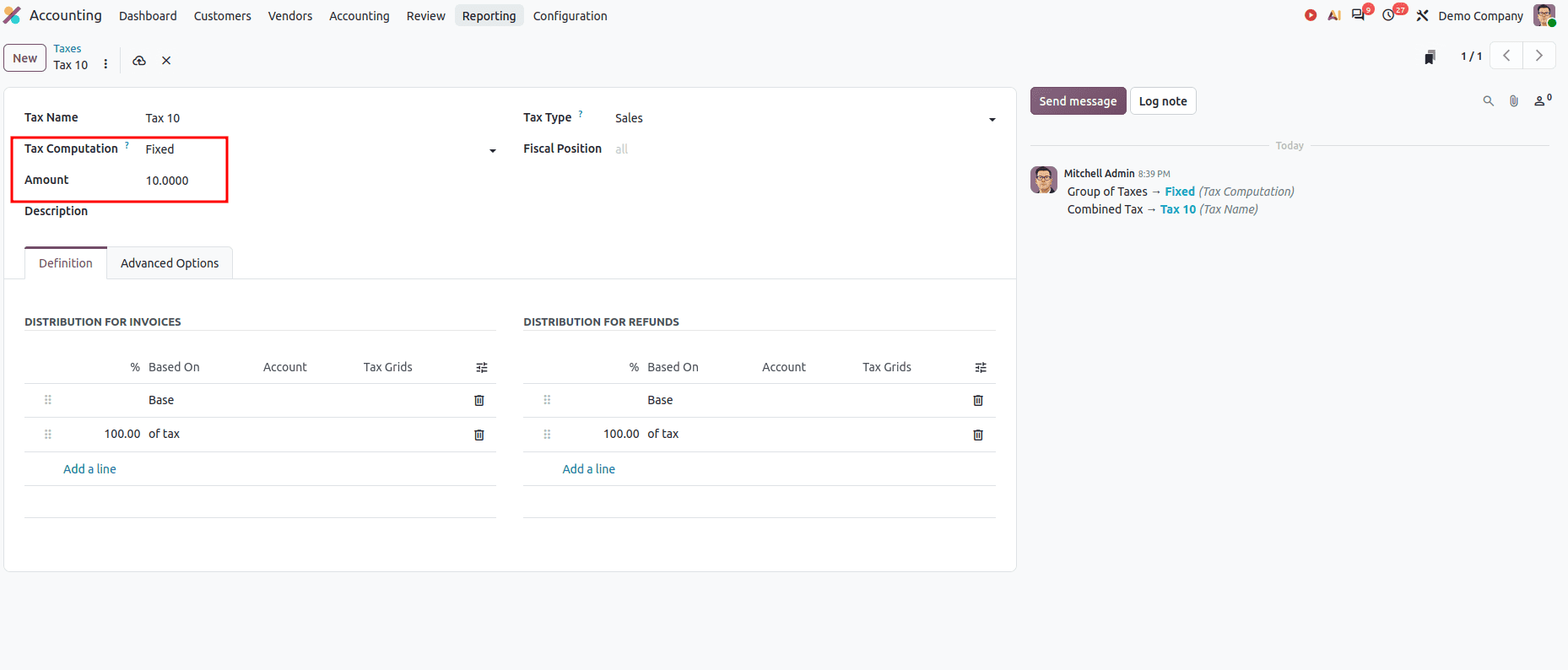
Fixed
A fixed tax applies a fixed amount per unit, regardless of the product’s sale price. The fixed amount of tax is therefore multiplied by the quantity.
For example, if the tax is 10 and the quantity of product is 5, then:
Tax = 10* 5 = 50
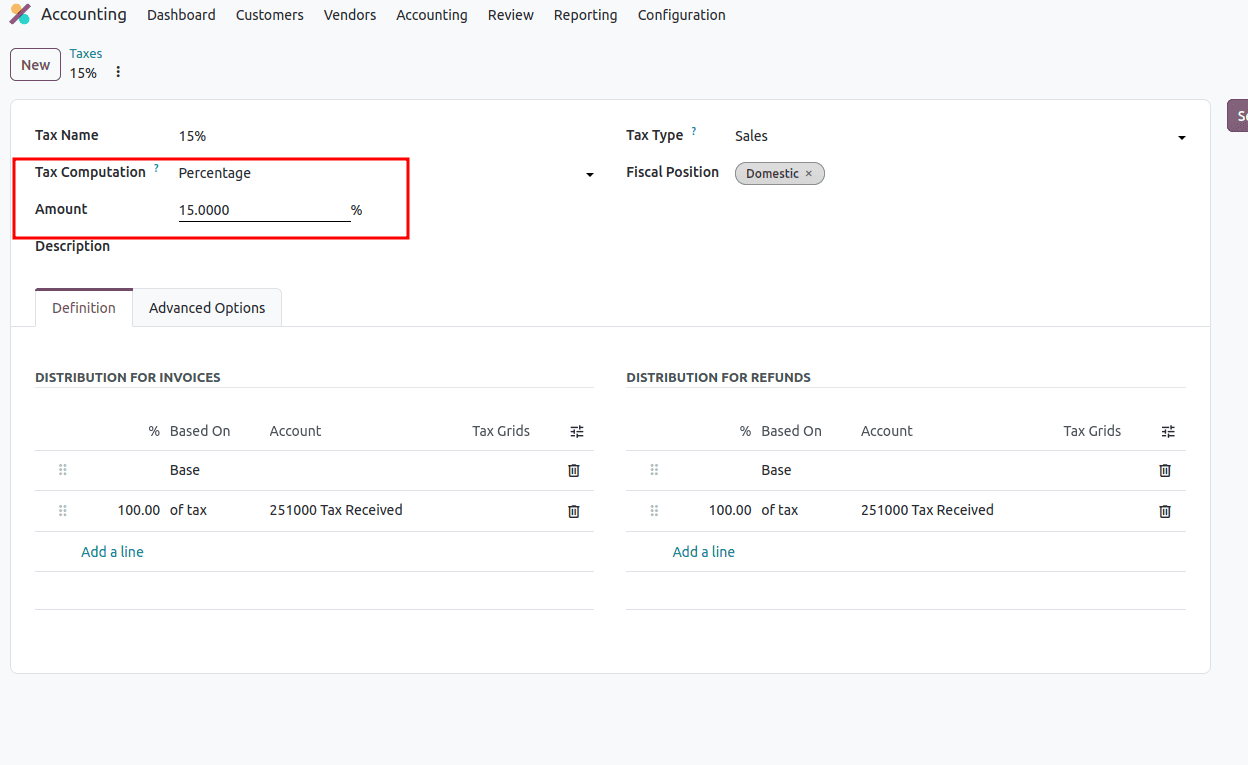
Percentage
This computes tax as a percentage of price. This has two cases: Percentage of the price tax included calculates the tax as a percentage of the tax-excluded price. For example, with a 10% tax and a price of 1000:
Tax = 1000 * 10% = 100
Total = 1100
If the same tax is configured as Tax included, odoo separates the tax amount from the tax-included price.
For example, a price of 1000:
Tax Base = 1000/1.10 = 909.091
Tax = 90.91
Total = 1000
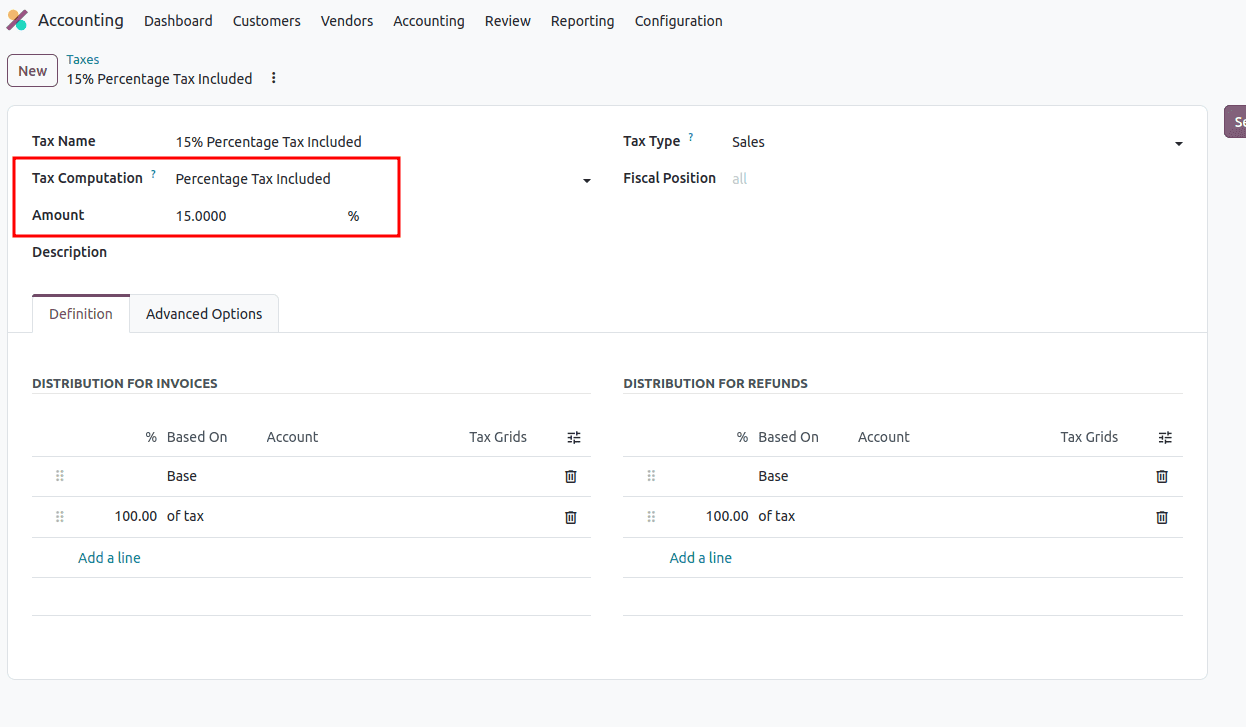
Percentage Tax Included
By using this type of computation, the tax amount is the division of the price.
Tax excluded (base 180, tax 10%):
Total = 180 / (1 - 10%) = 200
Tax = 20
Tax included (total 200, tax 10%):
Base = 200 * (1 - 10%) = 180
Tax = 20
Amount
The amount field defines the value used by the selected tax computation. For example:
- Percentage: 10 > 10%
- Fixed: 10 > 10 currency units per unit
- Percentage Tax Included: 10 > 10% of the tax-included total
Sequence and Base-Affecting Options
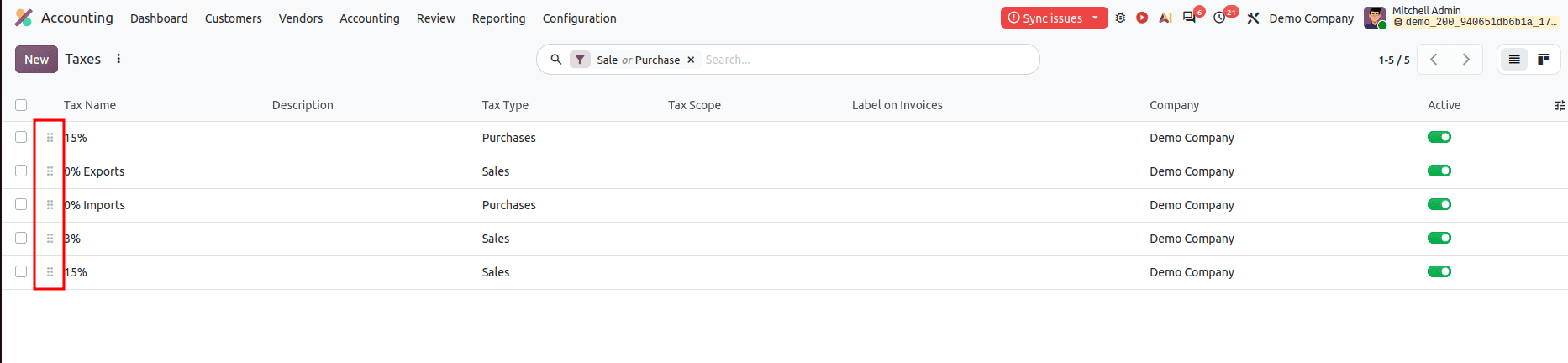
The sequence determines the order of taxes applied. When several taxes are applied to one line in a financial document, three settings decide how they interact:
- Sequence: The order in which taxes are applied. Drag taxes in the list to reorder them.
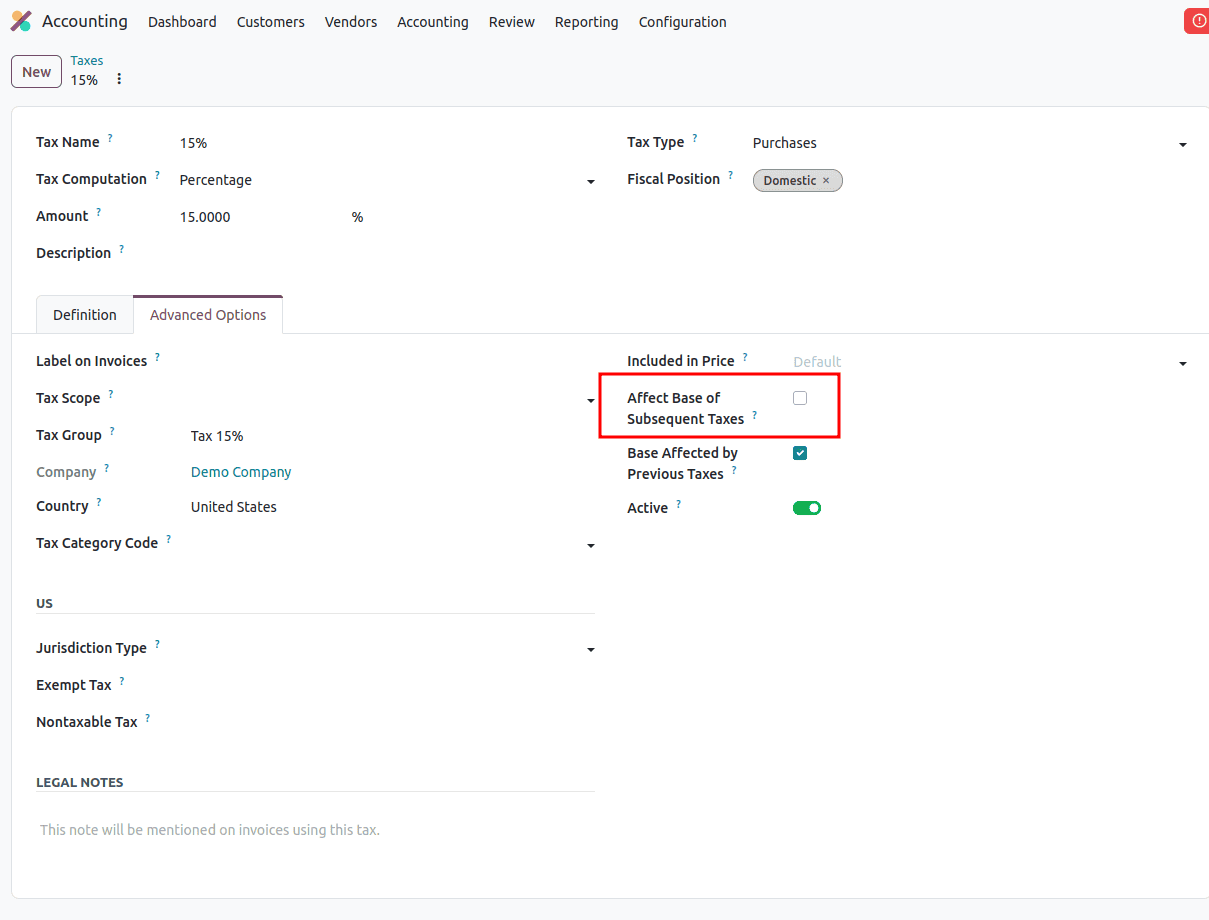
- Affect Base of Subsequent Taxes: If set, taxes with a higher sequence are computed on a base that includes this tax.
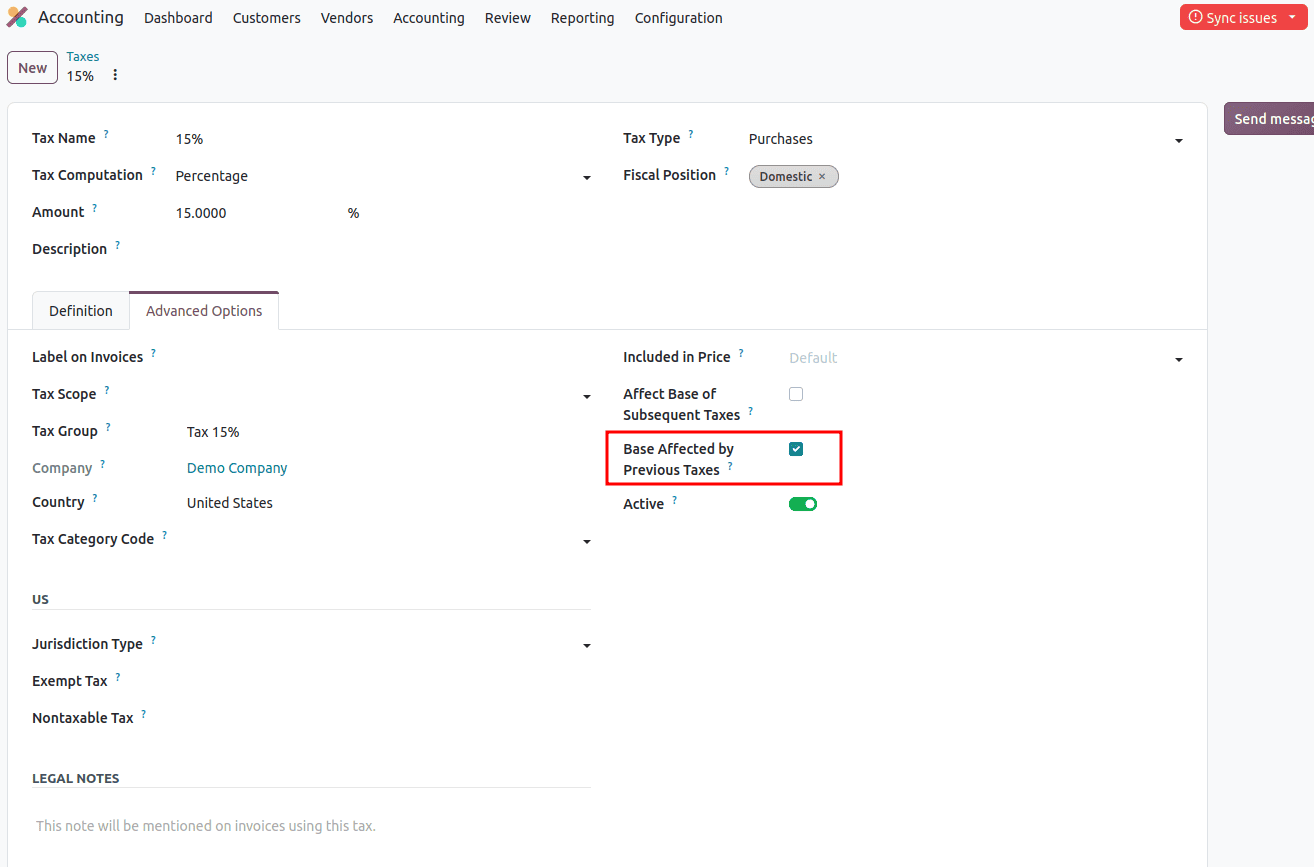
- Base Affected by Previous Taxes: True by default. If set, this tax allows its base to be affected by earlier taxes that are configured to affect the base of subsequent taxes.
Include in Price
This field determines whether the tax is already included in the product price. This field has 3 values:
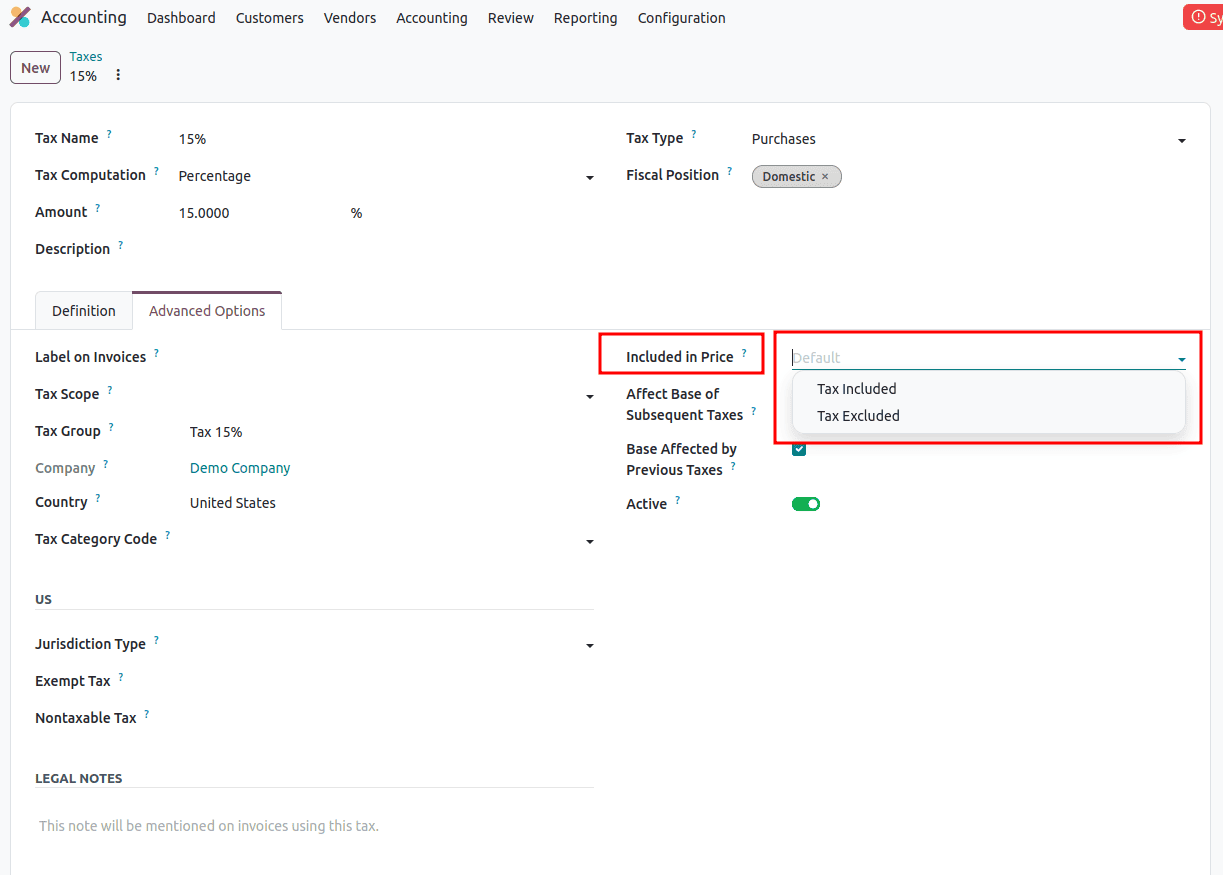
- Default: The tax follows the company’s default price configuration
- Tax Excluded: The tax is added on top of the product price.
For example:
Tax = 10%
Tax = 100
Total = 1100
- Tax Included: The tax is already included in the product price.
For example:
Product Price = 1000
Tax Rate = 10 %
Tax Base = 909.09
Tax = 90.91
Total = 1000
Tax Repartition Lines
Tax repartition determines how the calculated tax is distributed in journal items and reports. For this, Odoo provides two sections.
- Distribution for Invoices
- Distribution for Refunds
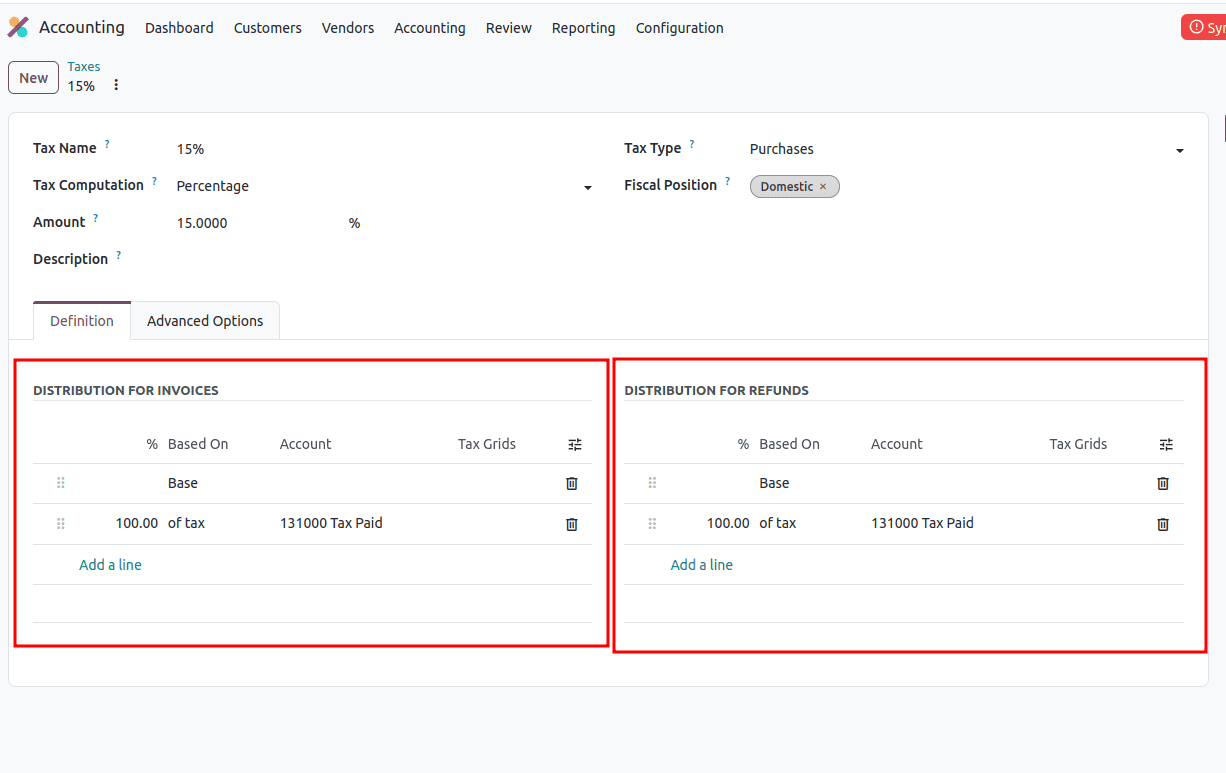
These configurations control how tax payable journal items are generated and which tax grids are assigned when the tax is used. Each distribution normally contains:
- One Base line
- One or more tax lines totalling 100%
- Optionally, negative tax lines totalling 100%
Odoo also supports a positive 100% line together with a negative 100% line for situations such as reverse charge VAT.
Factor Percent
The Factor percent determines how much of the calculated tax amount is assigned to a particular tax repartition line.
For example:
Calculated Tax = 100
Repartition: 50% - Tax Account, 50% - Expense Account
The resulting distribution is:
Tax account = 50
Expense Account = 50
This type of configuration is useful for partially deductible purchase VAT.
Tax Grids
Tax Grids connect the tax transaction with the appropriate tax reporting lines. Tax Grids on the Base row are added to the invoice line that the tax applied to. Grids on the Tax row are added to the tax journal item that is generated. These tags allow the tax return report to identify the taxable base and tax amounts. That's why tax-grid configuration is important.
Tax Closing Entry
This field determines whether the relevant tax repartition line participates in tax closing operations. In practice, a row posting to a balance sheet tax account such as "Tax Received" takes part in the tax closing. A row with no account or one posting to an expense account does not.
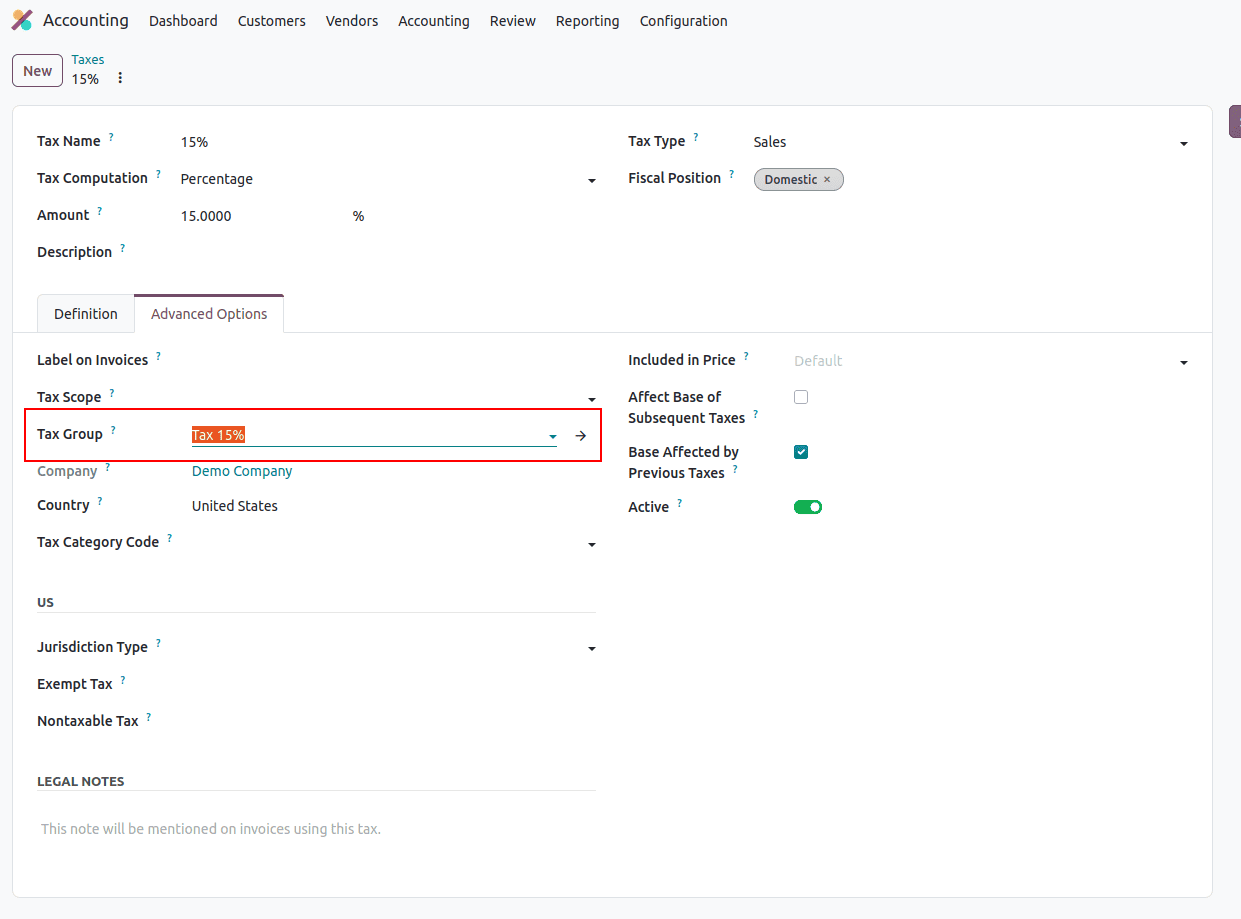
Tax Groups
This field determines how taxes are grouped and displayed in invoice totals. For example, VAT 5%, VAT 10%, and VAT 15%. These taxes belong to the VAT tax group. When multiple taxes belong to the same tax group, then in the total section Odoo groups them to a single tax amount.
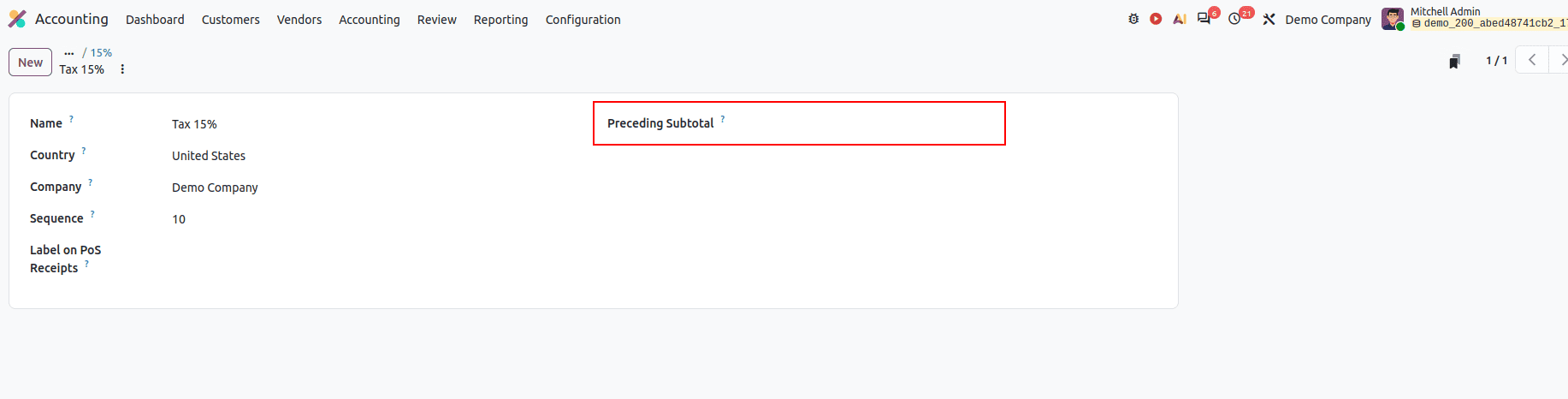
Preceding Subtotal
If set, this value will be used on documents as the label of a subtotal excluding this tax group before displaying it. If not set, the tax group will be displayed after the 'Untaxed amount' subtotal. It is useful when several tax groups need to be displayed in a particular order in the invoice totals.
Non-Deductible Taxes
Not every tax paid on the purchase is fully deductible. Odoo can handle situations where only part of a tax is recoverable. For example, suppose a purchase contains:
Tax Amount = 100
Deductible Portion = 50%
Non-Deductible Portion = 50%
The tax can be distributed as:
50 > Recoverable Tax
50 > Expense
This allows the deductible and non-deductible portions to be handled separately. The non-deductible value can be used to represent the portion of the tax that is not deductible in the relevant tax calculation context.
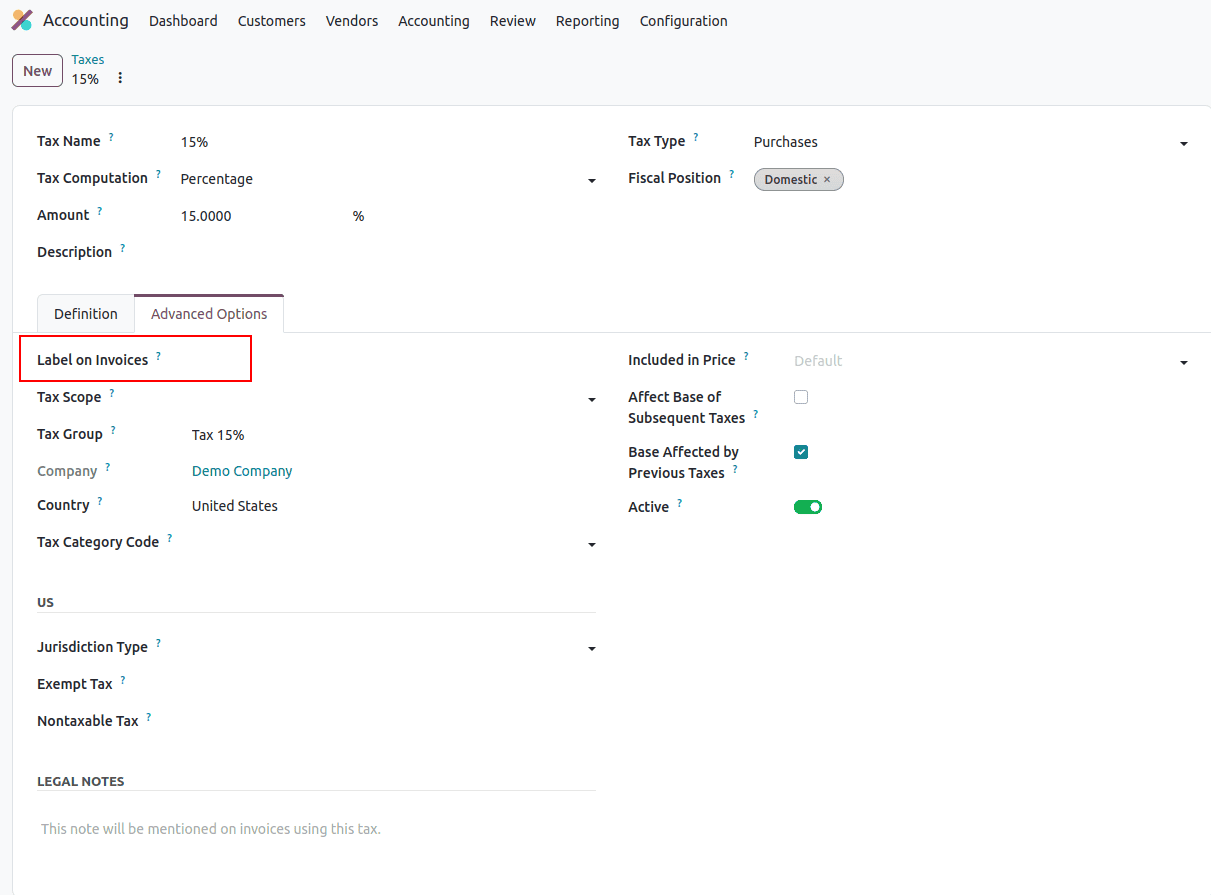
Label On Invoices
This field determines how the tax is displayed; for example, the label appears on the invoice PDFs, customer portal, invoice line tax information, etc.
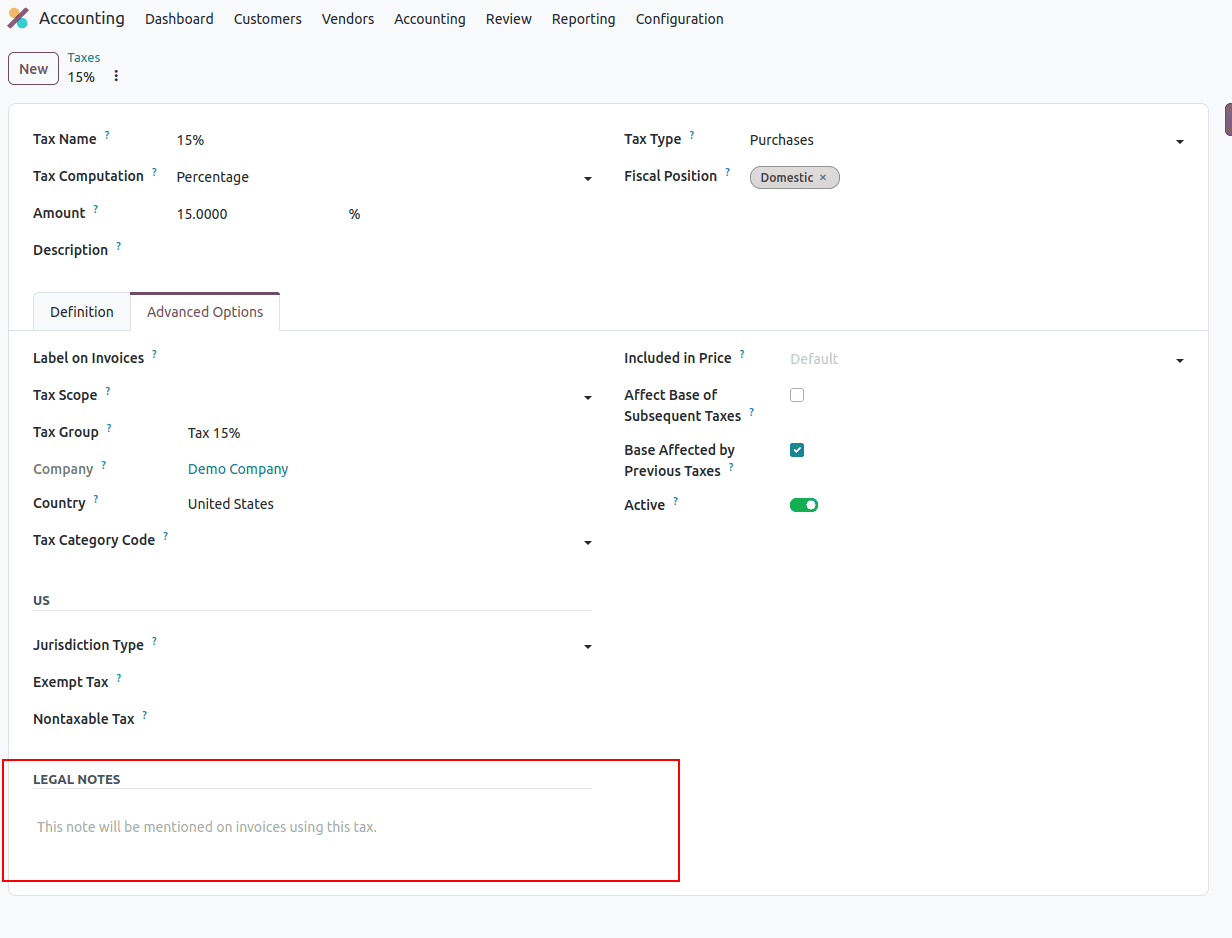
Invoice Legal Notes
This field is used when specific legal wording needs to appear on invoices, such as Tax exceptions, Reverse charges, Export transactions, special tax treatments, etc.
Odoo 20 provides a flexible and powerful tax configuration system that goes beyond simply adding a percentage to an invoice. Tax computation, price inclusion, sequence, repartition lines, tax groups, and tax grids all work together to determine how taxes are calculated, accounted for, and reported.
Understanding these configurations helps ensure accurate tax calculations, correct journal entries, and reliable tax reporting. For developers and functional users alike, having a clear understanding of how these settings interact makes it easier to configure taxes correctly and troubleshoot tax-related issues in Odoo.
To read more about A Complete Overview of Tax Reporting in Odoo 19, refer to our blog A Complete Overview of Tax Reporting in Odoo 19.