View inheritance is one of the most commonly used concepts while developing custom modules in Odoo. It allows changing the existing views without touching the XML structure of such views. In case a developer needs to add a field in a form, reorder an existing field, modify the value of an attribute, or create a new view for another model, there is a concept of view inheritance in Odoo, which solves these problems.
However, view inheritance is not just about using XPath expressions and adding a field. The concept of targeting an element, its position in case of modification, and using the right inheritance mode impacts the final structure of a view.
Using an incorrect XPath expression can cause a module's installation or upgrade to fail if the structure of the original view was changed. The same can happen in case of using an inheritance mode improperly.
In this article, I'm going to discuss the specifics of view inheritance in Odoo 20 regarding shorthand inheritance specification, XPath expression, stable anchor, inheritance position, primary view, naming, and debug techniques.
1. Inheritance of Views in Odoo 20
The views in Odoo are programmed in XML and are stored as ir.ui.view model objects. Views determine how the record will be shown in the Odoo application.
If there is a need for any modification to the view that is already defined within a custom module, then it can make use of the inherited view by referencing it through the inherit_id attribute.
To illustrate this, let us consider a form view which was developed using a custom module:
<record id="view_employee_form" model="ir.ui.view">
    <field name="name">employee.form</field>
    <field name="model">hr.employee</field>
    <field name="arch" type="xml">
        <form>
            <sheet>
                <group>
                    <field name="name"/>
                    <field name="work_email"/>
                </group>
            </sheet>
        </form>
    </field>
</record>
Suppose we need to add a phone number field immediately after the work email field. Instead of copying and redefining the entire form, we can inherit the existing view:
<record id="view_employee_form_inherit" model="ir.ui.view">
    <field name="name">employee.form.inherit</field>
    <field name="model">hr.employee</field>
    <field name="inherit_id" ref="hr.view_employee_form"/>
    <field name="arch" type="xml">
        <field name="work_email" position="after">
            <field name="work_phone"/>
        </field>
    </field>
</record>
In this case:
- name gives a name for the inherited view that is being described by the user.
- model refers to the model that has the view.
- inherit_id refers to the view that will be inherited or altered.
- arch has the descriptions of the inheritance that specify how the views will be changed.
The thing is that the inherited view does not replace the original view.
2. Using Shorthand Inheritance Specifications
Odoo allows a shortcut notation for referencing elements within the inherited view. This becomes very handy when the element that we want to reference can be found directly without having to write an entire XPath expression.
For instance,
<field name="work_email" widget="email" position="after">
    <field name="lang" groups="hr.group_hr_user"/>
</field>
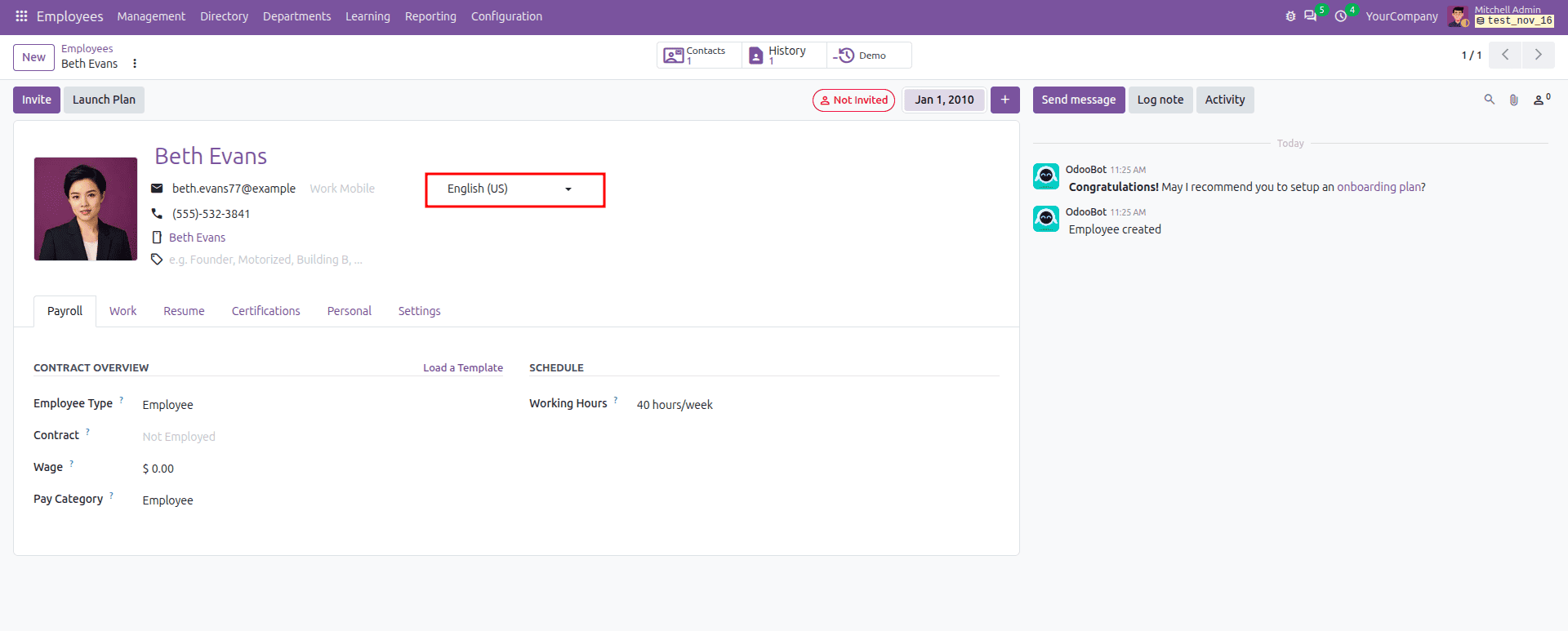
In the above specification, Odoo will search the parent view for the first occurrence of the field called work_email and add the field lang right after it. The widget="email" attribute of the locator is not translated and is therefore silently ignored in the matching process – Odoo only uses the field name.
Field shorthand match
If the inheriting template uses a field element having a name attribute, then Odoo finds the first field having the same name in the parent architecture template. Only the name attribute participates in the matching process. Other attributes of the locator element are simply ignored.
Example:
<field name="mobile_phone" position="before">
    <field name="work_contact_id"/>
</field>
Odoo finds the first occurrence of mobile_phone and places work_contact_id immediately before it.
Example:
<field name="mobile_phone" widget="phone" position="after">
    <field name="work_contact_id"/>
</field>
The attribute widget="phone" does not take part in the identifier of the targeted field. Only the name attribute is used by Odoo to identify the field. It is described in Odoo's locate_node function located in template_inheritance.py.
One notable restriction: translated attributes - string, placeholder, help, confirm, alt, title, and others - cannot be present on a locator element at all. They are listed in TRANSLATED_ATTRS in translate.py. Odoo's view validator simply refuses such attributes before running locate_node():
View inheritance may not use attribute 'string' as a selector.
It is valid for both field shorthand locators and XPath expressions. Demonstrate the point using non-translated technical attributes like widget or readonly.
Shorthand matching for other XML elements
The matching rule is different when the locator is an element other than a field.
The search for any other elements is performed by Odoo by taking into account the first element with the same tag name and the same attributes. However, the attribute position is not taken into account in this case; all other attributes are used.
Consider the Personal tab of the hr.employee form. It contains a group defined as:
<group name="hr_birth_group" string="Personal Information">
    ...
</group>
We can insert a field before that group using:
<group name="hr_birth_group" position="before">
    <field name="private_phone" groups="hr.group_hr_user"/>
</group>
We can insert a field before that group using:
<group name="hr_birth_group" position="before">
    <field name="private_phone" groups="hr.group_hr_user"/>
</group>
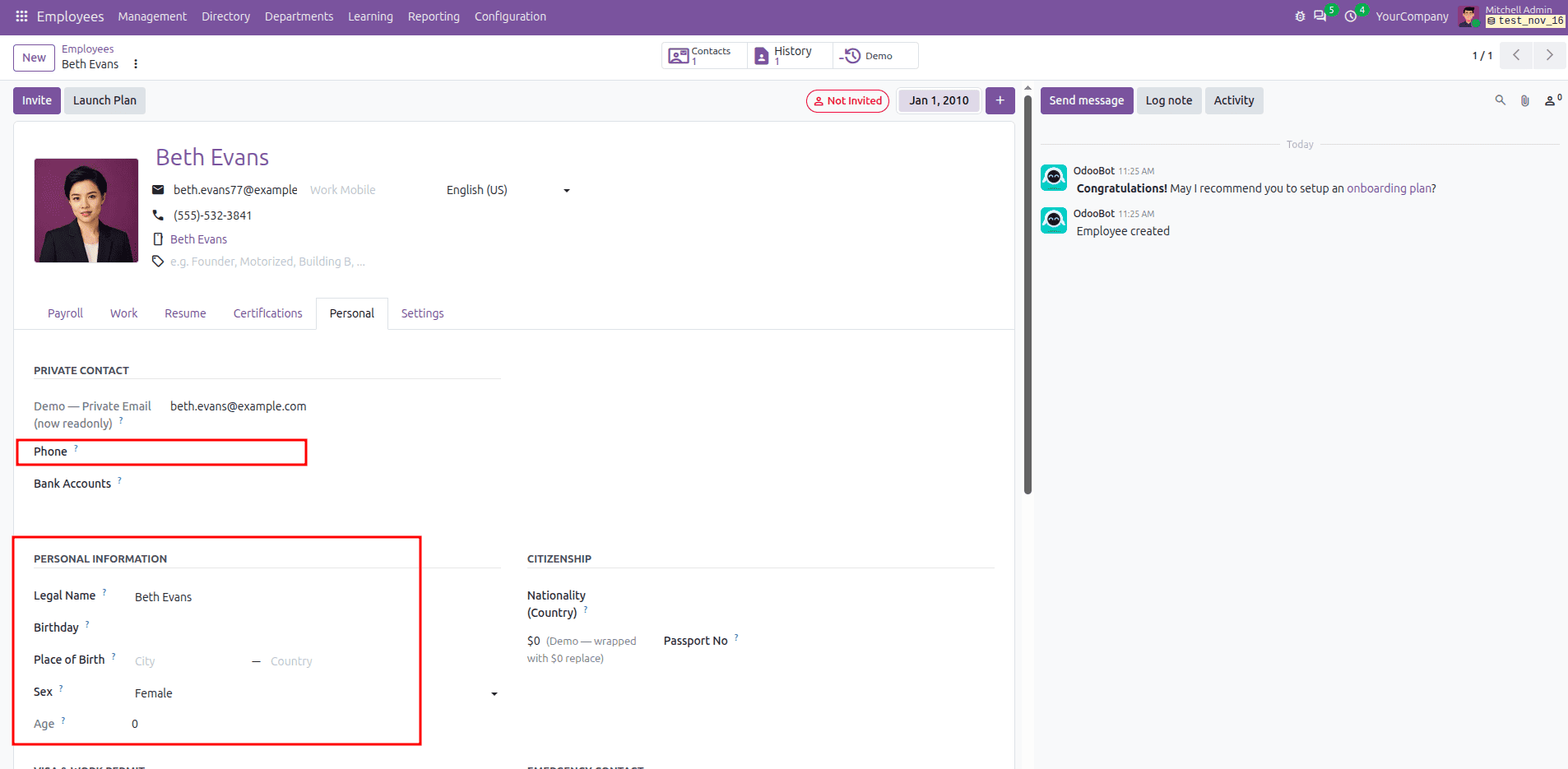
Here, Odoo gets the group element through its tag name along with name="hr_birth_group". All other attributes except the position are used for comparison; hence, the name attribute in the locator should be identical to the element we want to insert in the parent view. The private_phone field is placed before the Personal Information group.
This makes a difference when creating shorthand inheritance specifications. Fields are located only through the name attribute, while other tags are located through tag name and attributes.
3. Finding Elements Using XPath Expressions
Shorthand inheritance is useful when one can locate an exact element using inheritance. But in cases where a view is made up of multiple groups, pages, notebooks, or elements, XPath provides more flexibility in finding the specific element. XPath expression is used to find the node within the parent view structure.
Example:
<xpath expr="//field[@name='work_email']" position="after">
    <field name="lang" groups="hr.group_hr_user"/>
</xpath>
XPath expression //field[@name='work_email'] finds the element where the value of the name attribute is work_email. XPath can also be used to find elements depending on their position within the view structure.
Example: Consider the hr.employee form view, where the Personal tab consists of a notebook page with groups as follows:
<page name="personal_information" string="Personal">
    <group>
        <group name="hr_birth_group" string="Personal Information">
            <field name="legal_name"/>
            <field name="birthday"/>
        </group>
    </group>
</page>
If it is desired to insert a field within the hr_birth_group group, then the following XML code could be used:
<xpath expr="//page[@name='personal_information']//group[@name='hr_birth_group']"
       position="inside">
    <field name="age" groups="hr.group_hr_user"/>
</xpath>
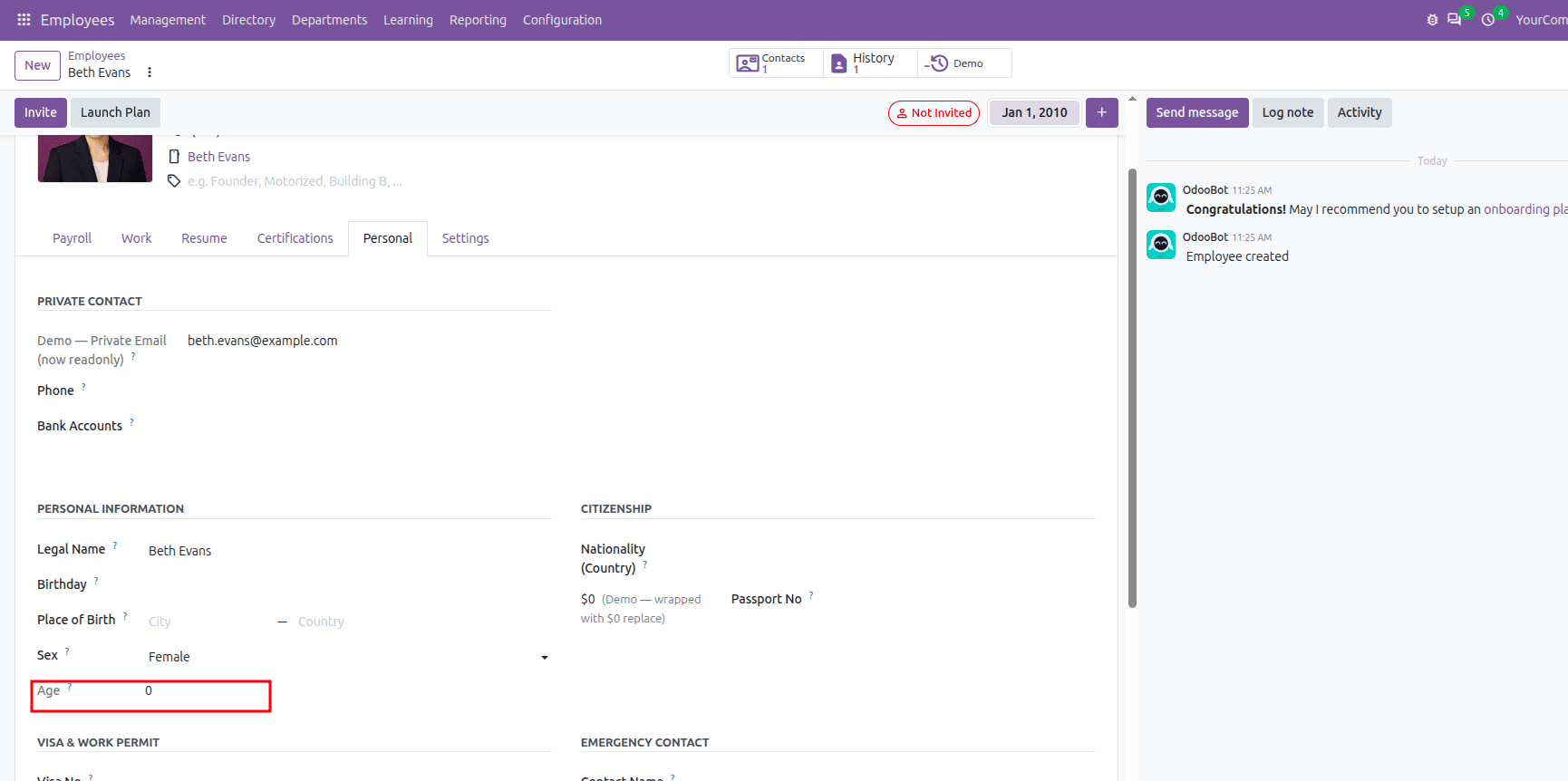
The expression identifies the target through its parent structure, the page name and the group name rather than relying only on the group's position.
Selecting a stable XPath anchor
One of the most crucial steps while inheriting views is selecting a stable XPath anchor. An XPath expression might be valid at the time of installing a module but become invalid due to changes in the structure of the view upon an update.
For instance,
<xpath expr="//group[2]/field[3]" position="after">
    <field name="age"/>
</xpath>
The above expression will locate the second group and then the third field within the group. Even though it may be working based on the existing view structure, the expression is vulnerable to changes in the positions of elements because another module can add some other group or field before the desired one.
A better way of writing XPath expressions would be through meaningful attributes like name.
<xpath expr="//page[@name='personal_information']//group[@name='hr_birth_group']"
       position="inside">
    <field name="age" groups="hr.group_hr_user"/>
</xpath>
The following comparison shows the difference:
| Less Stable Anchor | More Stable Anchor |
| //group[2] | //group[@name='hr_birth_group'] |
| //field[3] | //field[@name='work_email'] |
| //page[1] | //page[@name='personal_information'] |
Always use named nodes wherever possible; avoid positional selectors whenever possible.
A good practice when developing: If there is no name attribute on the element which you want to select, see if there is any other attribute or better XPath path that you can use for selection. Avoid positional selectors just for the sake of shortening expressions.
XPath Expression With hasclass()
The Odoo framework includes the hasclass() XPath function for finding elements by their CSS classes. The hr.employee form contains a stat button box div with the class oe_button_box. We can insert a button inside it using:
<xpath expr="//div[hasclass('oe_button_box')]" position="inside">
    <button name="action_open_versions"
            type="object"
            class="oe_stat_button"
            icon="fa-history"
            title="Demo: Version History"
            groups="hr.group_hr_user"
            invisible="not id">
        <div class="o_stat_info">
            <span class="o_stat_text">Demo</span>
        </div>
    </button>
</xpath>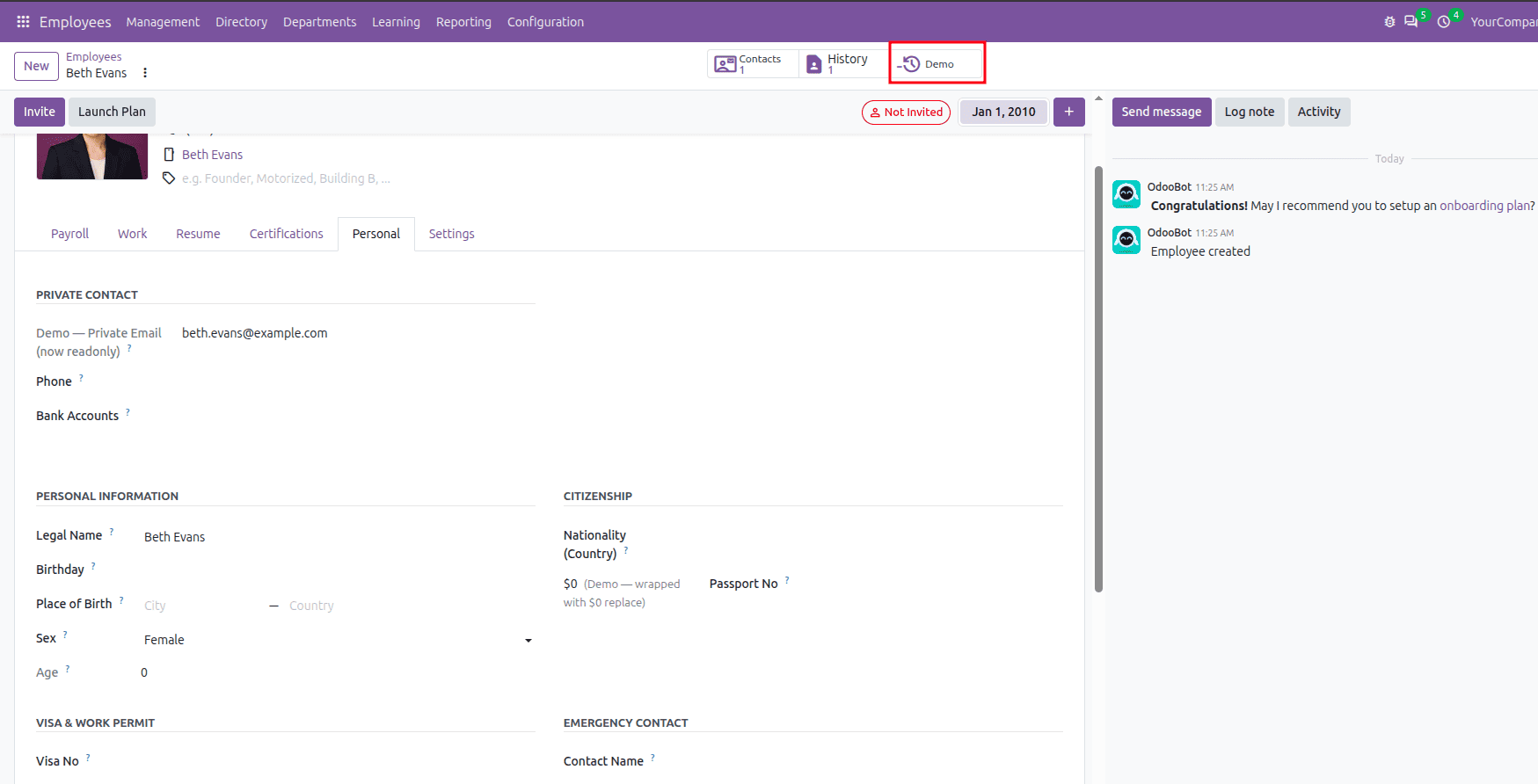
The hasclass() function verifies if the element has all the mentioned classes and is defined in ir_ui_view.py as a registered XPath function. It is advised not to use the following class-matching XPath expressions:
<xpath expr="//div[contains(@class, 'oe_button_box')]" position="inside">
The Odoo framework generates a warning and advises using the hasclass() function instead. The Odoo framework does not generate an error; however, the warning indicates that the approach is fragile.
The Odoo framework performs the verification of translated attributes as XPath selectors. Translated attributes, e.g., string, have different values for each language; thus, they cannot be used as anchors. Using the translated attribute within the XPath expression leads to generating a validation error by Odoo. Use technical attributes, e.g., name.
4. Different Positions Used for View Inheritance
Once the target element has been defined, the next step involves defining what modification to make on the element.
Odoo version 20 allows the following positions in view inheritance:
- inside
- after
- before
- replace
- attributes
- move
4.1. Inside
In addition, it changes the element because the new information is placed in the matched element. Furthermore, it serves as a default position when there is no position specified.
<xpath expr="//page[@name='personal_information']//group[@name='hr_birth_group']"
       position="inside">
    <field name="age" groups="hr.group_hr_user"/>
</xpath>
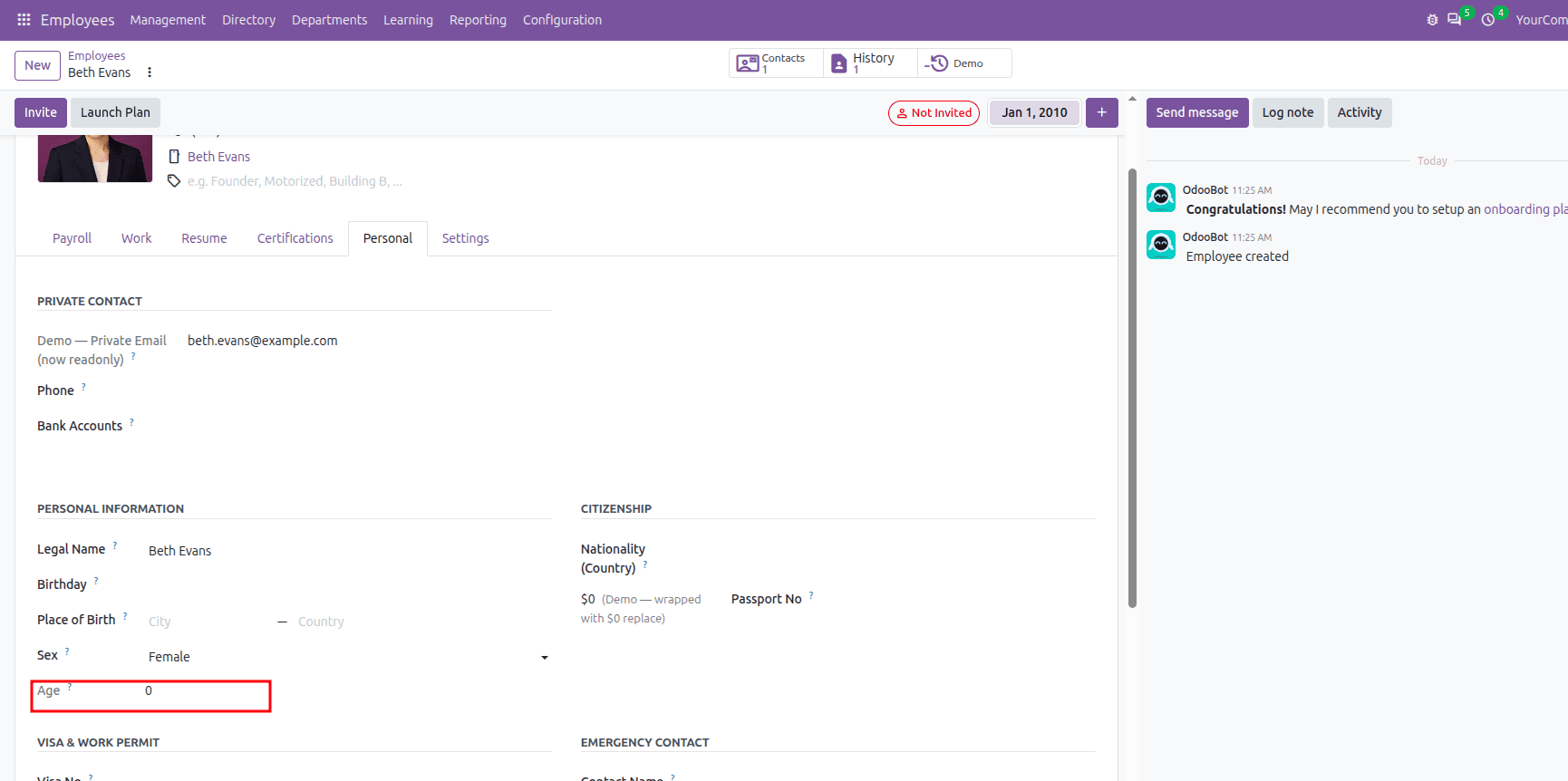
In this case, the age field is added within the Personal Information category in the Personal tab. This is an age field that exists in hr.employee, but it does not appear in the standard view form, so it becomes apparent after installing the module.
4.2. After
This position places the content right after the matched element.
<field name="work_email" widget="email" position="after">
    <field name="lang" groups="hr.group_hr_user"/>
</field>
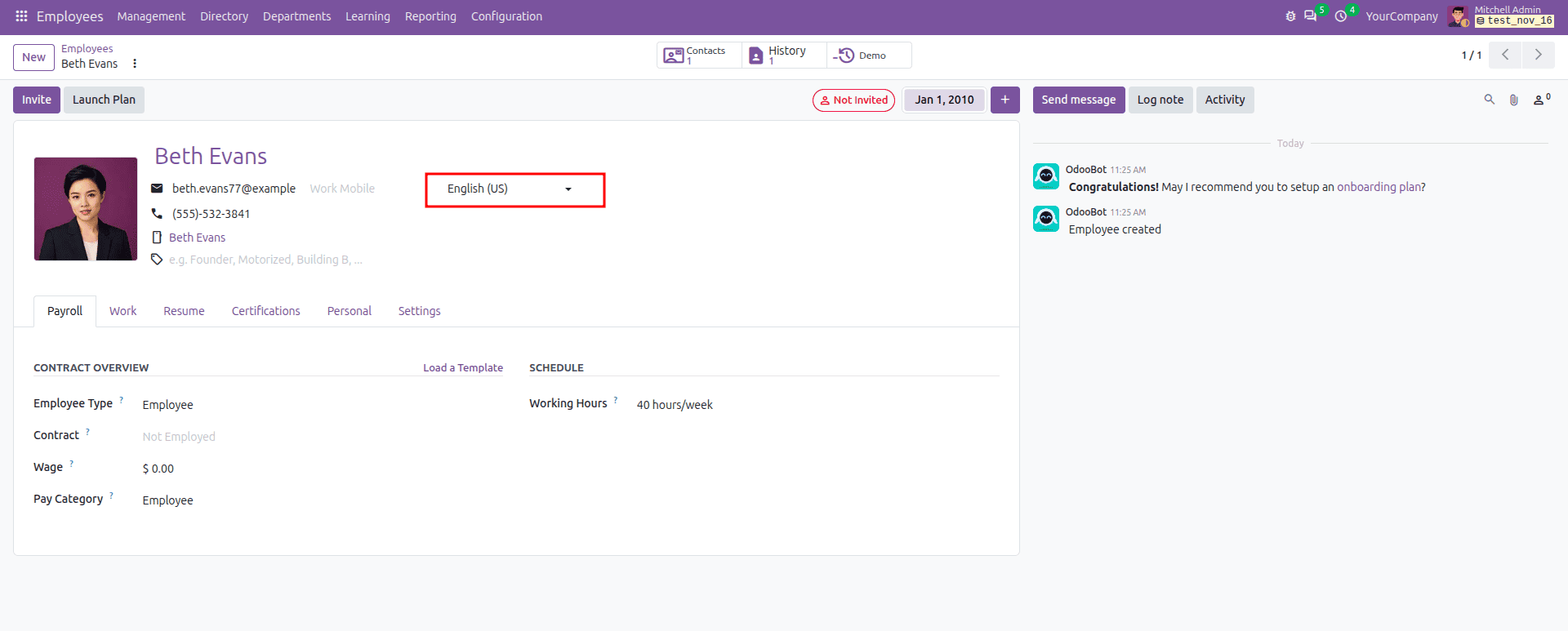
The lang attribute is appended right after the work_email attribute in the employee header card section. The widget="email" attribute on the locator is completely ignored while matching; the matching is done only using name="work_email".
4.3. Before
Before position puts the content just before the matched element.
<field name="mobile_phone" position="before">
    <field name="work_contact_id" readonly="1"/>
</field>
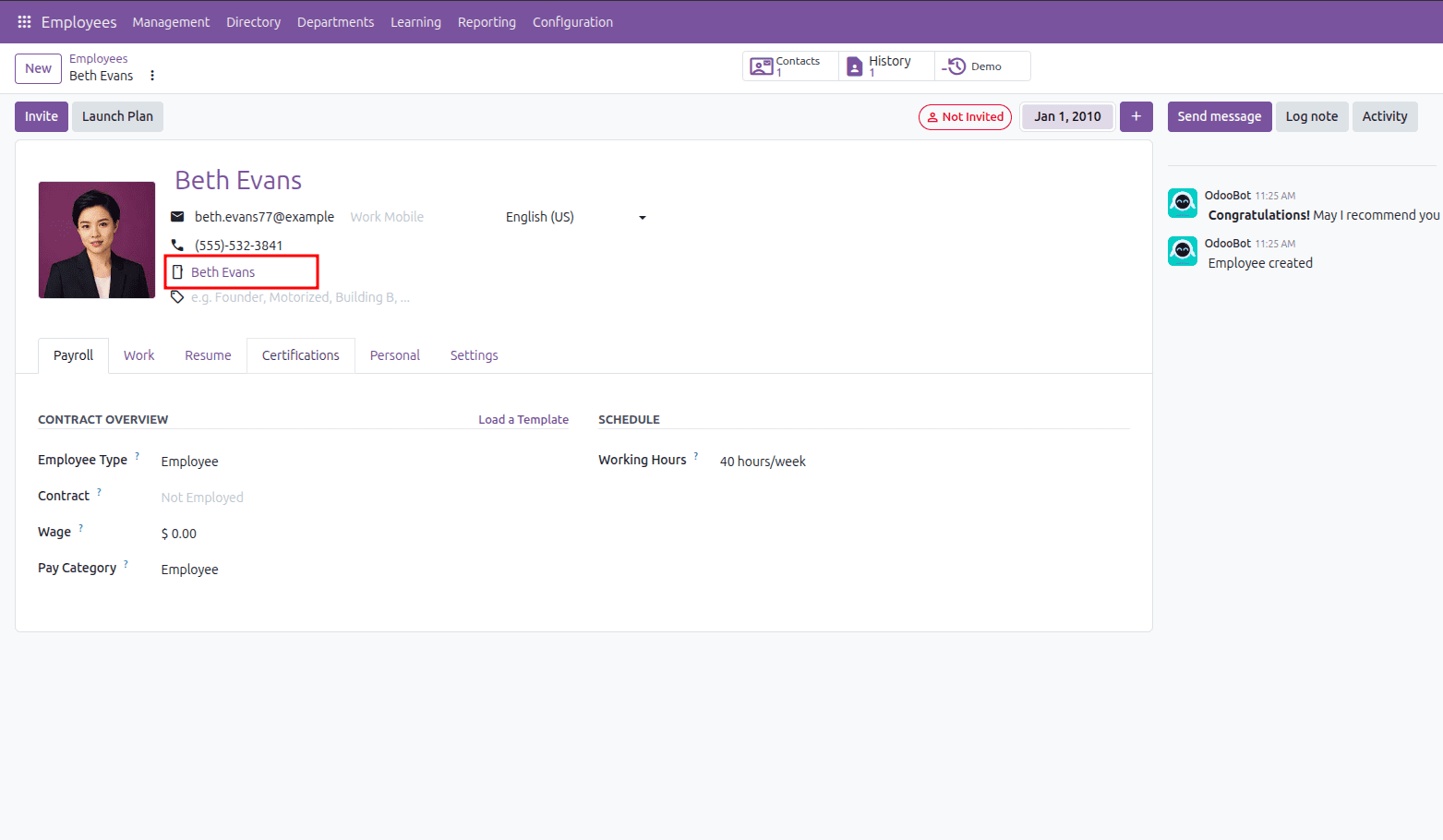
In this example, work_contact_id is added before mobile_phone in the employee header card area.
Before and After are two very helpful positions when there is a need to preserve a certain sequence of fields without changing anything else.
4.4. Replace
Replace position replaces the matched element with the new one.
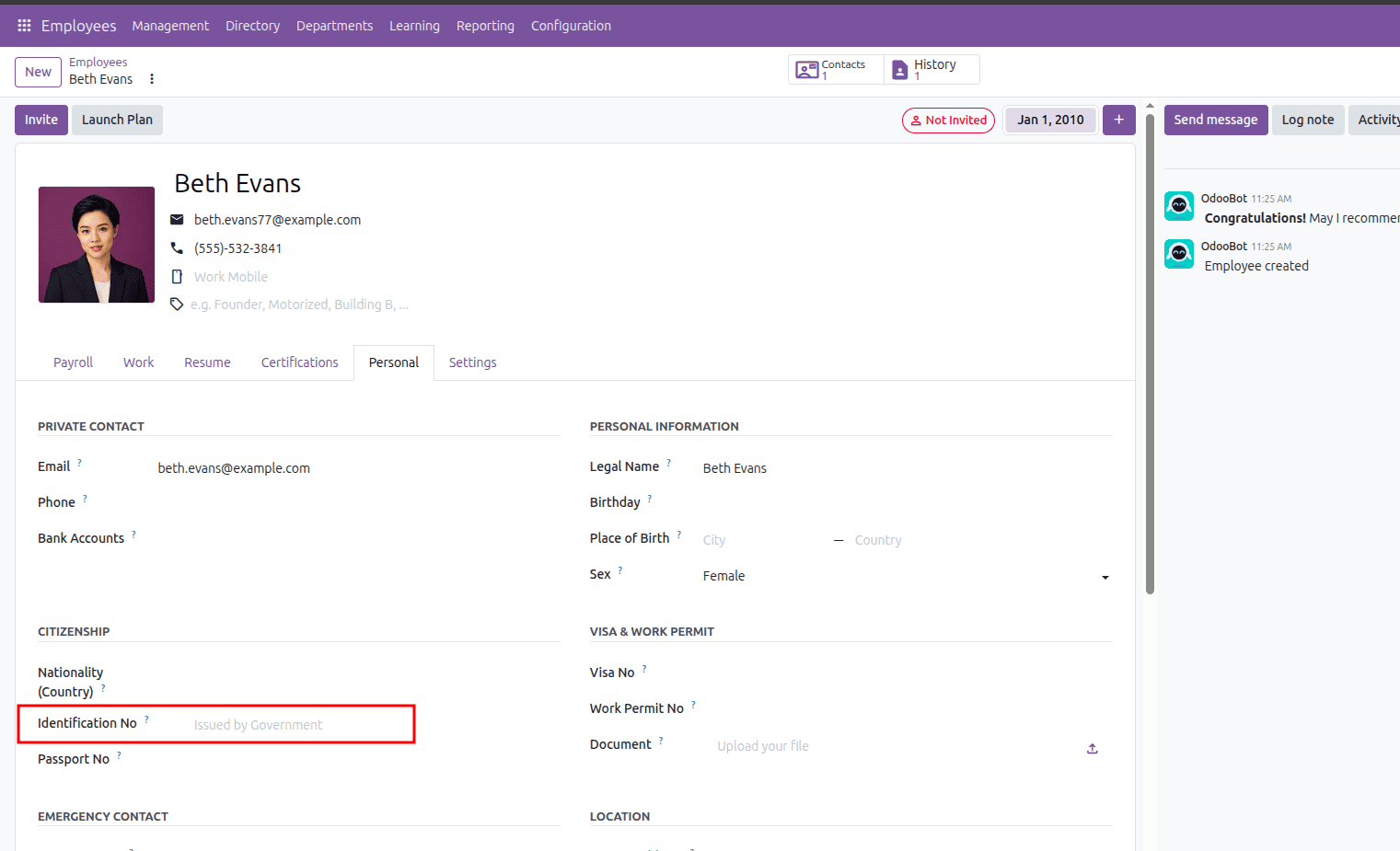
<field name="identification_id" position="replace">
    <field name="private_email"/>
</field>
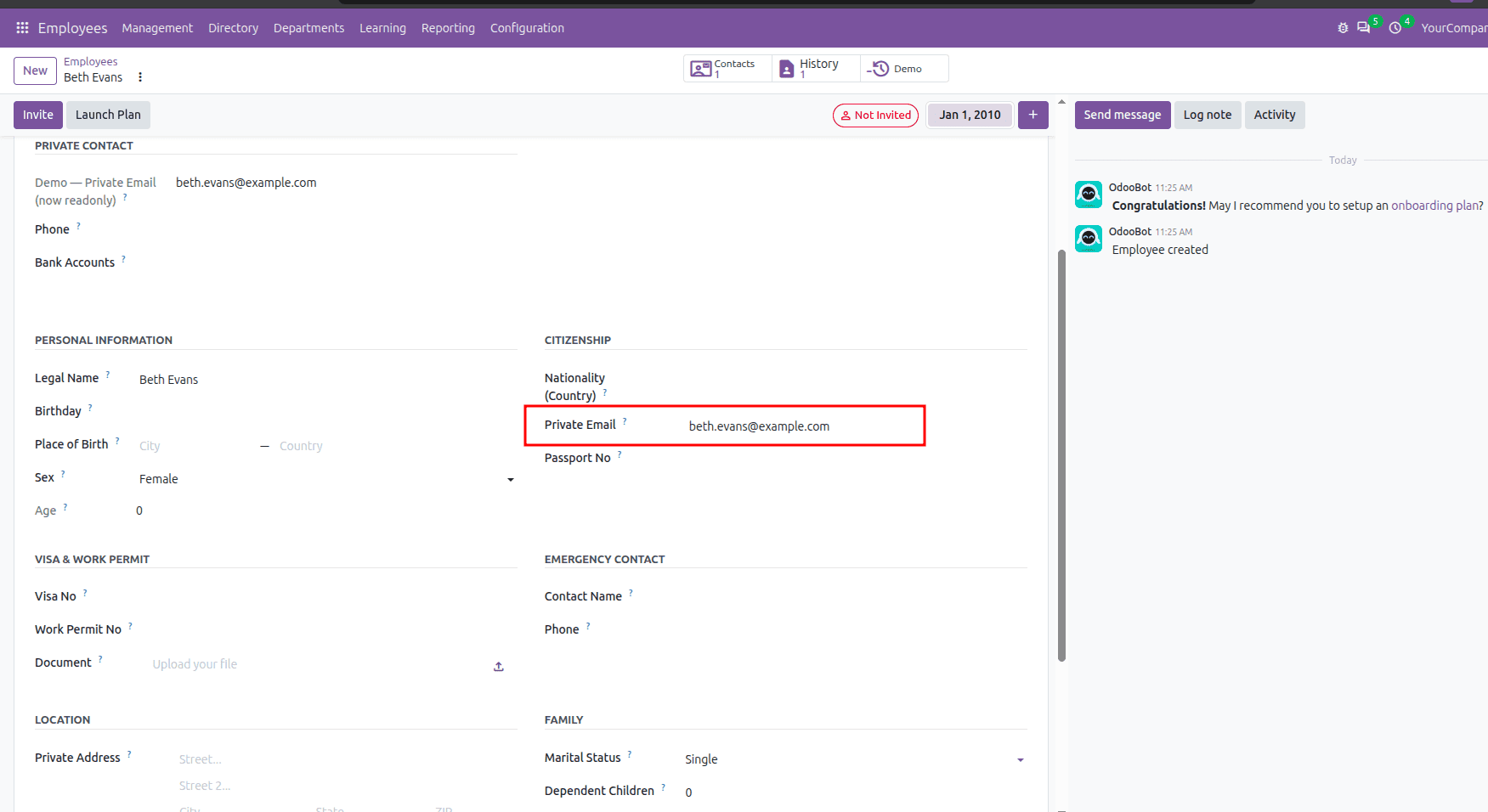
In this example, the identification_id field in the Citizenship group is replaced with private_email.
4.5. Attributes
The attributes position is used when we want to modify the attributes of an already existing element.
<field name="private_email" position="attributes">
    <attribute name="readonly">True</attribute>
</field>
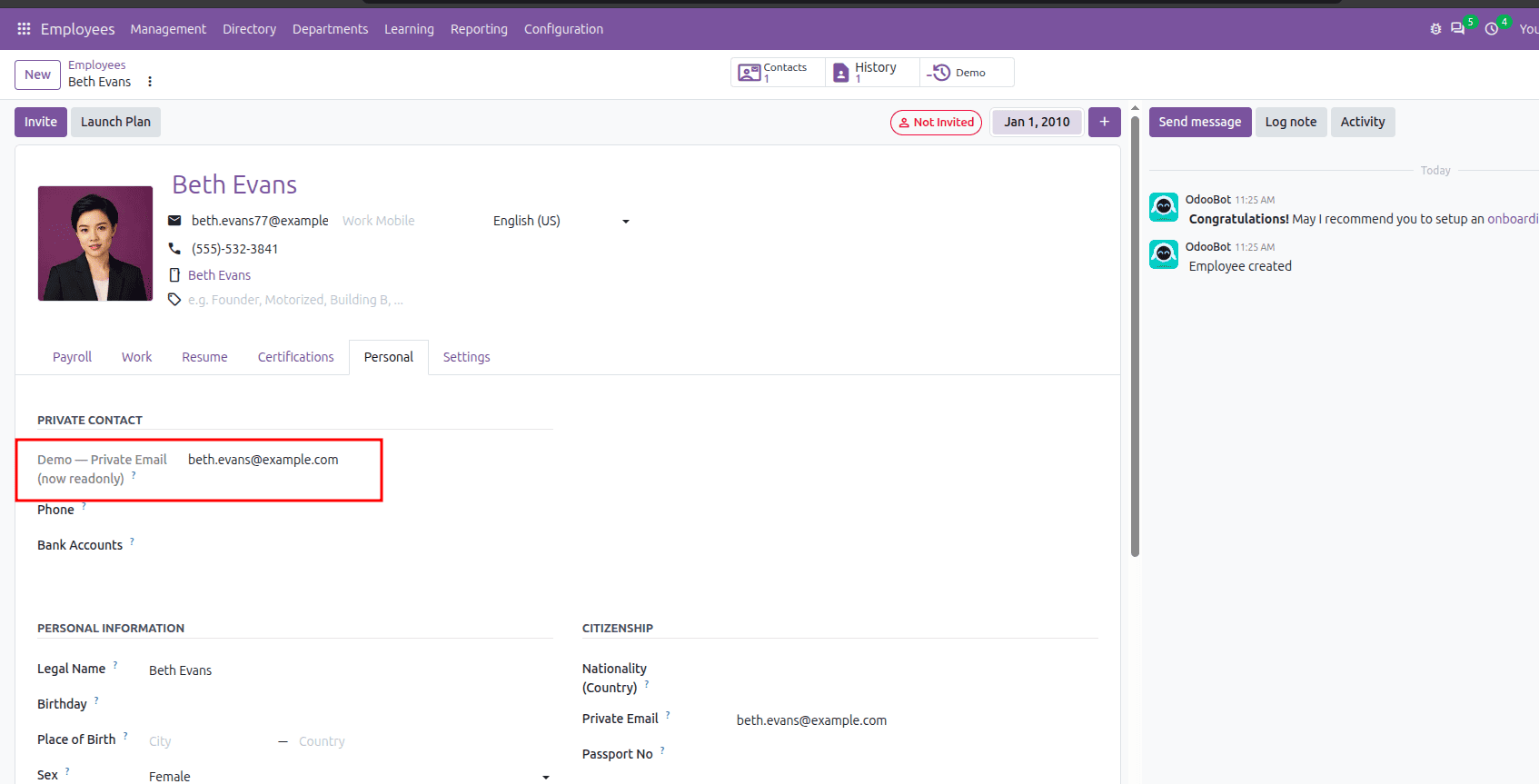
It makes the private_email field in the Private Contact group readonly. We can also delete an already existing attribute simply by specifying it without any body:
<field name="job_id" position="attributes">
    <attribute name="placeholder"/>
</field>
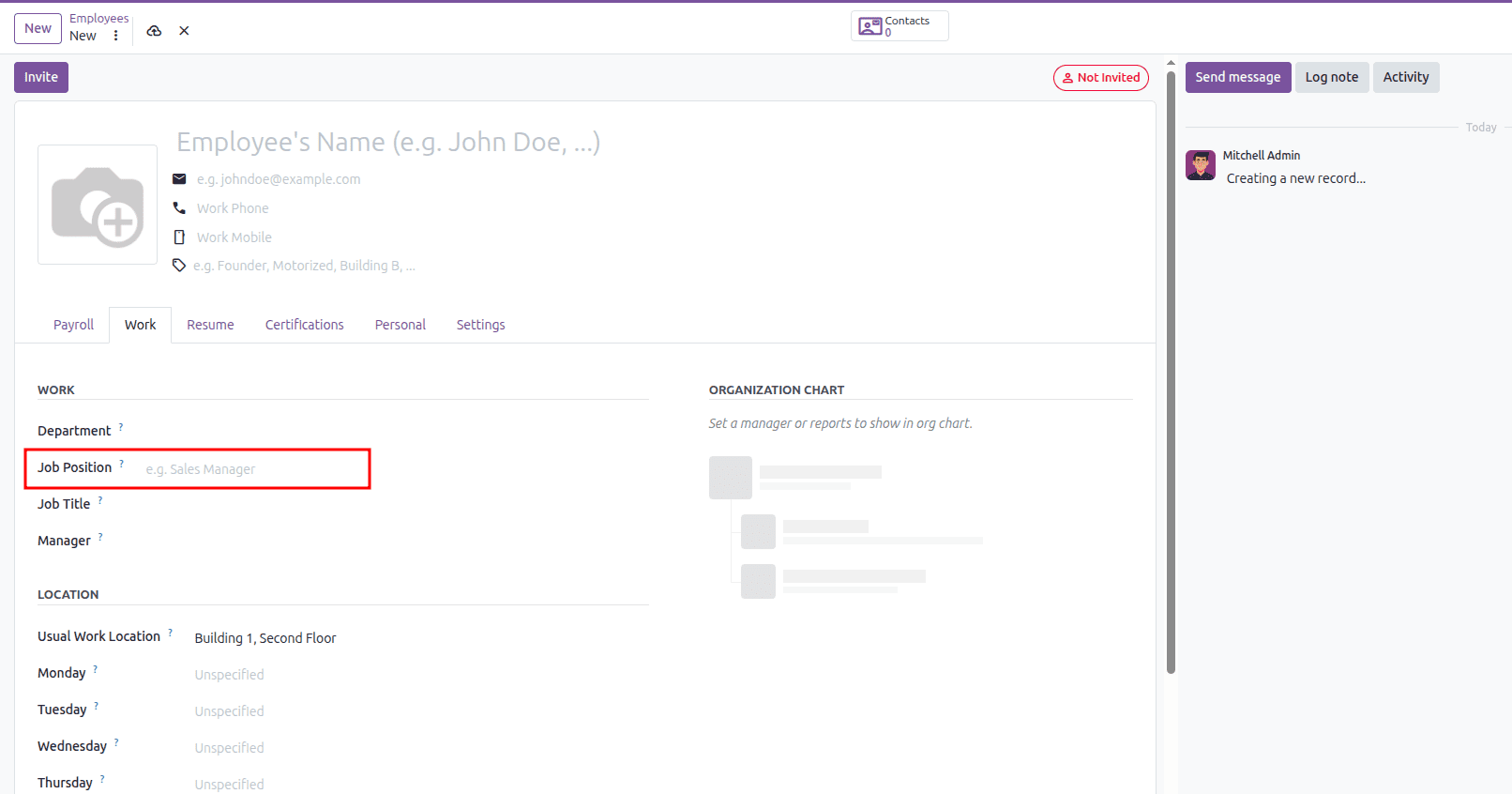
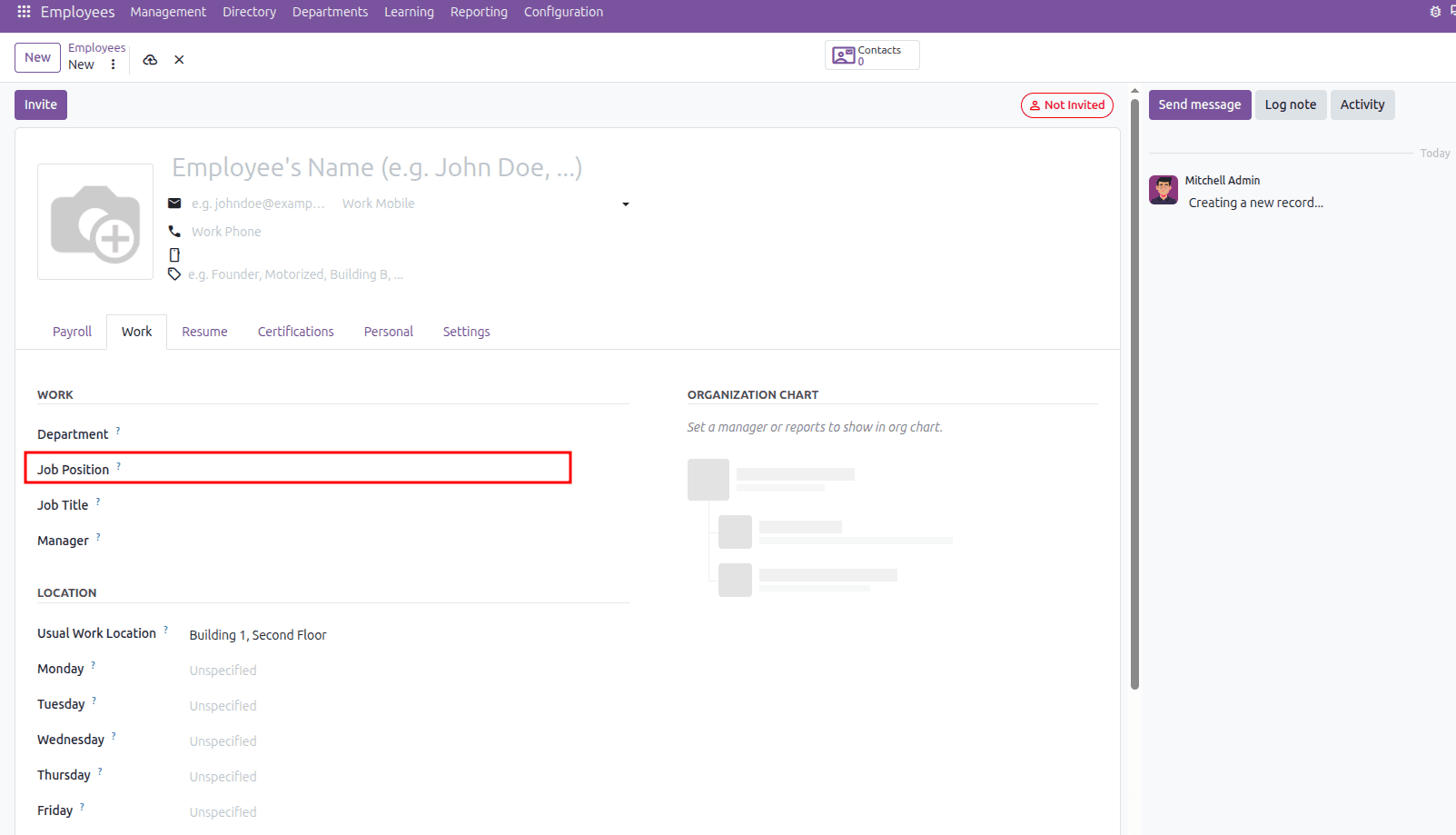
The Odoo framework deletes the placeholder attribute from job_title. The field still renders, but the hint text is gone.
Adding and removing attribute values
The Odoo system also accepts add, remove, and separator parameters when updating an existing attribute value.
<xpath expr="//div[@name='employee_photo_and_info']//field[@name='name']"
       position="attributes">
    <attribute name="class"
               add="fw-bold text-primary"
               remove="o_field_highlight"
               separator=" "/>
</xpath>
This targets the employee name field inside the employee_photo_and_info div and modifies its class list. In this case:
- add will add the specified values.
- remove will remove the specified values.
- separator specifies how the attribute values should be split and rejoined. The separator=" " is used here because Bootstrap classes are space-separated, not comma-separated (which is the default).
This feature proves especially helpful for updating CSS class values without removing the entire attribute.
4.6. Move
With the move specification, an existing node can be moved to a new location within the view.
<xpath expr="//div[@name='employee_photo_and_info']//field[@name='work_email']"
       position="after">
    <field name="mobile_phone" position="move"/>
</xpath>
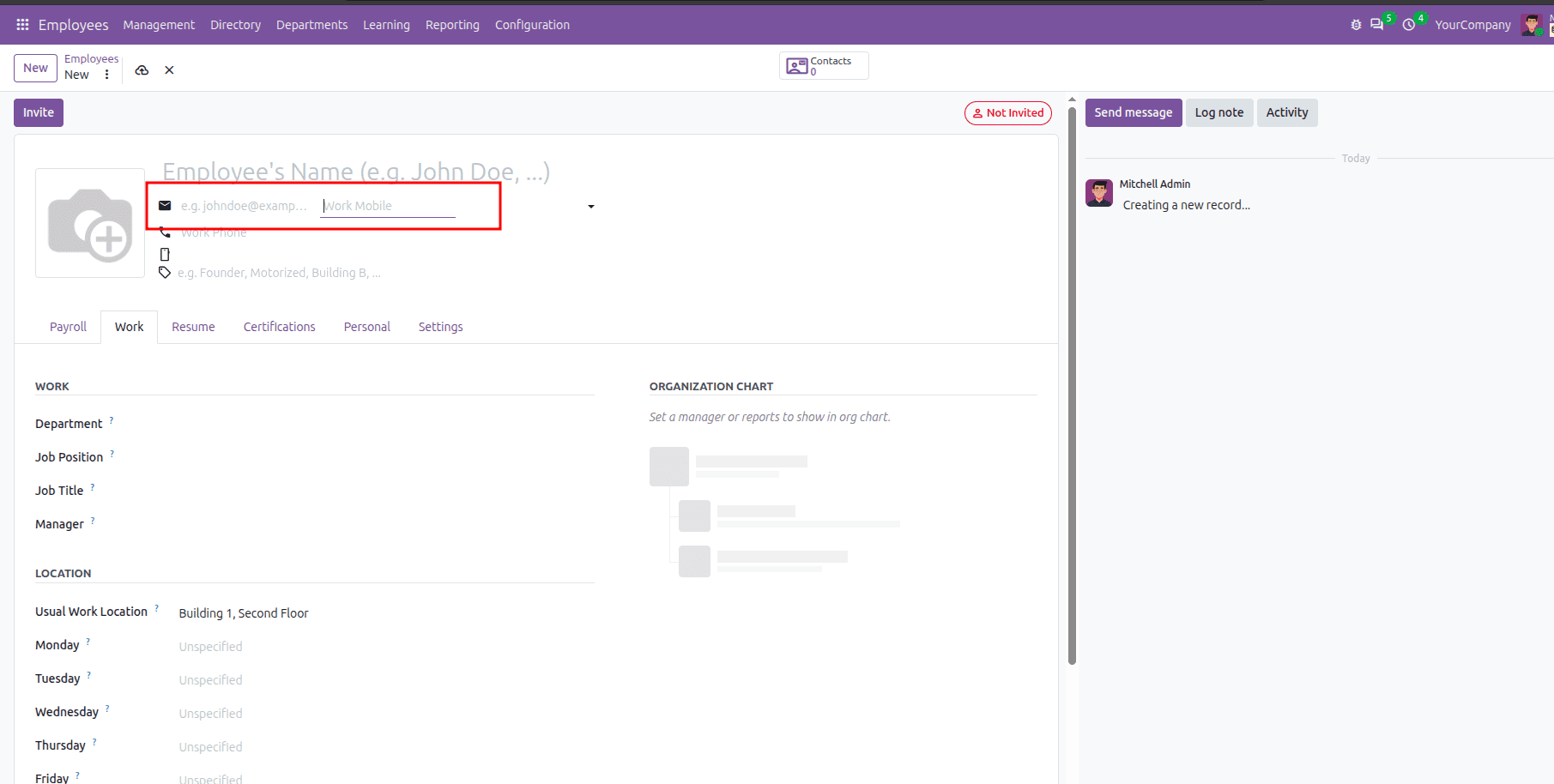
In this case, work_email is the destination anchor, and mobile_phone is the existing node that will be relocated. mobile_phone originally appears two rows below work_email in the employee header card. After this inheritance, it appears immediately after work_email.
This move specification must exist within another inheritance specification, which will define the destination position. This can include destination positions such as inside, before, after, and replace. As compared to adding another field definition, move simply relocates the existing node within the view architecture without creating a duplicate.
5. Understanding Primary Views and Extension Views
Odoo provides two inheritance modes through the mode field of ir.ui.view:
Understanding the difference between these two modes is important, especially when working with models that use delegation inheritance.
5.1. Extension View
When a view is created with an inherit_id and no explicit mode is specified, Odoo automatically sets the mode to extension. This is handled at write time by the _compute_defaults method, which sets mode to extension when inherit_id is present and mode has not been explicitly provided.
For example:
<record id="view_employee_form_inherit" model="ir.ui.view">
    <field name="name">employee.form.inherit</field>
    <field name="model">hr.employee</field>
    <field name="inherit_id" ref="hr.view_employee_form"/>
    <field name="arch" type="xml">
        <field name="work_email" position="after">
            <field name="work_phone"/>
        </field>
    </field>
</record>
Because mode is not defined and there is inherit_id, Odoo assigns it an extension mode automatically.
The extension view changes the structure of its parent view. Once the request for the main view is issued, Odoo uses all relevant extension views to get the final structure.
If several extension views inherit the same view, their order will be determined based on their priority attribute (lower priority is used first) and then their database id attribute. If two views have the same priority attribute, they will be applied in the order in which they are entered in the database.
Extension views are typically used for adding new fields, modifying attributes, or modifying form and list views.
5.2. Primary Mode
Primary view is considered the base view while resolving view inheritance. The use of primary mode becomes quite significant while handling delegation inheritance, in which a new model extends another model using _inherits.
Consider the following code example:
from odoo import fields, models
class HrEmployeeExtension(models.Model):
    _name = 'hr.employee.extension'
    _description = 'Employee Extension'
    _inherits = {'hr.employee': 'employee_id'}
    employee_id = fields.Many2one(
        comodel_name='hr.employee',
        required=True,
        ondelete='cascade',
    )
    custom_reference = fields.Char(string='Custom Reference')
    demo_notes = fields.Text(string='Demo Notes')
In the above example, hr.employee.extension has used _inherits to delegate its employee fields to hr.employee. It adds two custom fields, custom_reference and demo_notes, on top of the delegated fields.
Now, consider the case in which we want to reuse the existing employee form view while creating a view for hr.employee.extension. We can create the view using mode="primary".
<record id="view_employee_extension_form" model="ir.ui.view">
    <field name="name">hr.employee.extension.form</field>
    <field name="model">hr.employee.extension</field>
    <field name="inherit_id" ref="hr.view_employee_form"/>
    <field name="mode">primary</field>
    <field name="arch" type="xml">
        <field name="work_email" position="after">
            <field name="custom_reference"/>
        </field>
        <xpath expr="//page[@name='work_information']//group[@name='work']"
               position="after">
            <group name="demo_notes_group" string="Demo Notes">
                <field name="demo_notes"
                       colspan="2"
                       nolabel="1"
                       placeholder="Enter demo notes for this extension record..."/>
            </group>
        </xpath>
    </field>
</record>
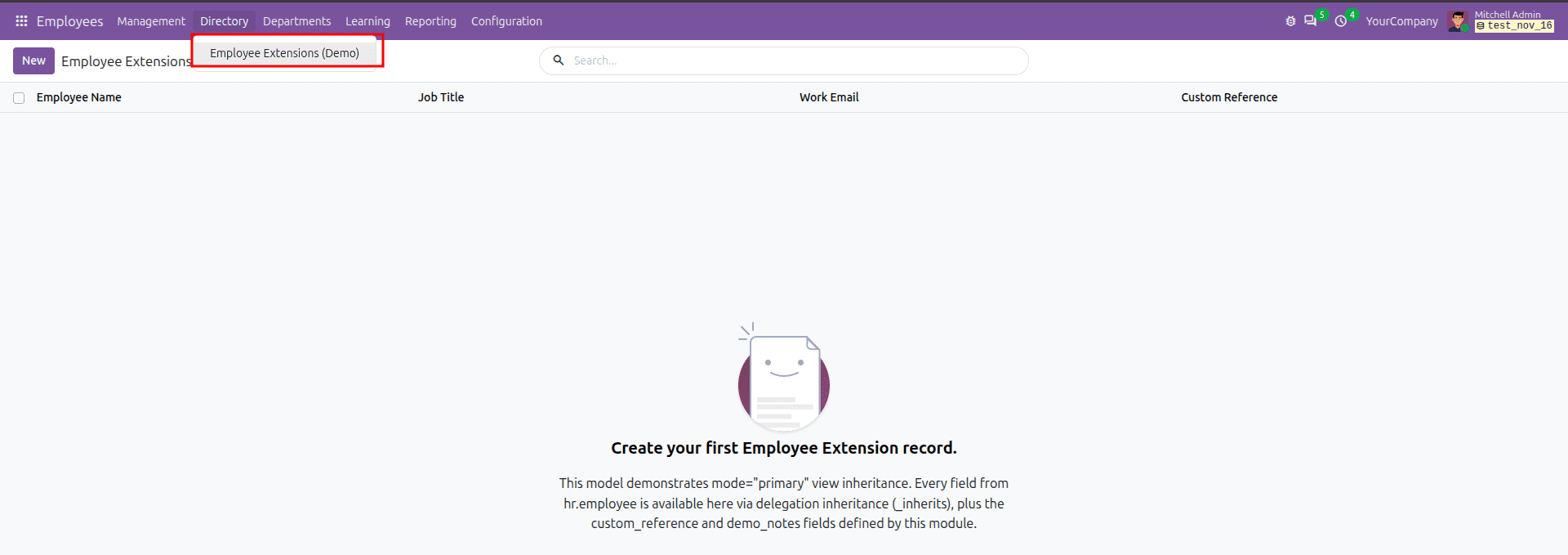
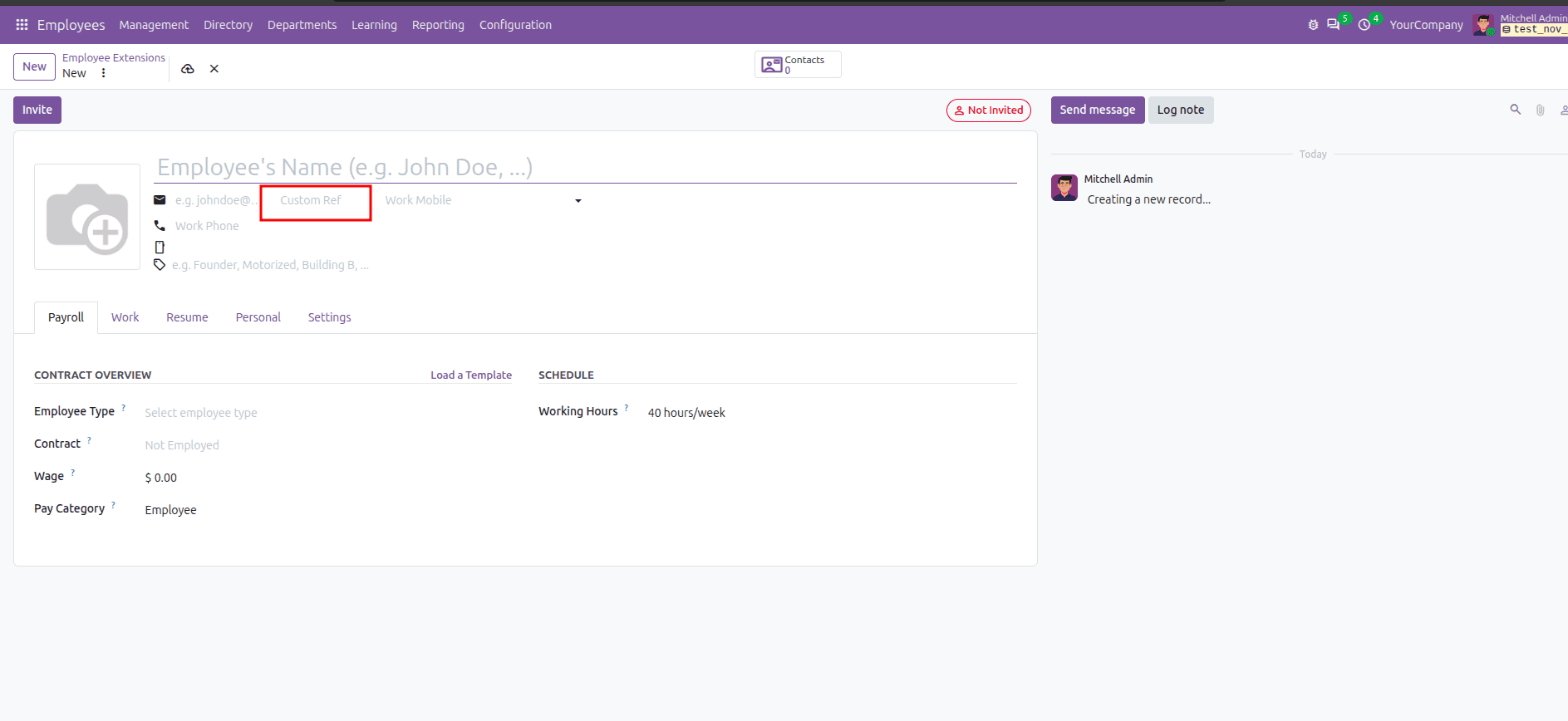
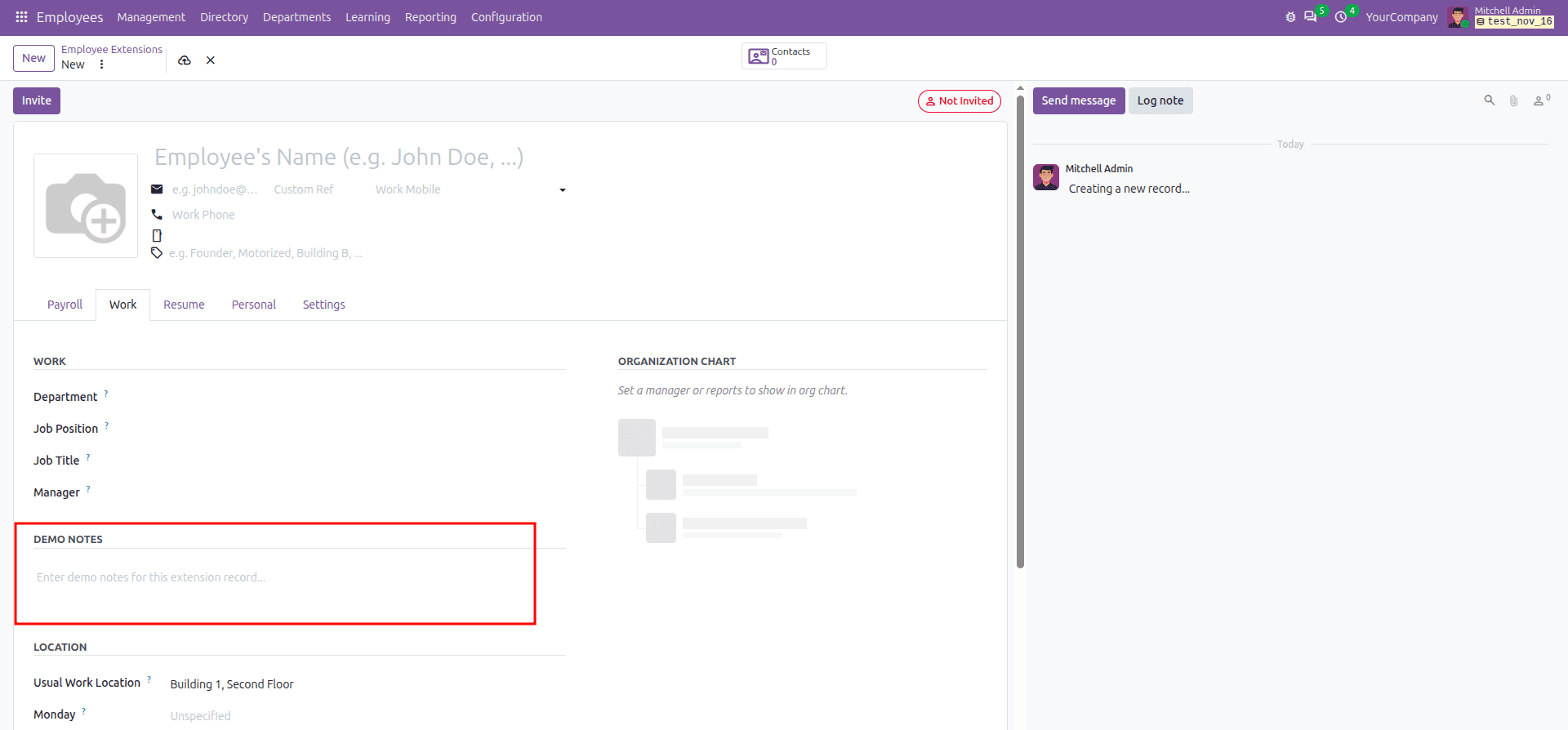
The custom_reference is placed in the header card below Work Email. The demo_notes becomes a new group under the Work tab, placed after the work group using a stable XPath anchor point.
Why is this required?
The view is part of the hr.employee.extension model, whereas the original view is in the hr.employee model. By default, the view resolution process will find the primary view in relation to the derived model in case of inheriting the view, but that is not the desired action here.
Setting mode to primary ensures that Odoo first completely resolves the nearest primary parent view, even if it is from another model. The inheritance specifications in the current view are then applied to that resolved architecture, and the result is used as the primary view for the derived model.
Important implementation note: When mode="primary" resolves hr.view_employee_form, Odoo validates every type="object" button method in the fully combined architecture against the view's declared model hr.employee.extension.Even setting invisible="1" for those buttons would not bypass this check. Methods that are used by any button in the resolved parent form need to be present in the inherited model. The methods like action_send_invitation, action_open_versions, etc., which are used in the demo module, are defined in the hr.employee.extension as delegators to self.employee_id.
When should you use each mode?
| Requirement | Inheritance Mode |
| Adding fields to an existing form view | extension |
| Modifying an existing view | extension |
| Changing field attributes | extension |
| Creating a derived view using delegation inheritance | primary |
| Using a parent view from another model as the base for a derived model | primary |
Extension suffices in most cases of customization. However, apply the primary technique in case the resolution of the view calls for its separate base view.
6. Naming Inherited View
Proper naming of inherited views makes them easily recognizable and manageable, particularly when there are many customizations to the same parent view within a single module.
There is no enforced naming convention in Odoo regarding the naming of inherited view XML IDs. Nonetheless, it is recommended to adopt a proper naming scheme.
For instance, let us consider the original view:
<record id="view_employee_form" model="ir.ui.view">
The inherited view can have an XML ID similar to this:
<record id="view_employee_form_inherit" model="ir.ui.view">
It is also possible to specify a descriptive view name like this:
<field name="name">employee.form.inherit</field>
When inheriting views in modules for some purpose, it would be nice to indicate it in the XML ID:
<record id="view_employee_form_inherit_custom_fields" model="ir.ui.view">
Some of the naming conventions to be followed are as follows:
- Use a descriptive XML ID that refers to the original view and the customization.
- Use _inherit or _inherit_ as a naming suffix.
- Use a descriptive name for the name field.
- Do not use generic names like view_form_1 or custom_view.
Clarification regarding XML ID: XML ID contains the module and record identifier separated by a dot (.), such as my_module.view_employee_form_inherit. Hence, _inherit can be used as a naming suffix for the record identifier part and not for the module part.
7. Debugging View Inheritance Using --dev=xml
There can be situations where an inheritance view specification fails to give the desired output even after making changes to the XML file. This happens because, by default, Odoo stores the view architecture in the database. When the XML architecture is loaded at the time of installing or upgrading the module,
The architecture is stored in the arch_db field of ir.ui.view. Making changes to the XML file doesn’t change the architecture already stored in the database.
Odoo offers the --dev=xml flag for this purpose.
What does --dev=xml do?
However, if the XML development mode is activated, Odoo uses the view architecture from the XML file directly instead of the stored architecture in the database, as long as the view has not been updated. The field for this is arch_updated in ir.ui.view. If arch_updated = True, the view was updated via the database interface, and Odoo uses the stored architecture even in --dev=xml mode.
This is done in the _compute_arch function in ir.ui.view if 'xml' in config['dev_mode'] and not view.arch_updated.
This is very useful when developing because one can test modifications in XML by just reloading the web page and not upgrading the module every time.
How to enable XML development mode
./odoo-bin --dev=xml
If you are using a configuration file and a specific database:
./odoo-bin -c /path/to/odoo.conf -d your_database --dev=xml
After enabling the Odoo server with XML development mode, make your changes to the view's XML file and refresh the respective page in your browser to see the changes.
Developer’s Note: --dev=xml is a developer tool and not an alternative to upgrading modules. Not all views in the database will be updated. Views that have arch_updated marked as true will use the architecture in the database. The XML file needs to be linked with the respective view via the file's metadata (arch_fs).
Inheritance errors debugged
1. Element not found within the parent view
This problem is caused by an incorrect XPath expression or shorthand selector because no such element is present within the parent architecture.
<xpath expr="//field[@name='mobile_number']" position="after">
    <field name="work_phone"/>
</xpath>
Since mobile_number is missing from the parent view, Odoo cannot use this code. Ensure the existence of the target element within the original view architecture.
2. Incorrect XPath anchor
Positional selectors and attributes may change from version to version and lead to inheritance errors. Always use stable name attributes and test the whole XPath expression against the parent architecture.
3. Incorrect inheritance mode
If the view refers to a model derived from another one, make sure the primary mode is specified. Otherwise, the view may not be properly inherited.
4. Changes aren’t updated in the interface
If there have been changes made in the XML file but the browser is still showing the previous architecture, it may be possible that the module should be updated or that the view has arch_updated=True, which doesn’t allow --dev=xml to access the file. You can see the final merged architecture using Odoo developer tools.
8. Best Practices for View Inheritance in Odoo 20
- Prefer stable XPath anchors. Use technical attributes such as name instead of positional selectors like group[2] or field[3].
- Use shorthand inheritance when possible. If the target is a field with a unique name, the shorthand syntax is simpler than a full XPath expression.
- Understand matching rules. Field locators are matched by name only. Other XML elements are matched by tag name and all attributes except position.
- Choose the correct position. Use inside, before, after, replace, attributes, or move according to the modification required.
- Avoid unnecessary replacements. If only an attribute needs changing, use attributes instead of replacing the whole element.
- Understand primary and extension modes. Use extensions for regular modifications. Use primary when creating a separate base view, such as in delegation inheritance scenarios.
- Use descriptive XML IDs. Follow a consistent naming convention so inherited views can be identified easily.
- Test the final architecture. Check the combined view after applying inheritance, particularly when multiple modules modify the same parent view.
One of the most beneficial features of Odoo 20 is Inheritance View, which provides flexibility for modifying the views currently in use without altering them. For efficient customization of views, one must understand the basics of Odoo element identification, use of XPath, and types of inheritance.
To read more about How to Inherit Views in Odoo 19, refer to our blog How to Inherit Views in Odoo 19.