Managing employees’ time-off records is overwhelming if they don't have an organizational system. Keeping track of employee absences can become difficult when multiple leave requests are scheduled for different dates. Managers may need to track who is available, identify overlapping leaves, or schedule work based on team availability. Odoo 20 provides a Time Off overview that helps users to view employee leave schedule in one place. With the Gantt view and calendar features, managers can easily check upcoming absences and organise leave planning.
The Odoo 20 team Calendar helps managers monitor employee absences, identify overlapping leave, and plan work according to team availability. This blog will explore how to use the time off overview and team calendar in Odoo 20.
Accessing the Time Off Overview
The Time Off Overview in Odoo 20 provides a clear picture of the employee leave schedule. It helps managers check upcoming absences, review leave allocation, and understand team availability from a single view.
To access it, open your Time Off module from the Odoo 20 dashboard. Navigate to the Overview from the Time Off dashboard as shown below.
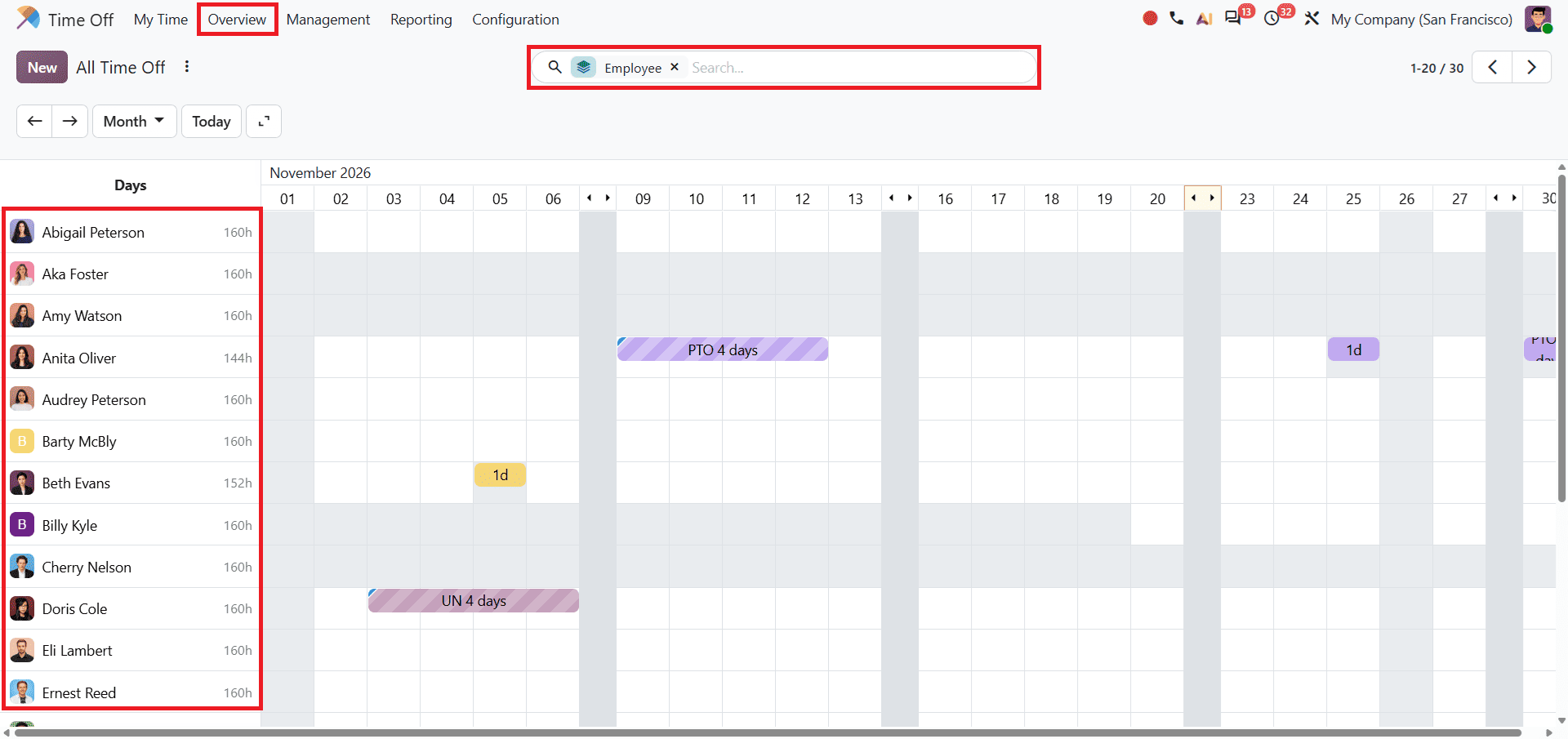
The Time Off Overview uses a Gantt view to display employee leave schedules along a timeline. Employee names appear on the left, while the dates are arranged across the top. Scheduled leaves are represented by coloured bars, making it easier to identify when employees are away. It gives managers and HR teams a clear picture of employee availability. It helps them quickly check who is off today or has planned leave, track the approval status of leave requests, and filter schedules by department or team. This makes it easier to plan daily activities, distribute tasks, and manage workloads without confusion. Managers can use this view to check upcoming absences, identify overlapping leaves, and understand team availability for better leave planning.
Viewing and managing Leave Requests
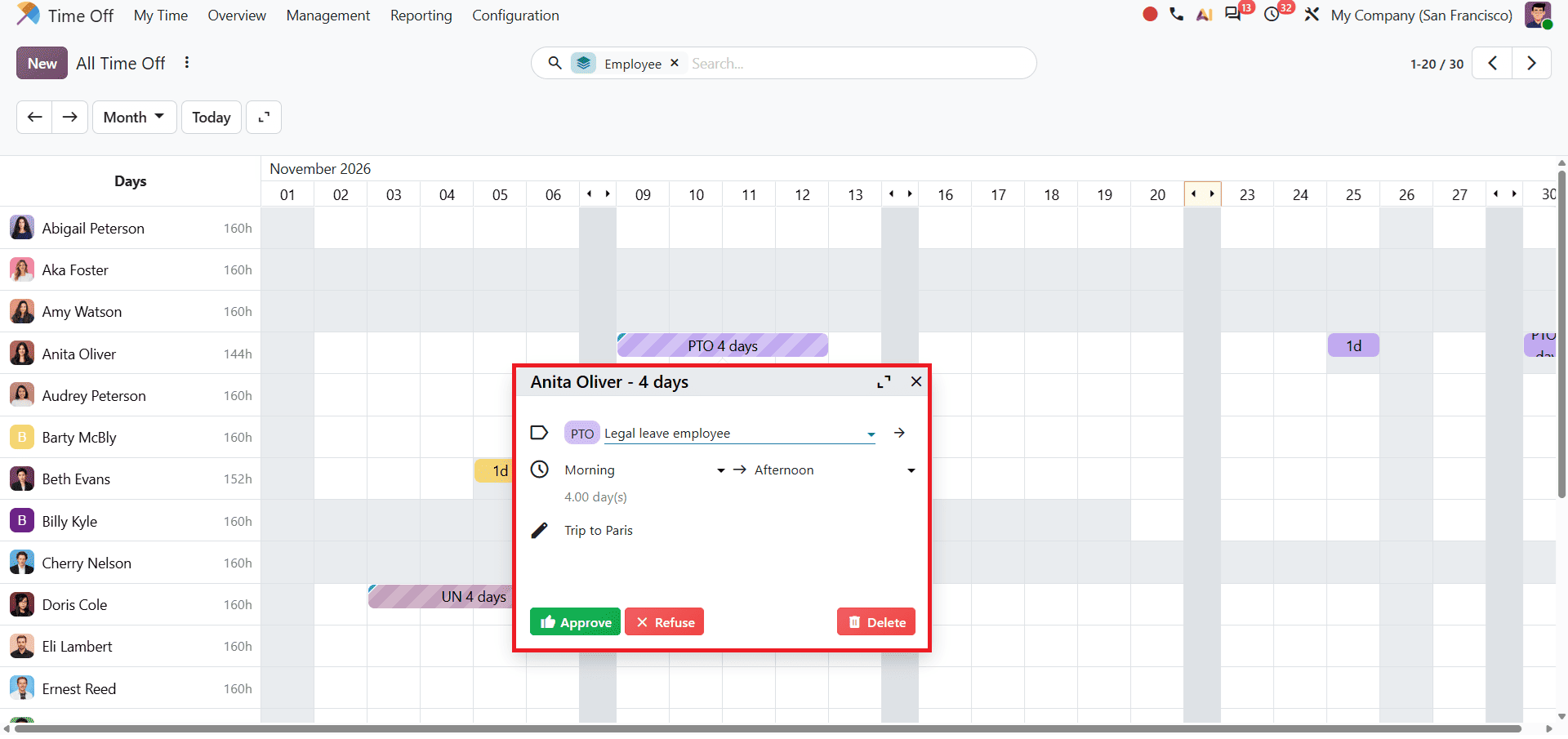
When a user clicks on a leave entry in the overview, Odoo 20 displays a pop-up window with details about the request. It includes the employee's name, time off type, duration, and description. Managers can review these details and use the Approve or Refuse buttons to manage the request. A Delete option is also available to remove the leave record. You can see an example of a record, as shown below.
If the manager wants to see who is off during a particular week, they can simply change the time period using the available options in the overview. Odoo 20 provides Week, Month, and Quarter along with a custom date range. The default view will be shown in today's leave requests.
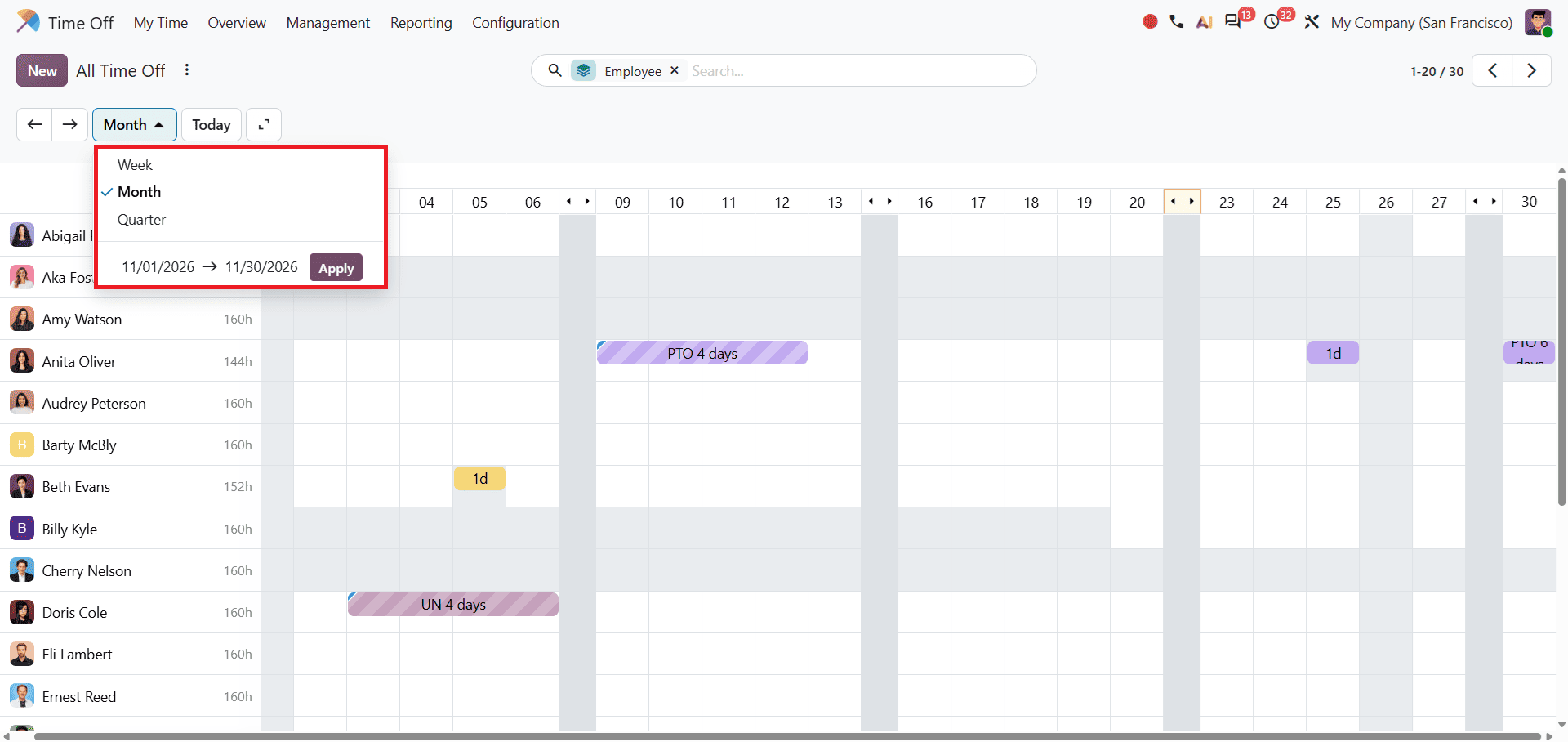
This allows managers to review employee absence over different periods and plan work accordingly.
Using Filters and Group By
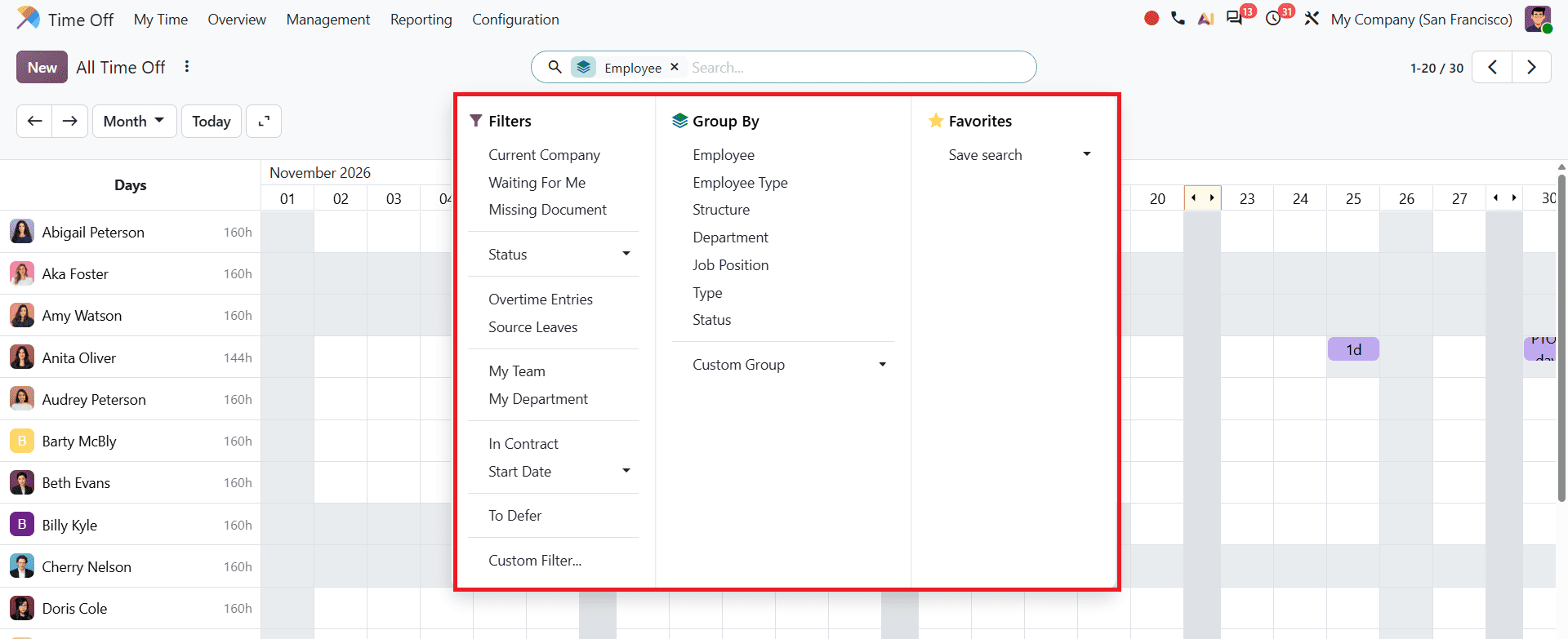
Odoo 20 provides Filters and Group By options to help users organize and find specific leave records. The Filters option allows users to narrow down records based on conditions such as company, approval status, missing documents, department, and start date. The Group By option organizes leave records based on employee, employee type, department, job position, time-off type, or status. These options make it easier for managers to review leave schedules and find the information they need.
Configuring Time Off In Odoo 20
In the Odoo 20 Time Off module, HR managers can use the Configuration menu to set up leave categories, approval rules, and allocation policies across the company. To access Configuration, click the Configuration menu from the Time Off dashboard.
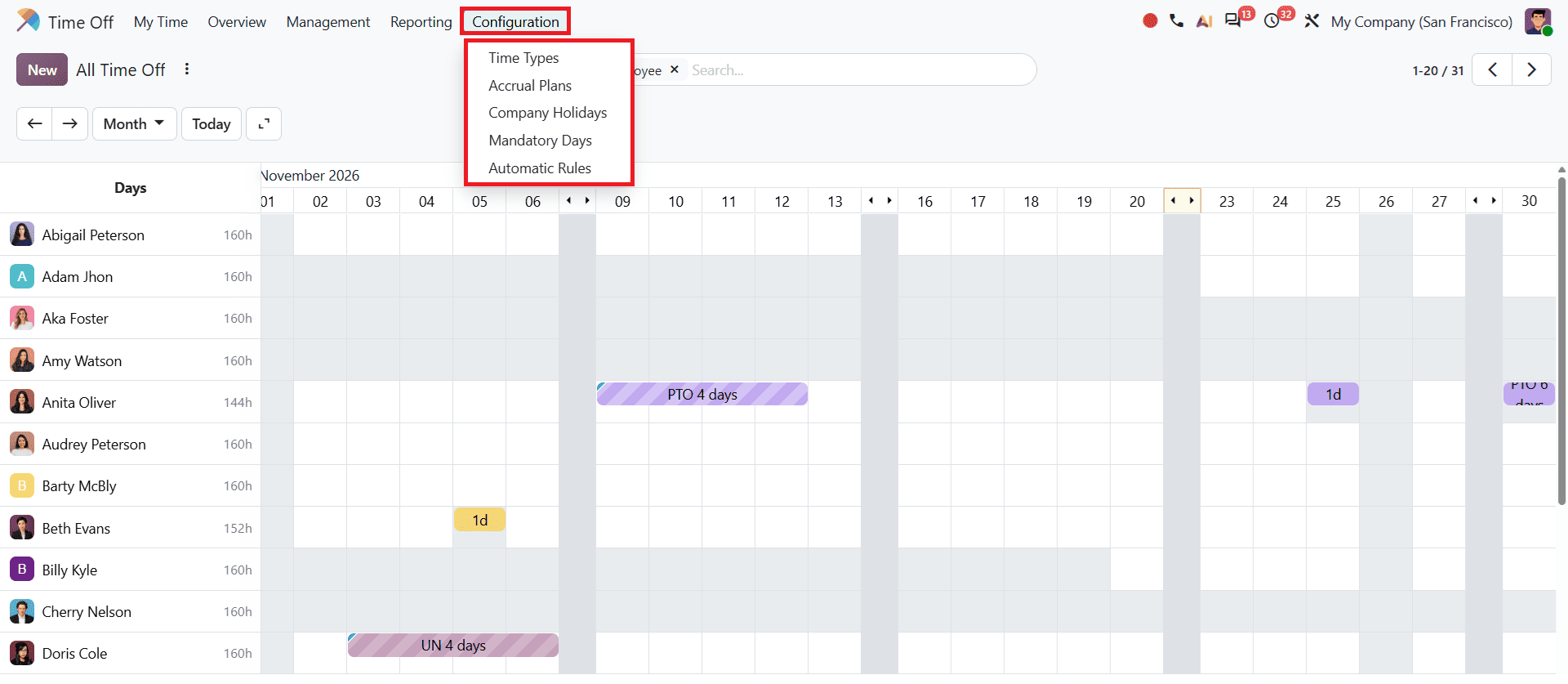
Under the Configuration menu, users can find Time Types, Accrual Plans, Company Holidays, Mandatory Days, and Automatic Rules. These options help HR managers define different leave categories, manage holidays, set required working days, and establish leave allocation rules.
Time Types
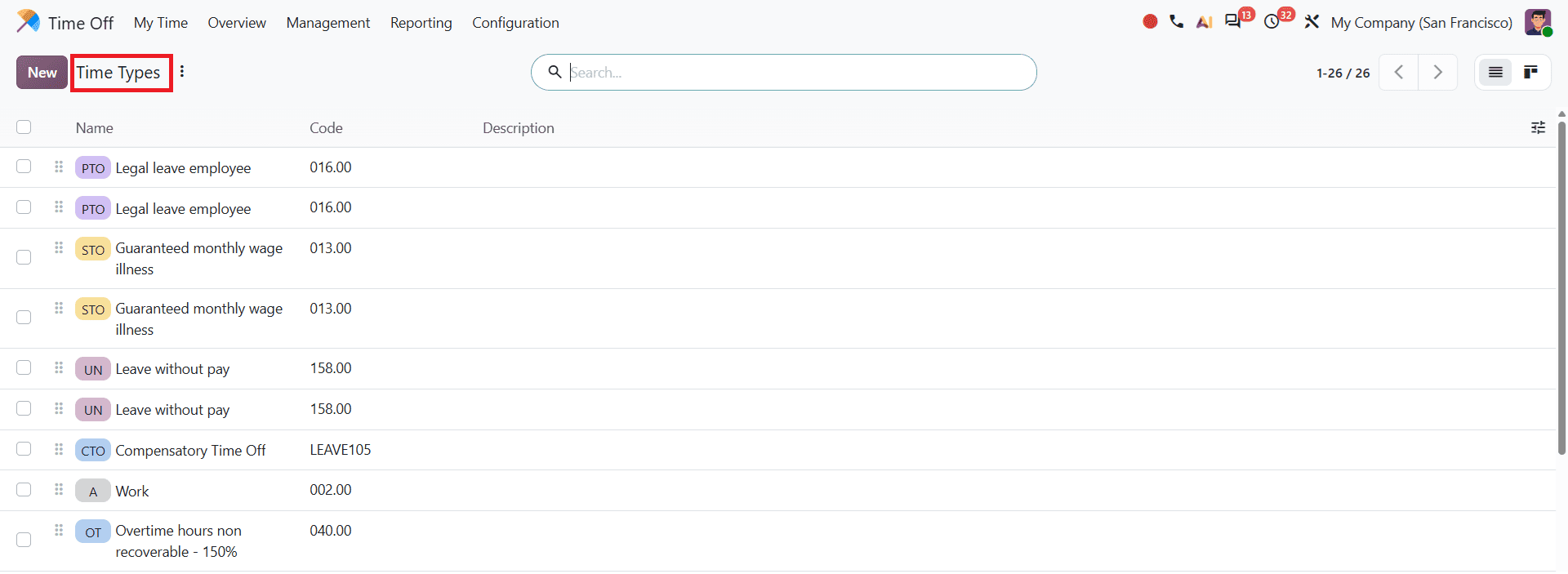
Time Off Types allow companies to create different categories of employee leave, such as paid time off, sick leave, and unpaid leave. Each type can have its own allocation requirements, duration settings, and approval rules. This helps companies manage different leave policies according to their requirements.
To access time off types, select Time Types from the Configuration menu.
Accrual Plans
Select Accrual Plans from the Configuration menu. Accrual Plans are used to configure rules for time off that employees earn progressively as they work, rather than receiving the entire allocation at once. HR managers can define how frequently employees earn time off, set accrual levels, and establish rules for carrying forward or losing unused leave.
Company Holidays
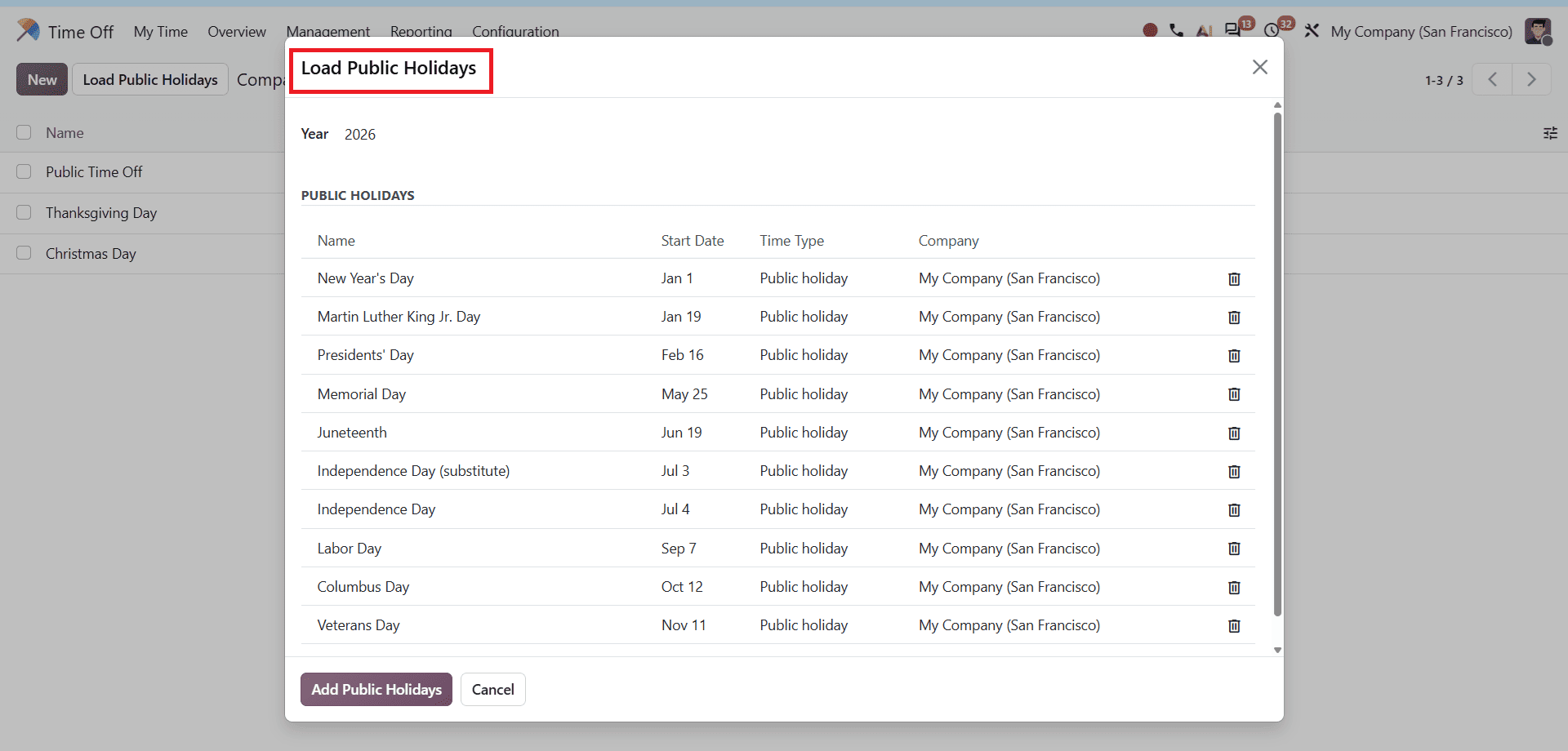
The Company Holidays option allows companies to maintain a record of holidays applicable to their employees. Odoo 20 also supports loading public holidays based on the company's country, helping HR teams maintain holiday schedules. To access it, select Company Holidays from the Configuration menu.

Clicking the Load Public Holidays button opens a pop-up window where users can select and load public holidays for the company, as shown below.
Mandatory Days
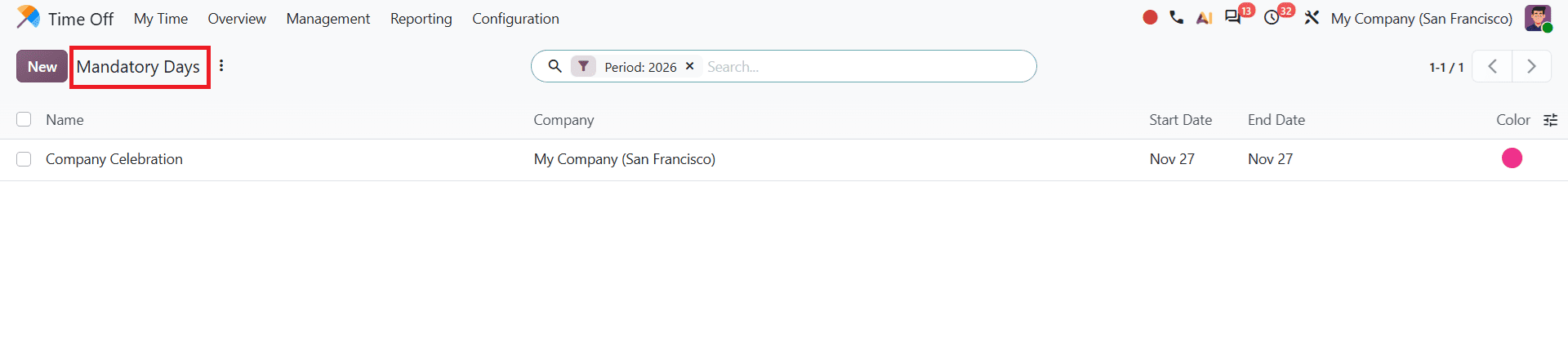
Mandatory Days are used to mark specific dates when employees are required to work. For example, a company may set mandatory working days during inventory checks or important business activities. These dates help prevent employees from submitting leave requests during periods when their availability is essential.
Automatic Rules
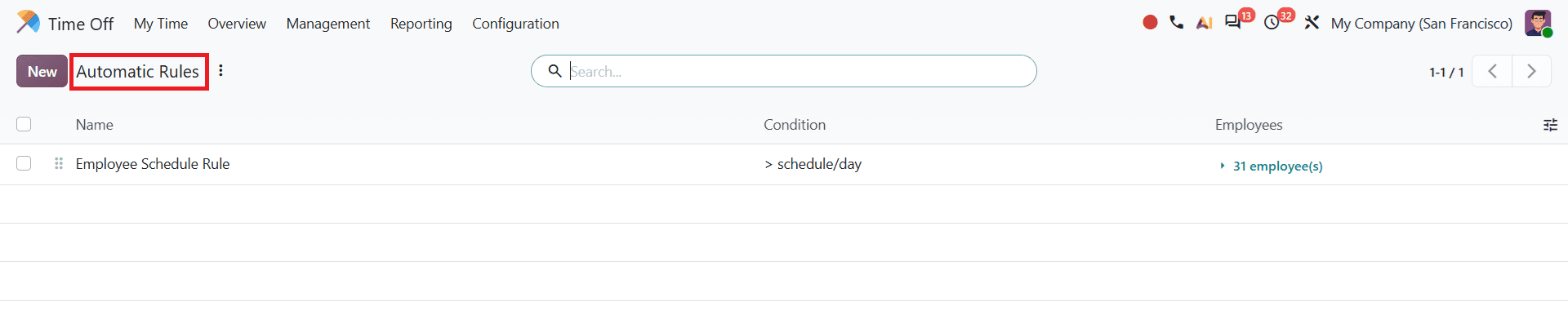
Automatic Rules allow HR managers to configure predefined rules for employees based on their schedules. These rules can be used to handle time-off-related processes automatically, reducing the need for repetitive manual work. The configuration also provides options such as employee scheduling and daily rule frequency. A predefined automatic rule is shown below.
Viewing Your Team Calendar
The Time Off Overview also allows managers to view the leave schedules of their team members. By opening the calendar view and applying the My Team filter, users can see the planned absences of employees in their team, as shown in the screenshot below.
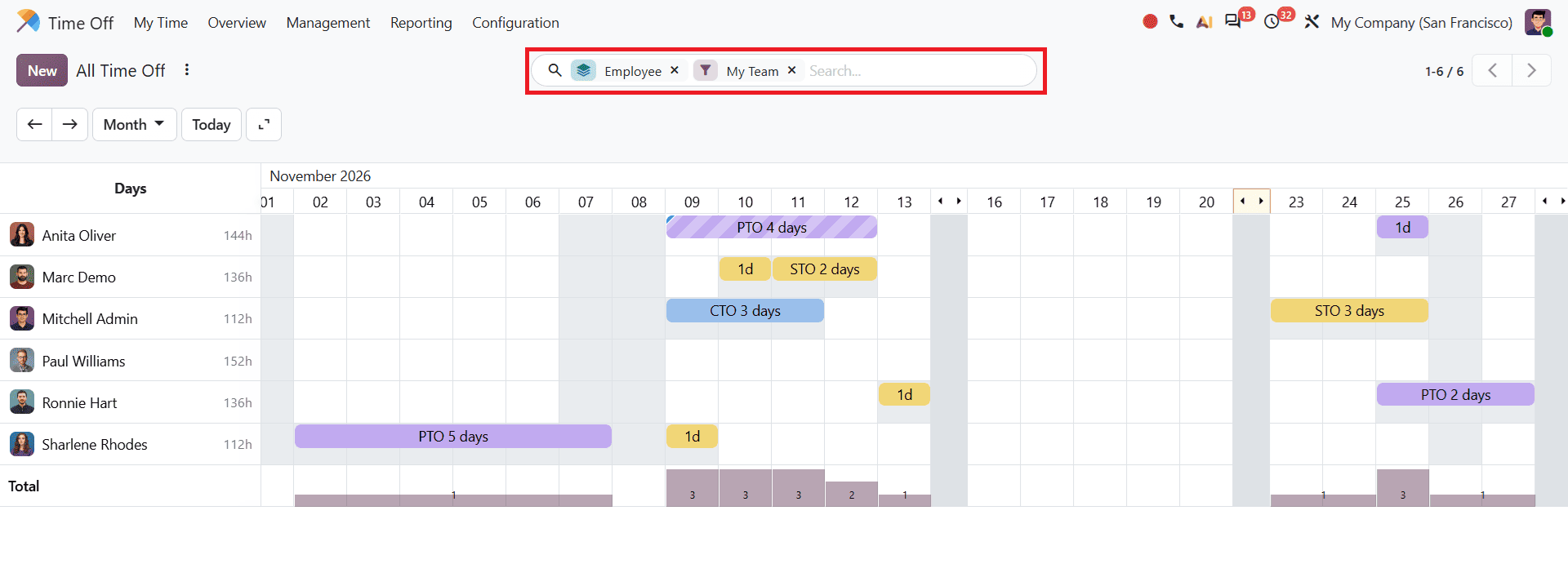
The calendar displays employee names alongside their scheduled leaves across different dates. Managers can navigate between months to check upcoming absences, identify overlapping leaves, and plan work based on team availability.
Odoo 20 makes employee leave management easier with its Time Off Overview and calendar features. Managers can use the Gantt view, filters, and team calendar to monitor employee absences, review leave requests, and plan work based on team availability. The configuration options also help HR teams establish leave policies, manage holidays, and organize time-off allocations. By using these features, companies can maintain a clear view of employee availability and manage leave planning more efficiently.
To read more about Introduction to the Time Off Module in Odoo 19, refer to our blog Introduction to the Time Off Module in Odoo 19.