Odoo provides many ways to display and analyse records. Pivot views are one of those views in which we can analyse the data grouped by different fields.
The pivot view gives a similar view to a spreadsheet table. It can be useful to display values such as totals, minimums, maximums, and counts based on selected fields.
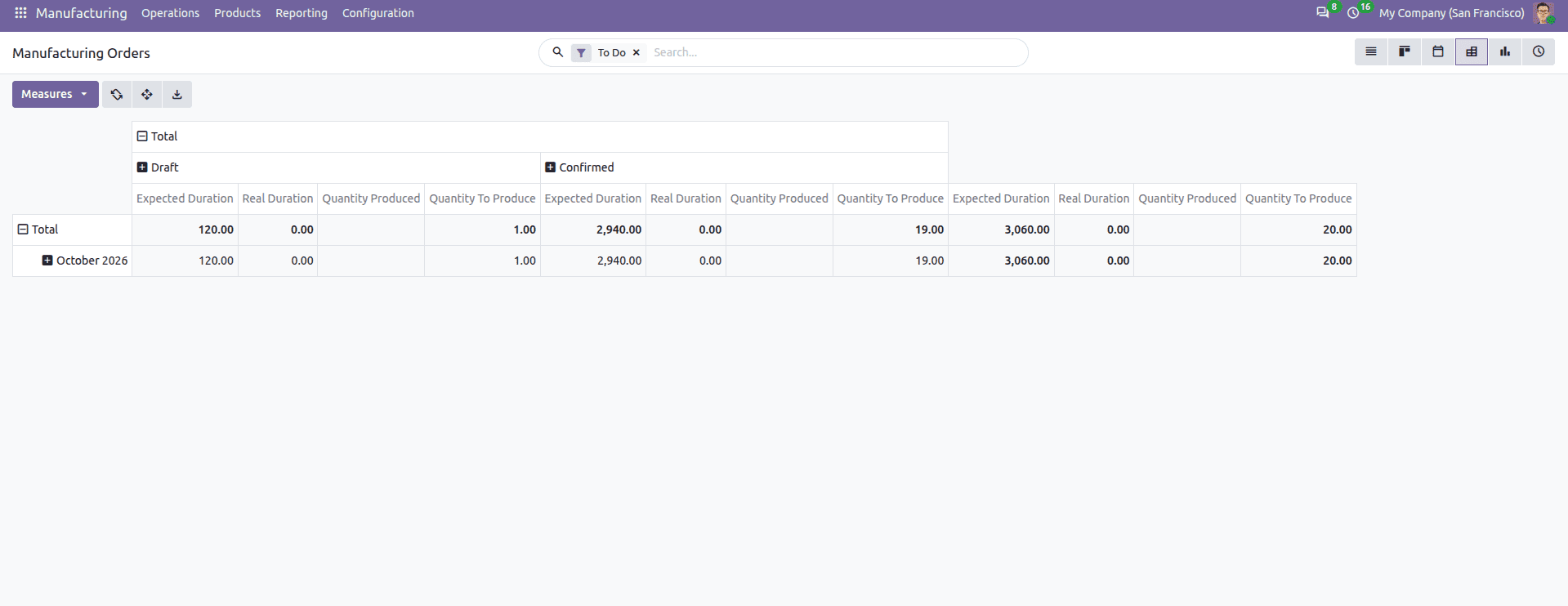
The picture below shows the view of a pivot in Manufacturing.
Let's create a pivot table from scratch.
We can use a simple model for sales information.
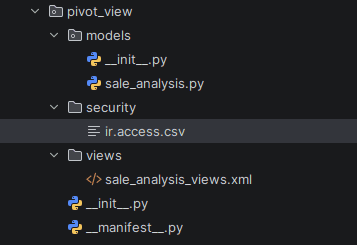
The structure is below.
Create your Python model
Create a Python model.
from odoo import fields, models

class SaleAnalysis(models.Model):
    _name = "sale.analysis"
    _description = "Sale Analysis"
    name = fields.Char(string="Reference", required=True)
    salesperson_id = fields.Many2one(
        "res.users",
        string="Salesperson"
    )
    customer_id = fields.Many2one(
        "res.partner",
        string="Customer"
    )
    product_id = fields.Many2one(
        "product.product",
        string="Product"
    )
    quantity = fields.Float(
        string="Quantity"
    )
    amount = fields.Float(
        string="Amount"
    )
    date = fields.Date(
        string="Date"
    )
Create the Pivot View
Now, we can create the XML File.
<odoo>
    <record id="view_sale_analysis_pivot" model="ir.ui.view">
        <field name="name">sale.analysis.pivot</field>
        <field name="model">sale.analysis</field>
        <field name="arch" type="xml">
            <pivot string="Sales Analysis">
                <field
                    name="salesperson_id"
                    type="row"
                />
                <field
                    name="product_id"
                    type="row"
                />
                <field
                    name="date"
                    type="col"
                    interval="month"
                />
                <field
                    name="quantity"
                    type="measure"
                />
                <field
                    name="amount"
                    type="measure"
                />
            </pivot>
        </field>
    </record>
</odoo>
The <pivot> element defines the pivot view.
Understanding Pivot View Field Types
The type attribute determines how a field is used in the Pivot View.
Row
The row type is for rows on the pivot view.
<field name="salesperson_id" type="row"/>
This helps the records group based on the salesperson.
Column
The column type is a field in the columns.
<field name="date" type="col"/>
Measure
The measure type defines a field whose values should be aggregated.
<field name="quantity" type="measure"/>
We can provide a form and list view as well.
So, the overall view file looks like this.
<odoo><!-- List View -->
    <record id="view_sale_analysis_list" model="ir.ui.view">
        <field name="name">sale.analysis.list</field>
        <field name="model">sale.analysis</field>
        <field name="arch" type="xml">
            <list string="Sales Analysis">
                <field name="name"/>
                <field name="salesperson_id"/>
                <field name="customer_id"/>
                <field name="product_id"/>
                <field name="quantity"/>
                <field name="amount"/>
                <field name="date"/>
            </list>
        </field>
    </record>
    <!-- Form View -->
    <record id="view_sale_analysis_form" model="ir.ui.view">
        <field name="name">sale.analysis.form</field>
        <field name="model">sale.analysis</field>
        <field name="arch" type="xml">
            <form string="Sales Analysis">
                <sheet>
                    <group>
                        <field name="name"/>
                        <field name="salesperson_id"/>
                        <field name="customer_id"/>
                        <field name="product_id"/>
                        <field name="quantity"/>
                        <field name="amount"/>
                        <field name="date"/>
                    </group>
                </sheet>
            </form>
        </field>
    </record>
    <!-- Pivot View -->
    <record id="view_sale_analysis_pivot" model="ir.ui.view">
        <field name="name">sale.analysis.pivot</field>
        <field name="model">sale.analysis</field>
        <field name="arch" type="xml">
            <pivot string="Sales Analysis">
                <field name="salesperson_id" type="row"/>
                <field name="product_id" type="row"/>
                <field name="date" type="col" interval="month"/>
                <field name="quantity" type="measure"/>
                <field name="amount" type="measure"/>
            </pivot>
        </field>
    </record>
    <!-- Action -->
    <record id="action_sale_analysis" model="ir.actions.act_window">
        <field name="name">Sales Analysis</field>
        <field name="res_model">sale.analysis</field>
        <field name="view_mode">pivot,list,form</field>
    </record>
    <!-- Menu -->
    <menuitem
        id="menu_sale_analysis"
        name="Sales Analysis"
        action="action_sale_analysis"
       sequence="10"
    />
</odoo>
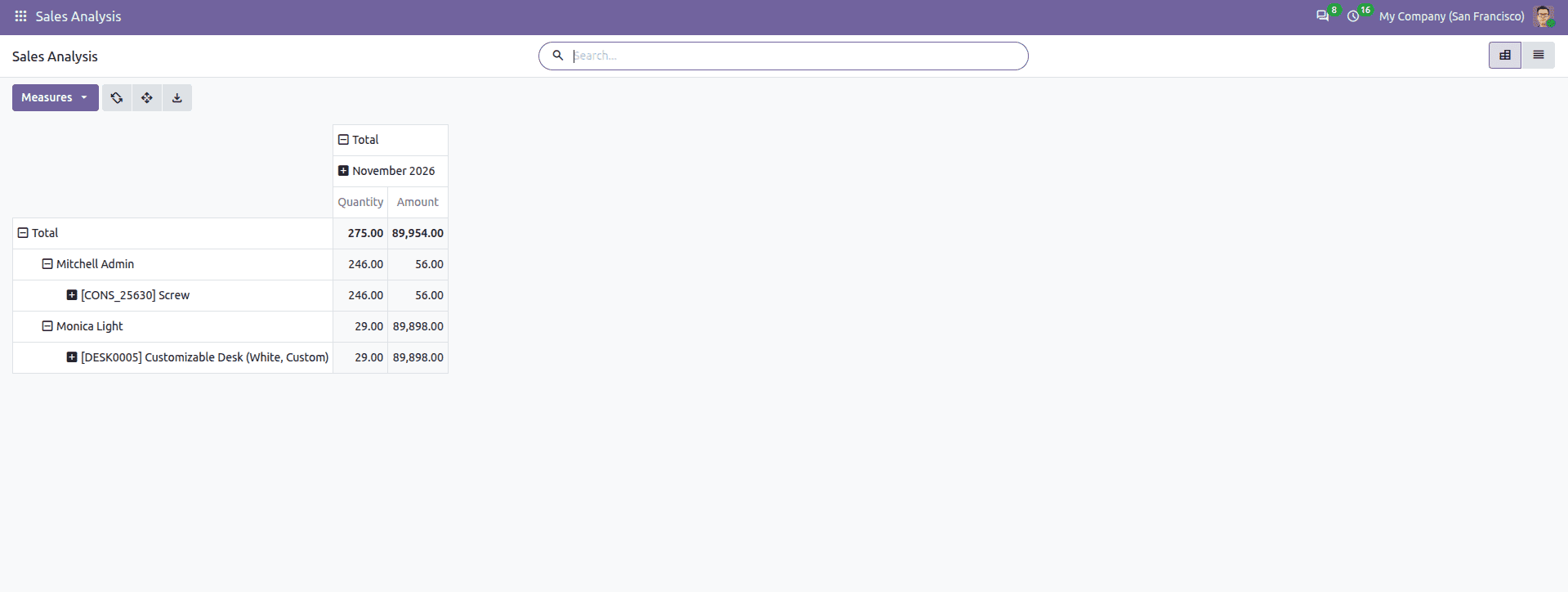
Pivot view in Odoo 20 helps to summarise and analyse business data. Users can generate reports dynamically by defining rows, columns, and measures. It is useful when users need interactive reports.
To read more about How to Create Pivot View in Odoo 19, refer to our blog, How to Create Pivot View in Odoo 19.