Activity notifications in Odoo 19 help teams stay organized by creating reminders and tasks that are linked to records like sales orders, leads, or invoices. In this guide, we'll walk through a simple, practical example of creating and managing activity notifications.
Define Activity Notifications:
Activities are items that can be assigned to users that have a due date and can be acted upon. When an activity is created, Odoo sends out notifications to keep everyone updated. Notifications appear:
- From the bell on the top Odoo page
- By email (depending on the users setting)
- In an activity dashboard
- In chatter in the record
Example of Auto-Creating Follow-Up Activities
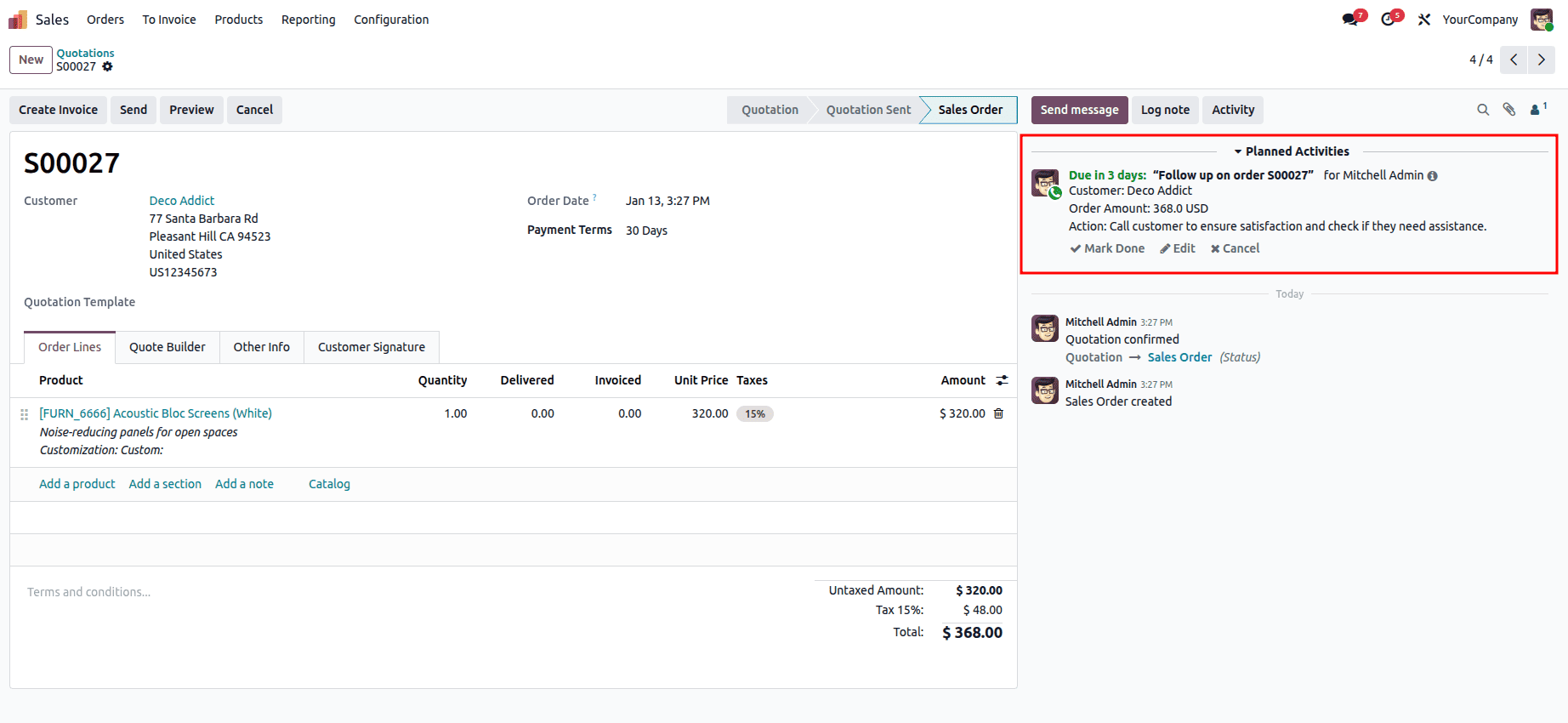
We want to create a feature that automatically creates a follow-up activity for the salesperson when the order is confirmed. This way, the salesperson will know to reach out to the customer after they receive the order.
Step 1: Create Your Module Structure
First, create a custom module with this structure:
sales_activity_automation/
+-- __init__.py
+-- __manifest__.py
+-- models/
¦   +-- __init__.py
¦   +-- sale_order.py
+-- data/
   +-- mail_activity_type.xml
Step 2: Module Manifest
manifest.py:
{
   'name': 'Sales Activity Automation',
   'version': '19.0.1.0.0',
   'category': 'Sales',
   'summary': 'Automatically create follow-up activities for sales orders',
   'depends': ['sale', 'mail'],
   'data': [
       'data/mail_activity_type.xml',
   ],
   'installable': True,
   'application': False,
}
Step 3: Create Custom Activity Type
data/mail_activity_type.xml:
<?xml version="1.0" encoding="utf-8"?>
<odoo>
   <data noupdate="1">

       <record id="mail_activity_type_followup" model="mail.activity.type">
           <field name="name">Customer Follow-up</field>
           <field name="summary">Follow up with customer after order</field>
           <field name="delay_count">3</field>
           <field name="delay_unit">days</field>
           <field name="icon">fa-phone</field>
       </record>

   </data>
</odoo>
Step 4: Implement the Python Logic
models/init.py:
from . import sale_order
models/sale_order.py:
from odoo import models, fields
from datetime import timedelta

class SaleOrder(models.Model):
   _inherit = 'sale.order'
   def action_confirm(self):
       """Override to create follow-up activity when order is confirmed"""
       # Call the parent method first
       res = super(SaleOrder, self).action_confirm()
       # Create a follow-up activity for each confirmed order
       for order in self:
           self._create_followup_activity(order)
       return res
   def _create_followup_activity(self, order):
       """Create a follow-up activity for the sales order"""
       # Get the custom activity type we created
       activity_type = self.env.ref(
           'sales_activity_automation.mail_activity_type_followup',
           raise_if_not_found=False
       )
       # If activity type not found, use default call activity
       if not activity_type:
           activity_type = self.env.ref('mail.mail_activity_data_call')
       # Calculate the due date (3 days from today)
       due_date = fields.Date.today() + timedelta(days=3)
       # Create the activity
       order.activity_schedule(
           activity_type_id=activity_type.id,
           summary=f'Follow up on order {order.name}',
           note=f'''
               <p>Customer: {order.partner_id.name}</p>
               <p>Order Amount: {order.amount_total} {order.currency_id.name}</p>
               <p>Action: Call customer to ensure satisfaction and check if they need assistance.</p>
           ''',
           user_id=order.user_id.id or self.env.user.id,
           date_deadline=due_date
       )
       # Show a notification to confirm activity was created
       return {
           'type': 'ir.actions.client',
           'tag': 'display_notification',
           'params': {
               'title': 'Activity Created',
               'message': f'Follow-up activity scheduled for {due_date}',
               'type': 'success',
               'sticky': False,
           }
       }
How It Works
- When a user confirms a sales order, the action_confirm() method is called
- The follow-up activities will be created by the custom code automatically
- Afterward, the salesperson will receive a notification about the new follow-up activity
- If the follow-up activity has not been completed, then it will be shown on the salesperson activity dashboard as overdue.
Conclusion
The activity notifications feature in Odoo 19 is very useful for maintaining your teams productivity by providing automatic creation of tasks and preventing important tasks from being missed. Using a few lines of custom code, it is possible to create automated workflows for improving your sales process.
To read more about How to Create a Display Notification in Odoo 18, refer to our blog How to Create a Display Notification in Odoo 18.