In Odoo 19, enhancing your website’s interactivity and user engagement is more seamless than ever. One effective way to achieve this is by adding a mouseover pop-up that displays key product information, such as stock availability, when users hover over a product.
In this guide, we’ll walk you through the complete process of implementing a dynamic popup feature that shows real-time stock details upon hover.
The implementation involves three main steps:
- Creating a Python controller to fetch product stock data dynamically.
- Writing JavaScript code to handle the mouseover event and communicate with the controller.
- Designing an XML template to display the popup elegantly on your website.
We’ll start by creating a Python controller that retrieves the stock availability for a given product ID. This controller will return the required data, which will then be displayed in the popup when the user hovers.
# -*- coding: utf-8 -*-
from odoo import http
from odoo.http import request

class MouseOver(http.Controller):
   """ Mouse over Controller to handle the popup information"""
   @http.route('/product_info', auth='public', type='json')
   def get_product_stock(self, product_id=None):
       """ Function to return the product availability """
       if not product_id:
           return {'error': 'No product ID provided'}
       # Fetch the product based on product_id
       product = request.env['product.product'].sudo().browse(int(product_id))
       if not product:
           return {'error': 'Product not found'}
       # Determine if the product is in stock
       return {'available': product.qty_available > 0}
In this Python controller:
- The /product_info route is defined to return stock availability details in JSON format.
- It locates the product using its ID and check for stock quantity.
- Based on the available stock, it returns a response — {'available': True} if the product is in stock, or {'available': False} otherwise.
Next, we’ll create the JavaScript logic that handles the mouseover event on the product. This script will send a request to the backend controller to fetch stock data and dynamically update the popup content, ensuring users get real-time product availability information as they hover over each product.
import PublicWidget from "@web/legacy/js/public/public_widget";
import { rpc } from "@web/core/network/rpc";
export const ProductMouseOver = PublicWidget.Widget.extend({
  selector: "#wrapwrap",
  events: {
      'mouseover .oe_product_image': 'initProductInfo',
  },
  initProductInfo: function(ev) {
       ev.preventDefault();
       const element = ev.currentTarget;
       // Find the span that contains data-oe-id
       const product_id = $(element)
           .find('.oe_product_image_img_wrapper')
           .data('oe-id');
       rpc('/product_info', { product_id: product_id })
       .then(function(response) {
           const modalBody = $("#modal-content-placeholder");
           if (response.available) {
               modalBody.html("<p style='color: green; font-size: 16px;'>Available</p>");
           } else {
               modalBody.html("<p style='color: red; font-size: 16px;'>No Stock</p>");
           }
           $("#product_info_model").modal("show");
       })
       .catch(function(error) {
           $("#modal-content-placeholder").html("<p style='color: red; font-size: 16px;'>Error fetching product info</p>");
           $("#product_info_model").modal("show");
       });
  }
});
PublicWidget.registry.ProductMouseOver = ProductMouseOver;
In the JavaScript code:
- The mouseover event is used to trigger the initProductInfo function whenever a user hovers over a product.
- An RPC call is made to the /product_info route to retrieve the product’s stock availability.
- The popup content is then dynamically updated based on the server response — displaying “Available” in green if the product is in stock, or “No Stock” in red if it isn’t.
As a next step, we can add a custom “Product Info” button to enhance the user interface and allow users to view stock details more interactively.
<!-- Insert the product info modal -->
<template id="info_button_popup" inherit_id="web.frontend_layout">
   <xpath expr="//div[@id='wrapwrap']/main" position="before">
       <t t-call="your_module.product_info_popup"/>
   </xpath>
</template>
       <!-- Modal for displaying stock availability -->
<template id="product_info_popup">
<div class="modal fade" id="product_info_model" tabindex="-1">
   <div class="modal-dialog custom-modal-width
               modal-dialog-centered">
       <div class="modal-content">
           <div class="modal-body" style="background-color: white;">
               <!-- Placeholder for dynamically updated stock info -->
               <div id="modal-content-placeholder"
                    style="text-align: center;"></div>
           </div>
       </div>
   </div>
</div>
</template>
This XML template serves the following purposes:
- It enhances the product display by adding a custom button with the class .product-info-a, which is attached to each product. This button acts as a trigger for the mouseover event that displays product details.
- It defines the product_info_popup template, which includes a modal structure containing a placeholder (modal-content-placeholder). This placeholder will be dynamically updated by the JavaScript code with real-time stock availability information.
By following these steps, you can seamlessly integrate a mouseover popup feature to display stock availability on your Odoo 19 website, providing users with an interactive and informative shopping experience.
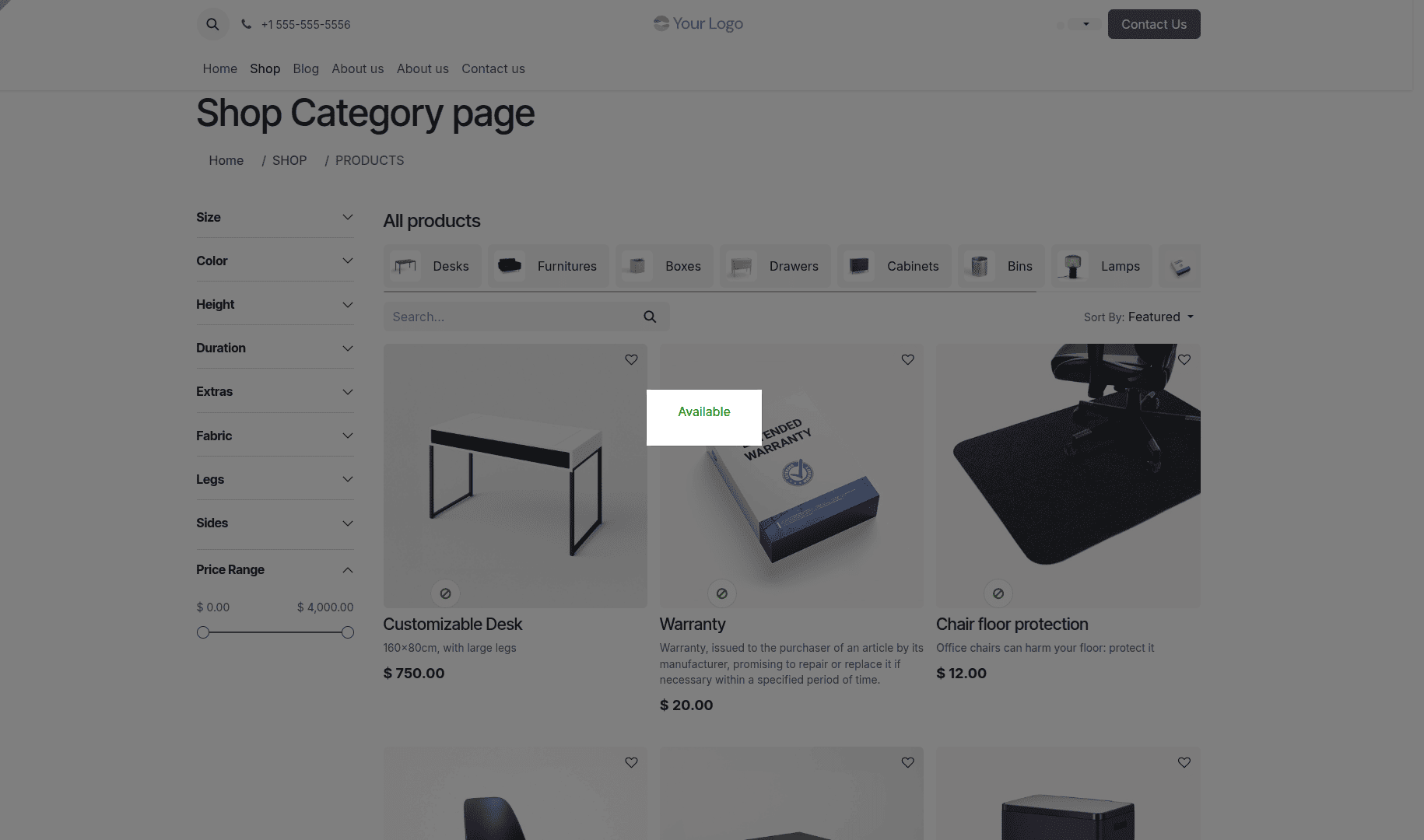
This implementation leverages Python for backend logic, JavaScript for front-end interactions, and XML for customizing Odoo templates. Together, these components deliver a seamless and interactive user experience by providing real-time product availability directly on your website.
You can further enhance this feature by extending the popup to display additional product details such as price, description, or custom messages based on specific product attributes — offering users a richer and more engaging browsing experience on your Odoo 19 website.
To read more about How to Add a Mouseover Popup in Odoo 18 Website, refer to our blog How to Add a Mouseover Popup in Odoo 18 Website.