The US localization in Odoo 20 is a fiscal setup package that helps US businesses load a ready chart of accounts, US sales and purchase taxes, and standard journals for their company. In Odoo 20, this feature allows businesses to start American bookkeeping without building the accounting structure by hand. This guide uses the Odoo 20 Enterprise edition.
This blog provides a step-by-step walkthrough of how to install the US localization and configure the company, currency, and fiscal year in Odoo 20. It is part of our Odoo 20 US localization series, and it expands the setup steps given in the Odoo 20 US Localization: Accounting Setup guide.
Step 1: Install the US Localization Modules
Open the Apps module in Odoo 20, remove the Apps filter from the search bar, and search for United States. Two modules are needed for US accounting: United States - Localizations (l10n_us) and United States - Accounting (l10n_us_account). Click the Activate button on each card to install it. If the modules are already installed, the cards show Learn More instead of Activate, as shown below:
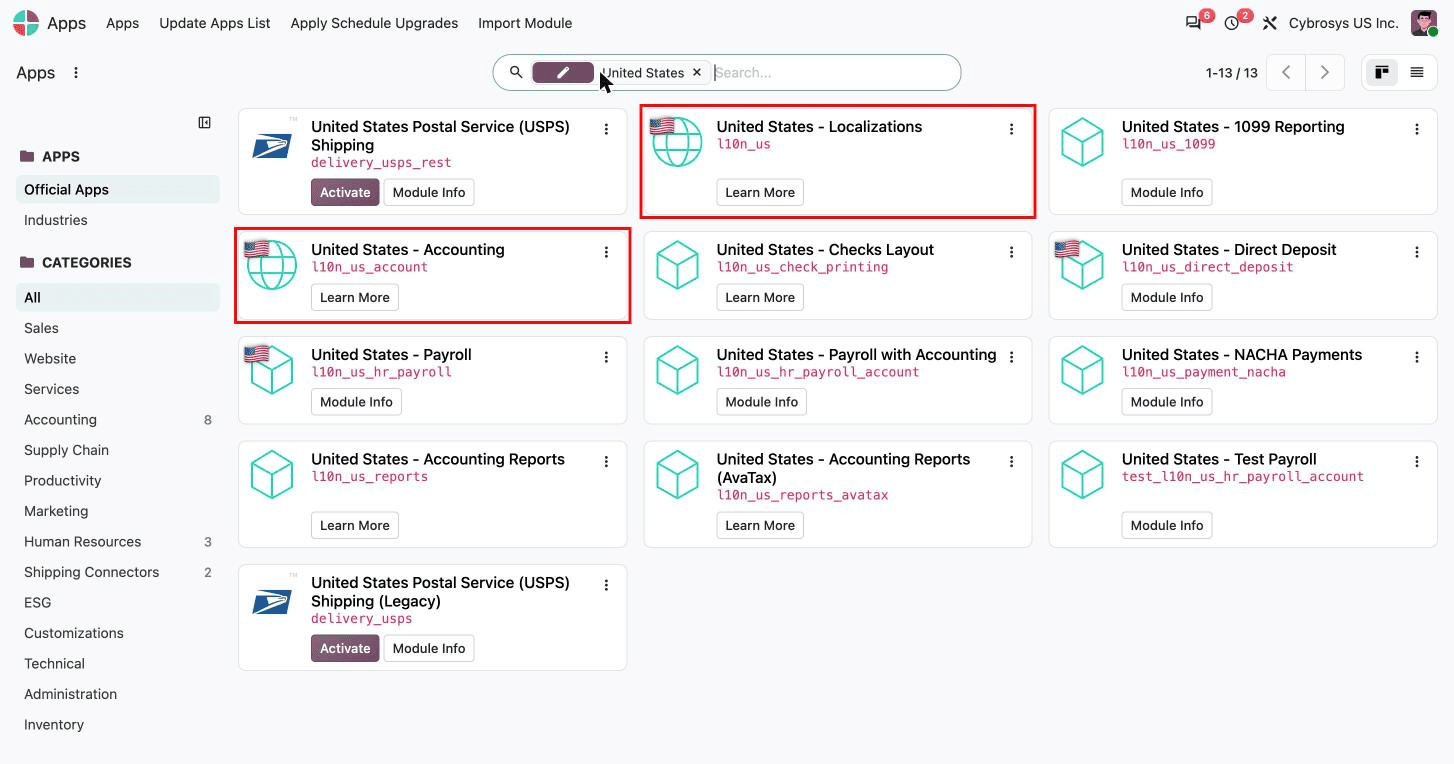
After the modules are installed, the United States package is selected for the company from the Accounting settings, which is covered in Step 4.
Step 2: Open the US Company
Open Settings > Users & Companies > Companies. The list shows every company in the database. If your US business is a separate legal entity, create it with the New button, and then open the company record. Here, the US company is Cybrosys US Inc., highlighted below:
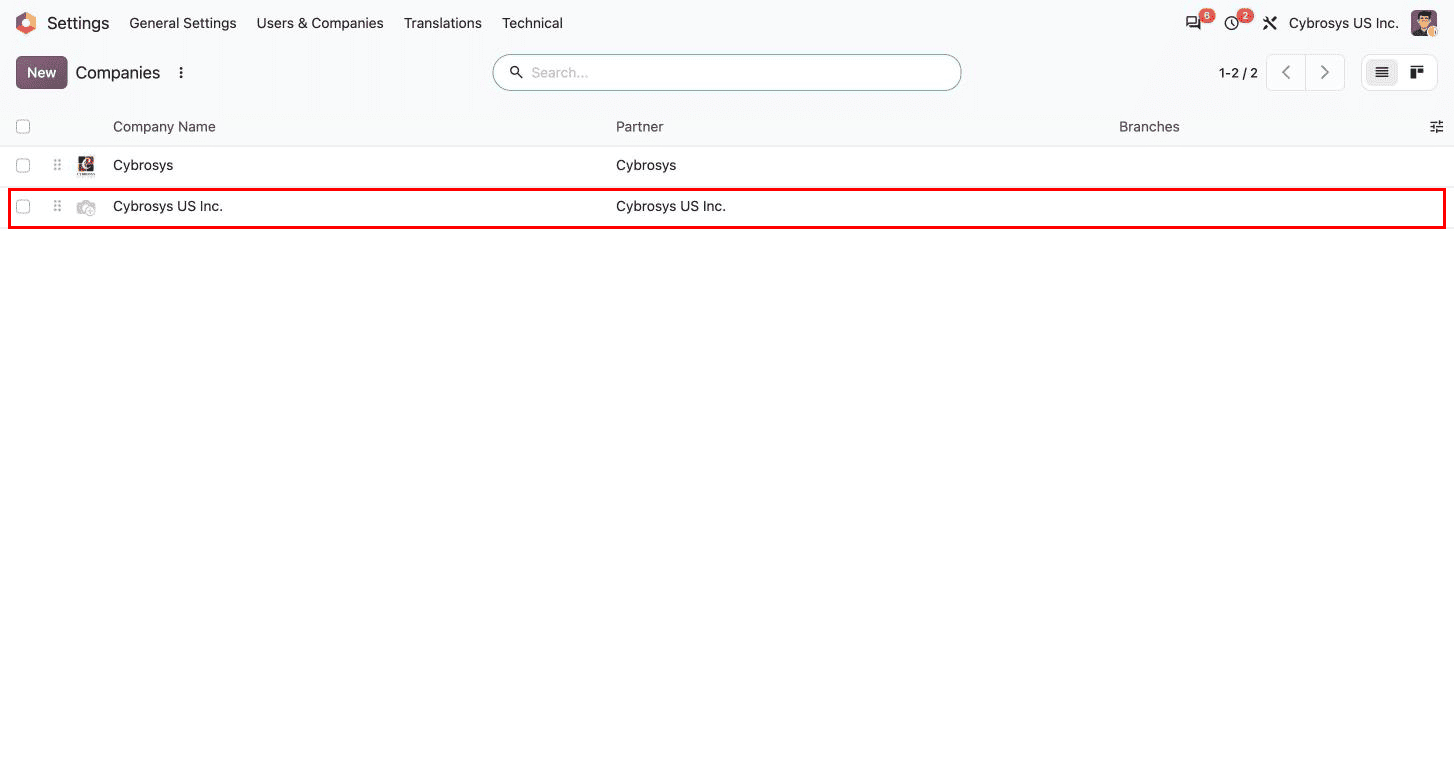
When several companies exist, use the company switcher at the top right of the screen to work in the US company, so that the accounting settings you change apply to it.
Step 3: Enter the Company Details
Click on the company, and the company form will open. Enter the full street address, the city, the state, and the ZIP code. Keep the country as United States and select USD as the Currency. Then change the Timezone to your own US timezone, for example, America/New_York for Ohio. The highlighted fields are given below:
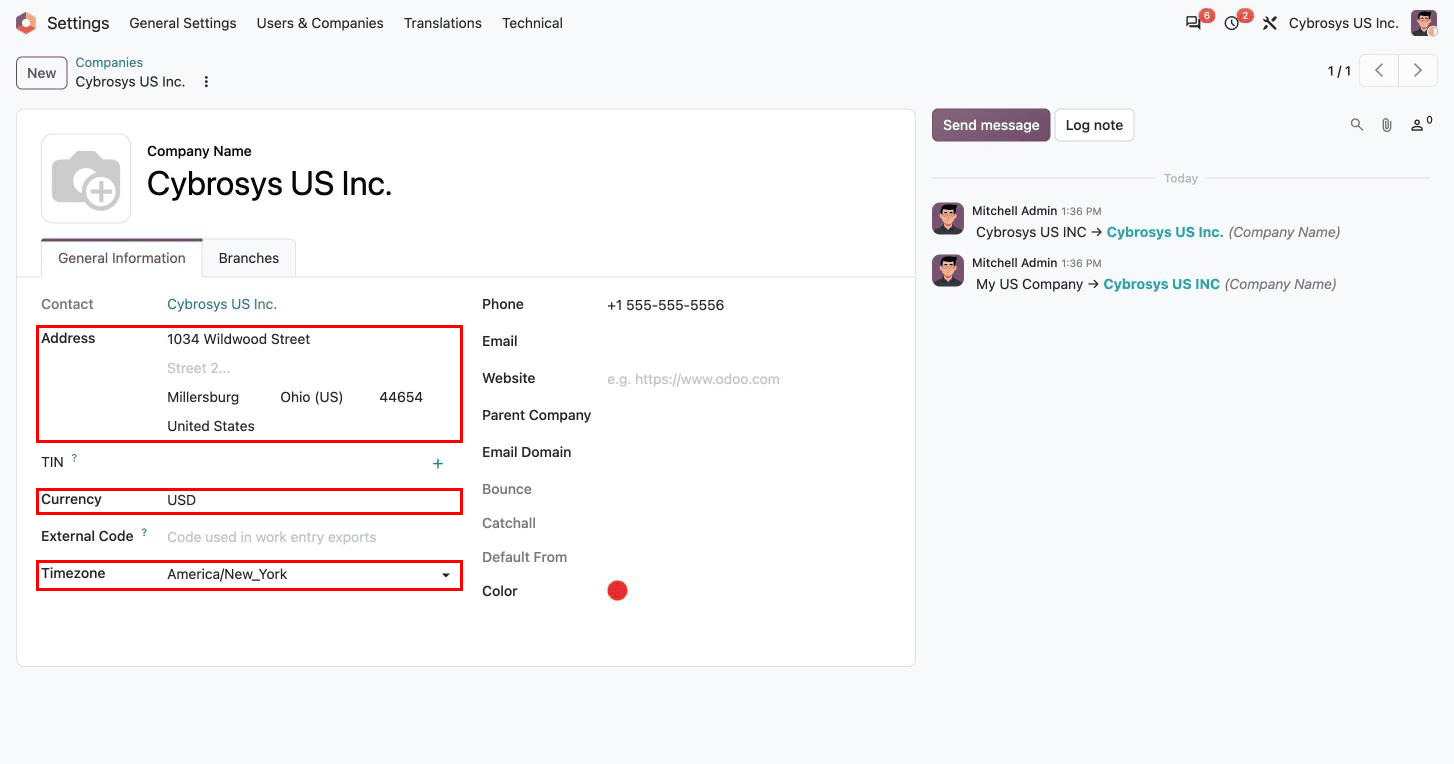
The country and state of the company decide which US taxes and reports apply, while the Currency is the main currency used for all accounting entries of the company.
Step 4: Apply the United States Fiscal Localization
Open Accounting > Configuration > Settings. In the Initial Setup section, the Fiscal Localization box shows the package of the company. Select United States here, and click the Reload button. This loads the chart of accounts, taxes, and fiscal positions for your country. Do this before posting any transaction. Here you can see the United States package for our company:
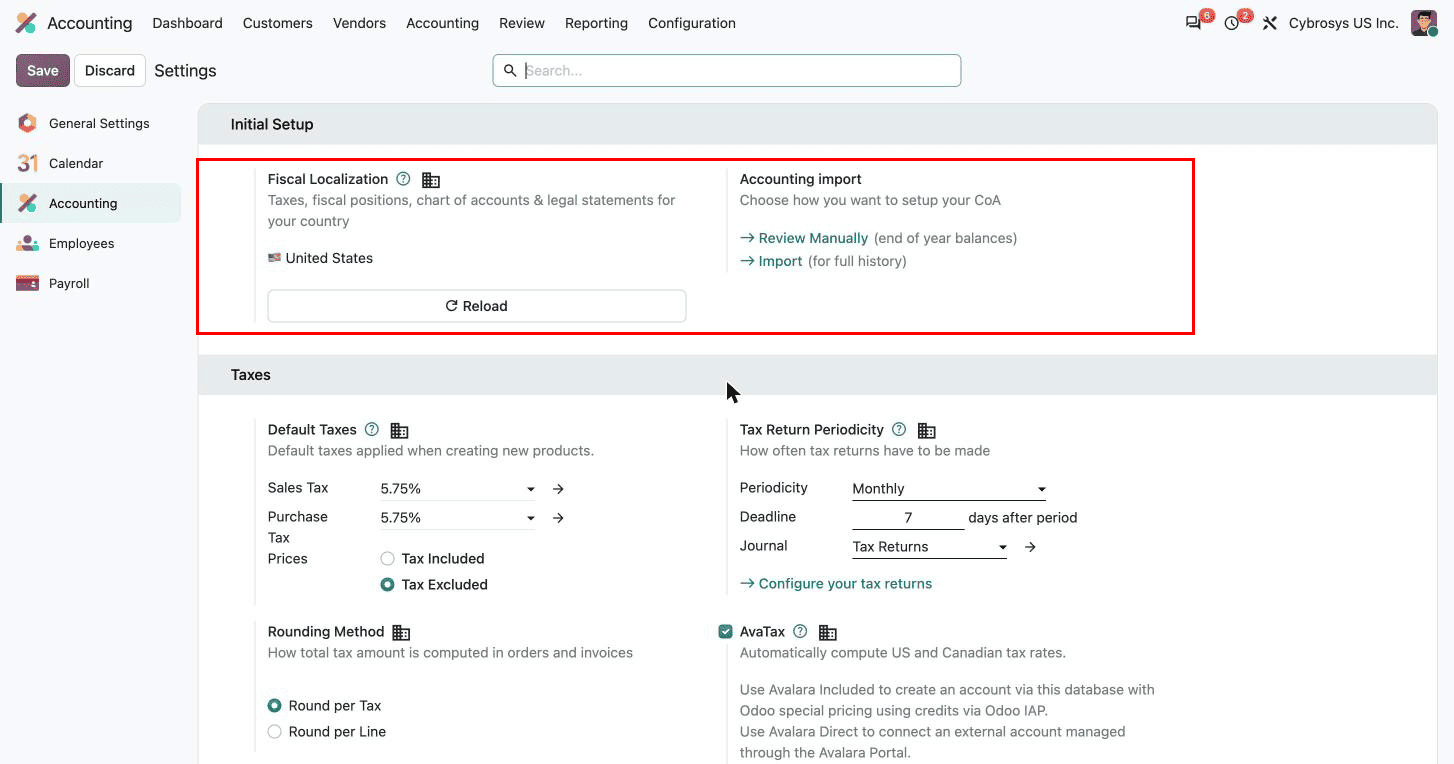
The Accounting import box beside it lets you start your books with Review Manually (end of year balances) or Import (for full history).
Step 5: Confirm the Fiscal Country and Main Currency
Scroll down on the same settings page. The Fiscal Country field shows the domestic country of your accounting, which should be the United States. In the Currencies section, the Main Currency field shows the company currency, which should be USD. Both fields are shown below:
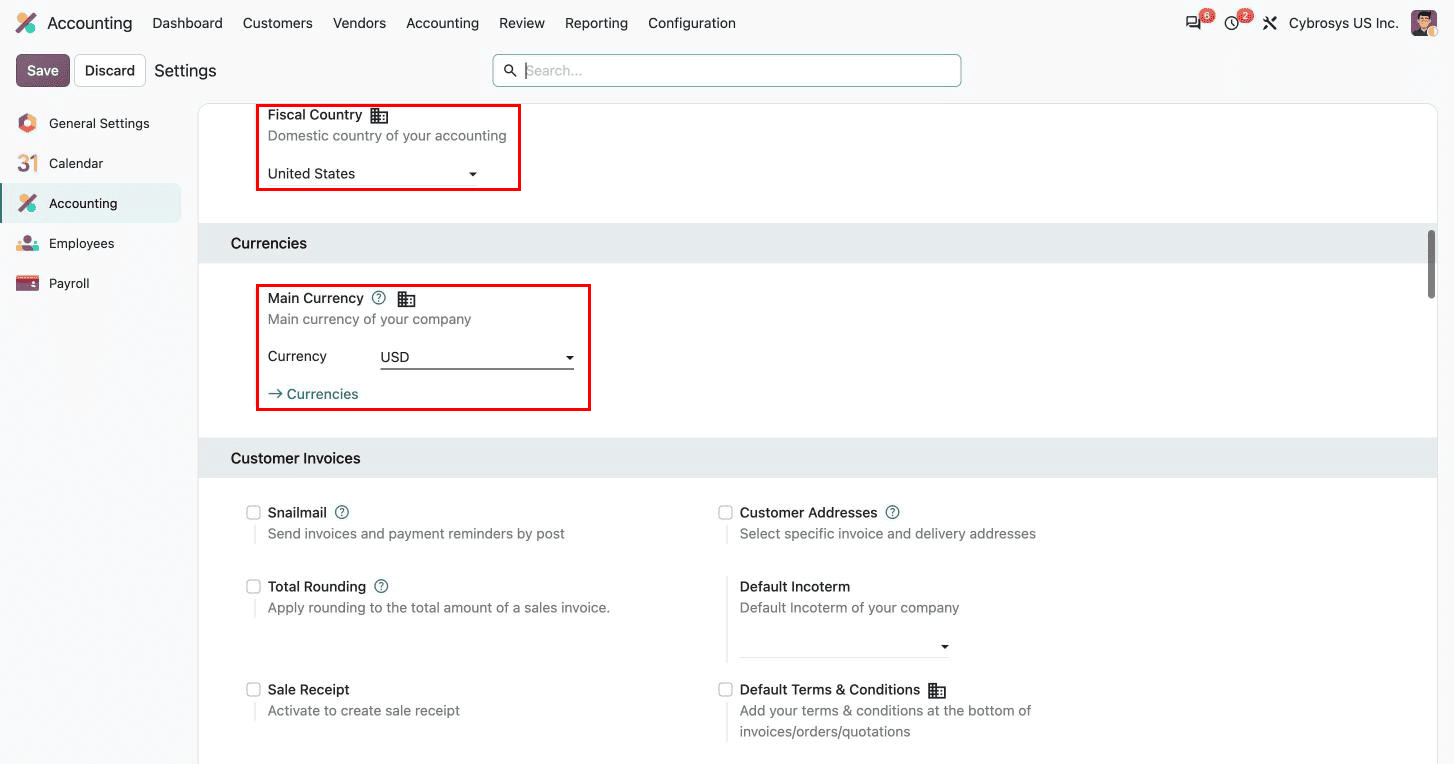
Click on the Currencies link under the Main Currency field to open the list of currencies.
Step 6: Check That USD Is Active
The Currencies list shows every currency with its Symbol, Name, Last Rate Update, Current Rate, and an Active toggle. USD, the United States dollar with the $ symbol, is the active currency here and has a rate of 1.000000 because it is the main currency of the company. Here you can see the highlighted row:
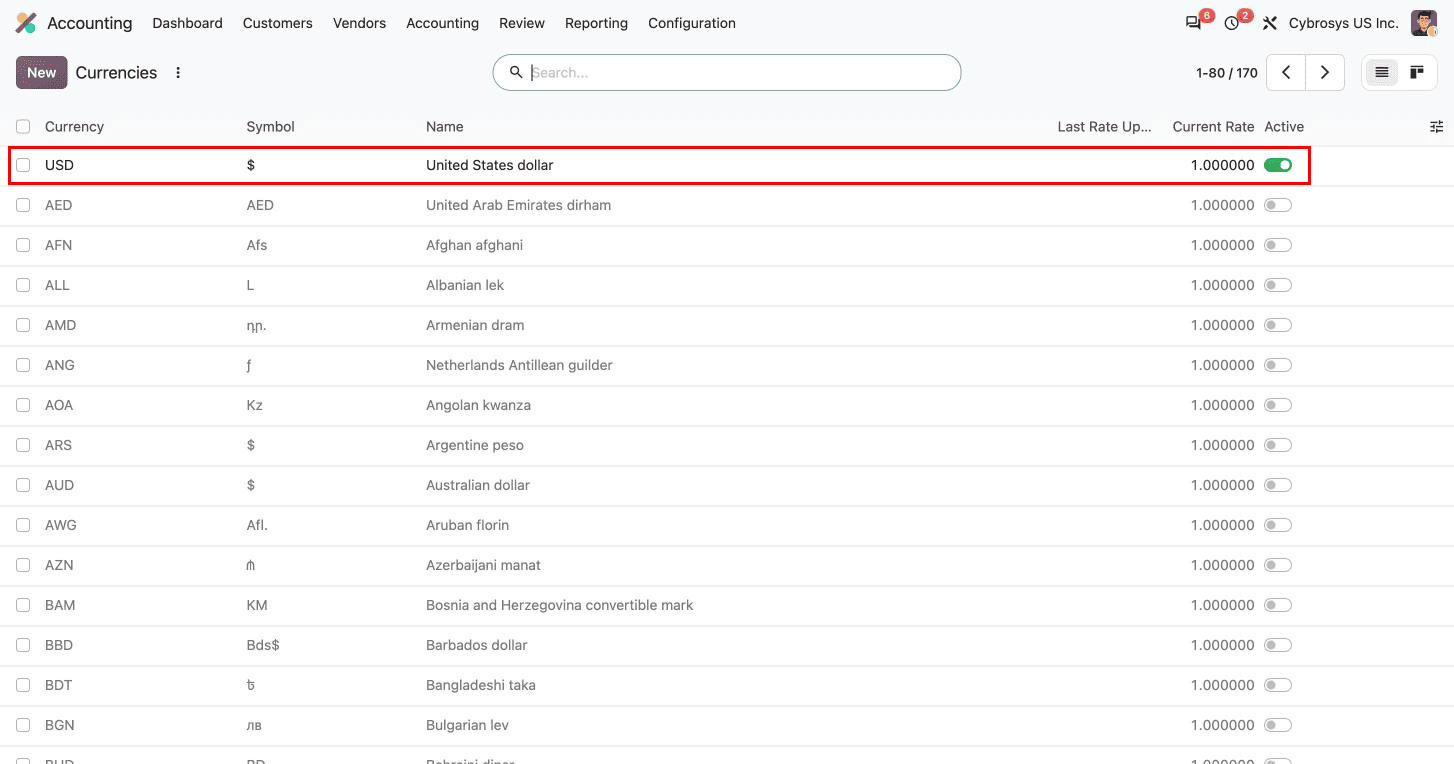
If your US company also invoices in other currencies, such as CAD or EUR, enable the Active toggle for those currencies. Odoo will then show them on invoices and bills, and you can maintain their exchange rates.
Step 7: Set the Fiscal Year End
Scroll down to the Fiscal Periods section of the Accounting settings. The Fiscal Year field has a Last Day option, set here to December 31, which is the standard calendar year used by most US businesses. If your company runs on a different year, for example, July to June, change the month and day, and click Save. The Fiscal Years option below it lets you define fiscal years of more or less than one year:
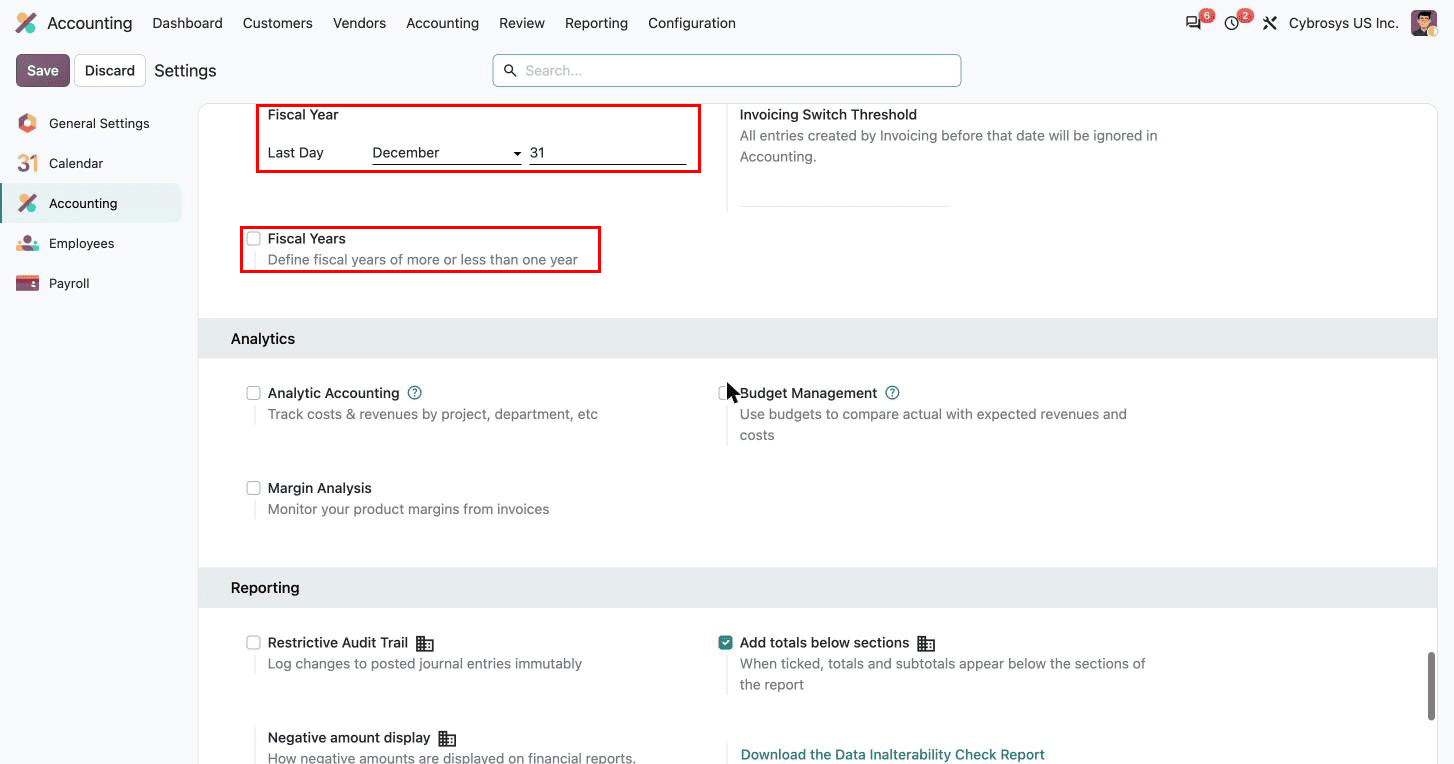
Click Save at the top of the settings page after changing any value, so that the changes are stored for the company.
With the Odoo 20 US localization, installing the package and configuring the company, currency, and fiscal year becomes more efficient, accurate, and transparent. Users can easily start with the US structure without building the chart of accounts and taxes manually. Features can be adapted according to specific organizational requirements, providing full flexibility across companies, currencies, and reporting periods. Odoo 20 keeps financial records consistent, saves time, and ensures smooth business execution.
To read more about An Overview of Accounting Localization for India in Odoo 18, refer to our blog An Overview of Accounting Localization for India in Odoo 18.