To implement the performance review in its best format, it must be conducted regularly, and the employees must be aware of what to expect. A preplanned review or appraisal program will give the employee and their corresponding manager time to monitor their work appropriately, discuss what is going well, and agree on areas to develop. It can also help managers connect an employee’s goals and skills with the needs of the team. When reviews happen only when someone remembers to schedule them, cycles can become uneven: one employee may have a review on time while another waits much longer.
Here, the Appraisals module in Odoo 20 assists the HR management team in setting a review schedule and keeping track of each appraisal from creation to completion in a single platform. An appraisal can include a self-assessment, manager feedback, and a final rating. According to an appraisal plan prepared by the HR team and the manager, Odoo can create recurring appraisals automatically. Teams can also launch a campaign to schedule reviews for a group or create an appraisal manually when an employee’s circumstances call for one, such as a promotion or transfer.
This blog will detail the process of how to configure automatic scheduling, how Odoo decides when to create an appraisal, what information appears on an appraisal form, and when to use campaigns or manual scheduling.
In order to create a recurring appraisal schedule for an employee, the user can open the Appraisal module from the Odoo 20 dashboard and select the Configuration menu. Selecting the Settings option displays Appraisal Plans as shown below.
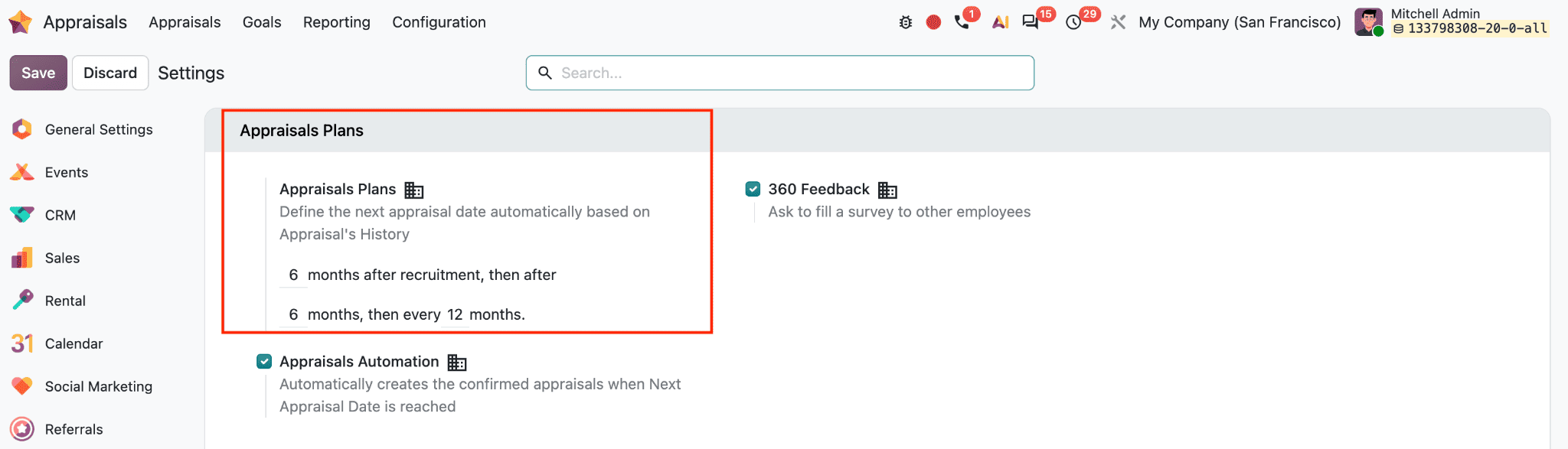
Here, the Appraisal Plans section can be used to mention the intervals that determine when reviews should be scheduled. As you can see in the screenshot, the default plan schedules the first appraisal six months after the recruitment of the employee, a second appraisal six months later, and then one appraisal every twelve months. The default plan can be changed by changing each of these month values to match the company’s review cycle and appraisal requirements. Once completed, click the Save button to save the changes in the Odoo 20 Appraisal module.
The schedule is company-specific. Changing the Appraisals Plans setting will change and update the employee records where Next Appraisal Date is empty. For employees who already have a next appraisal date, the user can review their records in case they want to change that date.
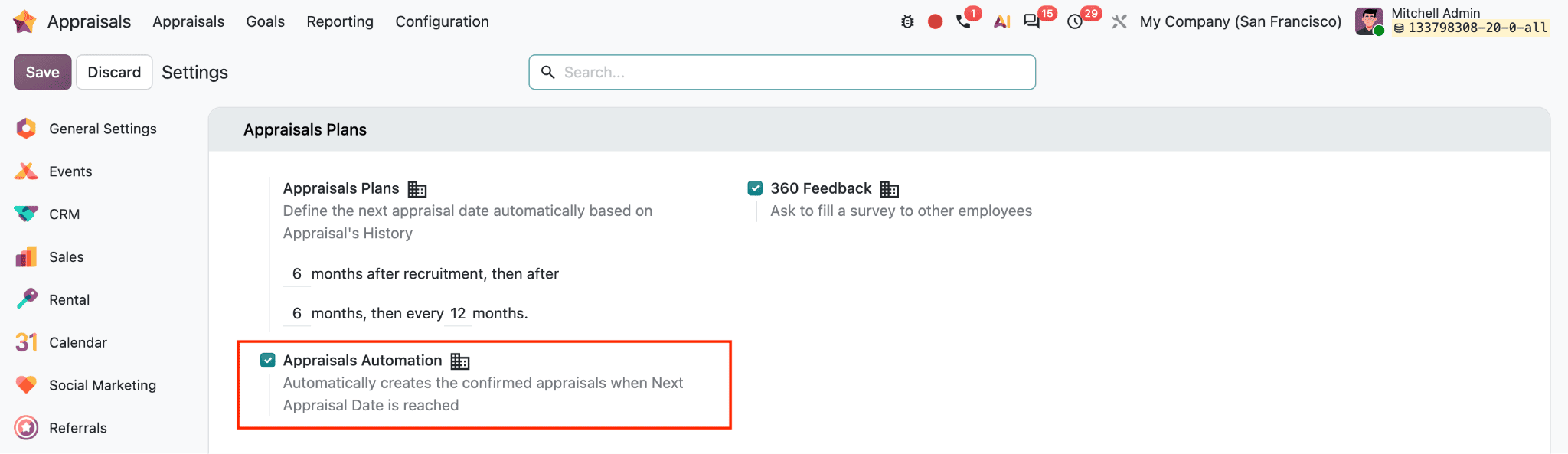
In the Settings page, the Appraisals Automation can be observed and enabled to create appraisals automatically when an employee’s Next Appraisal Date arrives. Odoo will automatically calculate the date from the appraisal plan configured for an employee who does not already have an ongoing appraisal. Once the user enables this field, the next appraisal date will be visible on the employee’s Work tab as shown in the screenshot below.
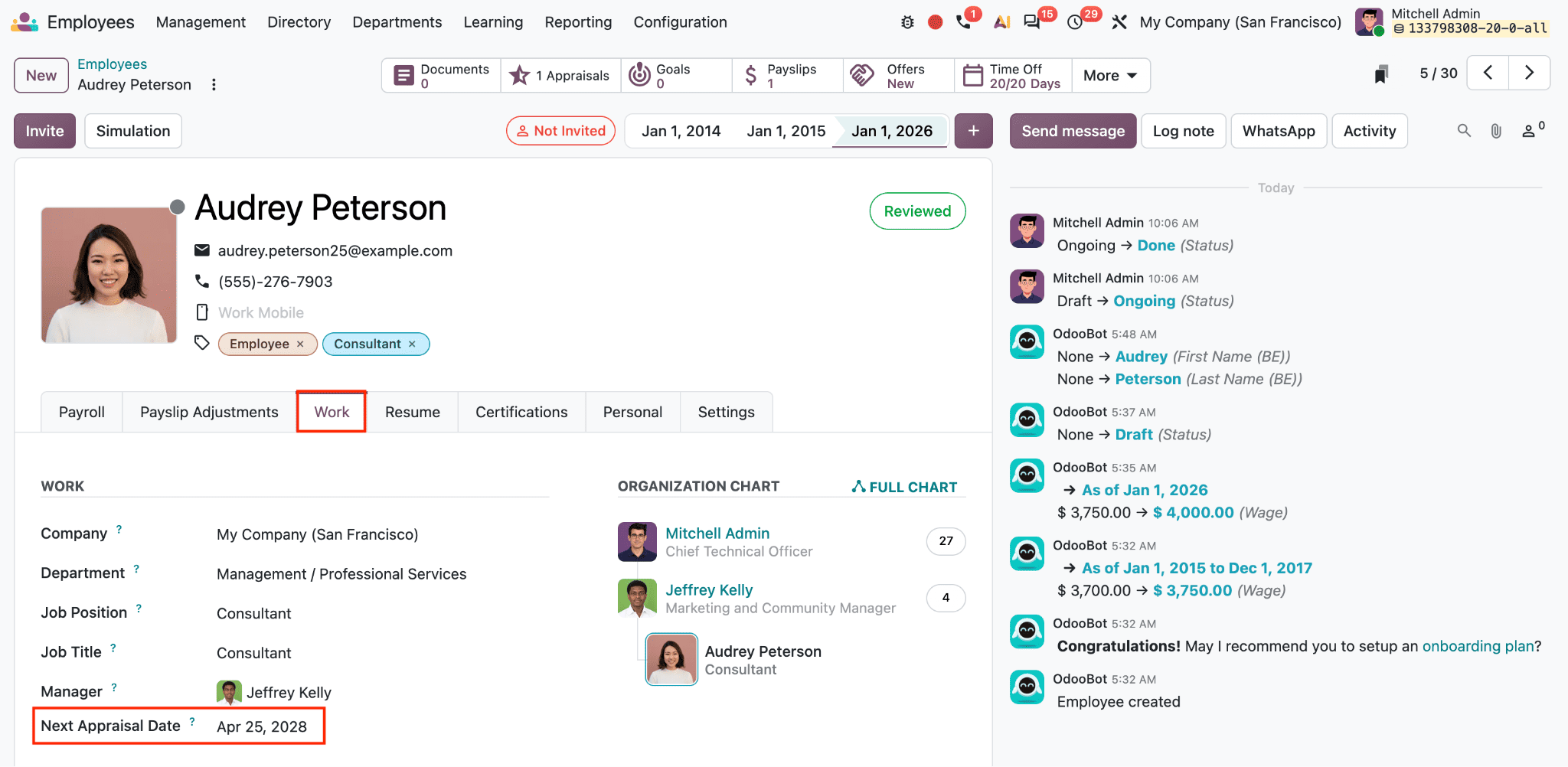
Once the due date has been reached for an employee’s appraisal, Odoo will automatically create and confirm the appraisal. The employee's manager will be assigned as appraiser, and an activity will be scheduled for the manager to complete the review of the appraisal. This will help the manager to prepare the appraisal while keeping recurring reviews connected to each employee’s record.
If the Appraisal Automation is not enabled in the settings of the appraisal module, the user can schedule the appraisal through a campaign or created manually in Odoo 20.
When the appraisal review is for a group of employees, the user can use the campaign option in Odoo 20. The Launch Campaign option can be found on the Appraisal dashboard.
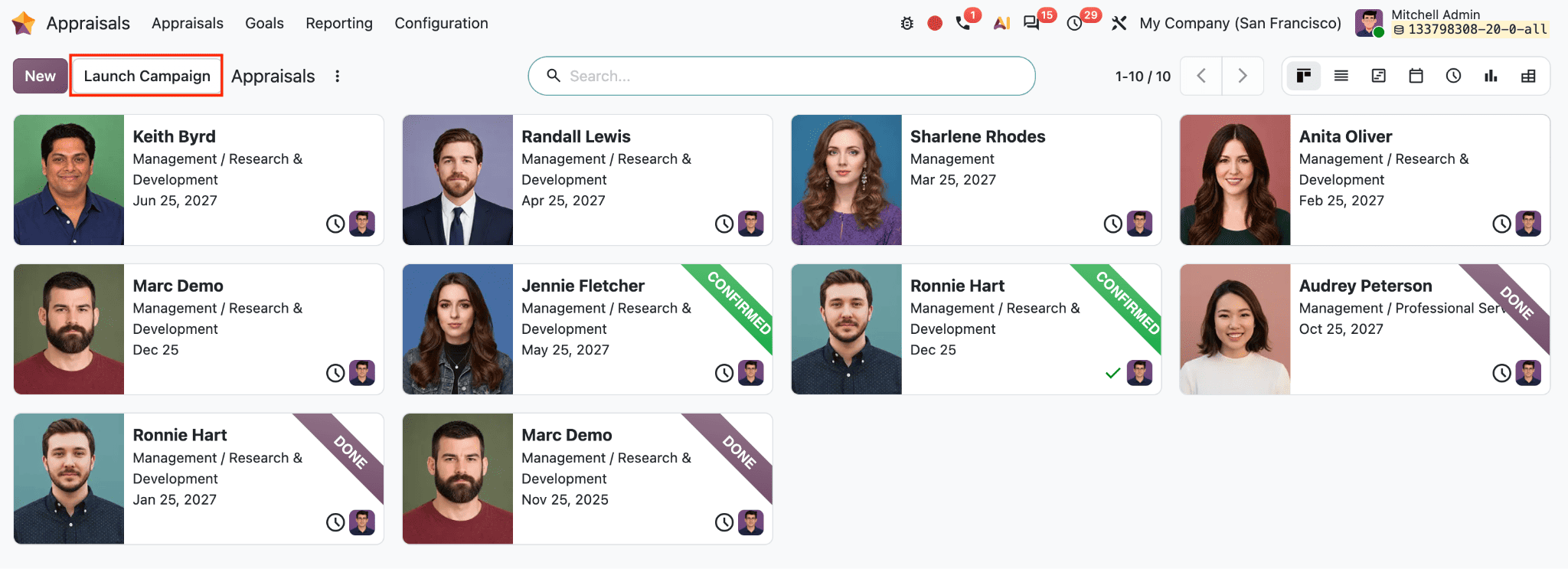
As soon as the user clicks on Launch Campaign, Odoo will open a new pop-up where the user can select the employees to review.
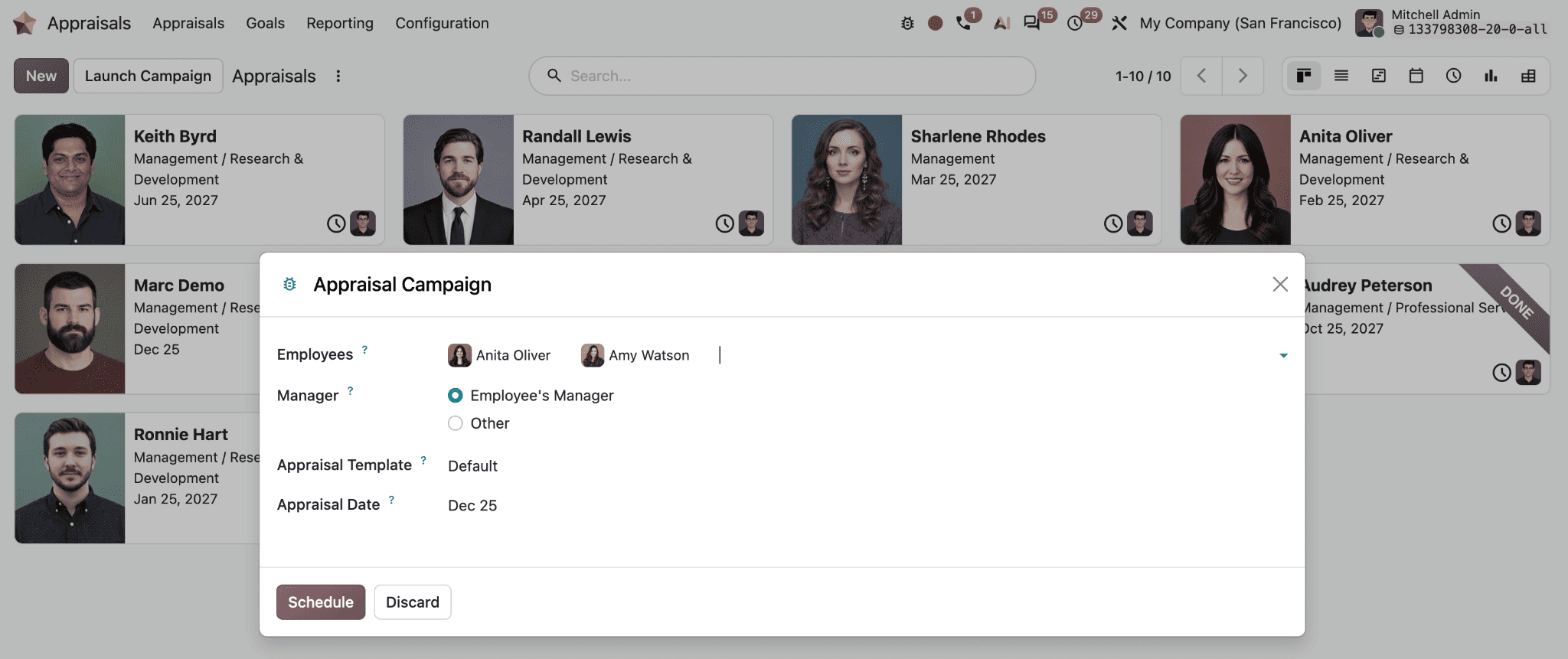
If the Employees field is left empty, Odoo will create appraisals for all employees in the company. In the Manager options, the user can select who will conduct this appraisal review. The Employee’s Manager option will assign each appraisal to the employee’s direct manager. If the user selects the Other option, an additional field appears where the user can select the appraiser or appraisers who will conduct the appraisal reviews. The manager selection is visible only to Appraisals administrators; for other users, Odoo uses each employee’s manager.
Next, in the Appraisal Template field, choose the template suitable for the campaign. The appraisal template will control the questions and sections that appear in an appraisal form. The date by which the appraisal must be completed can be mentioned in the Appraisal Date field. The campaign window shows the selected employees, manager option, template, and date before you schedule the reviews. Once the pop-up window is open, the user can use the Schedule to create and schedule the appraisals. This will reload the appraisal dashboard and display the campaign’s appraisals as shown in the screenshot below.

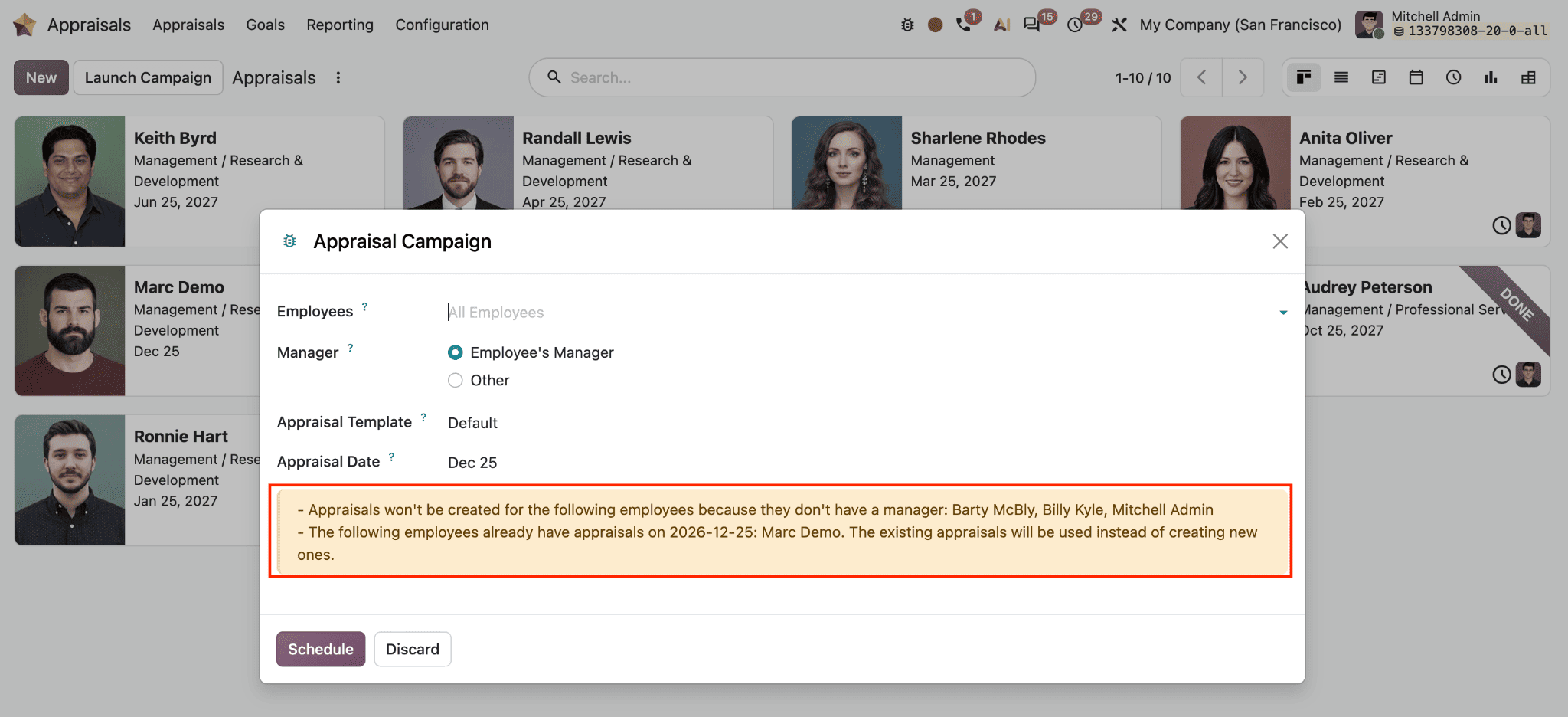
In case an employee cannot be included in the appraisal campaign, Odoo will display a warning.
In order to create and schedule the appraisal of an employee manually, the user can open the Appraisals dashboard and click the New button, which will open the appraisal creation window as shown in the screenshot below.
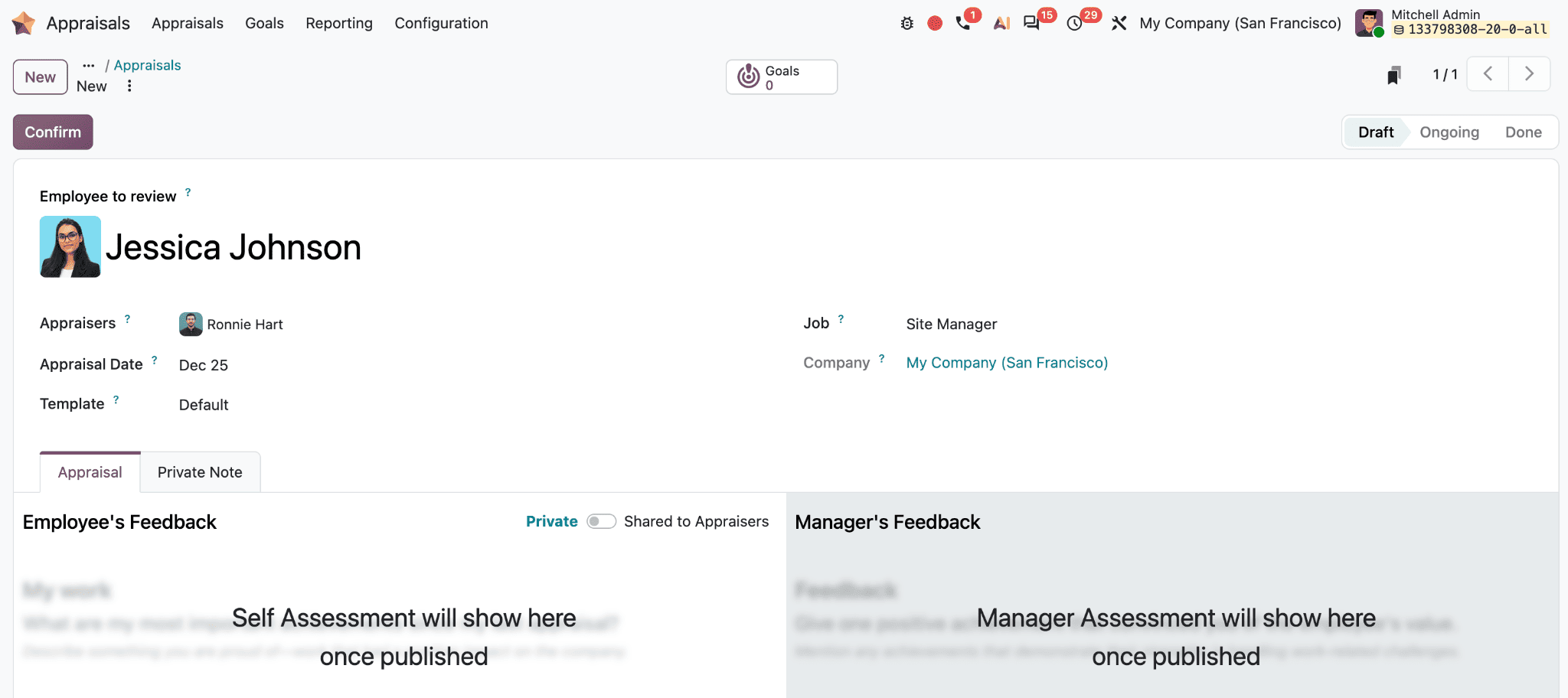
The name of the employee can be selected in the Employee to review field. Odoo will auto-populate the fields such as Appraisers, Job, Department, and, in a multi-company database, Company details based on the selected employee’s configuration details. The user can check and verify these fields before continuing. The Appraisal Date sets the review date, and the Template determines which questions appear. The appraisal is in Draft status now, which will change to Ongoing once the manager clicks the Confirm button when it is ready to begin.
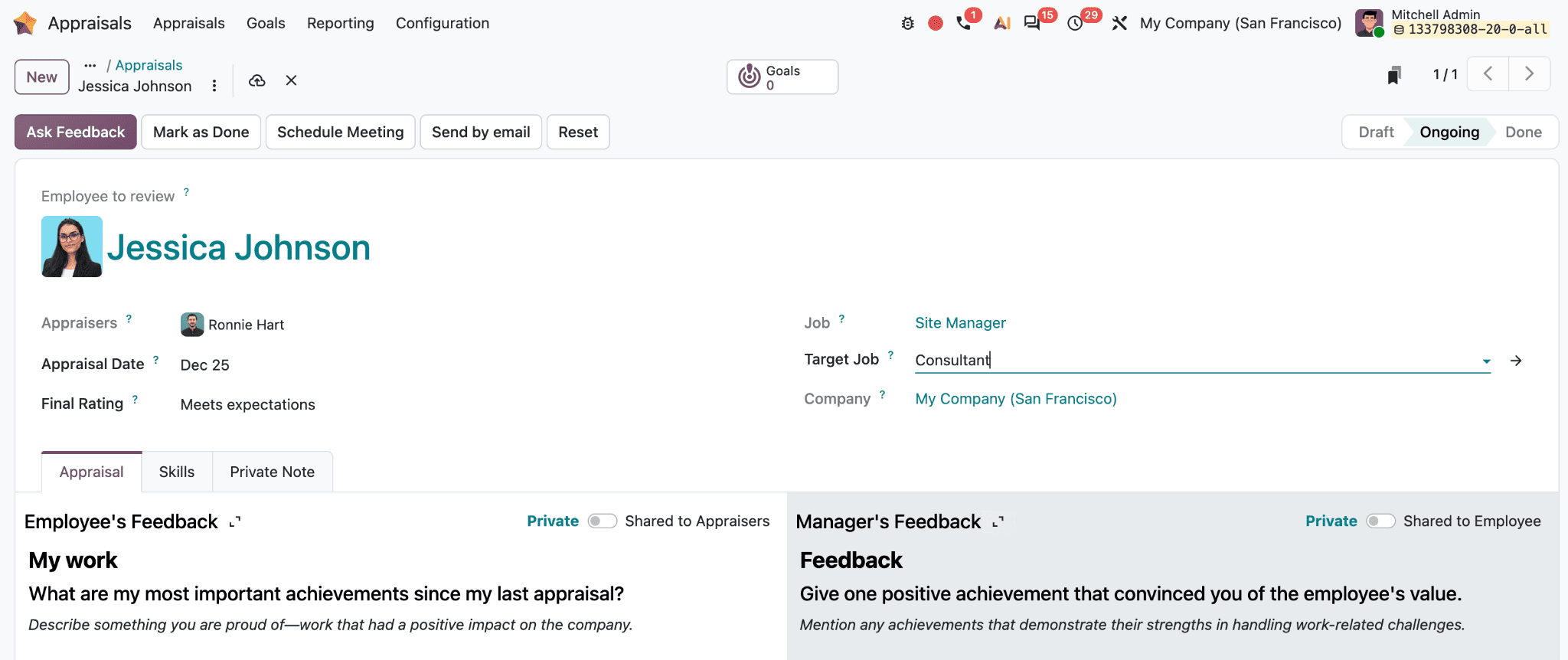
After confirming the appraisal, it will be moved to the Ongoing state, as you can see in the screenshot above. Next, the corresponding employee can complete the self-assessment, and the appraiser can add manager feedback. The form has separate Employee’s Feedback and Manager’s Feedback fields for collecting the respective reviews. The employee’s answers can be shared with appraisers, and the manager’s feedback can be shared with the employee using the sharing controls. The Private Note tab provides a place for internal notes that are separate from the feedback sections.
The confirmed appraisal form will display two additional fields: Final Rating and Target Job. The Target Job will define the position that the employee is working towards. Once the review is completed, the manager can specify the Final Rating, such as “Meets expectations” or “Needs improvement,” and click Mark as Done.
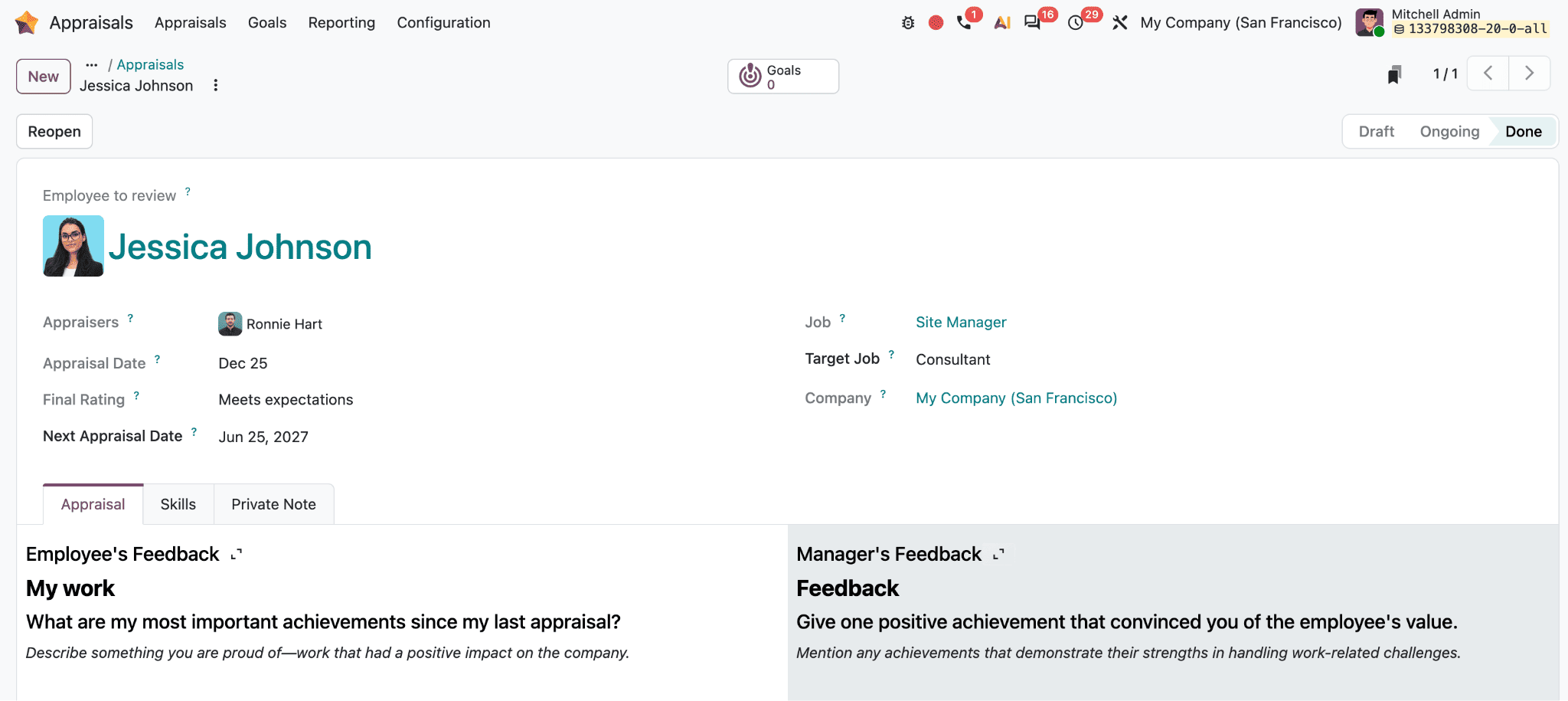
This will complete the appraisal and change the status to Done. The user can observe the Next Appraisal Date in the form view.
An appraisal in Odoo 20 moves through three statuses: Draft, Ongoing, and Done.
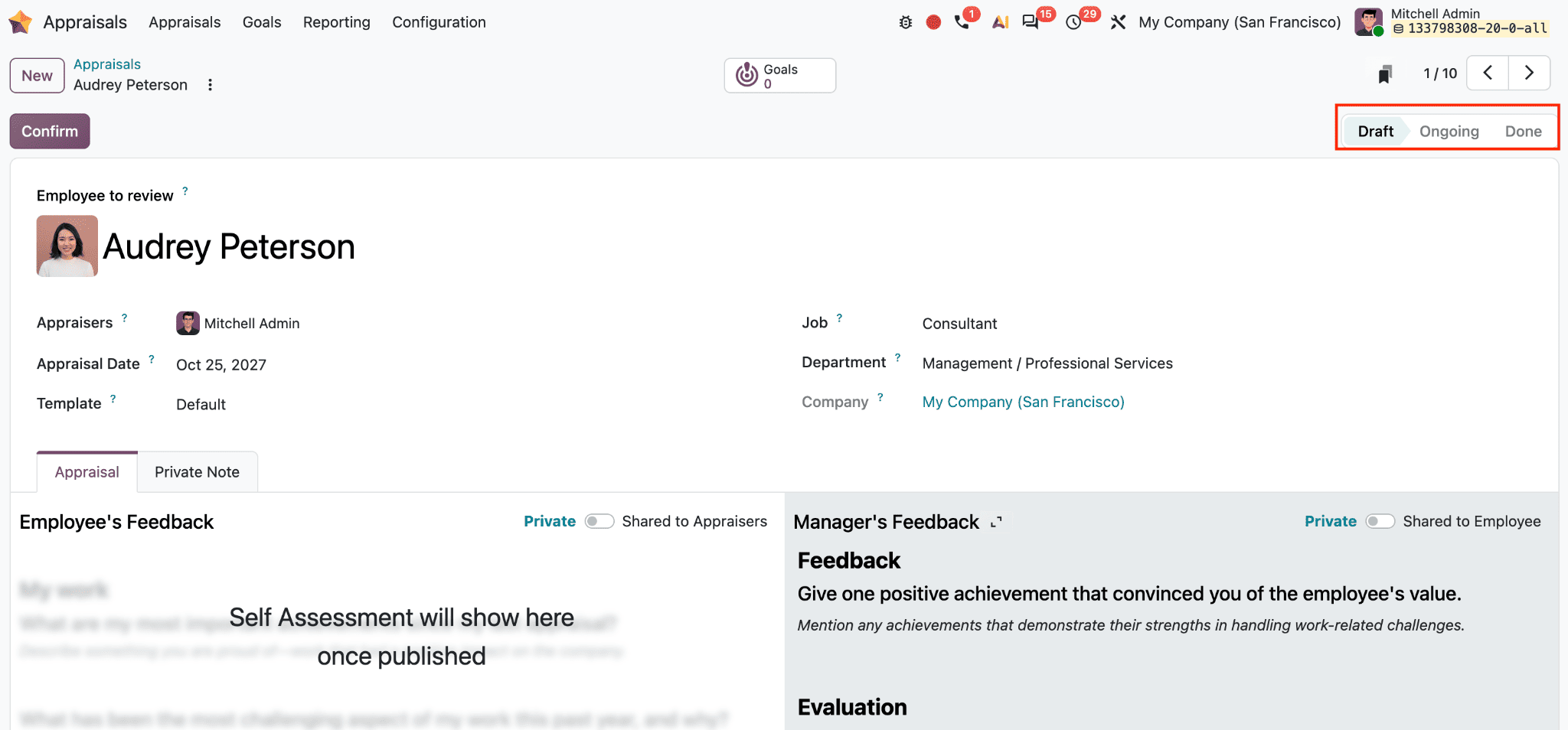
A Draft appraisal has been created but has not yet started. After it is confirmed, it becomes Ongoing so the employee and appraiser can complete their sections. Once the review is finished, it becomes Done. When an appraisal is marked Done, Odoo displays Next Appraisal Date based on the employee’s appraisal plan, as shown in the screenshot below.
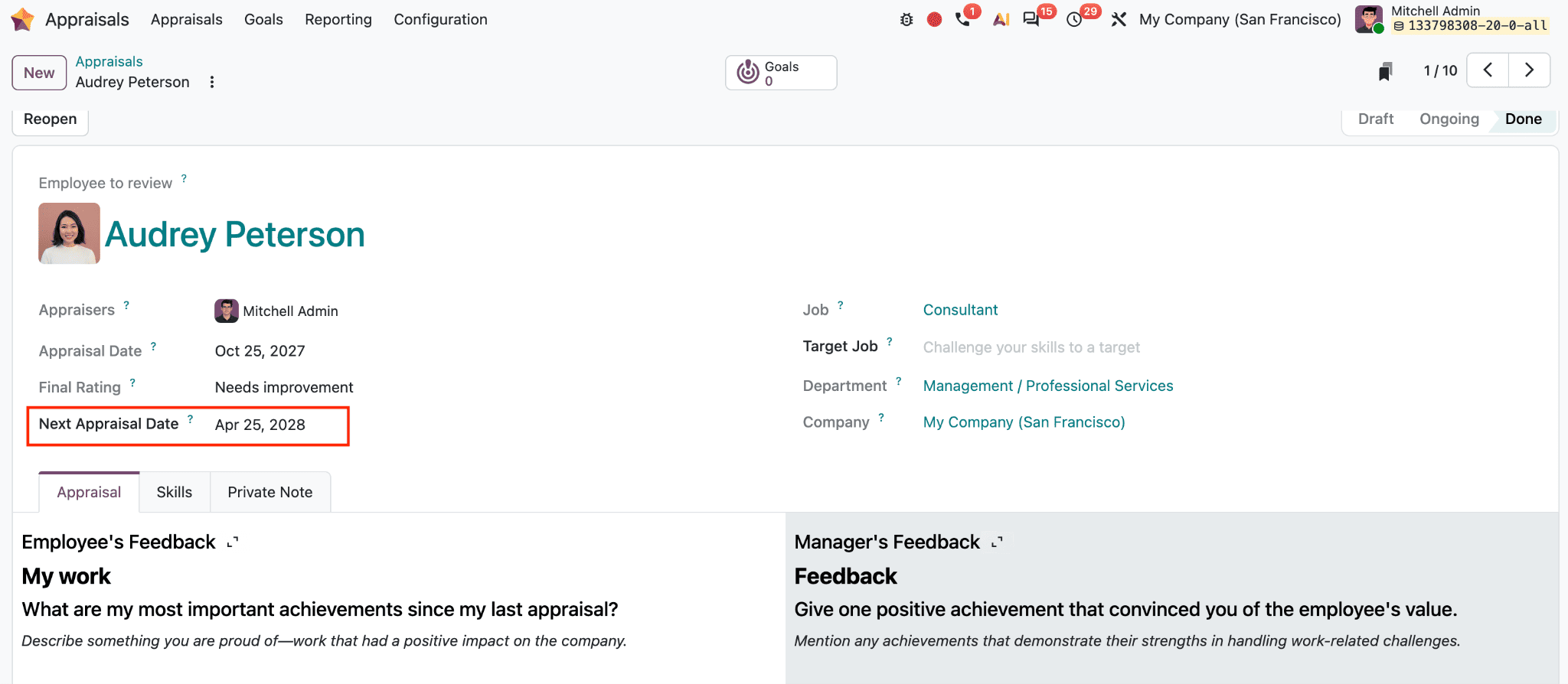
This date will also be available in the employee’s Work tab, as we mentioned earlier.
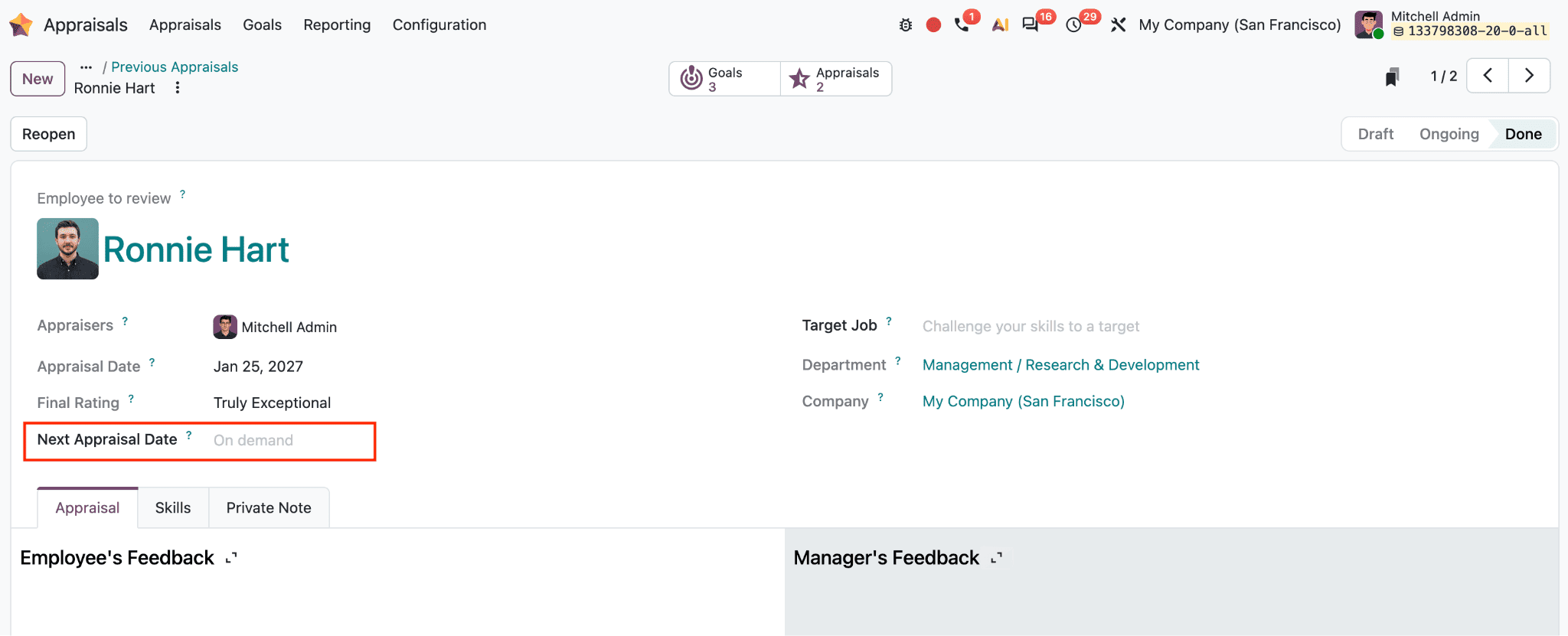
If no plan is configured for an employee, the field displays On demand, which indicates that a future review can be scheduled when needed rather than on a recurring timetable.
In order to manage multiple appraisals in Odoo together, the user can shift to the list view. Select multiple appraisals together by clicking on the checkboxes next to them. This will display the Action button, from which multiple actions can be performed.
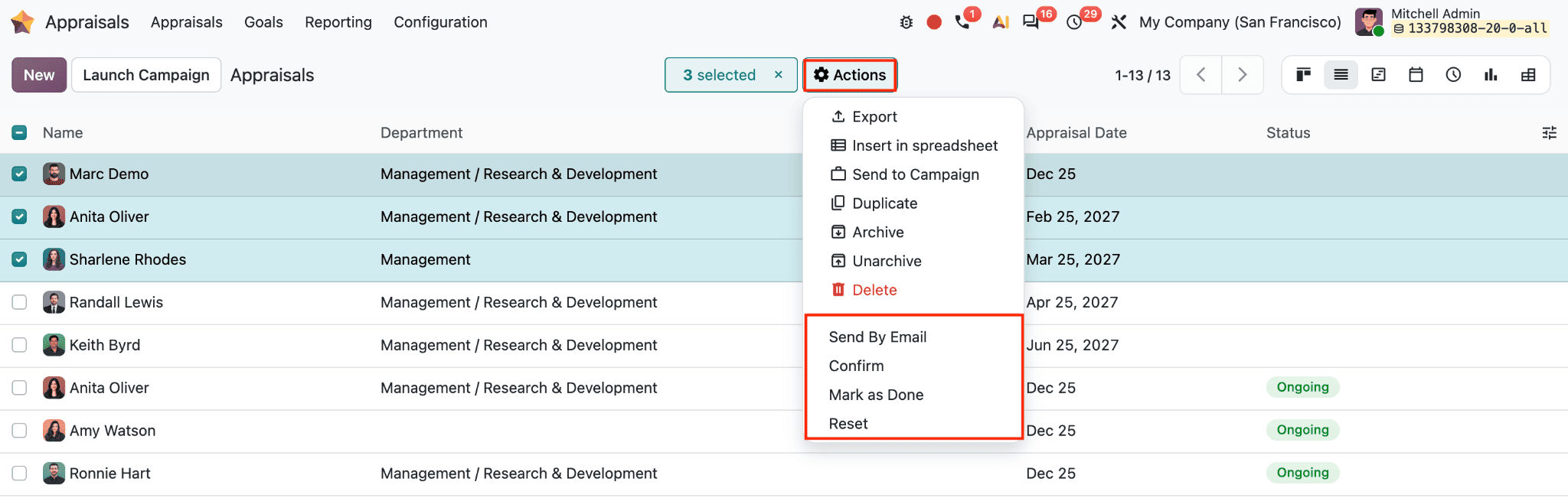
The Send By Email opens a window for emailing the selected employees. The Confirm option will move the qualified Draft appraisals to Ongoing status, while the Mark as Done option will complete the selected appraisals, including those still in Draft. The Reset option can be used to return the appraisals to the Draft stage.
The Odoo 20 makes it easier to manage appraisal cycles by combining a recurring appraisal plan with automatic scheduling. This gives companies a consistent way to organise reviews while keeping each employee’s feedback, rating, and next review date on record.
To read more about Introduction to the Appraisals Module in Odoo 19, refer to our blog, Introduction to the Appraisals Module in Odoo 19.