Everyone needs time off to recharge, but managing leave requests and tracking employee balances shouldn't become a complicated task. Relying on scattered emails, clunky spreadsheets, and paper records makes it difficult for employees to keep track of their remaining leave and even harder for managers to monitor usage and prepare accurate reports. Odoo 20 Time Off simplifies this process, providing reporting options that help businesses analyse employee leave information.
This blog takes you through the reporting features built into the Odoo 20 Time Off module, covering employee leave usage, time off by type, and leave balances. It also shows you how to embed a Pivot report into a Knowledge article and save it as a PDF for printing or record-keeping purposes.
Accessing Time Off Reporting
Open the Time Off module in Odoo 20 and navigate to the Reporting section. It provides three reporting options: By Employee, By Type, and Balance, allowing managers to review team leave information from different perspectives, as shown below.
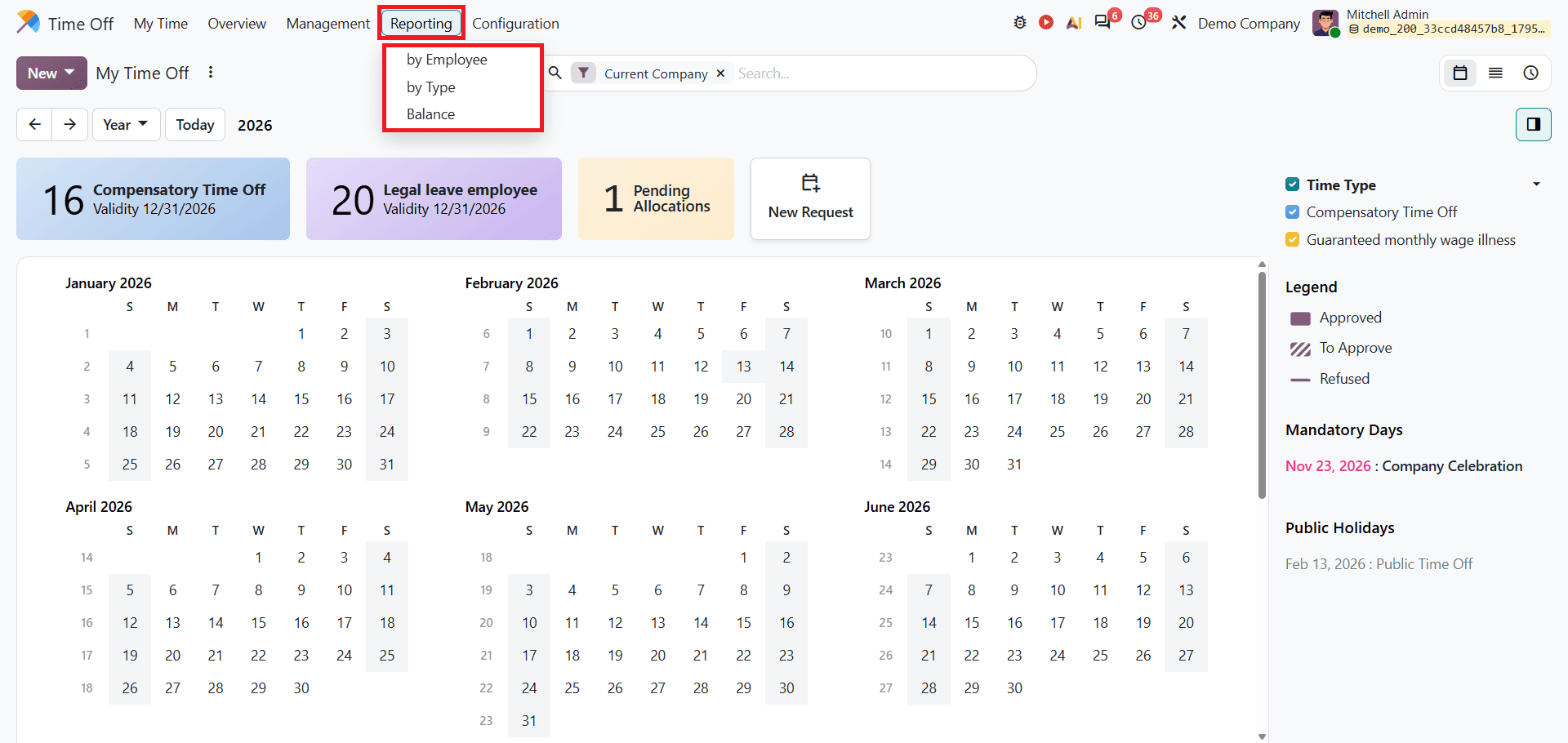
These reporting features are intended for users with appropriate access rights, especially managers.
By Employee
The By Employee report shows an overview of individual employee time off records. Managers can use it to examine the leave taken by each employee and check its duration over different periods. To access this report, select By Employee from the Reporting menu. This report opens in Pivot view by default, as shown below.
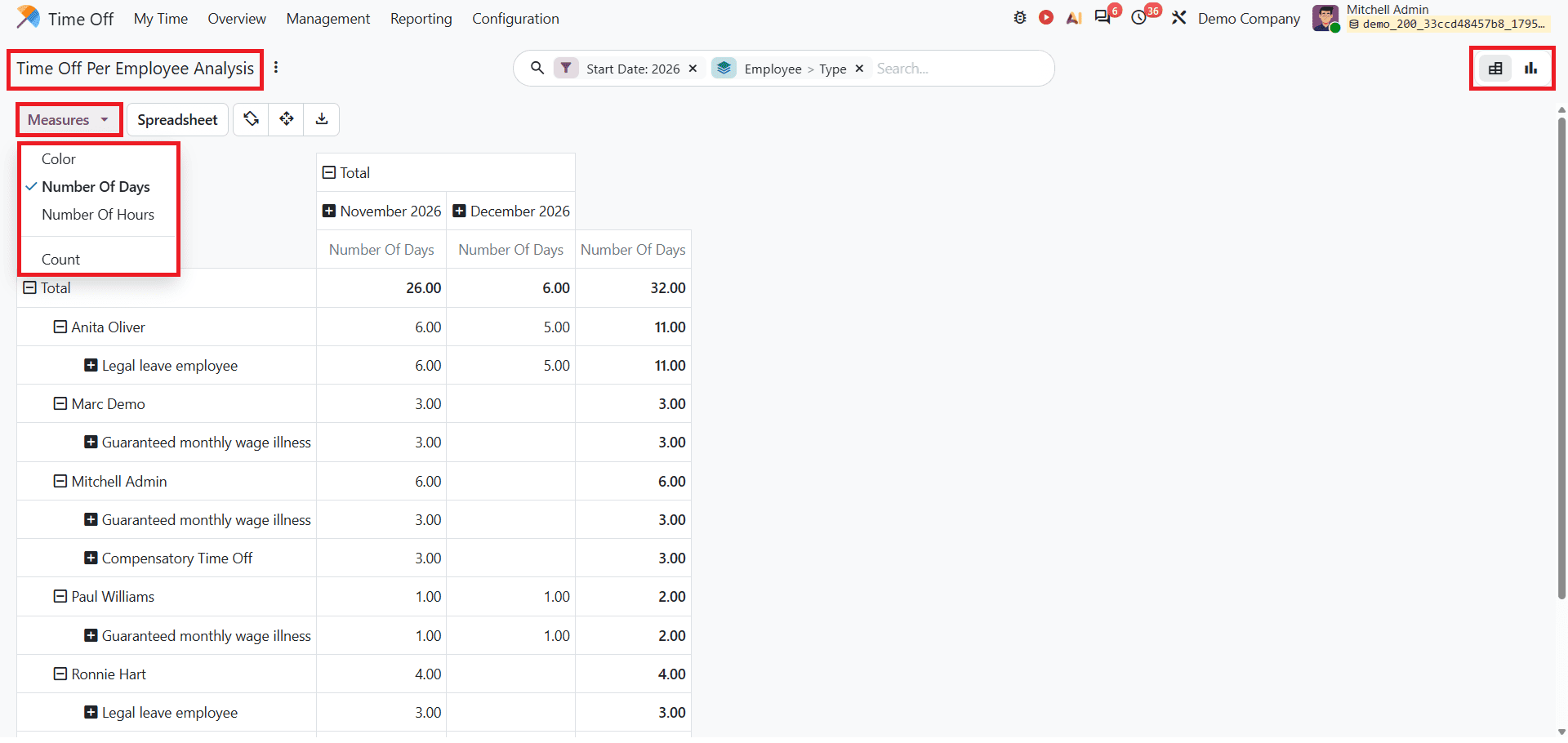
This view helps managers track employee leave patterns, monitor time off usage, and plan coverage for upcoming absences. The report displays employees in rows and months in columns. It shows the number of days taken by each employee, along with corresponding time off types. Managers can use this information to compare monthly leave usage and check individual employee records.
The available Measures include Number of Days, Number of Hours, and Count. The Color option is also available.
The Graph view includes Bar Chart, Line Chart, and Pie Chart options. It displays employee names along with their respective time-off types. By hovering over a bar, users can view the number of days taken by an employee. The available measures include Number of Days, Number of Hours, and Count. Managers can switch between charts to view employee leave records in different ways.
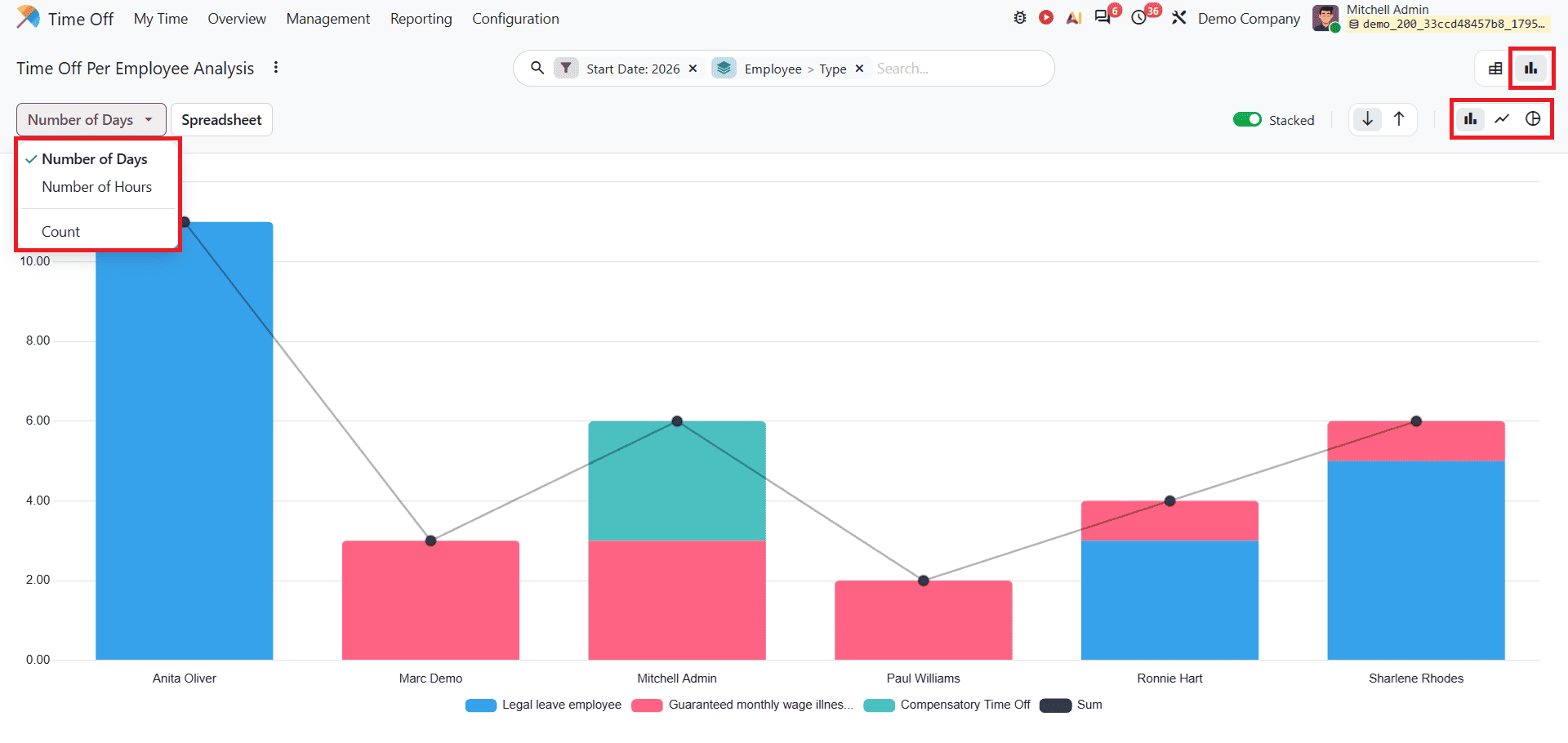
The Line Chart displays time off usage across employees using lines to represent different leave types. This view makes it easier to see how leave usage differs between employees.
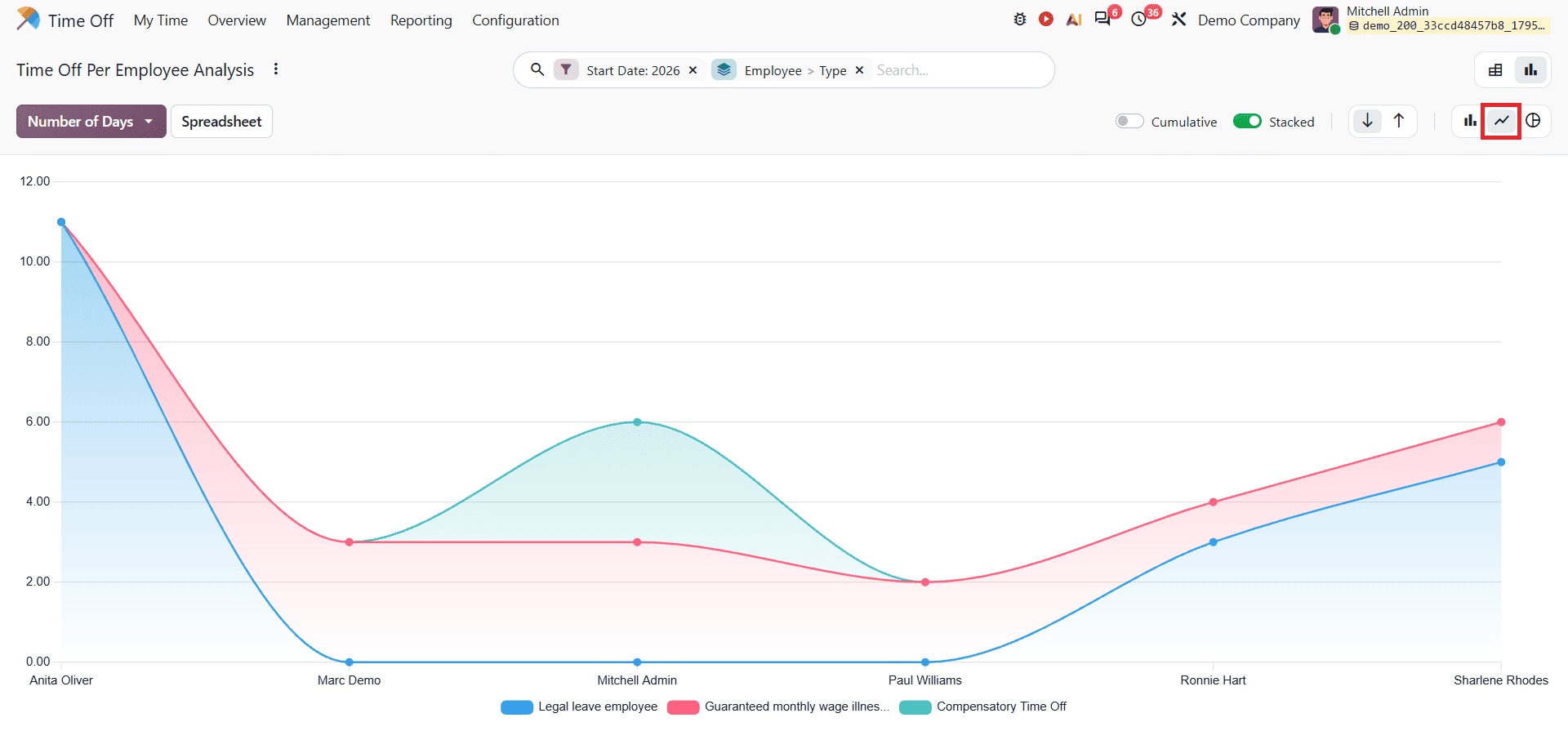
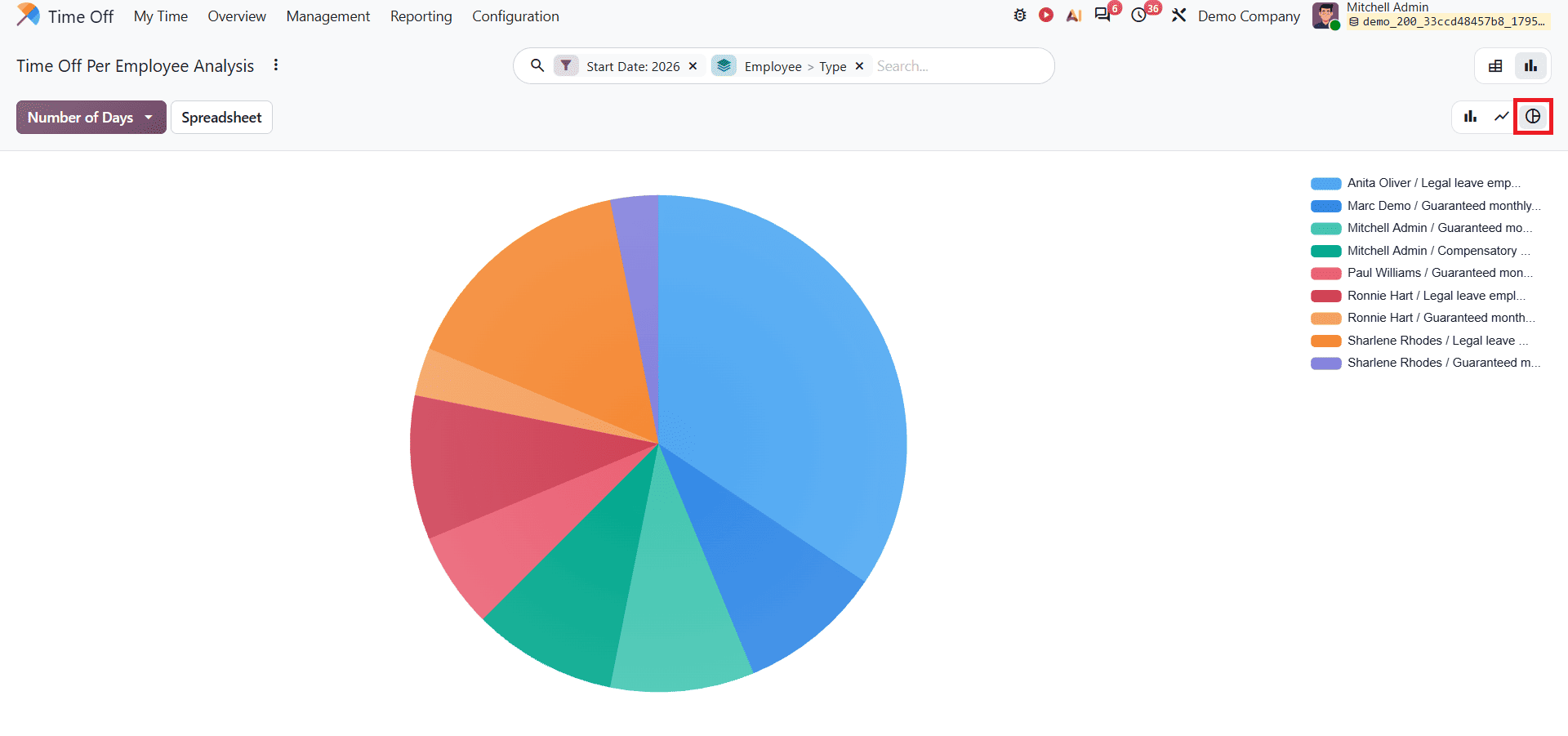
The Pie Chart shows how time off is distributed among employees. Each slice represents an employee's share of the total time off, making it easier to compare visual comparison of leave usage across the team.
Filters and Group By
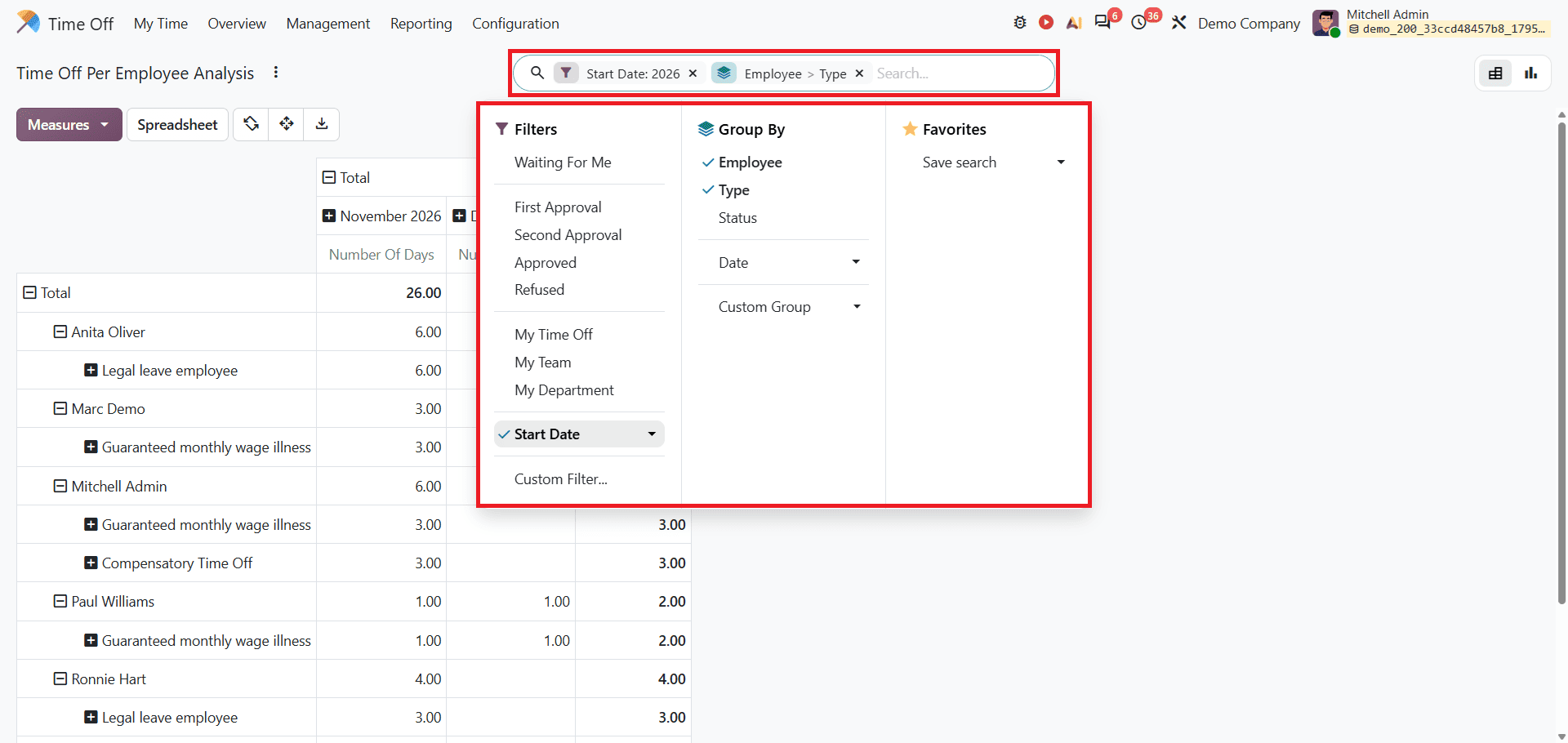
The By Employee report also includes filtering and grouping options that allow managers to view leave records based on their specific requirements. The Filters section allows users to narrow down records using options such as Waiting for Me, First Approval, Second Approval, Approved, Refused, My Time Off, My Team, and My Department. Users can also apply date filters or create custom filters.
The Group By option allows users to organize the report based on Employee, Type, Status, Date, or a Custom Group. These options make it easier to examine employee leave records from different perspectives.
By Type
The By Type report provides an overview of company-wide time off usage based on different leave types. They can use this to see which types of leave are more often used, check the total days taken, and review the number of requests. This information helps HR teams get a clear picture of how employees use their allocated time off.
By default, this report displays the information in a Bar Chart. Each bar represents a time off type, allowing managers to compare the allocated time, requested time off, and remaining balance across different leave types.
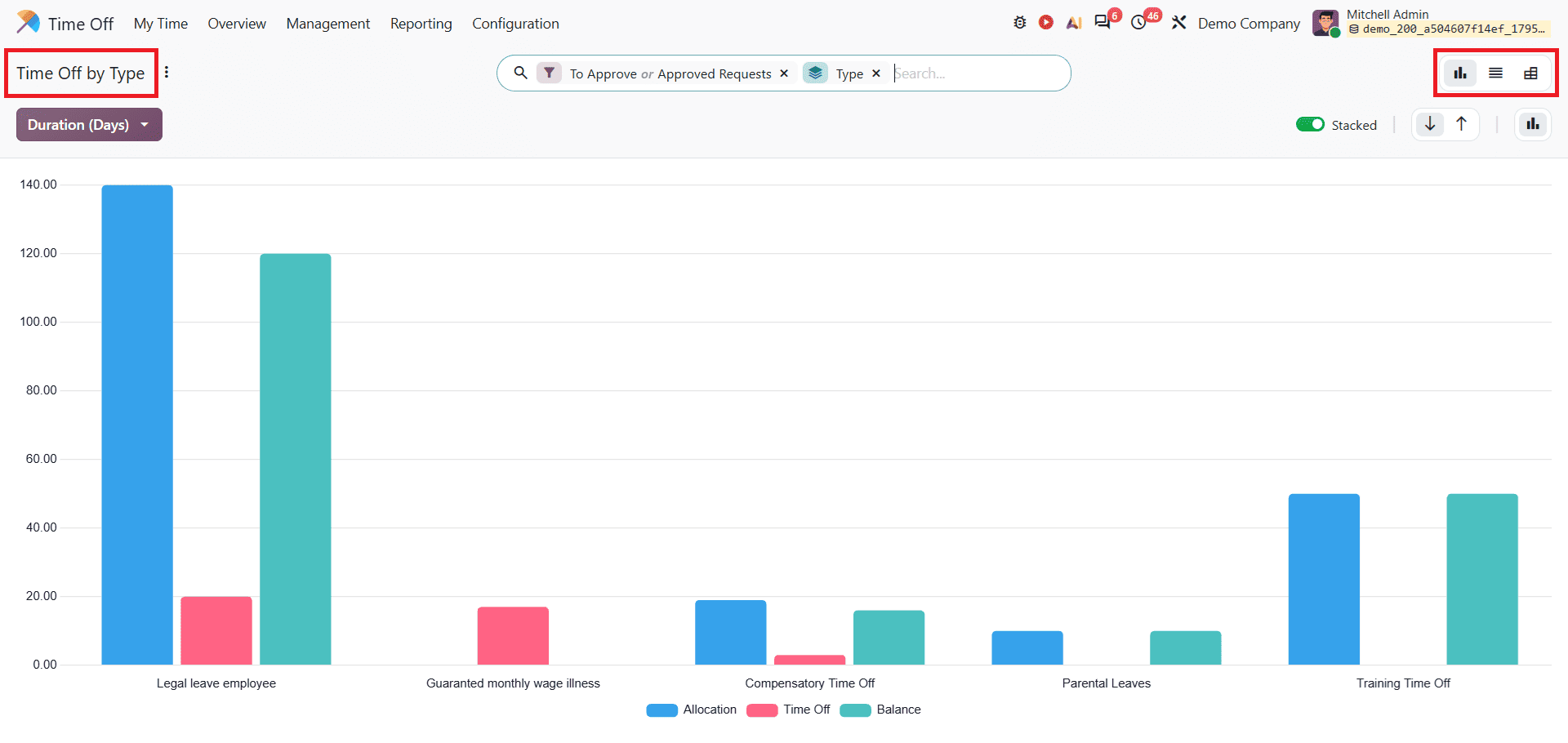
Allocation: Displays the total amount of time allocated to employees for each time off type.
Time Off: Shows the amount of time requested, including approved and pending requests, as well as past and scheduled future leave.
Balance: Represents the remaining time off available to employees.
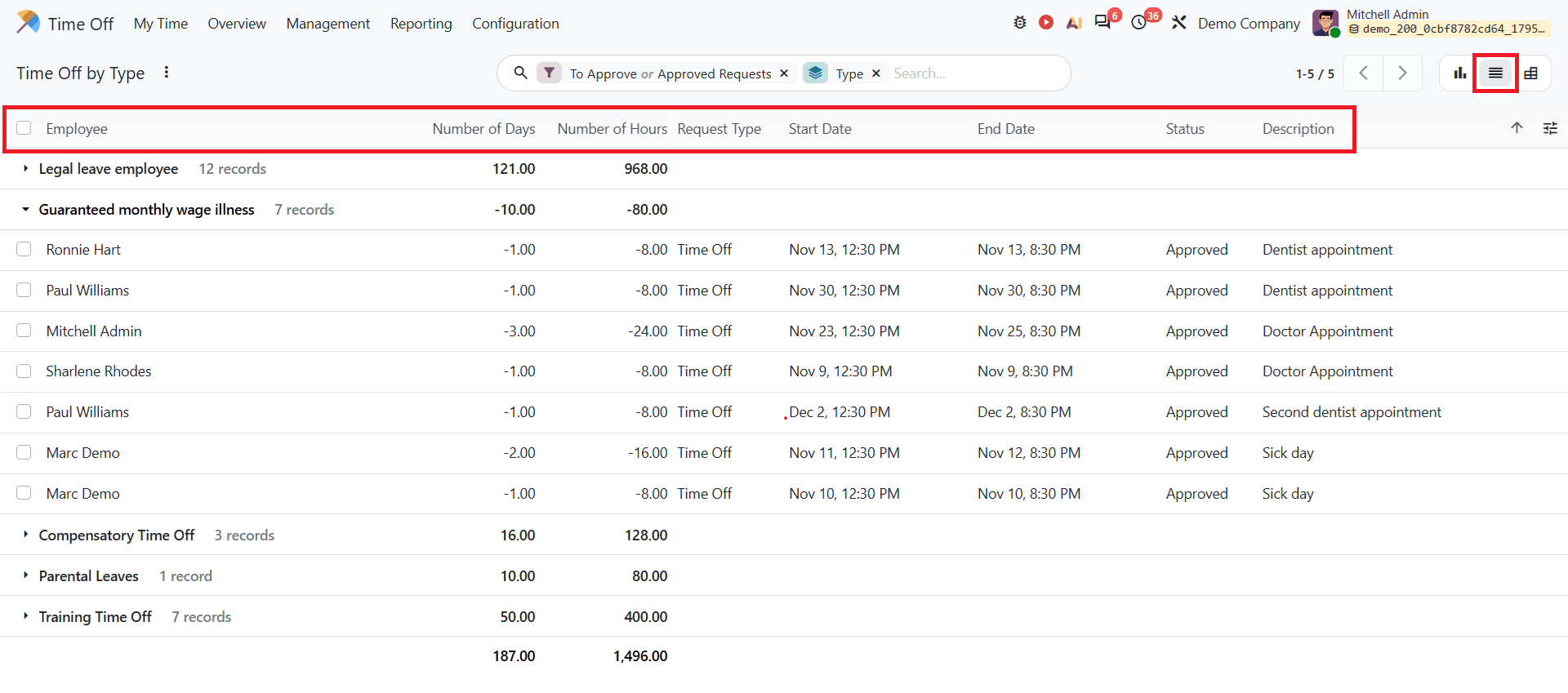
In the List view, users can see all the matching time off requests in a detailed table. By selecting a time off type, users can view information such as employee name, number of days, number of hours, request type, start date, end date, status, and description as shown below.
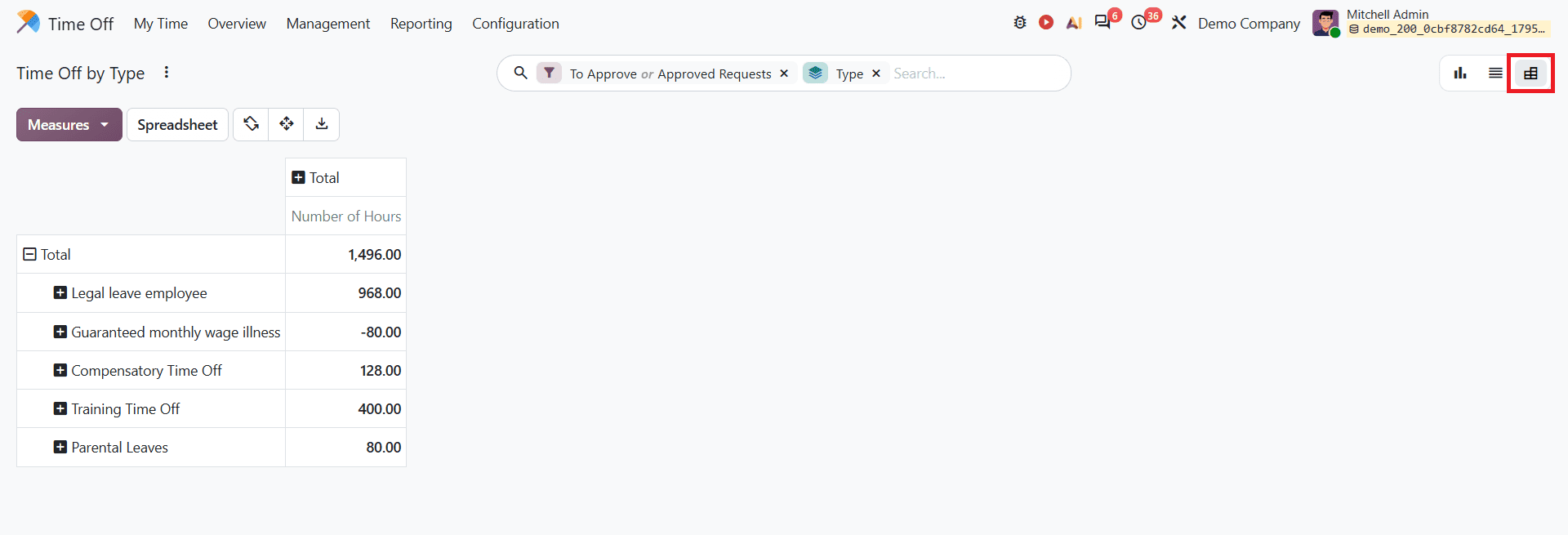
The Pivot view organizes the data into a cross-tabular table, where users can analyse time off information using different groupings. This makes it easier to compare leave types and review time off records in more detail.
Filters and Group By
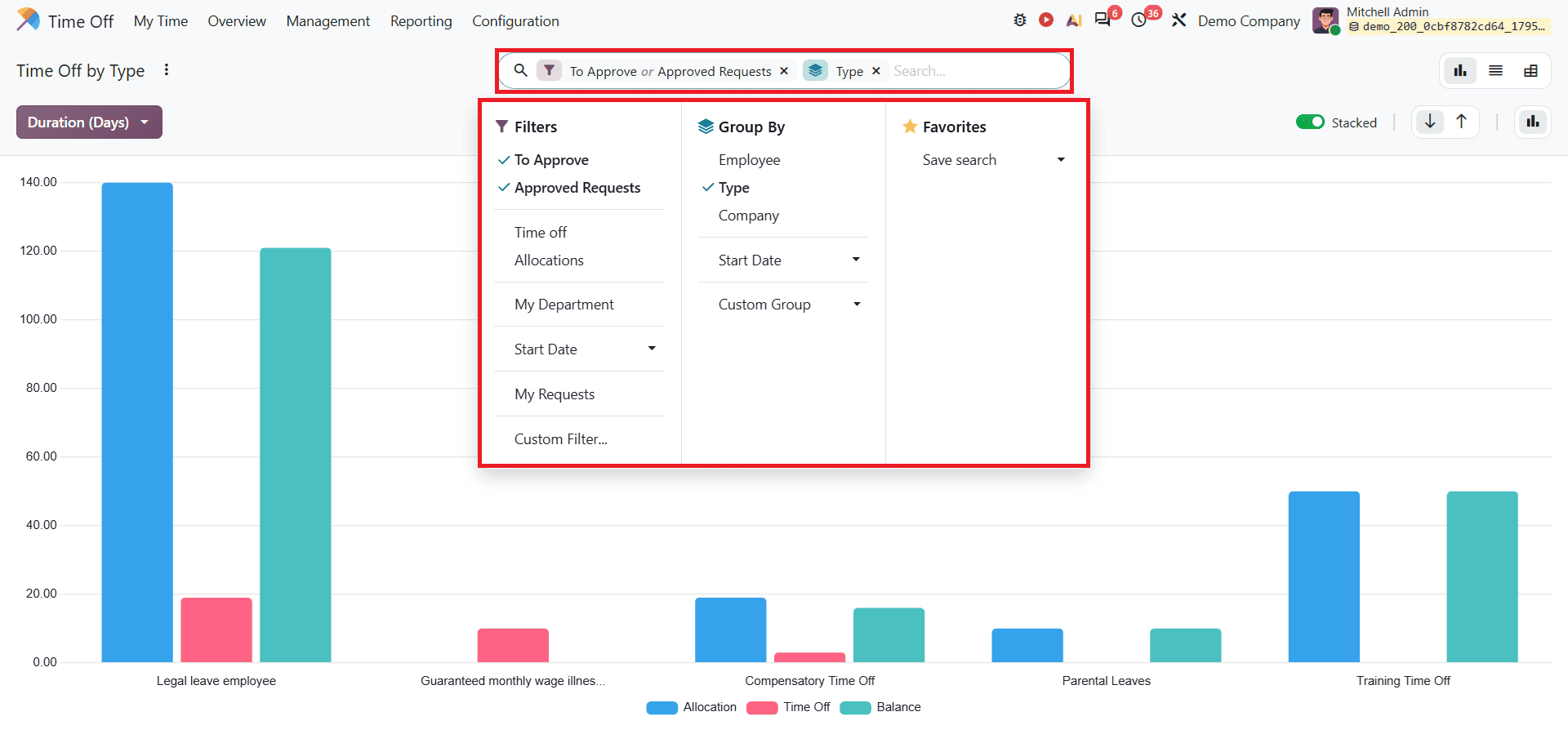
The By Type report also includes filtering and grouping options to help users analyse time off records based on specific filters and groups. The Filters section provides options such as To Approve, Approved Requests, Time Off Allocations, My Department, Start Date, and My Requests. Users can also create custom filters to narrow down the records.
The Group By option allows users to organize records by Employee, Type, Company, or Start Date. A Custom Group option is also available for further analysis.
Balance
The Balance report gives HR managers an overview of employee leave balances. It shows how much time off employees have taken and how much they have left across different leave types.
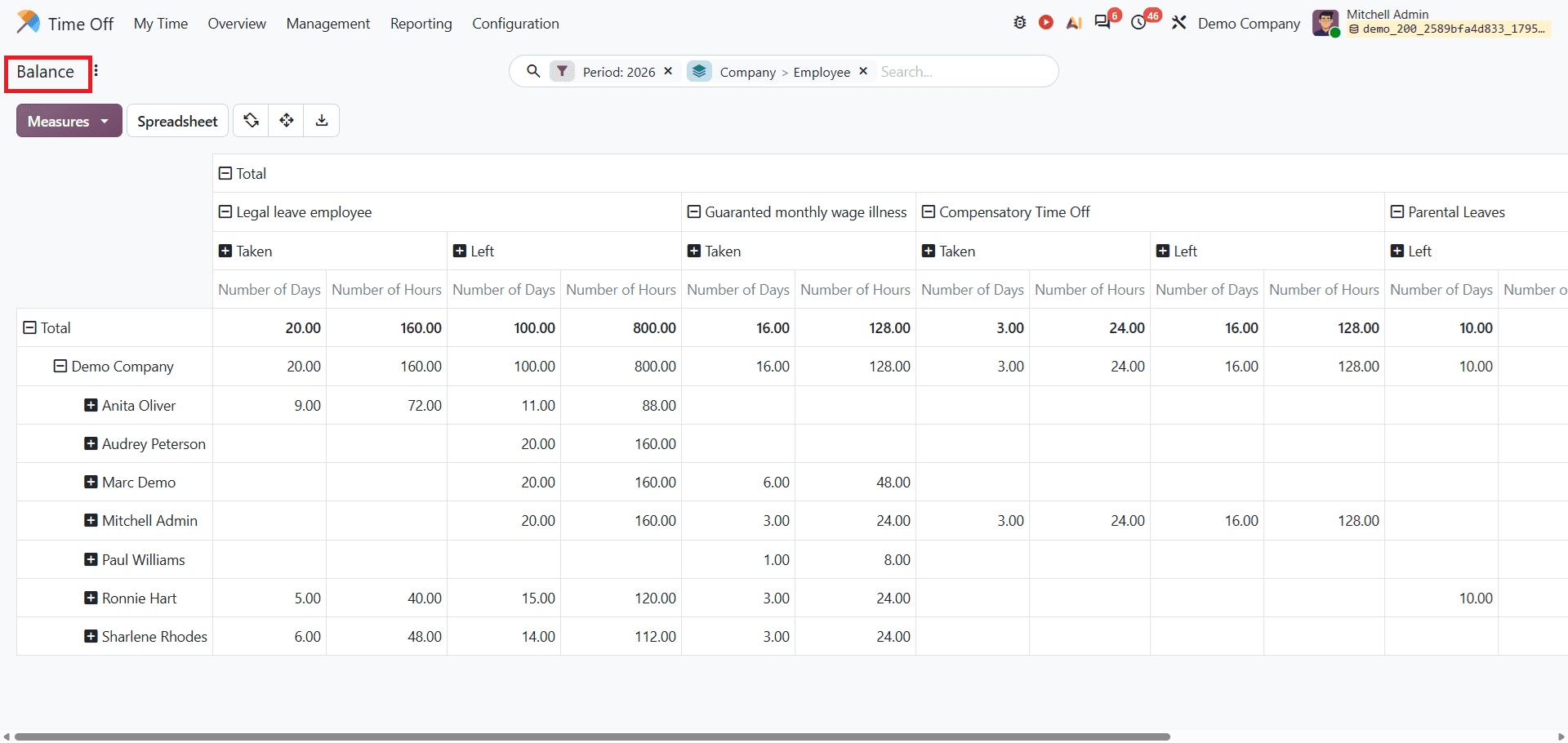
Left: Represents the remaining time-off balance available to an employee.
Taken: Represents the amount of time off already used by an employee.
Create a New Time Off Request
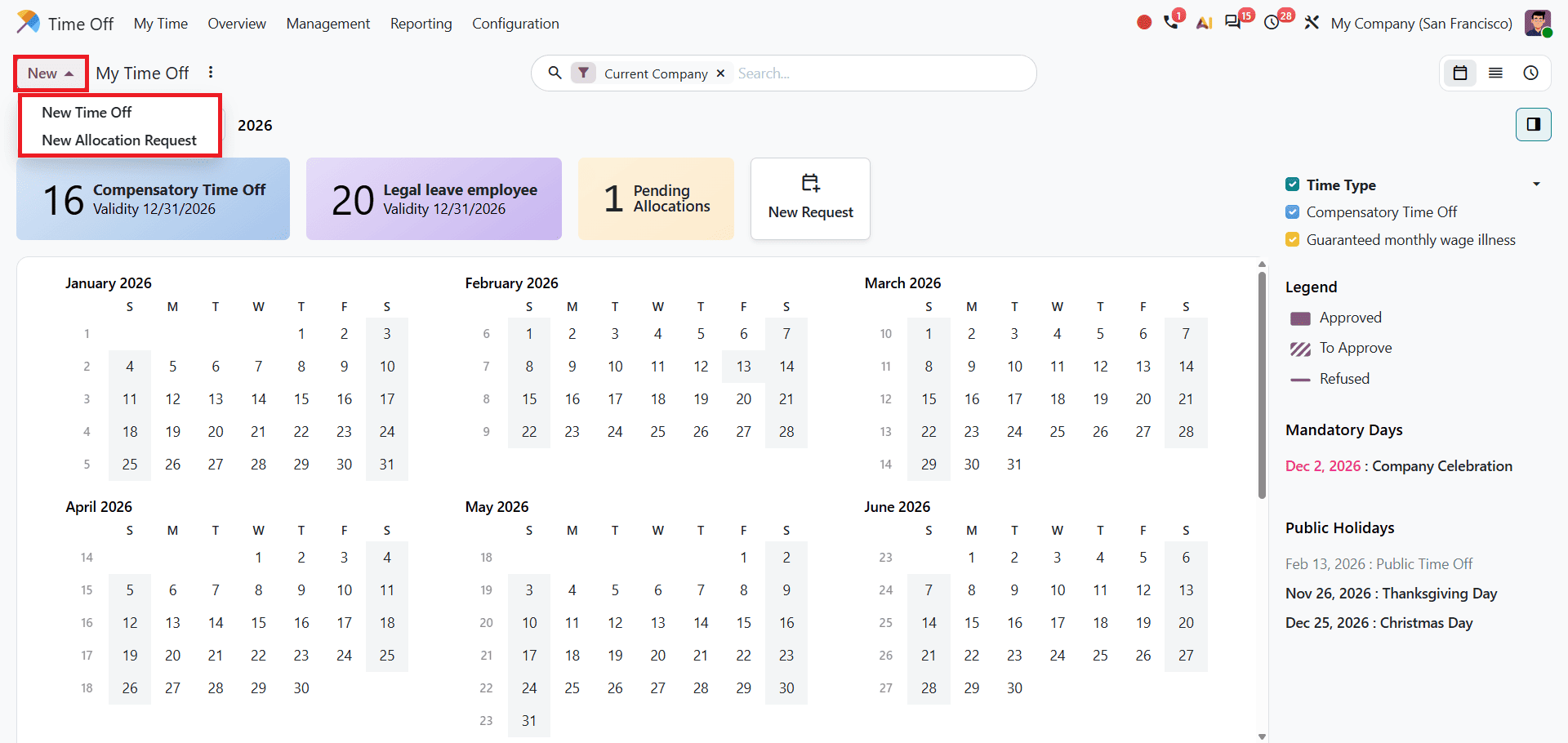
Employees can create time off requests directly from the Time Off dashboard. To do this, open the Time Off module and click the New button. Two options will appear: New Time Off and New Allocation Request. Select New Time Off to create a leave request.
A pop-up window will appear, allowing employees to enter the request details. Select the required Time Off Type and specify the dates for the leave. Choose whether the request is for a Full Day, Morning, or Afternoon. Enter a description if needed and click Submit Request to send the request.
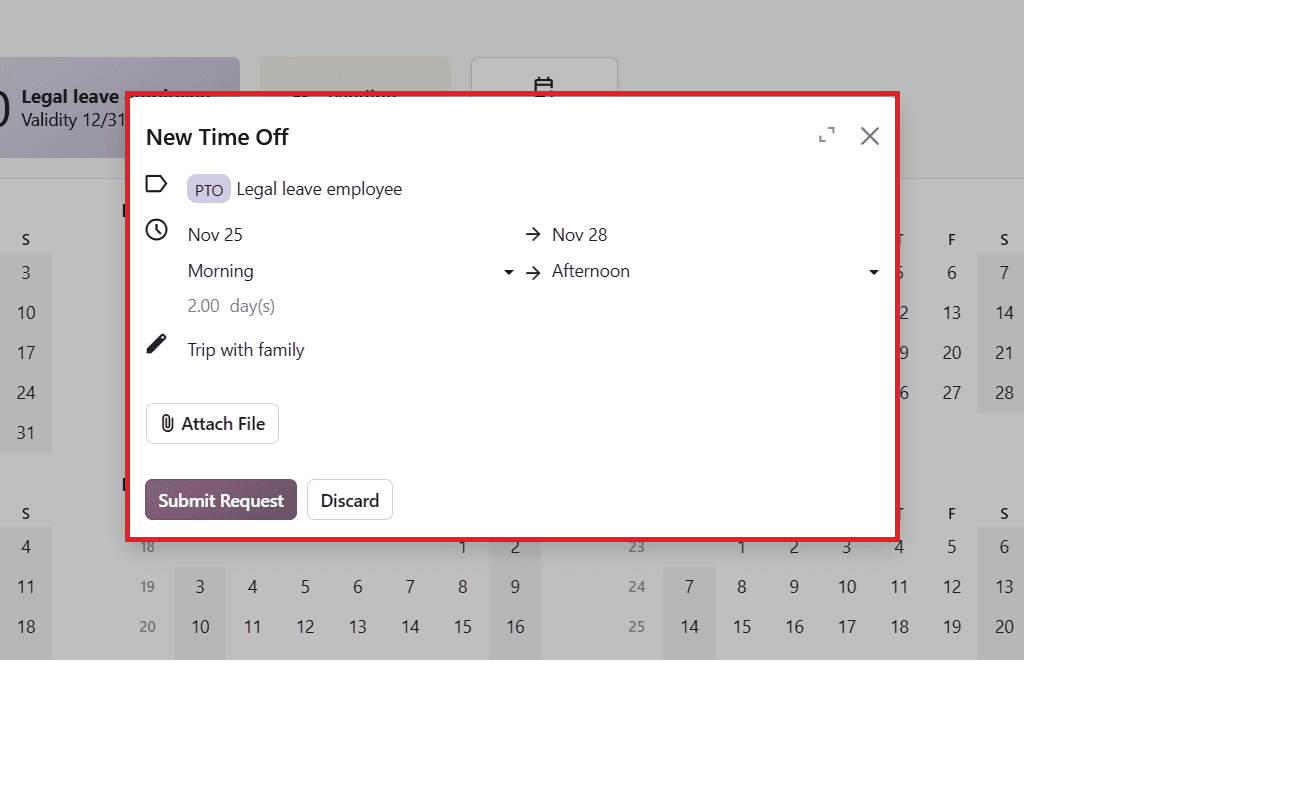
This allows employees to use their allocated leave and helps managers to monitor how much time off has been use and how much remains available through reporting features in Odoo 20.
Exporting the Pivot Report and Downloading it as a PDF
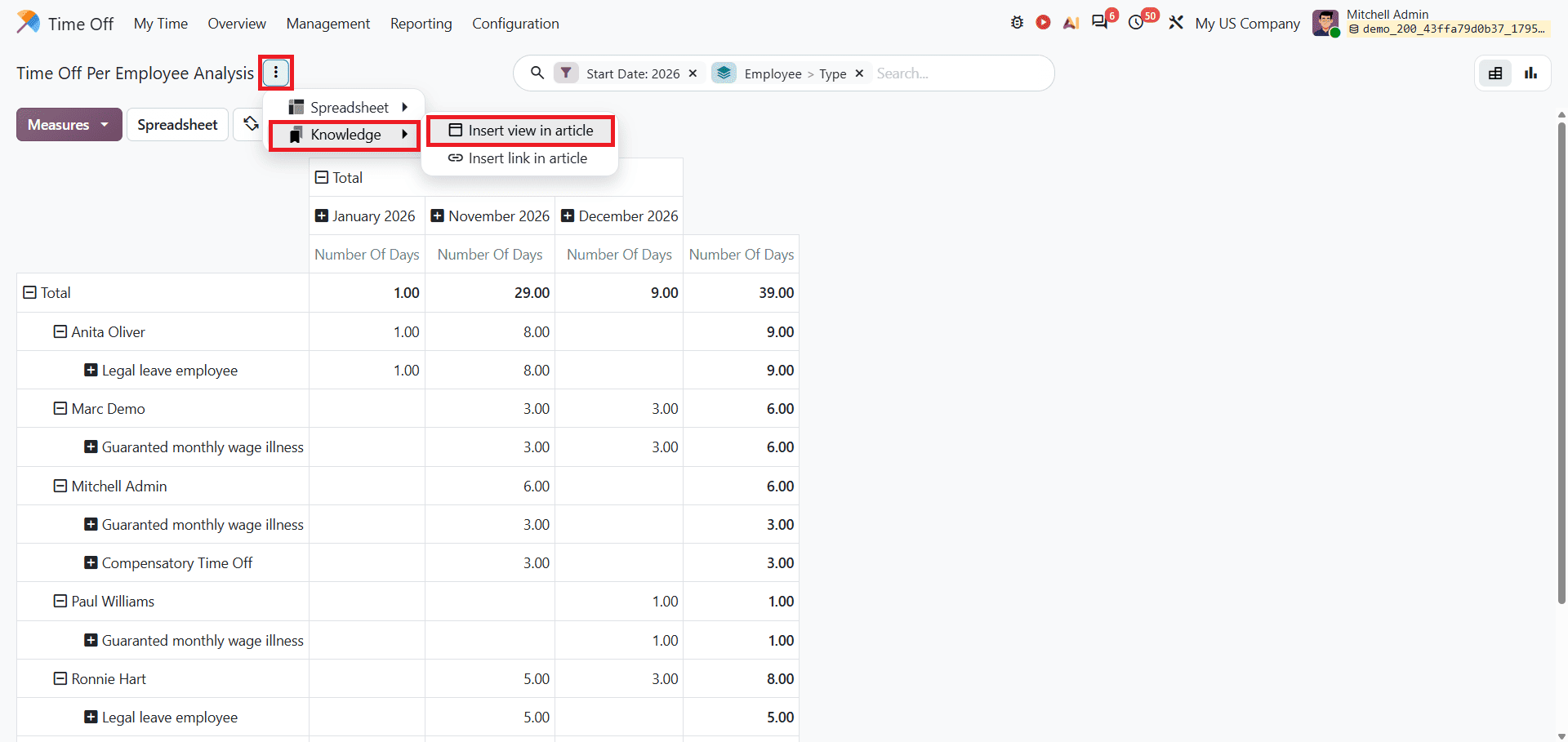
Odoo 20 allows users to insert the Pivot report into a Knowledge article and download it as a PDF. To do this, open By Employee from the Reporting menu and select the report’s action menu. Navigate to Knowledge and choose Insert view in article, as shown below.
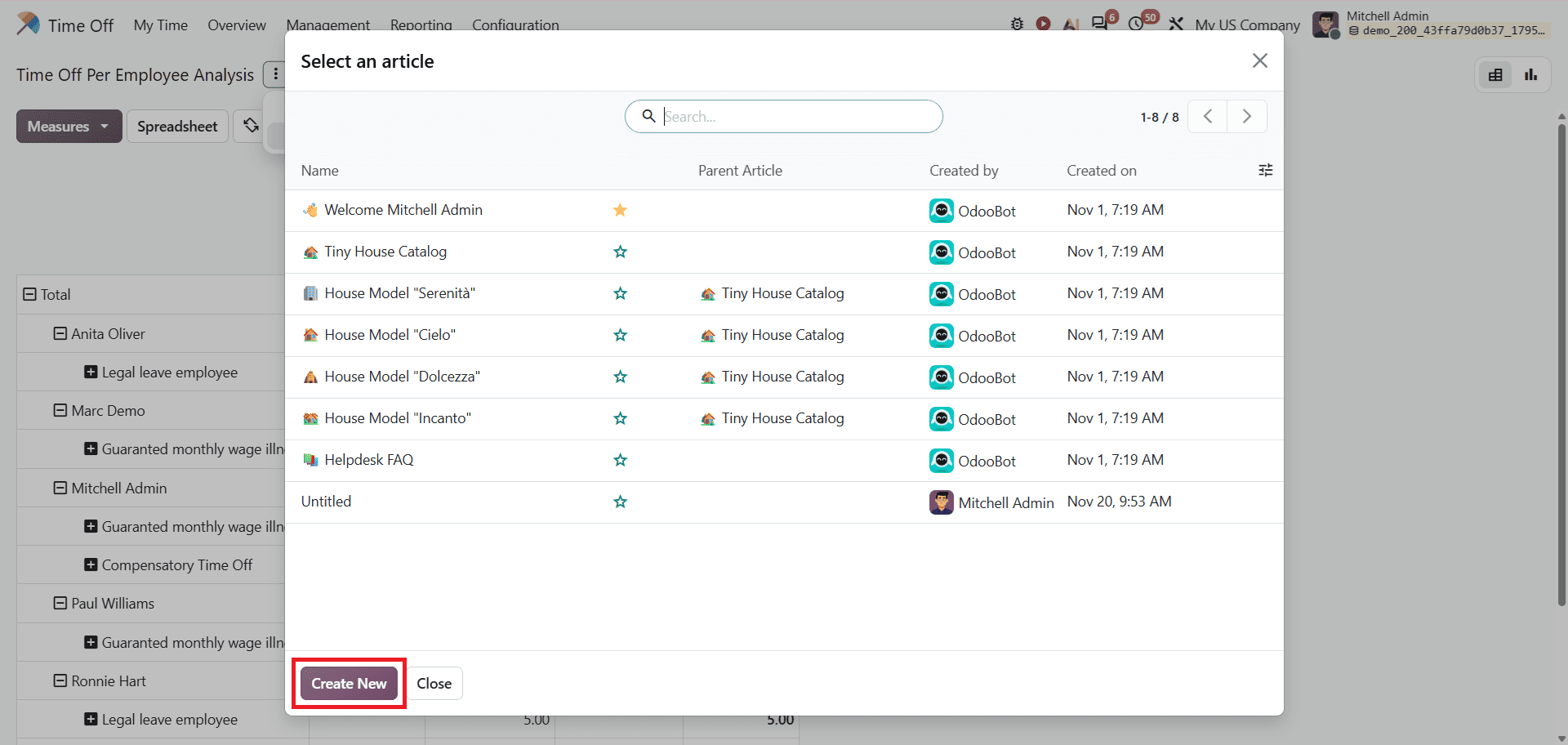
A window will appear displaying the available Knowledge articles. Select an existing article or click Create New to create a new one. The Pivot report is then inserted into the selected article.
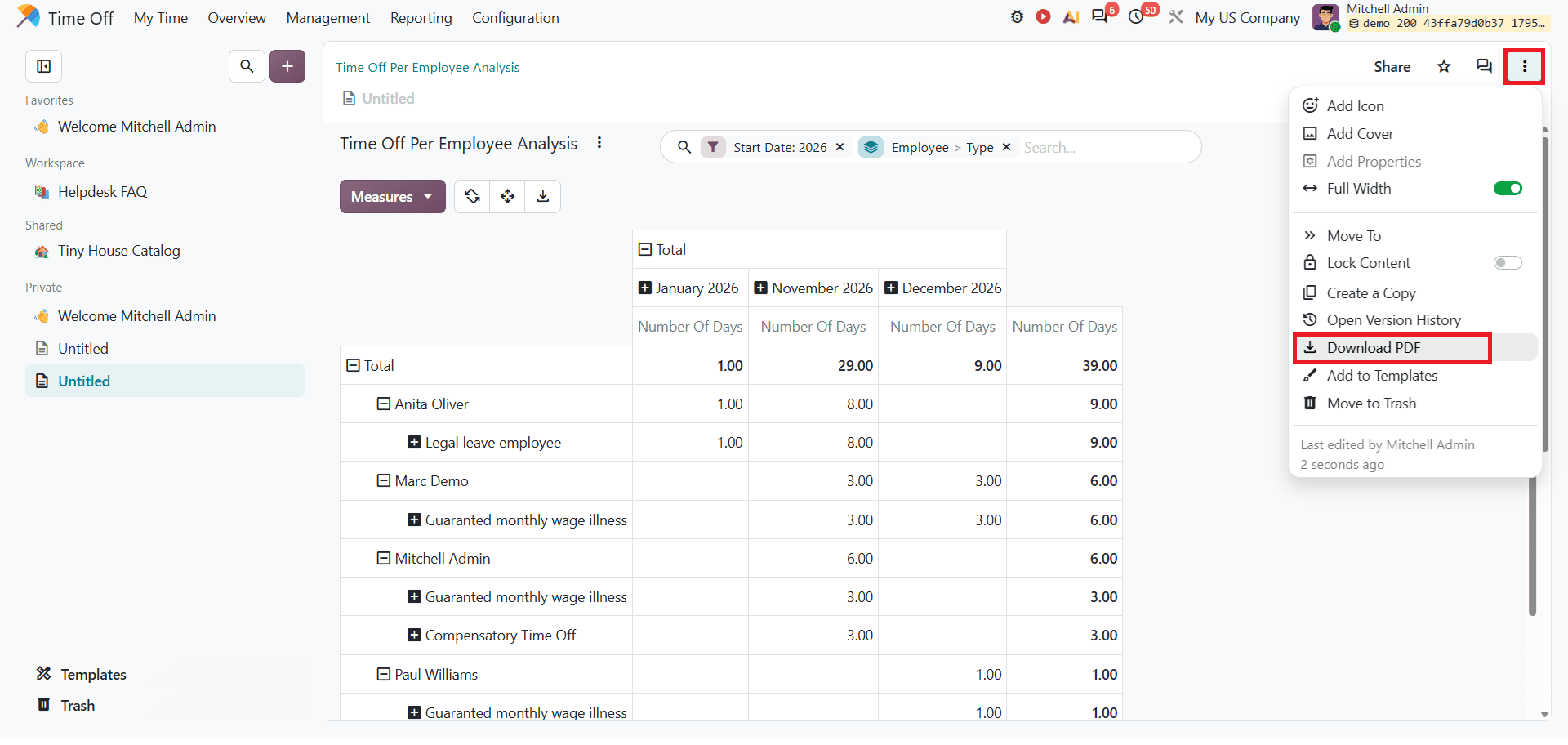
Once the report is added, open the Knowledge article and click its action menu. Select Download PDF.
This opens the browser's print window, where users can choose to save the document or print it. You can see the print window as shown below.
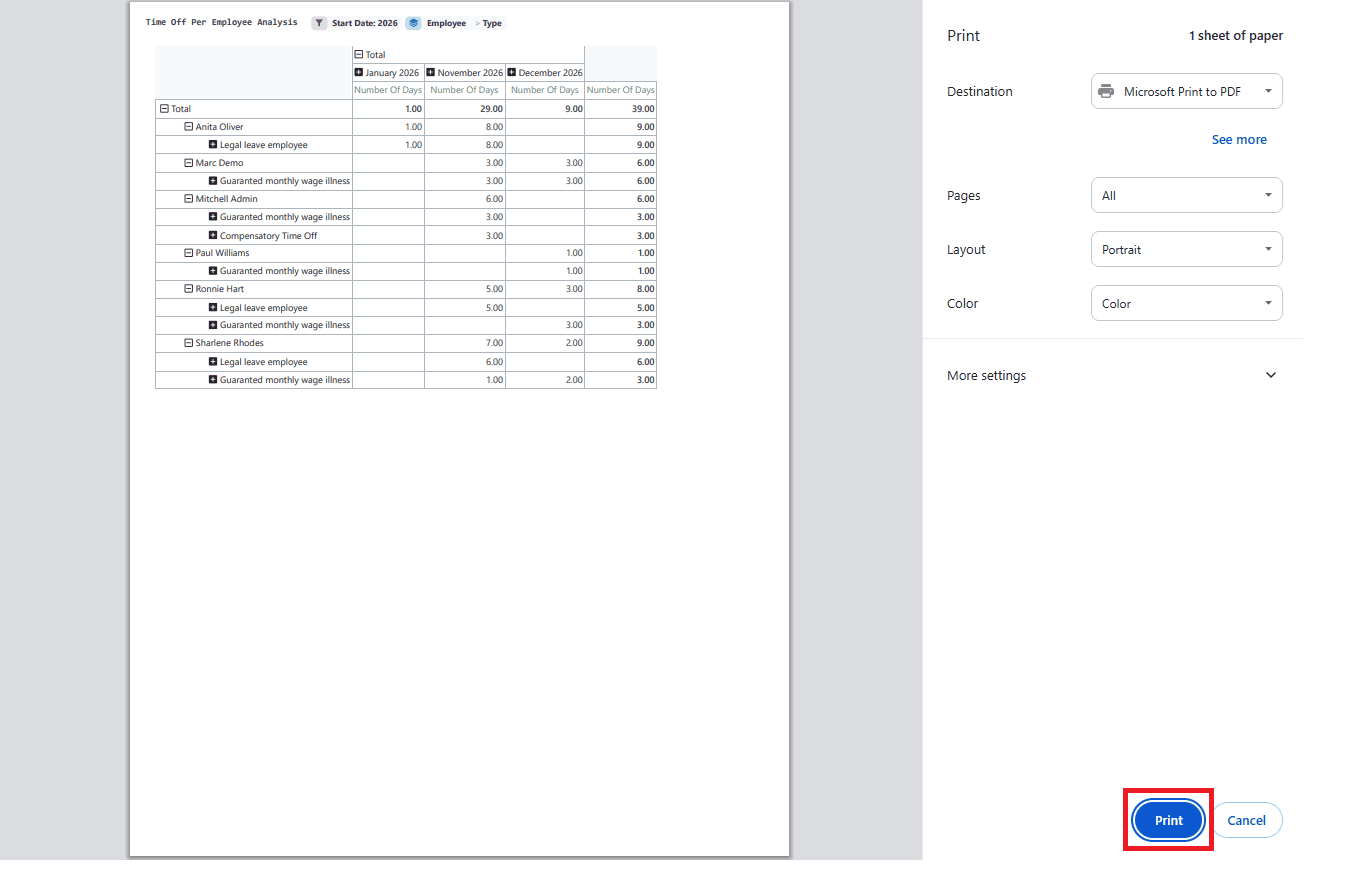
HR manager can easily create a leave summary PDF like this. It helps them to do detailed analysis of leave reports.
Odoo 20 Time Off includes several reporting tools that give businesses a clearer picture of how employee leave is being used and managed. The By Employee, By Type, and Balance reports allow managers to review individual leave records, compare usage across different time off categories, and keep track of remaining balances for each employee. Users can also embed the By Employee and By Type Pivot reports into a Knowledge article, as well as download them as PDFs for printing or save them for future reference. Together, these reporting features make it more straightforward to monitor leave data and review employee time off as needed, helping businesses stay organized when it comes to managing their workforce's time away.
To read more about How to Use the Time Off Overview and Team Calendar in Odoo 20, refer to our blog, How to Use the Time Off Overview and Team Calendar in Odoo 20.