Data migration and data imports form an integral part of any Odoo installation. Regardless of whether you are creating a new database, doing a migration from some other ERP software, or installing a custom module, proper data import will help you in retaining the accuracy of your data and improve the performance of your system. There are different techniques for importing data in Odoo 19, from simple CSV imports to XML imports and RPC integration for more technical people.
Why Data Loading Matters
- Manual entry is slow and error-prone
- Bulk data handling requires structured formats
- Incorrect imports can lead to duplicates and broken relations
1. UI Import (CSV / Excel) — For End Users
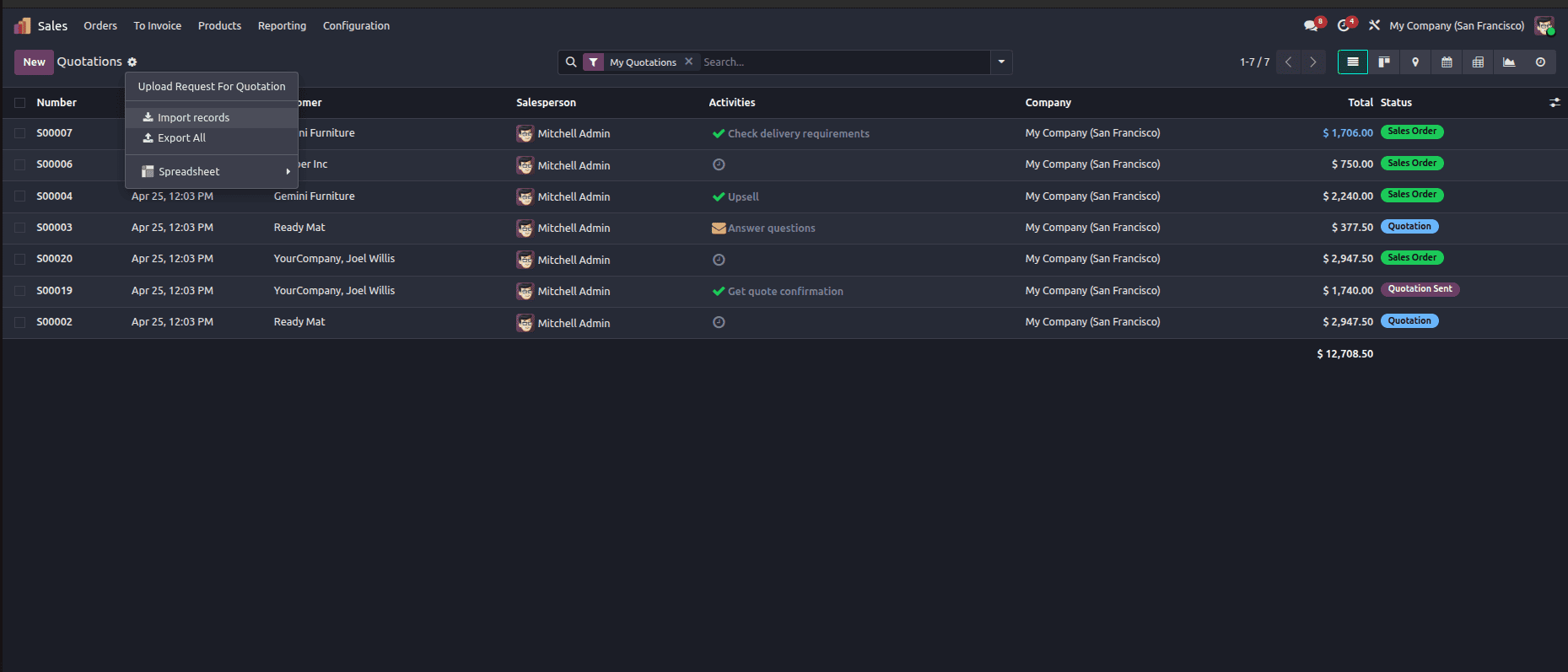
UI Import in Odoo 19 is a feature that lets you upload data using CSV or Excel files through a simple screen, no coding needed. It allows you to create or update many records at once.
When to use it?
- When you have large data to upload (customers, products, etc.)
- When moving data from another system
- When you need to update multiple records quickly
2. XML Data Files
XML data files are some of the most popular ways to import data into Odoo modules. These data files are flexible and easy to maintain. These XML data files are excellent for importing configuration data, menus, security rules, and many other types of data that must be imported while installing the module.
Module structure

module_name/__manifest__.py
{
   'name': 'My Module',
   'version': '1.0',
   'summary': 'Custom module for managing data',
   'depends': ['base'],
   'data': [
       'security/ir.model.access.csv',
       'views/my_views.xml',
       'data/master_data.xml',
   ],
   'demo': [
       'demo/demo_data.xml',
   ],
   'installable': True,
   'application': True,
}
module_name/data/my_data.xml
<odoo>
<data noupdate="1">
  <record id="partner_demo_1" model="res.partner">
    <field name="name">Acme Corp</field>
    <field name="email">info@acme.com</field>
  </record>
</data>
</odoo>
A record defined by having the attribute noupdate="1" would be created whenever the module is installed and will not be updated even during later upgrades of the module. If the record is not present at all, then Odoo will recreate it. This approach is not followed if the installation is done using the command odoo-bin -i in which all records are considered to be new.
Odoo makes use of Commands in the case of One2many and Many2many fields in order to work on related records during data loading. Commands can create records, relate records, update records, or unlink records.
For instance, if there is a need to assign a Sales Team to a user via Many2many field,
<record id="user_demo" model="res.users">
   <field name="name">Demo User</field>
   < field name="sale_team_ids" eval="[Command.link(ref('sales_team.crm_team_1'))]"/>
</record>
In this case, using Command.link() connects an already existing Sales Team record to the user.
In order to link records in a One2many field, you can create the records in this way:
<record id="partner_demo" model="res.partner">
   <field name="name">Acme Corp</field>
   <field name="child_ids" eval="[ Command.create({ 'name': 'John Doe', 'type': 'contact', 'email': 'john@example.com' }) ]"/>
</record>
Here, the Command.create function creates a new contact that will then be linked to the parent partner using the One2many relation.
3. CSV Data Files — For Developers (Bulk Simple Records)
There are various uses of the CSV file format in importing simple records into Odoo. There are many types of records that can be imported using the CSV file format, such as contacts, products, permissions, configurations, and many more. Importing of these records can be done efficiently and effectively while making sure that the file format remains manageable.
In the CSV file format, there is an id row that is special in that it helps Odoo create External IDs (XML IDs).
CSV file format:
| id | name | email |
| partner_1 | John Doe | john@example.com |
| partner_2 | Jane Smith | jane@example.com |
CSV Import Requirements
To ensure successful imports, CSV files should follow Odoo's formatting requirements:
- The file needs to be saved in UTF-8 encoding.
- Data related to one specific model must be placed in one file.
- Column headings should include technical field names.
- Each record should have its own External ID (XML ID) in the id column.
- Boolean values must be either 0 or 1.
- Binary data must be encoded in Base64.
- Many2one relations must end with /id.
Following these guidelines helps prevent import errors, duplicate records, and data inconsistencies during future updates.
4. RPC / Script Import — For Large or Automated Imports
Importing through RPC in Odoo 19 refers to a technique where data can be imported into Odoo using an outside script, which is most likely a Python script, rather than manually uploading files to Odoo. This technique entails running a Python script on your computer to establish a connection with your Odoo database and use that connection to import data into your Odoo models through the use of your user credentials.
Unlike importing through CSV or XML techniques, importing through RPC offers automation and enables the inclusion of logic in the process, for instance, verification of data before insertion.
To conclude, RPC import provides the ability to control Odoo via programming, which ensures fast, automated and flexible loading of data.
Using scripts in Python for calling Odoo's models.load function through RPC can be applied to really large data sets. This corresponds to the behavior of each model's ORM rather than direct SQL inserts.
| Method | Best for | Coding required | Production safe |
| UI CSV/Excel import | Business users, migrations | No | Yes |
| XML data files | Relational/structured module data | Yes | Yes |
| CSV module files | Bulk flat records in modules | Yes | Yes |
| Demo data | Testing & development only | Yes | No |
Common mistakes to avoid
- Improper encoding: Always create CSV files using UTF-8 encoding. Windows version of Excel might use ANSI encoding by default.
- Missing External IDs: Without an ID column, Odoo creates duplicate records on re-import instead of updating.
- Incorrect date format: Use YYYY-MM-DD for date fields.
- Timeout on large files: Break files with more than ~2,000 rows into smaller batches.
- Demo data in production: Don't ever check the "Load Demo Data" box on production databases. It adds fake records that are hard to get rid of.
To read more about How to load demo data in Odoo 19, refer to our blog How to load demo data in Odoo 19.