Odoo 19 is a powerful tool that helps businesses efficiently manage and schedule employee work based on service demands. It connects sales operations with project management and workforce scheduling, ensuring a smooth flow from order creation to execution. When a service product is properly configured, Odoo automatically generates related projects and tasks once a sales order is confirmed, reducing the need for manual setup. It also uses defined roles and employee availability to assign shifts accurately, ensuring that the right person is scheduled for the right task at the right time. This integration improves coordination between sales, project, and HR teams, helping organizations avoid scheduling conflicts and resource misuse. By automating key steps in the planning process, Odoo enhances productivity, streamlines service delivery, and supports better decision-making. Overall, it provides a structured and efficient approach to managing services from order confirmation to completion. In this blog, you'll learn how to schedule shifts for project teams in Odoo 19.
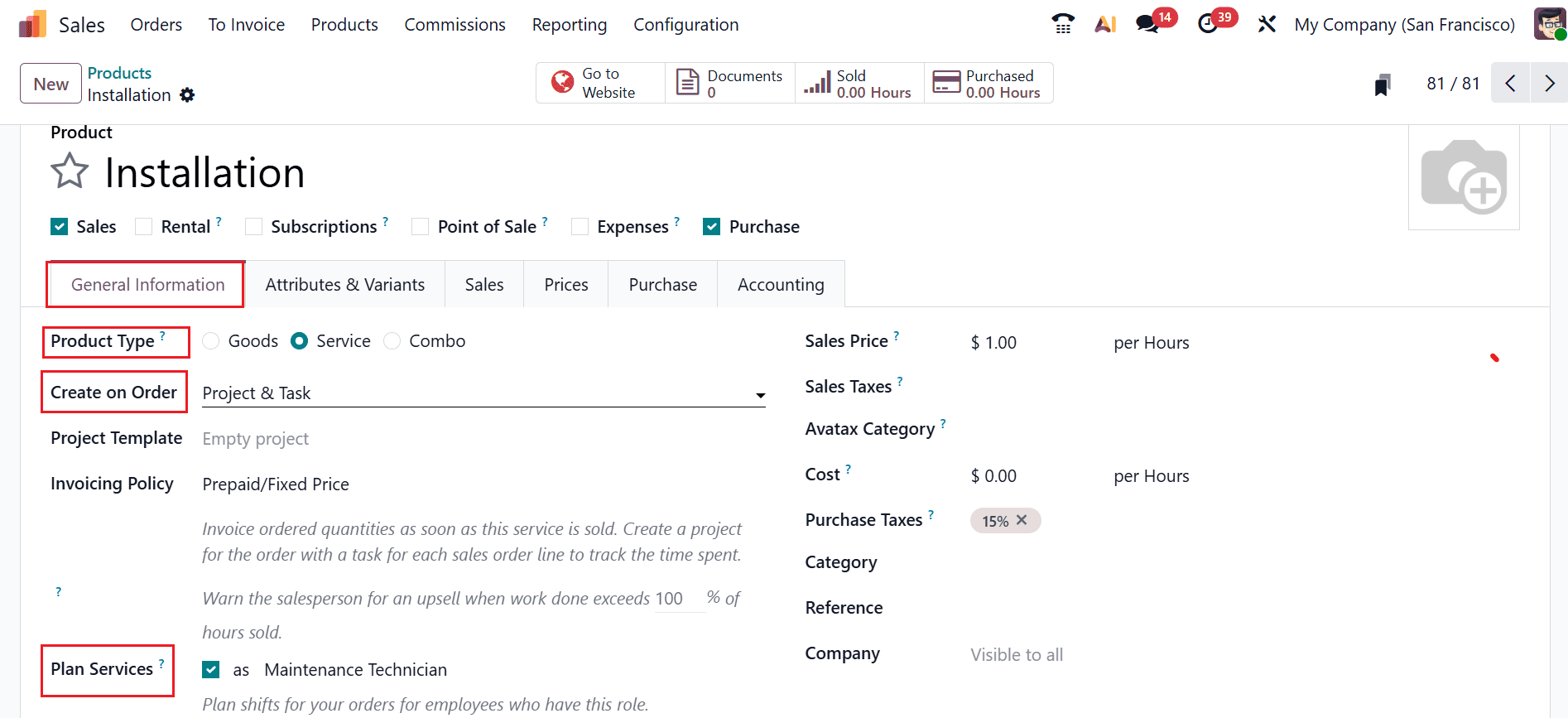
Firstly, open the Sales module and configure a service product before scheduling a shift. Then, navigate to the Products > Products, and open the required service product or create a new one.
A new form will open as shown below. Under the General Information tab, select the Product Type as Service. You'll also find the Plan Services option, which enables automated shift scheduling for that service. Once this option is activated, Odoo can generate and assign shifts to employees whenever a sales order containing the configured service is confirmed. This automation helps streamline workforce planning, reduces manual scheduling, and ensures that service-related tasks are allocated efficiently from the moment a customer order is processed.
After enabling the Plan Services option, the Role field is displayed. Select the role that corresponds to the employees responsible for delivering the service. During scheduling, Odoo's Planning module considers only employees assigned to the selected role, ensuring that shifts are allocated to qualified personnel.
Next, configure the Create on Order option. This setting specifies the records Odoo should generate automatically when the sales order is confirmed. Depending on your business requirements, you can choose to create a Project & Task option. The generated project structure serves as the foundation for planning, allowing the service to be scheduled and managed seamlessly within the Planning application.
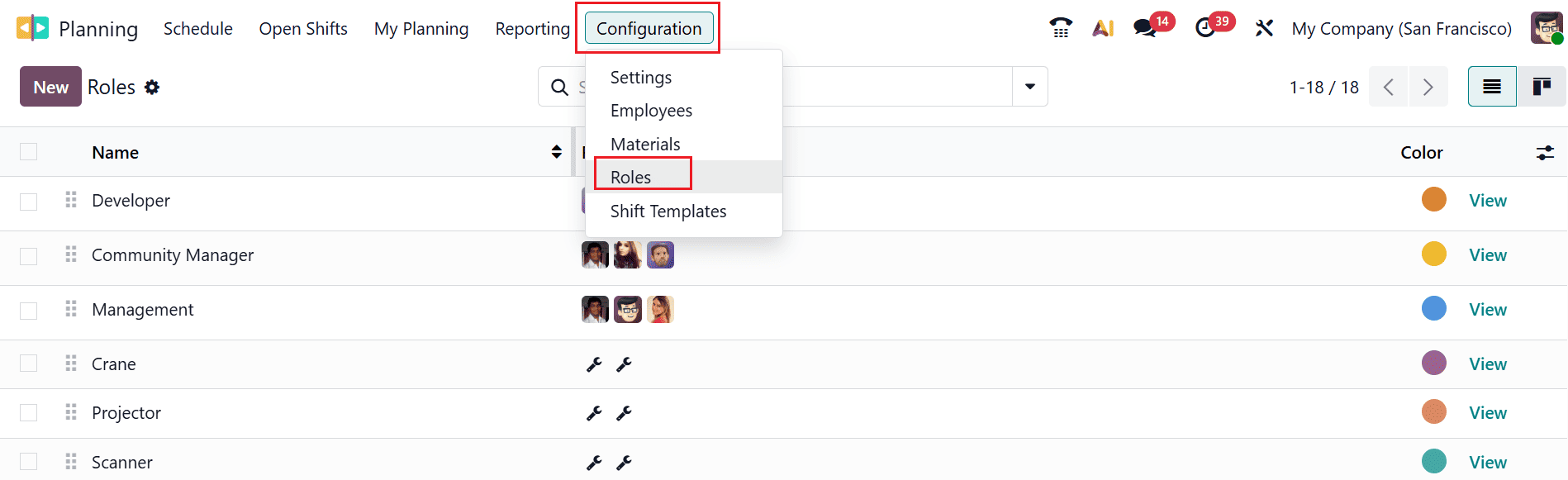
Now, let's see how to create a role and assign it to employees. Navigate to Planning > Configuration > Roles. This opens a list view that displays all existing roles, along with the employees assigned to each one. To add a new role, click the New button.
A new row appears at the bottom of the list, allowing you to enter the role name and assign one or more employees to it. Once the role is configured, it can be associated with service products, ensuring that only employees assigned to the selected role are considered during shift planning.
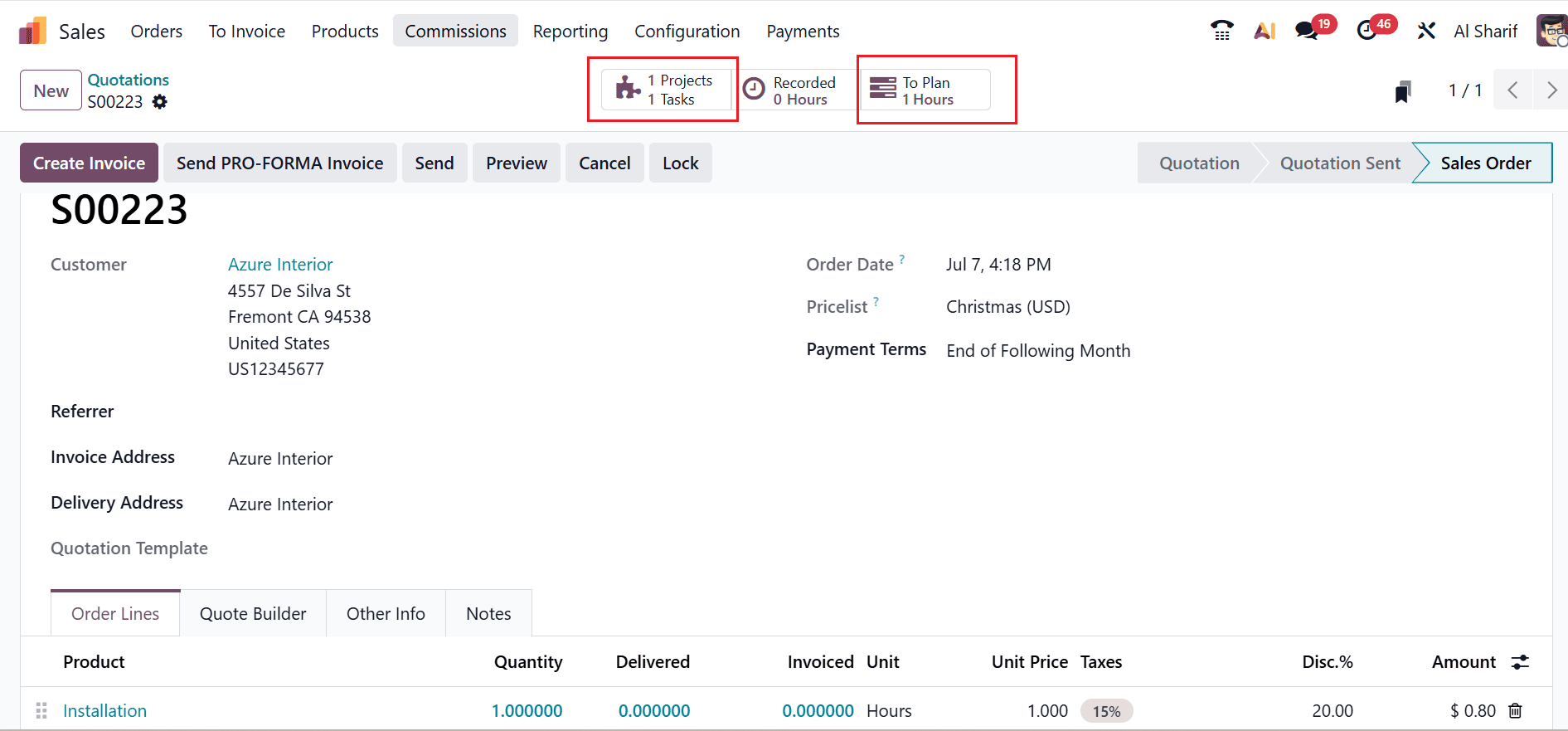
When you create a sales order using this service product and confirm it, Odoo automatically generates a project and a task based on the defined settings.
At the same time, it checks the assigned role and the availability of employees to plan and create the required shift for the service. You can easily access and manage this planning from the To Plan smart button available on the sales order.
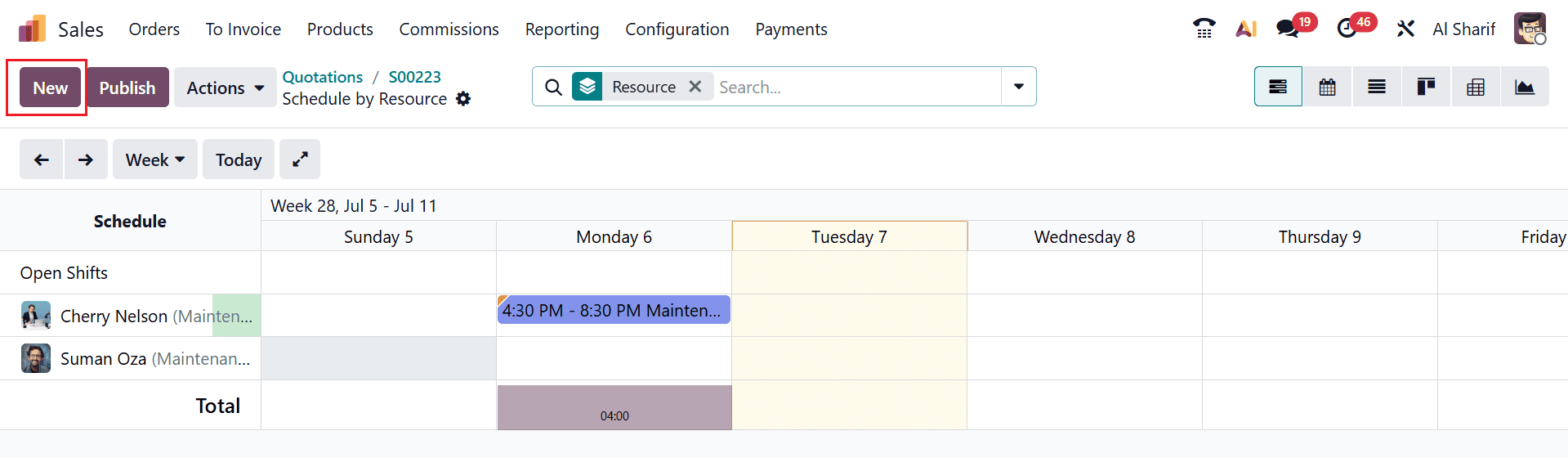
When you click the To Plan smart button, a new window will open where you can see the shifts are automatically allocated only to employees who match the selected role and are available during the specified time period.
To create a new shift for the customer, click on the New button as shown below:
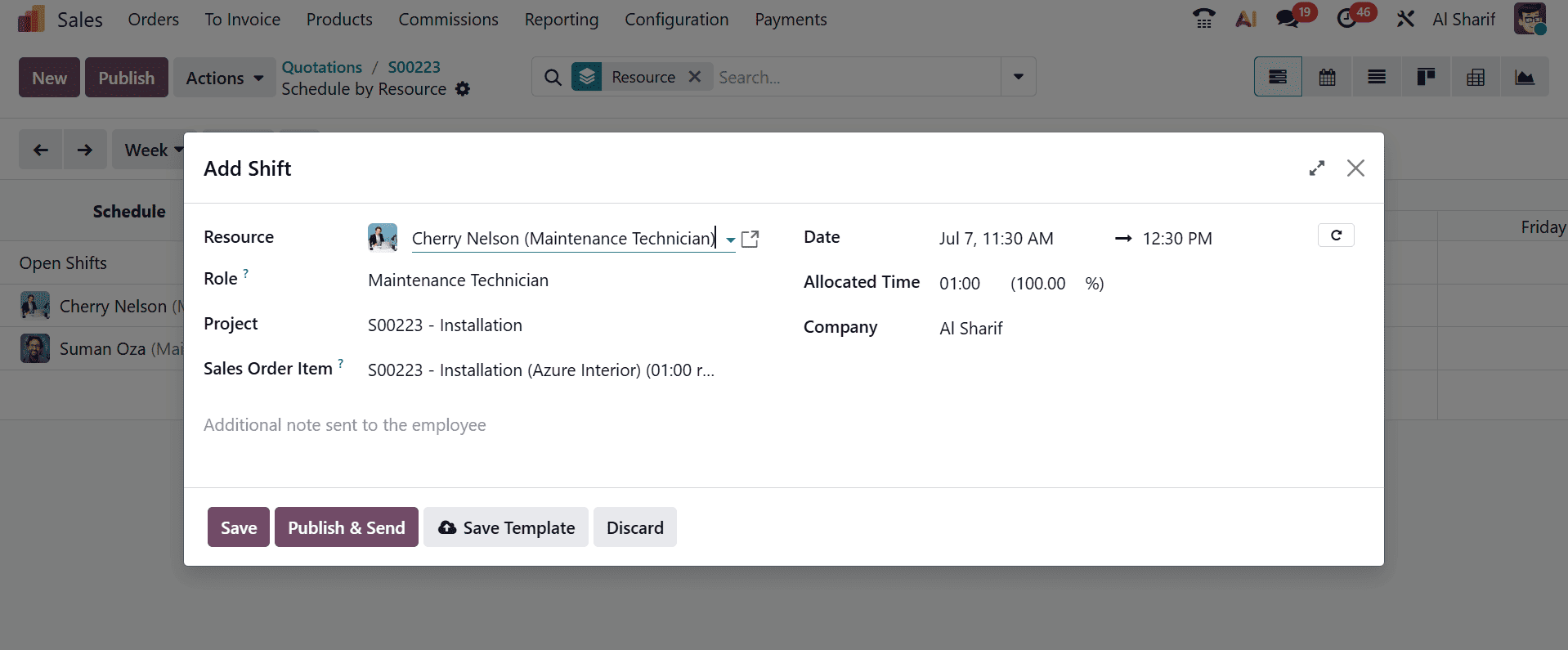
A pop-up screen will appear, where you can add the Resource and other fields such as Role, Project, Sales Order Item, Date, Allocated Time, and Company, which will be automatically uploaded. Then, save it.
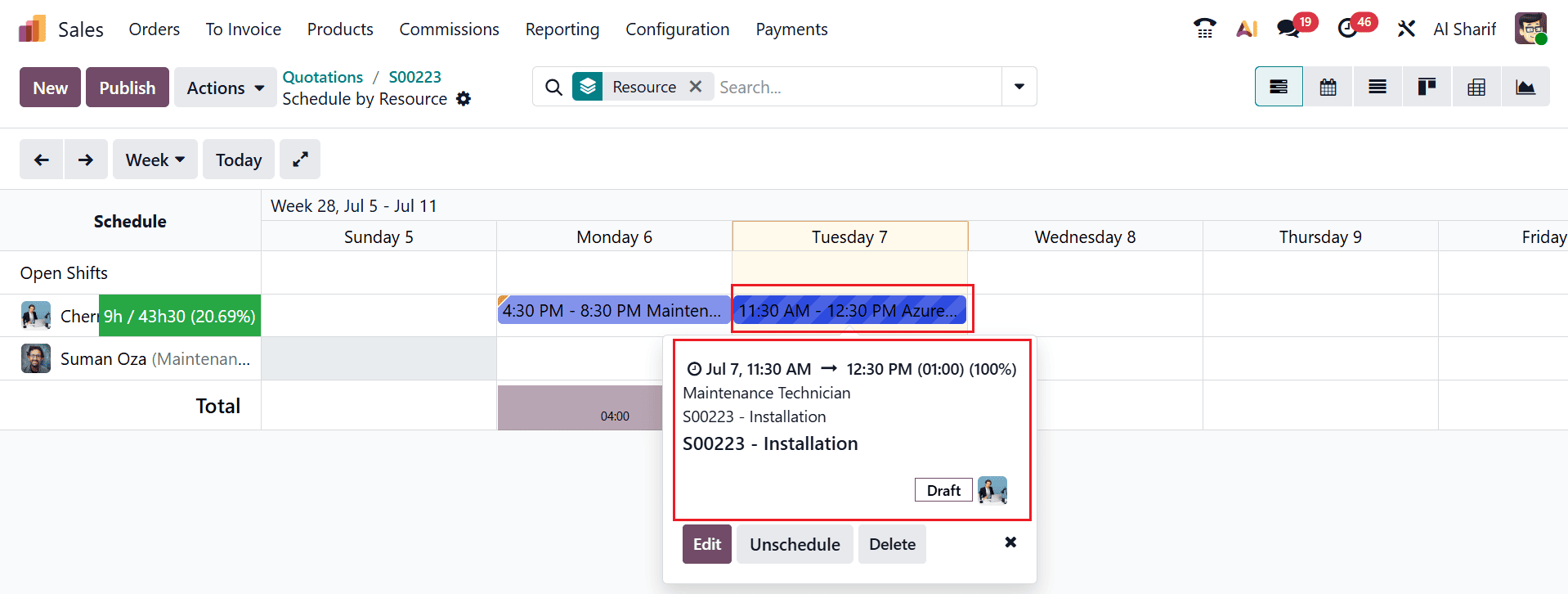
Here, you can see the newly created shift for the project.
In conclusion, Odoo Planning streamlines service management by connecting sales orders with projects, tasks, and employee scheduling. Once a service product is configured with roles and planning options, the system automatically generates the required project structure upon order confirmation. It also evaluates employee roles and availability to assign appropriate shifts without manual intervention. This ensures that the right resources are allocated to the right tasks at the right time. By integrating sales, project management, and workforce planning, Odoo helps businesses improve coordination, reduce scheduling conflicts, and enhance overall operational efficiency in delivering services.
To read more about How to Create and Use Shift Templates in Odoo 19, refer to our blog How to Create and Use Shift Templates in Odoo 19.