Odoo 19 Accounting provides budgeting features that help businesses plan and monitor their financial activities. Budgets allow organizations to set planned amounts for income and expenses and compare them with the actual amounts recorded in the accounting system.
Financial budgets can be created for specific Profit and Loss accounts and periods. This allows businesses to allocate planned amounts month-wise and monitor financial performance throughout the year.
Once a budget is created, it can be viewed from the Profit and Loss report along with the actual accounting figures. This enables businesses to easily compare planned figures with actual results, identify variances, and effectively track overall budget performance.
In this blog, we will look at how to enable Budget Management, create and revise Financial Budgets, add budget items, view budgets in the Profit and Loss report, track actual amounts, and compare budgets across different periods.
Budget Management in Odoo 19
The Financial Budgets menu is available when Developer Mode is enabled.
After enabling Developer Mode, go to:
Accounting > Configuration > Financial Budgets
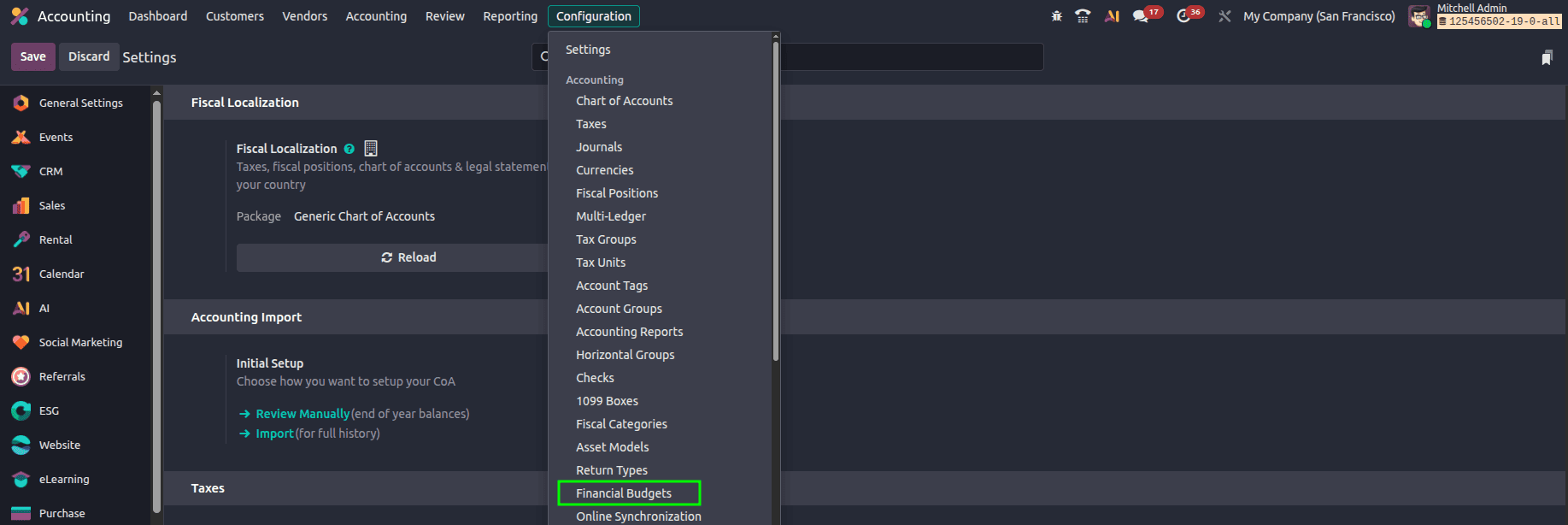
The Financial Budgets dashboard displays the existing budgets along with their associated companies.

Creating a Financial Budget in Odoo 19
Financial Budgets can be used to define planned income and expense amounts for specific accounts and periods.
To create a new Financial Budget, follow the steps below.
Click New to create a new budget.
Enter the Budget Details
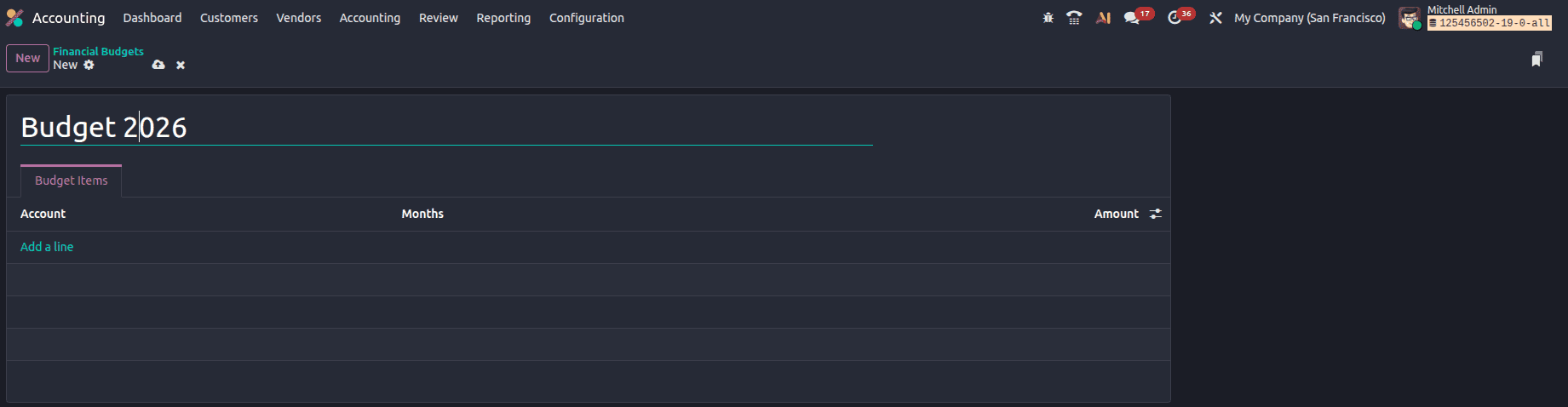
Provide an appropriate name for the budget in the Budget Name field.
Budget items can be added to define the accounts and planned amounts.
Click 'Add a line' to add a budget item.
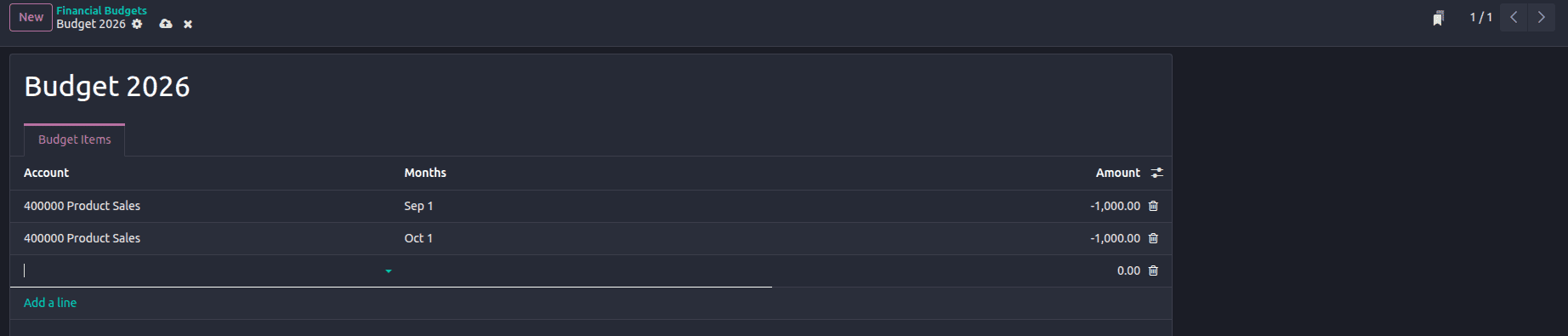
Each budget item allows you to define:
- Account
- Month
- Planned Amount
Multiple budget lines can be added for the same or different accounts and different months. This allows businesses to create month-wise budgets according to their requirements.
In the budget item, select the account to which the budget should be applied.
The selected account must be a Profit and Loss account, such as an Income or Expense account.
When budgeting for income or profit accounts, the planned amount should be recorded as a negative value.

For Expense accounts, the amount can be entered directly as a positive value.

This allows the budget values to be represented correctly when they are viewed in the Profit and Loss report.
After adding the required budget items, save the budget.
The Financial Budget is now created and can be used for comparison with the actual accounting figures.
Revising a Financial Budget
Budget plans may change during the financial period due to changes in expected income or expenses. In such cases, the planned amounts in an existing Financial Budget can be updated.
To revise the budget, open the required Financial Budget from:
Accounting > Configuration > Financial Budgets
Open the budget that needs to be changed.
The required budget line can then be updated by changing the:
- Account
- Month
- Planned Amount
Additional budget lines can also be added when required.
After making the required changes, save the budget.
The updated planned amounts will be reflected when the budget is selected in the Profit and Loss report.
Viewing the Budget Details
Once the Financial Budget has been created, it can be viewed together with the actual financial data from the Profit and Loss report.
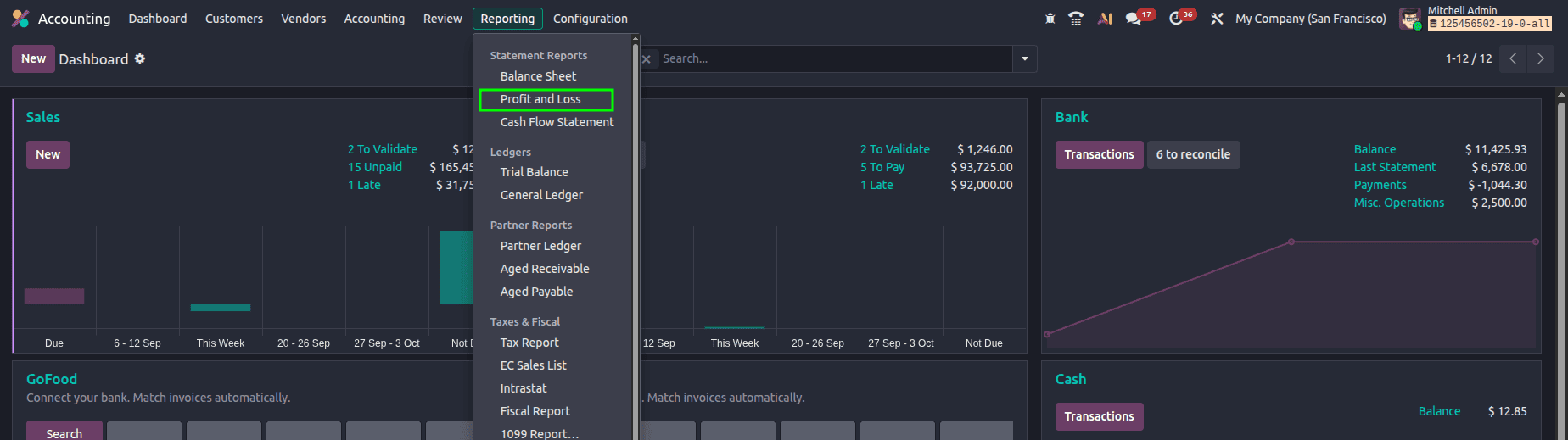
Go to:
Accounting > Reporting > Profit & Loss
The Profit and Loss report provides financial information for the selected reporting period. The created budget can be selected from the report to compare the planned amounts with the actual accounting figures.
Open the Profit and Loss report.
From the top-right area of the report, select the required budget from the Budget dropdown.
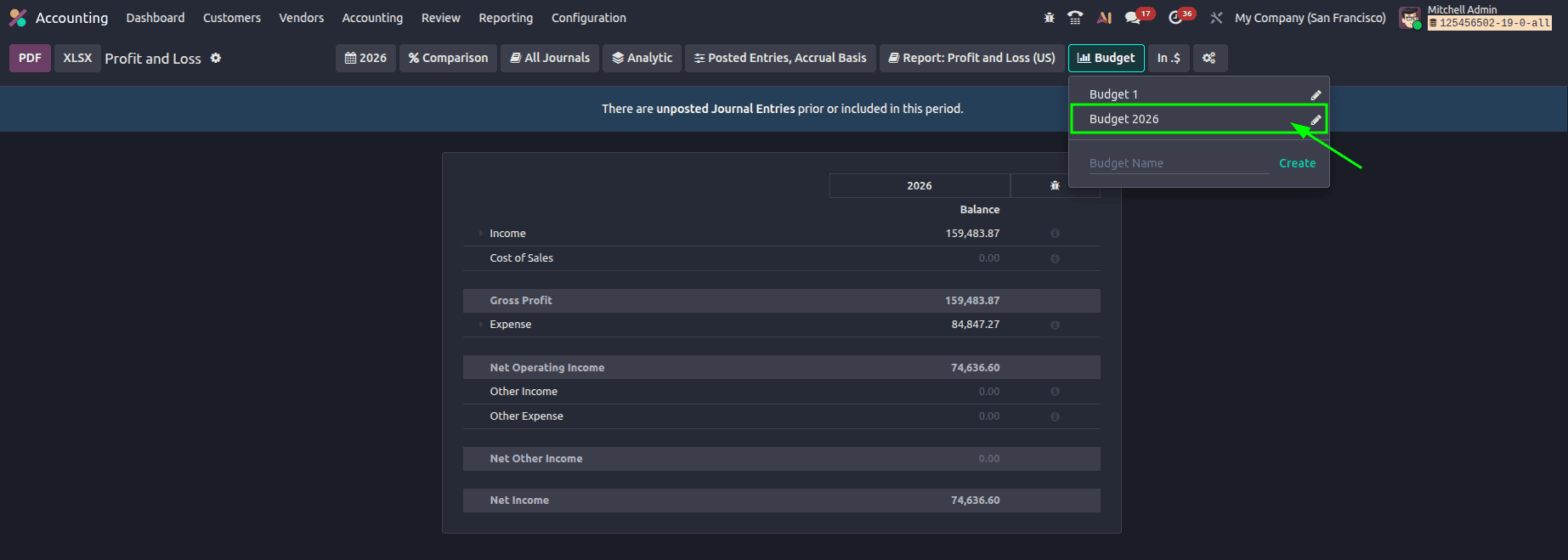
The selected budget will then be included in the report.
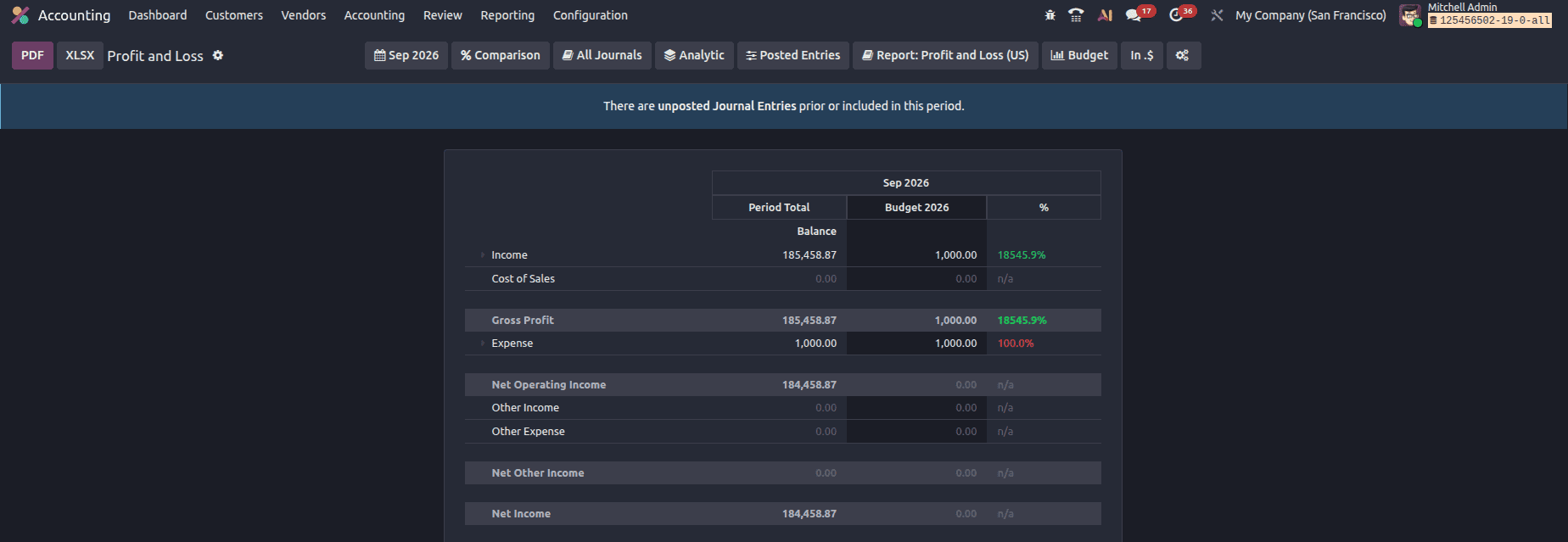
Use the Date filter to choose the appropriate reporting period

When month-wise budget lines are created, selecting the corresponding period allows the planned amount for that period to be viewed.
Comparing Budget Performance Across Different Periods
Odoo 19 enables users to compare financial performance across multiple reporting periods. For instance, you can compare the results of the current month with those of previous months to identify changes and trends.
To compare previous periods, follow the steps below.
In the profit and loss report, use the date filter to select the period that needs to be analyzed.
Open the “Comparison” option.
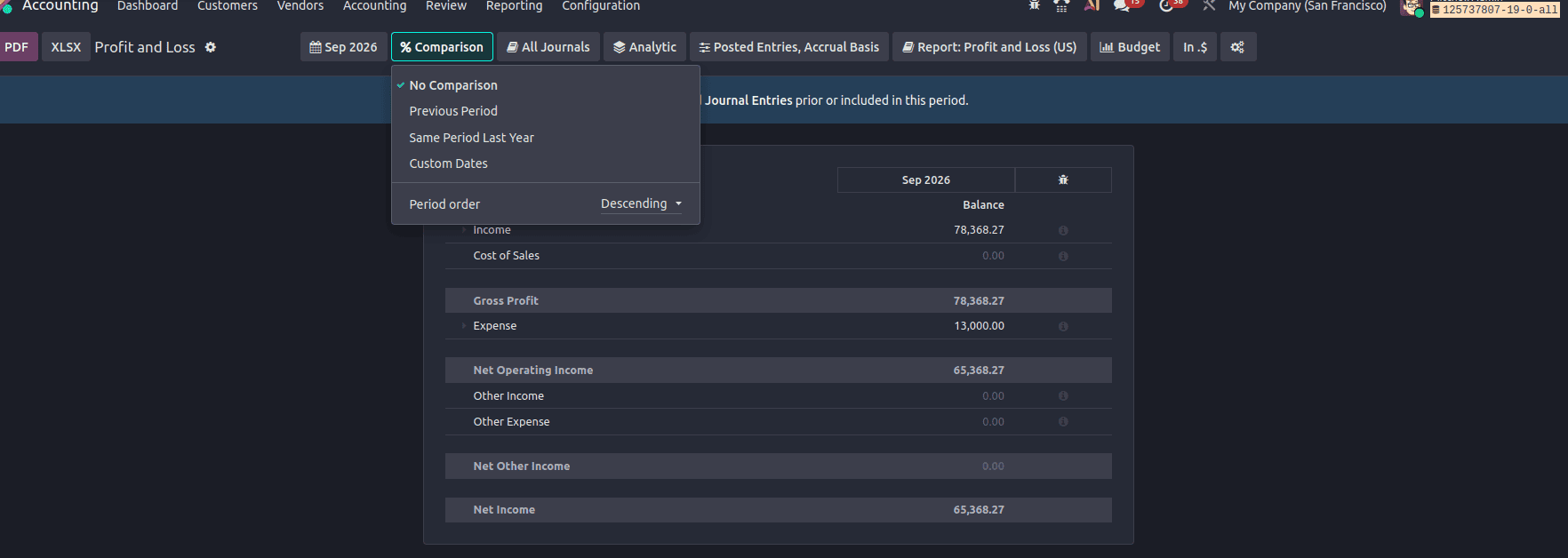
Select the required number of previous periods.
For example:
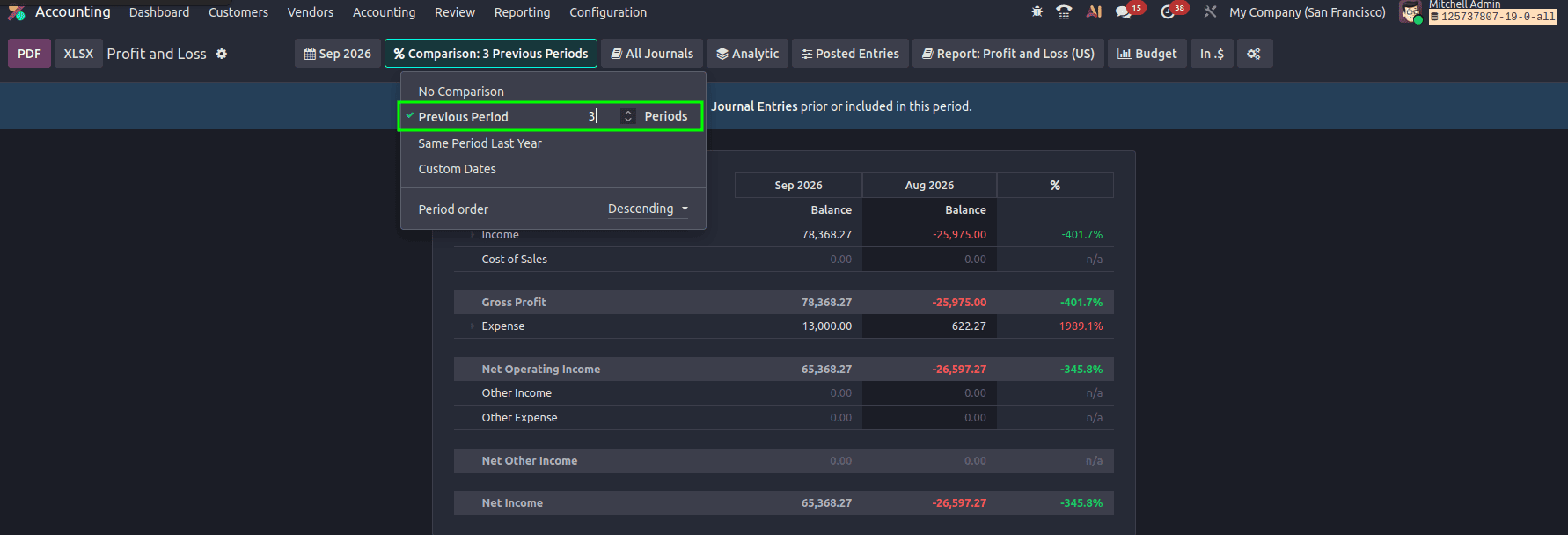
The report will then display the financial information for the selected period along with the corresponding previous periods. Here, the report will show the budget details and comparison of the last 3 months.
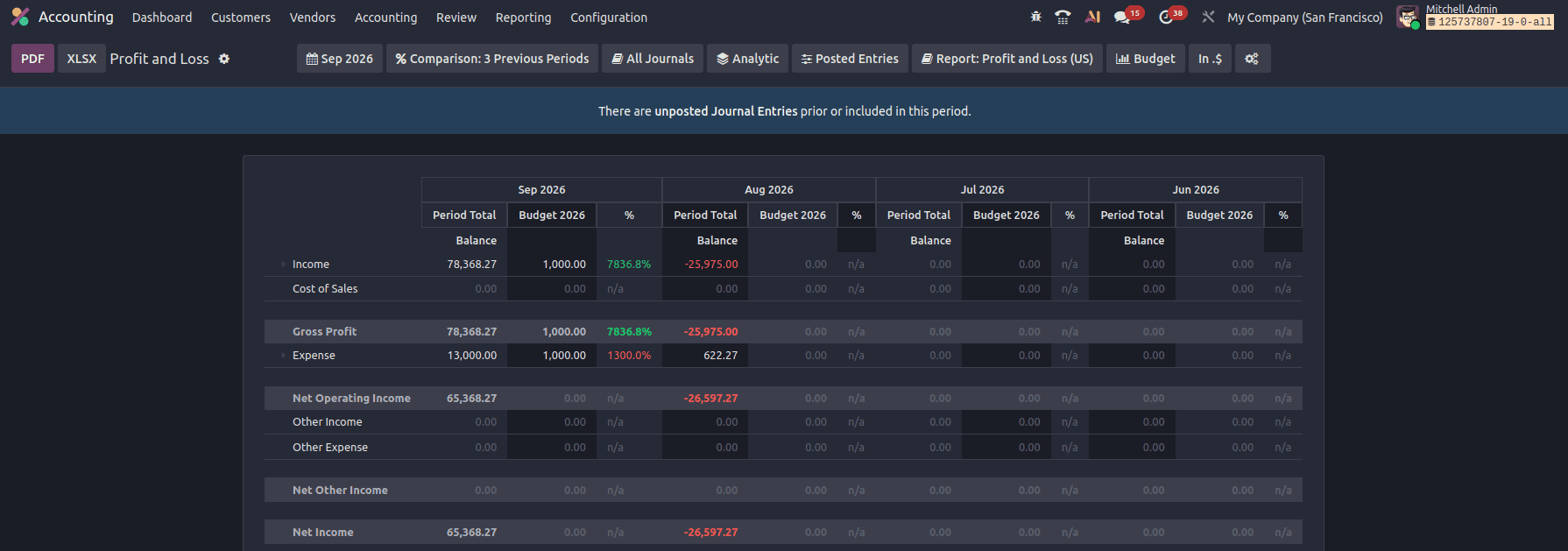
This allows users to analyze changes in financial performance over multiple periods.
Odoo 19 Financial Budgets provide businesses with a structured way to plan and monitor their income and expenses. Users can create budgets for specific Profit and Loss accounts, assign planned amounts to different periods, and revise the budget when financial plans change.
Once the budget is created, it can be selected in the Profit and Loss report to compare planned amounts with actual accounting values. As new journal entries are recorded, the actual amounts are reflected in the report, allowing users to continuously monitor budget performance.
The comparison functionality also allows financial performance to be reviewed across previous periods. By combining Financial Budgets with Profit and Loss reporting, Odoo 19 helps businesses monitor their financial plans and identify differences between expected and actual results.
To read more about How to Manage Your Company Budget Using Odoo 18 Accounting, refer to our blog, How to Manage Your Company Budget Using Odoo 18 Accounting.