The Batch Payment and Reconciliation Models in Odoo's Accounting module are designed to simplify and speed up financial procedures. By allowing customers to aggregate many vendor payments into a single transaction, Batch Payment facilitates efficient handling of large payments. Conversely, Reconciliation Models eliminate the requirement for manual reconciliation by automating the matching of bank transactions with invoices or journal entries. When these qualities are combined, business cash flow management is made easier, accuracy is increased, and time is saved.
Odoo19's batch payment feature allows you to aggregate multiple payments to facilitate reconciliation. Adding batch payments to bank statements is a crucial aspect of accounting management. Odoo19 makes it easy to reconcile several payments with the use of bank statements. You can handle many payments at once with the batch payment tool.
Consequently, the batch payment will appear as a single entry on the bank statement. To use this functionality in the Odoo19 Accounting module, you must choose the Batch Payments option from the Settings menu, as seen below.
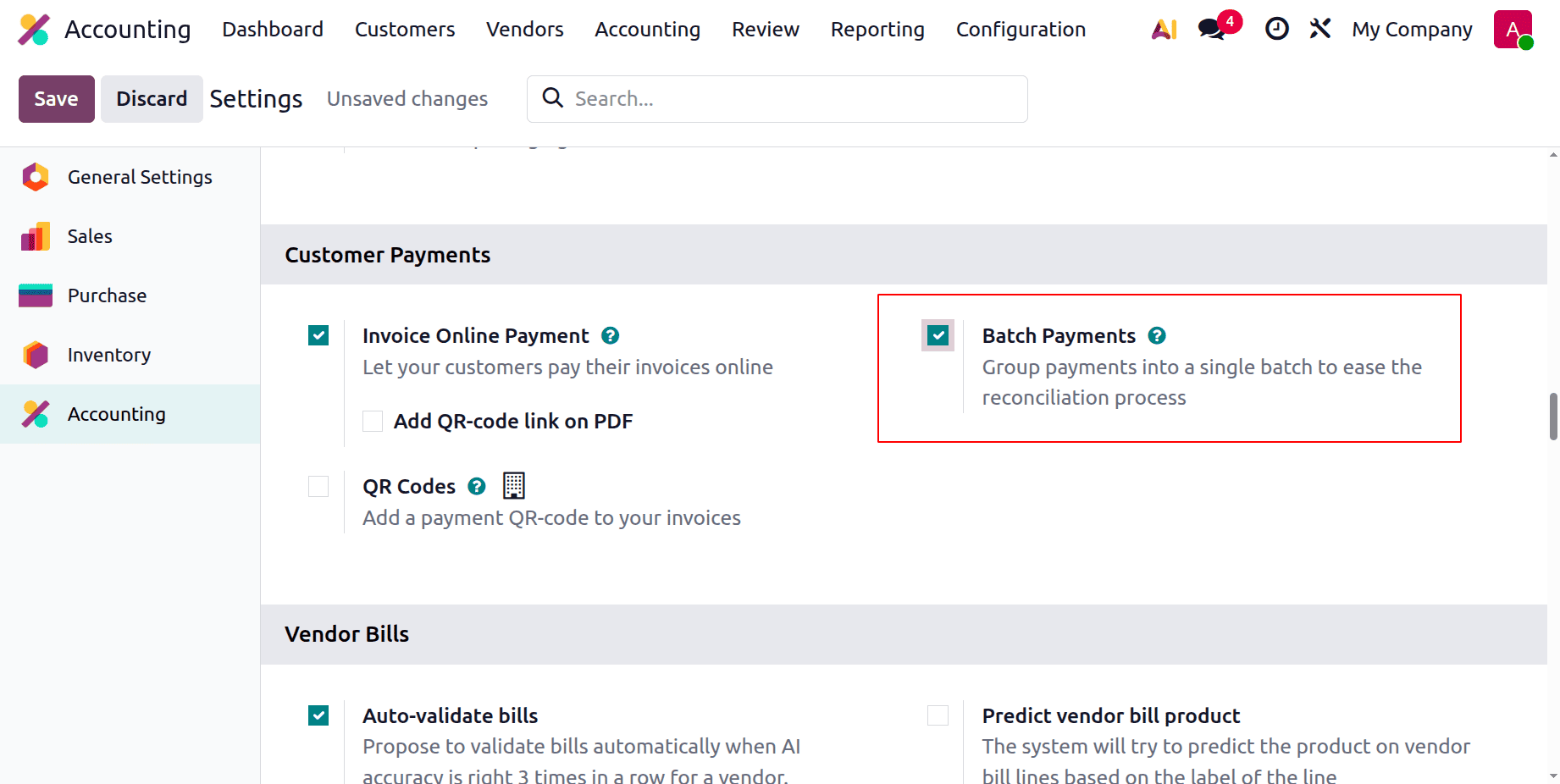
The Vendors and Customers menus will also have a Batch Payments option if you activate this feature. You can combine payments from many clients using the Batch Payments option in the Customers menu. By choosing the Batch Payments option from the Vendors menu, you can pay vendors in bulk. The procedure is the same each time a fresh batch payment is made. As seen in the image below, let's begin by using the client option to create a new invoice.
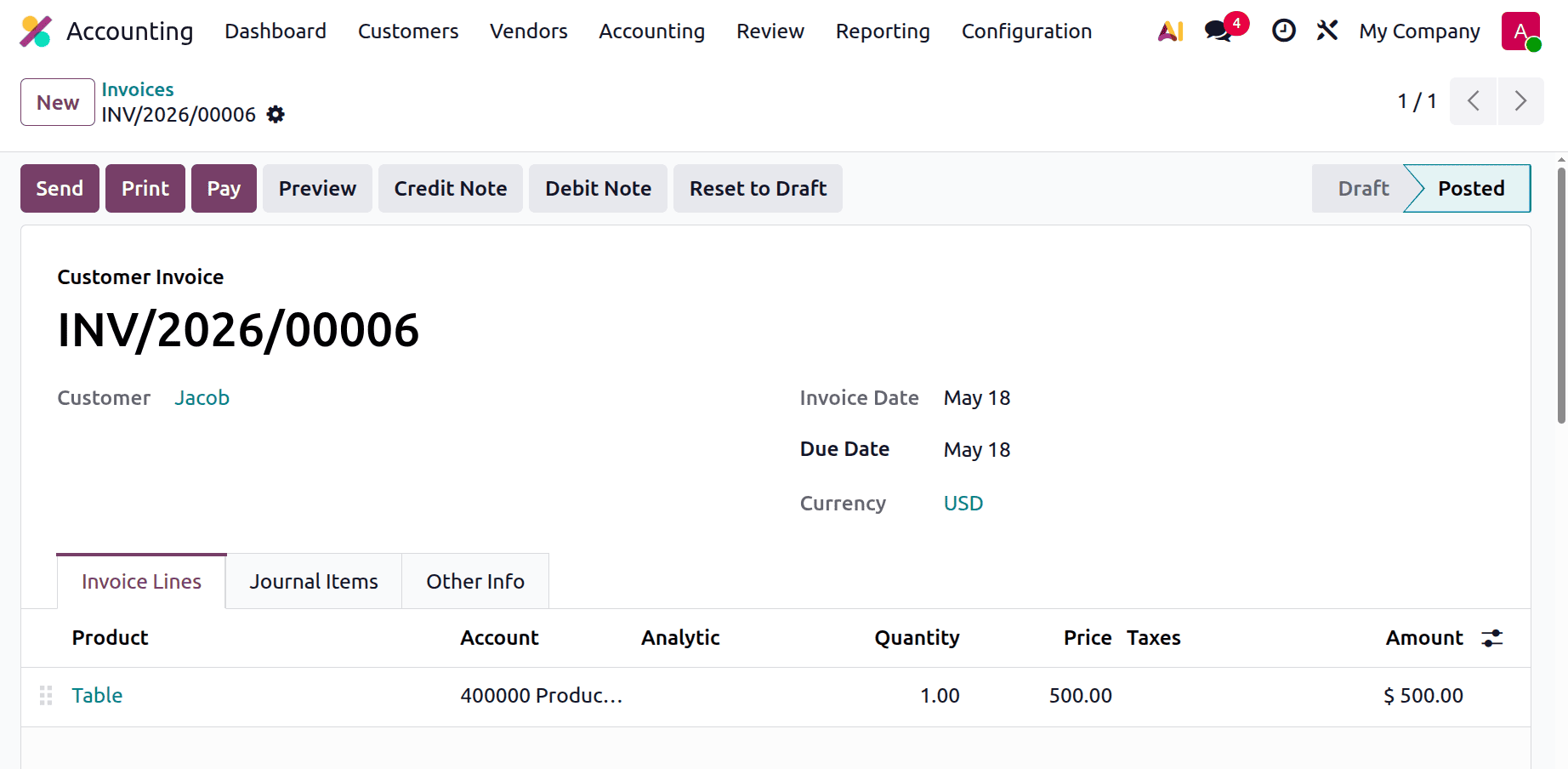
Once the invoice has been created, confirm it and select "Pay," as seen in the picture below.
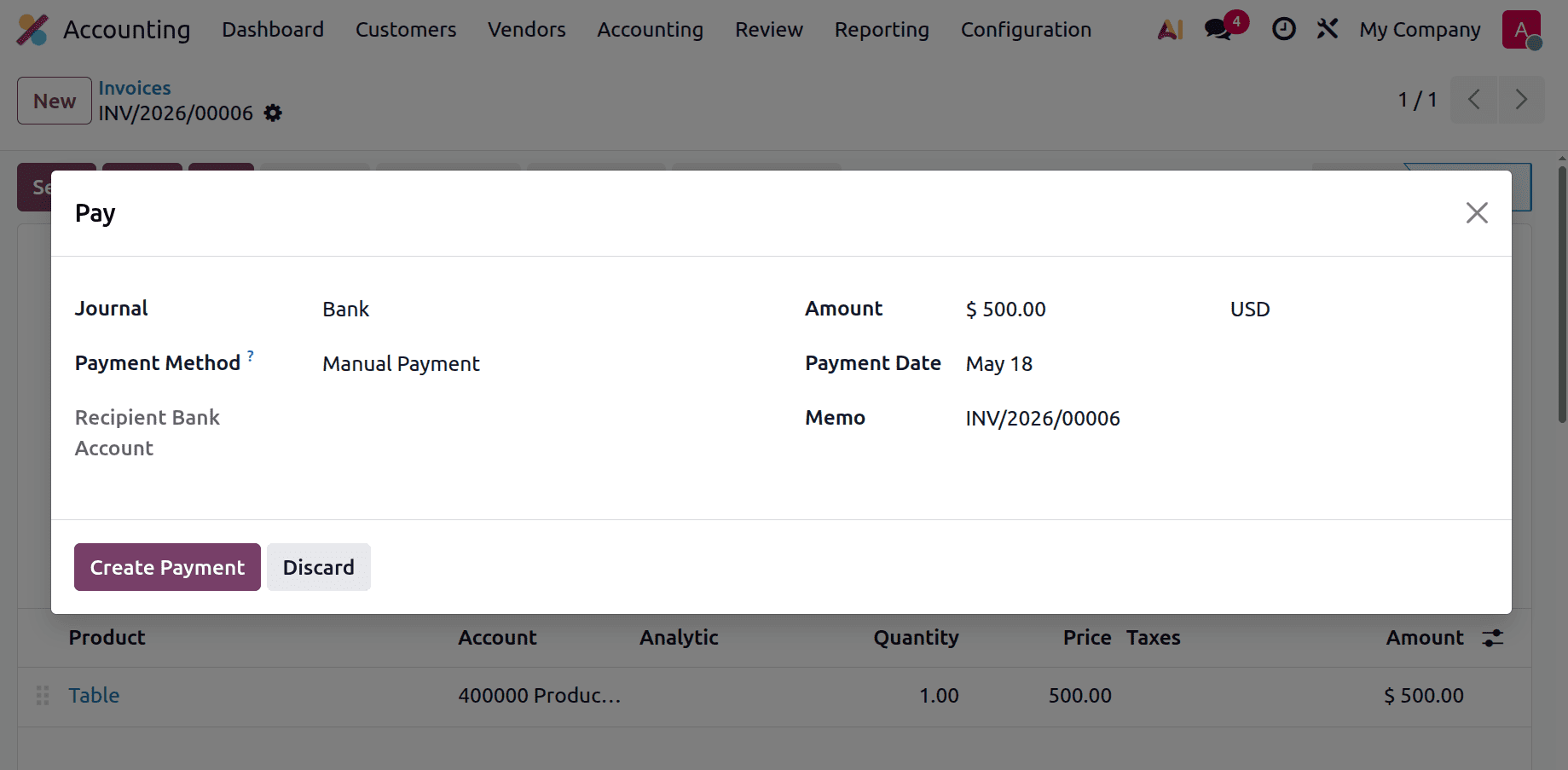
As seen in the screenshot below, the invoice now changes to the In Payment state when you choose the Create Payment option.
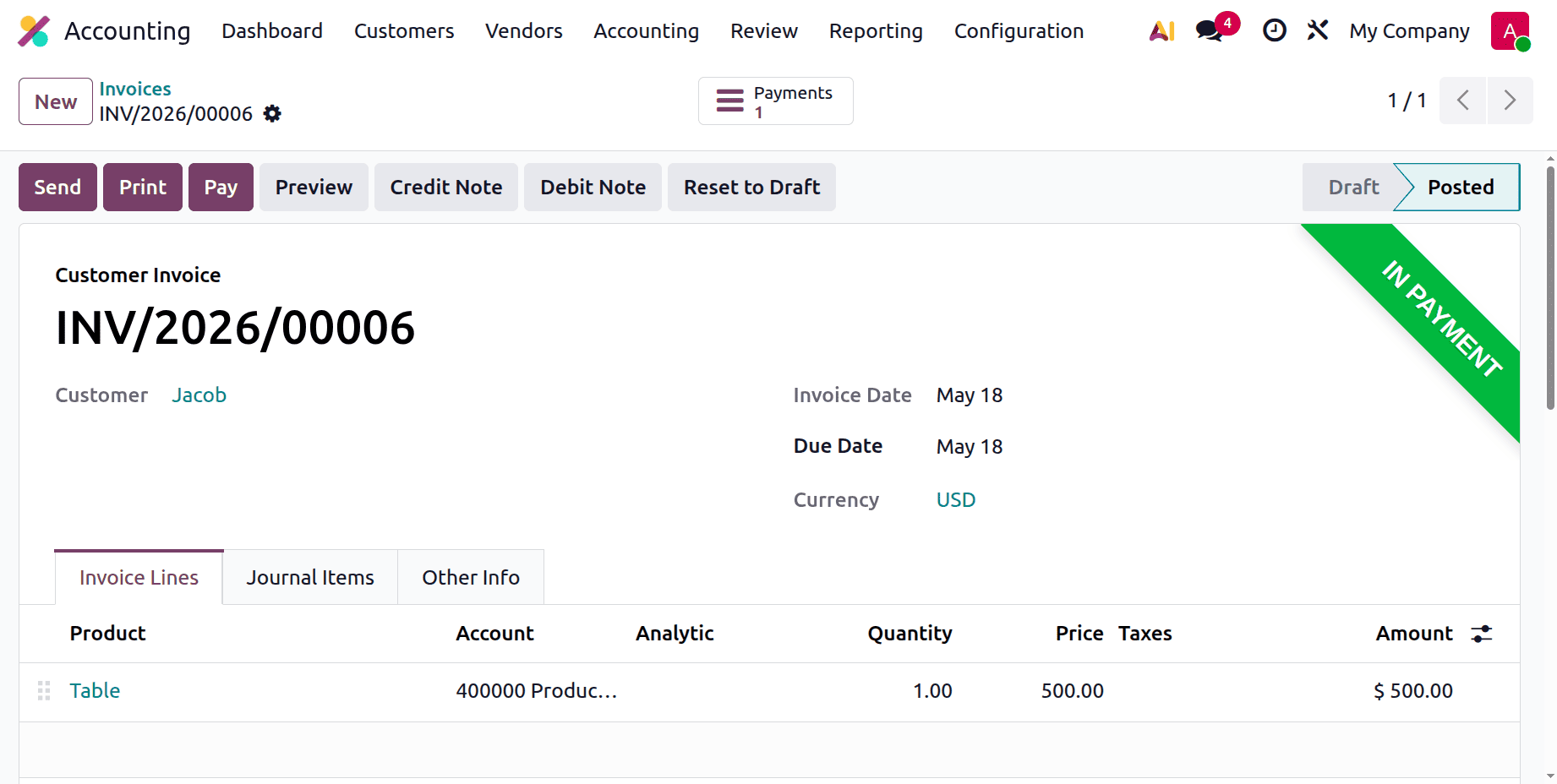
Proceed to the customer batch payment, as seen in the picture below.
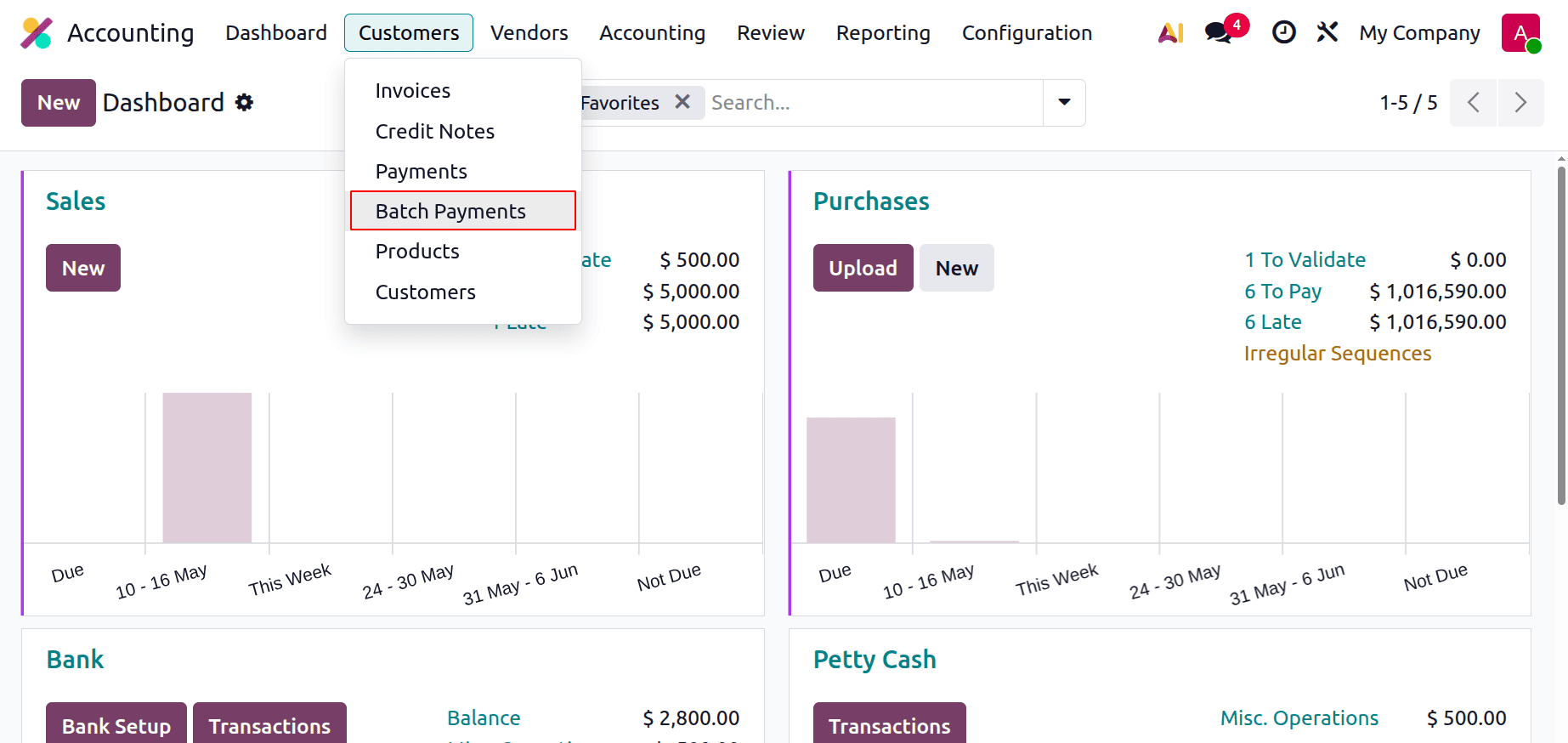
The list view of the Batch Payment window is shown on the screen. This page displays the batch payments' Reference, Bank, Date, Amount, and State. Clicking the New button opens a new window where you may set up a new batch payment.
Batch payments, both incoming and outbound, are supported by Odoo19. Consumer payments are batched using the incoming batch payment technique. If you want to pay several vendors at once, use the Outbound batch payment option. Once the Batch Type has been defined, you may select the Bank from the dropdown menu. The appropriate fields can be filled in with the Date, Reference, and Payment Method used for payment registration. Add the payments you want to batch under the Batch Content tab.
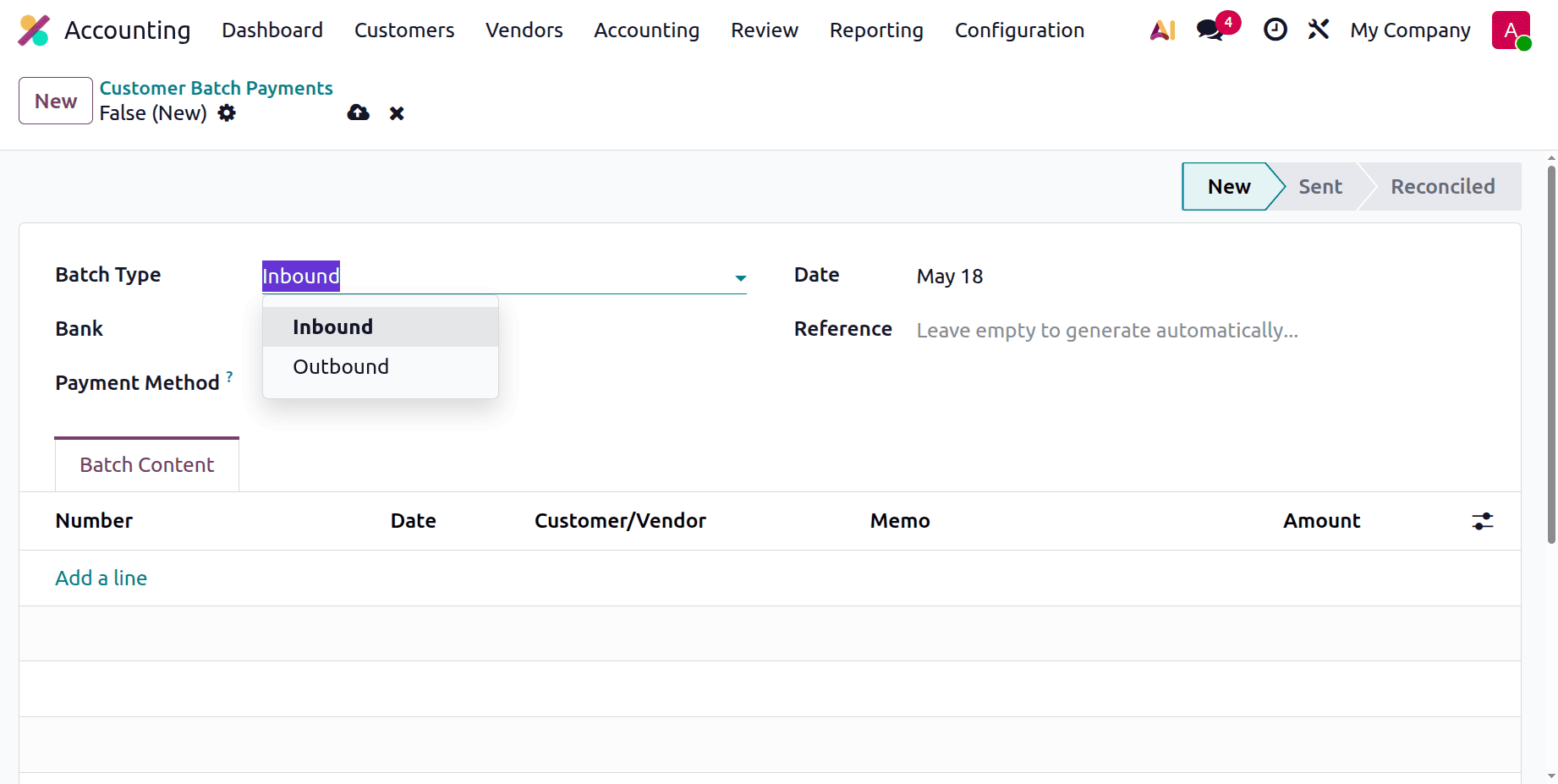
When you click the Add a Line button, a pop-up box displays with payment options.
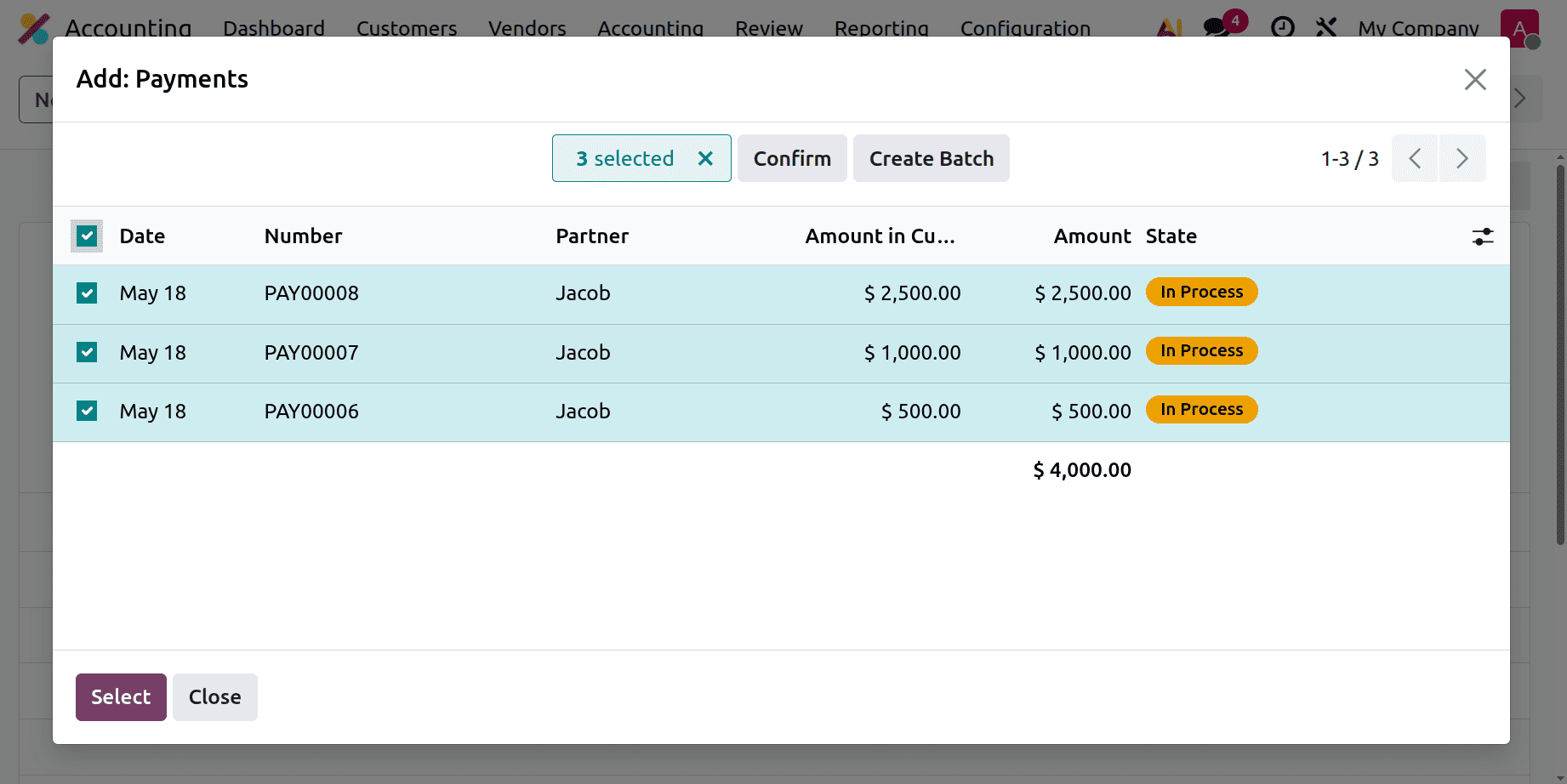
Customer payments for incoming batch payments will be shown in this list. A pop-up window containing a list of vendor payments will show up when you make an outbound batch payment. Once a list of payments has been added to the batch, you can click the Select button.
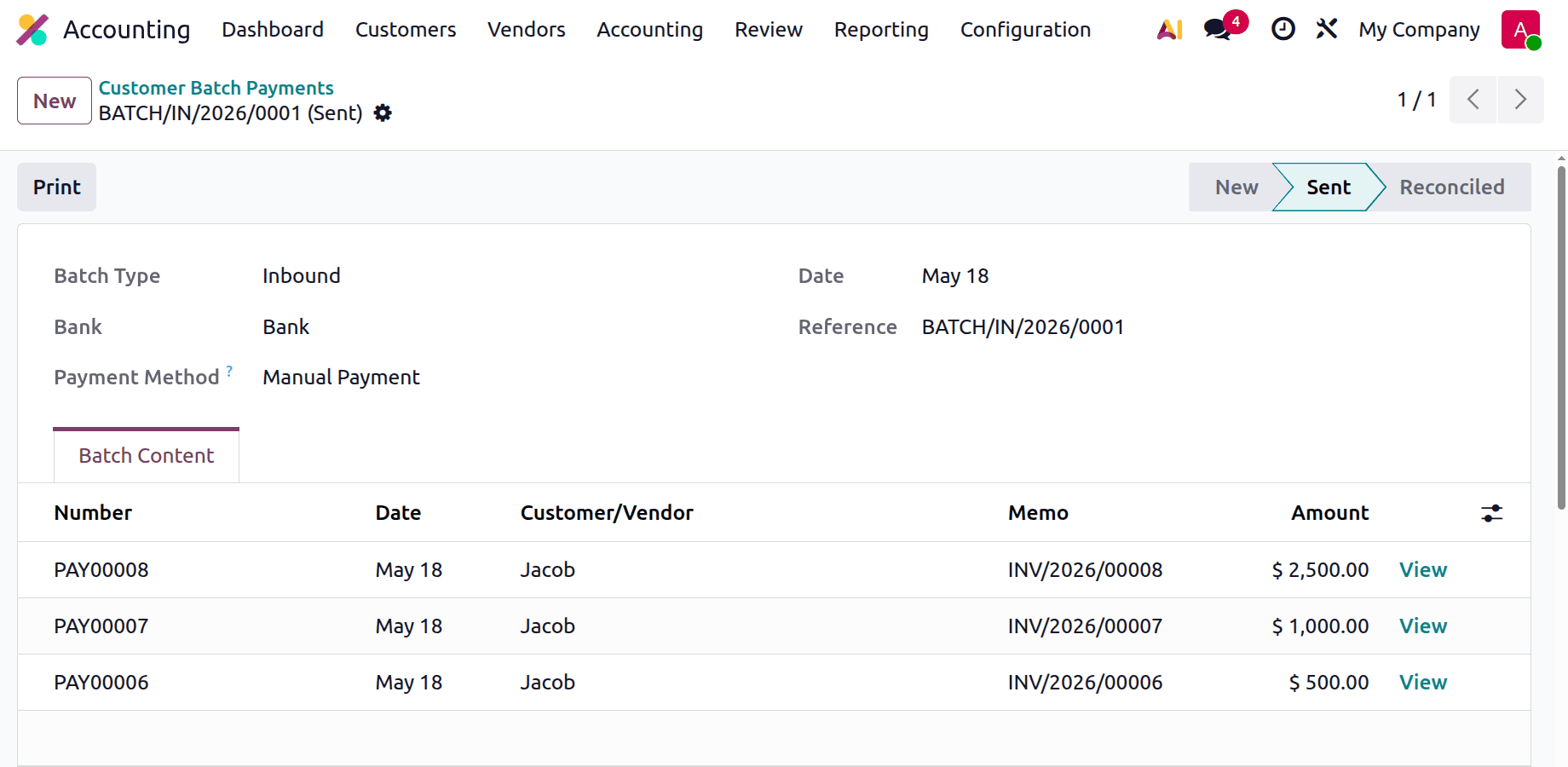
Since the validated batch payment step is sent, as the image above shows, the payment must be compared to the bank statement. Sending for batch reconciliation is indicated by the sent option.
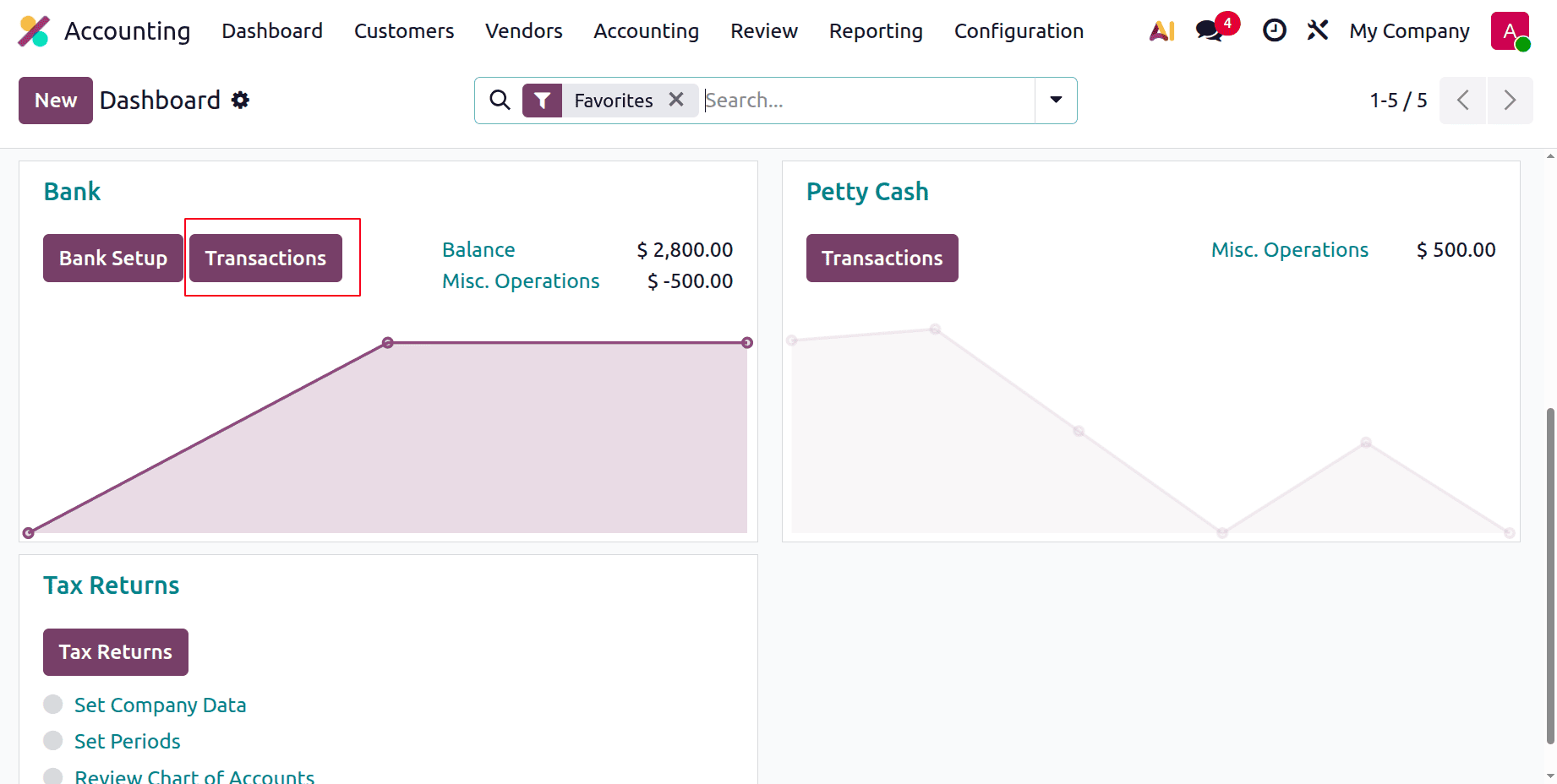
Let's now proceed to the procedure of reconciliation. Go to the dashboard and choose the bank option, as shown in the figure below, to accomplish that.
Next, select the NEW option, as seen in the image below, to add the memo and amount. Then click on the Add & Close button.
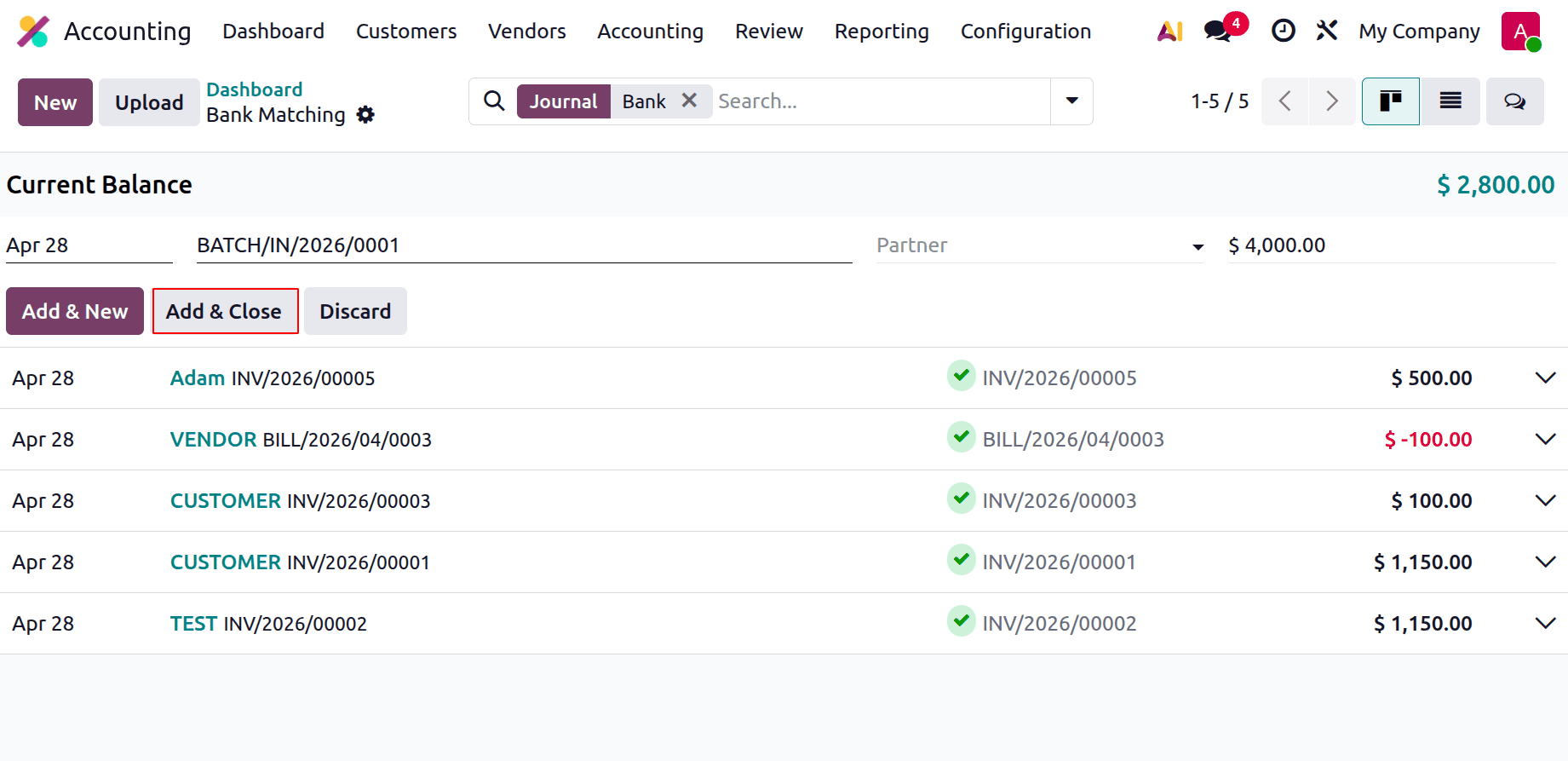
You can now choose the Batches, as seen in this screenshot, after adding the data.
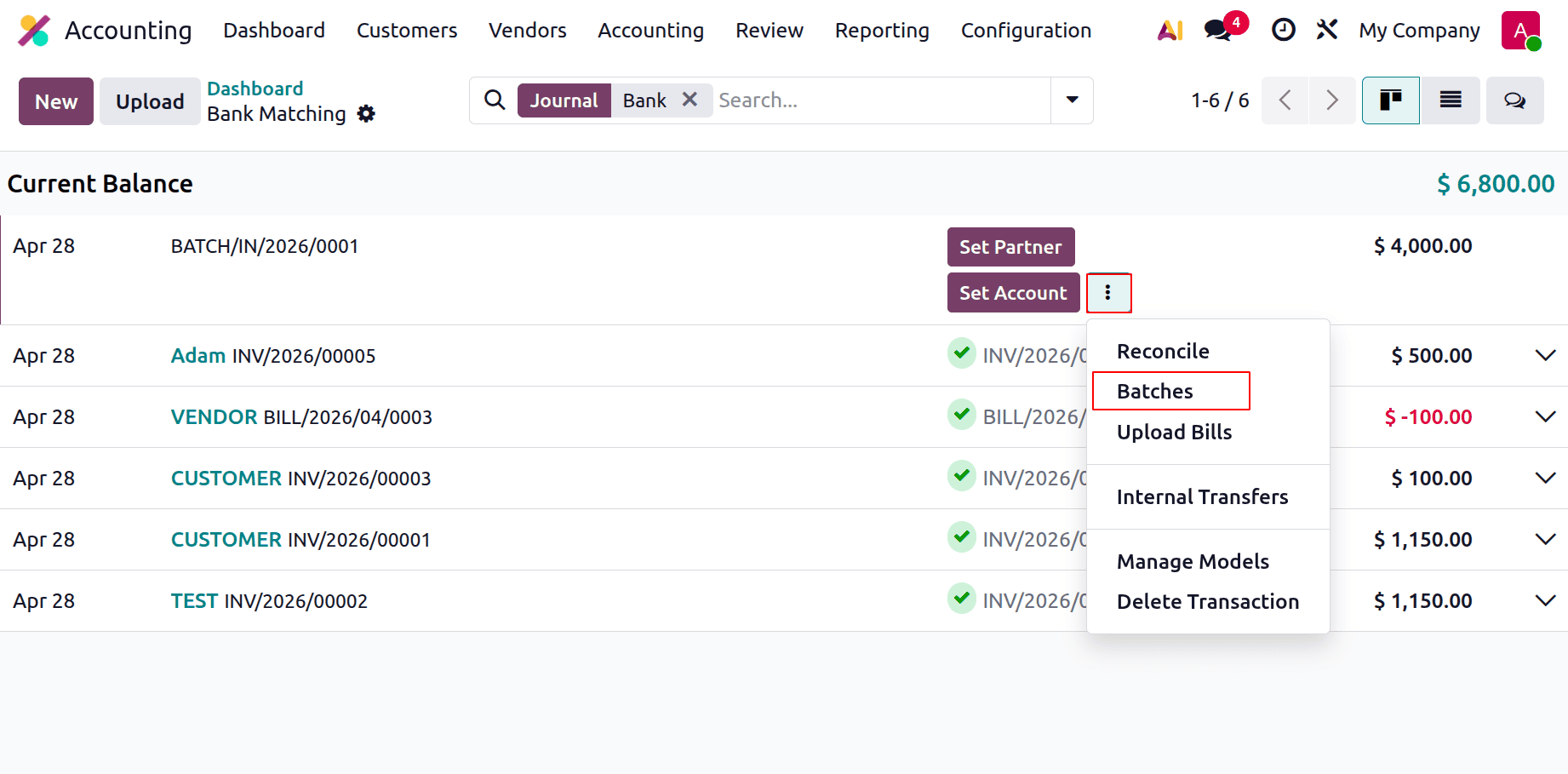
Then, from the pop-up window, users can simply choose the Batch, and then the ads shown below are displayed as the reconciliation process of the batch is completed.
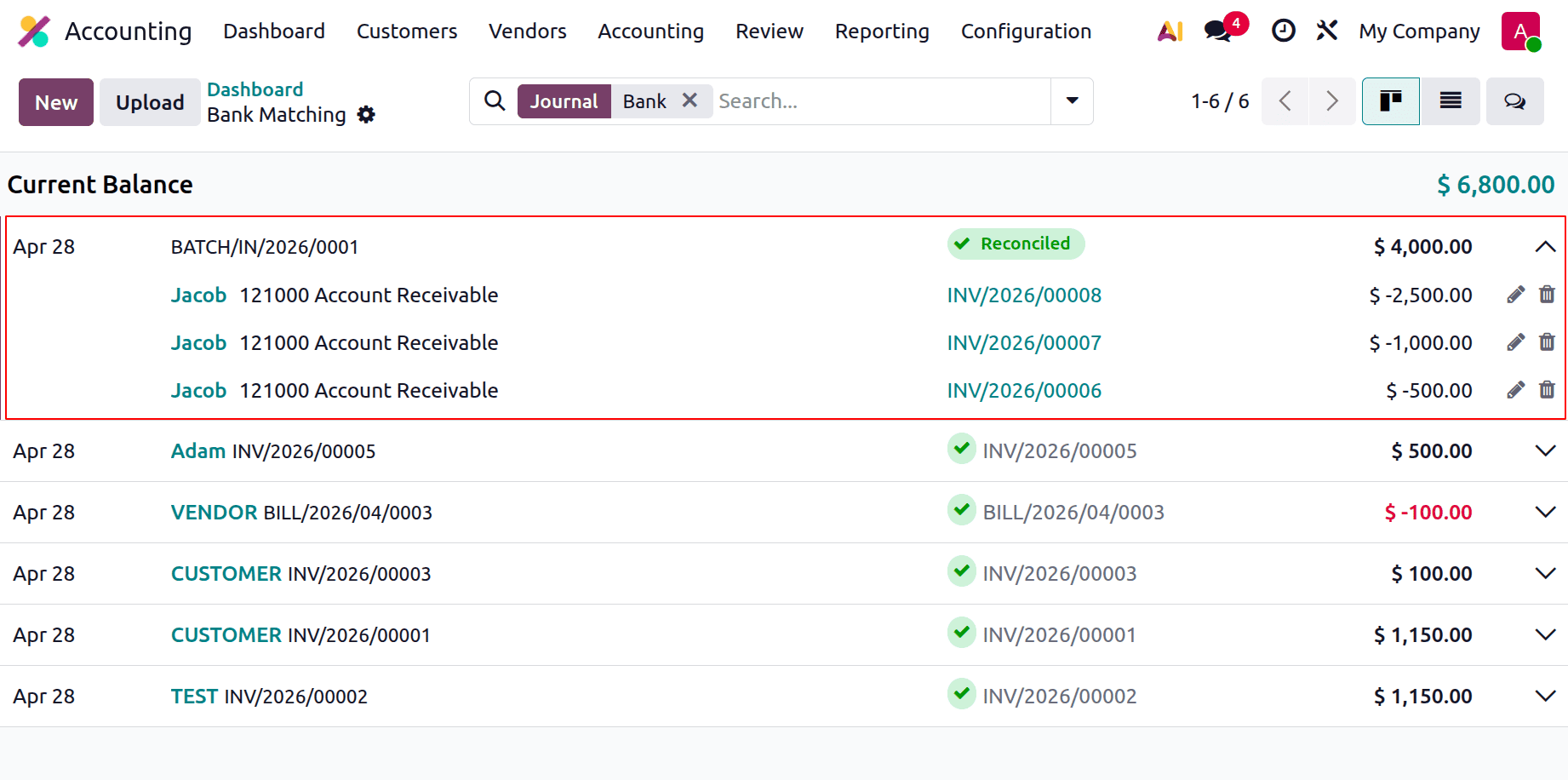
Then go back to the Batch Payment menu. As shown below, the stage of the created batch is changed to Reconciled.
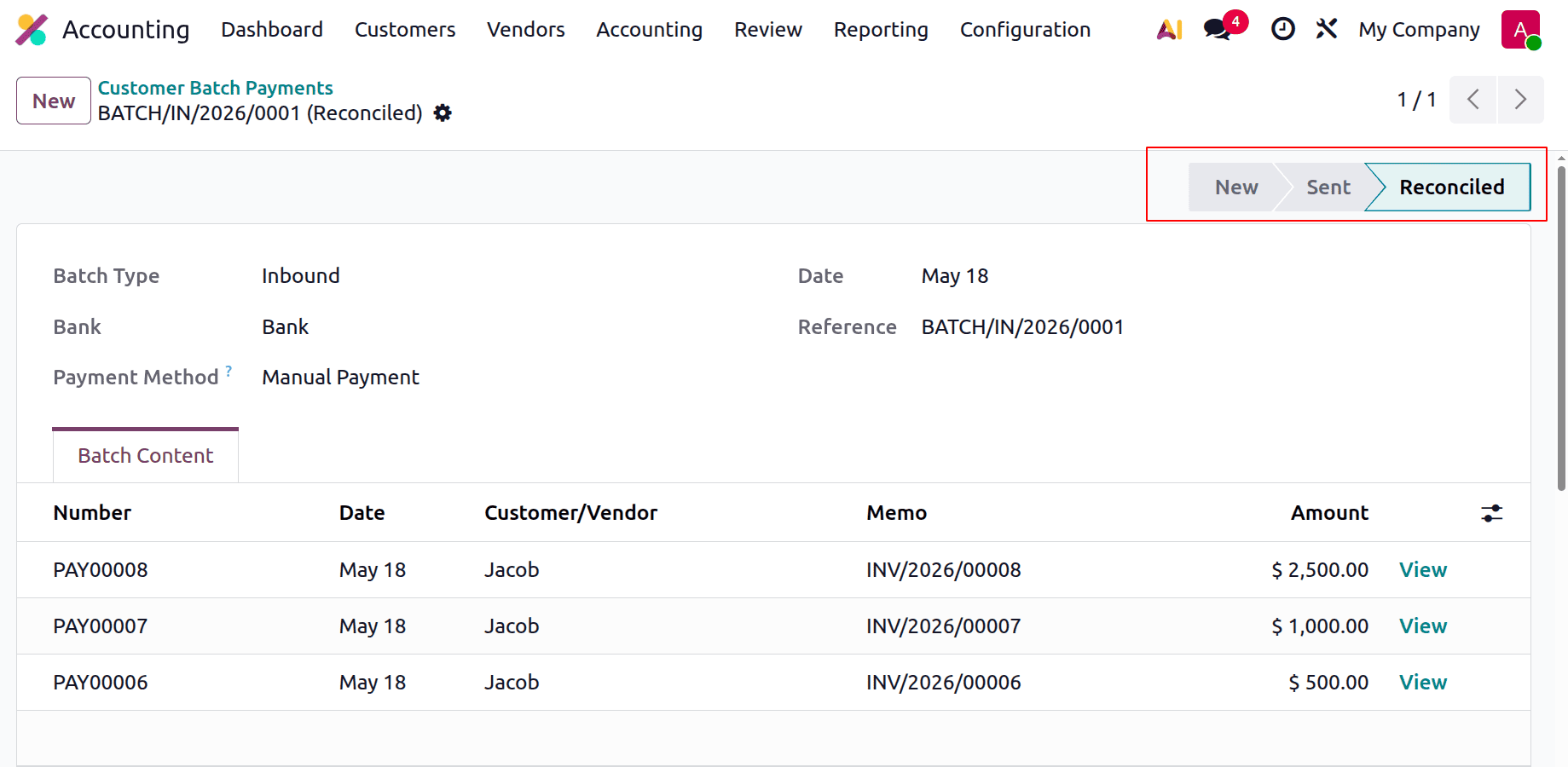
This is how the Inbound Batch Payments are reconciled in Odoo 19.
To check the Batch payments from the Vendors menu. Choose the Batches from the Vendors menu.
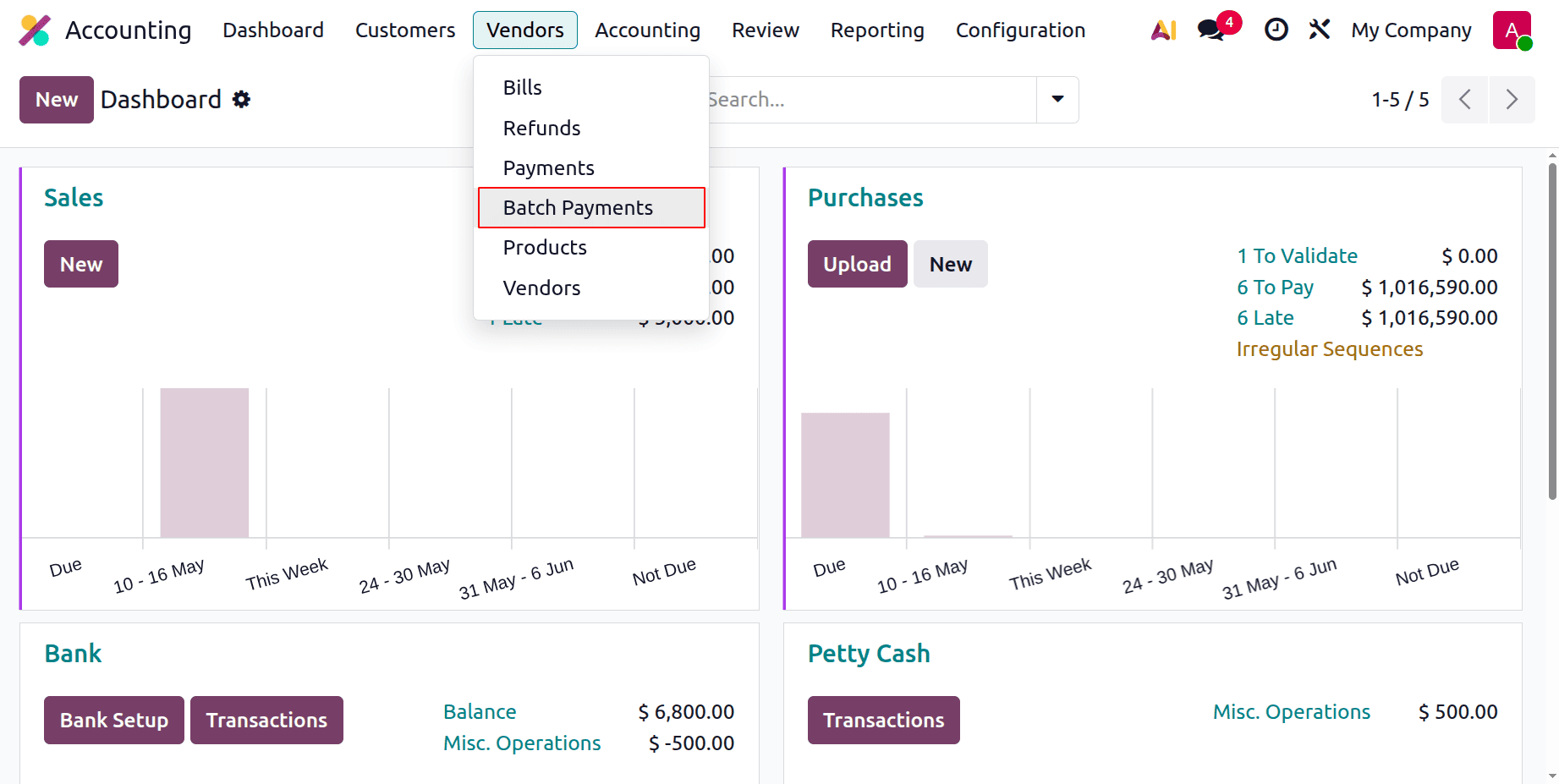
While clicking on Batch Payments, the list shows the details. Reference, Bank, Date, Amount, Activity, and State. To add a new one, click on New.
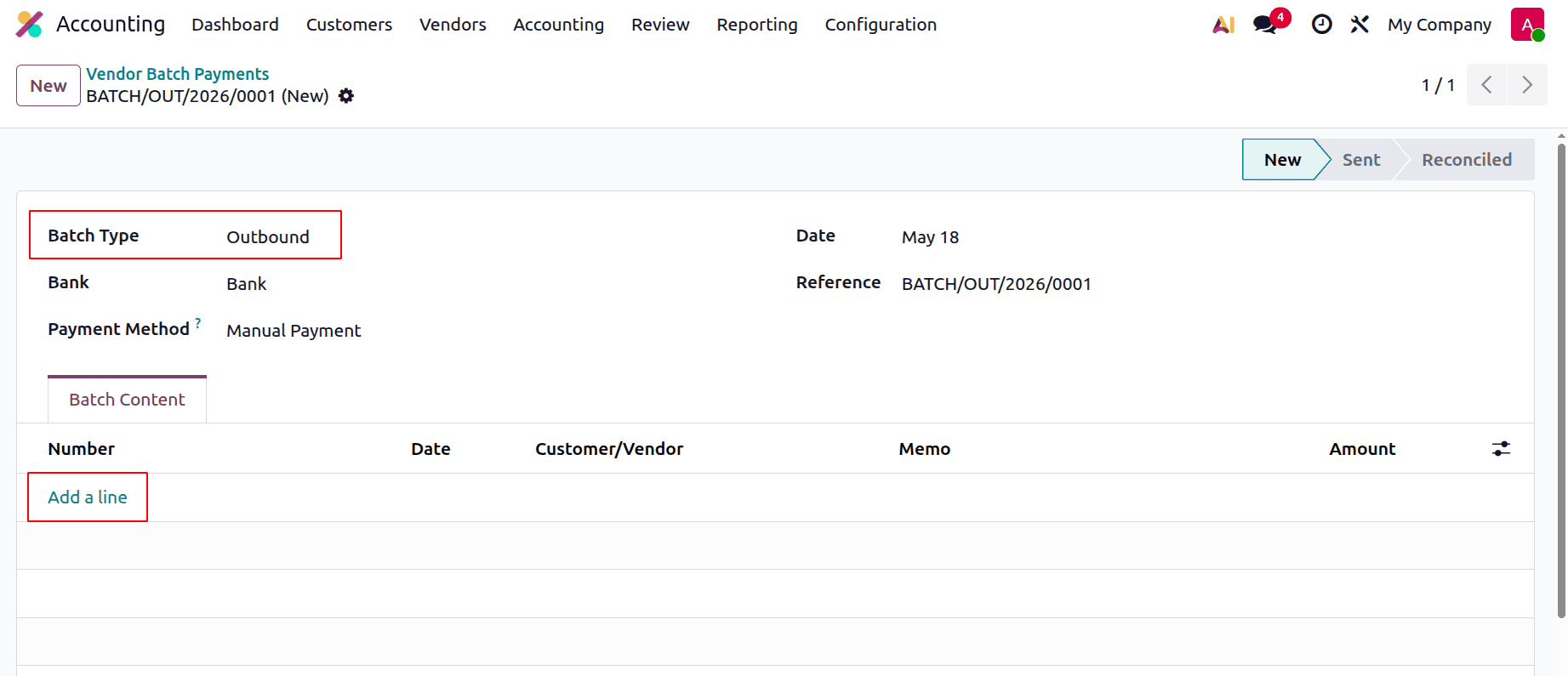
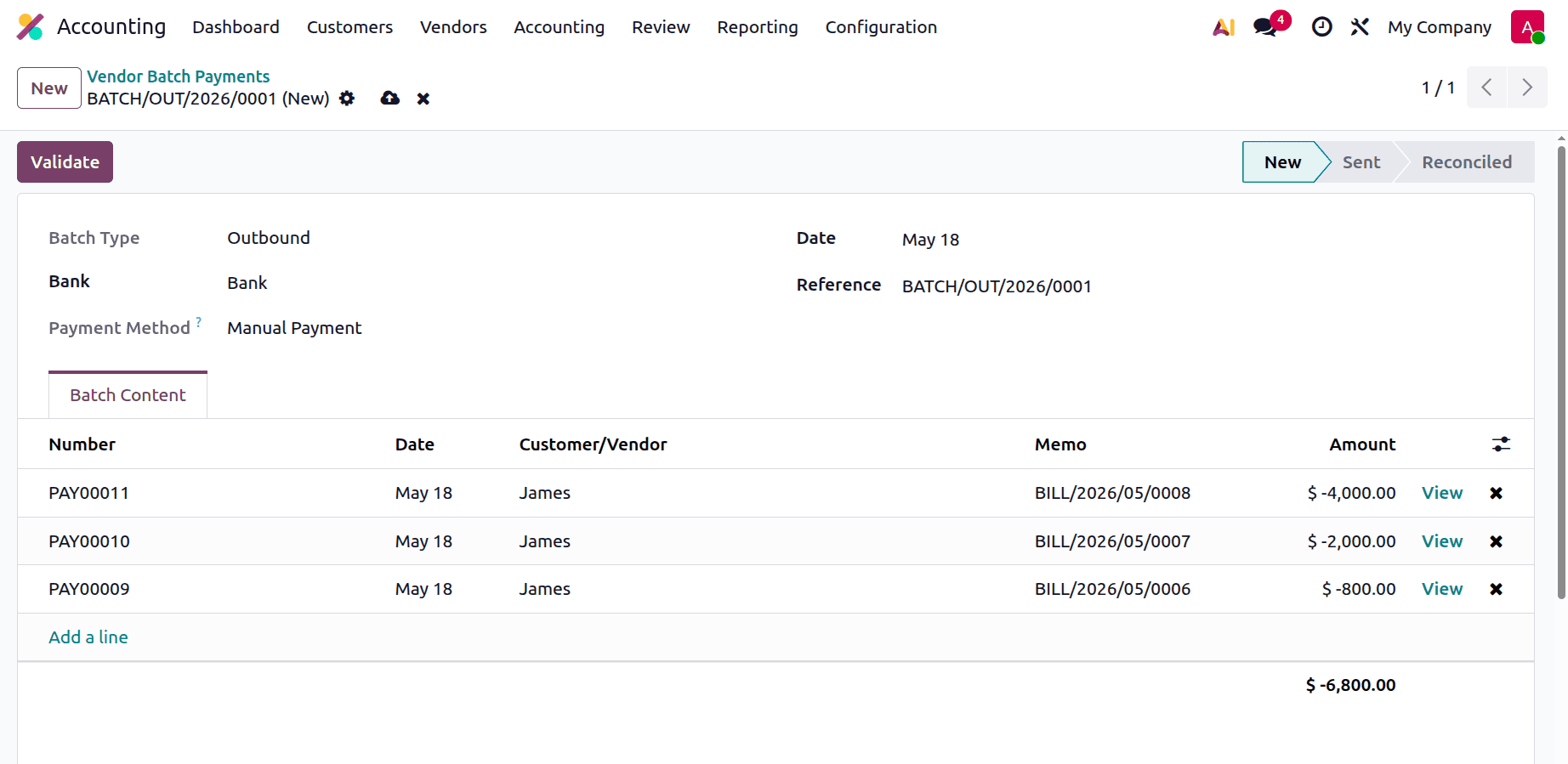
Here, the Batch Type is Outbound. To add payments, click Add a line and choose the payments from the list.
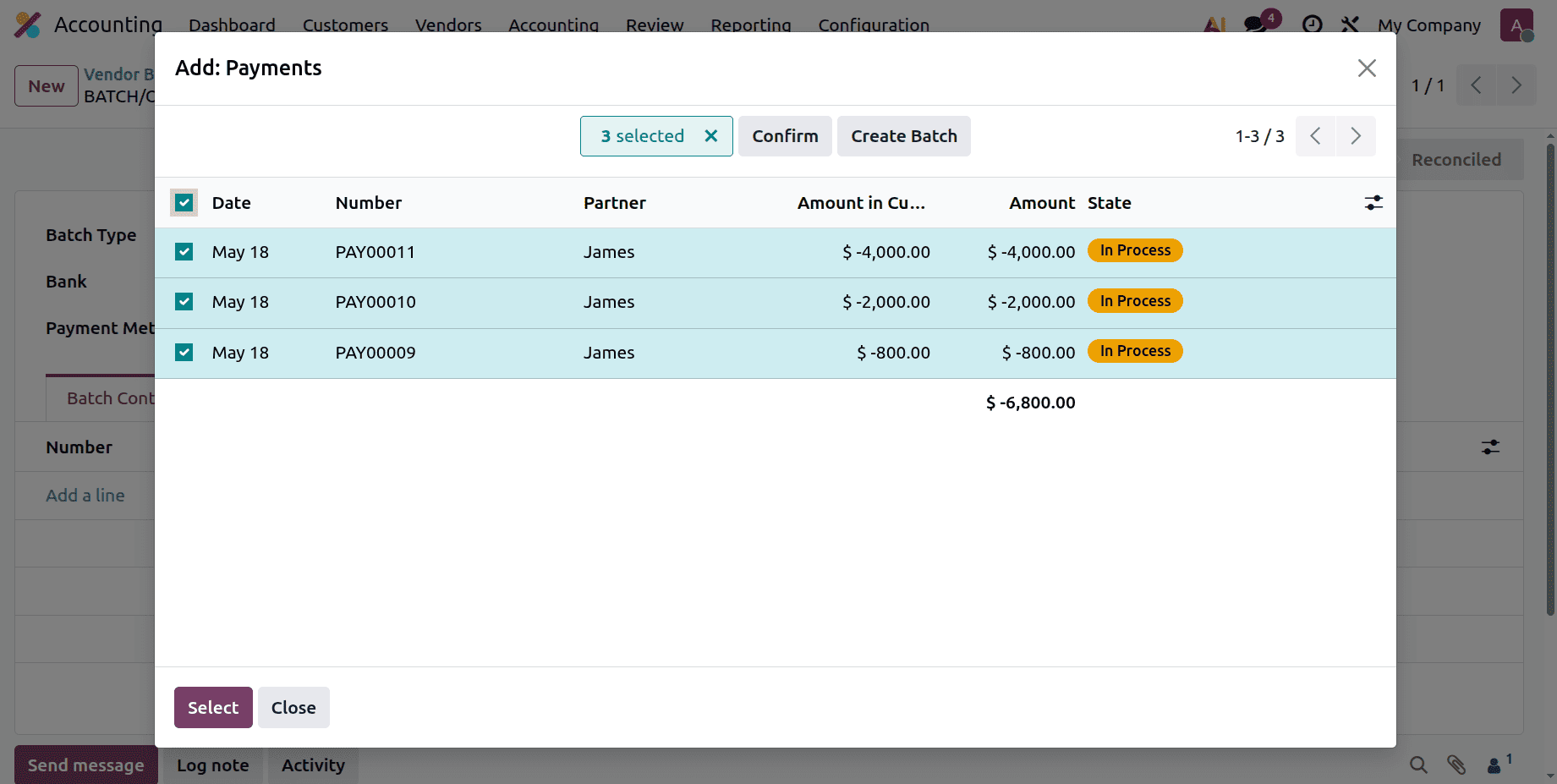
Then click the Validate button.
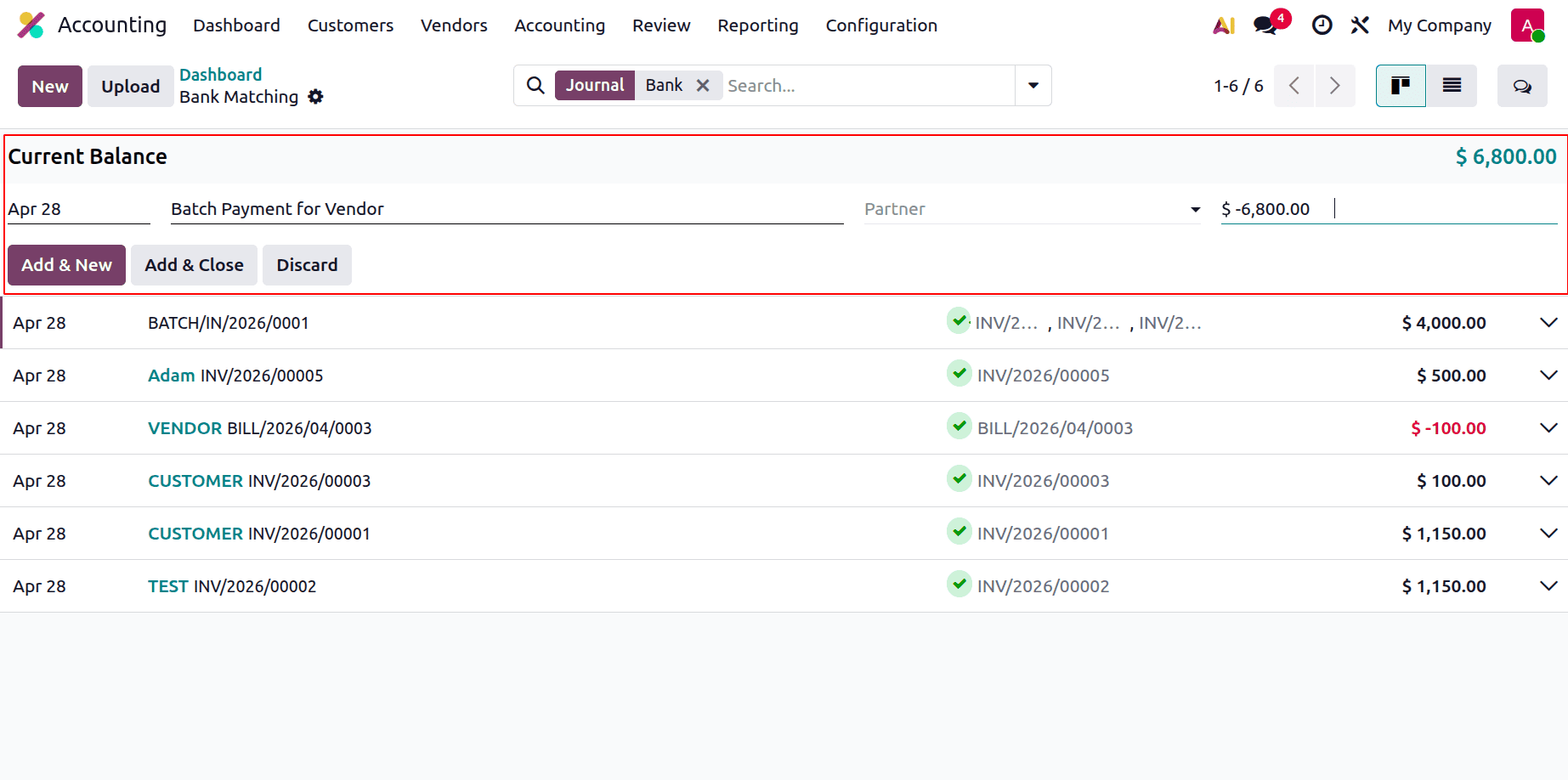
Then move to the dashboard, click on Transactions. Add the date, Label, and the amount. Then click on the Add & Close.
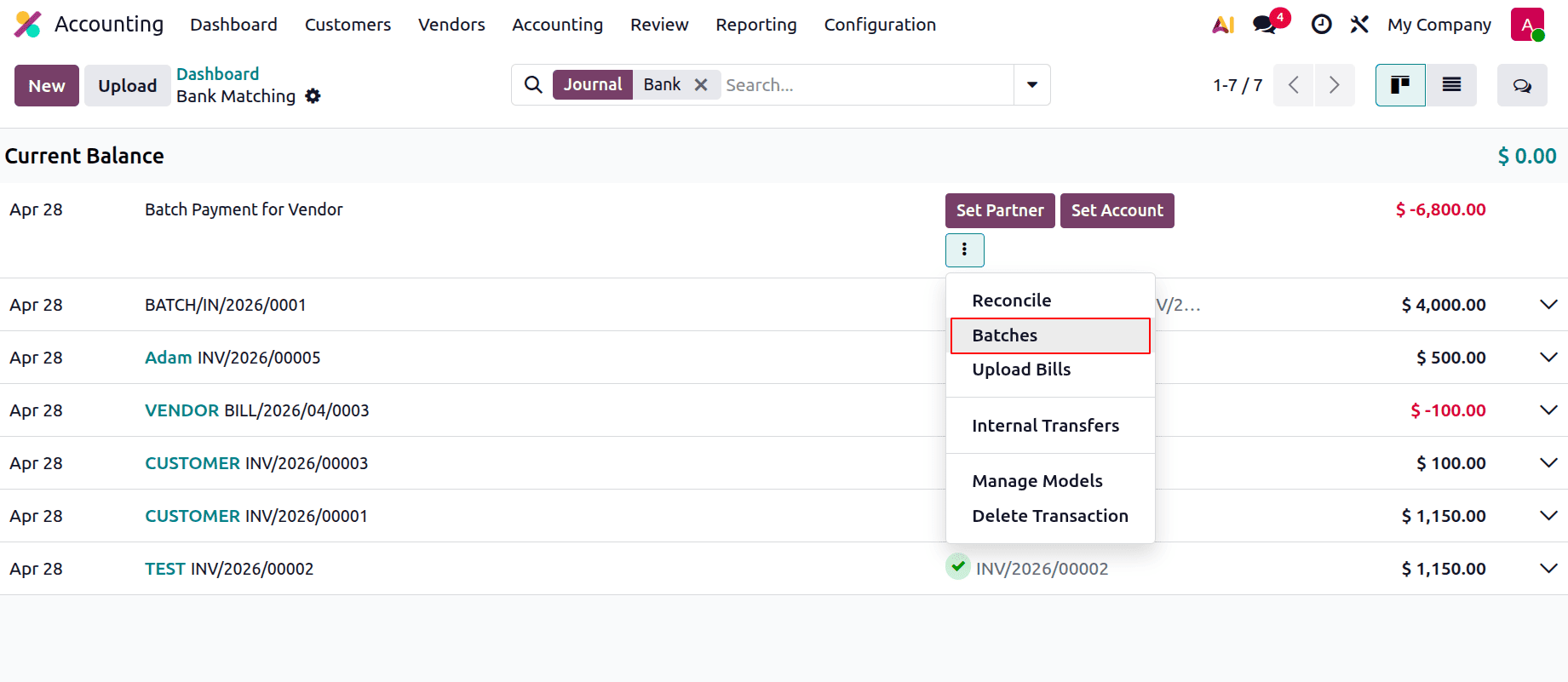
Choose the Batches, as shown below.
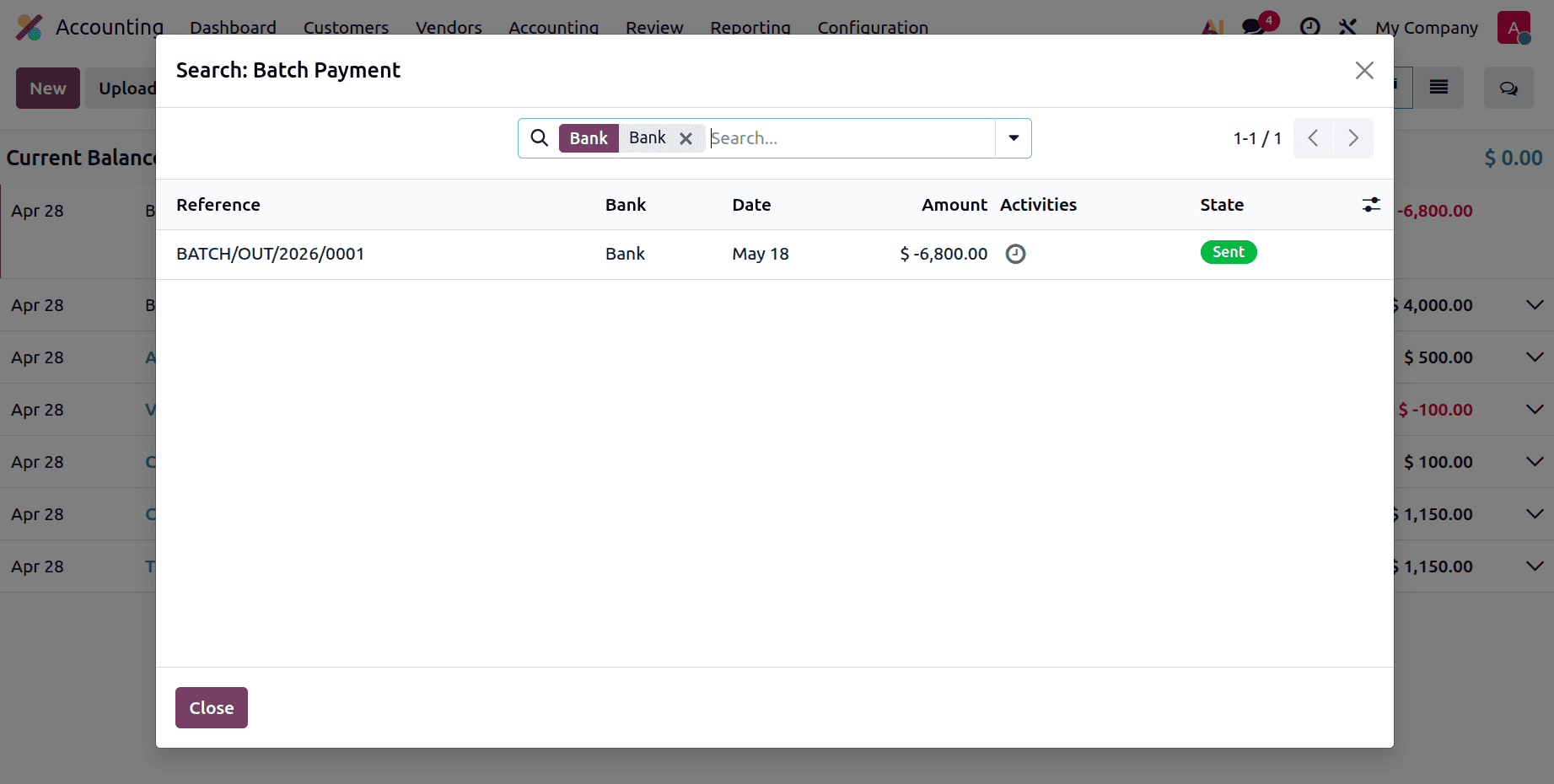
Select the Batch from the list.
As shown below, the Batch is Reconciled.
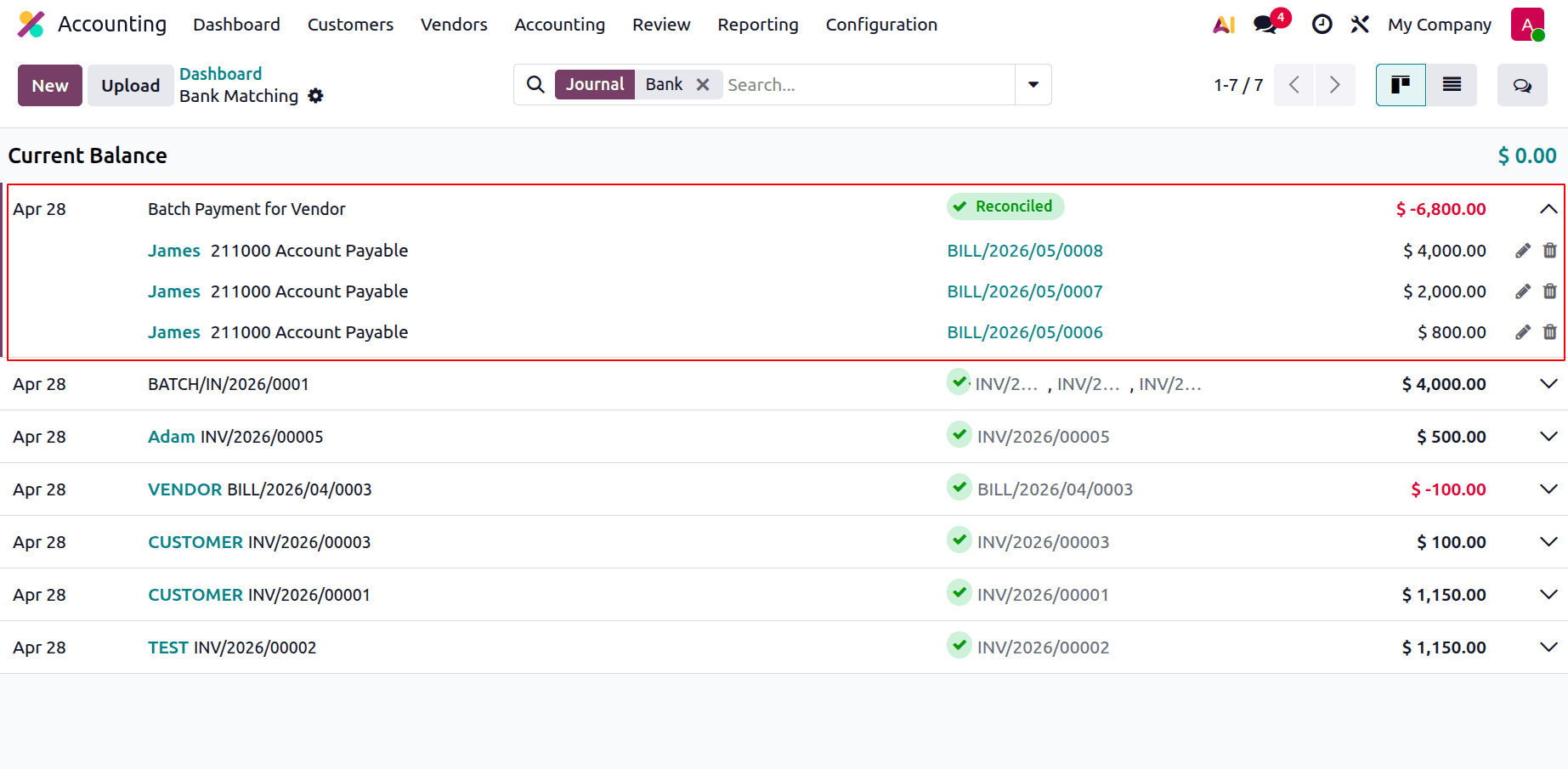
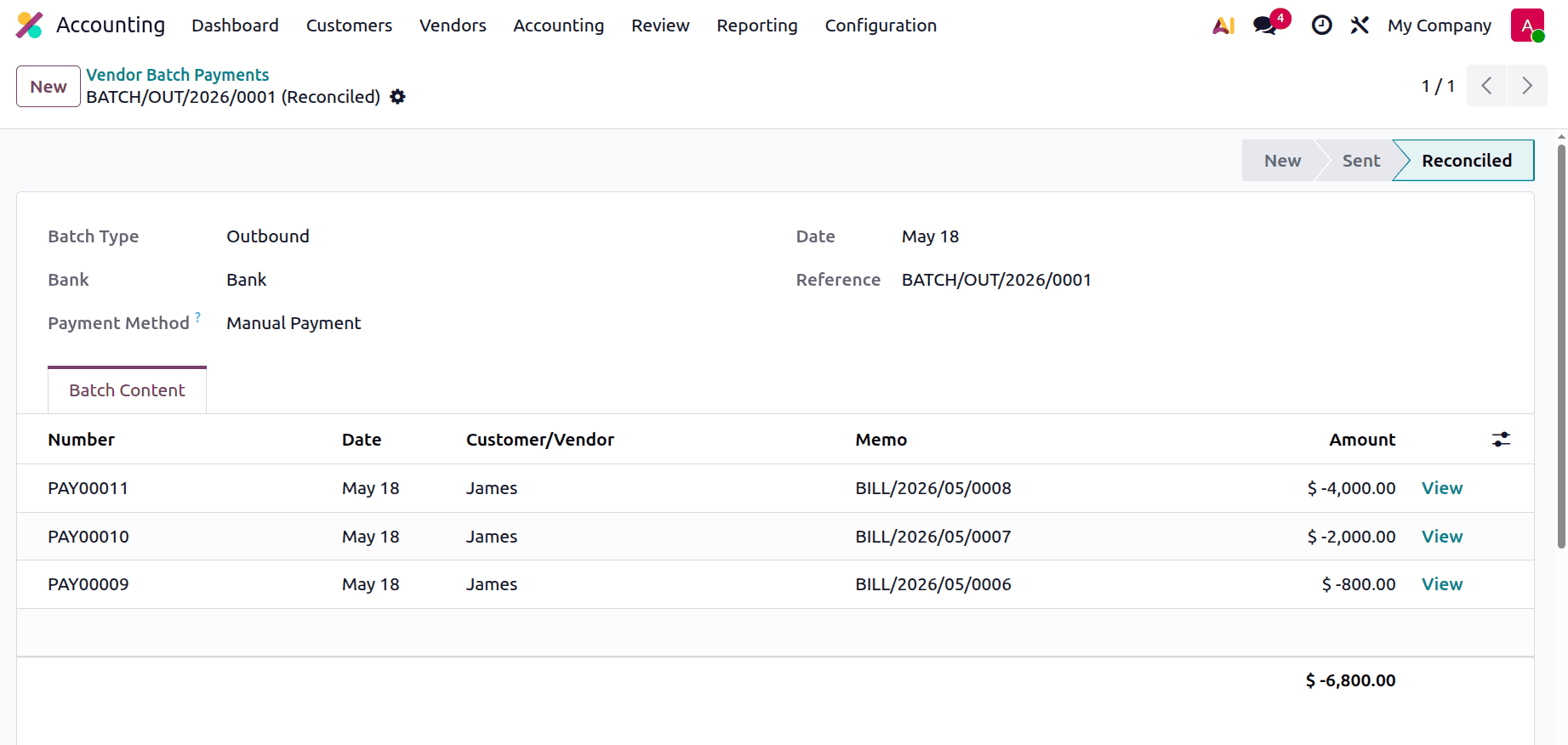
Check the created Batch payment, which automatically changed to Reconciled stage.
In conclusion, the Batch Payment and Reconciliation Models in Odoo Accounting significantly increase the precision and effectiveness of financial processes. Batch payments save administrative effort and ensure on-time payments by streamlining the management of many vendor transactions. To do that, navigate to the dashboard and select the bank option, as illustrated in the figure below.By using these solutions, businesses can improve overall financial control, keep better financial records, and speed up their payment processes.
To read more about Overview of Batch Payments & Reconciliation with Odoo 18 Accounting, refer to our blog Overview of Batch Payments & Reconciliation with Odoo 18 Accounting.