Converting leads into helpdesk tickets in Odoo 19 helps businesses connect sales activities with customer support efficiently. When a potential customer raises a question, reports an issue, or requests assistance, the lead can be transformed into a helpdesk ticket for proper follow-up. This process keeps customer information, communication history, and support activities organized in one platform. Odoo 19 provides an integrated environment where sales and support teams can collaborate without losing important details. By converting leads into tickets, businesses can improve response times, assign issues to appropriate teams, track resolutions, and deliver a smoother customer experience throughout the entire sales journey.
To create a lead in Odoo 19, first enable the Leads feature by navigating to CRM > Configuration > Settings as shown below:
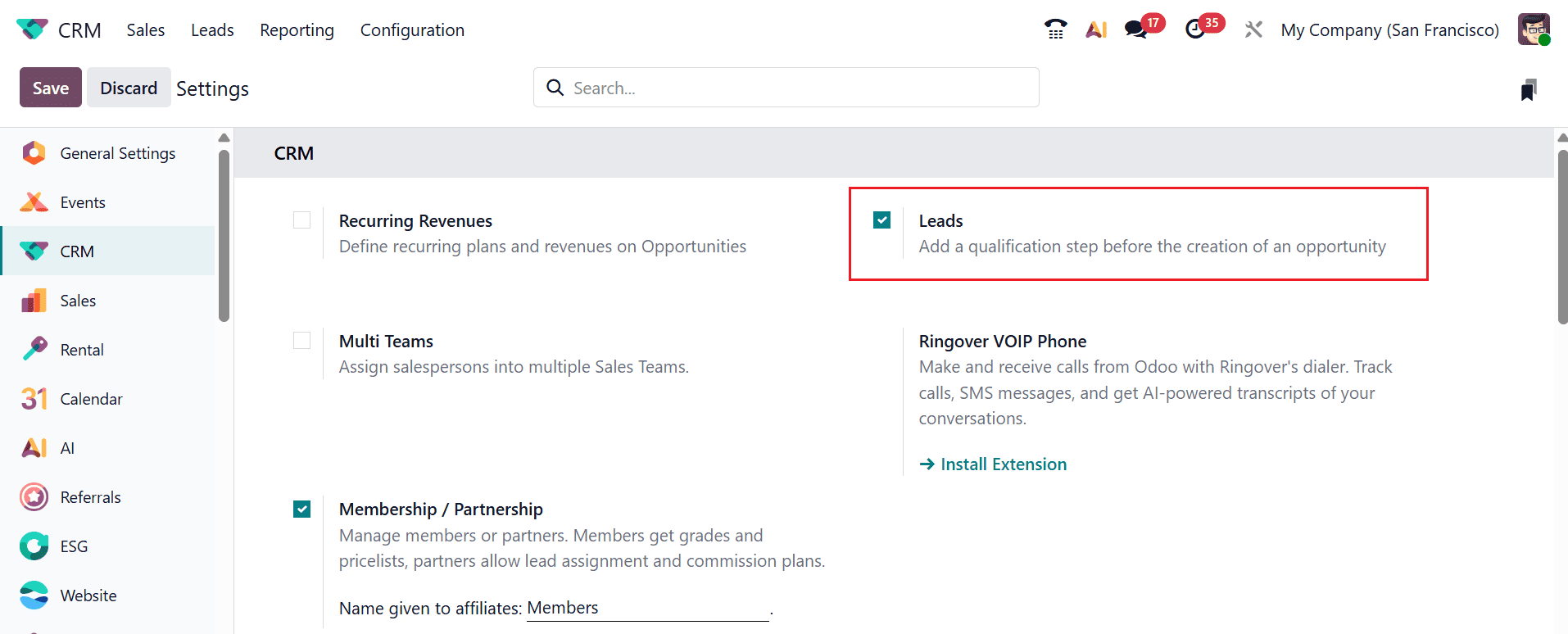
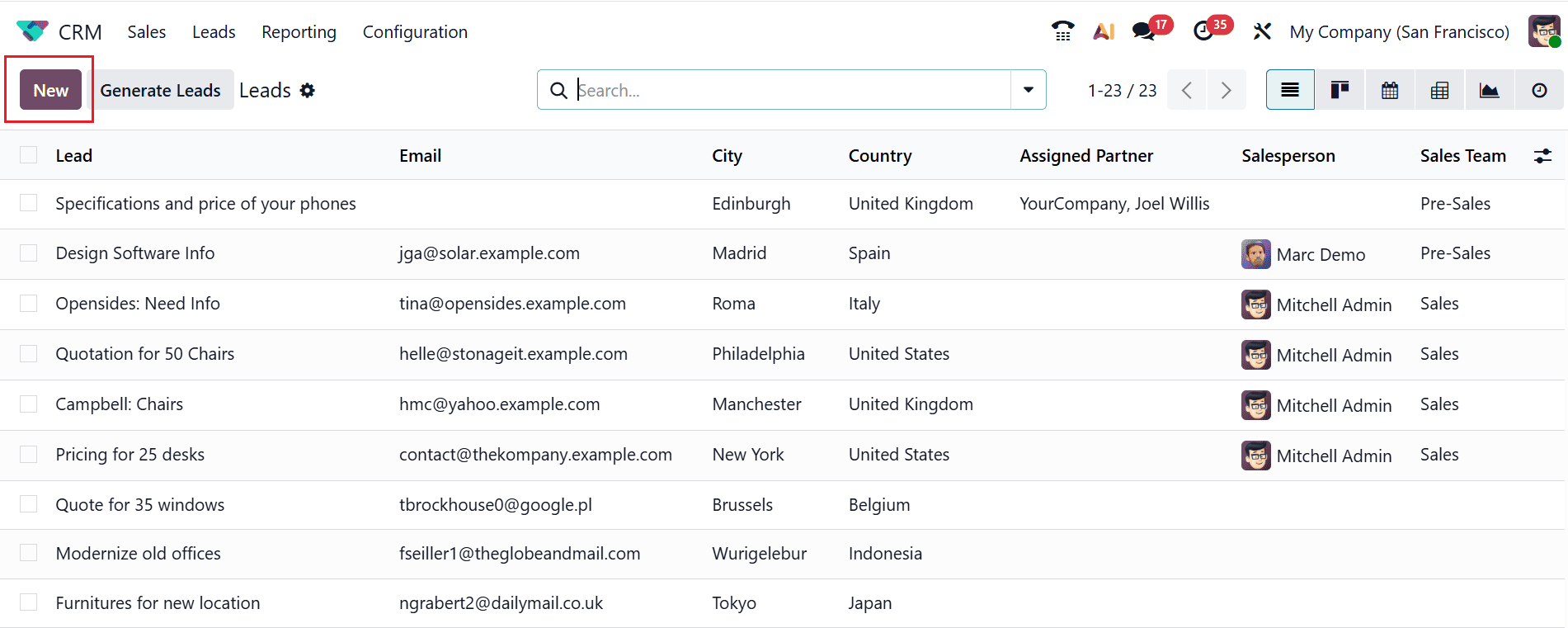
Once the feature has been enabled, the Leads option will appear on the CRM module, from which you will be able to manage all the leads. To create a helpdesk ticket from a lead, either open an existing lead or create a new one. If creating a new lead, click the New button to proceed.
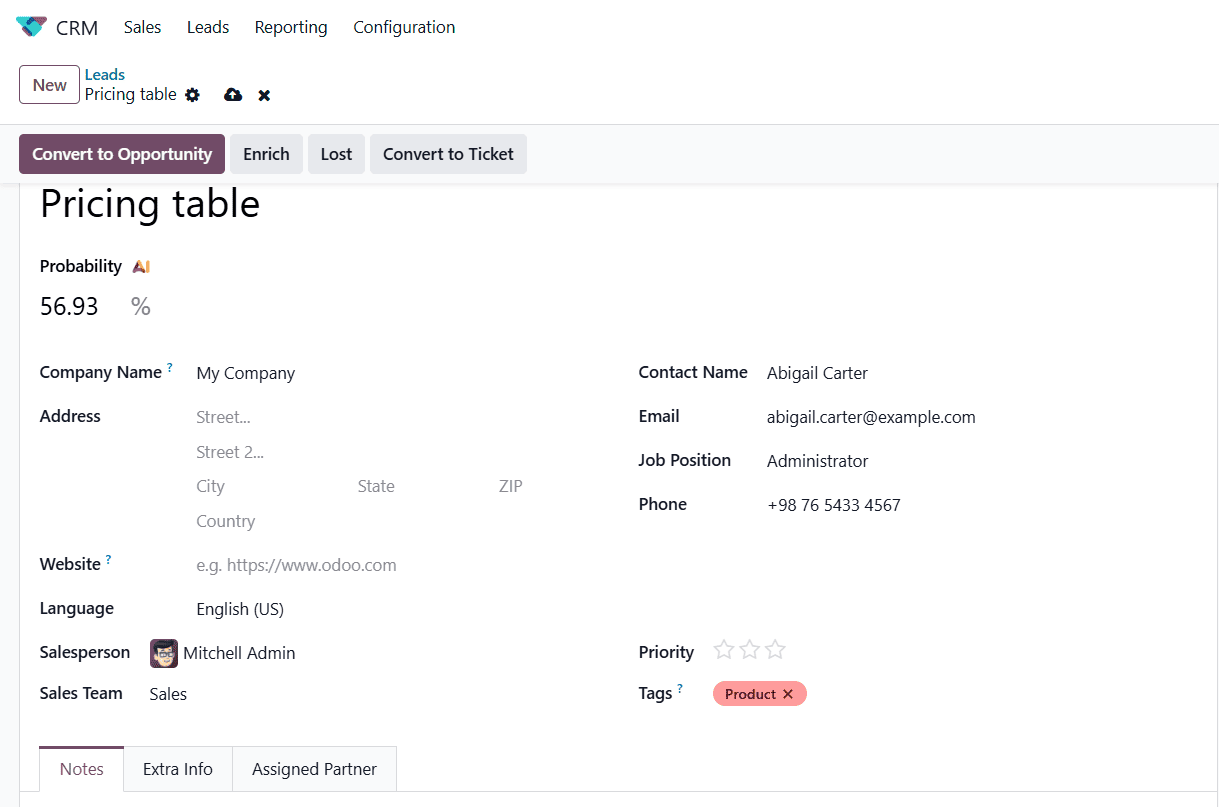
A new window appears to create a new lead as shown below. Here, you can enter all the necessary information, like the Lead Title, which gives a description of your lead, and the Probability of conversion of the lead into an actual sale by the system. Also, the Customer Information section lets you enter information about the Customer Name, Company Name, Address, Email, Phone Number, Mobile Number, Job Position, and Website. Here, the Salesperson and Sales Team fields will help you allocate the responsibility of managing your lead. Set the lead’s priority by selecting the appropriate number of stars in the Priority field. Use the Tags field to add relevant tags, making it easier to categorize, organize, and analyze leads.
The Notes section is available for documenting internal comments, observations, and other important details about the lead. The Extra Info section allows you to add additional details that may be useful for managing the lead. Under Assigned Partners, you can specify the relevant partners associated with the lead, helping ensure proper coordination and follow-up.
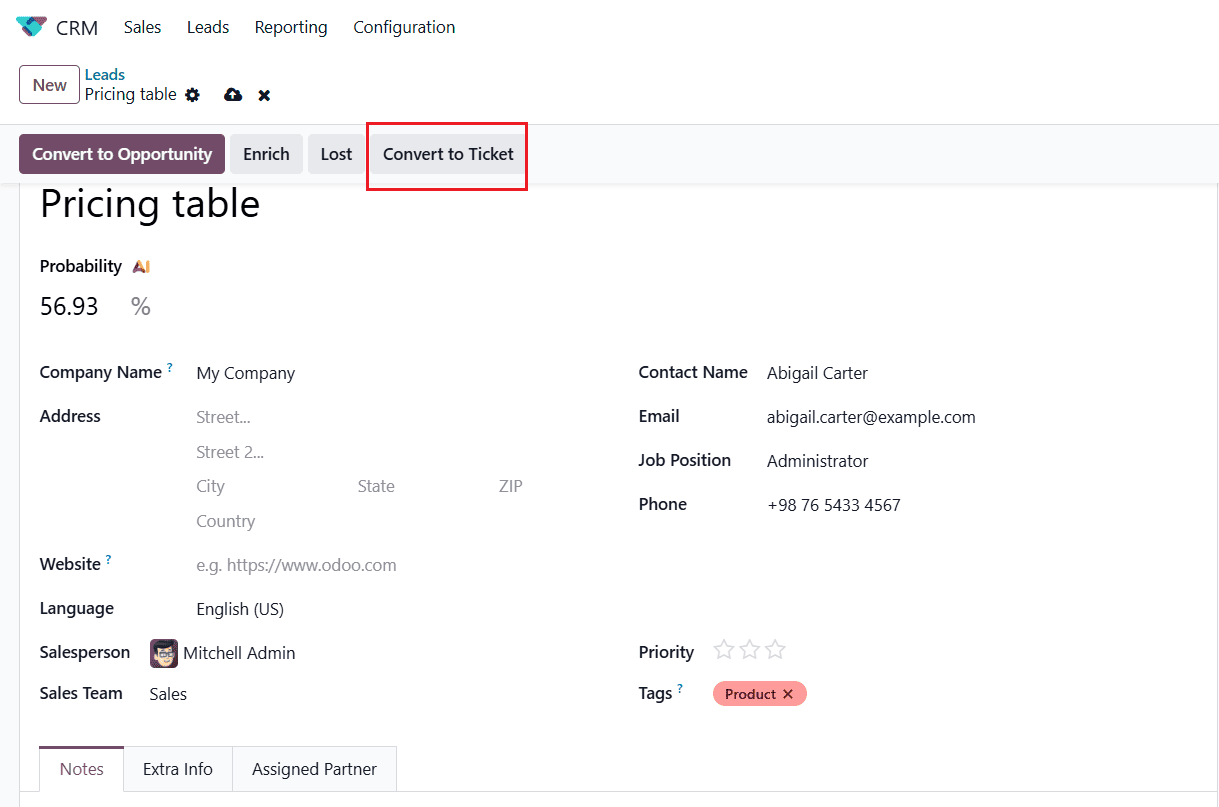
After entering all the required lead details, click Convert to Ticket at the top of the form to create a Helpdesk ticket from the lead.
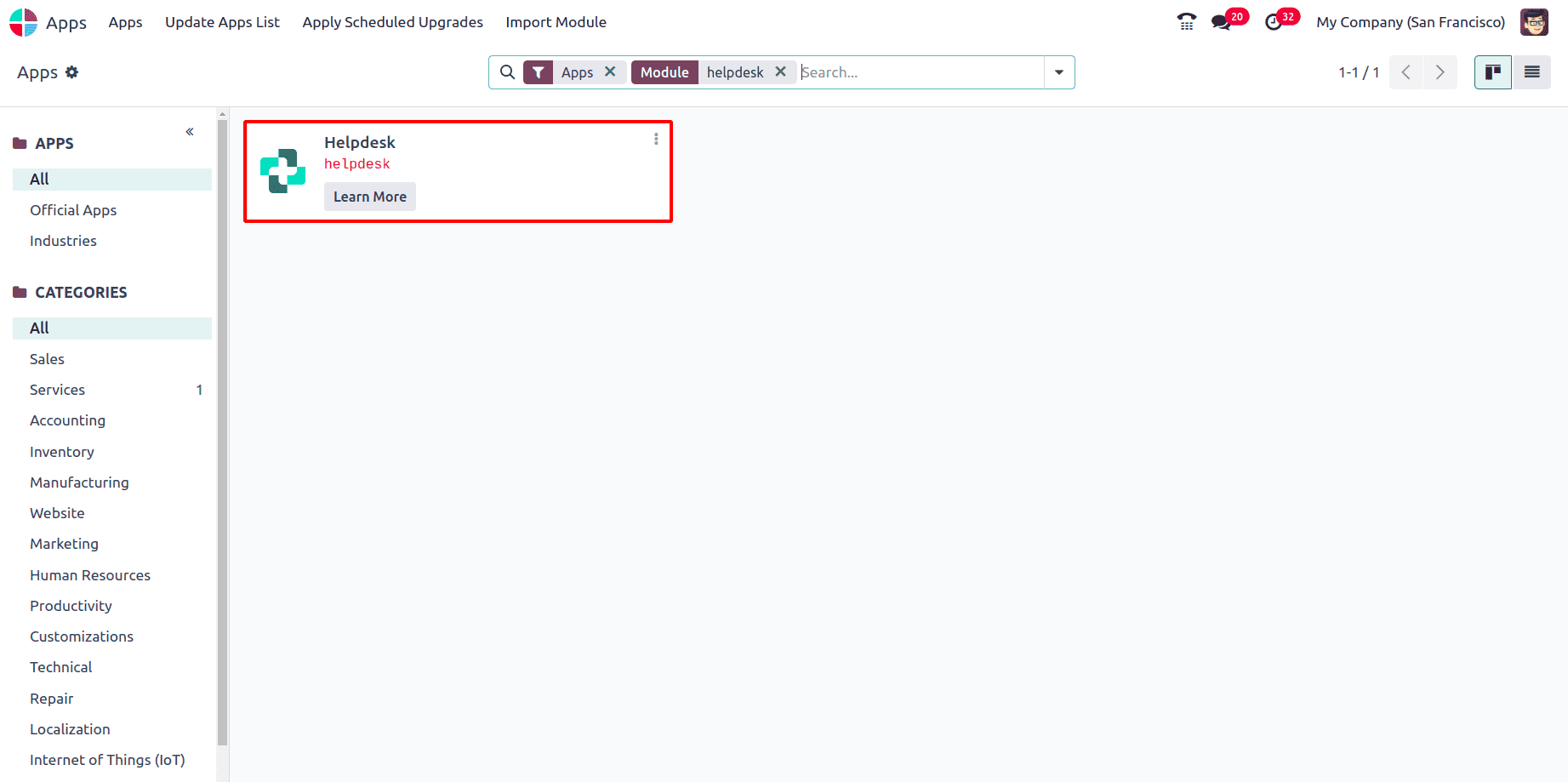
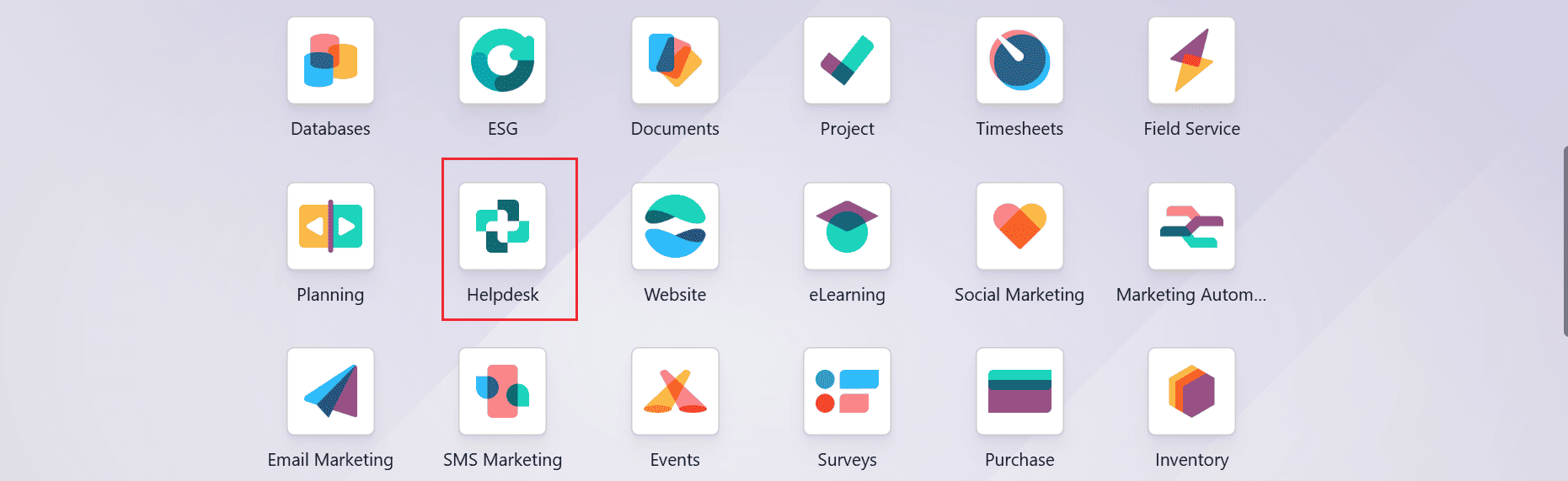
From the Odoo main dashboard, select the Apps module and search for the Helpdesk module. If Helpdesk is not yet installed, click Install to add the application to your Odoo database.
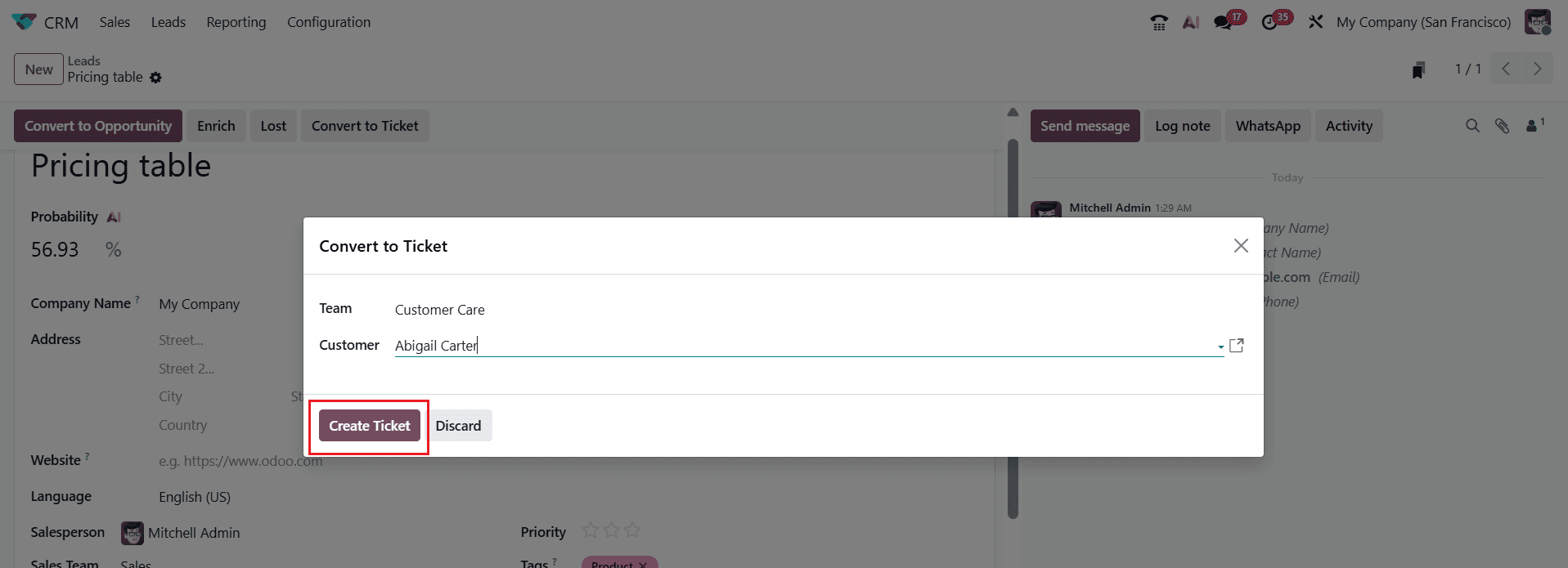
Once you select Convert to Ticket, a pop-up window will be displayed. In the Team field, select the appropriate Helpdesk Team. The system automatically assigns the lead’s associated customer to the Customer field. Choose the appropriate Helpdesk team from the available options, then click Create Ticket to complete the conversion.
Only Helpdesk teams configured in the Helpdesk module can be selected.
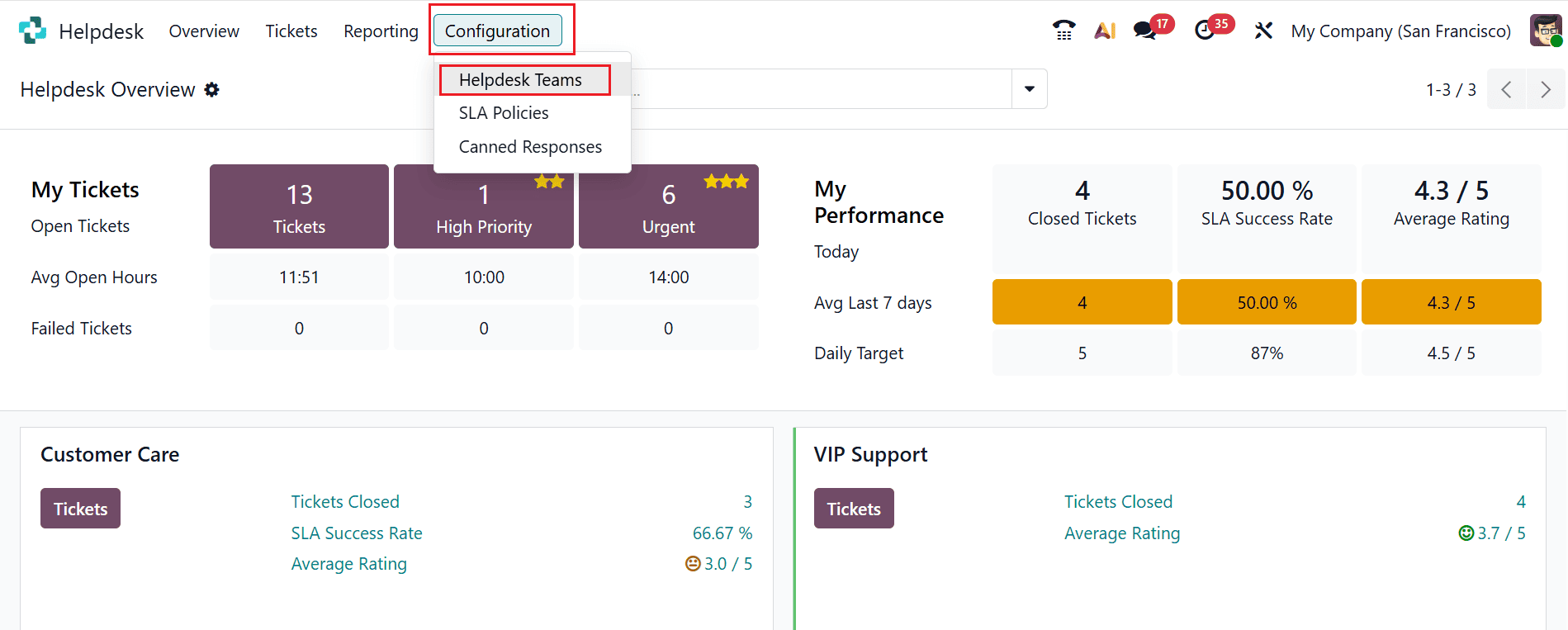
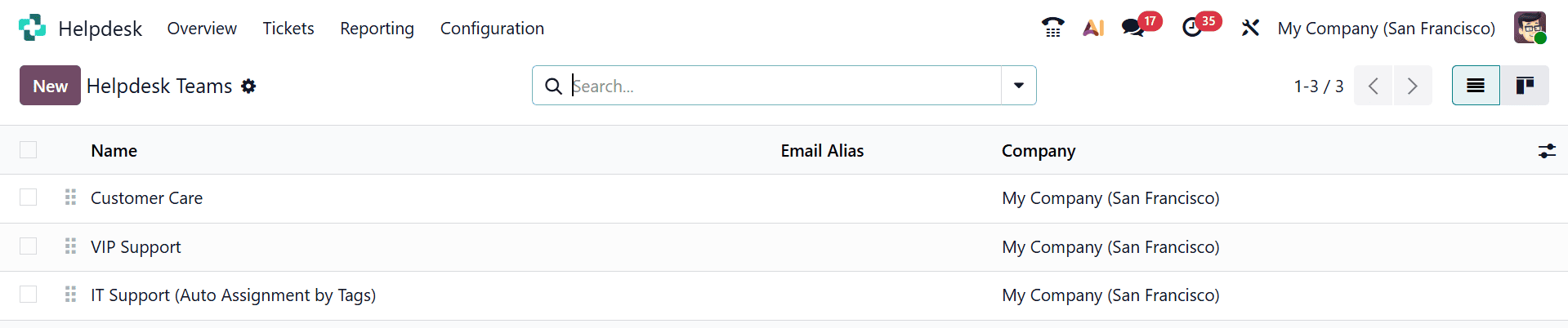
To configure the teams, go to Helpdesk > Configuration > Helpdesk Teams.
The Helpdesk Teams page displays all the teams that have already been configured. Click New to create a new team.
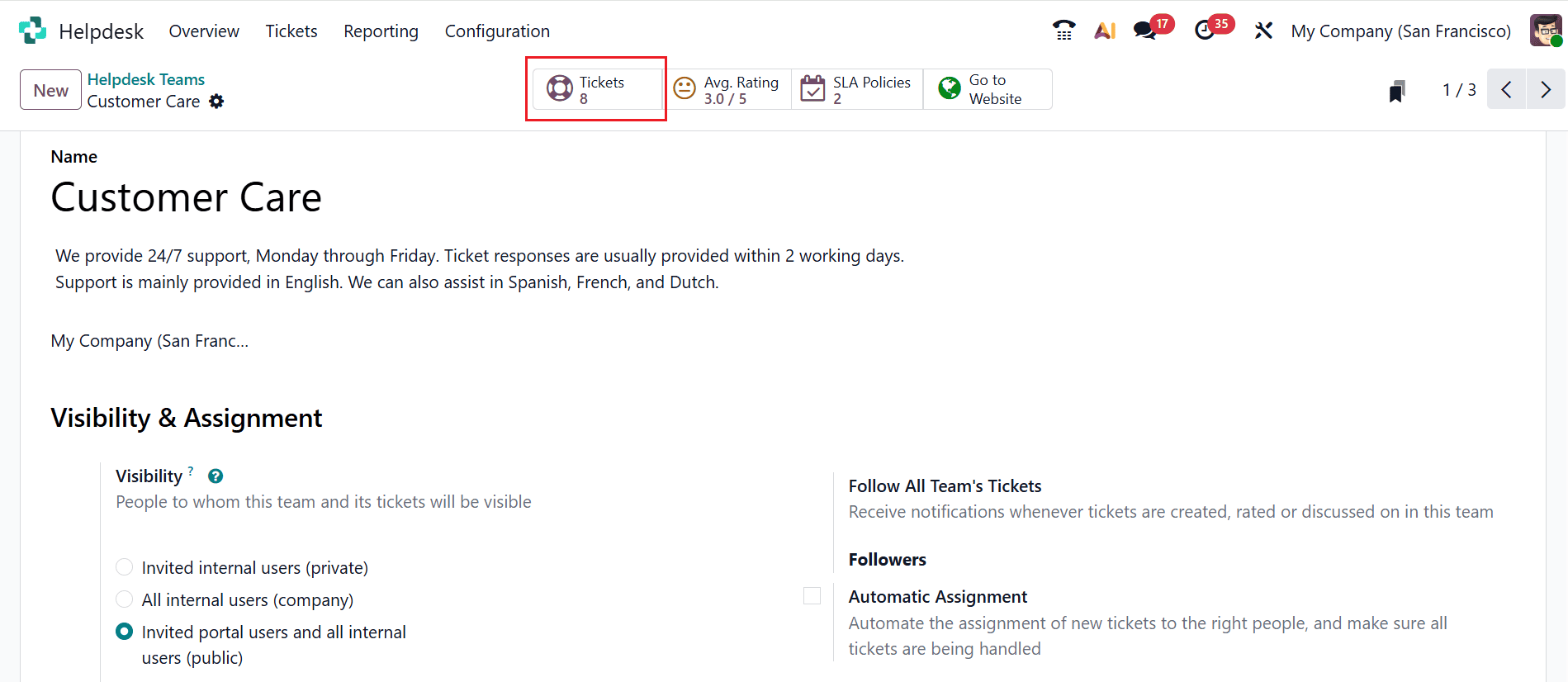
A new page will open where you can enter the required details and configure the Helpdesk team. Click on the Tickets smart button as shown below:
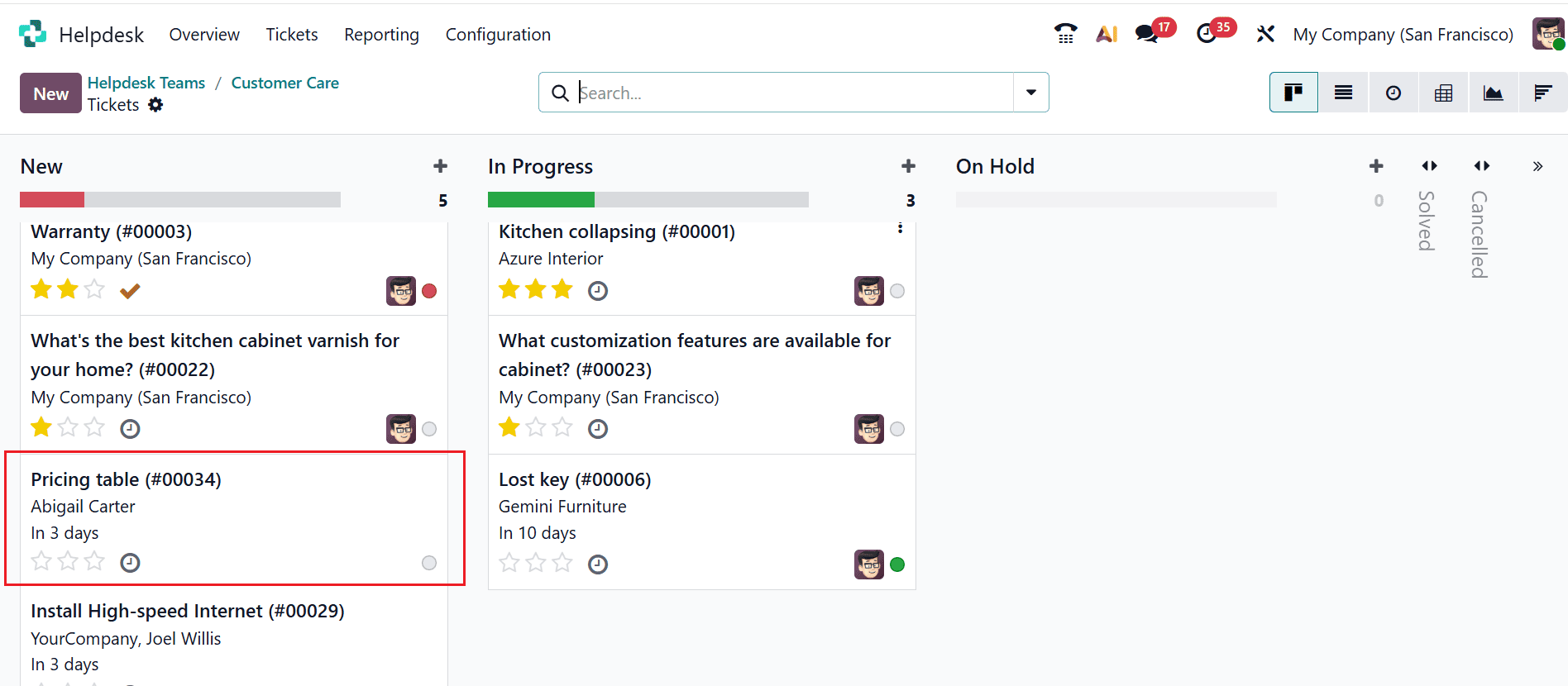
The newly created tickets can be viewed in the New stage of the Helpdesk pipeline. Click on the newly created ticket as shown below:
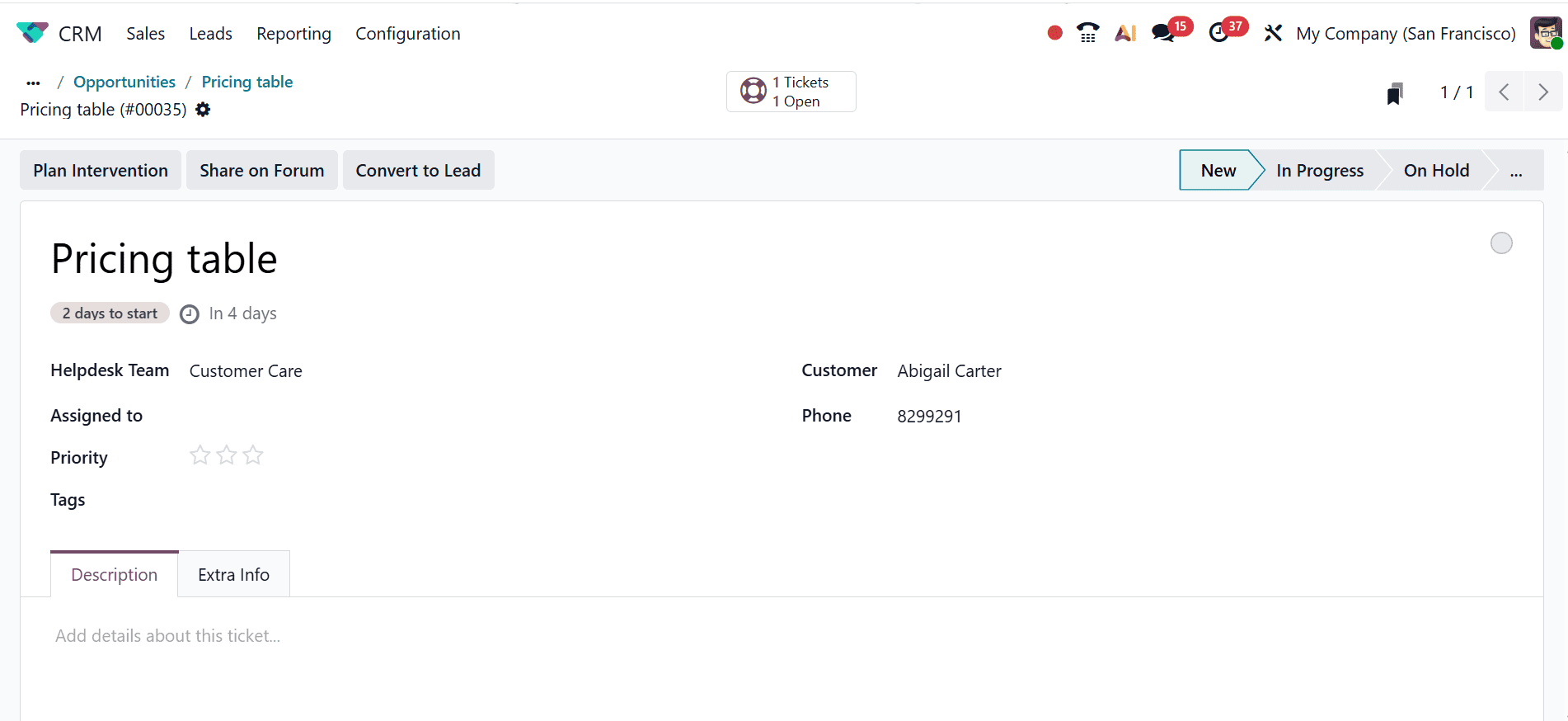
From the ticket form, you can assign the ticket to a specific Helpdesk Team and team member responsible for handling and resolving the request. The Customer field displays the customer associated with the ticket, while the Phone field provides their contact number for further communication. You can also add relevant Tags and set the Priority level. For tickets that require immediate attention, the priority can be set to High to ensure they are handled promptly. Any necessary details or information regarding the request can be entered in the Description field, while additional ticket-related information can be viewed under the Extra Info tab.
As the ticket progresses, it can be moved through different stages, including New, In Progress, On Hold, and Solved.
The ticket stages can be configured based on the workflow requirements from the Helpdesk module. To access the stage configuration, go to Configuration > Stages.
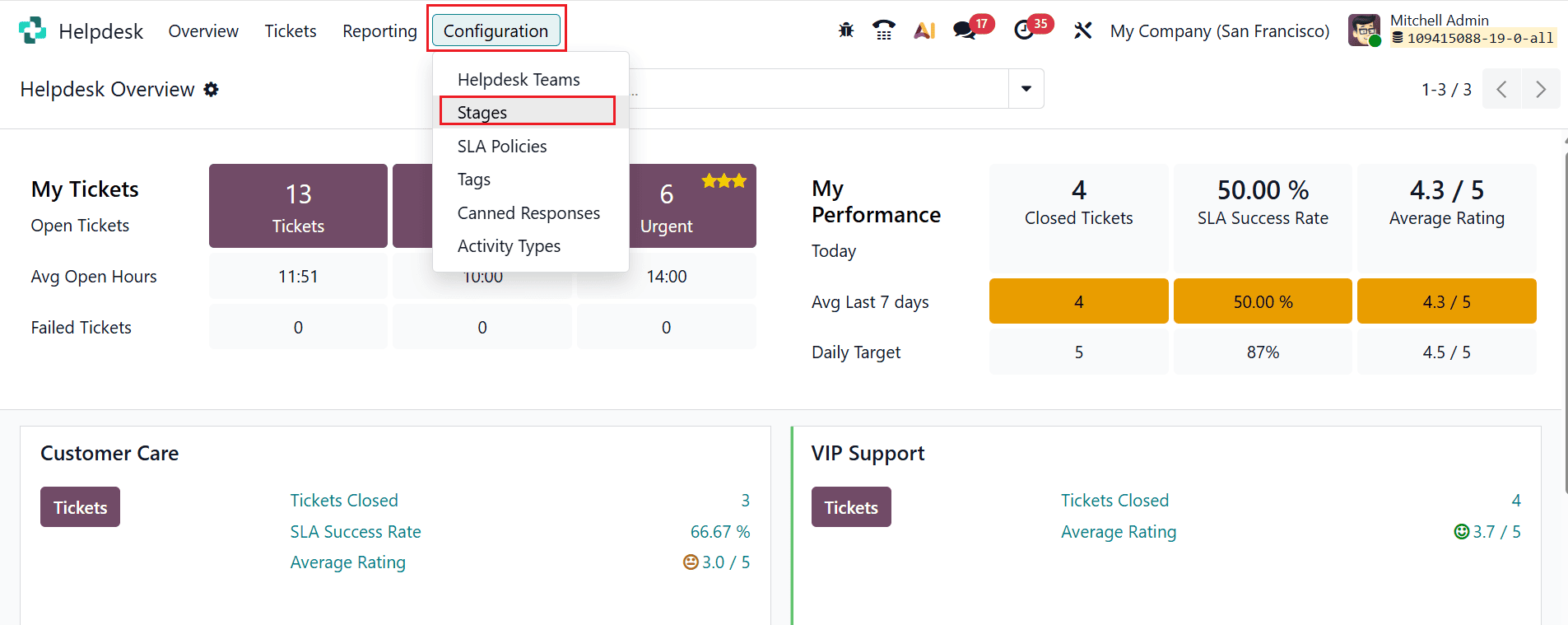
Here, you can view all the pre-configured ticket stages. To add a new stage, click the New button.
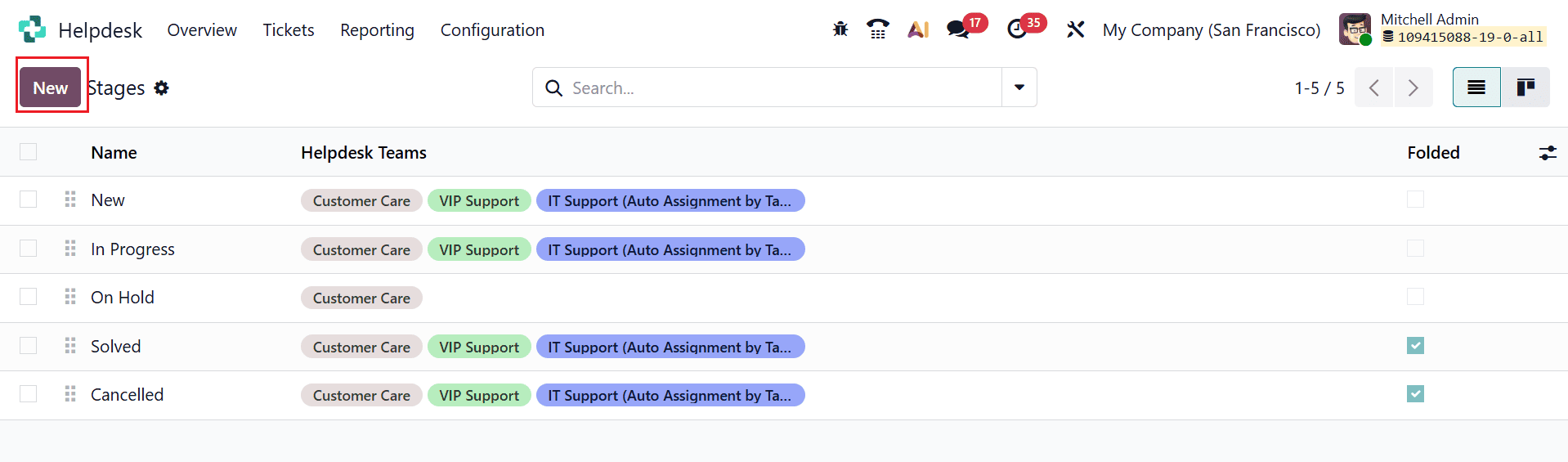
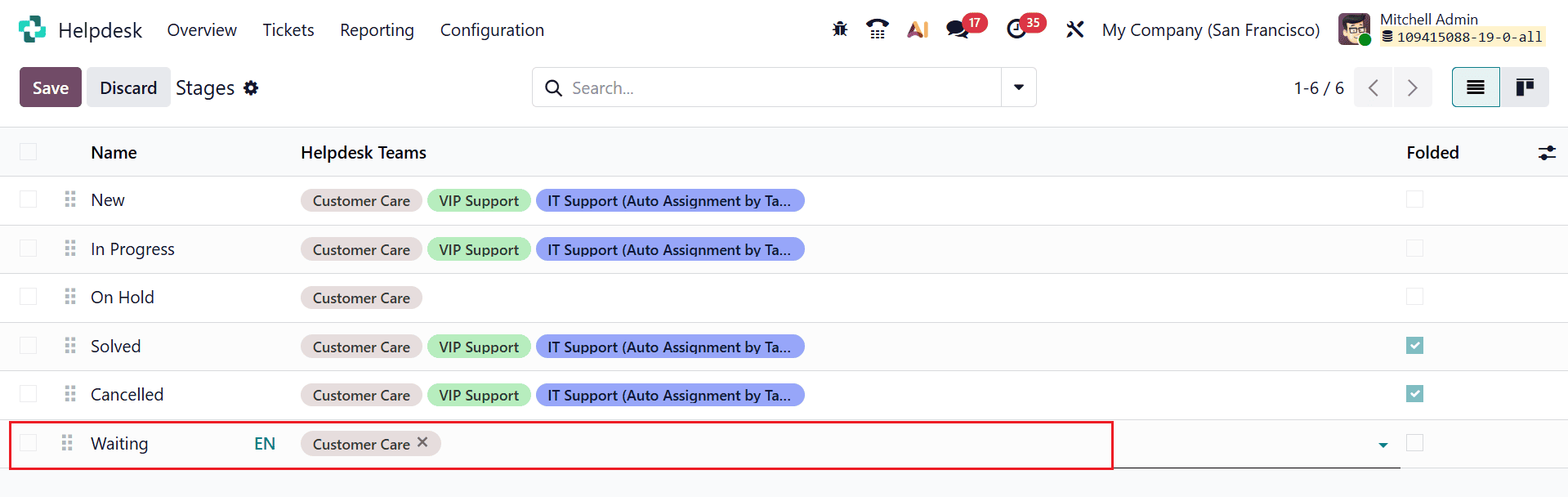
To create a new stage, click New. A new page will open where you can configure the stage. Enter the stage name in the Name field. Specify the stage name in the Name field. When a ticket enters this stage, the system automatically sends the customer an email based on the template selected in the Email Template field. Likewise, an SMS is sent automatically based on the template selected in the SMS Template field.
Go to the Overview menu to get a comprehensive view of the tickets along with their assigned Helpdesk teams.
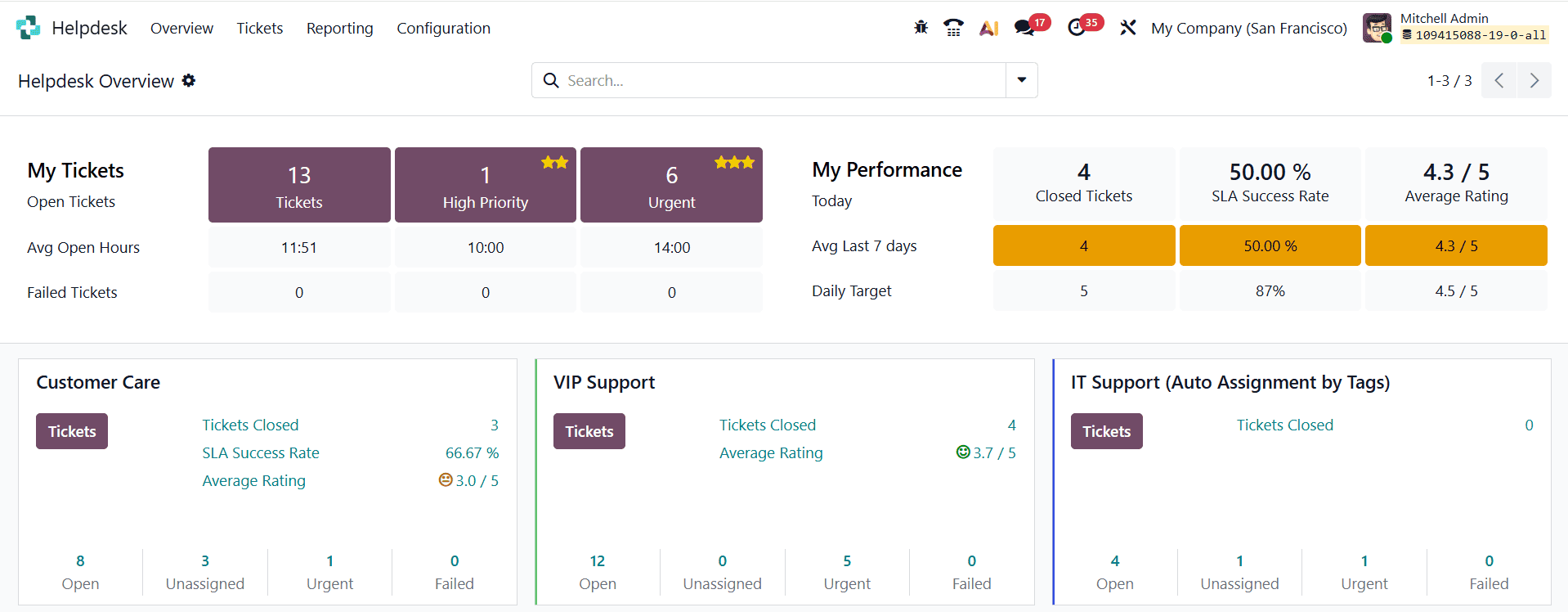
To view tickets assigned to the Customer Care team, click Tickets on the team card. This opens the pipeline view, displaying all tickets assigned to the team.
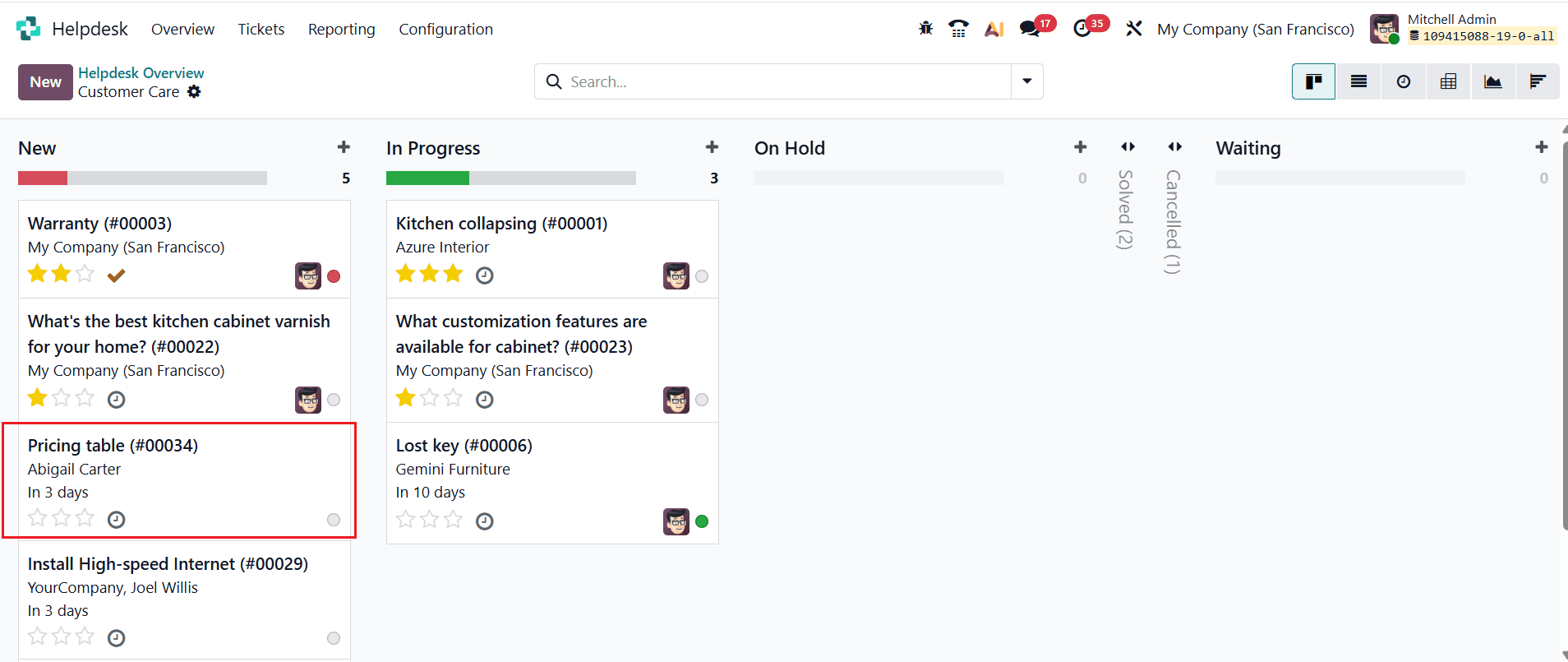
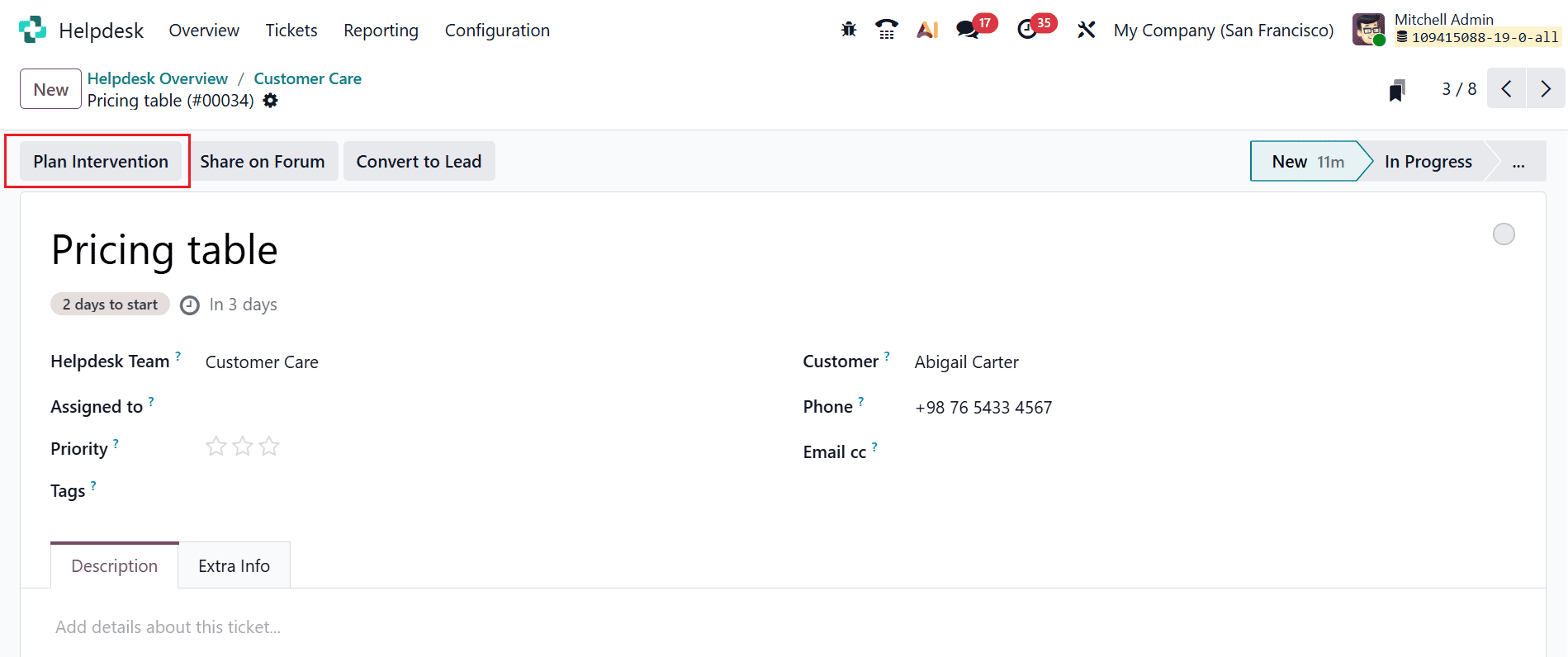
The ticket can be moved between stages directly from the pipeline view. If resolving the ticket requires a field service intervention, open the ticket and click Plan Intervention from its detailed view to schedule the service.
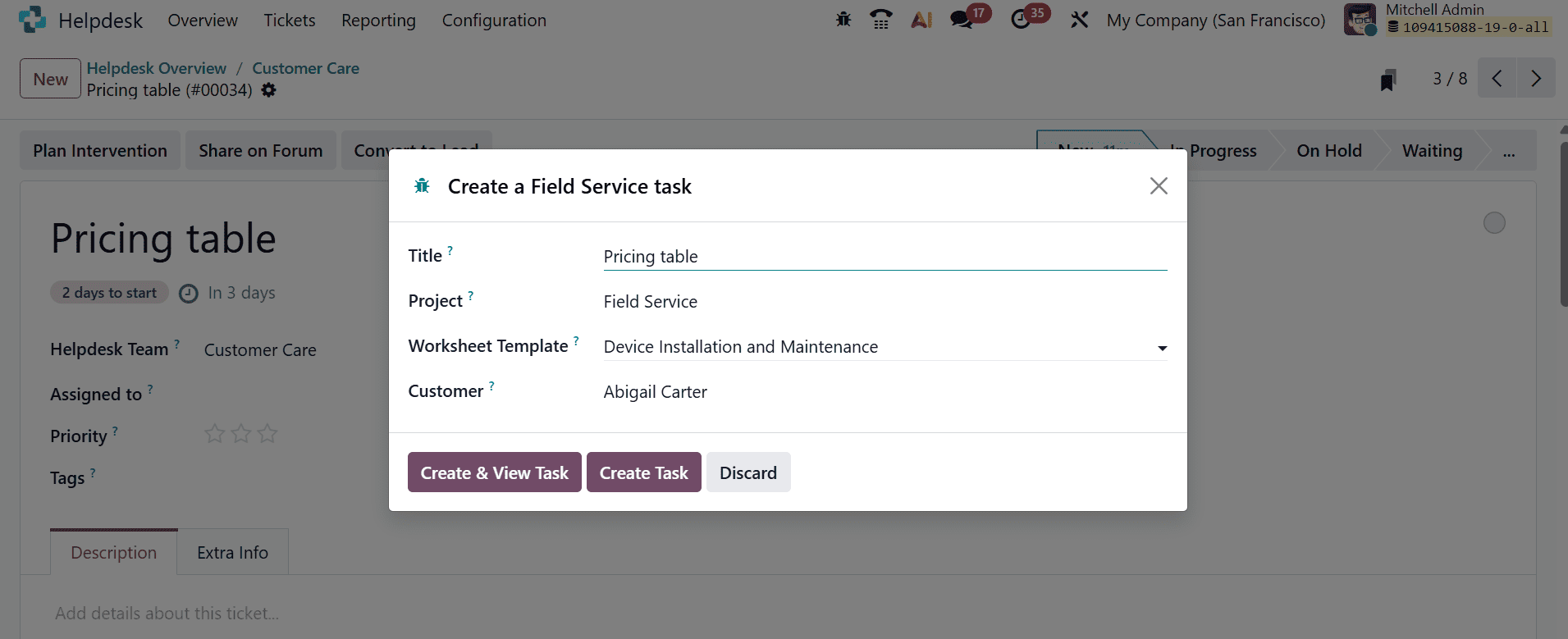
A pop-up window appears, allowing you to create a Field Service Task for the ticket. Enter the Title, Project, and Customer details for the task. Once the details are provided, click Create & View Task to create and open the task, or Create Task to create it without opening. Click Discard if you want to cancel the task creation.
Update the ticket’s stage in the pipeline according to its current progress. Once the issue has been resolved, move the ticket to the Solved stage to mark it as completed.
When a customer expresses interest in a product or service, use the Convert to Lead button to transform the support ticket into a lead and create a potential opportunity for the sales team.
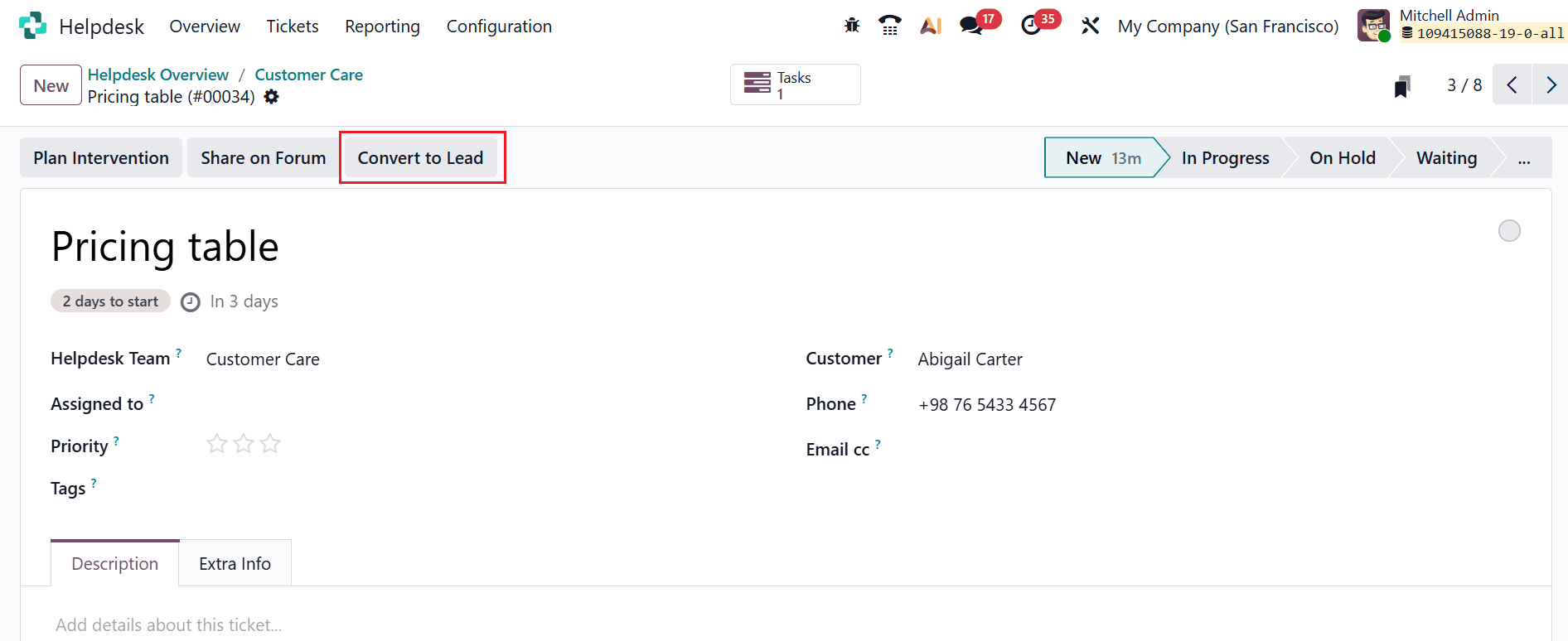
Clicking Convert to Lead opens a pop-up where you can select the Customer and Sales Team. Once the details are provided, click Convert to Lead to create the lead.
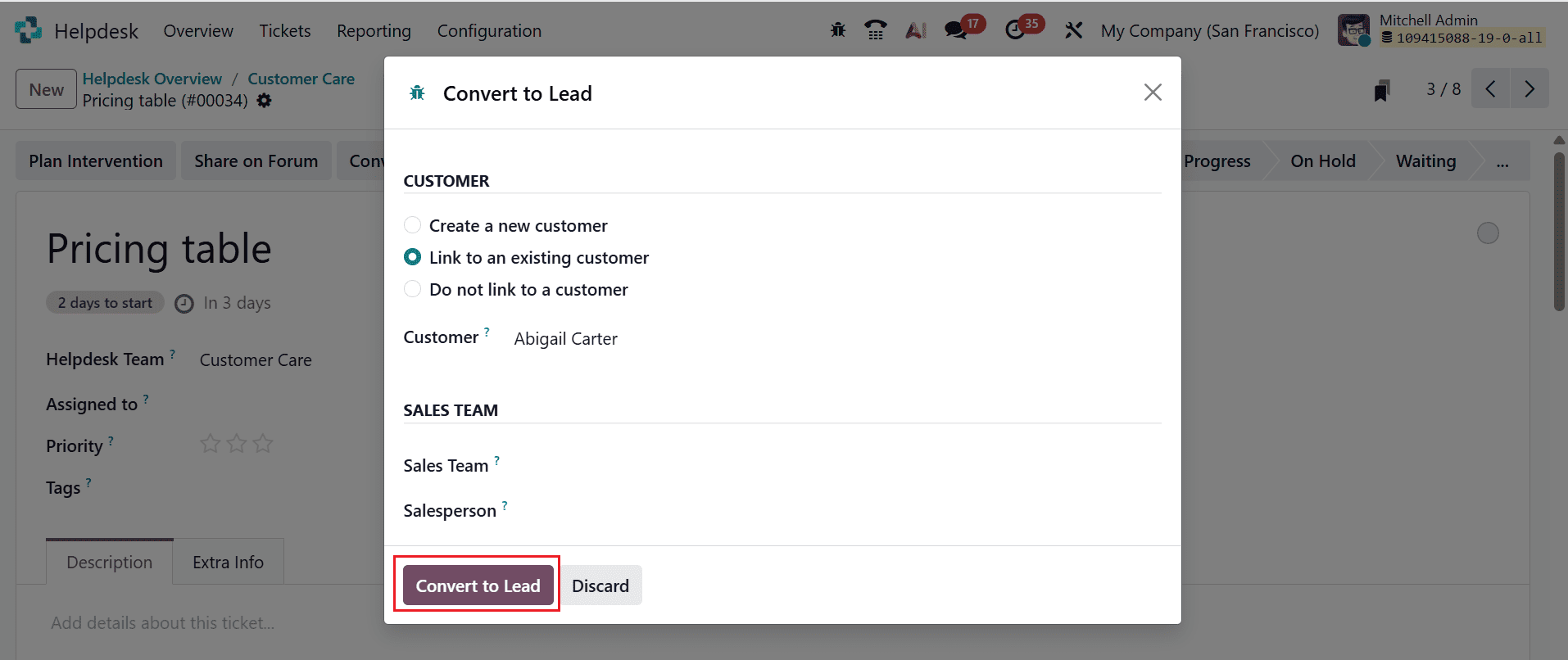
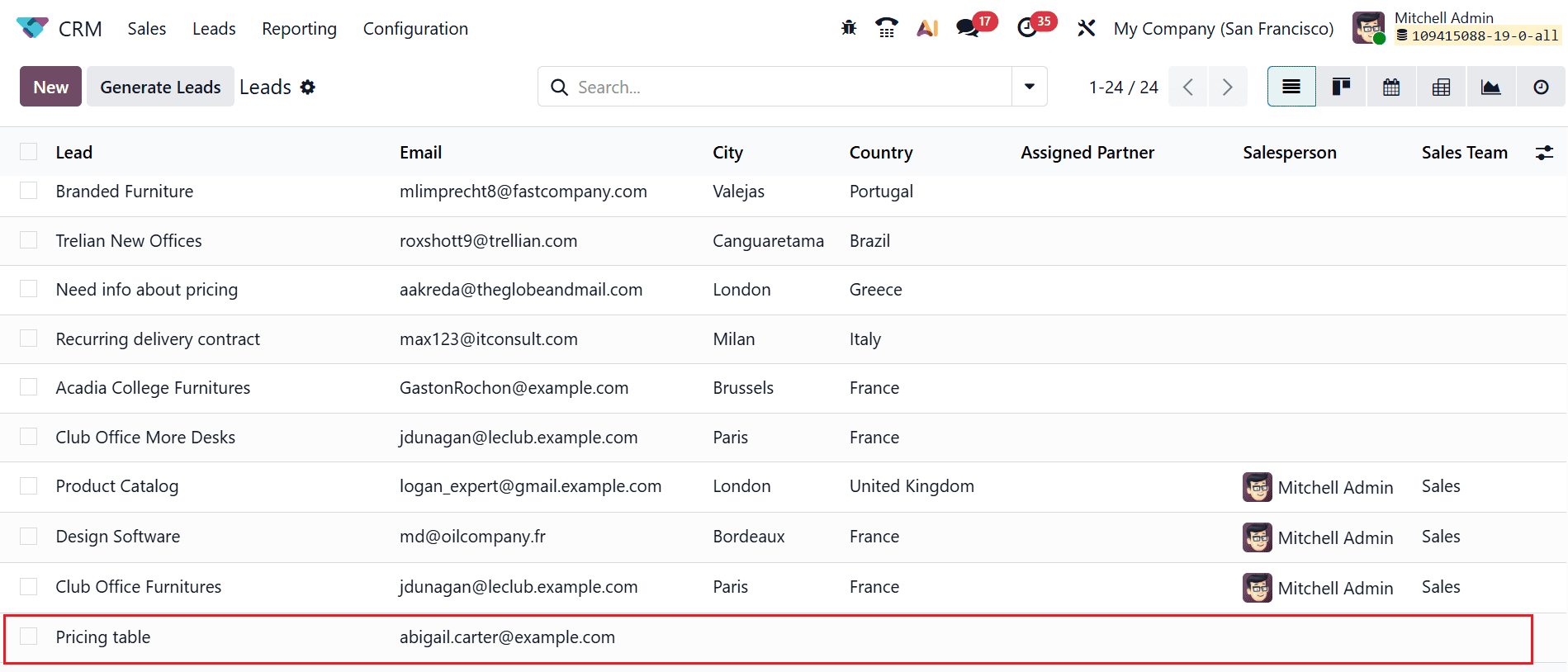
After conversion, you can view the newly created lead by navigating to CRM > Leads.
Converting leads into helpdesk tickets in Odoo 19 creates a seamless connection between sales and customer support operations. It ensures that customer concerns are transferred efficiently, tracked systematically, and handled by the right support team. With relevant lead information available in the ticket, support agents can understand customer requirements without repeatedly requesting the same details. This improves productivity, communication, and customer satisfaction. Businesses can also monitor ticket progress, maintain organized records, and provide timely responses. By using Odoo 19 effectively, organizations can build a more coordinated workflow that turns customer inquiries into structured support processes while strengthening long-term relationships and improving overall service quality.
To read more about How to Create & Manage a Helpdesk Ticket From a Lead in Odoo 18, refer to our blog How to Create & Manage a Helpdesk Ticket From a Lead in Odoo 18.