One of the best ways to minimize workload is by providing customers with the ability to resolve their problems on their own. Odoo 19 makes it possible by integrating with the eLearning module, which gives companies an opportunity to provide training videos, tutorials, and tests to their customers in the Helpdesk portal.
In this blog, you’ll learn how to set up a helpdesk for eLearning in Odoo 19, how to make course content, and how to publish that content for your customers' self-study and problem-solving skills.
Configuring Helpdesk for E-Learning
To configure Helpdesk in eLearning classes, launch the Helpdesk module and choose between picking an existing team and creating a new team for the process. Open the three-dot menu for the selected team and choose Settings, as illustrated in the image below.
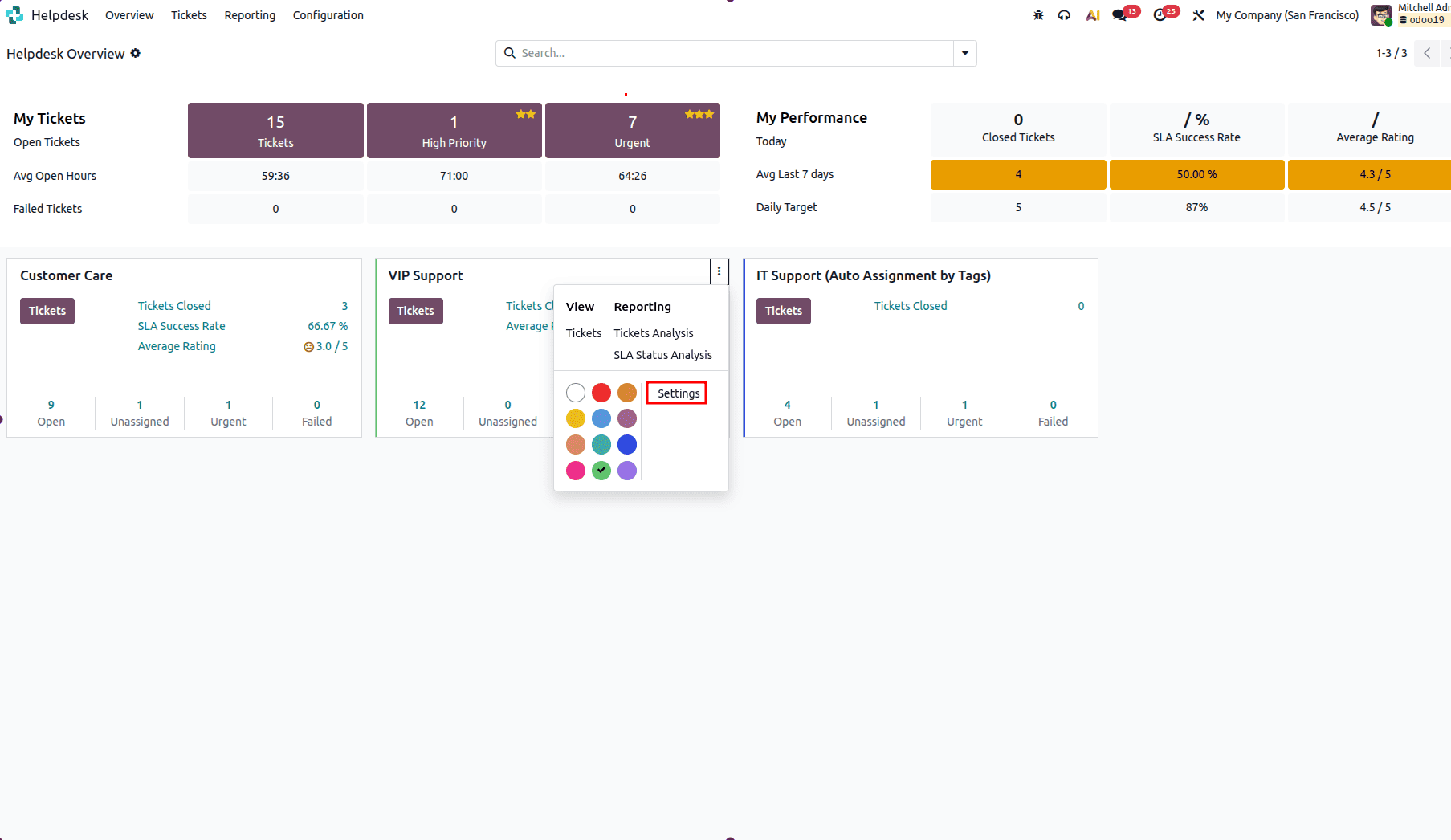
Now, go to the Helpdesk Team Settings page. Look at the Help Center field; here, Odoo 19 gives us several choices for self-service support. Select the eLearning choice to integrate the Helpdesk team with eLearning courses.
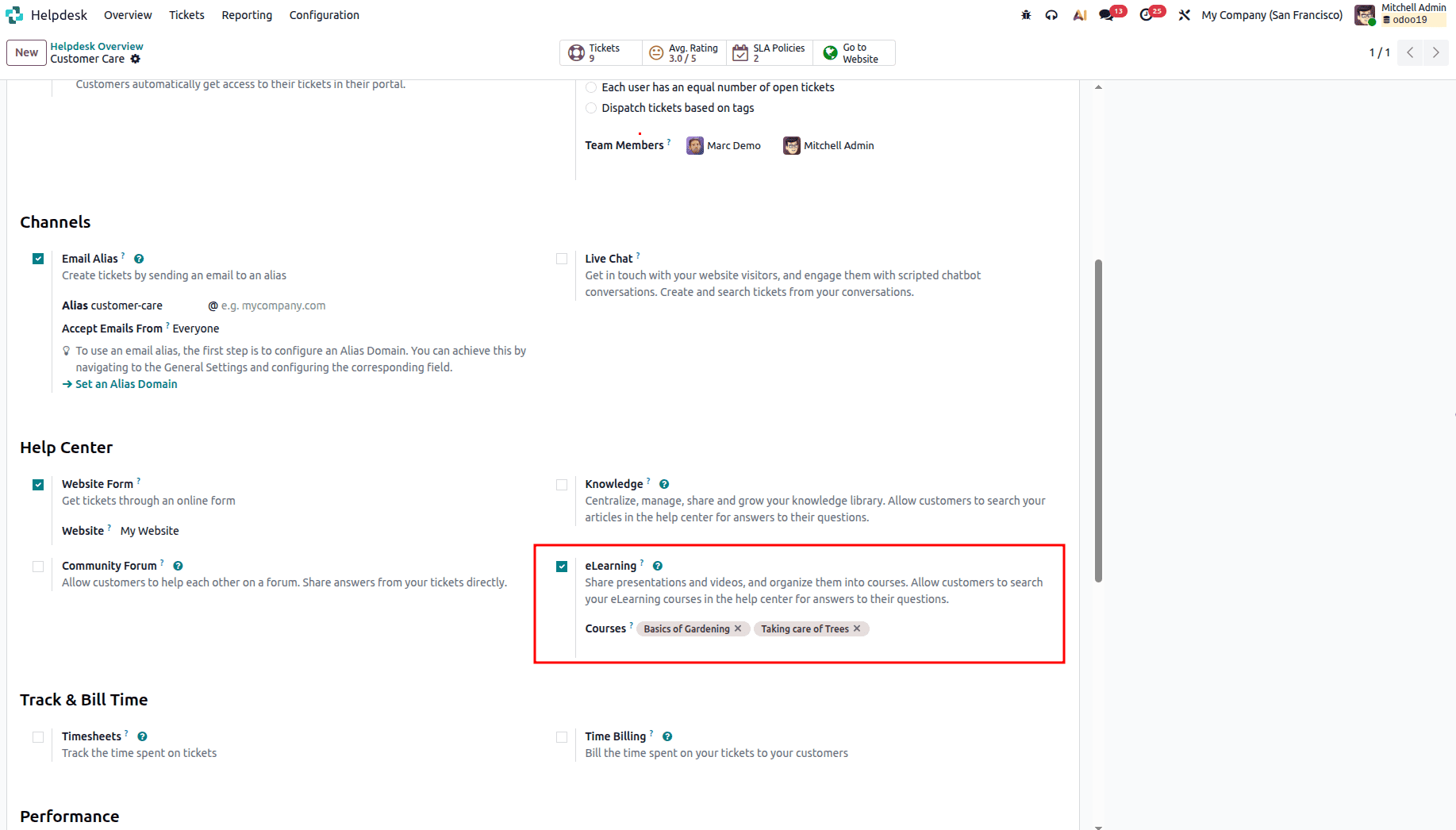
This enables customers to have access to eLearning material such as tutorials, videos, and presentations through the Help Center. After enabling the function, the Courses section will be enabled, and you will be able to connect one or several eLearning courses to your Helpdesk team. Choose a course from the available list, or create a new one by entering its name. Adding several courses to the Helpdesk team will allow your customers to use the most suitable courses for their needs.
A new course can be made directly from here simply by typing the title of the course here. A new window will open, as shown below, allowing you to configure all the course parameters.
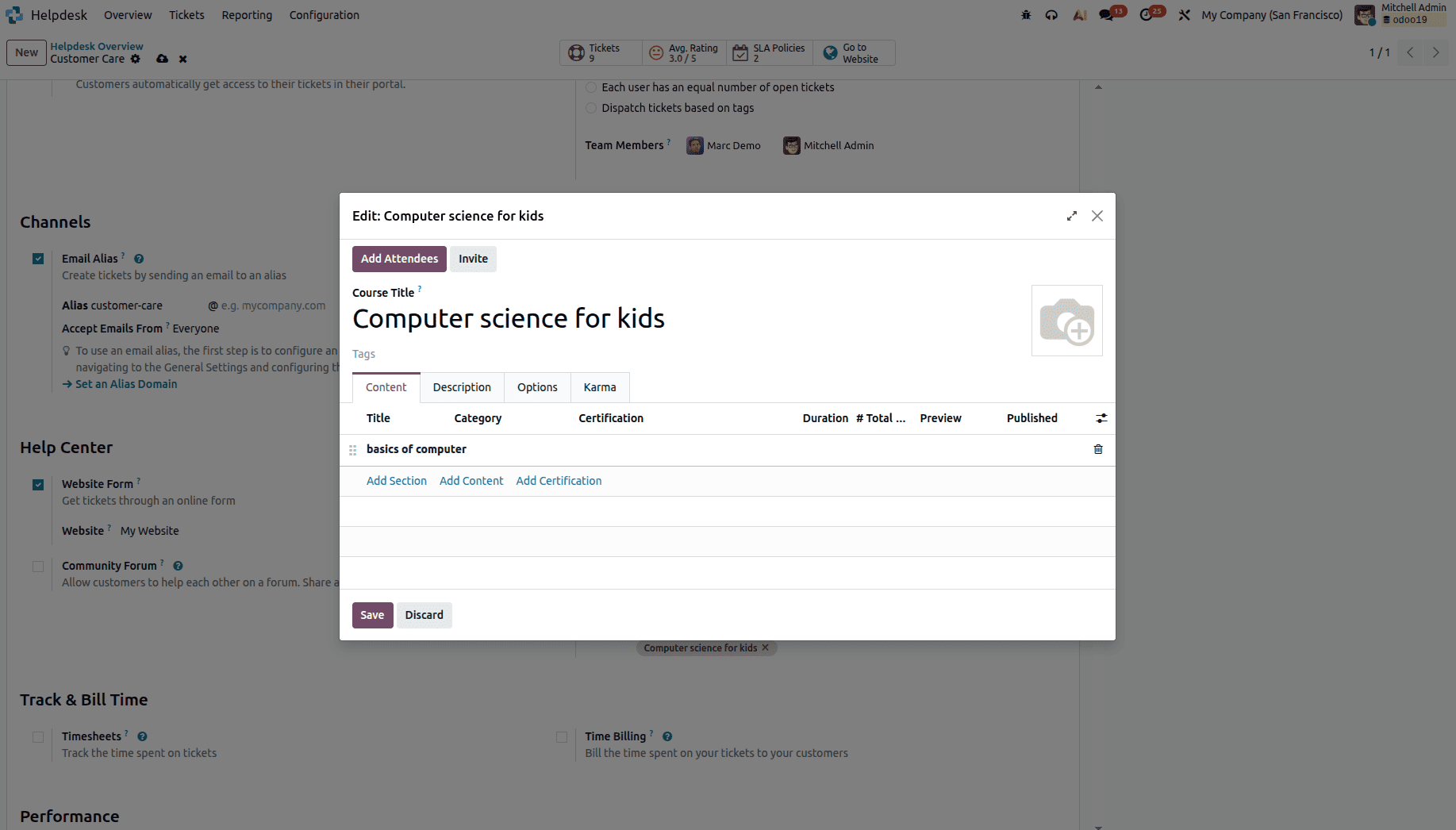
After completing the configuration, click Save to apply your settings.
Now, move to the Add Content option to add some learning content to the course. The following is the window for content creation.
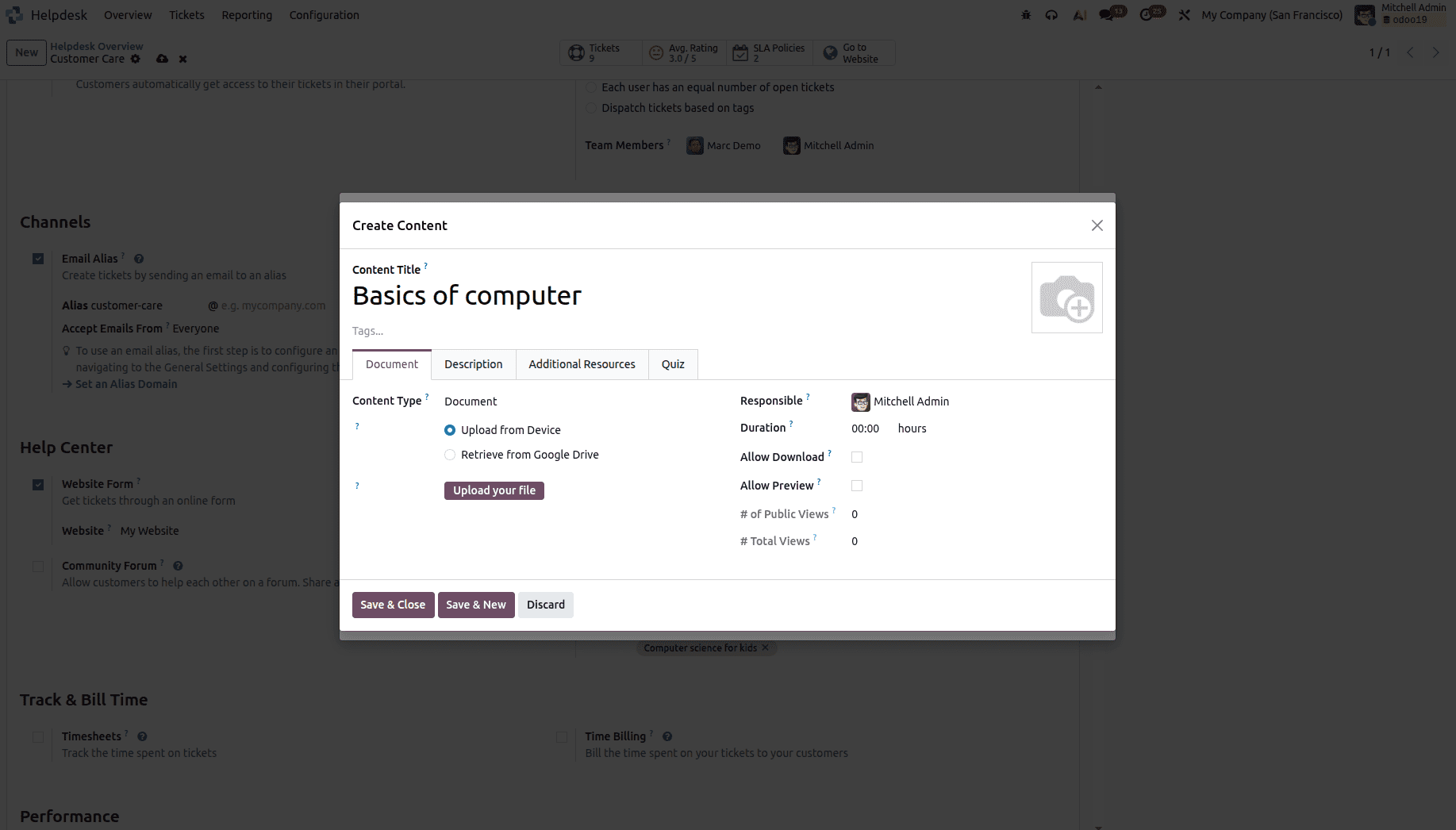
Here, you are free to add a lot of different educational resources like documents, videos, presentations, and even quizzes. Choose the correct Content Type and upload a file from your PC or import it from Google Drive. Moreover, you can specify other information like content duration, author of the resource, how many times you can download it, and even set a preview option. In addition, the provided tabs allow you to add more sources, describe the content, or make quizzes.
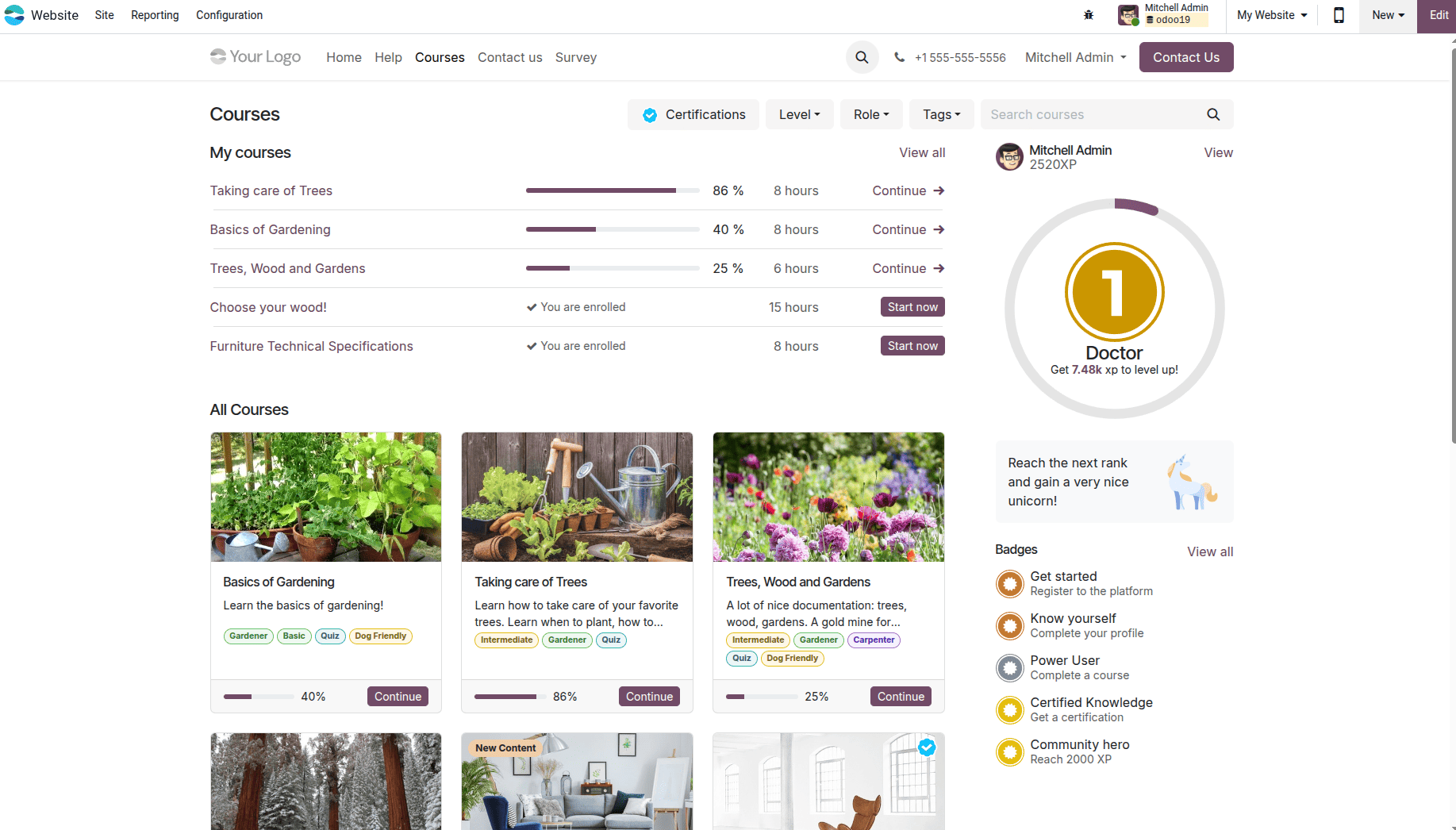
The moment the courses are put up online, the customers are able to access them right away using the Courses option in the website menu. This particular page is used by people who want to go through the available training courses.
Help Center Overview
The Help menu provides users with easy access to the Help Center, offering a range of self-service resources for quick assistance.
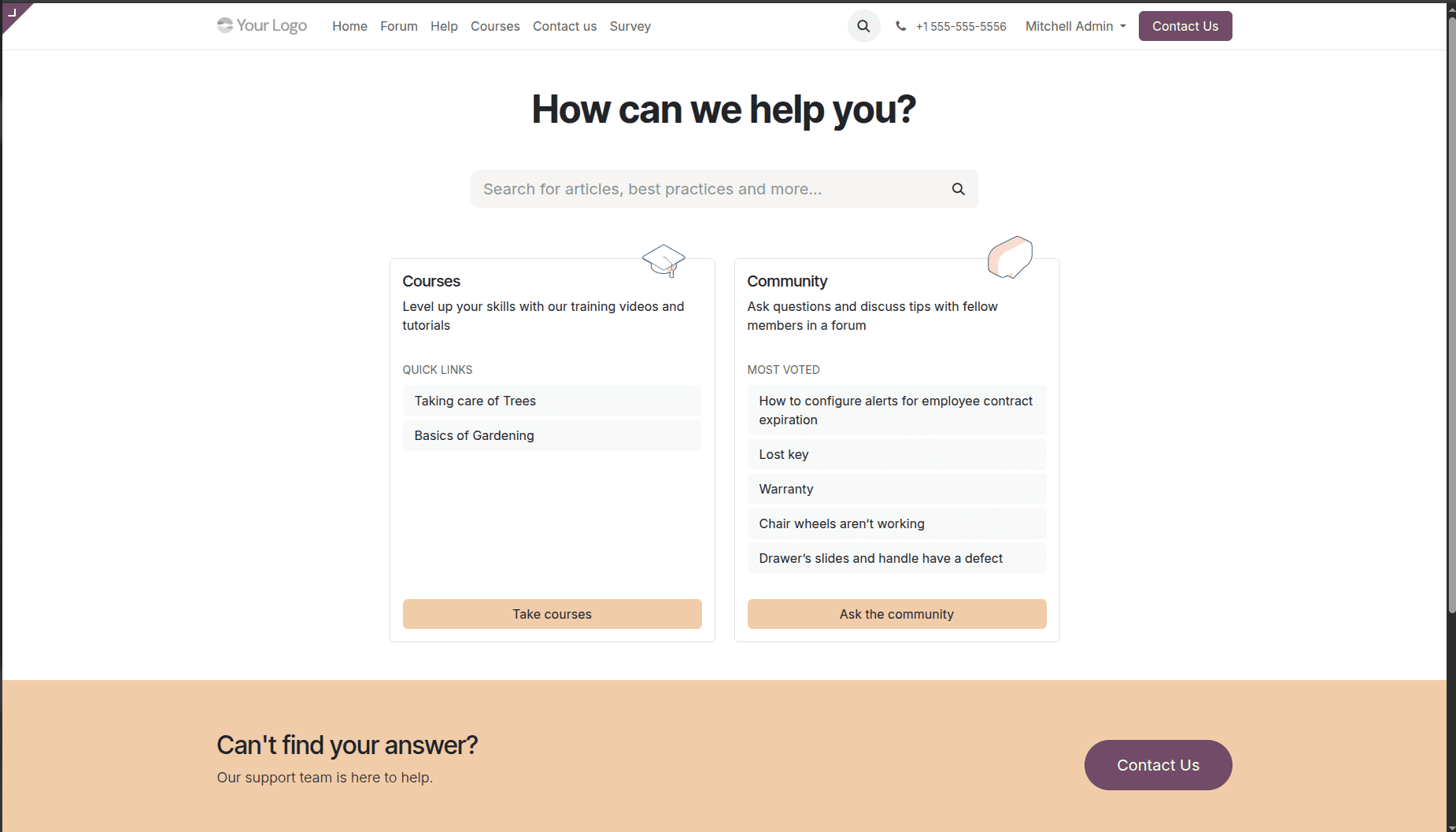
The Help Center is a combination of community forums and e-learning tools into one system. This is where you can join the discussions, check popular topics, and have training sessions, as well as videos and tutorials. Customers can easily find answers and learn any time they want from this platform.
Go to the Community page.
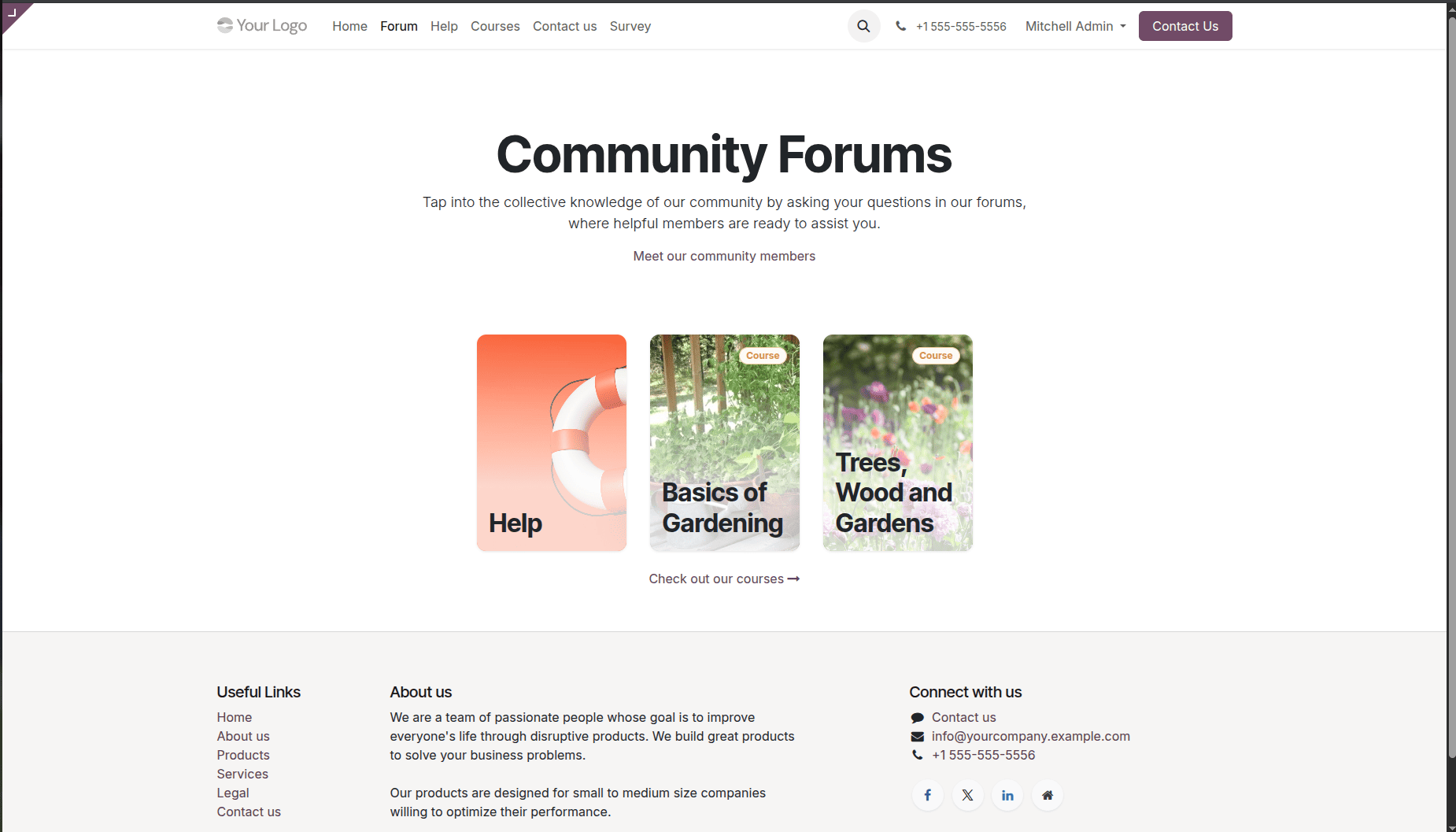
There are two discussion areas that can be utilized by users of the help center. First, there is the Help Forum, where users may pose their general queries as well as engage in discussions. Second, there are the course-specific forums, each associated with a particular eLearning course. Through these forums, learners have the chance to ask any queries related to the specific course as well as exchange information with other participants.
Opening the Help Forum displays a list of questions posted by users.
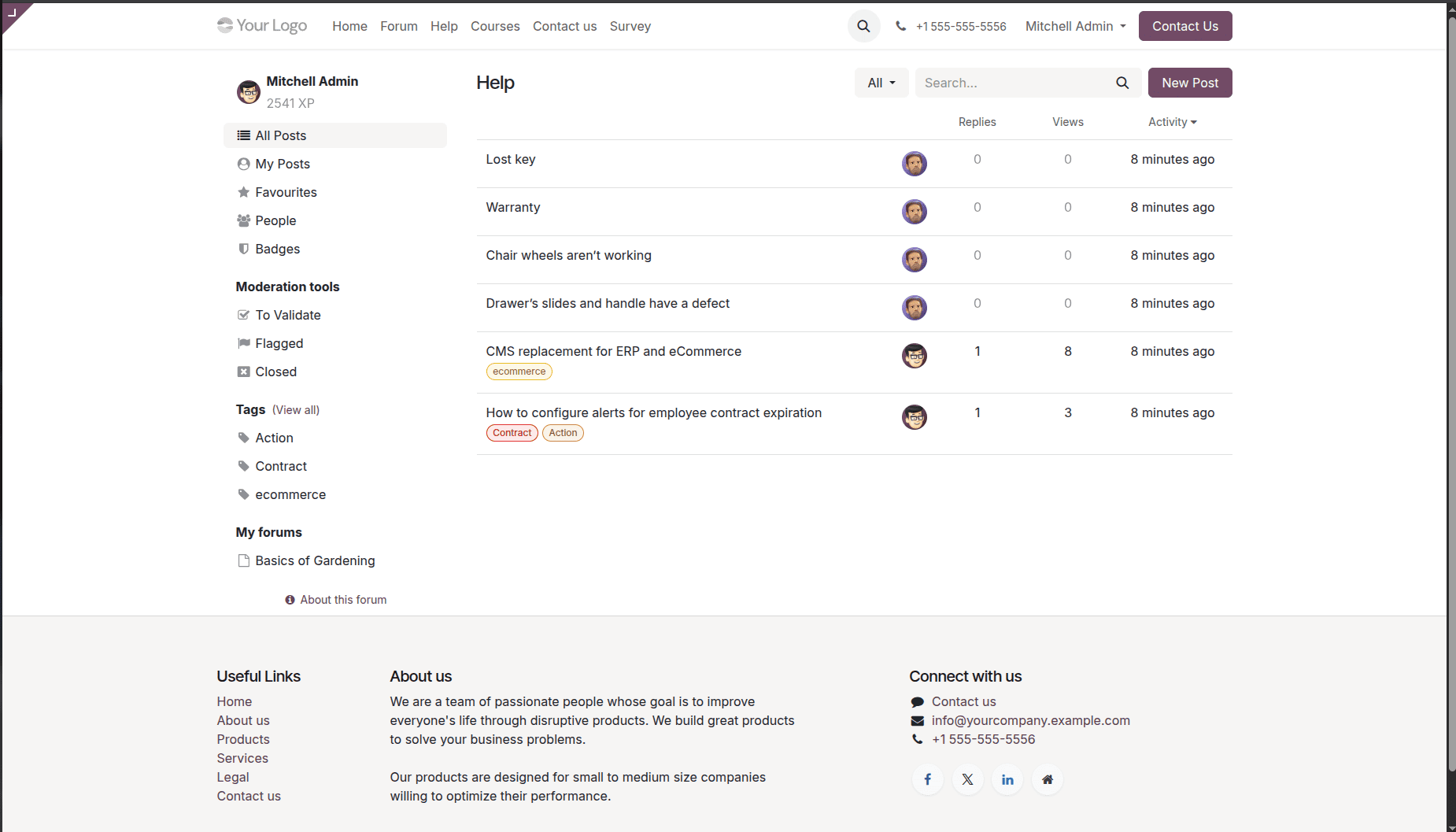
In the Help Forum, the user can go through the questions asked by other users, answers to these questions, as well as solutions that other members of the community have suggested. There are also some tips, troubleshooting methods, and good practices mentioned by other users in these discussions. If you have a question, click the New Post button to submit it and receive assistance from the community.
Create Helpdesk Tickets Directly from Course Forums
Odoo also provides an opportunity for the learner to create a ticket from within a course forum any time there is an issue. When you are on a conversation thread within a course forum, you will click on the three-dot menu to click on Create Ticket, as seen below. This will convert your discussion into a Helpdesk ticket.
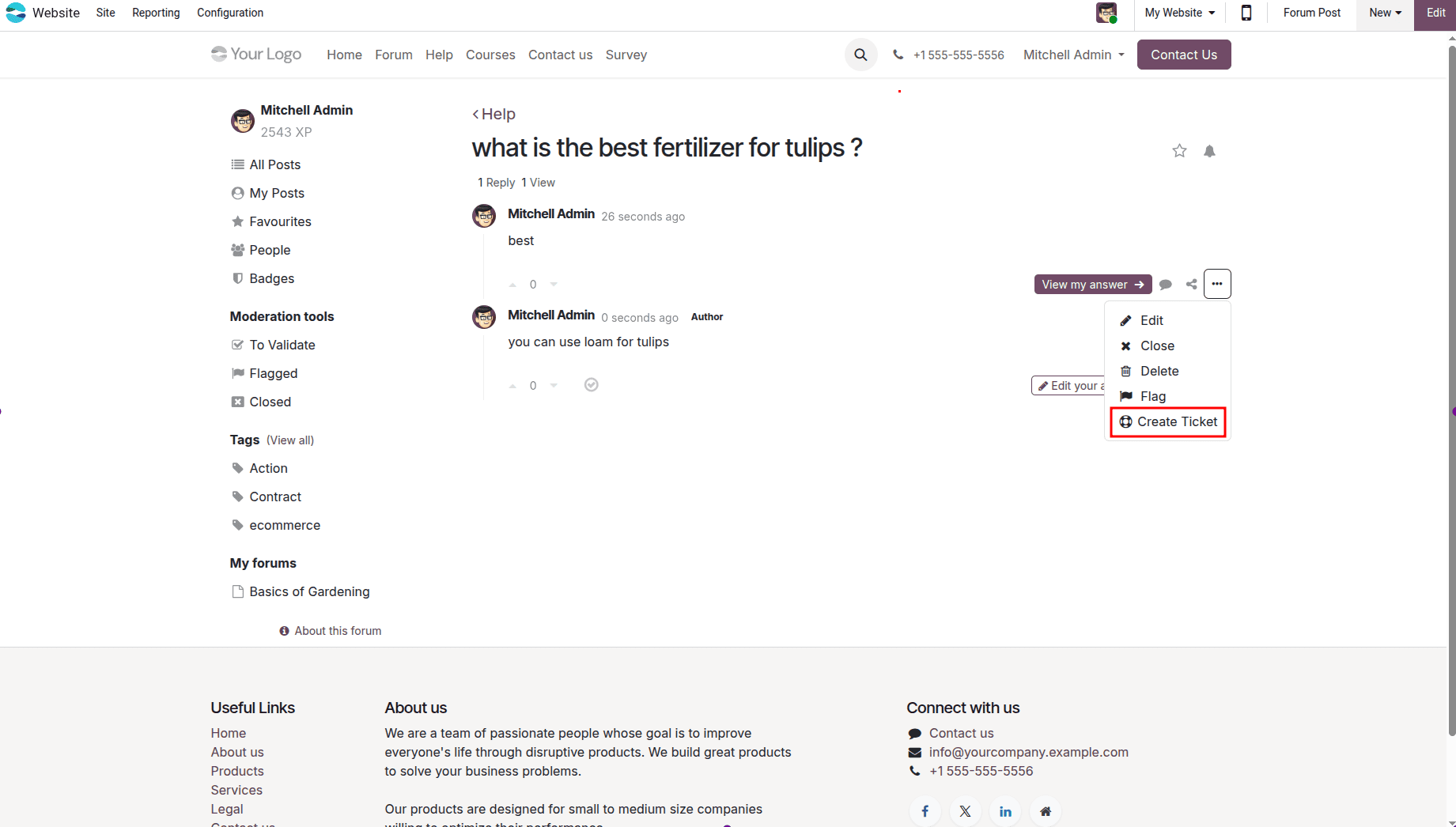
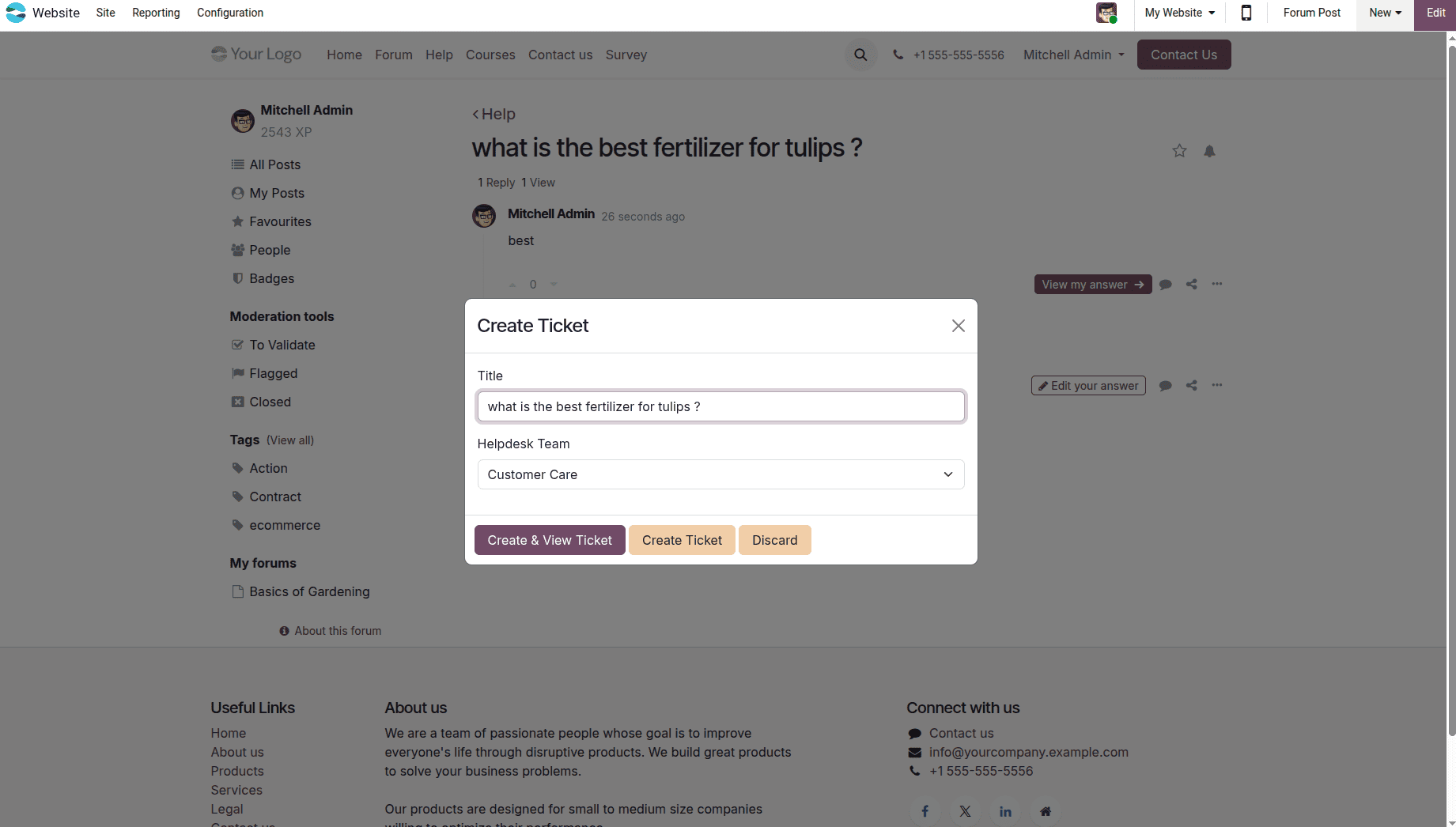
By clicking on Create Ticket, a new window will open for creating a new ticket. In case there is more than one Helpdesk team associated with the course, then select the right Helpdesk team; otherwise, it is automatically selected for you.
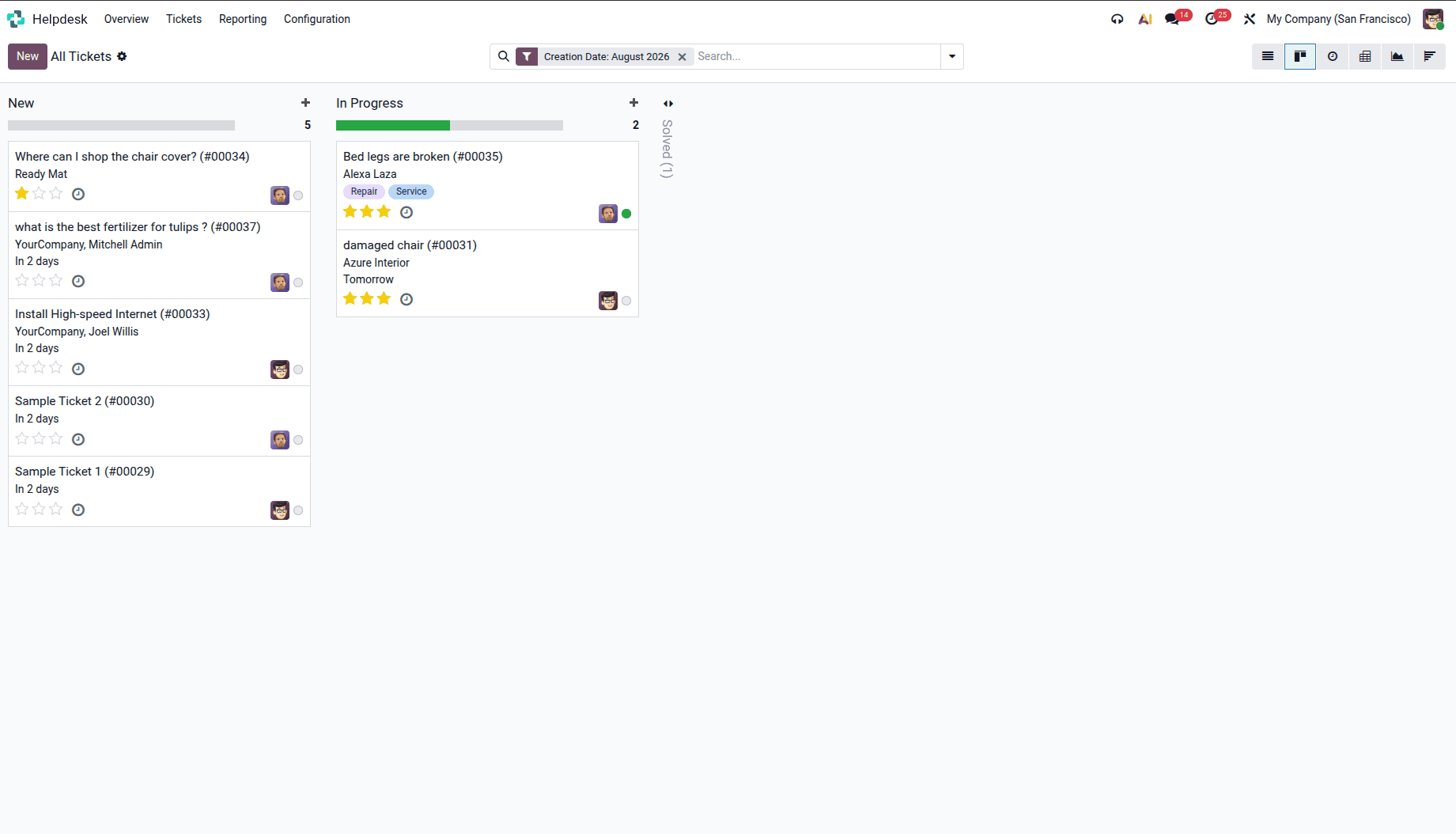
Once created, the ticket will be listed under the Unassigned section of the appropriate Helpdesk team in the Helpdesk dashboard.
The integration of eLearning with Helpdesk in Odoo 19 allows a holistic self-service support approach that is designed for both learners and customers. With the use of training courses, discussion forums, and the ability to generate Helpdesk tickets seamlessly, users will be able to get answers to their queries, interact with the community, and make requests for support anytime. From the perspective of the support team, this feature makes the process easier to manage and facilitates communication.
To read more about How to Configure Helpdesk for e-learning course in Odoo 18, refer to our blog How to Configure Helpdesk for e-learning course in Odoo 18.