Managing employee meals efficiently is an important part of workplace administration, especially in organizations with large teams or multiple shifts. The Odoo 19 Lunch module in Odoo provides a centralized system to simplify lunch planning, ordering, and expense tracking. It allows employees to pre-order meals through a user-friendly interface while administrators manage menus, vendors, and schedules in real time. The module helps HR and office managers control food budgets, apply company offers, and ensure transparency in meal consumption. It also integrates with other Odoo applications, such as Employees and Accounting, enabling automatic payroll deductions. With features like customizable menus, order cut-off times, and reporting dashboards, organizations can reduce food waste and improve employee satisfaction. By digitizing the lunch management process, the module eliminates manual coordination, minimizes errors, and ensures a smooth dining experience for employees across departments, overall enhancing operational efficiency and workplace morale significantly every day.
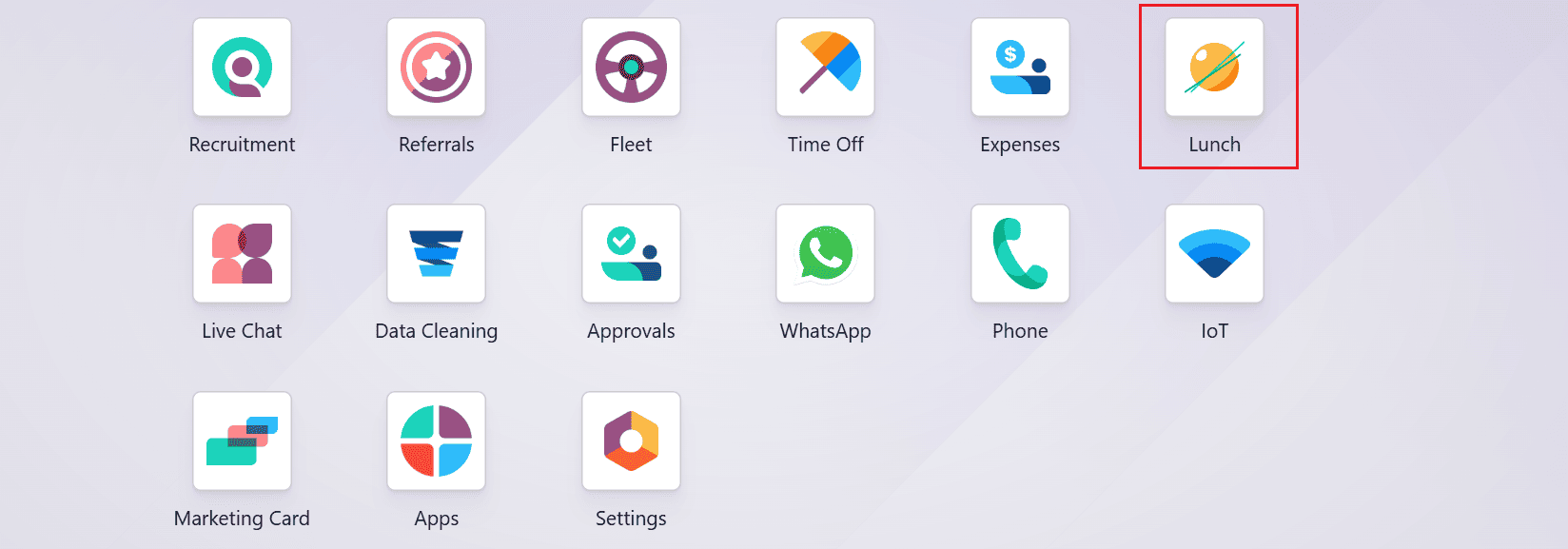
Open the Lunch module from the Odoo 19 dashboard.
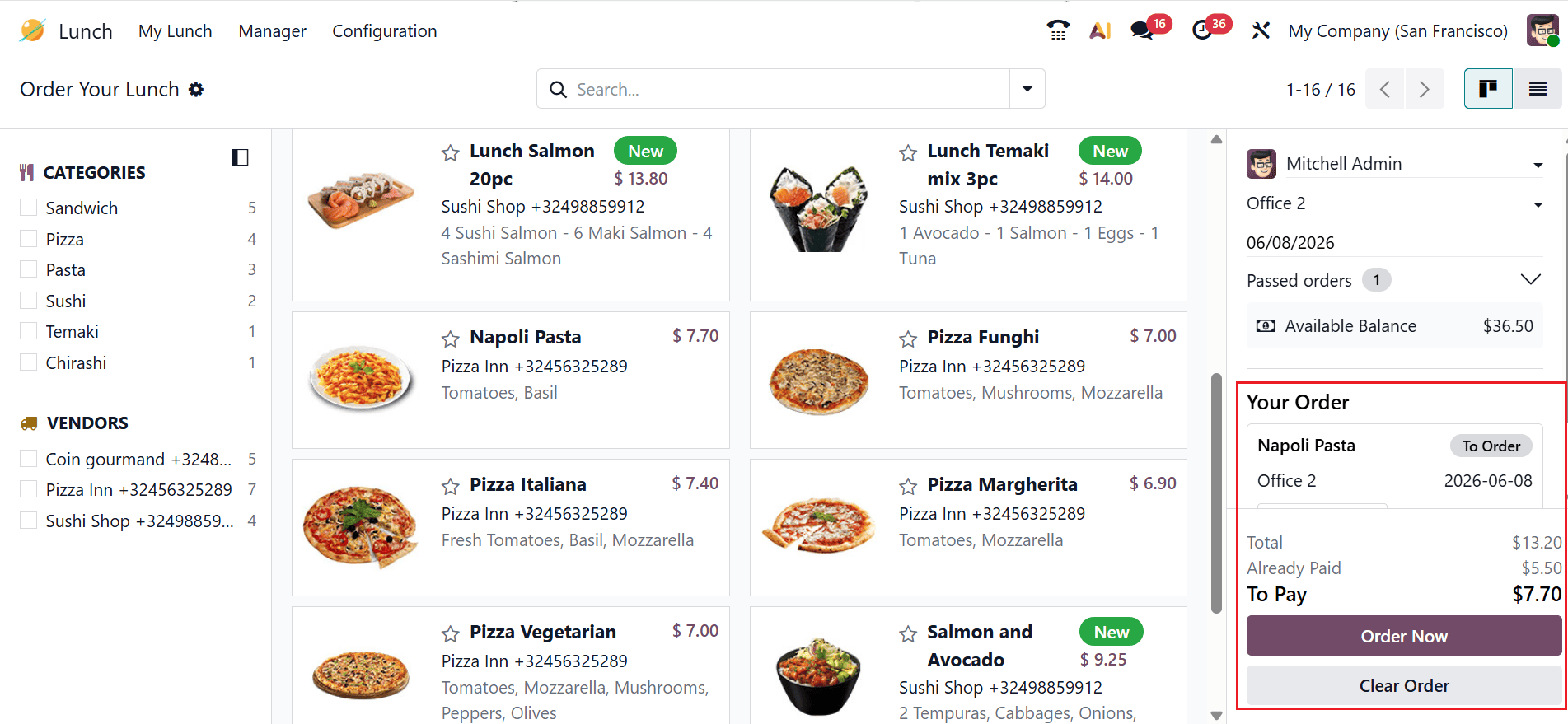
The Lunch module provides three menu options: My Lunch, Manager, and Configuration. The main dashboard displays the available food items arranged in a kanban view. The left side of the screen shows the food items arranged by Categories. Under the Vendors section, you can see the names of the sellers supplying the product. The right side of the screen displays the order profile with details such as name, address, date, received orders, and balance amount.
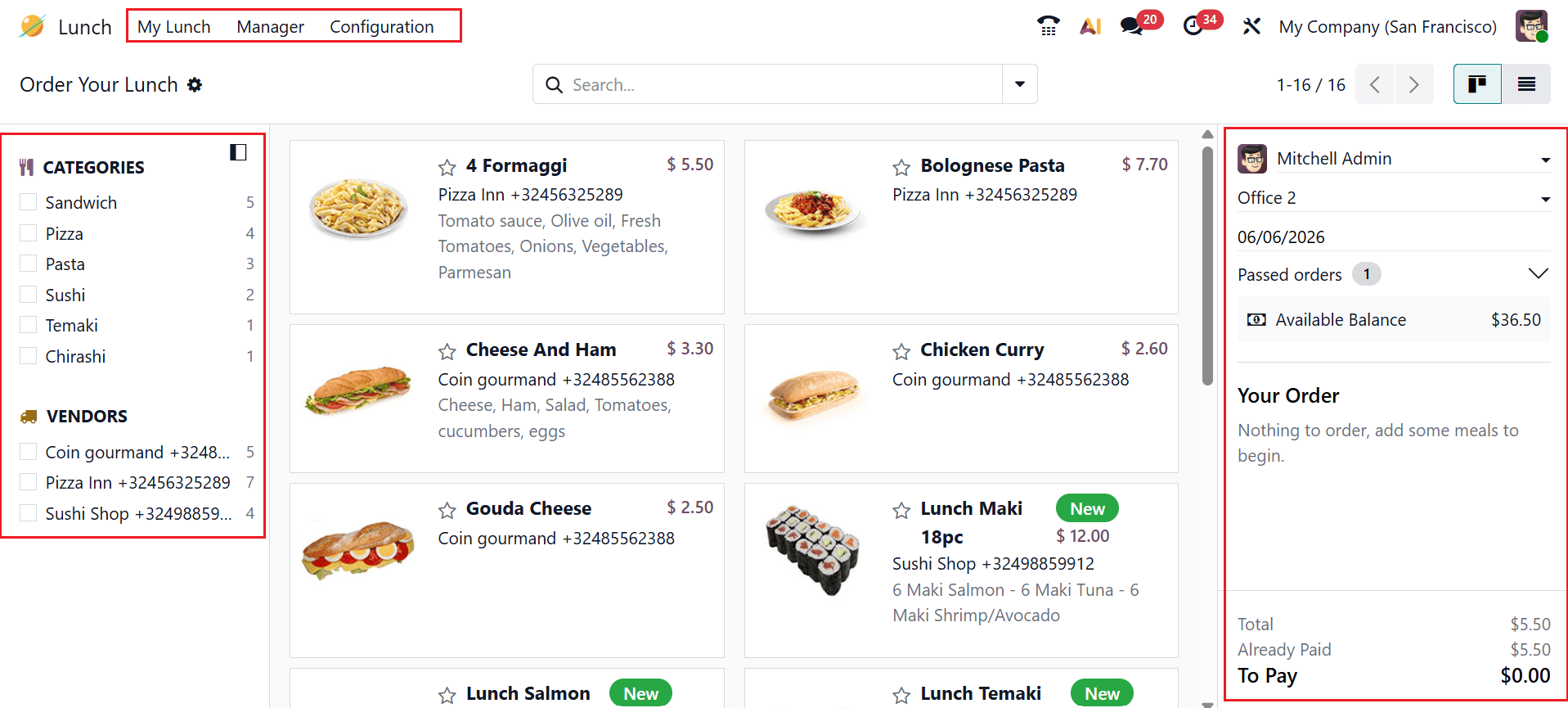
1. My Lunch:
In Odoo 19, the My Lunch menu is the section where employees can view available meals, place lunch orders, and manage their daily food selections provided by the company or vendors. The My Lunch menu includes the following options: New Order, My Order History, and My Account History.
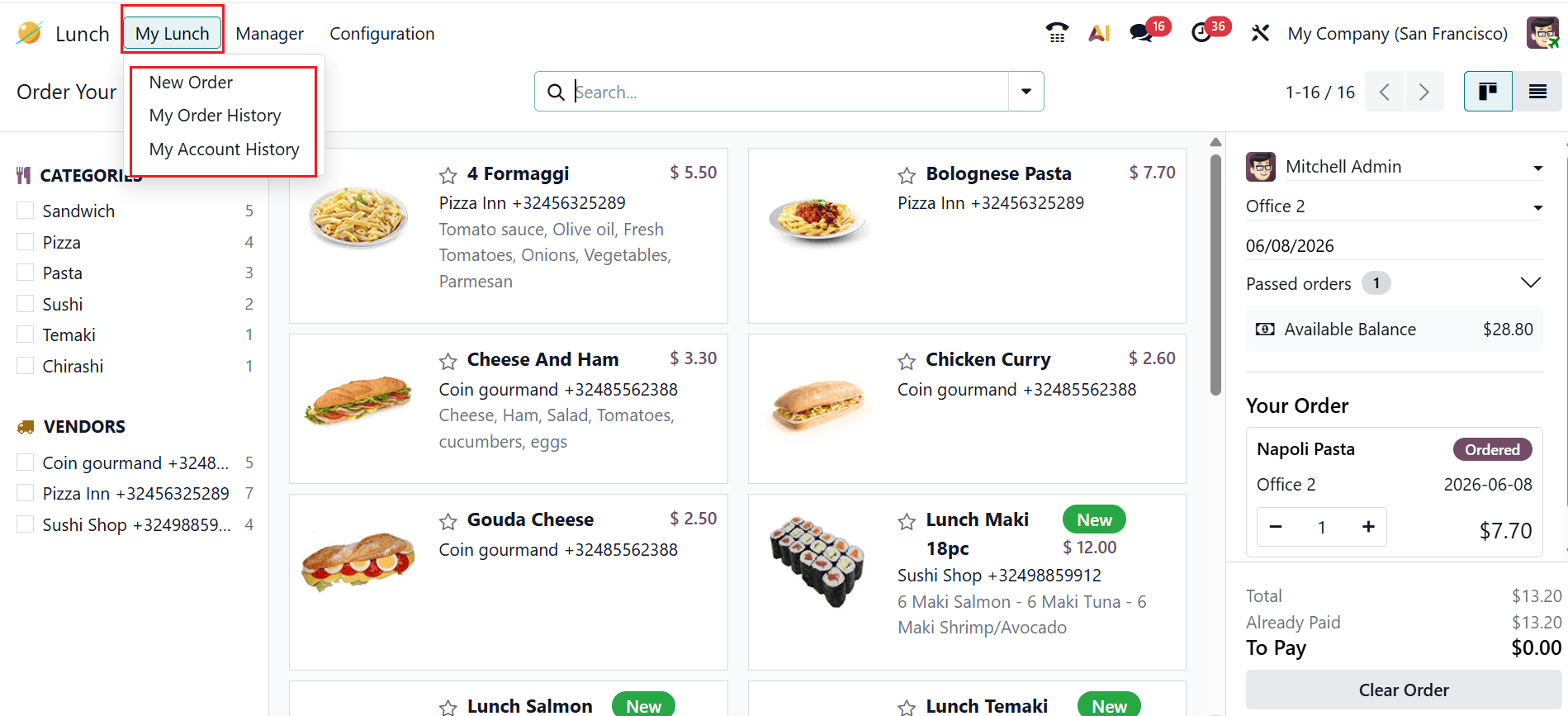
1.1 New Order:
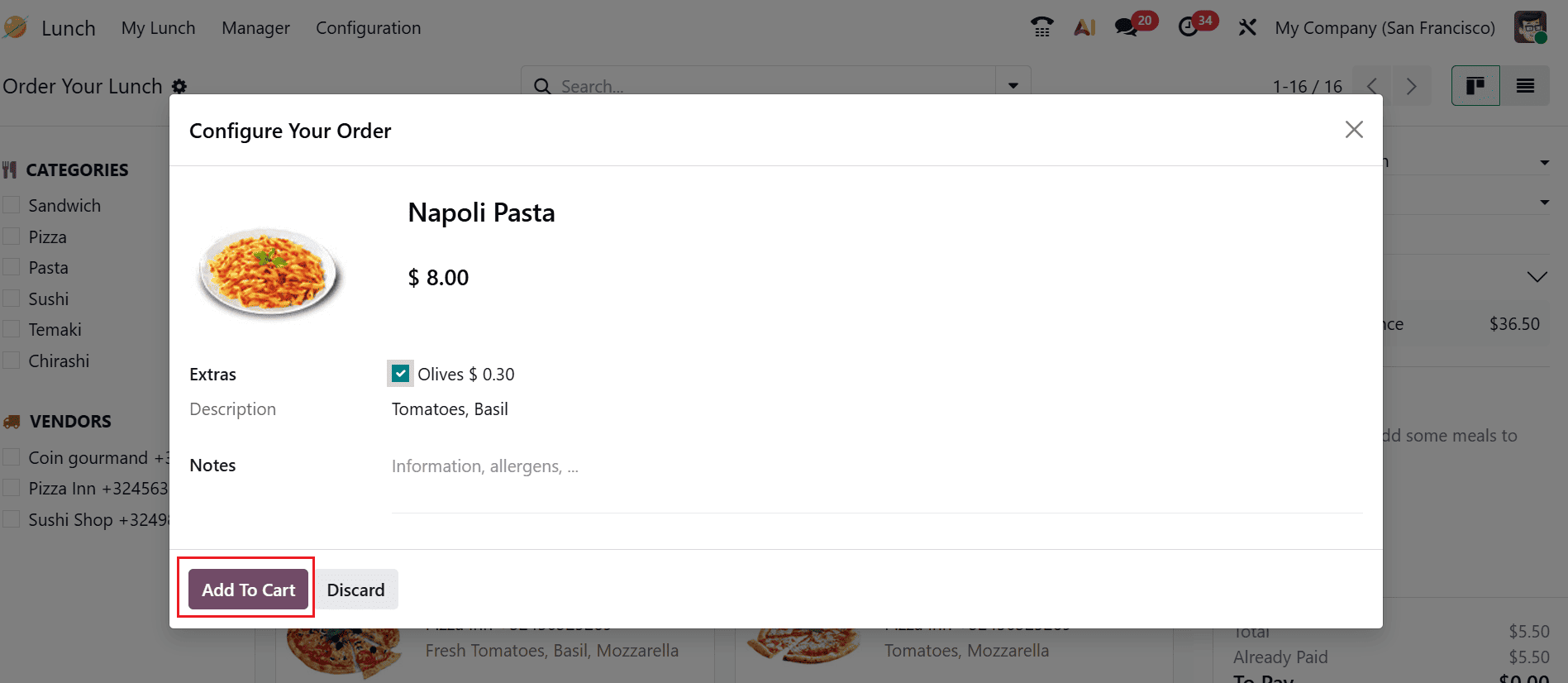
In Odoo 19, a New Order option in the Lunch module lets an employee pick meals from the available menu and submit a fresh lunch request for processing. When you select the meal from the menu, a pop-up screen will appear where you can configure your order by adding details such as Extras, Description, and Notes. Then, click on the Add To Cart button.
Then, you can see the order details on the right side of the dashboard. You can review your order by checking the total amount, the amount already paid, and the remaining balance to be paid. Once everything looks correct, click Order Now to confirm and place your order. If you wish to modify or cancel it, simply select Clear Order to reset your selection.
1.2 My Order History:
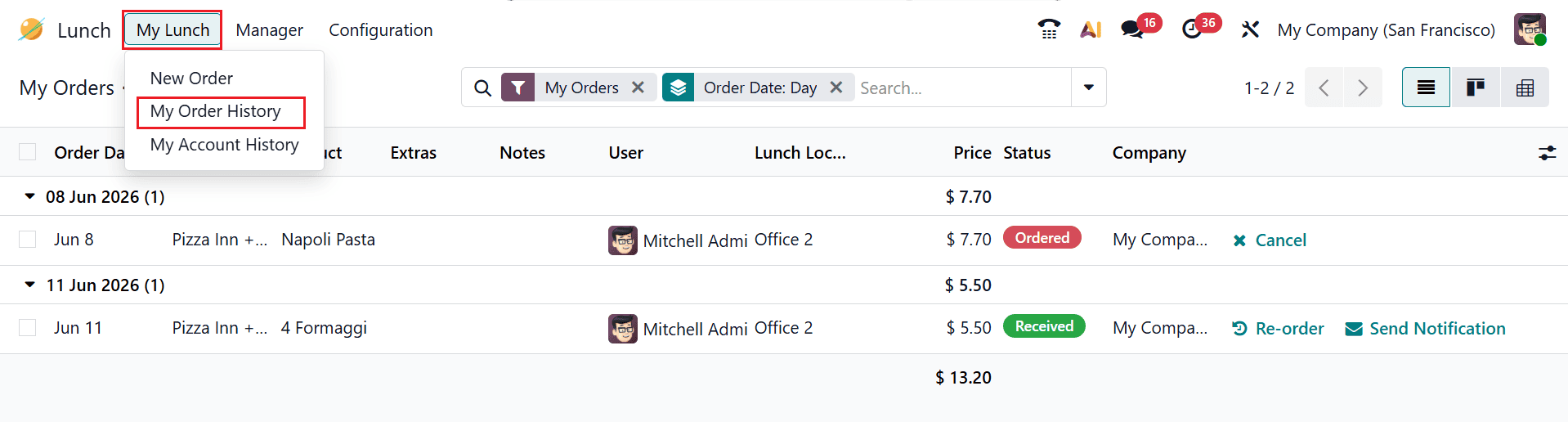
My Order History allows employees to review all their past lunch orders in one place. It provides comprehensive order details, including the Order Date, Vendor, Product, Extras, Notes, User, Lunch Location, Price, Status, and Company, enabling users to easily track and reference their lunch order records.
You can manage your lunch orders by using Cancel to remove an existing order, Reorder to quickly place a new order based on a previous one, and Send Notification to inform vendors about order updates.
1.3 My Account History:
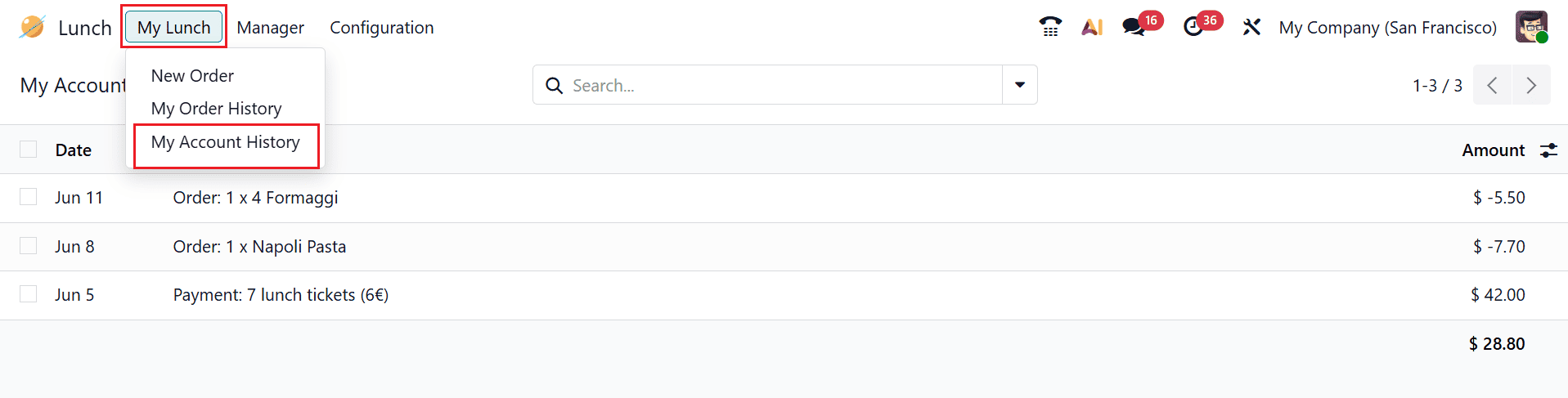
My Account History enables employees to review all previous transactions associated with their lunch account. The section provides transaction details such as the Date, Description, and Amount, helping users monitor their account activity and financial records.
2. Manager:
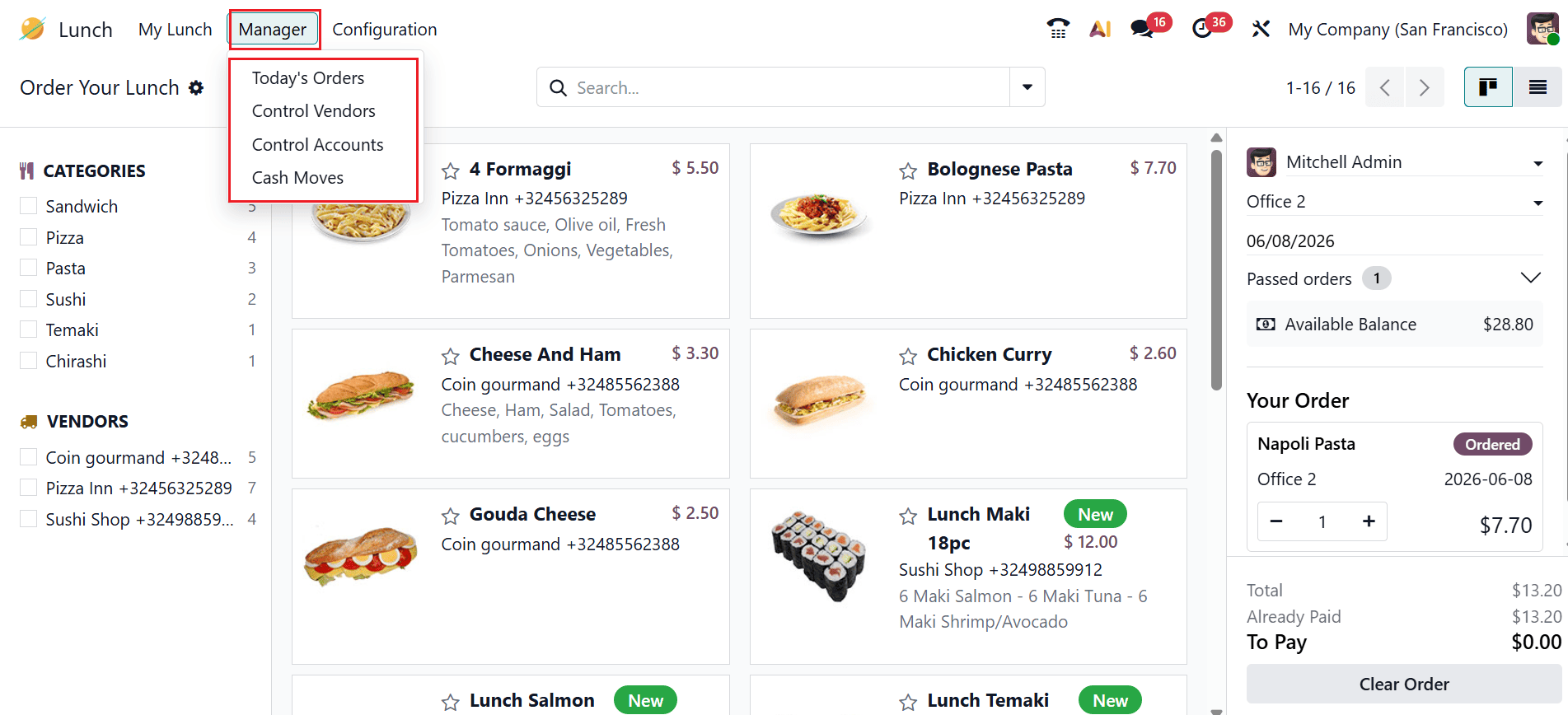
In the Odoo 19 Lunch module, the Manager Menu is the control panel where managers configure meals, manage vendors, monitor orders, and oversee employee lunch activities. Under the Manager menu, users can access four options: Today’s Orders, Control Vendors, Control Accounts, and Cash Moves.
2.1 Today’s Orders:
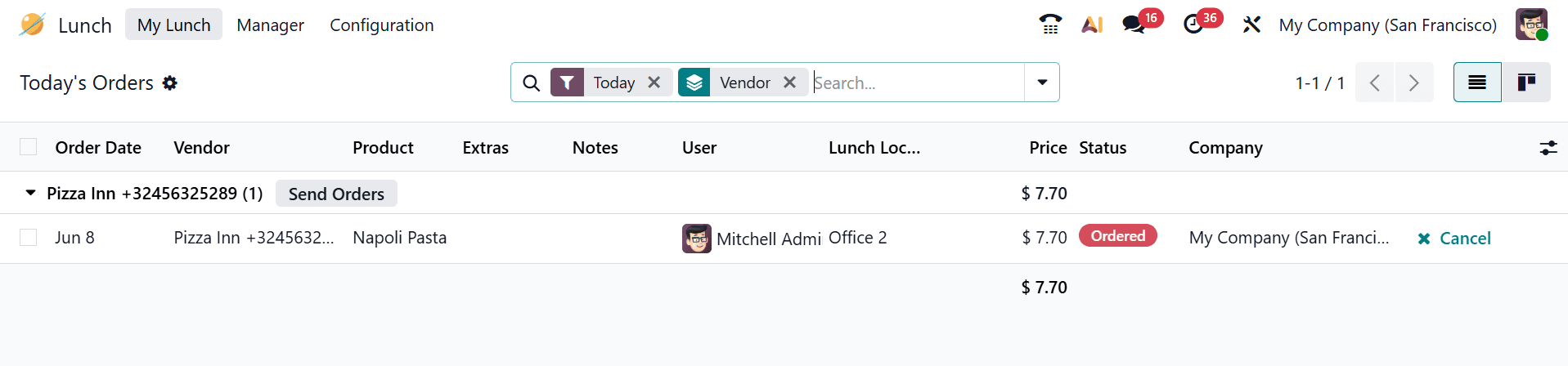
In the Odoo 19 Lunch module, Today’s Orders under the Manager Menu displays all employees’ lunch orders for the day, allowing managers to review, organize, and manage meal preparation and delivery efficiently.
2.2 Control Vendors:
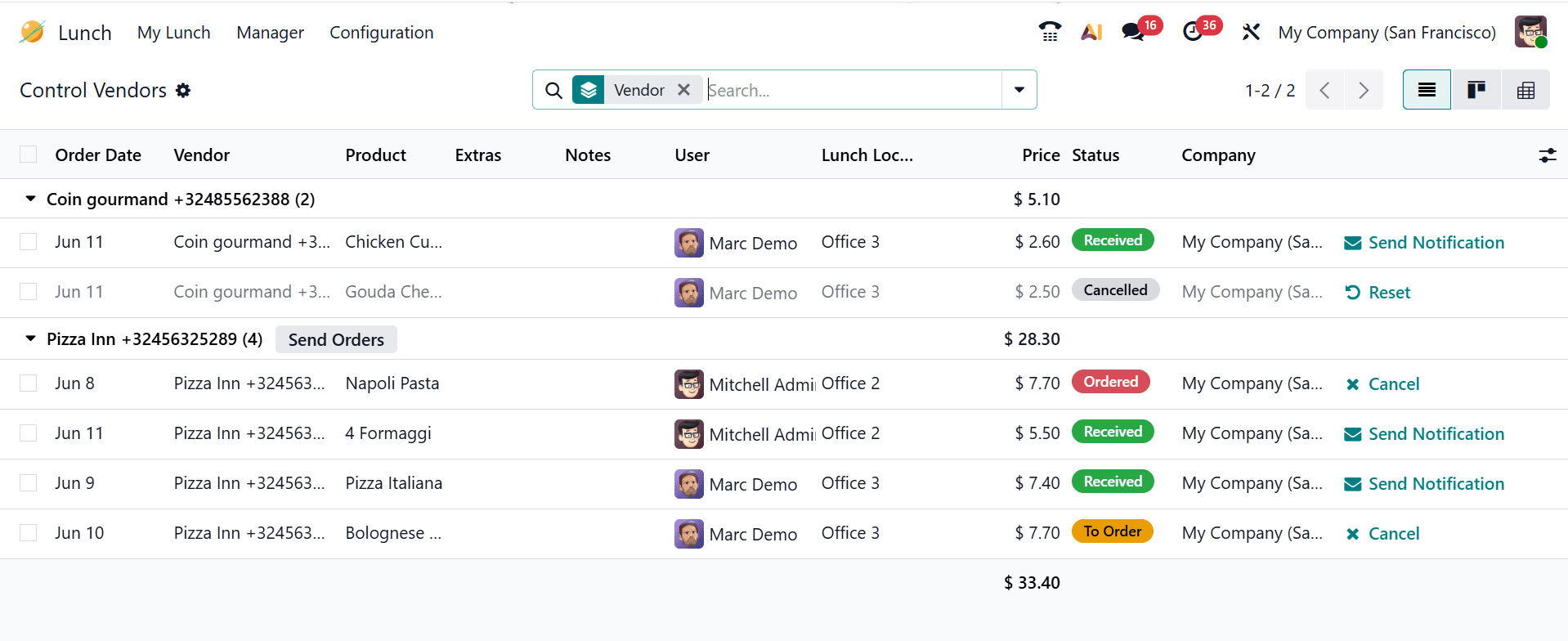
In Odoo 19 Lunch module, Control Vendors allows managers to manage food vendors by adding, updating, or monitoring their details, menus, and service performance.
2.3 Control Accounts:
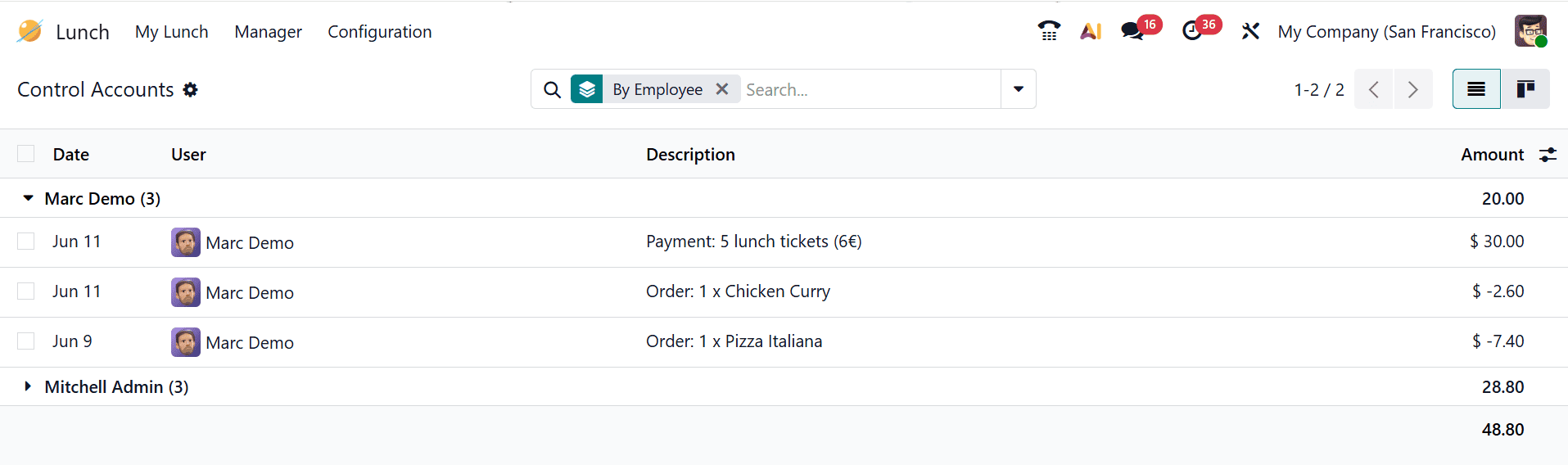
In the Odoo 19 Lunch module, Control Accounts allows managers to manage employee lunch accounts by monitoring balances, payments, and financial transactions related to lunch orders.
2.4 Cash Moves:
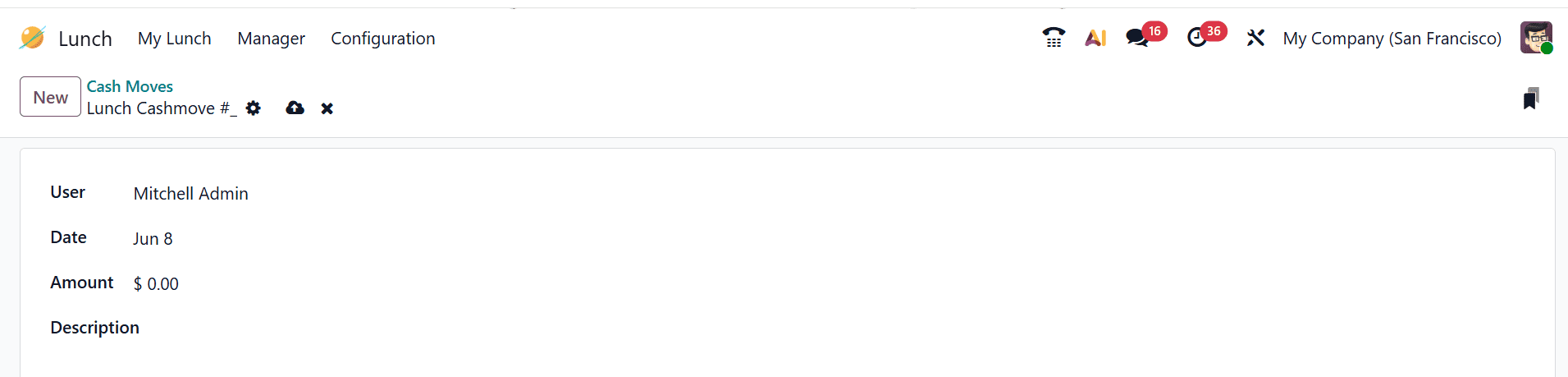
In the Odoo 19 Lunch module, Cash Moves allow managers to track and manage all cash inflows and outflows related to employee lunch payments and transactions. To create a new cash move, click on the New button.
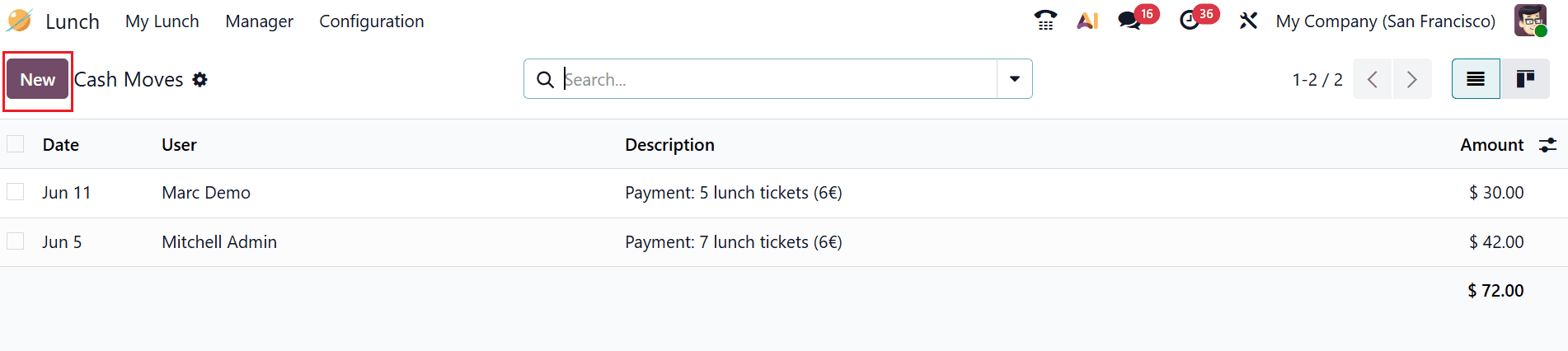
Here, you can create a new cash move by specifying the user, date, amount, and a description of the transaction.
3. Configuration:
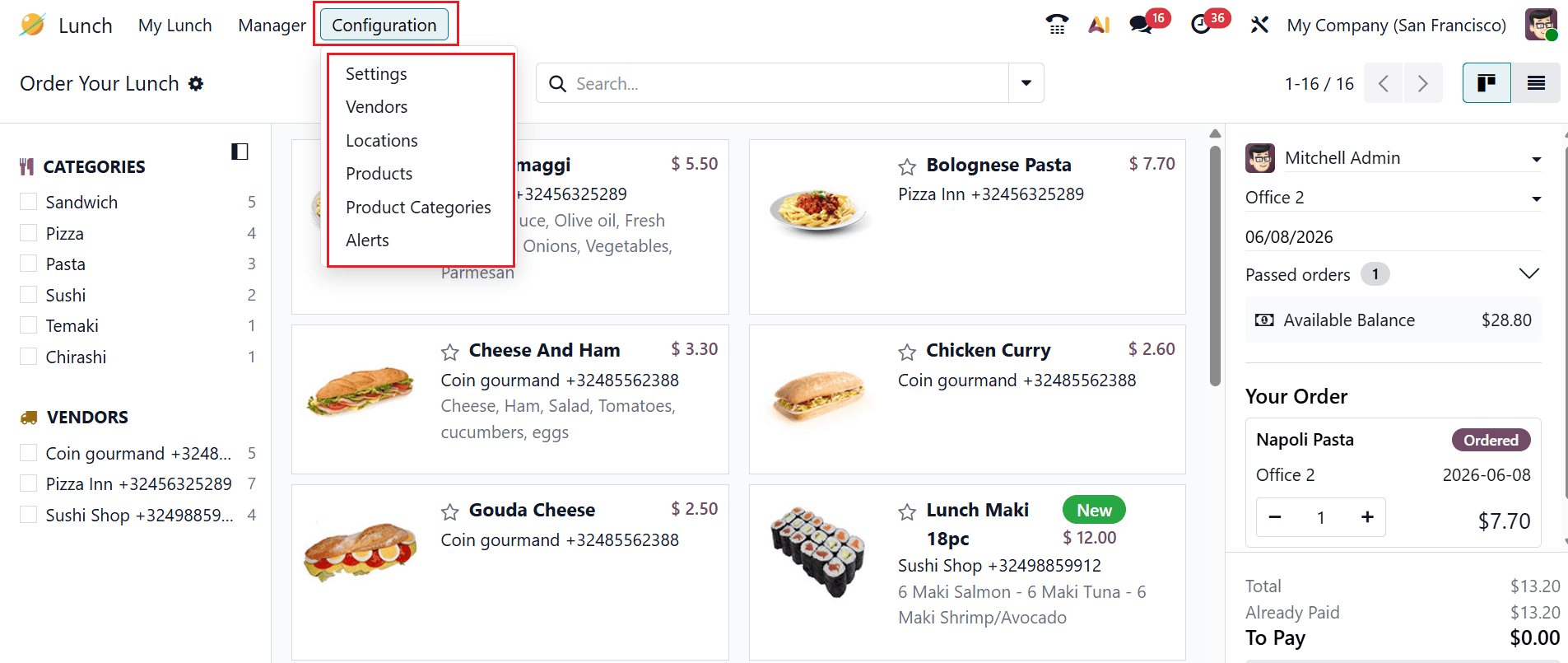
Under the Configuration menu, users can access six options: Settings, Vendors, Locations, Products, Product Categories, and Alerts.
3.1 Settings:
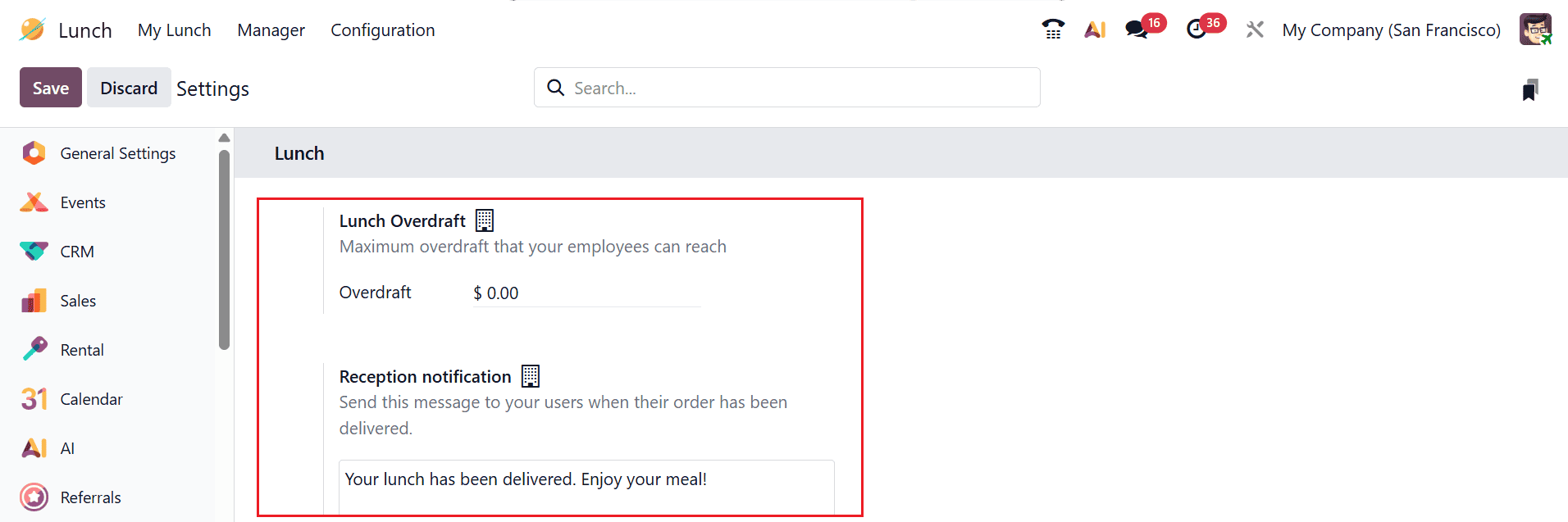
The Settings option consists of two options:
- Lunch Overdraft: Allows you to set the maximum credit limit an employee can use to place lunch orders.
- Reception notification: Enables alerts to inform users when their meal has been delivered.
3.2 Vendors:
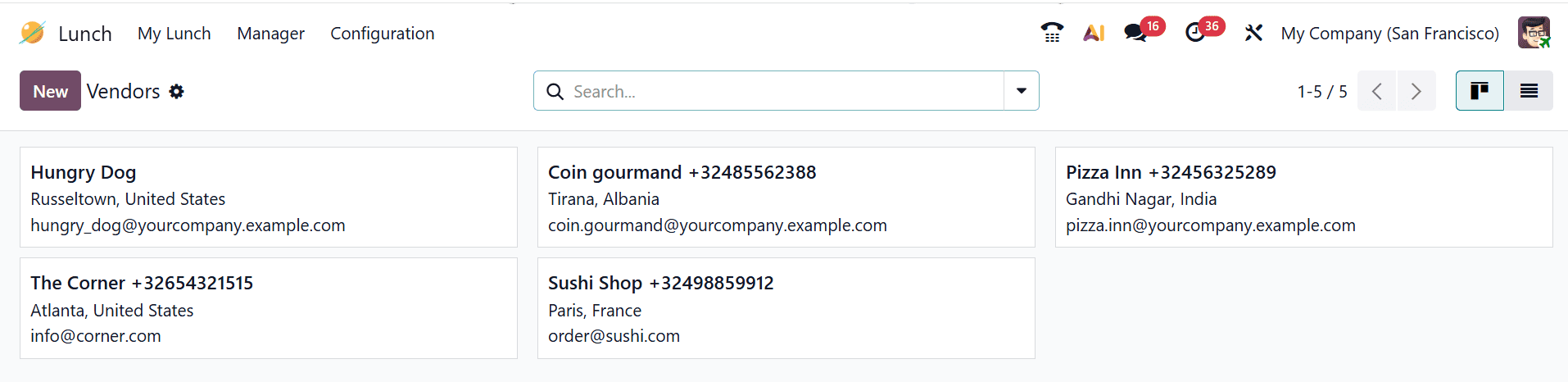
In the Odoo 19 Lunch module, Vendors are options where administrators set up and configure food suppliers along with their details and available meal options for the lunch service.
The Vendors dashboard displays each supplier as an individual card, and you can click the New button to add a new vendor entry.
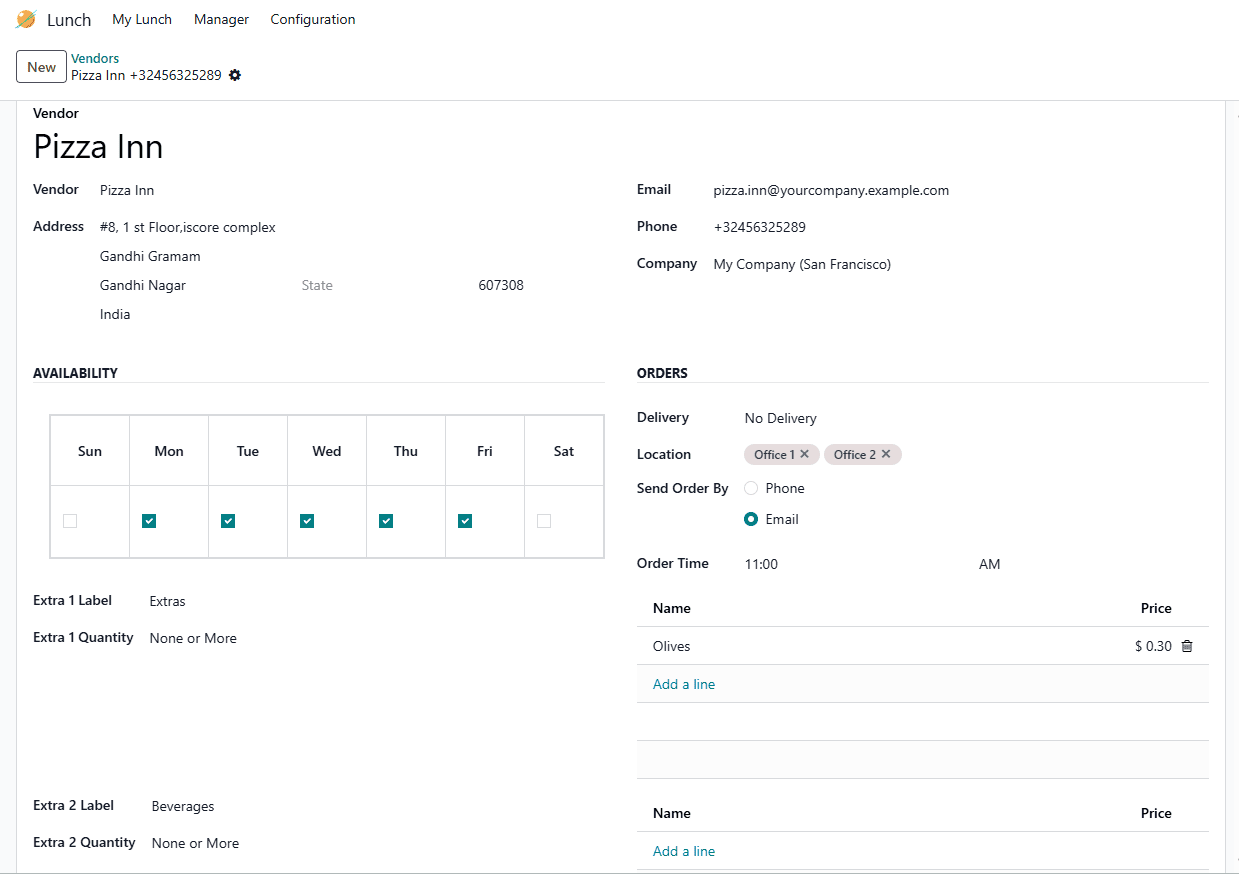
Here, you can configure the vendor by selecting a vendor from the Contacts app and add details such as address, email, phone, and company. In the Availability section, you can mark the days of the week when the vendor is available. Under Orders, you can specify whether the vendor supports delivery or pickup, choose allowed locations for ordering, and set the order method as phone or email. Additionally, you can define Extra items by creating labels, setting quantity rules, and adding individual extra options with their names and prices using the Add a line option.
3.3 Locations:
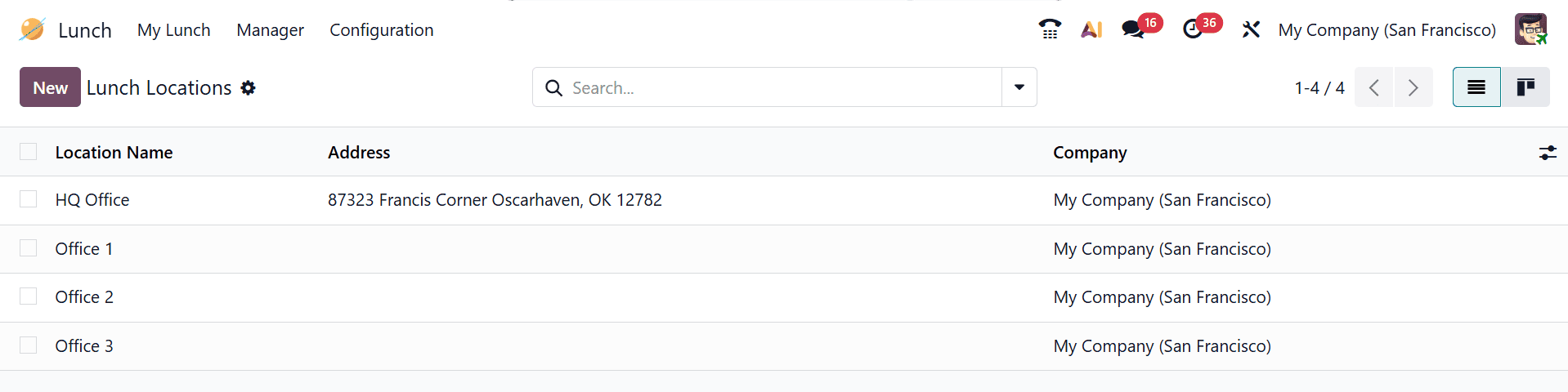
In the Odoo 19 Lunch module, the Locations option is where you define and manage the places where meals are delivered or employees can collect their lunch orders. To add a new location, click on the New button and add the details such as Location Name, Address, and Company.
3.4 Products:
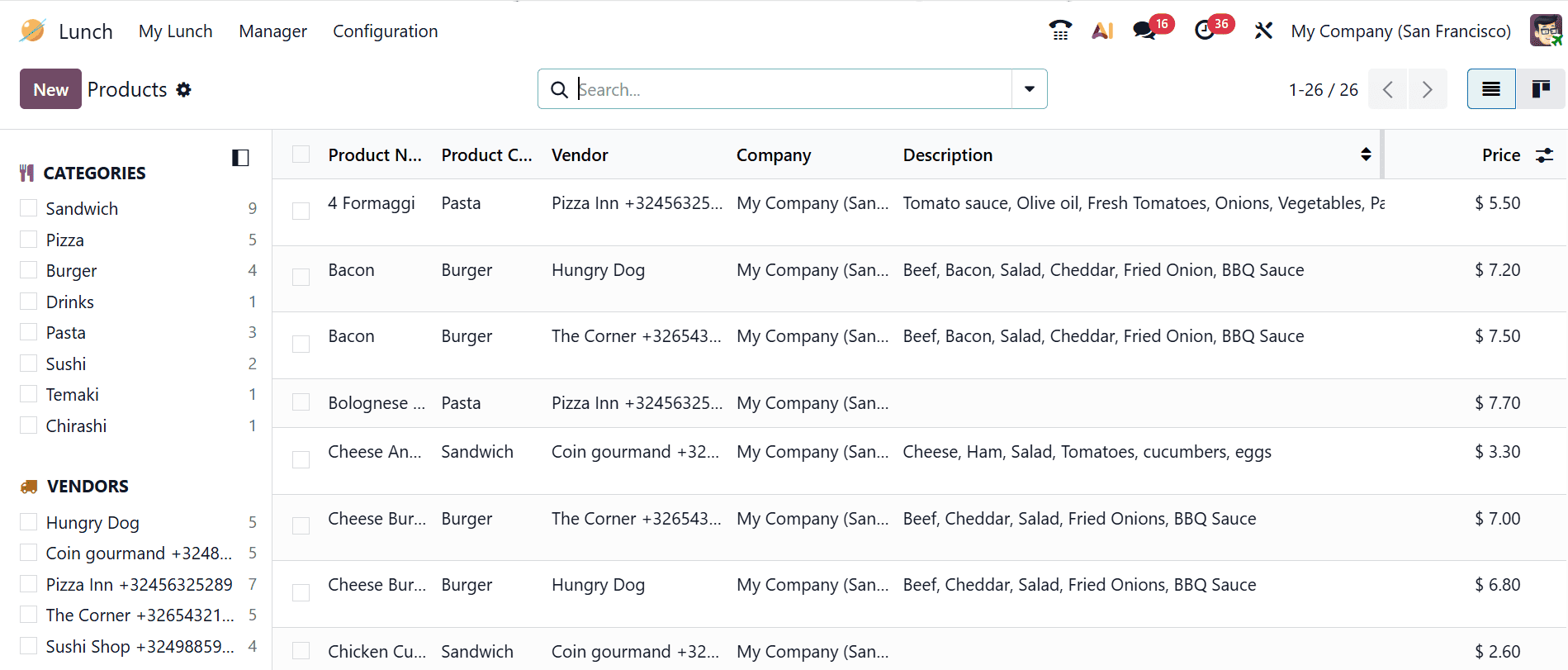
In the Odoo 19 Lunch module, Products is where you create and manage the available food items, including their details, prices, and associated vendors for lunch ordering. By clicking on the New button, you can add a new product to the list.
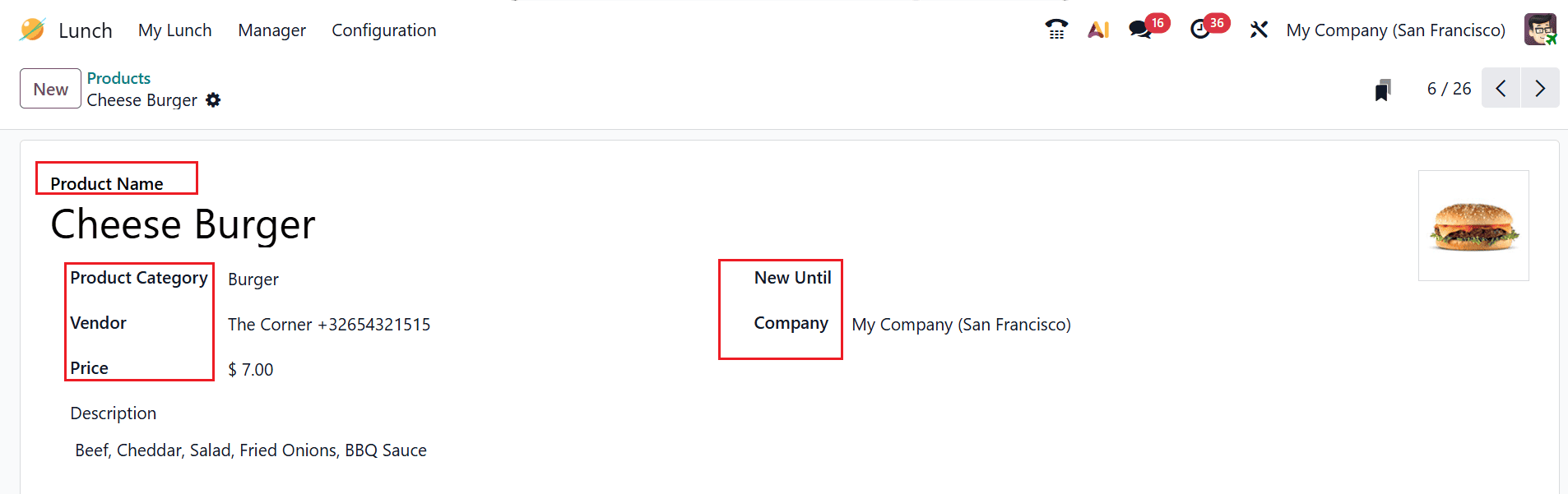
Here, you can add a new product by specifying its name, category, vendor, price, “New Until” date for marking it as new, company, and a brief description.
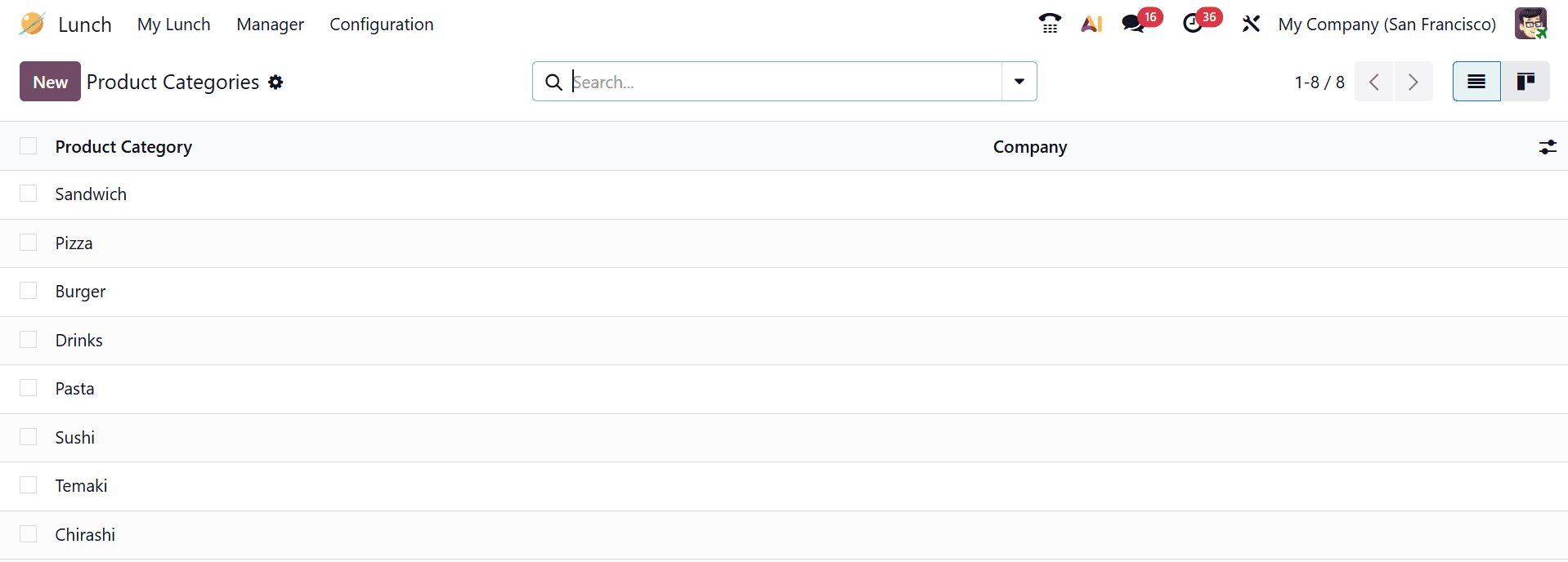
3.5 Product Categories:
In Odoo 19 Lunch module, Product Categories is where you organize and group food items into categories to make menu management and ordering easier. To create a new category, select the New button.
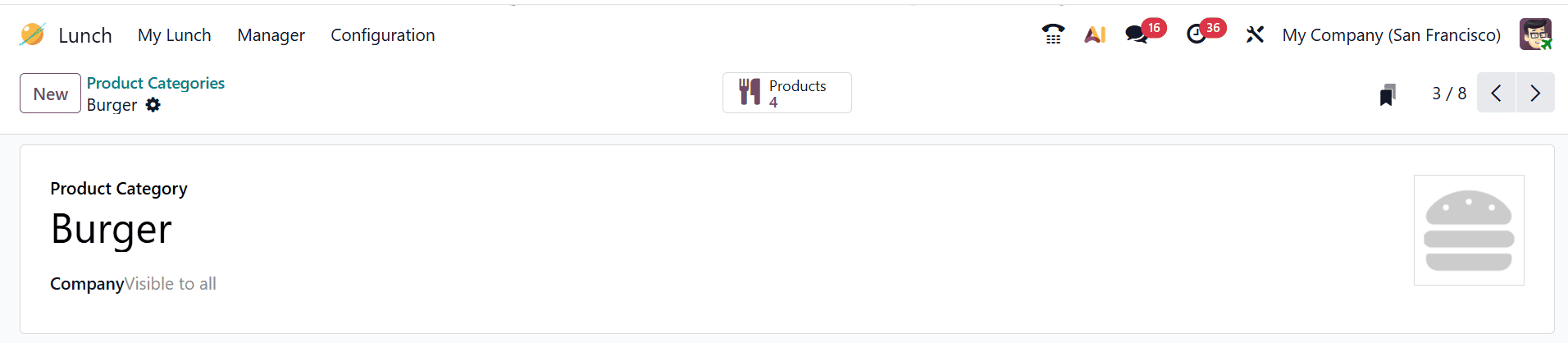
Here, you can enter the product category details by specifying the product category name and selecting the associated company.
3.6 Alerts:
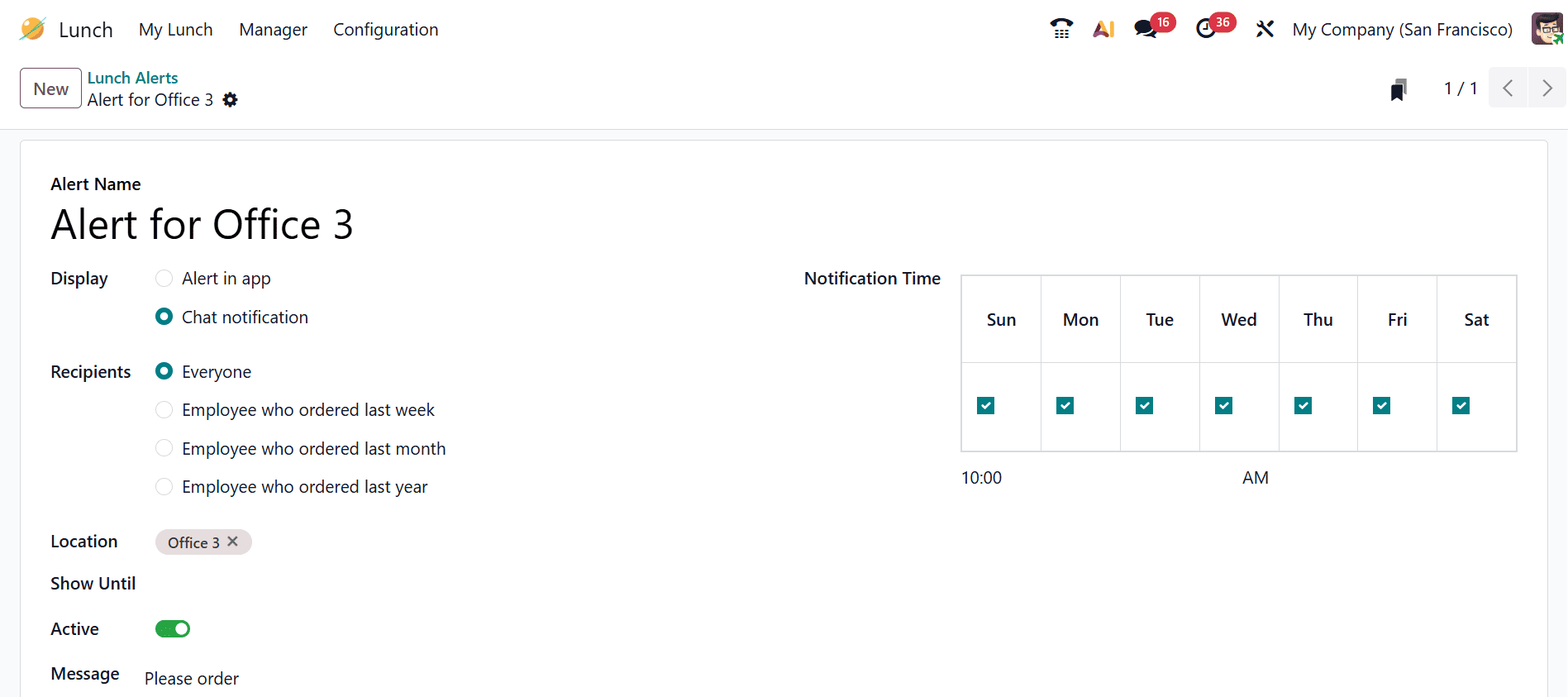
In Odoo 19 Lunch module, Alerts is where you set up notifications to inform employees or managers about important lunch-related updates such as orders, deliveries, or account activities. To add a new lunch alert, click on the New button.

In Odoo 19, while creating an alert in the Lunch module, you can enter an alert name in the Alert Name field and choose the display type as either Alert in app or Chat notification. If Chat notification is selected, you can specify recipients who will receive messages through the Discuss app. You can also select the relevant location from the Locations dropdown, set a validity date in the Show Until field, and enable the alert using the Active button. Additionally, you can write the alert message in the Message field and define the notification schedule by selecting the appropriate days in the Notification Time field.
The Odoo 19 Lunch module in Odoo provides a comprehensive and efficient solution for managing employee meals within modern organizations. Automating lunch ordering, vendor coordination, and expense tracking, it significantly reduces administrative workload for HR teams. Employees benefit from a transparent, flexible, and convenient system that allows them to choose meals according to preference and schedule. Integration with accounting and HR modules ensures accurate billing, subsidy management, and payroll synchronization across departments. Organizations can improve cost control, reduce food waste, and enhance employee satisfaction through structured meal planning. Overall, it strengthens operational efficiency and supports a more organized workplace dining experience. It offers the flexibility to grow with your business, serving both small offices and large enterprises with multiple locations. By centralizing data and automating processes, the module helps improve decision-making and operational transparency across the organization. This leads to better employee engagement, reduced errors, and higher workplace satisfaction.
To read more about How to manage Employee Skills and Competencies in Odoo 19, refer to our blog How to manage Employee Skills and Competencies in Odoo 19.