Sending an occasional newsletter is simple enough, but the moment a business needs to run a coordinated promotion involving several emails, spread out over days or weeks, things get harder to manage. Which email went to which list? How did each one perform? Are these all part of the same push, or are they separate efforts that happen to share a theme? Odoo 19 solves this with Campaigns inside the Email Marketing module, a feature built specifically to group related mailings together and track their combined performance in one place.
A mailing is a single email you send out. A campaign is a group where several mailings are grouped together under one name, one owner, and one shared set of metrics. For something like a Black Friday sale, you might send a teaser email a week before, a launch email on the day, and a reminder the day after. Without campaigns, these would just sit as separate, unrelated mailings in your Mailings list, and there would be no easy way to tell they were even part of the same promotion. With campaigns, all three sit under one Black Friday campaign, and their combined performance, delivery rates, opens, clicks, even revenue generated, shows up together on one page instead of being scattered across individual mailing records.
To enable the campaigns feature, go to Email Marketing, then Configuration, then Settings. There you'll find a Mailing Campaigns checkbox. Enable it and save.
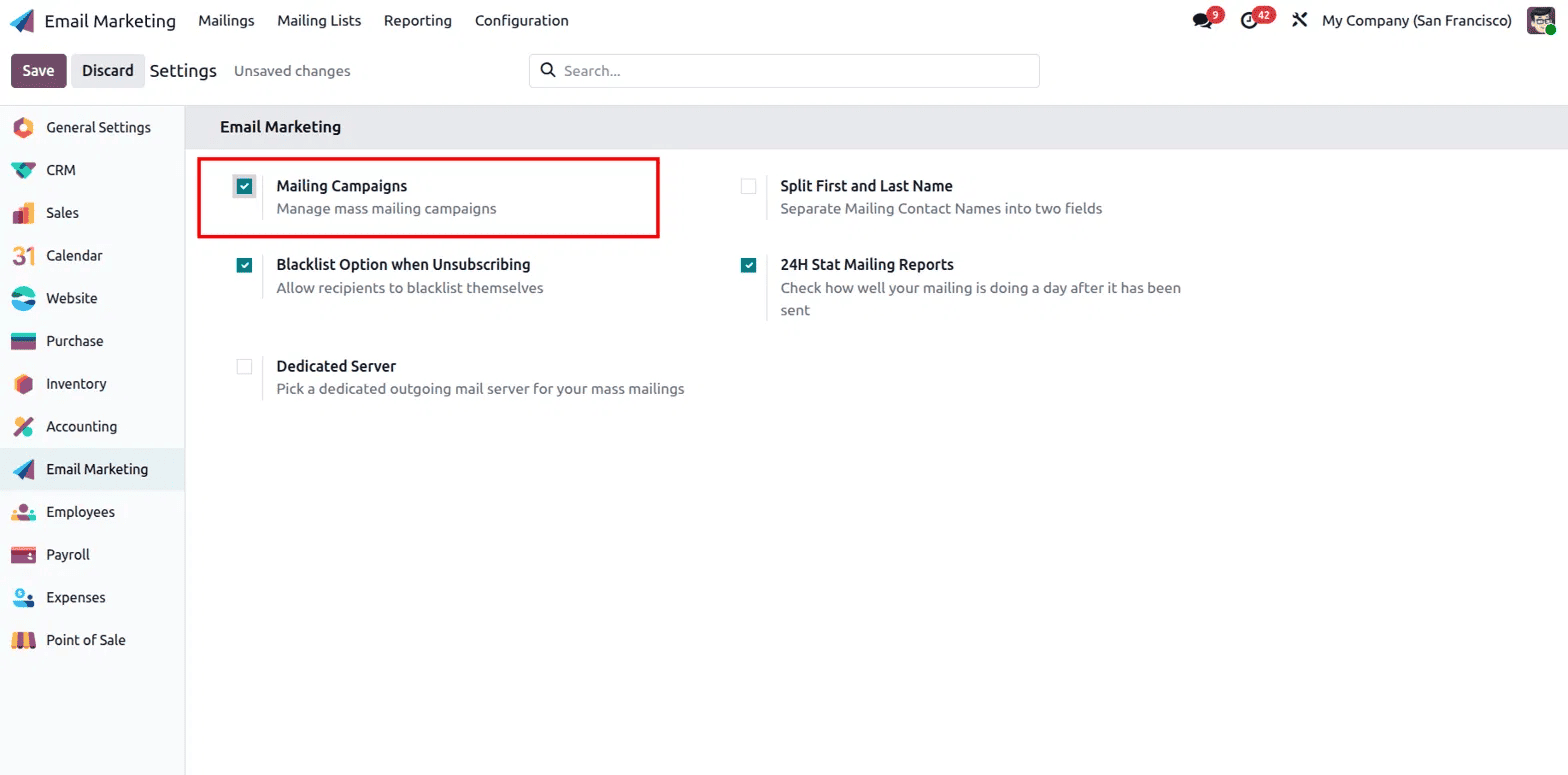
Once saved, you'll get an extra menu called Campaigns in the top navigation, next to Mailings and Mailing Lists. This confirms the feature is switched on, and from here on, every mailing you create can be linked to a campaign if you choose to.
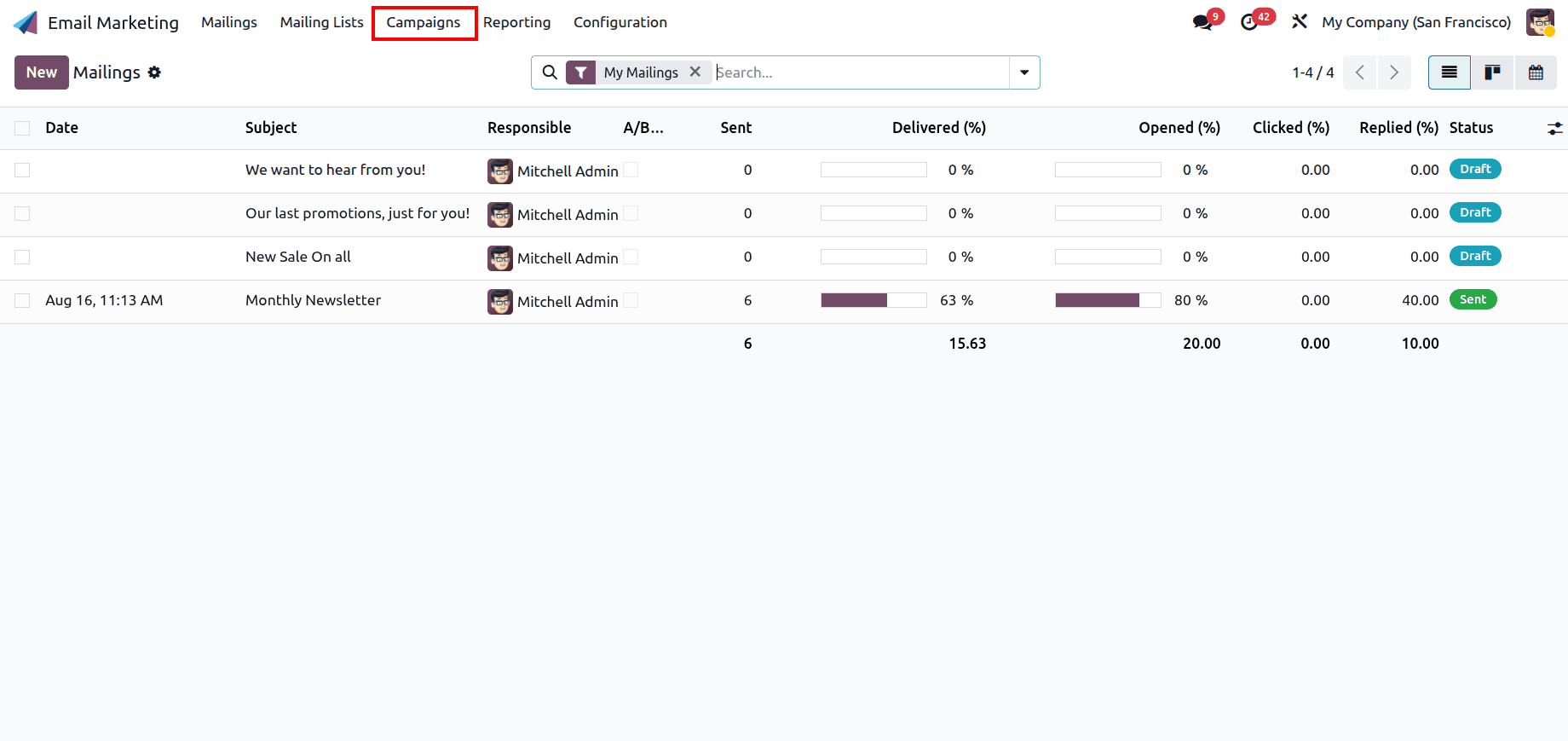
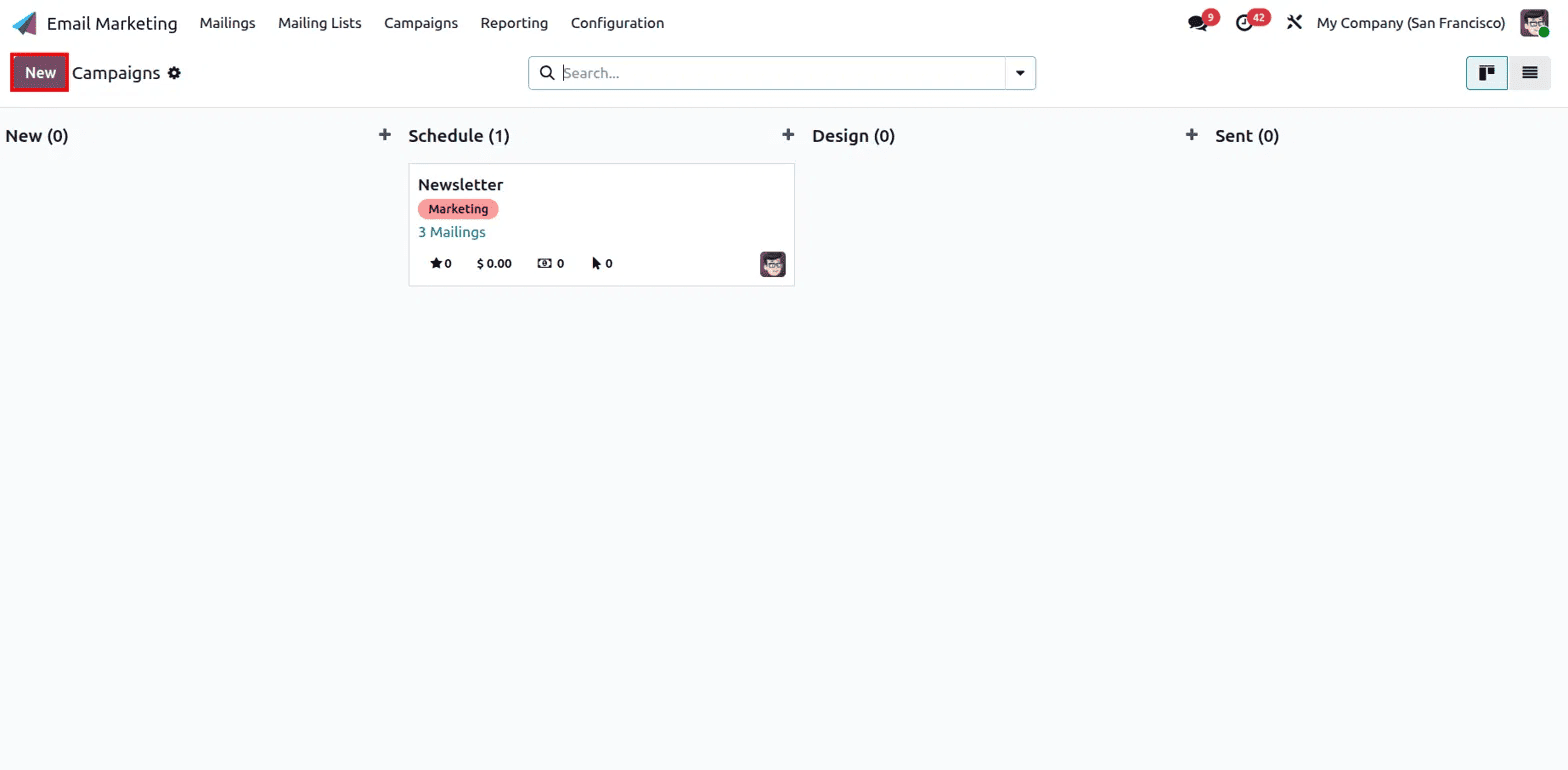
Open the Campaigns menu, and you'll see a kanban board with four columns: New, Schedule, Design, and Sent. These represent the stage each campaign is currently at, so you can tell at a glance which campaigns are still being planned and which have already gone out. If you have existing campaigns, their cards will already be sitting in whichever column matches where they stand.
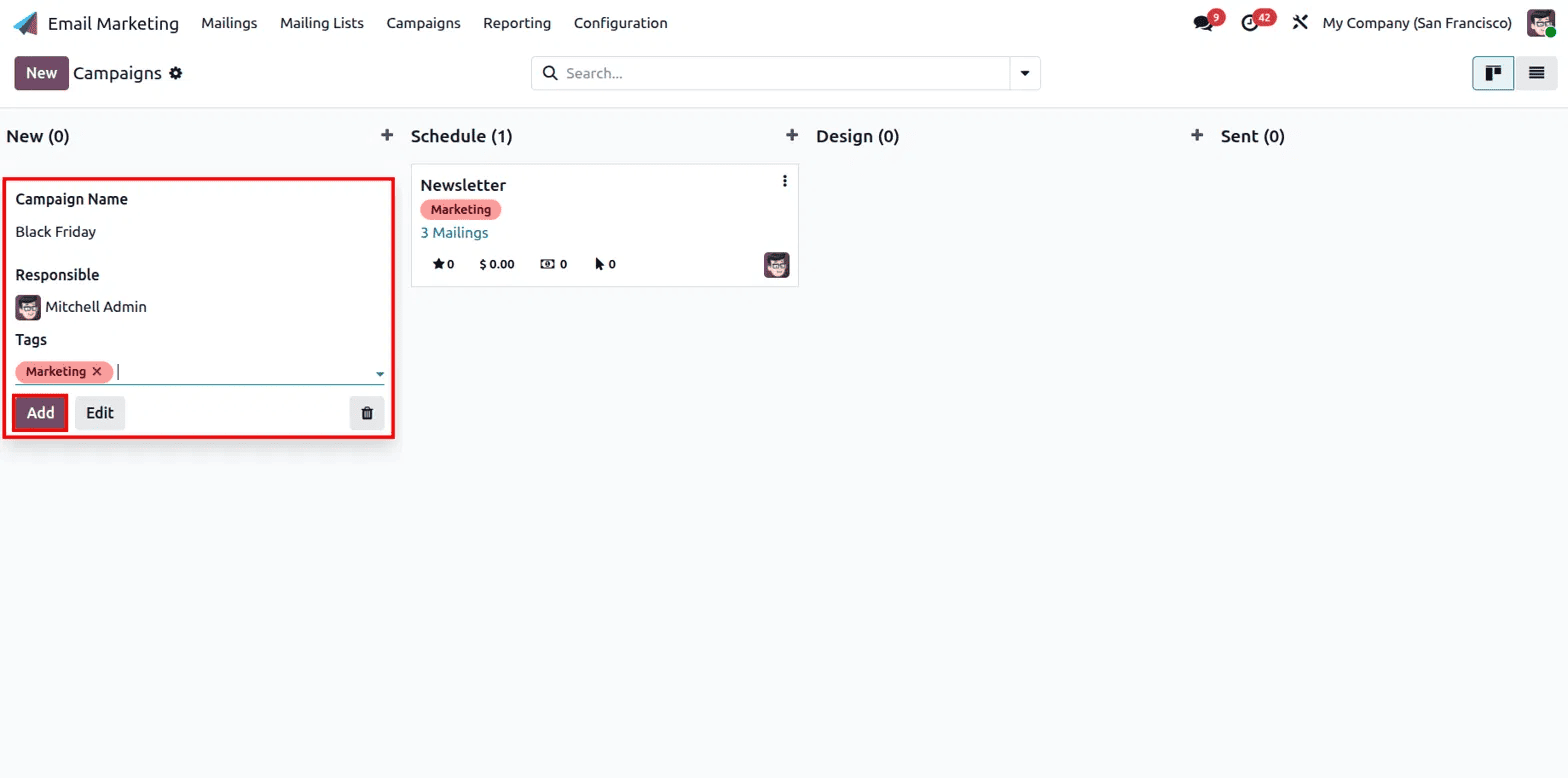
To create a campaign, click New. A small form opens right there on the board, so you don't have to navigate away to a separate page. Enter a Campaign Name; something clear like Black Friday works well, since a specific name makes it much easier to find later once you have several campaigns running. Set a Responsible person to own the campaign; this is who is accountable for how it performs. Add a Tag like Marketing so it's easy to filter and search for later. Once these three fields are filled in, click Add to save the card onto the board.
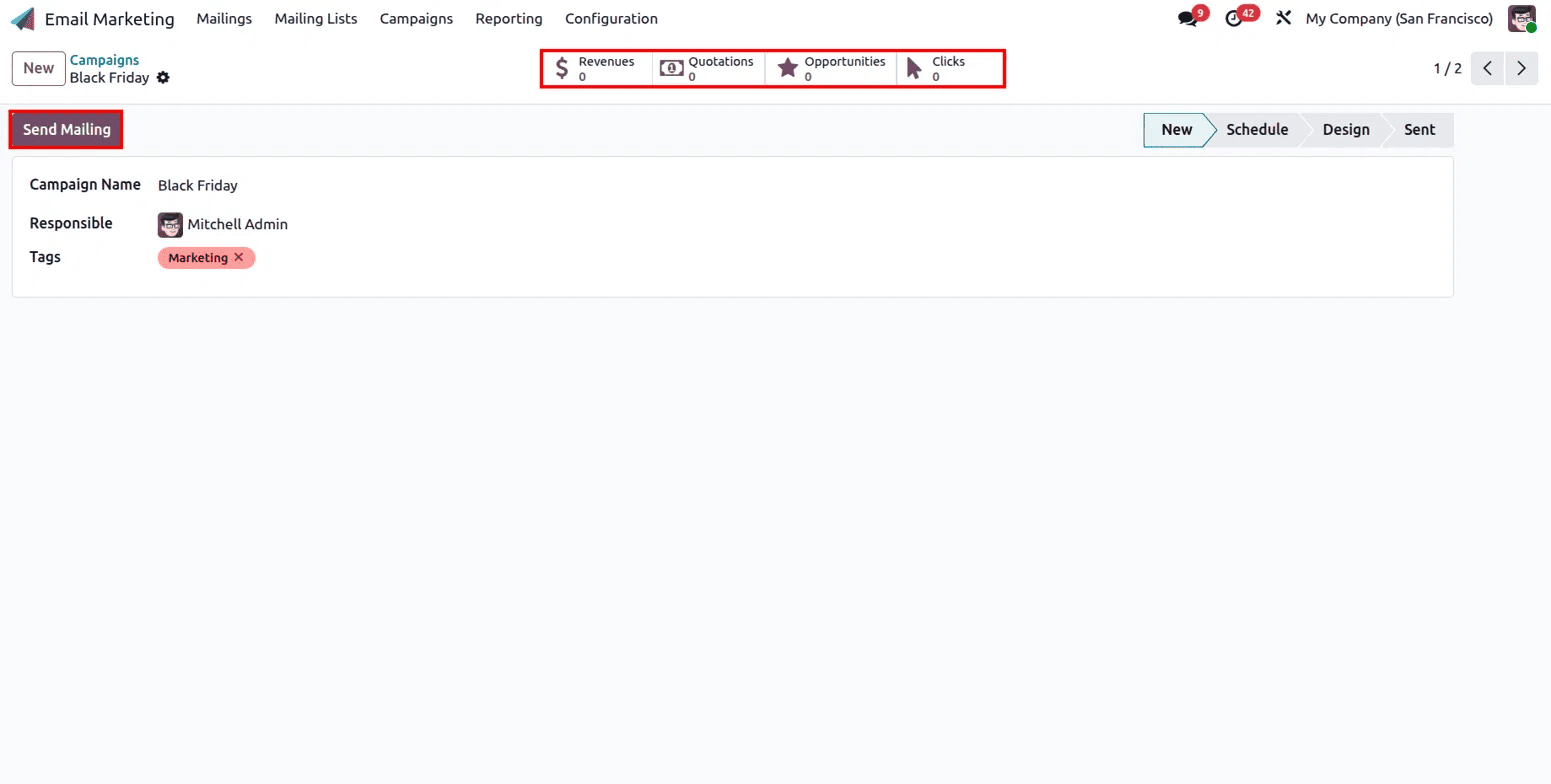
Click into the campaign card, and you land on its main page, which works as a home base for everything related to that promotion. At the top, you'll see four counters: Revenues, Quotations, Opportunities, and Clicks. These aren't fixed numbers; they update automatically as people interact with the campaign's emails, pulling data straight from Sales and CRM. So if a click on your email eventually turns into a quotation or a closed deal, it shows up here without having to track it manually.
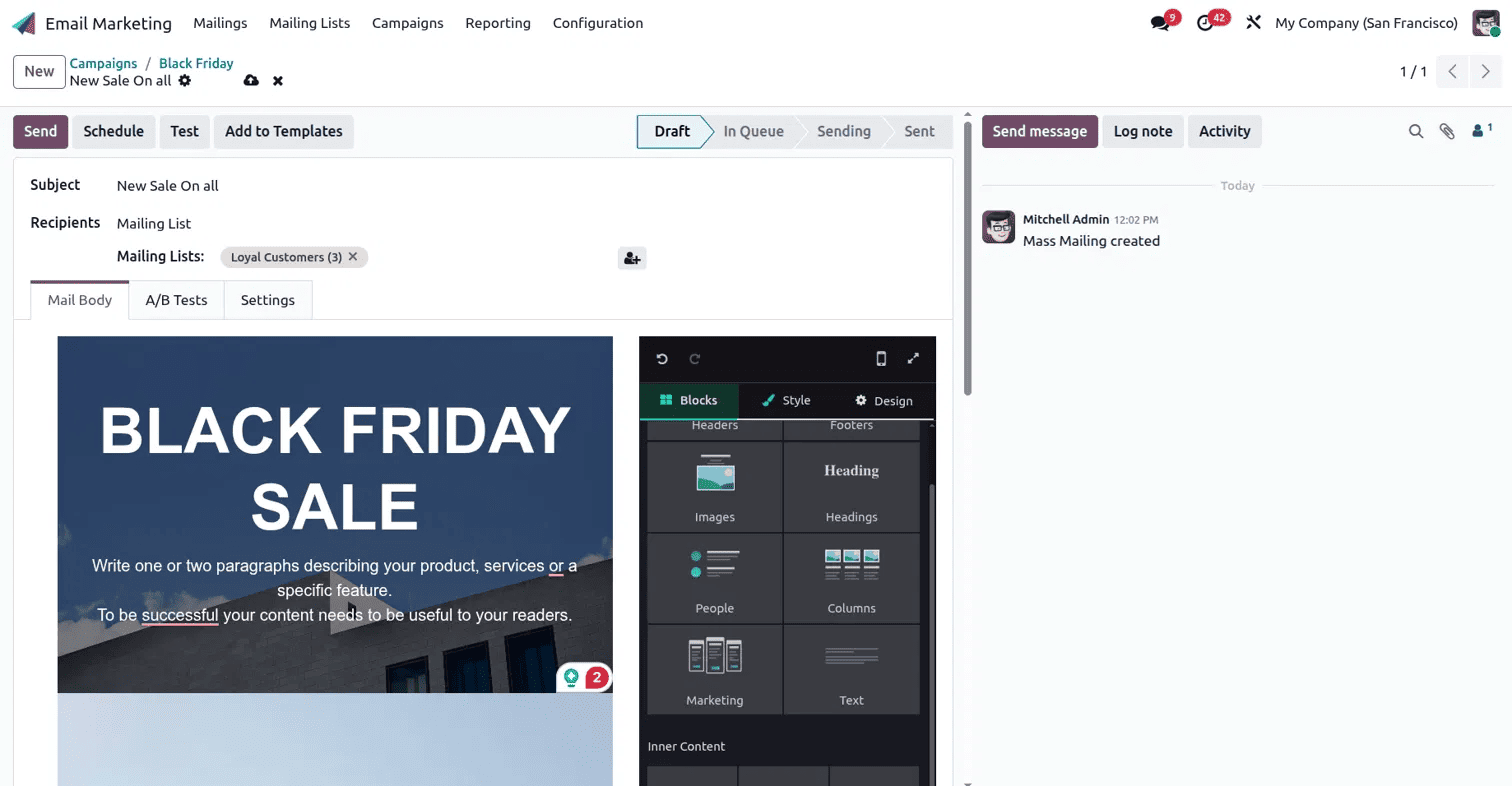
Click Send Mailing to create the actual email for this campaign. Enter a Subject line; this is what people see in their inbox, so make it something that stands out. Under Recipients, choose a specific Mailing List instead of your full contact base, targeting a segment as Loyal Customers works better than a blanket send, since you're reaching people who are already interested in what you're offering. In the Mail Body tab, use the drag-and-drop editor to build the email itself, with ready-made blocks for headers, images, text, and columns available on the side panel. You just pick a block, drop it into the layout, and edit the text or image to match your promotion, no coding needed at any point. Once the email is ready, you have a few options: send it immediately, schedule it for a later date, or send yourself a test copy first to check that everything looks right before it goes out to your list.
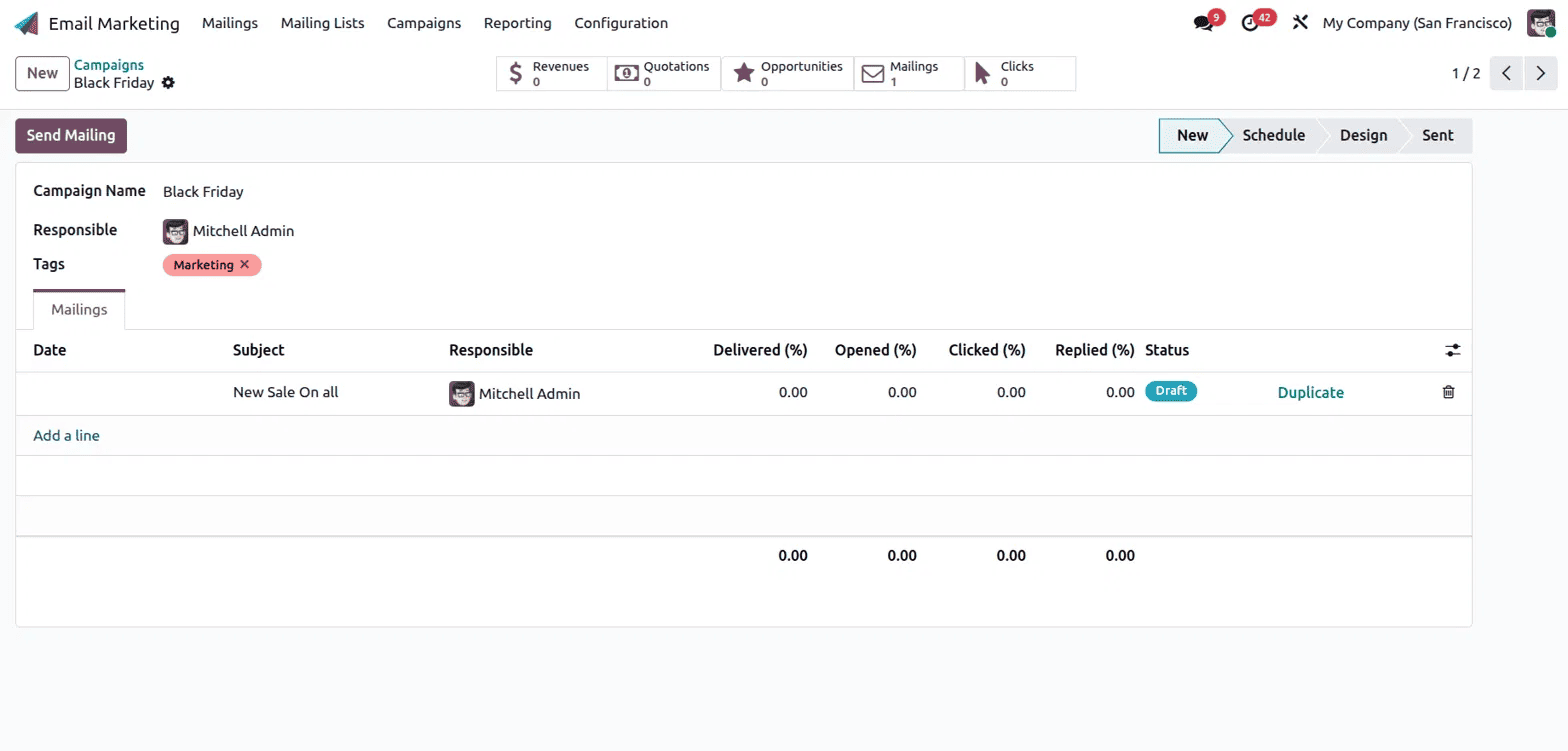
Go back to the campaign page, and you'll see a new Mailings tab has appeared. It lists every mailing tied to the campaign, along with its Delivered, Opened, Clicked, and Replied rates, and its current Status, whether that's Draft, In Queue, or Sent. This becomes especially useful once you have more than one mailing under the same campaign, since you can compare how each one did without opening them one by one. If you want to reuse an email's design for a follow-up send, there's a Duplicate option right there in the list, and you can add more mailings to the same campaign at any time using the Add a line option below the table.
Setting up campaigns takes just one setting change, but it makes a real difference once you're running more than the occasional single email. Instead of managing scattered mailings with no connection between them, you get a clear structure, group your emails under a named campaign, assign an owner, target the right list for each send, and check performance from one consolidated page instead of digging through several. For any business running recurring promotions, seasonal sales, or multi-step marketing pushes, this small setup step makes email marketing far easier to plan, run, and measure.
To read more about Overview of Odoo 18 Email Marketing Module, refer to our blog Overview of Odoo 18 Email Marketing Module.