Odoo Accounting is used to manage the financial transactions of a company, starting from customer invoices and vendor bills and continuing through payments, bank reconciliation, tax reporting, and financial reports. In Odoo 20, the Accounting application brings these activities together so that users can manage day-to-day accounting from a single system.
For a new company implementation, it is important to configure the accounting settings correctly before entering actual transactions. The chart of accounts, journals, taxes, fiscal positions, payment methods, and other basic settings affect how accounting entries are created throughout the system.
This guide provides an overview of the Odoo 20 Accounting application and explains the main configuration and accounting workflows.
Accounting: Main Menus
Before configuring Accounting, it is useful to understand how the application is organized. Odoo groups accounting activities into several main menus, making it easier for different users to access the functions they need.
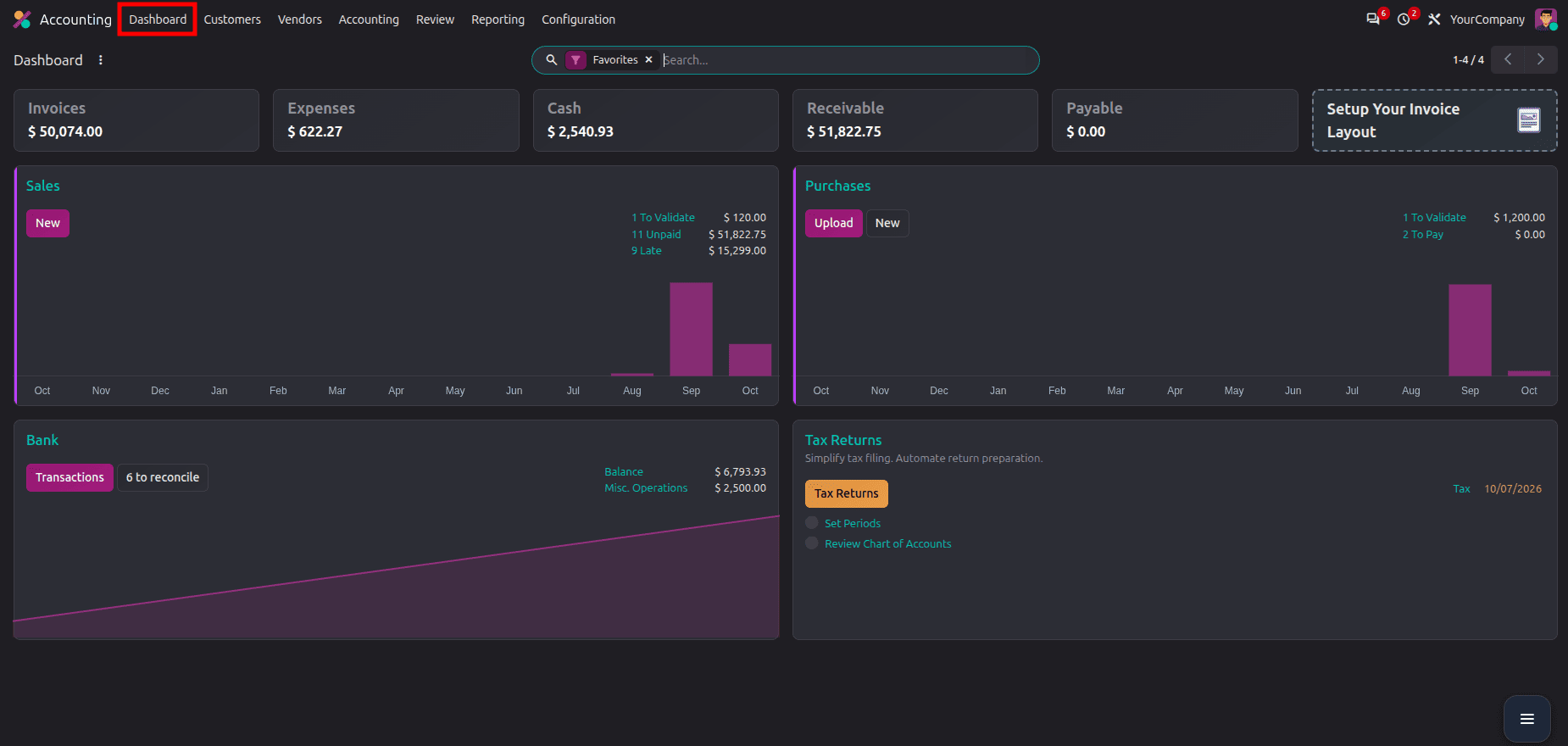
The Odoo 20 Accounting Dashboard provides a centralized overview of the company's financial activities. It gives users quick access to important figures such as Invoices, Expenses, Cash, Receivables, and Payables, helping accountants understand the current financial position at a glance. The dashboard also includes dedicated sections for Sales and Purchases, where users can create invoices or vendor bills and monitor documents that are waiting for validation, payment, or are overdue. This makes the dashboard a useful starting point for daily accounting operations without requiring users to open each menu separately.
The dashboard also provides a Bank section for viewing bank transactions and identifying transactions that require reconciliation, along with a Tax Returns section for accessing tax-related activities and reviewing required accounting setup. If the invoice layout has not been configured, Odoo also provides an option to set it up directly from the dashboard. Overall, the Accounting Dashboard acts as a central workspace where accountants can quickly identify pending activities, review key financial figures, and navigate to the relevant accounting operations for further action.
The Customers menu in Odoo 20 Accounting contains the main accounting operations related to customers. It provides quick access to Invoices, Credit Notes, Payments, Batch Payments, Products, and Customers. From Invoices, users can create and manage customer invoices, while Credit Notes are used to record invoice corrections, returns, or refunds. The Payments section is used to register and manage customer payments, and Batch Payments allows multiple payments to be grouped together for processing. The Products menu provides access to products used in customer transactions, including their accounting-related configuration.
The Vendors menu in Odoo 20 Accounting is used to manage the accounting activities related to suppliers. It provides access to Bills, Refunds, Payments, Batch Payments, Products, and Vendors. The Bills section is used to create and manage vendor bills received from suppliers, while Refunds are used to record corrections or returns related to vendor bills. The Payments section allows users to register payments made to vendors, and Batch Payments can be used to group multiple vendor payments together for processing. The Products option provides access to products used in vendor transactions and their related accounting configuration.
The Accounting menu in Odoo 20 provides access to the company's core accounting operations. Under Transactions, users can access Journal Entries, where accounting entries can be created and reviewed. The Assets & Liabilities section includes Assets for managing company assets and Loans for recording and managing loan-related accounting information. These options allow accountants to manage transactions that go beyond regular customer invoices and vendor bills.
The menu also includes important Closing activities such as Reconcile, Tax Returns, and Lock Dates. Reconciliation helps match related accounting transactions, while Tax Returns provides access to tax reporting activities. Lock Dates can be used to prevent changes to accounting records for completed periods. The Secure Entries option provides access to secured accounting entries and supports the control of posted accounting information. Together, these features cover journal-level accounting, asset and liability management, and important period-end accounting activities.
The Review menu in Odoo 20 is designed to help accountants review, control, and audit accounting records. Under Control, users can access Journal Items, Audit Trail, and Journal Audit. Journal Items allow users to review the individual accounting lines generated by transactions, while the Audit Trail and Journal Audit provide tools for reviewing changes and activities related to accounting records. These options are useful for checking accounting data and identifying entries that may require further review.
The Audit section includes Working Files, which can be used to manage supporting documents and information required during accounting reviews or audits. The Inventory section provides Inventory Valuation, allowing users to review the accounting value of inventory. The Regularization Entries section contains Deferred Revenues and Deferred Expenses, which are used to manage revenues and expenses that need to be recognized across different accounting periods. Together, these options support accounting review, audit preparation, inventory valuation, and period-based revenue and expense recognition.
The Reporting menu in Odoo 20 provides a collection of financial and accounting reports that help users review the company's financial position and transactions. Under Statement Reports, users can access the Balance Sheet, Profit and Loss, Cash Flow Statement, and Depreciation Schedule. The Ledgers section includes the Trial Balance and General Ledger, which help accountants review account balances and detailed accounting entries. Under Partner Reports, users can access the Partner Ledger, Customer Statement, Aged Receivable, and Aged Payable reports to review customer and vendor balances. The Taxes & Fiscal section provides the Tax Report and Fiscal Report for reviewing tax-related accounting information.
The Reporting menu also includes Management reports such as Invoice Analysis, Cashflow Analysis, Analytic Report, Executive Summary, and Loans Analysis, which can be used to analyze accounting data from different business perspectives. In addition, Odoo provides country-specific reports where applicable; in the shown configuration, the United States section includes the 1099 Report. These reports allow accountants and management teams to review financial performance, outstanding receivables and payables, tax information, cash movements, and other accounting data required for regular financial analysis and reporting.
The Configuration menu in Odoo 20 contains the settings and master data required to configure the Accounting application according to the company's requirements. Under Accounting, users can configure the Chart of Accounts, Taxes, Journals, Currencies, Fiscal Positions, Multi-Ledger, Tax Groups, Tax Units, Account Tags, Accounting Reports, Horizontal Groups, Checks, Fiscal Categories, Depreciation Models, Return Types, Invoice Reminders, Financial Budgets, and Online Synchronization. These configurations define how accounting transactions are recorded, classified, reported, and managed in Odoo. The Settings option provides the main accounting application settings, while Online Payments is used to configure online payment-related options.
The Invoicing section contains configurations such as Payment Terms, Incoterms, and Product Categories, which support customer and vendor invoicing processes. Payment Terms determine when invoice amounts are due, while Incoterms can be used to define the agreed delivery and shipping conditions for applicable transactions. Product Categories can also contain accounting-related configurations that influence how products are recorded in financial transactions. Overall, the Configuration menu is the main area where the accounting structure and supporting rules are defined before the company starts processing its day-to-day accounting transactions.
Setting Up Accounting in Odoo 20
The first step in an Odoo accounting implementation is configuring the basic accounting structure of the company. This includes setting up the chart of accounts, journals, taxes, fiscal positions, payment terms, and other required accounting settings.
The chart of accounts defines the accounts used to record financial transactions, while journals determine where different types of transactions are recorded. Taxes define how tax amounts are calculated and posted on invoices and bills.
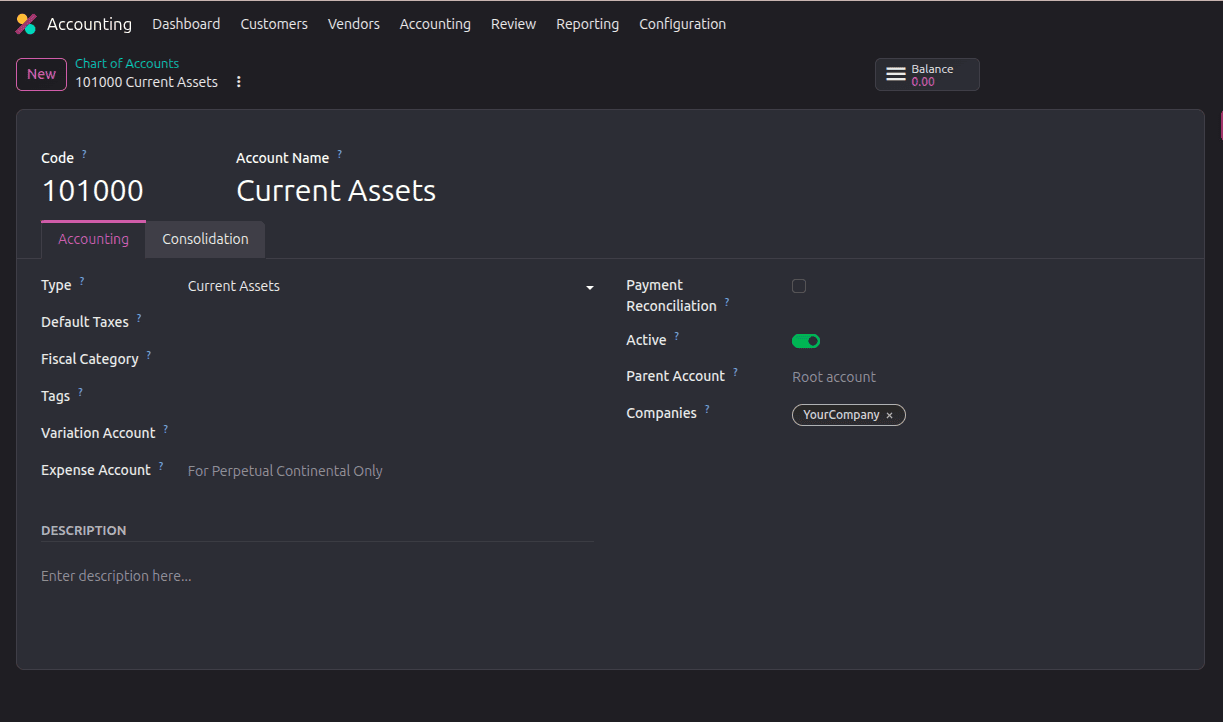
The Chart of Accounts (COA) is the foundation of a company's accounting system. It is the structured list of accounts used to record the company's financial transactions in the general ledger. These accounts are generally organized into categories such as Assets, Liabilities, Equity, Income, and Expenses, allowing the transactions to be properly classified and reflected in financial
In Odoo 20, the Chart of Accounts can be accessed from Accounting > Configuration > Chart of Accounts. When a company database is created, Odoo uses the company's country to determine the appropriate fiscal localization. The localization provides a standard Chart of Accounts configured according to the applicable country's accounting requirements. This gives the company a starting point that can be used directly or adjusted according to its specific accounting needs. Odoo also notes that the fiscal localization cannot be changed after a journal entry has been posted, so the company's country and localization should be confirmed before processing live accounting transactions.
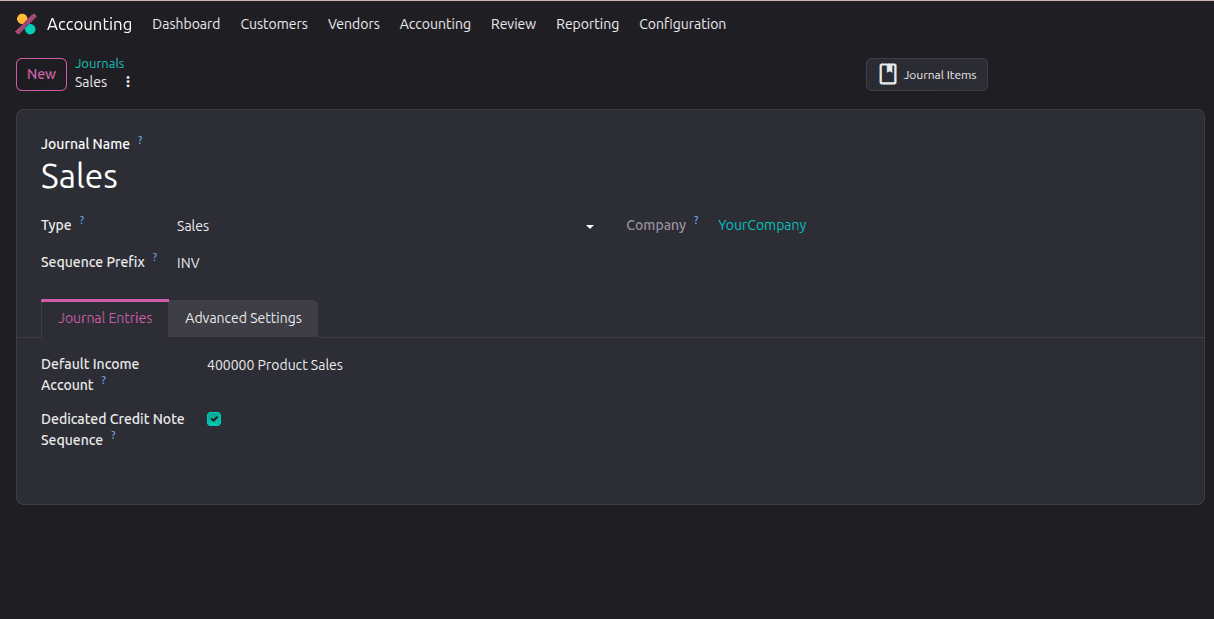
Journals in Odoo are used to record and organize accounting transactions based on their nature, such as sales, purchases, bank transactions, cash transactions, and miscellaneous entries. Each journal is configured with a specific Journal Type, accounting accounts, and other settings required to process transactions correctly.
In Odoo 20, journals can be configured from Accounting > Configuration > Journals. From here, you can review the existing journals, create new journals, and configure details such as the journal name, type, default debit and credit accounts, currency, and payment-related settings according to the company's accounting requirements.
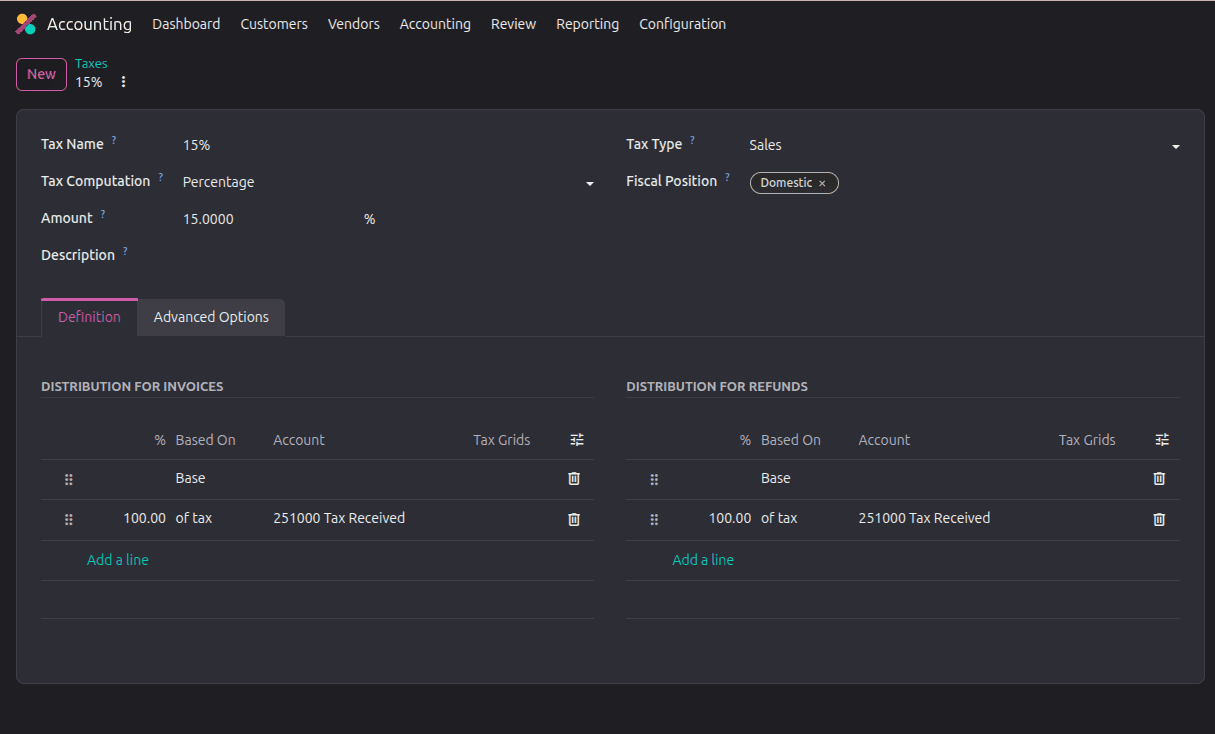
Taxes in Odoo are used to calculate and record the taxes applied to sales and purchases. They define how tax amounts are calculated and reported in accounting transactions.
In Odoo 20, taxes can be configured from Accounting > Configuration > Taxes. You can create or modify taxes by defining details such as the tax name, tax type, tax rate, tax computation, and applicable sales or purchase settings. Proper tax configuration ensures that the correct tax amount is applied to invoices and bills and included in the relevant tax reports.
Once the basic accounting configuration is complete, the next step is handling customer and supplier transactions.
Customer invoices are used to record amounts that customers need to pay for products or services. Vendor bills are used to record amounts that the company owes to suppliers. Odoo automatically creates the related accounting entries when these documents are posted.
The workflow also includes credit notes, invoice payments, payment terms, and invoice status tracking.
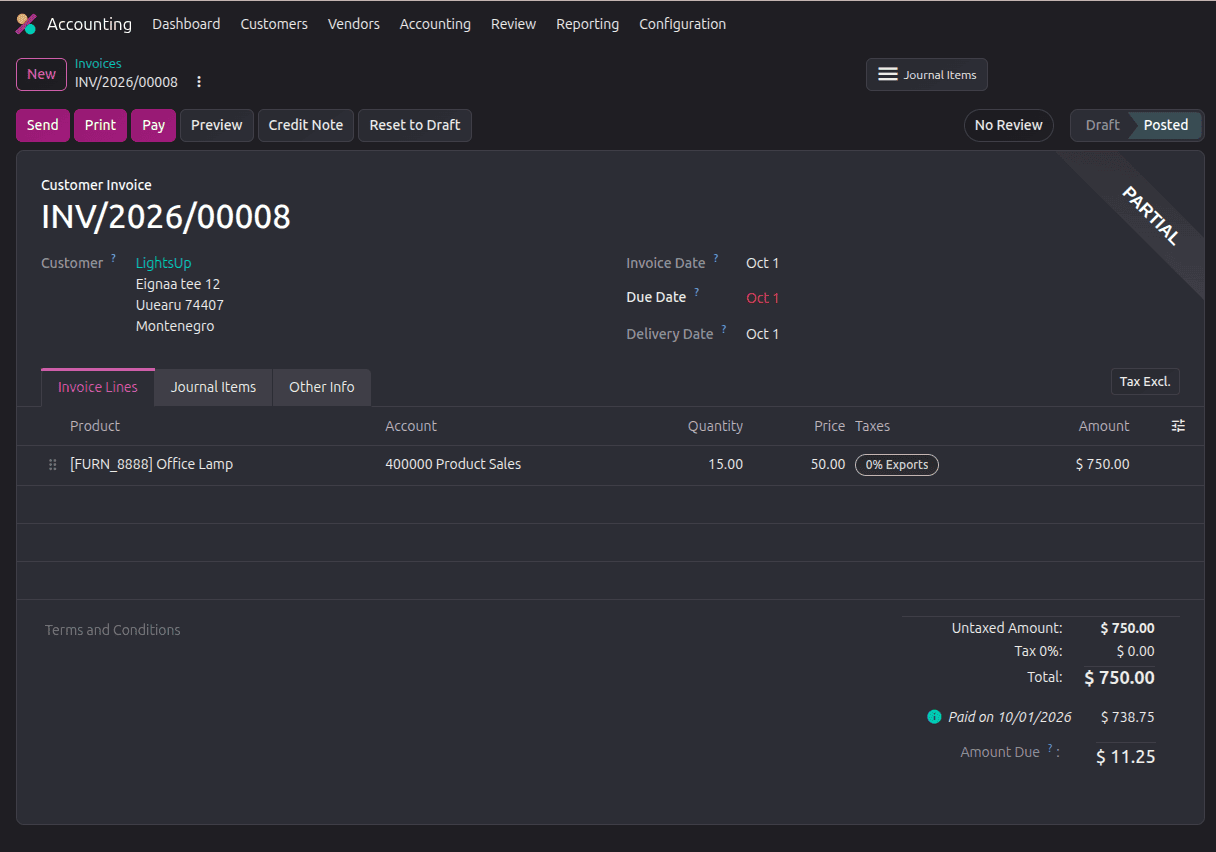
Payments are used to settle customer invoices and vendor bills. Odoo allows users to register payments and associate them with the corresponding accounting documents.
For example, when a customer pays an outstanding invoice, the payment can be registered against that invoice. Similarly, payments made to vendors can be recorded against their bills.
Payment journals and payment methods should be configured properly so that payments are posted to the correct accounts.
Bank reconciliation is an important part of the accounting process. It allows accountants to compare transactions imported from the bank with transactions recorded in Odoo.
When a bank transaction matches an existing invoice payment or accounting entry, the accountant can reconcile the two transactions. This helps keep the bank balance in Odoo aligned with the actual bank statement.
Odoo can also help identify matching transactions and reduce the amount of manual work required during reconciliation.
Account Closing is the process of completing the accounting activities for a financial period and preparing the records for the next period. It includes reviewing transactions, reconciling accounts, completing tax-related activities, and ensuring that no unauthorized changes are made to finalized accounting records.
In Odoo 20, account closing activities can be managed from Accounting > Accounting > Closing, where options such as Reconcile, Tax Returns, Lock Dates, and Secure Entries are available. These tools help ensure that the accounting period is properly reviewed and finalized before moving to the next period.
Odoo provides several reports for reviewing the financial position and performance of a company.Common reports include:
- Balance Sheet
- Profit and Loss
- General Ledger
- Trial Balance
- Partner Ledger
- Aged Receivable
- Aged Payable
- Cash Flow
- Tax Report
These reports can be used by accountants for reconciliation and period-end activities and by management for financial analysis.
The exact reports and available features can vary depending on the accounting configuration and Odoo edition.
Odoo 20 Accounting provides a complete solution for managing a company's day-to-day accounting activities, from the initial configuration of the Chart of Accounts, Journals, and Taxes to customer invoices, vendor bills, payments, bank reconciliation, account closing, and financial reporting. Proper configuration of these basic accounting settings is important because they determine how transactions are recorded and reflected in financial reports.
Once the accounting structure is configured correctly, Odoo brings the complete accounting workflow into one system, making it easier to record transactions, reconcile accounts, manage taxes, close accounting periods, and review financial information. This guide provides a starting point for understanding the main Odoo 20 Accounting features and setting up the system according to a company's business and accounting requirements.
To read more about How to Improve Your Finance Workflow with Odoo 19 Reports, refer to our blog, How to Improve Your Finance Workflow with Odoo 19 Reports.