Fiscal Categories in Odoo 19 Accounting is an expense that, in accordance with local tax regulations, cannot be fully deducted when determining taxable income. To reflect the actual costs borne by the company, these expenses are nevertheless documented in the accounting system. These costs can be posted to particular accounts designated for tax disallowance in Odoo 19. Depending on legal restrictions, a portion or the entire cost may be set as prohibited. Odoo automatically removes the prohibited amount from deductible expenses when creating tax reports. This keeps permitted expenditures from being overstated in tax computations. Fines, penalties, and personal-use charges are frequently examples of prohibited expenses. Accurate bookkeeping and tax compliance are guaranteed when this function is used.
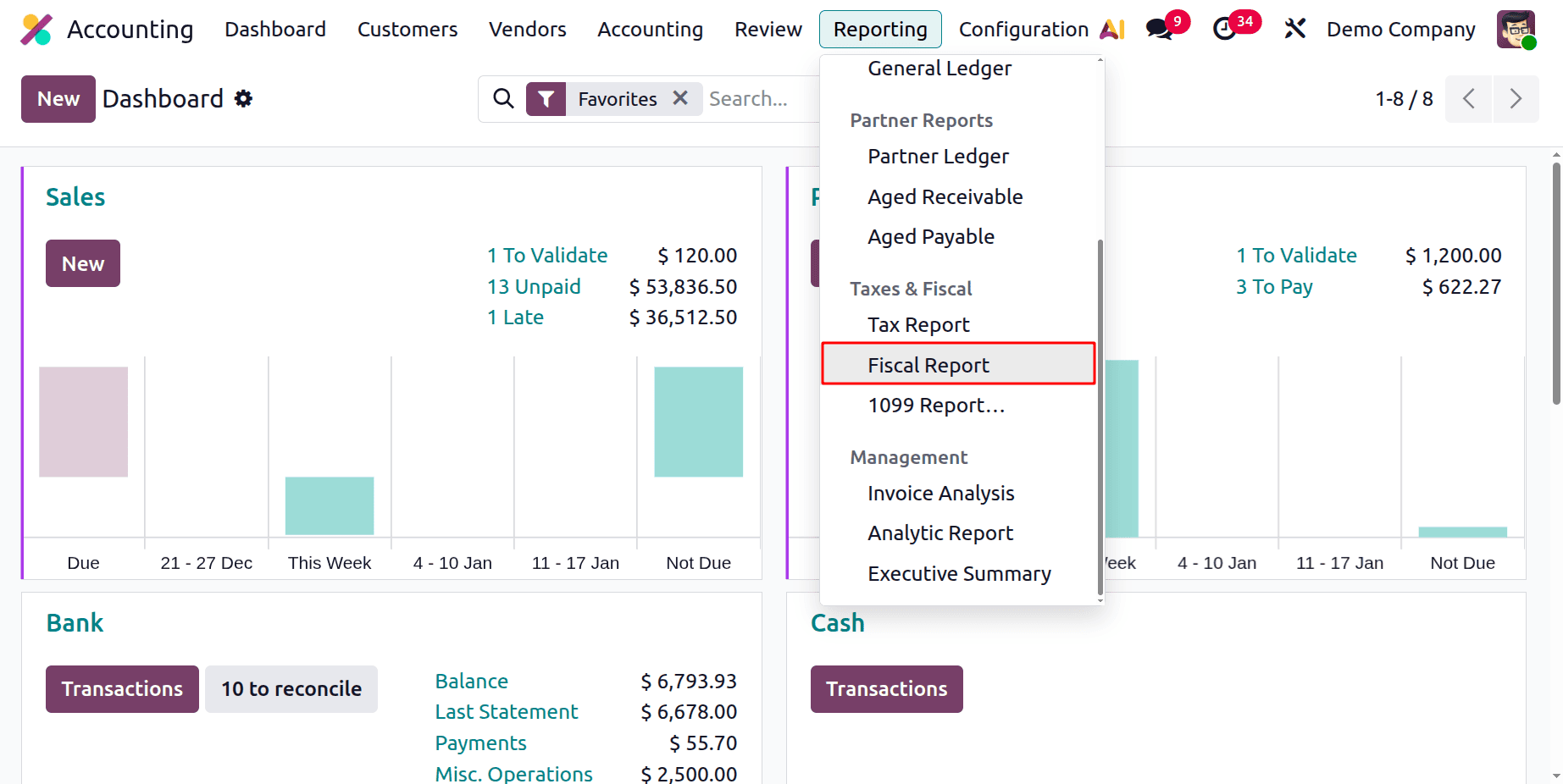
The Fiscal Category Reports are available inside the Odoo 19 Accounting module. Click the Reports menu to obtain the Fiscal Category Report. Then choose the Fiscal Report. Which is available under the Taxes & Fiscal Reports.
The report is shown below. The report can be exported to the system either as a PDF format or as an XLSX format. The buttons available in the upper left corner of the Fiscal Report. The report can be filtered using the Search feature.
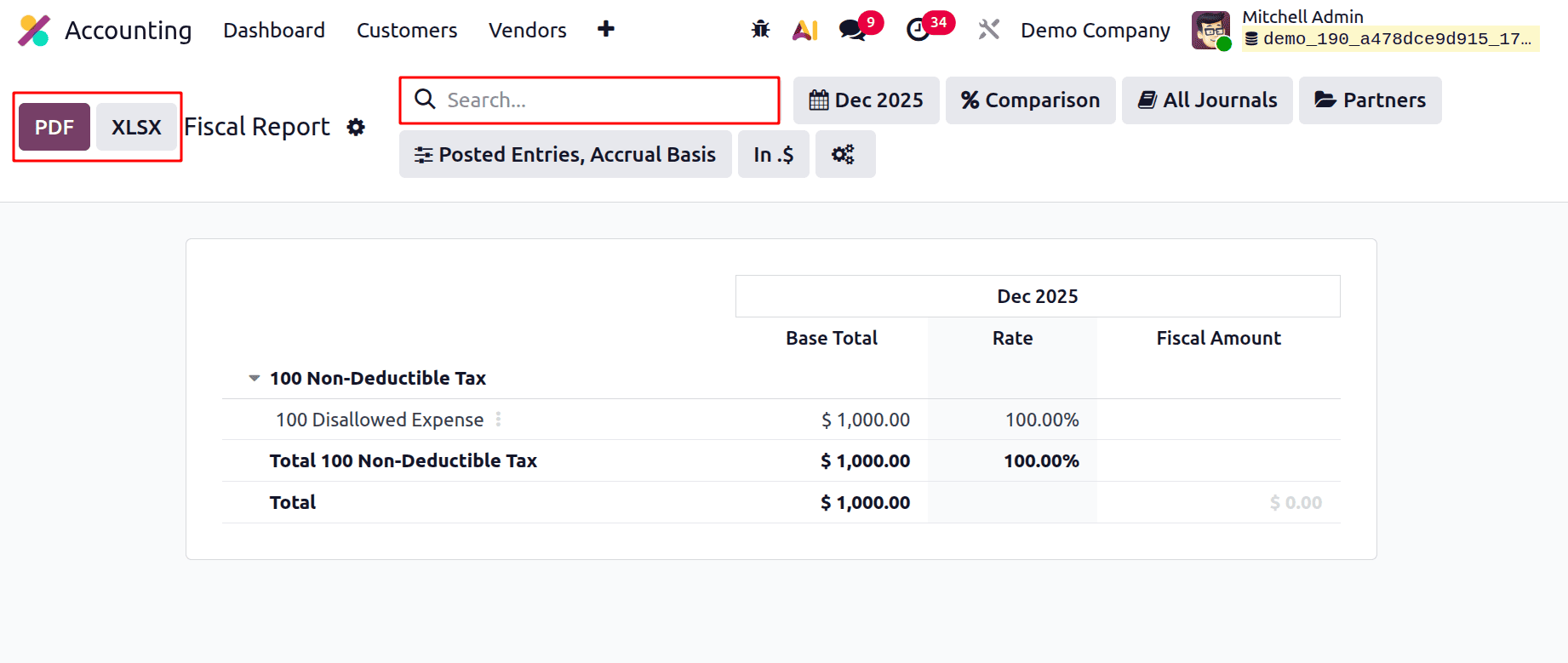
There are several filters available inside the Fiscal Report. Let's check each filter available inside the Fiscal Report in Odoo 19 Accounting.
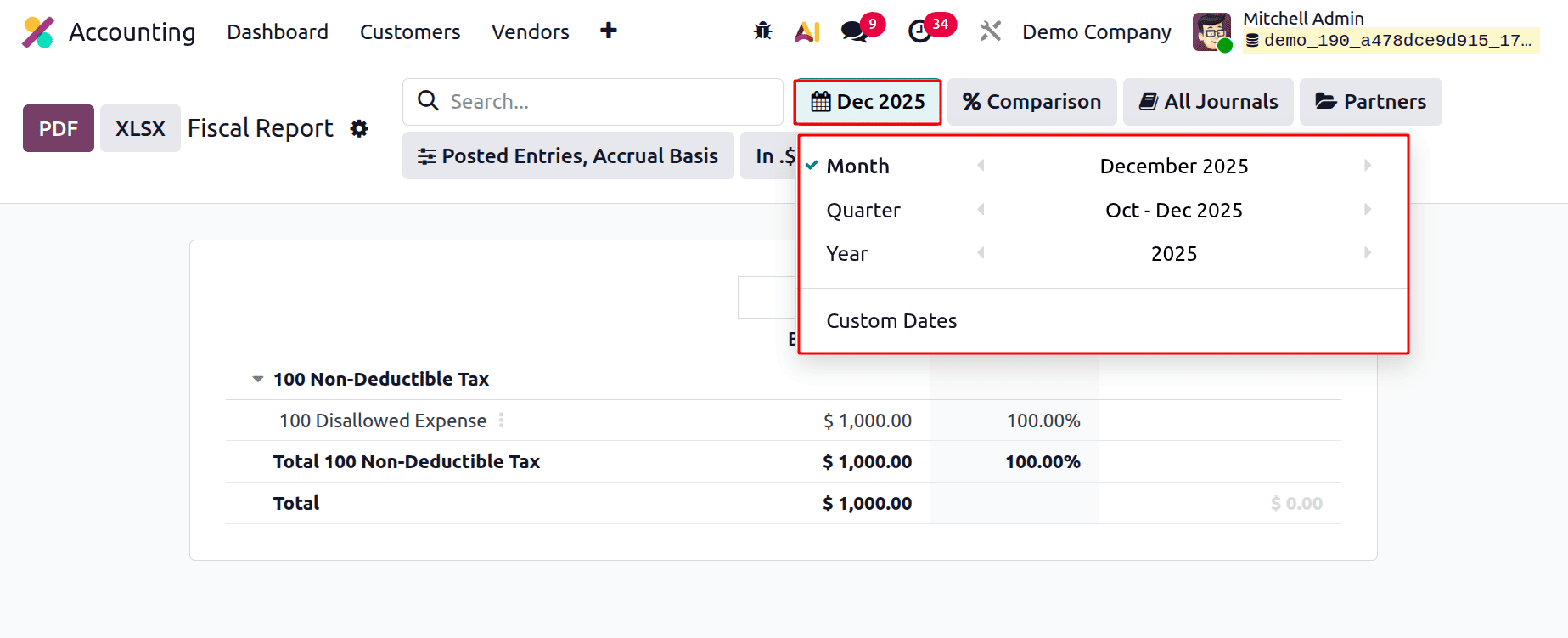
The Date filter is the initial filter. This allows the report to be filtered by month, quarter, and year. It is also possible to filter the report based on Custom Dates.
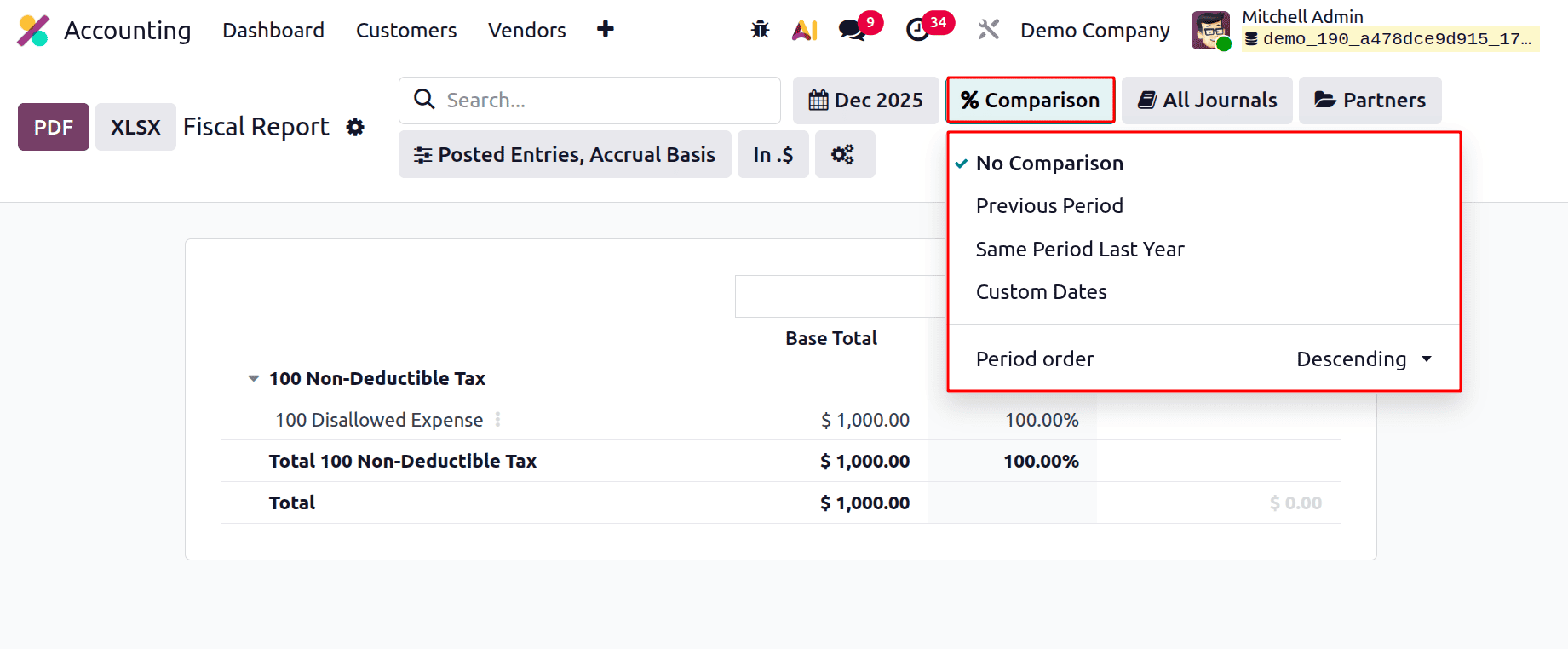
The Comparison Filter is the second filter. The Previous Period, Same Period Last Year, and Custom Dates can all be used to make comparisons inside the report. Either ascending or descending can be used to determine the period order.
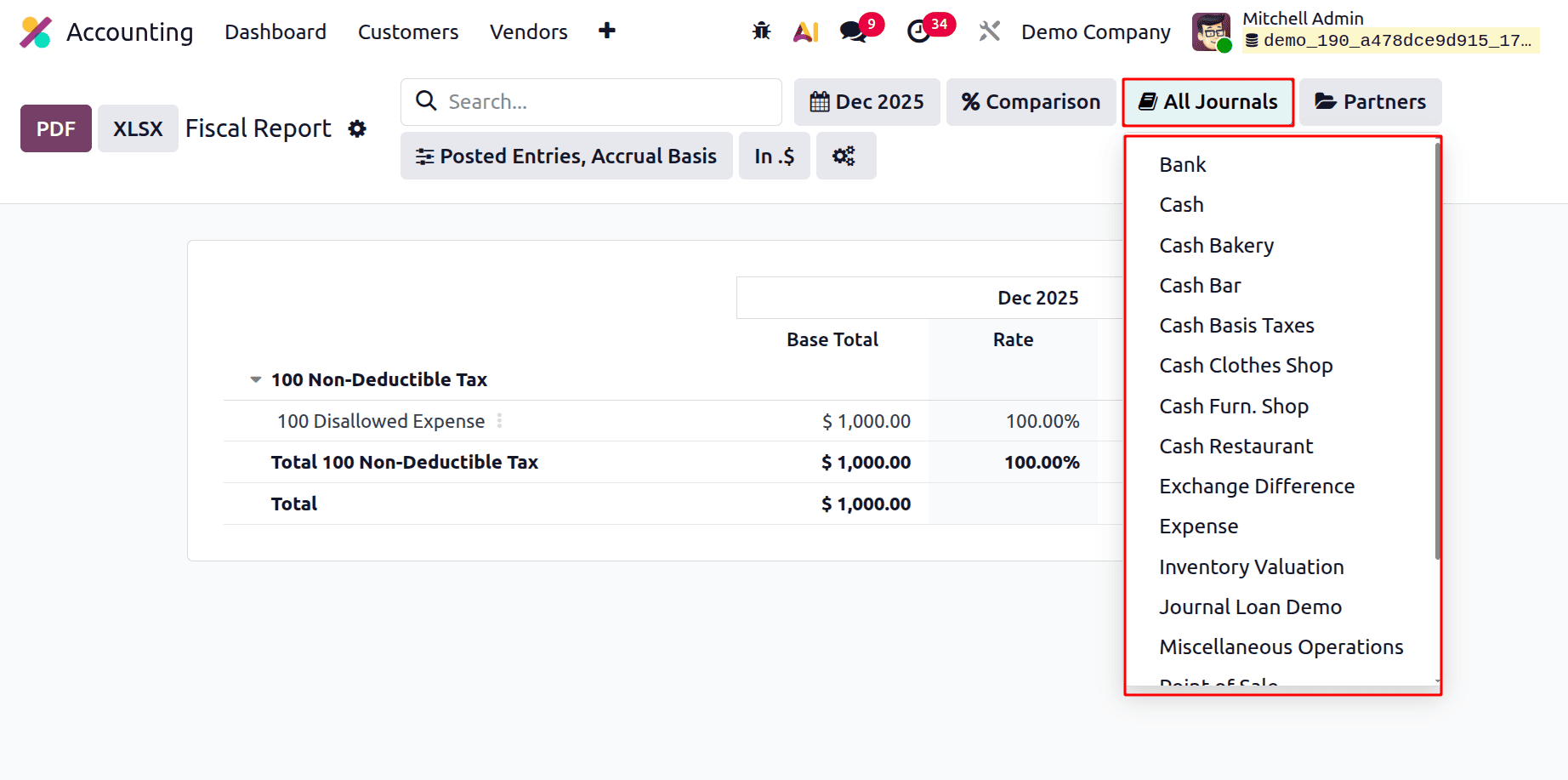
The third filter is based on the Journal. Inside the Journal filter, all the created journals and the Multi Ledgers available inside the company are listed. If the user chooses any of the journals, the entries created by that journal will be filtered in the report.
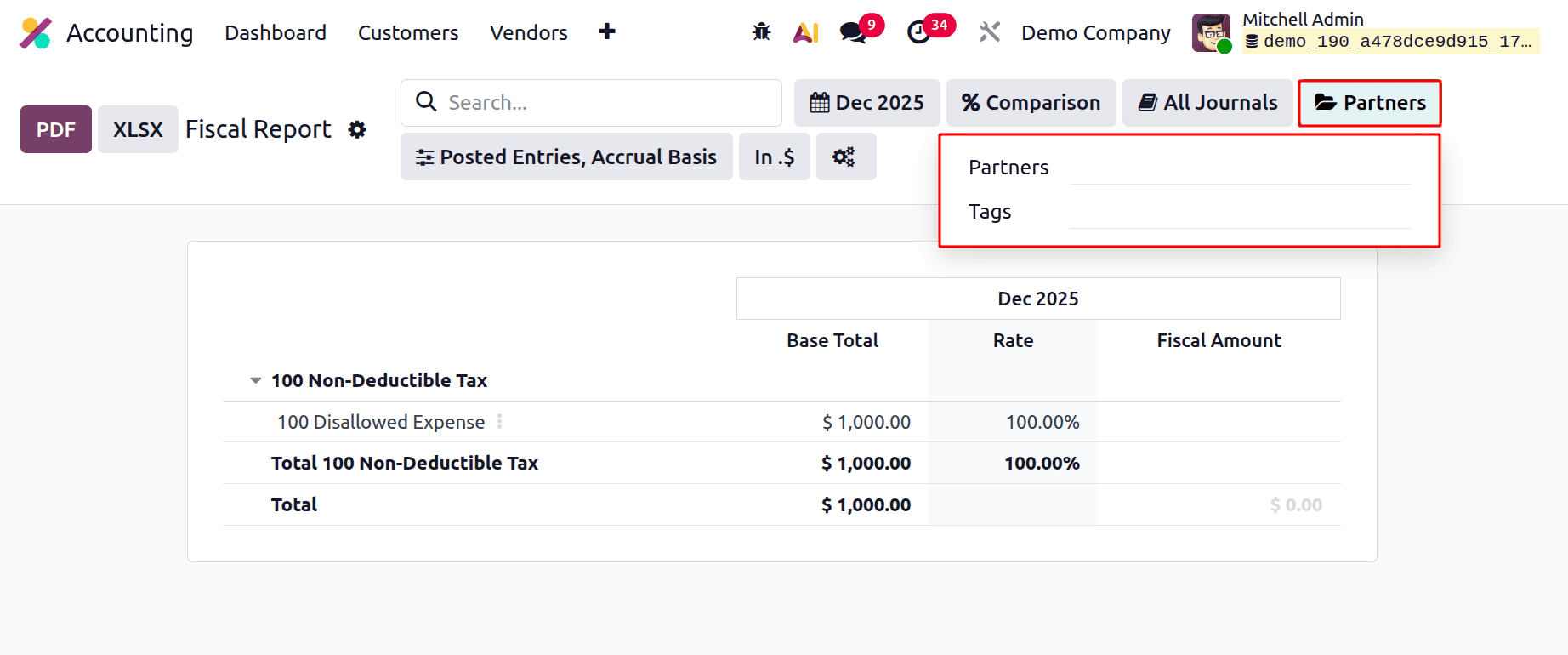
The next one is the Partners filter. All the partners in the company are available there. And also possible to filter based on Tags. If any of the Partners or Tags are chosen, the report will be filtered based on the entries created for the partner.
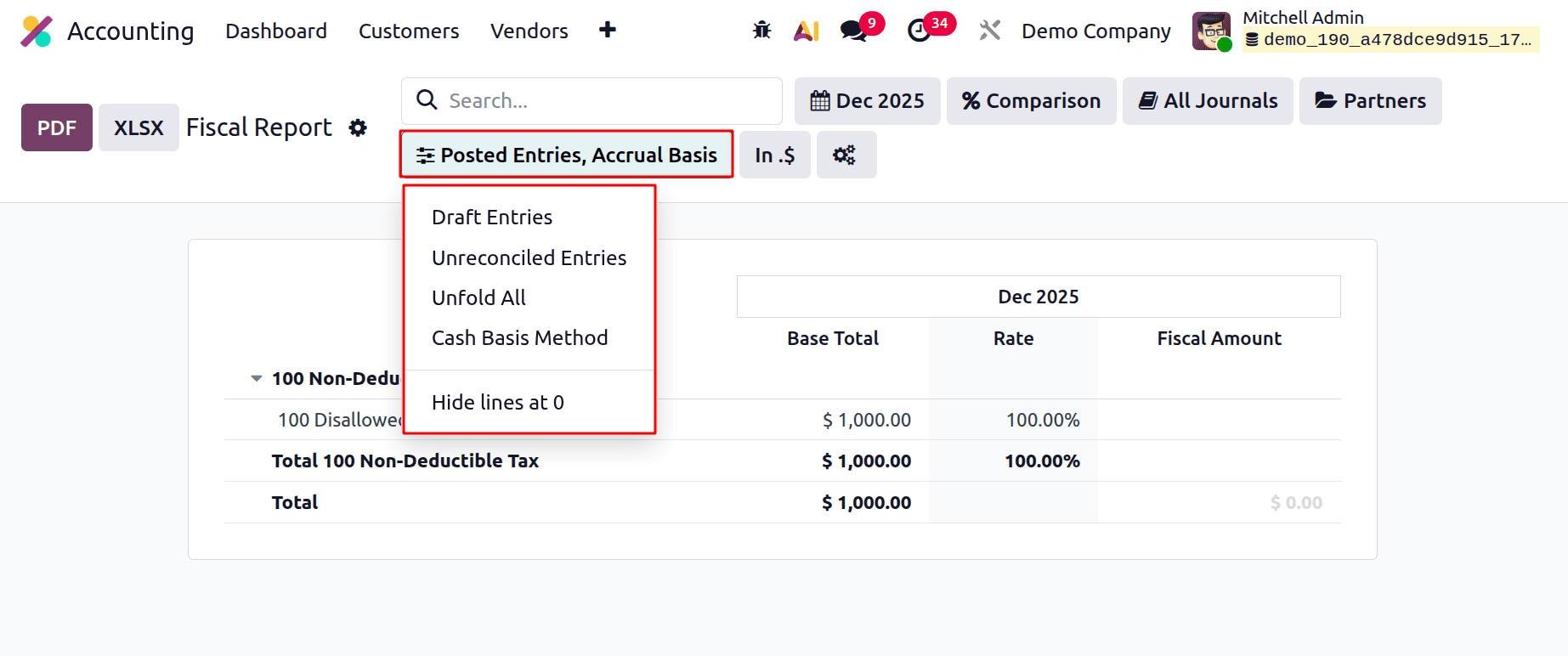
Next filter shows Draft Entries, Unreconciled Entries, Unfold All, Cash Basis Method, and Hidelines at 0. If the Draft Entries are chosen, then all the unposted journal entries will be shown in the report. To see the Unreconciled Entries, enable the Unreconciled Entries and Cash Basis methods filter. To hide the zero value entries from the report, use the Hide lines at 0.
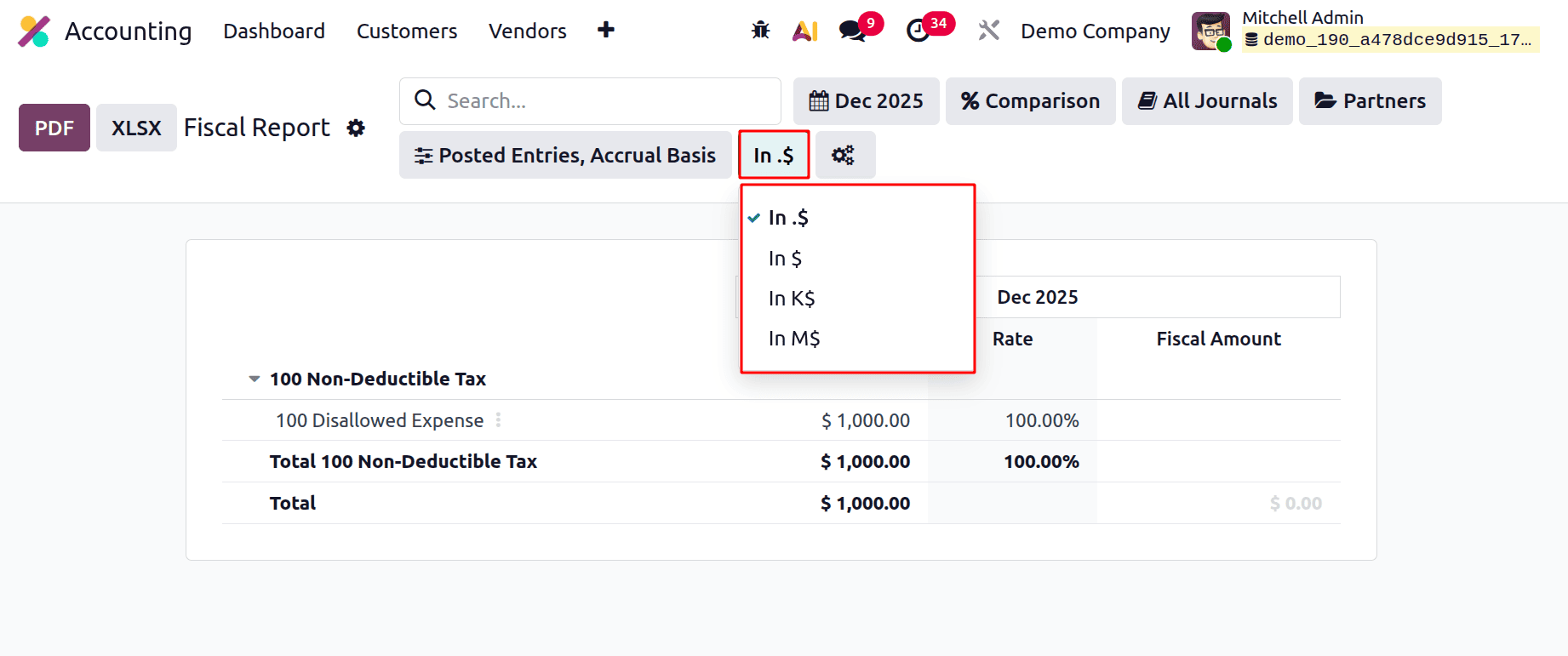
The amount display scale filter is the designated filter in the Odoo 19 Accounting Fiscal Report. For improved readability, it regulates how monetary amounts are displayed in the report.
Amounts in $ are shown in full value (e.g., $1,000).
K$ displays values in thousands (e.g., $1.0K).
M$ displays figures in millions (e.g., $1.0M).
This filter merely modifies the visual presentation of figures; it has no effect on the underlying accounting data or computations. When examining substantial fiscal reports with significant transaction quantities, it is particularly helpful. Users can easily analyse data without having to read through lengthy numbers by modifying this filter.
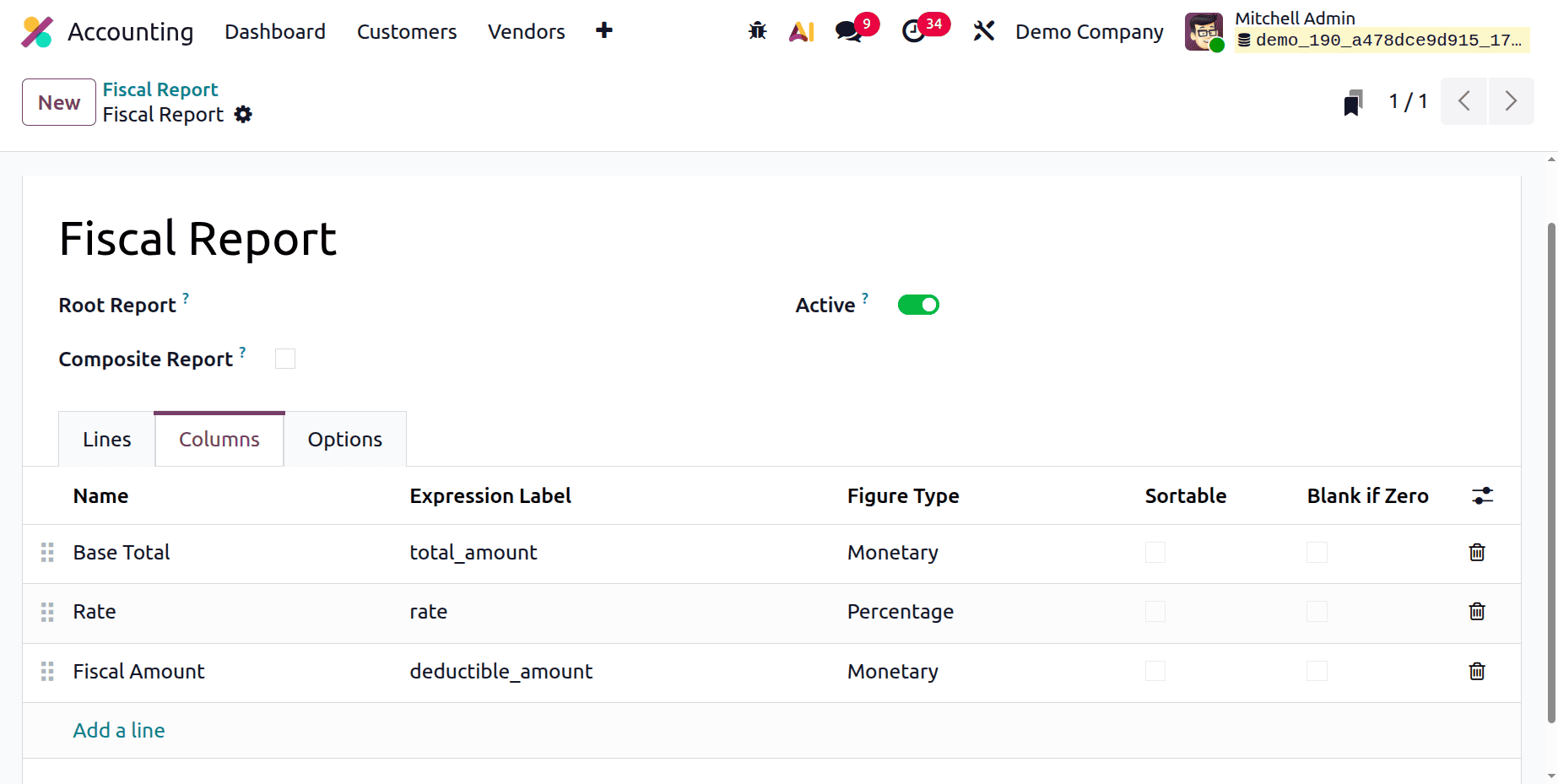
The very next icon near the Currency filter will lead the user to the Accounting Report. The Accounting report will help the user to customize the given report.
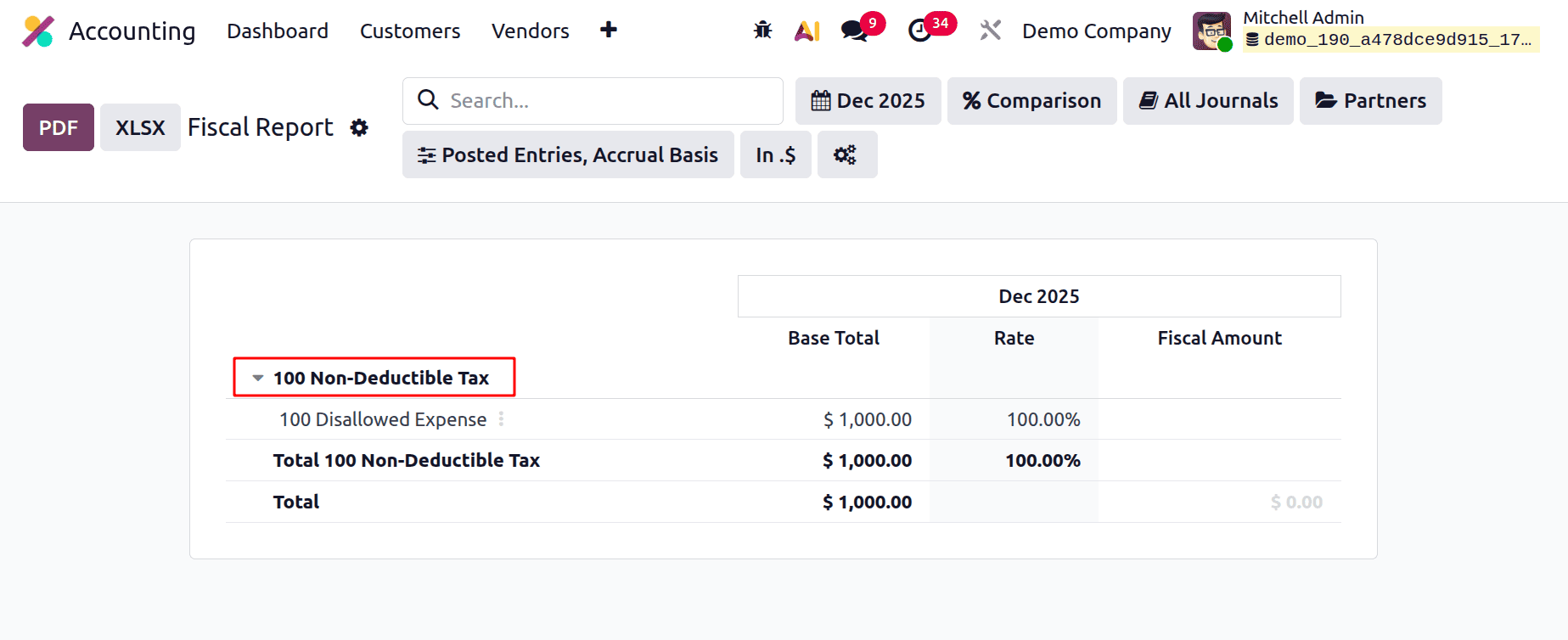
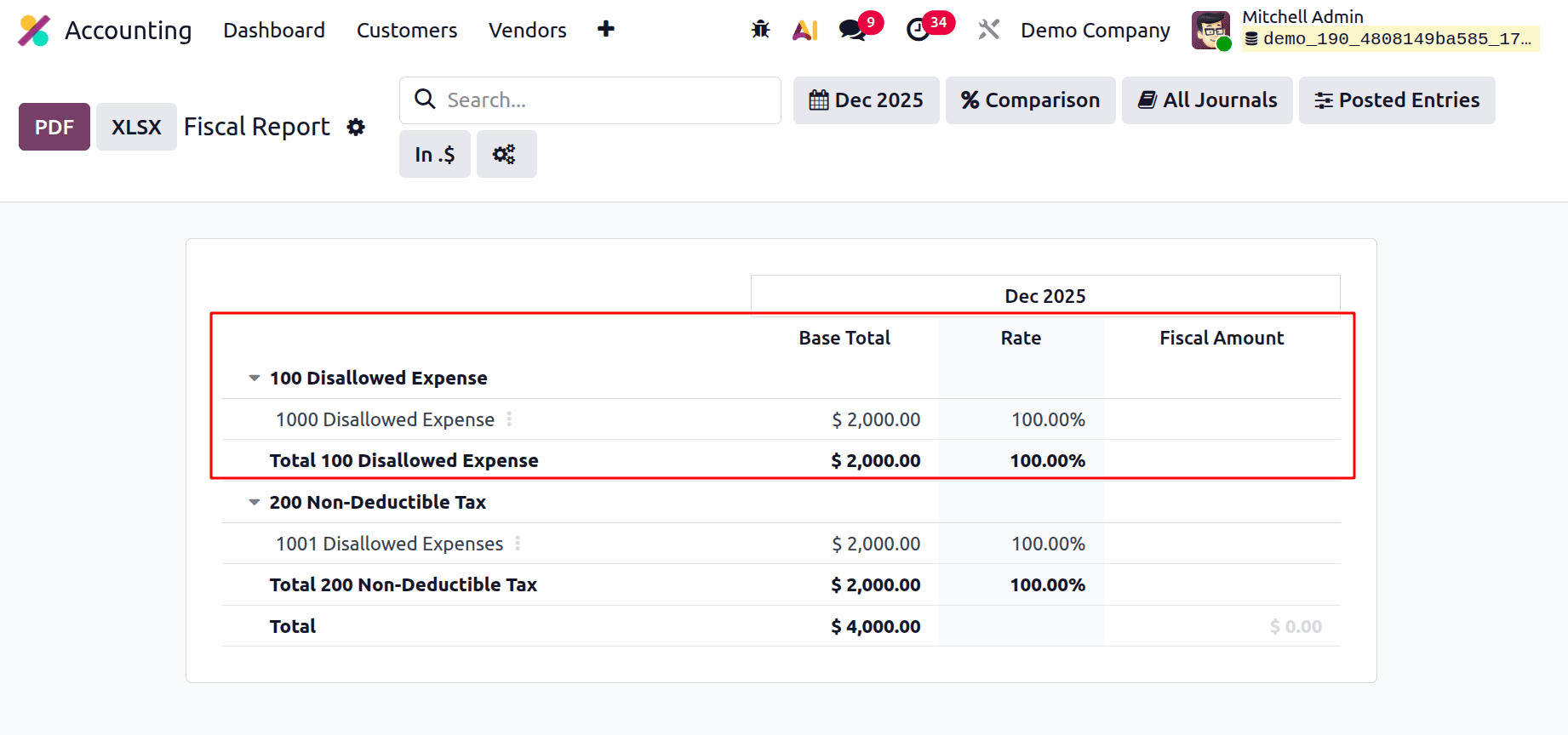
The report shows the created Fiscal Category, Base amount, Rate, and the Fiscal amount. The total of each Fiscal Category and the whole Total will be visible there in the report.
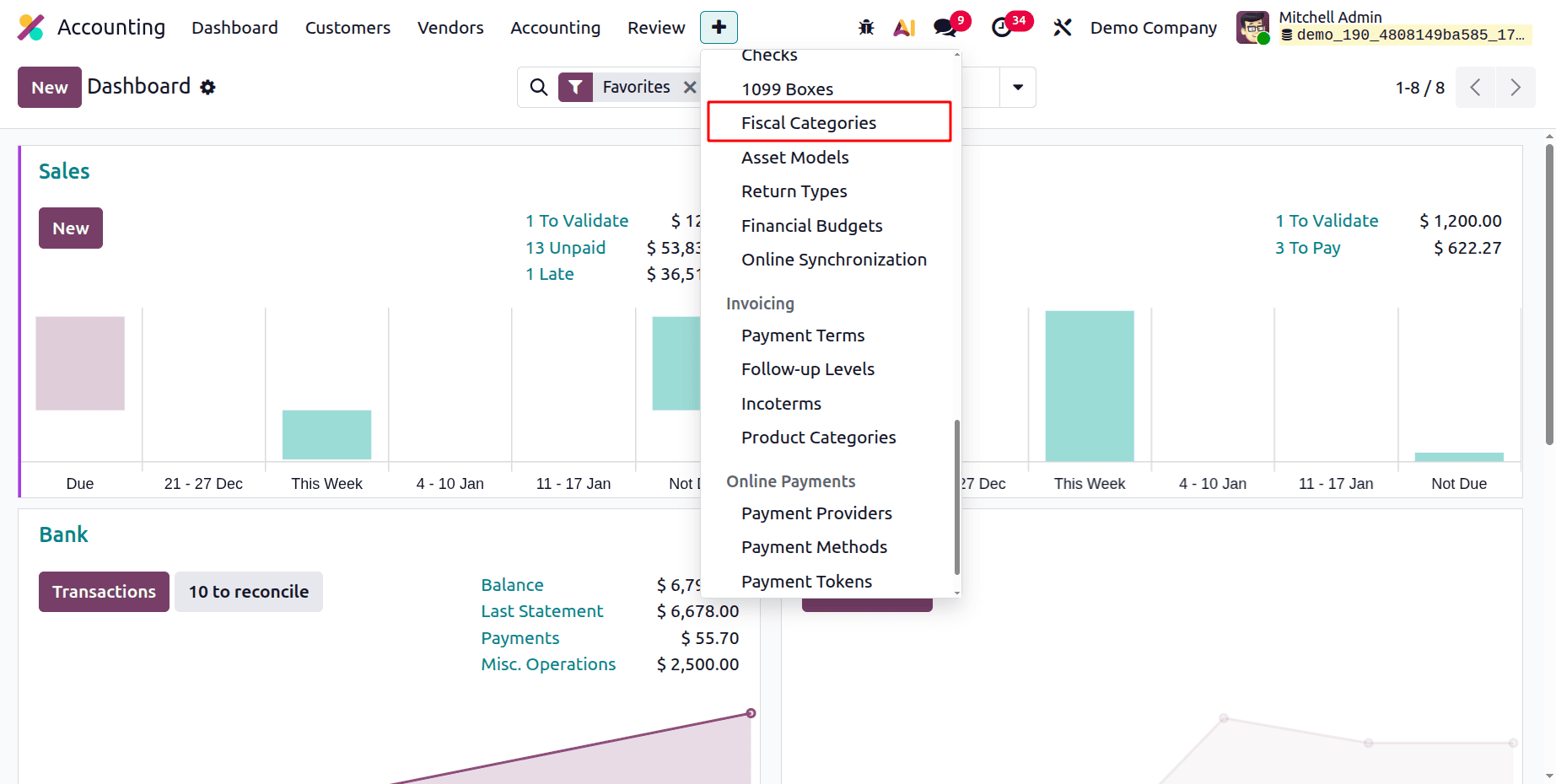
To create a new Fiscal Category, choose it from the Configuration. And choose the Fiscal Category.
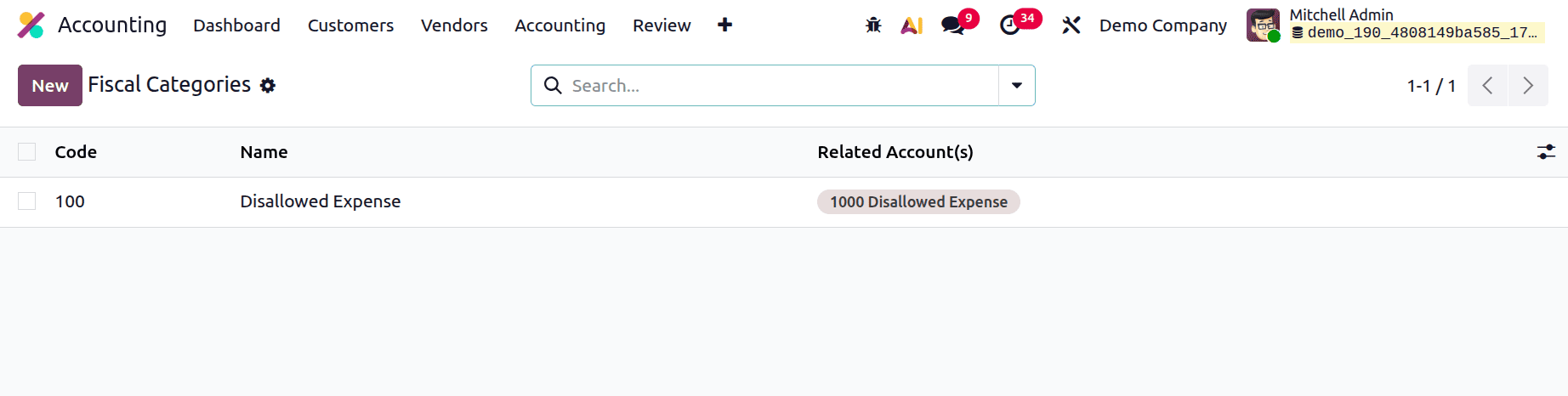
The list shows the created Fiscal Category. This shows the Code, Name, and Related Account(s). Click the New button to add a new one.
While creating a new Fiscal Category, first add the Code. Then mention the Category Name, Company, and the Related Account(s).
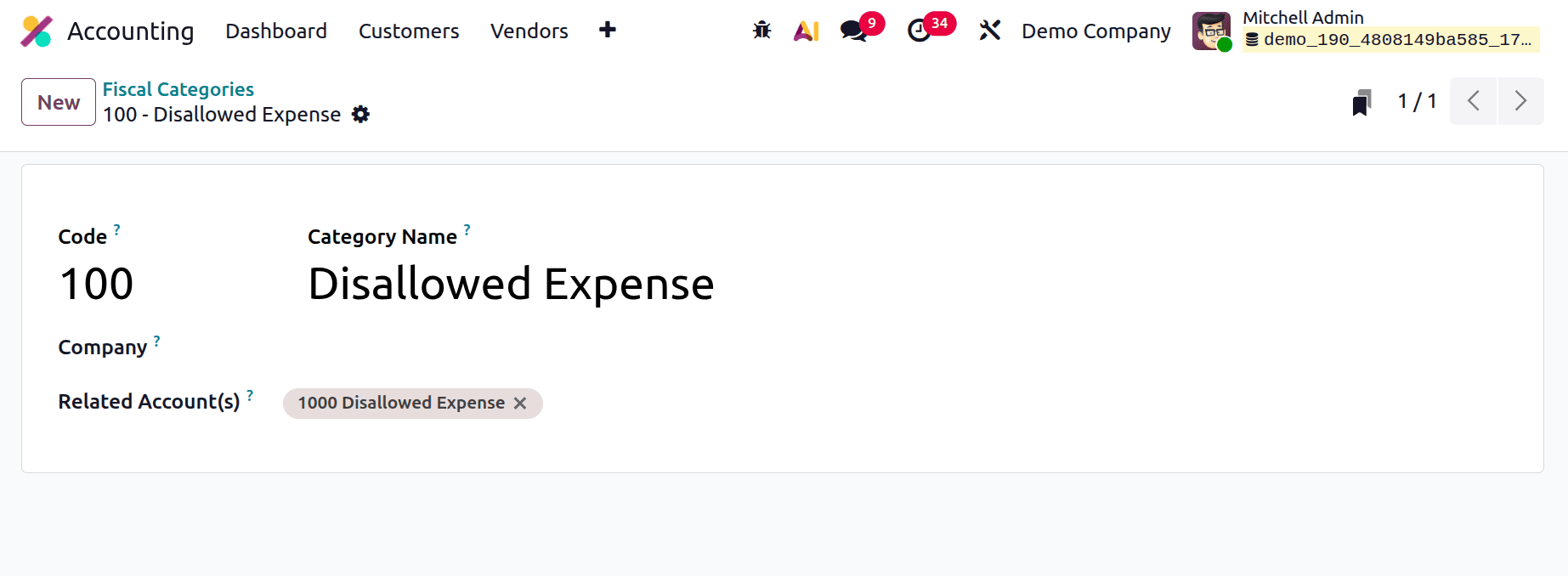
Name: A descriptive term (such as "Business Entertainment") for the category of prohibited expenses.
Related Account: This category's associated expense account.
Current Rate: The percentage of the spending that is prohibited for tax purposes is known as the current rate.
After the setting is finished, you can handle Fiscal Category through standard business operations like vendor invoices and purchase orders.
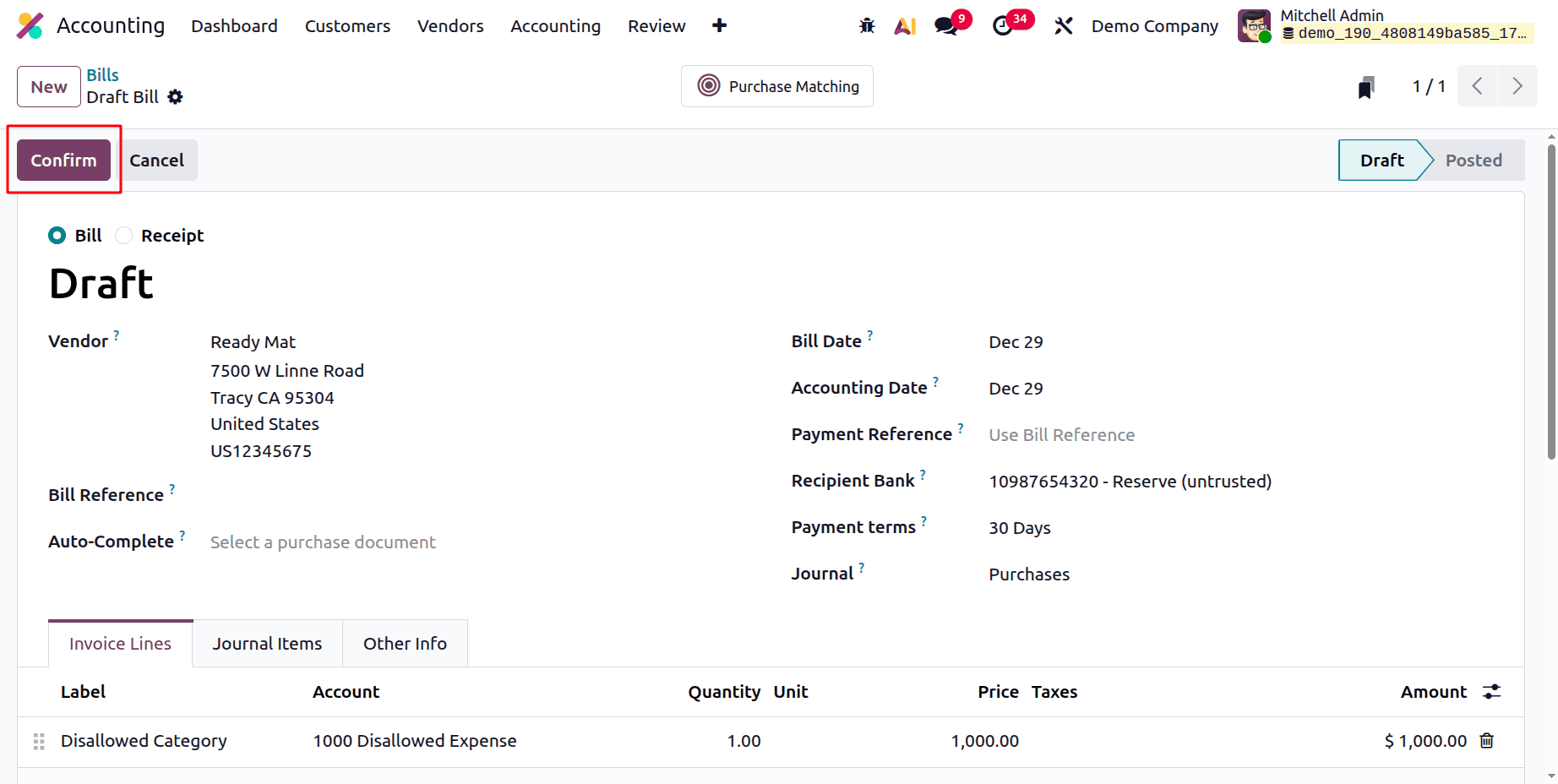
Now let's draft a new vendor bill. Include the seller and the date of the bill. Then, inside the Invoice line, mention the Label Account and price. Here, the Account should be the same account mentioned inside the Fiscal Category. Then Confirm the Bill.
Then move back to the Reporting and choose the Fiscal Report again. Fiscal Category, Base amount, and Rate are available there as shown below.
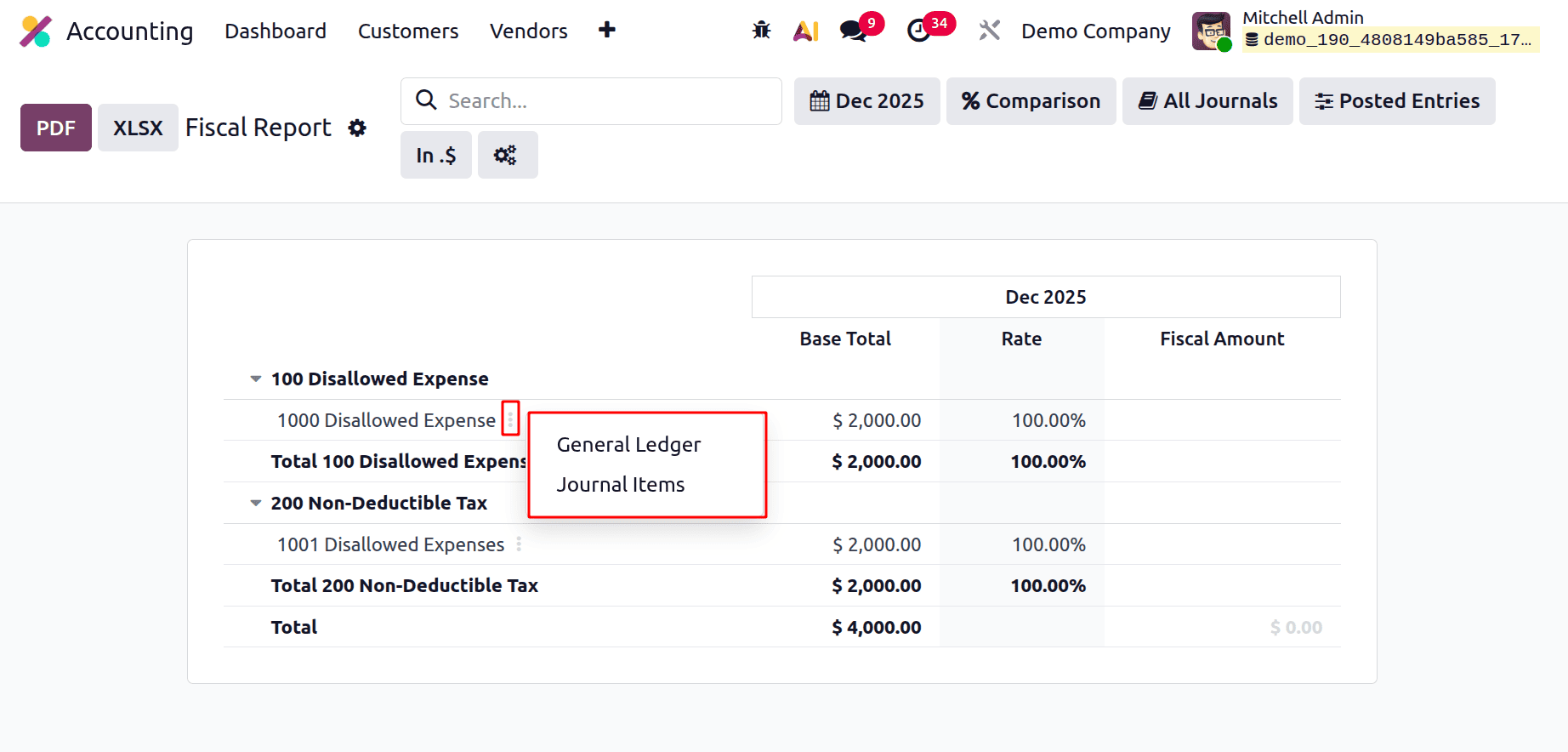
While clicking on the 3 dots near the entry, which will shows two options, one is to open the General Ledger and the second one is to open the Journal Items.
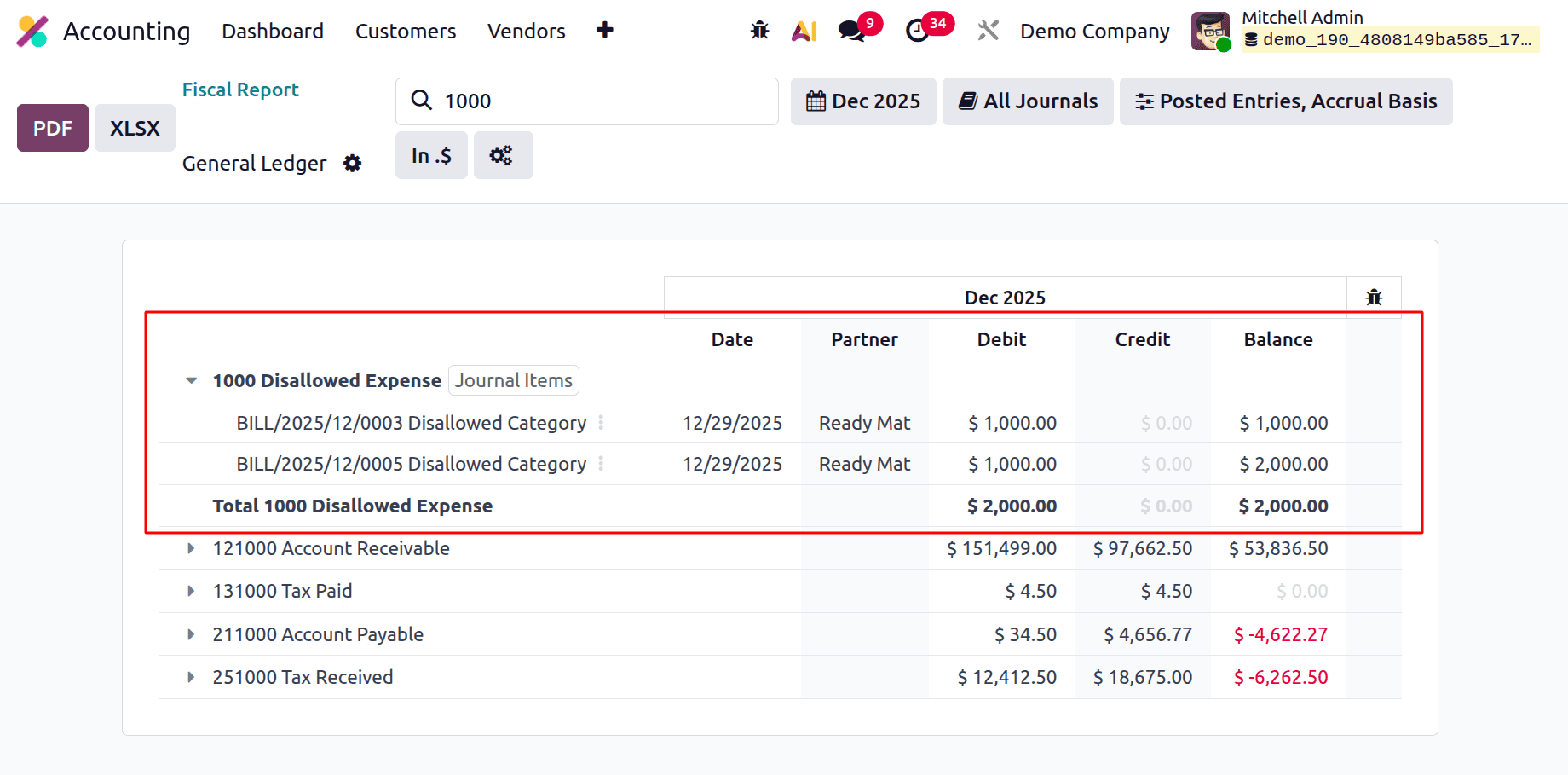
If the General Ledger is open. The general ledger shows the Account Date, Partner, Debit, Credit, and the Balance.
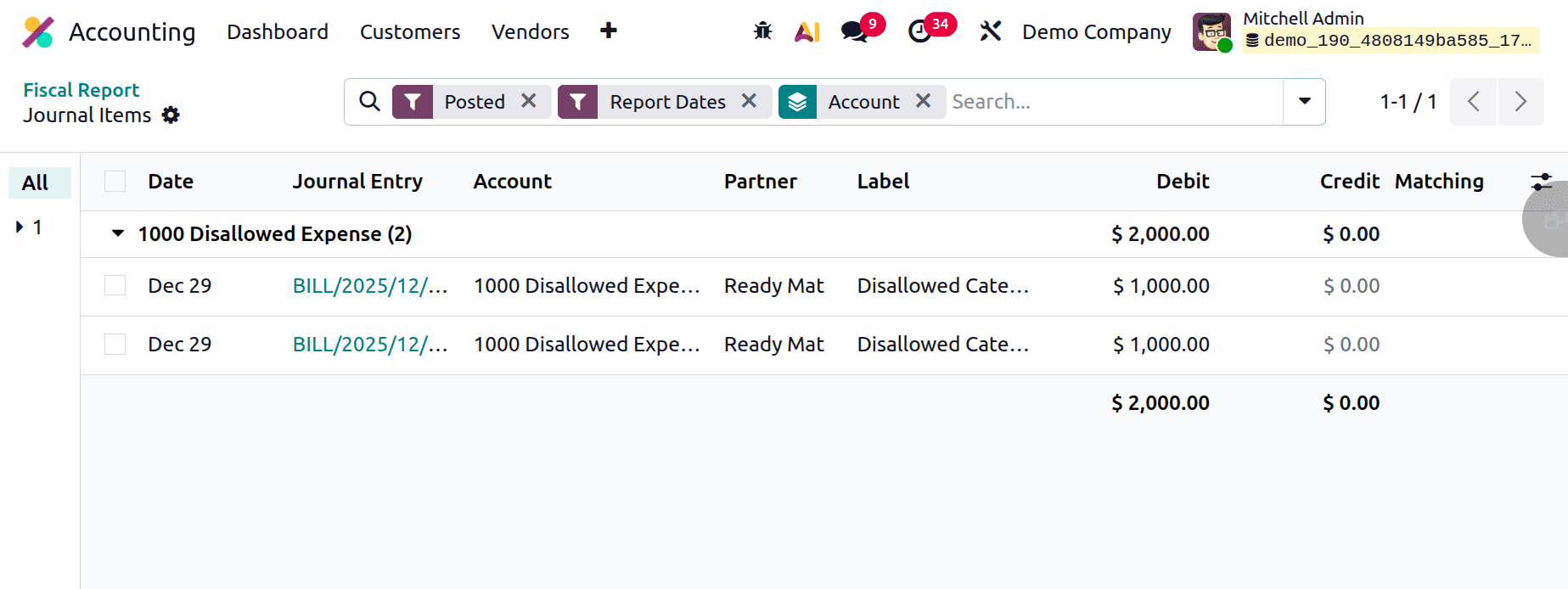
Then the next one is Journal Items, which will show all the created Journal items, as shown below.
To sum up, Odoo 19's Accounting Fiscal Categories Report offers an organised and transparent view of transactions according to their fiscal classification. It assists companies in ensuring greater financial analysis, better compliance, and correct tax reporting. This study can help accountants make more assured and effective decisions.
To read more about An Overview of Odoo 18 Accounting Reports, refer to our blog An Overview of Odoo 18 Accounting Reports.