Quality is an integral aspect of any manufacturing process control. Consistent inspections at every stage, whether it's measuring dimensions, checking parts, or just confirming assembly, assist uphold product standards and lower errors.
Odoo 19's Quality and Manufacturing modules make this process easier. Setting Quality Control Points (Quality Control Points) on particular Work Order Operations is one useful feature. This implies that you can automatically initiate a quality check at any stage of the manufacturing process.
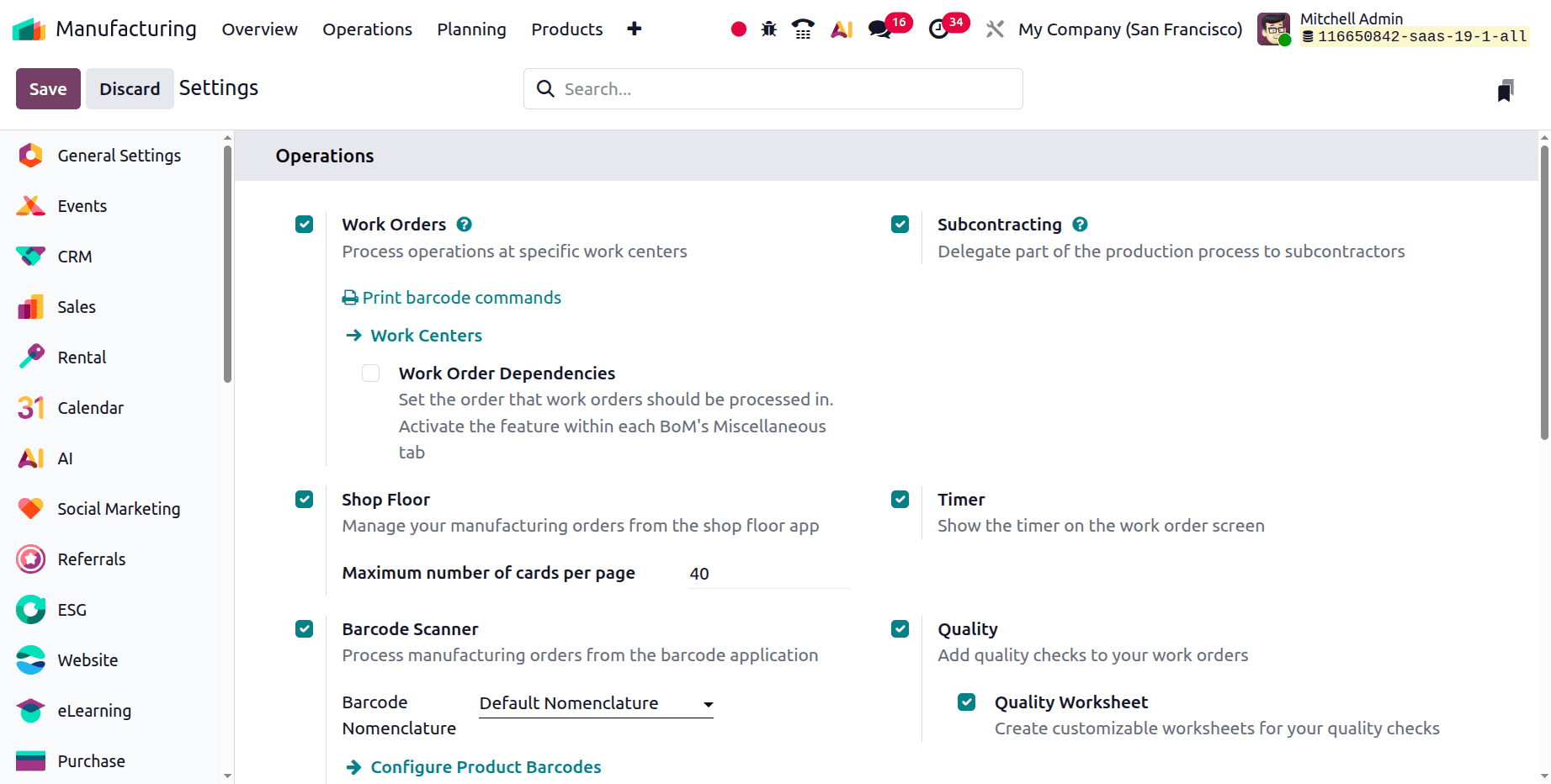
For manufacturing users and quality managers who want to ensure every product meets the required quality standards, this blog explains how to set up a Quality Control Point for Work Order Operations in Odoo 19 using the functional interface. First, install the Manufacturing and Quality modules from the Odoo Apps menu. Then, go to Manufacturing > Configuration > Settings and activate both the Work Orders and Quality options to use these features. This step is essential because work orders divide the manufacturing process into manageable operations, while the Quality module allows you to add quality checkpoints at each stage, helping maintain consistent product quality throughout production.
You can specify the specific steps that will comprise your production process once Work Orders and Quality are enabled. You can get these by:
Manufacturing > Configuration > Operations
Determining the specific processes that comprise your production process is the next stage.
During the actual production run, each operation such as Manual Assembling, Packing, or Testing represents a distinct task that will subsequently show up as a single work order.
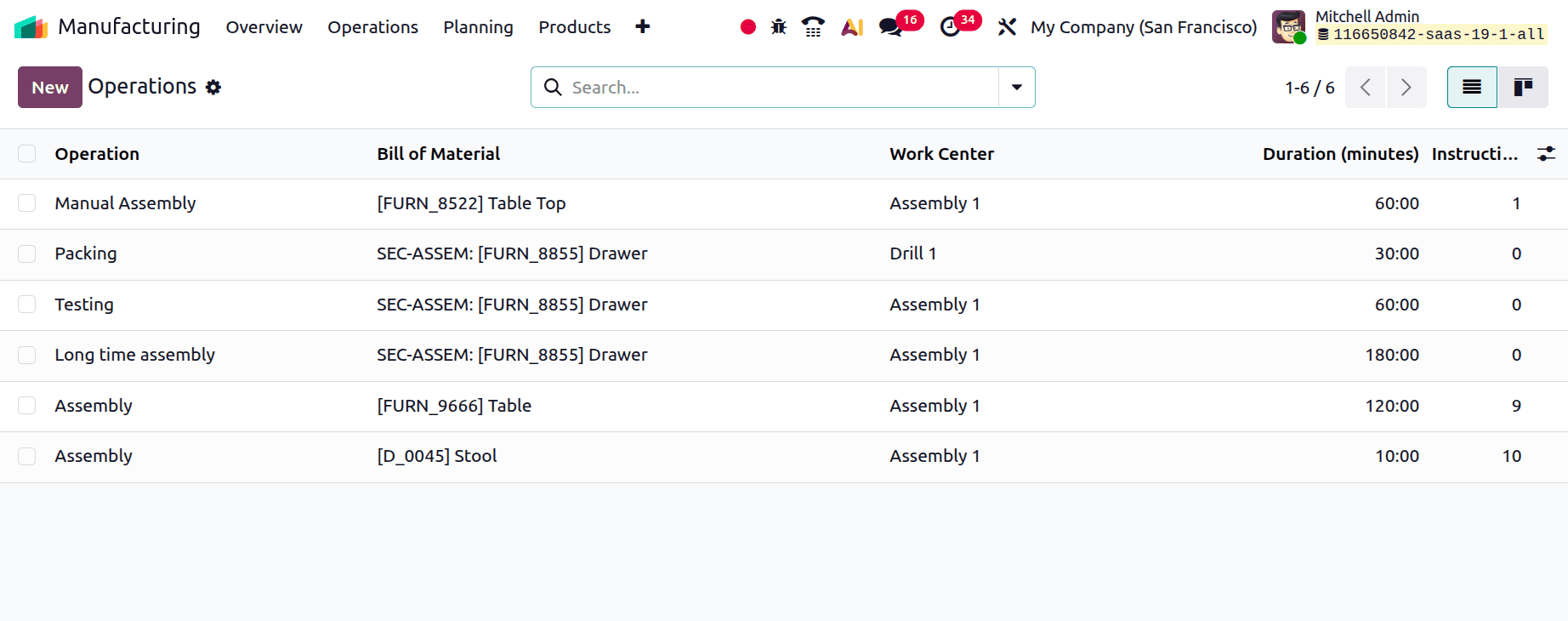
To define a new operation such as a manufacturing workflow phase like cutting, welding, or painting click New.
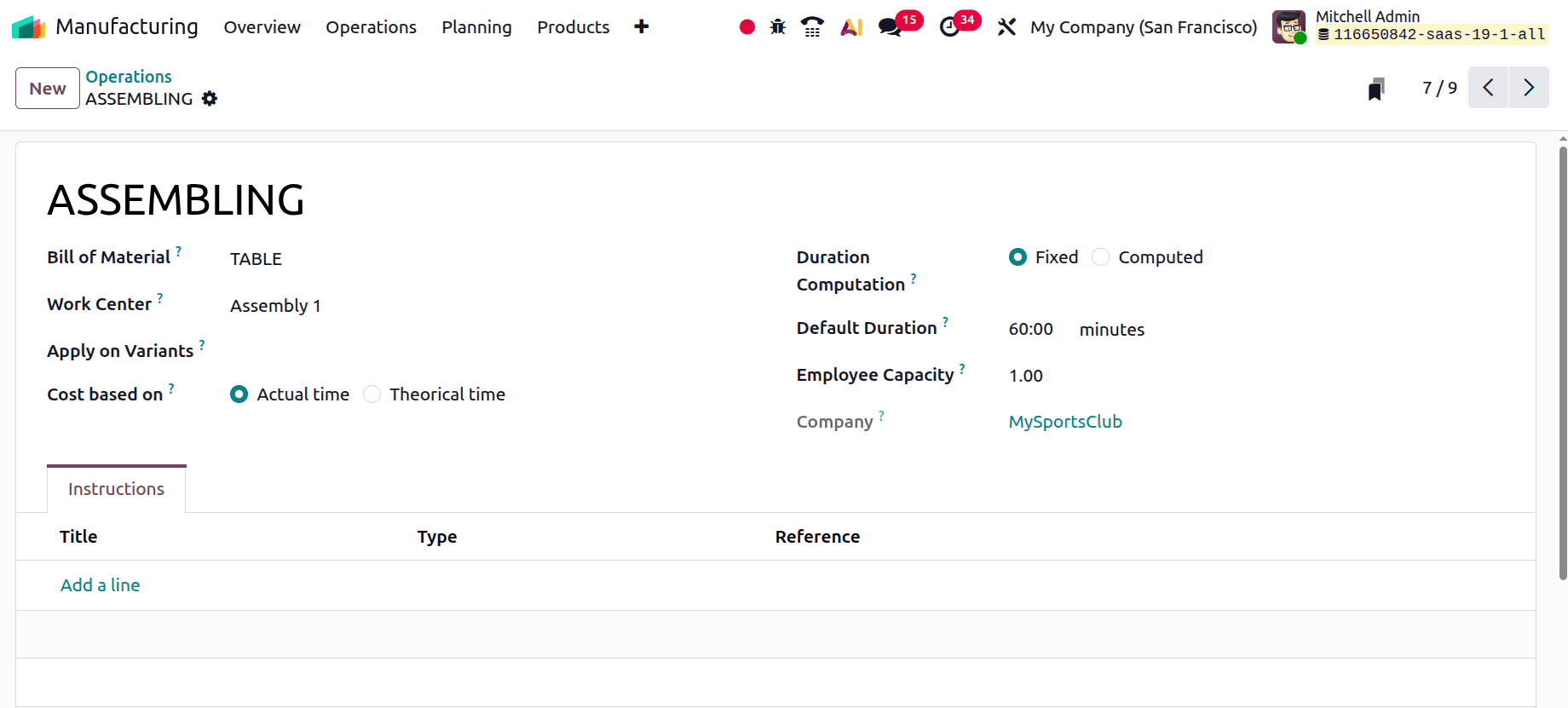
Make careful use of the "Bill of Material" field when creating the operation to link it to an existing Bill of Materials (BoM). Once configured, the operation becomes part of the production flow and Odoo automatically generates a work order for it when the corresponding Bill of Materials (BoM) is selected in a manufacturing order.
Configure the remaining details, including the Operation Name, Work Center, and Default Duration. If the operation is applicable only to specific product variants, you can also define the Apply on Variants option as needed.
The next step after connecting your activities to a BoM is to use Quality Control Points to implement quality checks at crucial points. The Quality module is where these are set up.
Setting up Quality Control Points (QCPs) correctly is crucial to ensuring that quality checks are smoothly incorporated into your production process. These checkpoints are displayed in the Shop Floor module interface and function as control gates during particular operations (such as cutting and welding).
To create a control point, navigate to Quality > Quality Control > Control Points and select New.
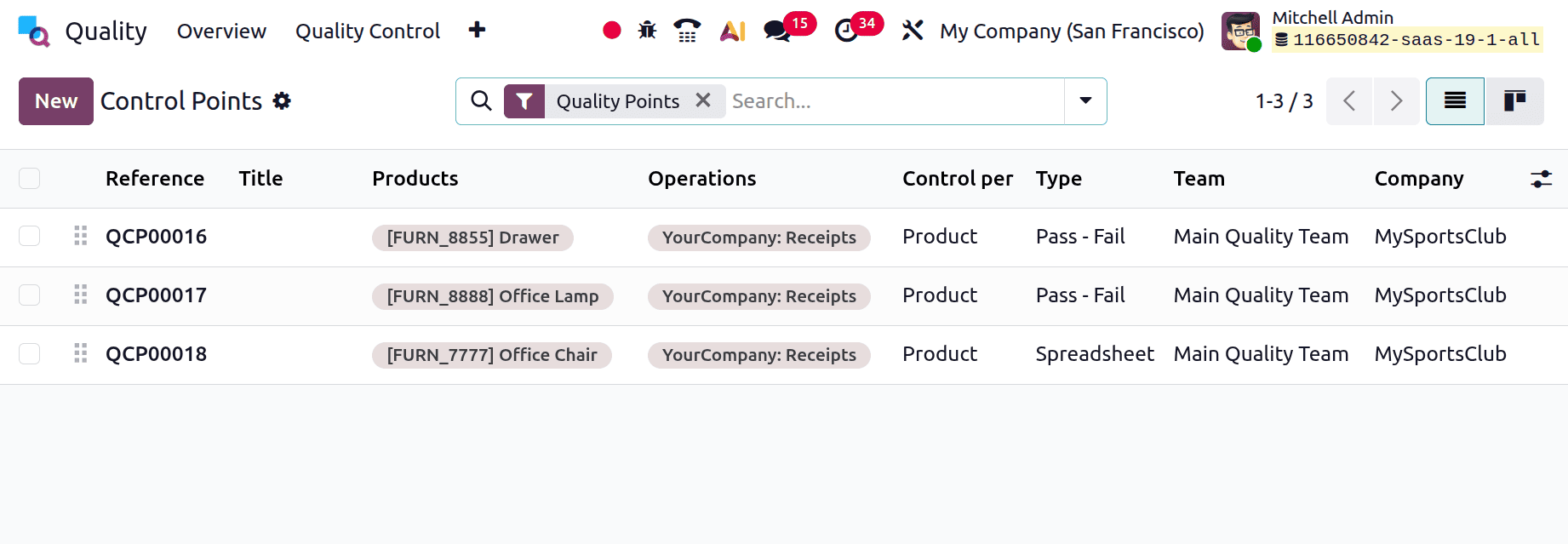
Start by writing a title that accurately conveys the goal of the quality check. Select the relevant product in the Products field to apply the quality check to that product. If the check is applicable to several products under a common category, you can also use Product Categories.
Choose the appropriate operation type under the Operations section based on when you wish the control point to be activated.
Additionally, you may choose whether the check should occur on demand, at random, or on a regular basis for all products by setting the Control Frequency. Assign a team and a responsible individual, and make sure the right business is chosen.
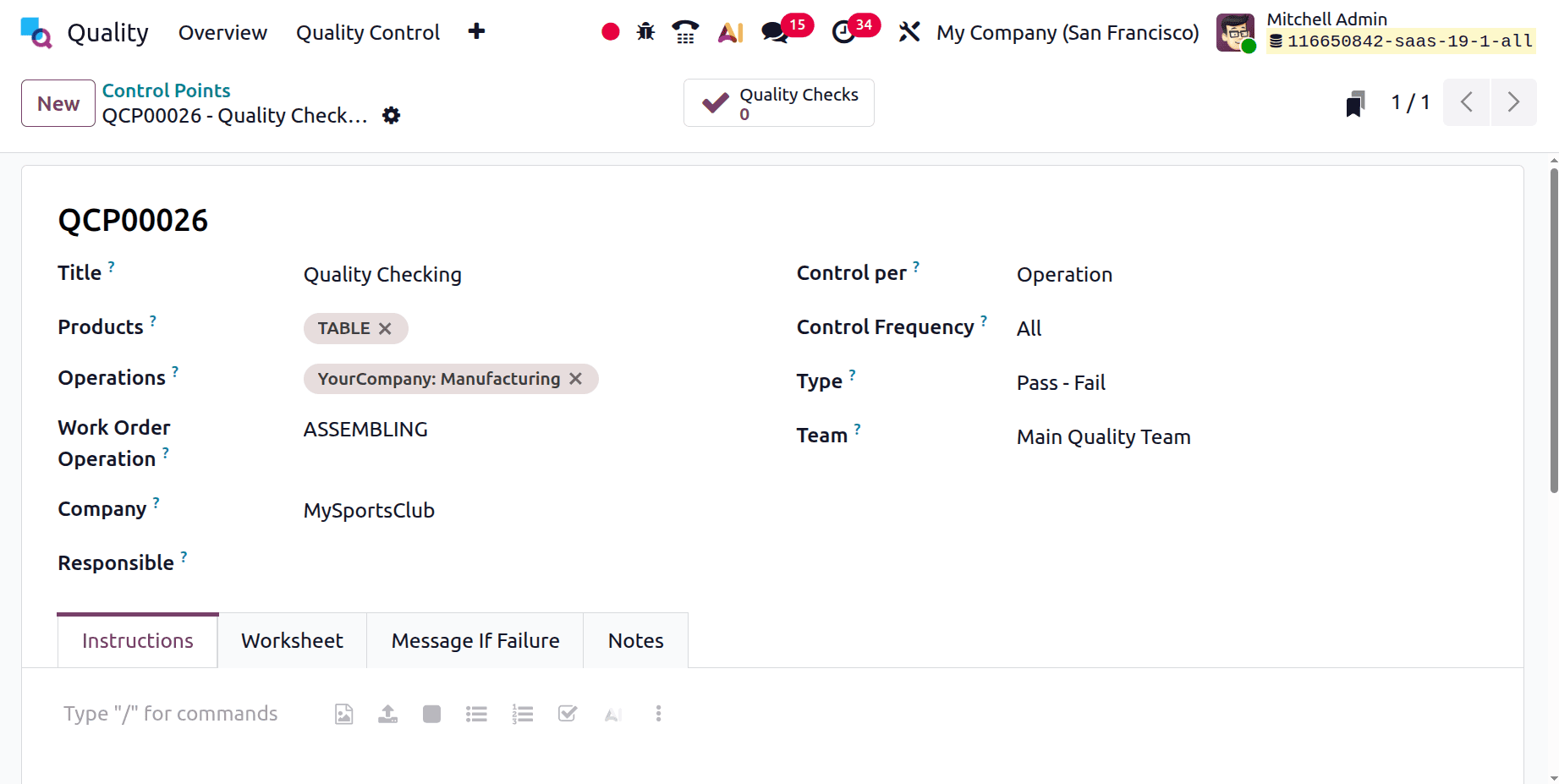
In order to make the field under the field under the specified field check, write clear and make the field. This guarantees that the shop floor operator knows what is expected of them.
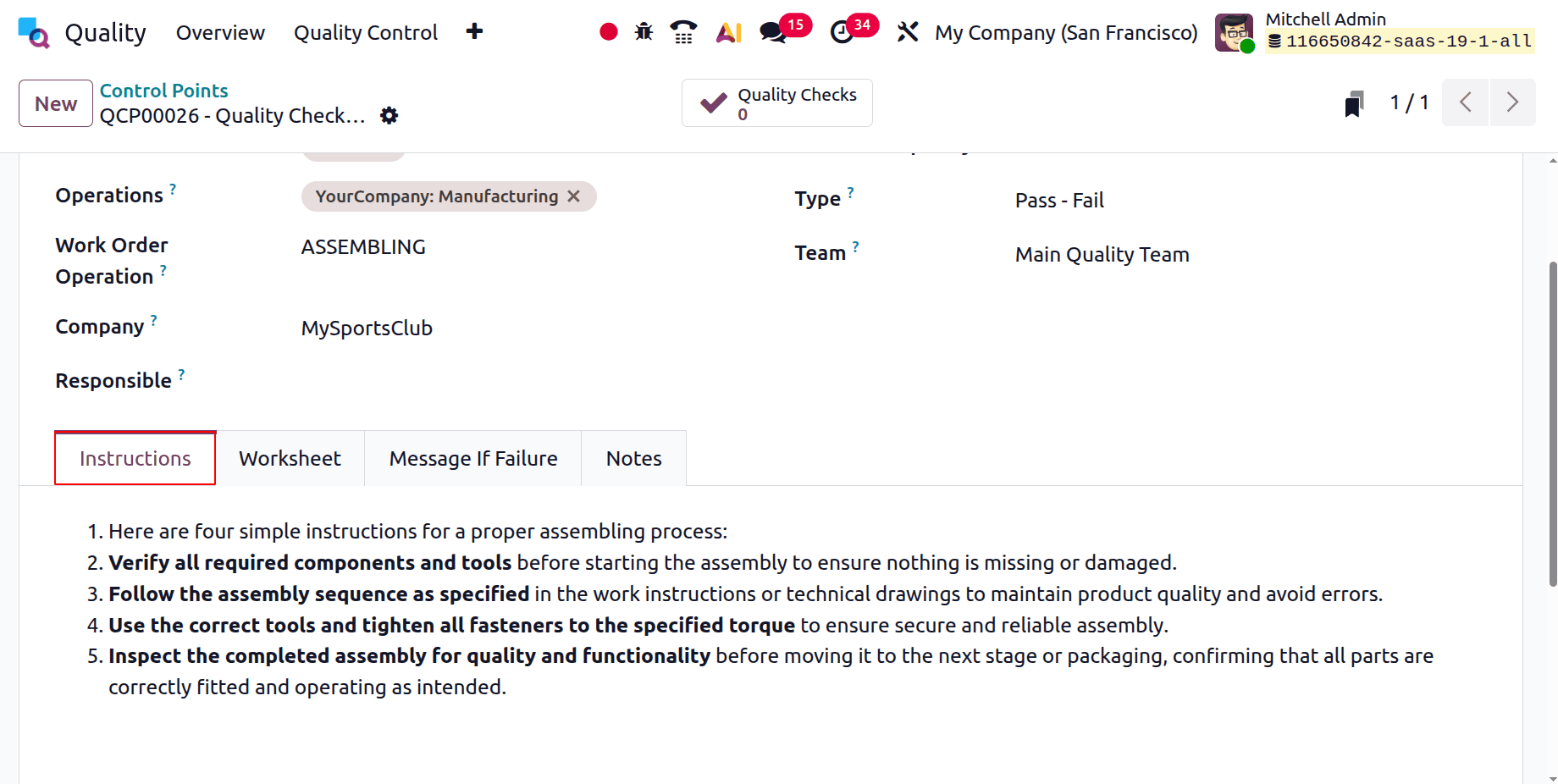
After being saved, this control point will be automatically activated at the specified point in your process, allowing for organised and reliable quality checks all the way through manufacture.
It's time to verify that everything works as intended after you've successfully set up the Quality Control Point for a particular Operation and Work order in our case, the Assembling.
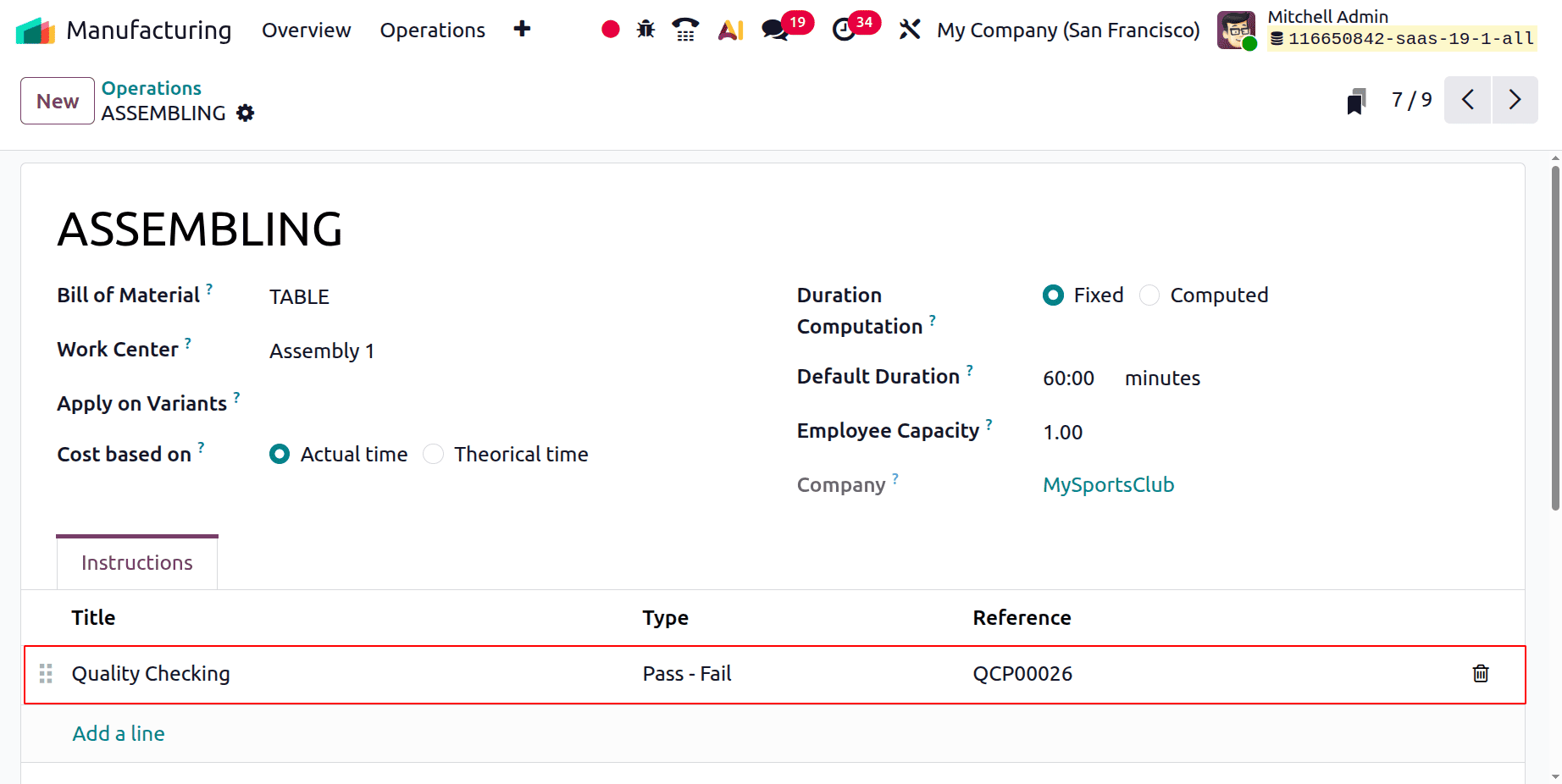
Then, move to the manufacturing again and open the Operations. Open the previously created one. Under the instructions tab shows the created Quality control. It's possible to add new control point for the operation by clicking on the Add a line.
Once the setup is complete, open the Manufacturing module and create a new Manufacturing Order (MO) for the same product used in the BoM and QCP configuration. In this example, that product is Table Top.
The next stage is to use a Manufacturing Order (MO) to verify its functionality. The essential information for your Manufacturing Order (MO) will be entered here. Choose the product you want to make first; this is the finished product that will be produced. Next, indicate how much you intend to produce. Next, choose the relevant Bill of Materials (BoM), which should already include the work center function as Assembling and the required routing steps. Last but not least, the production.
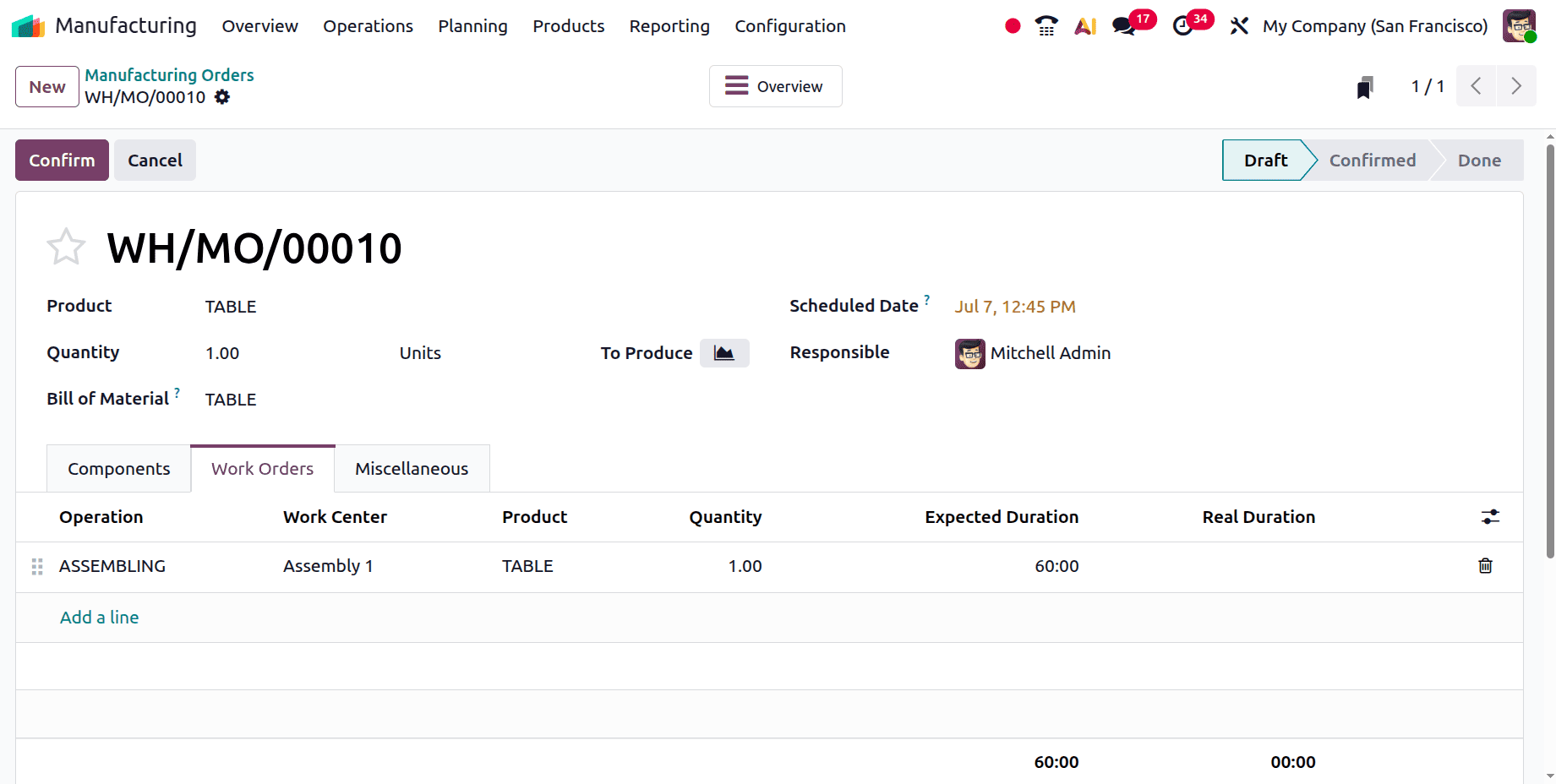
When the Manufacturing Order (MO) is validated, Odoo automatically generates the corresponding work orders according to the routing and operations specified in the Bill of Materials (BoM). Depending on your workflow, this could involve a Work order named as Assembling.
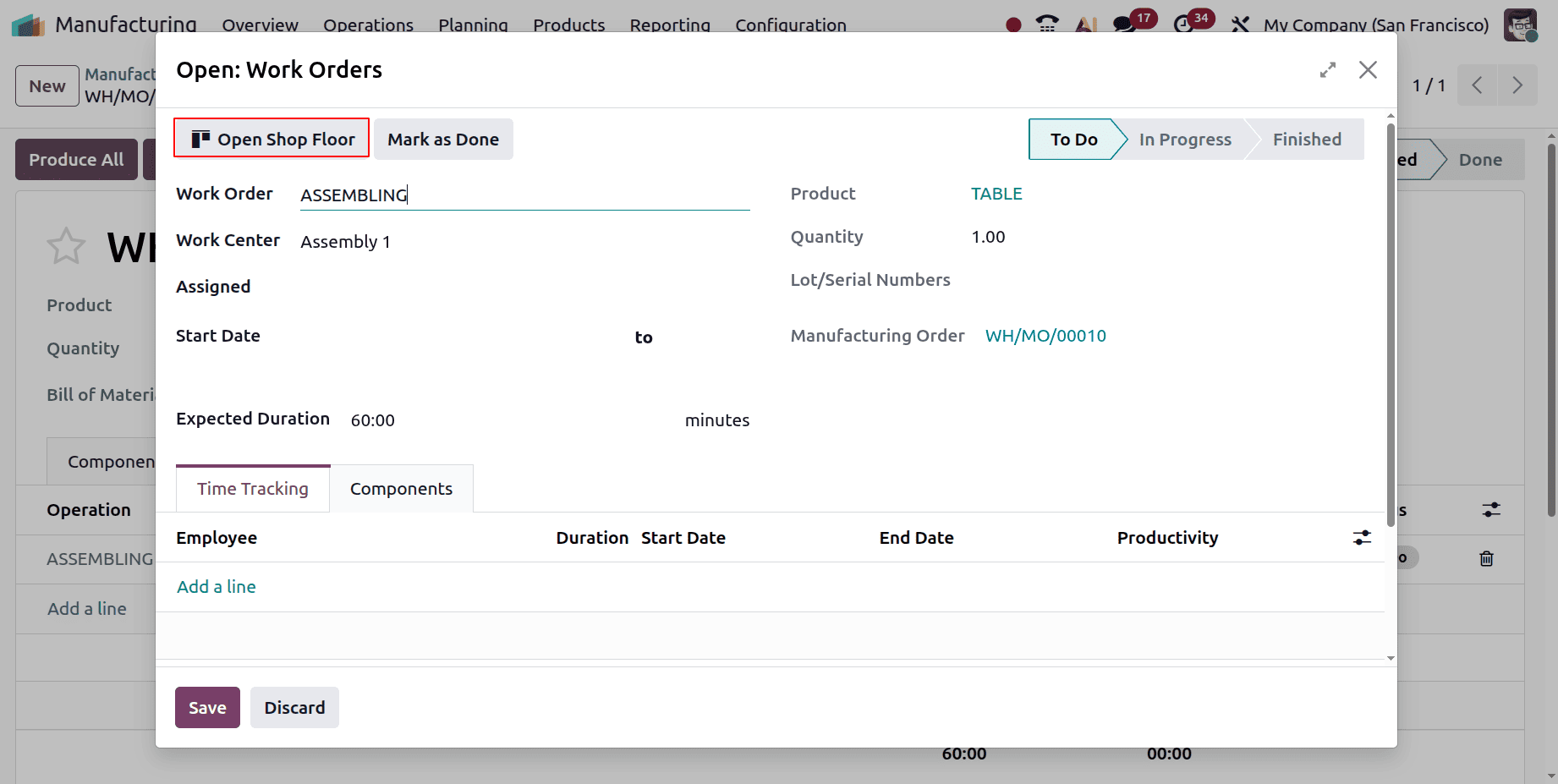
Click the Shop Floor smart button from the MO to access the Shop Floor interface and complete these work orders in an easy-to-use and operator-friendly setting.
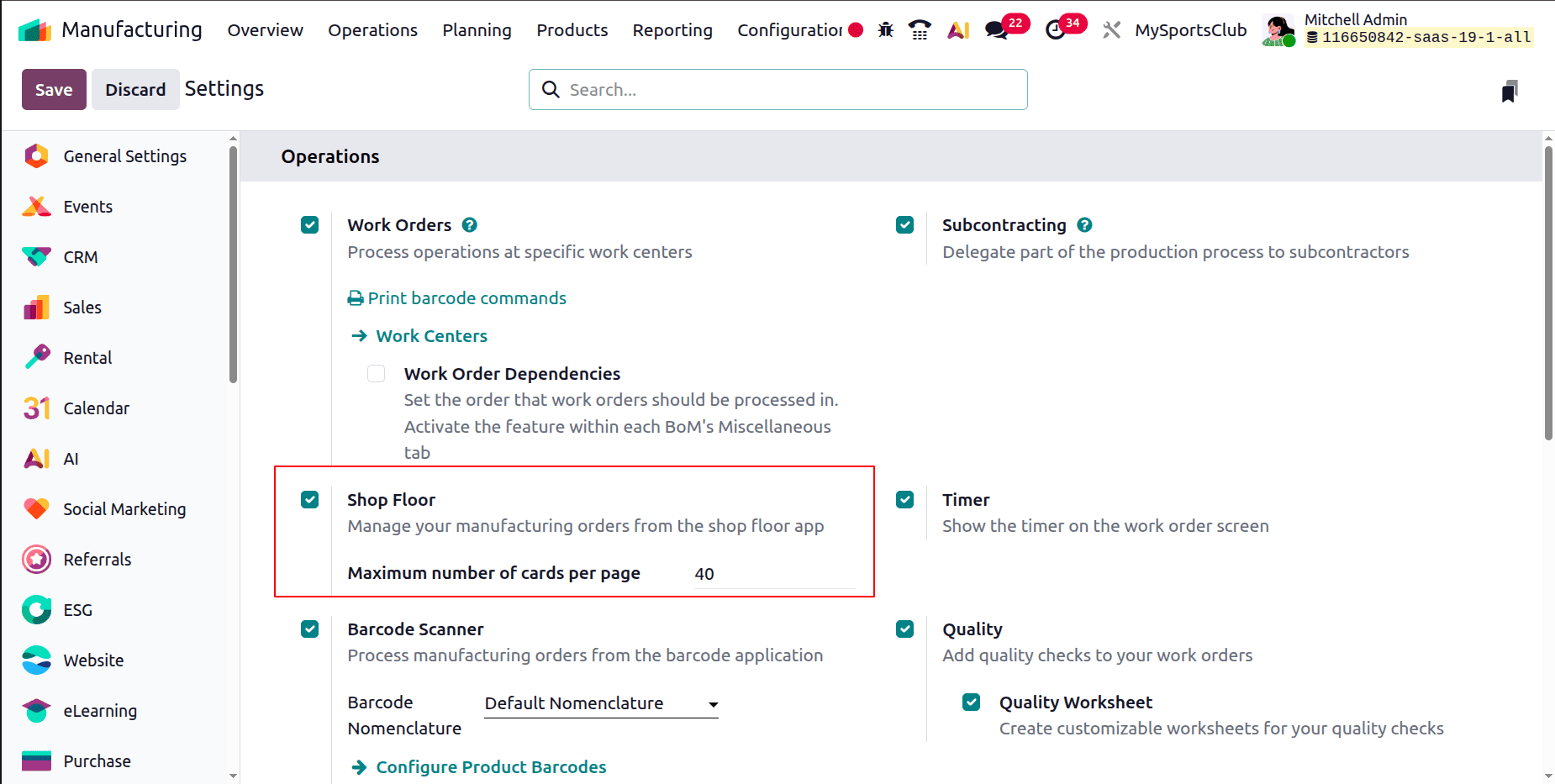
Before using this functionality, verify that the Shop Floor feature is installed and activated from the Manufacturing module's settings.
Every action is displayed in the Shop Floor interface as a distinct, aesthetically pleasing card with a Start button. When a Quality Control Point (QCP) is linked to an operation like Cutting, Odoo displays a Quality Inspection prompt on the work order card, requiring the inspection to be completed before the operation starts.
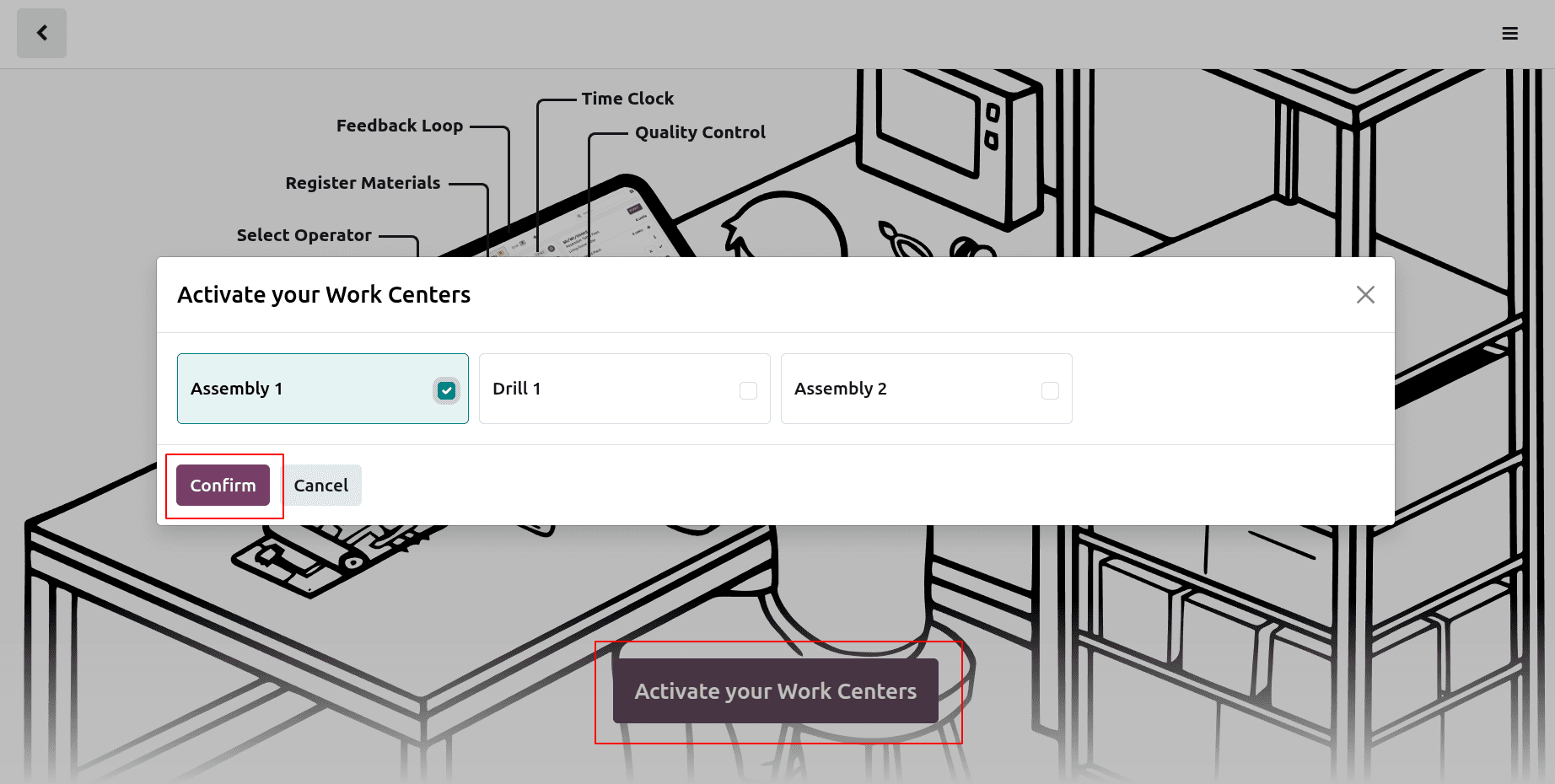
Click on the Activate Workcenter, then choose the work center and Confirm.
After completing the required quality check, click Start on the operation card to move to the next step This indicates that the operator has started working on that phase.
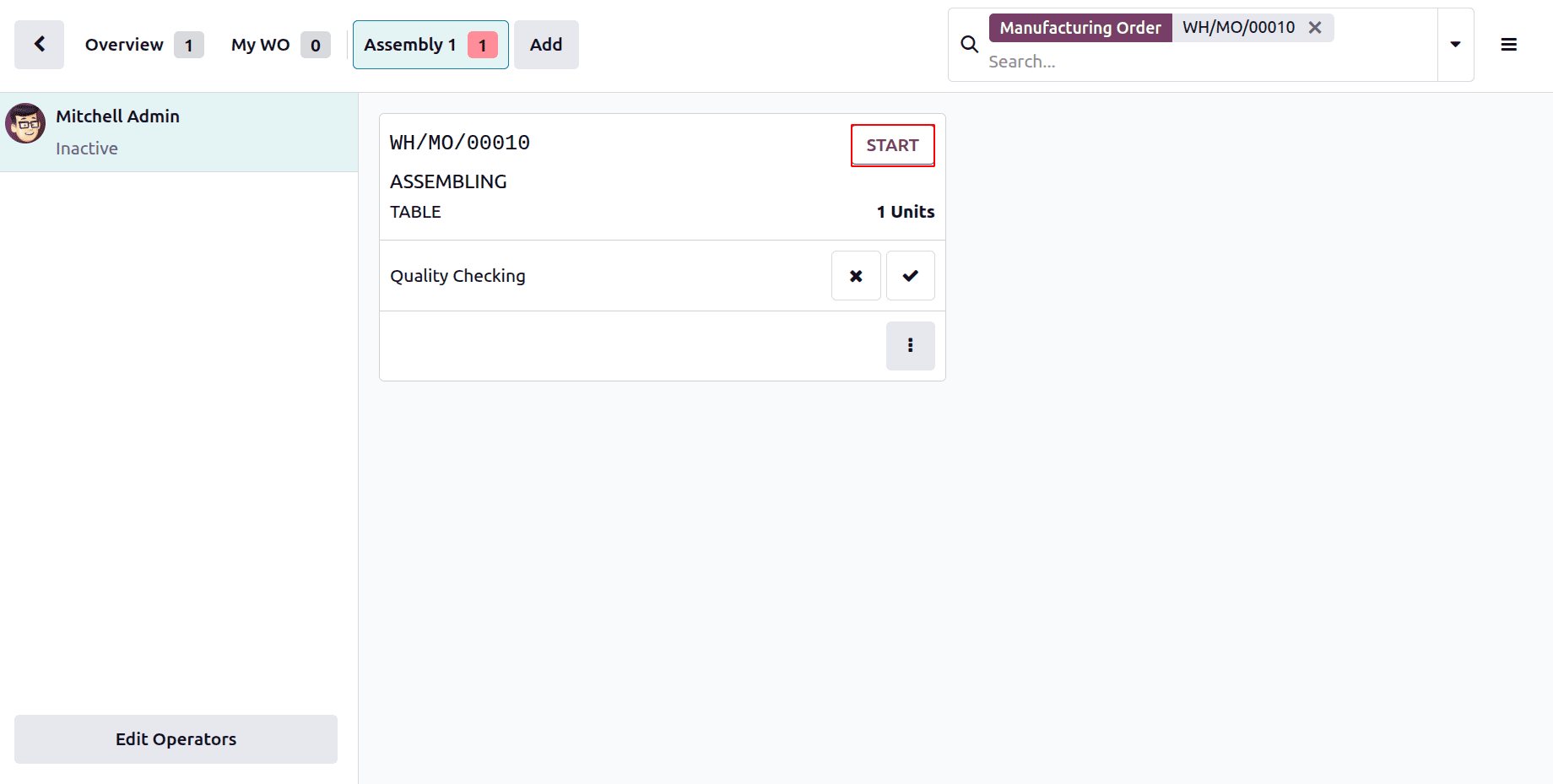
Click the Start button on the operation card to proceed with the operation. The system will request a Quality Check before permitting the job to continue if it is connected to a Quality Control Point (QCP). Based on predetermined criteria, the operator must either pass or fail the inspection.
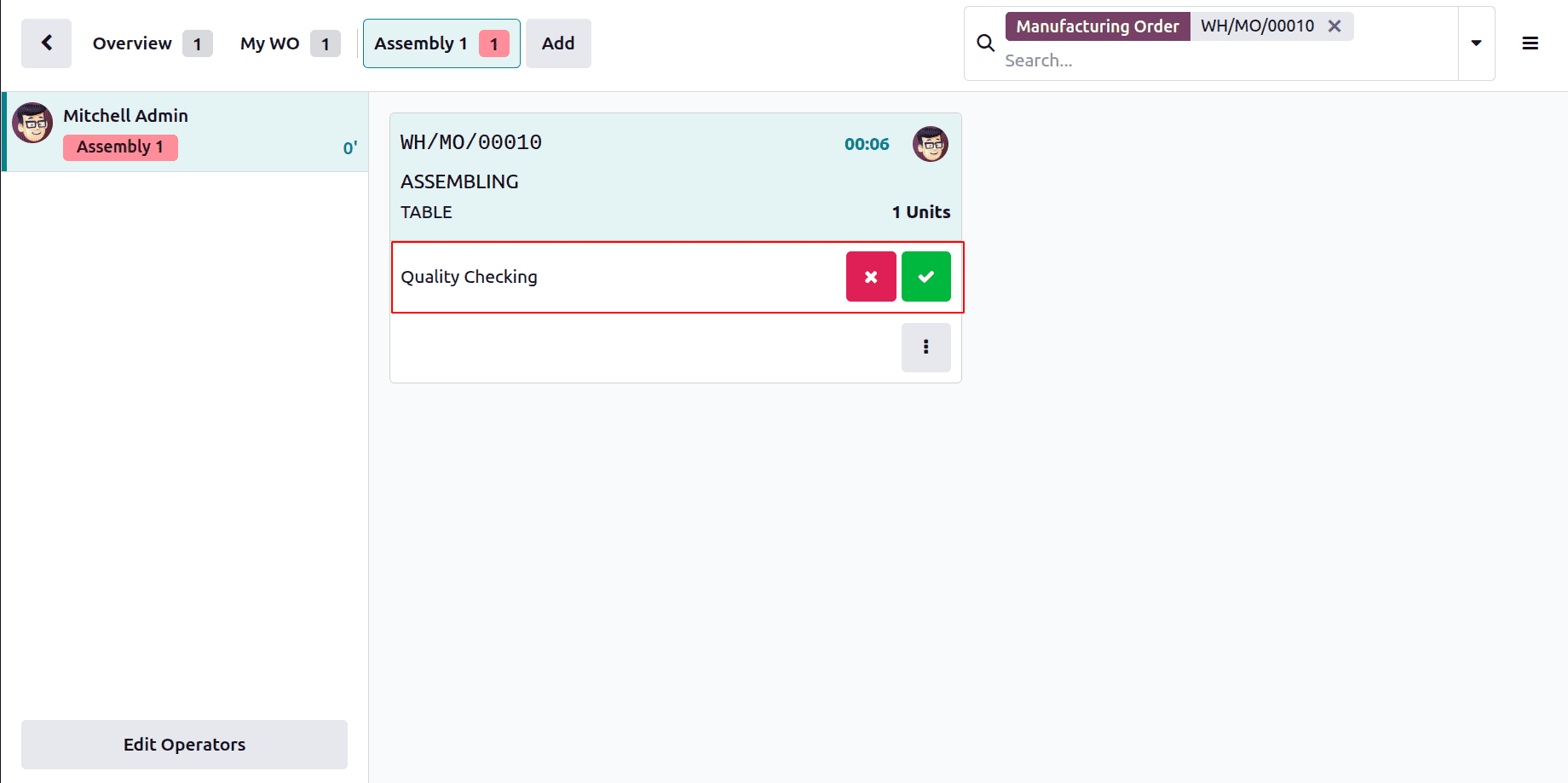
Here the quality checking type is set as Pass/ Fail. choose the button according to that. If the quality checking passed, click on the Green button, else choose the red one.
If the quality checking is passed, which shows as shown below.
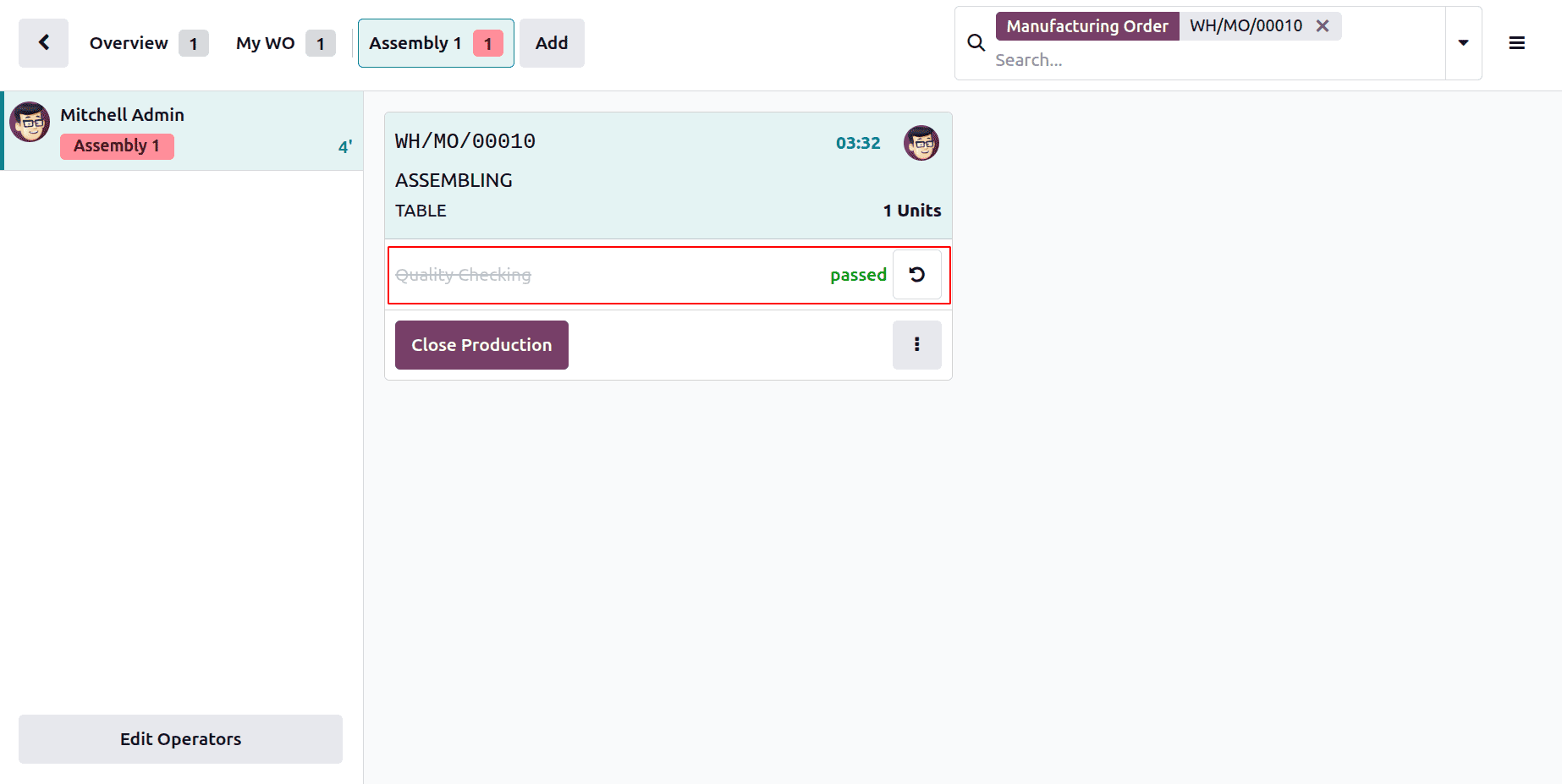
The operator can click "Close Production" after the task is finished. In addition to ensuring seamless traceability and process continuity, this action logs the completion, allowing the subsequent routing operation (if any) to be carried out. We can stop production at the last operation.
By allowing you to directly link Quality Control Points (QCPs) to certain work order procedures, Odoo 19 simplifies quality control. Everything is smoothly integrated, from creating templates to monitoring execution through the Shop Floor interface. This guarantees that your production is efficient, consistent, and compliant. You have complete control over quality at every level thanks to visible indications and real-time checks. Are you prepared to improve your manufacturing skills? You're covered by Odoo.
To read more about How can we set Quality Control Point On Work Order Operations in Odoo 18, refer to our blog How can we set Quality Control Point On Work Order Operations in Odoo 18.