In Odoo, the use of sections and notes within a One2many field provides significant advantages that enhance organization, user experience, and overall efficiency. Sections allow users to easily separate and identify different categories or data groupings within a form, drastically improving readability. Meanwhile, notes offer a way to include additional details, terms, or comments directly related to specific records in the list.
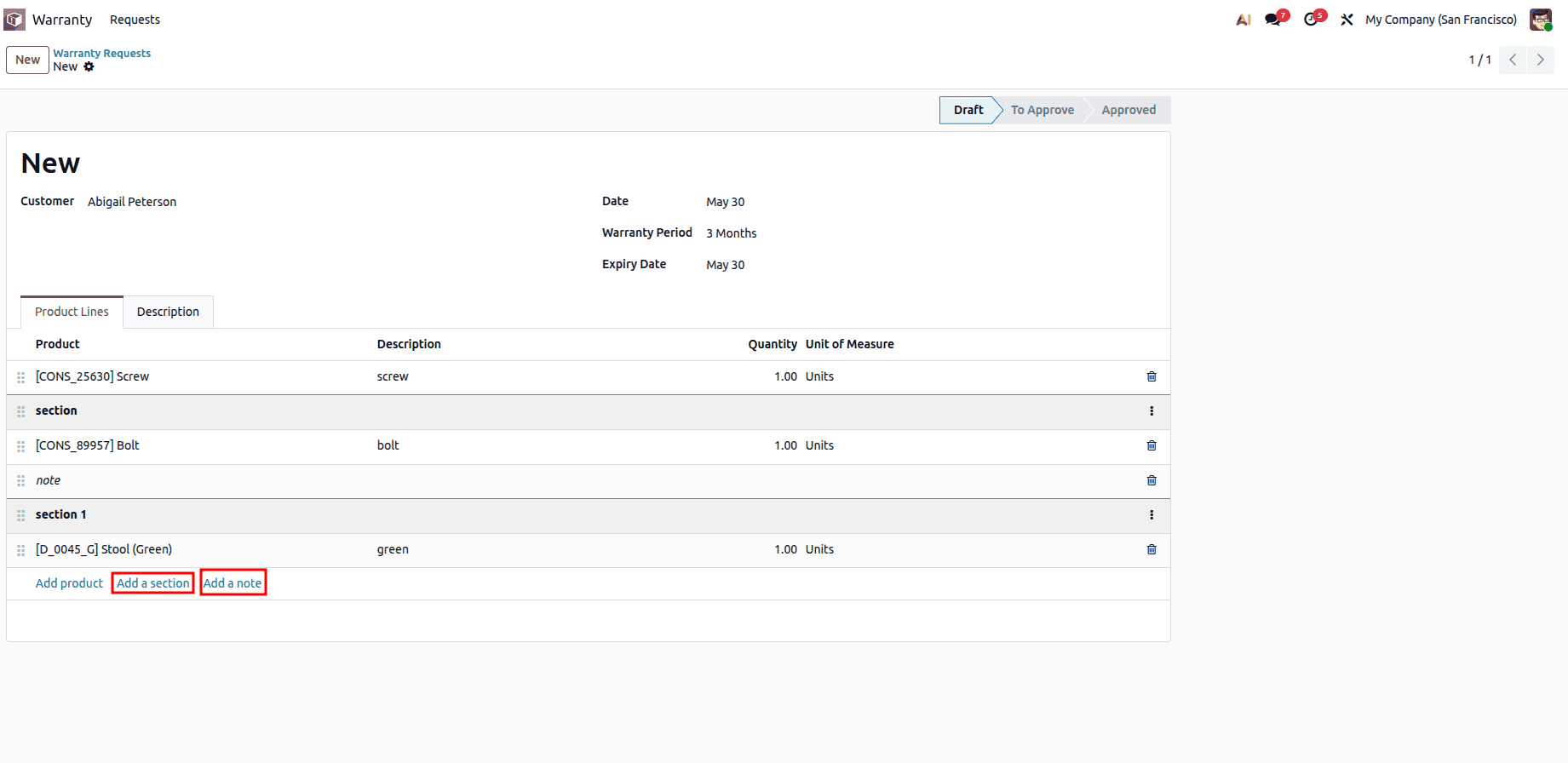
In this blog, we'll explore how to add sections and notes to a custom model in Odoo 19. To begin, we'll create a new model and include a One2many field.
1. Creating the Parent Model
Let's start by defining our main warranty.request model.
from odoo import api, fields, models, _
from odoo.exceptions import UserError
class WarrantyRequest(models.Model):
   _name = 'warranty.request'
   _description = 'Warranty Request'
   _inherit = ['mail.thread', 'mail.activity.mixin']

   partner_id = fields.Many2one('res.partner', string='Customer', required=True)
   date = fields.Date(string='Date', default=fields.Date.context_today)
   name = fields.Char(string="Sequence Number", readonly=True, required=True, copy=False, default=lambda self: _('New'))
   state = fields.Selection(
       [('draft', 'Draft'), ('to_approve', 'To Approve'),
        ('approved', 'Approved'), ('cancelled', 'Cancelled')],
       string='Status', default='draft', tracking=True)
   warranty_period = fields.Selection(
       [('3months', '3 Months'), ('6month', '6 Months'),
        ('1year', '1 Year')],
       string='Warranty Period', default='3months')
   warranty_expire_date = fields.Date(string="Expiry Date")
   warranty_line_ids = fields.One2many('warranty.request.line', 'warranty_id')
   description = fields.Html(string='Description')
2. Creating the Line Model with display_type
Next, we add the warranty.request.line model. To support sections and notes, we must incorporate the display_type field and add SQL constraints to ensure data integrity.
class WarrantyRequestLine(models.Model):
   _name = "warranty.request.line"
   _description = "Warranty Request Line"
   _order = 'warranty_id, sequence, id'

   _sql_constraints = [
       ('accountable_required_fields',
        "CHECK(display_type IS NOT NULL OR (product_id IS NOT NULL AND product_uom_qty > 0))",
        "Missing required fields on accountable warranty request line."),
       ('non_accountable_null_fields',
        "CHECK(display_type IS NULL OR (product_id IS NULL AND product_uom_qty = 0))",
        "Forbidden values on non-accountable warranty request line"),
   ]

   warranty_id = fields.Many2one('warranty.request', string="Warranty Reference", ondelete="cascade")
   sequence = fields.Integer(
       string="Sequence",
       help="Gives the sequence order when displaying a list of lines.",
       default=10)
   product_id = fields.Many2one(
       comodel_name='product.product',
       check_company=True)
   name = fields.Text(
       string="Description",
       translate=True,
       required=True,
   )
   product_uom_id = fields.Many2one(
       'uom.uom', 'Unit of Measure',
       compute='_compute_product_uom_id', store=True, readonly=False, precompute=True)
   product_uom_qty = fields.Float(
       string='Quantity',
       digits='Product Unit of Measure',
       default=1)
   display_type = fields.Selection([
       ('line_section', "Section"),
       ('line_note', "Note")], default=False)

   @api.depends('product_id')
   def _compute_product_uom_id(self):
       for line in self:
           if line.product_id:
               line.product_uom_id = line.product_id.uom_id

   @api.model_create_multi
   def create(self, vals_list):
       for vals in vals_list:
           if vals.get('display_type', self.default_get(['display_type']).get('display_type')):
               vals.update({
                   'product_id': False,
                   'product_uom_qty': 0,
                   'product_uom_id': False
               })
       return super().create(vals_list)

   def write(self, values):
       if 'display_type' in values and self.filtered(lambda line: line.display_type != values.get('display_type')):
           raise UserError(_("You cannot change the type of a line. Instead you should delete the current line and create a new line of the proper type."))
       return super().write(values)
Code Breakdown:
display_type: A selection field that categorizes the line as a standard record, a section, or a note.
SQL Constraints: Guarantees that when display_type is set (meaning it's a section or note), the product_id must remain empty, and the quantity must be set to 0. If it's a standard line, the required product data must be present.
create / write Overrides: Business logic ensuring users don't dynamically swap a product line into a section (or vice versa), and safely empties out strict fields.
3. Adding the XML View Definitions
Now, we must define the view interface in XML so Odoo renders the sections and notes correctly in the frontend.
<?xml version="1.0" encoding="utf-8"?>
<odoo>
   <record id="warranty_request_form_view" model="ir.ui.view">
       <field name="name">warranty.request.form.view</field>
       <field name="model">warranty.request</field>
       <field name="arch" type="xml">
           <form>
               <header>
                   <field name="state" widget="statusbar" statusbar_visible="draft,to_approve,approved"/>
               </header>
               <sheet>
                   <div class="oe_title">
                       <h1>
                           <field name="name"/>
                       </h1>
                   </div>
                   <group>
                       <group>
                           <field name="partner_id" required="1"/>
                       </group>
                       <group>
                           <field name="date"/>
                           <field name="warranty_period"/>
                           <field name="warranty_expire_date"/>
                       </group>
                   </group>
                   <notebook>
                       <page id="product" name="warranty_lines_page" string="Product Lines">
                           <field name="warranty_line_ids" widget="section_and_note_one2many">
                               <list string="Product Lines" editable="bottom">
                                   <control>
                                       <create name="add_product_control" string="Add product"/>
                                       <create name="add_section_control" string="Add a section" context="{'default_display_type': 'line_section'}"/>
                                       <create name="add_note_control" string="Add a note" context="{'default_display_type': 'line_note'}"/>
                                   </control>

                                   <field name="display_type" column_invisible="True"/>
                                   <field name="sequence" widget="handle"/>

                                   <field name="product_id" required="not display_type"/>
                                   <field name="name" widget="section_and_note_text"/>
                                   <field name="product_uom_qty"/>
                                   <field name="product_uom_id" required="not display_type"/>
                               </list>
                           </field>
                       </page>
                       <page id="description" name="Description" string="Description">
                           <field name="description" readonly="state != 'draft'"/>
                       </page>
                   </notebook>
               </sheet>
               <div class="oe_chatter">
                   <field name="message_follower_ids"/>
                   <field name="activity_ids"/>
                   <field name="message_ids"/>
               </div>
           </form>
       </field>
   </record>
   <record id="warranty_request_tree_view" model="ir.ui.view">
       <field name="name">warranty.request.tree.view</field>
       <field name="model">warranty.request</field>
       <field name="arch" type="xml">
           <list>
               <field name="name"/>
               <field name="partner_id"/>
               <field name="date"/>
               <field name="state"/>
           </list>
       </field>
   </record>
   <record id="action_warranty_request" model="ir.actions.act_window">
       <field name="name">Warranty Requests</field>
       <field name="res_model">warranty.request</field>
       <field name="view_mode">list,form</field>
   </record>
   <menuitem id="menu_warranty_root" name="Warranty" sequence="10"/>
   <menuitem id="menu_warranty_request" name="Requests" parent="menu_warranty_root" action="action_warranty_request" sequence="10"/>
</odoo>
What happens in the XML?
widget="section_and_note_one2many": Applying this widget to the <field name="warranty_line_ids"> tells Odoo 19 to handle the list rows dynamically.
<control> inside <list>: These controls enable users to quickly add new records with preset contexts for sections and notes.
Add Product Control: Generates a standard product line (display_type False).
Add Section Control: Sets the display_type to line_section.
Add Note Control: Sets the display_type to line_note.
Mandatory Field Management: Using required="not display_type", we ensure that product_id and quantitative fields are dynamically required only when the user is adding an actual product line, bypassing validation rules for section headers and notes.
With these steps complete, your custom Odoo 19 module will feature natively styled, drag-and-droppable sections and notes—bringing professional organization right to your users' fingertips!
To read more about How to Add a Section & Note for a Custom Module in Odoo 18, refer to our blog How to Add a Section & Note for a Custom Module in Odoo 18.