Odoo 19 offers a number of improvements to project management, such as improved task and project stage workflows. Setting up these phases correctly guarantees quick task advancement, enhanced teamwork, and successful project tracking. This blog offers a thorough tutorial on how to set up and manage Odoo 19 task and project stages.
Task phases describe the various states that a task may experience within a project. These phases assist teams in monitoring development and effectively identifying bottlenecks. Task stages include, for example:
- New, upon the creation of a task
- In Progress, when the task has started to be worked on
- When the task is being evaluated, review
- Completed upon completion of the task
- If the task is no longer needed, it is cancelled.
Project stages are the general stages of a project from start to finish. Businesses can keep an eye on a project's overall lifecycle by defining project stages. For example, let us consider Planning, the first stage where goals are established; Execution, the active period of job fulfillment; Monitoring, which entails assessment and progress tracking; and Closure, the stage for completion and final review. These are typical project stages.
In Odoo 19, users must go from the main dashboard to the Projects module in order to configure task stages. Next, choose an already-existing project or click the New button to start a new one. The project can be created using the New icon and the project template as well. The New option will be, as in the screenshot below.
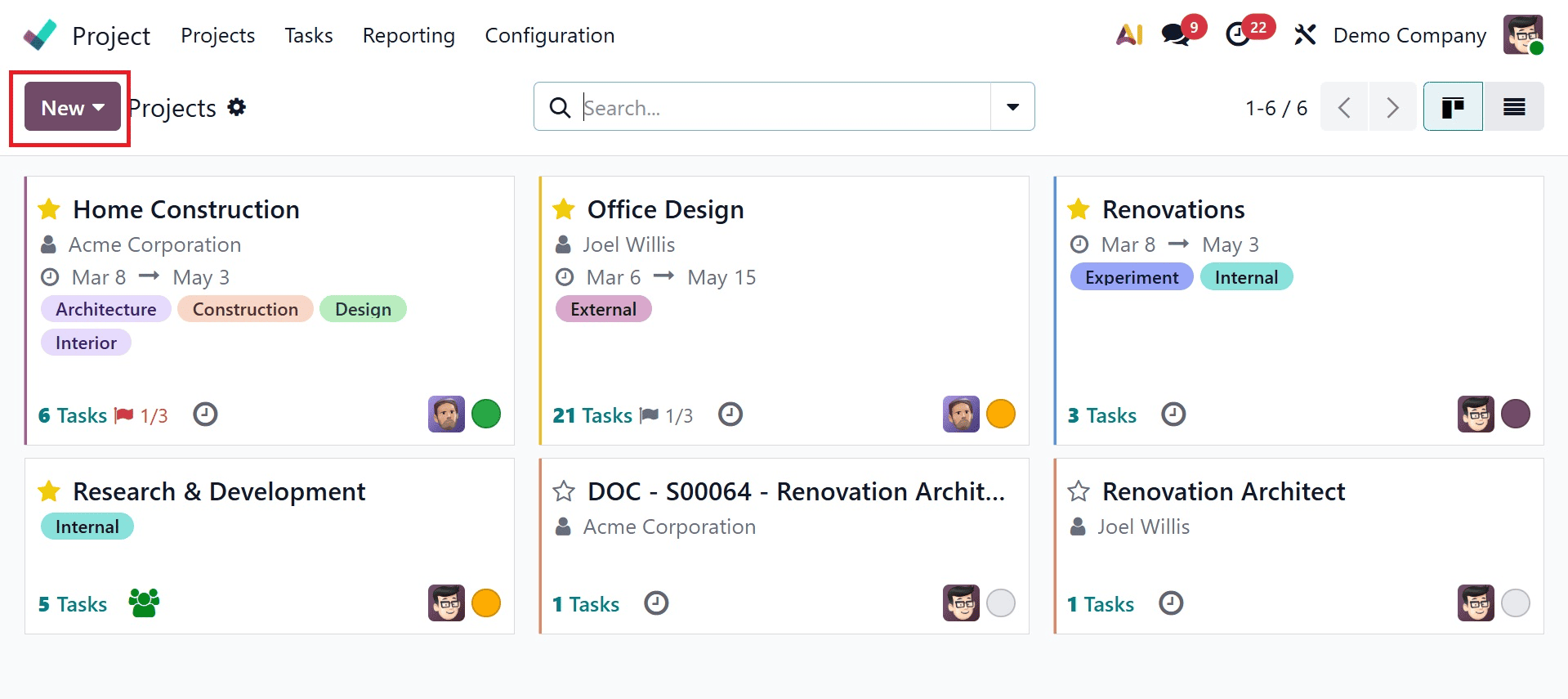
Enter the project name, turn on timesheets to record project time, and choose "Billable" if the customer needs to be billed for the time and materials. Additionally, an email alias can be supplied so that when an email is sent to that email alias in the Create tasks area, the tasks are generated for the project.
The task phases can be specified on a new page that appears when the Create project button is pressed.
After giving the stage a name by clicking the Stage button, click Add to create the task stage.
Additionally, there is a See examples button that offers several kanban instances. One of these can be chosen so that, using the specified example, the task phases are added automatically. In other words, after the relevant project has been selected from the provided samples, Odoo offers recommendations for the task stages. Click the "Use This For My Project" option after making your selection.
Another method to create project is using the template, as in the screenshot below.
On selecting the option, you will get the page, as shown below.
Here, you can provide the name of the project, planned date, and project’s email. Below that, under the assignment, you can add the role and assignees. And then, finally go for the Create Project option.
Once the task stage names have been added, you can use drag-and-drop functionality to change their order. Stage-specific customizations are also offered. Click the settings icon to do that.
In the Kanban view, the Fold option enables the stage to be folded to conceal the finished stages.
Click on the folded stage name to view the stage once more. You can modify the stage configurations using the next option, Edit.
Name: The stage's name.
- SMS Template: When the task reaches that point, a template can be configured to send an SMS.
- Email Template: When a task reaches that stage, an email can be sent using a template.
- Sequence: Specifies this stage's sequence within the task pipeline.
- Folded in Kanban: This stage will be collapsed in the Kanban view if it is checked.
- Projects: This stage is used to list the projects.
Next, using workflows and rules, the Automation option enables the automation of task stage transitions. Automation rules can be developed to change task stages in response to situations such as task status or due dates.
When users click Automation, they are taken to a new page where they can click the New button to create new automation rules. A specific stage can be removed using the Delete option.
To remove the step from the resulting wizard, click the Delete option. Enter the task name and the task's assignees in the Task Title area.
The settings menu of the setting that has the Task phases option can be used to manage the task phases.
You may view all of the current task phases by clicking on that. All of the phases that are accessible for various jobs can be examined from the group that has been created based on the project name. Every project that utilizes each stage is listed, and if the work is folded in Kanban, it can be seen from this location.
Additionally, you may view the detailed view by clicking on View.
Click the "New" button in the upper left corner of the Task Stages page to start a new stage.
The following information must be entered on the new page that displays.
- Stage Name: The stage's designated name.
- SMS Template: When the task reaches this point, a pre-made SMS template will be delivered.
- Email Template: When the task reaches this point, a pre-made email template will be sent.
- Sequence: It indicates where this step is located in the task pipeline.
- Folded in Kanban: This stage will show up collapsed in the Kanban view when it is selected.
- Projects: Shows every project that involves this phase.
Project Stages
To oversee the phases of the project. From the settings, turn on Project Stages. Go to Settings > Configuration.
Before clicking the Save button to save the modifications, activate the Project Stages option in the Tasks management section.
Once enabled, project stages can be configured by either browsing to Configuration, where the Project Stages option will be introduced, or by going to the internal link called Configure Stages just below the feature.
Users can browse the pre-configured project stages by choosing Project Stages, and they can also click the New option to add new stages. Additionally, the Folded in Kanban option—which is visible here—will be activated once the stage is folded.
When you click the New button to create a stage, an additional line appears where you can enter the stage's name. Click the Save button to save the stage. Additionally, the stage names can be moved by dragging and dropping them to the desired location.
The projects are arranged into several stages based on their development when the Project Stages option is activated from the settings.
Additionally, the project stages provide options like Fold, Edit, Automations, and Delete, just like the task stages.
Completed stages can be hidden in the Kanban view by collapsing the stage using the Fold option. To enlarge the stage, click on the folded stage name.
The project stage settings can be modified using the Edit option. For example, the project stage's name can be altered, and an email template and SMS template can be supplied to ensure that an email or SMS is delivered when a task reaches this level. Turn on the Folded in Kanban option if the stage has to be concealed from the Kanban view. The stage's location within the pipeline can then be specified by the Sequence. Additionally, the company can be entered in the Company field.
The Automation option enables the establishment of various automation rules that, in response to a defined trigger, can carry out various actions, such as changing a record or starting up an activity. When you select Automation, a new page with all of the pre-established automation rules is displayed.
Click the New button to start a new automation rule, then define the rule on the page that appears.
The project stage can then be deleted using the Delete option. To remove the stage, click the Delete button in the accompanying pop-up. Before removing the stage, any projects that are in that specific stage must either be archived or destroyed.
Effective workflow management in Odoo 19 requires setting up task and project stages. While project phases offer a higher-level summary of project progress, task stages enable teams to monitor work at a more detailed level. Businesses can guarantee the smooth completion of activities and projects, increasing overall productivity and efficiency, by tailoring and optimizing these phases. Odoo 19's project management module provides a complete solution for companies of all sizes with automation options, Kanban views, and simple customizations.
To read more about How to Configure Task Stages & Project Stages in Odoo 18, refer to our blog How to Configure Task Stages & Project Stages in Odoo 18.