Odoo 19 Point of Sale (POS) offers a powerful bill splitting feature that enables restaurants to manage multiple payments from a single order easily. Whether customers want to split the bill evenly or pay for individual items, Odoo 19 POS ensures a fast, accurate, and hassle-free process. This feature is especially useful during peak hours, when quick and accurate service is crucial for ensuring customer satisfaction. By automating bill splitting, restaurants can reduce manual errors and improve service efficiency. The system’s user-friendly interface helps staff to handle complex orders without confusion, ensuring smooth operations. Learning how to split restaurant bills in Odoo 19 POS can significantly enhance workflow, streamline payment processing, and deliver a better dining experience for customers.
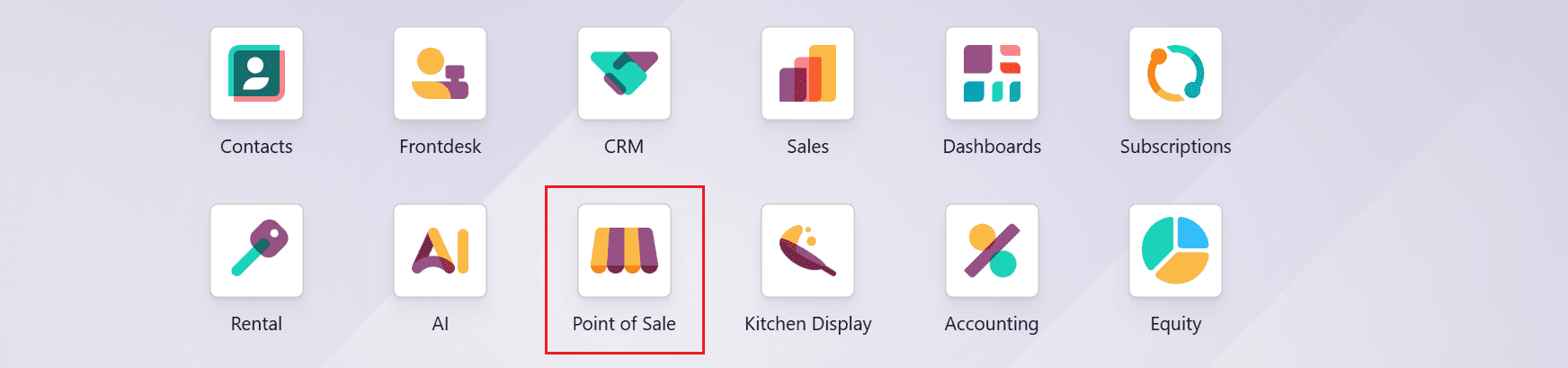
Firstly, open the Point of Sale module from the Odoo 19 dashboard.
Bill Splitting
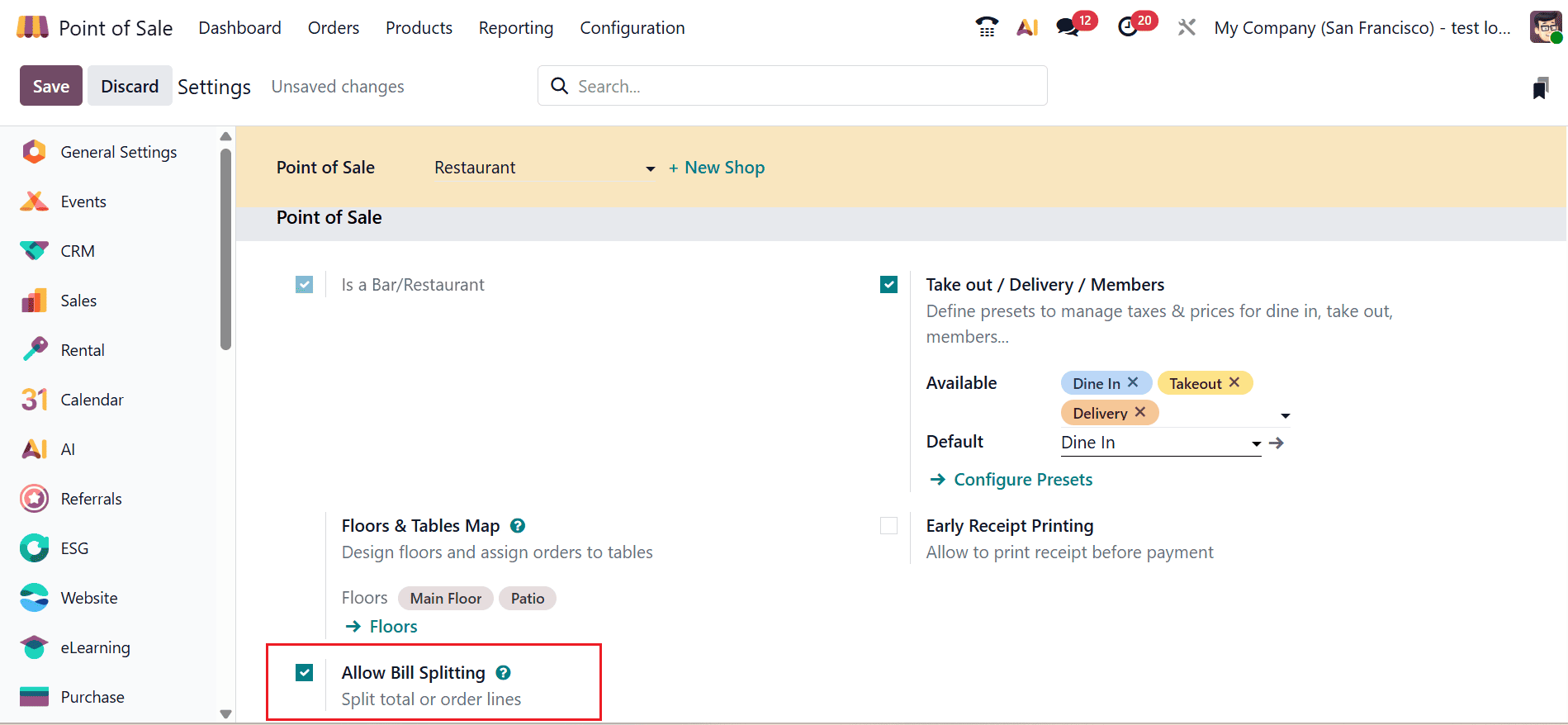
To enable the bill splitting feature in POS, navigate to the Configuration > Settings. Select Bar/Restaurant in the point of sale field. Then, enable the Allow Bill Splitting option as shown below:
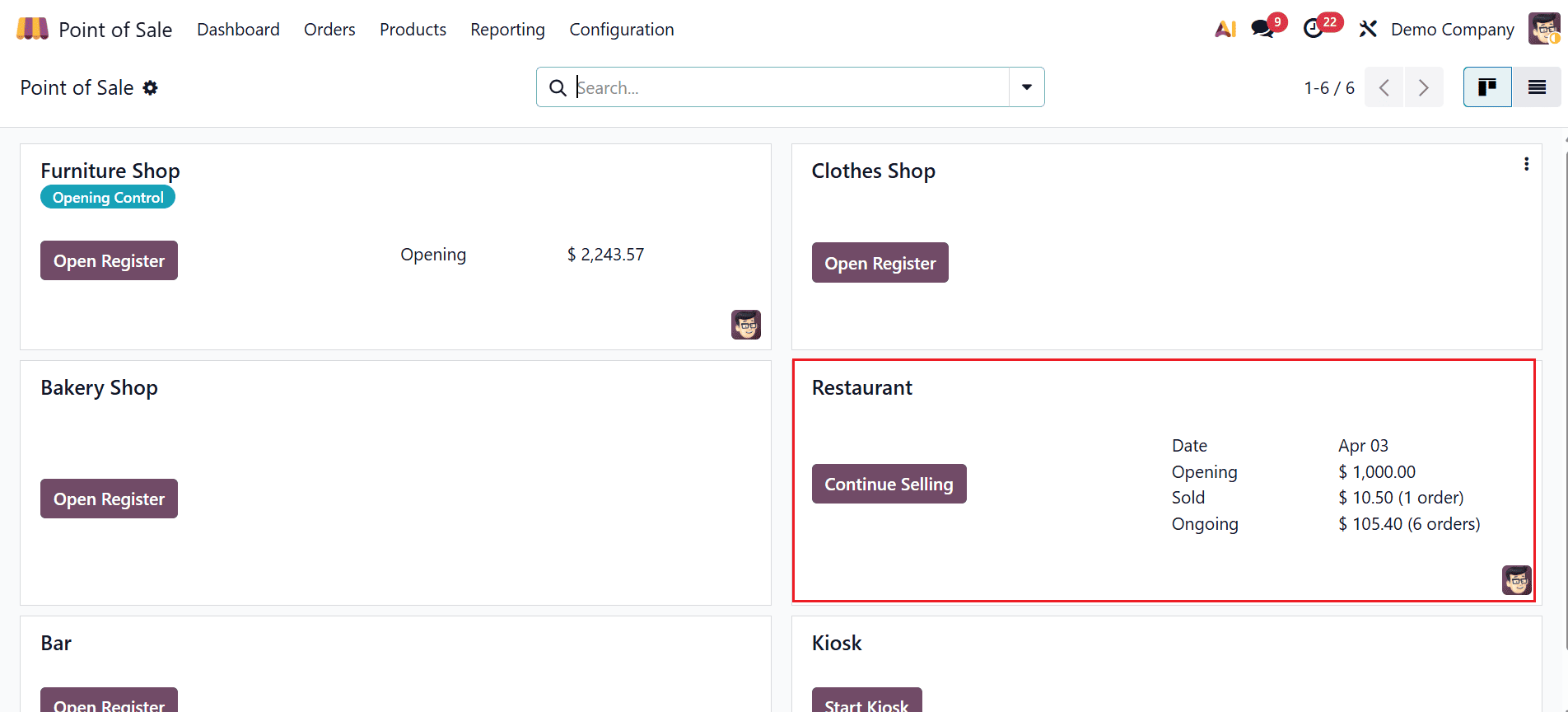
Move to the Point of Sale dashboard and select Restaurant as shown below:
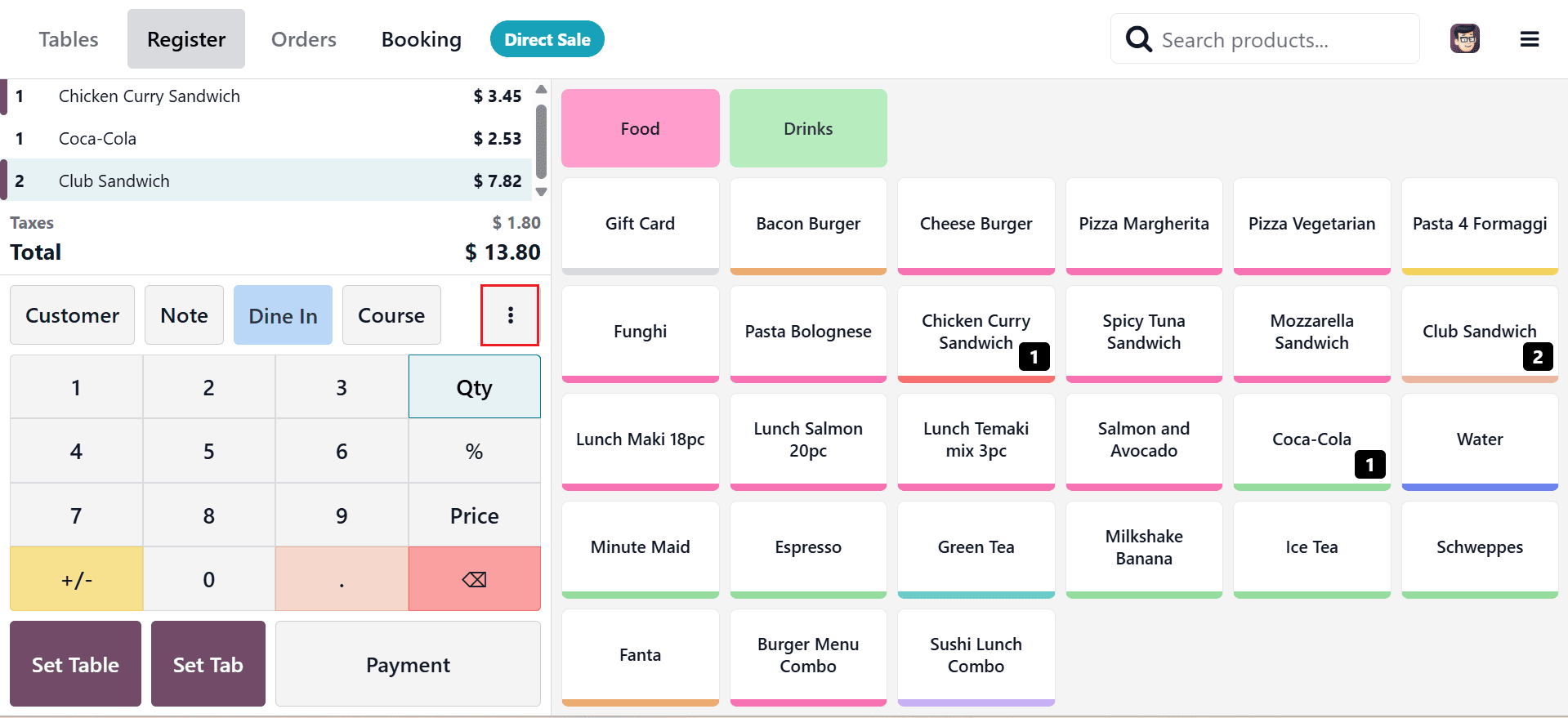
A new window will appear, showcasing a wide variety of food items to explore. Browse through the menu and select the food and drinks you’d like to order, then click on the Actions button (three-dotted vertical line) shown below:
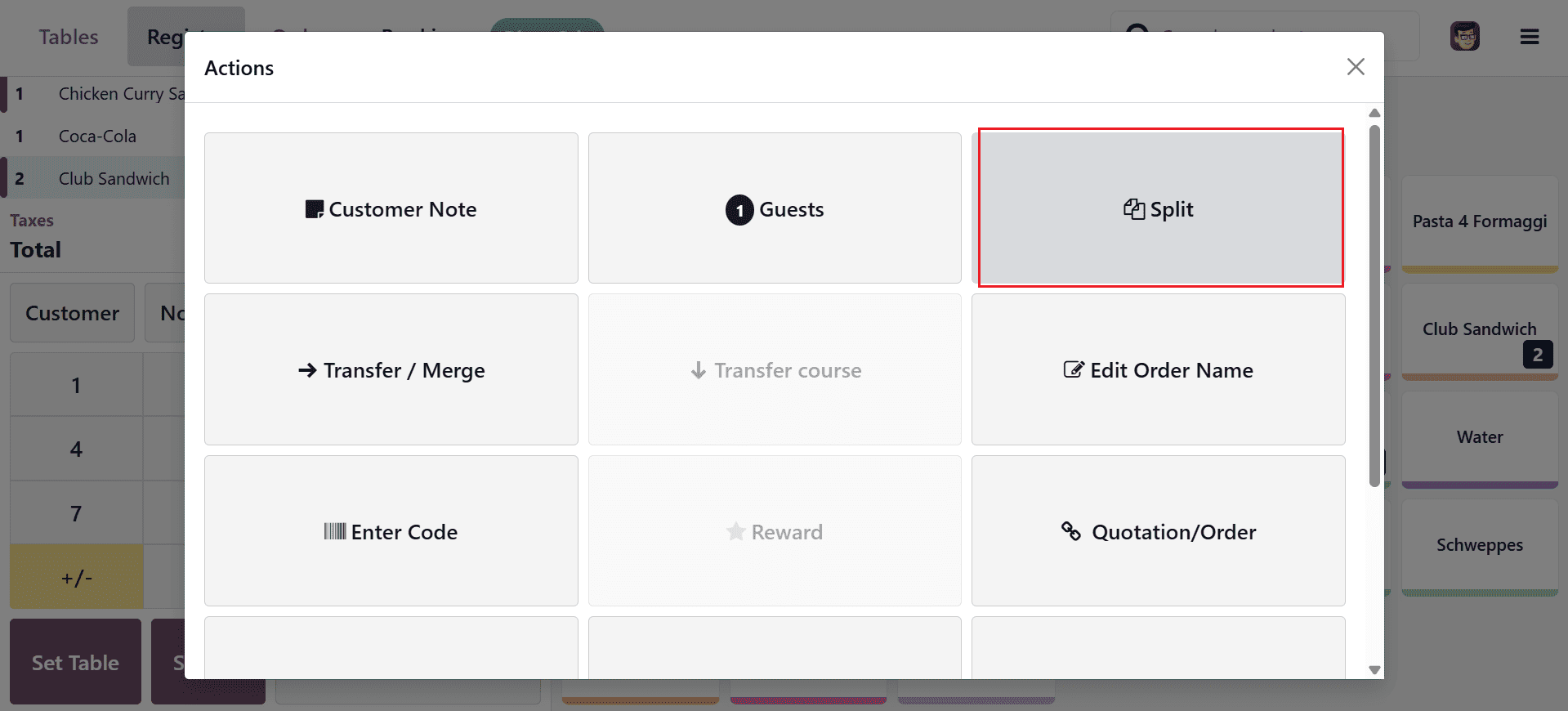
A new window will appear, where you can select the Split option as shown below:
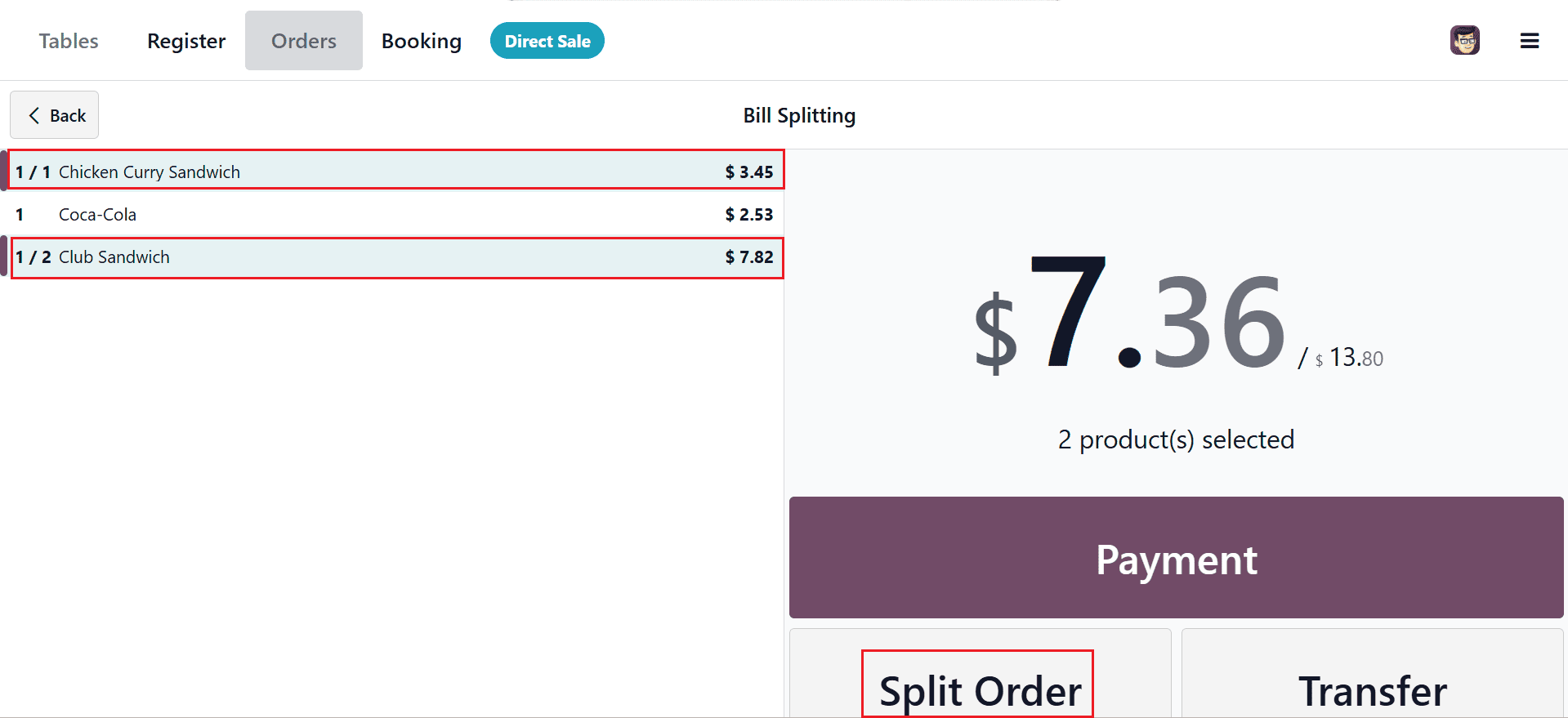
Then, a new window will appear displaying all the selected food items along with the total amount to be paid. From this list, choose the items you want to split the payment, as shown below. You will see the total amount for your selected items displayed on the right side of the window. Finally, click the Split Order button to complete the process.
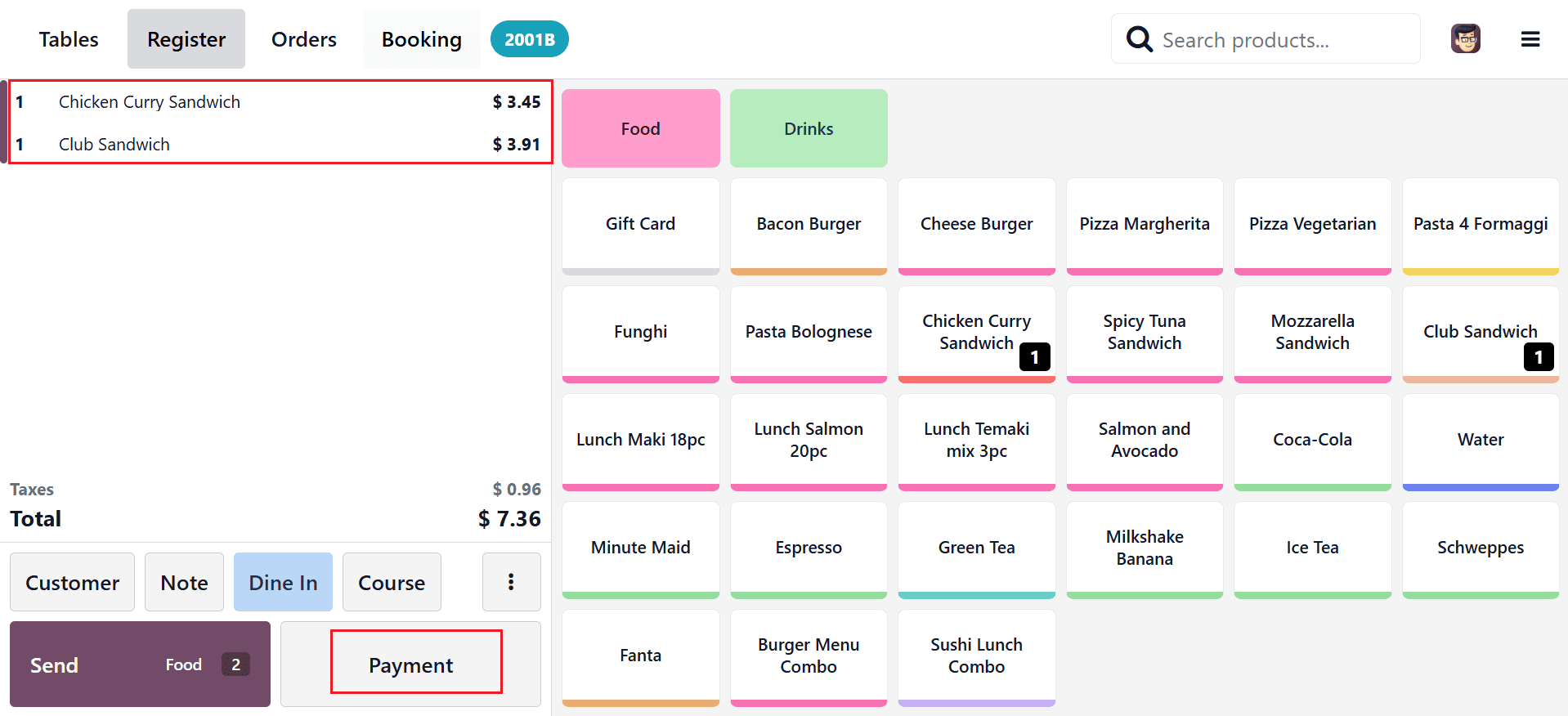
The selected food items will be displayed separately on the billing page, as shown below. Click the Payment button to start the payment process.
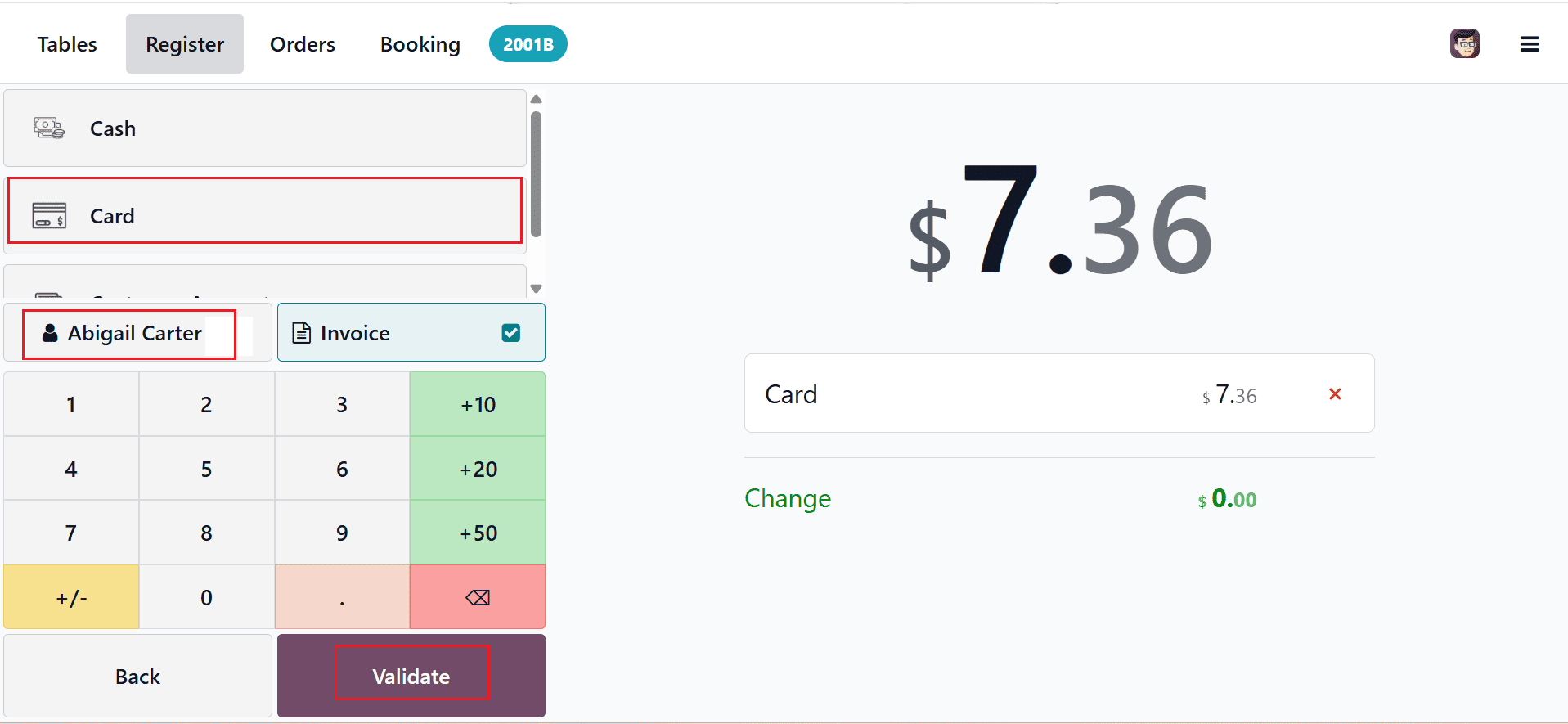
Next, assign a customer to the order and select a payment method, as shown below. Click the Validate button to complete the order process.
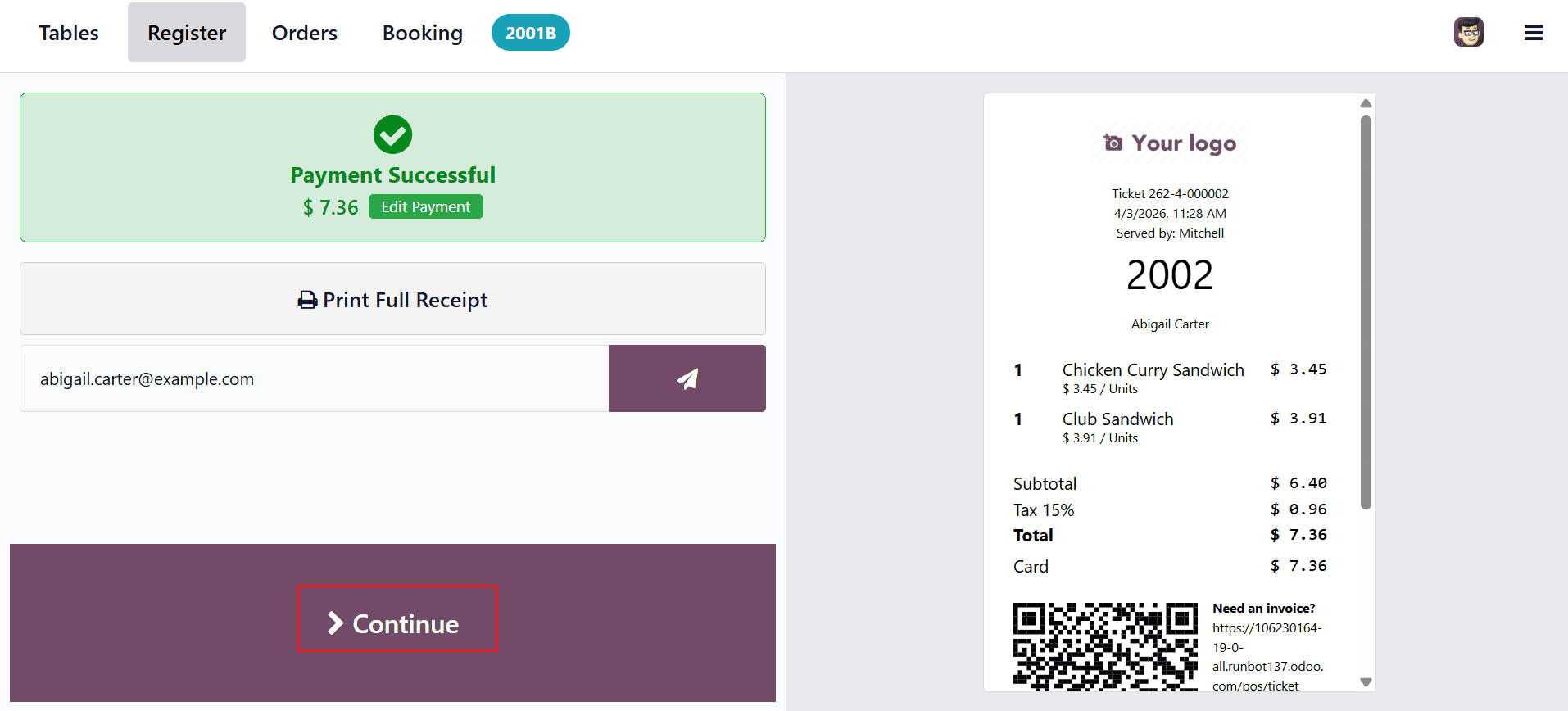
After completing the payment, a bill will be generated for the selected food items, as shown below. Next, click the Continue button to complete the payment for the remaining items.
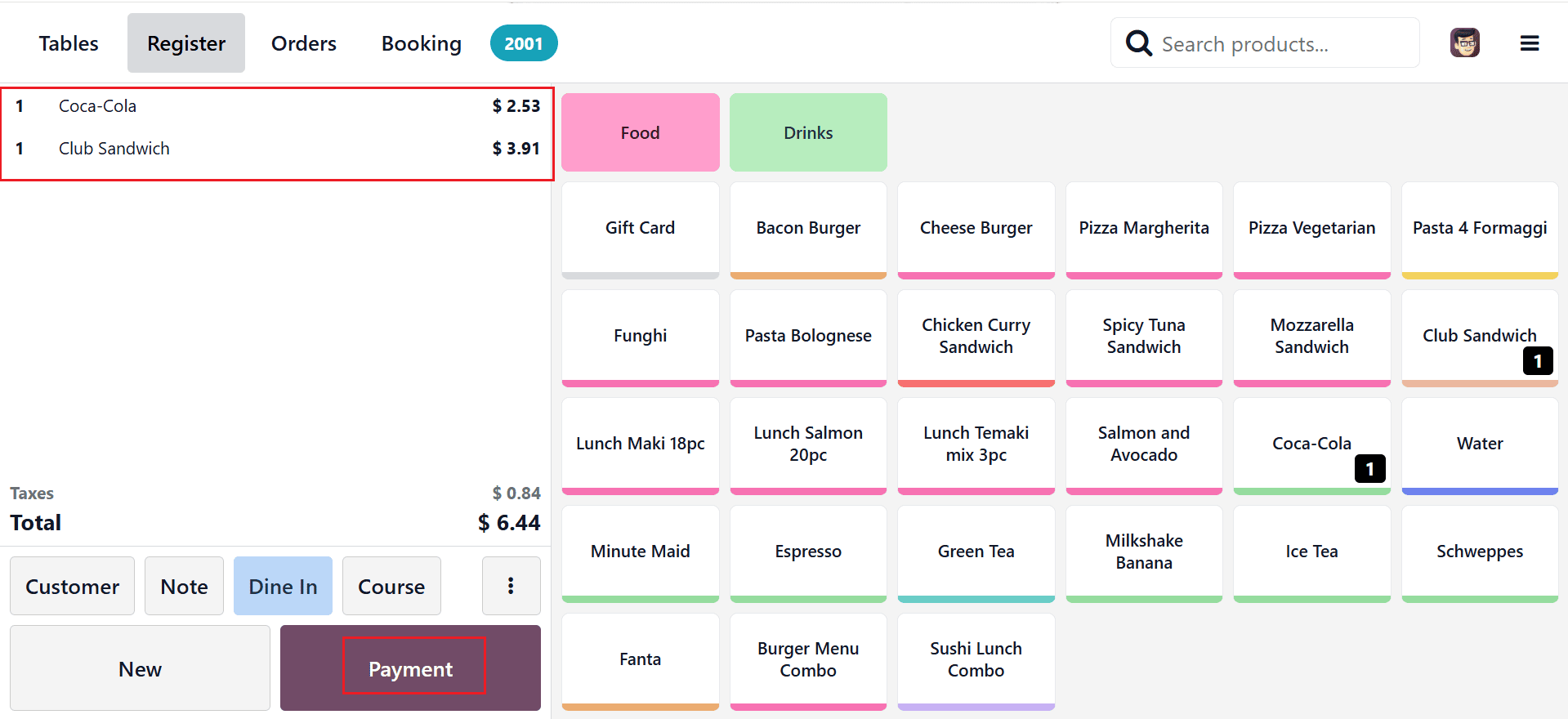
The remaining items will be displayed as shown below. Go through the process again to confirm the order and validate the payment. The split bill payment process is now complete.
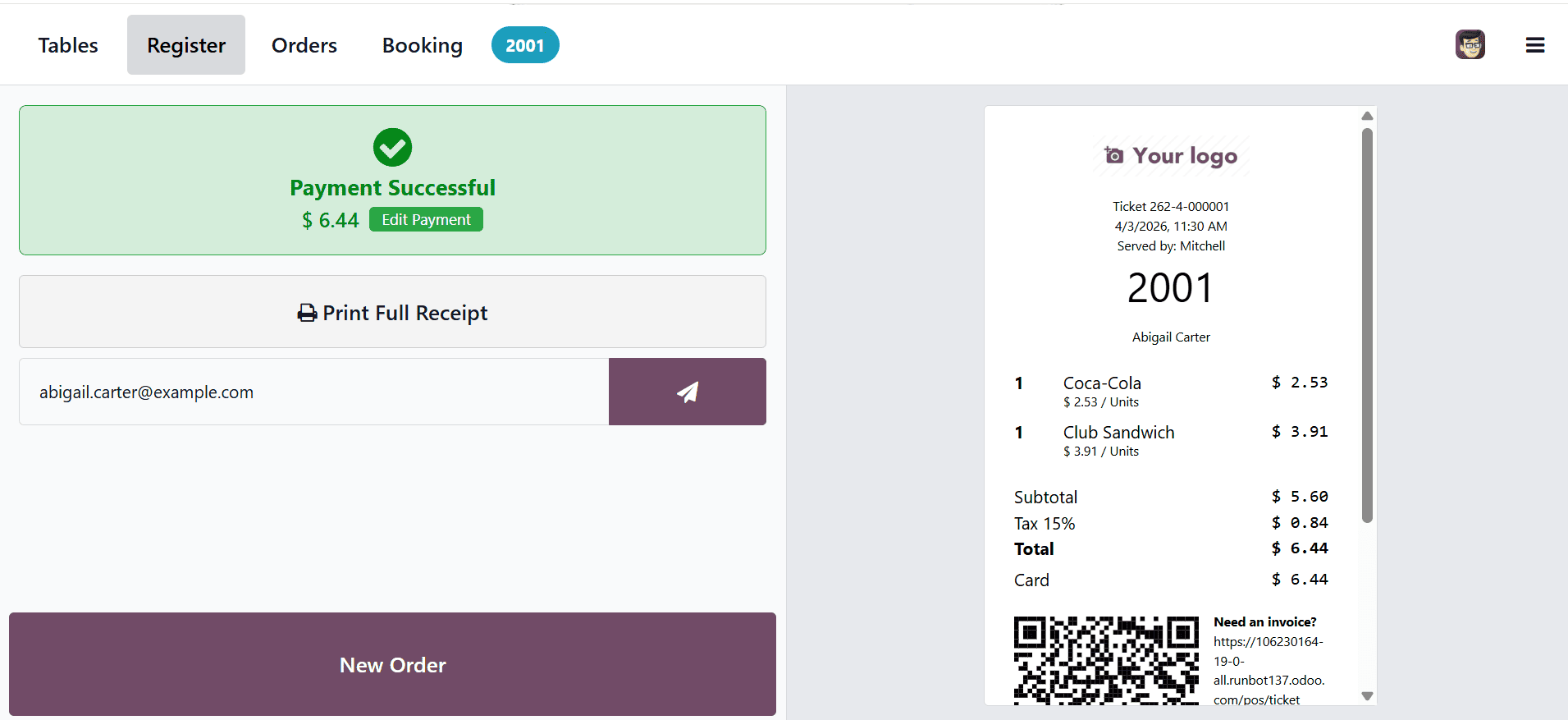
After completing the payment, a bill will be generated for the remaining food items, as shown below.
Early Receipt Printing
Early Receipt Printing is a feature in POS systems that allows a receipt to be printed before the payment is completed. It enables customers to review their order details ahead of time. This can help avoid mistakes and ensure order accuracy. Businesses can provide a receipt as proof for the customer before finalizing payment. Payments become quicker since customers already know the total due. Overall, it enhances transparency and improves the customer experience.
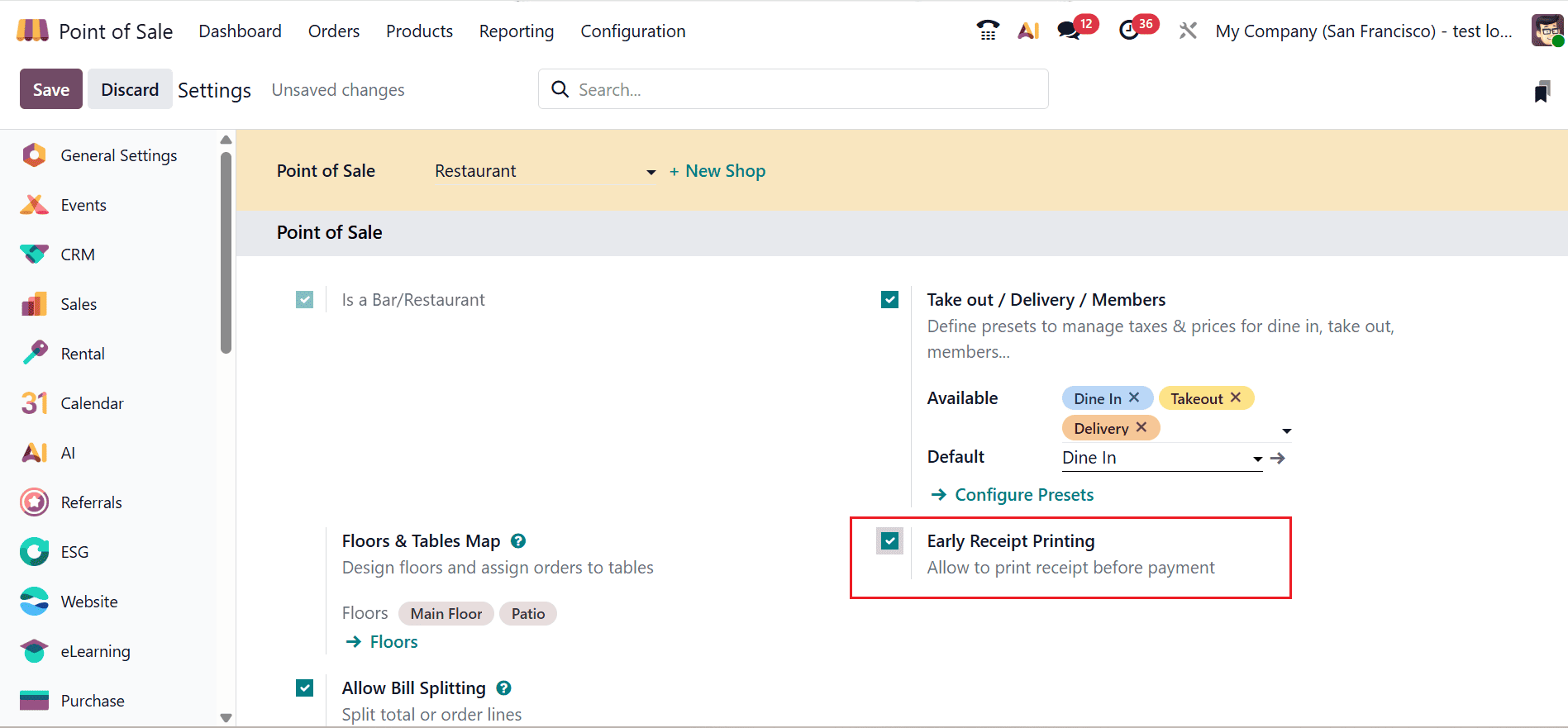
To print the bill before payment, navigate to the Configuration > Settings and enable the Early Receipt Printing option as shown below:
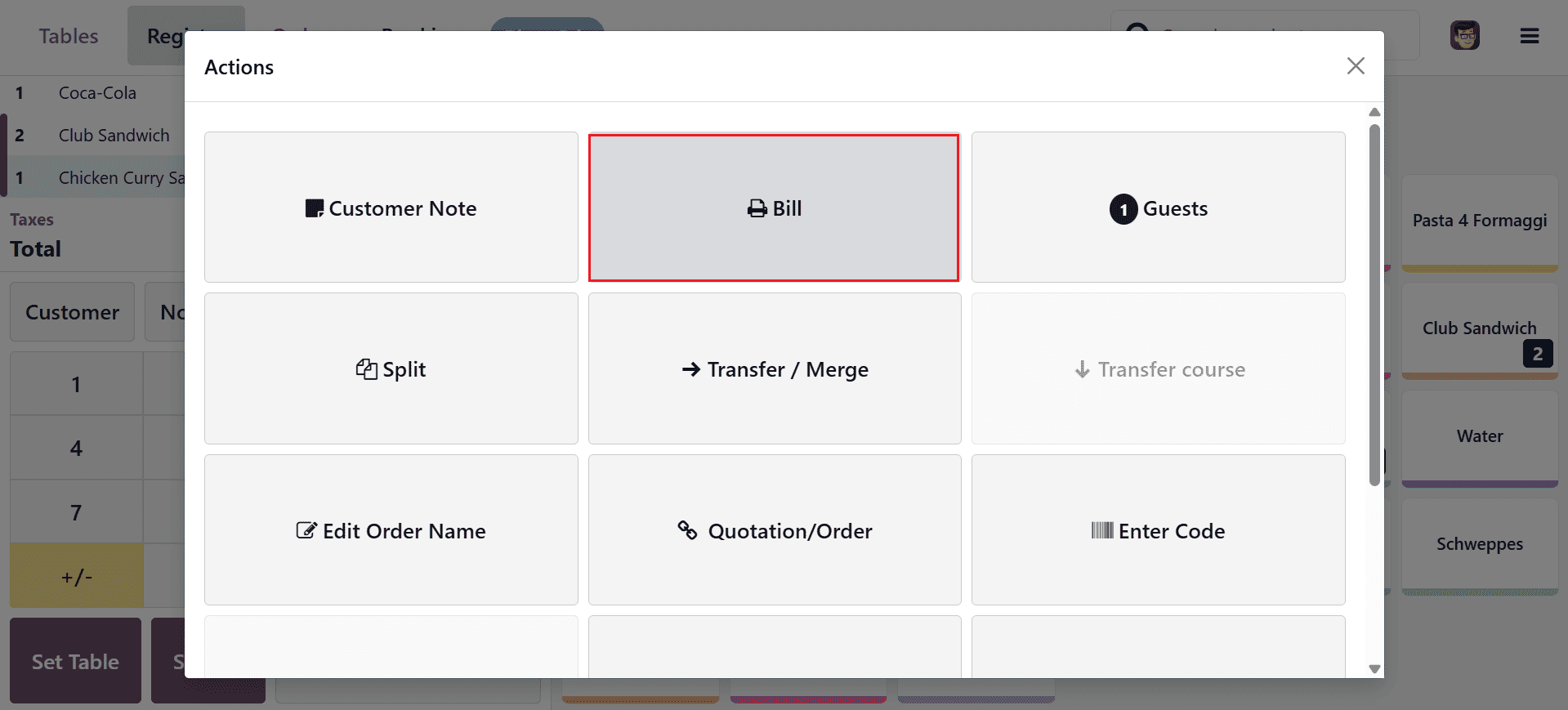
Then, move to the Point of Sale dashboard and select Restaurant shop. Under the Action button, you will notice a new option named Bill, as shown below.
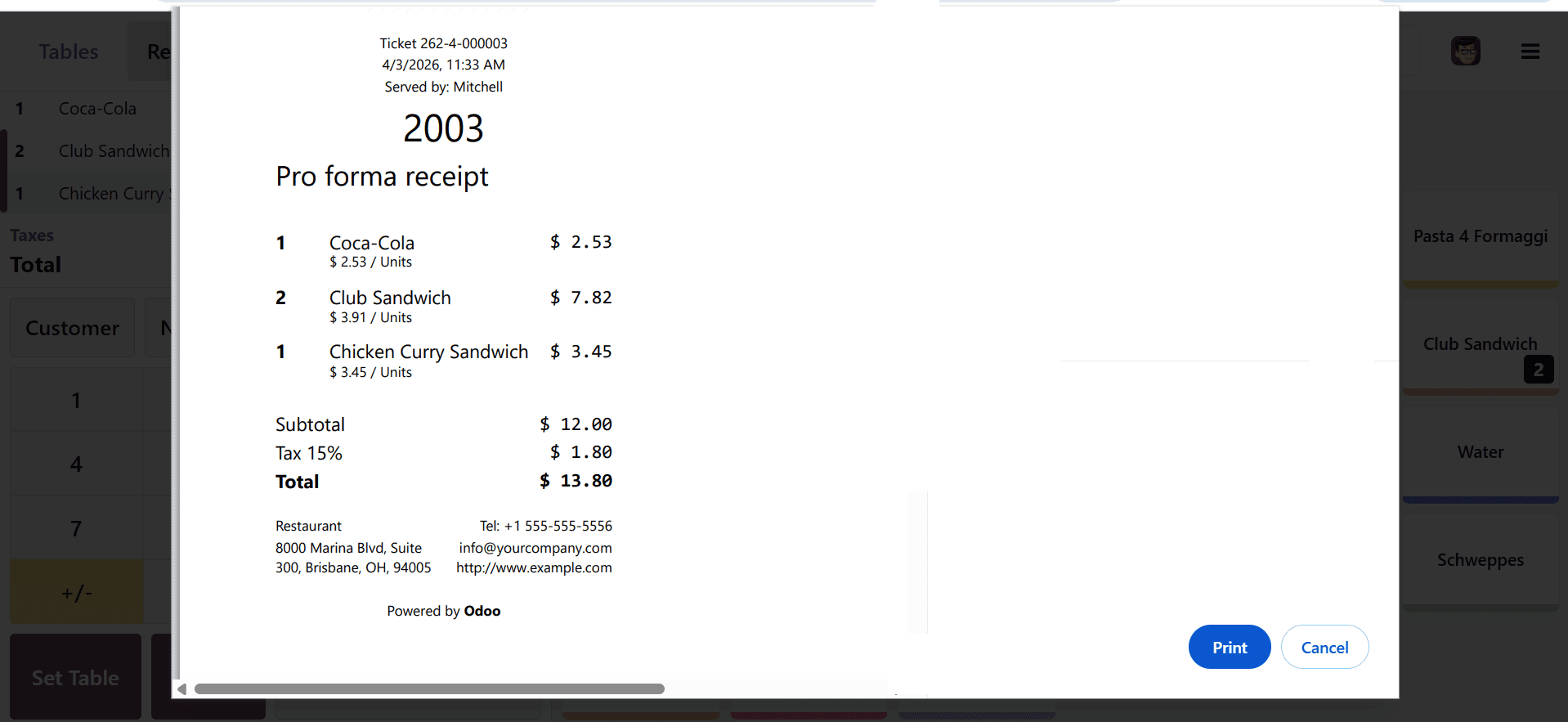
A new window will appear where you can see the bill for the selected products and use the Print option.
Bill splitting in Odoo 19 POS is a smart step for restaurants aiming to optimize their billing process and improve customer service. This feature allows staff to quickly divide orders, accept multiple payment methods, and handle group transactions with accuracy. Reducing dependency on manual calculations, it minimizes errors and speeds up checkout times, which is crucial in busy restaurant environments. Additionally, it enhances transparency, ensuring customers clearly understand their payments. Odoo 19 POS empowers restaurants to manage billing more efficiently while maintaining a professional service standard. With proper usage, this functionality can improve table turnover rates and overall operational productivity. Introducing bill splitting streamlines operations and enhances the overall customer experience. Ultimately, it helps restaurants stay competitive by offering flexible and modern payment solutions tailored to customer needs.
To read more about How to Split Restaurant Bills in Odoo 18 Point of Sale, refer to our blog How to Split Restaurant Bills in Odoo 18 Point of Sale.