If you have ever worked with Odoo, you have undoubtedly seen text boxes where you can create beautifully styled content. These are found throughout Odoo 19 and are known as HTML fields. HTML fields allow you to format text without knowing a single line of code, whether you're writing internal notes or product descriptions.
Odoo's HTML fields can be compared to a miniature word processor. You can add colorful images, make tables, add links, bold text, and much more. The finest aspect? Everything is straightforward and visually appealing. Making your content appear polished and interesting doesn't require technical expertise.
We'll look at what Odoo 19's HTML fields can do and how you can use them to produce better content for your company in this guide.
What Are HTML Fields and Where Can You Find Them?
Rich formatting is supported by HTML fields, which are unique text areas. HTML fields allow you to give your content structure and style, in contrast to plain text boxes, where everything has the same appearance.
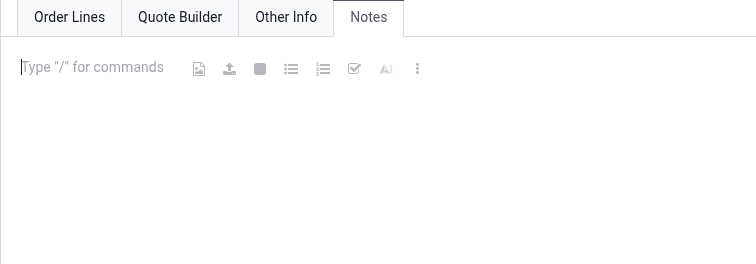
You'll find HTML fields in many places across Odoo:
- Product descriptions for your online store
- Internal notes on customer or sales records
- Email templates for marketing campaigns
- Knowledge base articles for your team
- Custom reports built with Studio
- Project task descriptions
- Website blog posts and pages
Basically, anywhere you need to write formatted content, you'll likely encounter an HTML field.
How to Format Text Like a Professional
A toolbar shows up at the top when you click inside an HTML field and choose some text. Your formatting control centre is this toolbar. Let's examine what you can do with it.
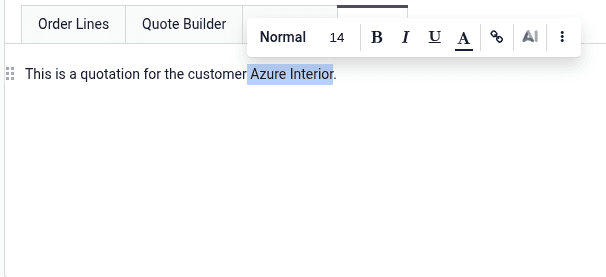
Basic text styling options include:
- Bold: Make your text thick and dark to grab attention
- Italic: Slant text for emphasis or quotes
- Underline: Add a line below text to highlight it
- Strikethrough: Cross out text to show edits or changes
These fundamental settings function exactly like any word processor you've ever used. After choosing the text and pressing the button, you're finished.
Working with headings and paragraph styles:
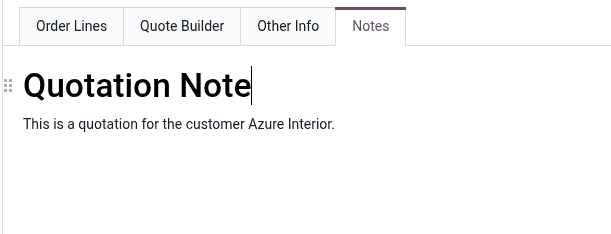
Headings aid in content organization and facilitate easy scanning. There are six different heading sizes available in Odoo 19. Header 6 is the smallest, and Header 1 is the biggest and most noticeable.
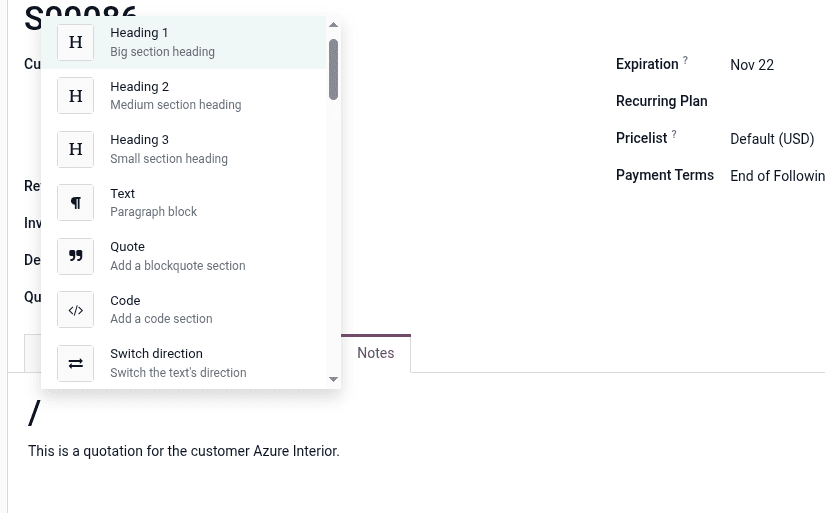
You can also format text as normal paragraphs, code blocks, or quote sections, depending on your needs.
Adding colors to your content:
Colors help important information stand out and make content visually appealing.
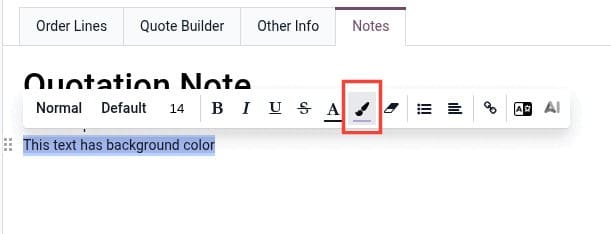
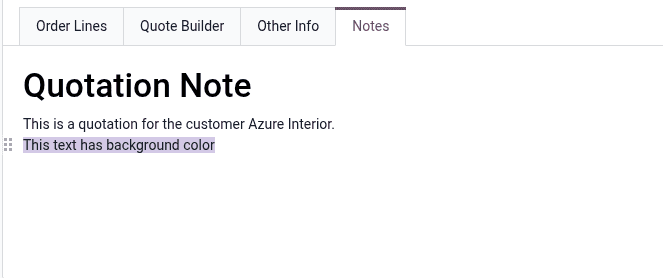
You can alter the background and text colors in Odoo 19.
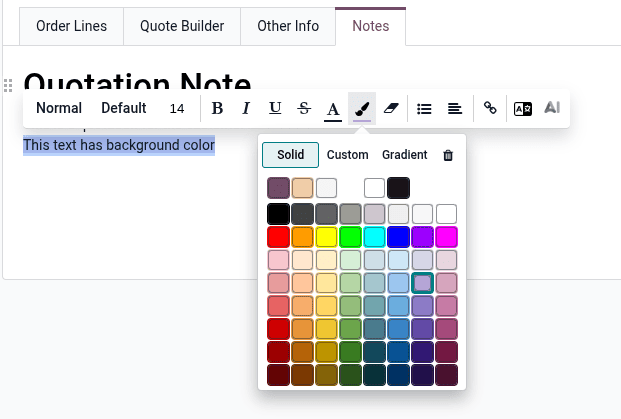
- Choose from pre-set colors in the palette
- Create custom colors using the color wheel
- Enter specific hex codes if you know them
- Apply beautiful gradients for a modern look
Particularly intriguing is the gradient option. Radial gradients (color spreading from a centre point) and linear gradients (color flowing in one direction) are your options.
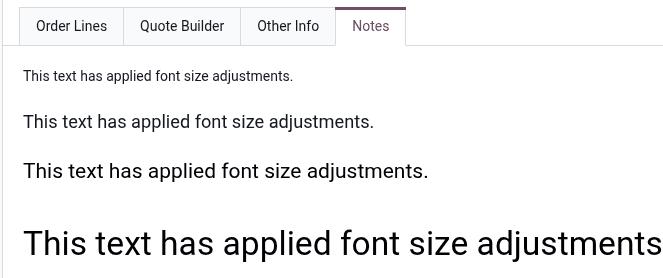
Font size adjustment:
Do you need a larger or smaller text? You can adjust the text size to fit your content hierarchy by using the font size tool.
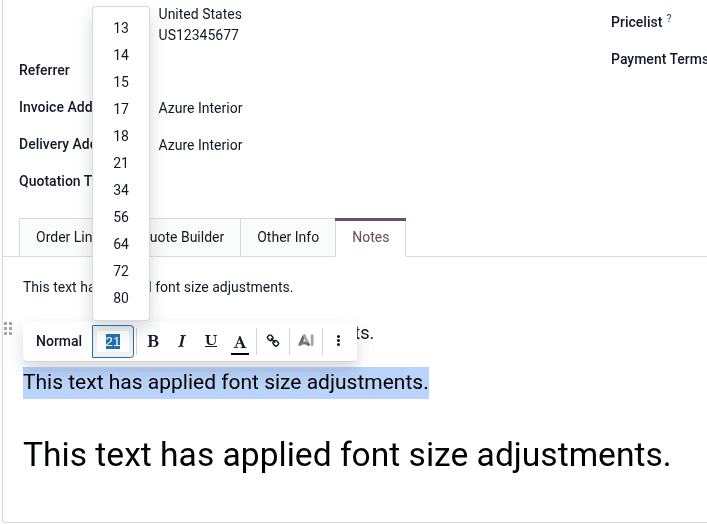
Smaller text works well for additional information, but larger text naturally attracts more attention.
Creating Lists for Better Organization
Lists are crucial for information organization. They simplify difficult concepts into manageable portions. Three different kinds of lists, each with a distinct function, are supported by Odoo 19.
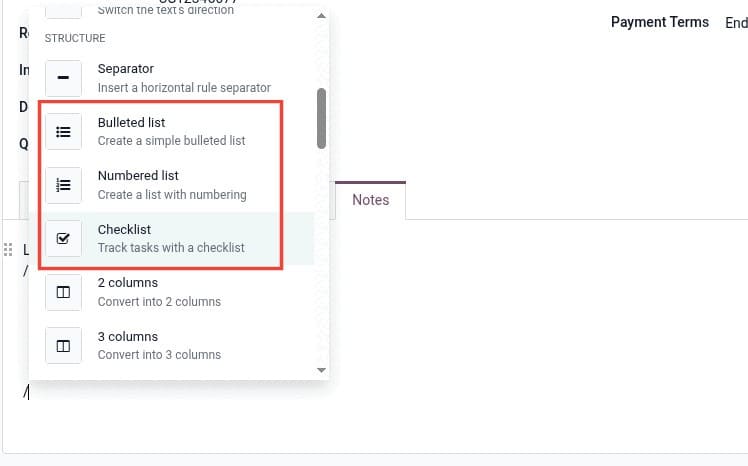
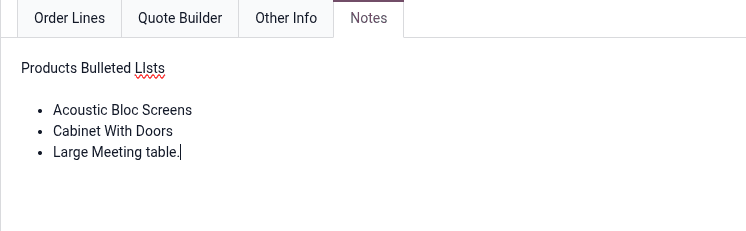
Bulleted lists
When you want to group related items without any particular order, these lists are ideal. Use them for benefit summaries, feature lists, or any grouping of items of equal importance.
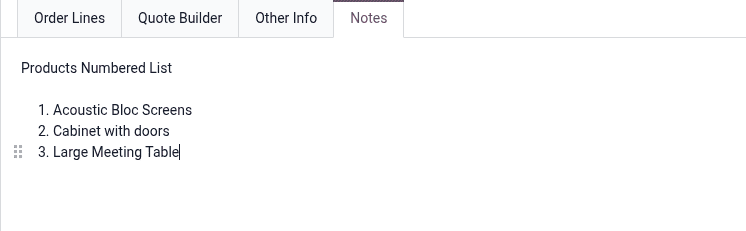
Numbered lists
When order is important, they are perfect. They work well for providing detailed instructions, ranking items, or illustrating procedures that must be followed in a particular order.
Checklists
You can cross things off these interactive lists as you finish them. They are ideal for requirements, task lists, and any circumstance where you wish to monitor completion.

Quick creation shortcuts:
- Type 1. or 1) and press space to start a numbered list instantly
- Type * or - and press space to begin a bulleted list
- These shortcuts save time and keep you in the flow of writing
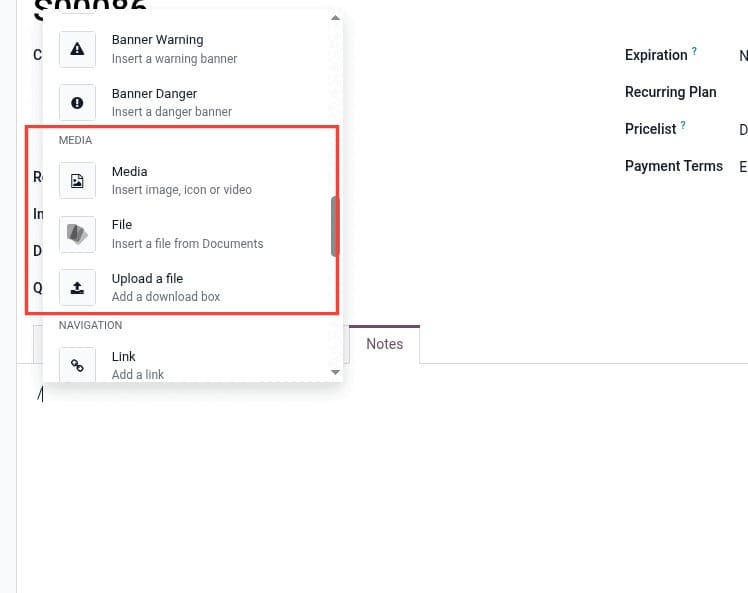
Adding Images and Visual Content
Your text will be easier to read and more interesting if it includes visuals. Adding and modifying images in HTML fields is made easy with Odoo 19.
Three ways to add images:
1. Upload from computer: Use images stored on your device
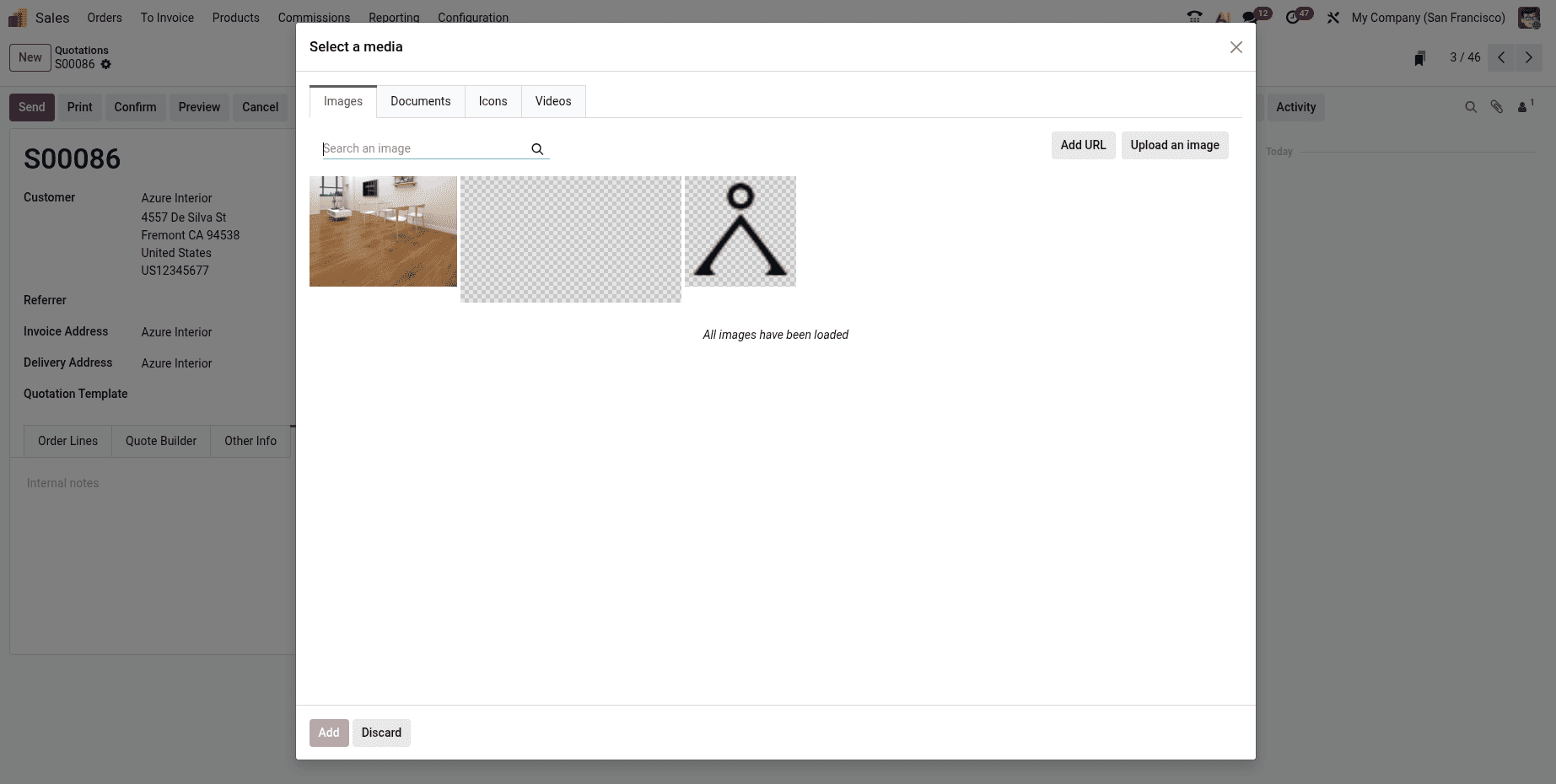
2. Add by URL: Paste a link to any image on the web

3. By searching online.
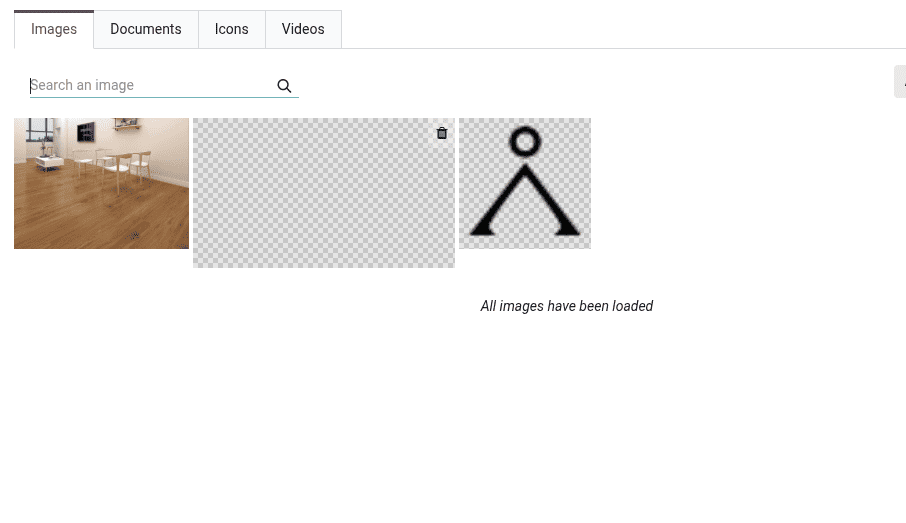
You can also insert documents, files, and icons from the built-in icon library.
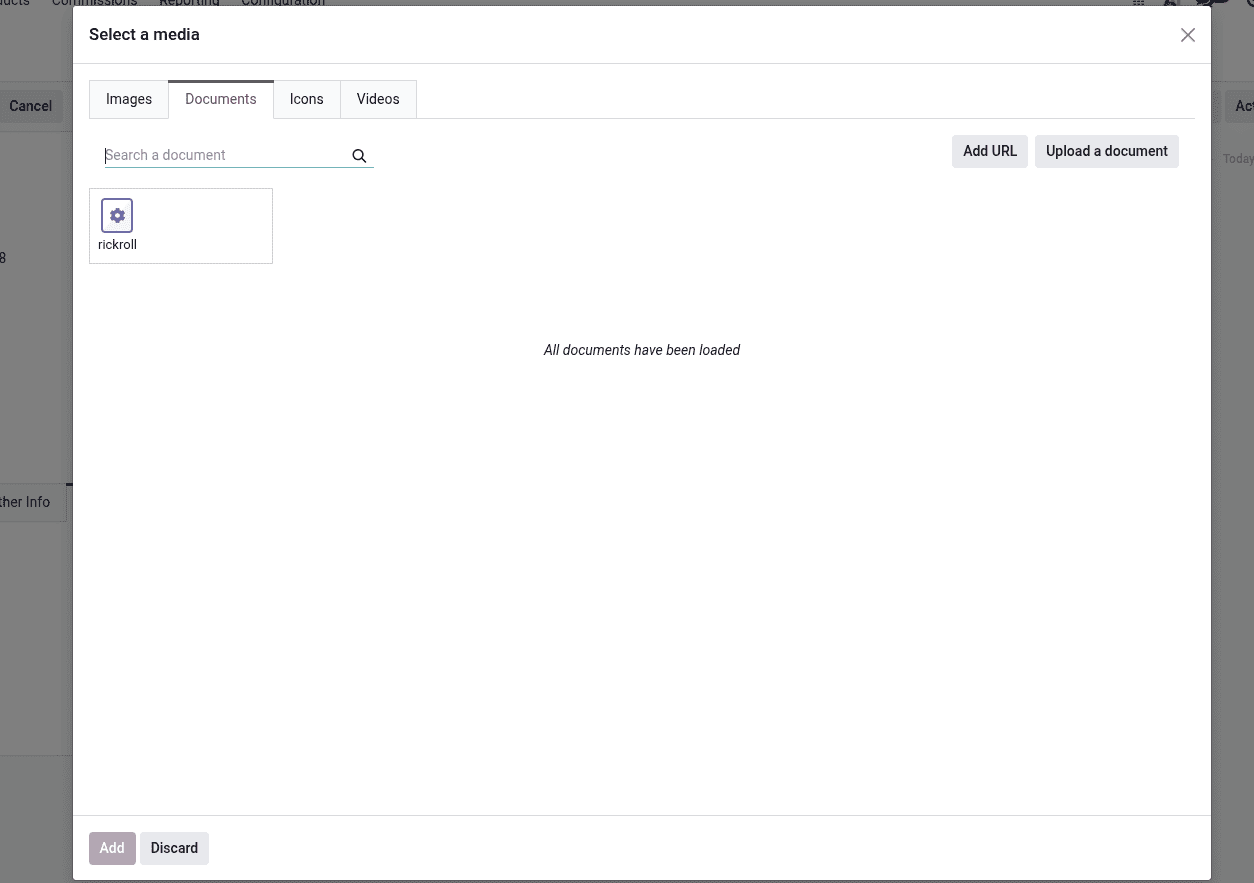
Customizing your images:
Once you add an image, click on it to reveal editing options. Here's what you can do:
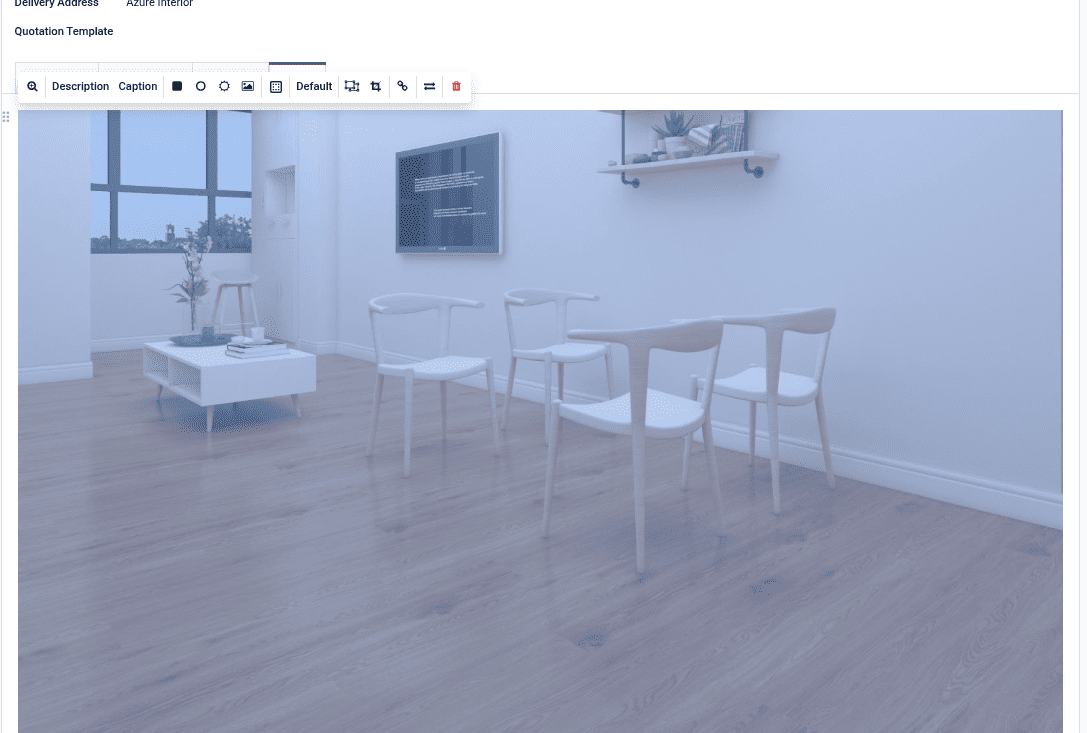
- Zoom and preview: You can download the image, view it in full screen, or zoom in to see more details.
- Use shapes: Make the image perfectly circular or round the corners.
- Include effects: Add borders or shadows to make pictures stand out.
- Modify the distance: Padding can be added to small, medium, large, or extra-large image sizes.
- Quickly resize: Adjust the width of the images to 100%, 50%, or 25%.
- Change at will: Images can be resized and rotated to precisely fit your layout.
The cropping feature deserves special mention.

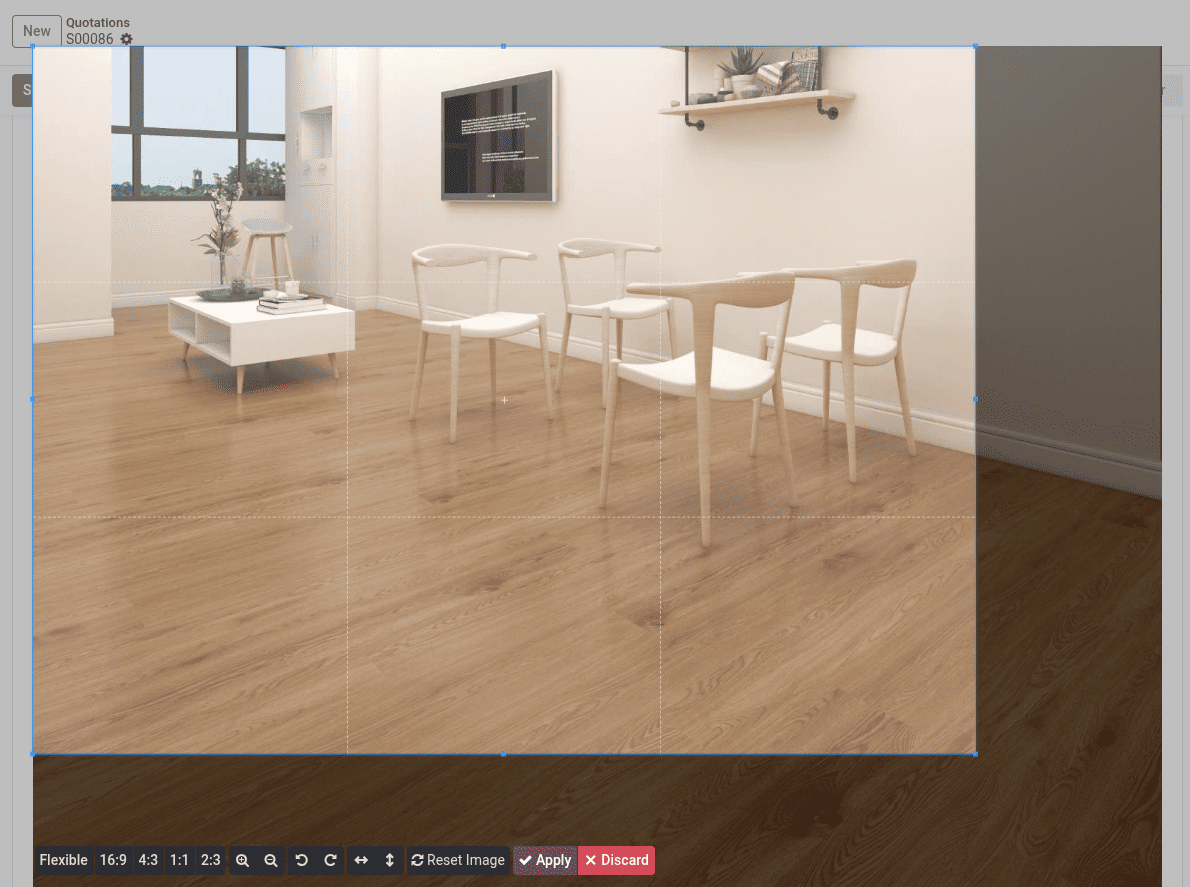
Aspect ratios such as 16:9 for videos, 4:3 for presentations, 1:1 for squares, or 2:3 for portraits can be used in addition to manual cropping. Before completing the crop, you can also rotate the images, flip them horizontally or vertically, and zoom in or out.
Working with Tables and Structured Data
Tables make complex data easier to understand by arranging information in rows and columns. Use the powerbox command or choose a table from the toolbar to add one.
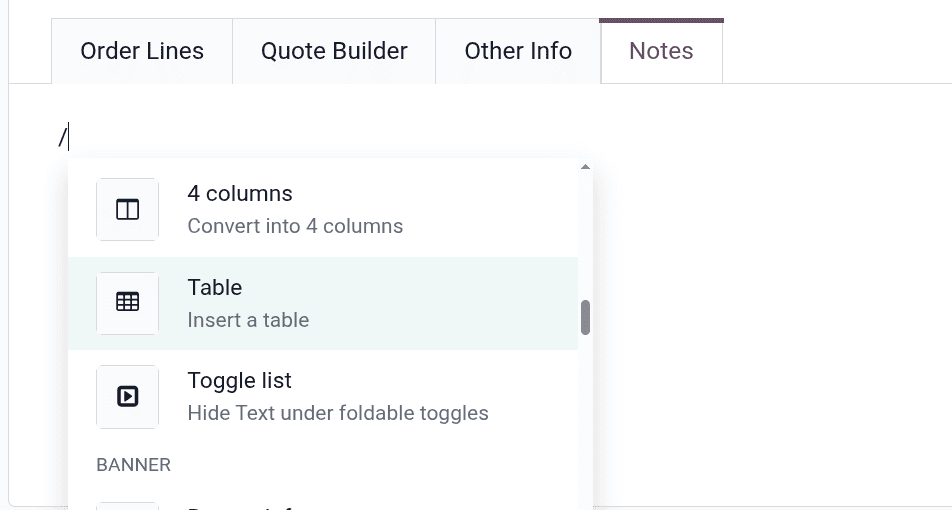
Once your table is ready, hover over any column or row to see management options.

You can add new rows or columns, delete existing ones, or move them around to reorganize your data.
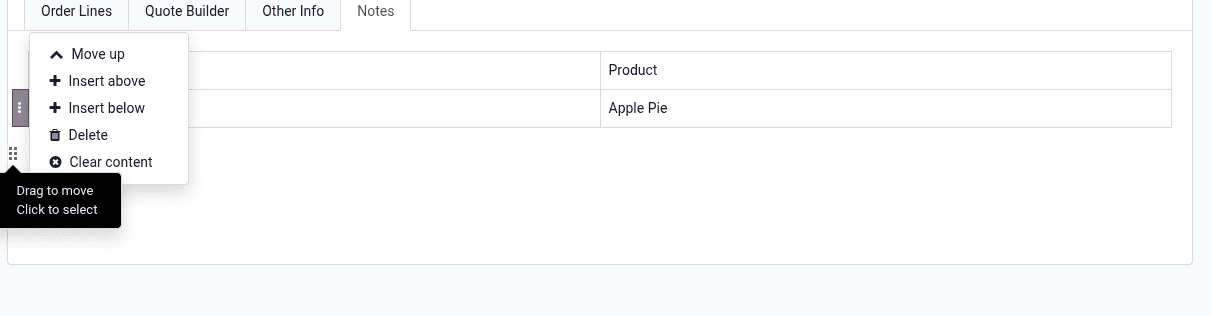
This flexibility means you can start with a basic table and expand it as your needs grow.
Smart Features That Save Time
Odoo 19 includes several intelligent features that speed up your work and improve content quality.
Drag and drop functionality:
Notice the small drag icon that appears when you hover over any element?

Click and hold it to move entire sections, images, or blocks of text around without cutting and pasting. This makes reorganizing content much faster.
Keyboard shortcuts for speed:
- Ctrl/Cmd + B for bold text
- Ctrl/Cmd + I for italic text
- Ctrl/Cmd + U for underline
Adding and managing links:
Links connect your content to other pages, documents, or websites. Select any text, click the link icon, paste or type the URL, and click Apply.

After selecting the text, the following options will appear.
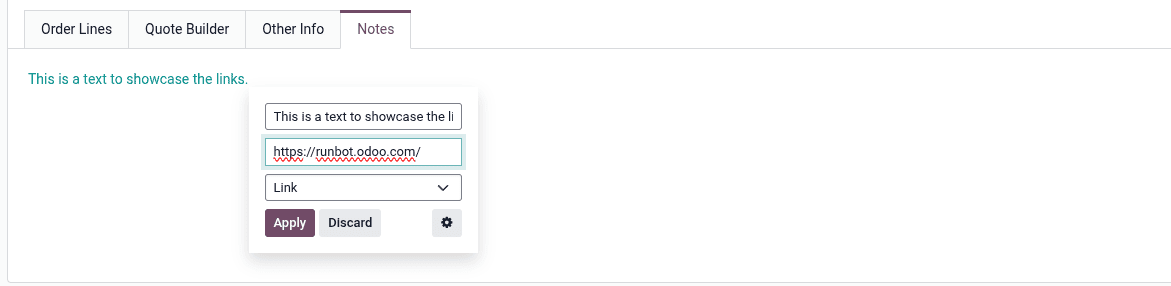
Here, we can add a placeholder label, the url and can choose the type then click the apply button.
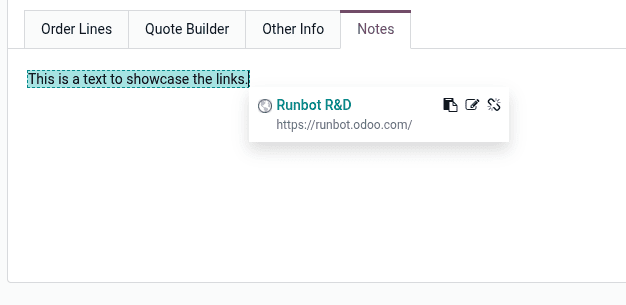
You can link to external websites, internal Odoo pages, documents, or even images. To remove a link later, just click the unlink icon.
AI-powered writing assistance:
Odoo 19 includes AI tools that help improve your writing.
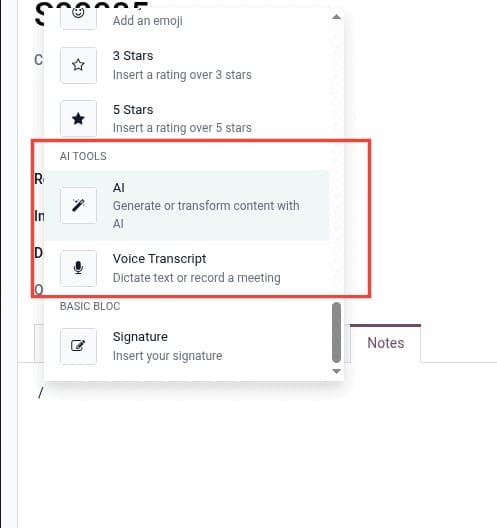
You can automatically correct grammar mistakes, shorten or lengthen text, and adjust the tone to be more friendly, professional, or persuasive.
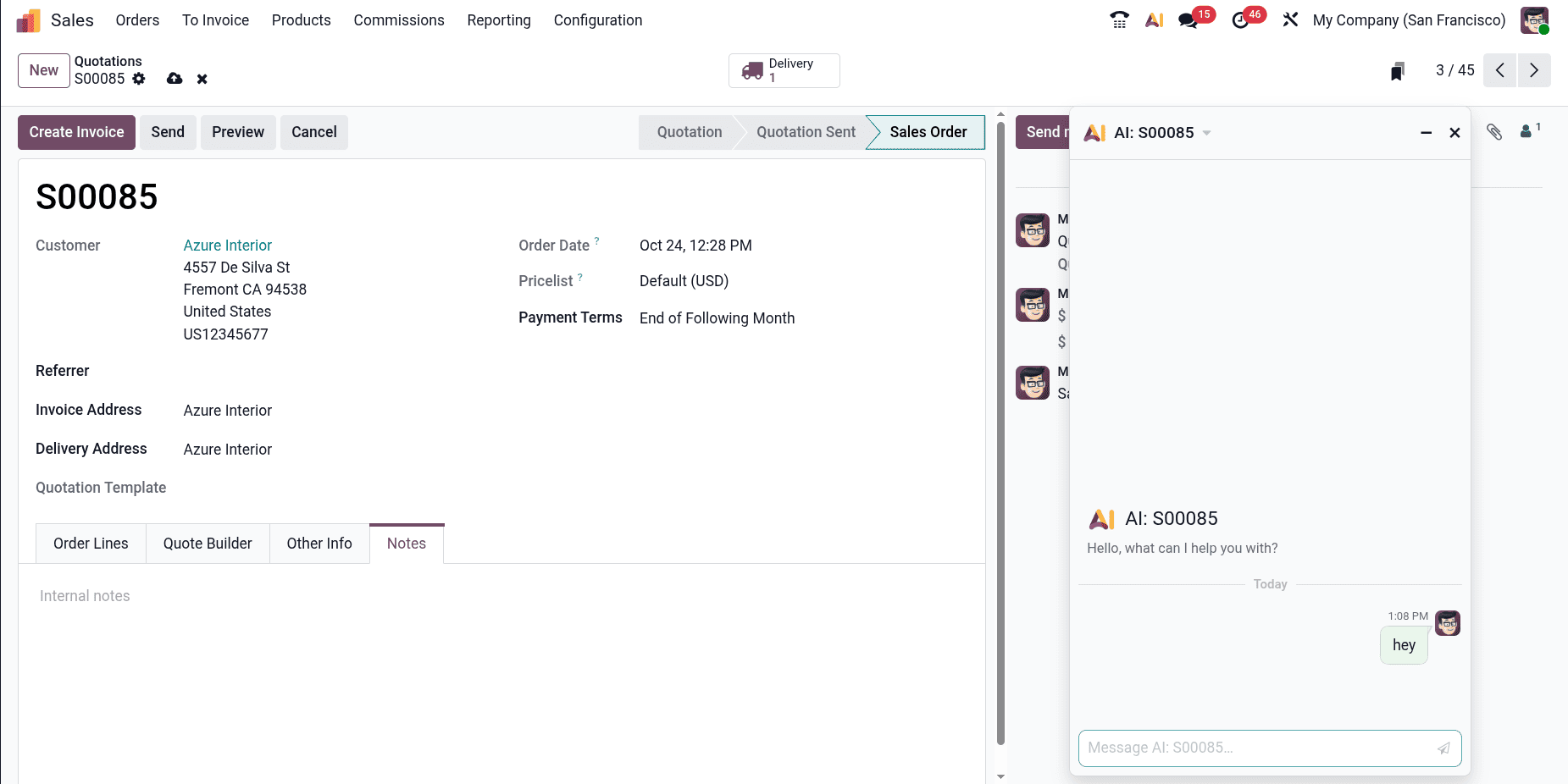
This is particularly useful when you need to adapt content for different audiences.
Translation capabilities:
For businesses operating in multiple countries, the translation feature is invaluable.
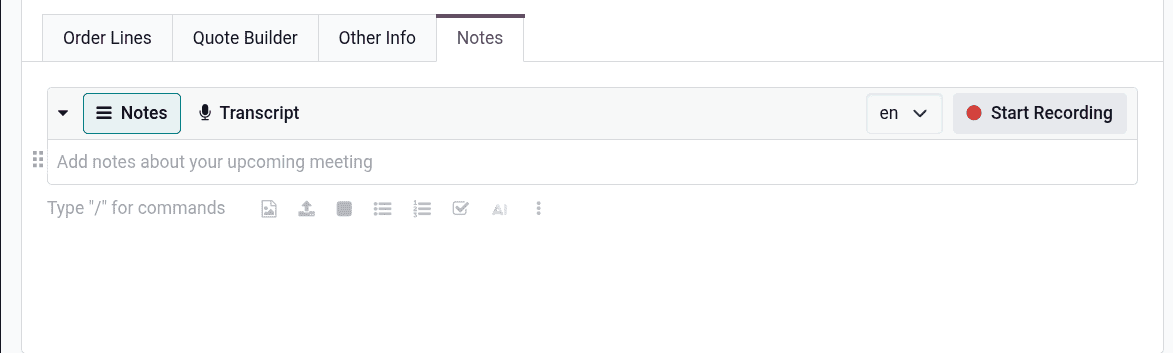
You can translate content directly from the HTML editor into any language installed in your Odoo system. This ensures consistent messaging across all your markets.
Conclusion
Odoo 19's HTML fields revolutionize content creation and management. They provide you with strong formatting tools without requiring technical expertise. These tools facilitate more efficient communication, whether you're developing product pages, writing documentation, sending out marketing emails, or keeping up a knowledge base.
Start with the fundamentals, such as lists and text formatting, and work your way up to more complex features, such as image editing, multi-column layouts, and AI support. You'll become quicker and more self-assured the more HTML fields you use.
Keep in mind that well-written content incorporates clever formatting. Use headings to arrange information, lists to simplify difficult concepts, pictures to support ideas, and colours to draw attention to important details. Odoo 19's HTML fields give you all you need to produce polished, interesting content that advances your company's objectives. Try it out now to see how much better your Odoo content can appear!
To read more about How to Create an Advanced Selection Field in Odoo 19, refer to our blog, How to Create an Advanced Selection Field in Odoo 19.