Helpdesk Management in Odoo 19 is not only about solving issues reported by customers; it is also important to provide customers with clear, accurate, and readily available information. The integration of the Knowledge Article functionality with the Helpdesk feature allows helpdesk specialists to access documentation and share it in the ticket. In this way, repetitive questions can be avoided, while issues will be solved faster, and customers will get clear recommendations.
Create an exhaustive Knowledge Article with the title “Return Instructions,” which will give customers detailed instructions on how to return their purchases.
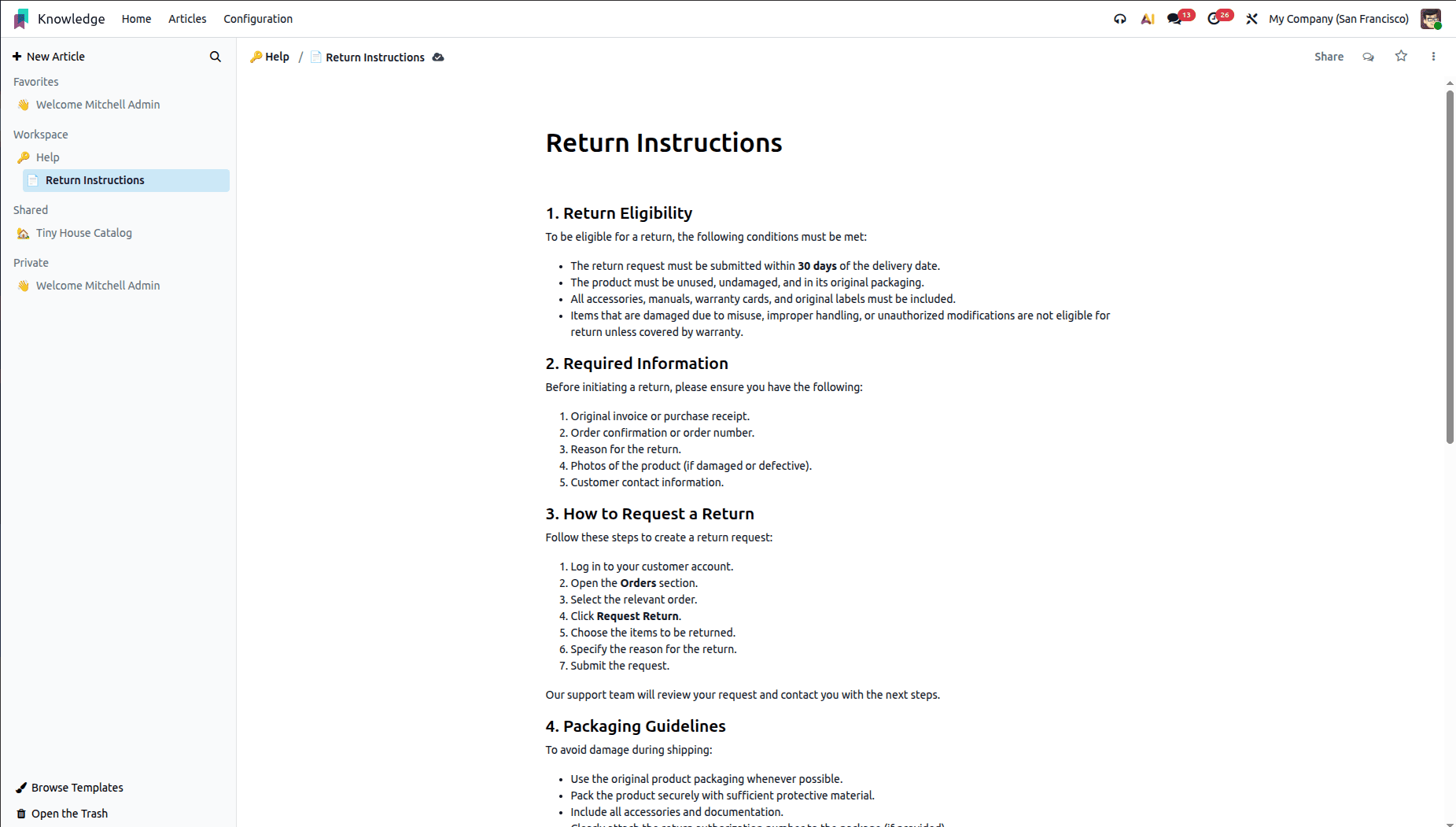
Now, this has been done, the next thing that needs to be done is embedding a clipboard template within the knowledge base.
This template will allow support agents to easily copy and apply their pre-approved answers.
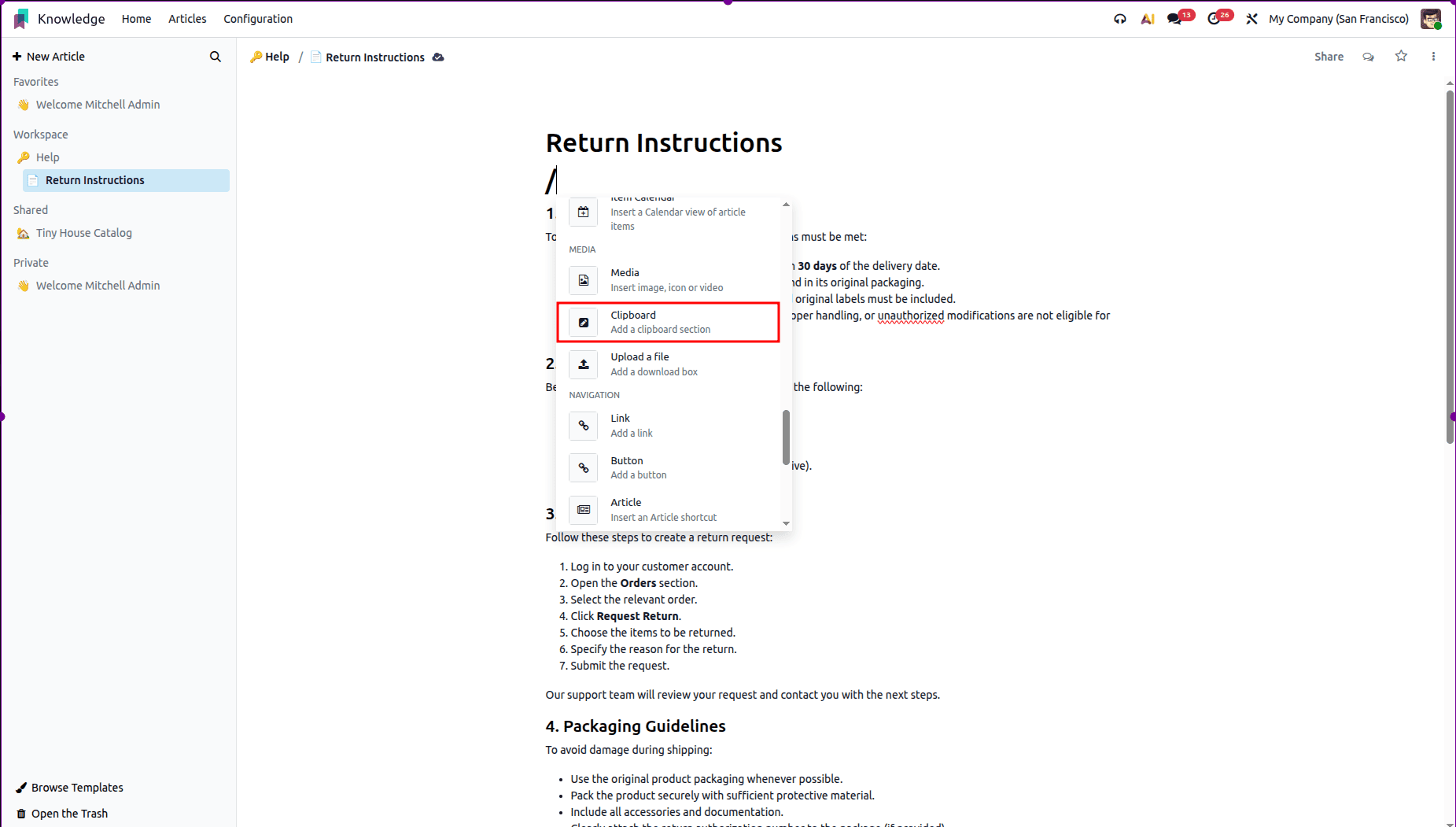
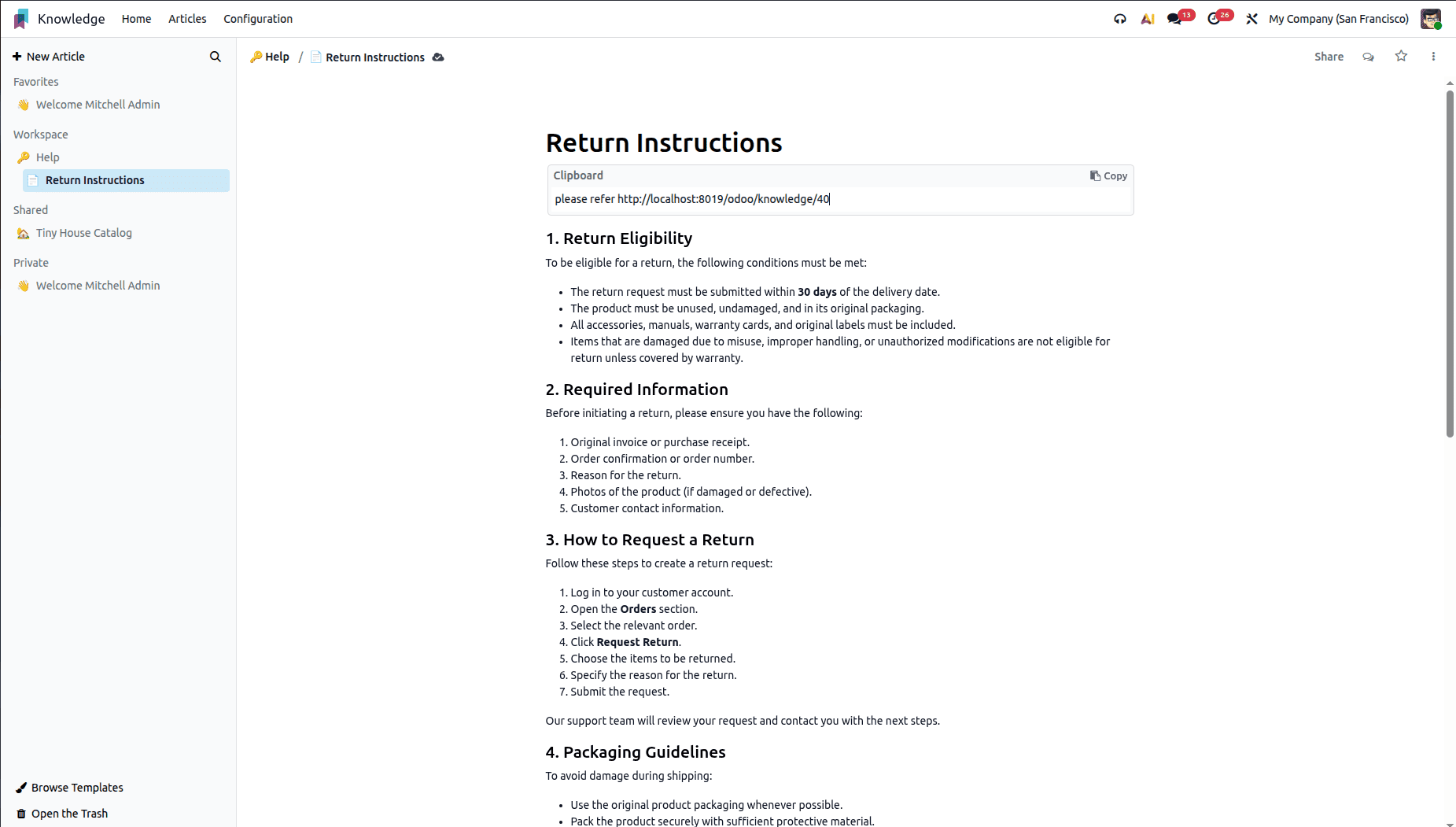
Provide all required instructions directly in the clipboard template.
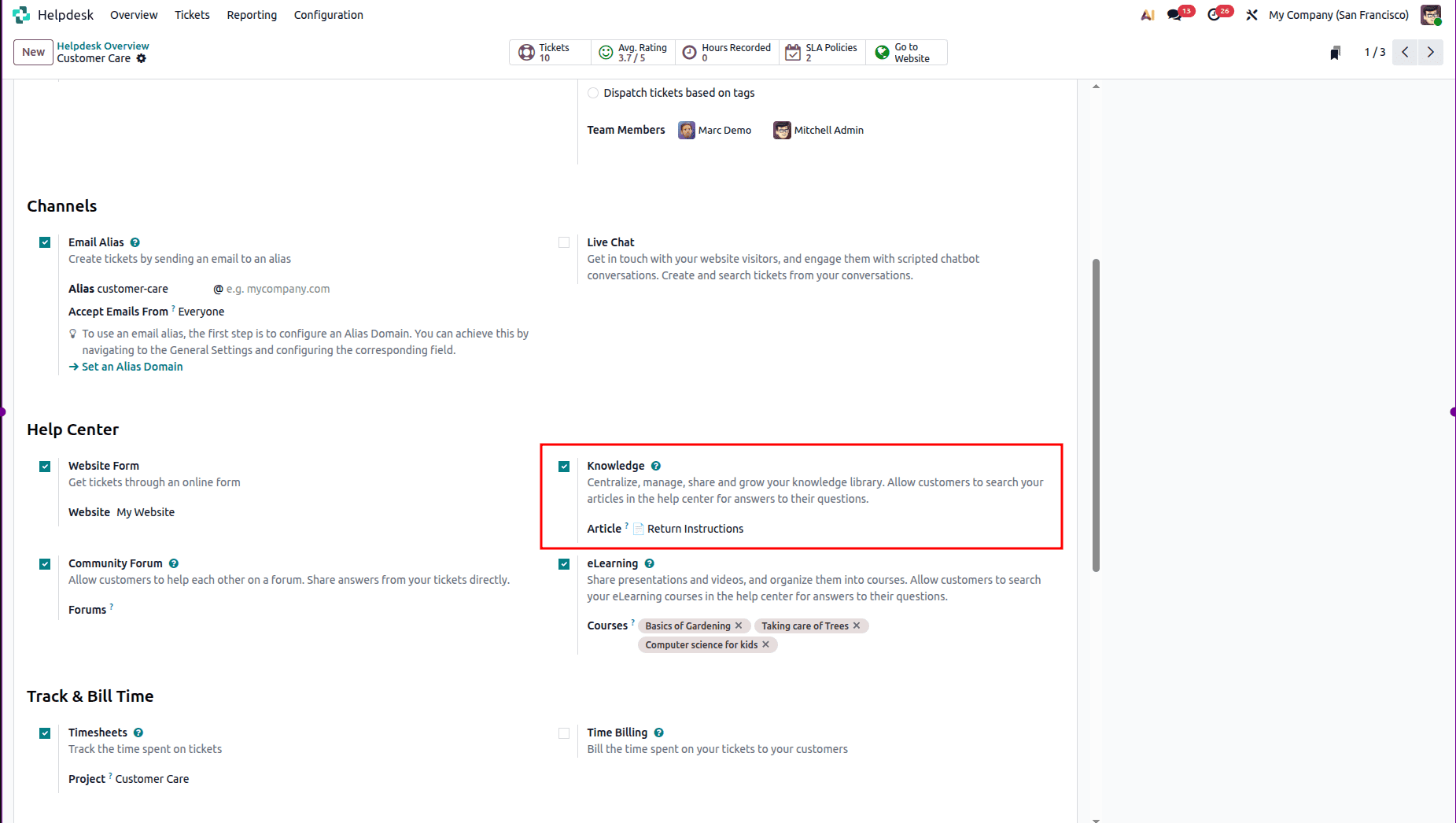
Then, you should move forward to the settings of the Helpdesk team.
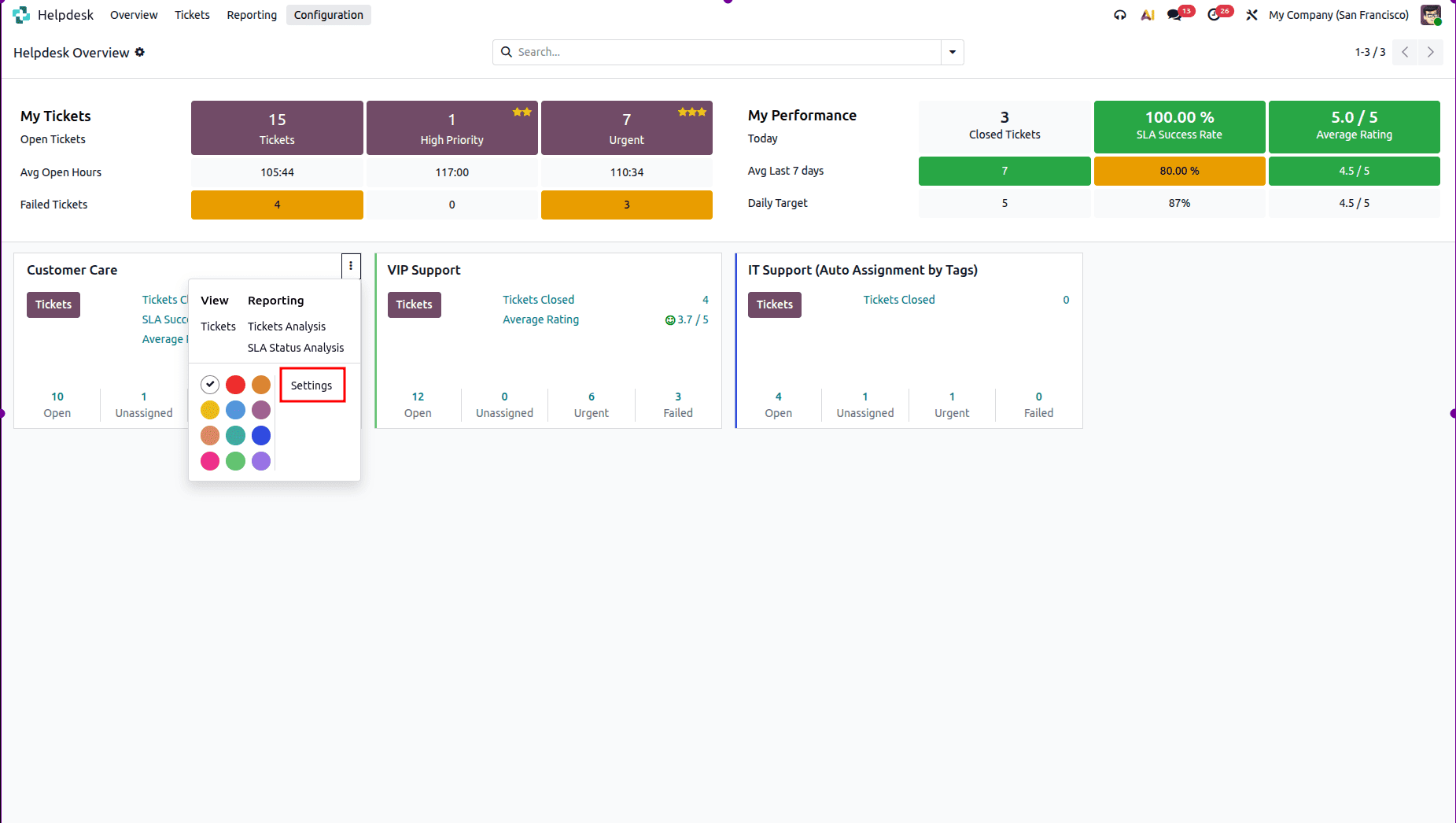
Select the Knowledge checkbox and then place the article in the proper article box.
Now, move on to the tickets section and use the information provided in the Knowledge module to solve the problem.
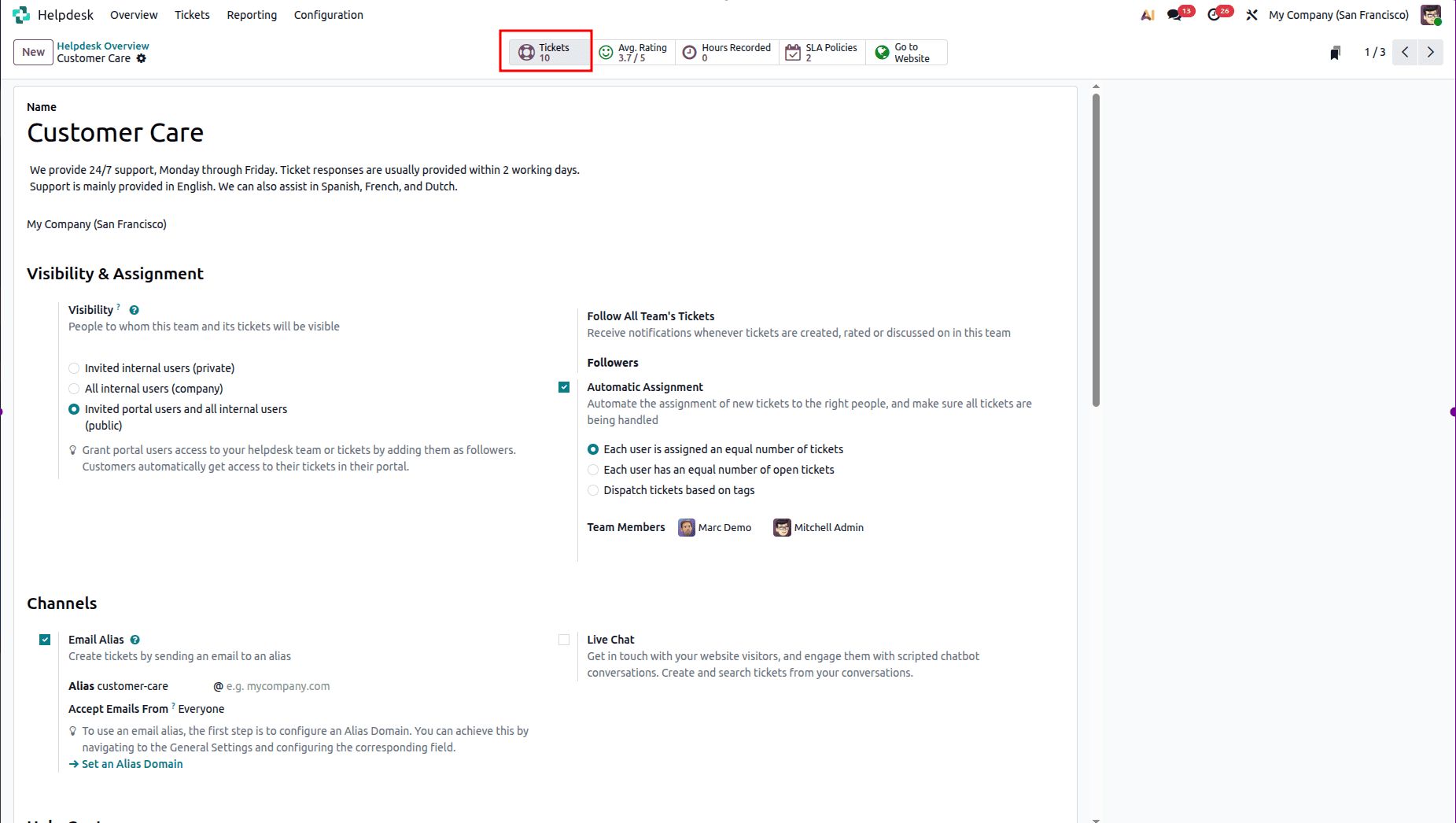
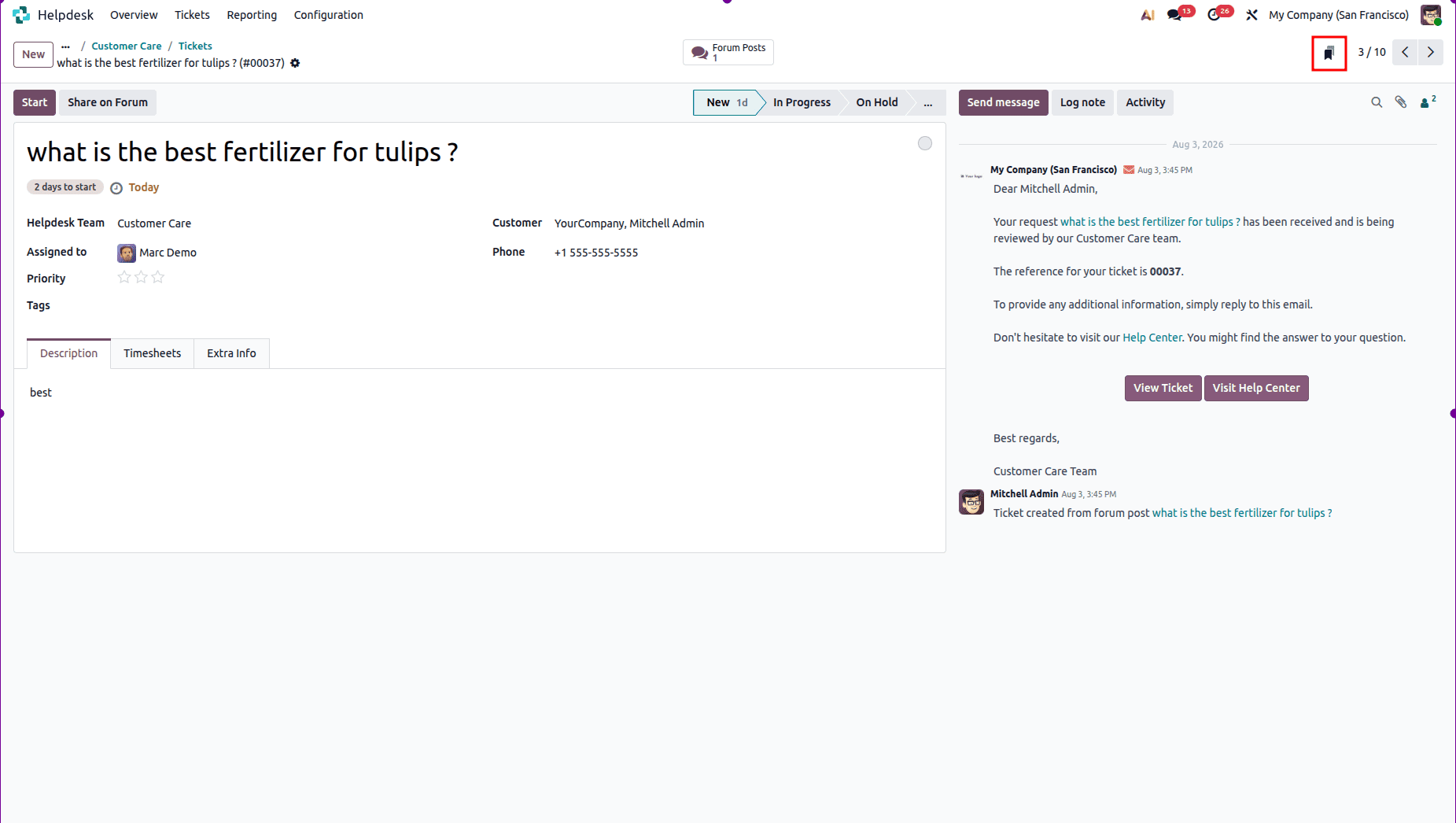
Open a ticket where the customer wants to return the purchased item. Inside the inquiry, click on the Knowledge icon, which is found in the upper right-hand corner. This will open up a wizard where you can search for the relevant knowledge base article.
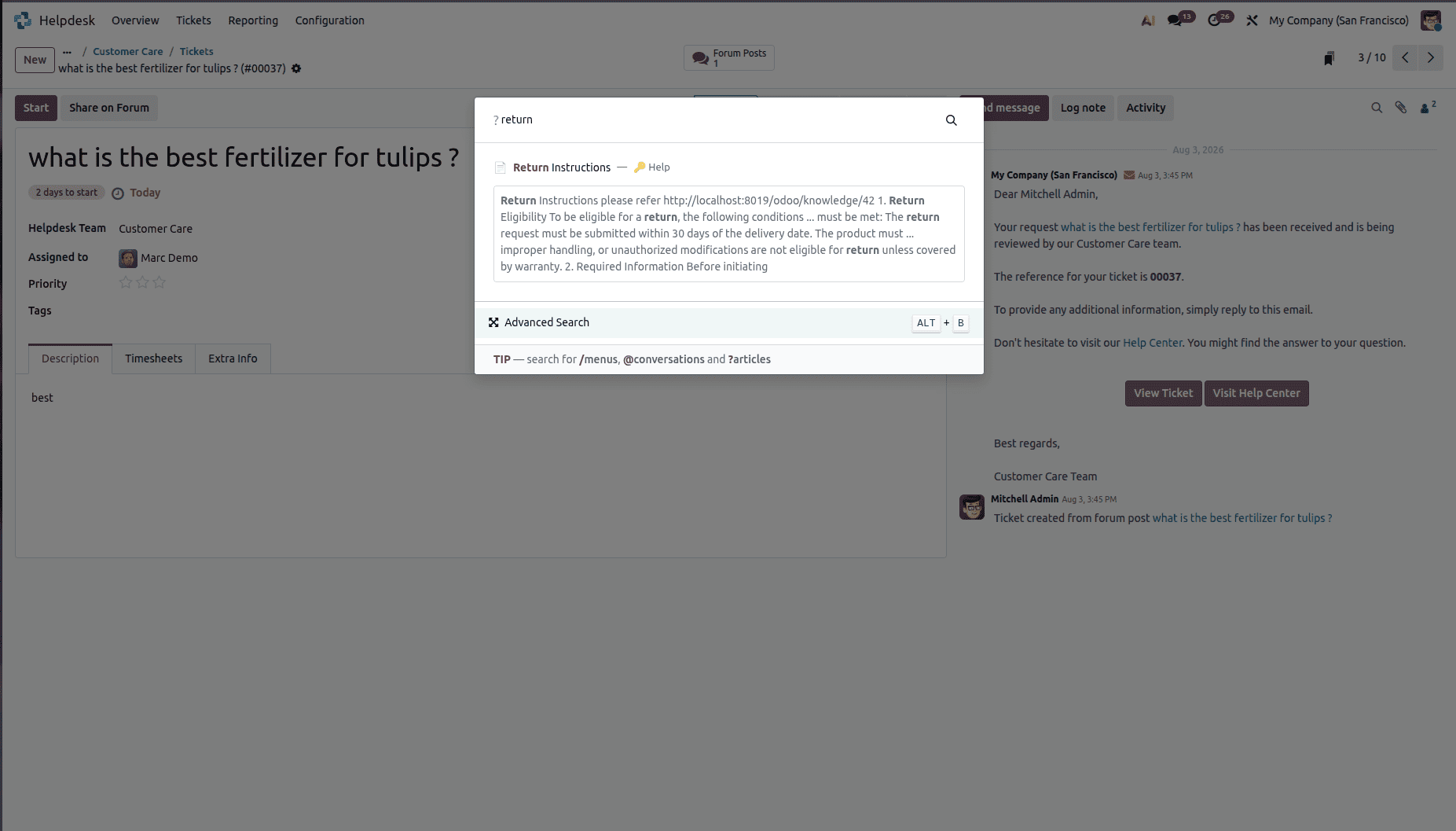
Once the article has been chosen, you will then be taken to the article’s page, which is something like the view below.
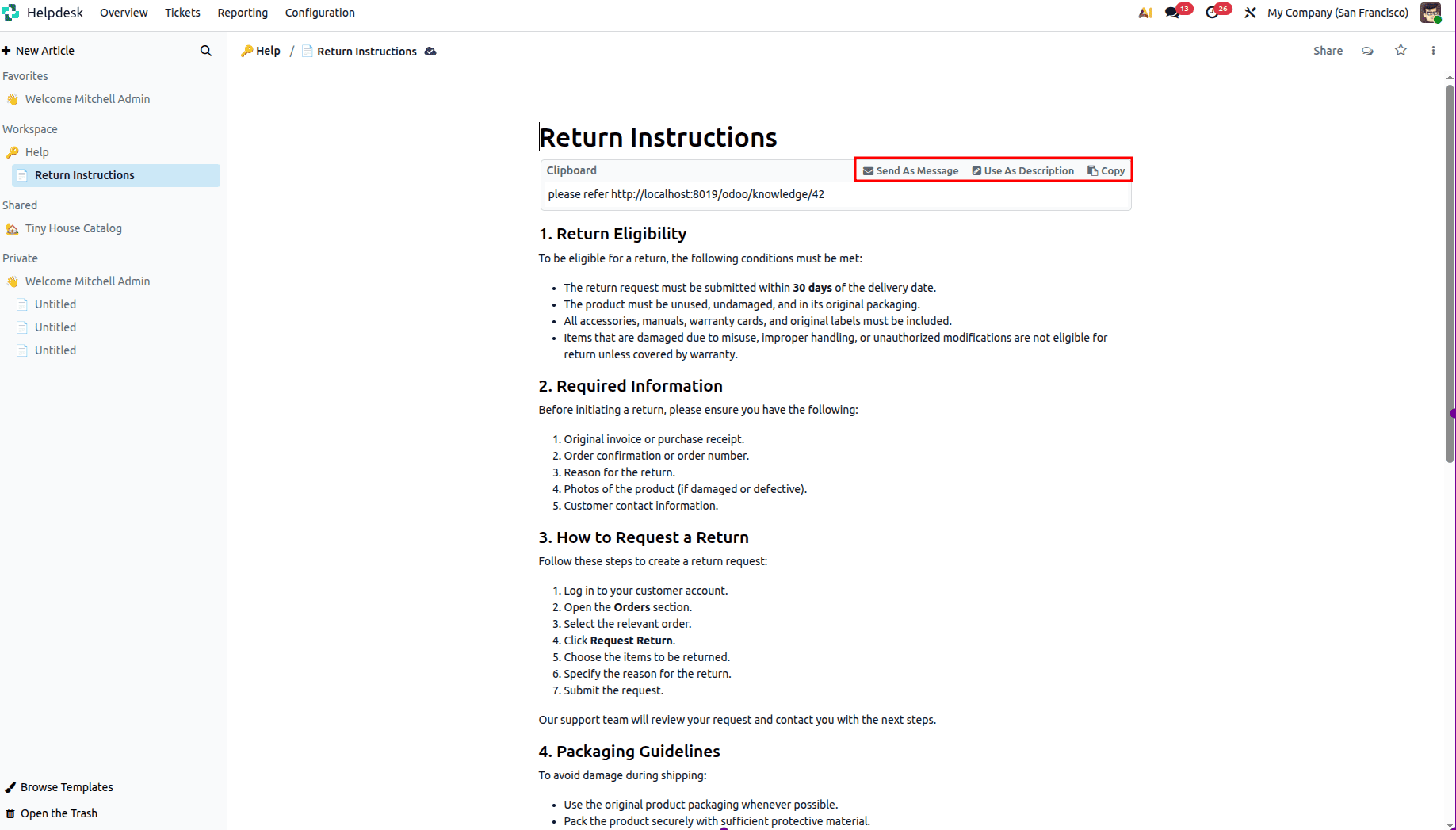
There are three things that one can do using the Knowledge article, which include the following: Send as a message, use as a description, and copy. When sending a message, it is possible to share the article with the customer through the ticket conversation. When used as a description, the content of the article will be inserted into the ticket description. While Copy copies the content to the clipboard, allowing it to be pasted wherever needed.
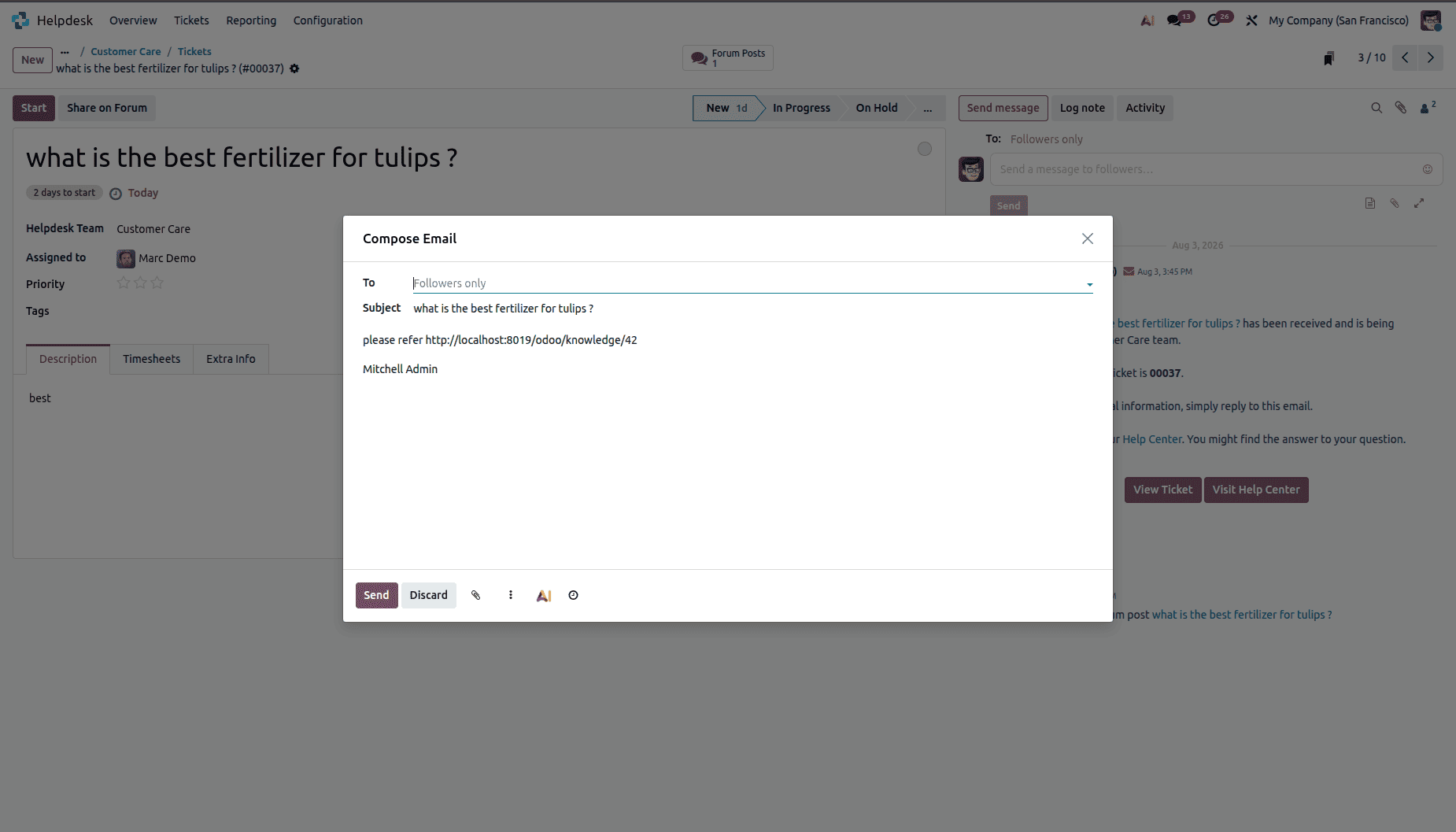
Now, let’s discuss each of the options starting from the Send as Message option. Selecting this option opens a compose message screen for you with the knowledge base article automatically added to it. Further comments can be added if one desires prior to sending the message.
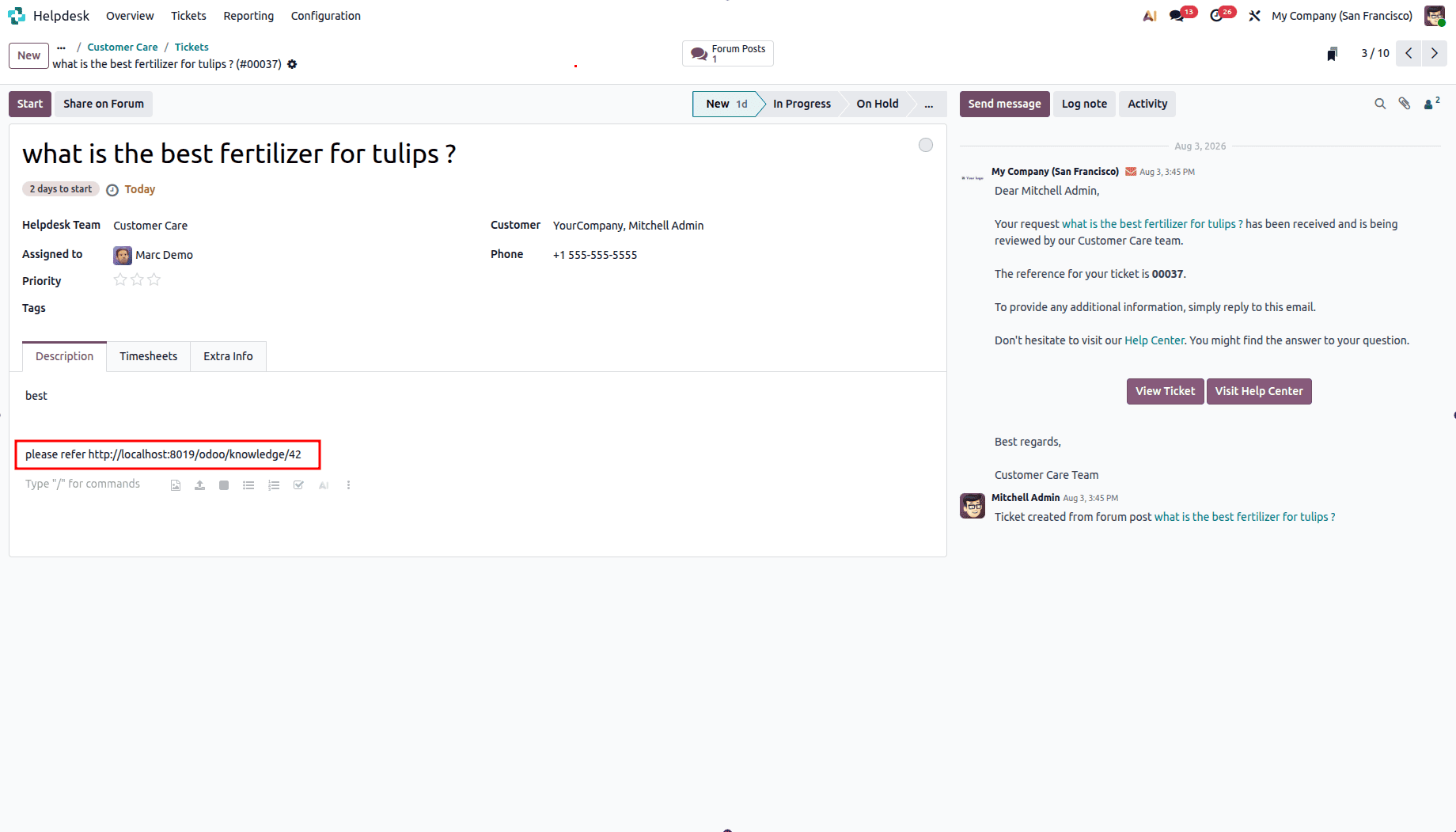
After clicking on “Use as Description,” the text will be automatically added to the ticket description.
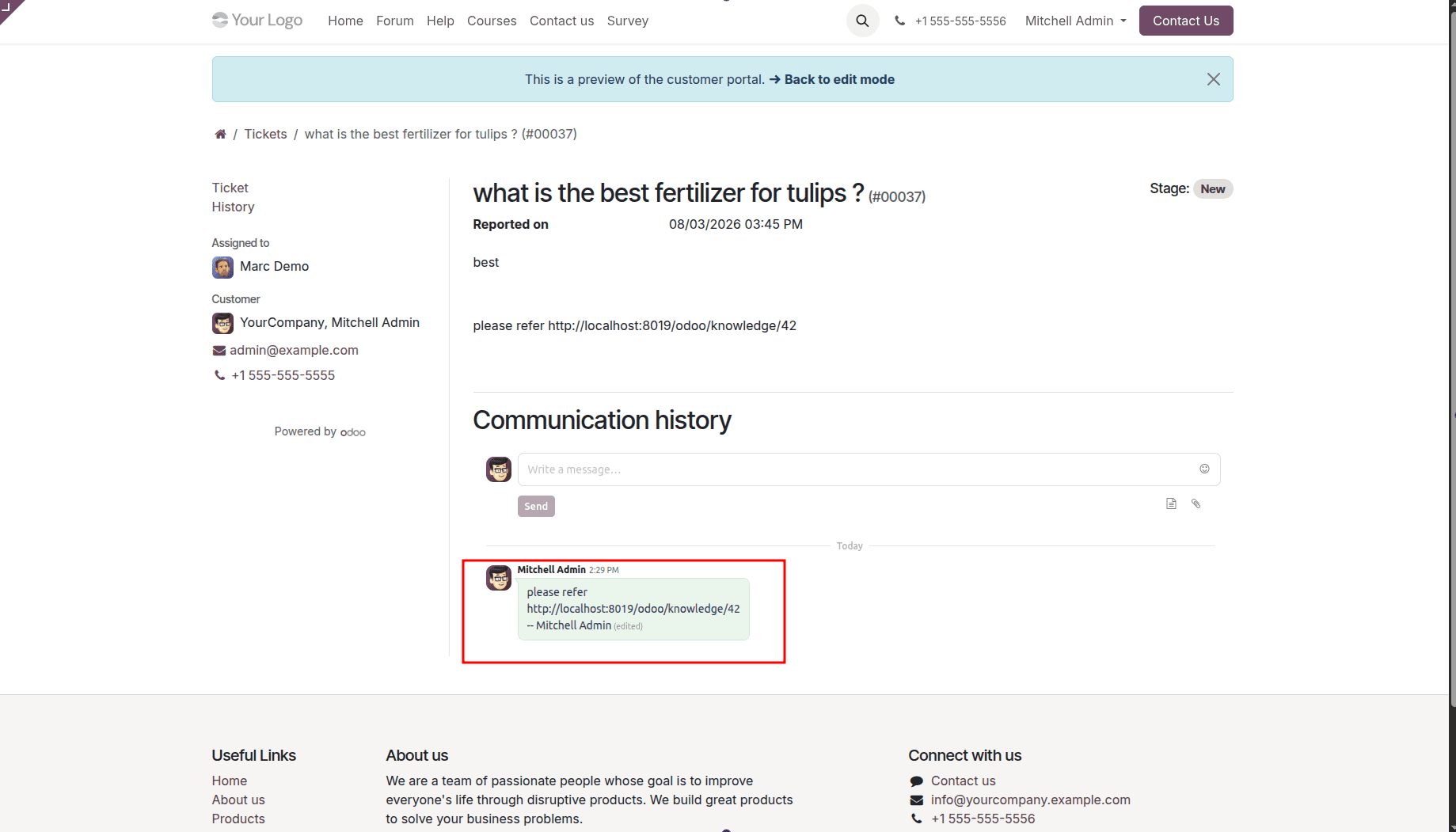
The selection of the Copy button copies the content from the article to the clipboard, and then the user can paste it wherever he needs to paste it, for example, in the chatter of the ticket. Once it is posted on the chatter, it becomes a part of the ticket discussion, and it can be seen by the customer via the portal.
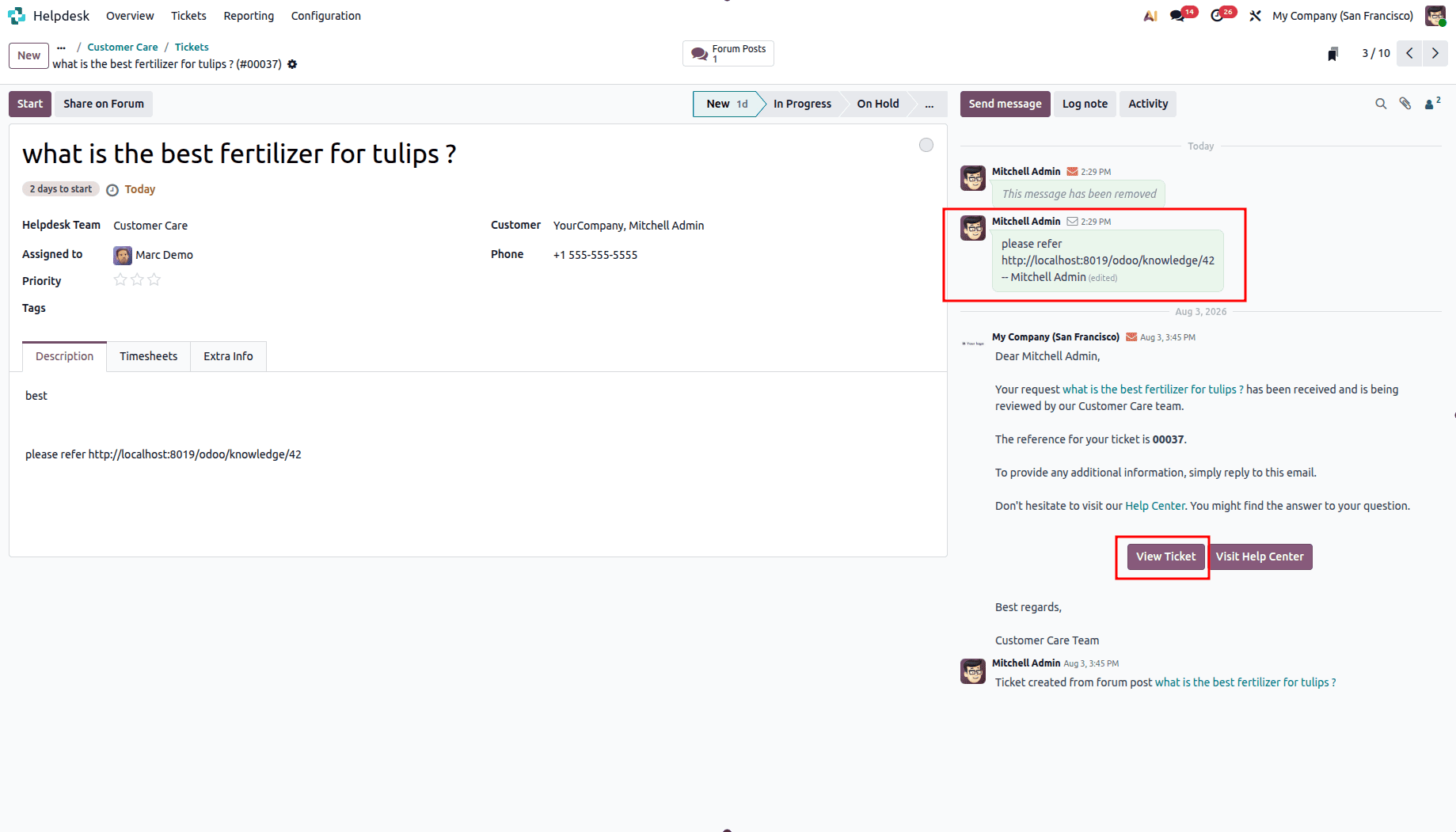
Tapping on the "View Ticket" link within the chatter will open up the ticket at the customer portal. Given that the directions have been communicated through the ticket chatter, they are also available at the customer portal.
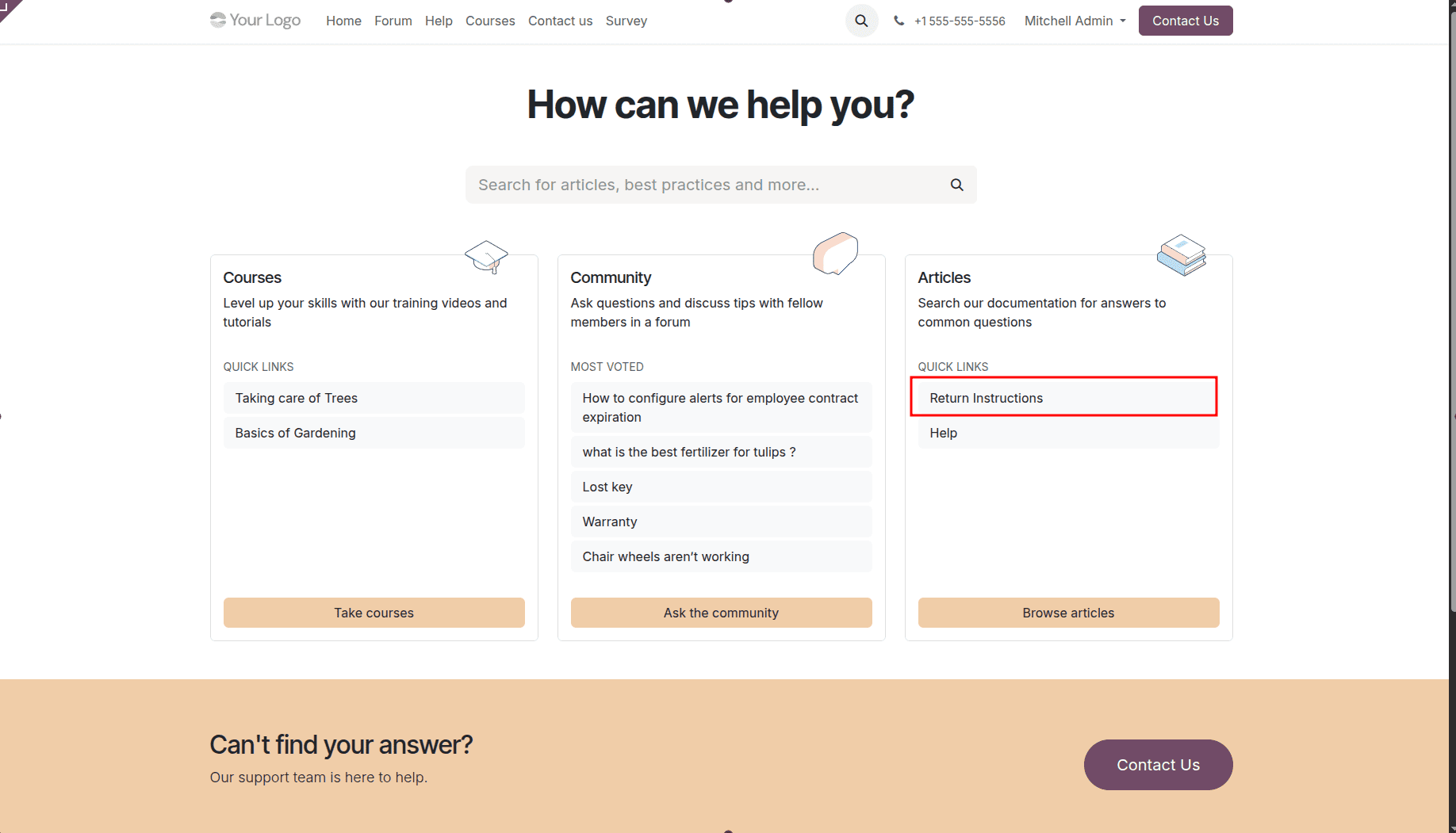
Knowledge articles can be accessed via the Help tab present on the website’s menu too. Through this Help tab, they can browse the available articles, search the topics of interest, open up the documentation, and read the content without having to create a ticket.
The integration of the Knowledge Articles module into Odoo 19 Helpdesk will enable the organization to provide fast, effective, and efficient customer support. The fact that the agents will be able to access the knowledge articles instantly makes the process of resolving issues easier and quicker for the business. Such features as sharing the articles directly through tickets, clipboard templates, and posting the knowledge articles on the website will help to make this process even more productive and promote customer self-service.
To read more about How to Use Knowledge Articles for Helpdesk Management in Odoo 18, refer to our blog How to Use Knowledge Articles for Helpdesk Management in Odoo 18.