Every business that deals with customers will eventually face the same challenge: keeping track of support requests, making sure nothing falls through the cracks, and ensuring customers get a timely and helpful response. Without a proper system in place, support teams often end up juggling emails, spreadsheets, and sticky notes, which leads to missed tickets, slow response times, and frustrated customers. Odoo 19 addresses this with a built-in Helpdesk module that gives businesses a dedicated, organised, and easy-to-use platform for managing all their customer support needs.
Whether it is a small business handling a handful of support tickets a day or a larger team managing hundreds of requests across multiple support channels, the Helpdesk module in Odoo 19 has the tools to keep everything under control. This blog introduces the module, what is available in the main overview, and the settings and features available when setting up a helpdesk team.
The Helpdesk Overview
When the Helpdesk module is opened in Odoo 19, the first page that appears is the Helpdesk Overview. This is the main dashboard, which is designed to give support agents and managers a clear picture of everything happening across the helpdesk at a glance.
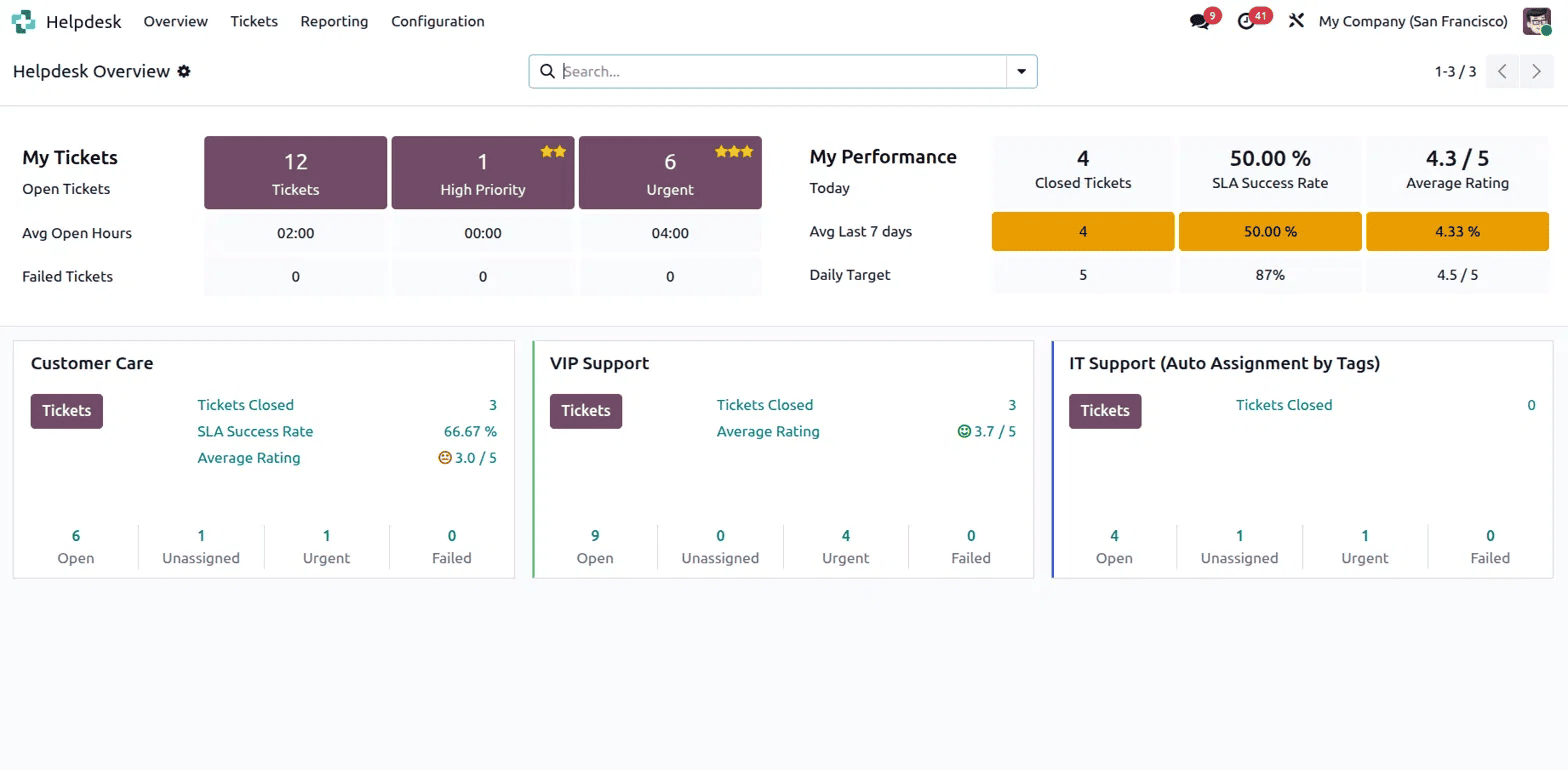
The top section of the dashboard is split into two parts. On the left is My Tickets, which shows the current agent's personal ticket workload. It displays the total number of open tickets broken down by priority: regular, high priority, and urgent, along with the average number of hours each ticket has been open and the number of failed tickets in each category. This makes it easy for an agent to quickly spot which tickets need the most urgent attention.
On the right is My Performance, which tracks how the agent is doing against their targets. It shows the number of tickets closed today, the SLA Success Rate, and the Average Customer Rating. These are shown for both today and the average over the last 7 days, and compared against a Daily Target so the agent always knows where they stand.
Below these personal stats, the dashboard shows a card for each helpdesk team. In this example, there are three teams: Customer Care, VIP Support, and IT Support. Each team card shows key numbers like how many tickets are open, unassigned, urgent, and failed, along with the number of tickets closed and the average customer rating. This gives managers a high-level view of how each team is performing without having to dig into individual tickets.
The Helpdesk module in Odoo 19 is organised around a clean top navigation bar with four main menus: Overview, Tickets, Reporting, and Configuration. Each menu serves a different purpose, and together they cover everything needed to run a complete helpdesk operation. The Overview is the main dashboard that shows the current state of all tickets and team performance at a glance. The Tickets menu gives access to ticket lists for individual agents and the full team. The Reporting menu provides analytical tools to measure performance and track service levels. The Configuration menu is where the entire helpdesk is set up and managed. Here is a closer look at what each of these menus contains.
Tickets Menu
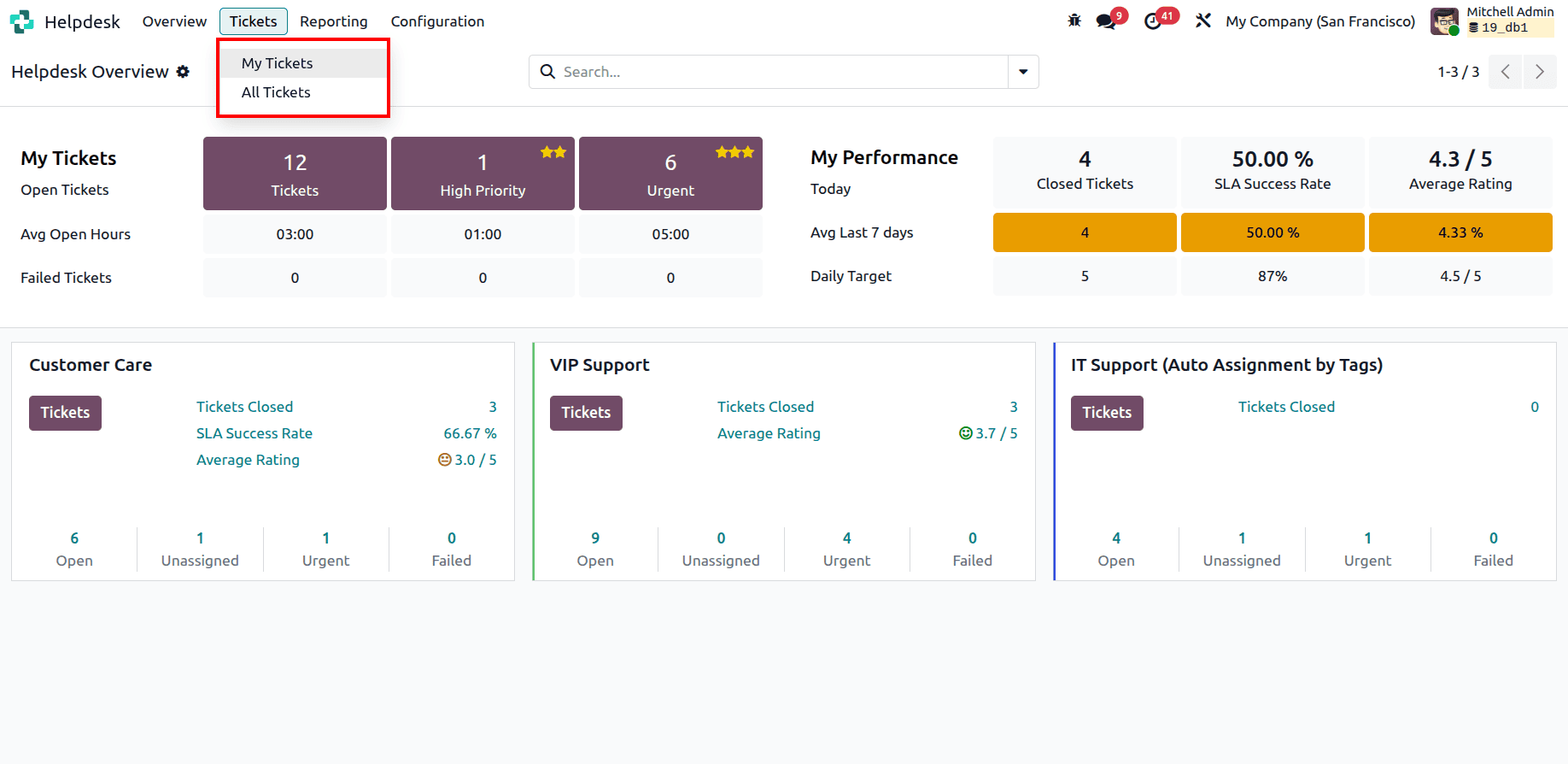
The Tickets menu in the top navigation bar gives access to two views, My Tickets and All Tickets. My Tickets shows only the tickets assigned to the currently logged-in agent, making it easy to focus on personal workload without the distraction of the full queue. All Tickets gives a complete view of every ticket across all teams, which is useful for managers who need visibility into the entire support operation.
Reporting Menu
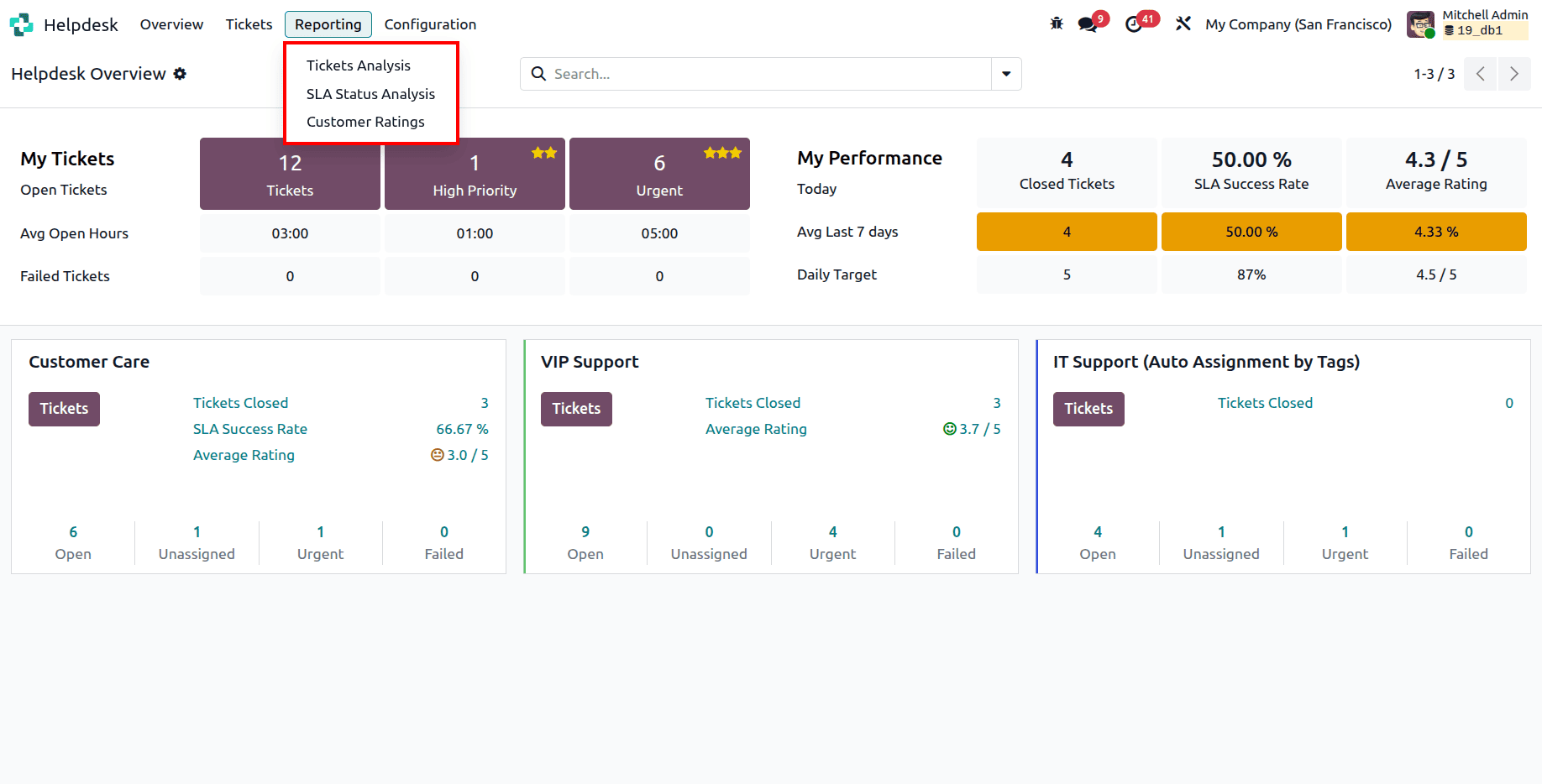
The Reporting menu provides three analytical reports: Tickets Analysis, SLA Status Analysis, and Customer Ratings. Tickets Analysis gives a breakdown of ticket volumes, trends, and performance data across teams and agents. SLA Status Analysis tracks how well the team is meeting its service level agreements, showing which tickets passed or failed within the set timeframes. Customer Ratings collects and displays the satisfaction scores submitted by customers after their tickets are resolved, giving a clear picture of how customers feel about the support they received.
Configuration Menu
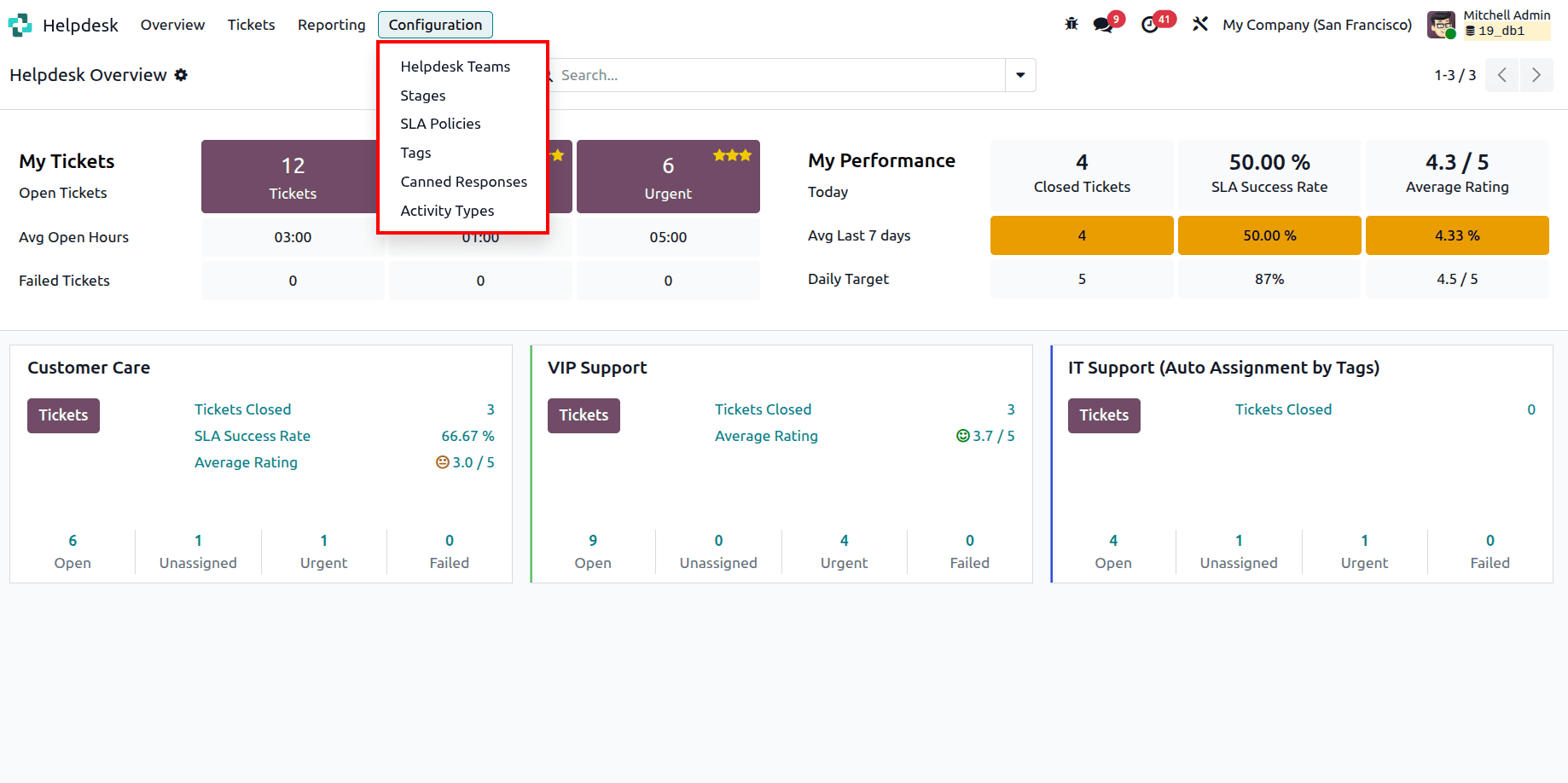
The Configuration menu is where the helpdesk is set up and maintained. It contains six options: Helpdesk Teams, Stages, SLA Policies, Tags, Canned Responses, and Activity Types. Helpdesk Teams is where teams are created and configured. Stages lets administrators define the steps a ticket moves through from creation to resolution. SLA Policies is where time-based service rules are created to ensure tickets are handled within agreed timeframes. Tags allow tickets to be labelled and categorised for easier searching and filtering. Canned Responses are pre-written reply templates that agents can use to respond to common questions quickly and consistently. Activity Types let administrators define the kinds of activities that can be scheduled against tickets, such as calls, emails, or follow-ups.
Setting Up a Helpdesk Team
One of the most important building blocks of the Helpdesk module is the helpdesk team. A team represents a group of agents who handle a specific type of support, for example, one team for general customer care, another for VIP clients, and another for internal IT support. Each team in Odoo 19 has its own detailed settings that control how it works. The team form starts with the team name and a description that explains the team's working hours, languages supported, and response expectations. The Visibility & Assignment section controls who can see the team and how tickets are assigned to agents, with options to restrict visibility to invited users, open it to all internal users, or extend it to portal users and the public. The Automatic Assignment feature distributes incoming tickets to the right agents automatically, with options based on equal ticket count, open ticket balance, or tag-based dispatching. Under Channels, an Email Alias can be enabled so customers can create tickets by sending an email, while Live Chat allows conversations from the website to be converted into tickets directly. The Help Center section supports self-service options including a Website Form, a Knowledge base, a Community Forum, and eLearning, all of which help customers find answers on their own and reduce the volume of incoming tickets. For businesses that charge for support, Timesheets and Time Billing can be enabled to track and bill the time spent on each ticket. On the performance side, SLA Policies ensure tickets are handled within set timeframes, Customer Ratings automatically collect satisfaction scores from customers, and Self-Service options like Closure by Customers and Automatic Closing help keep the ticket queue clean. Finally, the After-Sales section connects the helpdesk to the rest of the business by allowing agents to issue Refunds, create Coupons, send Gift Cards, process Returns, send Replacements, or initiate Repairs directly from within a ticket.
The Helpdesk module in Odoo 19 is a well-rounded customer support platform that goes well beyond just tracking tickets. From the clear and informative overview dashboard to the detailed team configuration options covering channels, automation, performance tracking, and after-sales actions, it gives businesses everything needed to deliver consistent and organised customer support. Whether setting it up for the first time or looking to improve how a current support team works, Odoo 19's Helpdesk module is built to make the job easier for agents, more transparent for managers, and more satisfying for customers.
To read more about How to Configure Your Help Desk in Odoo 18, refer to our blog How to Configure Your Help Desk in Odoo 18.