There are two primary accounting systems offered by Odoo 19. Anglo-Saxon and Continental Accounting systems. Both of these accounting systems adhere to different criteria during every Odoo 19 function. Each nation has its own accounting system. We will delve into great detail about the ledger postings and the Continental accounting system in this blog.
According to the previous versions, there are some updates in using continental accounting. Let's check how users can easily use continental accounting in Odoo 19.
Continental Accounting
The standard accounting method used in Odoo is based on the continental accounting system. Continental accounting will be used if Inventory Valuation is set as Periodic (at closing). Every time a purchase is made in the Continental accounting system, the associated cost is automatically recorded in the ledger.
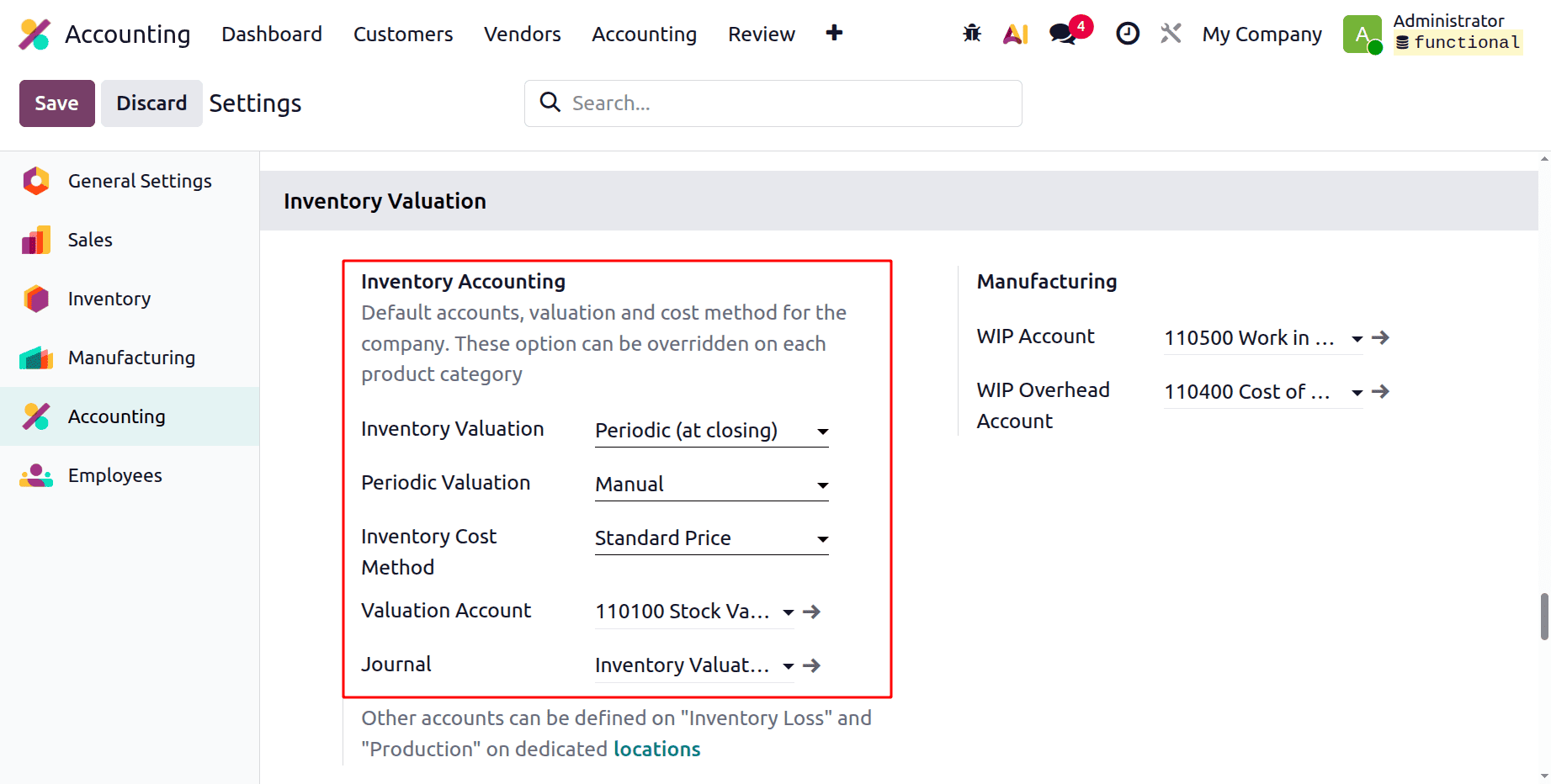
We should establish the inventory valuation as periodic (at closing) since we will be experimenting with Continental accounting with a particular product category. Select "Inventory Accounting" from the Accounting Application's Configuration > Settings to set the inventory valuation.
Next, navigate to the Configuration menu in the Accounting application, open the Product Categories submenu, and choose one of the available product categories. Next, determine the product's inventory valuation as periodic (at closing).
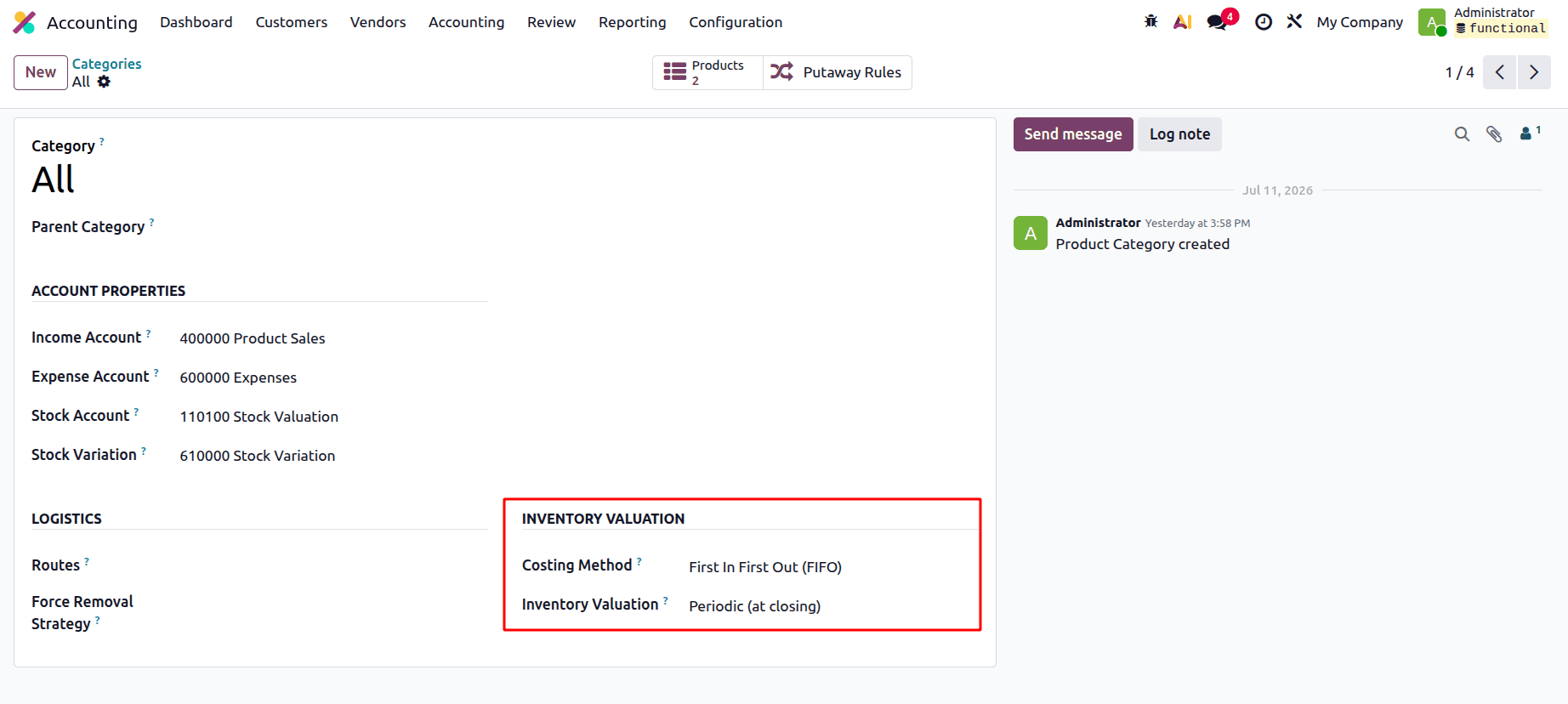
In order to identify the actions of the continental accounting, we must next develop a product from this category that can be used for several operations.
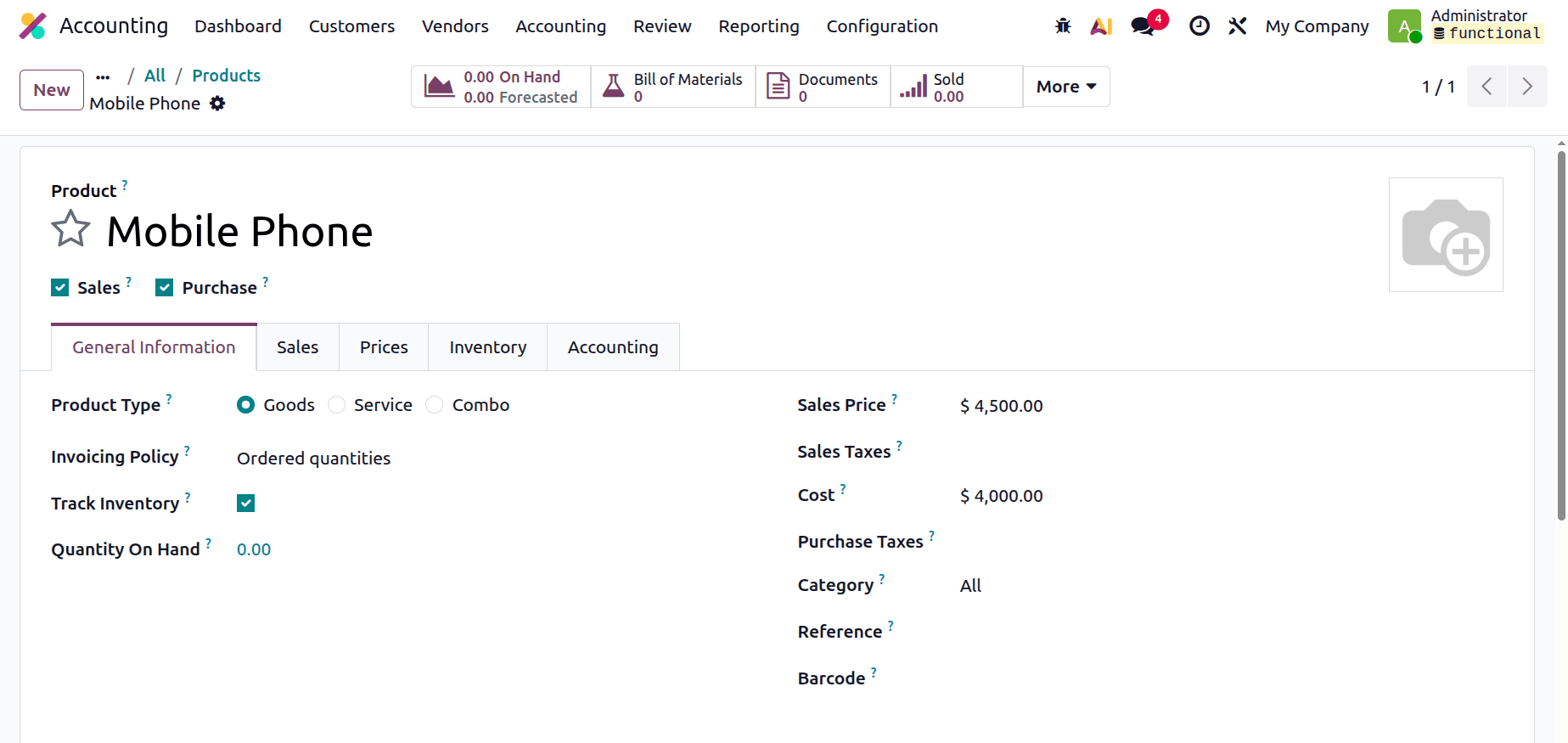
We have now developed a new product under the "All" category: a Mobile Phone. After that, create a purchase order for the product. Once the vendor bill for the purchase order is generated and confirmed, the corresponding ledger entries will be posted automatically. Therefore, you may either produce a vendor bill for this product using the Odoo 19 Accounting module or proceed to the purchasing module to construct the purchase bill. Create a Bill for the Mobile Phone product by going to the Accounting module.
From the Vendors menu, choose Bills. A list will be visible there. To create a new record, click the New button. Then, add the details like vendor name, bill date, product, quantity, etc., and then click on the Confirm button.
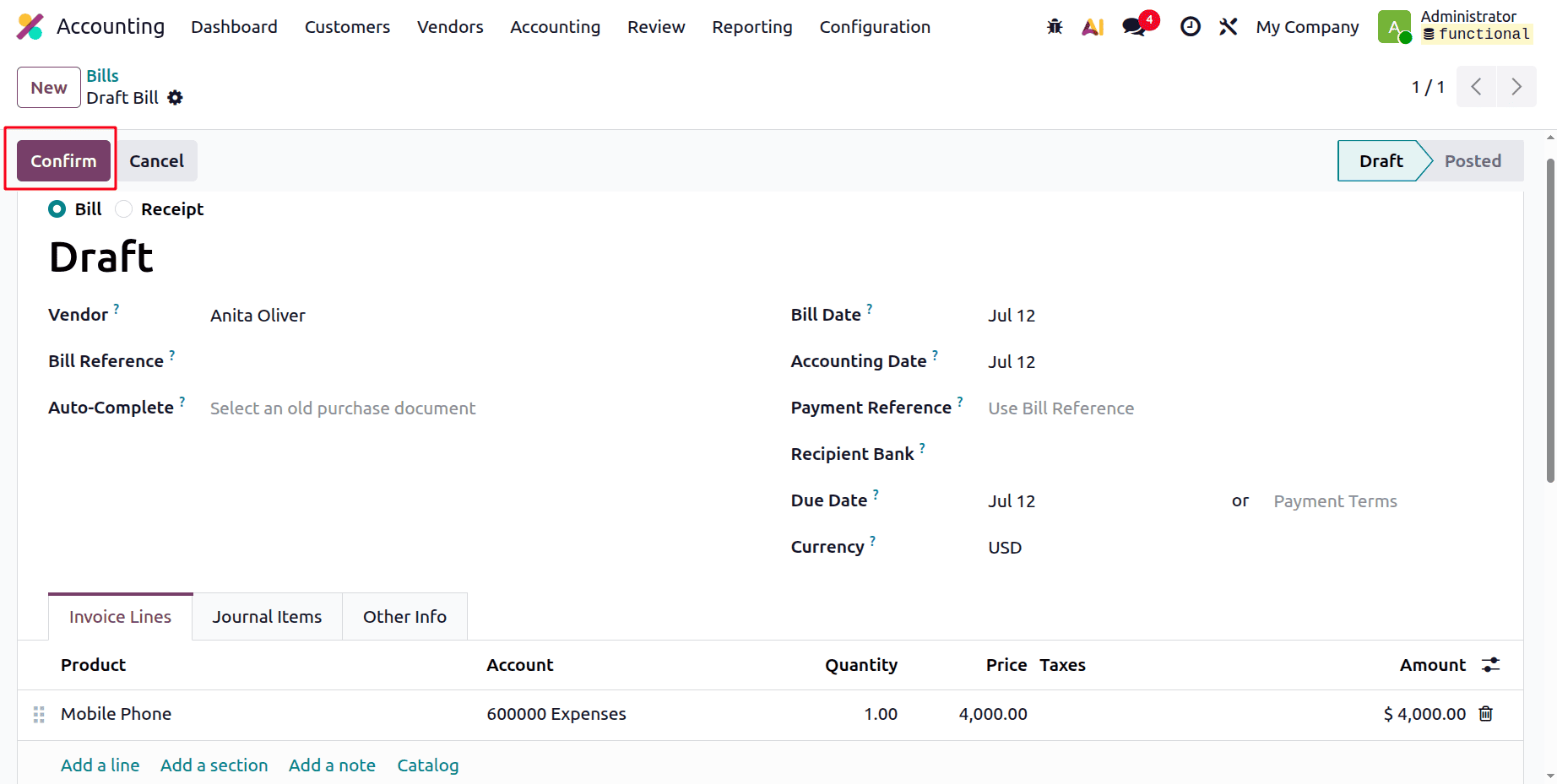
Following the bill's confirmation, a journal item tab will appear, allowing us to view every journal item made in accordance with the bill.
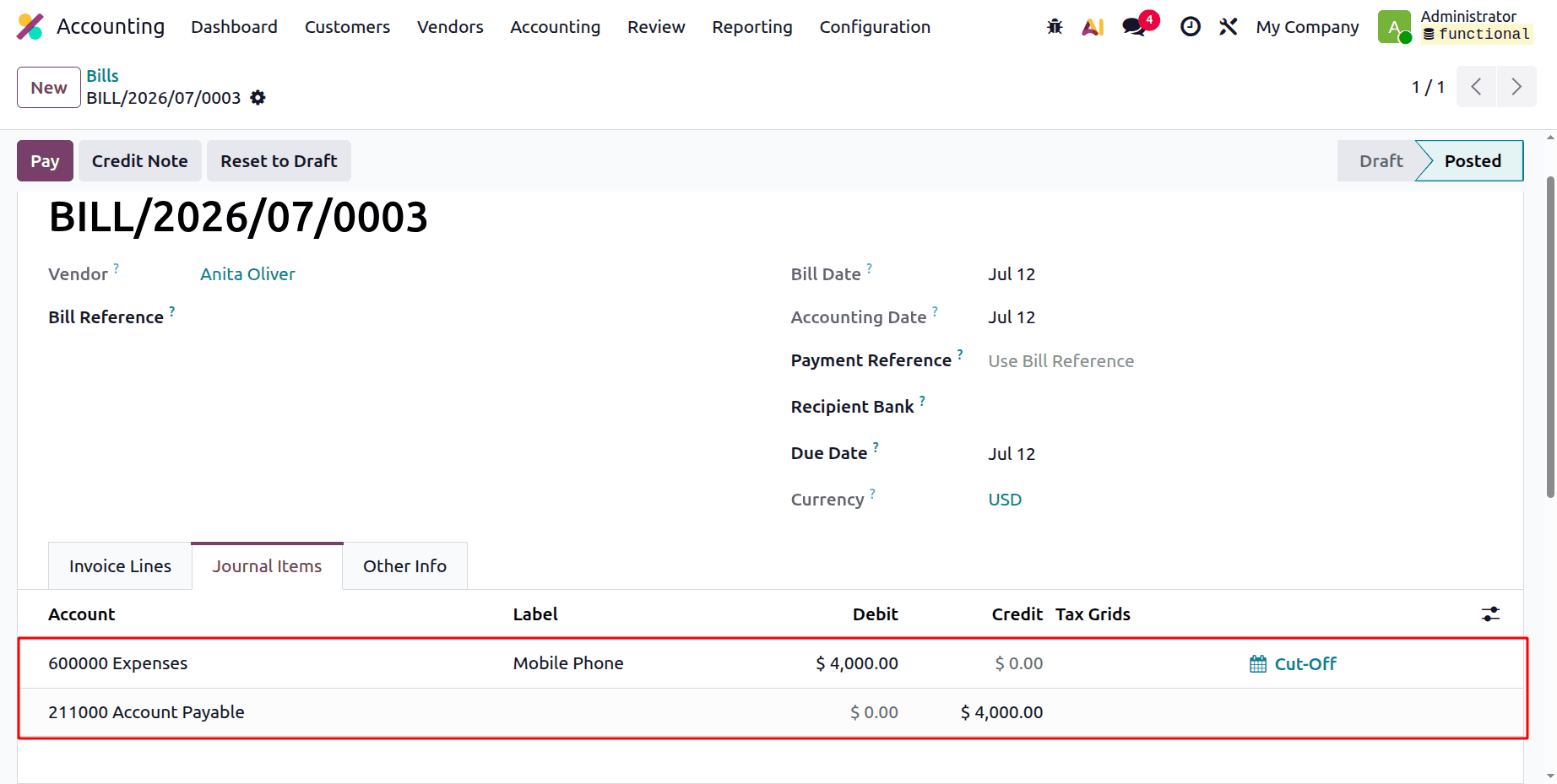
The vendor bill can then be verified by clicking the Confirm button. Moving on to the journal items created, we can state that the two accounts used to submit the journal entries are "Expenses" and "Accounts Payable." The "Expenses" account is an expense account, and it is debited in this instance because the account will be charged when the expense increases. The following account, "Accounts payable," is a form of liability account that will be credited as the liability increases.
| Account | Nature | Increasing / Decreasing | Credit / Debit |
| Expenses | Expense | Increases | Debit |
| Account Payable | Liability | Increases | Credit |
Selling the same thing is the next stage. To create a new invoice for the product "Mobile Phone" from the accounting application, navigate to the Customer menu. The invoices sub-menu is located under the accounting application's "Customers" menu. Clicking the Invoices sub-menu lists all of the pre-created invoices; click the New button to generate a new invoice.
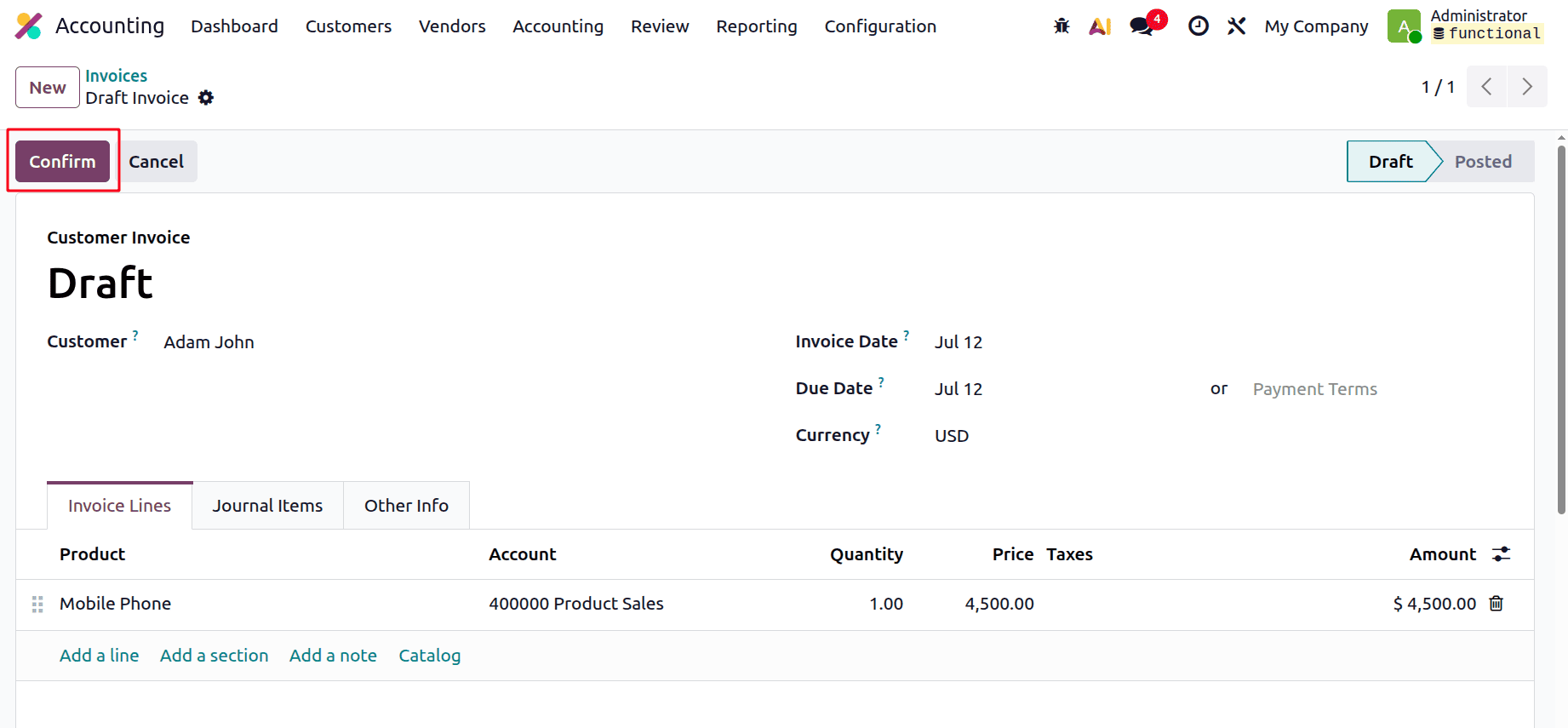
Clicking the Confirm button allows us to verify the invoice after the products have been put to the line. The Journal Items tab displays all journal entries generated from the sales order.
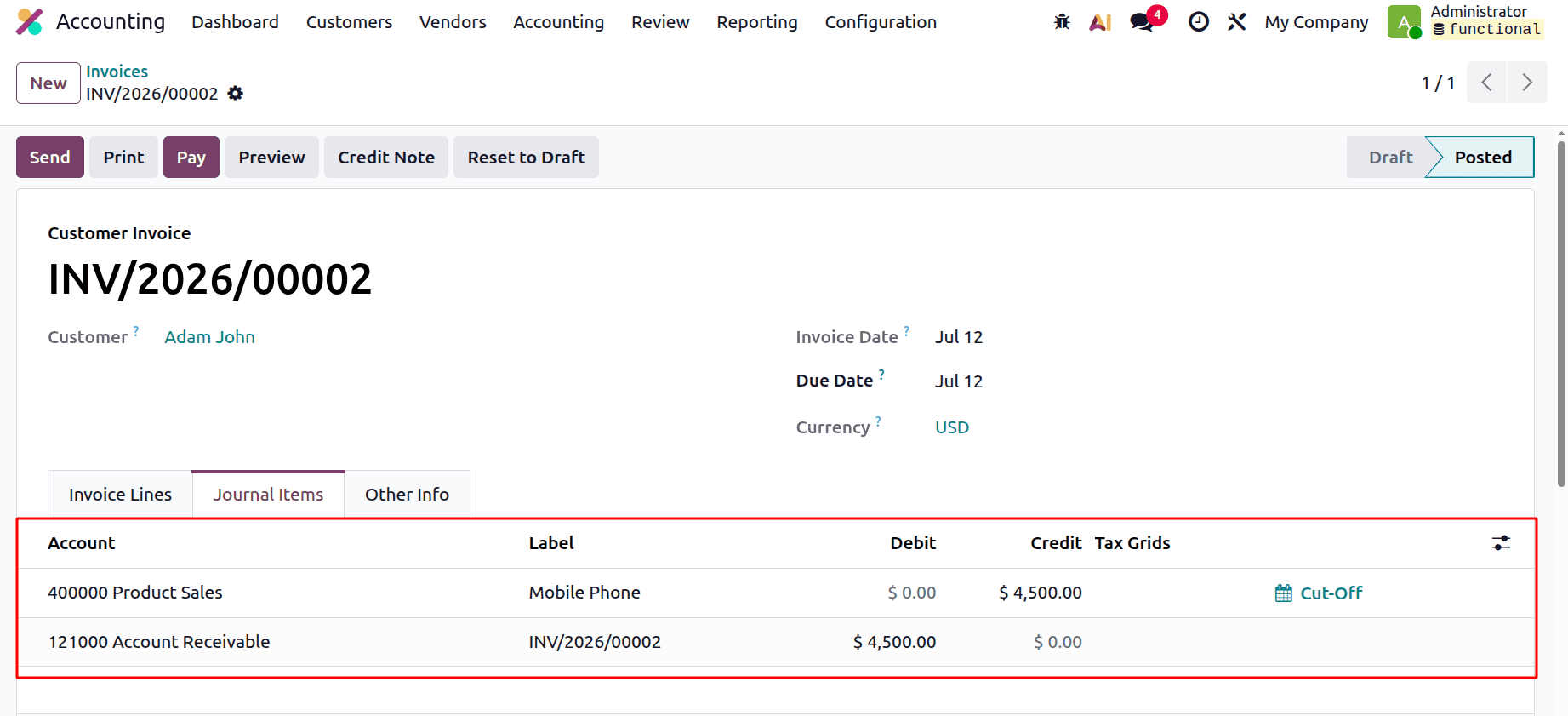
There, we can observe that the journal entries from this customer invoice are posted to the "Product sale" and "Account Receivable" accounts. The product sales account is an income account, and it is credited when a sale is recorded because the transaction increases revenue. The "Account Receivable" account is an asset account, and as assets grow, so does the account's debit amount.
| Account | Nature | Increasing / Decreasing | Credit / Debit |
| Product Sales | Income | Increases | Credit |
| Account Receivable | Asset | Increases | Debit |
We can state that every time a vendor bill is made for a product, the expense for that product is generated instantly when the accounting system is configured for continental accounting.
The peculiarities of the continental accounting system in Odoo 19 accounting and ledger posts that occur during the purchase and sale of a product using the continental accounting system have therefore been covered in this blog.
To read more about What is Continental Accounting in Odoo 18, refer to our blog What is Continental Accounting in Odoo 18.