Inventory Valuation: Periodic (at Closing) in Odoo 19 Accounting indicates that everyday transactions do not change the value of inventory. Rather, inventory value is determined and documented at the conclusion of an accounting period (e.g., monthly or annual). Instead of having an immediate impact on inventory value, expenditures made during that time are documented in a buy expense account. To update the inventory value and calculate the Cost of Goods Sold (COGS), a manual adjustment entry is made at the end of the month. Compared to perpetual valuation, this approach is more straightforward but offers less real-time inventory cost tracking.
This Inventory Valuation, Periodic (at closing) is considered as Continental Accounting. Continental accounting is a popular accounting method in many European nations where tax laws and governmental regulations are directly related to financial reporting. With accounting standards frequently established by law rather than by independent standard-setting organizations, it places a strong emphasis on legal compliance and creditor protection. The Anglo-Saxon accounting paradigm, on the other hand, places more emphasis on investor data and market transparency.
So, for that, move to Accounting Settings. There is a section named Inventory Valuation. Under the Inventory Accounting, users can set the Inventory Valuation, Periodic Valuation, Inventory Cost Method, Valuation Account, and Journal.
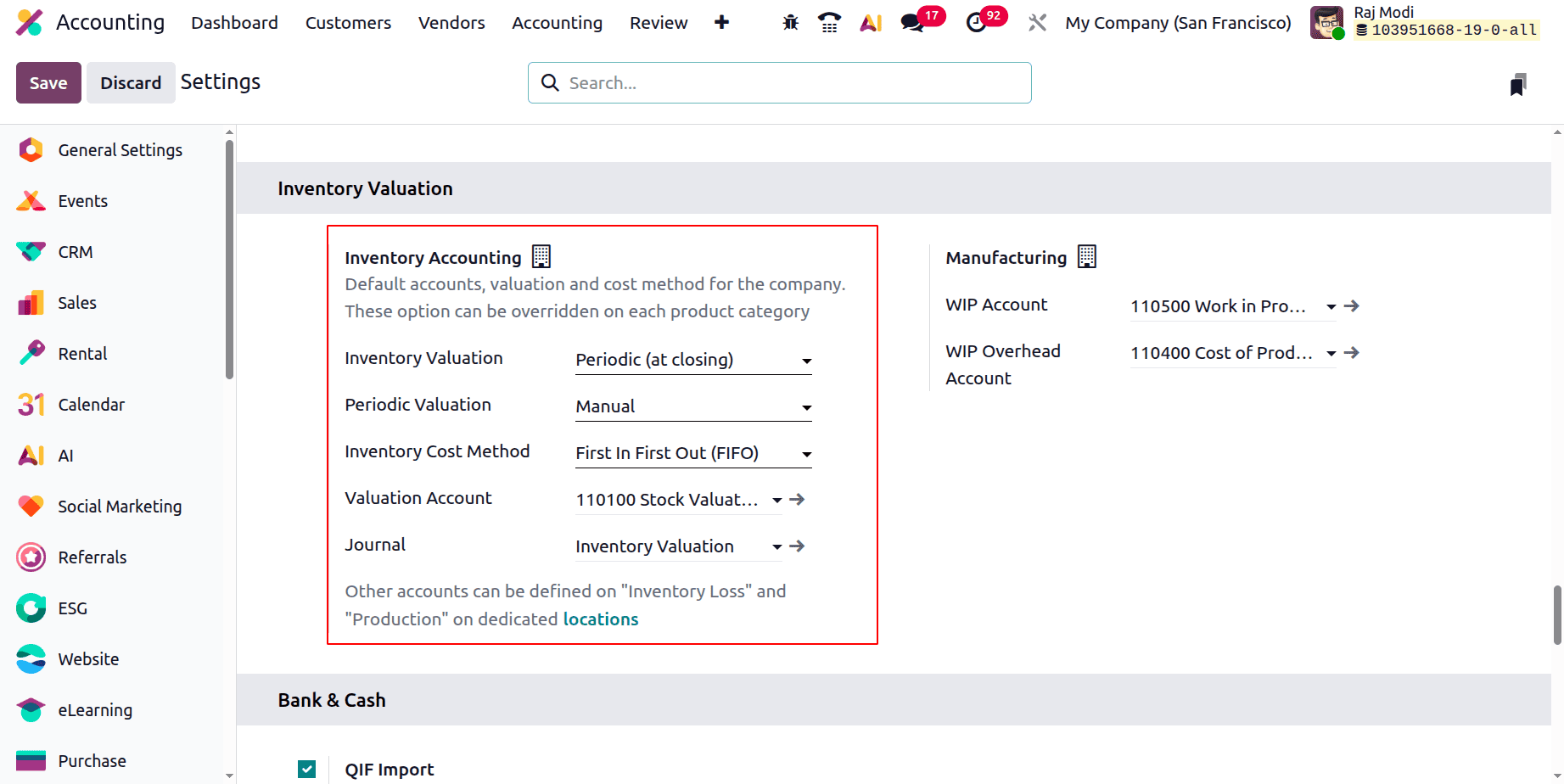
There are two types of Inventory Valuation, one is Periodic (at Closing), and the other one is Perceptual (at Closing). Let's check the Inventory Valuation Periodic (at Closing).
For that, first set the Inventory Valuation as Periodic (at Closing), and here the Costing Method is set as First In First Out (FIFO). The Inventory Valuation report is available under the Review menu.
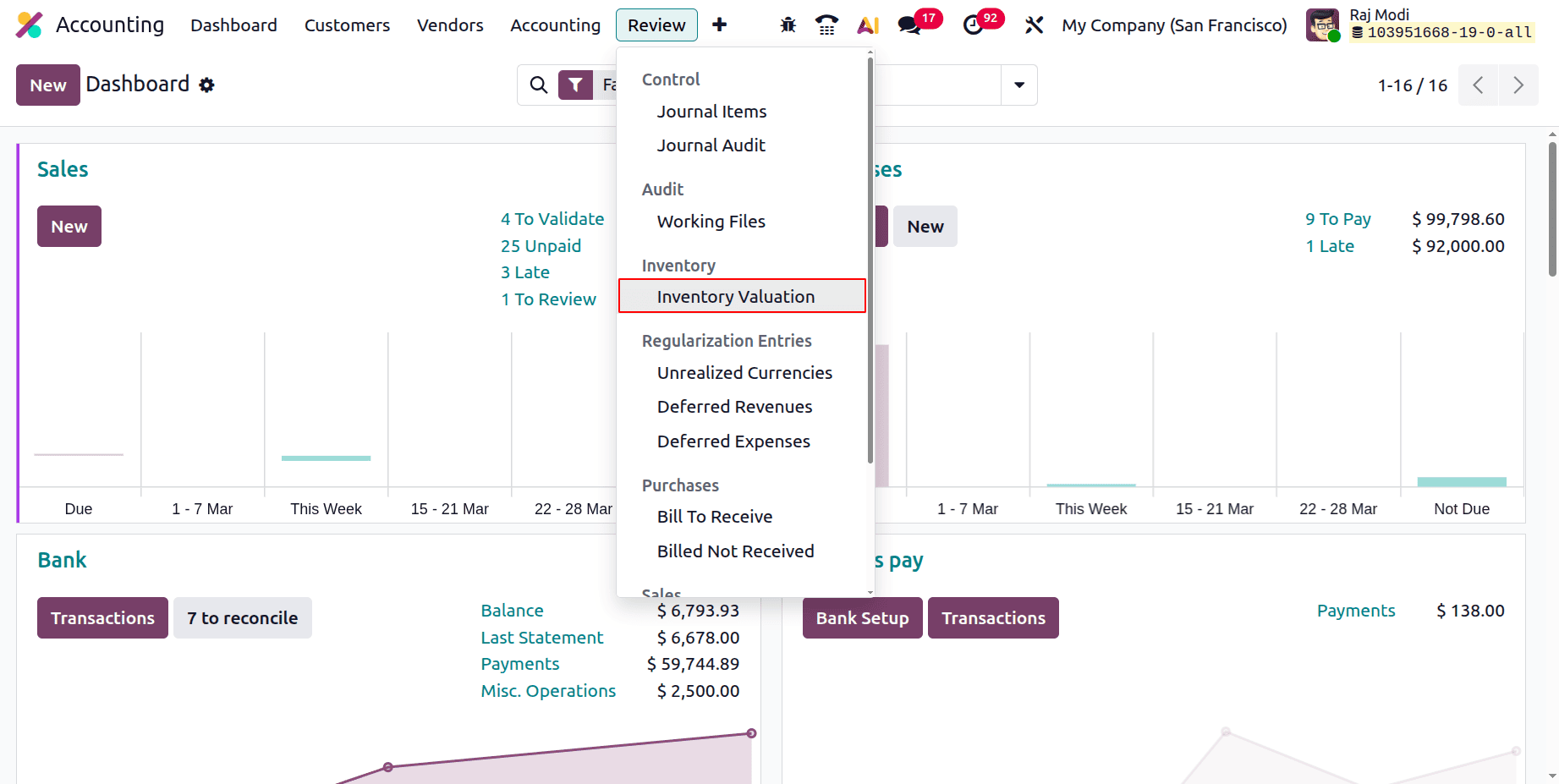
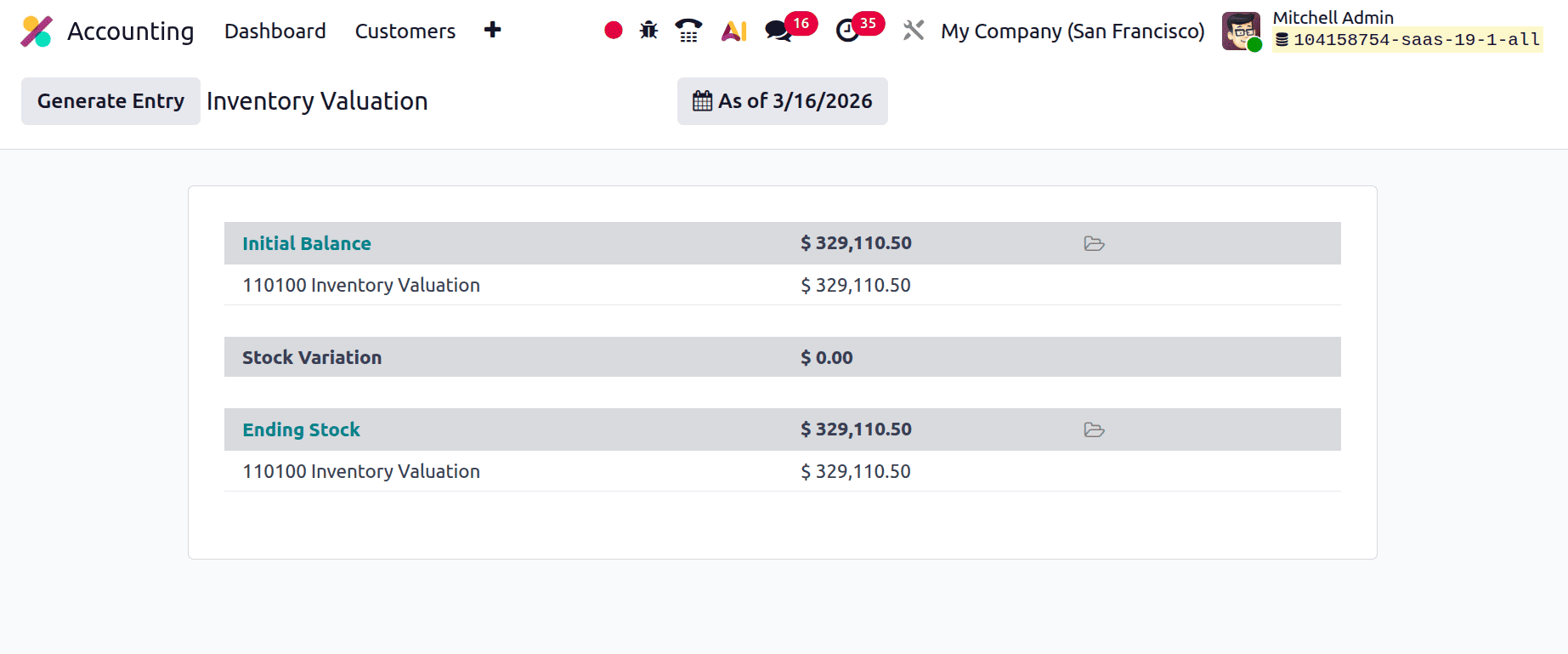
Here, the Inventory Valuation report shows Initial Balance and Ending Stock as shown below.
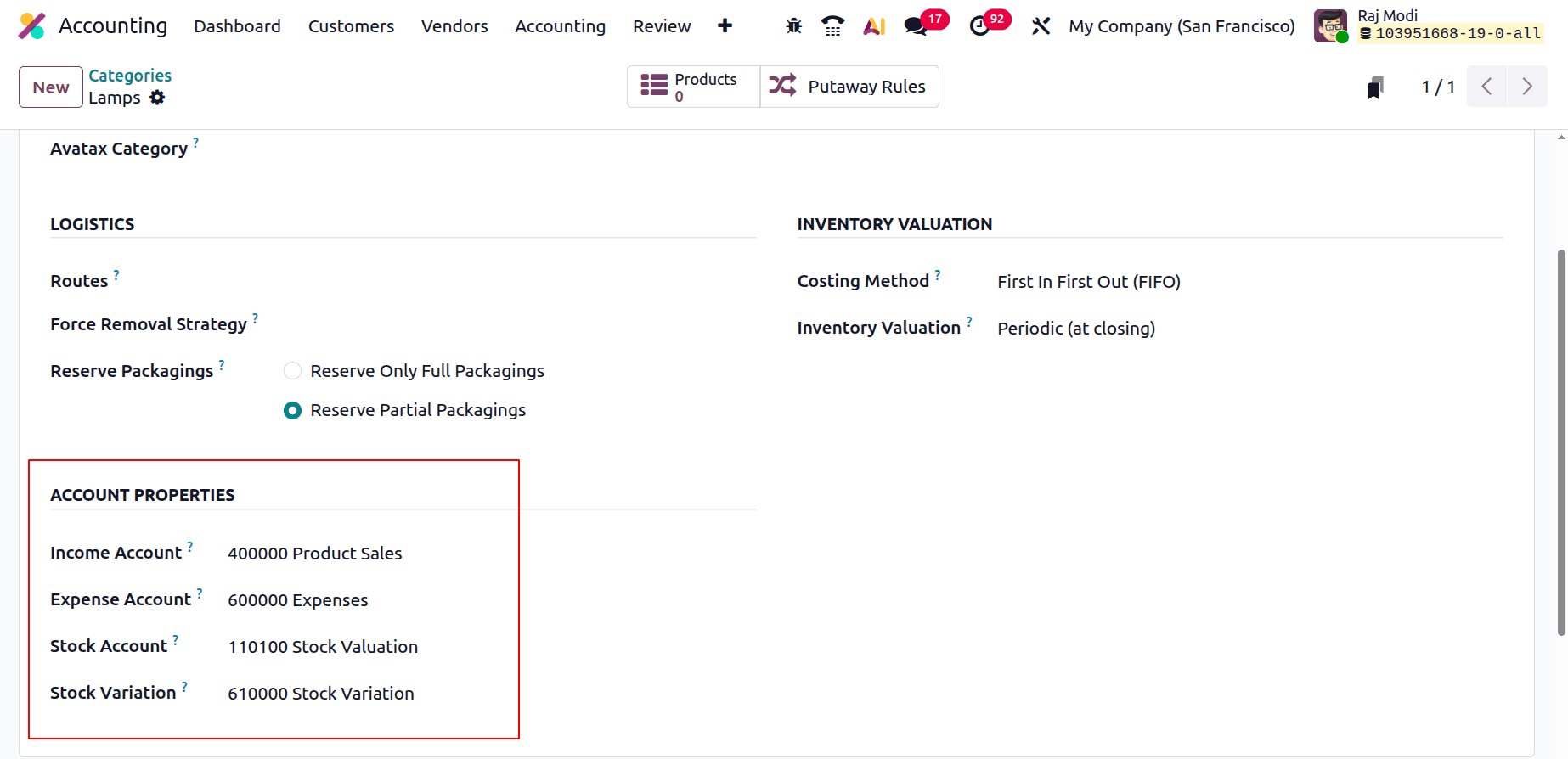
Then create a new Product Category. Here, the Category is named as Lamps. Under the INVENTORY VALUATION, it shows the Inventory Valuation and Costing Methods.
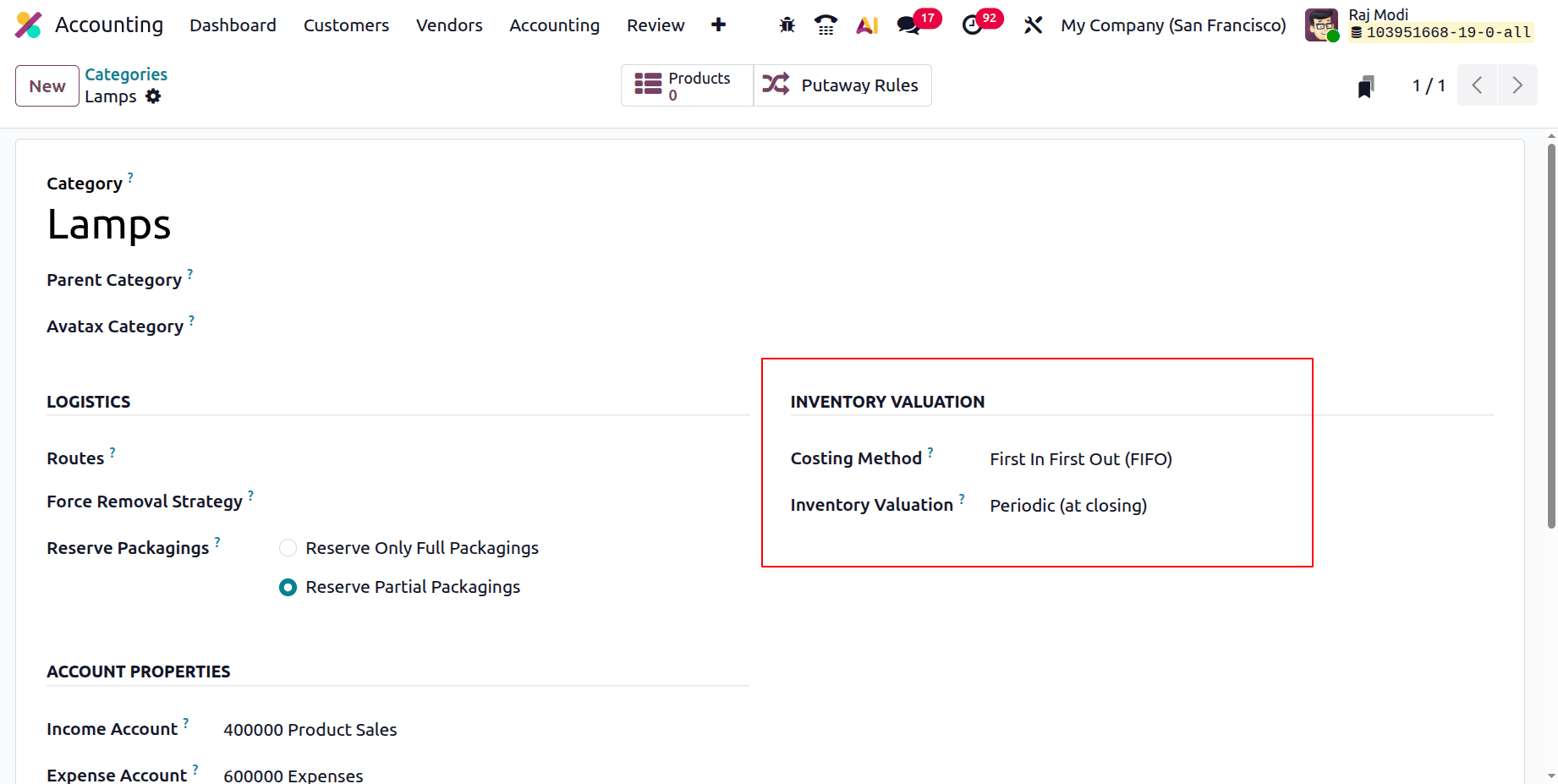
Under the ACCOUNT PROPERTIES, it shows different accounts. Income Account, Expense Account, Stock Account, and Stock Variation Account.
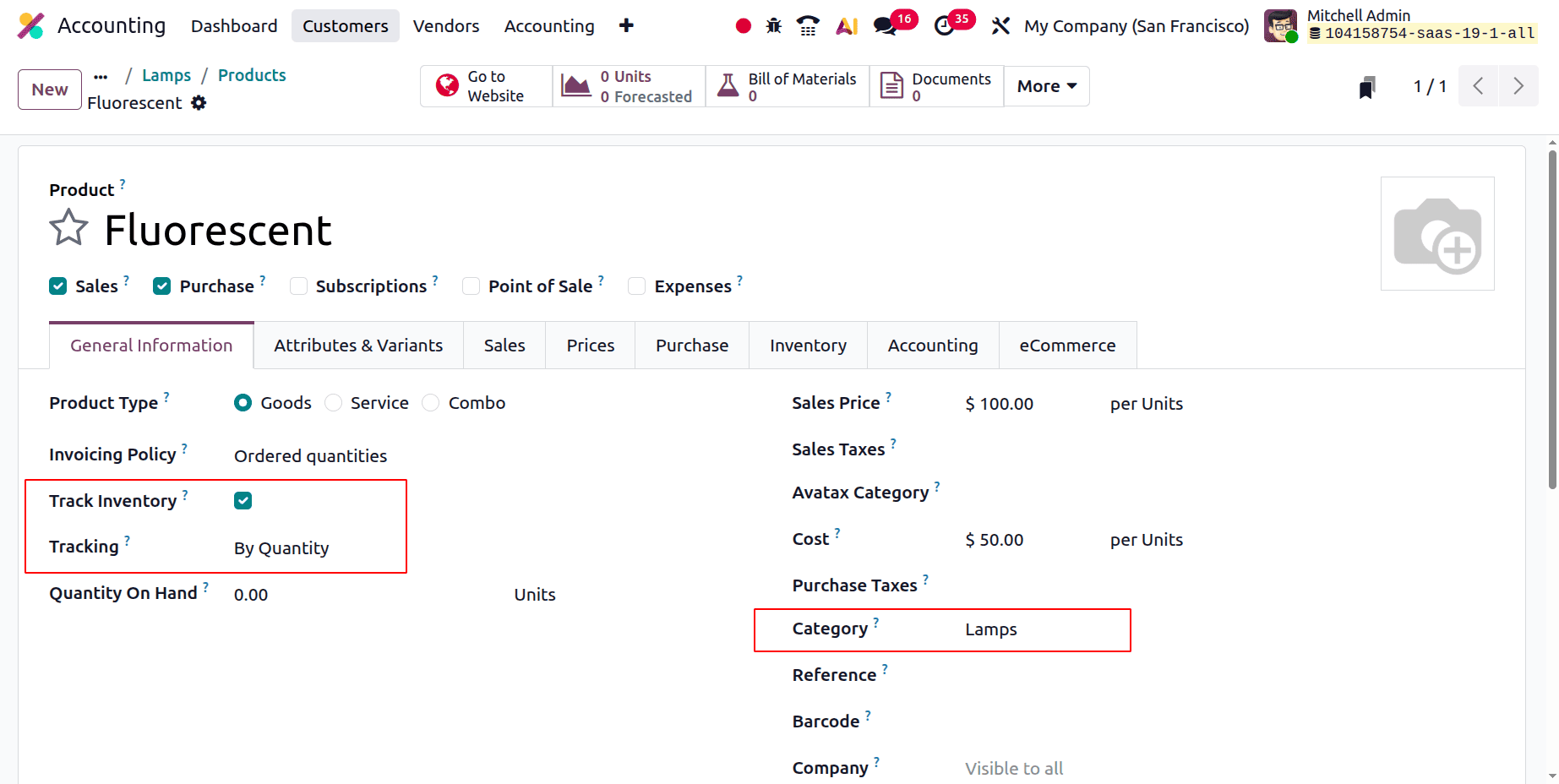
Then let's create a new product, which is named Fluorescent. The product is Tracked by quantity. The Product Category is chosen as the previously created Lamps.
Purchasing a new Product
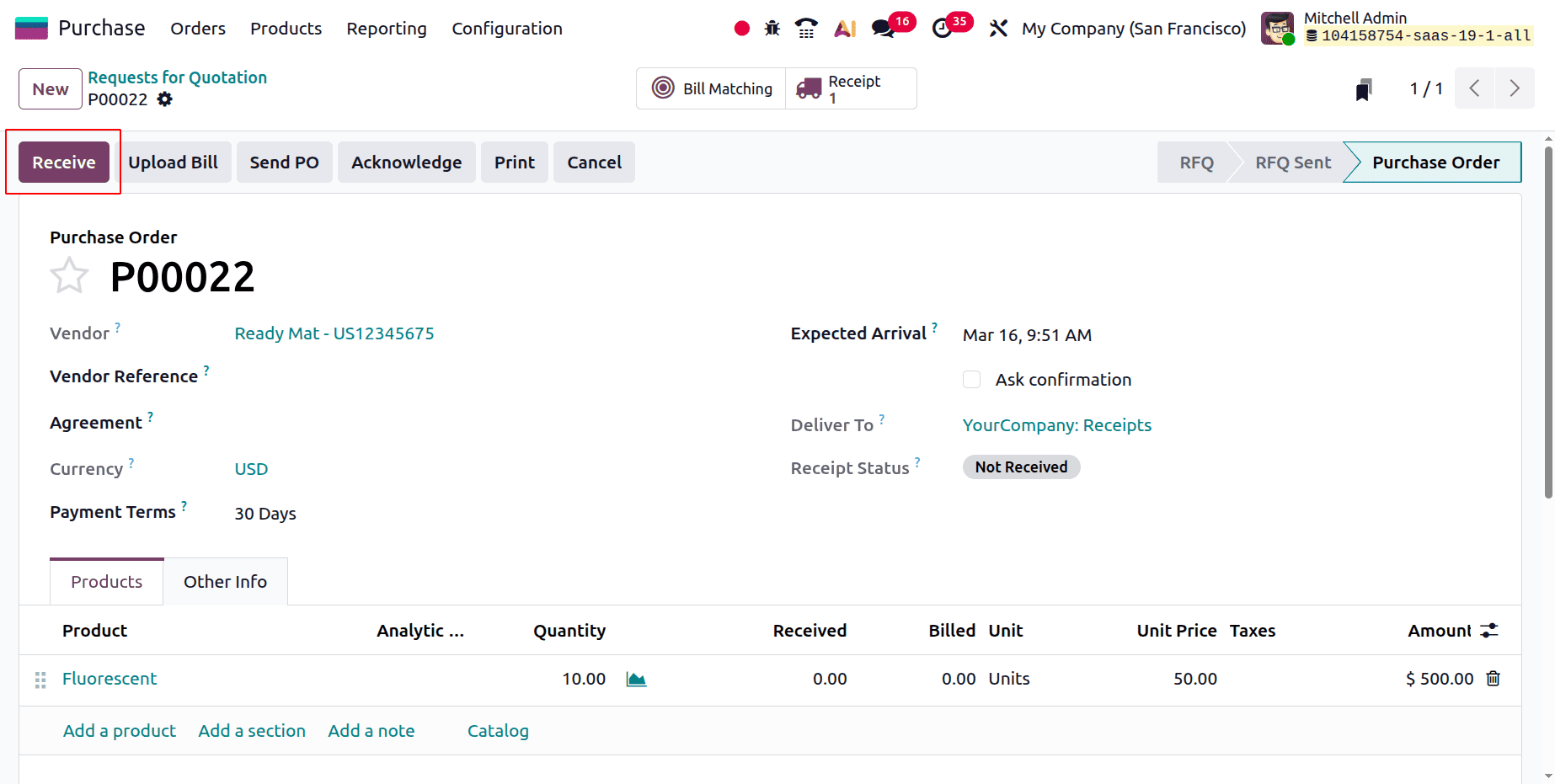
Let's create a Request for Quotation. Add the customer, then add the product with quantity. Confirm the Request for Quotation. There is a button named Receive; click on it.
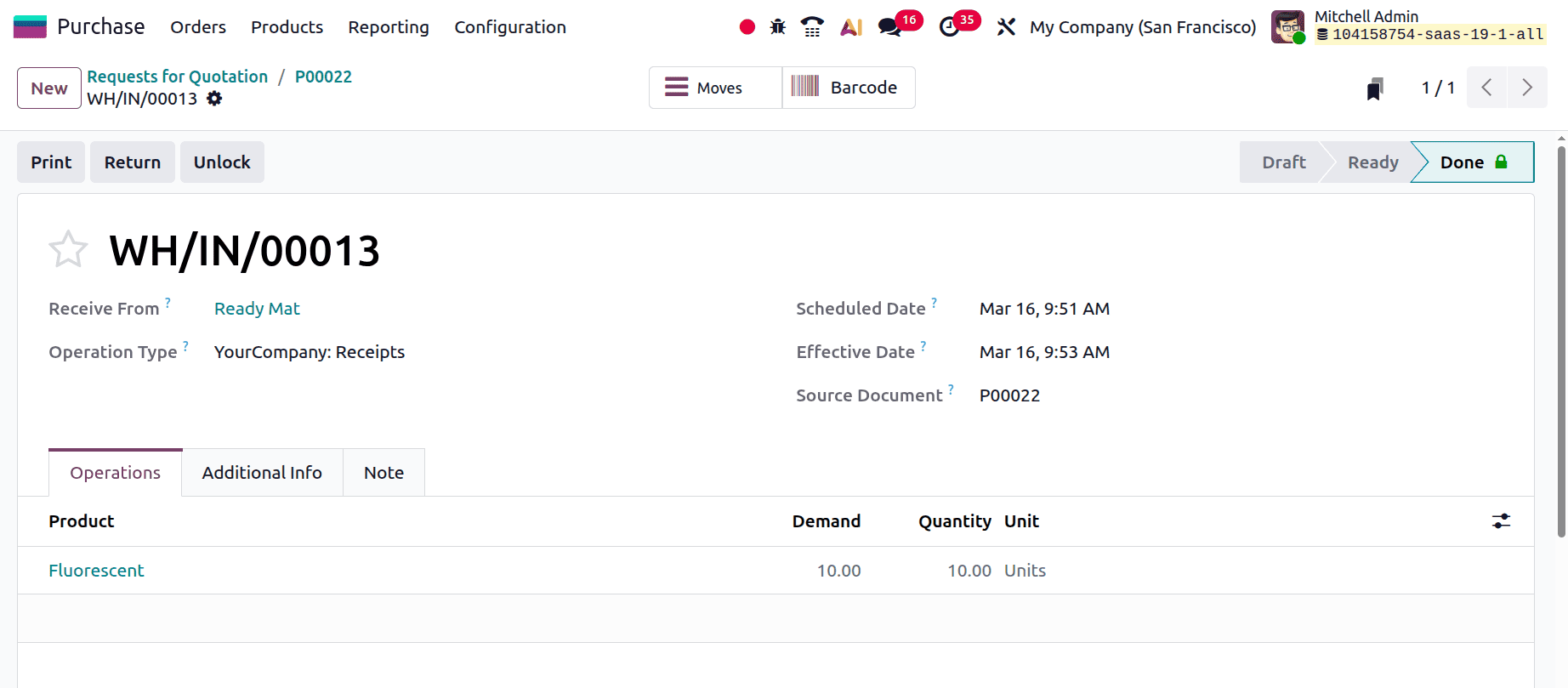
Then a new Deliver transfer will open; click on the Validate button to receive the goods.
Then move to the Accounting module. Then click on the Review menu and choose the Inventory Valuation.
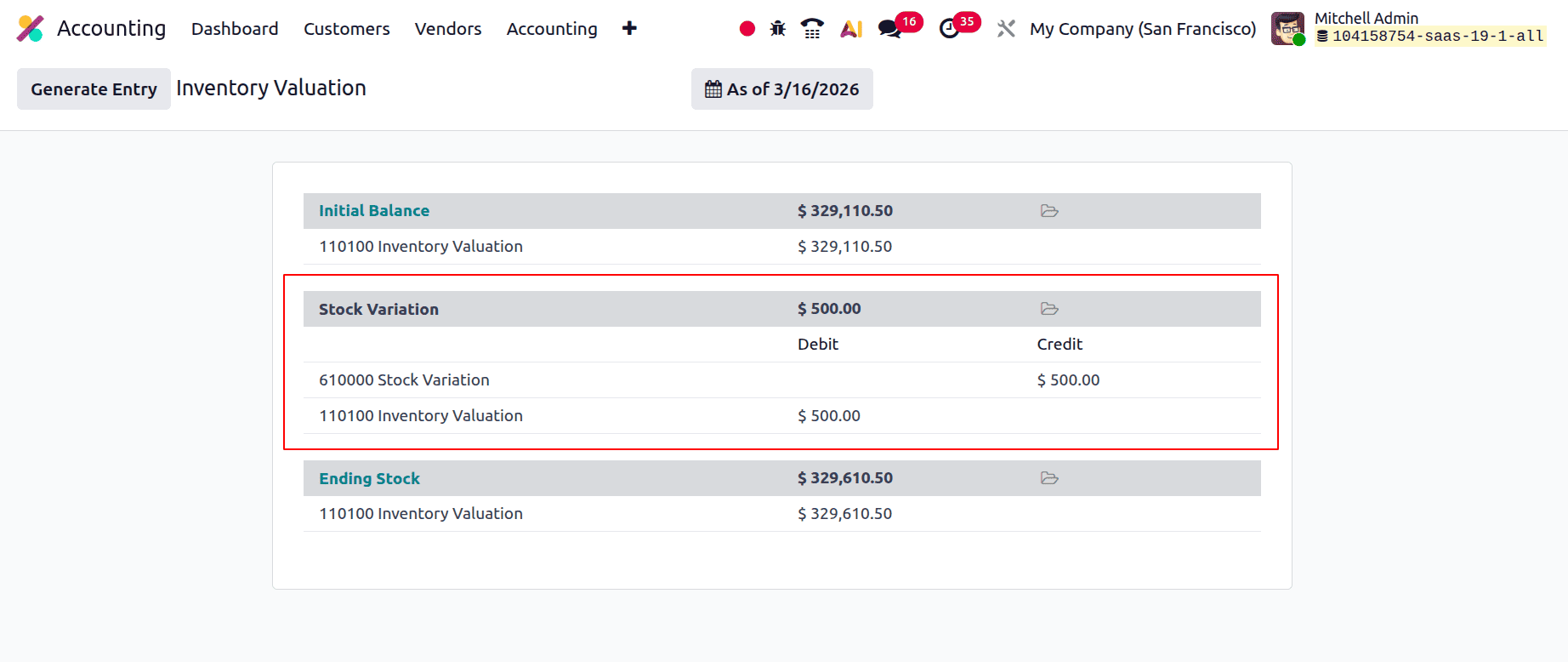
As shown in the above screenshot, the Stock Variation account is Credited and the Inventory Valuation account is Debited.
Then upload a new Bill for the created Purchase Order.
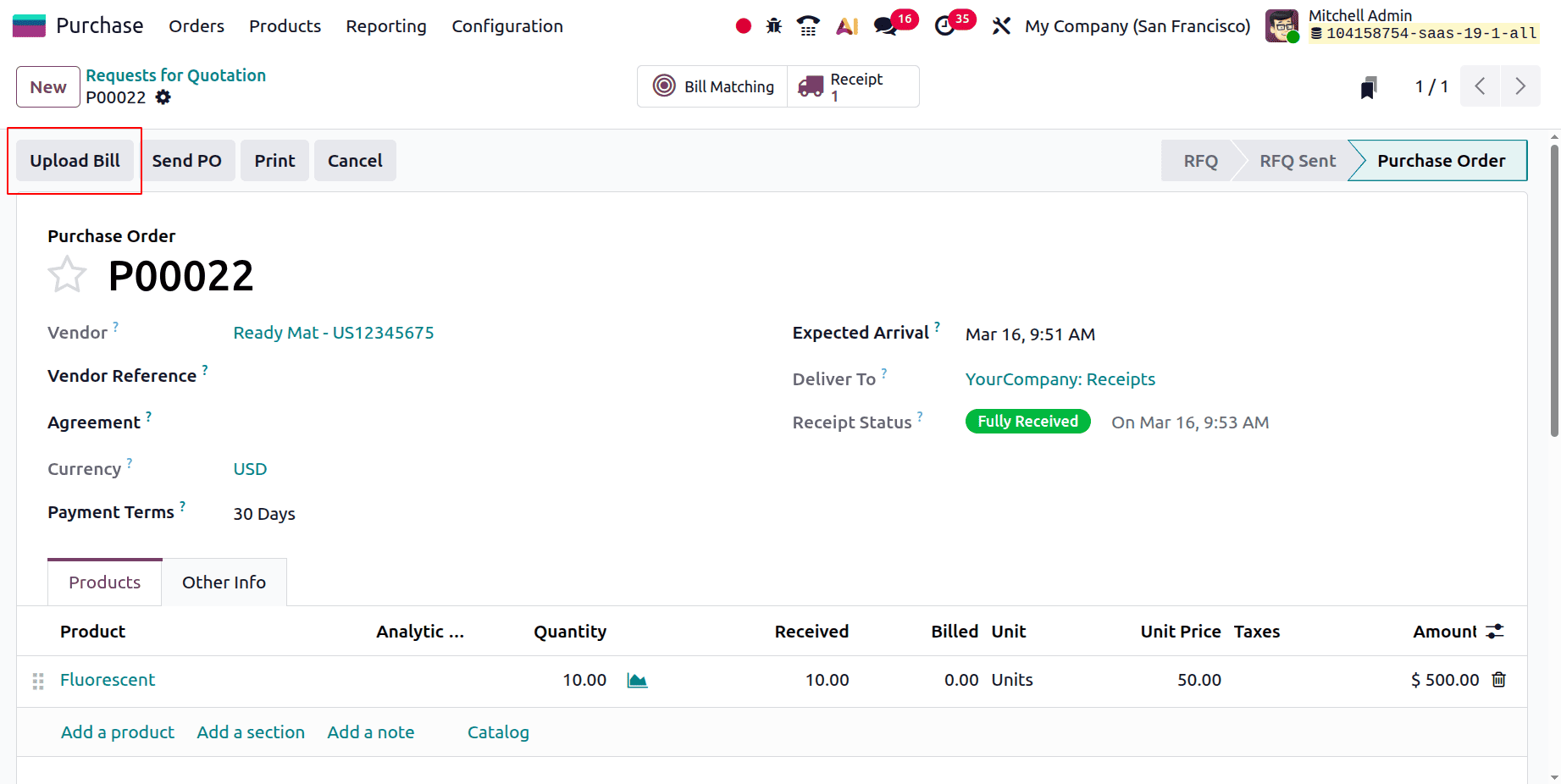
Add the Bill Date. Then confirm the bill.
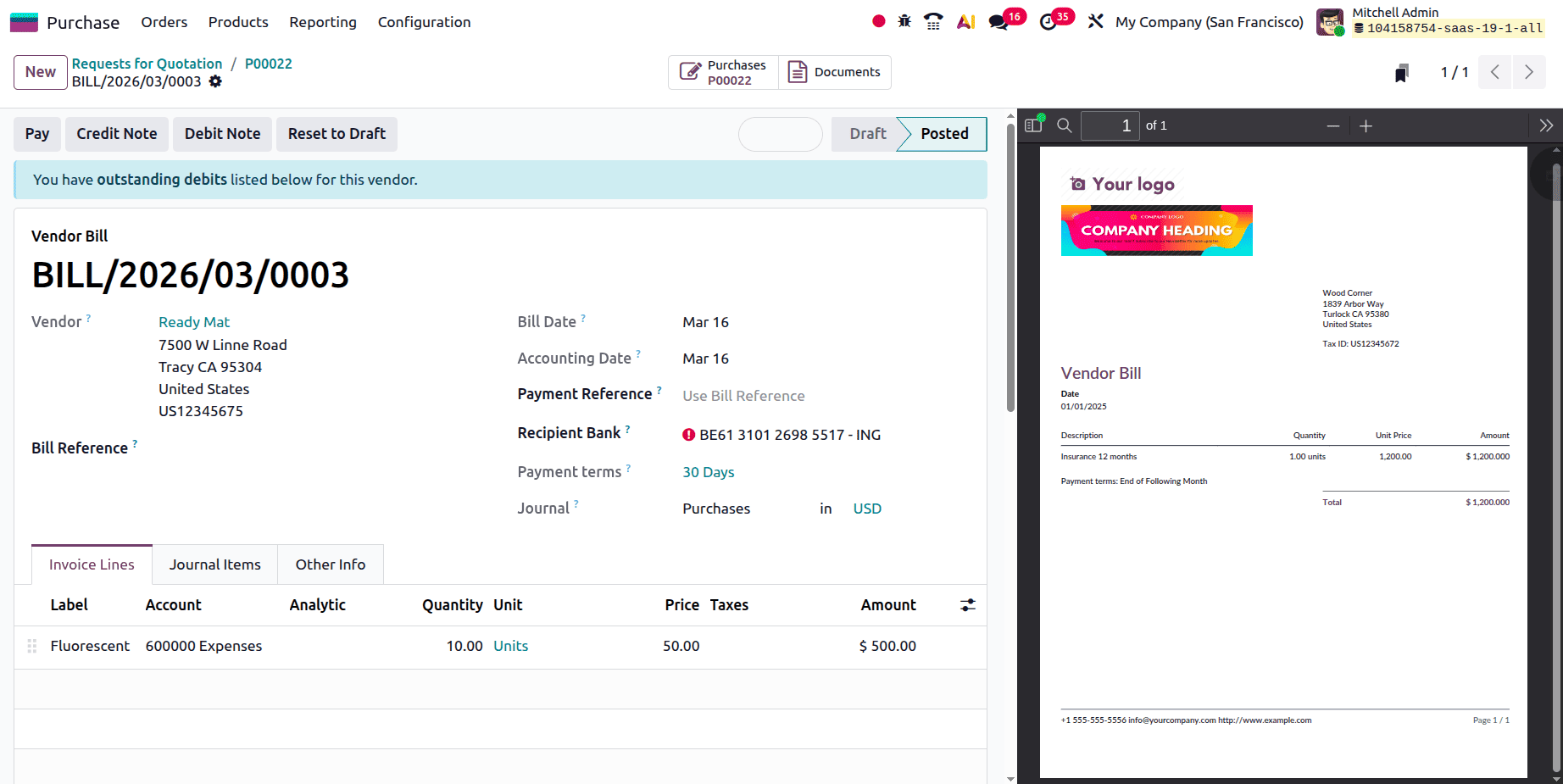
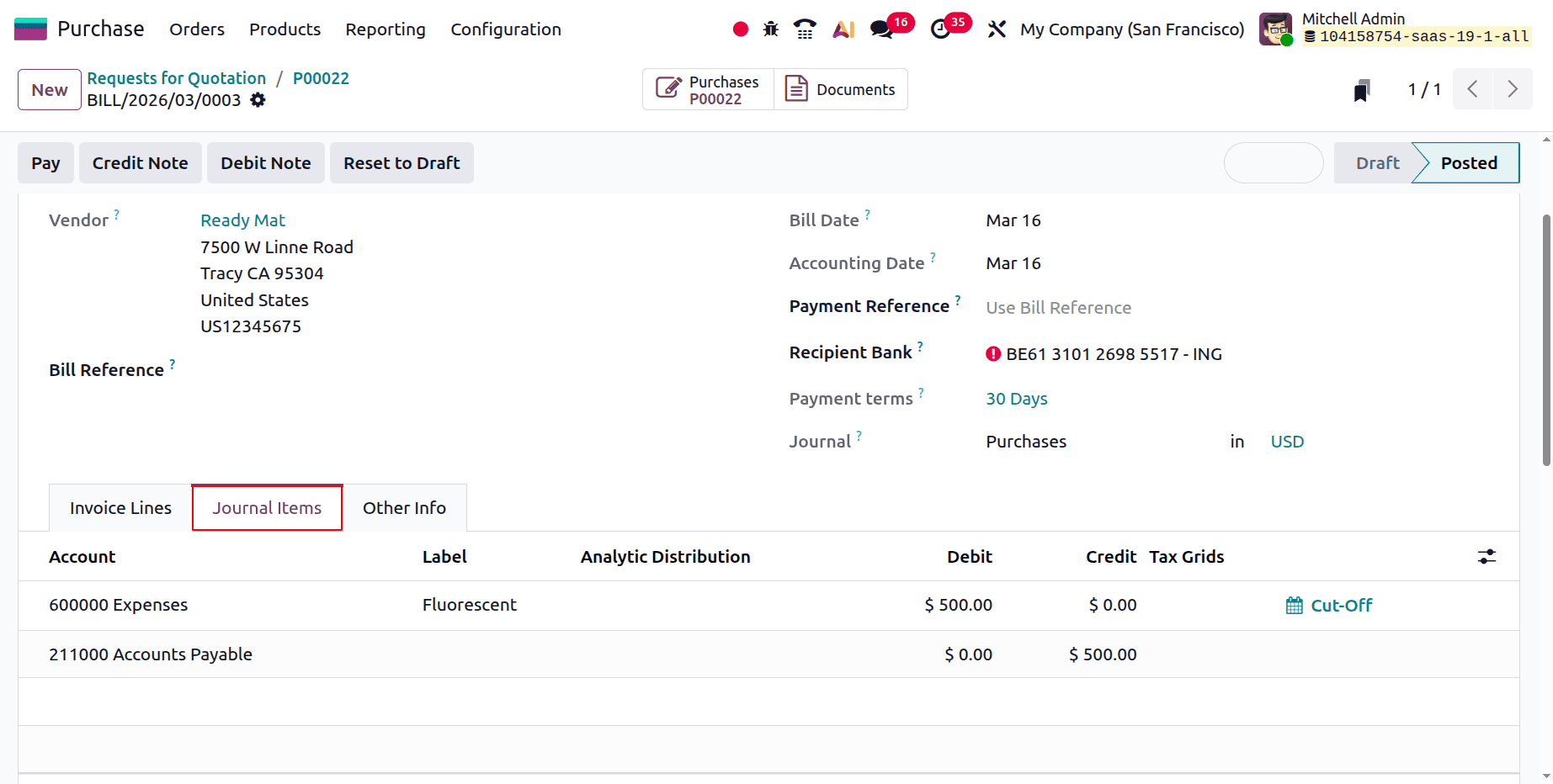
Check the Journal Entry. For that, click on the Journal Items tab. Here Expense increased during purchase, so the Expense Account is Debited. The Account Payable is Credited because the liability increased here.
Move back to the Inventory Valuation report. Still, there are no changes in the Inventory Valuation report. To post the stock journal entry, click on the Generate Entry button.
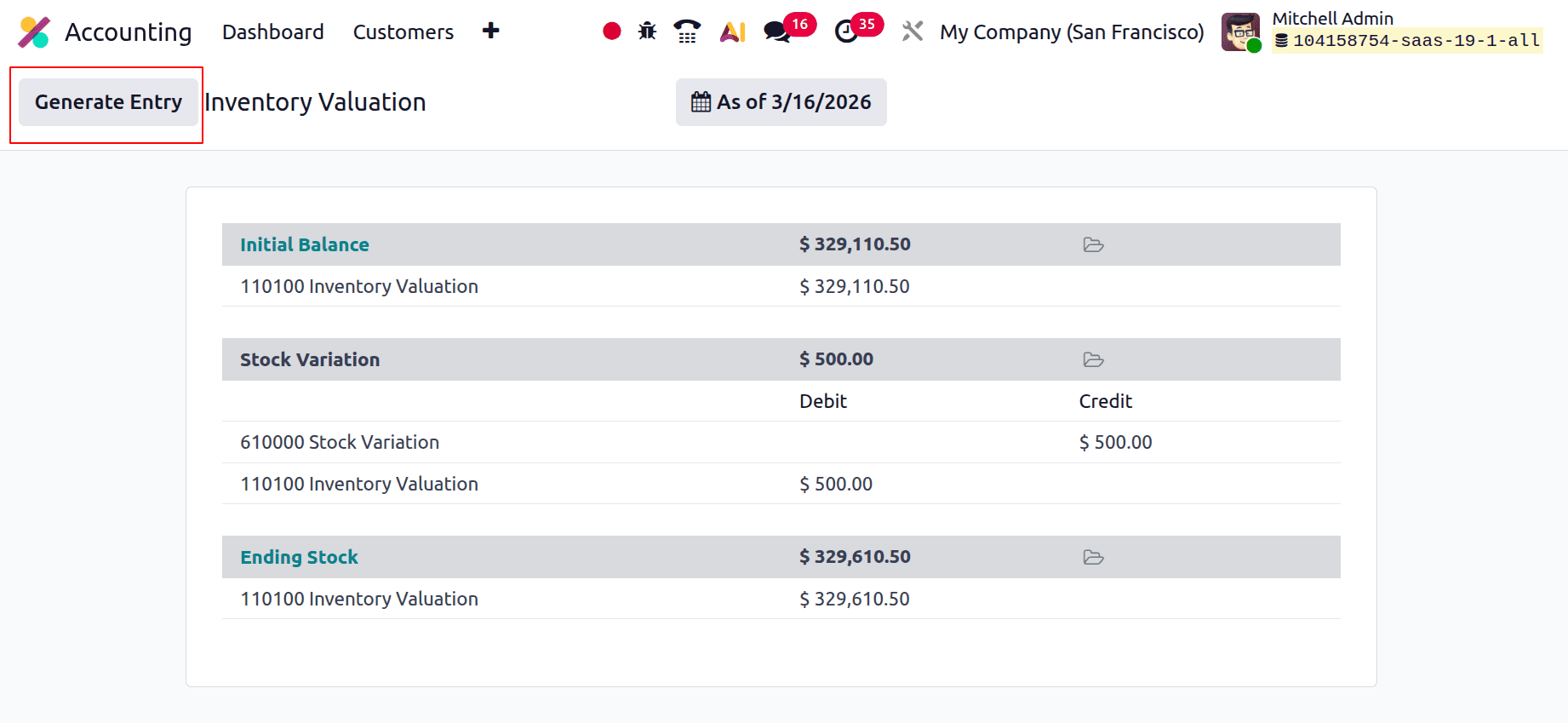
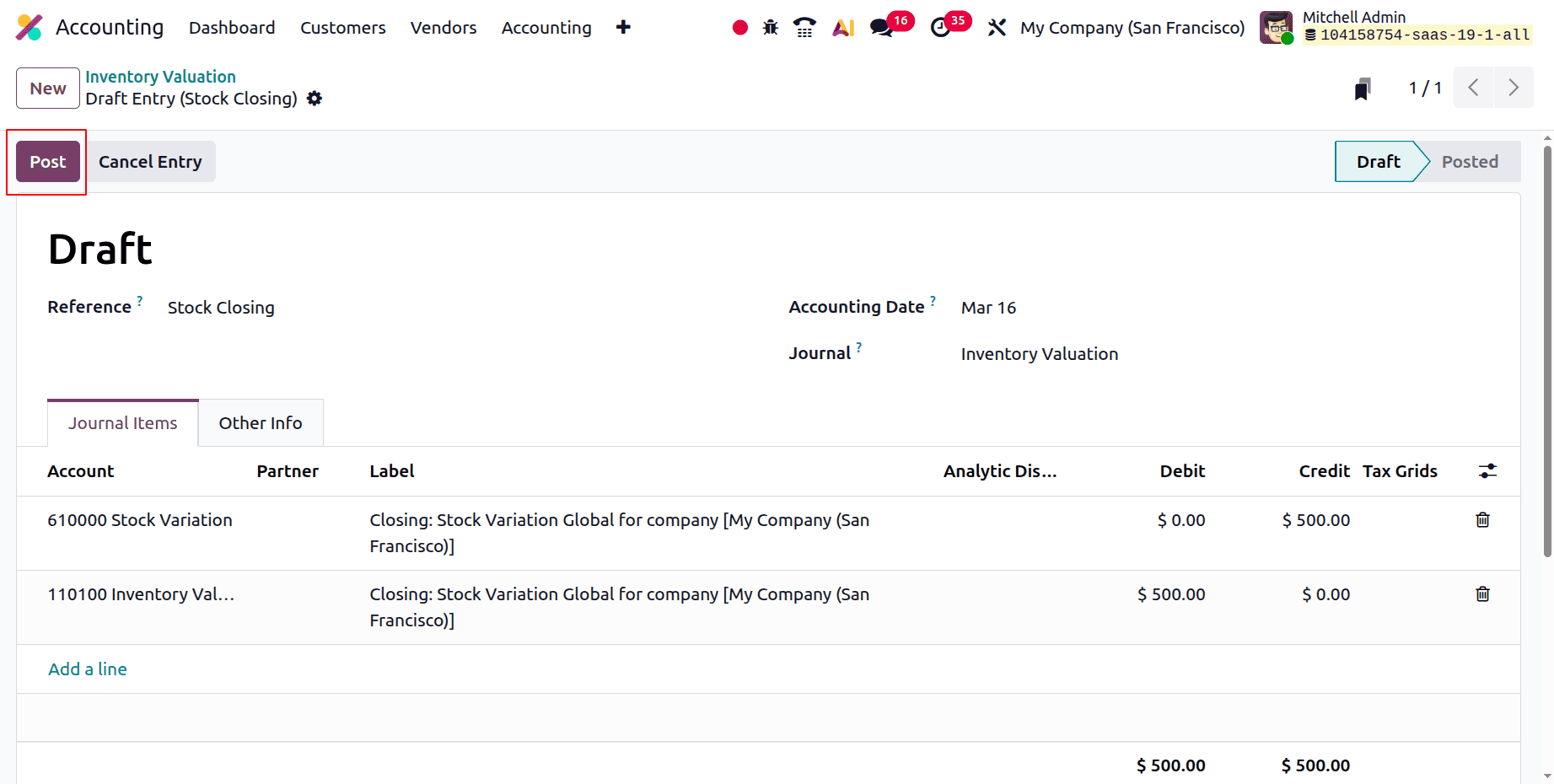
The Stock Variation account is credited, and the Inventory Valuation account is debited as shown below. Click on the Post button.
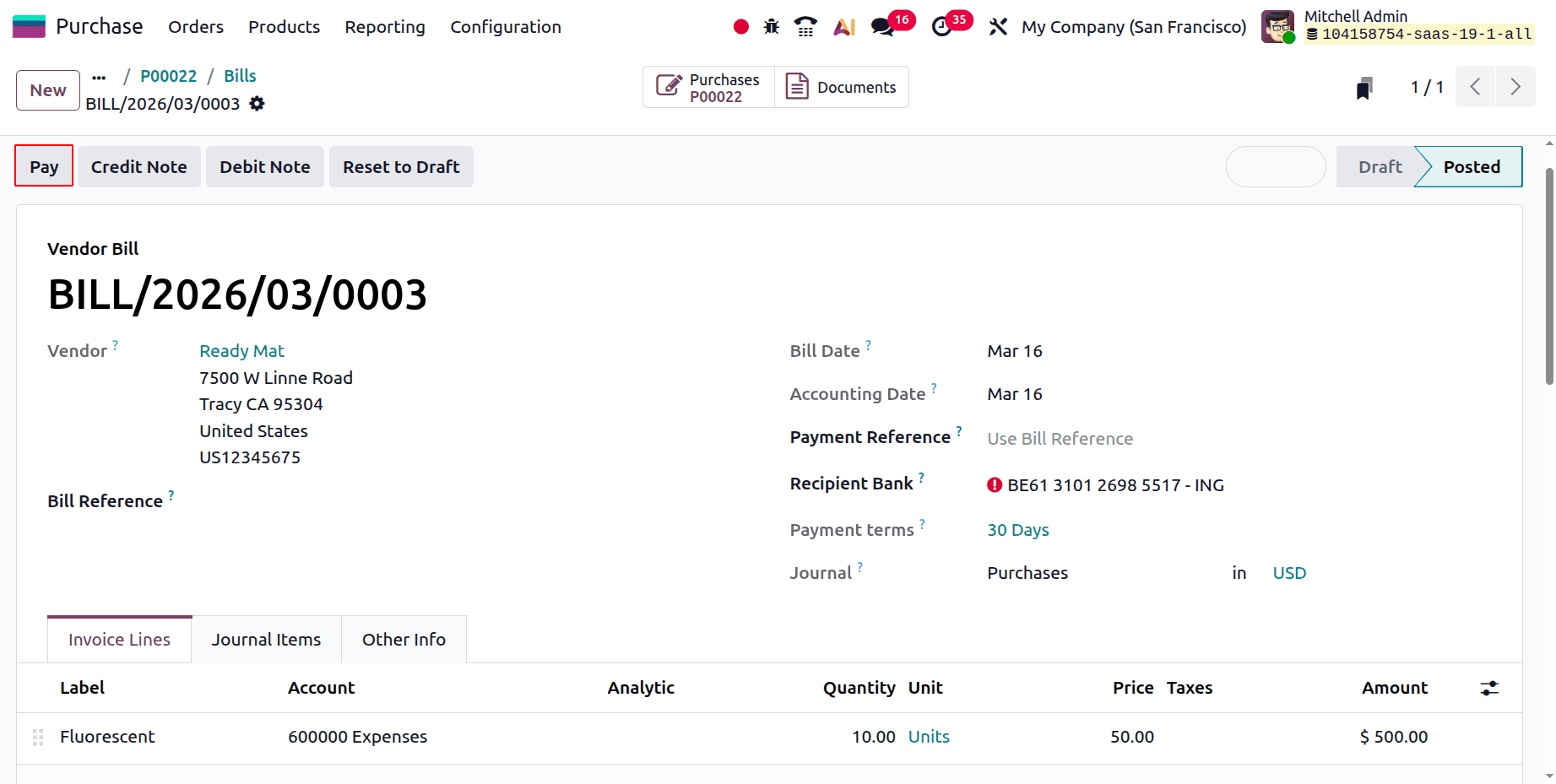
Then move back to the created bill to complete the payment. Click on the Pay button.
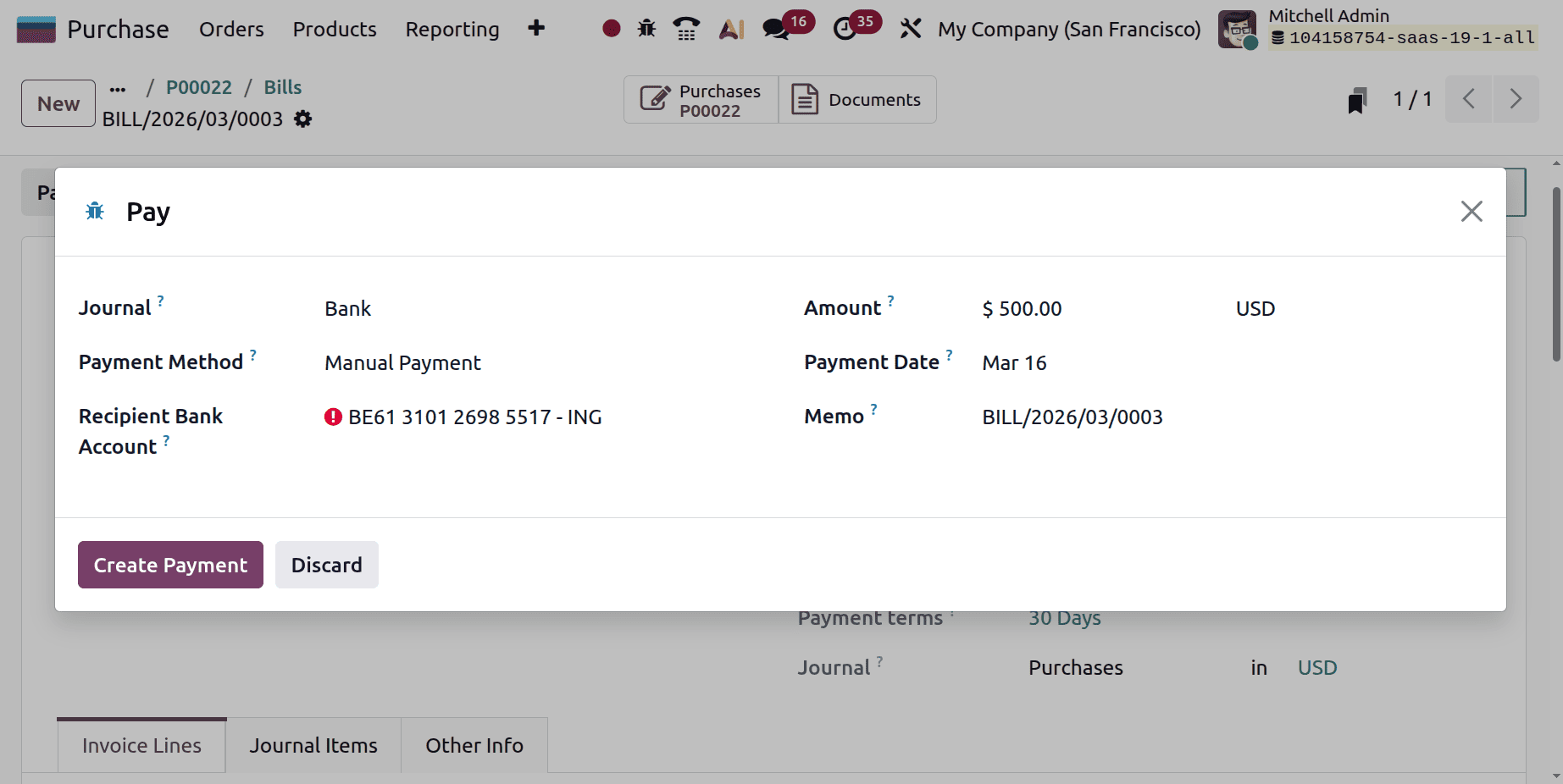
The new window shows the payment details like Journal, Payment Method, Receipt Bank Account, Amount, Payment Date, and Memo. Then click on the Create Payment button.
Then open the Payment. It shows all the payment details. Click on the Journal Entry smart button.
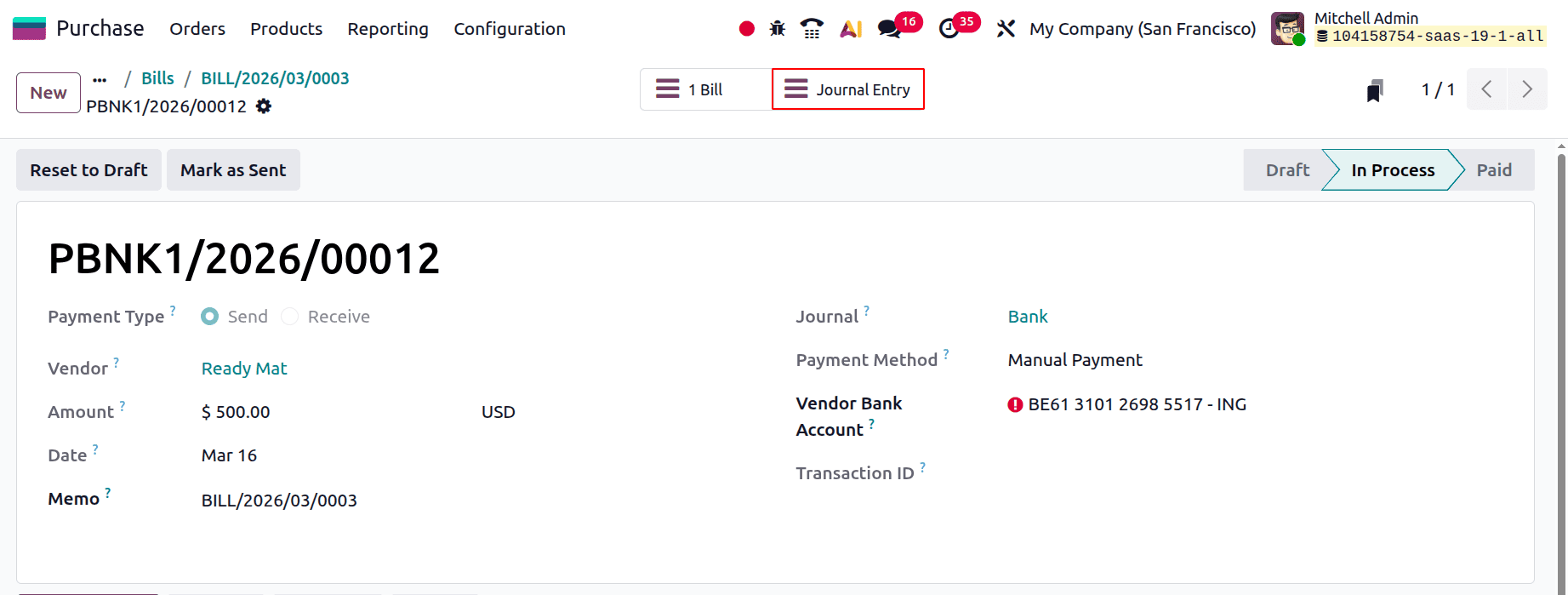
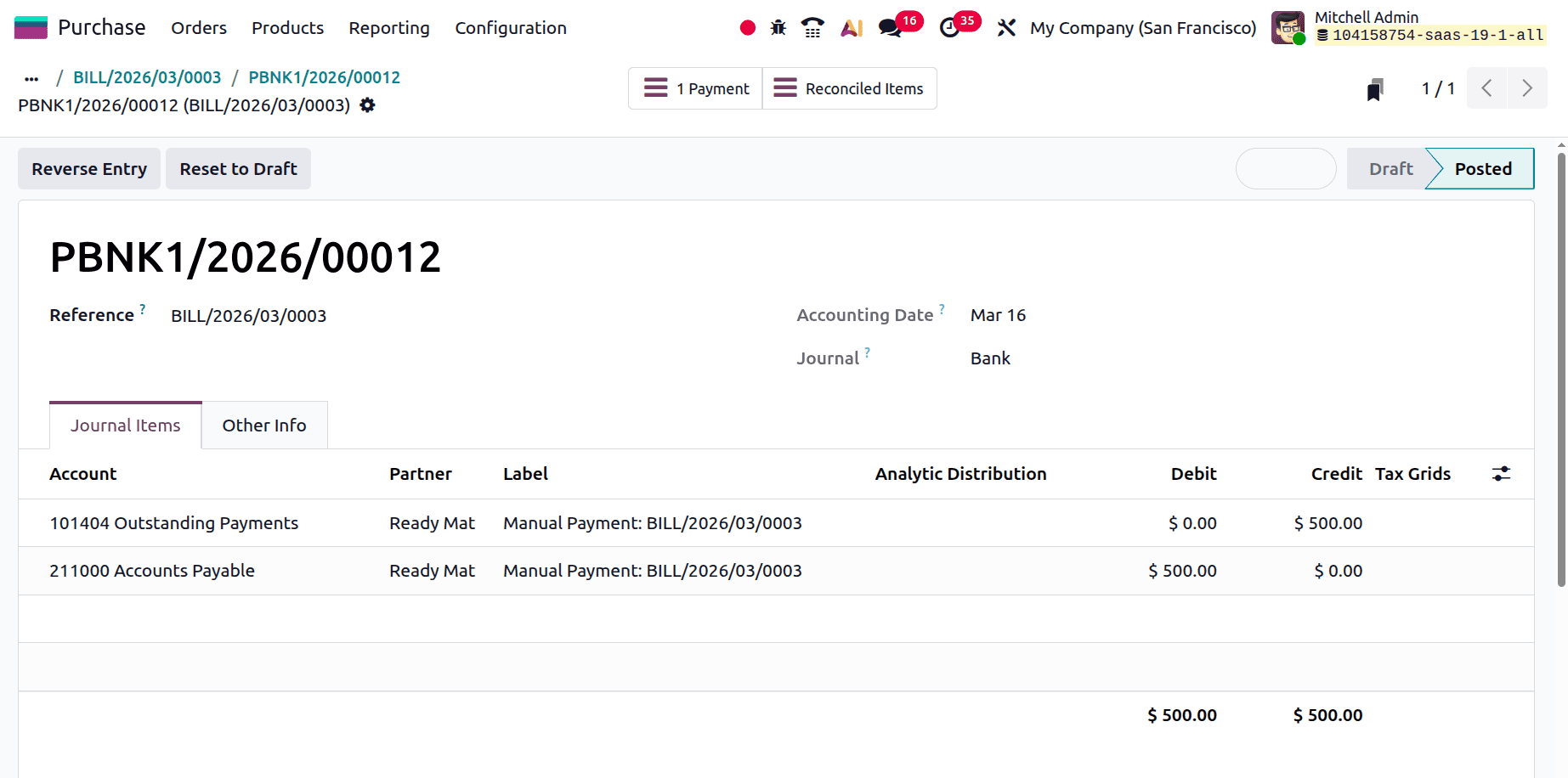
When you generate a payment, it affects both the Outstanding Receipt account and the Payable account. If the payment is paid, the responsibility will be diminished. As a result, the payable account will be debited. Unreconciled inputs are kept in a temporary account named outstanding payments in Odoo 19's bank and cash journals.
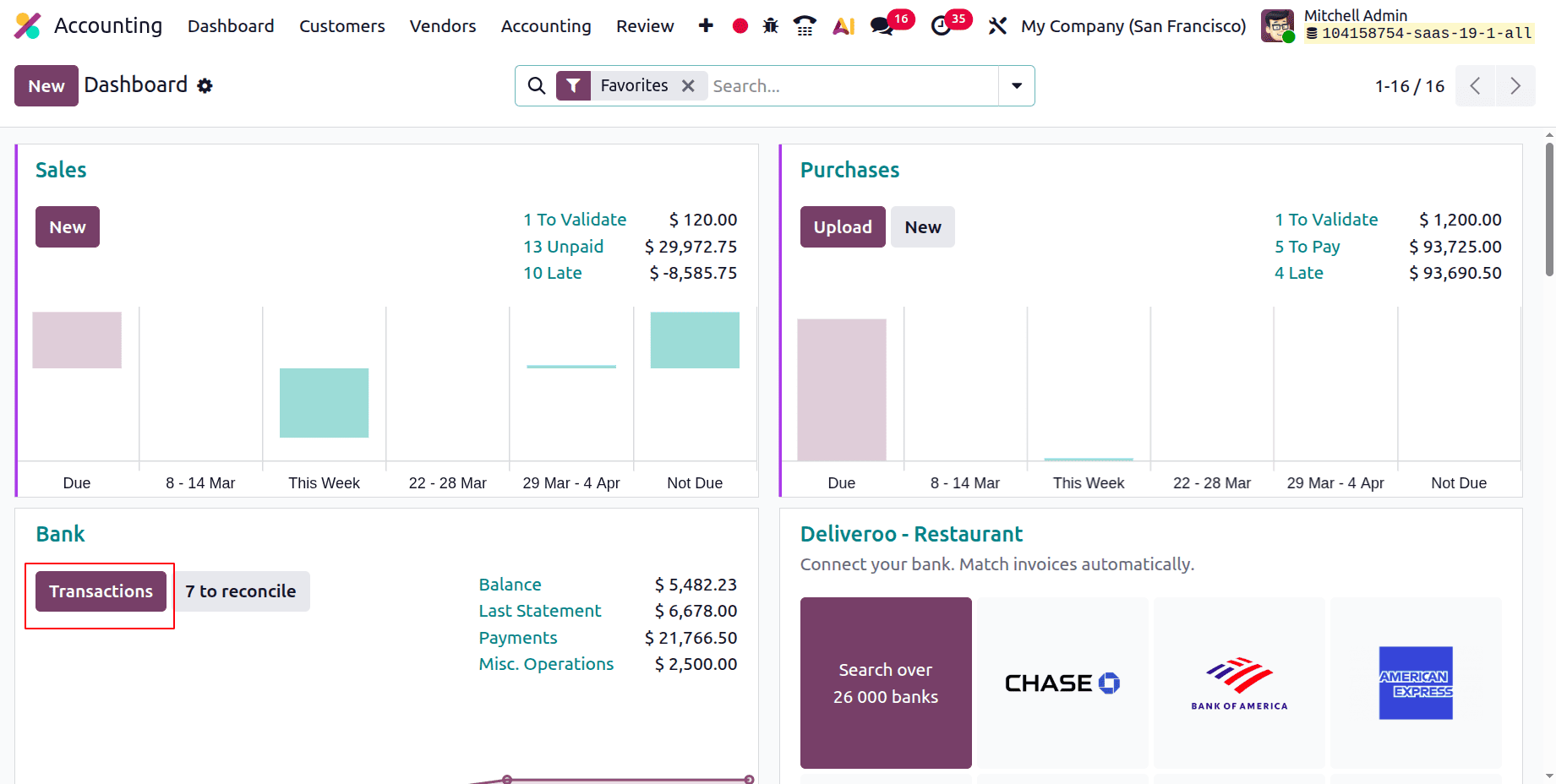
Then let's reconcile the bill. For that, open the Accounting dashboard. Create a new bank transaction.
Then add a new Transaction, add the details like Label, Partner, and Amount. Then reconcile it.
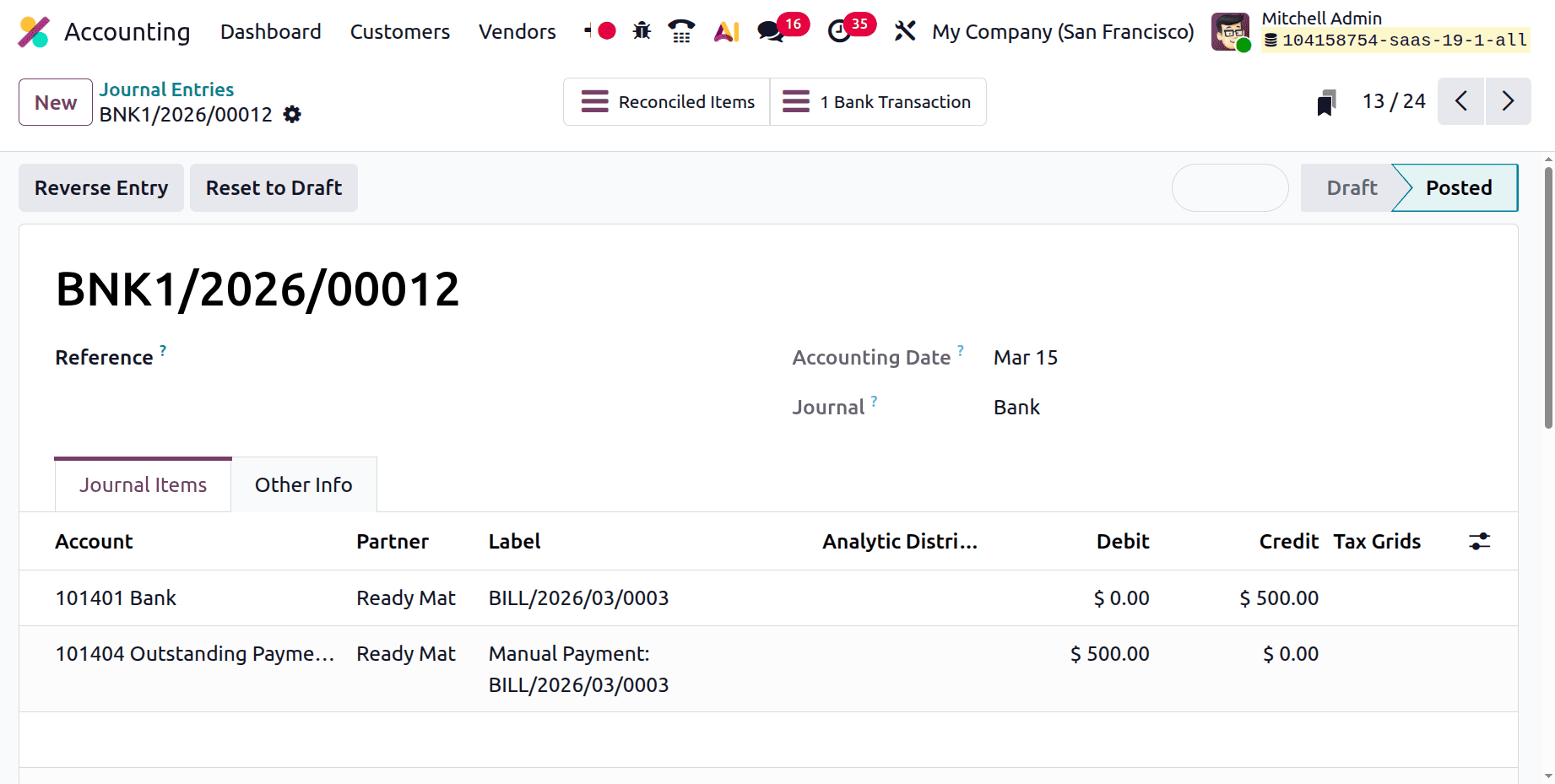
Then let's check the Journal entry. Following a comparison or reconciliation with the bank statement, the amount will be deposited into the bank account. Consequently, the bank receives credit, and the account for unpaid invoices is debited.
Selling the Product
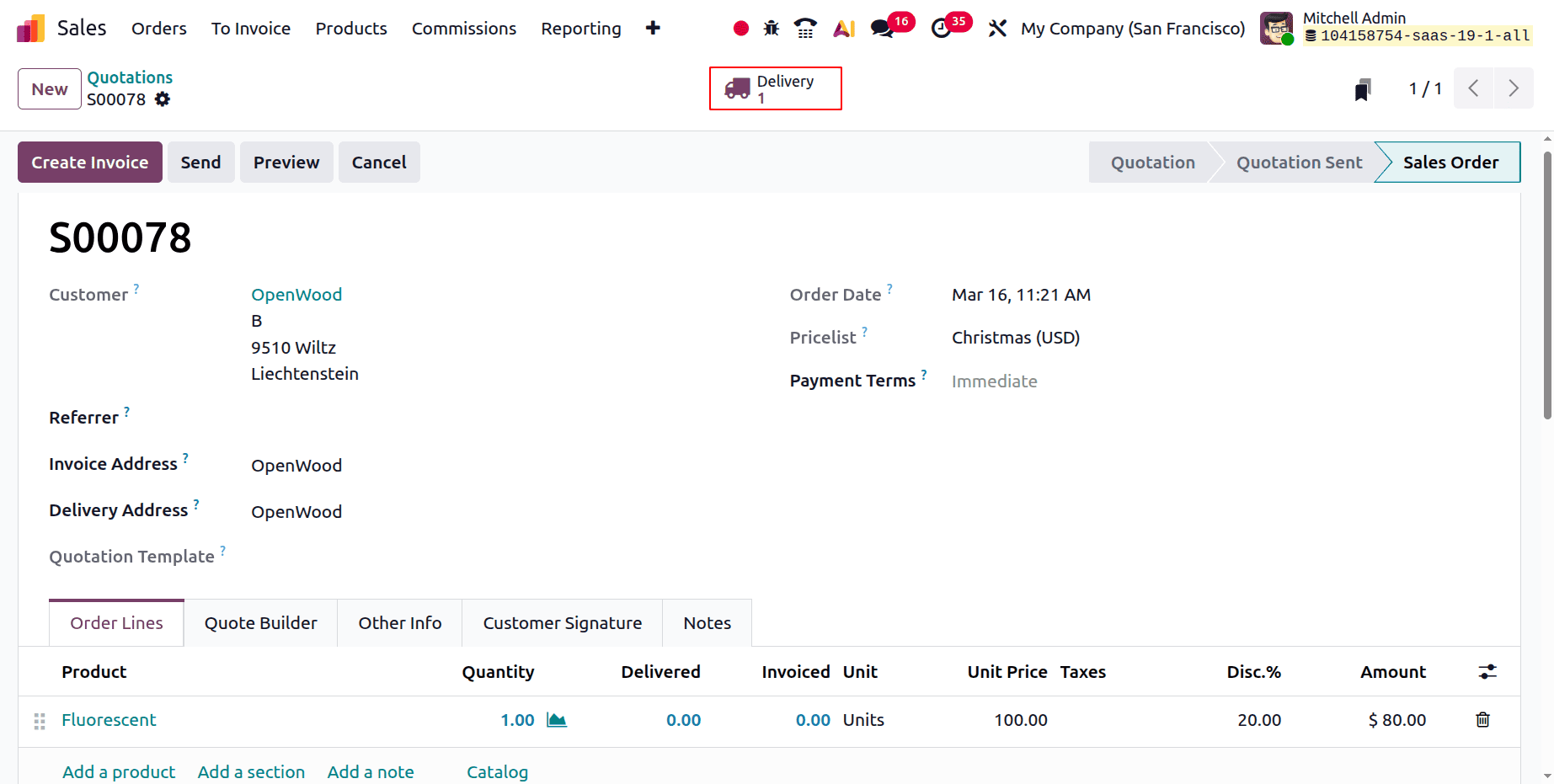
Then, to sell the product, click on the Sale order. Open the sales module and create a new Quotation. Add the customer details and add the product with quantity and price. Then confirm the order.
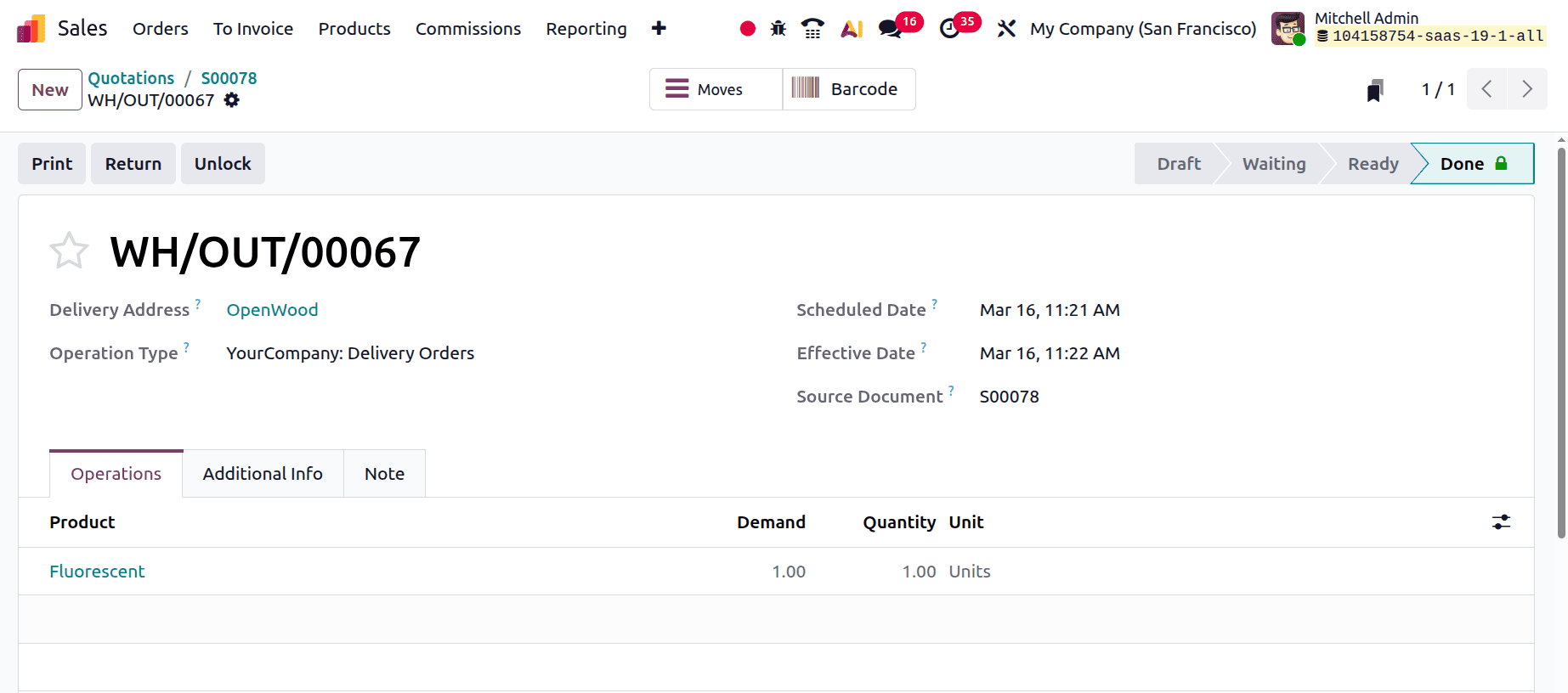
Then click on the smart tab named Delivery. Validate the delivery first.
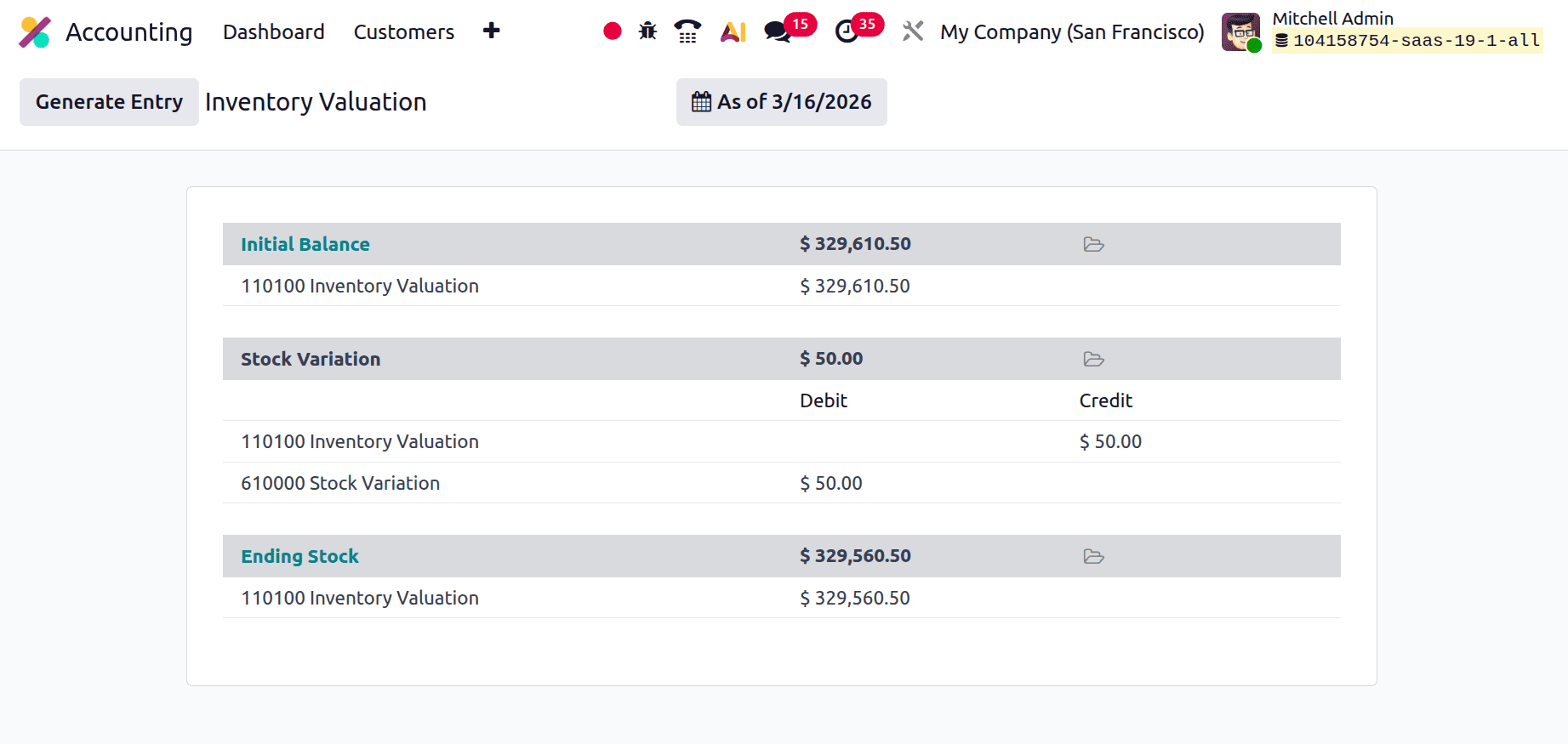
After validating the delivery, check the Inventory Valuation report. Here, the Inventory Valuation account is Credited and the Stock Variation account is Debited.
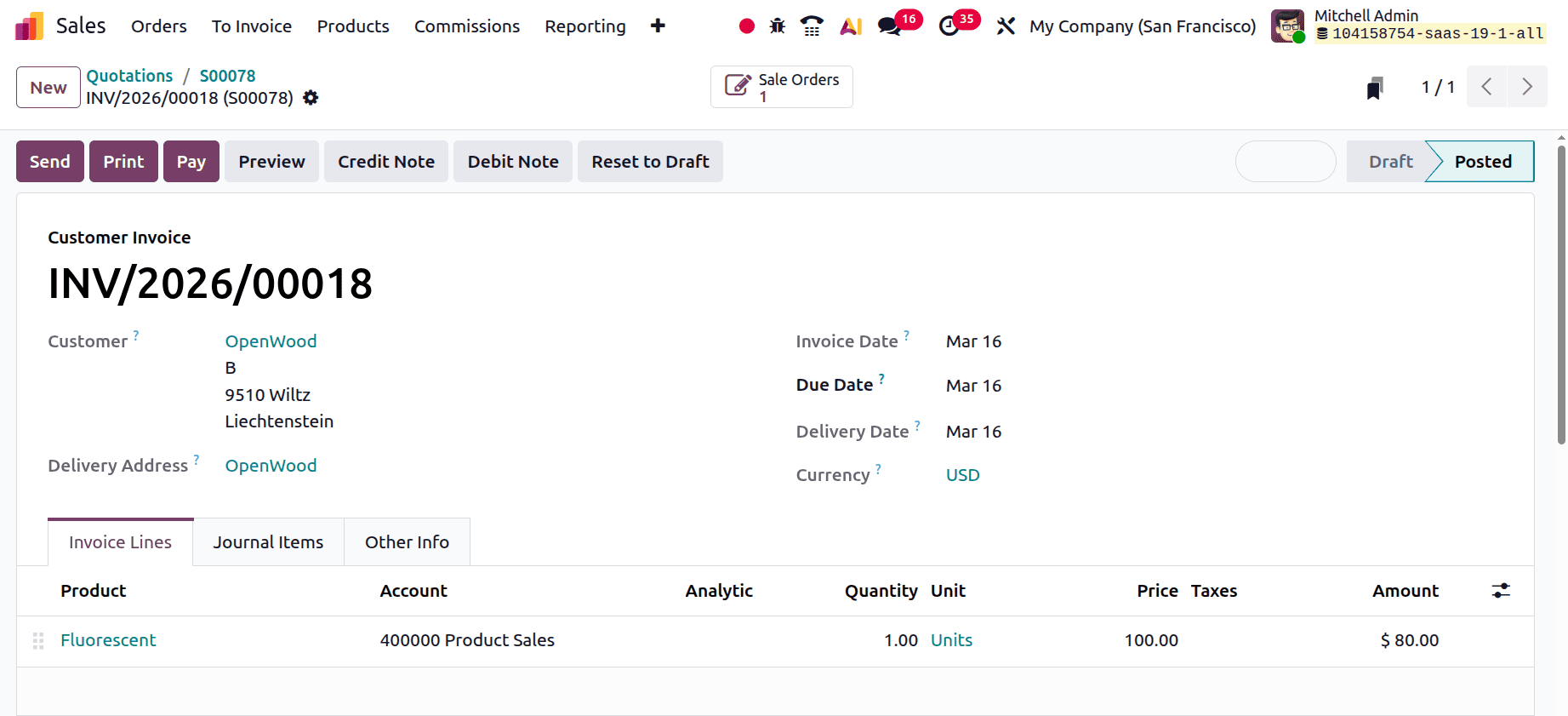
Then let's create a regular invoice for the sale. Click on the Create Invoice button and Confirm the Invoice.
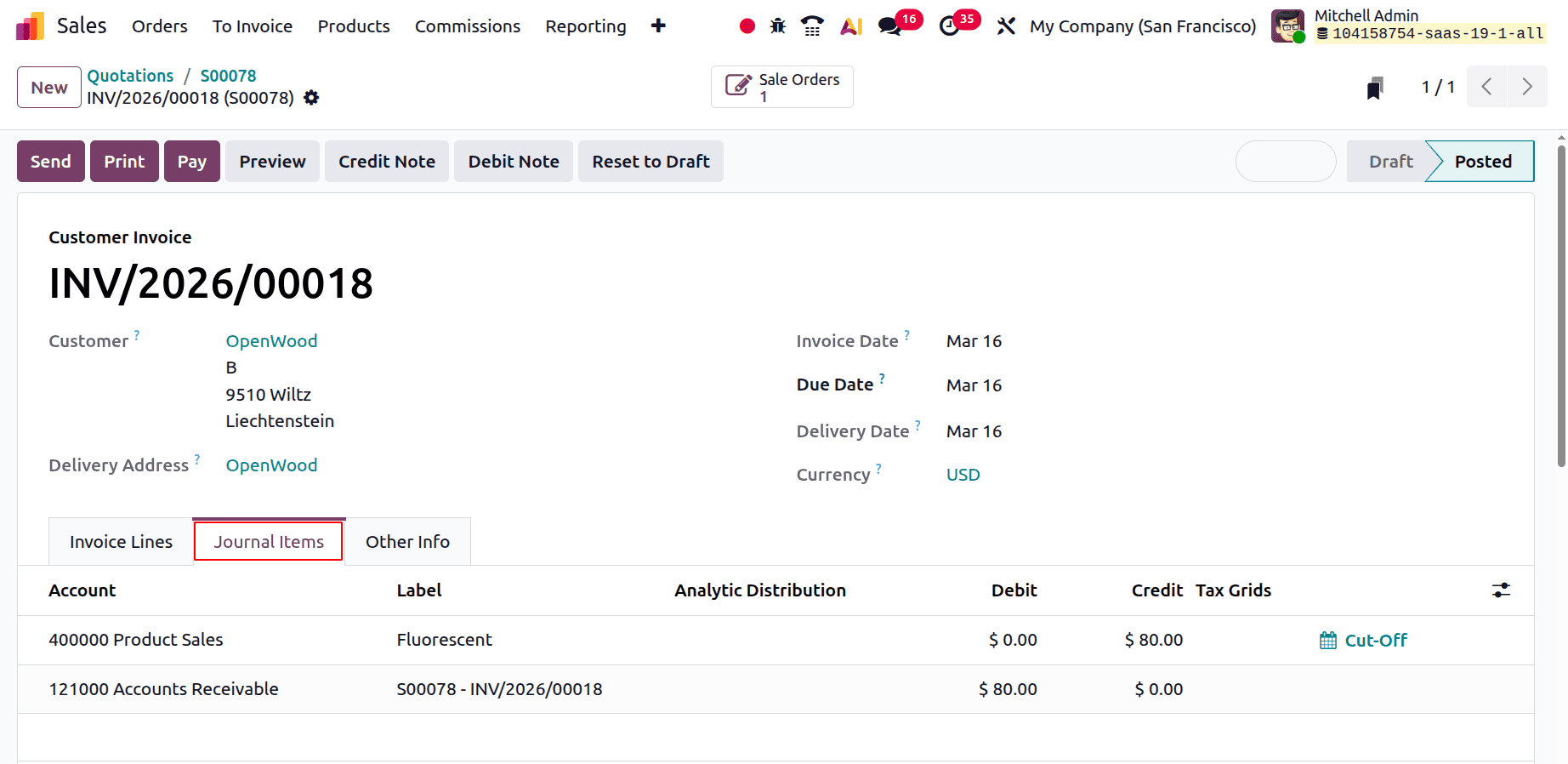
Check the Journal Items tab, here the accounts are Product Sales and Account Receivable. This will have an effect on both the Income Account and the Receivables Account. When we examine the features of these accounts, the Account Receivable is designated as an "Asset," and the Income Account is designated as "Income." In this case, the asset is declining while the revenue is increasing. Consequently, the Account Receivable is credited, and the Income Account is debited.
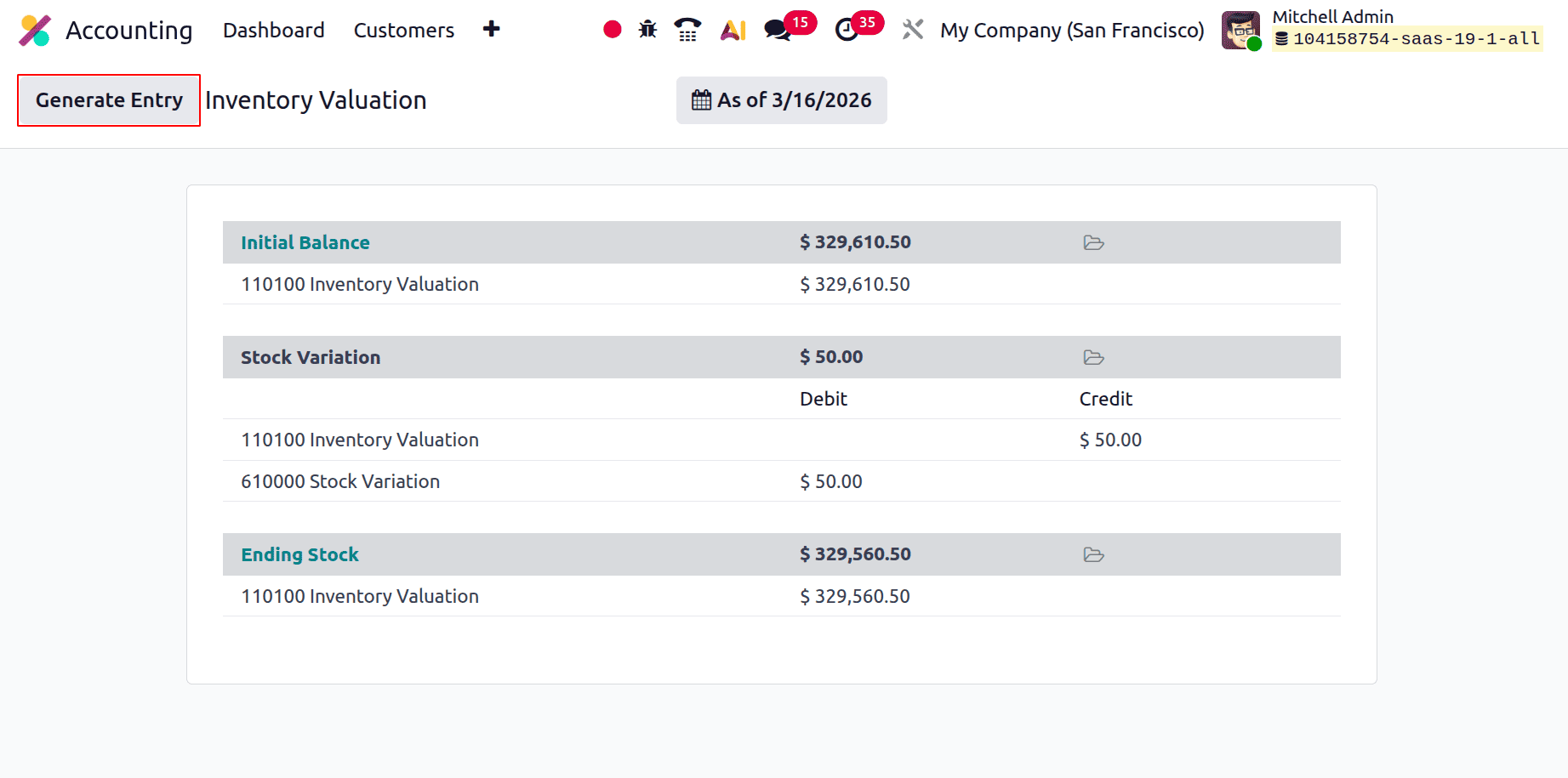
Then again, check the Inventory Valuation report, as mentioned above, there is no change in the report. The user needs to manually post the journal entry. Click on the Generate Entry button.
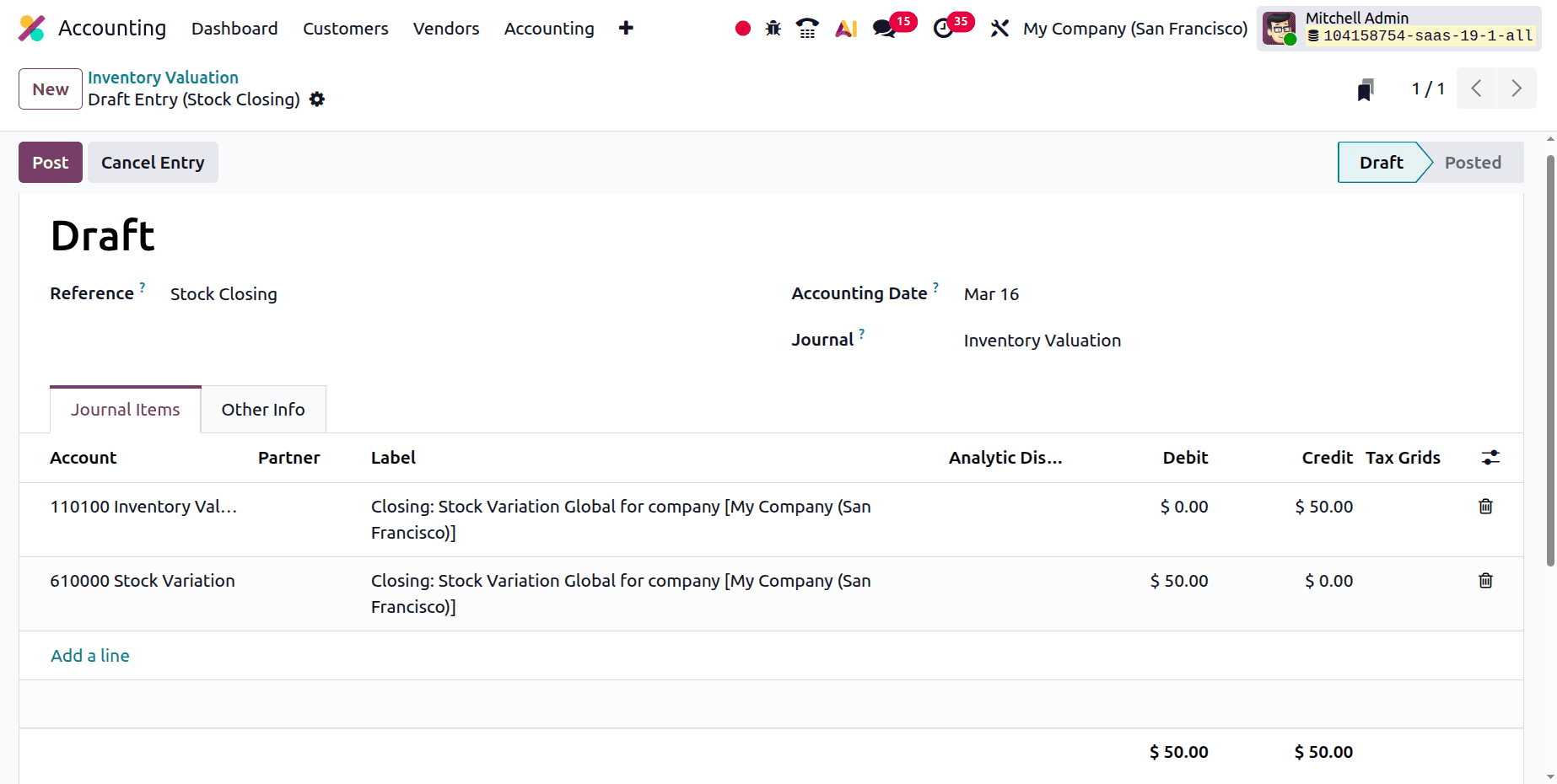
The stock accounts are displayed here. When a confirmed order is filled from the inventory and sent to the customer, the stock value decreases. The "Inventory Valuation Account" and the "Stock Variation Account," two accounts, are affected when products are delivered to clients.
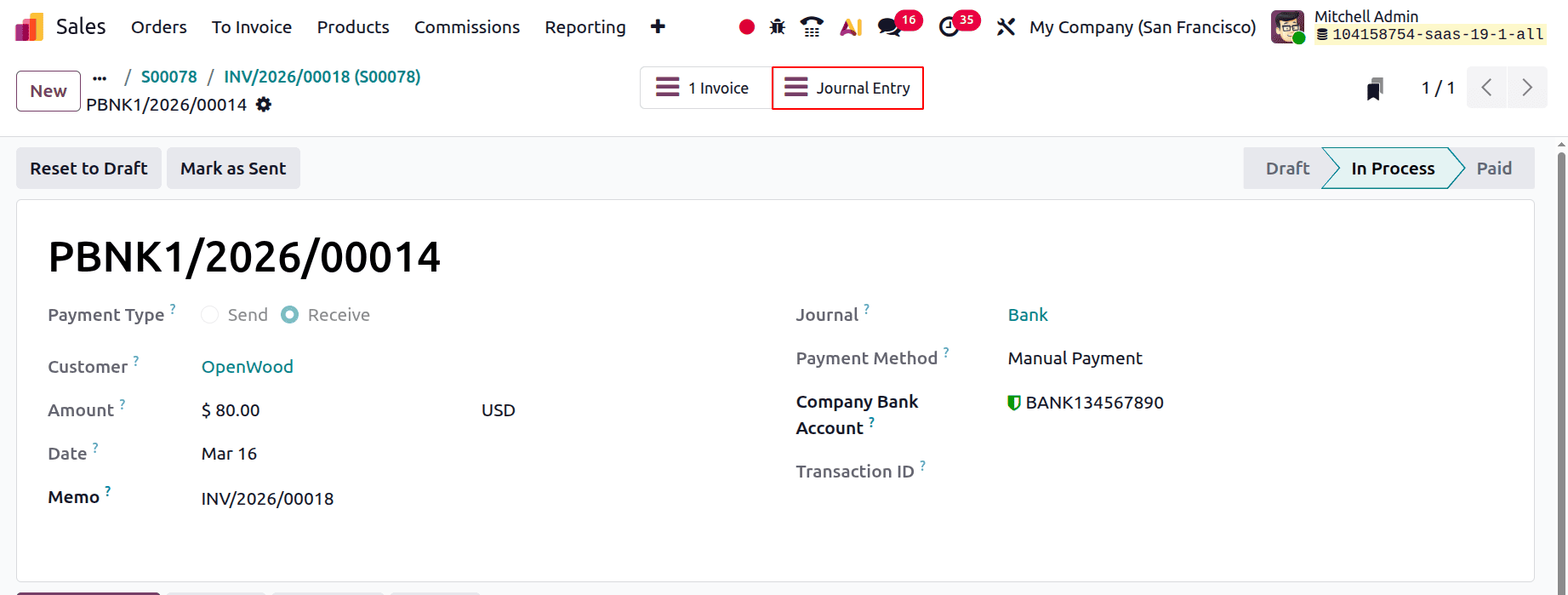
Then the next step is to complete the Payment. Click on the Pay button in the invoice to complete the Payment. The payment details can be viewed there. Click on the Journal Entry smart tab.
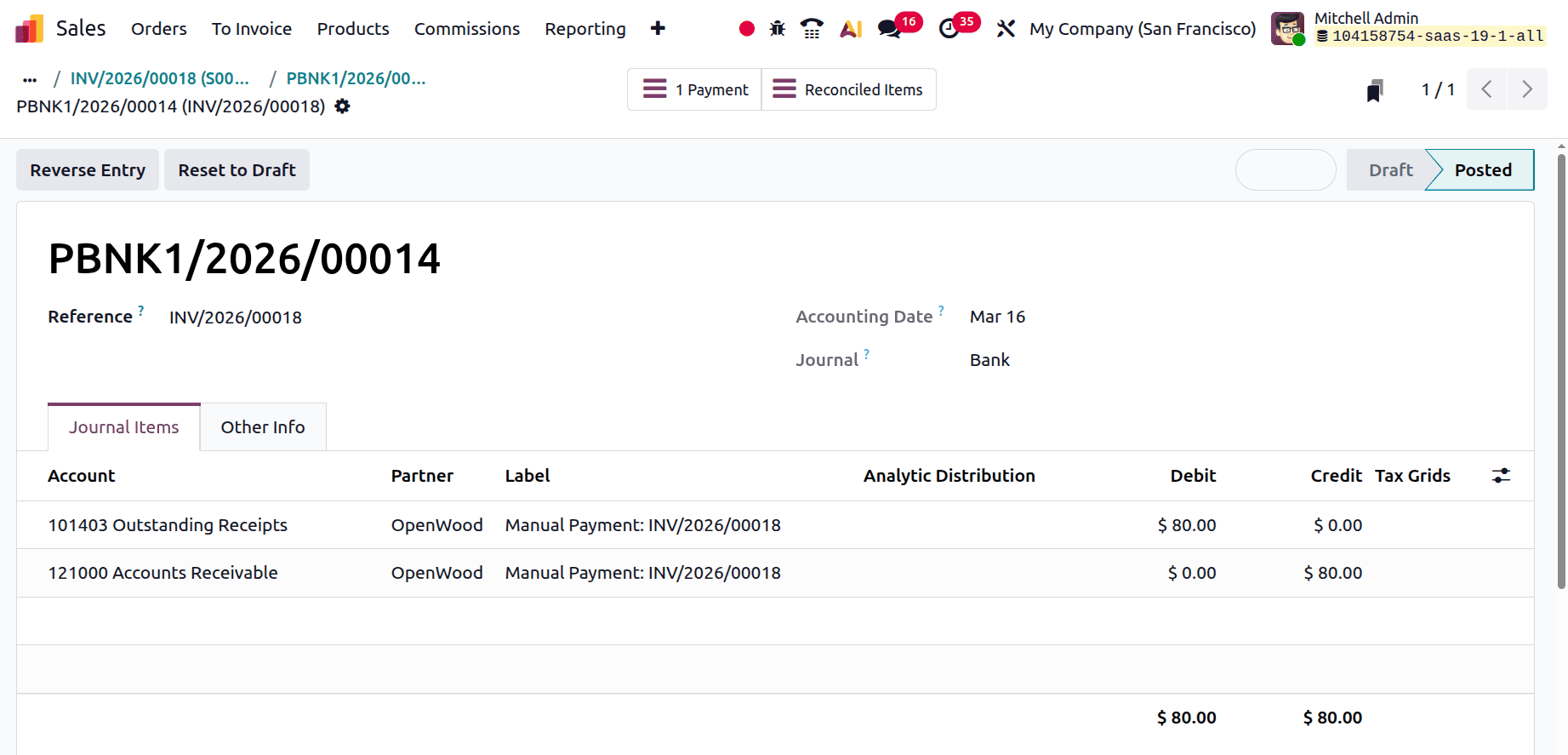
A temporary account known as Outstanding Receipts is used during payment registration. A journal entry with Accounts Receivable and Outstanding Receipts is created as a result of payment registration.
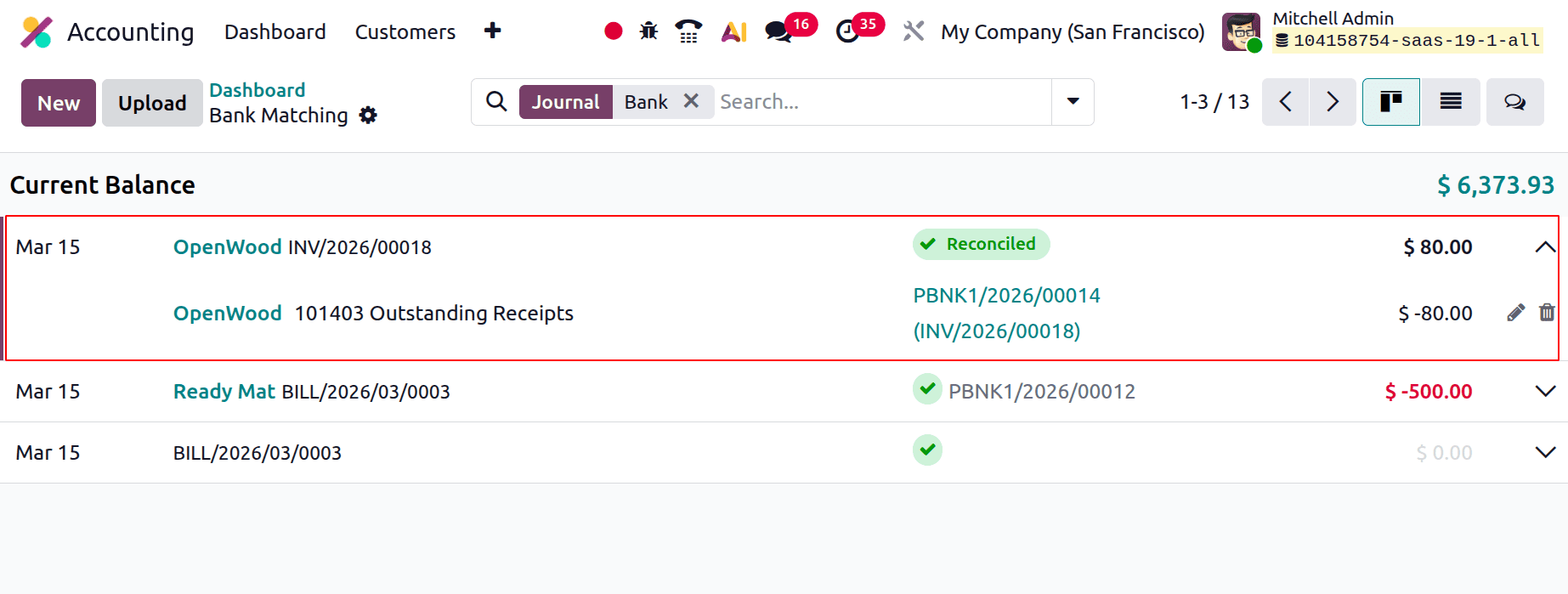
The next step is Reconciliation. Create a new Bank Transaction. Add the details, then reconcile them.
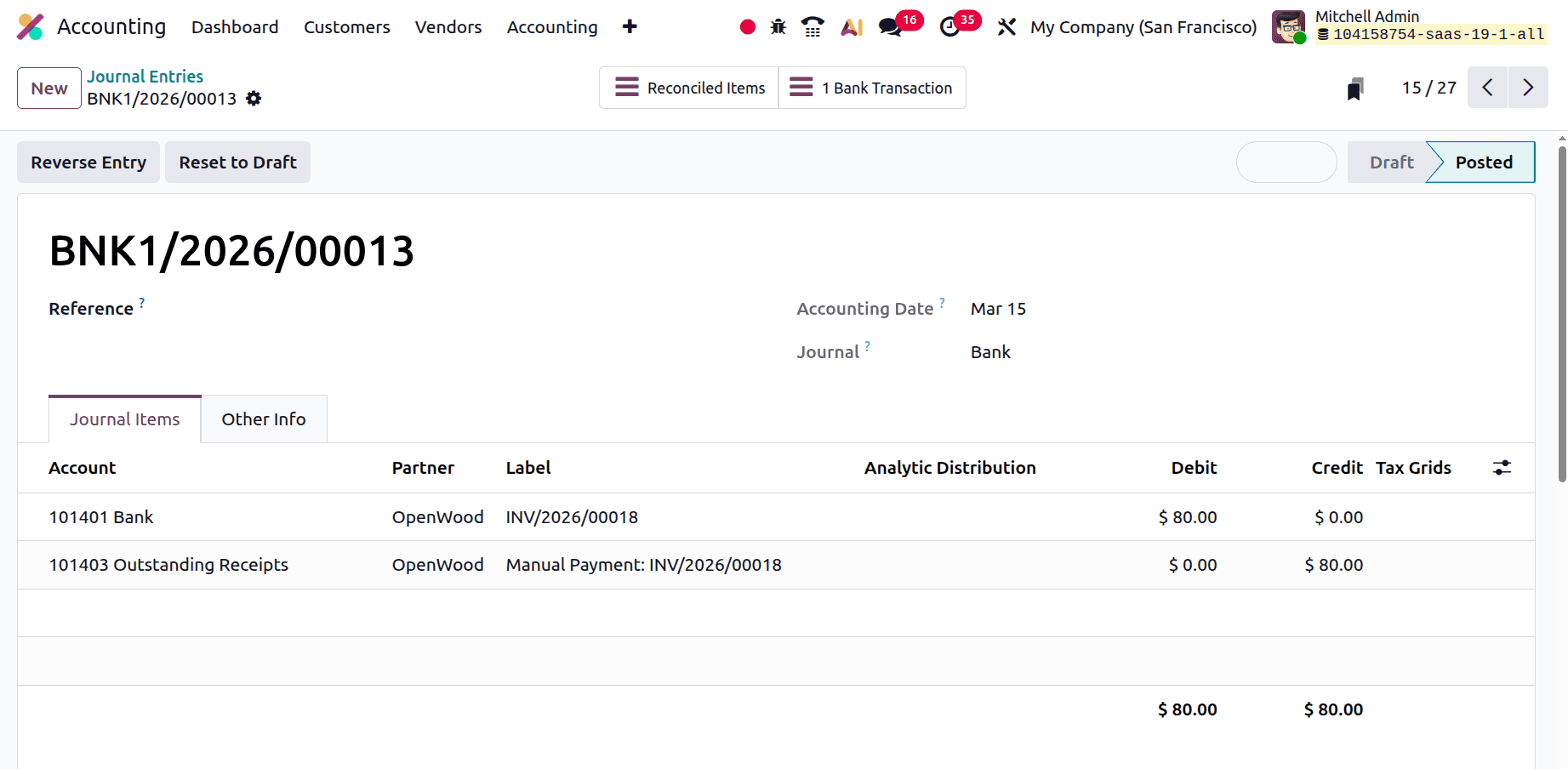
After completing the Bank Reconciliation, the amount will be Debited to the bank account. Once the amount has been reconciled and compared to the bank statement, it will be deposited into the bank account. Consequently, the account for unpaid receipts is credited, and the bank is debited.
To sum up, Odoo 19 Accounting's Inventory Valuation with the Periodic technique offers a simple solution to control inventory expenses by only updating stock values at the completion of an accounting period. This method is particularly appropriate for companies that would rather use frequent closure adjustments and simpler tracking than real-time inventory valuation. Businesses can guarantee more accurate financial reporting while maintaining an effective and well-organized inventory management process by comprehending how periodic valuation functions in Odoo.
To read more about An Overview of Inventory Valuation in Odoo 18, refer to our blog An Overview of Inventory Valuation in Odoo 18.